by Contributed | Mar 3, 2021 | Technology
This article is contributed. See the original author and article here.
As IT leaders, we have a responsibility to make the workplace more inclusive of the 1 billion people in the world with disabilities, by using technology developed with accessibility in mind. This week, we announced exciting new capabilities—from more flexibility in how you view, present and participate in meetings, to more voice commands, to apps that help you learn about built-in inclusive features—that will make everyone more productive and workplaces more inclusive.
Read on to learn all the ways Teams can help you work more inclusively.
Meetings
Dynamic view
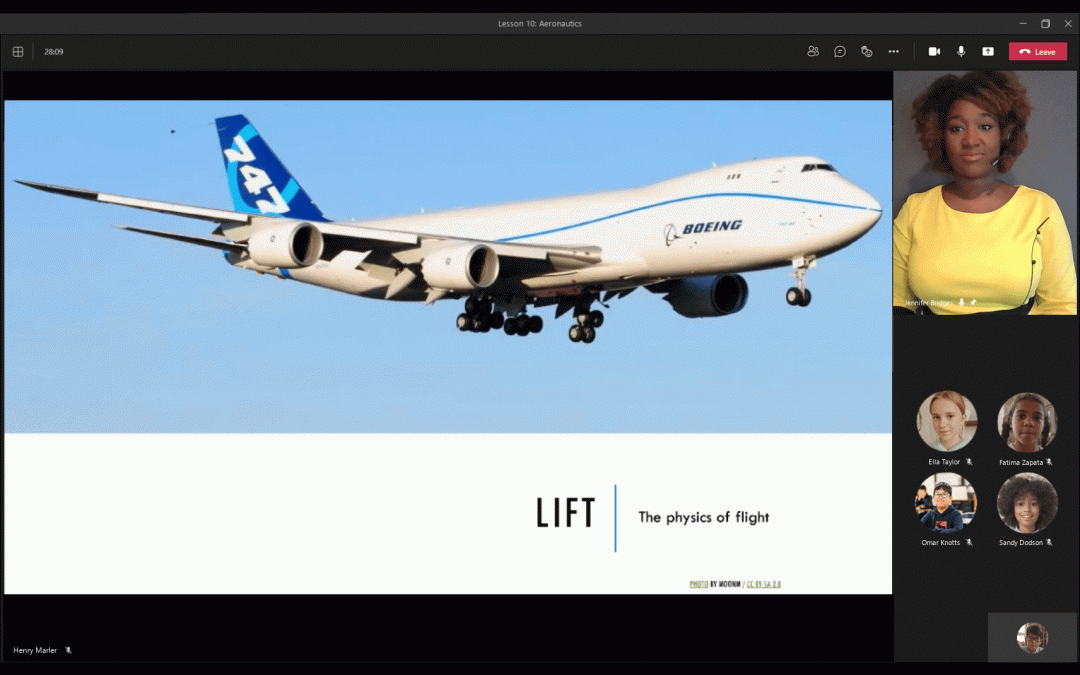
With more important calls, meetings and events happening virtually, it’s important to make sure everyone can participate easily, including people with disabilities. We are happy to announce Dynamic view, which intelligently arranges the elements of your meeting for an optimal viewing experience, is coming soon to Commercial and GCC customers. As people join, turn on video, start to speak, or begin to present in a meeting, Teams auto-adjusts and personalizes your layout. For instance, with Dynamic view, meeting attendees who are deaf can pin a sign language interpreter, fit the interpreter’s video to frame, and see the interpreter alongside shared content throughout the meeting. This is a significant step forward in inclusive communication with more to come, so stay tuned!
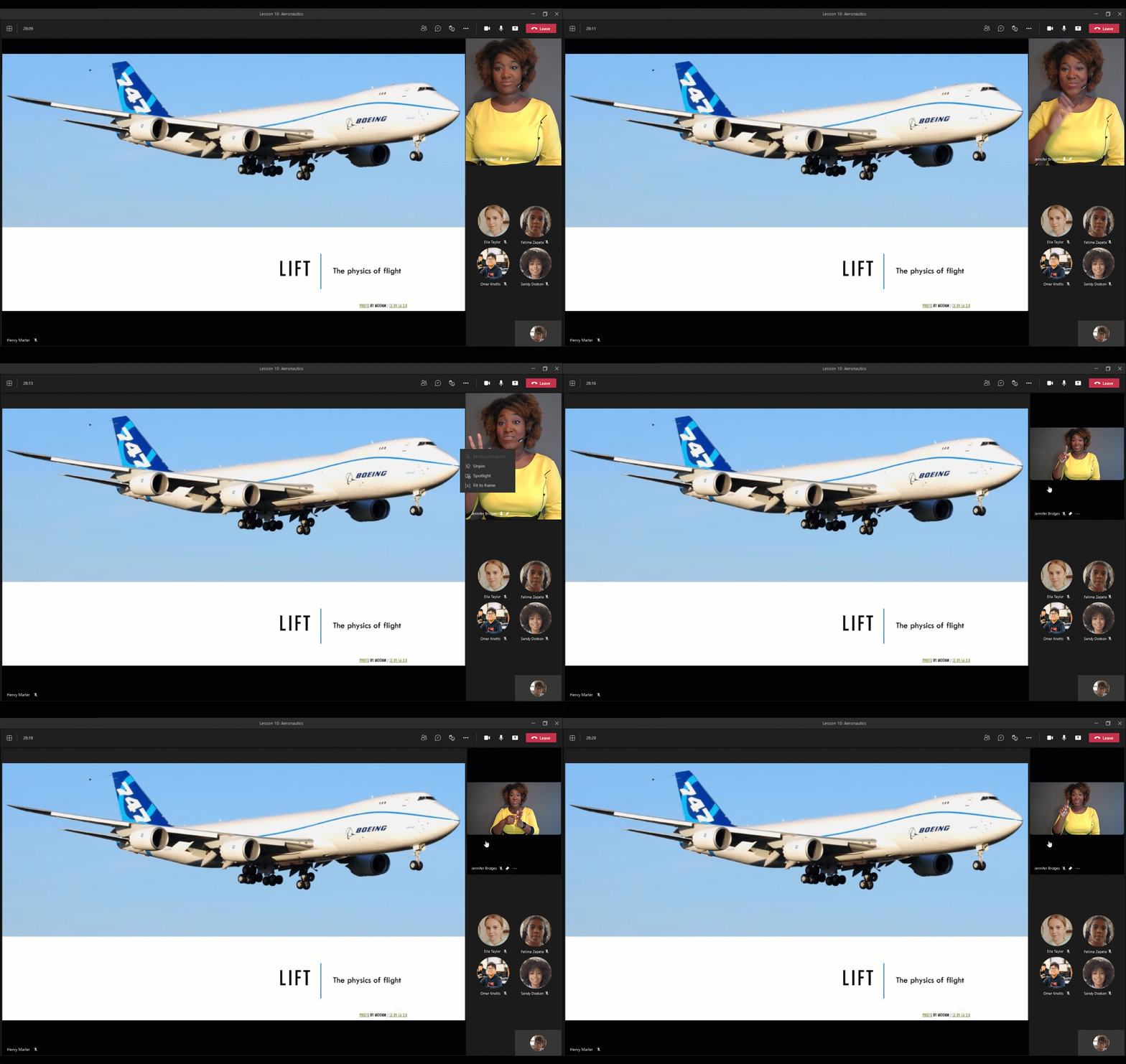
People’s smiling faces in a Microsoft Teams meeting, showing multiple views including shared content, an interpreter and chat.
PowerPoint Live in Teams meetings
With PowerPoint Live in Teams, presenters can feel more confident as they present, with their slides, slide notes, meeting chat, and participant video feeds all in a single view. The ability to see the facial expressions of attendees while also sharing slides may be particularly helpful for presenters who are neurodiverse and want more information about their audience. For presenters with memory loss, having slides and slide notes in a single view will make it easier to stay on track. PowerPoint Live in Teams also makes it easier to create an inclusive meeting experience—as presenters are more easily able to acknowledge chat comments, raised hands, and reactions. PowerPoint Live in Teams also enables meeting participants to engage with shared content more flexibly. Audience members who have learning or attention disabilities can privately navigate through shared slides at their own pace, jumping back to any slide for quick reference without interrupting the meeting. People who are blind and low vision can privately both turn on a high contrast mode and use a screen reader to consume the shared slides. Presenters—don’t forget to make your PowerPoint content accessible with the Accessibility Checker built-in to PowerPoint!
Learn more: What’s New in Microsoft Teams | Microsoft Ignite 2021
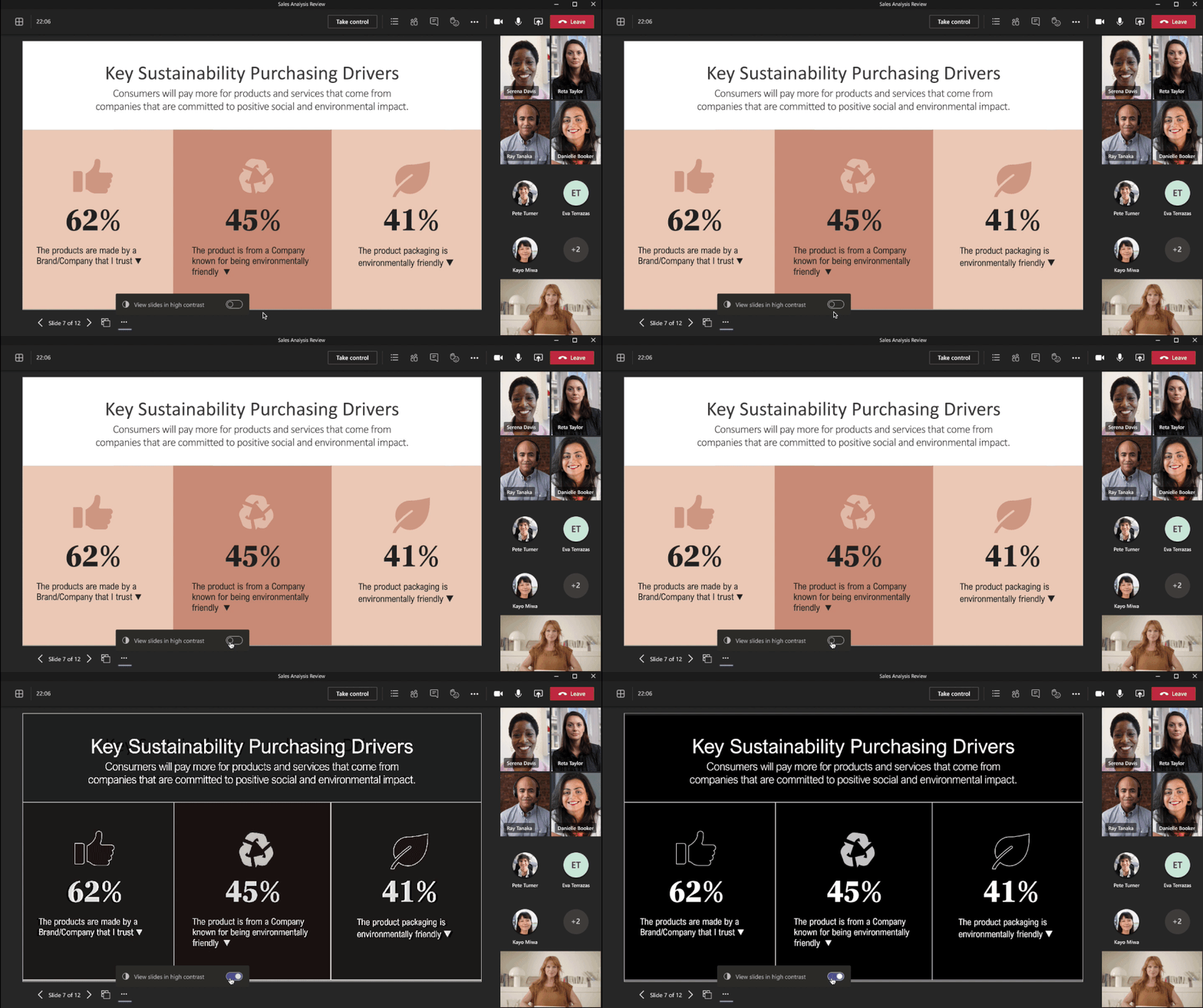 People in a Microsoft Teams meeting where a PowerPoint is shared, and viewer toggles on high-contrast mode
In case you missed it
- Live captions in more languages for live events — Translate spoken Japanese, Korean, French, French-Canadian, Spanish, Spanish-Mexican, Simplified Chinese, Traditional Chinese, German, Swedish, Dutch, Italian, Hindi-Indian, Portuguese-Brazilian, and Russian into captions in up to 50 different languages. Event organizers can select up to 6 captioning languages to make available to attendees, to create a live event experience that is more inclusive! Now available for Commercial and GCC customers.
- Less background noise, please! — AI-based noise suppression in meetings is now Generally Available in Teams for desktop. When you turn on background noise suppression, you make it easier for your colleagues to hear you, even when you are in a noisy environment. This is especially helpful for people who are hard of hearing, are neurodiverse or have attention disabilities like ADHD/ADD.
- Stay on track and on time — End-of-meeting notifications let participants in a meeting know when there are five minutes remaining in the scheduled meeting time. These reminders may be particularly helpful for people with attention disabilities like ADHD/ADD.
Chat & Collaboration
Enhancements to the Teams mobile experience
Yesterday we announced updates to the Teams mobile app that include the ability to automatically switch to dark theme when you set your device to dark, a new search experience with suggestions, and the ability to pin chats, among other exciting enhancements. These capabilities will make it easier for people who are blind and low vision to use a screen reader and magnification to find content, keep it at the top of the feed, and view it in a way that is comfortable and accessible. These features are coming to iOS first, followed by Android.
In case you missed it
- Chat in multiple languages easily — Inline message translation gives all your team members a voice, and facilitates global collaboration. With a simple click, people who speak different languages can fluidly communicate with one another by translating posts in channels and chat. Now available in the Teams mobile app for Android, as well as for Teams Desktop for DOD. Additionally, with language-aware proofing, you can write messages in multiple languages, and now see spellchecking relevant to the language you’re writing with at that time. Now available in the Teams desktop app.
- More easily personalize your notification settings — With a redesigned Notifications settings section in your Profile, in addition to notification settings in the channel header, now you can more easily manage your attention and keep track of the activity you care most about. Personalized notification settings can be particularly helpful for people with attention disabilities like ADHD/ADD, and for people with mental health disabilities. Available for Commercial and GCC customers.
- Confidently step away and recharge — Now, with the ability to set presence status duration, you can let your team know when you are stepping away from Teams and for how long. Proactively communicating work-life boundaries can be particularly helpful for people making time to manage mental health.
Devices
Microsoft Teams Intelligent speaker
Microsoft Teams intelligent speaker can identify and differentiate the voices of up to 10 people talking in a Microsoft Teams Room. These speakers were created in partnership with EPOS and Yealink, and allow attendees who are following along with captions and transcripts to see speaker attribution for the remarks made by those in the meeting room. To enable privacy and security, users are in full control and can turn speaker attribution on or off at any time. Whether you are working remotely or following the meeting in the Microsoft Teams Room, you can now create a more inclusive meeting experience. Teams intelligent speaker will be available summer 2021.
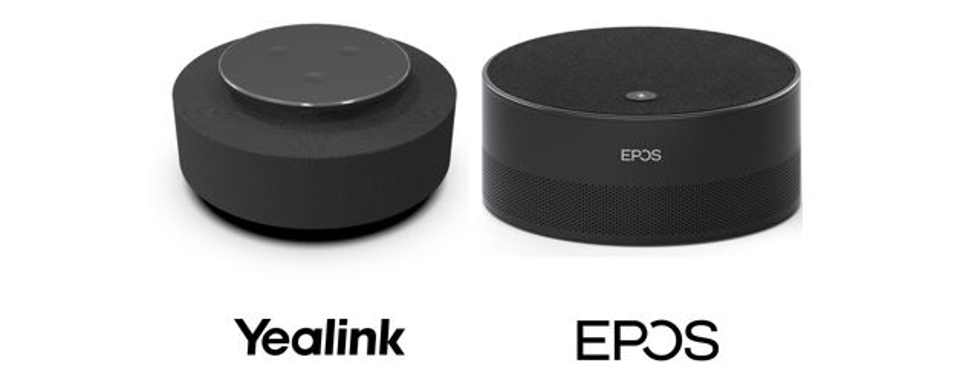 Intelligent speakers from Yealink and EPOS.
New Cortana commands on Teams display
As questions come up throughout your day, you can use voice to find the information you need with Cortana in Teams Display. Now, you can ask things like: “What’s the time and weather in New York?” or “How many rupees are in a dollar?” just with voice, and without needing to disrupt the flow of work. Voice capabilities like these provide people with mobility and learning disabilities another way to be productive that doesn’t require typing.
Learn more: What’s New in Microsoft Teams | Microsoft Ignite 2021
In case you missed it
- Live captions in Teams Rooms — Meeting participants joining from a Teams Room can now view live captions in a Teams meeting. In-room participants can turn live captions on or off from the center of room console. Captions will appear at the bottom of the meeting experience shown on the front of room display.
- Cortana in Teams Rooms and Teams Displays — In-room meeting attendees can now use voice assistance powered by Cortana to join and end their meetings without touch. Using natural language, people can simply state “Cortana, join/end my meeting” for a seamless hands-free experience. These capabilities are available in Teams Rooms for Windows. You can also use voice commands to manage your daily tasks, with Cortana in Teams Displays. You can make requests like: “What is on my calendar today?”, “Join my next meeting” or “Share this document with Megan”.
Platform
Accessibility Bot by Future Worx on Teams App Store
Accessibility Bot is a free chatbot designed to help users learn about the Microsoft accessibility features built into the tools they use every day. In addition to the many people who have permanent accessibility needs, there are many additional people who have situational or temporary needs. For instance, someone may be in a noisy environment and need live captions during a meeting, or juggling work and childcare and could benefit from blurring the background. Regardless of the situation, users can ask the Accessibility bot questions like – “what is Immersive Reader?”—all from within the familiar Teams chat experience, and use the inclusive chat capabilities to more easily read responses. The bot currently has knowledge to support with hearing, mental health, mobility, neurodiversity and vision needs, and covers Microsoft 365, Windows 10 and the Edge browser.
Future Worx, developer of the Accessibility Bot, is a Microsoft partner that specializes in Employee Engagement.
Learn more: Accessibility Bot by FutureWorx
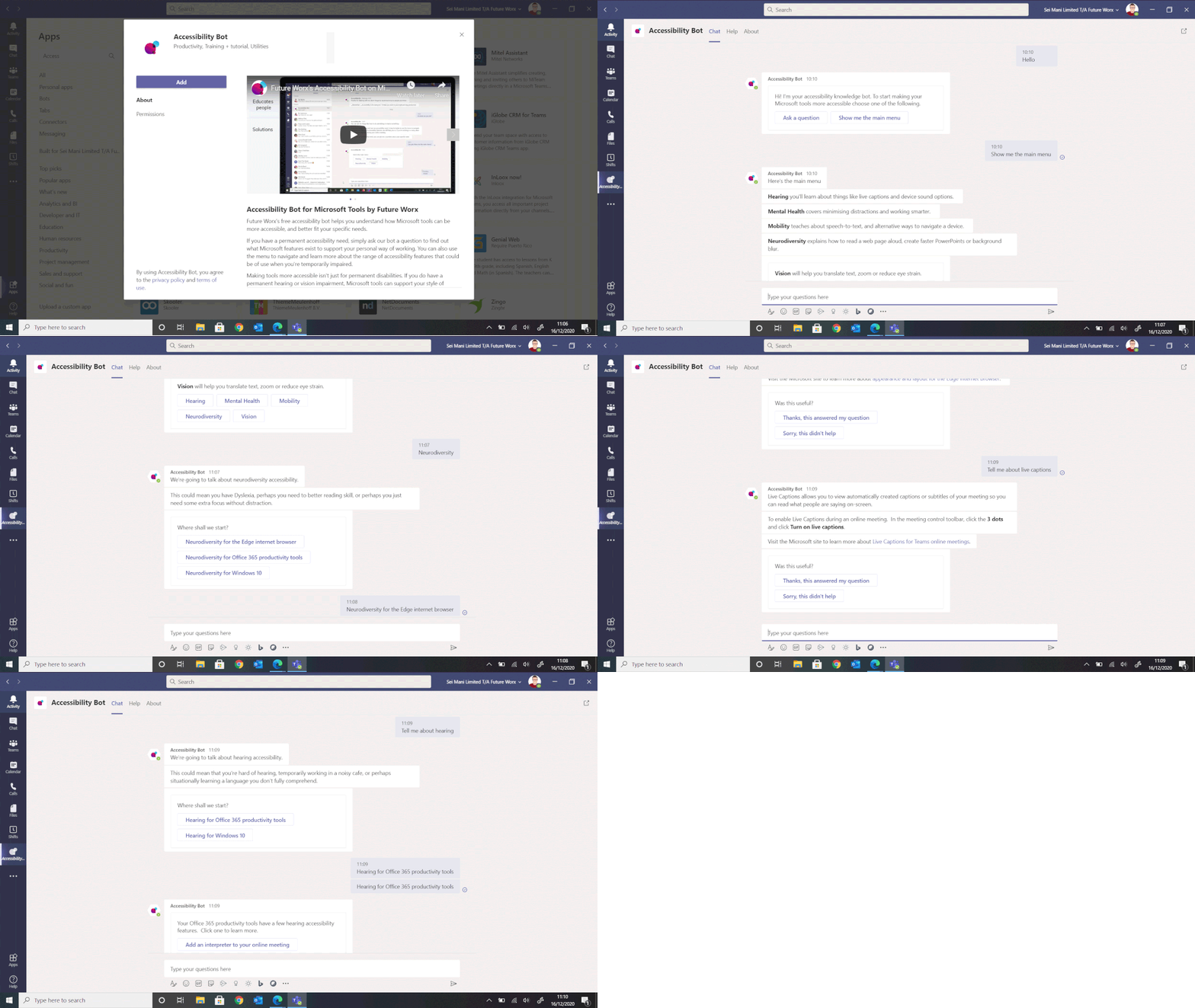 A user has a conversation with the Accessibility bot in a Teams chat, and the bot responds with information about live captions and other features.
In case you missed it
- Easily design accessible apps for Teams — The new Microsoft Teams UI Kit and Microsoft Teams UI Library helps you as a designer, product manager, or developer quickly understand the key design considerations for making high quality Teams apps that users will love! Simplify the design and development process by using these new templates and tools that serve as the building blocks for the interface and experience you’re looking to create. All the templates and components are responsive, theme-able, and completely adhere to Teams’ design and accessibility guidelines! Learn more: Guides and tools to design your Microsoft Teams app effectively
- ADI bot by Akari Solutions on Teams App Store — Akari Diversity and Inclusion (ADI) is a free chatbot built to help organizations create inclusive cultures. Users can learn all about the Accessibility features built into Microsoft products, as well as best practices for diversity, inclusion and wellbeing. Akari Solutions, developer of ADI, and the winner of the 2020 Microsoft Partner of the Year – Diversity and Inclusion Changemaker Award, creates custom and IP solutions built on Microsoft Teams to change how people work, communicate, and access the technology and tools they need.
Microsoft 365 Announcements
Passwordless Authentication now Generally Available
Passwordless authentication not only simplifies the user experience but also strengthens your security posture. With expanded policies that define which authentication methods specific users or groups can use, to new reporting capabilities that allow you to see the usage and adoption of passwordless authentication methods across your organization, it’s never been easier to go passwordless at scale. The ability to use authenticators, rather than complex and everchanging passwords, can be especially helpful for people with memory loss or learning disabilities that make recall, spelling and typing more difficult.
Learn more: Identity at Microsoft Ignite: Strengthening Zero Trust defenses in the era of hybrid work
In case you missed it
- Viva Insights – In a time when nearly 70% of employees report higher stress levels, and more than half report elevated levels of anxiety, supporting employee wellbeing is of the utmost importance. Viva Insights gives individuals, managers, and leaders personalized and actionable privacy-protected insights that help everyone in an organization thrive. It brings new personal wellbeing experiences, insights, and recommended actions into the flow of people’s work in Microsoft Teams. You can download the Viva Insights app for Teams now.
- Hear documents read aloud — For people with learning disabilities like dyslexia, it sometimes can be easier to hear a document read aloud. Now, you can use Read Aloud on Android phones to have documents read aloud, with new voices that offer a more natural and pleasant listening experience. You can easily pause and resume Read Aloud as well as adjust the voice speed.
Learn more and take action!
Join us in May for the Ability Summit – Mark your calendars and join us at the Ability Summit, May 5 – 6, 2021. The Ability Summit is a two-day, free digital event that brings together people with disabilities, technology leaders, accessibility professionals and allies to Imagine, Build, Include, and Empower the future of disability inclusion and accessibility. We hope to see you there!
Learn from other organizations – Learn more about how enterprises and educational institutions are using technology to build an accessible workplace.
- Fannie Mae, a financial services company focused on making mortgages and affordable rental housing possible for millions of people in America, is seeing Microsoft 365 play a crucial role in digital transformation and building an inclusive workplace that helps all employees reach their potential.
- Sodexo, a food services and facilities management company committed to improving Quality of Life, is helping employees work independently by building digital accessibility skills using Microsoft 365 as its communications and collaboration platform.
- Dell Technologies, a leading hardware, software and services provider, uses Microsoft Teams and the accessibility features built in to work remotely in a way that is inclusive of employees with disabilities and their multicultural, globally diverse team.
- Imperial College London, a 43,000-person university, made the Accessibility Bot by FutureWorx available in Teams to all students and staff, and has seen the bot provide necessary support to people who may not feel comfortable asking for help with accessibility needs.
by Contributed | Mar 3, 2021 | Technology
This article is contributed. See the original author and article here.
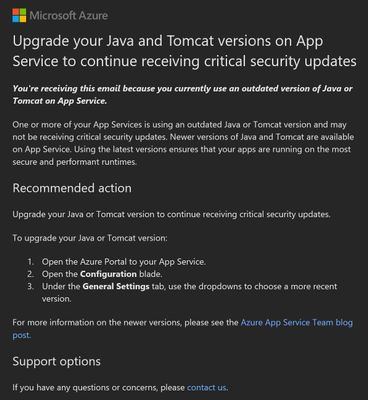
You may have received Security recommendations for your App Services similar to the one shown below:
“Upgrade your Java and Tomcat versions on App Service to continue receiving critical security updates.
You’re receiving this email because you currently use an outdated version of Java or Tomcat on App Service.“
Not just for Java, you may receive these notifications for other stacks like PHP, Python, .NET etc. These recommendations do not provide a list of Apps in your subscription that are non-compliant (in this case, apps using outdated Java or Tomcat version). To take proper action on this recommendation, you will first need to find out what Java versions are used by your Apps. This article discusses how you can obtain this information using Azure CLI.
Step #1:
Login to Azure CLI and ensure you’re signed into the right account:
You can alternatively use Azure Cloud Shell: https://docs.microsoft.com/en-us/azure/cloud-shell/quickstart.
Run this command to set the subscription you’ll be working with:
- az account set –subscription ‘my-subscription-name’
The commands used in this article are demonstrated using Azure Cloud Shell.
Step #2:
The basic idea is to query the Java and Tomcat versions using javaVersion, javaContainer, and javaContainerVersion properties on the Microsoft.Web/sites/config object on Windows sites. On Linux sites, you can query the LinuxFxVersion property on the site object.
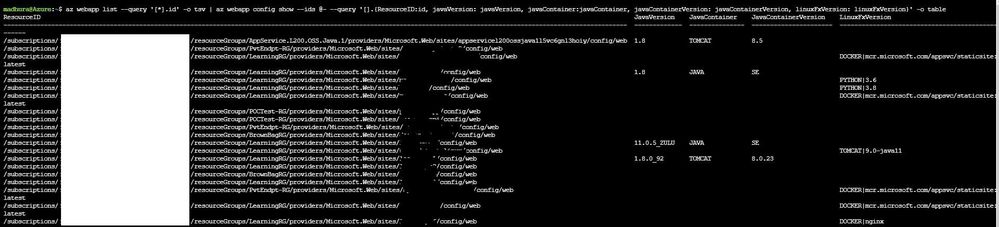
- az webapp list –query ‘[*].id’ -o tsv | az webapp config show –ids @- –-query ‘[].{ResourceID:id, javaVersion: javaVersion, javaContainer:javaContainer, javaContainerVersion: javaContainerVersion, linuxFxVersion: linuxFxVersion}’ -o table
Here’s a sample output of this command for my subscription:
For other stacks:
To do the same for other stacks, just run the command below for any of your Apps and check the respective parameter to query:
- az webapp config show –ids “/subscriptions/<subID>/resourceGroups/<RGName>/providers/Microsoft.Web/sites/<AppName>”
You will see parameters like:
“phpVersion”
“pythonVersion”
“netFrameworkVersion”
“nodeVersion”
You can use these in the query above and customize it to get more granular results. Here are some samples:
- az webapp list –query ‘[*].id’ -o tsv | az webapp config show –ids @- –-query ‘[].{ResourceID:id, phpVersion: phpVersion, linuxFxVersion: linuxFxVersion}’ -o table
- az webapp list –query ‘[*].id’ -o tsv | az webapp config show –ids @- –-query ‘[].{ResourceID:id, pythonVersion: pythonVersion, linuxFxVersion: linuxFxVersion}’ -o table
- az webapp list –query ‘[*].id’ -o tsv | az webapp config show –ids @- –-query ‘[].{ResourceID:id, netFrameworkVersion: netFrameworkVersion, linuxFxVersion: linuxFxVersion}’ -o table
Step #3:
Repeat the above steps for all the subscriptions that received the notification.
Step #4:
Upgrade your Java or Tomcat version as needed: Java, Tomcat, and JBoss EAP version updates – Azure App Service
Reference Documents:
If you want to play around with the query further and alter it to suit your needs, here are some documents I found helpful:
I hope this helps! Happy CLI-ing :smiling_face_with_smiling_eyes:
by Scott Muniz | Mar 3, 2021 | Security
This article was originally posted by the FTC. See the original article here.
We’re getting reports about scammers pretending to be Drug Enforcement Administration (DEA) agents. They’re trying to get your money and personal information, and using alarming phone calls to do it.
The DEA is alerting people to the scam. Their message: It’s not the DEA calling.
The scammers use fake names and badge numbers. Sometimes they use the names of real DEA agents and may even text photos of what look like legitimate law enforcement credentials. They may have information about you, like part or all of your Social Security number (SSN). When they target medical practitioners, like doctors and pharmacists, they may have their National Provider Identifier number or state license number.
The scammers’ stories vary, but usually go something like this: They’ve seized a car packed with illegal drugs. It was rented in your name. Or, they found identifying papers with your name in the car, at some drug-linked location, or on a bank account used for money laundering. You’re going to be arrested for drug trafficking and money laundering.
The fake agent comes up with a reason for you to transfer money to him — maybe for safekeeping, to pay a fine, or to prove you’re willing to cooperate. They’ll tell you how to send the money, often by wire transfer or by buying gift cards and telling them the numbers on the back of the cards.
Here’s what you need to know:
- The DEA will never call and ask for your SSN or other personal information. It won’t ask you to pay anything. And it won’t call to say you’re under investigation or threaten you with arrest.
- Your caller ID might show a real DEA phone number, but that’s not the real DEA calling. Computers make it easy to show any number on caller ID. Don’t trust what you see there.
- Never give your SSN to anyone who contacts you. Don’t confirm the last 4 digits. And don’t give a bank account or credit card number — ever — to anybody who contacts you asking for it.
- Anyone who tells you to wire money, pay with a gift card, or send cash or cryptocurrency is a scammer. Always. No matter who they say they are.
If you get a call like this, hang up. Tell friends and family members about it. Then, tell us about it too, at ReportFraud.ftc.gov.
Brought to you by Dr. Ware, Microsoft Office 365 Silver Partner, Charleston SC.

by Contributed | Mar 3, 2021 | Business, Microsoft 365, Microsoft Viva, Technology
This article is contributed. See the original author and article here.
Millions of people rearranged their lives to work from home and on the frontlines in 2020. Among those millions were the thousands who work right here at Microsoft—and our challenges aren’t so different from yours. How do we stay connected, informed, and motivated as we transition to the new hybrid work reality? These learnings have…
The post How IT is transforming the employee experience at Microsoft appeared first on Microsoft 365 Blog.
Brought to you by Dr. Ware, Microsoft Office 365 Silver Partner, Charleston SC.
by Contributed | Mar 3, 2021 | Technology
This article is contributed. See the original author and article here.
We are excited to announce Microsoft Compliance Manager is generally available to Microsoft 365 Government GCC and GCC High environments and soon to be released in DoD environment (track status here). Microsoft Compliance Manager helps government customers prioritize and take risk-informed actions that can help manage compliance. Compliance Manager simplifies compliance and helps government agencies and contractors reduce risk by translating complex regulatory requirements into specific controls, actionable recommendations, and a quantifiable measure of compliance through compliance score.
Compliance Manager offers intuitive compliance management, a vast library of scalable assessments and built-in capabilities. To ensure GCC, GCC High and DoD customers get the most value from Compliance Manager, the Cybersecurity Maturity Model Certification (CMMC) assessment templates for Levels 1 through 5 are included with G5 licensing. In addition, we are excited to inform you of the availability of Microsoft Compliance Configuration Analyzer (MCCA) available in GCC and GCC High environments. MCCA provides additional reporting capabilities for your improvement actions.
Intuitive management
The complexity of regulations makes it challenging for government organizations, contractors and IT administrators to know what specific actions they can take to meet their compliance requirements. Compliance Manager helps solve this problem, while providing easy guided onboarding and supporting twenty-four languages.
With simple design that works out of box, IT admins and compliance/audit officers can quickly collaborate to address compliance. With Compliance Manager, organizations can quickly identify and track the implementation of tenant-specific compliance actions against frameworks such as CMMC and NIST 800-53.
Scalable assessments
Frequently we’ve heard government agencies and contractors discuss the complexity of mapping all technical controls to a governance, risk and compliance (GRC) or homegrown compliance management tool. In many instances, an Excel spreadsheet is used to help track compliance—which can be dauting and still not provide clarity on recommended actions or next steps.
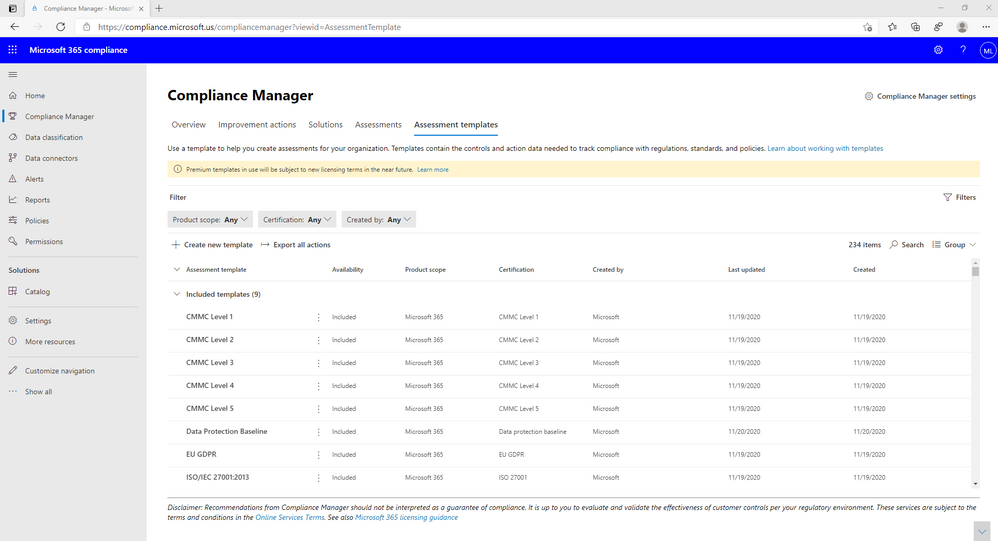
Compliance Manager offers a vast library of 325+ premium and included assessment templates, including those most important to your organization such as FedRAMP High, FedRAMP Moderate, DFARS, CJIS, and Cybersecurity Maturity Model Certification (CMMC) Levels 1-5. Through assessment templates, Compliance Manager recommends hundreds of improvement actions for your agency and/or contractors to implement (see Figure 1: Compliance Manager assessment templates).
Figure 1: Compliance Manager Assessment templates
With Compliance Manager you can readily track compliance of any new application. You can import data from Excel, for example, into Compliance Manager and not lose your compliance tracking status.
Built-in capabilities
Translating regulatory requirements into specific actions and controls can be challenging and many government organizations sometimes lack the adequate resources to do this accurately. Point-in-time assessments (e.g., for quarterly/semi-annual/annual audits) also mean that organizations tend to have ‘blind spots’ between these assessment windows. To help you with these challenges, Compliance Manager comes with built-in capabilities such as:
Compliance score: With compliance score, you get a clear quantified assessment of compliance (Figure 2 below). You can also obtain your compliance score for a specific regulation or standard (e.g., NIST 800-53) or for a specific category (e.g., ‘Protect information’).
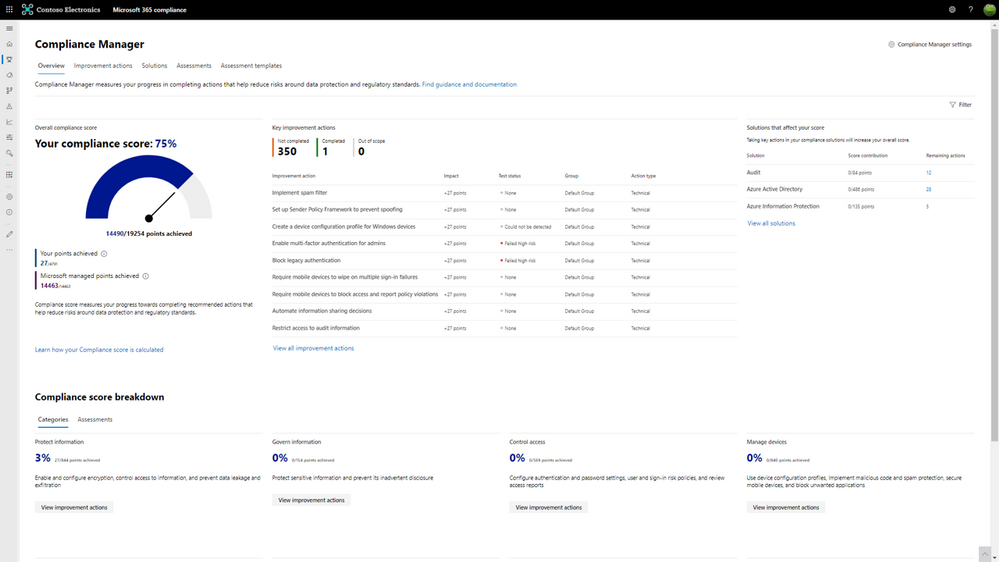
Figure 2: Compliance score in Compliance Manager provides a risk-based score
Control mapping: With more than 220 updates every day from 1,000 regulatory bodies around the world, it’s overwhelming for organizations to keep up to date with the evolving compliance landscape. Efficiency in achieving compliance and prioritizing actions to meet multiple regulations and standards is a must-have for organizations but is challenging. At Microsoft, we have a team of subject matter experts building and maintaining a common control framework to scale our compliance effort. We are sharing this knowledge by building it into Compliance Manager so you can scale your compliance program across global, industrial, and regional regulations and standards. With the built-in control mapping in Compliance Manager, when you implement one common control, the status and the evidence of the control will be automatically synchronized to the same control in other assessments, helping you reduce duplicative work.
Continuous regulatory updates: All Compliance Manager assessments are kept up to date per evolving regulations and standards. You will see updates to assessments that you are using and get control on when you accept these updates, helping your compliance program stay current.
Continuous assessments: Available now in GCC and in spring 2021 for GCC High, Compliance Manager scans through your environment and detects your system settings, automatically updating some of your technical control status. For example, if you configured a multi–factor authentication in the Azure Active Directory (AAD) portal, Compliance Manager can detect the setting and reflect that in the control details. Conversely, if you haven’t created multi–factor authentication, then Compliance Manager can flag that as a recommended action for you to take. We expect to extend this capability of automatic updates to additional controls in the future. With the ongoing control assessment, you can begin to proactively maintain compliance, instead of reactively fixing settings following an audit.
Extended capability with Microsoft Compliance Configuration Analyzer (MCCA) preview
The MCCA solution (in preview) is available in GCC as well as GCC High environments. MCCA can help you quickly see improvement actions from Microsoft Data Protection Baseline, a default assessment available in Compliance Manager, to apply to your current Microsoft 365 environment. MCCA is a PowerShell-based utility that will retrieve your organization’s current configurations, validate them against Microsoft 365 recommended best practices, and provide an overview report with compliance posture improvement actions that your organization can take in Compliance Manager.
MCCA offers three report types:
- Geolocation-based reporting to assess sensitive information types (SITs) that aligns with your country or region.
- Role-based reporting to show which roles within your organization may not be able to run the tool or provide insights into access limitation to certain information in the final report.
- Solutions summary (see Figure 3 below) provides color-coded improvement actions broken down into three status states:
- OK: the actions that meet recommended conditions and need no attention at this time
- Improvement: actions that need attention
- Recommendation: actions that don’t need attention, but for which we recommend best practices
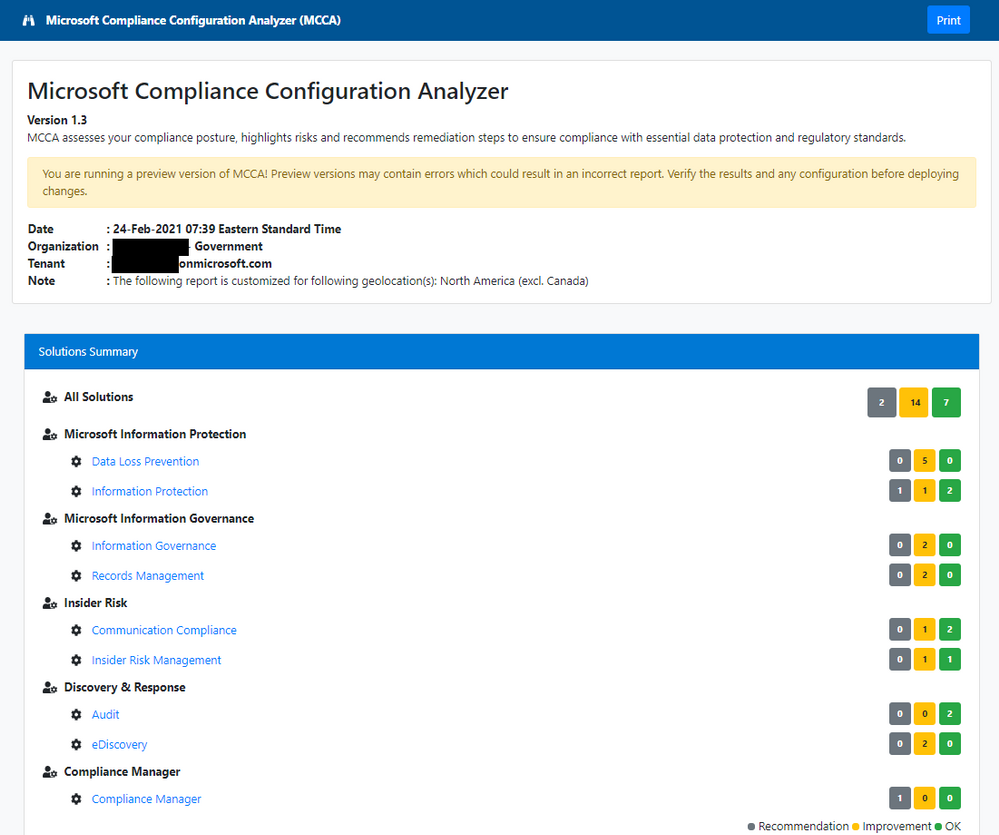
Figure 3: MCCA report summary screen
Get started today
Compliance Manager is a powerful solution to help you simplify compliance and reduce risk.
After assigning the appropriate permissions in Azure AD, administrators and compliance professionals can start using Compliance Manager by visiting the Compliance Portal (GCC – https://compliance.microsoft.com; GCC High at https://compliance.microsoft.us). If you already have Microsoft 365 G5 or Office 365 G5 subscription you can get started on your data protection journey by leveraging the default Microsoft Data Protection Baseline assessment, which draws elements and set of controls for key regulations and standards for data protection and general data governance.
Included assessment templates such as NIST 800-53 and CMMC Levels 1-5 are available to Microsoft 365 G5, Microsoft 365 G5 Compliance and Office 365 G5 subscribers at no additional cost. Beyond the included templates, Compliance Manager also offers a vast library of premium assessment templates from which you can select other assessments as needed (additional licensing required).
Additional resources:
- Watch this video to learn how to get started right away and watch these videos for further details.
- Learn more about how to work with Compliance Manager here.
- Visit the Virtual Hub to learn more about Microsoft Compliance and access technical training.
- Read the latest Compliance Manager blog here announcing new capabilities and assessment templates that will be available in GCC and GCC High environments in the coming months and will help government organizations and contractors increase regulation visibility, further enrich the user experience, and save valuable time.
We look forward to hearing your feedback and stay tuned for additional innovation in Compliance Manager.
APPENDIX:
As the advanced compliance specialist for Microsoft 365 compliance solutions, you can connect with me here. Check out other Microsoft 365 compliance resources for US government.


Recent Comments