by Contributed | Feb 18, 2021 | Technology
This article is contributed. See the original author and article here.
This past October, we notified you that we were going to improve the Windows update history experience, particularly with regard to release notes. Our optimization efforts are complete and I’d like to take this opportunity to walk you through the changes and improvements.
KB identifiers and URL structure
One of the primary ways that many find release notes is through the use of a KB identifier (KBID). We use a unique identifier for each Windows update. Once a KBID is created, it is then used to identify the update throughout the release process, including documentation. In the older experience, the KBID was used in several different ways:
With the new experience, many of these methods are still utilized, just in different ways. For instance, the URL structure of https://support.microsoft.com/help/<KBID> is still supported, however, it will redirect to a newly formatted URL https://support.microsoft.com/<locale>/topic/<article-title><GUID>. Additionally, if a KBID appears in the title of a page, it will appear in the URL. If a KBID is not in the title, it will not appear in the URL. Types of articles where you may not find a KBID include informational articles and articles released for non-cumulative updates or specialty packages.
For those of you who are familiar with viewing web-based source code, there is still a way to locate the KBID for future reference.
- Right-click on the article.
- Select “view page source.”
- Look for <meta name=”awa-kb_id” content=”###” />
- The number listed as the value for “content” is the KBID.
We understand that this workaround is not ideal and are working to find a more user-friendly means of providing this ID within the article body.
Landing pages and update pages
There are two different types of articles that make up the Windows update history experience:
- Landing/product pages
- Update pages
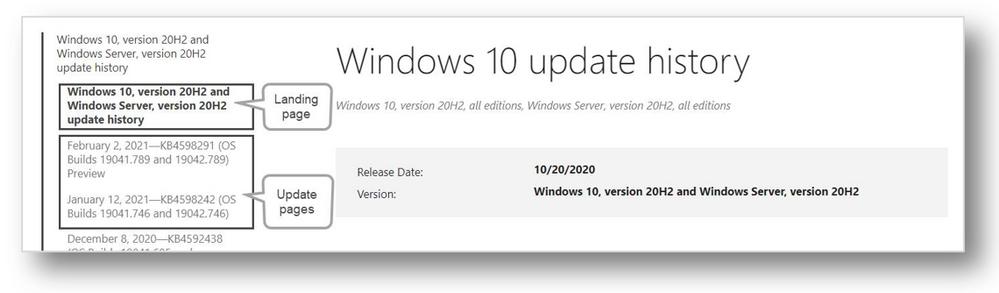
Landing page and update pages for Windows 10, version 20H2 and Windows Server, version 20H2
Landing pages
Landing/product pages supply details on the overall feature update release. These details may include information on the servicing lifecycle, known issues, troubleshooting, and related resources.
Update pages
Update pages supply information on a specific update. These updates service the operating system detailed on the landing page. On an update page, you’ll find:
- Highlights – fixes important to both consumer and commercial audiences.
- Improvements and fixes – addressed issues in more detail specially targeted to commercial audiences.
- Known issues with the update.
- Information on how to get and install the update.
- A detailed list of all files that were changed as part of the update.
File lists
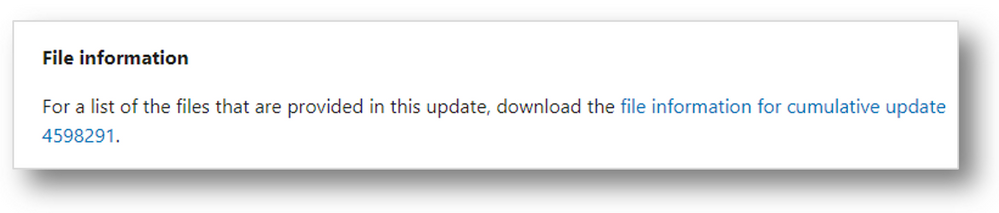 Where the file list appears on the update history pages
The file list can be found at the bottom of each update history page in the “How to get this update” section and enables you to track which system files were affected as part of the release. This allows you to gauge risk and impact. In prior releases, the file list was working improperly and not supplying the versioning or the architecture information for newer operating systems. With our new format, this issue is resolved and versioning is now working as expected. There are still files listed as “not applicable”, however, these are files that do not have versioning information. The files are also now organized by architecture, so it is easier to see which files belong to a specific architecture, as shown below:

RSS and article sharing
Really Simple Syndication (RSS) feeds will continue to be available for the Windows update history pages. If you are already subscribed to Windows update history RSS feeds, you will continue receiving updates and no further action is necessary. However, please note that the feature that allows the initiation of a new RSS subscription has been delayed and will be available in the next few months.
The ability to share an article via Facebook, LinkedIn, and email will be coming soon and we look forward to providing this new functionality for our customers. To make the wait worth it, here is a brief walkthrough of how it will work:
 Share controls on the Windows update history pages
Facebook
Selecting the Facebook icon will trigger the dialog below. You can then provide a comment and select whether to post to your story or your news feed.
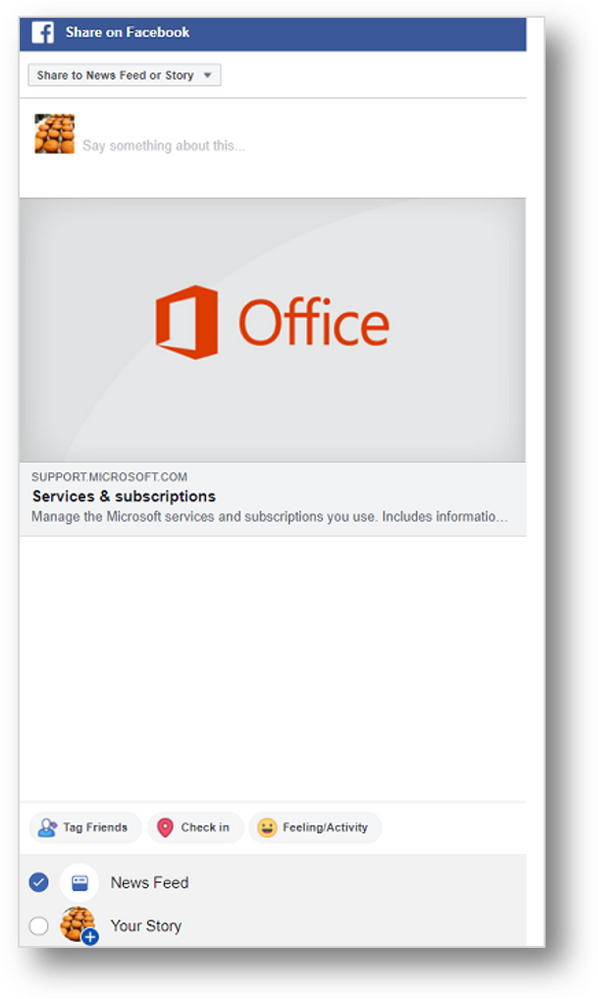 Sharing a Windows update history page article via Facebook
LinkedIn
To share an article on LinkedIn, select the Linked in icon, log in, and choose to share the post or send it as a private message.
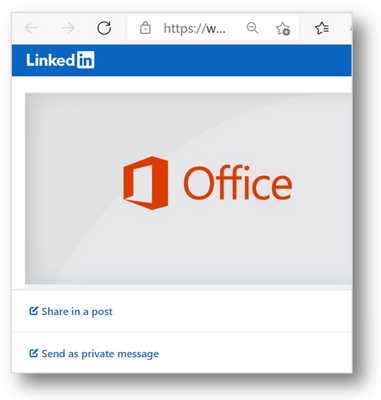 Sharing a Windows update history page article via LinkedIn
Email
The ability to share articles via email works as it has previously. You will be able to select the envelope icon and your default email client will open a new email message with a link to the content embedded in the content.
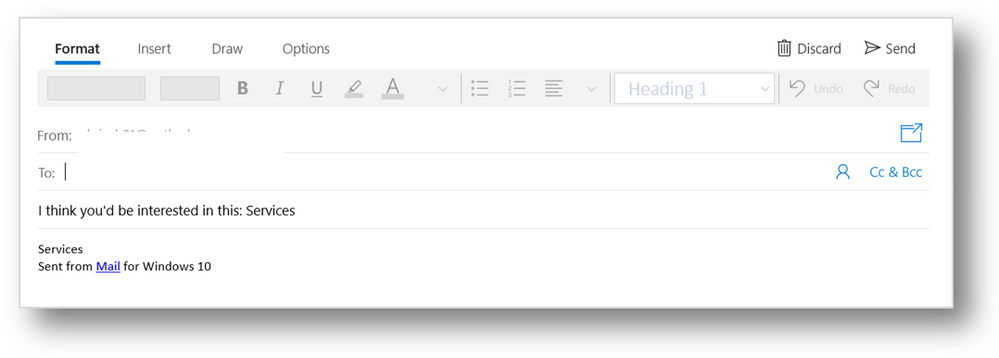 Sharing a Windows update history page article via email
Feedback
If you have feedback on this new experience, please feel free to reach out via the feedback options at the bottom of each article. Selecting “Yes” or “No” will provide you with a dialog to elaborate on how we are doing.
 How to provide feedback on the Windows update history pages
We believe that these changes will make it easier for you to search for, and find, the resources you need to support and get the most out of your Windows experience. We look forward to bringing you future improvements!
by Contributed | Feb 18, 2021 | Technology
This article is contributed. See the original author and article here.
Learn all about how to get started in Cloud Discovery from Microsoft Cloud App Security in this deep dive article by guest author and Microsoft partner Sami Lamppu.
An Introduction to Cloud Discovery in Microsoft Cloud App Discovery (MCAS)
Cloud Discovery, which is one of the Microsoft Cloud App Security (MCAS) features, helps organizations to identity applications and user activities, traffic volume, and typical usage hours for each cloud application. In a nutshell, it can help to detect “Shadow IT” applications and possible risky applications.
This blog concentrates on the Microsoft Cloud App Security – ‘Cloud Discovery’ feature and its integration with Microsoft Defender for Endpoint (MDE) service. If you want to learn more about Microsoft Cloud App Security I encourage you to start from here: Cloud App Security Overview document.
Cloud Discovery Description:
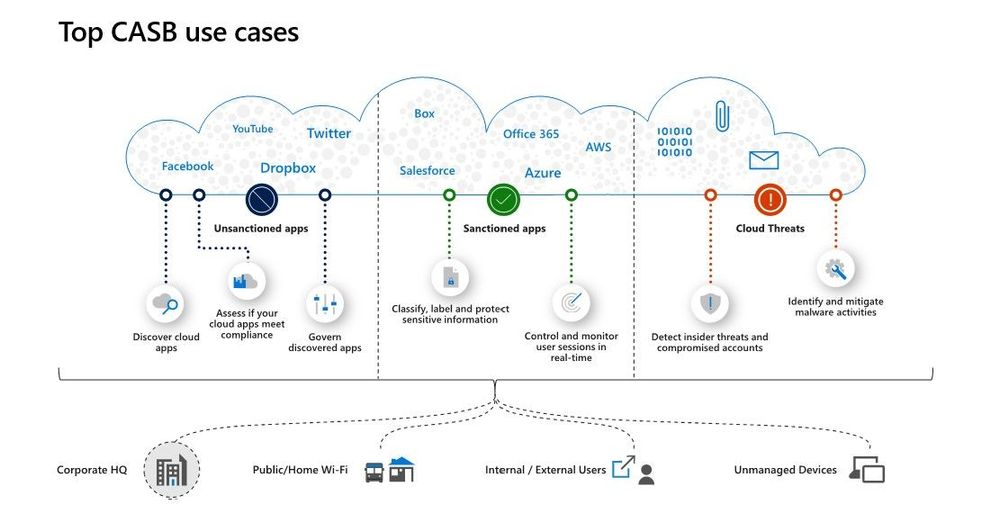
The Cloud Discovery identifies cloud applications that the organization might not have visibility to, provides risk assessments and ongoing analytics and lifecycle management capabilities to control use. Cloud Discovery analyses the traffic logs and runs them against the cloud app catalog; to provide information on the discovered applications and the users accessing them.
Picture and description from Cloud App Security playbook.
Options for Ingesting Data
Cloud Discovery analyzes traffic logs against Microsoft Cloud App Security’s cloud app catalog of over 16,000 cloud apps. The apps are ranked and scored based on more than 80 risk factors to provide insights and visibility into applications used in the cloud, and the risk Shadow IT poses to the organization. At the time of writing the following options are available to ingest network traffic data to MCAS:
Snapshot reports
The snapshot reports provides ad-hoc visibility on traffic logs manually upload from firewalls and proxies.
Continuous reports
The following options are available for the continuous reports:
- Microsoft Defender for Endpoint integration (MDE)
- Log collector
- Secure Web Gateway (SWG) – such as ZScaler, iboss, Corrata and Menlo Security integration
Based on my personal experience, the Microsoft Defender for Endpoint (MDE) has been the selected solution in most cases I have worked. The main reason has been easy and smooth integration with the Microsoft Cloud App Security.
Cloud Discovery API
The Cloud Discovery API offers an option to automate traffic log upload and get automated Cloud Discovery report and risk assessment. You can also use the API to generate block scripts and streamline app controls directly to your network appliance.
Cloud App Security and Defender for Endpoint Integration – How It Works? (docs.microsoft.com)
The following chapters concentrate on MCAS & MDE integration benefits. The policy examples are based on the traffic information collected by the MDE service.
Cloud App Security uses the traffic information collected by Microsoft Defender for Endpoint (MDE) about the cloud apps and services being accessed from IT-managed Windows 10 machines. The native integration enables you to run Cloud Discovery on any machine in the corporate network, using public Wi-Fi, while roaming, and over remote access. It also enables machine-based investigation.
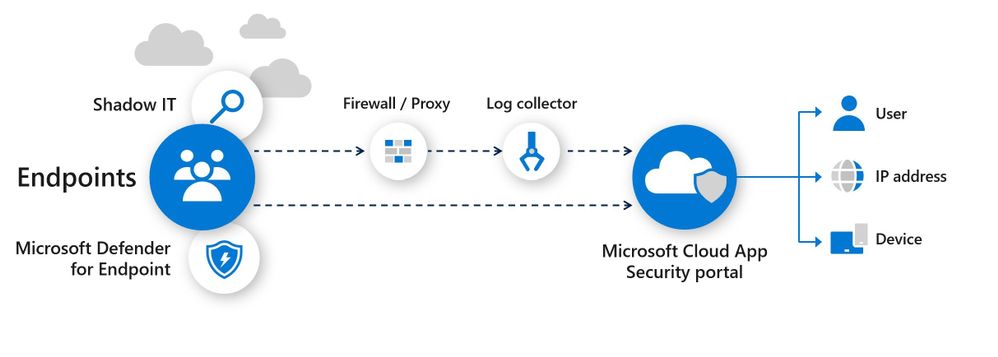
How Cloud Discovery Identifies the Apps?
Traffic data is analyzed against the Cloud App Catalog to identify more than 16,000 cloud apps and to assess their risk score. Active users and IP addresses are also identified as part of the analysis.
The current traffic detection model:
- The discovery of apps is achieved by comparing the destination URL/IP to a set of apps’ signatures, link.
Scenarios – Policy Examples
Here, I will go through some of the typical Cloud Discovery scenarios requested by customers I have worked with. Selected scenarios to identify apps from the cloud discovery data are:
- New cloud storage App
- New risky webmail application based on the risk score
In both scenarios, the App Discovery policies are used. The detection mechanism is based on the collected data, where MCAS creates alerts if a match is found based on the App Discovery policies.
Cloud Discovery Dashboard
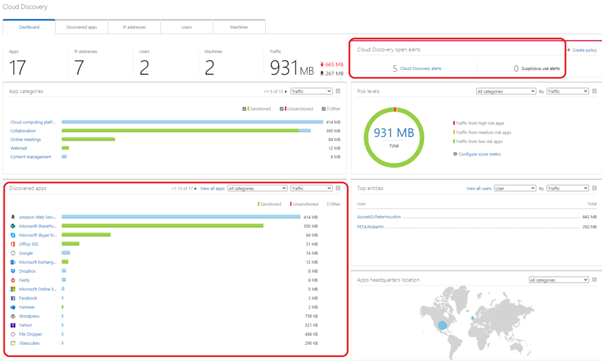
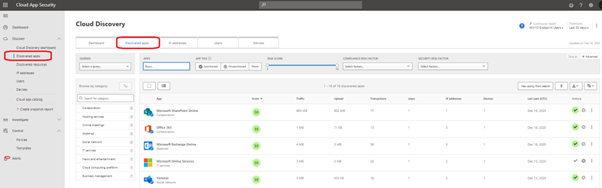
The Cloud Discovery dashboard gives a nice overview of the collected data, possible alerts, and apps discovered in the network. Inside the marked area, you can find the apps and alerts created.
Application Details
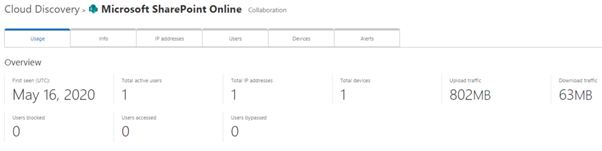
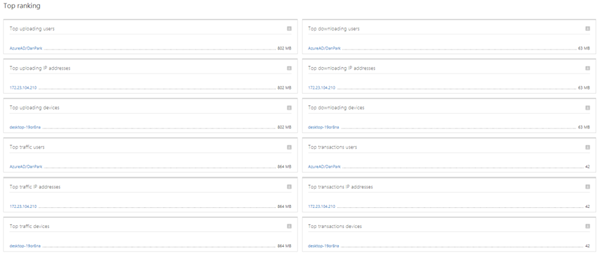
When you select the application, you can see the detailed usage of the app. The App page includes overall information (+ alerts tab) of the application usage including the list of top rankings at the bottom of the page.
Cloud Discovery Policies
There are two kind of Cloud Discovery policies in MCAS:
- App Discovery policies
- App Discovery policy basically creates an alert when a new application is detected in the network.
- Additional parameters can be used to create the alert such as traffic in MB’s, the number of users, the application risk score among others.
- Discovery Anomaly detection policies
- Anomaly detection is enabled in out of the box rules.
- If fine-tuning is needed it can be done by customizing the built-in policy or creating a new custom policy.
In the policy configuration, you have a variety of options to configure your Cloud Discovery policy. In my example, I’m using the app “category” and “risk score”.
Example 1 – New App in Cloud Storage
Detect potential data exfiltration by a user to a cloud storage app and mark the app as unsanctioned.
Policy Configuration
In this example Cloud Discovery policy is configured with the following settings:
- Category: Cloud Storage
- Risk score: 0-5, means that the App risk score needs to be between 0-5. 10 means lower risk in the app, 0 means higher risk app based on the MCAS App catalog.
- Daily traffic: Greater than 50MB
- Number of users: Greater than 1
- Governance: Tag app as unsanctioned immediately if seen in the network
Alert
During the tests, I used different apps from the cloud storage category. The apps were StoreBigFile, Lucky Cloud, and FileDropper. All of the apps are found with a risk score of 2 from the Cloud App Security cloud app catalog.
When the traffic is received by MCAS, the data will be analyzed. If the traffic matches the Cloud Discovery policies alert is created in the MCAS instance.
As you can see from the below, the dashboard contains information about the traffic to the ‘FileDropper’ application. To perform a deeper analysis of the app usage, users, and devices, select the app for details. The best part is the integration between MCAS and MDE which allows you to see device information on the dashboards. This integration offers a smooth transition to the MDE portal when deep-dive investigation of network traffic is needed.
As configured, when the App is found (FileDropper) it’s marked as “unsanctioned” (red tag) by the governance actions in the example policy.
Example 2 – New Risky Webmail App Based on Risk Score – With Governance
With this policy, you can detect potential exposure of your organization to cloud apps that do not meet your security standards. The idea of this policy is to detect any App that risk score by App Catalog is below 3 and mark such App immediately as “unsanctioned”.
Policy Configuration
The policy is configured with the following settings:
- Risk score: 3 or below
- Apply to: All continuous reports (proxy + MDE endpoints)
- Number of users: Greater than 1 (for testing purposes, in the real environment this would be higher)
- Governance: Mark app as unsanctioned immediately when detected
Alert
I tested a number of Webmail & also Online meeting applications with similar detection policies but in example pictures, there is “Daum” webmail used. When the data is received from the MDE service, the MCAS makes parsing to the data and creates an alert.
In the example case, “High” category alert received from the suspicious application used in my organization.
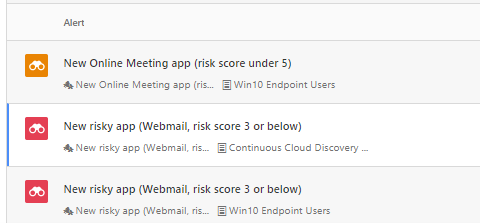
In the policy, governance action is configured. This means, that when the policy detects the app, the app is immediately tagged with the “Unsanctioned” tag.

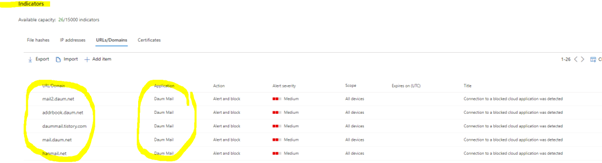
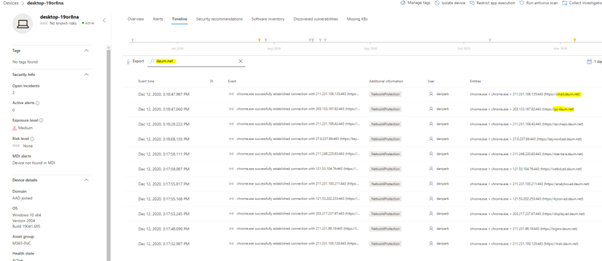
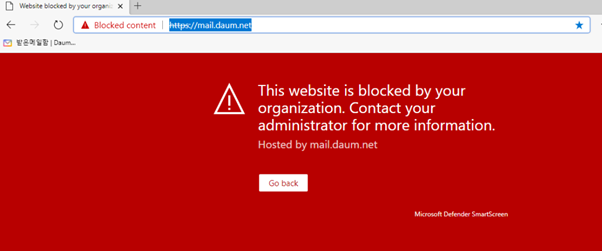
Because of MCAS and MDE integration and, governance action to the application, the next time user browses to the ‘Daum’ webmail app it will be blocked by MDE from W10 devices. How cool is that? :)
This integration has some pre-requisites that I’m not covering here. If you need more information and want to establish it in your environment read more from here and here.
Blocking the Apps
Worth mentioning is, in general, Unsanctioning an app doesn’t block use of the app but enables to monitor its use more easily with the Cloud Discovery filters. Blocking the apps only works when accessing the app using a Windows 10 device with MDE configured, and MCAS & MDE integration has been configured.
The app marked as unsanctioned in MCAS should be found from MDE in a two (2) hours timeframe.
Block Script for On-Prem Appliances
Cloud App Security (MCAS) can help to block access to unsanctioned apps by using existing on-prem security appliances. Basically, you manage the apps in the MCAS end by tagging them as sanctioned/unsanctioned and create a dedicated block script and import it to the appliance. This solution doesn’t require redirection of all of the organization’s web traffic to a proxy. More information and how to establish the solution is found from the Microsoft docs article: “Export a block script to govern discovered apps”.
Considerations
There are a lot of development activities on-going in the MCAS and MDE services to deeper the integration and strengthen the security posture of the environment. I recommend following the MCAS updates from both, M365 Roadmap and What’s new in Cloud App Security pages for future updates.
Microsoft Zero Trust deployment guide for apps contains also a hint of what’s coming next in terms of app management (more granular controls).
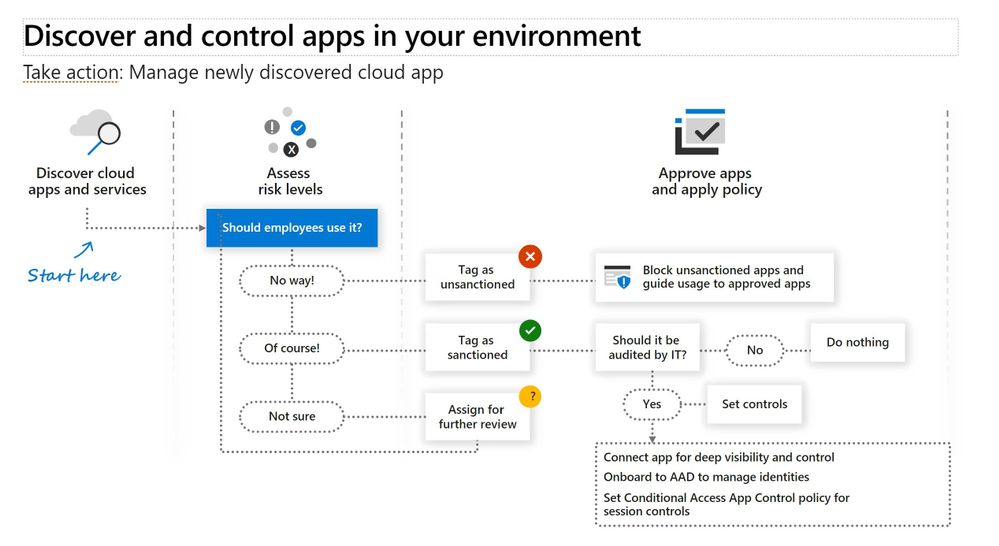
MDE Integration
- If the endpoint device is behind a forward proxy, traffic data will not be visible to Microsoft Defender for Endpoint service (by default) and hence will not be included in Cloud Discovery reports.
- Cloud Discovery with MDE only works with the W10 devices that have pre-requisites filled.
- MDE allows 15.000 indicators per tenant
- Cloud discovery enables dive deep into the organization’s cloud usage, to identify specific instances that are in use by investigating the discovered subdomains.
- It takes up to two hours after you tag an app as Unsanctioned for app domains to propagate to endpoint devices
- By default, apps and domains marked as Unsanctioned in Cloud App Security will be blocked for all Windows 10 endpoint devices in the organization
- Currently, full URLs are not supported for unsanctioned apps. Therefore, when “unsanctioned” apps configured with full URLs, they are not propagated to Defender for Endpoint and will not be blocked. For example, google.com/drive is not supported, while drive.google.com is supported
- In-browser notifications may vary between different browsers
References
MCAS Deep dive into discovered apps
Integrate Microsoft Defender for Endpoint with Cloud App Security | Microsoft Docs
M365 Roadmap
MCAS release notes
Sami Lamppu works for Nixu Corporation in Finland. He wrote the contents of this blog, edited by the MCAS team. Nixu is a cybersecurity services company that helps organizations embrace digitalization securely. https://www.nixu.com

by Contributed | Feb 18, 2021 | Technology
This article is contributed. See the original author and article here.
IT decision makers are being asked to ensure their businesses are secure and their end users are productive – regardless of where they are working. To support this need, our customers are looking to accelerate their growth in the cloud with Microsoft 365. The Microsoft 365 E3 plan provides the flexibility to adapt and thrive through societal and economic disruptions because it combines best-in-class productivity apps with core security and compliance capabilities. One of the most powerful tools in the Microsoft 365 toolkit is Microsoft Endpoint Manager.
In the last eighteen months, customers and partners have taken advantage of several product innovations to not only simplify the consumption of the latest technologies in their organizations, but also adapt to changing demands of remote work without missing a beat.
Stay protected when working remotely
Here are some highlights of recent announcements, with even more coming very soon:
- Microsoft Tunnel virtual private network (VPN) capabilities, extending Conditional Access to workers to use Android and iOS devices to remotely access on-premises data – a key principle of Zero Trust security.
- Broadened endpoint management, including adding support for virtual desktops and kiosks and shared devices, in addition to Windows PCs, Macs, and mobile devices.
- Expanded MacOS management to deliver more apps securely, collect better telemetry to improve management decisions, and improve security with enterprise Single Sign-On (SSO) and file encryption.
- Endpoint analytics to help you understand how performance and health issues with your organization’s hardware and software may be impacting your end-user’s productivity. Further, Endpoint analytics connects insights from Productivity Score with Microsoft Endpoint Manager to ensure everyone can do their best work with Microsoft 365.
- Unified endpoint security management that reduces the friction between end-user computing teams and security operations by providing deep integration between Microsoft Endpoint Manager and Microsoft Defender for Endpoint, as well as enabling specialized security roles for security managers to view and manage their day-to-day tasks within the Configuration Manager Console.
- Modernize your IT by bringing intelligent security value to all endpoints, whether managed on-premises or in the cloud.
Microsoft 365 helps foster a culture of collaboration with connected experiences while protecting company data, increasing employee satisfaction, and optimizing the administration of security and management.
Given these significant investments in Microsoft Endpoint Manger and Microsoft Enterprise Mobility + Security (EMS) over the past 18 months – with even more to come in the coming weeks – we plan to increase the price of these standalone products: EMS E3 from $9 to $11, and Intune standalone from $6 to $8 effective July 1, 2021. The price for Microsoft 365 E3 will not change.
Continue the conversation by joining us in the Microsoft 365 Tech Community! Whether you have product questions or just want to stay informed with the latest updates on new releases, tools, and blogs, Microsoft 365 Tech Community is your go-to resource to stay connected!
by Contributed | Feb 18, 2021 | Technology
This article is contributed. See the original author and article here.
Azure SQL enables hybrid transactional/analytical workloads for real-time operational analytics scenarios through a mix of in-memory and columnar database technologies. In the first episode of this three-part series with Silvano Coriani, we will explore Azure SQL capabilities to run a mix of transactional and analytical queries on the same underlying data store.
Watch on Data Exposed
Resources:
Get started with Columnstore for real-time operational analytics
Sample performance with Operational Analytics in WideWorldImporters
T-SQL Window Functions: For data analysis and beyond, 2nd Edition
Real-Time Operational Analytics:
Memory-Optimized Tables and Columnstore Index
DML operations and nonclustered columnstore index (NCCI) in SQL Server 2016
Filtered nonclustered columnstore index (NCCI)
View/share our latest episodes on Channel 9 and YouTube!
by Contributed | Feb 18, 2021 | Technology
This article is contributed. See the original author and article here.
Enabling productivity for everyone with Microsoft 365 Apps for enterprise
A huge benefit to being in the cloud with Microsoft 365 is having the flexibility to provide employees working across different roles and locations with the latest features and updates—a critical task for any IT organization. That’s why we’re excited to announce two new features for Microsoft 365 Apps for enterprise—extended offline access and device-based subscriptions—that remove critical blockers and enable customers to deploy Microsoft 365 across their entire environment, streamlining deployment and administration. These capabilities will help you ensure that employees who are offline for months at a time or rely on shared devices and workstations can benefit from the same user experience and stay productive and secure no matter where they’re working.
Enabling extended offline access scenarios
To ensure Microsoft 365 Apps stays up to date, devices must connect to the internet at least once every 30 days. However, we’re aware that in industries, including government, oil and gas, manufacturing, agriculture, and scientific research, some people work in secure or remote environments where they have limited or no internet connectivity for longer periods of time.
To address this, we’re now providing extended offline access* to enable devices to stay activated without connecting to the internet for up to 180 days. Workers in secure or remote environments who are offline for long periods of time can continue using Microsoft 365 Apps to stay productive on-the-job without worrying about being cut off from the tools they need most after 30 days.
Setting up and running Microsoft 365 Apps for offline use
For organizations with workers who need to run Microsoft 365 Apps offline for an extended period, IT administrators can enable extended offline access when they install Microsoft 365 Apps on a device. The worker signs into Windows with their Microsoft 365 account by viewing the expiration date that appears in a Product Information window on their device. After that, the worker can continue using Office with no internet for up to 180 days. Fifteen (15) days before offline access expires, they will receive an in-app notification. At that point, the worker can either reconnect the device to the internet before the expiration date or the IT administrator can generate a license in the Office portal from a second, connected device and copy the license to the other device.
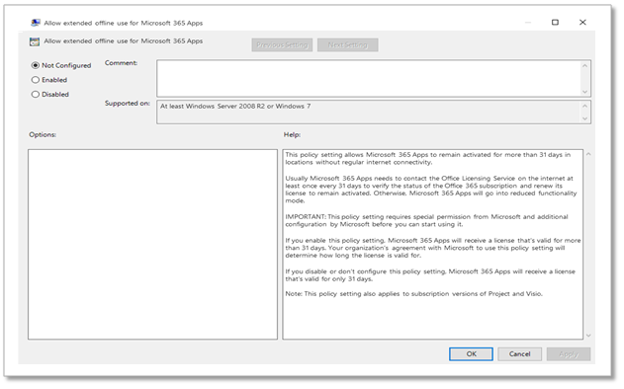
In order to enable Extended Offline Access on a device, IT admins need to deploy the group policy on that device
Setting up device-based subscriptions for shared devices
For organizations, whose employees are mostly information workers, user-based licensing for Microsoft 365 covers most use case scenarios. But for organizations in industries, such as manufacturing, agriculture, healthcare, retail and hospitality, many employees may share one device. In those cases, users that rely on shared devices have not been able to have access to the latest and most secure productivity tools that are available on desktop, to address this scenario we’re introducing device-based subscriptions for Microsoft 365 Apps.
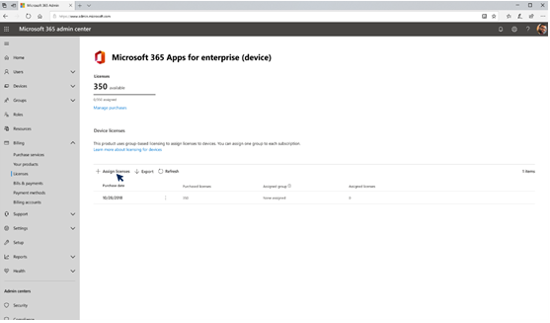 Assigning licenses to devices in Microsoft 365 admin center.
Having device-based subscriptions for Microsoft 365 Apps enables you to extend coverage to commonly used devices on loading docks, at nurses’ stations, on the manufacturing floor, or in a breakroom. Because the license is assigned to the device, workers aren’t required to have their own Azure Active Directory identity. Workers can sign into the device as many times as needed and access all Microsoft 365 Apps, including Excel, OneNote, Outlook, PowerPoint, Publisher, and Word.
To deploy a device-based subscription, you simply purchase the required number of Microsoft 365 licenses and assign a license to a device group in the Microsoft 365 admin center. To enable this functionality on a device, use the group policy for currently installed devices and/or the configuration.xml attribute.
Learn more about device-based licensing for Microsoft 365 Apps for enterprise here.
*Eligible customers should contact their Microsoft account representative to determine if extended offline access for Microsoft 365 Apps for enterprise is the right solution for them.
Continue the conversation by joining us in the Microsoft 365 Tech Community! Whether you have product questions or just want to stay informed with the latest updates on new releases, tools, and blogs, Microsoft 365 Tech Community is your go-to resource to stay connected!


Recent Comments