by Contributed | Nov 5, 2020 | Technology
This article is contributed. See the original author and article here.
Initial Update: Thursday, 05 November 2020 13:05 UTC
We are aware of issues within Application Insights and Log Search alerts and are actively investigating. Some customers may experience Data access issues or delayed/missed Log Search alerts for resources hosted in West US2 region.
- Work Around: None
- Next Update: Before 11/05 16:30 UTC
We are working hard to resolve this issue and apologize for any inconvenience.
-Harshita
by Contributed | Nov 5, 2020 | Technology
This article is contributed. See the original author and article here.
Introduction
Azure platform gives you the ability to scale SAP applications on-demand as required. In broad terms scaling can be achieved in 2 ways
- Vertical Scaling – Also referred to as Scale Up/Scale Down, this is achieved by changing the Virtual Machine size up or down as per the requirement. Mostly suitable for SAP Databases.
- Horizontal Scaling – Also referred to as Scale Out/Scale In, this is achieved by adding or removing Virtual Machine instances. This approach is better suited for SAP application servers.
In this blog we will look at an approach to achieve Auto Scaling of SAP application servers in Azure based on Horizontal scaling method.
Overview
Autoscaling strategy typically involves the following pieces.
- Telemetry collection – This involves capturing the key application metrics to gauge the performance of the application.
- Decision making component – The component which evaluates the metrics against set threshold and decides whether scaling needs to be triggered.
- Scaling Components – Components involved in scaling the application.
For detailed guidance on best practices of autoscaling in general refer this document
1. Telemetry Collection
Azure monitor provides out of the box capability to capture key performance metrics of a VM which are then stored in a Log Analytics Workspace. However, to accurately measure the load on an SAP application server, SAP specific performance metrics like work process utilization, user sessions, SAP application memory usage etc. are required. SAP provides a snapshot monitoring utility SMON (or /SDF/MON) which collects this information and stores it in a transparent table (header table) within the SAP database. One way of getting this data into Log Analytics Workspace is to use Logic App for ingestion.
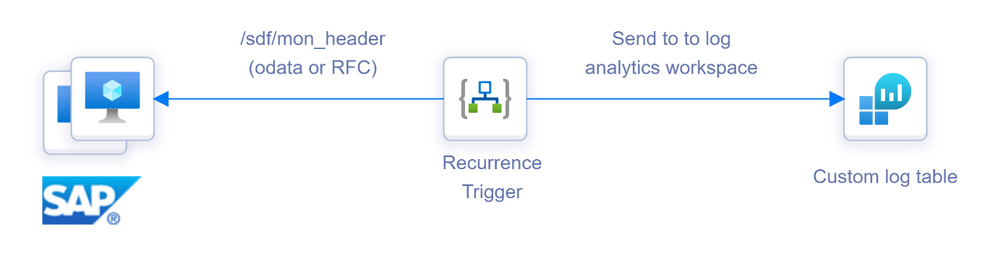
In this architecture Logic App is used to ingest the SAP performance metrics data from /SDF/MON_HEADER (or /SDF/SMON_HEADER depending on what is scheduled) into a custom log table in log analytics workspace. The Logic app can be scheduled to run periodically with a recurrence trigger to pull the data from SAP based on time filter and push it into Log analytics workspace. In addition to forming the basis for autoscaling, getting /SDF/MON data into Log Analytics has other advantages.
- Data can be used to create real time performance dashboards of the SAP systems.
- Enables longer retention of SAP performance data in a cheaper storage and not within the SAP database.
Sample implementation of this can be found in this GitHub repo https://github.com/karthikvenkat17/sapautoscaling
2. Decision making component
Once the required performance is data collected the next step is to setup a detection mechanism on one or more of the collected attributes. As the required telemetry data is available in Log Analytics Workspace, Azure monitor can be used to initiate actions using the Log alerts. Log alerts allow users to use a query to evaluate resources logs at set frequency and fire an alert based on the results. Rules can trigger one or more actions using Action Groups.
For Example in an SAP application server with 10 dialog work process and maximum user sessions to be restricted to 60, sample query for high load would look like below
SAPPerfmon_CL
| where No__of_free_RFC_WPs_d <= 1 or Active_Dia_WPs_d >= 8 or Users_d > 50
| summarize count() by Servername_s
Similarly sample query for Low load will look like below
SAPPerfmon_CL
| where No__of_free_RFC_WPs_d >= 7 and Active_Dia_WPs_d <= 2 and Users_d < 50
| summarize count() by Servername_s
Once you have defined the query use Threshold, Frequency and Period to control when the alerts need to be fired. Note that Log alerts are stateless. Alerts fire each time the condition is met, even if fired previously. Use the Suppress Alert feature within the Azure Monitor to prevent alerts from continuously getting triggered for a period after the first occurrence.
3. Scaling Components
Now that the alert triggering mechanism is finalized, the next step is to carry out the Scaling (Scale Out or Scale In) action as required. There are couple of ways of approaching this.
- Use pre-built SAP instances which are snoozed. They are then started/stopped based on the alert criteria. This can be achieved using Azure Automation Runbook.
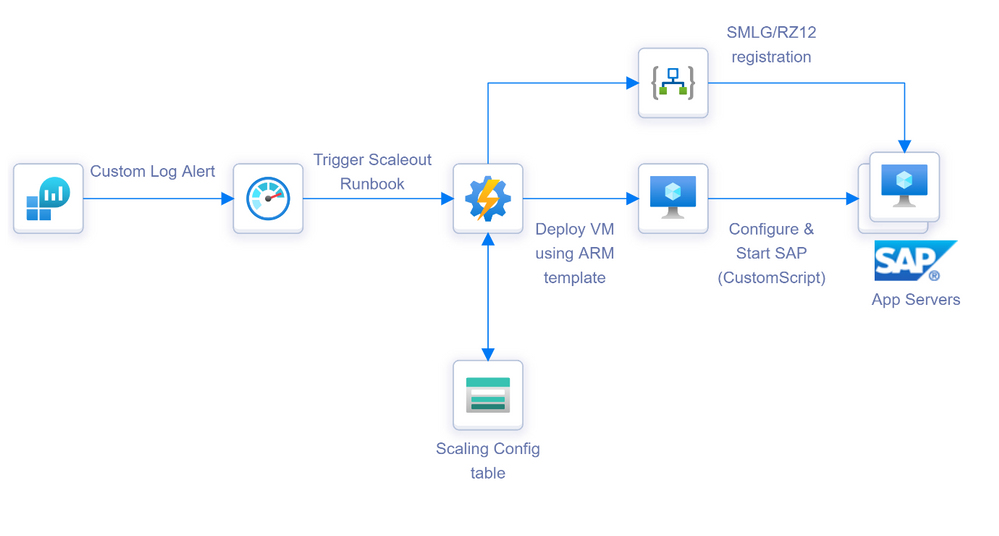
- Create/Delete new application servers and add/remove them to the required groups dynamically. High level architecture of this option is shown below.
Scale Out Architecture
Scale In architecture
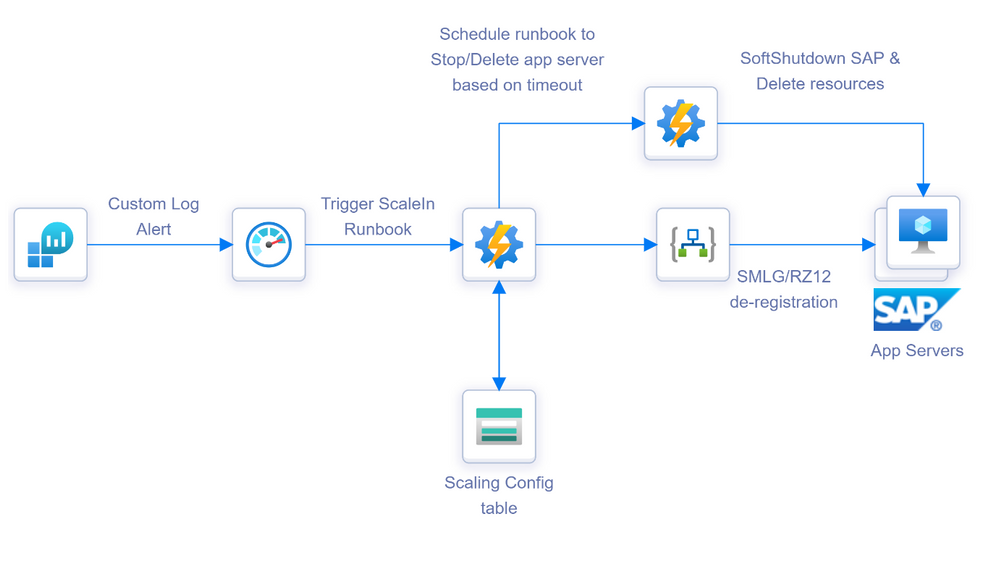
Detailed explanation of this architecture and sample implementation can be found in this GitHub repo https://github.com/karthikvenkat17/sapautoscaling
Things to Consider
- As you scale the number of SAP application servers, the SAP database should be able to handle the load. Ensure that the database has enough capacity to handle the load of the maximum application server count.
- If there are known pattern of spikes in workload, consider autoscaling based on schedule rather than based on metrics. Autoscaling based on metrics should be used for unforeseen spikes in workload.
- Have adequate margin between Scale Out and Scale In thresholds to avoid continuous flapping. For example if the Scale Out happens at Dialog work process utilization of 90% have Scale In at a low value like 20% utilization.
- For dynamic application server creation only addition/removal from Dialog/RFC server groups are considered. If the application servers need to be added/removed from Batch/Update groups, this needs to be a custom RFC which can then be called from Logic App (as there are no standard RFCs available for this functionality).
- Tune the SAP Soft shutdown timeout settings to fit the kind of traffic the dynamic SAP instances are going to serve. See here for details.
- Consider a mechanism to handle batch jobs if any that may start on the Application servers which get added dynamically. Soft shutdown command waits for batch or update tasks to finish until the time out is reached but If there are known long running jobs or jobs which impact business processes consider creating a separate batch group for them which includes only the static instances.
- If message server ACL file is used, it needs to be updated when new application servers are added dynamically.
- For new VMs created as part of autoscaling ensure any additional monitoring required is setup as part of the post deployment steps.
by Contributed | Nov 5, 2020 | Technology
This article is contributed. See the original author and article here.
Taking any exam can be a stressful experience which requires a lot of preparation and planning.
Back in October 2011, I sat my first Microsoft exam, which was the Windows 7 Enterprise Desktop Administrator exam. I remember wanting to sit a Microsoft exam before then but being hesitant about it because it was an unknown scenario to me and worried it wouldn’t be something I’d enjoy doing.
Since then however, I have sat 20 different Microsoft exams ranging from Exchange 2010 to Azure Data Fundamentals. And I wanted to share some of my experience with you all to help you plan your approach to sitting an exam and explain how some of the exam process works.
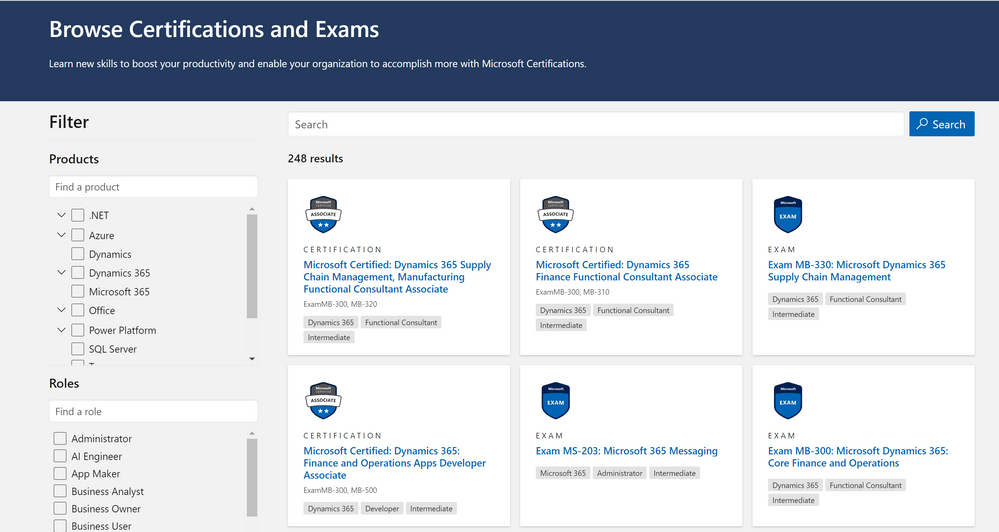
Available Exams
There is a plethora of exams available for you to choose from. Exams are dialled into technology and then job roles after that. There are fundamentals exams for those just starting on their journey or expert level exams for the more experienced. You can sit the exams in any order that suits your purpose or journey, I think I sat some expert level exams before attempting the fundamental ones. So, there is no right or wrong way, just the way that works for you.
 Certifications and Exams
Exam objectives and study material
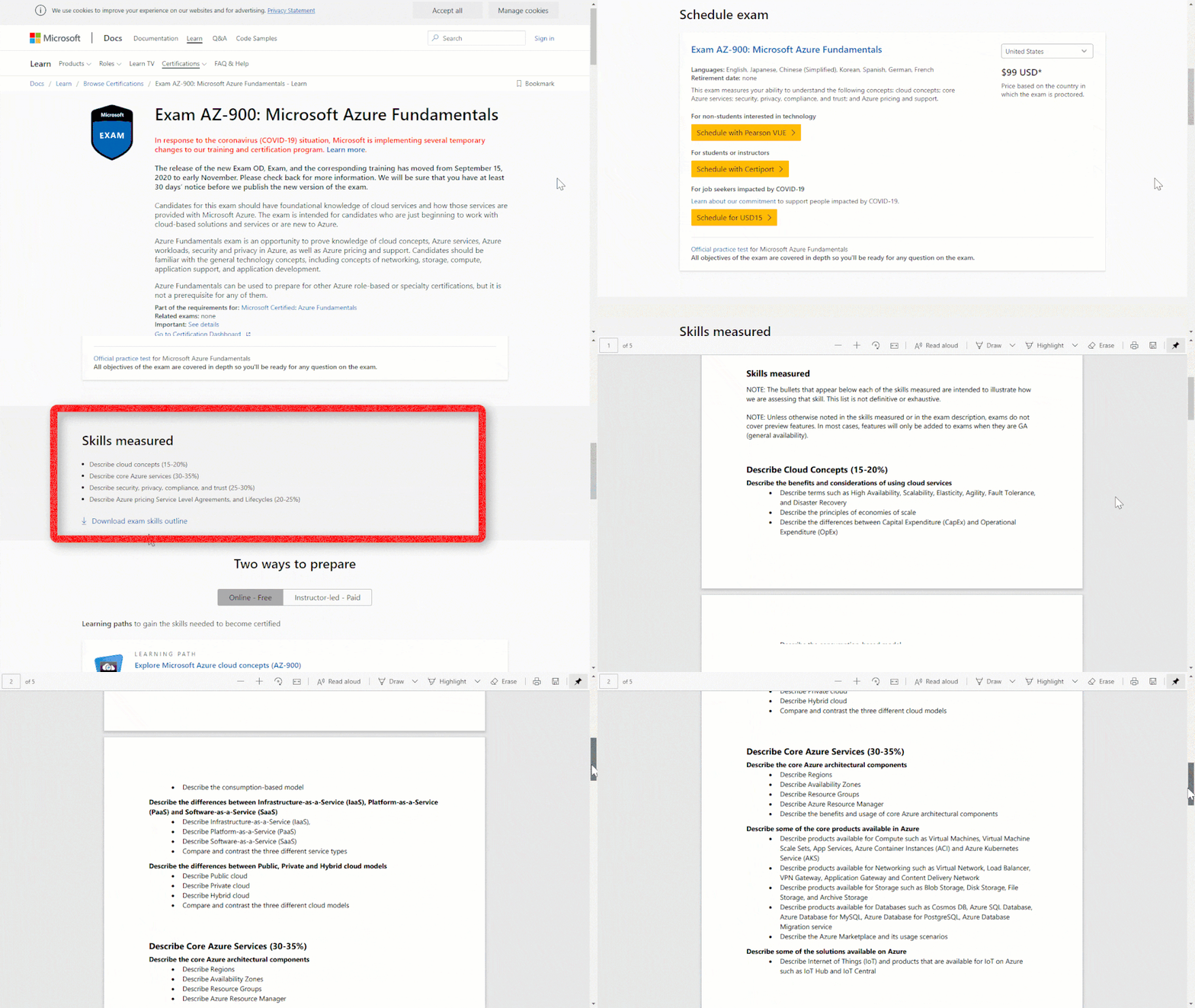
Each exam has set objectives which help guide you in not only selecting which exams are relevant to your experience or career objectives but they are also there to help you with your studying. Each exam has a small “Skills Measured” section which gives you a percentage breakdown of how much of the exam will be focussed on that topic and there is also a larger document that breaks down each section into more detail so you can really dial down your studying plan.
 Exam Skills
Each exam also helps point you to some learning materials as well that help you find things to read or use as your study material. You’ll have seen information to Free online training at Microsoft Learn and also some information for any in person instructor led training if it is available for the exam you are focusing on. Books and official Microsoft documentation is also resources you should check out as part of your study material and also trying to get some hands on experience with the technologies that the exam is testing on.
Booking an exam
Booking an exam is key to this whole process if you ask me, when I start my journey to gaining a certification, I start with booking the exam. If it’s booked, I have a deadline set and I have the motivation to study! Booking the exam can be done straight from the exam page itself, it will show the exam provider for your region and give you the relevant link to the place you can go to book the exam. One tip I would mention here is to watch what time you book the exam for; be sure you aren’t booking those 1am slots, unless you really want that slot. ;)
Sitting an exam at home
With the current situation in the world getting to a dedicated test centre to sit the exam is hard for a lot of people right now. The opportunity to sit an exam still exists though, you can sit the exams at home.
When sitting an exam at home there are certain rules that you need to adhere to and those can be quite daunting if it’s your first time. When I sit an exam at a test centre I often make use of the reusable white board they give me to make notes or do drawings of the question to help me visualise what I am being asked. However, at home you aren’t allowed any bits of paper for note taking. The other things to consider when sitting an exam at home are:
- No one else is allowed in the room with you and if someone comes in it could mean you fail the exam
- You can’t read the questions out loud or speak during the exam
- You can’t cover your face or go out with the webcam view
- You can’t use two screens
- Your desk must be tidy
- Your phone can’t be within reach of you
There are a lot of other rules as well, so you should pay attention to them before you book an exam to make sure you can accommodate them. If Pearson VUE are the testing provider for your region then you can find more information at taking online exams with them here, if PSI are your testing provider for your region you can find more information about taking online exams with them here.
What happens if I don’t pass first time?
Sometimes even though you’ve put a ton of work in and are confident you won’t pass first time, I’ve been there, I remember the first time I failed a Microsoft exam, I walked out of the test centre and went straight to my favourite coffee shop to get cake and a big latte to commiserate, it’s never a great feeling. However, all is not lost, you can sit the exam again. You must await at least 24 hours before retaking the exam again and you can sit the exam up to five times per year (12months) if needed. You can find more details on the exam retake policy here.
Beta Exams
Occasionally you’ll see exam pop up as Beta exams, these are new exams that Microsoft has released. There are often a limited number of slots for people to try out the exam at a discounted price, however you won’t get your exam results back straight away. You’ll have to wait until the exam is released fully and sometimes you have to wait a number of weeks after the exam is live before you will receive the results. My colleague Liberty wrote a great article explaining more about the beta exam process here.
Good luck
Good luck on your journey to studying, sitting, and passing a Microsoft exam, please do let us know how you get on with your journey!
by Contributed | Nov 4, 2020 | Technology
This article is contributed. See the original author and article here.
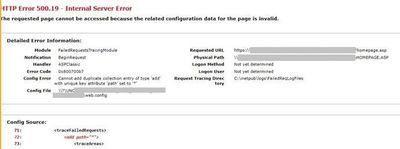
Here is the error message displayed for one of the applications after I enabled Failed Request Tracing in the IIS server:
Cannot add duplicate collection entry of type ‘add’ with unique key attribute ‘path’ set to ‘*’
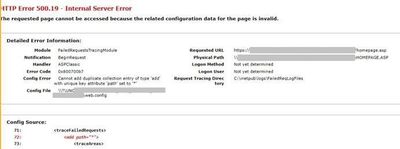
Solution
Since the error message mentions a duplicate record, check the web.config for identical definitions:
- Enable Failed Request Tracing
- Add a rule
- If the issue occurs, check web.config file. Are there identical Failed Request Tracing rules?
If there are no duplicates, check the rules in tracing module at all application, site, and server levels in IIS Manager. Make sure there are no conflicting rules.
If the issue still persists, add the line below into web.config. It will remove all existing rules to prevent duplication.
<remove path="*" />
The entire configuration of the Failed Request Tracing rule in the web.config:
<configuration>
    <system.webServer>
        <tracing>
            <traceFailedRequests>
                <remove path="*" />
                <add path="*">
                    <traceAreas>
                        <add provider="ASP" verbosity="Verbose" />
                        <add provider="ASPNET" areas="Infrastructure,Module,Page,AppServices" verbosity="Verbose" />
                        <add provider="ISAPI Extension" verbosity="Verbose" />
                        <add provider="WWW Server" areas="Authentication,Security,Filter,StaticFile,CGI,Compression,Cache,RequestNotifications,Module,FastCGI,WebSocket" verbosity="Verbose" />
                    </traceAreas>
                    <failureDefinitions statusCodes="500" />
                </add>
            </traceFailedRequests>
        </tracing>
    </system.webServer>
</configuration>
Note: In my case, the environment this issue occurred had two IIS servers pointing to the same web.config (located in a network share).
by Contributed | Nov 4, 2020 | Technology
This article is contributed. See the original author and article here.
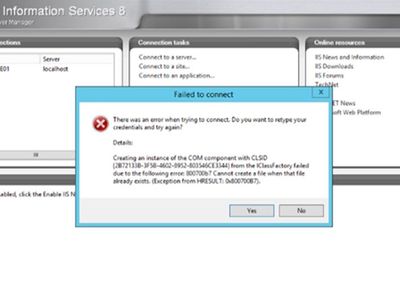
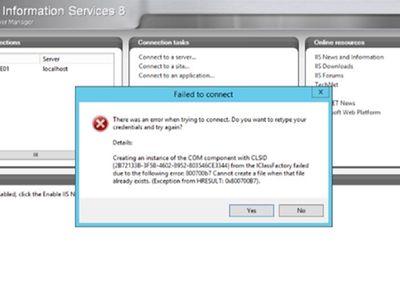
If IIS Manager doesn’t open because of the error below, it may cause delays in maintenance and migrations.
The error message:
Creating an instance of the COM component with CLSID from the IClassFactory failed due to the following error: 800700b7
Solution
This issue may happen after an in-place upgrade, migration, Windows updates or any other operation that works with system libraries. There is likely a corrupted or missing system file.
There are a couple things to check if you run into this issue:
- Check Event Viewer to find out information about the root cause
- Collect Process Monitor trace and look for any failures. Don’t be surprised if everything looks good in the trace because the root cause may hide behind a SUCCESS message. Take another trace from a working server and compare them
If logs and traces don’t provide a lead, here are a few things to try (Test if IIS Manager opens successfully after each step):
- Uninstall IIS Management Tools in Server Manager and install them back
- Check if IIS Admin Service starts in Services window
- Perform iisreset
- Run aspnet_regiis -I
- Check the permissions on this folder: c:programDataMicrosoftcryptoRSAmachineKeys
Make sure Everyone has Read/Write and Administrators have all permissions
- Reinstall .NET Framework
- If nothing works, uninstall IIS and install it back


Recent Comments