by Scott Muniz | Jul 22, 2020 | Alerts, Microsoft, Technology, Uncategorized
This article is contributed. See the original author and article here.
Final Update: Wednesday, 22 July 2020 18:22 UTC
We’ve confirmed that all systems are back to normal with no customer impact as of M/D, HH:MM UTC. Our logs show the incident started on M/D, HH:MM UTC and that during the <duration of incident> hours that it took to resolve the issue X% of customers experienced <impact statement & metrics>.
- Root Cause: The failure was due to <provide a transparent failure statement but don’t mention specific technologies>.
- Lessons Learned: <if there is chance of re-occurrence talk to the specifics on how we’ll resolve and plan to monitor & respond while risk is active><Talk to the learning that we pulled out of this incident and will apply to avoid these failure types in the future>
- Incident Timeline: X Hours & X minutes – M/D, HH:MM UTC through M/D, HH:MM UTC
We understand that customers rely on Application Insights as a critical service and apologize for any impact this incident caused.
-Sindhu
Initial Update: Wednesday, 22 July 2020 18:21 UTC
We are aware of issues within Application Insights and are actively investigating. Some customers may experience Data Gaps.
- Work Around: <none or details>
- Next Update: Before 07/22 21:30 UTC
We are working hard to resolve this issue and apologize for any inconvenience.
-Sindhu
Update: Wednesday, 22 July 2020 18:21 UTC
We continue to investigate issues within Application Insights. Root cause is not fully understood at this time. Some customers continue to experience <impact statement from a user perspective>. We are working to establish the start time for the issue, initial findings indicate that the problem began at <MM/DD ~HH:MM UTC>. We currently have no estimate for resolution.
- Work Around: <none or details>
- Next Update: Before 07/22 21:30 UTC
-Sindhu

by Scott Muniz | Jul 22, 2020 | Uncategorized
This article is contributed. See the original author and article here.
As more people start using Apple’s iPad as one of their go-to computing devices, the Excel team is working to deliver a great experience on the Excel iPad app. One of the first steps towards this goal is to introduce new keyboard shortcuts to provide users a great authoring experience while using hardware keyboards.
These new keyboard shortcuts will bring the authoring experience on iPad closer to macOS, across different areas such as navigation, editing formulas, and format and edit data.
We will be introducing new shortcuts across multiple iterations over the next few months, starting with 13 new shortcuts in the July release . Here is a list of the new shortcuts – for the complete list please check Keyboard Shortcuts in Excel.
|
Action
|
Shortcut
|
|
Move to the next sheet in the workbook
|
Option + Right Arrow
|
|
Move to the previous sheet in the workbook
|
Option + Left Arrow
|
|
Apply outline border
|
+ Option + 0 |
|
Remove outline borders
|
 + Option + Hyphen + Option + Hyphen |
|
Hide Column(s)
|
 + 0 + 0 |
|
Unhide Column(s)
|
Shift + Control+ Left parenthesis ())
Or
Shift +  + Left parenthesis ()) + Left parenthesis ())
|
|
Hide Row(s)
|
Control + 9
|
|
Unhide Row(s)
|
Shift + Control+ Right parenthesis ())
|
|
Toggle the formula reference style between absolute, relative, and mixed
|
 + T + T
Or
 + 4 + 4
|
|
Insert the AutoSum formula
|
Shift + + T + T
|
|
Calculate open workbook
|
 + = + = |
We will add more shortcuts in the coming months as we continue to focus on providing users a great experience while using Excel on the iPad. To start using these shortcuts, from the App Store.
by Scott Muniz | Jul 22, 2020 | Uncategorized
This article is contributed. See the original author and article here.
Microsoft Surface Hub is an all-in-one digital whiteboard, meetings platform, and collaborative computing device powered by Windows 10. We are excited to share that the latest version of the Surface Hub operating system, Windows 10 Team 2020 Update, is now available for preview through the Windows Insider Program.
This Windows Insider Preview release delivers the latest Windows 10 features, including major improvements to device deployment and manageability, and will be available for First-generation Surface Hub 55″ and for Surface Hub 2S 50″. The First-generation Surface Hub 84″ will be supported in the final release of Windows 10 Team 2020 Update.
What’s new in Windows 10 Team 2020 Update
Improvements for Azure Active Directory Joined devices
This update addresses top customer requests, starting with full support for organizations using Azure Active Directory (Azure AD) to manage their Surface Hub devices:
- Single Sign-On (SSO) for Azure AD joined devices:
When users sign in with their Microsoft 365 credentials to “My meetings and files”, their user credentials flow seamlessly from app to app – including Microsoft 365 experiences in the browser.
- Conditional Access (CA) for Azure AD joined devices:
IT admins can deploy device-level security policies to their Azure AD joined Surface Hub to control access to organizational resources in accordance with corporate security and compliance requirements.
- Support for non-global-admins for Azure AD joined devices:
Customers can choose a more granular set of admins within their admin hierarchy to manage Surface Hub. For more information, see Admin group management.
Improvements for device deployment and manageability
We also added features to help customers configure and manage their Surface Hub devices:
- Modern authentication for cloud device accounts: Surface Hub supports Exchange Web Services (EWS) and Active Directory Authentication Library (ADAL) based authentication to connect to Exchange, allowing customers to deprecate the use of Basic authentication. For details, see Modern authentication on Surface Hub.
- Over 20 new and updated mobile device management (MDM) policies: These policies give IT admins improved control over app updates from the Microsoft Store, wireless projection settings such as Miracast over infrastructure, network settings such as Quality-Of-Service and 802.1x wired authentication, and new privacy/GDPR related settings. For more information, see Manage Surface Hub 2S with Intune.
Improvements for meeting and collaborating on Surface Hub
Finally, this update introduces significant improvements to help end-users meet and collaborate on a Surface Hub device:
Support for the new Microsoft Edge:
Customers can install the new Microsoft Edge, which has been rebuilt from the ground up to bring you world-class compatibility and performance, the security and privacy you deserve, and new features designed to bring you the best of the web. For details on installing the new Microsoft Edge, see Install and configure the new Microsoft Edge on Surface Hub.
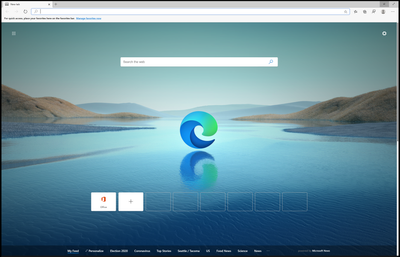 New Microsoft Edge Browser on Surface Hub
- Deploy Microsoft Teams faster: Microsoft Teams is included as the default Meetings, calling and collaboration app on new Surface Hub devices which can be changed or configured via MDM or directly on Surface Hub using the Settings app. For more information, see Deploy Microsoft Teams.
- Support for Proximity Join with Microsoft Teams:
Proximity Join enables users to take scheduled Microsoft Teams calls on a nearby Surface Hub using their laptop/phone, or seamlessly transition an in-progress meeting to a nearby Surface Hub. Windows 10 Team 2020 Update adds Mobile Device Management (MDM) support to configure Proximity Join, and the feature will be subsequently released as a Microsoft Teams update through Microsoft Store.
- Support for Coordinated Meetings with Microsoft Teams:
In meeting rooms that feature a Surface Hub and a Microsoft Teams Room device, or spaces with two Surface Hub devices, Coordinated Meetings enable users to easily leverage both devices during a Microsoft Teams meeting. With a single tap, users can join a meeting from either device and maximize screen real estate by showing video feeds on one device, and a digital whiteboard or content on the other. Windows 10 Team 2020 Update adds Mobile Device Management (MDM) support to configure Coordinated Meetings, and the feature will be subsequently released as a Microsoft Teams update through Microsoft Store.
- Passwordless sign-in using FIDO2 security keys: Using FIDO2 security keys, customers can quickly and easily sign into Surface Hub without having to type in usernames and passwords. Combined with Single Sign-On (SSO), this feature provides fast and seamless authentication to files, apps, and websites during a meeting. For more information, see Configure passwordless sign-in on Surface Hub.
- Improvements to passwordless sign-in using Microsoft Authenticator: For organizations that use Azure AD, users can use the Microsoft Authenticator app to sign in without having to type in usernames and passwords. Additionally, users can sign-in using their preferred email aliases in Azure AD in addition to their User Principal Name (UPN). For more information, see Sign in to Surface Hub with Microsoft Authenticator.
- Dual-pen inking on Surface Hub 2S: Users can whiteboard and collaborate side-by-side on Surface Hub 2S using two Surface Hub 2 Pens. The firmware updates required to enable dual-pen inking will be released with a subsequent update.
Preview the Windows 10 Team 2020 Update today
To download the update, simply enroll your Surface Hub device to the Windows Insider Program. For additional information, see Install Windows 10 Team 2020 Update Preview Build.
We invite you to send us your insights and suggestions through Microsoft Service & Support (CSS) or Microsoft Premier. For known issues, see Known issues: Windows 10 Team 2020 Update Preview Build.
by Scott Muniz | Jul 22, 2020 | Uncategorized
This article is contributed. See the original author and article here.
Hi there, Gonzalo again here. We have many customers that contact us with the same request: When Teams it is installed, profile disk rapidly grows around 4 to 5 GB in size, but the data contained there is just about a few MBs. This issue it is only observed when you are using the default disk type (Dynamic).
I would like to clarify something before moving forward: This is not bug in Teams nor FSLogix. As any software, during setup, Teams will write temporary data that will be deleted when setup completes, and the good news is that there is a way to avoid this. After some research conducted by our product group, they shared with us a way to avoid this situation by adding an exclusion to the redirections.xml file. You will need to add the following exclusion:
<Exclude Copy=”0″>AppDataRoamingMicrosoftTeamsService Worker</Exclude>
Please note that this will be beneficial to you if you add this line before installing Teams. If you already installed Teams and you want to remove all those empty blocks from the profile disk, please review the options described in this other blog.
You can get more information about the use of redirections by looking at our official documentation and more in depth in the following technical article.
by Scott Muniz | Jul 22, 2020 | Alerts, Microsoft, Technology, Uncategorized
This article is contributed. See the original author and article here.
Here are the updates to the Azure portal this month:
Compute>Linux
Storage>Storage Account
All categories
Intune
Let’s look at each of these updates in greater detail.
Compute>Linux
Simplification of the Linux + SSH Experience
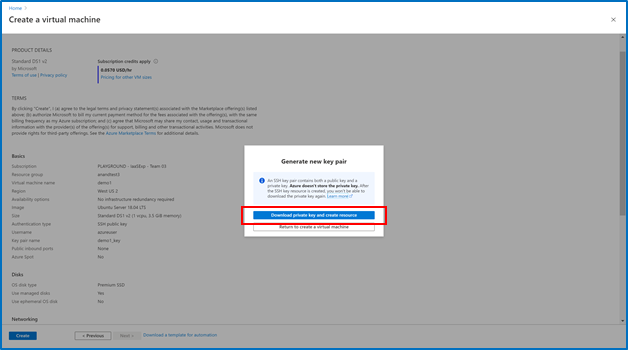
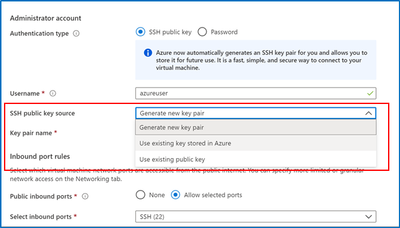
In the VM create experience, SSH key is now the default authentication method instead of passwords for Linux images. Azure will now automatically generate a new SSH key pair for you instead of you having to use a third-party tool to create a key pair.
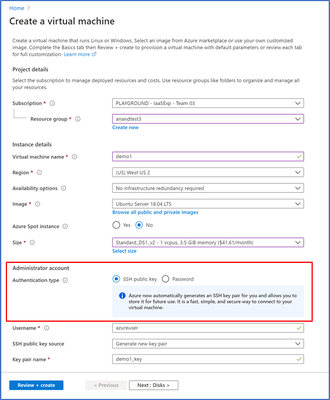
- Enter information to create your virtual machine, and after you click “create”, you will be prompted to download the private key pair, which you will need to connect to their VM via SSH
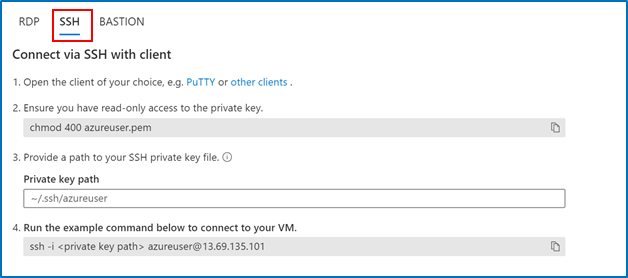
2. Go to the VM you created and select “SSH”, then open the SSH (terminal, PuTTy, etc.) client of your choice, making sure that you have read-only access to your private key.
3. Copy the file path where your private key is stored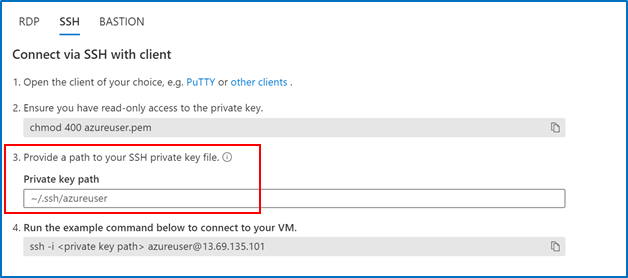 4. Paste the command in your SSH client
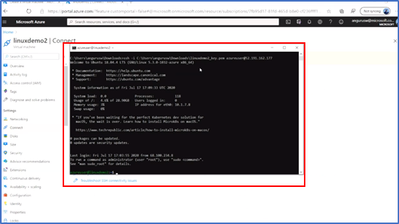
When creating additional Linux VMs, you can reuse SSH key pairs as well instead of creating a new key each time.
Storage>Storage Account
Network Routing Preferences for Storage Accounts now in Public Preview
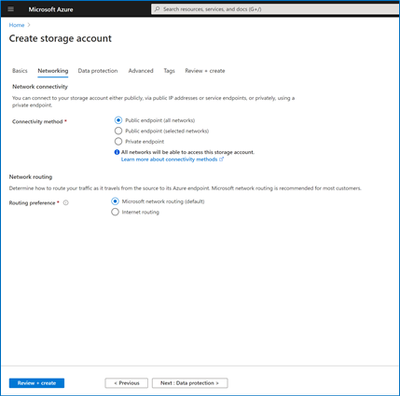
You can now configure a routing preference to direct network traffic for the default public endpoint of your Storage account using either the Microsoft global network or using the public internet.
- Optimize for premium network performance by using the Microsoft global network, which delivers low-latency path selection with high reliability and routes traffic through the point-of-presence closest to the client.
- Alternatively, route traffic through the point-of-presence closest to your storage account to lower network costs and minimize traversal over the Microsoft global network.
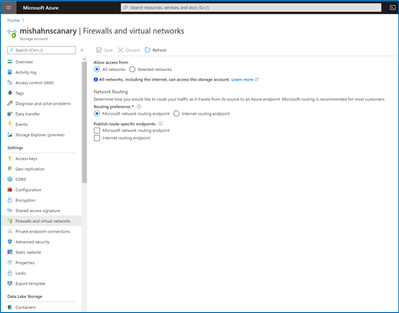
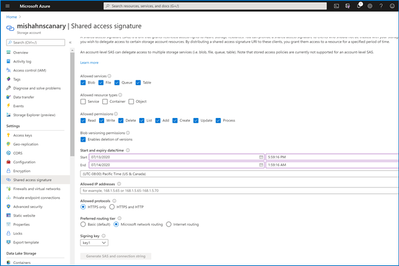
Routing configuration options for your Storage account also enable you to publish additional route-specific endpoints. Use these new public endpoints to override the routing preference specified for the default public endpoint by explicitly directing traffic over a desired path.
Routing preferences for Azure Storage is now available for preview in France South, North Central US, and the West Central US regions.
You can specify your routing preference for a storage account at Create time in the Networking tab.
You can also specify a routing preference for your storage account after creation in the Firewalls and Virtual Networks tab in Storage Account Manage.
Should you elect to public the individual route-specific endpoints, you can generate an SAS token that directs traffic along the network route you specify.
All Categories
New Dashboard Pinning Experience
Previously, users did not have the option to select a dashboard when pinning content. With the new pinning experience, users can now choose an existing dashboard or even create a new dashboard to pin their content to. This pinning experience can be invoked from any service that offers the pinning feature, as indicated by a pin icon.
- Go to any service that enables pinning. Take “All resources” for example.
- Click on the “pin” icon which opens the new pinning experience

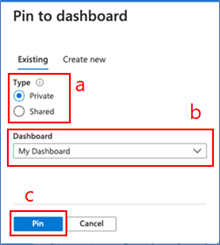
3. From here you can pin to an existing dashboard (default) or create a new dashboard.
If you pin to an existing dashboard:
a. Select whether you want to pin to an existing private or shared dashboard in the “Type” section
b. Find the dashboard in dashboard dropdown – the default selection in the dropdown is your most recently accessed dashboard
c. Once you select the dashboard from the dropdown, click “Pin”
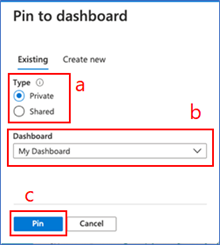
d, You will get a notification once the pinning has been completed. You can access the dashboard by clicking on the notification.
If you pin to a new dashboard:
a. Select “Create new”
b. Select whether you want to create a new private or shared dashboard
c. Fill in the required information
d. Once you’re done, click “Create and pin”. You will get a notification when the dashboard is successfully created and pinned to. You can access the dashboard by clicking on the notification. You can also access the pinned content by going to Dashboard in the left nav and finding the dashboard you’ve pinned the content to.
INTUNE
Updates to Microsoft Intune
The Microsoft Intune team has been hard at work on updates as well. You can find the full list of updates to Intune on the What’s new in Microsoft Intune page, including changes that affect your experience using Intune.
Azure portal “how to” video series
Have you checked out our Azure portal “how to” video series yet? The videos highlight specific aspects of the portal so you can be more efficient and productive while deploying your cloud workloads from the portal. Check out our most recently published video:
Next steps
The Azure portal has a large team of engineers that wants to hear from you, so please keep providing us your feedback in the comments section below or on Twitter @AzurePortal.
Sign in to the Azure portal now and see for yourself everything that’s new. Download the Azure mobile app to stay connected to your Azure resources anytime, anywhere.
See you next month!


Recent Comments