by Scott Muniz | Jul 22, 2020 | Alerts, Microsoft, Technology, Uncategorized
This article is contributed. See the original author and article here.
This month we released a bi-weekly YouTube show dedicated to Azure Security Center. The guest for the first episode was Tal Rosler, from our Azure Security Center Engineering Team. Check it out the first episode where Tal talks about Threat Protection in Azure Security Center, including the new Alert Suppression feature:
The second episode, released today was about Secure Score and our guest was Miri Peer Landau. Make sure to watch this episode and see some updates in the Secure Score, including the new Secure Score PowerBI dashboard:
Make sure to subscribe to the new Microsoft Security Channel, and follow the show at https://aka.ms/ascinthefield
by Scott Muniz | Jul 22, 2020 | Alerts, Microsoft, Technology, Uncategorized
This article is contributed. See the original author and article here.
INTRODUCTION
While using Azure DevOps Continuous Integration and Continuous Delivery (CICD) pipelines, most of the documentation and articles show how to use Office 365 Command Line Interface (CLI) to upload, add and deploy the SPFx packages. It’s because Office 365 CLI is a cross-platform command line tool and thus you get the benefit of using either a Windows or a Linux machine as your build agent. To login with Office 365 CLI using username and password:
login --authType password --userName user@contoso.com --password pass@word1
There are ways to secure the password in Azure DevOps using variables or Azure Key Vault. However, enterprise organizations who are still not comfortable to use passwords and looking for other like certificates.
With this blog post I highlight two aspects:
- How to setup Office 365 CLI with Azure AD App and Certificate based authentication and
- How to login using O365 CLI and certificates in Azure DevOps YAML pipelines
You can find the documentation on how to use certificate to login using Office 365 CLI. This article goes into detailed steps complementing the documentation. I will also touch upon some issues that I faced while setting this up.
Note: Another advantage that you get from following these steps will be the ability to define fine grained permissions limited for the required for use case (Example: deploy to SPO app catalog).
CERTIFICATE GENERATION
- Create self-signed certificate of type Personal Information Exchange (PFX) or Privacy Enhanced Mail (PEM)
- For windows, install openssl client. I used: http://slproweb.com/products/Win32OpenSSL.html
Instructions are assuming openssl client is extracted to c:OpenSSL folder.
NOTE: After trying couple of openssl clients, I had success with this ssl client. I hope that saves some time for you in researching which client works. If you WSL enabled/configured, then this is a non-issue.
- Navigate to the OpenSSL bin directory.
- c:OpenSSLbin in our example.
- Right-click the openssl.exe file and select Run as administrator.
- Enter the following command to begin generating a certificate and private key
openssl req -x509 -sha256 -nodes -days 365 -newkey rsa:2048 -keyout privateKey.key -out certificate.cer
- You will then be prompted to enter applicable Distinguished Name (DN) information, totaling seven fields:
- Once completed, you will find the certificate.crt and privateKey.key files created under the OpenSSLbin directory.
- Create a new Personal Information Exchange (.PFX) file using the certificate and private key as inputs from above step.
openssl pkcs12 -export -out protected.pfx -inkey privateKey.key -in certificate.cer -password pass:pass@word1
NOTE: I’d would like to highlight and note that I spent many hours troubleshooting an issue related to this command. If you use double quotes for the password string as documented (Example: openssl pkcs12 -export -out protected.pfx -inkey privateKey.key -in certificate.cer -password pass:”pass@word1″ ), the quotes are also considered to be part of the password.
- At this point the protected.pfx file can be used to log in the Office 365 CLI. We will come back to this step later.
Artifacts from this section:
- Certificate.cer
- privateKey.key
- protected.pfx
AZURE AD APPLICATION REGISTRATION
- Creating AAD app is well documented in many articles, so I sparsely documented it here. Also, please check out Garry Tinder’s post which goes into details on how to create AAD app to log in using Office 365 CLI.
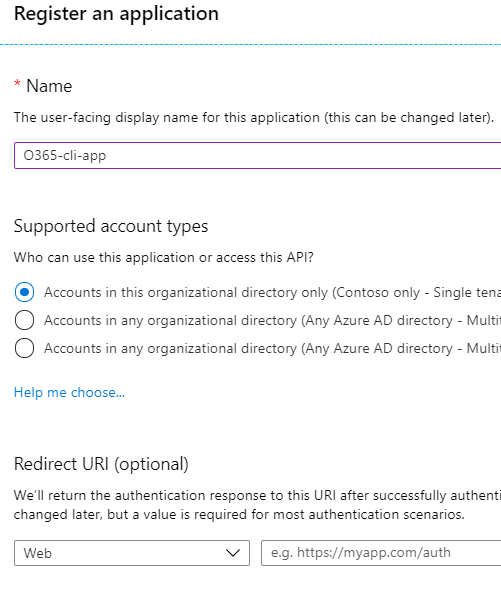
- Create new Azure AD App with a valid name. Leave all other fields/options as-is.
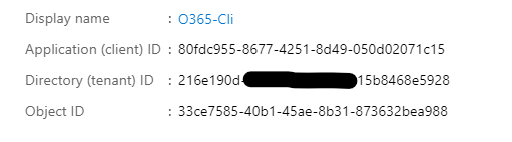
- Save the app id and tenant id.
- Give below “application” permissions to the app
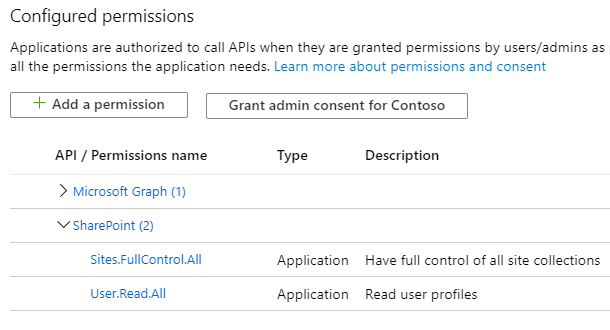
NOTE: Microsoft Graph permission is not a prerequisite. Ignore it.
- Make sure the Admin Consent is provided for all the permissions.
- Go to “Certificates & Secrets” and choose “Upload certificate” to upload the certificate.cer file created in step 7 in first section.
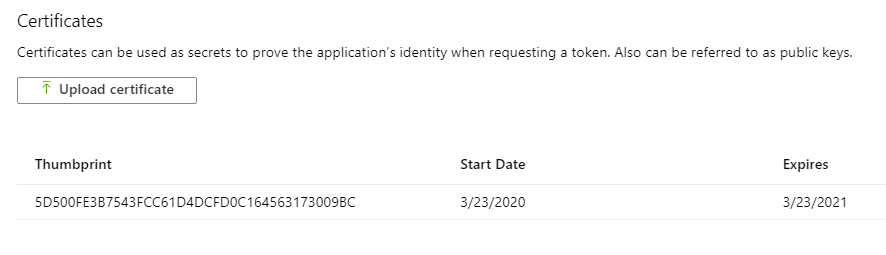
NOTE: Instead of upload certificate, it’s also possible to manually update the manifest file.
- Save the thumbprint to use later.
Artifacts from this section:
- App Id
- Tenant ID
- Thumbprint
TEST LOCALLY
- Before we can use these artifacts in Azure DevOps pipeline, lets test locally to ensure the certificate is usable with Office 365 CLI login. We need to make the AAD App ID and the Tenant ID available to Office 365 CLI using environment variables. If you are looking to script this or looking for steps to do in other operating systems, I’d refer to Garry Tinder’s blog post.
- Add below environment variables on your PC.
- OFFICE365CLI_AADAPPID = App Id
- OFFICE365CLI_TENANT = Tenant ID
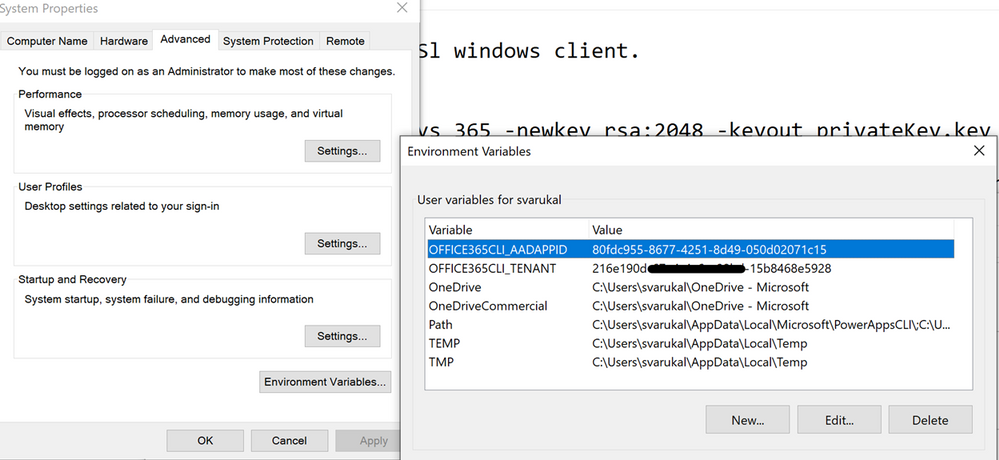
- Test your certificate by trying to login using O365 CLI in terminal window (PS or Command Win)
login --authType certificate --certificateFile C:OpenSSL-Win64binprotected.pfx --thumbprint 5D500FE3BTRUNCATED563173009BC --password pass@word1
Note: Change the certificateFile, thumbprint, password as per your environment
- Run some sample commands. Example:
- Status
- Spo app list

USE CERTIFICATE IN AZURE DEVOPS PIPELINE
- In this section, we will configure Azure DevOps repository so that the pipelines can use the certificate when logging with Office 365 CLI. Here is a demo repository on GitHub that contains two files:
- SPFX Package file (sppkg file)
- This is a sample SPFx application customizer extension that adds Azure Application Insights to SPO sites. Note: It can be any other SPFx package file.
- Azure-pipelines.yml
- YAML pipeline that uses the certificate to login using Office 365 CLI. This pipeline takes the SPFx package, uploads, deploys to SharePoint Online App Catalog site.
- First, we need to upload the certificate to the repository. Open your Azure DevOps (ADO) project. Go to Pipelines > Library page.
- Select “Secure files” tab. Use the + Secure file button to upload the pfx file.
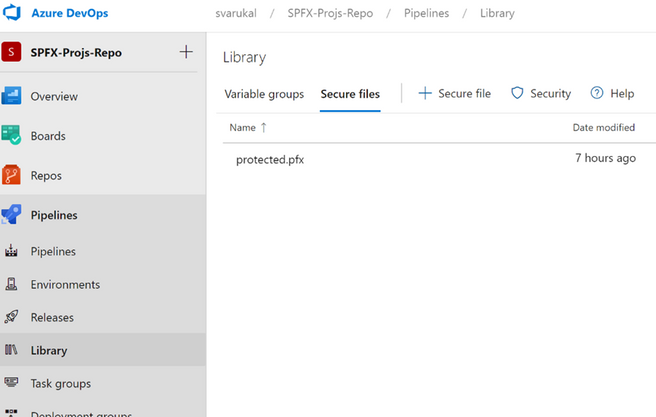
- Below you can see the sample entries (script tasks) that you can use in your YAML pipelines to access the certificate from the secure files store.
- script: echo Building!

    - task: DownloadSecureFile@1

      name: caCertificate

      displayName: 'Download CA certificate'

      inputs:

        secureFile: 'protected.pfx'

    - script: |

        echo Found cert at $(caCertificate.secureFilePath)

 ##

    ## login to Office 365 CLI

 ##

    - script: o365 login $(o365_app_catalog_site_url) --authType certificate --certificateFile $(caCertificate.secureFilePath) --thumbprint $(cert_thumbprint) --password pass@word1

      displayName: Login to Office365
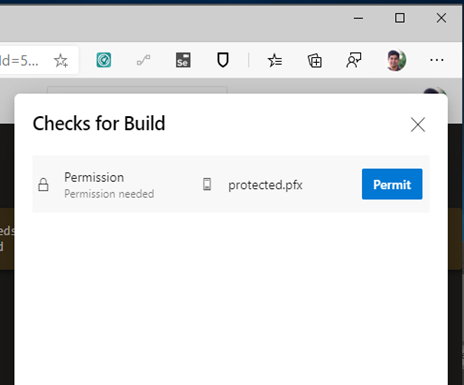
- When the pipeline executes the first time, you will see a prompt to approve the usage of the certificate. See below screenshot:
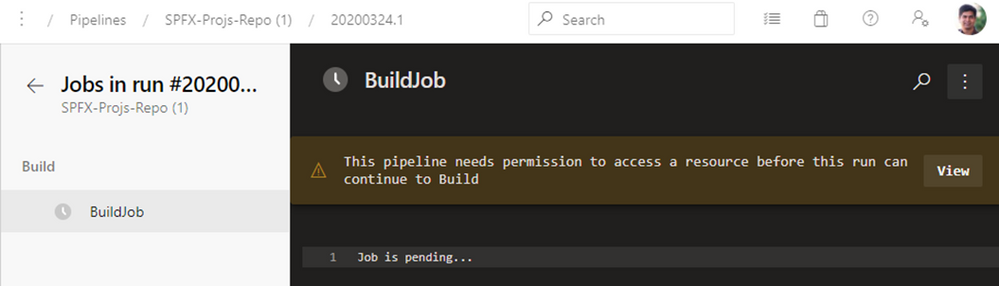
SAMPLE PIPELINE
Below you can see the Azure pipeline in full. You can access this pipeline on GitHub here.
trigger:
  branches:
    include:
      - '*'

variables:
  OFFICE365CLI_AADAPPID: '80fdc955-8677-4251-8d49-050d02071c15'
  OFFICE365CLI_TENANT: '216e190d-67e4-4a6e-98bd-15b8468e5928'
  o365_app_catalog_site_url: 'https://YOURTENANT.sharepoint.com/sites/APPCATALOGSITENAME'
  o365cli_app_catalog_scope: 'tenant'
  node_version: '10.x'
  cert_thumbprint: '5D500FE3B7543FCC61D4DCFD0C164563173009BC'
  spfx-pkg: 'azure-app-insights.sppkg'

pool:
  vmImage: ubuntu-latest

stages:
- stage: Build
  jobs:
  - job: BuildJob
    steps:
    - script: echo Building!
    - task: DownloadSecureFile@1
      name: caCertificate
      displayName: 'Download CA certificate'
      inputs:
        secureFile: 'protected.pfx'
    - script: |
        echo Found cert at $(caCertificate.secureFilePath)
    ##
    ## specify which node version to use
    ##
    - task: UseNode@1
      displayName: Set to Node.js $(node_version)
      inputs:
        version: $(node_version)
      condition: ne('$(node_version)', '')

    ##
    ## install Office 365 CLI
    ##
    - script: sudo npm install --global @pnp/office365-cli
      displayName: Install Office365 CLI

    ##
    ## login to Office 365 CLI
    ##
    - script: o365 login $(o365_app_catalog_site_url) --authType certificate --certificateFile $(caCertificate.secureFilePath) --thumbprint $(cert_thumbprint) --password pass@word1
      displayName: Login to Office365

    ##
    ## upload *.sppkg to the target app catalog
    ##
    - script: o365 spo app add --filePath $(spfx_pkg) --appCatalogUrl $(o365_app_catalog_site_url) --scope tenant --overwrite
      displayName: Upload SharePoint package to Site Collection App Catalog

    ##
    ##deploy the package
    ##
    - script: o365 spo app deploy --name $(spfx_pkg) --appCatalogUrl $(o365_app_catalog_site_url) --scope tenant
      displayName: Deploy SharePoint package
Thanks for reading. I hope this helps you out.
Disclaimer
The sample scripts are not supported under any Microsoft standard support program or service. The sample scripts are provided AS IS without warranty of any kind. Microsoft further disclaims all implied warranties including, without limitation, any implied warranties of merchantability or of fitness for a particular purpose. The entire risk arising out of the use or performance of the sample scripts and documentation remains with you. In no event shall Microsoft, its authors, or anyone else involved in the creation, production, or delivery of the scripts be liable for any damages whatsoever (including, without limitation, damages for loss of business profits, business interruption, loss of business information, or other pecuniary loss) arising out of the use of or inability to use the sample scripts or documentation, even if Microsoft has been advised of the possibility of such damages.
by Scott Muniz | Jul 22, 2020 | Uncategorized
This article is contributed. See the original author and article here.
A single compromised user or malicious insider can compromise an entire organization – which is why we’re always looking for the best way to protect identity environments.
Since its release in 2015, Microsoft Advanced Threat Analytics (ATA) has protected organizations from identity-based attacks in on-premises environments, receiving multiple updates that introduced new functionality and improvements to existing features.
As the nature and requirements of security changed, so did the frequency and severity of cyber-attacks. We saw a dramatic increase in the sophistication and velocity of attacks and realized that the current IT security tools provided were limited in the protection they could offer to on-premises environments.
To help customers combat these attacks, in March 2018 we introduced Azure Advanced Threat Protection (Azure ATP), which shifted to a lightweight sensor connected to cloud service model. This allows us to rapidly update detections and provide customers with an easier deployment path.
We are now reaching the end of mainstream support for ATA and are guiding our customers to shift to Azure ATP as their on-premises identity threat protection solution.
Our commitment to security means we will continue to provide critical security updates affecting ATA, with Extended Support continuing until January 2026. Mainstream support ends on January 12, 2021. The final update in mainstream support will be ATA v1.9.3. We will communicate further details about this release in the coming weeks.
To help you get started, we have compiled some information and resources:
• Preventing threats – Assess your security posture through full visibility into on-premises Active Directory configuration, users, and service accounts that could become compromised due to security misconfigurations or failure to follow best practices. Identity Security Posture assessments powered by Azure ATP alert you to known bad practices within your environment, like dormant accounts within sensitive groups or risky lateral movement paths. This proactivity ensures you are remediating potentially harmful configurations before they become an additional attack vector.
• Detecting threats – Detect on-premises, advanced attacks in real time, leveraging unique approaches to Network Traffic Analytics & User and Entity Behavior Analytics, as well as entity enrichments such as device name resolution, event log inspection, and Event Tracing for Windows events. Azure ATP detections can identify attackers’ activities through the kill chain — starting with network and user mapping (reconnaissance) and continuing with attempts to compromise identities and move laterally inside the organization to gain domain dominance. Potential threats are grouped together using cloud-powered analytics.
• Investigating threats – Review alerts and user activities to understand the attack methods and potential damage. Additionally, you can hunt through user activities and define custom alerts based on user events. And, with Azure ATP’s Investigation Priority Score, you can pinpoint the riskiest users to investigate, based on their alerts and suspicious activities.
• Remediating threats – Azure ATP’s integration with other products in Microsoft’s security portfolio helps you mitigate the impact of compromised users by raising a user’s AAD User Risk level and enforcing organizational risk policies such as blocking access—or allowing access, but requiring a password change using Azure AD self-service password reset.
We also know that the real test of any security solution is real-world results. Recently we submitted Azure ATP for MITRE ATT&CK APT 29 evaluation. MITRE evaluates cybersecurity products using an open methodology based on the ATT&CK knowledge base. The latest evaluation centered around a nation-state threat actor Advanced Persistent Threat (APT) 29. Azure ATP detected account compromise at the domain level, lateral movement, and the more sophisticated pass-the-ticket (Golden Ticket) attack. Check out this blog for more details on how Azure ATP performed in the evaluation.
Acknowledgement from independent experts like MITRE is a great milestone for Azure ATP, but we also have large customers who rely on it to help protect their environments. Ansell, a global personal protective equipment leader, made the move from ATA to Azure ATP and is pleased with their new, enhanced capabilities:
George Michalitsianos, Senior Director of IT Security and Infrastructure at Ansell, states “We valued Advanced Threat Analytics for the ability to recognize and even help proactively stop an attack, and now that we have the same capability in Azure ATP, we’re in an even better position. We can use new features and capabilities as soon as they’re delivered.”
Find out more about Ansell’s cloud security journey here.
So what do we recommend you do right now? The best way to experience all that Azure ATP has to offer is to try it for yourself. Resources to assist in migrating can be found here. And, for personalized help with the transition, contact us at atahelp@microsoft.com.
by Scott Muniz | Jul 22, 2020 | Uncategorized
This article is contributed. See the original author and article here.
Planning, implementing, and managing an onboarding experience for new employees is time consuming and challenging. For organizations, its difficult to efficiently onboard new employees into the complexity of an organization’s structure, people, processes, and culture. Only 12% of employees strongly agree their organization does a great job of onboarding new employees.[1] For new employees, the onboarding experience is often exciting, but can also be stressful, overwhelming, and inconsistent. Based on research, new employees who have a negative onboarding experience are twice as likely to look for new opportunities within the first six months of starting their new job. [2]
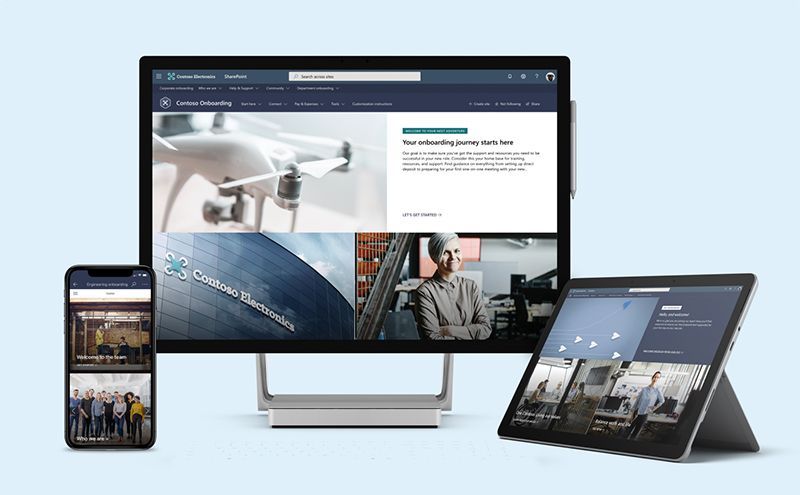
To help our customers improve their new hire onboarding experience, we have launched a new set of SharePoint site templates on the SharePoint look book called the New Employee Onboarding (NEO) hub.
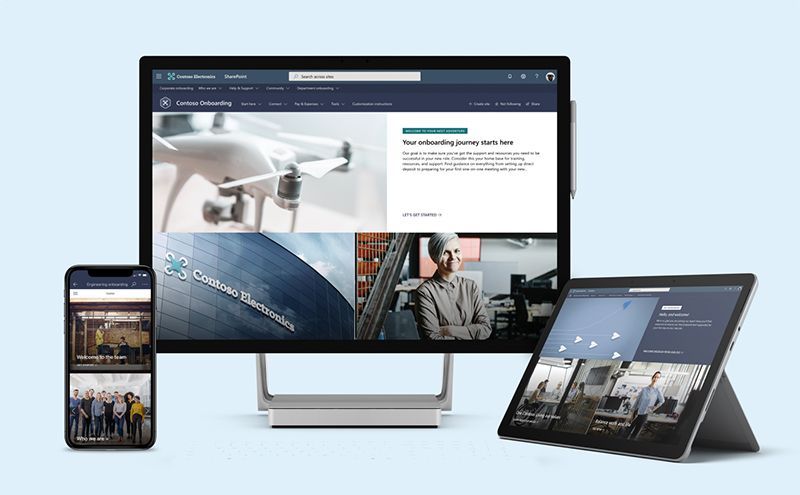
The NEO hub helps organizations:
- Provide new employees resources, support, and general information
- Connect new employees to people, community, and culture
- Help stakeholders easily contribute to new employee onboarding
An engaging and well-organized NEO process can make all the difference in helping a new hire navigate through an exciting – but stressful – career journey, and it can have major organizational benefits:
- Improve new hire performance and time to productivity – Organizations with a standard onboarding process report 50% greater new-hire productivity.[3]
- Improve new employee retention – 69% of employees are more likely to stay with a company for three years if they had a great onboarding experience.[4]
[1] Gallup, State of the American Workplace, 2017
[2] Gallup, State of the American Workplace, 2017
[3] SHRM, Don’t Underestimate the Importance of Good Onboarding, 2017
[4] SHRM, Don’t Underestimate the Importance of Good Onboarding, 2017
NEO hub
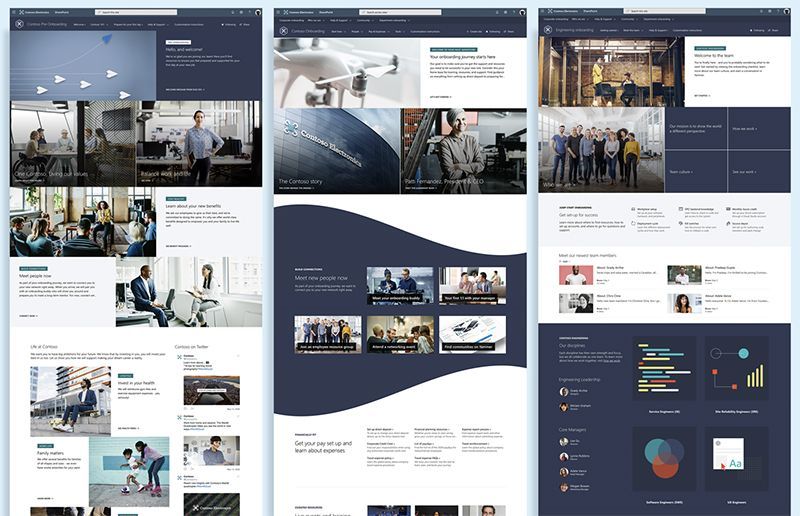
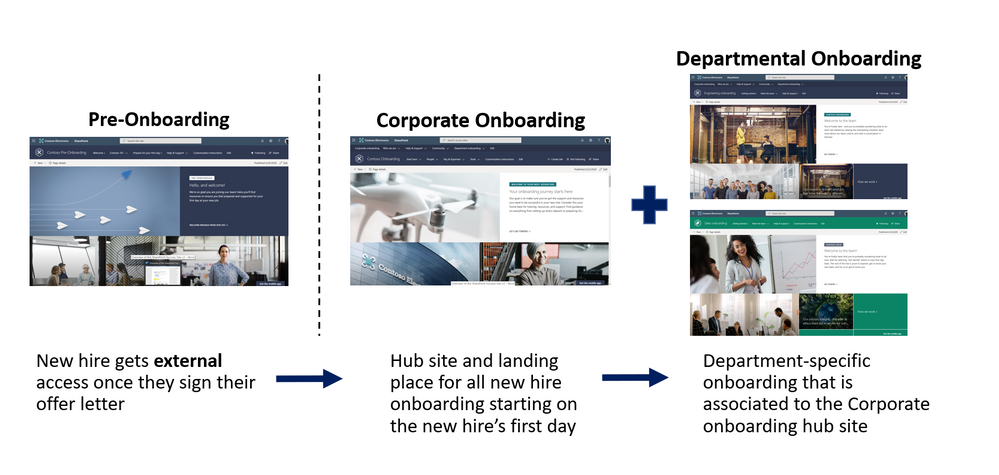
New employee onboarding involves creating an end-to-end experience for new employees that begins before their first day on the job. Research has shown pre-onboarding new hires (after they sign their acceptance letter but before they officially join the company) can lead to higher performance and better retention rates. New employee onboarding also involves providing support on multiple levels within an organization, like corporate and departmental onboarding. Each onboarding level provides its own unique value, contributing to a comprehensive onboarding experience that each new employee will benefit from. To deliver a consistent and integrated new hire onboarding experience the NEO hub consists of three types of SharePoint site templates, designed to work as one cohesive and familiar experience for new hires:
What’s included
To help accelerate your implementation of a new employee onboarding hub in your tenant the following highlights just some of the features included:
- A fully configured and customizable set of new hire sites built on SharePoint communication sites: The NEO hub brings together the sites, information architecture, design, user interface and webparts to help provide new hires with a great onboarding experience. The NEO hub can be customized to add your organization’s new hire content and to align with its look and feel.
- Onboarding checklist: Onboarding can be an overwhelming experience for new hires with everything the new hire is typically expected to do and learn. Avoid overwhelming your new employees by providing them a curated onboarding journey that paces the new hire through a configurable activity list of onboarding to-do’s.
- Sample new hire site pages: To inspire and provide design templates for arranging your content, the NEO hub includes sample inner site pages. Use these site pages as templates for your content.
- Mobile ready: The NEO hub can be easily accessed on mobile devices so your new hires can continue their onboarding from wherever they may be working.
Learn more about the NEO hub. Provision the NEO hub to your tenant today and customize it to help your new hires onboard successfully.
FAQ:
Question: What are the requirements for installing the New Employee Onboarding (NEO) Hub into my tenant environment?
Answer:
- SharePoint Online and Communication Sites enabled.
- The individual that will be provisioning CLO365 must be the admin of the target tenant for install.
Question: How long will it take to install the site in our tenant environment?
Answer: Based on our testing of the installation, it should take less than 20 minutes. This does not include time required to customize the site to your requirements.
by Scott Muniz | Jul 22, 2020 | Uncategorized
This article is contributed. See the original author and article here.
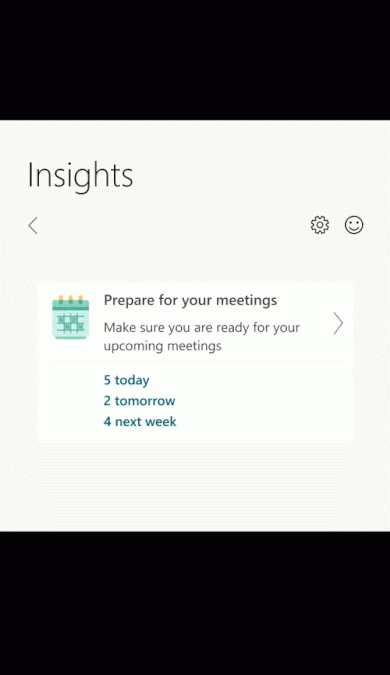
Last year, we launched a meeting preparation insight in the Insights Outlook Add-in to help organizers prepare for meetings they have set up. Based on customer feedback, we have added insights for meetings you are invited to as well as added additional features for you as a meeting organizer.
Here is a list of new experiences you can now use
- Prepare for invited meetings: In addition to meetings you organize, you will also see insights for meetings you’ve been invited to.
- Assist in establishing quorum: Review conflicts for your upcoming meetings and respond to a meeting request inline, helping the organizer get an accurate count for the meeting.
- essential information before the meeting: Get pre-read recommendations for upcoming meetings as well as suggested tasks related to the meeting and review all explicitly attached documents.

As always, you can use this insight to book preparation time before the meeting, review attendees, and check for the presence of an online meeting link. For more information, read Prepare for your meetings


Recent Comments