by Contributed | May 26, 2023 | Technology
This article is contributed. See the original author and article here.
Blog Banner
At Microsoft Build, 50 updates were announced and among those updates were Power Platform announcements in which we will look at one of them today. Learn how to use the Excel to App with Copilot feature which enables you to take advantage of Copilot to add data processing capabilities by helping you clean and prepare your data before you even start building the app. Copilot can now ingest any Excel file, no matter how loosely structured and create robust structured tables with a variety of data types.
Find out more about Microsoft Build announcements on the Microsoft Build 2023 Book of News
Earn a free certification voucher by completing at least one Cloud Skills Challenge from the Microsoft Build Cloud Skills Challenge
Excel to App
Students, rising developers and pro-developers can rapidly build solutions in PowerApps by simply dragging and dropping or linking to a data source like Excel, and then build the UI on top of that data.
Things to consider
- You can import your excel file as it is and PowerApps will create a Custom Dataverse Table and a Canvas App for you.
- You do not need to format your table within excel (example you do not have to use Format as a Table within your spreadsheet)
- Your Canvas App and Dataverse table will be built based on the first sheet of your Excel Spreadsheet.
- The excel file needs to be closed when importing within PowerApps
Short Demo
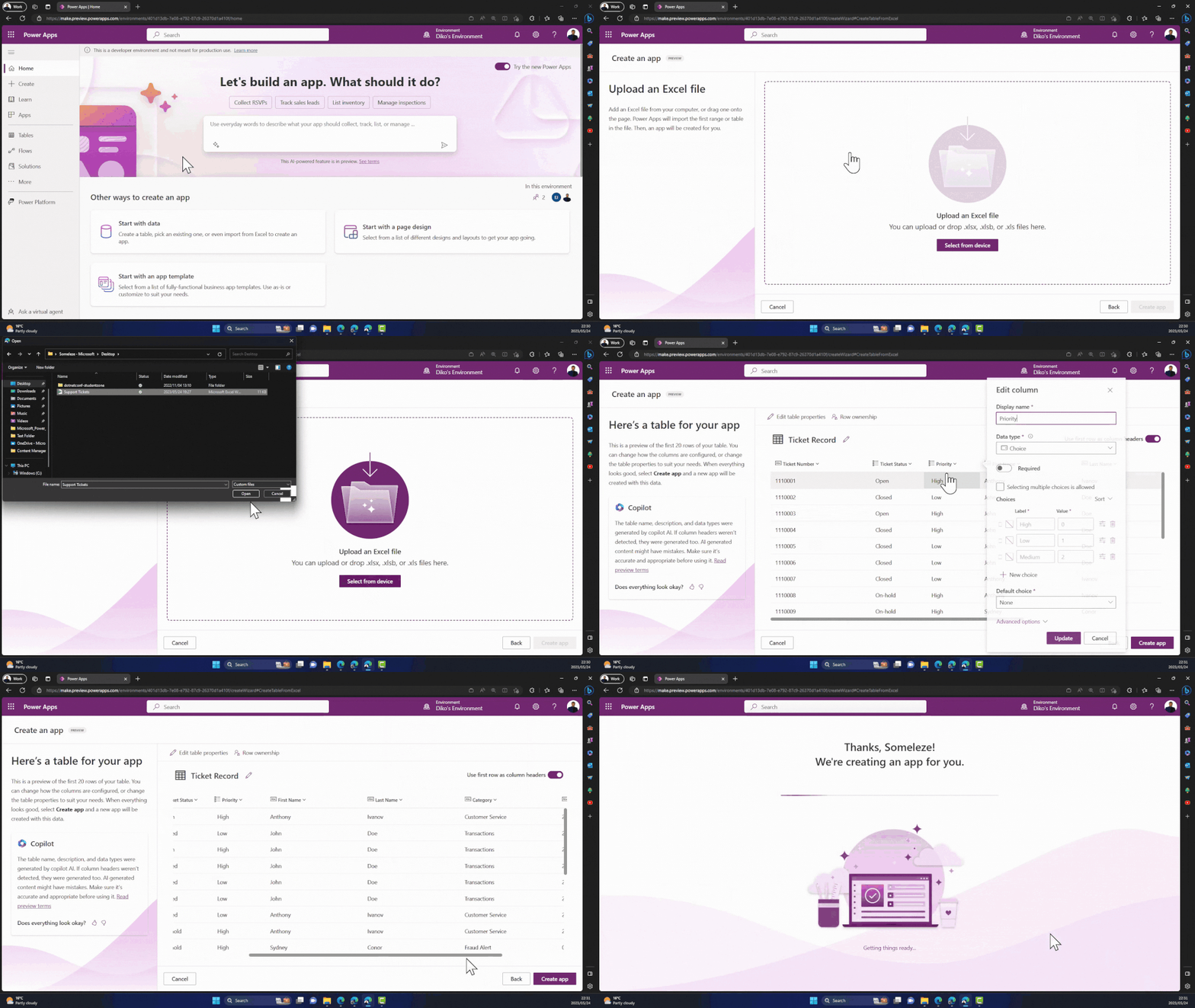 Animation showing a short demo of the Excel to App feature with Copilot in PowerApps
Practical steps to follow
- Prepare your excel file to use or create a new one.
- Go to PowerApps and Sign in with your account.
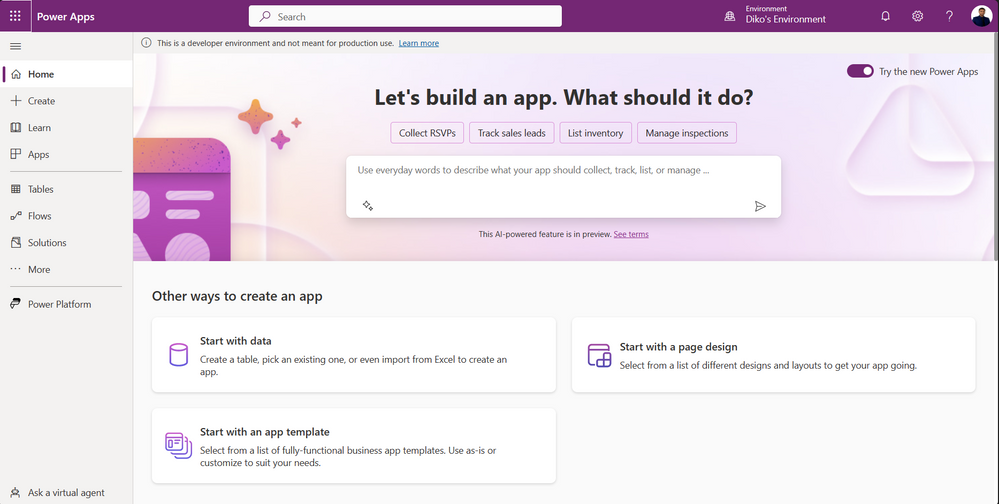
- On the homepage, click on Start with data
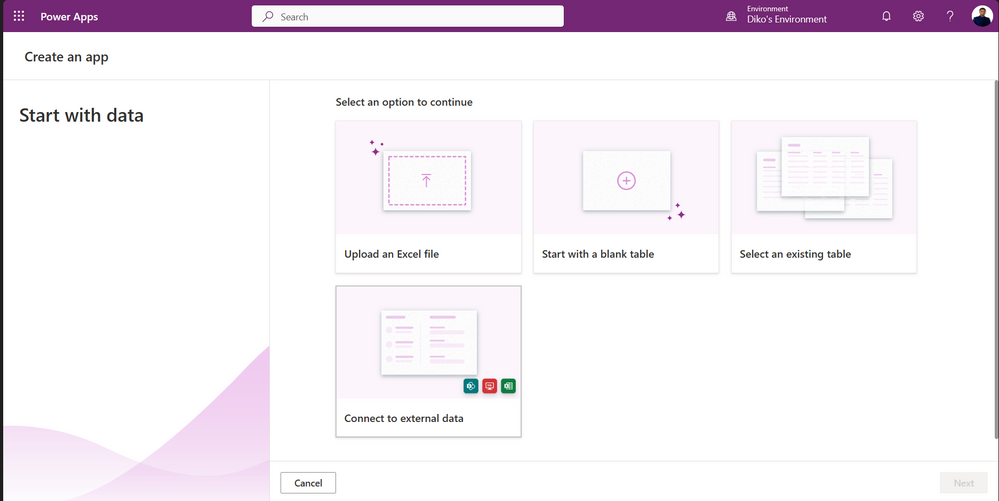
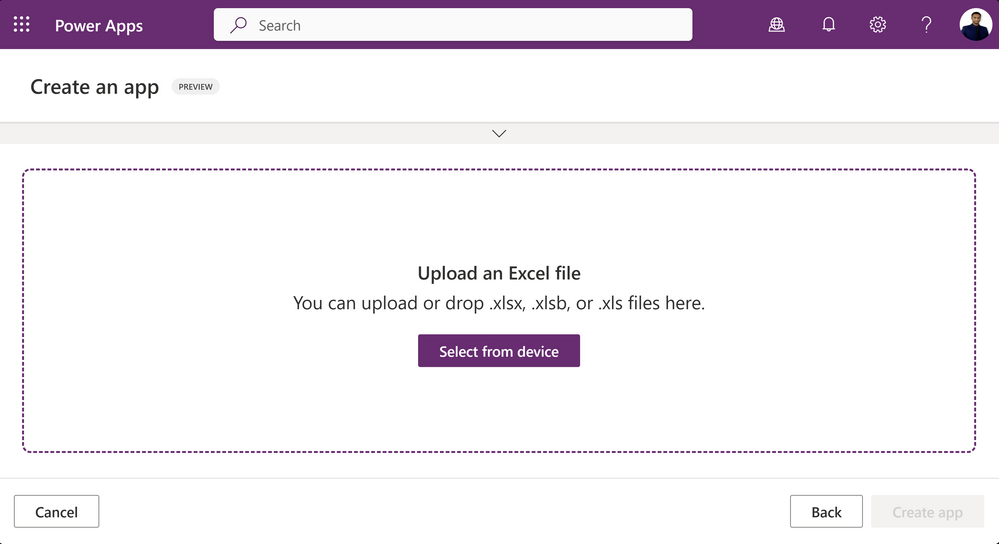
- On the Start with data wizard, choose and click on Upload an Excel file.
- Click on Select from device button then choose your excel file your device.
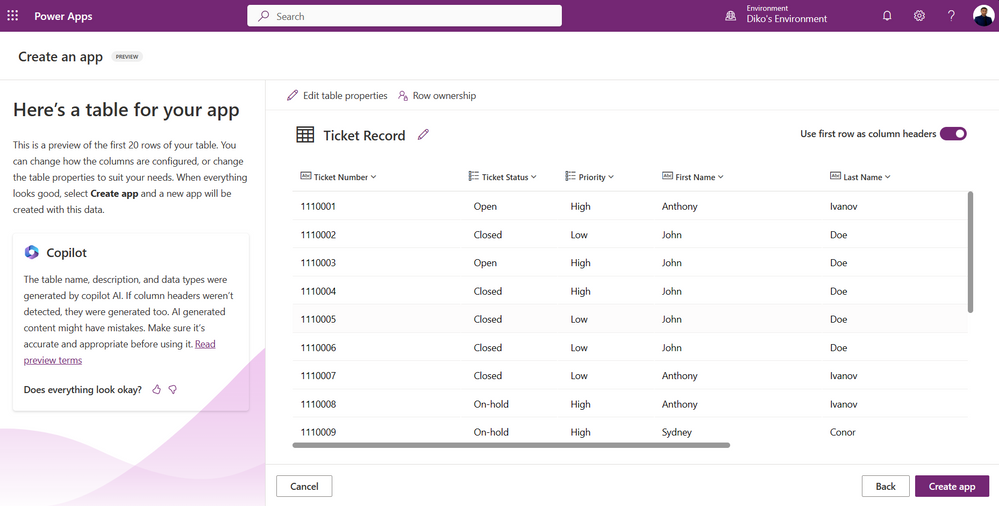
- You will get a preview of your Dataverse custom table that will be created for you. You will be able to edit the table by clicking on Edit Table Properties to change the Table name.
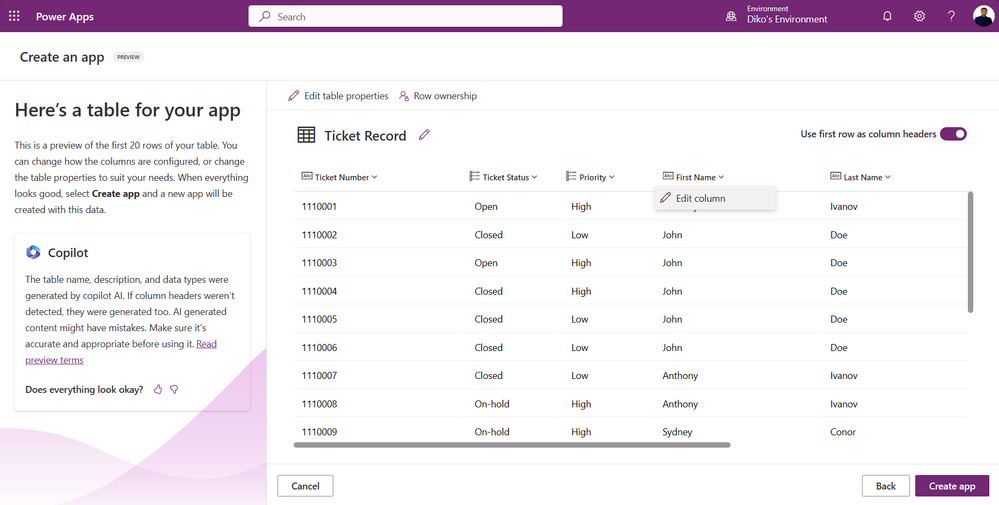
- The columns of your table are assigned to their appropriate data types and you have the ability to change/edit the column by clicking on the drop down next to the column and click on Edit Column. Once done, you can click on Create app
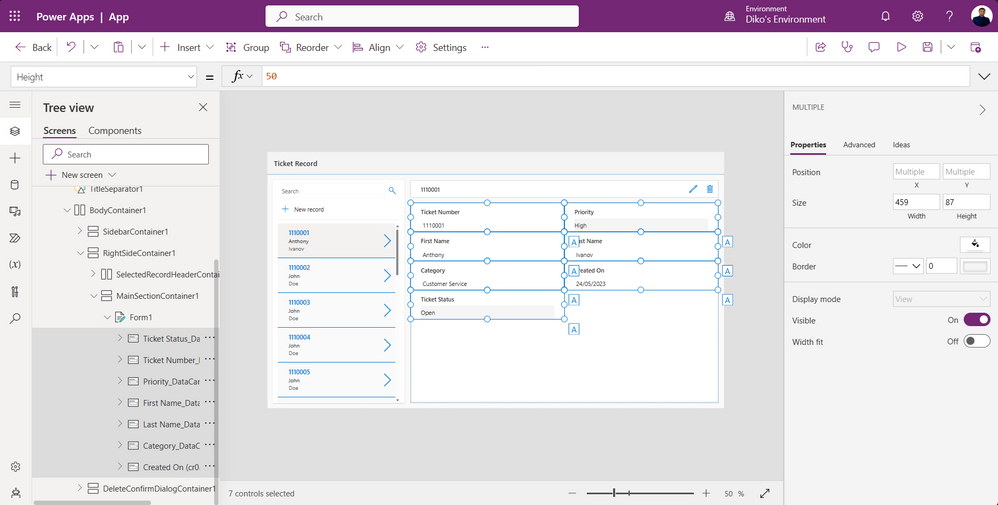
- Once you have clicked on Create app, Copilot will build a Canvas App with a Standard template that you can modify based on your needs.
Let’s Add more AI capabilities with Copilot
- Within your app, click on Settings then choose Upcoming Features
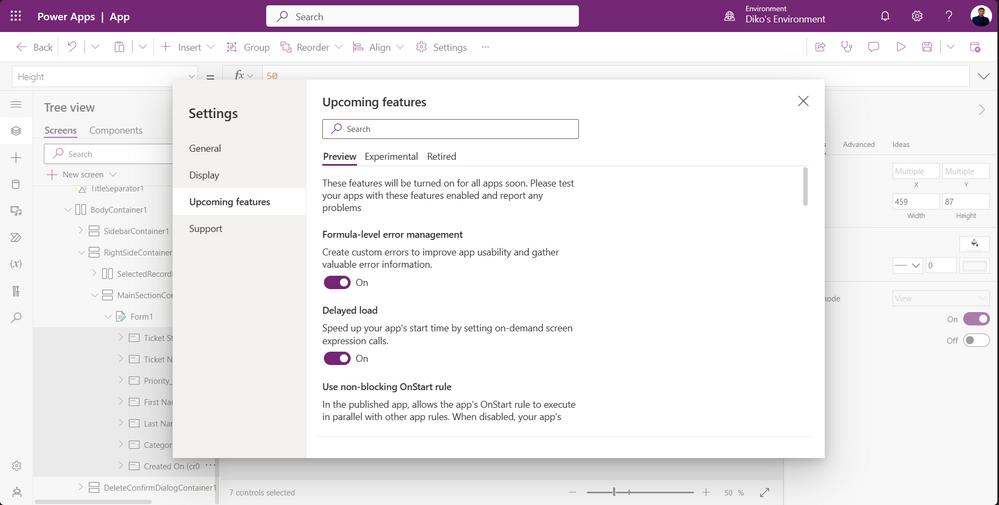
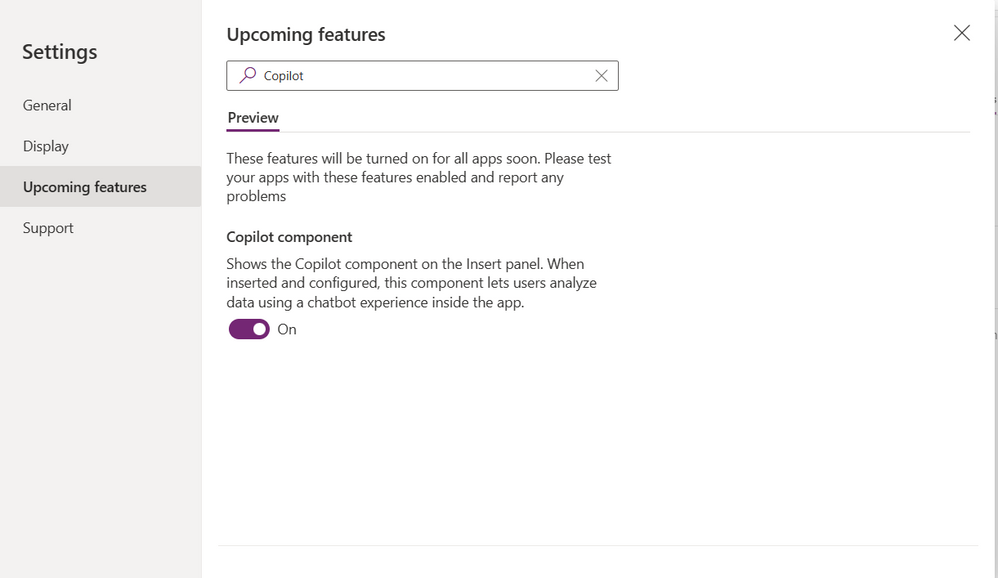
- Search for Copilot and toggle it to enable it. Once enabled close the dialog box.
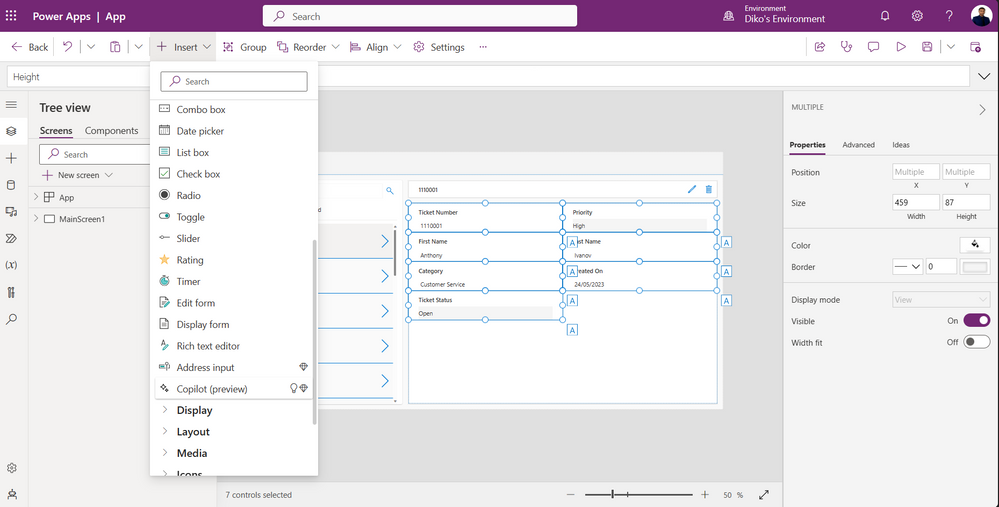
- Once your Copilot Component is enabled, click on Insert and choose Copilot (preview)
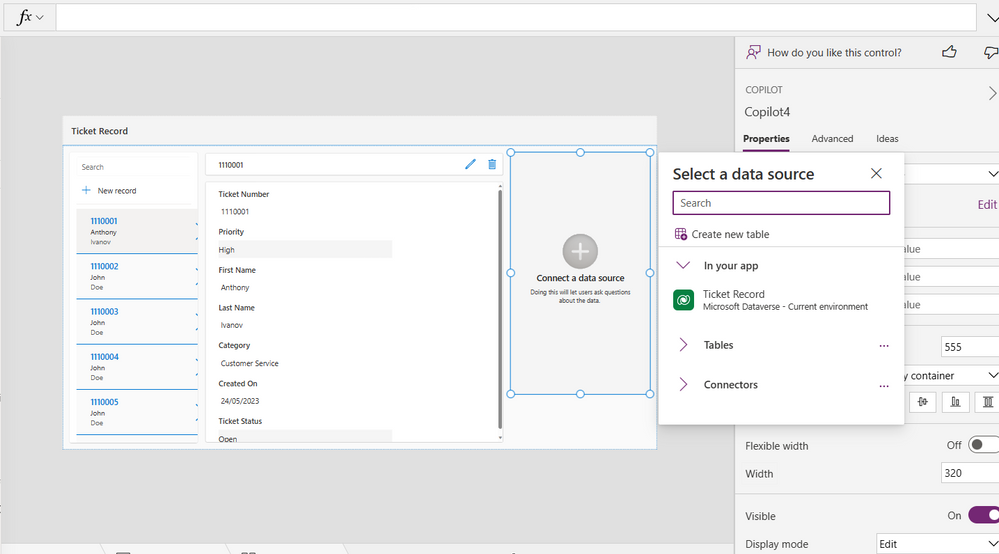
- Once the Copilot Component is added on the screen, you will need to choose/select the your Datasource.
- Once you have chosen your Datasource, the full Copilot Component is added to your app. This allows your app users to use Copilot to understand and analyze their data using suggested prompts.
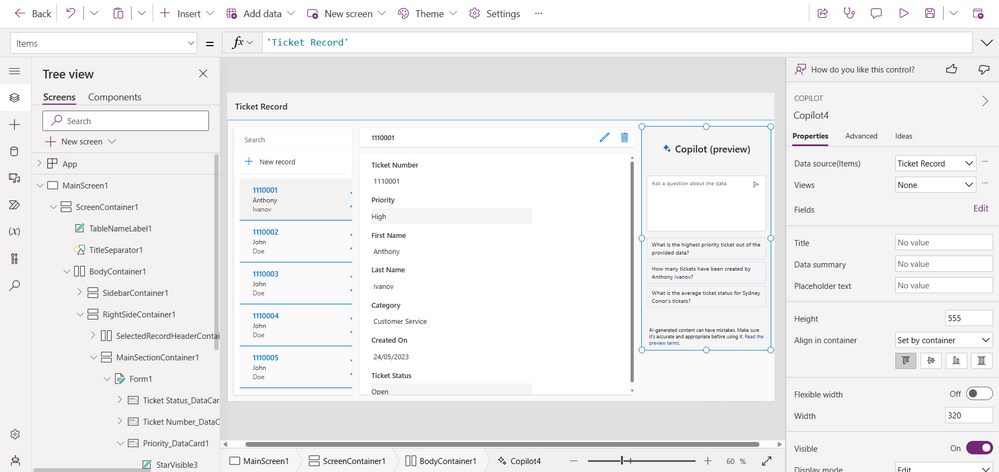
- Play the app and see Copilot in action. Choose one of the suggested prompts, for example on the picture below I want to know how many tickets are open.
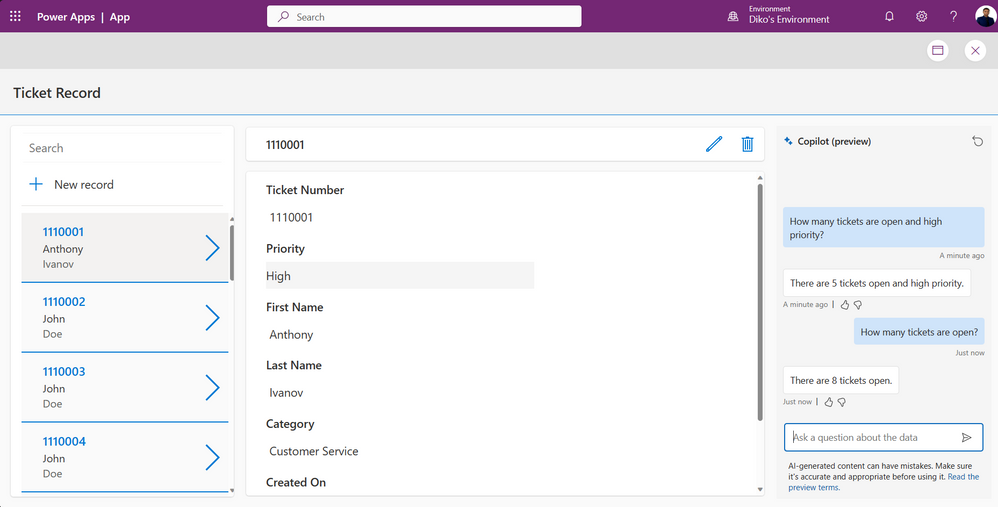
Congratulations! You did it, you built a Canvas app from your excel file using Copilot!

by Contributed | May 26, 2023 | Technology
This article is contributed. See the original author and article here.
This article describes how to perform a REST API request in Azure using RBAC authentication with Postman. I will use as example the Get Blob (REST API) request.
Please see below how to perform a REST API request in Azure using RBAC authentication:
- Open the Azure Portal and go to Azure Active Directory.
- On left side, please create a new App registration by clicking on App registration (left side bar) and then New registration. Fill in the Name and all the information required.
- Inside the new app:
- Click on Overview and and collect the Application (client) ID value, and the Directory (tenant) ID value.
- Clink on Certificates & secrets and create a New Client Secret. Please collect the client secret value.
- Open your storage account and go to Access Control (IAM) and assign to this App the RBAC role required to call any data access operation in Azure Storage. Please note the role assignment could take some time to take effect.
- For the example presented here (Get Blob request), we need to assign to the app need the following permission “Microsoft.Storage/storageAccounts/blobServices/containers/blobs/read“. The Storage Blob Data Reader RBAC role is the least privileged built-in role with this permission. This information can be found here: Get Blob (REST API) – Azure Storage
- Open Postman and:
- Create a new request.
- Select the Authorization tab in the request builder window and:
- In the “Type” dropdown, select “OAuth 2.0”
- On the right side, please fill in the following fields:
- Token Name: A name of your choosing
- Grant Type: Client Credentials
- Access Token URL: https://login.microsoftonline.com//oauth2/v2.0/token where is the Directory (tenant) ID value collected on step 3.1 above.
- Client ID: The Application (client) ID value collected on step 3.1 above.
- Client Secret: The client secret value collected on step 3.2 above.
- Scope: For storage, use https://storage.azure.com/.default
- Client Authentication: Send as Basic Auth Header.
- Click in “Get New Access Token” and collect the Access Token.
- To be able to execute the get blob request, we need to select the Headers tab in the request builder window and:
- Select the GET method request.
- Add the GET method request URI (https://myaccount.blob.core.windows.net/mycontainer/myblob)
- Add the header “Authorization“ with the value “Bearer <token>” where <token> is the value generated on the step 5.2.7 above.
- Add at least the two required headers x-ms-date and x-ms-version.
- Execute the request.
Disclaimer:
- These steps are provided for the purpose of illustration only.
- These steps and any related information are provided “as is” without warranty of any kind, either expressed or implied, including but not limited to the implied warranties of merchantability and/or fitness for a particular purpose.
- We grant You a nonexclusive, royalty-free right to use and modify the Steps and to reproduce and distribute the steps, provided that. You agree:
- to not use Our name, logo, or trademarks to market Your software product in which the steps are embedded;
- to include a valid copyright notice on Your software product in which the steps are embedded; and
- to indemnify, hold harmless, and defend Us and Our suppliers from and against any claims or lawsuits, including attorneys’ fees, that arise or result from the use or distribution of steps.
by Contributed | May 25, 2023 | Technology
This article is contributed. See the original author and article here.
Today, we faced a service request where our customer got the following issue Msg 9002, Level 17, State 2, Line 8
The transaction log for database ‘2d7c3f5a-XXXX-XZY-ZZZ-XXX’ is full due to ‘REPLICATION’ and the holdup lsn is (194XXX:24X:1). Following I would like to share with you what was the lesson learned here.
We need to pay attention about the phrase “is full due to”, in this case is REPLICATION that means that could be related about Transaction Replication or Change Data Capture (CDC).
In order to determine the situation, if we are not using Transaction Replication is to review if CDC is enabled running the following query: select name,recovery_model,log_reuse_wait,log_reuse_wait_desc,is_cdc_enabled,* from sys.databases where database_id=db_id() – sys.databases (Transact-SQL) – SQL Server | Microsoft Learn
If the value of the column is_cdc_enabled is 1 and you are not using CDC, use the command sys.sp_cdc_disable_db to disable the CDC job. sys.sp_cdc_disable_db (Transact-SQL) – SQL Server | Microsoft Learn
During the troubleshooting process during the execution of sys.sp_cdc_disable_db we got another error Msg 22831, Level 16, State 1, Procedure sys.sp_cdc_disable_db_internal, Line 338 [Batch Start Line 6]
Could not update the metadata that indicates database XYZ is not enabled for Change Data Capture. The failure occurred when executing the command ‘(null)’. The error returned was 9002: ‘The transaction log for database ‘xxx-XXX-43bffef44d0c’ is full due to ‘REPLICATION’ and the holdup lsn is (51XYZ:219:1).’. Use the action and error to determine the cause of the failure and resubmit the request.
In this situation, we need to add more space to the transaction log file due there is not possible to register the disabling CDC operation in the transaction log.
Once, we have more space in our transaction log, we were able to disable CDC and after disabling CDC, Azure SQL Database was able to marked as backup the Transaction Log.
Finally, in order to try to speed up the truncation of this transaction log we executed several times the command DBCC SHRINKFILE (Transact-SQL) – SQL Server | Microsoft Learn and we were able to reduce the file size of the transaction log file.
Also, during the troubleshooting we used the following to see how many VLFs that we have and the space usage: sys.dm_db_log_info (Transact-SQL) – SQL Server | Microsoft Learn and sys.database_recovery_status (Transact-SQL) – SQL Server | Microsoft Learn
SELECT * FROM sys.dm_db_log_info(db_id()) AS l
select * from sys.database_recovery_status where database_id=db_id()
by Contributed | May 24, 2023 | Technology
This article is contributed. See the original author and article here.
This solution architecture proposal outlines how to effectively utilize OpenAI’s language model alongside Azure Cognitive Services to create a user-friendly and inclusive solution for document translation. By leveraging OpenAI’s advanced language capabilities and integrating them with Azure Cognitive Services, we can accommodate diverse language preferences and provide audio translations, thereby meeting accessibility standards and reaching a global audience. This solution aims to enhance accessibility, ensure inclusivity, and gain valuable insights through the combined power of OpenAI, Azure Cognitive Services and PowerPlatform.
Dataflow
Here is the process:
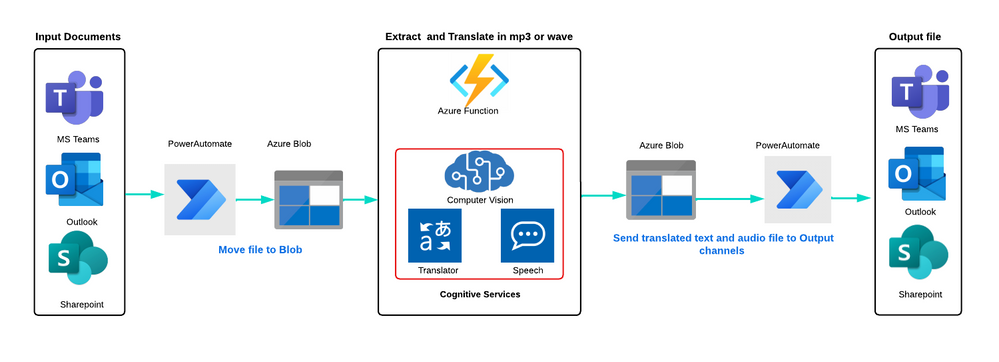
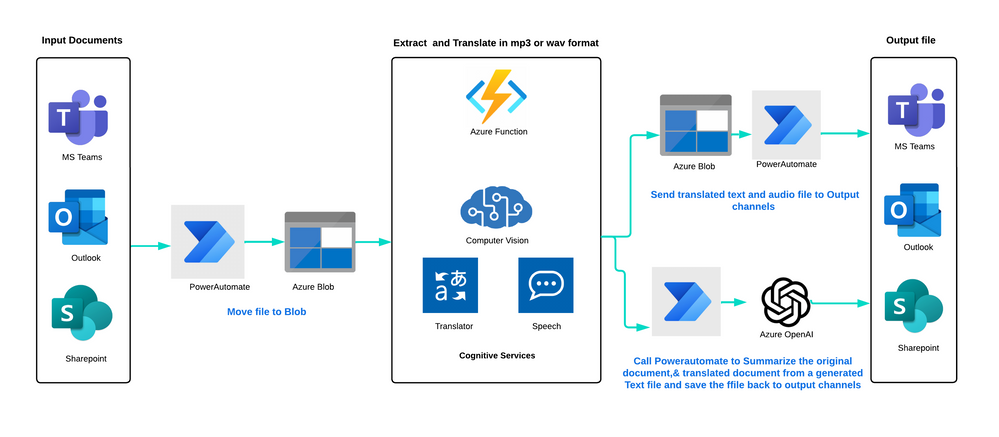
Ingest: PDF documents, text files, and images can be ingested from multiple sources, such as Azure Blob storage, Outlook, OneDrive, SharePoint, or a 3rd party vendor.
Move: Power Automate triggers and moves the file to Azure Blob storage. Blob triggers then get the original file and call an Azure Function.
Extract Text and Translate: The Azure Function calls Azure Computer Vision Read API to read multiple pages of a PDF document in natural formatting order, extract text from images, and generate the text with lines and spaces, which is then stored in Azure Blob storage. The Azure Translator then translates the file and stores it in a blob container. The Azure Speech generates a WAV or MP3 file from the original language and translated language text file, which is also stored in a blob container
Notify: Power Automate triggers and moves the file to the original source location and notifies users in outlook and MS teams with an output audio file.
Without Open AI
With Open AI
Alternatives
The Azure architecture utilizes Azure Blob storage as the default option for file storage during the entire process. However, it’s also possible to use alternative storage solutions such as SharePoint, ADLS or third-party storage options. For processing a high volume of documents, consider using Azure Logic Apps as an alternative to Power Automate. Azure Logic Apps can prevent you from exceeding consumption limits within your tenant and is a more cost-effective solution. To learn more about Azure Logic Apps, please refer to the Azure Logic Apps.
Components
These are the key technologies used for this technical content review and research:
Scenario details
This solution uses multiple Cognitive Services from Azure to automate the business process of translating PDF documents and creating audio files in wav/mp3 audio format for accessibility and global audience. It’s a great way to streamline the translation process and make content more accessible to people who may speak different languages or have different accessibility needs.
Potential use cases
By leveraging this cloud-based solution idea that can provide comprehensive translation services on demand, organizations can easily reach out to a wider audience without worrying about language barriers. This can help to break down communication barriers and ensure that services are easily accessible for people of all cultures, languages, locations, and abilities.
In addition, by embracing digital transformation, organizations can improve their efficiency, reduce costs, and enhance the overall customer experience. Digital transformation involves adopting new technologies and processes to streamline operations and provide a more seamless experience for customers.
It is particularly relevant to industries that have a large customer base or client base, such as e-commerce, tourism, hospitality, healthcare, and government services.
by Contributed | May 23, 2023 | Technology
This article is contributed. See the original author and article here.
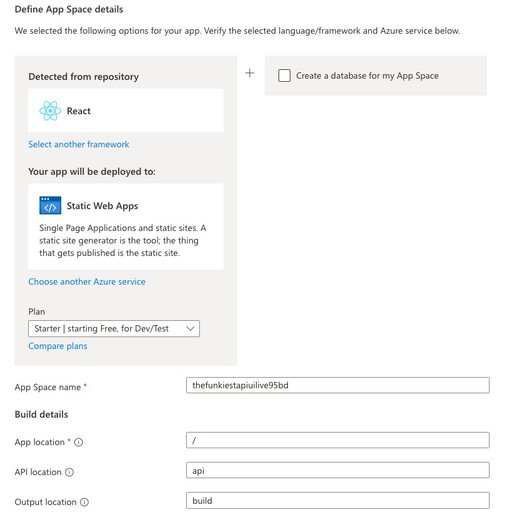
We are excited to announce Azure App Spaces (preview), one of the fastest and easiest way to deploy and manage your web apps on Azure. Azure App Spaces is a portal-based experience that takes an app-first approach to building, deploying, and running your apps. App Spaces makes it easier for developers to get started using Azure, without needing to be an expert on the hundreds of different cloud services.
Detect the right Azure services from your repository
App Spaces lets you connect your GitHub repositories to Azure, and through analysis of the code inside your GitHub repository, suggests the correct Azure services you should use. Once you deploy, GitHub Actions is used to create a continuous deployment pipeline between your repositories and your newly provisioned cloud services. Once you’ve deployed your app via App Spaces, changes to your code will immediately be pushed to your connected Azure services.
Bring your own repository or start from a template
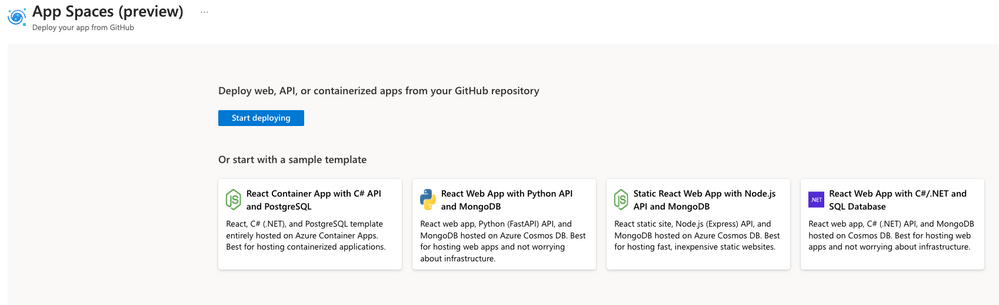
App Spaces also provides sample templates, powered by Azure Developer CLI, that provide a helpful blueprint for getting started with Azure. You can use these templates to immediately create a GitHub repository, connect it to Azure, and provision a distinct set of services for the template scenario. Our templates include sample static websites, web apps, and APIs, in a variety of different languages.
Manage your app in a consolidated view
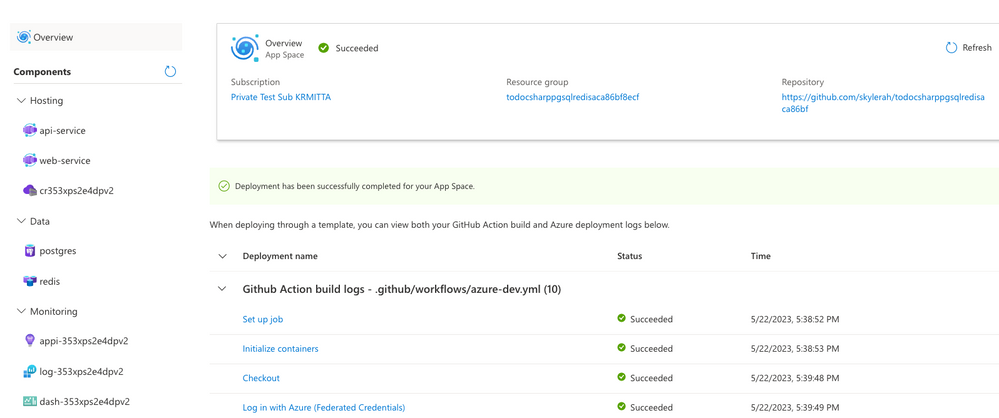
In addition to making it easier and faster to get started developing, App Spaces also provides a simplified, app-centric management experience. An “App Space” is a loose collection of cloud services that, collectively, comprise the app you are building. You can manage your compute, database, caching, and other key services all within the same, easy-to-use management experience.
To get started immediately, you can check out App Spaces here. You can also read our documentation to get a better look at what App Spaces can do for you.


Recent Comments