by Contributed | Jun 11, 2021 | Technology
This article is contributed. See the original author and article here.
AKS-HCI integration with Azure Defender for Kubernetes bring security capabilities that cover both protection and detection controls.
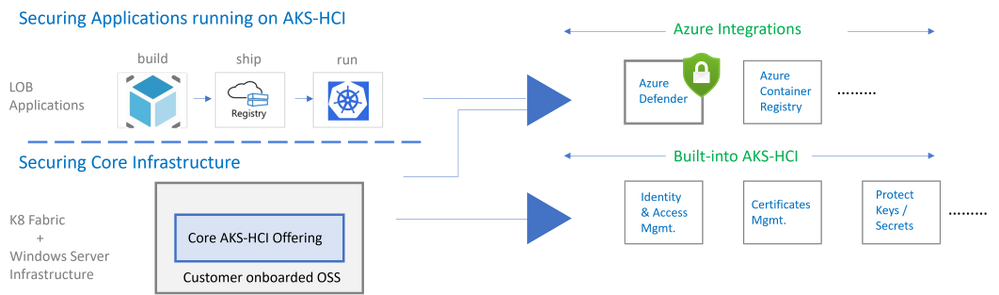
AKS-HCI security includes securing the K8 fabric and applications that are deployed on it. This is achieved by a combination of in-box/built-in security features and integration with Azure services as shown below.
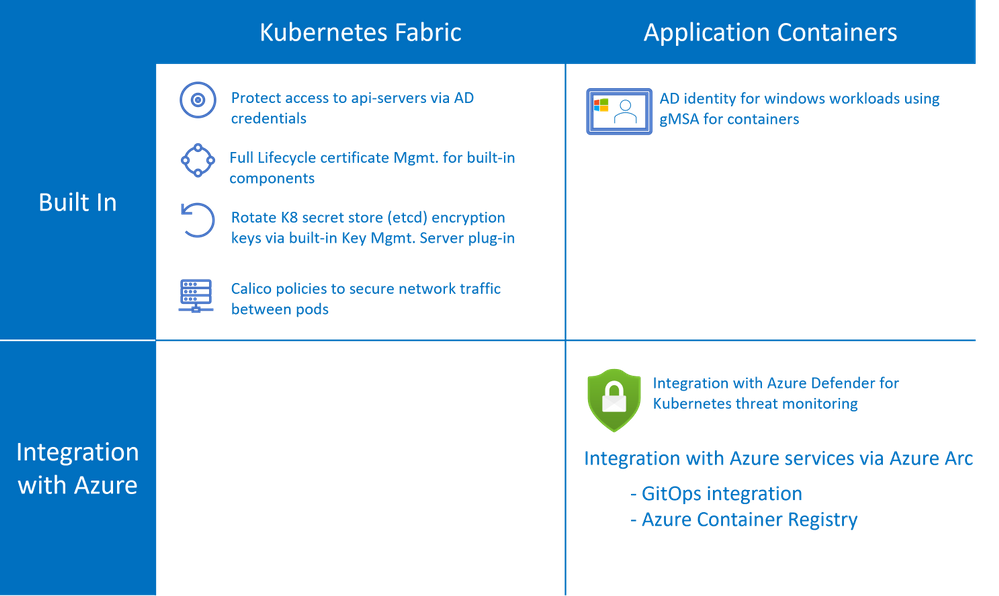
AKS-HCI is a validated Azure Arc Enabled Kubernetes distribution. Azure Arc enabled clusters are connected to Azure via Arc when they are deployed. This allows automatic deployment of specific Arc extensions that provide monitoring and observability out of the box. Extensions greatly simplify onboarding; customers can deploy Azure integrations with just a few clicks or API calls. Azure Arc enabled Kubernetes ensures that you always have the latest bits and can automatically apply updates as they become available.
Azure Defender is Azure Security Center‘s integrated cloud workload protection platform (CWPP), bringing advanced, intelligent, protection of Azure and hybrid resources and workloads.
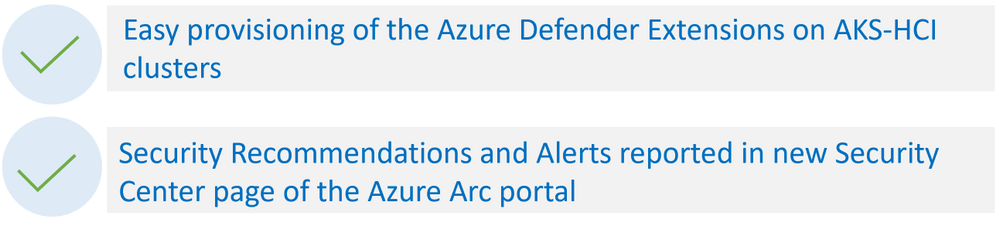
Azure Defender for Kubernetes is an Azure Defender service that continuously monitors for threat and raises alerts to defend Kubernetes clusters. Azure Defender for Kubernetes supports AKS-HCI clusters, leveraging Arc extensions capabilities. This integration between AKS-HCI and Azure Defender for Kubernetes brings the following two distinct advantages:
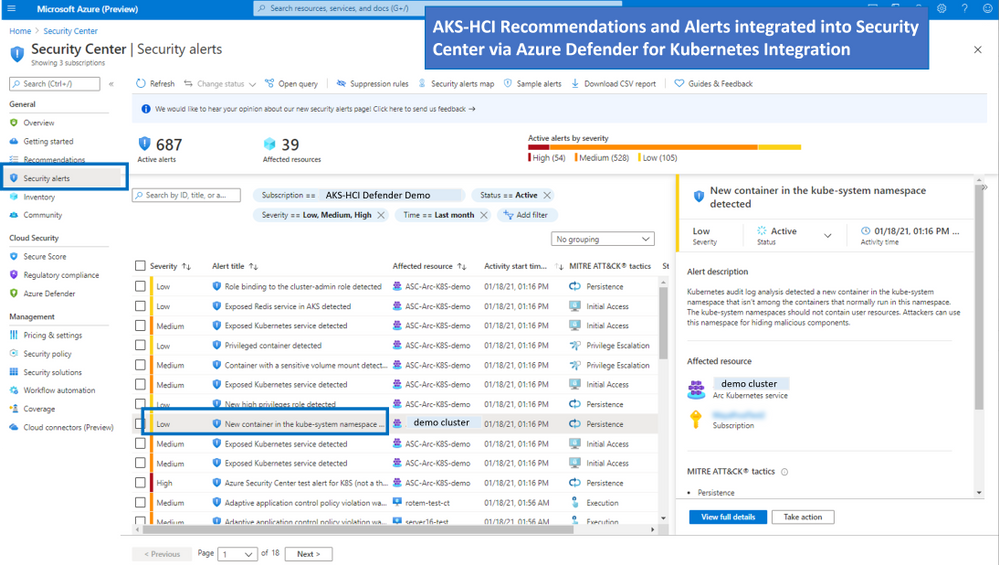
As shown in the figure below AKS-HCI clusters are integrated into the Azure Security Center portal
Types of Attacks on Kubernetes Containers detected by Azure Defender for Kubernetes
Azure Defender Kubernetes plan offers protection of Kubernetes clusters, both at the orchestration layer and at the node level. The orchestration layer protection monitors Kubernetes API operations to find suspicious and malicious activities in the Kubernetes control plane.
With MITRE ATT&CK’s approach of methodically outlining the possible threats, Microsoft built the Threat Matrix for Kubernetes, which the first attempts to systematically map the attack surface of Kubernetes. An updated version of the matrix was released earlier this year.
In this blog you can find more details on Azure Defender detections with their correlation to MITRE ATT&CK® for Containers matrix techniques.
The figure below describes the progression of single alert across the different phases (as defined in the MITRE ATT&CK framework)
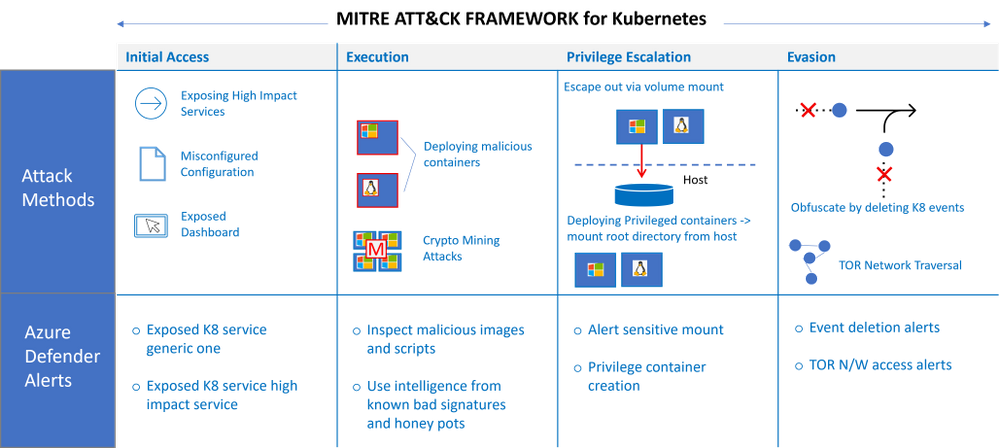
Some examples of attacks that could be potentially high risk
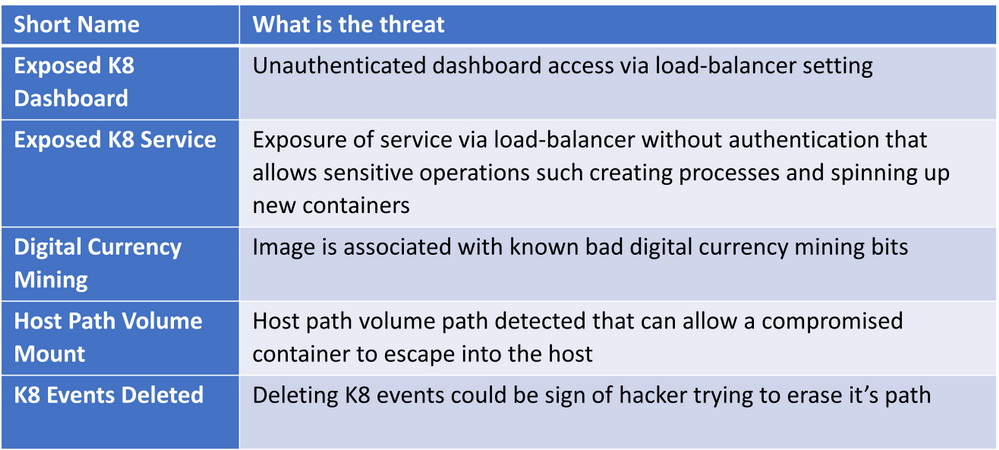
For the full list of Kubernetes security alerts along with their relevance to MITRE tactics see: Azure Defender page
FAQs
How does Azure Defender for Kubernetes work under the hood
You can refer to the architectural overview in this link. Further details in a blog from Yossi Weizman.
Q: Do I need to subscribe to Azure Defender before I can add Azure Defender Extension to my Arc enabled Kubernetes Cluster
AKS-HCI is an Azure Arc enabled Kubernetes distribution with an Azure subscription provided as part of the set-up process. To use Azure Defender for Kubernetes threat monitoring the admin needs to add Azure Defender for Kubernetes to the Azure subscription. For more information refer to this link.
Q: Is there is free tier for Azure Defender for Arc enabled Kubernetes
Currently, Azure Defender for Azure Arc Enabled Kubernetes is in public preview, during public preview there is no charge for AKS-HCI clusters. The pricing details will be available when the feature is Generally Available.
Q: Where can I find deployment steps
AKS-HCI is a validated Azure Arc enabled Kubernetes deployment, the deployment steps can be found on this link.
Q: Does Azure Defender for Kubernetes generate alerts for both windows and linux worker nodes
Orchestration level alerts that come from api-server and K8 apis are supported agonistic of Operating System. Run-time alerts such as process inspections for malware, privilege escalations etc are OS dependent. Run-time alerts are planned in the near future.
Q: Does integration with Azure Defender for Kubernetes cover alerts for servers
No, there is a separate subscription for covering alerts for server, for more information on Azure Defender for servers please refer to this link here
by Contributed | Jun 10, 2021 | Technology
This article is contributed. See the original author and article here.
Starting today, you can use PowerShell in tandem with Microsoft Graph APIs to utilize the Windows Update for Business deployment service. In case you aren’t yet familiar with it, the Windows Update for Business deployment service provides cloud-based control over the approval, scheduling, and safeguarding of content delivered from Windows Update—enabling you to meet your organization’s update and compliance goals no matter where your devices are on the planet.
In addition to Microsoft Graph APIs (currently in public preview), you can also use the Microsoft Graph PowerShell SDK to explore the latest functionality of the deployment service and quickly script and automate common update actions. It provides a simple way to get total control over how updates are deployed to your organization.
Now let’s dive into a concrete example to demonstrate how you can leverage deployment service capabilities through PowerShell.
Walkthrough: How to deploy an expedited quality update
Let’s say that Microsoft releases an update addressing a a high-priority security vulnerability or a quality fix for a critical line of business application that is crucial for your organization. In this case, you may want to deploy this update faster than your default update ring configuration. With PowerShell and the Windows Update for Business deployment service, you can deploy an expedited update, which overrides your default steady-state update settings and deploys the latest available updates so that your managed devices meet the minimum required Windows revision as quickly as possible.
Prerequisites
Before getting started, the following prerequisites must be met:
Assigning user roles for delegated permissions in PowerShell
Once you have confirmed that your tenant and devices meet the deployment service prerequisites, ensure your user account has one of the following permissions configured:
- Global Admin Role in Azure Active Directory
- Intune Admin Role in Azure Active Directory
- Policy and Profile Manager Role in Microsoft Intune
At least one of these roles is required for a user to be authorized to interact with the deployment service, and a new Windows Update Administrator role will be coming to Azure AD soon. To learn more, see Assign Azure AD roles to users and Assign a role to an Intune user.
Getting started with the Microsoft Graph PowerShell SDK
If you don’t already use PowerShell, your next step is to install a supported version of PowerShell. To learn how, see install PowerShell for your operating system.
Once you’ve installed PowerShell, ensure that you are running the latest version of the Microsoft Graph PowerShell SDK to be able to use the deployment service’s commands. You can install the SDK in PowerShell Core or Windows PowerShell using the following command:
Install-Module Microsoft.Graph
If you have already installed the Microsoft Graph PowerShell SDK, you can update the SDK and its dependencies using the following command. You must use version 1.6.0 or higher to use the deployment service:
Update-Module Microsoft.Graph
From this point on, every command will use the prefix Mg, which stands for Microsoft Graph. The deployment service is currently available through the beta endpoint of the Microsoft Graph, so you’ll need to set your user profile to the appropriate API contract.
Select-MgProfile -Name "beta"
Finally, use the Connect-MgGraph command to sign in. You’ll need to sign in with an account assigned to one of the required roles to consent to the permissions specified under scopes in this command.
Connect-MgGraph -Scopes "WindowsUpdates.ReadWrite.All"

Once the Graph PowerShell SDK is installed and you are signed in, you’re ready to start scripting common actions in the deployment service.
If you’re using an automated script instead of the PowerShell console, you can use the PSCredential Class to automate usernames, passwords, and credentials.
Step 1: Get a list of available updates
With expedited updates, you can speed the installation of quality updates like the most recent Update Tuesday release or an out-of-band security update for a zero-day flaw. An expedited deployment policy enables your devices below the minimum specified revision to override their default update posture and update as quickly as possible to the latest available update.
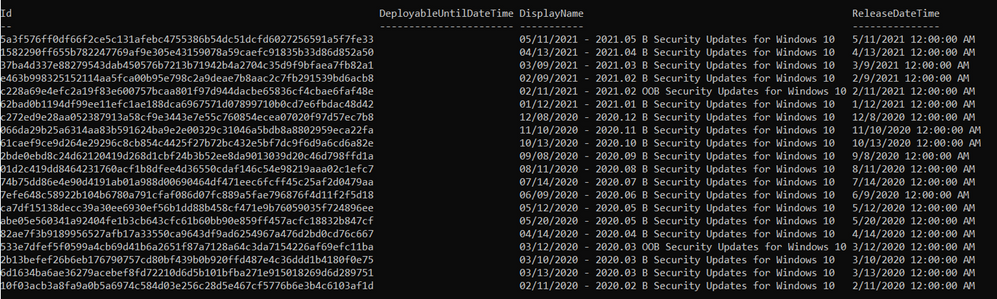
Let’s start by querying the deployment service catalog to get a list of security updates that can be specified as the minimum compliance bar for an expedited update. Below is an example of a query to the catalog that shows the quality updates available to expedite from most recent to last.
Get-MgWindowsUpdatesCatalogEntry -Filter "microsoft.graph.windowsUpdates.qualityUpdateCatalogEntry/isExpeditable eq true"
The output of the query will look something like this:
Step 2: Create a deployment
Now we’ll create an expedited deployment. The content to deploy is specified using the releaseDate key (which specifies a compliance floor), and the device restart grace period is determined using the daysUntilForcedReboot property. Below is an example of creating a deployment for an expedited quality update.
New-MgWindowsUpdatesDeployment -Content @{"@odata.type" = "microsoft.graph.windowsUpdates.expeditedQualityUpdatereference"; "releaseDate" = "2021-05-11"}
When the command successfully creates a deployment, it outputs something along the lines of the following:

Step 3: Assign devices to the deployment audience
Finally, let’s assign devices to the expedited deployment just created. Devices can be assigned directly or via an updatable asset group. Below is an example of adding an Azure AD device to a deployment using its ID. The DeploymentID comes from the response of the previous command.
Update-MgWindowsUpdatesDeploymentAudience -DeploymentID "a257062d-b716-43b9-99339-d13ea06eeeec" -AddMembers @(@{"id" = "dae37284-9dae-453a-aa61-dee371139090"; "@odata.type" = "Microsoft.graph.WindowsUpdates.azureADDevice"})
There’s no output from this command. Once you have assigned devices to the deployment audience, the deployment service will begin expediting updates as quickly as possible! You’ll be able to check the status of each device as your deployment progresses using Update Compliance.
Wrapping up
We hope that this example provides you with a practical tool for managing and responding to situations that require rapid deployment of quality updates while illustrating how you can use PowerShell to interact with the deployment service more generally. We encourage you to expedite an update within your organization and explore the broader set of capabilities available within the deployment service. Stay tuned for more examples!
by Contributed | Jun 10, 2021 | Technology
This article is contributed. See the original author and article here.
Watch this webinar, hosted by David Magar, Microsoft Principal Program Manager, to learn how the Premium Gen 2 service update increases the value your organization gets from Power BI Premium, how to set expectations in your org on what Power BI premium can do and how to manage your premium investments well.
Register for the Power BI Premium Gen 2 Webinar
by Contributed | Jun 10, 2021 | Technology
This article is contributed. See the original author and article here.
Hear Microsoft leaders present the latest announcements about Azure Arc–enabled data services as well as news about other Azure Arc and Azure Stack HCI offerings. Also, watch engineering demos on how to organize and govern environments and use native Azure services—like data services—to run them outside of Azure datacenters. And, listen to customers discuss how they’re using Azure to achieve their goals and turn their hybrid strategies into reality.
Register for the free, two-hour Azure Hybrid and Multicloud Digital Event on June 29 from 9:00 AM–11:00 AM Pacific Time and learn how to be more productive and agile by extending Azure management and running Azure data services across your on-premises, multicloud, and edge environments. The event kicks off with a short keynote followed by these deep dives into key topics and real companies’ experiences:
- Be among the first to hear a major Azure Arc announcement. Learn how to bring cloud capabilities to your data workloads across hybrid and multicloud environments.
- Intel and Microsoft: Partnering to deliver scalable, secure, and flexible hybrid infrastructure to customers.
- Run Azure data services anywhere with the latest developments in Azure Arc–enabled data services. See how SKF Group and Dell Technologies are getting the most out of the latest generation of hybrid data offerings.
- Quickly build, deploy, and update apps anywhere with Azure Arc. Learn how to ensure governance, compliance, and security for all deployments.
- Get consistent operations and security for hybrid and multicloud environments—and learn to automate systems to meet security, governance, and compliance standards.
- Modernize your datacenter and use Azure Stack HCI hybrid capabilities to help improve availability and performance across environments.
- Hear from Azure engineers and experts about hybrid services, including:
- Azure Arc and Azure Arc-enabled data services.
- Azure Stack HCI
- Azure Kubernetes Service on Azure Stack HCI
You’ll also have the chance to get answers to your hybrid questions from product experts during the live chat and from Microsoft leaders during the live Q&A panel.
Join us to hear more about these benefits, engage with Microsoft leaders and product experts, and explore solutions from the cloud built for hybrid. We hope to see you there!
Azure Hybrid and Multicloud Digital Event
Tuesday, June 29, 2021
9:00 AM–11:00 AM Pacific Time (UTC-7)
Delivered in partnership with Intel.
REGISTER NOW >


Recent Comments