by Contributed | Sep 3, 2021 | Technology
This article is contributed. See the original author and article here.
This blog has been authored by Ranvijay Kumar, Principal Program Manager, Microsoft Health & Life Sciences
HL7 Fast Healthcare Interoperability Resources (FHIR®) is quickly becoming the de facto standard for persisting and exchanging healthcare data. FHIR specifies a high-fidelity and extensible information model for capturing details of healthcare entities and events.
This article will teach you a simple approach to creating analytical data marts by exporting, transforming, and copying data from Azure API for FHIR to Azure Synapse Analytics, which is a limitless analytics service designed for data warehousing and big data workloads. You can complete your Business Intelligence (to Artificial Intelligence (AI) analytics with Synapse due to the deep integration with Power BI, Azure Machine Learning, and Azure Cognitive services.
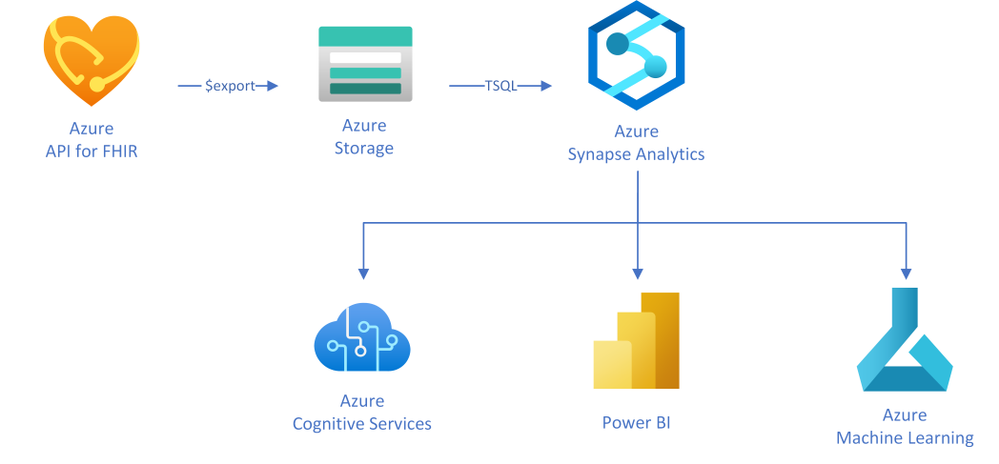
In this approach, as illustrated in the diagram, you will use the $export operation in Azure API for FHIR to export FHIR resources in NDJSON format (newline delimited JSON) to Azure storage. You will then use T-SQL from any of the serverless or the dedicated SQL pools in Synapse to query against those NDJSON files and optionally save the results into tables for further analysis.
Exporting FHIR data to Azure storage
Azure API for FHIR implements the $export operation defined by the FHIR spec to export all – or a filtered subset – of FHIR data in NDJSON format. It also supports de-identified export to enable secondary use of healthcare data. You can configure the server to export the data to any kind of Azure Storage account; however, we recommend exporting to ADLS Gen 2 for best alignment with Synapse.
Let’s consider a scenario in which data scientists want to analyze clinical data of patients who are former smokers. For the study, data scientists need an initial copy of data from the FHIR server followed by incremental data for the same set of patients every month for the next two years.
The first step to get this data is to identify the patients in the FHIR server who are former smokers. The following GET call searches the FHIR server using the LOINC code 72166-2 (Tobacco smoking status) for Observation, and SNOMED code 8517006 (Former smoker) for Observation value-concept to get subjects of the observations who are former smokers. You may need to use different codes depending on how your data is coded.
https://{{fhirserverurl}}/Observation?code=72166-2&value-concept=8517006&_elements=subject
|
You need to save this list of patients to enable exporting their clinical data monthly. There are a few options to manage a collection of resources in FHIR. Since Group is supported by the $export operation, you will manage the collection of patient resource IDs as a Group. Use the results from the above search query to create a person-type Group.
{
“resourceType”: “Group”, “id”: “1”,”type”: “person”, “actual”: true,
“member”: [{“entity”: {“reference”: “Patient/44f6f10e-96c2-4802-b857-4861f1802522”}},
… other patient entities from the result …
]
}
|
Once you have a Group, you can export all the data related to the patients in the Group with the following async REST call:
Note: Azure API for FHIR takes an optional container name to simplify the organization of exported data.
https://{{fhirserverurl}}/Group/{{GroupId}}/$export?_container={{BlobContainer}}
|
You can also use _type and _typefilter parameters in the $export call to restrict the resources we you want to export. Finally, you can use _since parameter in the $export call to do incremental exports every month for two years to meet your original requirement. This parameter restricts export to the resources that have been created or updated since the supplied time.
https://{{fhirserverurl}}/Group/{{GroupId}}/$export?_container={{BlobContainer}}&_since=2021-02-06T01:09:53.526+00:00
|
Now that you have data in ADLS Gen 2, let’s talk about Synapse and see how you can load it to Synapse.
About Azure Synapse Analytics
Create a pipeline
You can use a variety of REST clients such as Postman to export the data from the FHIR server and use Synapse Studio or any other SQL client to run the above T-SQL statements. However, it is a good idea to convert these steps into a robust data movement pipeline using Synapse Pipelines. You can use the Synapse Web activity for triggering the export, and the Stored procedure activity to run the T-SQL statements in the pipeline.
Conclusion
You can use the FHIR $export API and T-SQL to transform and move all or a filtered subset of data from FHIR server to Synapse Analytics. After the initial data load, the _since parameter in the $export operation can be used to do incremental data load. An ETL pipeline with the steps mentioned in this article can be used to keep the data in the FHIR server and the Synapse Analytics in sync.
®FHIR is registered trademark of Health Level Seven International, registered in the U.S. Trademark Office and is used with their permission.
by Contributed | Sep 3, 2021 | Technology
This article is contributed. See the original author and article here.
OneDrive usage reports and Graph API endpoints /reports/getOneDriveUsageAccountDetail started returning GUIDs for ownerDisplayName, ownerPrincipalName, and siteURL instead of the actual data values that had previously been returned.
The removal of user-identifiable information in Admin Center reports was announced via the following Message Center post MC275344 .
This is an expected behavior, which was implemented starting Sep 1st, 2021. Please see article https://docs.microsoft.com/en-US/microsoft-365/admin/activity-reports/activity-reports?WT.mc_id=365AdminCSH_inproduct&view=o365-worldwide.
Note: The article needs to be updated, with right settings to change.
To revert to default you will need to take following steps:
Global administrators can revert this change for their tenant and show identifiable user information if their organization’s privacy practices allow it. It can be achieved in the Microsoft 365 admin center by following these steps:
In the admin center, go to the Settings > Org Settings > Services page.
Select Reports.
Uncheck “In all reports, display de-identified names for users, groups, and sites.”
It’ll take a few minutes for these changes to take effect on the reports in the report’s dashboard. This setting also applies to the reports API. Showing identifiable user information is a logged event in the Microsoft 365 compliance center audit log.
by Scott Muniz | Sep 3, 2021 | Security, Technology
This article is contributed. See the original author and article here.
CISA has released a new CISA Insights, Risk Considerations for Managed Service Provider Customers (MSPs), which provides Managed Service Provider (MSP) customers a framework for reducing risk.
This framework is designed for government and private sector organizations of all sizes, and it suggests considerations for IT management planning, best practices, and tools for reducing overall risk. This resource divides guidance across these areas: (1) senior executives and boards of directors (strategic decision-making); (2) procurement professionals (operational decision-making); and (3) network administrators, systems administrators, and front-line cybersecurity staff (tactical decision-making).
Read CISA’s latest blog, visit: CISA.gov/blog/2021/09/02/going-beyond-assessing-security-practices-it- service-providers.
To view this CISA Insights, please visit: CISA.gov/publication/risk-considerations-msp-customers. For additional supply chain risk management information or resources, visit CISA.gov/ict-supply-chain-library.
by Scott Muniz | Sep 3, 2021 | Security, Technology
This article is contributed. See the original author and article here.
On August 25, 2021, Atlassian released security updates to address a remote code execution vulnerability (CVE-2021-26084) affecting Confluence Server and Data Center. Recently, CVE-2021-26084 has been detected in exploits in the wild. A remote attacker could exploit this vulnerability to take control of an affected system.
CISA urges users and administrators to review Atlassian Security Advisory 2021-08-25 and immediately apply the necessary updates.
by Contributed | Sep 2, 2021 | Technology
This article is contributed. See the original author and article here.
Commercial organizations can now explore and validate Windows 11 and Windows 10, version 21H2 that will be released later this year.
Today, we released Windows 11 and the Windows 10, version 21H2 feature update for commercial preview. Organizations enrolled in the Windows Insider Program for Business can access these builds through all standard channels, including Windows Update, Windows Server Update Services (WSUS), Azure Marketplace, and the Windows Insider Program ISO download page. Along with commercial pre-release availability, we are also offering free support for commercial organizations running these builds. This means you can test these releases—and your preferred deployment methods—while remaining supported prior to general availability.
Access commercial previews using Windows Update or Windows Update for Business
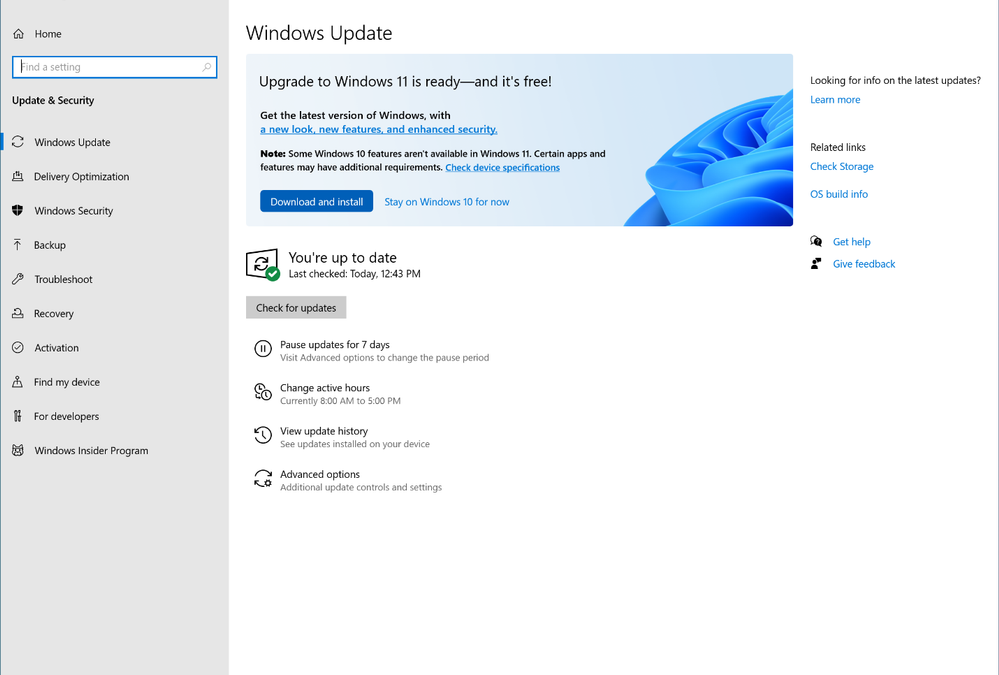
Commercial devices configured for the Windows Insider Program Release Preview Channel via the Windows Update Settings page or via Windows Update for Business policy will automatically be offered Windows 11 as an optional upgrade provided that the device(s) meet the hardware requirements and have taken the September 1, 2021 optional cumulative update (KB5005101). If you do not wish to upgrade a device to Windows 11, simply select “Stay on Windows 10 for now”, at which point Windows 10, version 21H2 will be offered instead. Commercial devices in the Release Preview Channel that do not meet the hardware requirements necessary to support Windows 11 will be offered Windows 10, version 21H2 automatically instead.
Both previews are completely optional. You can choose to remain on your current version of Windows and continue to receive preview builds of quality updates for that version.
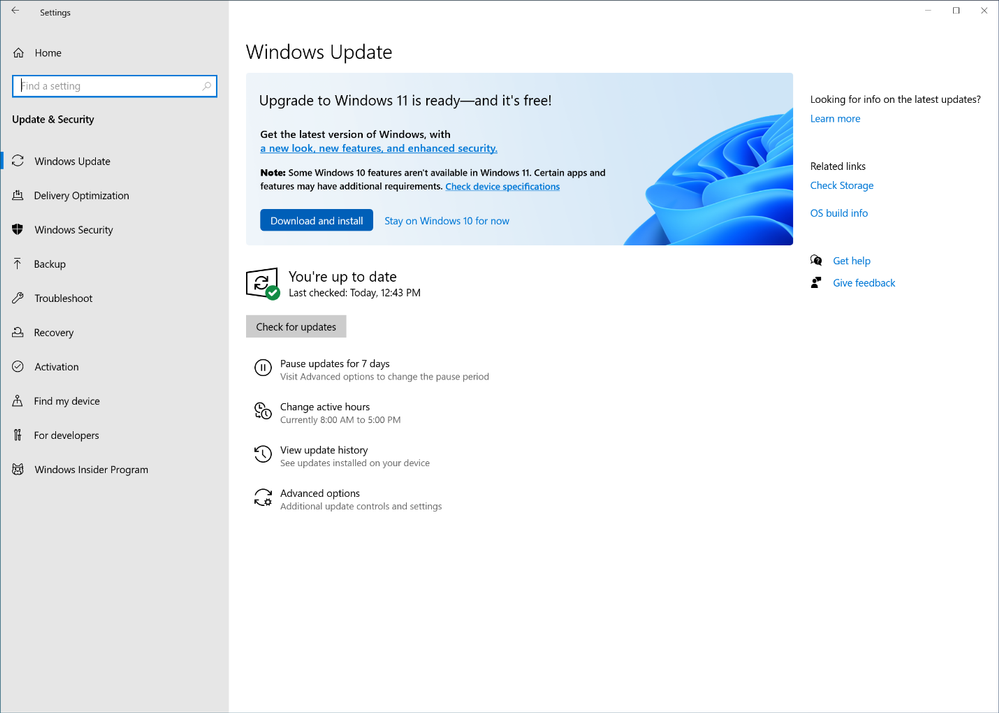 The Windows Update interface showing that upgrade to Windows 11 is ready and free.
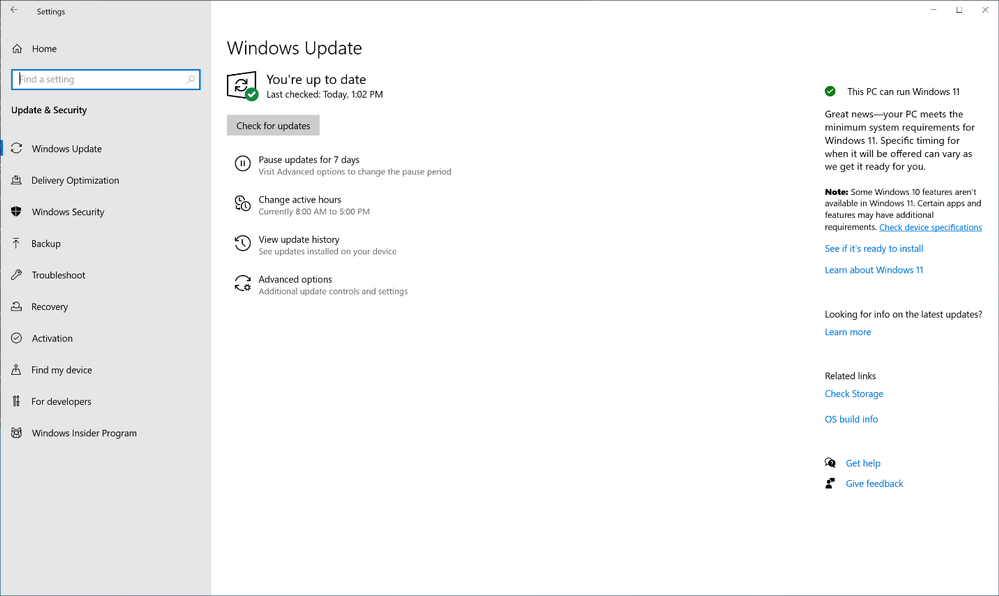 The Windows Update view in Settings, showing as up to date
If you are using MEM Intune, simply set “Servicing channel” to “Windows Insider – Release Preview”:
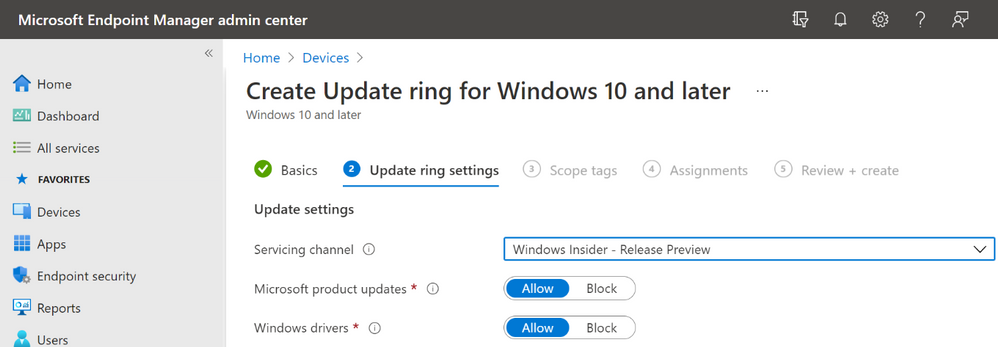 Setting Servicing channel to Windows Insider – Release Preview
Note: We consider a device a commercial device if: a) it is not running Windows 10 Home edition; b) it is being managed by an IT administrator (whether via Microsoft Endpoint Manager or other endpoint management solution); or c) it has a volume license key or commercial ID, or is joined to a domain.
|
Access commercial previews using Windows Server Update Service (WSUS)
Both Windows 11 and Windows 10, version 21H2 are now available in the “Windows Insider Pre-release” category in WSUS and Microsoft Endpoint Manager (MEM) Configuration Manager. If you do not see them offered, simply sync the category and you will see them.
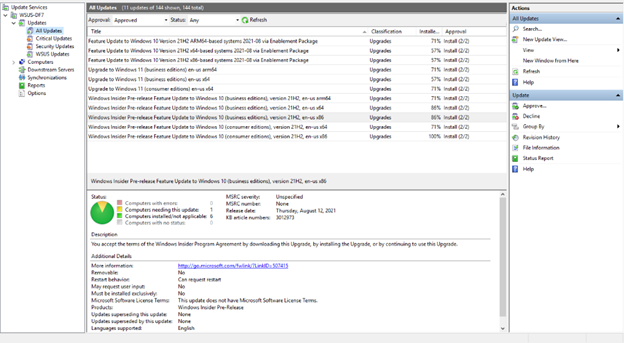 Windows 11 and Windows 10, version 21H2 are now available
To access the Windows 11 preview build, devices must first take the September 1, 2021 optional cumulative update (KB 5005101). If a device is configured to send diagnostic data, but does not meet the hardware requirements, the Windows 11 upgrade will be marked as inapplicable in WSUS.
To access the Windows 10, version 21H2 preview build, devices running Windows 10, version 2004, version 20H2, or version 21H1 can leverage the enablement package path to update to version 21H2. Devices running versions prior to Windows 10, version 2004 will first need to do a full OS swap to receive Windows 10, version 21H2.
Access commercial previews from the Windows Insider Program ISO Download page
Simply go to the Windows Insider Program ISO Downloads site and select either the Windows 11 ISO (listed under Dev Channel and Beta Channel) or the Windows 10, version 21H2 ISO (listed under the Release Preview Channel).
Note: A clean installation will utilize your existing Windows 10 license keys or activate using Azure AD. No net new Windows 11 keys are required.
|
Access commercial previews through Azure Marketplace
On Azure Marketplace, we have added a new Windows 11 Preview offering with various images. For Windows 10, version 21H2, simply check out the Windows 10 Preview offering.
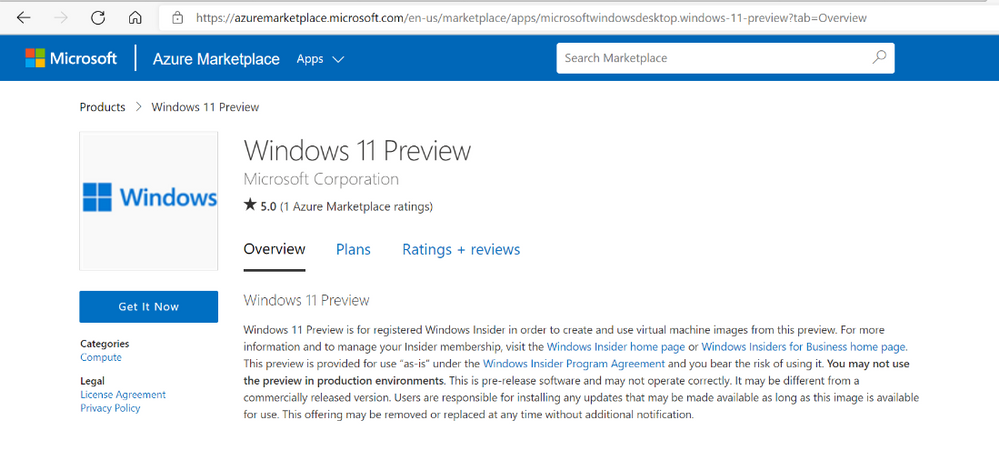 Windows 11 Preview
Supporting your preview experience
Regardless of how you choose to deploy the release previews of either Windows 11 or Windows 10, version 21H2, we will keep you supported! If you encounter an issue, please report it to feedback hub or reach out to us directly through our free support offering for commercial organizations.
Microsoft is committed to ensuring your applications work on the latest versions of our software. Windows 11 has been built with compatibility in mind. Our promise states that apps that worked on Windows 7, 8.1, and 10 will work on Windows 11. If you experience a compatibility issue when deploying Windows 11 or Windows 10, version 21H2, you can utilize App Assure with Microsoft FastTrack to help remediate your application issues. App Assure will help troubleshoot the issue, determine the root cause, and fix the application. It is available at no additional cost for eligible customers with 150+ seats.
With that, we encourage you to go explore these releases, and don’t forget to reach out to me, @ariaupdated, on Twitter or message me on Tech Community with any feedback on how we can improve the Windows Insider Program for Business and our pre-release commercial offerings!


Recent Comments