
![Customizing Lists best practices [guest blog and video]](https://www.drware.com/wp-content/uploads/2021/10/fb_image-8.jpeg)
Customizing Lists best practices [guest blog and video]
This article is contributed. See the original author and article here.
Hello, my name is Norm Young, and I am Microsoft MVP from St. Catharines, Ontario, Canada. I am a 20 plus year data professional who has recently made the shift to the collaboration space using Microsoft Lists, Microsoft Teams and SharePoint. Microsoft asked if I would share both the way I approach leveraging technology and highlight a few recent custom solutions I put together. I’m thrilled to be here, so – here, we go.
Background
Many of the solutions I have built using Microsoft Lists reflect the current state of a business process. When I worked in higher education, we used Lists to track student exchange program information (school name, start/end dates, current student counts etc.). In my current role we use Microsoft Lists to track our new customer onboarding program (client name, contact information, products to onboarding, major milestones etc.). Business processes tend to have multiple stages with start and end dates, persons responsible, and other forms of supporting metadata that make the execution of the business process possible. Additional value is brought to the Lists experience through the integration with other apps and services like the Power Platform with list data serving as the foundation for applications developed using Power Apps, workflows using Power Automate and reporting using Power BI.
Approach
When I develop solutions using Microsoft Lists, I take a configure-first approach where the existing out-of-the-box functionality is evaluated to see if the minimum viable product can be achieved without customization. If this is not possible then extending functionality is undertaken.
In the not so recent past, if I needed to hide or rearrange columns in the list new/edit form I had use Power Apps and by doing so I created technical debt that someone would have to own and maintain. Don’t get me wrong, I think Power Apps is a great development platform but not all solutions require customization. In the current state of the new/edit form hiding columns or rearranging columns is as simple as deselecting a checkbox or dragging columns into the desired order with no Power Apps customization required.
In contrast, if the solution requires customization and the value of that customization outweighs the cost the technical debt then customization is the right choice. While working in higher-ed, I developed a Microsoft Lists based solution that was used to track multi-factor authentication token assignments to users. The token identifier was a very long string of numbers with an associated barcode. If we implemented a no-customization solution the user would be forced to manually enter the identifier. This implementation would be prone to data entry error and would be unnecessarily mundane. Integrating Power Apps meant we could use the barcode scanner control to eliminate data entry errors and improve the user experience. In this case the cost of technical debt is outweighed by better data quality and improved user experience.
Because of their availability and low barrier to use, Microsoft Lists are leveraged in many ways. Below are the use cases shown in the above video – with additional context and a few tips and tricks along the way for why and how I customized lists to create business solutions.
Use case | Application submission solution using Forms, Microsoft Lists and Power Automate
Lists can be used to store response data from Microsoft Forms using Power Automate allowing for additional information tracking or analysis using Power BI. Integrating these tools helps to create a self-service platform for enhancing and modernizing business processes. Check out this blog article to learn more: Get responses from Forms to Microsoft Lists using Power Automate.
Connect Microsoft Forms to Power Automate flows to capture and populate Microsoft Lists list items.
Tip | When integrating apps and services into Microsoft Lists, it is important to remember that not all list column types will translate to the destination data types and some concessions in functionality may be required. Complex data types like the person column include additional information like email address, mobile phone number, department name, job title, first name, last name and many more that may need to be split into separate columns to store the additional person information (email, first and last name) or handled in some programmatic way like an expression in a Power Automate.
Use case | Organization specific project management tracker using Microsoft Lists.
If you have created a list-based solution, why not share it with others in your organization using
Custom List Templates? Custom List Templates are a great way to extend the value of one solution to others with similar needs by giving users a well-thought-out starting point that brings value to them in a very quick manner. Read more at: A first look at Templates in Microsoft Lists.
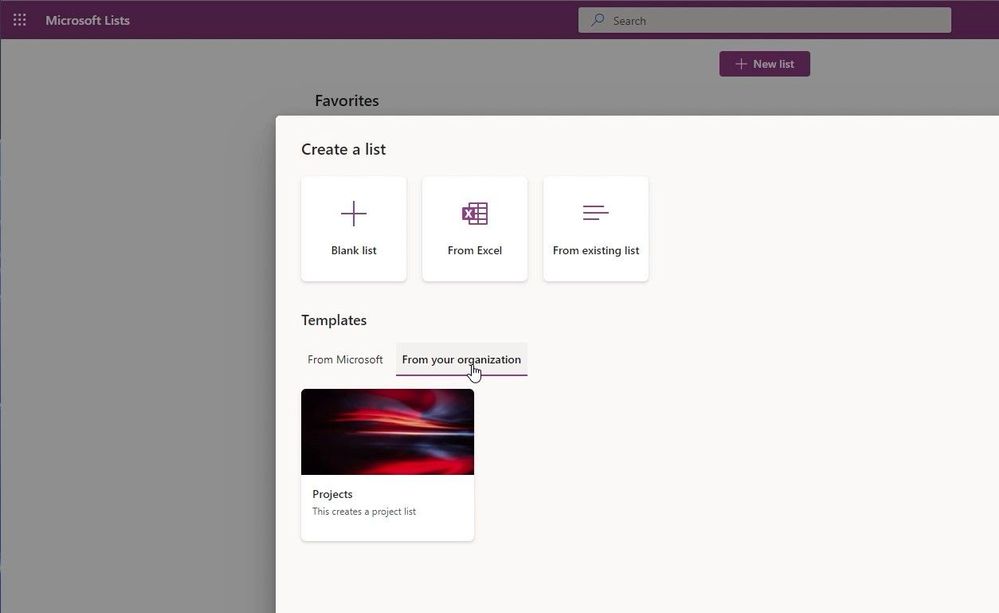
Microsoft Lists now supports custom lists design by your organization.
Use case | Issue tracking management using Microsoft Lists, Microsoft Teams and Power Automate.
Microsoft Lists solutions that leverage a target date or end date will find value added through reminders prior to the date. Value comes in the form of users not having to manually look for items that are coming due, it is pushed to them. Get started with List reminders in teams with this blog post: Send reminders to Teams from Microsoft Lists using Power Automate.
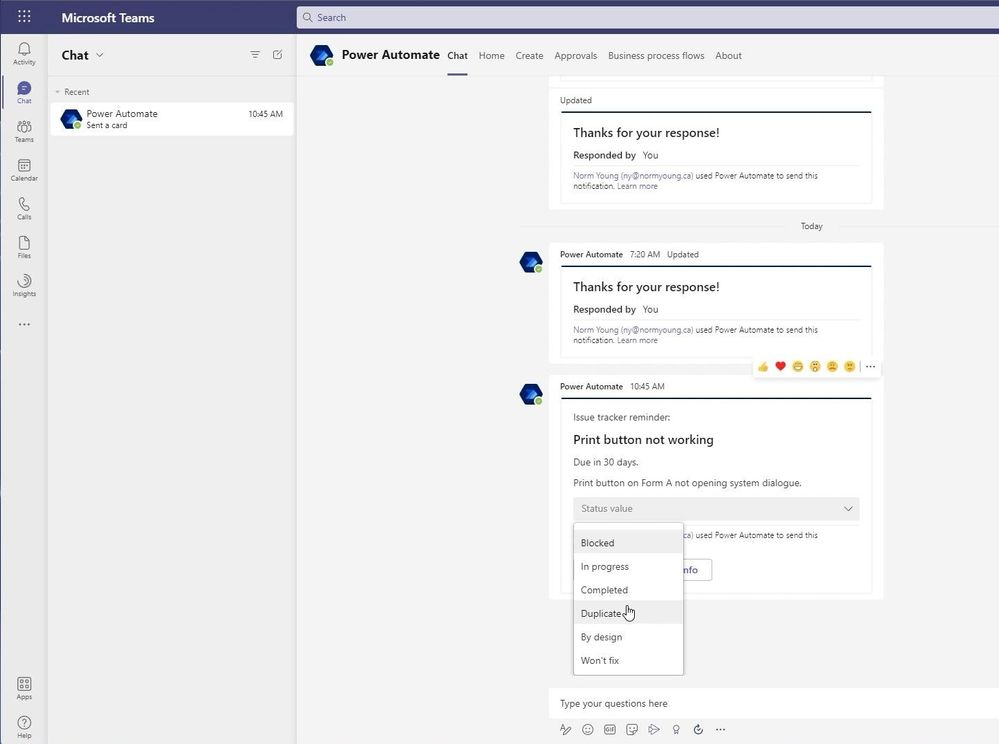
Use adaptive cards populated with Microsoft Lists list item data to push actionable requests into Microsoft Teams chats.
Tip | Another point of consideration are how column names are referenced internally with Microsoft Lists. Depending on how the column was created will influence the internal column name. As an example, if we create two similarly name columns, we will get two different internal names as shown in the table below:
Method | External name | Internal name |
From default experience | Column 1 | Column1 |
From List settings | Column 2 | Column_x0020_2 |
Trick | A simple way to view the internal column name is to Edit Column (click on the column name) while in List Settings and check the Field value at the end of the URL.
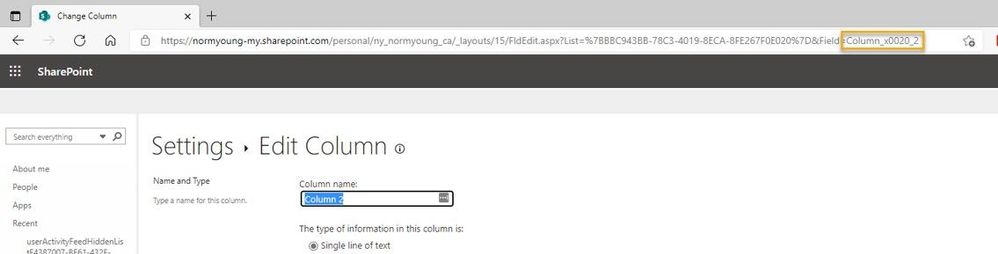
Trick | Go to List setting > Edit Column to view an internal column’s name.
Caution
Lists are great for centralizing and collaborating on data with teams but there are situations where lists are not the right fit. Solutions requiring complex data relationships and/or high-volume transactions should look to other offerings like Dataverse or Azure SQL Database as a more suitable platform.
Another caution when using lists as a data source is exceeding the List View Threshold – when apps and services attempt to fetch more than 5,000 items from a list. This doesn’t mean a list can only store 5,000 items – in fact a list can have up to 30 million items – but it does mean that any single call to a list must be 5,000 or fewer items. Be sure to check out the Living Large with Large Lists and Large Libraries article for more information on the List View Threshold issue, and how to design within it.
Final thoughts
Microsoft Lists are a great platform for collaborating on data using a single, low-barrier platform where solutions, can start modestly and grow as requirements, experience, and features increase. When deciding to customize lists be sure to take a configure-first approach and when it makes sense then customize using app and services like the Power Platform. To learn more be sure to check out the Microsoft Lists Resource Center for the latest blogs, videos, demos, and access to learning resources.
If you want to see more examples of how to extend functionality in Microsoft Lists be sure to check out my blog at https://normyoung.ca/. If you want to keep the conversation going lets connect on LinkedIn or following me on Twitter.
I hope you found some value in this post and thanks for reading!
Cheers, Norm



Recent Comments