by Scott Muniz | Dec 15, 2021 | Security, Technology
This article is contributed. See the original author and article here.
In light of persistent and ongoing cyber threats, CISA urges critical infrastructure owners and operators to take immediate steps to strengthen their computer network defenses against potential cyberattacks. CISA has released CISA Insights: Preparing For and Mitigating Potential Cyber Threats to provide critical infrastructure leaders with steps to proactively strengthen their organization’s operational resiliency against sophisticated threat actors, including nation-states and their proxies.
CISA encourages leadership at all organizations—and critical infrastructure owners and operators in particular—to review the CISA Insights and adopt a heighted state of awareness.
by Contributed | Dec 14, 2021 | Technology
This article is contributed. See the original author and article here.
Organizational charts can be an essential tool for any growing organization, especially now when new hires are trying to figure out their place in the company without actually meeting their colleagues in person. Org charts can help visualize reporting structures and quickly provide employees with information they need—such as titles, roles, and responsibilities—to move processes forward. They can also be a practical tool for planning and evaluating re-structuring efforts or identifying open positions that need to be filled.
The Microsoft Visio desktop app has long supported the creation of org charts, complete with photos and personnel information, and the ability to automatically create org structures from data sources like Excel, Exchange, and Azure Active Directory.
As of today, users with a Visio Plan 1 or Visio Plan 2 license can now create org charts in the Visio web app, too. Alternatively, they can start creating org charts from data directly in Excel using the Data Visualizer add-in and further edit those diagrams using new org chart shapes in Visio for the web.
New org chart stencils and layouts in Visio for the web
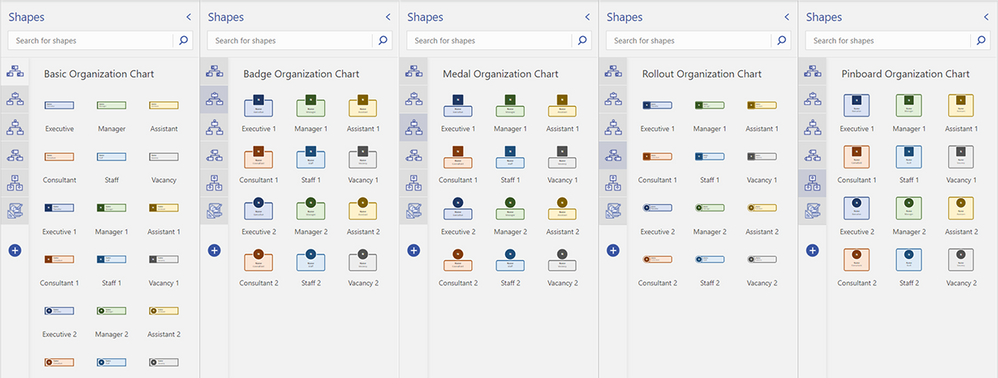
As part of this release, we’ve added five org chart stencils—Basic, Badge, Medal, Rollout, and Pinboard—with predefined, color-coded shapes that can easily be dragged onto the canvas to represent each employee or vacancy in your team, department, or organization. You can also choose from shapes that populate the initials of your employees’ names. Once you’ve added the new shapes to the canvas, you can add information, such as name, title/role, contact details, and location. Then, use connectors to show the hierarchy.
Five available org chart stencils now available—Basic, Badge, Medal, Rollout, and Pinboard—and shapes included in Visio for the web
We’ve also added eight new layout options—top to bottom, bottom to top, left to right, right to left, side-by-side, and hybrid combinations—so you can quickly visualize the hierarchy of your team, department, or organization how you want. Once your shapes are connected, select Layouts from the Organization Chart tab. Then, select your preferred layout.
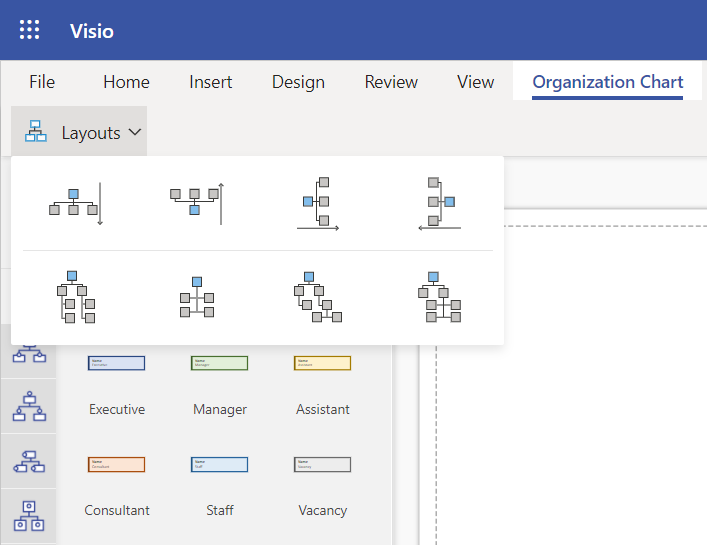 Eight org chart layout options available from the Organization Chart tab in Visio for the web
To help you get started quickly, we’ve also provided a few starter diagrams, representing various org chart scenarios, including HR management and Scrum Team structure.
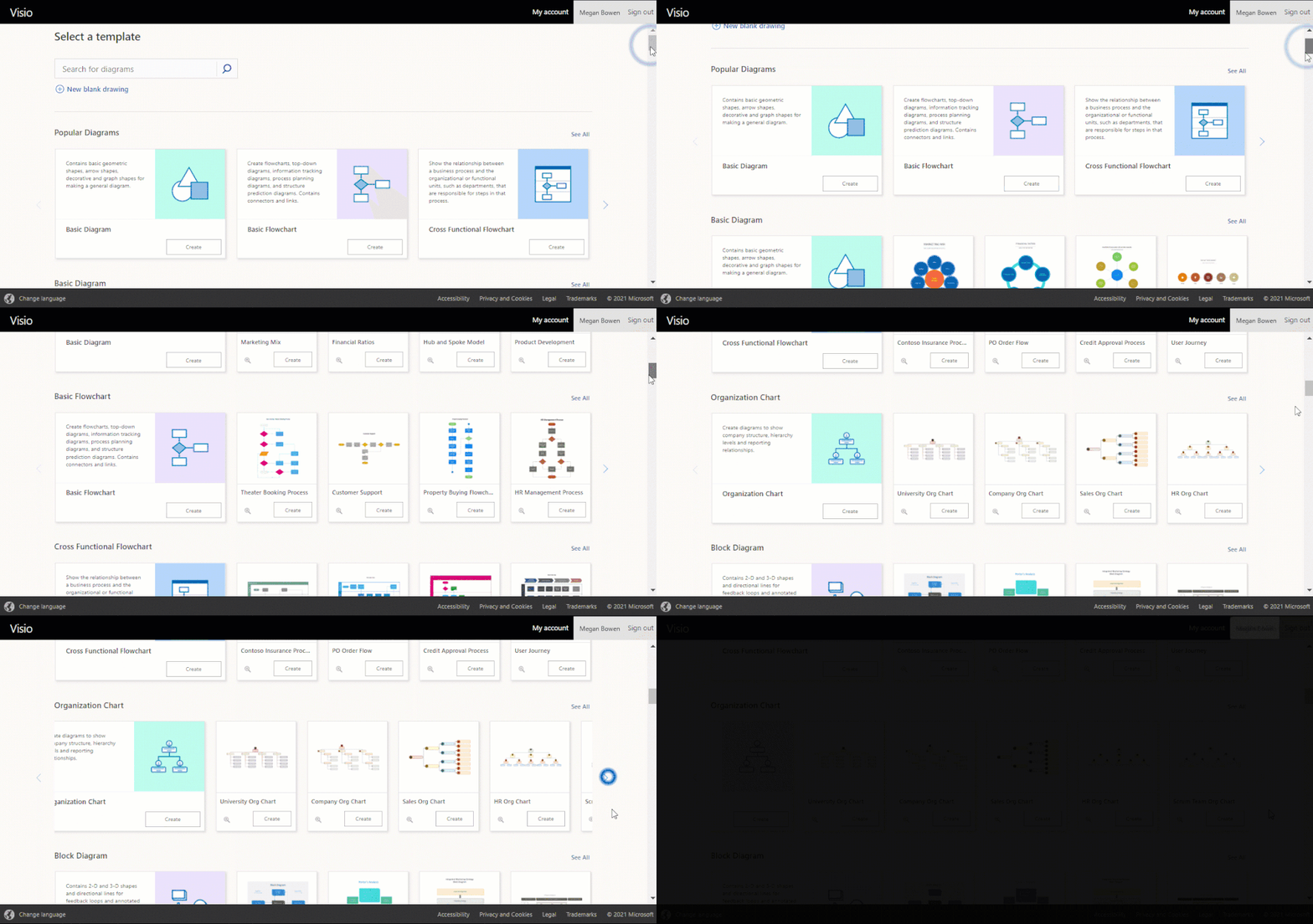 Available templates showing different organization charts in Visio for the web
To get started, visit office.com/launch/visio, select your preferred diagram template, and start visualizing your team structure. Visit our support article on how to create an organization chart in Visio to learn more.
Starting from the Visio Data Visualizer add-in in Excel
The Data Visualizer add-in is available for Excel on PC, Mac, and Excel for the web with a Microsoft 365 work or school account. You can access the add-in from the Visio Data Visualizer button in the ribbon of the Insert tab. If you are unable to find the button in the ribbon, select Get Add-ins and search for “Visio Data Visualizer” in the search box. Once the add-in has been added, you can select the Visio Data Visualizer button to quickly create a diagram from Excel data.
Select one of the five organization chart layouts available in the Data Visualizer add-in.
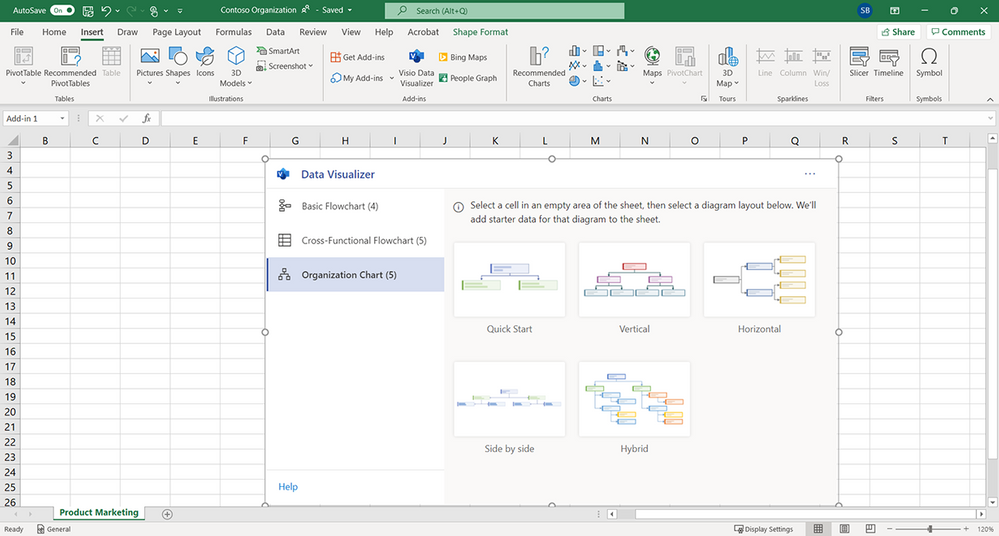 Blank Excel spreadsheet showing the five org chart layout options available from the Visio Data Visualizer add-in
You can quickly replace the sample data in the Excel table with your organization’s data—including Employee ID, Name, Manager ID, Title, and Role Type—for each person you want to include in your org chart, then select Refresh.
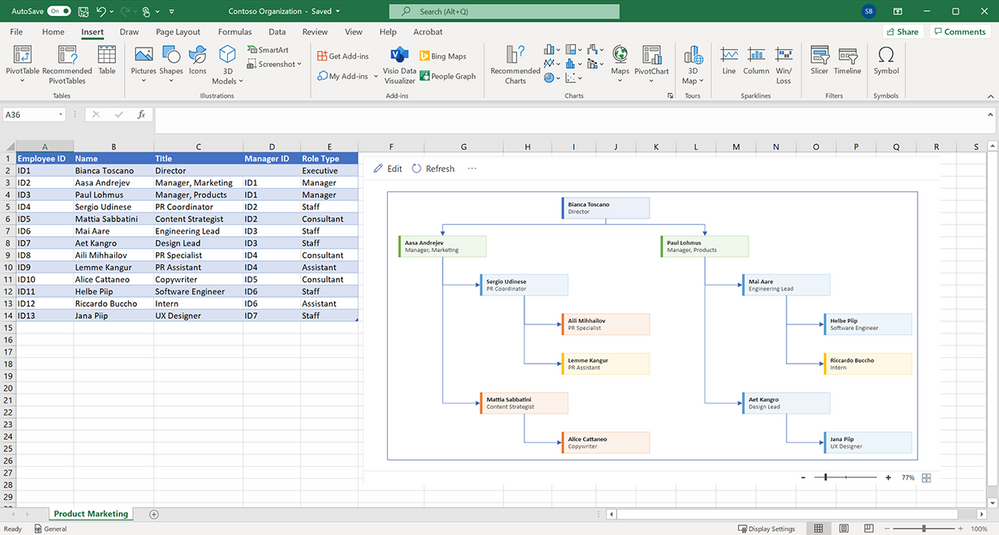 Data table and org chart in an Excel spreadsheet
If you have a subscription to Visio, you can further edit the diagram by changing the theme, modifying the layout, and adding and formatting the text. To further edit the org chart in Visio for the web, select either Edit in the diagram area or the ellipses (…) > Open in web.
After opening your diagram in Visio for the web, you will see the Basic Organization Chart stencil and shapes pinned to the Shapes pane. You can update your diagram using these basic shapes or also search for new shapes by typing a keyword in the search box and selecting the magnifying glass. Drag the shape you want from the stencil onto the canvas or pin the stencil to the Shapes pane for easy access.
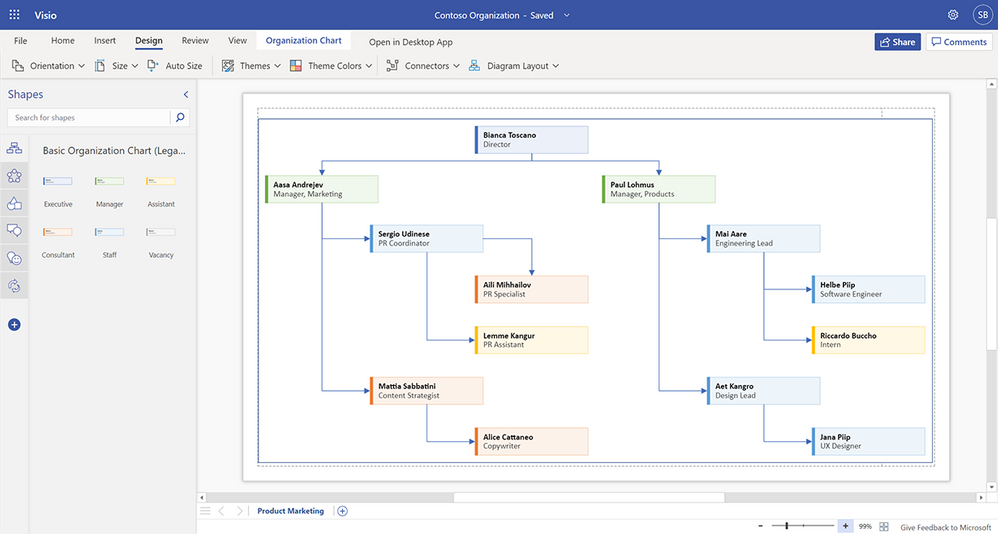 Organization chart in Visio for the web
When you’re done, hit the Share button in the upper right corner to invite your colleagues to collaborate on your diagram and provide feedback.
Please note: Any changes made in Visio for the web—beyond adding and formatting text, changing the theme, or changing the diagram’s layout—cannot be synced back to the original Excel source file. For more details on how to create an org chart based on Excel data using the Visio Data Visualizer add-in, please review our support article.
We’re excited about the future of Visio, and we look forward to hearing your feedback to make the Visio web app the diagramming tool to convey information and processes more effectively. Please tell us what you think in the comments below or send feedback via our new Feedback portal!
Continue the conversation by joining us in the Microsoft 365 Tech Community! Whether you have product questions or just want to stay informed with the latest updates on new releases, tools, and blogs, Microsoft 365 Tech Community is your go-to resource to stay connected!
by Contributed | Dec 13, 2021 | Technology
This article is contributed. See the original author and article here.
With the continued evolution and adoption of hybrid work, we know how critical a strong identity and governance control plane is for IT scalability and a seamless user experience. Today, we are excited to share new Azure Active Directory (Azure AD) capabilities and best practices that can help organizations with these needs. With these updates, organizations will now be able to allow password writeback from the cloud when using Azure AD Connect cloud sync, provision to on-premises applications, verify their SCIM provisioning endpoints, and more.
Allow users to reset their password regardless if they are on-premises or in the cloud
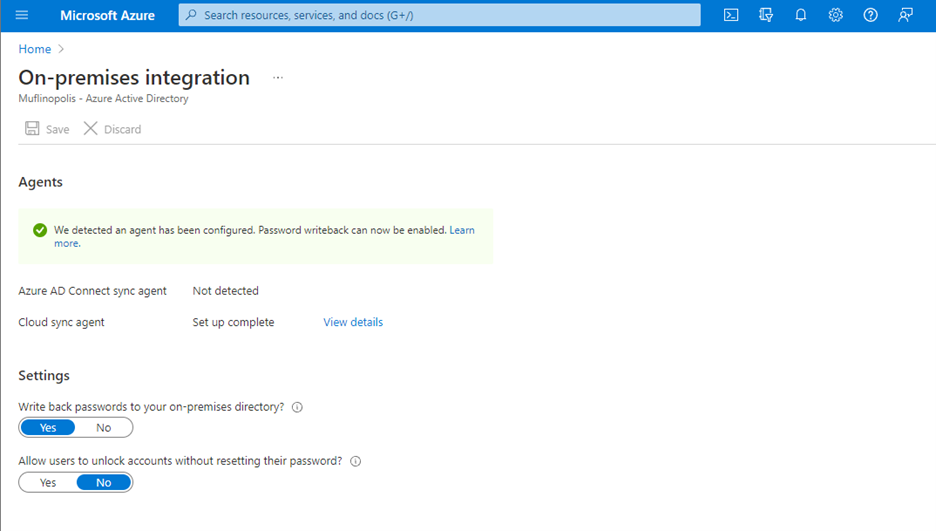
Password writeback allows an on-premises synched user to initiate password changes in the cloud and have the password written back to the user’s on-premises Active Directory Domain Services (AD DS) environment in real time. This enables users to seamlessly transition between cloud and on-premises applications without worrying about managing multiple passwords. No matter where the password is updated, it remains in sync across the cloud and on-premises.
Now in public preview, Azure AD Connect cloud sync password writeback includes support for users synced from disconnected environments. Organizations can sync users from multiple disconnected domains into a central Azure AD tenant and reset passwords for these users from Azure AD.
Simplify provisioning to cloud and on-premises applications
At Microsoft Ignite, we announced that an open public preview is available for Azure AD to provisioning to on-premises applications that support SCIM, SQL, and LDAP. Organizations can manage provisioning to their on-premises applications the same way they’re used to with popular SaaS applications such as monday.com, Miro, and Asana. Building on this momentum, we’ve now added the ability to provision users into third-party LDAP directories such as OpenLDAP.
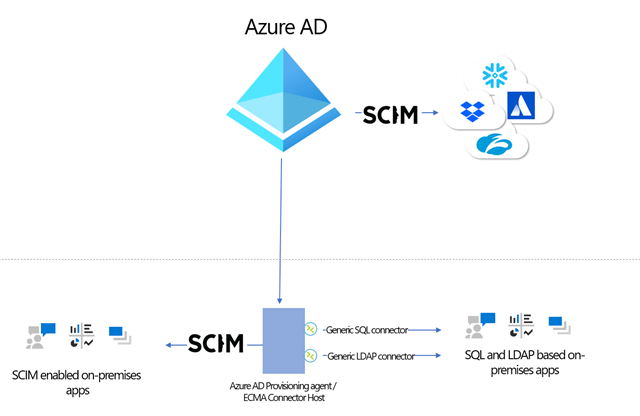
Simplify building and testing your provisioning end point in compliance with the SCIM standard
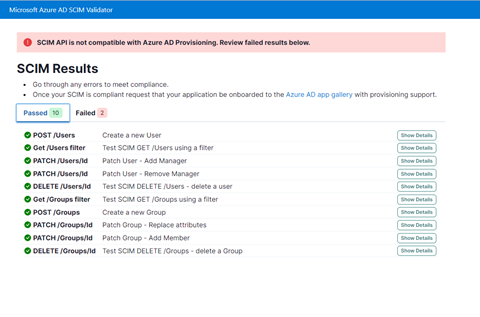
A limited preview is now available of a SCIM validation tool. This enables partners and customers to validate that their end point is compatible with the Azure AD SCIM client, reducing onboarding time to the Azure AD app gallery. Once you have built your new application as per the guidelines, you can request an invite to the preview here.
Upgrade to the latest version of Azure AD Connect sync to future-proof your environment
Legacy versions of Azure AD Connect sync rely on components such as SQL2012 and ADAL that are being retired in the coming year. As such, all customers must upgrade to Azure AD Connect sync v2.0 or evaluate switching to Azure AD Connect cloud sync to ensure uninterrupted provisioning support. Azure AD Connect sync v1.x versions will be retired effective August 30, 2022.
To provide better predictability for IT planning cycles, we have also established a consistent retirement cadence for Azure AD Connect sync versions. Moving forward, we will retire each version 18 months after a new version is released.
Use date comparisons to drive provisioning logic
Attribute expression mapping enables you to control and transform data before writing to target systems. Based on your feedback, we have added new built-in date functions Now(), DateAdd() and DateDiff() to help you compare dates and define granular attribute provisioning based on date time values. You can nest and combine them with other functions in your user provisioning flow to implement scenarios such as:
- Based on user type, set user account expiry date in a SaaS application or on-premises application to “X” number of days after current provisioning time.
- Find the interval difference between current date and HR hire date and use it to determine account activation / data flow logic.
As always, we’d love to hear from you! Feel free to leave comments down below or reach out to us on aka.ms/AzureADFeedback.
Learn more about Microsoft identity:



 ) or https:// means you’ve safely connected to the .gov website. Share sensitive information only on official, secure websites.
Recent Comments