by Contributed | Apr 2, 2021 | Technology
This article is contributed. See the original author and article here.
Overview
We know that some of our customers leverage Exchange transport rules to prepend subject line or insert the message body to show the email is from external senders. This approach has a few limitations which we heard:
- You can end up with duplicate [External] tags in subject line if external users keep replying to the thread (some of our customers use customized solutions to remove the duplicates).
- Adding things to subject line breaks Outlook conversation threading, as the subject line is modified, so messages no longer “belong” to the same conversation.
- Changed subject (or message body) stays as a part of the message during reply or forward, which leads to confusion if the thread becomes internal.
- There can be localization issues, as transport rules have no knowledge of client language that end-users are using.
- Those additions might take a lot of space in the subject line, making it hard to preview the subject on smaller devices.
We have heard the feedback on this, and are working on providing a native experience to identify emails from senders outside your organizations (which can help protect against spam & phishing threats). This is achieved by presenting a new tag on emails called “External” (the string is localized based on your client language setting) and exposing related user interface at the top of your message reading view to see and verify the real sender’s email address.
To set this up
- Exchange Online tenant admin will need to run the cmdlet Set-ExternalInOutlook to enable the new user interface for the whole tenant (this is available now); adding certain emails and domains to the allow list via the cmdlet is also possible.
- Outlook on the web already supports this. Outlook Mobile (iOS & Android) and Outlook for Mac are rolling out this feature. Specific versions:
- Outlook on the web: available now
- Outlook for Windows: available in May 2020 (starting with Insider Fast)
- Outlook mobile (iOS & Android): version 4.2111.0 and higher
- Outlook for Mac: version 16.47 and higher
If you are using the prepend subject line transport rules currently to add an [EXTERNAL] tag in external email subject line: the new Outlook native callouts are adding a new MAPI property called IsExternalSender to the email item. Once all the (above listed) client versions you require have this functionality, to avoid emails being marked ‘External’ twice (once by new native functionality and once by the transport rule), please turn off the transport rule first before turning on Outlook native external sender callouts.
We are tracking this feature in Microsoft 365 Roadmap ID 70595. This feature can be enabled on the tenant level now.
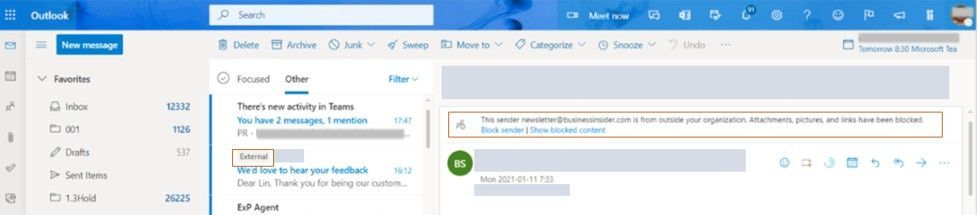
Outlook on the web, Mac, and mobile will display an External tag in the message list. Outlook Desktop and OWA will show the sender’s email address at reading pane info bar. Outlook mobile and Outlook for Mac will only see an external tag on the message reading pane, and users will need to click the tag to see the real sender’s email address.
Outlook on the web view of External sender:
In Outlook for iOS, External sender user interface in the message list, External tag when reading chosen email and view of sender’s email address after tapping External label:
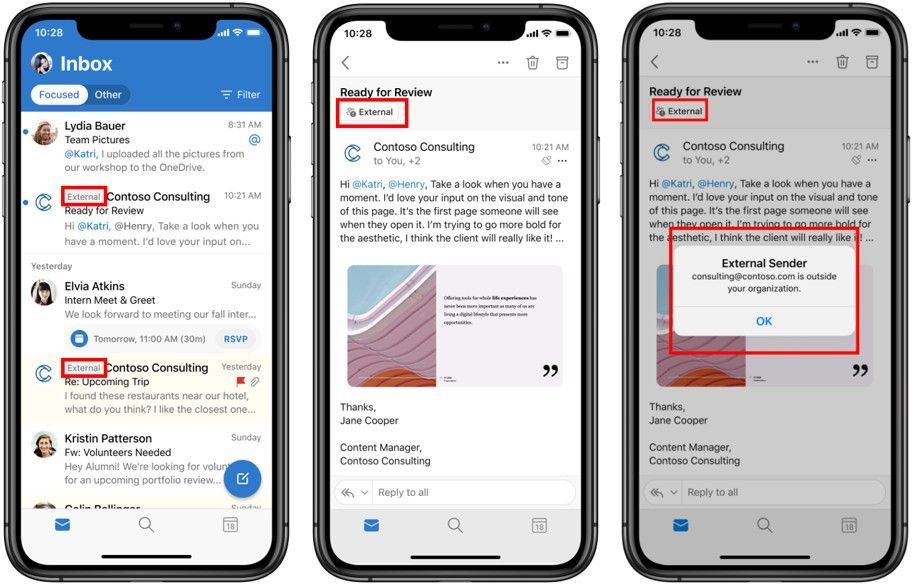
Once this feature is enabled via PowerShell, it might take 24-48 hours for your users to start seeing the External sender tag in email messages received from external sources (outside of your organization), providing their Outlook version supports it.
If enabling this, you might want to notify your users about the new feature and update your training and documentation, as appropriate.
Let us know here if you have any feedback!
The Outlook Team

by Contributed | Apr 2, 2021 | Technology
This article is contributed. See the original author and article here.
Learn Azure Communication Services Day 14 – Showing Video and Screen Share Content
Tom Morgan is a Microsoft Teams Platform developer and Microsoft MVP with more than 10 years of experience in the software development industry. For the last 8 years, Tom has worked at Modality Systems, with responsibility for delivery of the Modality Systems product portfolio. Tom is passionate about creating great software that people will find useful. He enjoys blogging and speaking about Microsoft Teams development, Office365, Bot Framework, Cognitive Services and AI, and the future of the communications industry. He blogs at thoughtstuff.co.uk and tweets at @tomorgan.

TestServer & ASP.NET Core 5: Fix “System.InvalidOperationException : Solution root could not be located using application root” with a custom Startup file
Anthony Giretti is a specialist in web technologies with 14 years of experience. He specializes in particular in Microsoft .NET and he is currently learning the Cloud Azure platform. He has twice received the Microsoft MVP award and he is also a certified Microsoft MCSD and Azure Fundamentals. Follow him on Twitter @anthonygiretti, and visit his blog for more on the C# 9 Series.

My first trip to Redmond, the 1997 Microsoft MVP Summit
Hal Hostetler is an Office Apps and Services MVP who has been in the MVP program since 1996. Now retired, Hal is a Certified Professional Broadcast Engineer and remains the regional engineer for Daystar Broadcasting and a senior consultant for Roland, Schorr, & Tower. He lives in Tucson, Arizona. For more on Hal, check out his Twitter @TVWizard

Getting started with Azure Bicep
Tobias Zimmergren is a Microsoft Azure MVP from Sweden. As the Head of Technical Operations at Rencore, Tobias designs and builds distributed cloud solutions. He is the co-founder and co-host of the Ctrl+Alt+Azure Podcast since 2019, and co-founder and organizer of Sweden SharePoint User Group from 2007 to 2017. For more, check out his blog, newsletter, and Twitter @zimmergren

Teams Real Simple with Pictures: An Approval process for List Items using Lists, Teams, Power Automate, Outlook and the new Approvals App
Chris Hoard is a Microsoft Certified Trainer Regional Lead (MCT RL), Educator (MCEd) and Teams MVP. With over 10 years of cloud computing experience, he is currently building an education practice for Vuzion (Tier 2 UK CSP). His focus areas are Microsoft Teams, Microsoft 365 and entry-level Azure. Follow Chris on Twitter at @Microsoft365Pro and check out his blog here.
by Contributed | Apr 2, 2021 | Technology
This article is contributed. See the original author and article here.
News the team is covering this week includes Public preview of AD FS sign-in activity in Azure AD reporting, Networking for Key Vault references on Windows in App Service and Azure Functions now generally available, Azure Cost Management and Billing updates, What’s New in Microsoft Teams and an identity focused Microsoft Learn module of the week.
AD FS sign-in activity in Azure AD reporting now in Public Preview
Alex Simons recently shared the latest Active Azure Directory capabilities to help streamline your hybrid identity, monitoring, and B2B user experiences. These updates help achieve a more unified identity management from a single control plane and enrich experiences to help provide seamless and secure collaboration with guest users.
AD FS sign-ins can now be added to Azure AD activity reporting, giving organizations a unified view of their hybrid identity infrastructure and helping them along their identity modernization journey. Also added, activity is now recorded in the Azure AD audit logs of the tenant the user was signed into with the Azure portal, not just the logs of the newly created tenant whenever a user creates a new Azure AD tenant.
Read the following Microsoft Idenitity article to learn more: March identity updates – Public preview of AD FS sign-in activity in Azure AD reporting and more
Networking for Key Vault references on Windows in App Service and Azure Functions now generally available
Apps previously deployed using App Service Environments have been able to access network restricted vaults. Windows apps with virtual network integrations can now also access these vaults enabling teams to further restrict access to secrets with support for Linux apps to follow.
Learn more here: Use Key Vault references for App Service and Azure Functions
Azure Cost Management and Billing updates for March 2021
Cloud cost is always top of mind for most organizations when looking to adopt Azure services. Microsoft recently announced updates to Azure Cost Management and Billing which include forecasted cost alerts, new cost view for subscriptions and other cost saving tools.
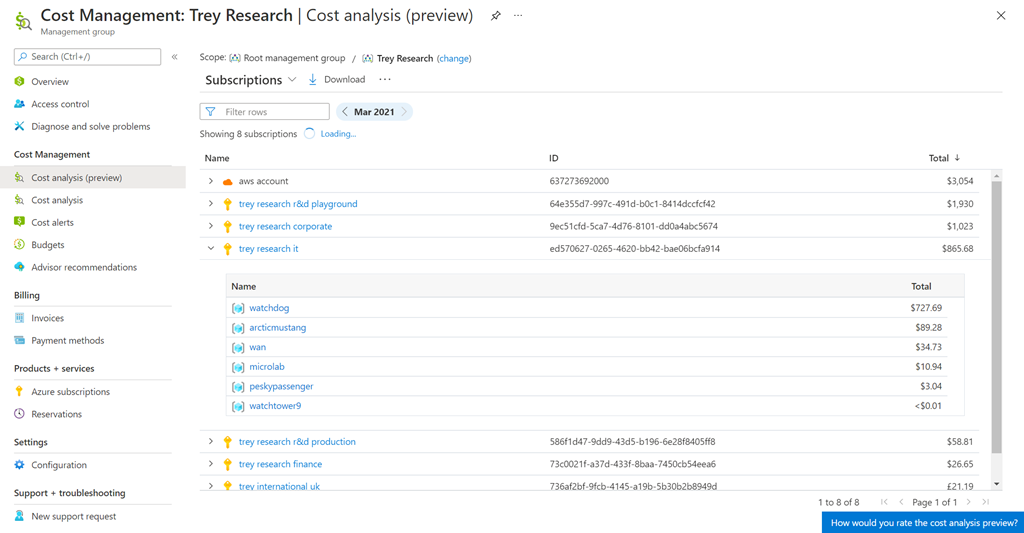
These are just a few of the big updates announced. Don’t forget to check out Azure Cost Management and Billing updates to learn more.
What’s New in Microsoft Teams for March 2021
A lot of updates to services to report on this week. Microsoft Teams is also included in that list as a lot of exciting product updates and offerings announced at Ignite have now become generally available.
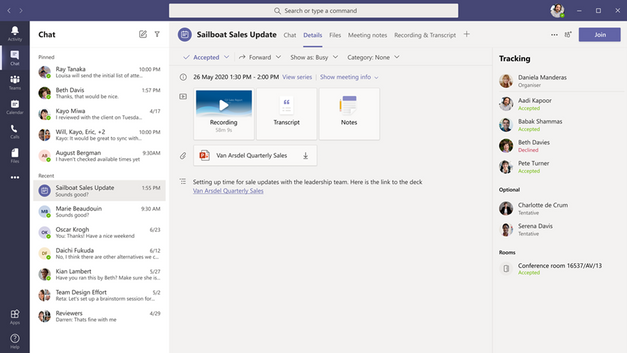
PowerPoint Live, Live Reactions, Invite-only meeting options now available in meetings. Webinars and larger meetings can now host 20,000-person view-only broadcasts and download attendee reports. Low data calling mode limits the bandwidth used on cellular connections. Also, Android devices can now use remote device provisioning to better manage Teams Rooms.
You can read about all Teams announcements here: What’s New in Microsoft Teams | February and March 2021
Community Events
- Azure Landing Zone Q&A – Join Sarah Lean and Thomas Maurer, as they take your questions regarding Azure Landing Zones and walk through a deployment of a landing zone during this show.
- Hello World – Special guests, content challenges, upcoming events, and daily updates
- Patch and Switch – Patch and Switch are back to share thier “from the trenches” stories
MS Learn Module of the Week

Implementing and managing hybrid identity
Creating a hybrid-identity solution to leverage your on-premises active directory can be challenging. Explore how to implement a secure hybrid-identity solution.
Modules include:
- Plan, design, and implement Azure Active Directory Connect (AADC)
- Manage Azure Active Directory Connect (AADC)
- Manage password hash synchronization (PHS)
- Manage pass-through authentication (PTA)
- Manage seamless single sign-on (Seamless SSO)
- Manage federation excluding manual ADFS deployments
- Troubleshoot synchronization errors
- Implement and manage Azure Active Directory Connect Health
This module is also part of the SC-300 prep material.
Learn more here: Implement and manage hybrid identity

Let us know in the comments below if there are any news items you would like to see covered in the next show. Be sure to catch the next AzUpdate episode and join us in the live chat.
by Contributed | Apr 1, 2021 | Technology
This article is contributed. See the original author and article here.
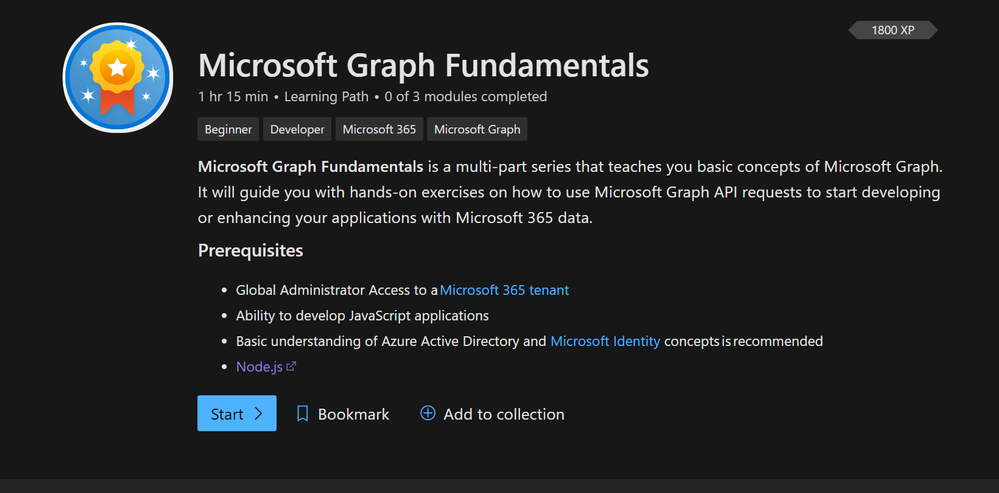
Doing Microsoft Graph Fundamentals learning path on MS Learn – Part 1
This blog post will summarize how I did the brand new Microsoft Graph Fundamentals Learning path. Microsoft Graph Fundamentals consists of 3 modules:
What is Microsoft Graph – lets you understand the Graph services and shows you how you can access user information from Graph using their learning playground called Graph Explorer. You will do a short exercise on that as well.
Configure a JavaScript application to retrieve Microsoft 365 data using Microsoft Graph – lets you understand how app registration works in Azure AD with permissions for Microsoft Graph powered apps and closes with two exercises using MSAL – making authentication easy.
Access user photo information with Microsoft Graph – in this module, you continue with the application you built-in module 2 and learn how to retrieve a user photo and do an exercise about it.
The whole learning path is estimated to take us ~75 minutes. Let’s see how it goes
To be very honest: I worked with Graph before – see my blog posts here: Microsoft Graph – M365 Princess – but it’s the first time I do this guided learning on Microsoft Learn. I will cover module 1 in this post and continue with module 2 and 3 in the following posts.
What is Microsoft Graph
In super short: Microsoft Graph is a set of APIs that lets you access data in Microsoft 365 and use it for custom coded and low code applications. With this, Microsoft Graph is your key to data. Here are three tremendous advantages of it:
- across all Microsoft services, you can use one endpoint https://graph.microsoft.com – which makes development straightforward as you don’t need to learn all the different APIs for mail and calendar and files and so on
- documentation is fantastic, and there is a ton of learning material – like this learning path or the upcoming Learn Together- Building apps with Microsoft Graph event
- you can try out Graph in Graph Explorer – if you like to read more about that, read my blog post on how to get started with Graph Explorer
- Microsoft Graph Toolkit (you will learn more about it later) makes authentication (my personal kryptonite) easy. It also provides you with ready-to-use components and reduces the time you need to develop.
Intro
For this module, you will need to be a global admin in a Microsoft 365 tenant. The easiest way to have this is to join the Microsoft 365 developer program and get a free E5 subscription. If you are not familiar with this, read Julie Turner’s article about it, at least some basic JavaScript understanding, and you should know what Azure Active Directory does. You will also need to have Node.js installed.
The learning module introduces you to a business scenario so that it is easier for you to imagine which kind of applications we are talking about. In this scenario, we want to bring together messages from chat, emails, attended meetings, notes, key contacts, and relevant files.
Our application could also grow later on and bring in data from more services like Windows 10 services or Enterprise Mobility and Security Services. We will not build this in total in this learning path, but we get a perspective, what we can develop based on our organization’s needs.
Understand Microsoft Graph Services
At the very heart of Graph, we will find users and groups. In our application, we will need to access data from a single user’s personal scope (mail, messages, events) and a group scope (teamwork).
The module introduces you to some Microsoft Graph API calls and shows you how the response will look. All API responses will be in JSON format – in case you want to learn more about it, read this article by Bob German on Introduction to JSON
The even more exciting part is that apart from making direct API calls, Microsoft provides us with the Graph SDK (Software Developer Kit). We can use the client Graph SDK client libraries to even more easily call the Graph API.
Access user information from Microsoft Graph using Graph Explorer
This chapter introduces you to Graph Explorer -easily access it at aka.ms/ge, try out some sample queries! My blog post on how to get started with Graph Explorer explains that in detail.
Exercise – Access user information from Microsoft Graph using Graph Explorer
Time to access your own data! I strongly recommend not playing in your production tenant- especially if you do not only want to read data with GET requests but also want to write, update, or delete data with POST, PATCH, UPDATE, or DELETE requests. Get yourself a Microsoft 365 developer tenant and use this.
This chapter teaches you how to modify permissions in Graph explorer and how tips help you.
You will learn how to send a message to Teams via Graph – this is not a test; it will really appear in Teams.
Let us 1’up this already fantastic experience. Besides using this beautiful UI, Graph Explorer provides you with:
- Access tokens used for authentication (recognizing who a user is) and authorization (looking up the correct privileges)
- Code snippets for three different languages so that you can copy-paste them into your applications
- Microsoft Graph Toolkit components – most fabulous thing ever! If you are not familiar with MGT, go check it out
- Adaptive cards snippets so you can quickly build UI components for your apps
You see, this is the ‘absolutely carefree package’ provided by the Microsoft Graph team.
Conclusion on Module 1:
Microsoft Graph is not only THE door opener to access all kinds of information and data across Microsoft 365 for developers and makers. They also provide us with this fantastic learning playground, aka Graph Explorer, in which we can try out, learn, explore and get snippets for all kinds of development scenarios.
After introducing you to some basic concepts on Microsoft Graph, you have learned on a real-world example how to use Microsoft Graph before continuing to access data via Graph in a JavaScript application. This learning module is fantastic! If you never heard about Graph, you’ll get everything you need to start right away with it!

by Contributed | Apr 1, 2021 | Technology
This article is contributed. See the original author and article here.
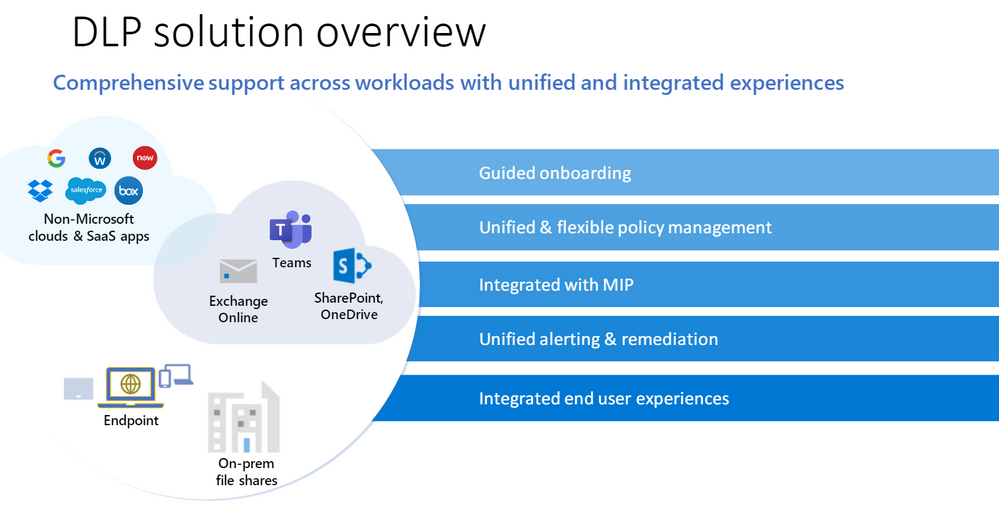
This webinar provides an overview of Microsoft’s unified DLP solution and covers the new features that have been released to help better protect your data.
Resources:
WATCH the on-demand webinar
Overview of data loss prevention – Microsoft 365 Compliance | Microsoft Docs
Microsoft Information Protection SDK documentation | Microsoft Docs
This webinar was presented on March 17, 2021, and the recording can be found here.
Attached to this post are:
- The FAQ document that summarizes the questions and answers that came up over the course of both Webinars.
- A PDF copy of the presentation.
Thanks to those of you who participated during the two sessions and if you haven’t already, don’t forget to check out our resources available on the Tech Community.
Thanks!
@Robin_Baldwin on behalf of the MIP and Compliance CXE team


Recent Comments