by Contributed | Aug 7, 2024 | Technology
This article is contributed. See the original author and article here.
Microsoft ISV Success for Business Applications offers platforms, resources, and support designed to help partners develop, publish, and market business apps. Learn more about this offer from AppJetty:
|
MappyField 365: MappyField 365 is a powerful geo-mapping plugin for Microsoft Dynamics 365 that boosts business productivity with advanced features like live tracking, geographic data visualization, proximity search, auto-scheduling, auto check-ins, territory management, and heat maps. Accelerate your business across organizations with location intelligence from AppJetty.
|

by Contributed | Aug 1, 2024 | Business, Microsoft 365, Technology
This article is contributed. See the original author and article here.
You have navigated the complex and changing realities of the hybrid workplace, found new ways to move aspects of your business to the cloud, and kept employees and critical business operations connected and running in a challenging cyber security environment.
The post Windows 365 at three years: Customer-centric solutions for security, management and productivity appeared first on Microsoft 365 Blog.
Brought to you by Dr. Ware, Microsoft Office 365 Silver Partner, Charleston SC.
by Contributed | Jul 17, 2024 | AI, Business, Microsoft 365, Microsoft Designer, Technology
This article is contributed. See the original author and article here.
Every creative process begins with an idea—and that idea starts with you. Today we’re announcing that the Microsoft Designer app is now generally available with a personal Microsoft account, with new features that help you create and edit like never before.
The post New ways to get creative with Microsoft Designer, powered by AI appeared first on Microsoft 365 Blog.
Brought to you by Dr. Ware, Microsoft Office 365 Silver Partner, Charleston SC.

by Contributed | Jun 29, 2024 | Technology
This article is contributed. See the original author and article here.
Welcome to the Microsoft Learn Student Ambassadors Program Interview Series!

In this series, we will hear and learn from current and old Microsoft Learn Student Ambassadors about their personal experiences with the Microsoft Learn Student Ambassadors Program and why they think students should join and be a part of the program and community.
Today, I will interview Deepthi Balasubramanian, a Gold Student Ambassador from India. Who is currently a final-year student pursuing a bachelor’s degree in Computer Science and Engineering at Vellore Institute of Technology, Chennai (India). His interests lie in AI, Cloud Computing, and Software Engineering.
How did you get to know about the Microsoft Learn Student Ambassadors program?
As a freshman at my university, I joined the Microsoft Innovations Club. A senior from the club introduced me to the Microsoft Learn Student Ambassadors program, which immediately caught my interest!
When did you join the Microsoft Learn Student Ambassadors program?
I became a Microsoft Learn Student Ambassador during my sophomore year, in October 2022.
What activities have you contributed to as a student ambassador in the Microsoft Learn Student Ambassador program?
This program’s goal of empowering students to ‘be a force for good’ aligns perfectly with my goal of making technology accessible to all. It has provided me with a comprehensive platform for skill-building, community-building, and networking, which is essential for my professional growth. And also the opportunity for me to collaborate with Microsoft Most Valuable Professionals, and fellow student ambassadors,
I have organized over 16 workshops and events on technologies such as Azure AI Studio, Copilot, Responsible AI, Power Platform, and GitHub, reaching nearly 1500 students and promoting inclusivity in tech.
I have actively led two teams in Ambassadors AI project cycles, winning one cycle and placing among the top 5 teams in another. During these cycles, I developed social impact projects and presented them during demo days. Recently, I served as a Gold Ambassador judge for the AI project cycle held between March and May 2024.
As a peer mentor, I’ve guided fellow ambassadors, enhancing their program experience. The recognition and appreciation for our efforts from the Microsoft Learn Student Program have helped foster a strong sense of inclusion and value within the community. Overall, being a Microsoft Student Ambassador has been incredibly fulfilling.
Being a Microsoft Learn Student Ambassador how are you able to manage your time as a student?
I’m always drawn to opportunities that enhance my skill set, like being a Microsoft Learn Student Ambassador. With effective scheduling and prioritization of my tasks, I can manage my academic workload and allocate sufficient time toward every task or responsibility.
The Microsoft Learn Student Ambassadors program supportive environment and flexible time frames makes it possible and easy for me to navigate between the program and my studies.
What have you benefited from the Microsoft Learn Student Ambassadors program?
The Microsoft Learn Student Ambassadors program gave me an identity as a tech leader, provided me with the resources to learn and also skill learners on industry-relevant skills.
This community values every individual and offers extensive opportunities for personal development. Giving us direct mentorship from MVPs, cloud advocates, and experienced FTEs which has given me invaluable insights into the industry’s technical landscape.
Connecting with passionate students globally who share similar goals has been incredibly motivating, and the opportunity to collaborate with fellow Student Ambassadors.
Additionally, as an ambassador I enjoy access to a variety of perks, including digital and physical swag items.
What advice do you have for students and why do you think they should join the program?
The Microsoft Learn Student Ambassadors program offers extensive opportunities for learning and growth. I encourage students passionate about technology and eager to empower their peers through technology to join this vibrant community.
You can join the Microsoft Learn Student Ambassador Program by applying here
Check out the previous series
Microsoft Learn Student Ambassadors Program Interview Series Episode 1 – Microsoft Community Hub
by Contributed | Jun 28, 2024 | Technology
This article is contributed. See the original author and article here.
In this guide I am going to show steps to connect Windows Azure VM to Azure SQL DB using Managed Identity covering create user in Azure SQL DB , connect using SSMS and connect using powershell
Requirements:
Windows 10 or 11 Azure Virtual Machine with system managed identity enabled and admin privileges to run powershell scripts
Azure SQL DB server with entra admin access and database for testing
SQL Server Management Studio (SSMS) latest version
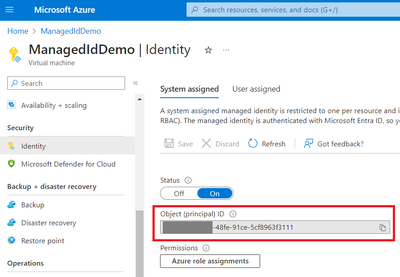
Get required information from VM and managed identity:
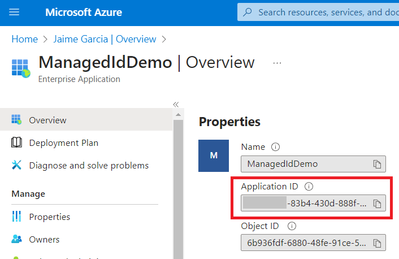
Use Object (principal) ID to get Application ID
Go to Entra ID and search Object (principal) ID
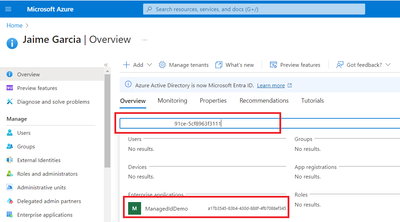
Select result to get Application ID
Provide access to Azure SQL DB:
Connect to server/database using Entra user with admin privileges and create user in this case is the name of the computer
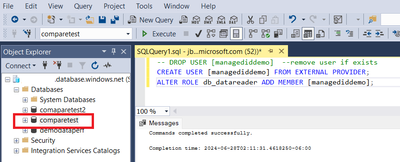
— DROP USER [managediddemo] –remove user if exists
CREATE USER [managediddemo] FROM EXTERNAL PROVIDER;
ALTER ROLE db_datareader ADD MEMBER [managediddemo];
Connect from Azure VM:
Connect using SQL Server Management Studio SSMS …
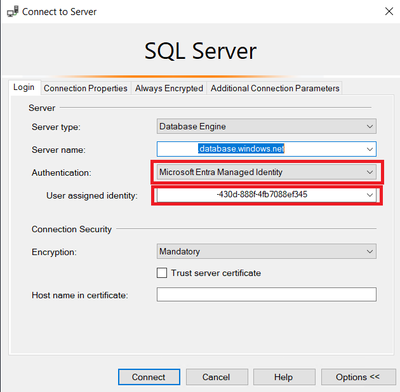
Open SSMS and provide server name , select authentication Microsoft Entra Managed Identity and user assigned Identity will be Application ID from VM
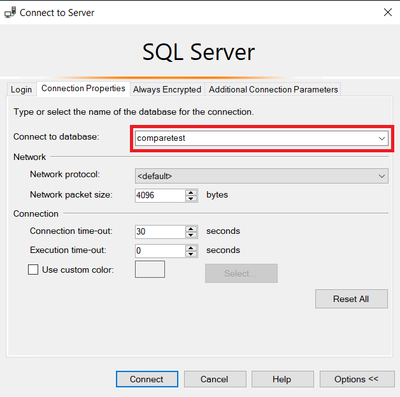
In connection properties provide database name otherwise you will receive an error if user is not administrator and finally connect
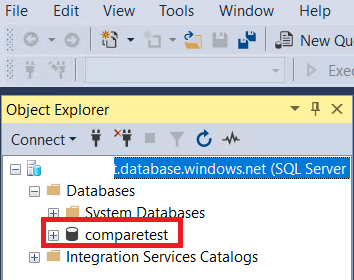
Now is connected
Connect using powershell…
To be able to connect using powershell you need to Install modules required for Azure
Open powershell as administrator and run commands below
Set-ExecutionPolicy unrestricted
Install-Module -Name PowerShellGet -Force
Install-Module -Name Az -AllowClobber -Scope CurrentUser -force
Install-module SQLServer -force
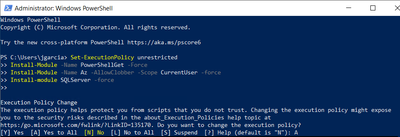
Once modules are installed you can close powershell and open again as administrator
Get token
Connect-AzAccount -Identity
$access_token = (Get-AzAccessToken -ResourceUrl https://database.windows.net).Token
write-host $access_token
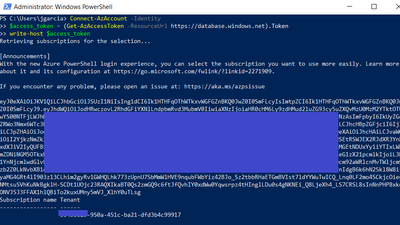
*In some scenarios token string can be provided directly to avoid round trip each time
Test with invoke-sqlcmd
Connect-AzAccount -Identity
$access_token = (Get-AzAccessToken -ResourceUrl https://database.windows.net).Token
Invoke-Sqlcmd -ServerInstance .database.windows.net -Database  -AccessToken $access_token -query ‘select top 10 name from sys.tables’
-query is the query to run in this case only gets a list of tables in database
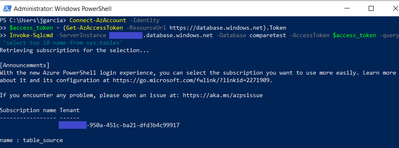
Test using Microsoft.Data.SQLClient
import-module Az.Accounts
import-module Microsoft.PowerShell.Security
import-module Microsoft.WSMan.Management
import-module SqlServer
$access_token = (Get-AzAccessToken -ResourceUrl https://database.windows.net).Token
$connectionstring=”Server=tcp:.database.windows.net,1433; Database=; Encrypt=True;”
$connection= New-Object Microsoft.Data.SqlClient.SqlConnection
# you can get connection string from azure portal in database overview
$connection.ConnectionString = $connectionstring
$connection.AccessToken=$access_token
$connection.Open()
$command= $connection.CreateCommand()
$command.CommandText = “select top 10 name from sys.tables”
$dataSet = New-Object system.Data.DataSet
$adapter = New-Object microsoft.Data.SqlClient.SqlDataAdapter $command
$adapter.Fill($dataSet) | Out-Null
$connectionid=$connection.clientconnectionid
write-output $connectionid
$dataSet.Tables
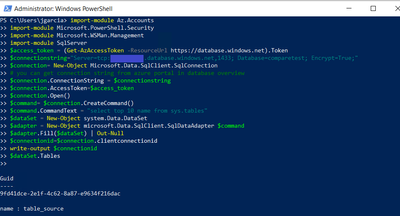
Now your Windows Azure VM is able to connect using different methods
More Information
Provision Azure AD admin (SQL Database)
https://docs.microsoft.com/en-us/azure/azure-sql/database/authentication-aad-configure?tabs=azure-powershell#provision-azure-ad-admin-sql-database
What are managed identities for Azure resources?
https://learn.microsoft.com/en-us/entra/identity/managed-identities-azure-resources/overview
Configure managed identities on Azure virtual machines (VMs)
https://learn.microsoft.com/en-us/entra/identity/managed-identities-azure-resources/how-to-configure-managed-identities?pivots=qs-configure-portal-windows-vm


Recent Comments