by Contributed | Nov 29, 2021 | Technology
This article is contributed. See the original author and article here.
This fall, we released Decoding NOBELIUM, a four-part video series that pulls back the curtain on the world of threat detection and showcases the incredible efforts and insights from defenders who responded to the most sophisticated nation-state attack in history. Since we first started sharing information on this extremely advanced threat actor group in December 2020, we have only continued to see an increase in nation-state activity.
In this blog, we’ll share some of the insights that we heard from leading cybersecurity experts while filming the Decoding NOBELIUM series that you can use to help your own organization better prepare for advanced attacks. This guidance is grounded in real-world examples and not only applies to defending against advanced adversaries but will also strengthen your security posture against more common threats like phishing, email compromise, ransomware, and more. Let’s dive in.
Defending against nation-state actors
Nation-state actors are persistent, well-funded, and exceptionally skilled at reconnaissance. In practice, this means they’re very good at finding the gaps in security—whether that be exploiting an identity with high-level access, a port into the network that is left open, or an app from a trusted software provider by injecting malicious code.
Start with a strong foundation—Zero Trust
While there are many individual things that can be done to protect your organization against these advanced adversaries, one of the most critical components is to ensure you have a robust Zero Trust strategy and are working on applying its guiding principles broadly. Zero Trust helps with both the prevention of and detection and response of a breach. In the case of the SolarWinds compromise, organizations that had applied micro-segmentation to their infrastructure were much more effective at limiting the damage of compromised software being inside the corporate firewall.
Advanced adversaries like NOBELIUM will exploit virtually any gap they can find—so a comprehensive deployment is critical. Organizations that embrace Zero Trust are more prepared for defending against sophisticated threats because their security foundations and baselines are stronger. Adopting Zero Trust requirements like verifying identities explicitly and enforcing least privileged access dramatically reduce the impact of breaches—and in some cases, even prevent it. For example, one of the ways NOBELIUM succeeded was by targeting and compromising highly privileged vendor accounts that lacked protections such as multifactor authentication (MFA), access policy restrictions, or device compliance. By enforcing conditional access policies for all users, organizations are significantly more resilient against account compromise.
“And the Zero Trust principles around identity are really about ensuring you have strong identity, so you know who is accessing something, from what device or endpoint, and that it is strongly authenticated against what service and where. You have areas of risk because you’re not able to get the strength of the identity or authentication as you want, so you have to limit or have conditional access so you can manage your risk proportional to the situation. So those principles a very important for customers to go fully embrace and modernize their identity infrastructure.” – John Lambert, General Manager, Microsoft Security Threat Intelligence Center
To learn about Microsoft’s approach to Zero Trust by checking out the updated maturity model and architecture shared earlier this month. And for technical guidance and resources on implementing Zero Trust across your entire digital environment, check out the Zero Trust Guidance Center.
Focus on cyber-hygiene
While many nation-state attacks make headlines for sophisticated attack chains and zero-day vulnerabilities, these sophisticated actors prefer to use the lowest cost, highest impact tactics they can in order to accomplish their objectives. This means, more often than not, they’re using very common tactics, techniques, and procedures (TTPs)—such as remotely accessing systems with accounts not protected by MFA or taking advantage of known vulnerabilities on unpatched systems. We can’t understate how important it is to get the fundamentals right. According to our annual report, basic cyber-hygiene protects against 98% of attacks.
“It’s too often that nation-states don’t need advanced sophisticated tactics like we saw.” – Cristin Goodwin, General Manager, Microsoft Digital Security Unit
Fortunately, strong cyber-hygiene can dramatically increase the cost to attackers—making them more likely to move on or take riskier actions that are easier to detect.
“Keeping up with patches on your operating system, your workstations, your middleware tier, your web applications, all of those things are really important to ensure that you’re maintaining a base level of security because those are already known issues that hackers are going to exploit and specific things to that effect.“ – Dave Kennedy, CEO and Founder, TrustedSec and Binary Defense
Make sure you’re enabling MFA, applying least privilege access, keeping your software up to date, utilizing antimalware broadly, and implementing best practices like applying sensitivity labels and data loss prevention policies to protect your data. Read the report for our full list of recommendations based on what we’re seeing is most effective at defending against today’s threat landscape.
Protect your identities
“The attacks of the future, a lot of them are going to be identity based. Once I can authenticate into your environment, I don’t need malware anymore.” – Roberto, Principal Consultant and Lead Investigator, Microsoft Detection and Response Team
Increasingly, major security incidents start with just one compromised account—whether through phishing, password spraying, or purchasing paired user-names and passwords on the dark web. Once attackers get their foot inside the perimeter, they can more easily escalate their privileges or gather intelligence that helps them reach their objectives. Protecting identities is twofold: First, we need to make it harder to steal an identity; second, we need to make it easier to detect accounts that have been compromised.
Fortunately, there are some simple actions we can take to dramatically reduce the risk of compromised accounts. Enforcing MFA can prevent up to 99.9% of account compromise attacks. Blocking legacy authentication protocols like POP, SMTP, IMAP, and MAPI that can’t enforce MFA will also help drastically reduce your attack surface area. As you build out your program, make sure to prioritize privileged accounts, which are often the top target for attackers.
To help make it easier to detect a compromised user, Microsoft’s defenders recommend making sure you’re using user and entities behavioral analytics (UEBA). This allows your organization to build a baseline of how your users and devices behave, making it much easier to identify anomalous behavior.
“Identity is the number one entry in access point for the majority of all of these attacks, and if you can get a handle on identity first, then your journey towards being secure is going to be immensely faster and more efficient.” – Elizabeth Stephens, Chief of Staff, Microsoft 365 Security
Check out the blog, Prevent and detect more identity-based attacks with Azure Active Directory, by my colleagues Kristina and Sarah for more information on how to protect your identities.
Use secure devices for critical tasks
Security experts recommend protecting privileged accounts in order to secure access to highly-sensitive data. However, that alone isn’t enough protection—for example, an adversary can attack a device directly. The shift to remote work has increased the adoption of accessible Remote Desktop Protocol (RDP), and there’s now an abundance of RDP ports and protocols publicly exposed to the internet for attackers to gain access using a brute force attack to compromise accounts. To add another layer of defense for your critical data, they strongly advise securing those originating devices.
“If you [Remote] Desktop Protocol into a box, don’t leave the session open when you leave. Close the session, ’cause then they can’t just grab your session and start using your login.” – Joanne, Security Analyst, Microsoft DSR Security Operations Center HUNT Team
Joanne also recommends taking a few more steps to help protect your devices and most-sensitive data:
“…You want to use a secure networking device. You don’t want to use your everyday workstation or everyday desktop to do administrative tasks on sensitive systems. You want to have a separate system…a System Administrator Workstation (SAW). You want to have some kind of SAW device to do your administrative tasks from.” – Joanne, Security Analyst, Microsoft DSR Security Operations Center HUNT Team
Learn about how we use SAWs at Microsoft to protect our own environment. And to learn more about the requirements of SAWs and how to deploy the security controls to secure a workstation for sensitive users, check out our documentation.
Implement robust monitoring systems and build a baseline of your environment
“This incident showed the attackers will leverage very different parts of an environment, both in the cloud and on-prem, to achieve what they want.” – Pete, Senior Software Engineer, Microsoft Threat Intelligence Center
Today’s environments offer plenty of places for attackers to hide in the shadows, so it’s become critical to identify attacker behavior more effectively. While prevention is critical, many organizations need to further strengthen their detection and response capabilities. To get started, ensure your security team has the right tools in place for an accurate and fast response. For example, today’s robust security analytics systems can help correlate seemingly individual events across multiple domains into a single view of an attacker’s kill chain.
“In order to respond to an attack like NOBELIUM, with its scope and breadth and sophistication, you really need to have visibility into various entities across your entire digital state. So you need to have visibility into security data and events relating to users, endpoints, and infrastructure whether on-prem or in the cloud” – Sarah Fender, Partner Product Manager, Microsoft Azure Sentinel
There are quite a few different approaches and solutions out there to help your organization tackle this challenge. Our experts recommend taking a holistic, integrated approach to avoid fragmentation. Microsoft offers a solution that combines our cloud-based SIEM, Azure Sentinel, along with our XDR technologies, including Microsoft 365 Defender, to provide an automated approach to threat detection and response across the entire environment. Check out a Mechanics Video with Rob Lefferts to see how this combination can help organizations respond quickly to an attacker like NOBELIUM.
Plan your response and practice
And it’s not just about technology—organizations need a comprehensive incident response plan and a well-trained team at the ready.
“Supply chain threats really reinforce how important it is to know what’s in your environment and be able to manage it, and then critically have a backup plan. It’s that it’s not a matter of if, it’s when. And you want to have responders that are well-practiced at these incidents and able to respond some things that help them in response.” – John Lambert, General Manager, Microsoft Security Threat Intelligence Center
In a recent study, Microsoft conducted, 39% of CISOs report having little to no incident planning in place. The NOBELIUM attack really reinforced the importance of having a robust plan, team, and set of capabilities in place during a large-scale attack. We found that organizations that were prepared responded more quickly, limiting the damage and keeping the business running. Additionally, a 2021 Ponemon study, Cost of a Data Breach Report 2021, found that organizations without a meaningful incident response team and plan in place saw the cost of their breach go up by 55%.
Preparation should also extend beyond planning to include real-world practice and testing of your defenses. This will help ensure not only that your security team is prepared to execute the response plan effectively, but that plans are effective and any weaknesses are discovered and addressed before the real attack happens.
“Given some of our findings and some of our takeaways from this attack, investing in penetration testing, investing in putting together teams and practice[ing].” Ramin, Senior Malware Reverse Engineer, Microsoft Threat Intelligence Center
Check out our documentation on conducting pen testing in Microsoft Azure and running attack simulations in Microsoft 365 to begin tests in your own environment.
Additional resources and next steps
Microsoft is committed to helping organizations stay protected from cyberattacks, whether cybercriminal or nation-state by utilizing our leading threat intelligence and global team of dedicated cybersecurity defenders to combat global threats. Just two recent examples of Microsoft’s efforts to combat nation-state attacks include a September 2021 discovery and investigation of a NOBELIUM malware referred to as FoggyWeb and our May 2021 profiling of NOBELIUM’s early-stage toolset compromising EnvyScout, BoomBox, NativeZone, and VaporRage.
If you’re interested in learning more about how Microsoft defenders and industry partners respond to nation-state attacks, check out the full Decoding NOBELIUM series where you’ll gain insights and learn critical steps to improve your security posture against the next wave of attacks.
For more information on cyberattacks, whether cybercriminals or nation-state, check out the Microsoft Security Response Center.
by Contributed | Nov 29, 2021 | Technology
This article is contributed. See the original author and article here.
We hope you enjoyed Ignite 2021! We loved hearing from you and learning how you’re using Azure Active Directory to implement Zero Trust to protect users and applications from threats. Many of you have asked for more empowering and easier to use tools for protection and investigation in your identity environment. So today we’re delighted to offer a closer look at the new Azure AD Conditional Access and Identity Protection capabilities that help you better protect your identities while making your job easier.
New capabilities in Azure AD Conditional Access and Identity Protection
This Ignite, we announced a powerful set of capabilities that make Conditional Access easier to use and empower you with insights that help accelerate your Zero Trust deployments and give you more comprehensive protection for key scenarios. The Conditional Access overview dashboard (in public preview) empowers you to quickly find gaps in your policy coverage, while templates make it much easier to deploy recommended policies. Filters for devices and filters for apps (generally available) unlock new scenarios like restricting admin access to privileged workstations, giving you more comprehensive scenario coverage in key scenarios. Finally, we have made it easier to export risk data (including the new token signals!) and built a really cool new workbook to give you insight on risks (and what to do about it)!
Conditional Access overview dashboard
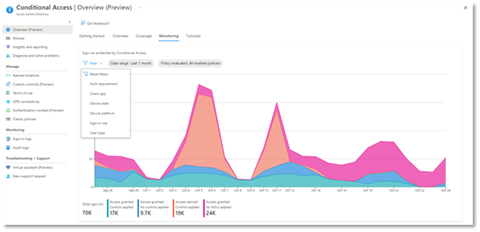
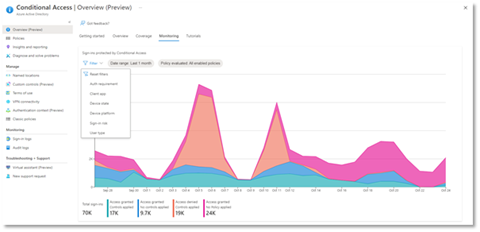
Let’s dive into the Conditional Access overview dashboard first. As organizations deploy an increasing number of policies, one of the biggest challenges admins face is understanding whether their policies are truly protecting their entire organization. The new Conditional Access overview dashboard makes it easier than ever to deploy comprehensive policies by summarizing users, apps, and devices in scope of your policies and highlighting gaps in your policy coverage.
The dashboard is comprised of four main tabs:
- Getting started: If you are new to Conditional Access, learn about policy components and create a new policy.
- Overview: Get a quick summary of your users, devices, and applications protected by Conditional Access. You can also view policy recommendations based on sign-in activity data in your tenant and quickly deploy policies from policy templates.
- Coverage: Ensure the most commonly accessed applications in your tenant are protected by Conditional Access.
- Monitoring: Visualize the impact of each policy in your tenant and add filters to see trends like guest access, legacy authentication, risky sign-ins and unmanaged devices.
- Tutorials: Learn about commonly deployed Conditional Access policies and best practices.
Conditional Access Templates
Additionally, to provide a simple and sample method for deploying new policies that align with Microsoft recommended best practices and help you respond to evolving threats, we also announced Conditional Access templates. These templates help you provide maximum protection for your users and devices and align with the commonly used policies across many different customer types and locations.
You can quickly create a new policy from any of the 14 built-in templates (we’ll add to these based on your input, new capabilities and in response to new attack types). Deploying your policies from templates is simple. It may be all you need to do, but you can also start from a template and custom tune it to meet your business needs.
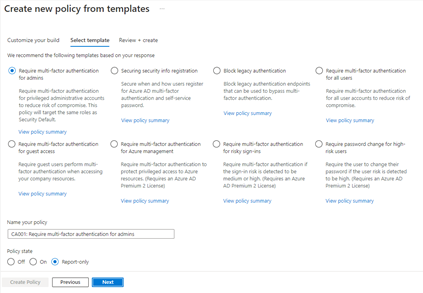 Figure 1: Admin experience for Conditional Access templates
Conditional Access Filters for Devices
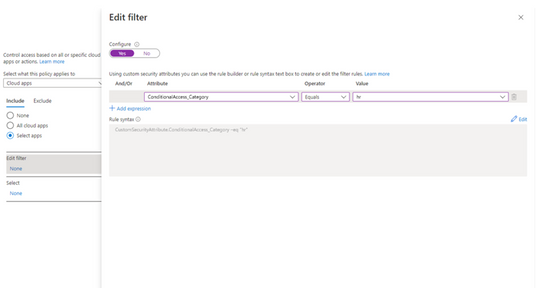
With filters for devices, security admins can target Conditional Access policies to a set of devices based on device attributes. This capability unlocks many new scenarios you have asked for, such as requiring privileged access workstations to access key resources. You can also use the device filters condition to secure the use of IoT devices (including Teams meeting rooms). Surface Hubs, Teams phones, Teams meeting rooms, and all sorts of IoT devices. We designed filters for devices to match the existing rule authoring experiences in Azure AD dynamic groups and Microsoft Endpoint Manager.
In addition to the built-in device properties such as device ID, display name, model, Mobile Device Management (MDM) app ID, and more, we’ve provided support for up to 15 additional extension attributes. Using the rule builder, admins can easily build device matching rules using Boolean logic, or they can edit the rule syntax directly to unlock even more sophisticated matching rules. We’re excited to see what scenarios this new condition unlocks for your organization!
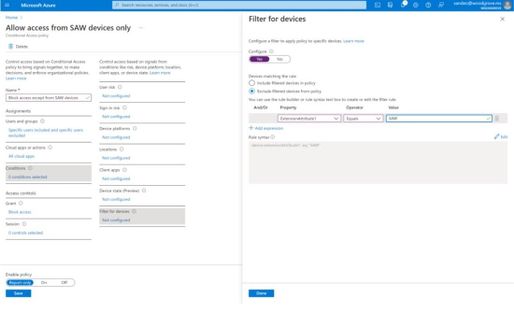 Figure 2: Admin experience for filters for devices
Filters for apps
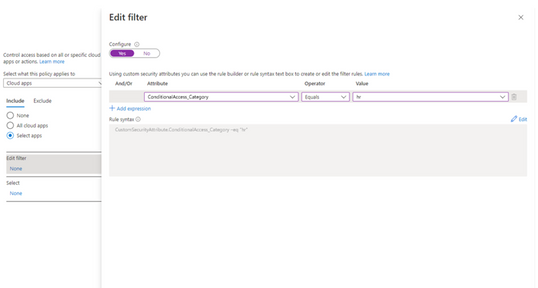
In addition to filters for devices, you can also use filters for applications in Conditional Access. We’ve heard from customers that with the explosion of apps in their tenants, they need an easier way to apply policies to their apps at scale. Filters for apps will allow improved Conditional Access app targeting based on custom security attributes. Simply tag groups of apps with a custom security attribute and then apply policy directly to apps with the attribute, rather than individually selecting all the apps. When new apps are onboarded, you only need to add the attribute to the app, rather than updating your policy.
Filters for apps use the new Azure AD custom security attributes. These are created and managed by each organization, so you can define attributes that work for you and use them in Conditional Access policy. Custom security attributes also support a rich delegation model, allowing you to select which users have permission to add specific attributes to apps and preventing app owners from making changes to these attributes. This makes it easy to have a set of admins manage app onboarding to Conditional Access policy without requiring them modify the policy and risk accidental changes. Conditional Access filters for apps will be available soon in public preview.
New export options in Diagnostic Settings
With our rich detections and signals in identity protection, we are now making it easier for you to leverage this risk data to understand trends in your environment with two major improvements.
The first improvement is expanded Diagnostic Settings, where we added new ways for you to export your risk data. Now with just one click, you can send your risky users and risk detections data to Log Analytics or your third party SIEM of choice. To address your need to retain this data beyond our built-in retention periods, we have enabled another simple click for you to send months of data to a storage account.
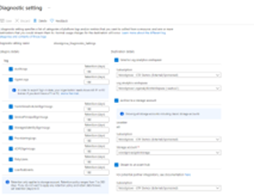 Figure 3: Admin experience for identity protection diagnostic settings
Risk Analysis Workbook
We also heard your requests for deeper, easily configurable insights into risk trends in your organization. Built upon Log Analytics and the expanded Diagnostic Settings, we released a new Risk Analysis Workbook for Identity Protection. This workbook shows the types of risks that are most prevalent and where you are seeing them in the world. Additionally, you now have visibility into how effectively you are responding to risk detected in your environment and the workbook highlights opportunities for improved policy configuration.
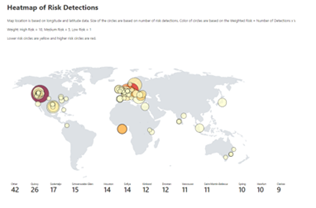 Figure 4. Admin experience for identity protection risk analysis workbook
To use the new workbook
- Sign in to the Azure portal.
- Navigate to Azure Active Directory > Monitoring > Workbooks.
- Click on “Identity Protection Risk Analysis”
We hope these new capabilities in Conditional Access make it even easier for you to deploy Zero Trust and unlock a new wave of scenarios for your organization. And the two Identity Protection capabilities help you understand your environment with simplicity yet come with powerful insights. As always, we are actively listening to your feedback. Join the conversation in the Microsoft Tech Community and share your feedback and suggestions with us.
Learn more about Microsoft identity:
by Contributed | Nov 29, 2021 | Technology
This article is contributed. See the original author and article here.
We hope you enjoyed Ignite 2021! We loved hearing from you and learning how you’re using Azure Active Directory to implement Zero Trust to protect users and applications from threats. Many of you have asked for more empowering and easier to use tools for protection and investigation in your identity environment. So today we’re delighted to offer a closer look at the new Azure AD Conditional Access and Identity Protection capabilities that help you better protect your identities while making your job easier.
New capabilities in Azure AD Conditional Access and Identity Protection
This Ignite, we announced a powerful set of capabilities that make Conditional Access easier to use and empower you with insights that help accelerate your Zero Trust deployments and give you more comprehensive protection for key scenarios. The Conditional Access overview dashboard (in public preview) empowers you to quickly find gaps in your policy coverage, while templates make it much easier to deploy recommended policies. Filters for devices and filters for apps (generally available) unlock new scenarios like restricting admin access to privileged workstations, giving you more comprehensive scenario coverage in key scenarios. Finally, we have made it easier to export risk data (including the new token signals!) and built a really cool new workbook to give you insight on risks (and what to do about it)!
Conditional Access overview dashboard
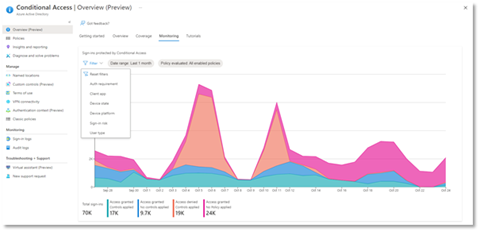
Let’s dive into the Conditional Access overview dashboard first. As organizations deploy an increasing number of policies, one of the biggest challenges admins face is understanding whether their policies are truly protecting their entire organization. The new Conditional Access overview dashboard makes it easier than ever to deploy comprehensive policies by summarizing users, apps, and devices in scope of your policies and highlighting gaps in your policy coverage.
The dashboard is comprised of four main tabs:
- Getting started: If you are new to Conditional Access, learn about policy components and create a new policy.
- Overview: Get a quick summary of your users, devices, and applications protected by Conditional Access. You can also view policy recommendations based on sign-in activity data in your tenant and quickly deploy policies from policy templates.
- Coverage: Ensure the most commonly accessed applications in your tenant are protected by Conditional Access.
- Monitoring: Visualize the impact of each policy in your tenant and add filters to see trends like guest access, legacy authentication, risky sign-ins and unmanaged devices.
- Tutorials: Learn about commonly deployed Conditional Access policies and best practices.
Conditional Access Templates
Additionally, to provide a simple and sample method for deploying new policies that align with Microsoft recommended best practices and help you respond to evolving threats, we also announced Conditional Access templates. These templates help you provide maximum protection for your users and devices and align with the commonly used policies across many different customer types and locations.
You can quickly create a new policy from any of the 14 built-in templates (we’ll add to these based on your input, new capabilities and in response to new attack types). Deploying your policies from templates is simple. It may be all you need to do, but you can also start from a template and custom tune it to meet your business needs.
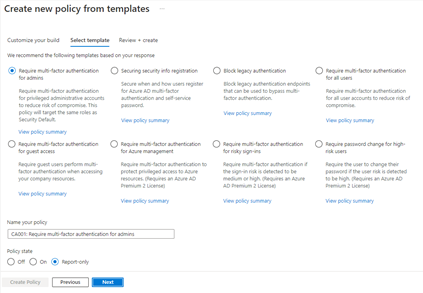 Figure 1: Admin experience for Conditional Access templates
Conditional Access Filters for Devices
With filters for devices, security admins can target Conditional Access policies to a set of devices based on device attributes. This capability unlocks many new scenarios you have asked for, such as requiring privileged access workstations to access key resources. You can also use the device filters condition to secure the use of IoT devices (including Teams meeting rooms). Surface Hubs, Teams phones, Teams meeting rooms, and all sorts of IoT devices. We designed filters for devices to match the existing rule authoring experiences in Azure AD dynamic groups and Microsoft Endpoint Manager.
In addition to the built-in device properties such as device ID, display name, model, Mobile Device Management (MDM) app ID, and more, we’ve provided support for up to 15 additional extension attributes. Using the rule builder, admins can easily build device matching rules using Boolean logic, or they can edit the rule syntax directly to unlock even more sophisticated matching rules. We’re excited to see what scenarios this new condition unlocks for your organization!
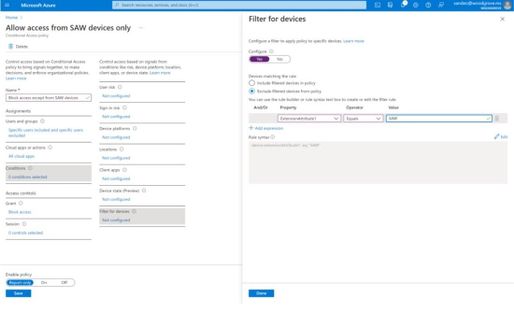 Figure 2: Admin experience for filters for devices
Filters for apps
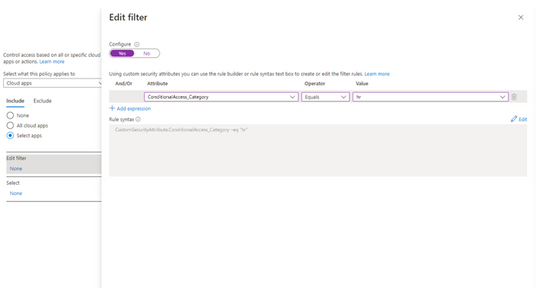
In addition to filters for devices, you can also use filters for applications in Conditional Access. We’ve heard from customers that with the explosion of apps in their tenants, they need an easier way to apply policies to their apps at scale. Filters for apps will allow improved Conditional Access app targeting based on custom security attributes. Simply tag groups of apps with a custom security attribute and then apply policy directly to apps with the attribute, rather than individually selecting all the apps. When new apps are onboarded, you only need to add the attribute to the app, rather than updating your policy.
Filters for apps use the new Azure AD custom security attributes. These are created and managed by each organization, so you can define attributes that work for you and use them in Conditional Access policy. Custom security attributes also support a rich delegation model, allowing you to select which users have permission to add specific attributes to apps and preventing app owners from making changes to these attributes. This makes it easy to have a set of admins manage app onboarding to Conditional Access policy without requiring them modify the policy and risk accidental changes. Conditional Access filters for apps will be available soon in public preview.
New export options in Diagnostic Settings
With our rich detections and signals in identity protection, we are now making it easier for you to leverage this risk data to understand trends in your environment with two major improvements.
The first improvement is expanded Diagnostic Settings, where we added new ways for you to export your risk data. Now with just one click, you can send your risky users and risk detections data to Log Analytics or your third party SIEM of choice. To address your need to retain this data beyond our built-in retention periods, we have enabled another simple click for you to send months of data to a storage account.
Figure 3: Admin experience for identity protection diagnostic settings
Risk Analysis Workbook
We also heard your requests for deeper, easily configurable insights into risk trends in your organization. Built upon Log Analytics and the expanded Diagnostic Settings, we released a new Risk Analysis Workbook for Identity Protection. This workbook shows the types of risks that are most prevalent and where you are seeing them in the world. Additionally, you now have visibility into how effectively you are responding to risk detected in your environment and the workbook highlights opportunities for improved policy configuration.
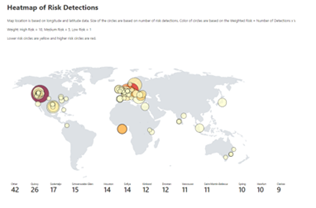 Figure 4. Admin experience for identity protection risk analysis workbook
To use the new workbook
- Sign in to the Azure portal.
- Navigate to Azure Active Directory > Monitoring > Workbooks.
- Click on “Identity Protection Risk Analysis”
We hope these new capabilities in Conditional Access make it even easier for you to deploy Zero Trust and unlock a new wave of scenarios for your organization. And the two Identity Protection capabilities help you understand your environment with simplicity yet come with powerful insights. As always, we are actively listening to your feedback. Join the conversation in the Microsoft Tech Community and share your feedback and suggestions with us.
Learn more about Microsoft identity:
by Contributed | Nov 29, 2021 | Technology
This article is contributed. See the original author and article here.
We hope you enjoyed Ignite 2021! We loved hearing from you and learning how you’re using Azure Active Directory to implement Zero Trust to protect users and applications from threats. Many of you have asked for more empowering and easier to use tools for protection and investigation in your identity environment. So today we’re delighted to offer a closer look at the new Azure AD Conditional Access and Identity Protection capabilities that help you better protect your identities while making your job easier.
New capabilities in Azure AD Conditional Access and Identity Protection
This Ignite, we announced a powerful set of capabilities that make Conditional Access easier to use and empower you with insights that help accelerate your Zero Trust deployments and give you more comprehensive protection for key scenarios. The Conditional Access overview dashboard (in public preview) empowers you to quickly find gaps in your policy coverage, while templates make it much easier to deploy recommended policies. Filters for devices and filters for apps (generally available) unlock new scenarios like restricting admin access to privileged workstations, giving you more comprehensive scenario coverage in key scenarios. Finally, we have made it easier to export risk data (including the new token signals!) and built a really cool new workbook to give you insight on risks (and what to do about it)!
Conditional Access overview dashboard
Let’s dive into the Conditional Access overview dashboard first. As organizations deploy an increasing number of policies, one of the biggest challenges admins face is understanding whether their policies are truly protecting their entire organization. The new Conditional Access overview dashboard makes it easier than ever to deploy comprehensive policies by summarizing users, apps, and devices in scope of your policies and highlighting gaps in your policy coverage.
The dashboard is comprised of four main tabs:
- Getting started: If you are new to Conditional Access, learn about policy components and create a new policy.
- Overview: Get a quick summary of your users, devices, and applications protected by Conditional Access. You can also view policy recommendations based on sign-in activity data in your tenant and quickly deploy policies from policy templates.
- Coverage: Ensure the most commonly accessed applications in your tenant are protected by Conditional Access.
- Monitoring: Visualize the impact of each policy in your tenant and add filters to see trends like guest access, legacy authentication, risky sign-ins and unmanaged devices.
- Tutorials: Learn about commonly deployed Conditional Access policies and best practices.
Conditional Access Templates
Additionally, to provide a simple and sample method for deploying new policies that align with Microsoft recommended best practices and help you respond to evolving threats, we also announced Conditional Access templates. These templates help you provide maximum protection for your users and devices and align with the commonly used policies across many different customer types and locations.
You can quickly create a new policy from any of the 14 built-in templates (we’ll add to these based on your input, new capabilities and in response to new attack types). Deploying your policies from templates is simple. It may be all you need to do, but you can also start from a template and custom tune it to meet your business needs.
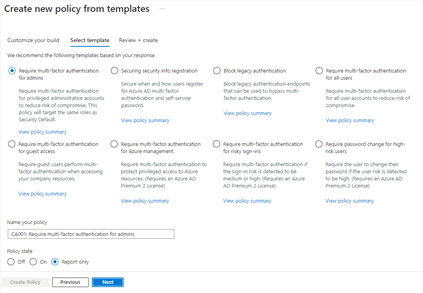 Figure 1: Admin experience for Conditional Access templates
Conditional Access Filters for Devices
With filters for devices, security admins can target Conditional Access policies to a set of devices based on device attributes. This capability unlocks many new scenarios you have asked for, such as requiring privileged access workstations to access key resources. You can also use the device filters condition to secure the use of IoT devices (including Teams meeting rooms). Surface Hubs, Teams phones, Teams meeting rooms, and all sorts of IoT devices. We designed filters for devices to match the existing rule authoring experiences in Azure AD dynamic groups and Microsoft Endpoint Manager.
In addition to the built-in device properties such as device ID, display name, model, Mobile Device Management (MDM) app ID, and more, we’ve provided support for up to 15 additional extension attributes. Using the rule builder, admins can easily build device matching rules using Boolean logic, or they can edit the rule syntax directly to unlock even more sophisticated matching rules. We’re excited to see what scenarios this new condition unlocks for your organization!
Figure 2: Admin experience for filters for devices
Filters for apps
In addition to filters for devices, you can also use filters for applications in Conditional Access. We’ve heard from customers that with the explosion of apps in their tenants, they need an easier way to apply policies to their apps at scale. Filters for apps will allow improved Conditional Access app targeting based on custom security attributes. Simply tag groups of apps with a custom security attribute and then apply policy directly to apps with the attribute, rather than individually selecting all the apps. When new apps are onboarded, you only need to add the attribute to the app, rather than updating your policy.
Filters for apps use the new Azure AD custom security attributes. These are created and managed by each organization, so you can define attributes that work for you and use them in Conditional Access policy. Custom security attributes also support a rich delegation model, allowing you to select which users have permission to add specific attributes to apps and preventing app owners from making changes to these attributes. This makes it easy to have a set of admins manage app onboarding to Conditional Access policy without requiring them modify the policy and risk accidental changes. Conditional Access filters for apps will be available soon in public preview.
New export options in Diagnostic Settings
With our rich detections and signals in identity protection, we are now making it easier for you to leverage this risk data to understand trends in your environment with two major improvements.
The first improvement is expanded Diagnostic Settings, where we added new ways for you to export your risk data. Now with just one click, you can send your risky users and risk detections data to Log Analytics or your third party SIEM of choice. To address your need to retain this data beyond our built-in retention periods, we have enabled another simple click for you to send months of data to a storage account.
Figure 3: Admin experience for identity protection diagnostic settings
Risk Analysis Workbook
We also heard your requests for deeper, easily configurable insights into risk trends in your organization. Built upon Log Analytics and the expanded Diagnostic Settings, we released a new Risk Analysis Workbook for Identity Protection. This workbook shows the types of risks that are most prevalent and where you are seeing them in the world. Additionally, you now have visibility into how effectively you are responding to risk detected in your environment and the workbook highlights opportunities for improved policy configuration.
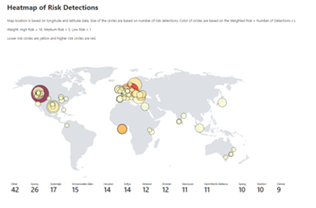 Figure 4. Admin experience for identity protection risk analysis workbook
To use the new workbook
- Sign in to the Azure portal.
- Navigate to Azure Active Directory > Monitoring > Workbooks.
- Click on “Identity Protection Risk Analysis”
We hope these new capabilities in Conditional Access make it even easier for you to deploy Zero Trust and unlock a new wave of scenarios for your organization. And the two Identity Protection capabilities help you understand your environment with simplicity yet come with powerful insights. As always, we are actively listening to your feedback. Join the conversation in the Microsoft Tech Community and share your feedback and suggestions with us.
Learn more about Microsoft identity:
by Contributed | Nov 29, 2021 | Technology
This article is contributed. See the original author and article here.
Building fast, fluid Microsoft 365 web applications is one of our core focus areas on the SharePoint engineering team. Over the course of this year, we’ve double-downed on performance – making our web apps load faster, delivering up to a 57% improvement in page interactivity, along with the ability to work with data offline. We’re pleased to announce we’ve reached general availability for Microsoft Lists customers. The focus of this article is to share how it all works and how we went about designing and developing it.
We’re pleased to announce that we’ve reached general availability for Microsoft Lists: Fast and offline.
And we didn’t stop there. Our ambition is to deliver experiences that are consistently fast for every user on all kinds of networks and devices – even when there is no connection to the Internet. To help us accomplish this, we looked beyond the fundamentals to unlock new levels of web performance and enable new ways for our customers to experience Microsoft 365 web applications. We do this by blending Progressive Web Apps (PWAs) and expanding Project Nucleus.
 The combination of Progressive Web Apps (PWAs) and the expansion of Project Nucleus enables faster Web applications – even when offline.
Transforming Microsoft 365 apps into PWAs
As part of our ongoing effort to improve performance and design new experiences, we began transforming our web applications into Progressive Web Apps (PWAs) starting with Microsoft Lists and OneDrive.
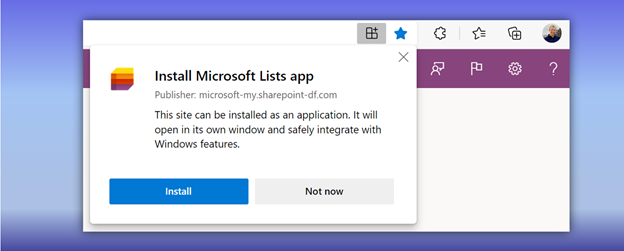 Install Microsoft Lists as a Progressive Web Apps (PWA) from your browser.
PWAs allow us to provide access to open web technologies for cross-platform interoperability. And in turn, you get an app-like experience customized for your devices. They are websites progressively enhanced to function like installed apps. PWAs allow us to combine the best of the web and native apps, like websites with app features: The ability to load offline, run within the local operating system, support push notifications and periodic background updates, access hardware features, and more.
When installed, PWAs are just like other apps on Windows. They can be added to the Start Menu, pinned to the Taskbar, work with files, run on user login, and more.
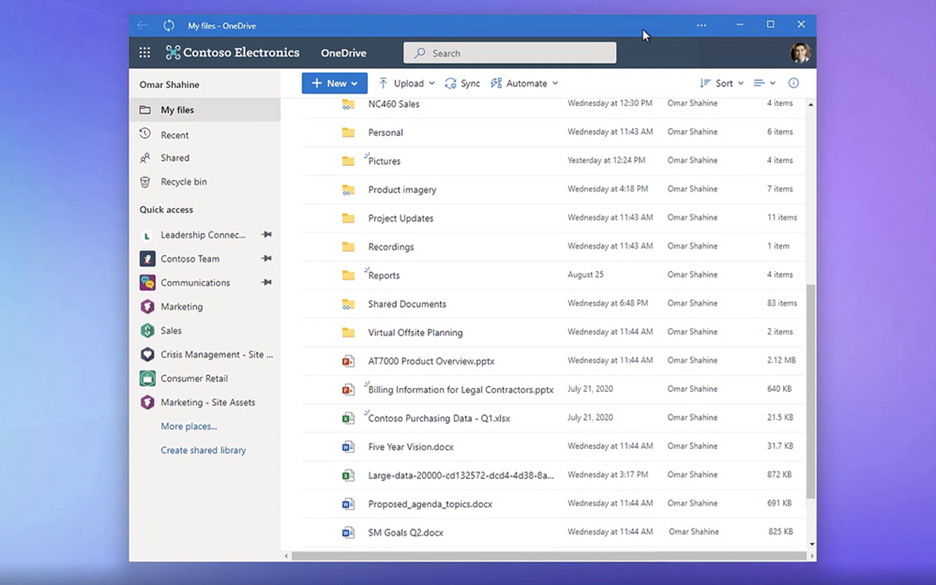 OneDrive as a PWA running on the Windows desktop.
To build web experiences that load and function offline – including support for editing – we had to look beyond PWAs. Enter Project Nucleus.
It all started as ‘Project Nucleus’
Project Nucleus was the codename behind our initiative of building a new client-side component to supercharge existing web apps, like Microsoft Lists, by providing a consistently fast and smooth experience on all kinds of devices and networks – again, even working when offline.
By leveraging local storage for fast data retrieval, it also enables our customers to seamlessly work with large and complex datasets made available through our web apps, like Lists with hundreds or thousands of rows. Operations on web app data, like sort and filter, are blazing fast because they occur on the local device. All offline changes synchronize back to the cloud once reconnected to the Internet.
Behind Project Nucleus is Microsoft.SharePoint.exe, a new component delivered alongside OneDrive sync – leveraging the existing OneDrive install and update mechanism. Once installed, it links with the web app by making a smart cache of web app data on the local device. It then acts as a local web server by pulling and pushing data to and from that local cache, instead of the web app always retrieving it from the cloud. This enables offline editing; changes to content occur within the local cache first and then get pushed to the cloud once connection is restored. The result helps save on network bandwidth and eliminate bottlenecks, too.
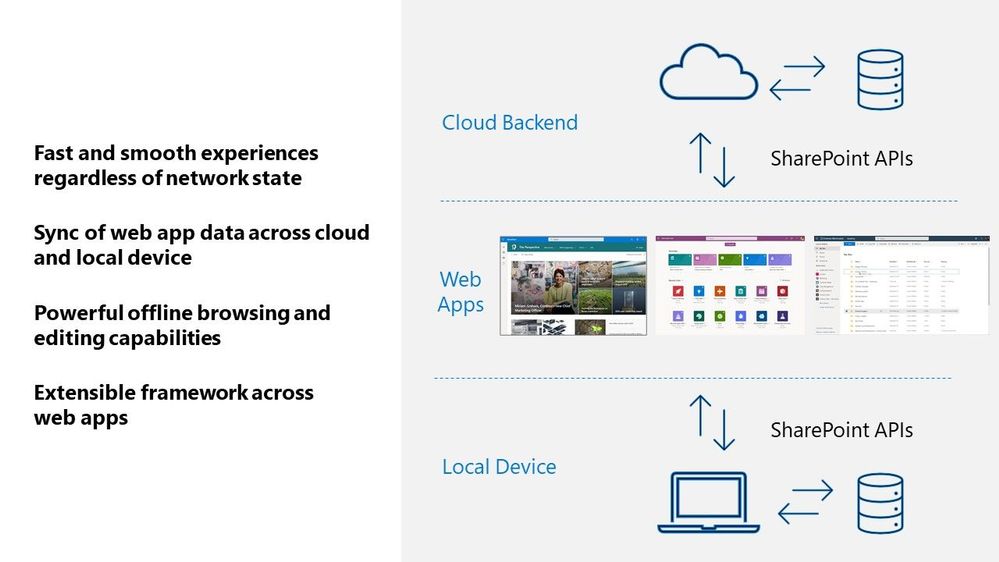 A visual diagram showing how web apps interact across your local Windows device and cloud services in Microsoft 365.
Microsoft Lists is our first web application that leverages these new capabilities. First, it means you can load the Lists app to view and edit list data whether your online or offline. Second, loading and interacting with lists gets supercharged in all modalities. Finally, views inside synced lists never get throttled – regardless of the number of items in the view or whether those columns are indexed.
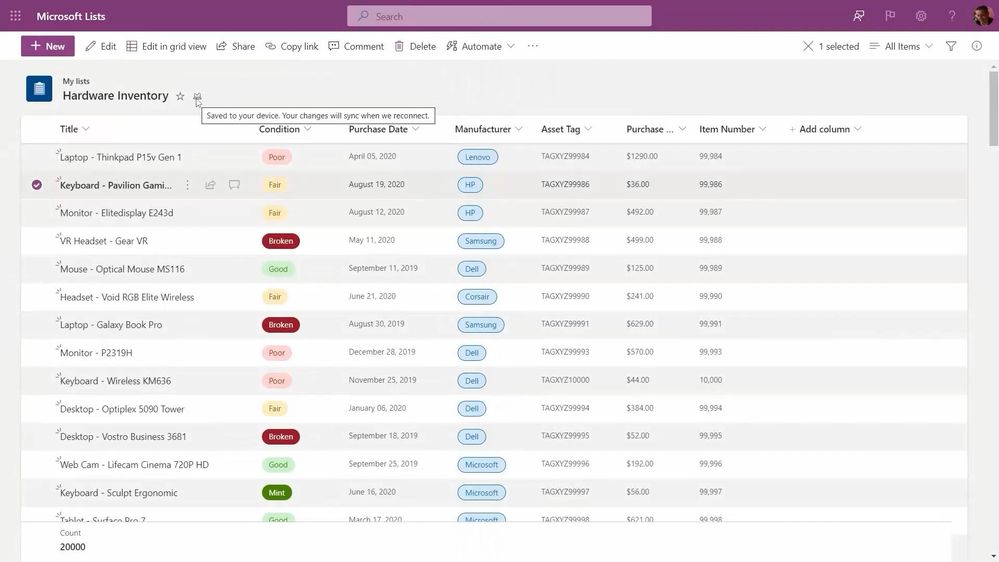 New Lists indicators show when your items are being save to your device (offline; as shown above), when the list is synchronizing, and when all is up to date (synced).
Moving forward…
In short, your lists are always on, lightning fast, and less impacted by service-imposed limitations. This is where we start, and we plan to bring these benefits to other web apps over time. Stay tuned – online or offline – for future updates in this space.
Learn more about Progressive Web Apps, including ‘how to’ information for end users. Review all Microsoft Lists new from Microsoft Ignite – including the general availability announcement for Microsoft Lists: Fast and offline [Roadmap ID: 68809]. We have a new end-user ‘how to’ edit lists offline. And admins can review policies to control Lists sync settings.
Take a peek at the technology in action from the related Microsoft Ignite session, “What’s new with Microsoft Lists” (published on November 2nd, 2021 – jump to 13:30 to see the “Fast and offline access to list data” segment):
Thanks for your time to learn more, Andrey Esipov – Principal program manager, Microsoft


Recent Comments