by Contributed | Dec 7, 2021 | Technology
This article is contributed. See the original author and article here.
In the article Learning from Expertise #2: Who Dropped my Azure SQL DB? – Microsoft Tech Community we have explored various solution to know, secure, protect, recover, audit and monitor Azure SQL DB against unintended deletion.
Today, we will highlight on another unappealing situation when we see customer who accidentally deleted the SQL DB Server which ultimately deleting the underlying databases as well. This is a scenario commonly hit because of automation tools such as Terraform.
It’s very important to note that: – Restore of a dropped server is not an officially supported scenario, and any attempt to recover will be laid under a best effort trial to recover the server and databases.
First Recommendation
*Do not* recreate the server again with the same name in case you want to restore the dropped the server and try to contact Microsoft support the soonest the possible.
Additional precautionary measures:
The following recommendations can help you to recover from these unintentional scenarios by either preventing it or restoring the important data whenever needed:
1. Implement resource lock to avoid accidental changes in Azure resources. you can lock at different levels like subscription, resource group, or resource to prevent other users in your organization from accidentally deleting or modifying critical resources. You can find more information, see: Lock resources to prevent changes – Azure Resource Manager | Microsoft Docs
2. Enable Long Term Backup Retention (LTR)
This feature allows users to configure a single or a pooled database with a long-term backup retention policy (LTR) to automatically retain the database backups in separate Azure Blob storage containers for up to 10 years and recover database using these backups via Azure portal or PowerShell. LTR backups are completely independent and cannot be impacted by server drop. For more information, see:
Long-term backup retention – Azure SQL Database & Azure SQL Managed Instance | Microsoft Docs
Azure SQL Database: Manage long-term backup retention – Azure SQL Database | Microsoft Docs
3. You can export the latest copy of the database into a storage account before deleting the database. Export the database to BACPAC File can be done through various tools like Azure Portal, SQLPackage, SSMS and powershell. More information can be found in:
Export an Azure SQL Database to a BACPAC file (the Azure portal) – Azure SQL Database & Azure SQL Managed Instance | Microsoft Docs
Also, you can leverage Azure automation to automate the database export, you can find the detailed steps handy at my colleague @Mohamed_Baioumy_MSFT‘s blog: How to automate Export Azure SQL DB to blob storage use Automation account – Microsoft Tech Community
I hope you find this article helpful. If you have any feedback, please do not hesitate to provide it in the comment section below.
Ahmed S. Mazrouh

by Contributed | Dec 4, 2021 | Technology
This article is contributed. See the original author and article here.
Before implementing data extraction from SAP systems please always verify your licensing agreement. |
I hope you all enjoyed the summer with OData-based extraction and Synapse Pipelines. Time flies quickly, and we’re now in the fourth episode of this mini-blog series. You’ve learnt quite a lot! Initially, we built a simple pipeline with a single activity to copy data from the SAP system to data lake storage. But that solution evolved quickly, and now it supports storing metadata in an external store that decouples the management of OData services and pipelines. To extract data from a new service, you can just enter its name to the Azure Table Storage. You don’t have to make any changes in Synapse!
Today we continue our journey, and we’ll focus on optimizing the extraction performance of large datasets. When I first started working with OData-based extraction, it caused me a lot of challenges – have you ever tried to generate an OData payload for more than a million records? I can’t assure you – most of the time, it doesn’t end well!
But even if we forget about string size limitations, working with huge HTTP payloads causes problems in data transmission and processing. How should we then approach the data extraction from large OData sources?
CLIENT-SIDE PAGING
The solution to the above problem is pretty straightforward. If working with a large amount of data is causing us an issue, let’s split the dataset into a couple of smaller chunks. Then extract and process each part separately. You can even run each thread in parallel, improving the overall performance of the job.
There is a couple of ways how you can split the dataset. Firstly, the most obvious is to use business logic to provide rules. Using the Sales Orders as an example, we could chunk it into smaller pieces using the following keys:
- SalesOrganization
- SalesOrderType
- SoldToPary
Those are not the only business-related keys you can use to create partitions in your data. It’s a reliable approach, but it requires a lot of preparation and data discovery work. Fortunately, there is another solution.
When working with OData services, you can manipulate the amount of data to fetch within a single request using the $top query parameter. When you pass $top=25 you will only receive only 25 records in the response. But that’s not the end! We can also use the $skip parameter that indicates the first record to fetch. So, to process 15 records, you can send a single request, or we can chunk it into smaller pieces using the combination of $skip and $top parameters.

As sending a single request asking for large amounts of data is not the best approach, a similar danger comes from flooding the SAP system with a large number of tiny calls. Finding the right balance is the key!
The above approach is called Client-Side Paging. We will use the logic inside Synapse Pipeline to split the dataset into manageable pieces and then extract each of them. To implement it in the pipeline, we need three numbers:
- The number of records in the OData service
- Amount of data to fetch in a single request (batch size)
- Number of requests
Getting the number of records in the OData service is simple. You can use the $count option passed at the end of the URL. By dividing it by the batch size, which we define for each OData service and store in the metadata table, we can calculate the number of requests required to fetch the complete dataset.
Open the Storage Explorer to alter the metadata table and add a new Batch property:
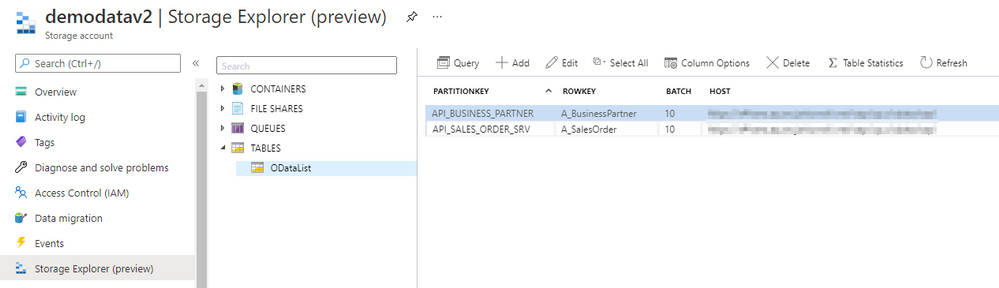
Now go to Synapse Studio and open the child pipeline. Add a new parameter to store the Batch size:
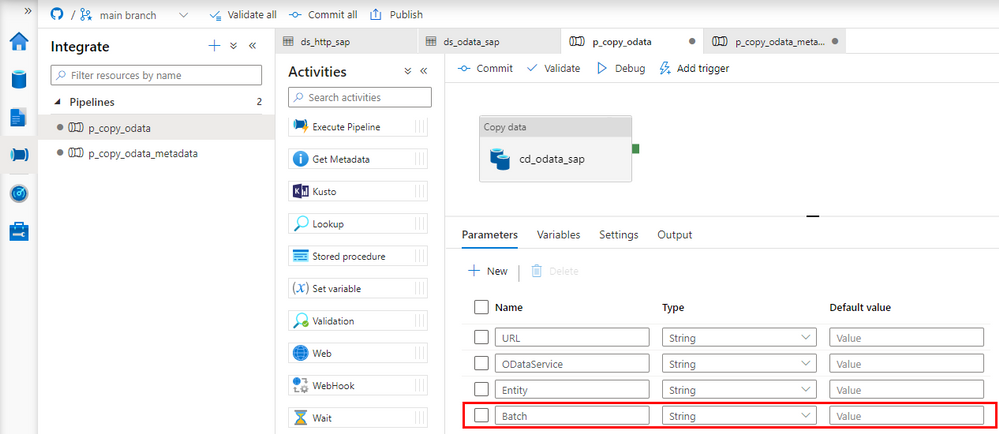
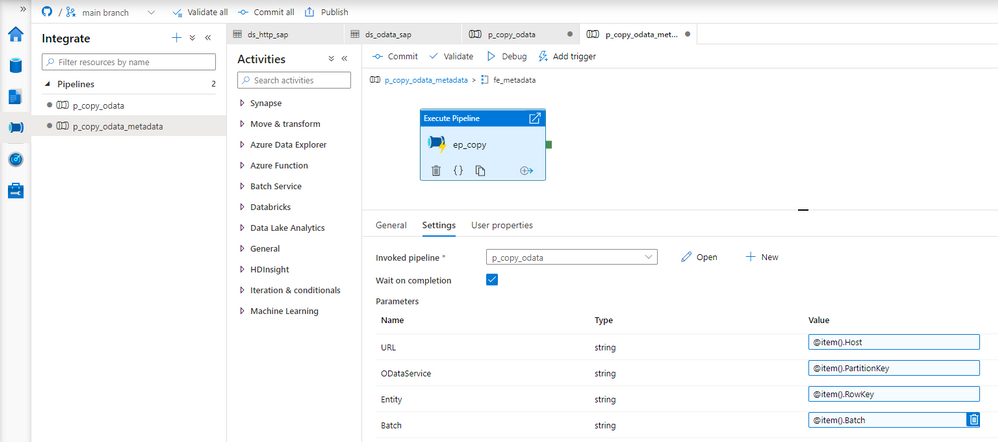
In the metadata pipeline, open the Execute Pipeline activity. The following expression will pass the batch size value from the metadata table. You don’t have to make any changes to the Lookup.
@item().Batch
There is a couple of ways to read the record count. Initially, I wanted to use the Lookup activity against the dataset that we already have. But, as the result of a $count is just a number without any data structure, the OData connector fails to interpret the value. Instead, we have to create another Linked Service and a dataset of type HTTP. It should point to the same OData Service as the Copy Data activity.
Create the new Linked Service of type HTTP. It should accept the same parameters as the OData one. Refer to the second episode of the blog series if you’d like to refresh your memory on how to add parameters to linked services.
{
    "name": "ls_http_sap",
    "properties": {
        "parameters": {
            "ODataURL": {
                "type": "String"
            }
        },
        "annotations": [],
        "type": "HttpServer",
        "typeProperties": {
            "url": "@{linkedService().ODataURL}",
            "enableServerCertificateValidation": true,
            "authenticationType": "Basic",
            "userName": "bjarkowski",
            "password": {
                "type": "AzureKeyVaultSecret",
                "store": {
                    "referenceName": "ls_keyvault",
                    "type": "LinkedServiceReference"
                },
                "secretName": "s4hana"
            }
        },
        "connectVia": {
            "referenceName": "SH-IR",
            "type": "IntegrationRuntimeReference"
        }
    }
}
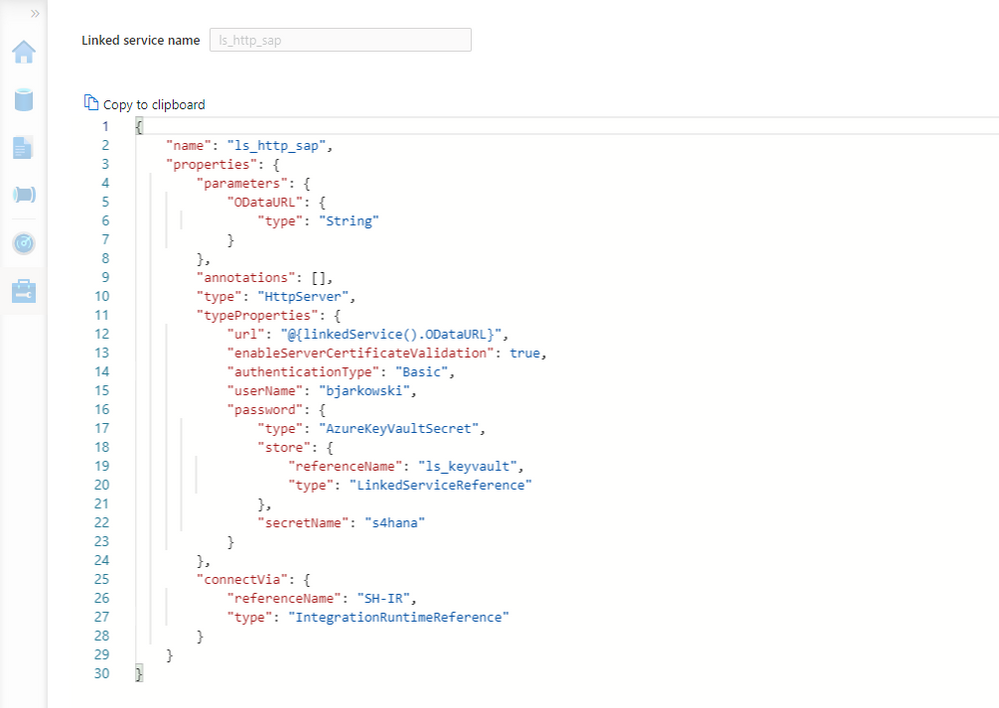
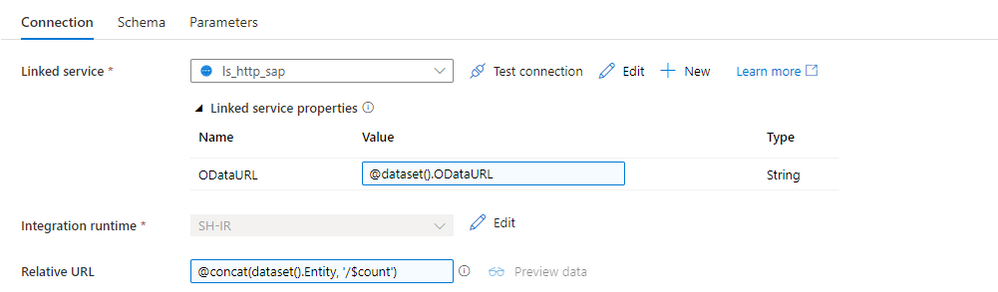
Now, let’s create the dataset. Choose HTTP as the type and DelimitedText as the file format. Add ODataURL and Entity parameters as we did for the OData dataset. On the Settings tab, you’ll find the field Relative URL, which is the equivalent of the Path from the OData-based dataset. To get the number of records, we have to concatenate the entity name with the $count. The expression should look as follows:
@concat(dataset().Entity, '/$count')
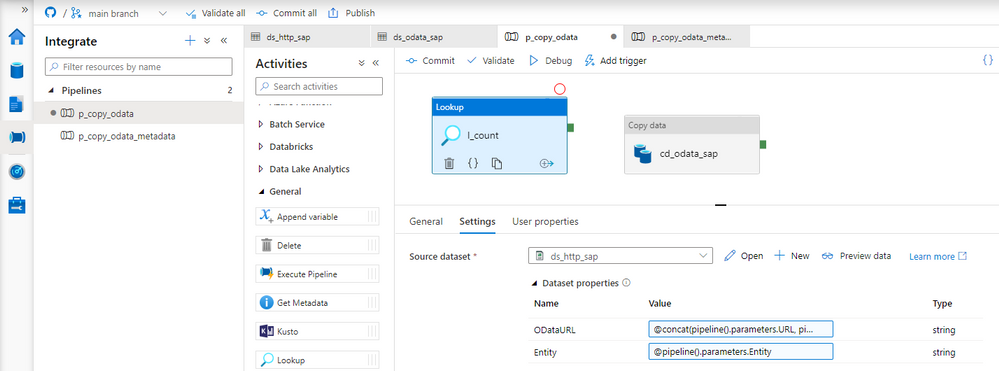
Perfect! We can now update the child pipeline that processes each OData service. Add the Lookup activity, but don’t create any connection. Both parameters on the Settings tab should have the same expression as the Copy Data activity. There is one difference. It seems there is a small bug and the URL in the Lookup activity has to end with a slash ‘/’ sign. Otherwise, the last part of the address may be removed, and the request may fail.
ODataURL: @concat(pipeline().parameters.URL, pipeline().parameters.ODataService, '/')
Entity: @pipeline().parameters.Entity
Difficult moment ahead of us! I’ll try to explain all the details the best I can. When the Lookup activity checks the number of records in the OData service, the response contains just a single value. We will use the $skip and $top query parameters to chunk the request into smaller pieces. The tricky part is how to model it in the pipeline. As always, there is no single solution. The easiest approach is to use the Until loop, which could check the number of processed rows at every iteration. But it only allows sequential processing, and I want to show you a more robust way of extracting data.
The ForEach loop offers parallel execution, but it only accepts an array as the input. We have to find a way on how to create one. The @range() expression can build an array of consecutive numbers. It accepts two parameters – the starting position and the length, which in our case will translate to the number of requests. Knowing the number of records and the batch size, we can easily calculate the array length. Assuming the OData service contains 15 elements and the batch size equals 5, we could pass the following parameters to the @range() function:
@range(0,3)
As the outcome we receive:
[0,1,2]
Each value in the array represents the request number. Using it, we can easily calculate the $skip parameter.
But there is one extra challenge. What if the number of records cannot be divided by the batch size without a remainder? As there is no rounding function, the decimal part of the result will be omitted, which means we’re losing the last chunk of data. To avoid that, I implemented a simple workaround – I always add 1 to the number of requests. Of course, you could think about a fancy solution using the modulo function, but I’m a big fan of simplicity. And asking for more data won’t hurt.
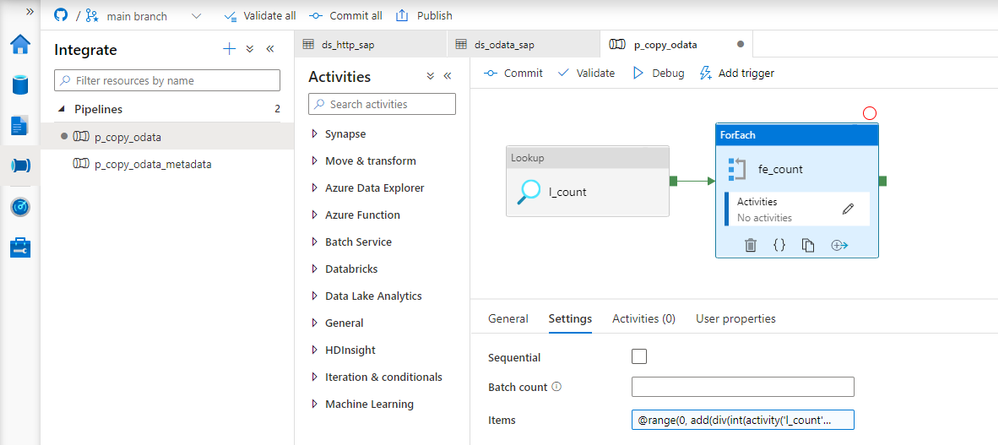
Add the ForEach loop as the successor of the Lookup activity. In the Items field, provide the following expression to create an array of requests. I’m using the int() function to cast the string value to the integer that I can then use in the div().
@range(0, add(div(int(activity('l_count').output.firstRow.Prop_0), int(pipeline().parameters.Batch)),1))
To send multiple requests to the data source, move the Copy Data activity to the ForEach loop. Every iteration will trigger a copy job – but we have to correctly maintain query parameters to receive just one chunk of data. To achieve it, we will use the $top and $skip parameters, as I mentioned earlier in the post.
The $top parameter is static and always equals the batch size. To calculate the $skip parameter, we will use the request number from the array passed to the loop multiplied by the batch size.
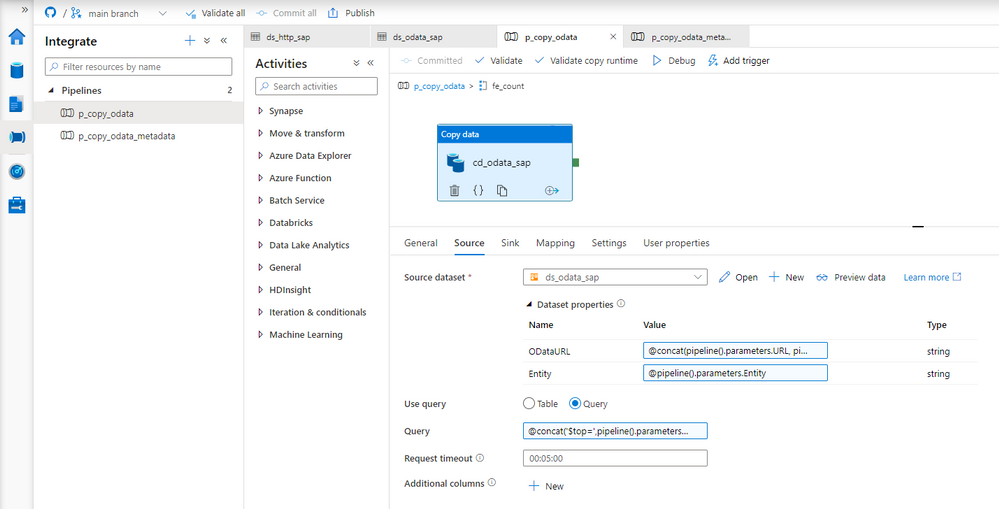
Open the Copy Data activity and go to the Settings tab. Change the field Use Query to Query and provide the following expression:
@concat('$top=',pipeline().parameters.Batch, '&$skip=',string(mul(int(item().value), int(pipeline().parameters.Batch))))
That was the last change to make. Let’s start the pipeline!
EXECUTION AND MONITORING
Once the pipeline processing finishes we can see successfully completed jobs in the monitoring view. Let’s drill down to see the details.
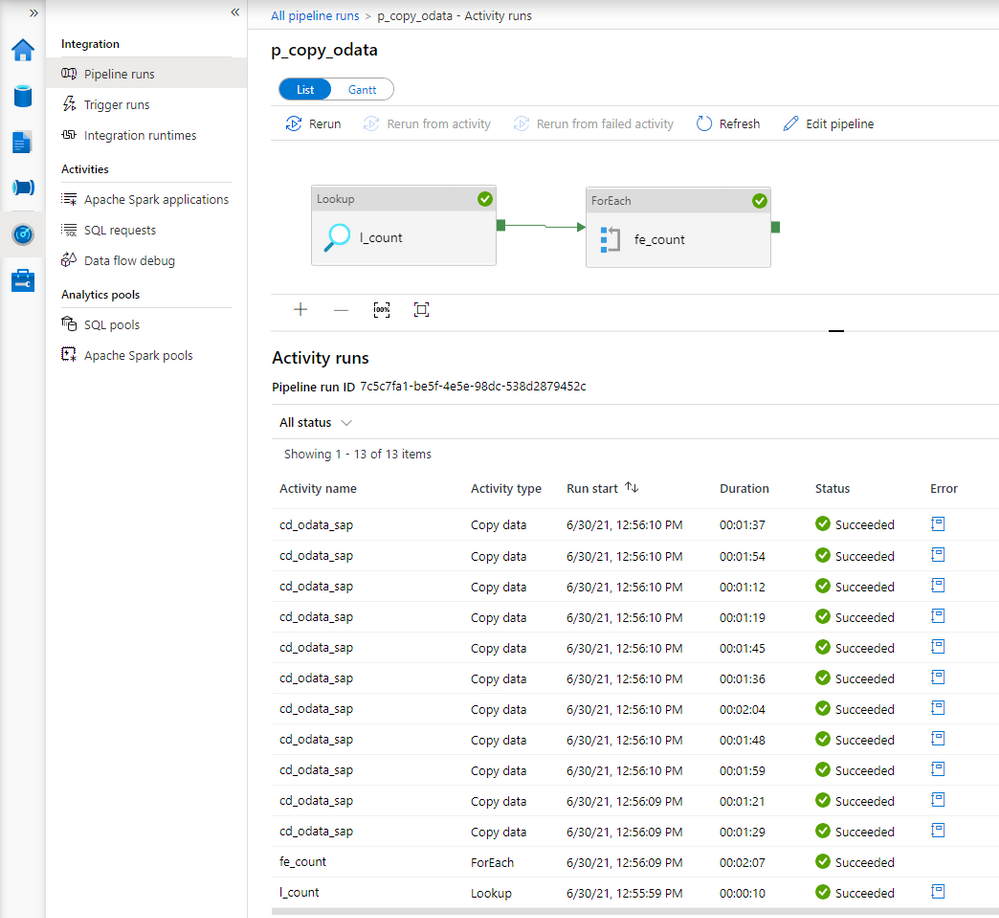
Comparing to the previous extraction, you can see the difference. Instead of just one, there are now multiple entries for the Copy Data activity. You may be slightly disappointed with the duration of each copy job. It takes much longer to extract every chunk of data – in the previous episode, it took only 36 seconds to extract all sales orders. This time every activity took at least a minute.
There is a couple of reasons why it happens. Let’s take a closer a closer look at the components of the extraction job to understand why the duration increased heavily.
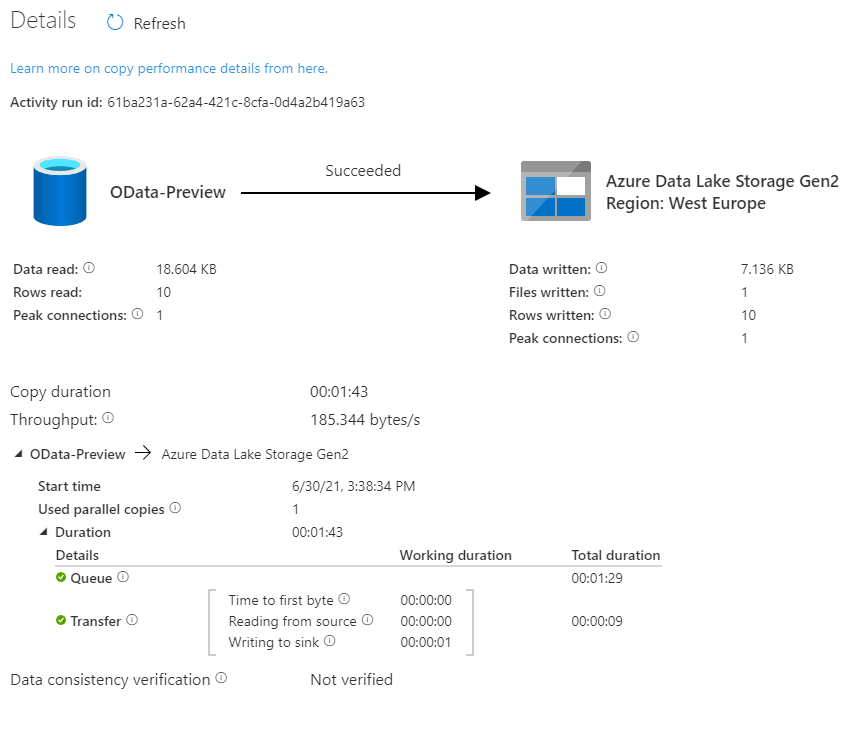
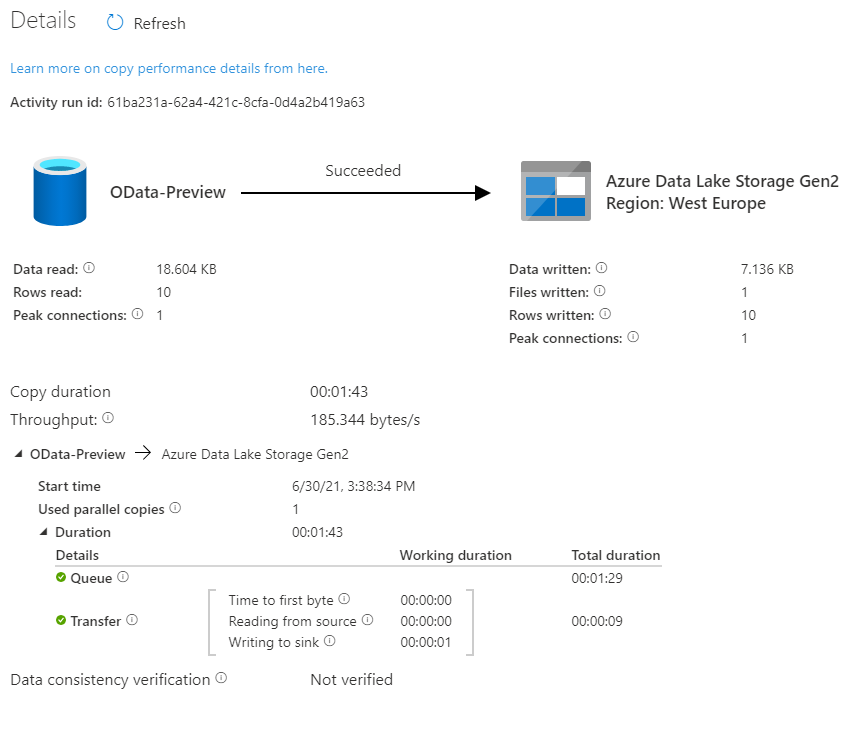
Look at the time analysis. Before the request was processed, it was in the Queue for 1 minute and 29 seconds. Extracting data took only 9 seconds. Why there is such a long wait time?
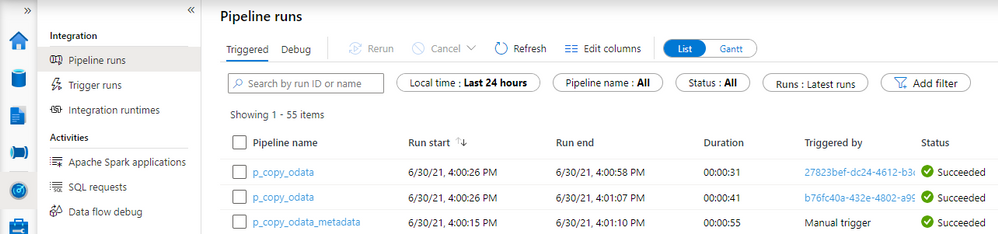
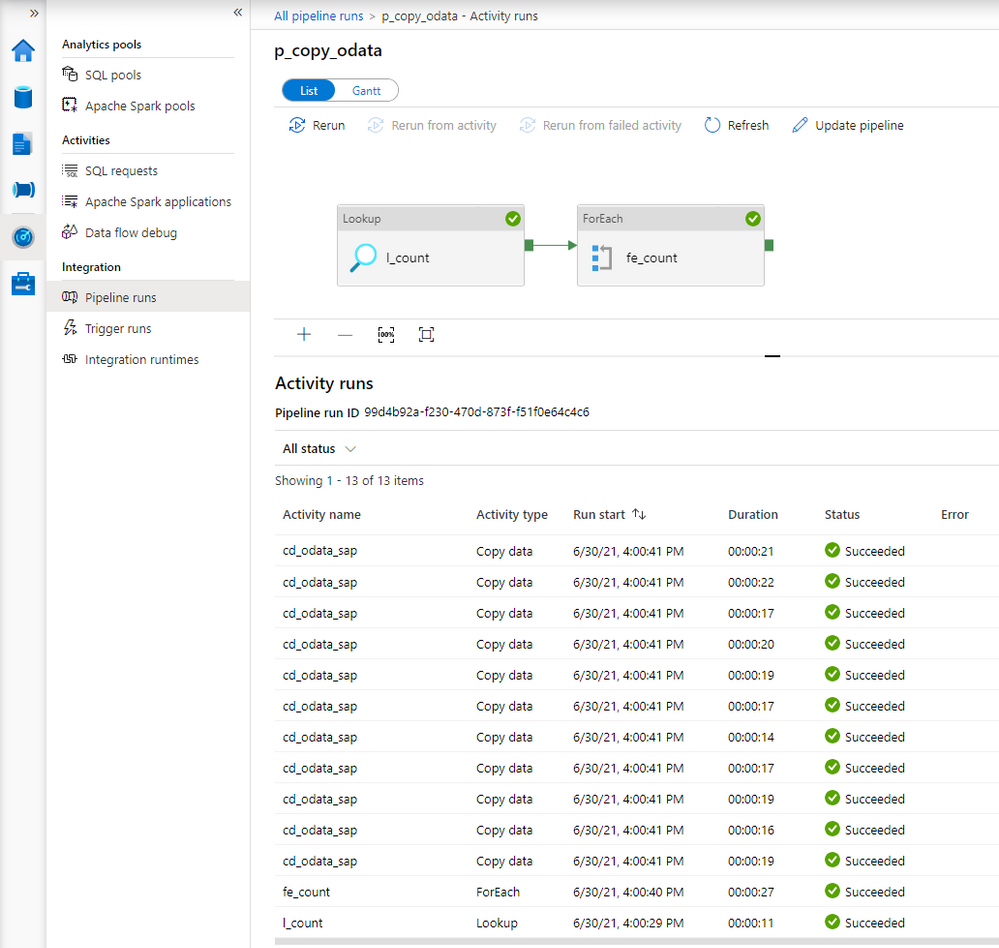
In the first episode of the blog series, I briefly explained the role of the integration runtime. It provides the computing resources for pipeline execution. To save cost, I host my integration runtime on a very tiny B2ms virtual machine. It provides enough power to process two or three activities at the same time, which means that extracting many chunks is rather sequential than parallel. To fix that, I’ve upgraded my virtual machine to a bigger one. The total duration to extract data decreased significantly as I could process more chunks at the same time.
Here is the duration of each Copy Data activity.
The request is in the queue only for a couple of seconds instead of over a minute.
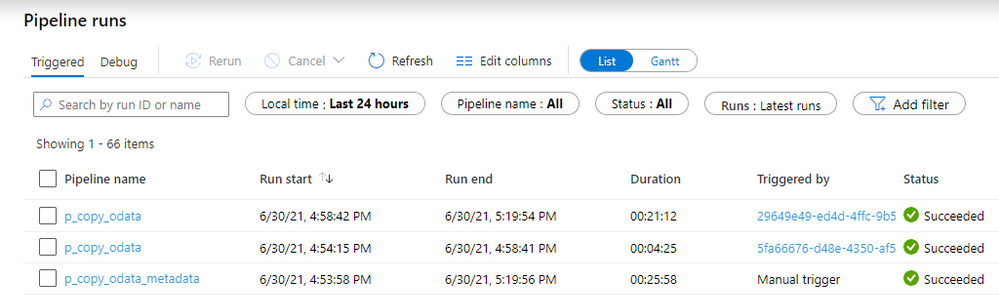
Before we finish, I want to show you some results of processing a large dataset. In another system, I have over 1 million sales orders with more than 5 million line items. It wasn’t possible to extract it all in a single request as every attempt resulted in a short dump at the SAP side. I’ve adjusted the batch size to 100 000 which should be alright to process at a time. To further optimize the extraction, I changed the processing of OData services to Sequential, which means the job firstly extracts Sales Order headers before moving to line items. You can do it in the ForEach Loop in the metadata pipeline. To limit the impact of extraction to the SAP system, I also set a concurrency limit for the Copy Data activity (ForEach loop in the child pipeline).
It took 25 minutes to extract in total over 6 million records. Not bad.
The extraction generated quite a lot of files on the data lake. Let’s count all records inside them and compare the number with what I have in my SAP system:
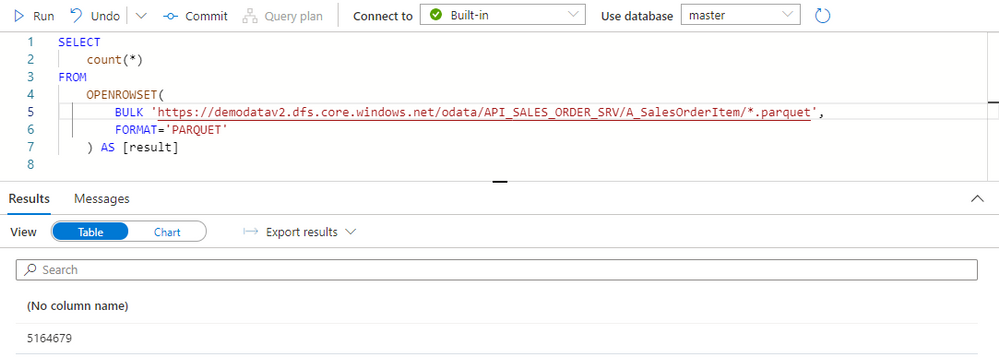
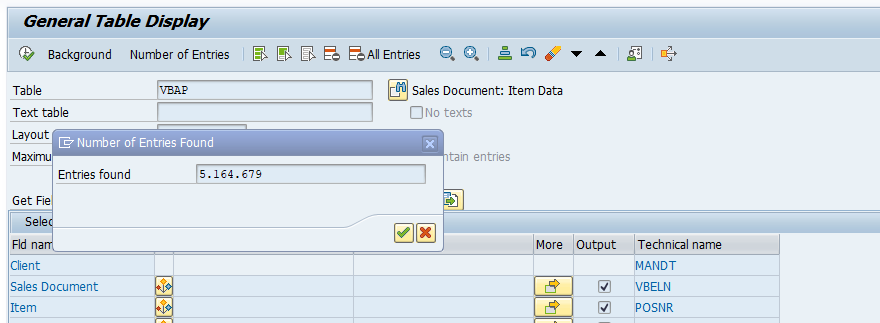
Both numbers match, which means we have the full dataset in the data lake. We could probably further optimize the extraction duration by finding the right number of parallel processes and identifying the best batch size.
Finally, before you even start the extraction, I recommend checking if you need all data. Trimming the dataset by setting filters on columns or extracting only a subset of columns can heavily improve the extraction duration. That’s something we’ll cover in the next episode!

by Contributed | Dec 3, 2021 | Technology
This article is contributed. See the original author and article here.
Overview
Many FHIR include complex nesting. For example the Item component of Questionnaire can either be a single item or an array of more items, which can themselves also be arrays of more items, with even more arrays below. Arrays all the way down! A previous post (FHIR + Blazor + Recursion = Rendering a Questionnaire ) showed a method to render objects with complex nesting: using Dynamic Fragments. This article shows an alternative method: using self-referential components.
Why use components?
Components will allow easier reuse than Dynamic Fragment rendered pages. Imagine a case where we want to both create new and allow updates of complex nested children. If we use components, we can easily adapt a component for both EDIT and CREATE. More reuse means less code!
How it’ll work
We’ll create a parent component. The parent component will render the child component.
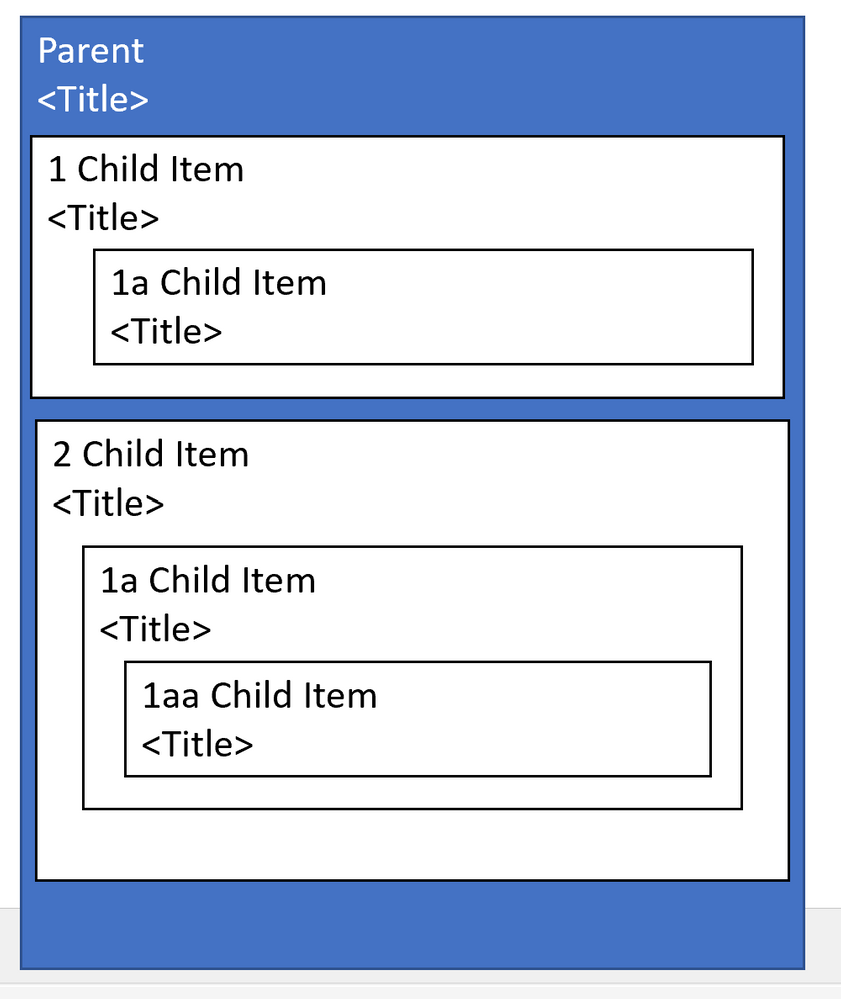
Parent Component;
<span>@Parent.Title</span>
<p>@Parent.Description</p>

@{
   int childNum=1;
}

@foreach(var child in Parent.children){
    Child #@childNum
    ChildComponent child=child />
    childNum++;
}
AND HERE’s THE MAGIC:
Child Component:
<span>@Child.Title</span>

@foreach(var child in Child.children){
    <ChildComponent child=child />
}
The child component will render additional child components.
FHIR Specific Example
Check out the code below from (FHIRBlaze)
Parent Component (QuestionnaireComponent)
<EditForm Model=Questionnaire OnValidSubmit=Submit>
    <label class="col-sm-2 form-label">Title:</label>
    <InputText @bind-Value=Questionnaire.Title />

    @foreach(var item in Questionnaire.Item)
    {
        <div class="border border-primary rounded-left  rounded-right p-2">
            <div class="row">
                <div class="col-sm-12">@GetHeader(item)</div>
            </div>
            <div class="row">
                <div class="col-sm-11">
                    <ItemDisplay ItemComponent=item/>
                </div>
                <div class="col-sm-1">
                    <button type="button" class="btn btn-primary" @onclick="()=>RemoveItem(item)">
                        <span class="oi oi-trash" />
                    </button>
                </div>
            </div>
        </div>
    }

    <div>
        <ItemTypeComponent ItemSelected="AddItem" />
    </div>
    <br/>
    <button type="submit">Submit</button>
</EditForm>
Note the ItemDisplay component.
Child Component ( ItemDisplay )
<div class="card-body">
        <label class="sr-only" >@GetTitleText(ItemComponent)</label>
        <input type='text' required class='form-control' id='question' placeholder=@GetTitleText(ItemComponent) @bind-value='ItemComponent.Text' >
        <label  class="sr-only">LinkId:</label>
        <input type='text' required class='form-control' placeholder='linkId' @bind-value='ItemComponent.LinkId'>

        @switch (ItemComponent.Type)
        {
            case Questionnaire.QuestionnaireItemType.Group:
                foreach(var groupitem in ItemComponent.Item)
                {
                     <div class="border border-primary rounded-left  rounded-right p-2">
                        <div class="row">
                            <div class="col-sm">@GetHeader(groupitem)</div>
                        </div>
                        <div class="row">
                            <div class="col-sm-11">
                                <ItemDisplay ItemComponent=groupitem/>
                            </div>
                            <div class="col-sm">
                                <button type="button" class="btn btn-primary"  @onclick="()=>ItemComponent.Item.Remove(groupitem)">
                                    <span class="oi oi-trash" />
                                </button>
                            </div>
                        </div>
                    </div>
                 }
                 break;
             case Questionnaire.QuestionnaireItemType.Choice:
                 int ansnum= 1;
                 @foreach (var opt in ItemComponent.AnswerOption)
                 {
                    <div class="row">
                        <form class="form-inline">
                        <div class="col-sm-1">#@ansnum</div>
                        <div class="col-sm-10"><AnswerCoding Coding=(Coding)opt.Value /></div>
                        <div class="col-sm-1"><button type="button" class="btn btn-primary" @onclick="()=>ItemComponent.AnswerOption.Remove(opt)"><span class="oi oi-trash" /></button></div>
                        </form>
                   </div>
                   ansnum++;
                 }
                 <button type="button" @onclick=AddAnswer >Add Choice</button>
                 break;
             default:
                 break;
        }

        @if (ItemComponent.Type.Equals(Questionnaire.QuestionnaireItemType.Group))
        {
            <div>
                <ItemTypeComponent ItemSelected="AddItem" />
            </div>
        }
</div>
Line 58 is the key line. This component renders itself!
Caveats
With this you should be able to quickly render nested Item after nested Item. But there are some caveats you should know.
#1: Memory Consumption
As you render each nesting- all those objects are loaded into memory. If a FHIR has an unknown number of children- each of which could have its own children, you could potentially consume large amounts of memory. This is a particular problem because you could be rendering on a phone.
Suggested Mitigation: Consider rendering to a max depth and a max number of children. Render “see more” type links to allow the user to see remaining children
#2: Display Clipping
The standard approach is to indent children. But if you have 5 levels of nesting and the app is rendered on mobile than your 5th level children may show up in a single character column. If you render 100 levels of nested children, your final level may not render at all.
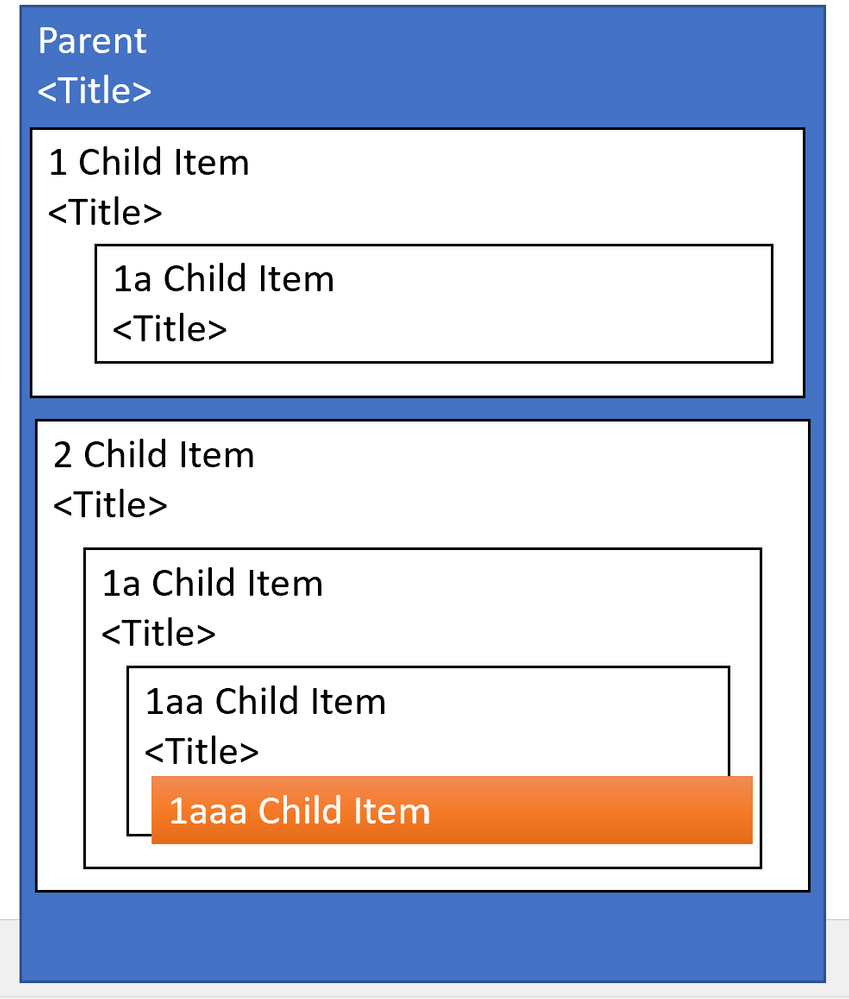
Suggested Mitigation: Consider an alternative to displaying all children. For example- consider using collapsible sections to show children.
#3: Labeling Problems
If you’re allowing Edit of a component with complex nesting it may be difficult for a user to remember which level of children, they are in. For example, imagine the following are rendered as cards: Parent 1: Child 1: Child 2: Child 3: Child 4: Child 5.
Suggested Mitigation: Consider using borders and labeling to help users determine which child is currently selected






Recent Comments