by Contributed | Jun 19, 2023 | Technology
This article is contributed. See the original author and article here.
Microsoft invites you to our Microsoft Operations: Community Q&A calls for CSP Partners. These sessions are dedicated to assist CSP Direct Bill and Indirect Providers with questions related to CSP launches and upcoming changes. Our goal is to help drive a smoother business relationship with Microsoft. We offer sessions in English, Chinese, Japanese and Korean.
Register Today to join a live webinar with Subject Matter Experts or listen back to past sessions.

by Contributed | Jun 18, 2023 | Technology
This article is contributed. See the original author and article here.
Introduction
Are you eager to delve into the world of Power Platform AI Builder.
In this self-paced Microsoft Learn learning pathway Bring AI to your Business with AI Builder, and Improve business performance with AI Builder we will guide you through the fundamentals of AI Builder and demonstrate how it can revolutionize your business processes without the need for coding.
AI Builder: Enhancing Business Performance:
AI Builder is a powerful capability within the Microsoft Power Platform that enables you to automate processes and predict outcomes, improving your business performance. By harnessing AI Builder, you can seamlessly integrate AI into your applications and workflows, connecting them to your business data stored in Microsoft Dataverse or various cloud data sources like SharePoint, OneDrive, or Azure.
Building AI Models Made Easy:
One of the key advantages of AI Builder is its user-friendly approach, making AI creation accessible to individuals with varying levels of technical expertise. With AI Builder, you can create custom AI models tailored to your business requirements or choose from a range of prebuilt models. The best part is that you can leverage these models to enhance your apps and workflows without the need to write complex code. AI Builder even offers prebuilt AI models that you can immediately utilize without the hassle of data collection and model training.
Unlocking the Potential of AI Builder
Let’s explore some of the remarkable capabilities you can unlock with AI Builder:
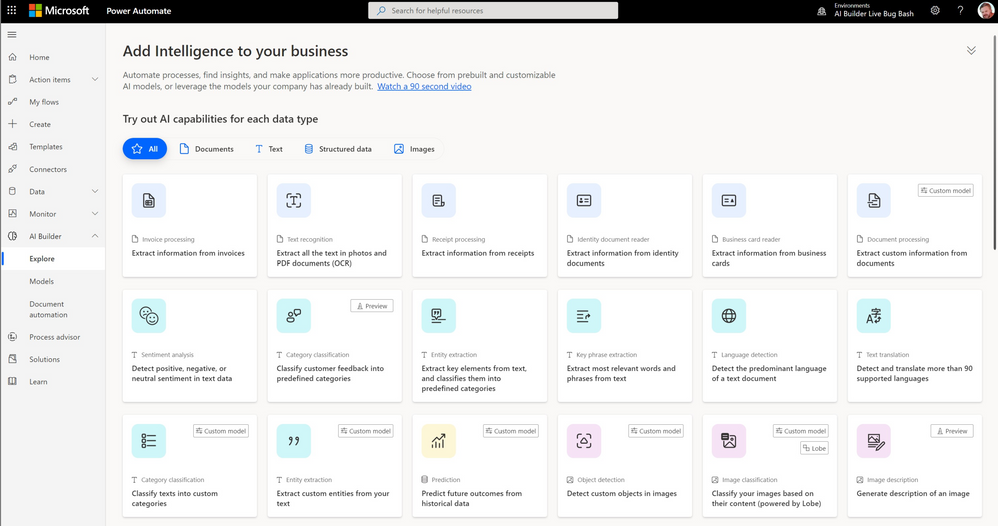
1. Text Analysis: AI Builder empowers you to analyze text for classification, key phrases, language, and sentiment. By harnessing this capability, you can gain valuable insights from customer feedback, product reviews, survey responses, and support emails. Identify negative sentiment or key phrases to take informed actions and improve your business strategies.
2. Predictive Analytics: AI Builder enables you to predict future outcomes based on historical data. By leveraging this capability, you can make data-driven decisions and anticipate trends, empowering you to stay one step ahead in various aspects of your business.
3. Business Card Processing: Say goodbye to manual data entry. With AI Builder’s business card processing feature, you can automatically extract information from business cards and streamline your contact management process. Simply capture an image of a business card, and let AI Builder handle the rest.
4. Image Text Extraction: Extracting text from images is a breeze with AI Builder. Whether you need to process text from documents, images, or any visual content, AI Builder offers the tools to quickly and accurately extract information, saving you valuable time and effort.
5. Object Detection: AI Builder’s object detection capability allows you to recognize and count items in images. This can be particularly useful in scenarios such as inventory management, quality control, or any situation where you need to identify and quantify objects within images.
Real-World Applications of AI Builder
Let’s explore a few real-world applications of AI Builder to ignite your creativity:
1. Invoice Processing: Automate the tedious task of processing invoices by leveraging AI Builder. Extract text, key/value pairs, and tables from invoices and effortlessly integrate them into your database. Create workflows that automatically handle the information, streamlining your invoice processing workflow.
2. Text Analysis for Insights: Uncover hidden insights from large volumes of text data. Whether it’s customer feedback, support emails, or product reviews, AI Builder’s text analysis capabilities can help you identify key phrases, sentiment, and trends. Use these insights to drive improvements, make informed decisions, and enhance customer satisfaction.
Where to Access AI Builder
AI Builder is conveniently accessible within Power Apps and Power Automate. In Power Apps, you can find AI Builder on the Build tab, where you can refine existing models or utilize tools like the business card reader. The Models section provides a dedicated space for your created and shared models, ensuring easy management and collaboration.
Next Steps
Now that you have gained an overview of AI Builder’s potential, it’s time to dive deeper into its available AI capabilities. Explore the Microsoft Learning Pathway for AI Builder Microsoft Learning Pathway, where you will find comprehensive resources to expand your knowledge and master the art of leveraging AI in your business.
Conclusion
AI Builder opens up a world of possibilities for students and educators alike. By harnessing the power of AI Builder, you can streamline processes, gain valuable insights, and make data-driven decisions. Whether you’re an aspiring developer or a business professional, AI Builder empowers you to integrate AI into your applications and workflows without the need for extensive coding. Embrace this powerful tool and unlock the true potential of AI in your educational journey and professional endeavors.
Stay tuned for our upcoming blogs, where we will explore AI Builder’s features and use cases in more detail.

by Contributed | Jun 16, 2023 | Technology
This article is contributed. See the original author and article here.
Happy Friday, MTC! Wonder what you may have missed this week? Let’s talk about it!
MTC Moments of the Week
On Wednesday, we had a special collab edition of Tech Community Live! Experts from across four Microsoft content collaboration products – SharePoint, OneDrive, Lists, and Stream – went live for an AMA video stream to talk about their recent innovations and future roadmaps, as well as answer questions. Huge kudos to all the experts, their teams, and community personnel involved on this highly engaging event, including (but not limited to) Mark Kashman, Dave Cohen (US), Cathy Dew, Suyog Gadgil, Miceile Barrett, Paul Diamond , Gaia Carini, Carter Green, Vishal Lodha, Miceile Barrett, Lincoln DeMaris, Harini Saladi, Marc Mroz, Daniel Escapa, Paul Diamond, Ignacio Davila, Owen Paulus, and Emily Perina!
We also had our monthly Windows Office Hours this week, where the team hops on to answer any burning user questions about keeping devices up to date effectively with product experts representing Windows, Microsoft Intune, Configuration Manager, Windows 365, Windows Autopilot, security, public sector, FastTrack, and more. Thank you to our panelists Jason Sandys, Joe Lurie, Jay Simmons, Roy Barton, Aria Carley, and Steve Thomas for joining us! Keep an eye out for the next Office Hours session to be announced soon!
Over on the Blogs, the Microsoft Viva team has announce that as of June 14, Viva Pulse is available for public preview! Viva Pulse is a lightweight feedback solution designed to empower managers and team leaders to get real-time insights into how their teams are doing. To learn more about how Viva Pulse works and how to try it out for yourself, check out this blog post by @TranissaCreme_PMM!
And last, but certainly not least, our MTC Member of the Week spotlight this week goes to @David Mehr! Based in Switzerland, David is an M365 Apps & Services MVP who is about to celebrate 7 years as a member of the MTC. We appreciate all you do for Microsoft and the MTC, David!
Upcoming Events – Mark Your Calendars!
- June 20, 2023, 06:30 AM – 07:30 AM (PDT) – Viva Goals – From Theory to Results: How to Implement OKRs Successfully in Your Organization
- June 21, 2023, 08:00 AM – 09:00 AM (PDT) – Windows 365 AMA
- June 22, 2023, 07:30 AM – 11:30 AM (PDT) – Tech Community Live: Microsoft Intune
- June 22, 2023, 08:00 AM – 09:00 AM (PDT) – Introducing Microsoft 365 Copilot: The AI-Powered Future of Work
- June 27, 2023, 08:00 AM – 12:00 PM (PDT) – Microsoft Entra Tech Accelerator
- June 28, 2023, 08:00 AM – 08:30 AM (PDT) – What’s next in end user experiences for Windows 365
- June 28, 2023, 09:00 AM – 10:00 AM (PDT) – Microsoft Teams AMA
—–
For today’s fun fact…

On this day in 1911, IBM was founded as the Computing-Tabulating-Recording Company in Endicott, New York, making it one of the world’s oldest technology companies!
And with that, have a great weekend, everyone!
by Contributed | Jun 16, 2023 | Technology
This article is contributed. See the original author and article here.
There are many ways to join Teams meetings depending on your account, device and even the type of the meeting (defined by who organizes the meeting). This blog post covers a few key scenarios how to join a meeting organized by a Teams for work or school user when you are using the free version of Teams.
Windows 11
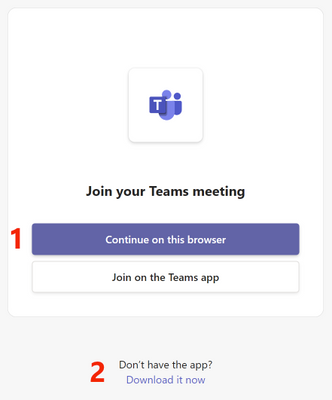
When invited to a Teams meeting organized by a Teams for work or school user and if you don’t have a Teams for work or school account, there are two options to join the meeting. When you tap the Teams meeting link or select ‘Join’ from Calendar, the following page opens in your default web browser:
- You can join the meeting as a guest in browser. This option requires no app installation and is a quick way to join the meeting. Most meeting features are available in browser like in the Teams app. Please note that the Teams app coming with Windows 11 supports only personal accounts and it does not support joining Teams for work or school meetings in the app.
- Alternatively, you can download and install the Teams for work or school app (which is separate from the Teams app coming with Windows 11) and use that to join the meeting as a guest. After tapping ‘Download it now’ and installing the Teams app, it opens automatically and connects you to the meeting. If this does not happen, you can tap the button ‘Join on the Teams app’ to join the meeting after the app is installed.
If you have a Teams for work or school account, you can install the Teams for work or school app and sign in with the account. You can then join a Teams for work or school meeting in the app instead of browser. Please note that when you join a meeting with your work or school account, the organizer of the meeting will see your account name and your company or school name. If you don’t want the meeting organizer to see this information, you can join as a guest as described above.
Windows 10 and macOS
When invited to a Teams meeting organized by a Teams for work or school user and when there’s no Teams app installed on your computer, tapping a Teams meeting link opens the following page in your default web browser:
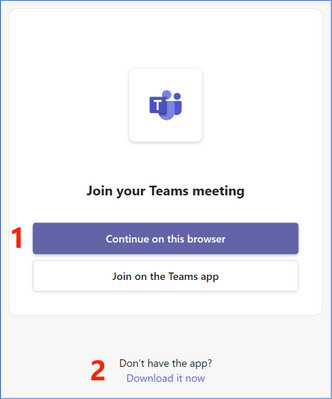
- You can join the meeting as a guest in browser. This option requires no app installation and is a quick way to join the meeting. Most meeting features are available in browser like in the Teams app.
- Alternatively, you can download and install the Teams app and use that to join the meeting as a guest. Tap ‘Download it now’ to install the Teams app.
When you have the Teams app installed on your computer, tapping a Teams meeting link opens the Teams app on this screen:
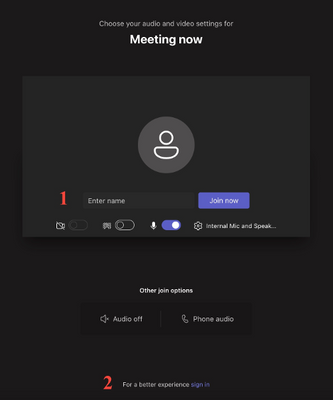
- You need to type in your name, select if you want to join with camera and/or microphone enabled and tap ‘Join now’ to get connected to the meeting.
- If you have a Teams for work or school account, you can sign in with that account for the best meeting experience. Please note that when you join a meeting with your work or school account, the organizer of the meeting will see your account name and your company or school name. If you don’t want the meeting organizer to see this information, you can join as a guest as described above.
Android and iOS
When joining a Teams for work or school meeting without a Teams for work or school account, you can join the meeting as a guest in the Teams mobile app. You can install the Teams mobile app by opening this link on your mobile device. After installing the Teams mobile app, when you tap the Teams meeting link, the following page opens in the Teams mobile app:
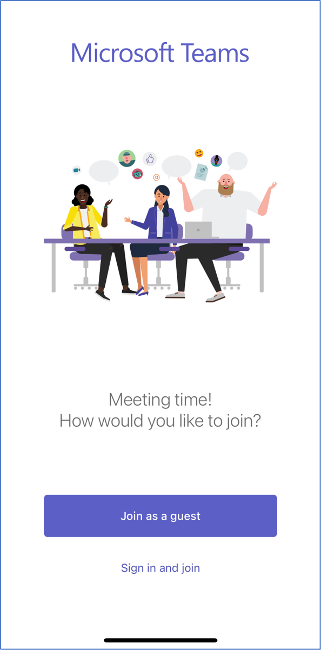
Tapping ‘Join as a guest’ asks you to type in your name and then connects you to the meeting.
If you have a Teams for work or school account, you can sign in with that account instead by tapping ‘Sign in and join’ for the best meeting experience. Please note that when you join a meeting with your work or school account, the organizer of the meeting will see your account name and your company or school name. If you don’t want the meeting organizer to see this information, you can join as a guest as described above.
How to send feedback and suggestions?
We are always happy to receive feedback and suggestions to make our product even better. To participate in our feedback program and help us in our endeavor, please follow the steps below:

by Contributed | Jun 15, 2023 | Technology
This article is contributed. See the original author and article here.
A swell of innovation is coming. And a lot of it aims to boost the creator in us all – to create faster, more intuitively, with the help of AI – your intranet web design partner.
In this episode, you’ll hear from Adam Harmetz, Vice President of SharePoint Experiences – Microsoft. We get his perspective on the recent SharePoint announcements disclosed at the Microsoft 365 Conference on May 2nd, 2023, in Las Vegas, Nevada. This includes insights on Copilot in SharePoint, all the coming site design goodness – including custom fonts and ‘brand center’, the updated capabilities when working with images and videos, plus one of the core aspects – design goals if you will – to evolve the SharePoint start experience for when you’re in creator mode.
Sit back and get a better grasp on the future of SharePoint awaits — one that allows you to express and communicate your ideas, your plans, your information with less creation resistance.
The Intrazone, episode 97:
Subscribe to The Intrazone podcast + show links and more below.
The Intrazone host and guest – recording at the MGM Grand Hotel in Las Vegas, Nevade: Mark Kashman (left – Senior product manager) talks with Adam Harmetz (right – Vice President of SharePoint experiences).
Links to important on-demand recordings and articles mentioned in this episode:
- Hosts, guests, and related products
- Articles and sites
- Upcoming Events
- 365 EduCon – DC | June.12-16 Washington D.C. – USA
- CollabDays Central Europe | June 17th – in Technopark Zürich | 4 Tracks, with up to 20 Sessions in one day
- Microsoft Inspire | July 18-19 (virtual only event)
- European Power Platform Conference | June 20-22, 2023 in Dublin, Ireland
- Commsverse 2023 – June 21-22, 2023 – Surrey, United Kingdom
- CollabDays Zagreb – July 1, 2023 – Zagreb, Croatia
- 365 EduCon Seattle – August 21-25, 2023 – Seattle, WA, USA
- European SharePoint Conference | Nov.27-30 in Amsterdam, Netherlands
Watch the interview segment with Adam Harmetz – as recorded onsite at the MGM Grand Hotel in Las Vegas, Nevada:
Subscribe today!
Thanks for listening! If you like what you hear, we’d love for you to Subscribe, Rate and Review on iTunes or wherever you get your podcasts.
Be sure to visit our show page to hear all episodes, access the show notes, and get bonus content. And stay connected to the SharePoint community blog where we’ll share more information per episode, guest insights, and take any questions or suggestions from our listeners and SharePoint users (TheIntrazone@microsoft.com).
Intrazone Links
+ Listen to other Microsoft podcasts at aka.ms/microsoft/podcasts.
 The Intrazone, a show about the Microsoft 365 intelligent intranet (aka.ms/TheIntrazone)


Recent Comments