
by Contributed | Mar 31, 2021 | Technology
This article is contributed. See the original author and article here.
Last year, we hosted several “Ask Microsoft Anything” (AMA) sessions for Planner—and they were a huge hit! We heard from customers around the world who asked about our plans for future feature releases, technical difficulties, integrations with other Microsoft 365 apps, and much, much more. The conversations were engaging and enlightening: our team learned even more about your needs to make Planner the best task management app for your work. If you’re curious about the kinds of questions and answers in these sessions, check out the November AMA summary.
Coming on the heels of several app enhancements, like more labels, and the Reimagine Project Management with Microsoft digital event, we’re excited to be hosting our first AMA of the year on Wednesday, April 7 at 9 a.m. PST right here on Tech Community. Make sure to save the date!
To join, simply visit the Planner AMA space at the time of the event and select “Start a New Conversation” to post your question. This session is open to all Tech Community members. Representatives from both the product and engineering teams for Planner will be on hand to answer your questions.
Talk to you on April 7!

by Contributed | Mar 31, 2021 | Technology
This article is contributed. See the original author and article here.
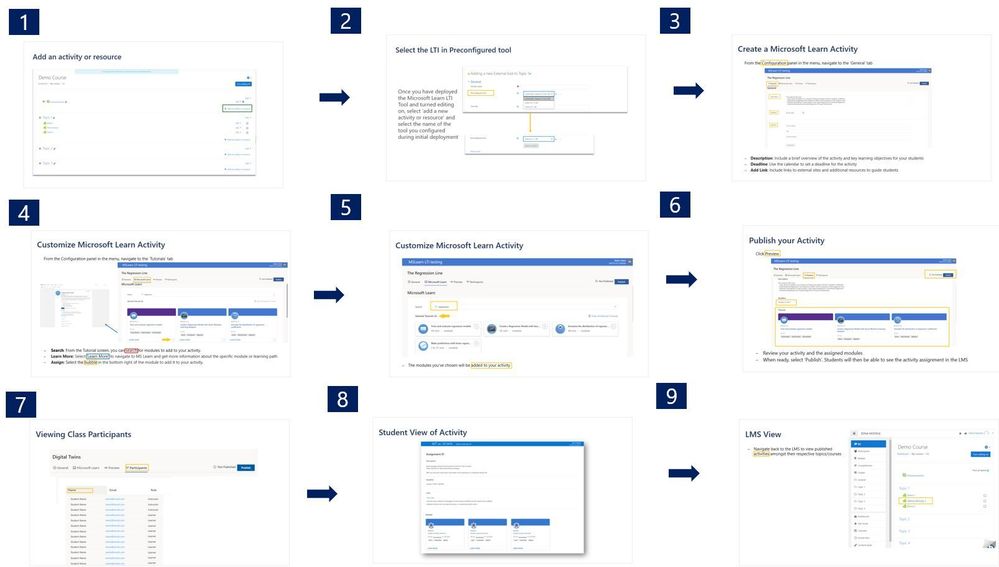
What is LTI?
Learning Tools Interoperability, or LTI, is a standard published by the IMS Global Learning Consortium that makes it possible to integrate platforms such as Learning Management Systems (LMS) like Blackboard or Canvas with third party tools and vendors.
This standard makes it possible for third party tools to integrate quickly and easily, without having to create different integration solutions for each LMS. LTI enables third party tools to integrate seamlessly into the LMS, without the student even realizing that they’re using another tool.
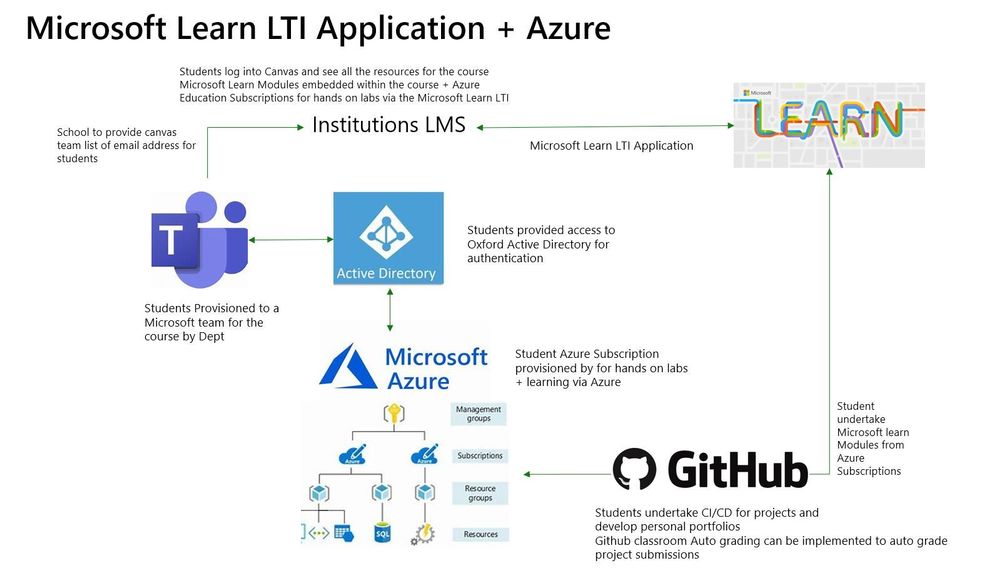
What does the LTI Application do?
The Microsoft Learn LTI is an application that integrates MS Learn Modules and Learning Paths directly inside any LTI 1.1 or 1.3 compliant Learning Management System. The LTI will be released as an open sourced LTI code sample showcasing how the MS Learn Catalog is used as a LTI application. The GitHub repo will contain all relevant deployment instructions.
Prerequisites
-LMS system that supports LTI 1.1 or 1.3
-Azure subscription
-IT administrator to create Azure resource
-Enabled Azure Active Directory
Installation process based on 3 personas
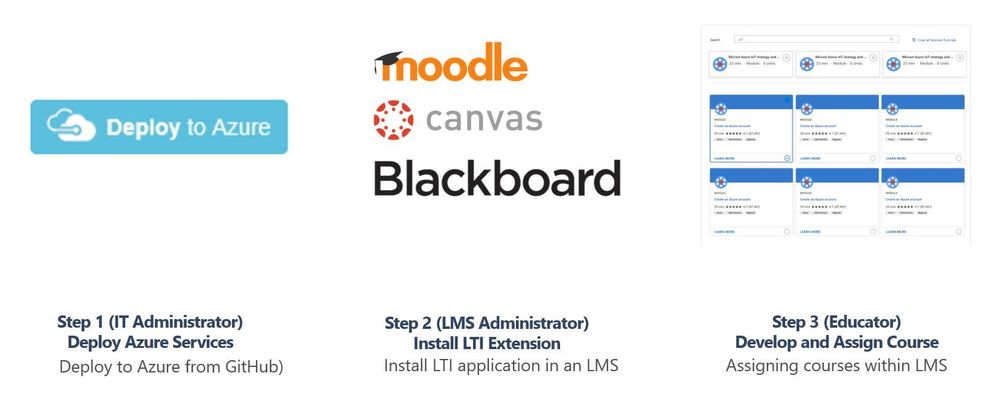
Step 1. IT Administrator
To be completed by the institutions Azure Subscription owner and Azure Active Directory account administrator. Typically central IT at academic institutions.
Repo https://github.com/microsoft/Learn-LTI.git
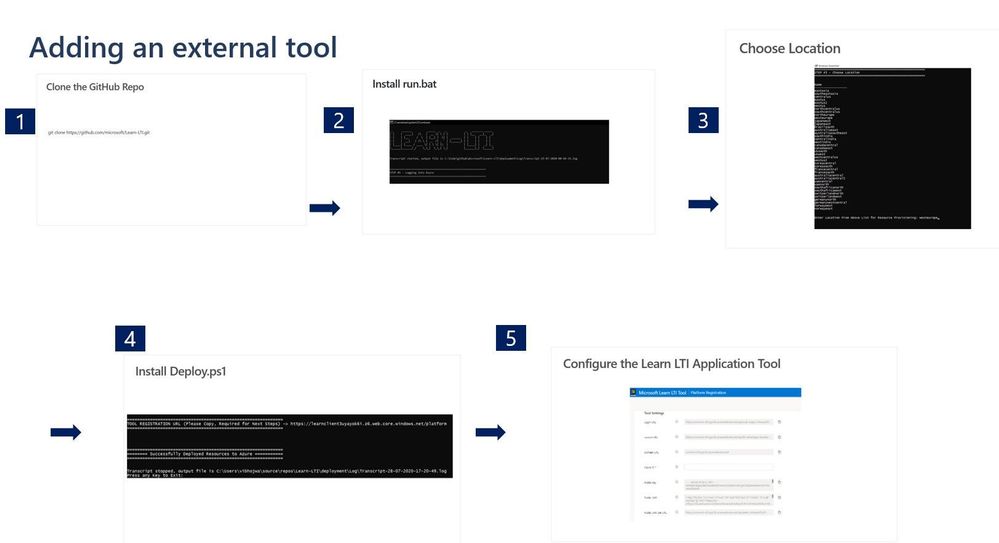
Step 2. Learning Management System Administrator
To be completed by the Learning Management systems teams administrator.
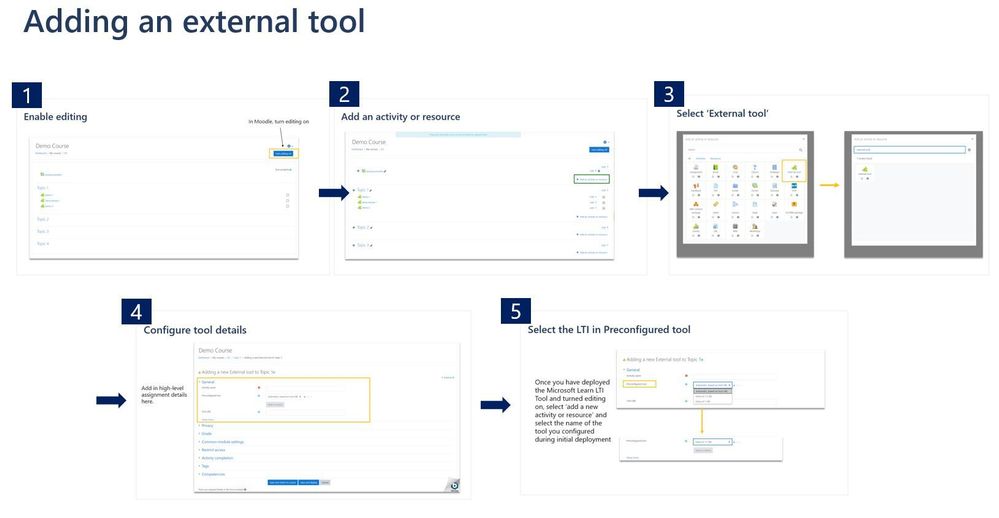
Step 3. Educator Guide
To be completed by educators wishing to use the tool within their classes, courses or units.
Learn Organizational Reporting
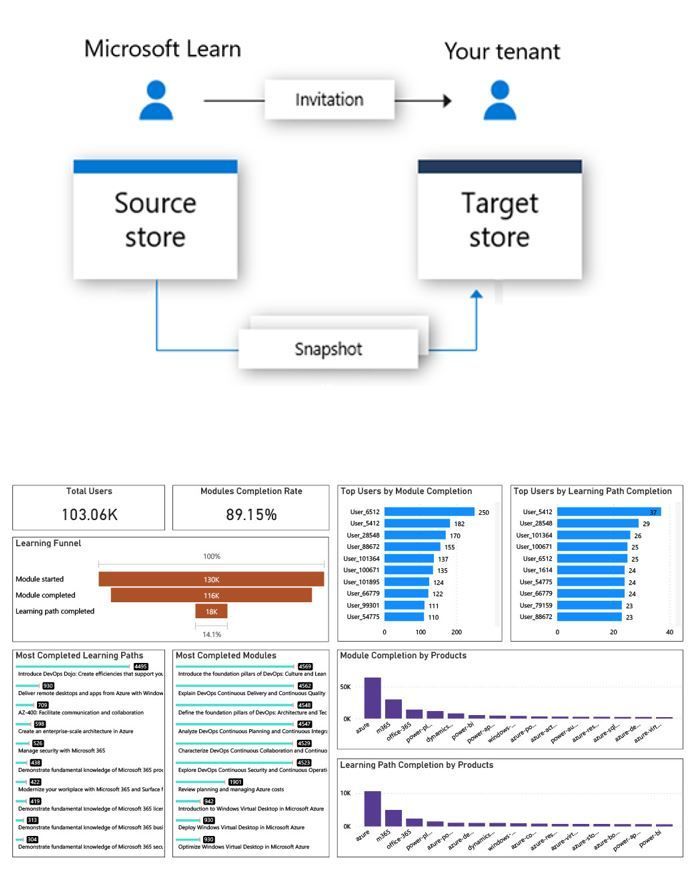
Organizational Reporting
This is a service available to organizations to view Microsoft Learn training progress and achievements of the individuals within their tenant. This service is available to both enterprise customers and educational organizations.
Azure Data Share
The system uses a service called Azure Data Share to extract, transform, and load (ETL) user progress data into data sets, which can then be processed further or displayed in visualization tools such as Power BI. Data sets can be stored to either Azure Data Lake, Azure Blob storage, Azure SQL database, or Azure Synapse SQL Pool.
Reports and Dashboards
Organizations can create and manage their data share using Azure Data Share’s and PowerBI reporting.
https://docs.microsoft.com/en-us/learn/support/org-reporting
Microsoft Learn LTI Application
To Learn more see http://github.com/microsoft/learn-lti This project welcomes contributions and suggestions. Most contributions require you to agree to a Contributor License Agreement (CLA) declaring that you have the right to, and actually do, grant us the rights to use your contribution. For details, visit https://cla.opensource.microsoft.com.

by Contributed | Mar 31, 2021 | Technology
This article is contributed. See the original author and article here.
University College London project Resourcium
Guest blog by the IXN Resourcim team:
Hemil Shah – https://www.linkedin.com/in/hemil-shah-58747b161/
Louis De Wardt – https://www.linkedin.com/in/louis-d-a3a351124/
Pritika Shah – https://github.com/pritsspritss
Project Introduction
To start off with, our project is aimed at students which centralises resources for them on a single portal. It also includes data collection on student sentiments and areas that they need additional help on so that the teaching and learning teams as well as course reps can see what help can be provided to students. The aim of the application is to provide as much help as possible to the students via the surfacing of resources and a Question & Answer bot.
What was the problem?
The University College London academic team, emphasized how universities had no real way of viewing/measuring student engagement due to the current situation of COVID. The University places a strong emphasis on using a SharePoint site as the means of data storage as well as a dashboard on the SharePoint site to view this data for analysis. The University wanted the student IXN project team, to find ways in which students can be supported in their education and beyond via the provisioning of resources. According to our Universities admin team, this was an issue that many universities faced, hence we had to make the system design as generic as possible and become a open sourced scaffolded project for any institution across the globe to reimplement and build upon.
How we team approached the challenge?
Firstly, it was necessary for the team to research the existing technologies they would use to develop this application. After researching into the frameworks to use, they then had to investigate SharePoint sites which was an entirely different concept to standard web development. The key questions then came forward as to how we automate this data to SharePoint and how do we present this data to the user. It was also necessary to find resources that universities would typically provide a student with for FREE, that would be surfaced by the application. Finally, they also needed to research how to setup deployment scripts that would create the Azure resources and other dependencies that our system would have. With regards to the research about the above and more, all this information can be found at: https://resourcium.github.io/research/
What technical solution did we build?
The solution consists of a React web application that is accessible to students via a student login. They have utilised live login which enables students to login to our application through their university m365 user account/details. This did not only make it easier for them as developers as it saved us time making the database for the login system, but students do not need to remember an extra set of passwords. A link on a blog post we wrote on how to make a live login can be found here: Implementing SSO with Microsoft Accounts (for Single Page Apps) – Microsoft Tech Community
The project time frame was approx. 8 weeks.
System architecture diagram that simplifies our entire system:
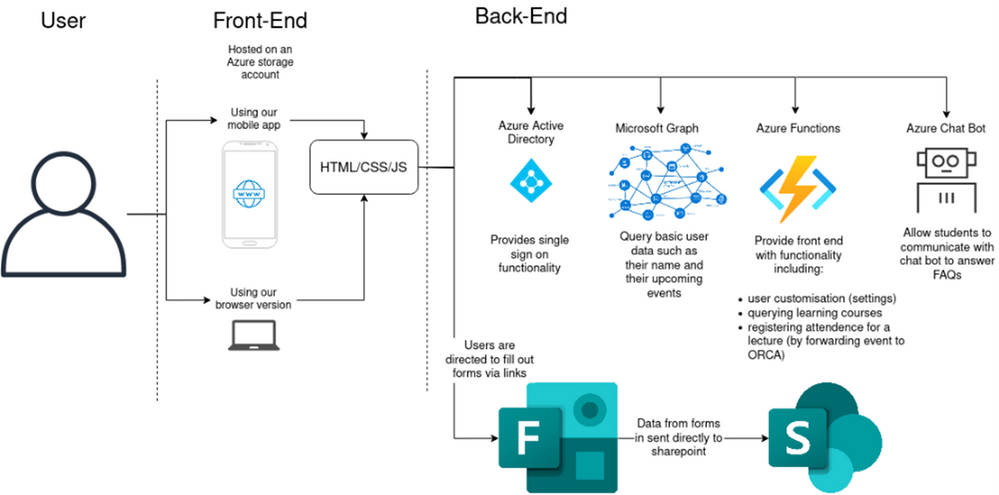
key technologies our system uses (this can also be seen on the architecture diagram):
- React.js
- HTML/CSS/JS
- Azure services (functions, QnA bot and user settings)
- Microsoft Graphs
- Microsoft Forms
- Microsoft SharePoint
- Microsoft PowerApps
- Microsoft Flows
- PowerBI
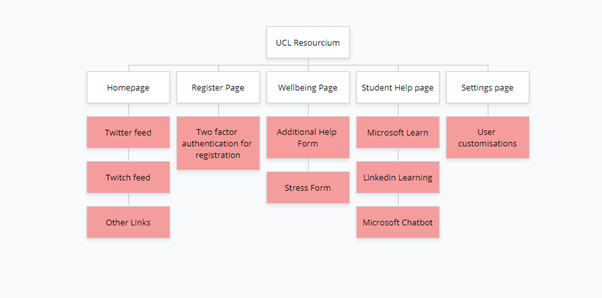
Site map of our entire system:
Application Demo
Microsoft technologies that we used:
- The two-factor authentication (2FA) system: when users are registering their attendance for classes it is important that lecturers know that each student is registering themselves rather than someone else. To mitigate this concern, our client, wanted us to implement a two-factor authentication system. On the registration page if students are registering for the first time it will detect that they are yet to setup two-factor authentication. It will present a button that the user can press to generate a new secret. This method utilises Microsoft Azure functions to generate the secret and update the user’s information in Microsoft Cosmos DB. Once the secret has been generated the app will present the user with a QR code they can use to add our app to their favourite 2FA app. The user is asked to enter the current TOTP token to verify that they have setup the app correctly. If the verification token matches the Azure function will update the DB to mark the user as “verified”. From then on we are able to securely authenticate user’s registration of attendance to a lecture.
- The Wellbeing section: This section consists of forms for students to fill out to describe their sentiments and things they would require help in. The additional help form is aimed at storing information about the student so resources can be provisioned to them via the teaching and learning team. The stress form is an anonymous form for students to describe their feelings and course blockers. Microsoft Flows automates this forms data to a centralised SharePoint site where the data is presented as a dashboard. To ensure data can be analysed to the best extent, the stress form data is sent to PowerBi using another Microsoft Flow, and reports generated within PowerBi is embedded within our SharePoint site.
- The Student Help Page (LinkedIn Learning & MS Learn): This section aims to surface resources to students that they may not have known they have access to. We have made use of the Microsoft Learn API and LinkedIn Learning API to present results to students according to their input. Since the Microsoft Learn API cannot directly be filtered for resources, we must save a cached copy of the catalogue of results and manually filter that for the resources. This has given it an edge however, enabling almost instantaneous searching for results. The LinkedIn Learning API requires a client secret and key, which is only available for organisations and must be requested through them. In our case, we asked the UCL teaching and learning team for this access. If universities would like to deploy our application for their own system, they would need a subscription to LinkedIn Learning and would need to provide the client secret and token during deployment, this is normally a given as it falls under Microsoft.
- The Student Help Page (QnA Bot): This subsection is aimed to allow students to ask questions that may not be solved by the other two APIS above. The QnA bot utilises a QnA maker resource from Azure and a knowledgebase. If you are interested in setting up a simple QnA Bot please visit this site: https://docs.microsoft.com/en-us/learn/modules/build-faq-chatbot-qna-maker-azure-bot-service/.
What we have done here is enabled the teaching and learning team to easily setup questions within this QnA Bot via a SharePoint list. All they would need to do is submit a question and answer to a SharePoint list and via a Microsoft Flow we would automate these QnA pairs to the knowledgebase of the bot. We also have setup another flow that allows these QnA pairs to be easily deleted too, they just need to delete the record from the SharePoint list.
- The Settings Page (user customisations): For the user’s customisation to persist across multiple devices, instead of storing data locally, we use Azure Cosmos DB. Once the user authenticates their Microsoft account to our Settings endpoint, we retrieve their user ID and look up their settings in the database. The app then takes these settings to change how certain pages are rendered. Similarly, when the user goes to the Settings page it communicates the desired configuration to our Azure functions which update the database.
- The deployment of our application: With regards to the SharePoint deployment, we have written a site script that would automatically deploy the lists to a SharePoint site, but not the front-end view, this would be a limitation of the site-script itself. To make deployment for the SharePoint side as easy as possible, we have written an extensive guide consisting of videos on how the flows can be setup to work for any environment. Due to the composability and extensive API provided by Azure we can use Terraform to describe our entire Azure cloud environment including everything from the App Registration to the function’s app deployment.
What have we learnt?
We have come a long way as a team as initially two out of three of our members had no web development experience. This means we had to learn HTML/CSS/JS/React technologies from scratch which was quite time consuming. We also had to tread new depths as we learnt new Microsoft tools and technologies like MS Flows and SharePoint, again which was an entirely new concept. Additionally, we learnt how deployment of azure resources works through scripting like Terraform or ARM Templates.
How can this project be taken forward?
Our project provides the basis of a new paradigm of university centric app platforms. It solves the problem of engagement on two fronts that lecturers and other teaching staff have encountered as they adapt to online and remote learning. The first is that it provides students with direct access to information that universities already had but struggled to publicise. Secondly it provides a whole new means of understanding engagement with lectures. While what we achieved will inevitably prove useful with teaching, the current version of our app is only the first step along this path.
- Due to the time constraints, we were unable to make truly native mobile apps while also proving a version accessible from the web. Currently we have a responsive website that works well on both desktop and mobile devices, but it is currently not perfect on either. Future work would make truly independent versions optimised for mobile and desktop individually.
- There needs to be a way for admins to help students if they lose access to their second factor devices. Currently it is a manual process to reset them.
- We could more deeply integrate with a student’s calendar to make it more clear which events they are registering for and even provide lecturers with live dashboards of their student engagement.
- In future another team could implement sentiment analysis on the forms that our app directs students to which would help teaching staff understand what students need help with.
Resources/GitHub Repo
If you are interested in all the flows setup in our application as well as the deployment, please check out the following link which contains video guides on these flows and the deployment of the flows themselves as well as the SharePoint: site: https://github.com/hemilshah17/team29webappflows
The code for how we implemented the above system and technologies is available in our GitHub repository:
https://github.com/hemilshah17/team29webapp
by Contributed | Mar 31, 2021 | Technology
This article is contributed. See the original author and article here.
Google Import is a convenient tool for creating and managing your campaigns, ad budgets, bids and much more. By importing campaigns from Google Ads you don’t have to start from scratch to quickly expand your advertising reach. Bring over the specific features that you want, and make updates to entities such as bids, budgets, campaign names, and tracking templates – providing flexibility and control. Our customers have been able to enjoy these benefits via Microsoft Advertising online and the Microsoft Advertising Editor.
Today we are excited to announce the global release of Google Import API. Releasing the infrastructure as a service opens a world of automation and customization solutions. Develop an in-house app, or a custom import management set-up. Google Import API can also help lighten your workload as you don’t immediately have to be up to date on providing API support for all the new features. For example, you can import responsive search ads (RSA) from Google Ads even if your application hasn’t otherwise been updated to support RSA independently.
Google Import API allows you to create and delete import jobs, and get the current scheduling settings and previous import results. You can also retrieve details about the mapping between Google Ads and Microsoft Advertising campaigns to know how the import will function ahead of time for you to make an informed decision. For a more detailed picture on how to use the API, check out our API documentation and help pages to understand what gets imported.
As always please feel free to contact support or post a question in the Bing Ads API developer forum.
by Contributed | Mar 31, 2021 | Technology
This article is contributed. See the original author and article here.
Use Case:
To update the existing public ip address to Standard tier in existing service fabric cluster.
Approach:
The below approach helps in modifying the public ip address from basic tier to Standard tier.
To create public IP address and load balancer with standard SKU and attach to existing VMSS and cluster.
Step 1: Run the below command to remove NAT pools.
az vmss update –resource-group “SfResourceGroupName” –name “virtualmachinescalesetname” –remove virtualMachineProfile.networkProfile.networkInterfaceConfigurations[0].ipConfigurations[0].loadBalancerInboundNatPools
|
After the command is executed, it takes time to update each instance of VMSS. Please cross check if the virtual machine scale set instances are in running status before proceeding with next step.
Step 2: Run the below command to delete the NAT pools.
az network lb inbound-nat-pool delete –resource-group “SfResourceGroupName” –lb-name “LB ” –name “LoadBalancerBEAddressNatPool”
|
Step 3: Delete Backend pool
az vmss update –resource-group “SfResourceGroupName” –name “virtualmachinescalesetname” –remove virtualMachineProfile.networkProfile.networkInterfaceConfigurations[0].ipConfigurations[0].loadBalancerBackendAddressPools
|
Step 4: Copy the load balancer’s resource file from resources explorer. Delete the load balancer. This can be triggered from portal.
Step 5: Change the Sku of public Ip from ‘Basic’ to ‘Standard’ using the below command.
## Variables for the command ##
$rg = ‘SfResourceGroupName’
$name = ‘LBIP-addressname’
$newsku = ‘Standard’
$pubIP = Get-AzPublicIpAddress -name $name -ResourceGroupName $rg
## This section is only needed if the Basic IP is not already set to Static ##
$pubIP.PublicIpAllocationMethod = ‘Static’
Set-AzPublicIpAddress -PublicIpAddress $pubIP
## This section is for conversion to Standard ##
$pubIP.Sku.Name = $newsku
Set-AzPublicIpAddress -PublicIpAddress $pubIP
|
Step 6: Create load balancer of Standard Sku. You can modify the load balancer resource file with the below information.
"sku": {
        "name": "[variables('lbSkuName')]"
      },
Please find the template and parameter file attached for reference.
Step 7: Create inbound Nat rules
az vmss update -g ” SfResourceGroupName” -n “virtualmachinescalesetname” –add virtualMachineProfile.networkProfile.networkInterfaceConfigurations[0].ipConfigurations[0].loadBalancerInboundNatPools “{‘id’:’/subscriptions/{subId}/resourceGroups/{RG}/providers/Microsoft.Network/loadBalancers/{LB} /inboundNatPools/LoadBalancerBEAddressNatPool’}”
|
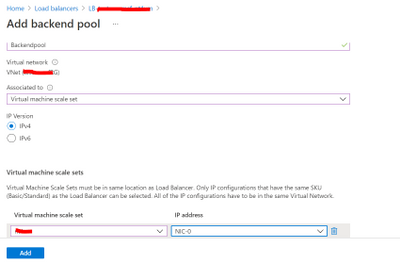
Step 8: Once the NAT rules are created, backend pool can be added from the portal. VMSS and ip address has to be updated.
To add backendpool: Select Backend pools and Click on ‘Add’


Recent Comments