by Contributed | Jun 17, 2021 | Technology
This article is contributed. See the original author and article here.
Come to the cloud, it has consumption-based billing! But what does that mean, exactly? Is my virtual machine free if it is shut down? Lets explore the billing components of an Azure Virtual Machine.
Resources in Azure all have particular cost meters and charging methods. Each product page details what those are. For consumption-based billing, you need to broaden your perception of what the word “consumption” means. You might think you’re not consuming the services of a virtual machine if it is shut down, but it is a little more comprehensive than that.
Azure Virtual Machine components
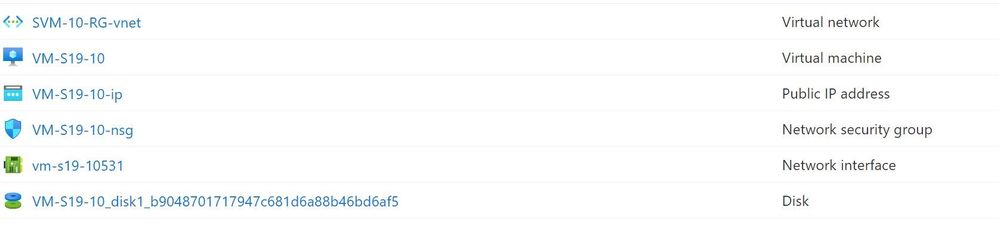
When you create a Windows Virtual Machine in Azure, you don’t get just one resource. An Azure VM relies on 5 resources, created by default:
- Virtual machine
- Disk
- Network interface
- Virtual network (or choose to use an existing virtual network)
- Network security group (optional but highly recommended)
If you want to make this VM publicly available over the internet, you also need a Public IP address.
Azure Virtual Machine resources
Now lets look at which of those components have billing implications when the VM is shut down.
The virtual machine resource – power states and billing
The state of the virtual machine impacts whether the virtual machine resource is being billed or not, in relation to the virtual machine resource and its reliance and use of underlying hardware.
Running – The virtual machine is powered up and working, and currently being billed for.
Stopped – The VM has been shut down from within the guest operating system or using PowerOff APIs. The VM will be showing as Stopped. This does not release the lease that the VM has on the underlying hardware, which means the hardware is unavailable for other customers. In this state, the virtual machine is still billed for.
Deallocated – The VM has released the lease on the underlying hardware and is completely powered off, so the virtual machine resource is not billed. It will appear in the Azure portal as Stopped (Deallocated).
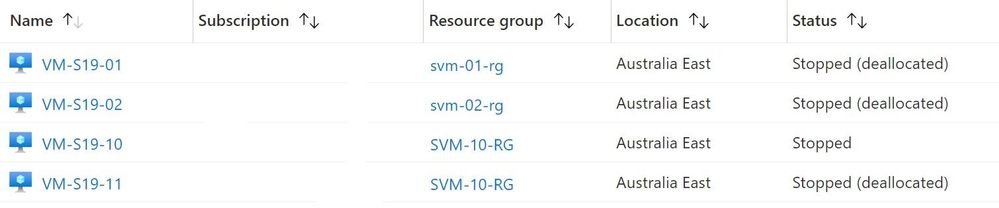 Azure Virtual Machine status
What if I have the VM scheduled to shut down automatically on a schedule?
The shutdown automation provided natively by Azure puts the machine in the Deallocated state, so it is not being billed while it is shut down. See Start/stop VMs during off-hours overview.
What if I shut the VM down using PowerShell?
The Stop-AzVM PowerShell cmdlet also puts the machine in the Deallocated state, so it is not being billed while it is shut down.
What if I shut the VM down using the Azure CLI or Cloud Shell?
It depends on which command you use. az vm stop will not deallocate the VM from the hardware and will display the warning “About to power off the specified VM… It will continue to be billed. To deallocate a VM, run: az vm deallocate”
For more information, see States and billing of Azure Virtual Machines.
Billing of other Azure Virtual machine components
Even if the virtual machine is deallocated and not consuming “compute” time (holding a lease on hardware), there are components of this virtual machine that you are still using. Most commonly, this is storage and networking.
Storage – disk costs
While the VM is shut down, there is still a storage cost for the disk that is holding the virtual hard drive file, as well as any other data storage disks you may have created, as you are still consuming file storage.
This resource group contains a VM that was shut down for the month of May and incurred a USD$0.31 daily cost for a 127GiB Premium SSD disk with locally redundant storage including a less than USD$0.01 charge for the storage account.
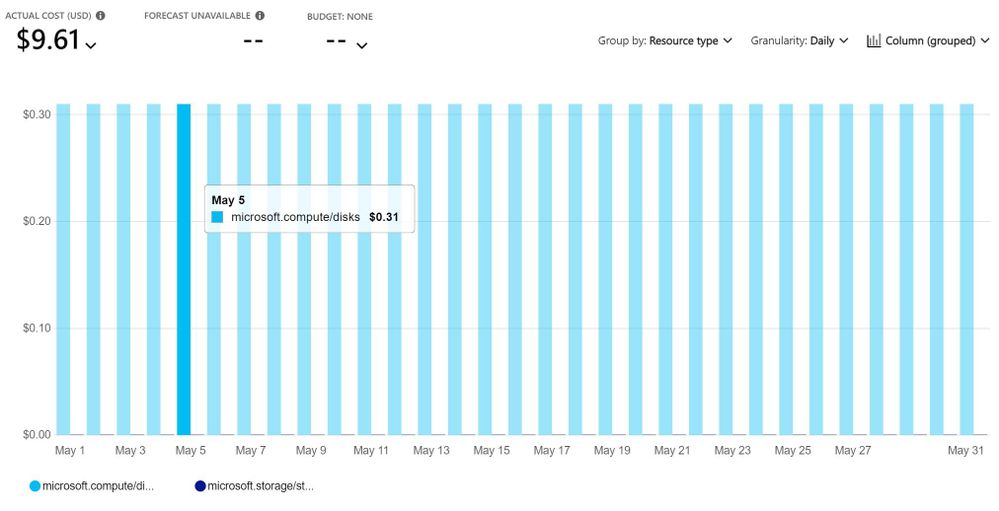 Deallocated virtual machine costs
See Managed Disks pricing.
Note: There’s another type of storage for Azure VM operating systems called Ephemeral OS Disks. These are free and suitable for stateless workloads, but don’t support features like Azure Backup, Azure Disk Encryption, Disk snapshots or Azure Site Recovery. Learn more at Ephemeral OS disks for Azure VMs.
Networking
The network interface, virtual network and network security group will not incur any charges. Visit Virtual Network pricing.
A static Public IP address will still be billed if the VM is shut down or even deleted, unless you delete the static public IP address. For pricing, visit IP Addresses pricing.
Azure Bastion (optional)
Azure Bastion allows for secure remote access to your virtual machine guest operating system via a browser, without needing to open RDP port 3389. Regardless of the state of your virtual machine, you will be charged for any Azure Bastion hosts. If you use this infrequently, you can delete and recreate an Azure Bastion host when needed. Learn more about Azure Bastion pricing here.
Other related Azure services
Other services related to Azure Virtual Machines may also incur a cost while a VM is shut down, including Azure Defender for Servers and Azure Backup. Both Azure Arc enabled servers and Azure Lighthouse, for server management, are free capabilities.
Learn more at Microsoft Learn
Control Azure spending and manage bills with Azure Cost Management + Billing
Introduction to Azure virtual machines
by Contributed | Jun 16, 2021 | Technology
This article is contributed. See the original author and article here.
SQL Server 2016 mainstream support is scheduled to end 7/13/2021 as defined by the lifecycle policy.
With the crossover to extended support, Microsoft is committed to providing a final service pack for SQL Server 2016 to all customers. The release of SQL Server 2016 Service Pack 3 will be shipped after mainstream supports ends, targeting September 2021. This will be the final service pack for SQL Server 2016.
For any questions, please work with our support channels as documented in our help and feedback page.

by Contributed | Jun 16, 2021 | Technology
This article is contributed. See the original author and article here.
Compute>Virtual Machines
- VM Deployment Guided Troubleshooter, now available for Public Preview
Intune
- Updates to Microsoft Intune
Compute>Virtual Machines
VM Deployment Guided Troubleshooter, now available for Public Preview
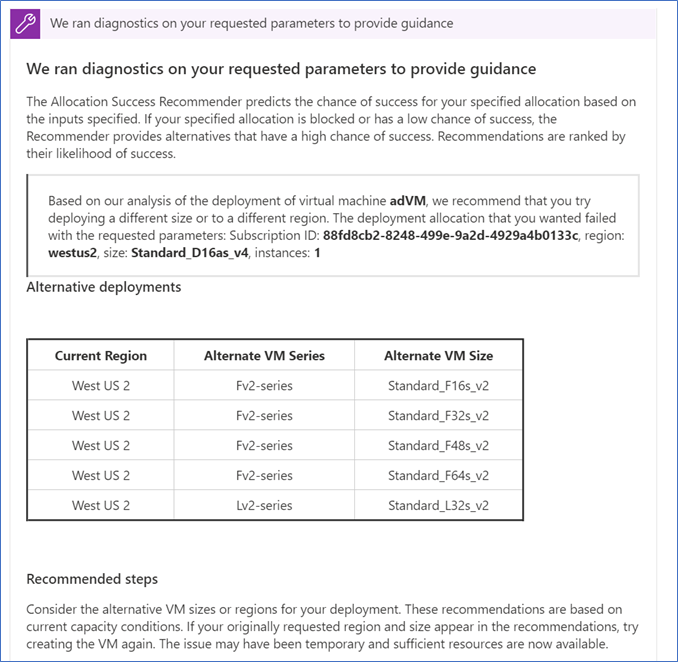
There is now a VM Deployment Guided Troubleshooter, which features an interactive way of diagnosing users’ technical issues on Azure Portal Diagnose and Solve. The new solution will allow users to follow steps of running diagnostics and providing inputs to questions, before getting a personalized solution specific to their issue. Since it is in Public Preview and still being enhanced, the guided troubleshooter will cover the most common virtual machine (VM) deployment problems, which involves troubleshooting a specific deployment failure, and providing region and size guidance on VM creation and resizing. The feature is currently available to 50% of all Azure portal users.
Demo Steps
- Login to the Azure portal
- Click on “Virtual Machines” or type in the search box for the VM name
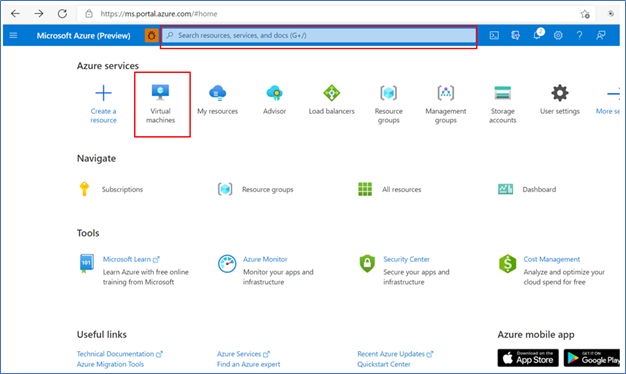
- It will bring up a list of VM machines à select the VM you want to run an analysis of deployment issues.
Note: Even if the VM is not on the list (or has not been created yet) you can still troubleshoot deployment issues from a different VM.
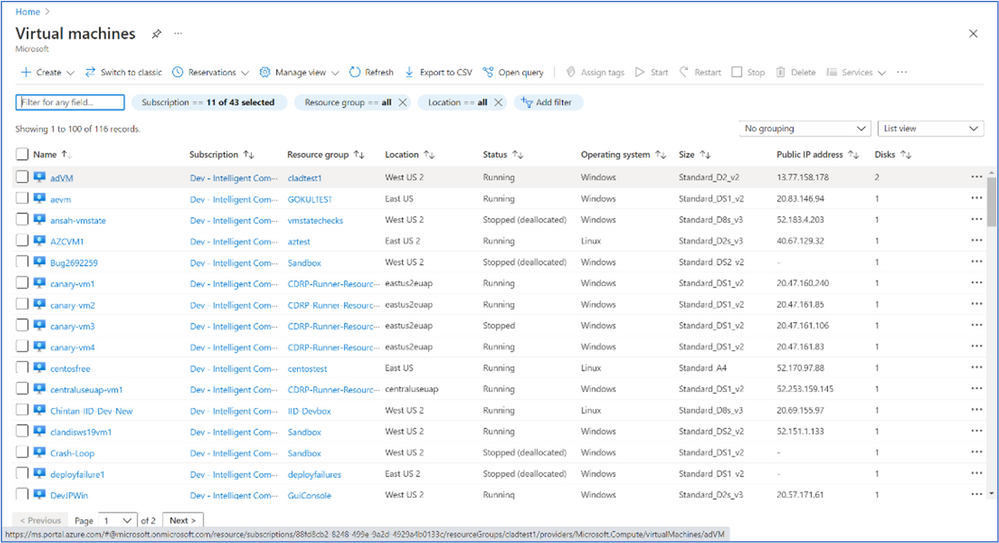
- After you select the VM you want to analysis you will see the screen below:
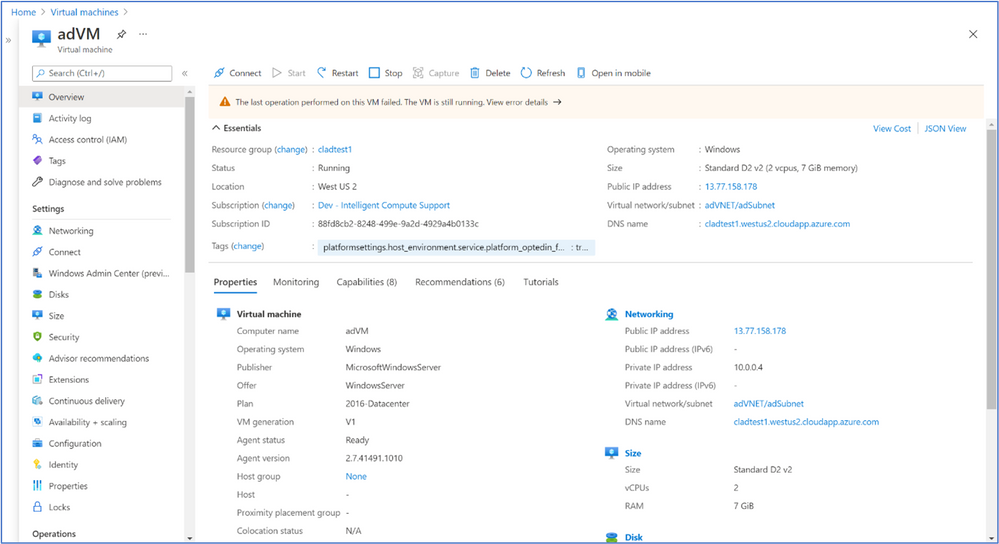
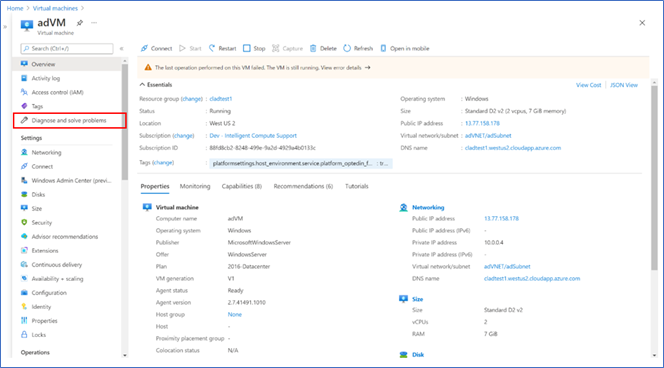
- Navigate to “Diagnose and solve problems” in the left-hand navigation à select a common problem related to VM Deployment (any of the options highlighted in yellow)
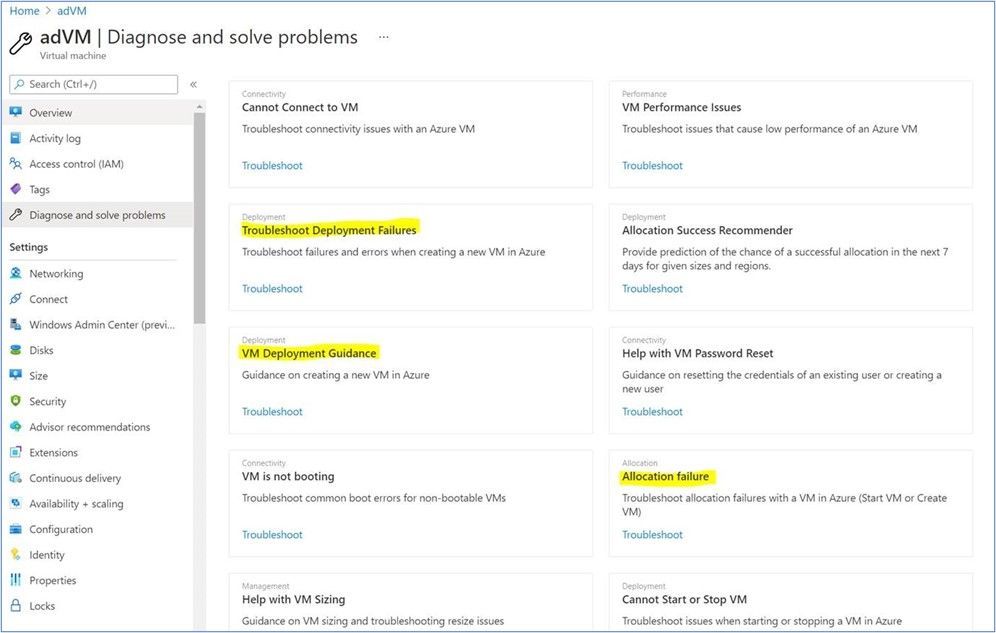
- If you had selected one of the options in yellow above, you will see a screen that looks like the below for all 3 options à select one of the options for “Tell use more about the problem you are experiencing” à then click on “Continue” to start troubleshooting.
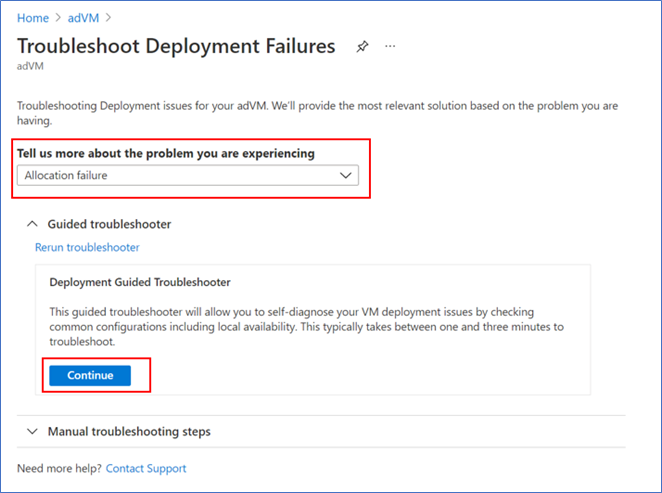
- Follow through the guided troubleshooter steps by answering questions and learning about the checks we run during each step
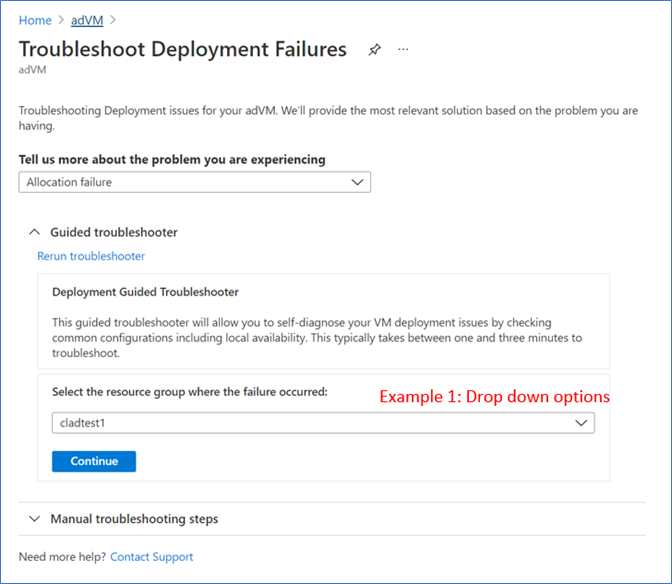
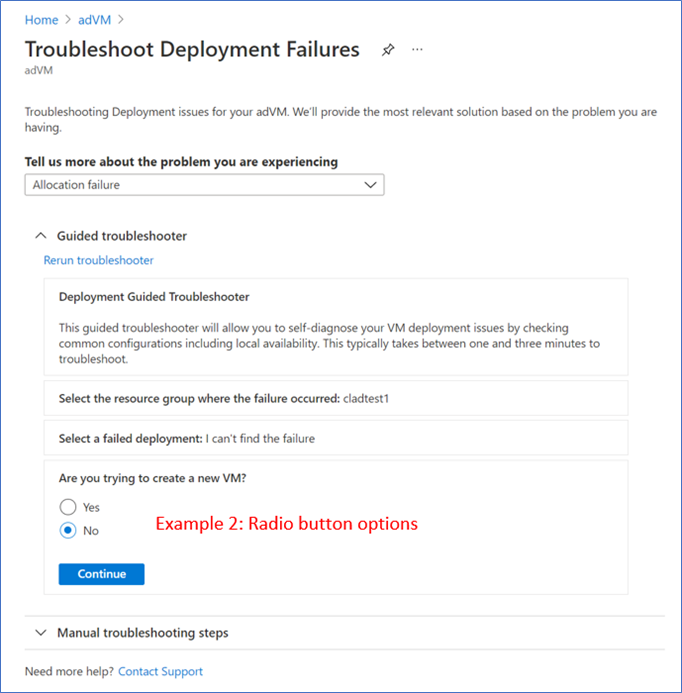
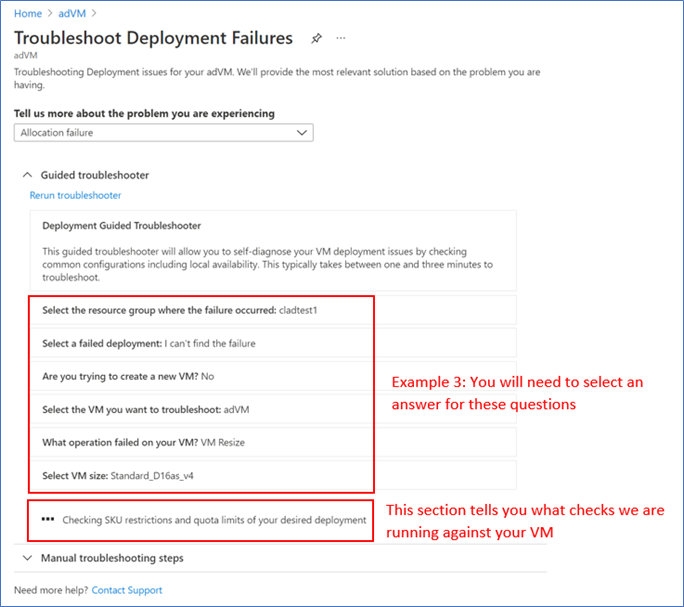
- View the troubleshooting results and follow the guidance or mitigation steps to solve your issue.
INTUNE
Updates to Microsoft Intune
The Microsoft Intune team has been hard at work on updates as well. You can find the full list of updates to Intune on the What’s new in Microsoft Intune page, including changes that affect your experience using Intune.
Azure portal “how to” video series
Have you checked out our Azure portal “how to” video series yet? The videos highlight specific aspects of the portal so you can be more efficient and productive while deploying your cloud workloads from the portal. Check out our most recently published videos now.
Next steps
The Azure portal has a large team of engineers that wants to hear from you, so please keep providing us your feedback in the comments section below or on Twitter @AzurePortal.
Sign in to the Azure portal now and see for yourself everything that’s new. Download the Azure mobile app to stay connected to your Azure resources anytime, anywhere. See you next month!
![[Guest Blog] Coding Education for All – Empowering Youth to be Future Ready](https://www.drware.com/wp-content/uploads/2021/06/fb_image-112.jpeg)
by Contributed | Jun 16, 2021 | Technology
This article is contributed. See the original author and article here.
This blog was written by Simran Makhija, Gold Microsoft Learn Student Ambassador. Simran shares their story of building a Tech For Good solution to empower low access communities with coding education to be future ready.
Hi! My name is Simran Makhija, and I am a third year Computer Science Engineering student and a Gold Microsoft Learn Student Ambassador. I have done most of my work in Web Development and JavaScript with a recent interest in product design! Aside from that, I am always up to talk about all things literature and music, and I am a STEMinist, a feminist that believes in the upliftment of women and other underrepresented communities in STEM, and works for the same in Tech.
My Coding Learning Journey
Pursuing Computer Science Engineering in my bachelor’s was a decision that came naturally to me. I had been exposed to the wondrous world of computers from an early age. My first exposure to programming was a robotics lab in 7th grade. It was in this lab that I coded my first line follower! This was by far the most fascinating experience! In 8th grade, I tried my hands on QBASIC and absolutely loved it. Unfortunately, I moved the following year, and my new school curriculum did not have coding education. Due to inaccessibility of computer systems outside of school, I was unable to learn coding on my own at the time. Nevertheless, these experiences led me to choose Computer Science Engineering as my major in college.
The Visual Studio Code Hackathon
In June 2020, Microsoft and MLH organized the Visual Studio Code Hackathon. I got to know about the opportunity through a post on the Microsoft Learn Student Ambassadors Teams by Pablo Veramendi, Program Director. So, I teamed up with my fellow Student Ambassadors from different corners of the country for the hackathon.
The challenge presented to us was “to build an extension to help new coders learn. For students, by students”. We were new coders ourselves not too long ago and together we figured out a shared struggle in our learning – pen-paper coding assignments and assessments. Even in college, we had all started to learn on pen and paper and could seldom test our programs on a machine, either due to a lack of access or because of time management issues as transferring code to an IDE from paper is cumbersome and time-consuming process. So we decided to make an extension that we wish we had had as new coders – “Code Capture”. This extension allowed you to select an image of handwritten code and populated it to a new code file in the VS Code IDE. It was a weekend spent learning, getting mentorship, coding, debugging and creating a solution we wish we had.
We were passionate about the cause and creating a Tech for Good solution – a passion that was reflected in our submission and we won the “Best Overall” prize. We were ecstatic, we had won a pair of Surface Earbuds each (allegedly the first few people in the country to have them!) and most importantly we won a mentorship session with Amanda Silver, Corporate Vice President at Microsoft.
Mentorship Sessions – Finding Direction
Almost a month after the hackathon, and equipped with our prized Surface Earbuds, we had our mentorship session with Amanda Silver.
During the session, different possible directions we could work in with our project and decided to create an application based on the concept as an activity for Hour of Code during Computer Science Education Week.
Amanda further connected our team with Travis Lowdermilk, UX Researcher at Microsoft and Jacqueline Russell, Program Manager for Microsoft MakeCode and they were kind enough to set time aside to meet with us.
In the meeting with Travis and Jacqueline, they shared their experiences and insights on product development and with the Hour of Code. We discussed our plans for the Hour of Code activity and the possible options we could explore. It was a very insightful and enlightening session. We also got signed copies of the Customer-Driven Playbook as a gift from the author himself.
What is Hour of Code?
The Hour of Code started as a one-hour introduction to computer science, designed to demystify “code”, to show that anybody can learn the basics, and to broaden participation in the field of computer science. It has since become a worldwide effort to celebrate computer science, starting with 1-hour coding activities but expanding to all sorts of community efforts.
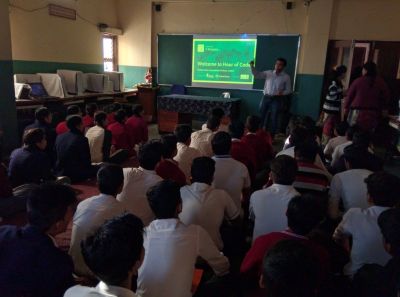
I first came across Hour of Code(HoC) initiative in 2019 when my local community released a call for volunteers for HoC – CS Education Week 2019. Learning more about the initiative, I wanted to contribute to it as much as I could because this was a session that I wish I had attended when I was in school. I joined the organizing committee and led the school onboarding effort. I volunteered in various sessions with middle school and secondary school students, giving them an introduction to the marvelous world of Computer Science.
Hour Of Code – Computer Science Education Week 2020
Following the mentorship sessions and various rounds of brainstorming, we decided to develop an introductory JavaScript tutorial on a web application designed to allow students to easily click a picture of their code, extract to an editor and compile it on their browser.
Our team collaborated with folks all over the country to conduct HoC sessions in schools and colleges during CS Education Week 2020. We conducted sessions with over 250 learners who did not have access to computers. This was a heartwarming experience as I was able to give young learners an opportunity to learn to code that I wish I had in school.
by Contributed | Jun 16, 2021 | Technology
This article is contributed. See the original author and article here.
To add to the list of exciting announcements for Azure Sentinel, we are happy to announce that Watchlists now support ARM templates! Moving forward, users will be able to deploy Watchlists via ARM templates for quicker deployment scenarios as well as bulk deployments.
What Does It Look Like?
The template format is similar to regular ARM templates for Azure Sentinel. The template contains a few variables that are set upon creation and deployment:
Workspace Name: The workspace name is required so that ARM knows the workspace that Azure Sentinel is using. This is used for deploying the content and function to the workspace.
Watchlist Name: Name for the Watchlist in both Azure Sentinel and in the workspace when calling it via the _getWatchlist function. This should reflect what the Watchlist is for.
SearchKey Value: Title of a column that will be used for performing lookups and joins with other tables. It is recommended to choose the column that will be the most used for joins and lookups.
Watchlist Name and SearchKey should be set when creating the template as this value will be static. The name should reflect the purpose or topic of the Watchlist. The SearchKey is meant to be used as the reference column. The purpose of this column is to make lookups and joins more efficient. The section that those variables are set in appears as so:
name": "[concat(parameters('workspaceName'), <-- set at deployment '/Microsoft.SecurityInsights/PUTWATCHLISTNAMEHERE')]",
        "type": "Microsoft.OperationalInsights/workspaces/providers/Watchlists",
        "kind": "",
        "properties": {
            "displayName": "PUTWATCHLISTNAMEHRE",
            "source": "PUTWATCHLISTNAMEHERE.csv",
            "description": "This is a sample Watchlist description.",
            "provider": "Custom",
            "isDeleted": false,
            "labels": [
            ],
            "defaultDuration": "P1000Y",
            "contentType": "Text/Csv",
            "numberOfLinesToSkip": 0,
            "itemsSearchKey": "PUTSEARCHKEYVALUEHERE",
Within the body is the content that would normally be found within the CSV file that is uploaded to Azure Sentinel. This data is found under “rawContent”.
For the content of the csv that will be generated, the columns and values must be specified. The columns will appear first, followed by the data. An example appears as so:
"rawContent": "SEARCHKEYCOLUMN,SampleColumn1,SampleColumn2rn
Samplevalue1,samplevalue2,samplevalue3rnsamplevalue4,samplevalue5,samplevalue6rn"
The columns that should be used are listed first in this example (SearchKey, SampleColumn1, SampleColumn2). Once the columns are listed, “rn” needs to be used to signal that a new row needs to be started. This is used throughout the template. This lets ARM know that the row has ended and the next row of the CSV should begin.
Note: The column being used for the SearchKey does not always need to be listed first.
When it comes to values that should be under the column, each value should be separated by a comma. The comma is interpreted as the end of that cell. As shown in the example, samplevalue1 is one cell, samplevalue2 is a different cell. When all of the values have been added for the row, rn needs to be used in order to start the next row.
An example of how that might look would be:
"rawContent": "SEARCHKEYCOLUMN, Account, Machinern123.456.789.1, Admin, ContosoMachine1rn
    123.456.789.2, LocalUser, ContosoMachine2rn"
Note: These values are space sensitive. If spaces are not needed, please avoid using them as it could lead to inaccurate values.
This example shows that the columns will be an IP (used as the search key value), an account, and a machine. The rows below the columns will contain those types of values in the CSV file. In this case, the CSV will only have 3 columns and 2 rows of data.
Use Cases:
ARM template deployments will provide the most value when looking to deploy Watchlists in bulk or along with other items. For example, deploying a Watchlist upon the creation of a custom analytic rule, deploying a Watchlist based on TI posted by Microsoft, and more.
As an example, an
ARM template has been posted within the Azure Sentinel GitHub that lists the Azure Public IPs. These IPs can be found online and downloaded but in this case, the IPs are ready to be deployed as a Watchlist for usage. This Watchlist can then be used to lower false positives for detections that pick up the IP or to be used as enrichment data for investigating activities within the environment. Additionally, a
template that consists of threat intelligence from the Microsoft Threat Intelligence Research Center for the recent NOBELIUM attacks has been posted within the GitHub for usage. This template allows for a file upload of threat intelligence without having to manually type each value into a CSV or the Azure portal.
To help users get started, a
Watchlist template example has been posted within GitHub for reference. This template is meant to serve as the building block for custom templates and can be used as needed.
Time to get creative and start building custom Watchlists today!


Recent Comments