by Contributed | Jun 28, 2021 | Technology
This article is contributed. See the original author and article here.
Today, I’m offering an overview of the product lifecycle and details on how we will service Windows 11.
Last week we announced Windows 11, the future of Windows for all users. Windows 11 is built on the familiar Windows 10 foundation and will begin to be available the second half of this year. When we originally released Windows 10, we made a commitment to keep devices protected and productive through best-in-class servicing. We are pleased with the progress we have made in keeping over 1.3 billion devices updated on a global scale. Along with the end user experience and security improvements in Windows 11, we are also introducing enhancements you have suggested and asked for to our servicing approach.
Windows 11 lifecycle
Windows 11 will have an annual feature update cadence, a change from the semi-annual cadence of Widows 10. Windows 11 feature updates will release in the second half of the calendar year and will come with 24 months of support for Home, Pro, Pro for Workstations, and Pro Education editions. Windows 11 will come with 36 months of support for Enterprise and Education editions, continuing to provide additional time and flexibility for the validation and at-scale deployments common on those editions. The change to an annual update cadence and slightly longer lifecycle versus Windows 10 is based on user feedback and our overall update approach.
Windows 11 for consumers
For consumers we will continue to provide choices for control and transparency related to device updates. This includes the ability to schedule a restart, pause an update, and have full control over which optional updates to install. The feature update process for Windows 10 to Windows 11 will be a user-initiated ‘seeker’ process to choose to update to Windows 11. For users who are not eligible for Windows 11 due to the hardware requirements, the seeking experience will not be available. You can find more information on device and hardware requirements here. We will continue to document all our releases and updates with release notes (in 36 languages) and share information on releases via the Windows release health hub.
Windows 11 for commercial organizations
Windows 11 will be available via all the existing Windows 10 servicing channels our commercial organizations are familiar with. You will also be able to use many of the same familiar management and deployment tools and processes including but not limited to Windows Update for Business, Microsoft Endpoint Manager, and Windows Autopilot. For Enterprise and Education customers the Windows Update for Business deployment service provides more IT control over Windows Update than ever before to approve, schedule or expedite updates via Microsoft Endpoint Manager, PowerShell or even custom tools created using the Microsoft Graph SDK. Prior to deploying, commercial organizations can determine if the devices within their organization meet the device and hardware requirements for Windows 11 using the Windows 11 PowerShell Script or when Windows 11 is launched via Endpoint Analytics or Update Compliance. More information for commercial organizations is available in Steve Dispensa’s blog on Planning for Windows 11 and our new Windows 11 Docs. IT admins also have easy, integrated access on both monthly and feature updates and related information on Windows release health on the Microsoft 365 admin center.
Keeping you protected and productive
We are continuing our ongoing commitment and investments in Windows 11 to improve the overall update process, focusing on ensuring you have a reliable, productive experience. Windows 11 retains the familiar Windows cumulative monthly security update process (also referred to as the “B” release or Patch Tuesday release); however, with Windows 11 these will be smaller in size (up to 40%). These monthly releases will continue to contain all previous updates to keep devices protected and productive. We will also continue to make the monthly “C” release preview updates available to users who seek these optional updates and for those in the Windows Insider Program or Windows Insider Program for Business.
Next steps
While Windows 11 marks an exciting milestone for the future of Windows, we will continue to support Windows 10 through October 14, 2025. We will be introducing Window 10, version 21H2 in the second half of this year along with a Windows 10 Long-Term Servicing Channel (LTSC) edition. We will be sharing more detailed information on both the next update to Windows 10 and Windows 11, including details on how we will make available and rollout each release. Stay tuned for more information on Windows, and remember that being on the latest version of Windows provides you with both the latest features and security protections to help keep your device safer.
by Contributed | Jun 28, 2021 | Technology
This article is contributed. See the original author and article here.
Last week, we announced Windows 11 to the world. Today, I want to share practical tips that will set you up for success as you plan for Windows 11 in your organization.
Windows 11 includes great new capabilities for end users and commercial organizations; capabilities developed in direct response to your feedback and perfectly suited to support hybrid work. There’s new value for IT, too, from the chip to the cloud. Windows 11 uses modern hardware to deliver the most secure Windows ever, with TPM and virtualization-based security support for everyone. We’ve also added over 1,000 new management controls to make it easier to move away from older management systems like Group Policy.
We know that every organization will need time to transition to Windows 11. You choose the pace at which you want to upgrade. Our goal is to support you so the effort is seamless and strategic. The deep investments you’ve made in Windows 10 will carry forward. Windows 11 is built on the Windows 10 code base so it’s natively compatible with the software and solutions you use today. In addition, Windows 11 and Windows 10 are designed to coexist, backed by a common set of security and management capabilities delivered by the Microsoft cloud.
Here are four key things you can do today to pave the way for a smooth integration of Windows 11 into your device estate:
Guidance to support you is now available in our Windows 11 documentation on Docs, but I’d like to highlight some specific best practices below.
Get started today
The easiest way to test the new features in Windows 11, and validate the devices and applications in your environment, is to join the Windows Insider Program for Business. Run Insider Preview Builds on individual devices, virtual machines, or across your organization. Submit and track feedback on any issues you happen to encounter in your environment.
Flighting readies you and early adopters for new features and capabilities. It also provides you with insights that can help you have a more successful broad rollout later on. The first flights of Windows 11 are now available in the Windows Insider Program Dev Channel so you can literally get started today.
Assess readiness
Application compatibility
As mentioned above, applications that work on Windows 10 work on Windows 11. It is still a good idea, however, to validate the applications in your environment, particularly any non-Microsoft security or endpoint management solutions, to ensure that they function as expected on Windows 11.
Windows 11 preserves the application compatibility promise we made with Windows 10. Should you encounter a compatibility issue with a Microsoft application, independent software vendor (ISV) application, or custom in-house line of business (LOB) application, App Assure can help. In addition to supporting Windows 11 and Windows 10, the service can also provide compatibility guidance related to the deployment of Azure Virtual Desktop and Microsoft Edge. Since 2018, App Assure has evaluated almost 800,000 apps. It is available at no additional cost for eligible Microsoft 365 and Windows 10 plans of 150+ licenses.
For software publishers, systems integrators, and IT administrators, Test Base for Microsoft 365 (currently in private preview) is a service that allows you to validate your apps across a variety of Windows feature and quality updates and environments in a Microsoft-managed Azure environment. Enterprise organizations can nominate their software publishers for participation by completing a short form—or software publishers can request enrollment directly.
Hardware readiness and compatibility
Start by reviewing the system requirements for Windows 11. Organizations looking to evaluate device readiness across their environments can expect this capability to be integrated into existing Microsoft solutions, such as Endpoint Analytics and Update Compliance, when Windows 11 reaches general availability later this year.
In general, most accessories and associated drivers that work with Windows 10 are expected to work with Windows 11. Check with your accessory manufacturer for specific details.
Create a plan
You will be able to upgrade eligible devices to Windows 11 at no cost when the upgrade reaches general availability later this year. While you evaluate which of your current devices meet the Windows 11 hardware requirements, you can start planning for other areas of our rollout. Specifically:
- Define early adopters representing a cross-section of users, devices, LOB application users, business units, and other relevant criteria. Prepare early adopters for the new experience. Send out communications that include links to relevant web pages and videos so they know what to expect. Summarize tips to help them take advantage of new features. Offer information on any specific scenarios you’d like them to validate and clearly outline the mechanisms they can use to provide feedback.
- Evaluate your infrastructure and tools. Before you deploy Windows 11, assess your deployment infrastructure (that is, tools such as Configuration Manager, Microsoft Intune, or similar) and current configurations (such as security baselines, administrative templates, and policies that affect updates). Do the tools themselves need to be updated? Do you have the right settings and policies defined to support devices once Windows 11 is installed? See Prepare for Windows 11 for helpful guidance to accomplish these tasks.
- Fine-tune your servicing strategy. You’ll be running Windows 10 alongside Windows 11. By design, you can approach the Windows 11 upgrade using the same tools and processes you use to manage Windows 10 feature updates today. That said, it’s a good time to review those tools and processes and actively optimize or simplify. By seeing the deployment of updates as an ongoing process—instead of a singular project—you can more quickly roll out new features and quality, security, and productivity enhancements. This will also set you up for long-term success by ensuring your Windows 10 and Windows 11 devices stay current and supported. For specific details around Windows 11 servicing and lifecycle, see our Windows lifecycle and servicing update overview.
- Prep your helpdesk. Update scripts and manuals with screenshots to reflect the new user interface, the upgrade experience, the initial experience for new devices.
- Set user expectations with regard to Windows 11 adoption across your organization. Let them know when your rollout phases will occur and offer training and readiness materials well in advance to prepare and excite them for the changes to come.
Embrace cloud-based management
Utilizing cloud-based solutions—and Microsoft Endpoint Manager in particular—will simplify the rollout of Windows 11 and make it easier to keep devices up to date moving forward.
- Windows Autopilot will enable you to deploy new Windows 11 devices in a “business-ready” state that includes your desired applications, settings, and policies, or to change the edition of Windows (for example, from Pro to Enterprise).
- Microsoft Intune offers full control over apps, settings, features, and security for both Windows 11 and Windows 10. You can also use app protection policies to require multi-factor authentication (MFA) for specific apps.
- Cloud configuration offers a standard, easy-to-manage, device configuration that is cloud-optimized for users with curated apps, cloud-based user storage, Windows Autopilot, and Fresh Start to make worry-free management at scale a reality. Consider Cloud Configuration for appropriate devices with limited legacy needs.
- Endpoint analytics can help identify policies or hardware issues that may be slowing down your Windows 10 devices today and help you proactively make improvements before end users generate a help desk ticket, and before your roll out Windows 11.
To manage how and when your devices will receive the Windows 11 upgrade and future feature updates, take advantage of Windows Update for Business. These policies can be utilized for pre-release versions of Windows as well, such as Windows 11 Insider Preview Builds. See Plan for Windows 11 for more details.
Finally, to reduce bandwidth consumption when downloading and distributing Windows 11, and Windows feature updates in general, try Delivery Optimization. Delivery Optimization is a cloud-managed, self-organizing distributed cache that allows clients to download those packages from alternate sources (such as other peers on the network) in addition to the traditional Internet-based servers.
If a cloud-only approach isn’t right for your organization just yet, you can still modernize and streamline essential pieces of your endpoint management strategy as follows:
- Create a cloud management gateway (CMG) to manage Configuration Manager clients over the internet.
- Attach your existing Configuration Management estate to the cloud with tenant attach so you can manage all devices from within the Microsoft Endpoint Manager admin center.
- Use co-management to concurrently manage devices using both Configuration Manager and Microsoft Intune. This allows you to take advantage of cloud-powered capabilities like Conditional Access.
For more information on the benefits of these approaches, see Cloud Attach Your Future: The Big 3.
Explore Windows 11
As I mentioned at the start of this post, Windows 11 includes new capabilities designed to support hybrid work and the needs of today’s commercial organizations. The new snap experience makes it easy for users to arrange their desktops and group windows together – a long-requested set of information worker features. Smart un-docking and re-docking mean that users can plug in without having to reset their desktop. And the native integration with Teams will bring a prominent part of all our work and personal lives directly into Windows.
Here are some additional resources to help you learn more about the improvements Windows 11 will offer with regard to security, manageability, and the user experience:
We’re in this together
You’ve built your business on Windows. Now you can build your future with Windows 11. The keys to a successful transition remain the same as with any OS upgrade or feature update: make data-driven decisions, leverage tools and capabilities to simplify tasks or entire phases of the process, and ensure that end users are safe, secure, and productive.
Understanding and following the guidelines I’ve outlined above will put you in a strong, strategic position to adopt and deploy Windows 11 regardless of your organization’s size, industry, or location. Need more guidance or resources? Leave a comment below and let us know what you need to plan and prepare more effectively.
by Contributed | Jun 28, 2021 | Technology
This article is contributed. See the original author and article here.
Leveraging data for Analytics, Reporting, and self-service Business Intelligence can provide great value to an organization. Most large organizations (especially those in Regulated Industries) also need to ensure that Sensitive Data such as PHI, PII, PIFI, Company IP, and Company Financials are properly managed and controlled. With Microsoft Power BI and some thoughtful planning, organizations can scale out an Analytics, Reporting and self-service Business Intelligence platform that ensures Security and Compliance for Sensitive Data.
Below is a recorded version of a presentation reviewing considerations and best practices for planning a secure and scalable Power BI Enterprise Architecture with Sensitive Data at the core. Topics include:
- Securing Power BI Tools such as Power BI Desktop and Gateways
- Planning Azure Active Directory (AAD) based authentication and Workspace Architectures
- Row Level Security (RLS) and Object Level Security (OLS)
- Microsoft Information Protection (MIP)
- Microsoft Cloud App Security (MCAS)
- vNets / Private Links
- Azure Data Lake integration

by Contributed | Jun 28, 2021 | Technology
This article is contributed. See the original author and article here.
In this month’s update to the Teams display you will see that the experience is becoming increasingly personalized to your preferences and working style. We also would love to hear from you about how you use your Teams display! Please comment below on where you use your display and how you use it to stay productive and in the flow of work.
1. New Wallpapers for display screen
Feeling a new change? A new array of wallpapers are now available for use on Teams Devices in a variety of colors and designs. Select one based on your mood, the weather, or close your eyes and choose one at random for a fun surprise to back your ambient screen, calendar, and other apps.

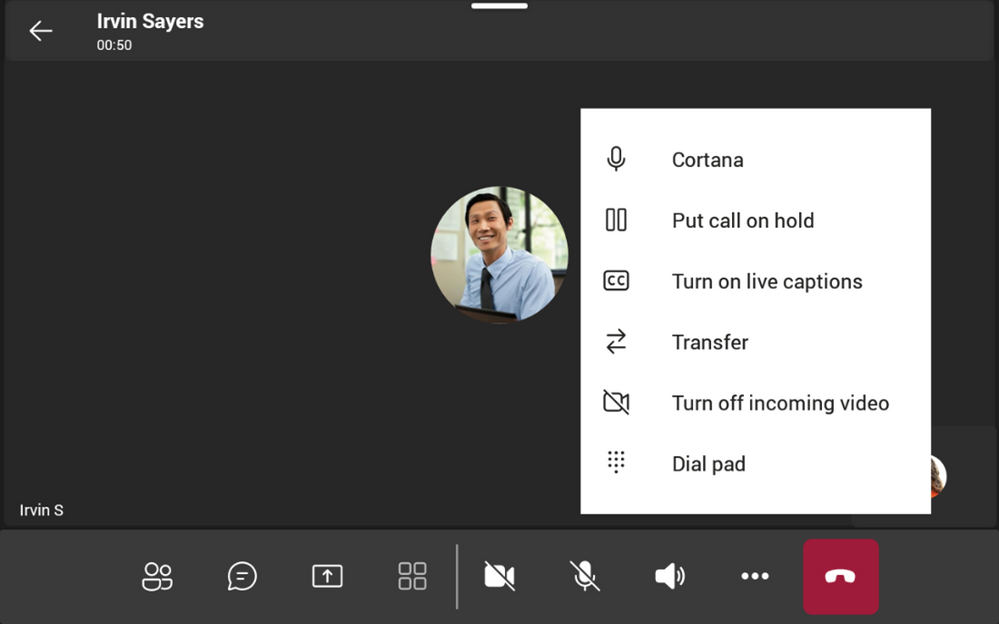
2. Live captions 1:1 calls
Come again, say what? No matter how hard we try to listen actively, sometimes it can just be hard to understand what our colleagues are saying. Whether that is due to language barriers or noise distractions, this new feature in the display writes out what is being said in a 1:1 call in real time. These captions are available in US English and will not be available on the government cloud.
3. Presenter can unmute participants without “Raise Hand”
In a meeting where there are presenter and attendant roles, usually the attendants will be muted to prevent and disturbances to the content. In order to contribute with video or audio, an attendant would have had to raise their hand and the presenter would manually unmute them. With this new meeting setting, an attendant can unmute themselves to make a contribution without waiting for the presenter. This will improve the natural engagement to the meeting people and content and can encourage self-selected participation.
4. Microsoft Outlook Contacts will be available on Teams displays in read-only mode
If you have contacts that are saved in Microsoft Outlook with a phone number, these contacts are now visible in the People app. While only the phone number for each contact can be seen today, this is an easy way to search for Outlook connections and dial out with a few taps of a finger.
5. Improved usability for advanced calling features
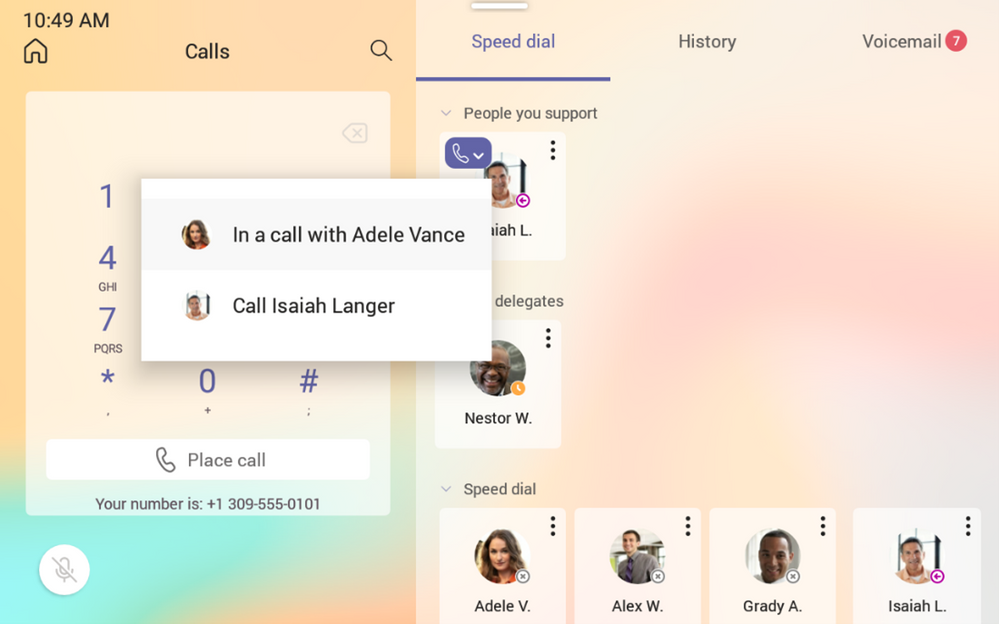
While using your display a few new options are now available to give you additional information and processes depending on your needs. When you select the drop down arrow within the active call indicator icon, you can see the status of the person you are clicking on and a few quick actions like calling a related contact. Additionally, if one of your contacts has multiple numbers, you can now use this drop down to select which number to contact before placing an outgoing call.
When a boss or admin are in calls, the touch target to see call status has been updated. Pressing these contacts will show an action sheet to either see call status or to make an outgoing call to them.
6. Support for DTMF in Pre-Call Screen
Dual-tone multifrequency (DTMF) will now be available in pre-call screens which can easily facilitate quick responses for auto attendant scenarios.
by Contributed | Jun 28, 2021 | Technology
This article is contributed. See the original author and article here.
We have been hosting different set of Microsoft 365 community calls since 2015 where we share the latest news and do live demos on the different capabilities in Microsoft 365.
We are excited to share more details on our updated community call structure focusing holistically on the Microsoft 365 developer platform. Based on a community survey from spring 2021, it was visible that a more holistic platform level messaging would be needed, rather than having isolated community calls based on individual products in Microsoft 365. When we are creating solutions and services for the Microsoft 365, we often combine numerous technologies across this platform stack, so this new model is targeted on covering more widely the awesomeness of Microsoft 365.
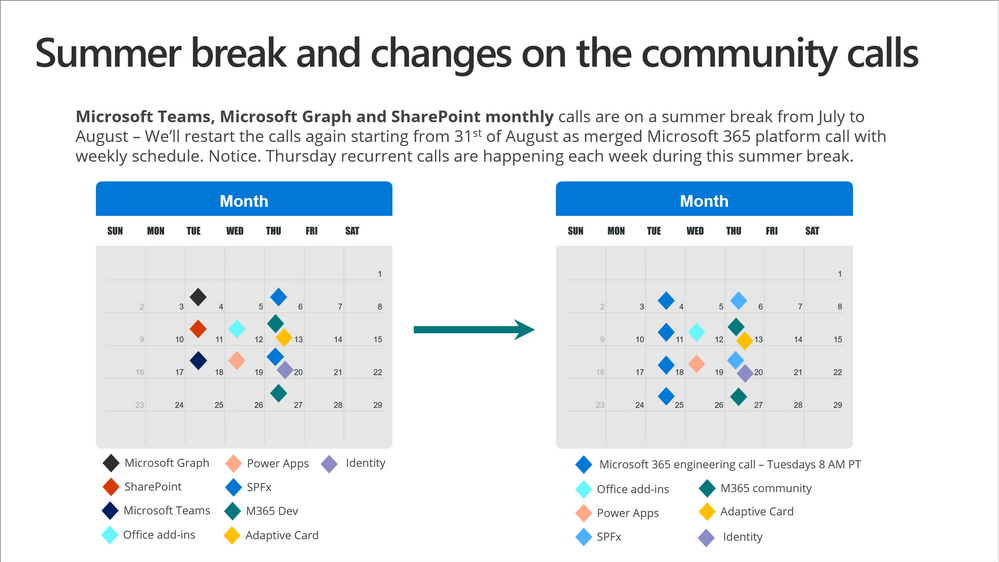
We will also have some Northern Hemisphere summer cancellations.
What’s new? – New weekly Microsoft 365 Platform community call
This call is targeted for the Microsoft 365 engineering PMs and other Microsoft employees to update our community on the latest features and capabilities across the Microsoft 365. Call will start from 31st of August 2021 and will happen each Tuesday at 8 AM PT. Like other community calls, this call is recorded and published from the Microsoft 365 Community YouTube channel.
This call will replace monthly Microsoft Graph, Microsoft Teams and SharePoint community calls. It will also feature other Microsoft 365 features and capabilities.
This call will typically have following generic agenda:
- 0-15 min – Latest news from Microsoft and group photo
- 15-30 min – Microsoft 365 demo 1
- 30-45 min – Microsoft 365 demo 2
- 45-60 min – Microsoft 365 demo 3
We will answer on any questions throughout the call in the chat.
Summer schedule adjustments
Microsoft Graph, Microsoft Teams and SharePoint monthly community calls are on a break during summer and will discontinue after that as they will be replaced by the platform call.
Other calls will continue normally through out the summery.
Microsoft 365 community calls – available for everyone to join
Here’s a summary of existing Microsoft 365 calls and the structure for future. Join on the calls to hear about the latest features and to engage with the community. All community calls are recorded. Call summaries are published as blog post articles at Microsoft 365 PnP Tech Community blog and videos at Microsoft 365 Community YouTube channel.
Discontinued calls, replaced with the weekly call on Tuesdays:
- Microsoft Graph
- Microsoft Teams
- SharePoint
These invites will be routed to the new weekly call starting from 31st of August.
You can download invites for the community calls from https://aka.ms/m365pnp.


Recent Comments