
Managing Samsung DeX with Microsoft Endpoint Manager
This article is contributed. See the original author and article here.
By Lothar Zeitler – Senior Program Manager | Microsoft Endpoint Manager – Intune
Mobile devices have become powerful enough to support various computationally intensive tasks. To help manage more complex projects, Samsung offers Samsung DeX, which creates a desktop experience for mobile users. With Samsung DeX, you can use mobile apps in desktop mode and work from your phone or tablet in a PC-like user interface. Samsung DeX is available on premium models. For more information and a list of supported devices, go to Samsung DeX (link to Samsung.com).
The Samsung DeX platform is an extension of Android Nougat‘s multi-window mode, which means that you can use almost any Android application in desktop mode on a supported device. However, to optimize desktop/DeX performance, developers might need to customize their application (see Optimizing your app on the Samsung website). Note that both application and device policies implemented with Microsoft Endpoint Manager will continue to work with DeX without modification.
To use Samsung DeX, you simply connect a USB–C to HDMI cable to an external monitor. The DeX interface then appears on the screen via the video stream. You can also connect a mouse and keyboard to the mobile device via Bluetooth. Samsung DeX is also available as desktop (host) application for Windows and macOS, which allows you to work simultaneously between your mobile device and your computer.
IT administrators who manage mobile devices with Microsoft Intune can also use the service to manage Samsung DeX configurations. In this article, we will explain how to set up and configure DeX for managed Samsung devices in Intune.
Set up device management in Intune
First, you will need to create an enrollment profile and set up a device group for Samsung devices that are corporate-owned with a work profile. For detailed instructions, see Set up Intune enrollment of Android Enterprise Corporate-Owned devices with a Work Profile.
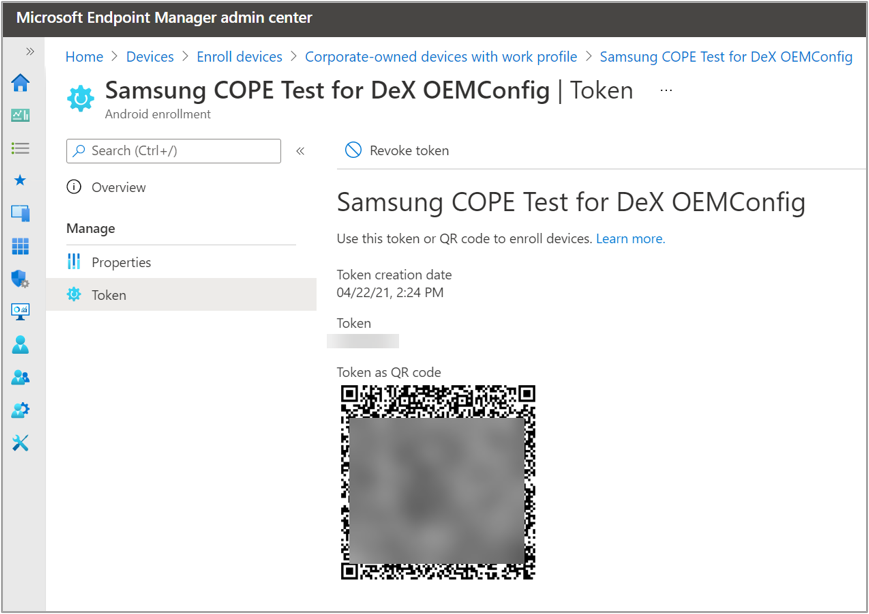
An example enrollment profile for “Corporate-owned devices with a work profile” looks like this:
Example enrollment profile for “Corporate-owned devices with a work profile”.
Next, we create a new device group to add all Samsung models with the same enrollment profile dynamically. We will use this dynamic group to assign policies, apps, and configurations, including the DeX configuration, to each new device that belongs to that group. We used the same enrollment profile name “Samsung COPE Test for DeX OEMConfig” for our device group. When you create this new group, make sure to select “Dynamic Device” in the Membership type field.
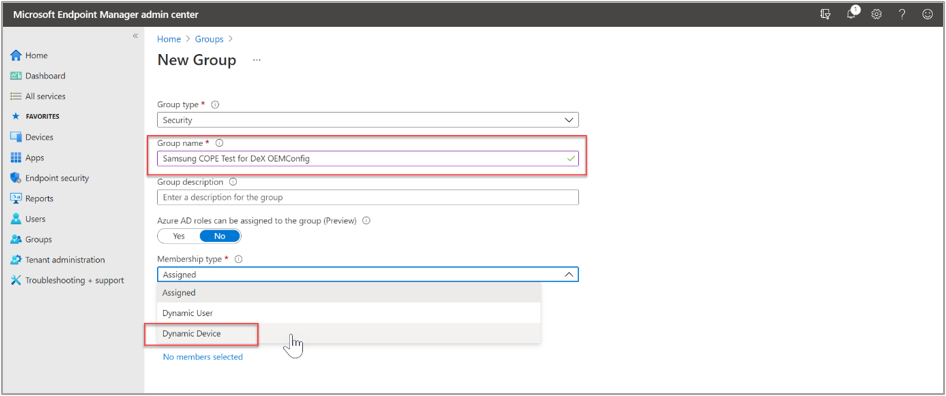 Example dynamic device group for DeX devices.
As a membership criterion for the group, we use the name of the enrollment profile. We define the rule criteria under Dynamic device members > Add a dynamic query. Under Property, we select enrollmentProfileName then under Operator, select Equals, and under Value, we enter the profile name “Samsung COPE Test for DeX OEMConfig.“
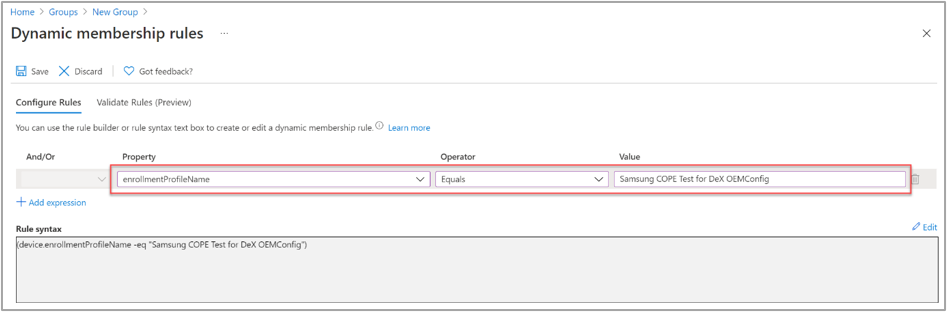 Example dynamic device query for the “Samsung COPE Test for DeX OEMConfig” profile.
Now, all devices that are enrolled with this profile in Intune automatically become members of our group.
Configure Samsung DeX settings
OEMConfig is an Android standard that we use to add, create, and customize OEM-specific settings, including DeX settings, for Android Enterprise devices. OEMConfig configuration settings are delivered to a device via an OEMConfig app. This section explains how to add an OEMConfig app and then create an OEMConfig profile.
Add the Knox Service Plugin app
Samsung offers the Knox Service Plugin (KSP) to help IT admins create and push app configurations to managed devices. To apply an OEMConfig configuration to a Samsung device, the KSP app must be installed first. The KSP app is available in Google Play and can be automatically deployed to devices using Intune.
In the Microsoft Endpoint Manager admin center, add the KSP app via the Managed Google Play Store. For detailed instructions, see Add and assign Managed Google Play apps to Android Enterprise devices.
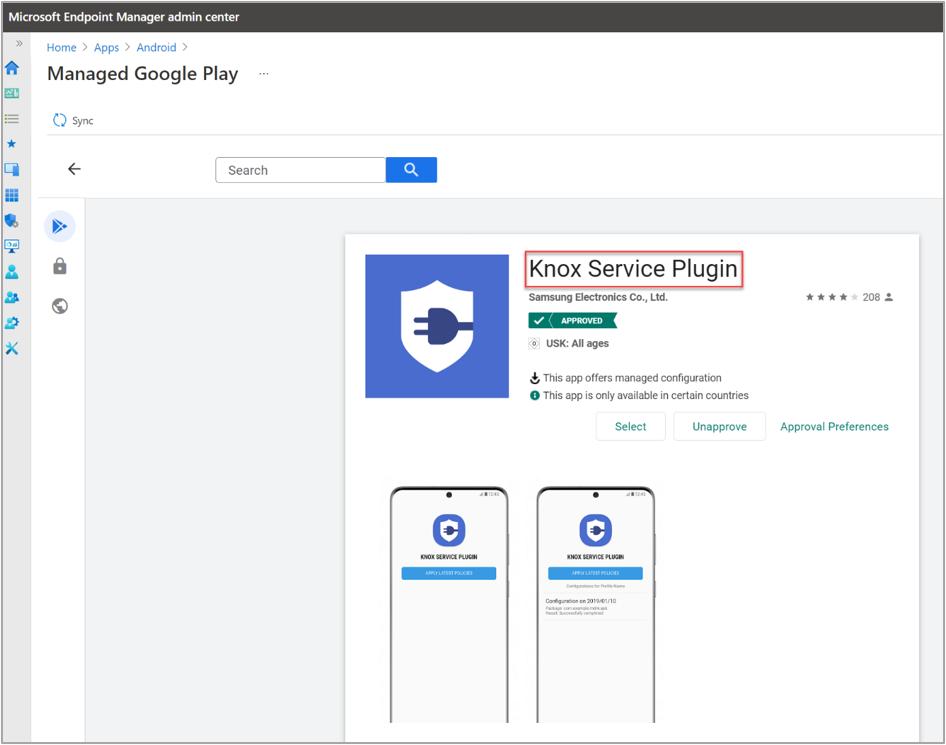 Adding the “Knox Service Plugin” via the Managed Google Play Store.
Once the KSP app is visible in the apps list in Intune, you can assign it to the device group. Navigate to Apps > Knox Service Plug–In > Properties > Assignments (select Edit).
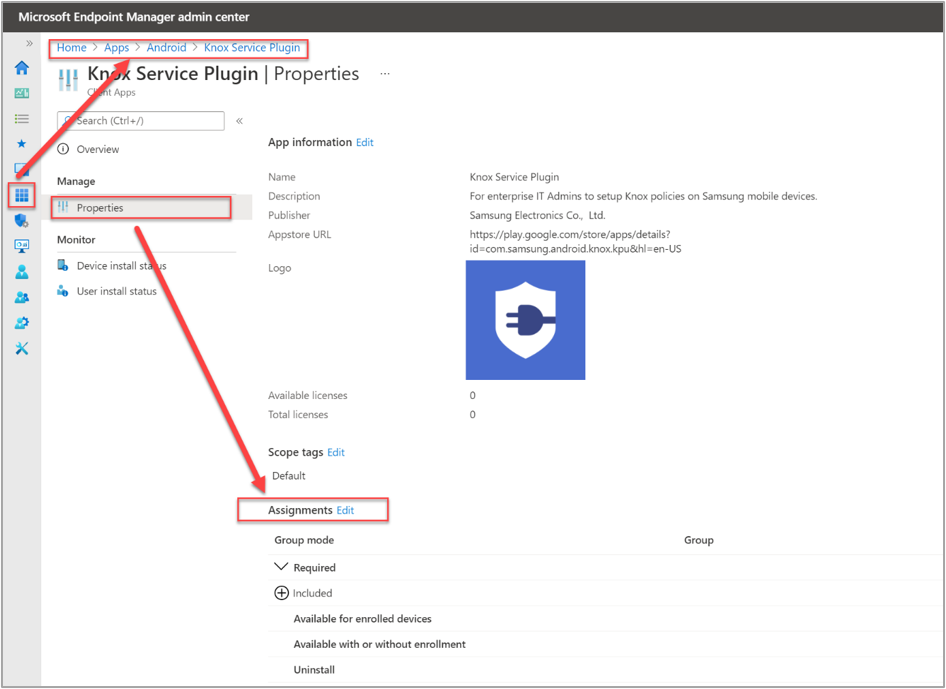 Adding a new app assignment for the Knox Service Plugin app.
On the Edit application page under the Required option, we add the same device group we created earlier: “Samsung COPE Test for DeX OEMConfig.“ This will enforce a mandatory install of the app on any device in the group. For detailed instructions, see Assign apps to groups with Microsoft Intune.
After a device is enrolled using the QR code and the applicable profile, the KSP app is automatically installed. Once installed, the OEMConfig policy will be assigned to the device.
Create and assign an OEMConfig policy
We typically use OEMConfig to configure settings that aren’t built into Intune, and the available settings depend on what the original equipment manufacturer (OEM) includes in their OEMConfig app. For detailed information on OEMConfig policies, see Use and manage Android Enterprise devices with OEMConfig in Microsoft Intune.
First, we need to create an Android Enterprise configuration profile with the type OEMConfig.
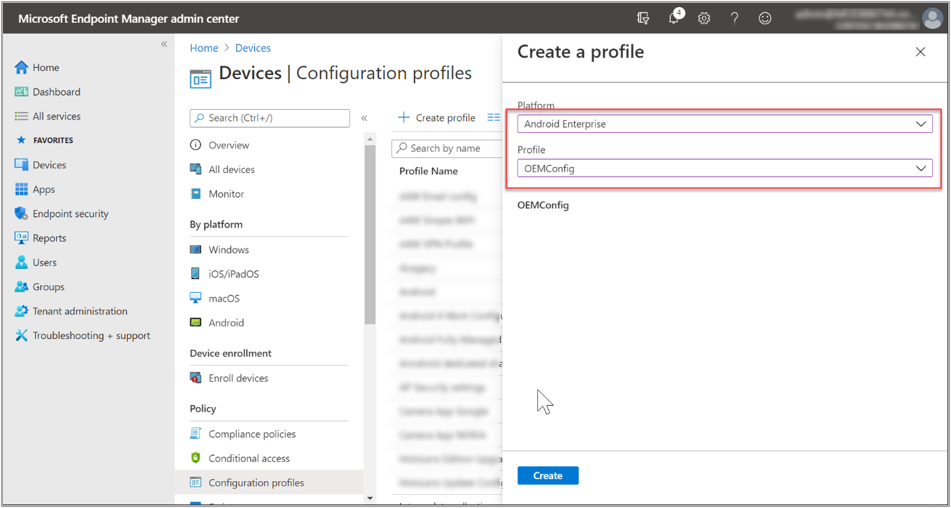 Creating a new Android Enterprise OEMConfig configuration policy.
We continue to use the same name as the enrollment profile for the OEMConfig profile: “Samsung COPE Test for DeX OEMConfig,” and then select the Knox Service Plugin as the OEMConfig app, which means it is the designated app to deploy the OEMConfig profile to devices.
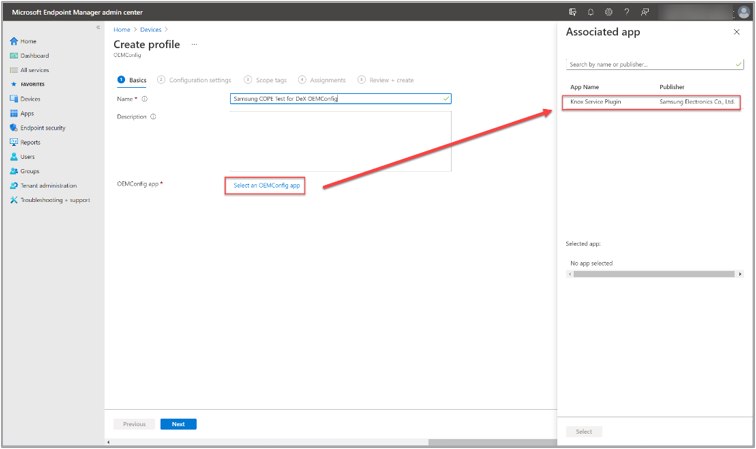 Assigning the Known Service Plugin to the newly created OEMConfig profile.
On the Configuration settings page, we search for DeX settings (select the Locate search link). This will show us all available DeX settings that we might want to configure later. You can configure additional settings in the profile, beyond the DeX configuration. There are different parameters and options for each item in the profile configuration settings.
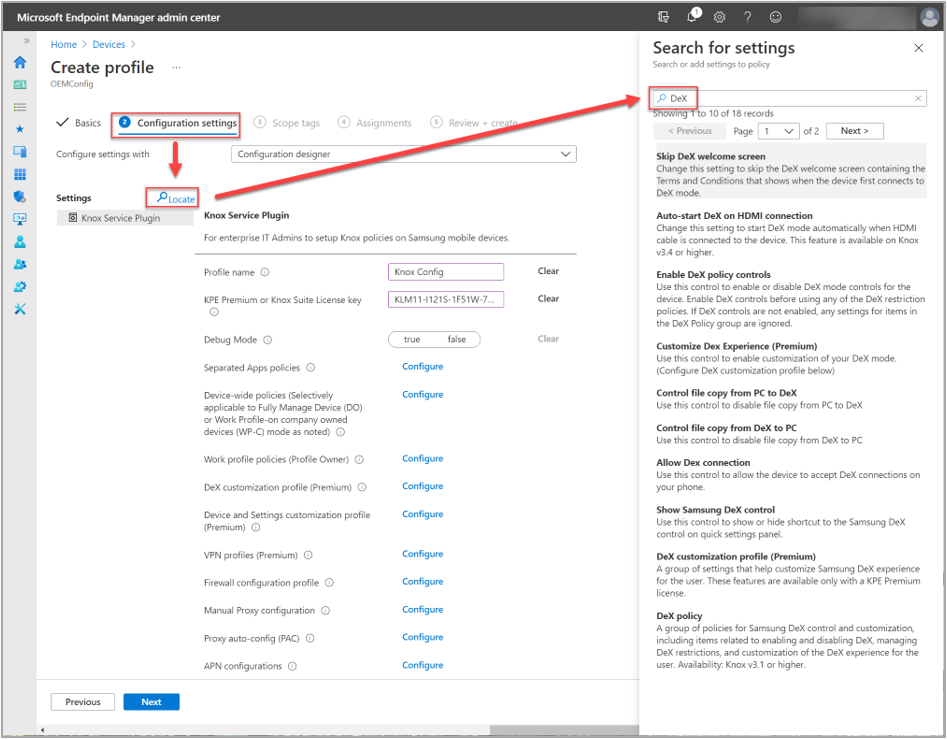 Clicking on the “Locate” search link to show all available DeX settings.
In our example scenario, we want to use the DeX for Windows application to display the DeX interface on the PC when connecting the device, and we also want to use the PC keyboard and mouse. With this setup, a user can easily copy data between a PC and DeX device. You can allow or block the direction of data flow, i.e., PC → DeX or DeX → PC, can under Configure file transfer settings, as shown below.
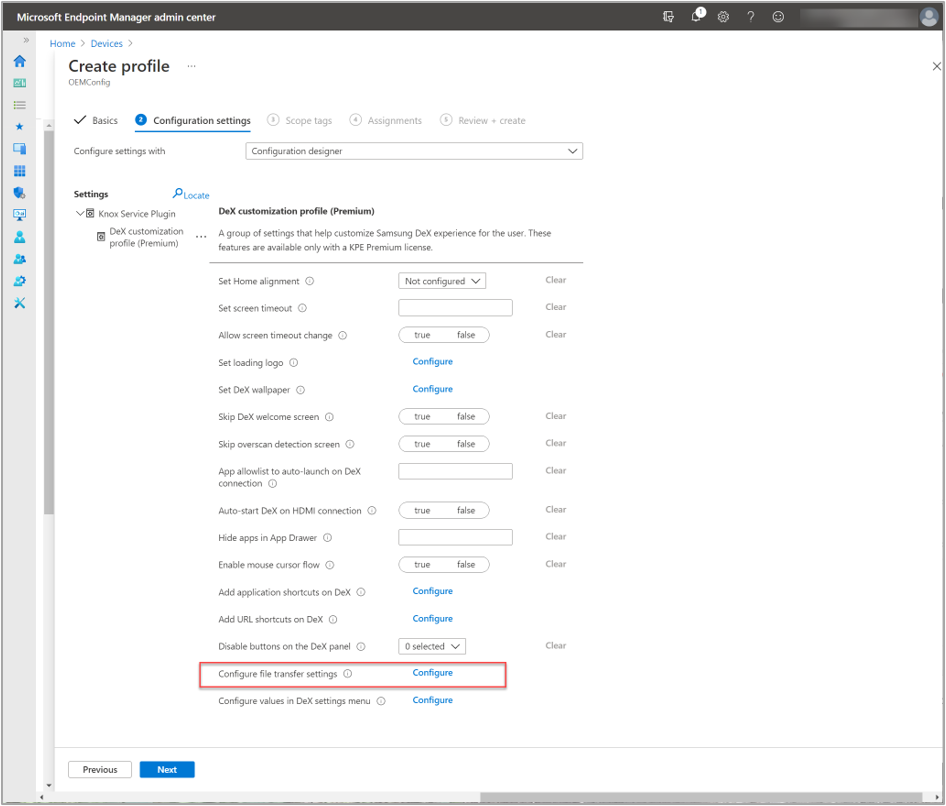 Example of all available DeX customization options with the “Configure file transfer settings” highlighted.
As a next step, we want to configure the connection settings and use a custom background picture.
We will now create an OEMConfig policy called “Samsung COPE Test for DeX OEMConfig.“ First, we define a profile name, “DeX Config.“ For our example, we will also add a Knox license key for the E-FOTA service.
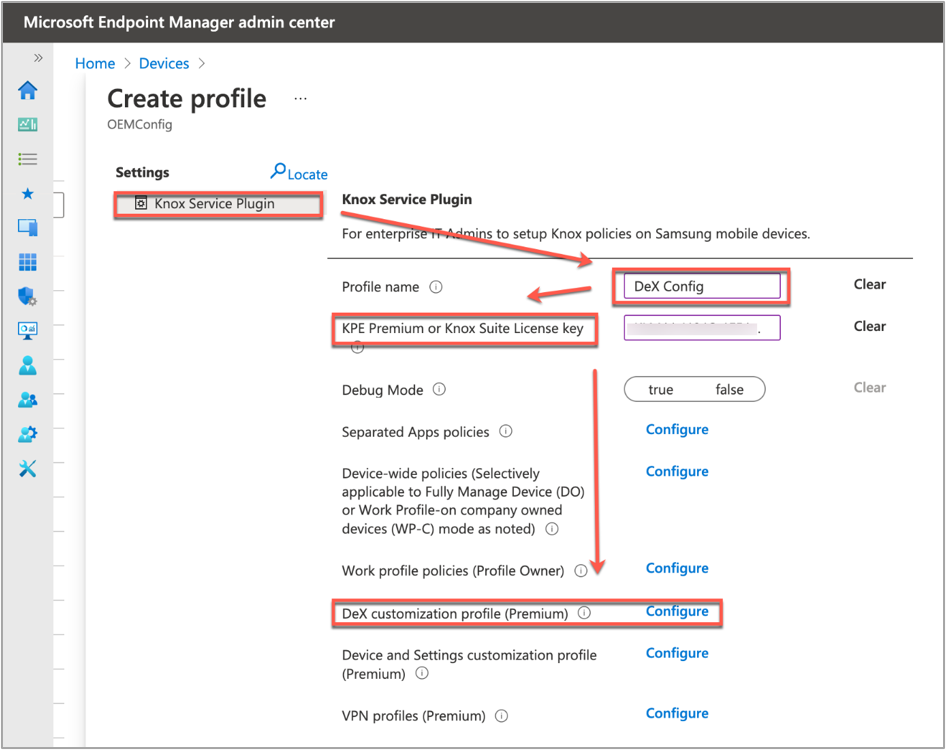 Creating a new OEMConfig policy named “Samsung COPE Test for DeX OEMConfig”.
The DeX customization profile (Premium) item takes us to the list of configuration options for DeX. First, we set the Auto-start DeX on HDMI connection to True, which will configure DeX to start automatically when an HDMI connection is established. We also set the Enable Mouse Cursor Flow option to True, which will enable mouse movements between the connected screen and the DeX device.
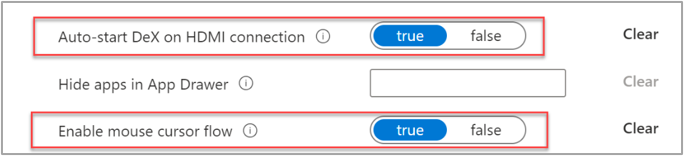 Configured settings under the “DeX customization profile (Premium)” setting.
Next, we will set a custom wallpaper image that will show when a device is in DeX mode. Under the Set DeX Wallpaper, we select a Web URL for the Wallpaper Image, enter the image’s URL, and then choose when to display the wallpaper should be changed (option: Which Wallpaper to setup? All, On lock screen, On system or Not configured).
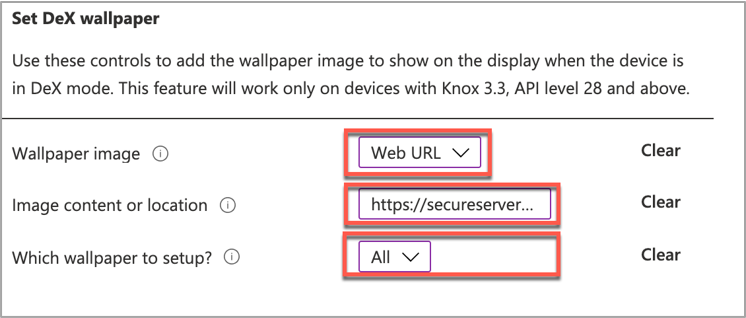 Configuring a custom wallpaper image that will show when a device is in DeX mode.
Note: To edit previous KSP configuration settings, select the ellipses next to an item (…).
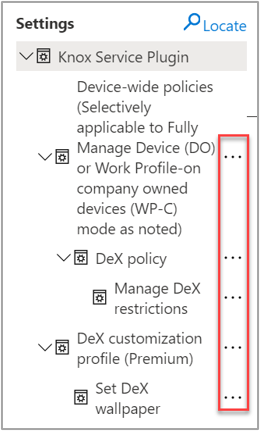 To edit previous KSP configuration settings, select the “ellipses” button next to an item.
Once the DeX configuration is complete, we select Next twice. Then, under Add Groups, select the group “Samsung COPE Test for DeX OEMConfig” that we previously created.
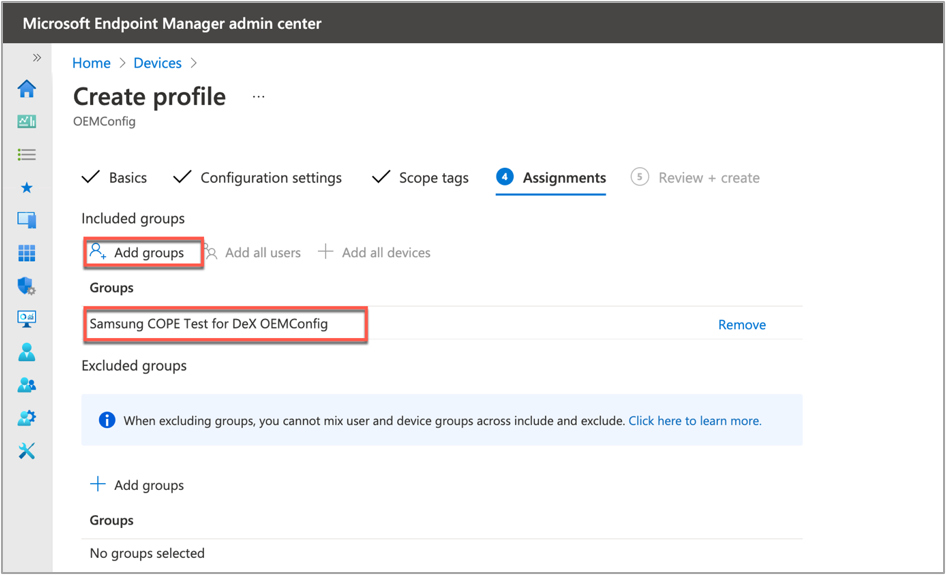 Assigning a group under a new OEMConfig profile.
On the summary page, review the settings and select Create to create the profile.
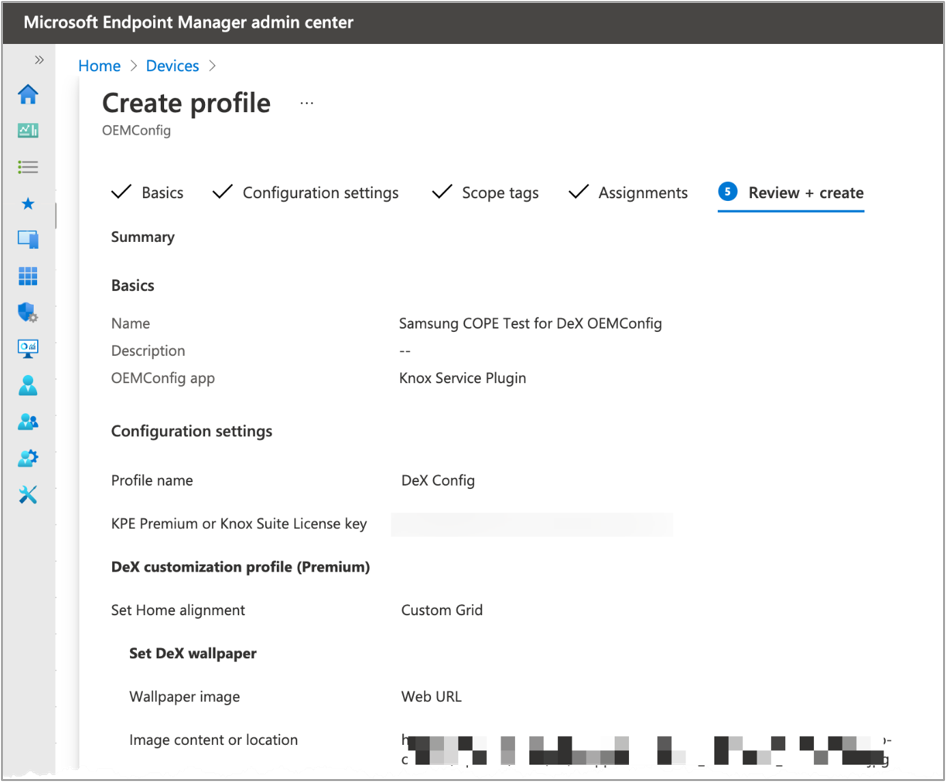 Summary page of a new OEMConfig profile.
The configuration is now ready to use. When you connect a DeX device, a connection dialog appears.
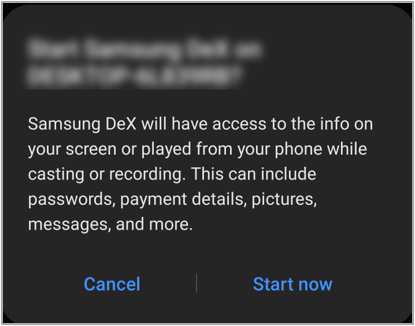 Connection dialog example when connecting a new DeX device to your device.
Select Start Now to establish a connection to the external device or screen and start the DeX interface.
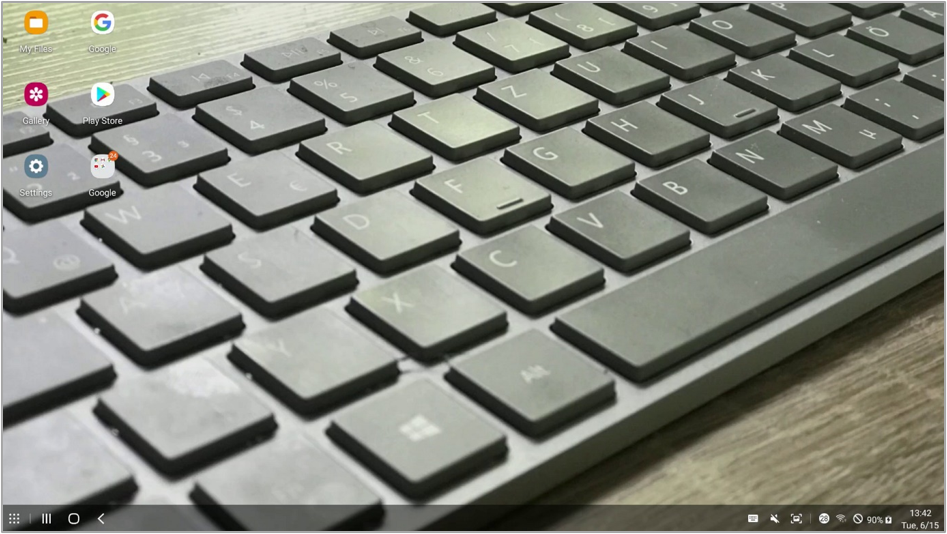 Wallpaper configuration example from a recently connected DeX device that received the configured OEMConfig.
Note: The wallpaper configuration in the OEMConfig, like other settings too, is dynamic. When you change the image source in the settings, the wallpaper will change.
Note: If you want to use the DeX host application, you must first install the software on the PC. When a DeX device connects to the PC, the DeX icon will appear in the tray.
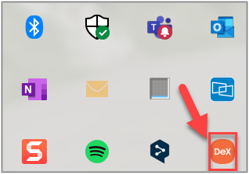 Example of the DeX icon in the Windows system tray when a DeX device connects to the PC.
Tips for using OEMConfig and DeX
When using OEMConfig and DeX, there are a few considerations and practices to keep in mind.
OEMConfig variations
OEMConfig is a functionality that is available as part of Android Enterprise. Almost all OEMs provide an app to support device–specific configurations. However, the set of options varies from OEM to OEM.
Debug mode
Samsung has an optional OEMConfig setting for debug mode. In debug mode, the KSP app remains visible and active on the device to facilitate troubleshooting.
| KSP Debug Mode | KSP Configuration | KSP Profile |
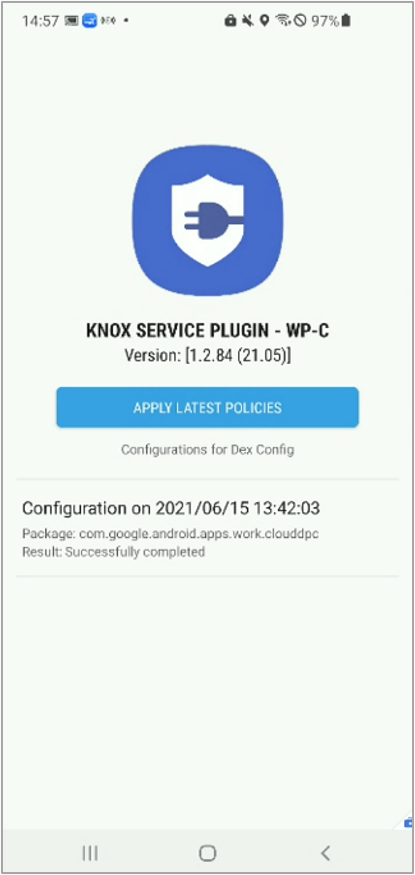 Screenshot of the Knox Service Plugin in Debug Mode on a DeX device. Screenshot of the Knox Service Plugin in Debug Mode on a DeX device. | 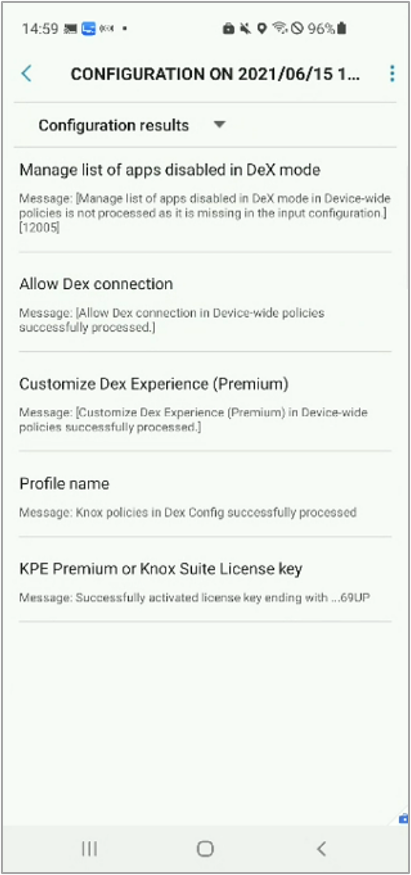 Screenshot of the Knox Service Plugin and configurations applied on a DeX device. Screenshot of the Knox Service Plugin and configurations applied on a DeX device. | 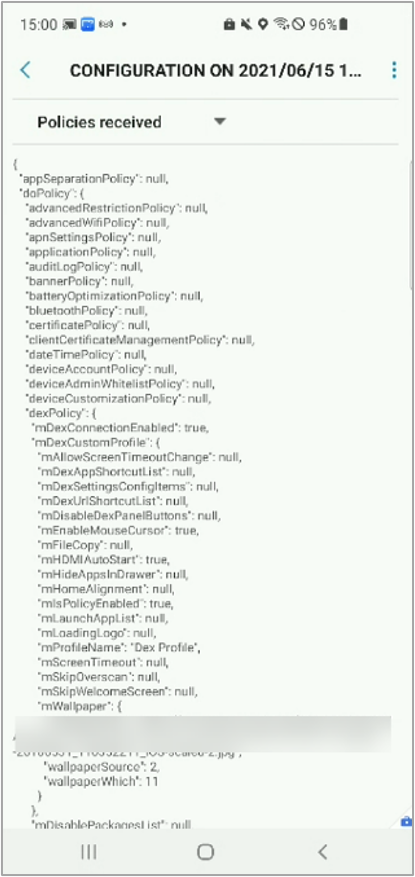 Screenshot of the Knox Service Plugin and configured settings on a DeX device. Screenshot of the Knox Service Plugin and configured settings on a DeX device. |
Error messages
OEMConfig error messages are displayed in the Microsoft Endpoint Manager admin center. Select Devices > All devices, choose the device from the list, and then go to App Configuration.
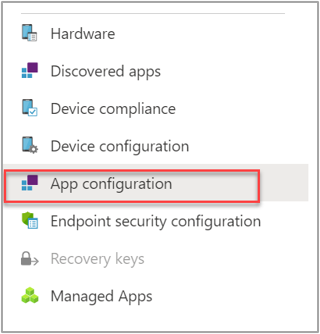 Screenshot of the “App configuration” blade in the Microsoft Endpoint Manager admin center.
Note: The error messages in the admin center are identical to the messages created by the KSP app. You can find a list of error messages in the Samsung Knox documentation.
Device-wide policies
You can apply some DeX policies to all users on the device, regardless of work profile and personal settings. You’ll find these settings under the Know Service Plugin settings, as shown below.
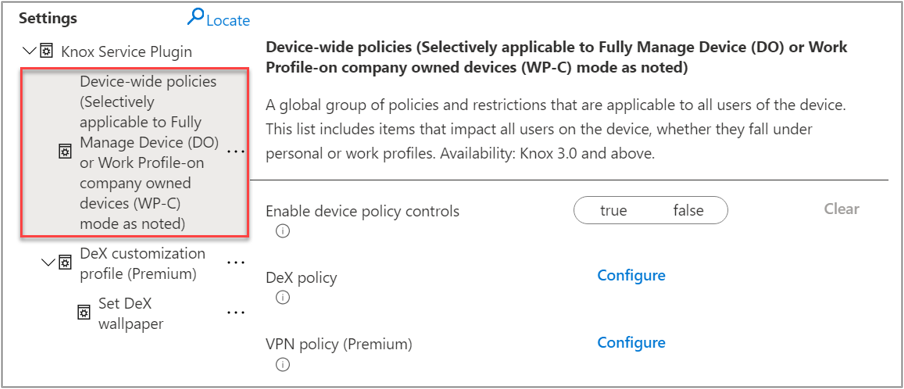 Screenshot of an sample OEMConfig and highlighted example of the “Device-wide policies” that can be targeted to DeX devices.
Expand this section to find the device-wide DeX policies.
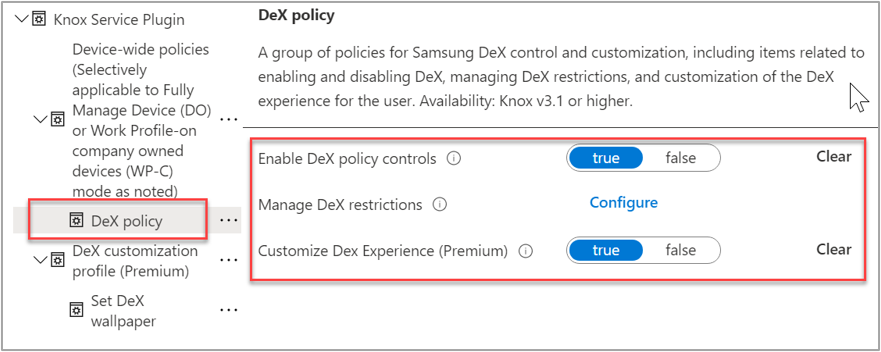 Screenshot of an sample OEMConfig and an expanded “DeX policy” section to find device-wide policies.
Now that you have a better understanding of how to manage Samsung DeX devices in Microsoft Intune, you can help your company take advantage of this technology. If you have any questions, reply to this post or reach out to @IntuneSuppTeam on Twitter.



Recent Comments