by Scott Muniz | Aug 5, 2020 | Uncategorized
This article is contributed. See the original author and article here.
We are excited to announce a new and exciting update to Get & Transform Data capabilities in Excel – PDF data connector! This has been one of the top requests from you and we heard you. With the new From PDF connector you can connect to PDF files, and use the included data from the file, just like any other data source in Excel.
The new From PDF connector is available as part of an Office 365 subscription. If you are an Office 365 subscriber, find out how to get the latest updates.
The following sections describe how to connect to a PDF file, select data, and bring that data into Excel.
Connect to a PDF file
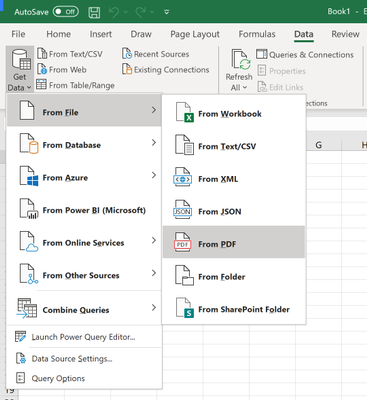
To connect to a PDF file, open the Get Data menu from the Data tab on the ribbon. Select From File and click From PDF.
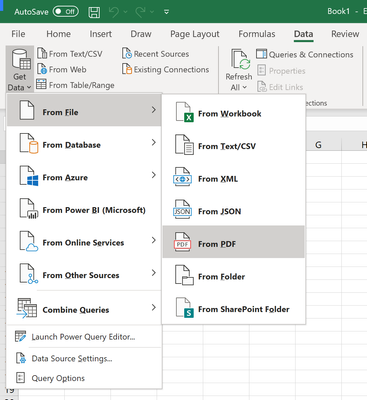
You are prompted to provide the location of the PDF file you want to use. Once you provide the file location and the PDF file loads, a Navigator window appears and displays the list of tables and pages in the document that you can import the data from.
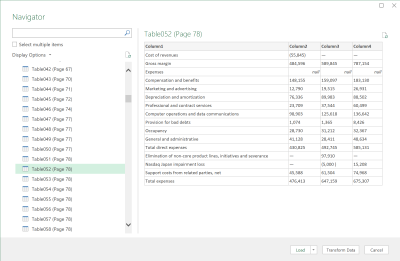
You can browse through the PDF document data and select one or multiple elements to import into Excel. When you are ready to import, select the Load button to bring the data into Excel, or Transform Data to clean your data and prepare it for analysis with Power Query Editor.
Advanced scenarios
In some cases, you may want to import a range of pages from a PDF document at once. For this, you can specify the Start page and End Page as optional parameters for your PDF connection in the underlying M formula from the Power Query Editor:
Pdf.Tables(File.Contents("C:Sample.pdf"), [StartPage=5, EndPage=10])
For more information, refer to the Pdf.Tables M function documentation.
We hope you will like this new addition to Excel and we’d love to hear what you think about it. Please click File > Feedback and let us know. We’re excited to hear from you!
Guy Hunkin
– Excel Team
by Scott Muniz | Aug 5, 2020 | Uncategorized
This article is contributed. See the original author and article here.
Excited about Microsoft Ignite 2020 this September? Read on to learn about our Humans of IT partnership with five Historically Black Colleges and Universities (HBCUs) in the Louisiana area, and the inspiring students that we are proud to call our Student Ambassadors!
Since 2018, the Humans of IT Community has been proud to support students in the local community where Microsoft Ignite is held in. For the past two years when Microsoft Ignite was held in Orlando, we partnered with Florida-based student ambassadors from the University of Florida, University of Central Florida and Valencia College. Watch our community partnership video to learn more at https://aka.ms/communitypartners.
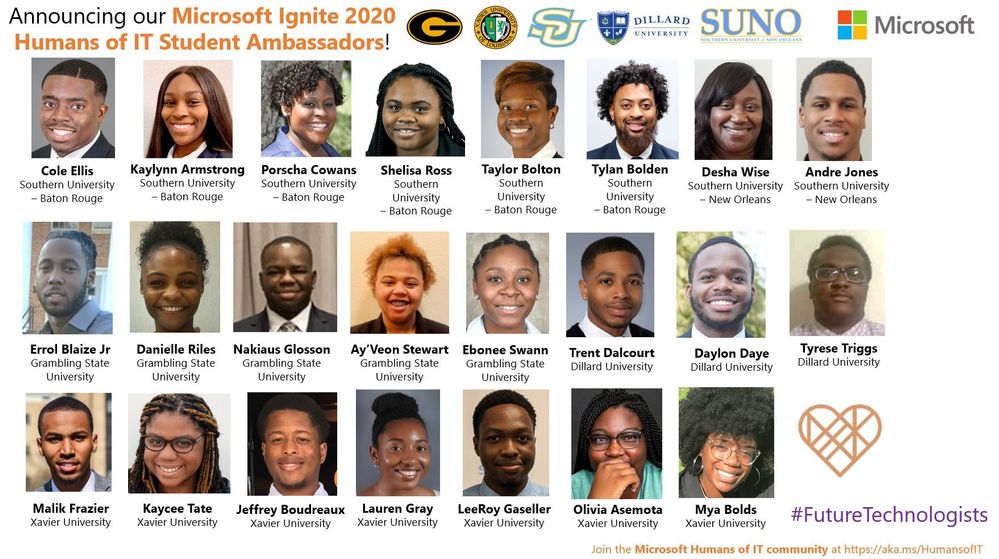
Although this year our initial plans to be in-person in New Orleans did not materialize due to the global pandemic, we are thrilled to still be partnering with five Historically Black Colleges and Universities (HBCUs) in the greater Louisiana area! All of these students have been personally nominated by their faculty professors and College Deans at Grambling State University, Xavier University of Louisiana, Southern University Baton Rouge, Southern University New Orleans and Dillard University:
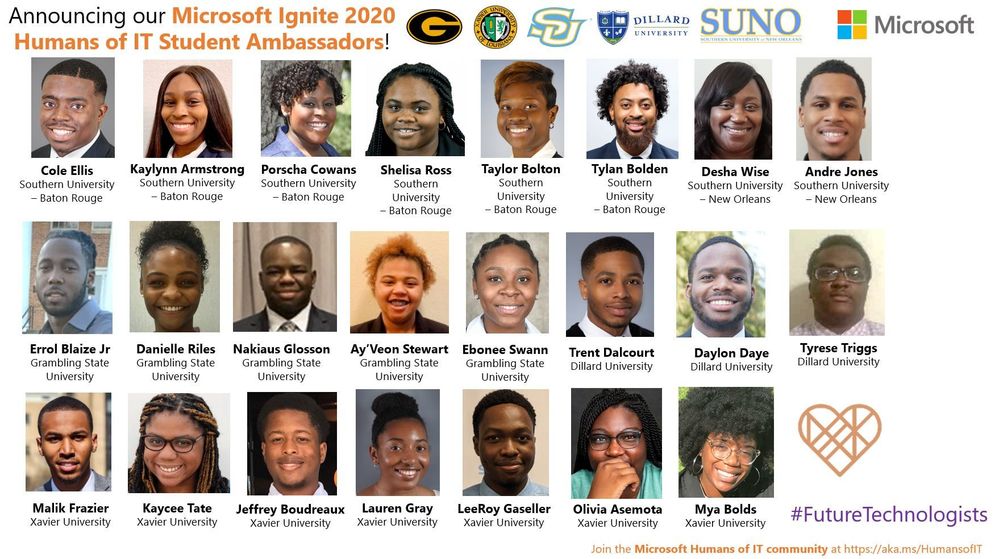 Microsoft Ignite 2020 Humans of IT Student Ambassadors
To support their learning and help them gain valuable insights into the tech industry, each student will be paired with a tech mentor who is either a Humans of IT Community Ambassador, Humans of IT Student Advisor (past year student ambassadors who have returned to help mentor incoming cohorts) or Microsoft employee. They will also have full access to our extensive range of mentors worldwide via our Community Mentors app, which is free to use and open to public. The app is currently available on both iOS and Android, and we will also be launching a desktop version soon. If you are interested in becoming a mentor and helping others in tech, please download the app and set up your profile as well so that you will be discoverable as a mentor on the app.
Be sure to keep an eye out for Microsoft Ignite Humans of IT sessions featuring our student ambassadors, and guest articles on our community blog written by students to spotlight their personal tech journey stories, mentors, role models and more!
Please join me in giving our wonderful student ambassadors and budding future technologists a warm welcome to the Tech Community!
#HumansofIT
#StudentAmbassadors
#FutureTechnologists
by Scott Muniz | Aug 5, 2020 | Alerts, Microsoft, Technology, Uncategorized
This article is contributed. See the original author and article here.
With the significant trend of moving to the cloud, you need to understand how to set up your organization for success. That’s why Anna Hoffman, Data & Applied Scientist, and Bob Ward, Principal Architect, on the Azure Data team, created all-new content to help you understand the benefits of Azure SQL. In Gayle Sheppard’s latest blog, she shares how SQL Server professionals can become Azure SQL professionals with all new learning tools from Anna & Bob.
Read more
by Scott Muniz | Aug 5, 2020 | Uncategorized
This article is contributed. See the original author and article here.
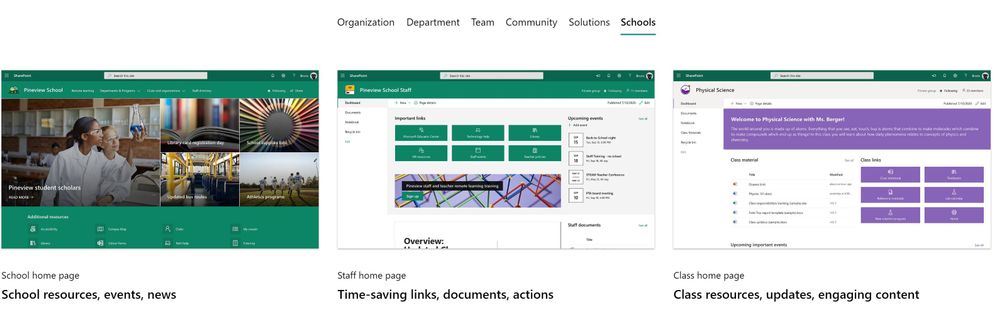
The SharePoint team is excited to launch site templates for schools and universities, available via the Microsoft Look Book. The templates bring together news, events, highlighted content, quick links and more. Each has been designed with a specific scope and audience for our Education customers:
- School home page: a central, institution-wide landing experience for students and staff with the latest school happenings and important resources.
- Staff home page: a dashboard for staff members with time-saving links, documents, and calls-to-action. This template is designed to be used with a Staff team or a Professional Learning Community (PLC) team in Microsoft Teams for Education.
- Class home page: a dashboard for a class with resources, updates, and learning content. This template is designed to be used with a Class team in Microsoft Teams for Education.
While planning and designing the templates, we listened to school leaders and educators all over the world. Armed with this feedback, we went to work to provide rich, effective site templates that help students and staff stay connected and up-to-date on school life and class work. Plus, the sites look great on any device by default, so students and educators can use them on desktop, tablet and mobile.
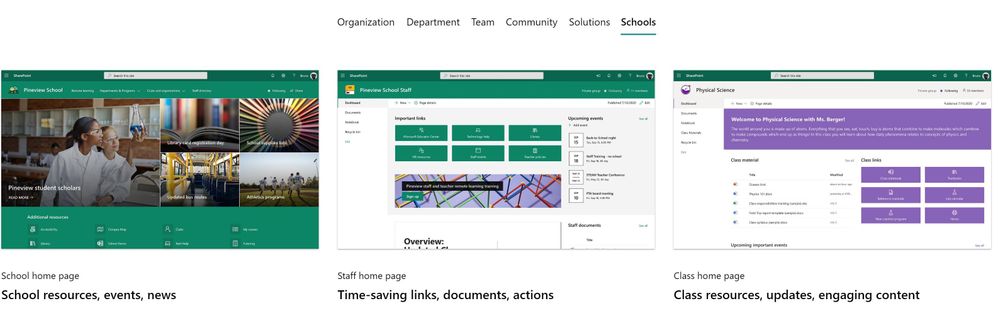 A brand new Schools category in the Microsoft look book, where you can find site templates for our Education customers
To help you get started quickly, we’ve provided step-by-step guidance on how to customize the templates to suit your needs, and how you can bring your home pages into Microsoft Teams for Education.
Staying engaged and on top of key information is critical for students and educators, especially when faced with the new challenges of hybrid learning. These site templates provide a straightforward path for everyone in your school community to access what they need. Here’s how each of these templates can benefit your school:
School home page
Dress it up in school spirit with your school colors, logo, motto, and values – this is the internal landing experience for your school. School leaders share schoolwide news, events, and resources, making it the single place where teachers and students can stay up-to-date on the latest happenings that affect their teaching and learning.
Learn more about more about the School home page template and how to make it your own.
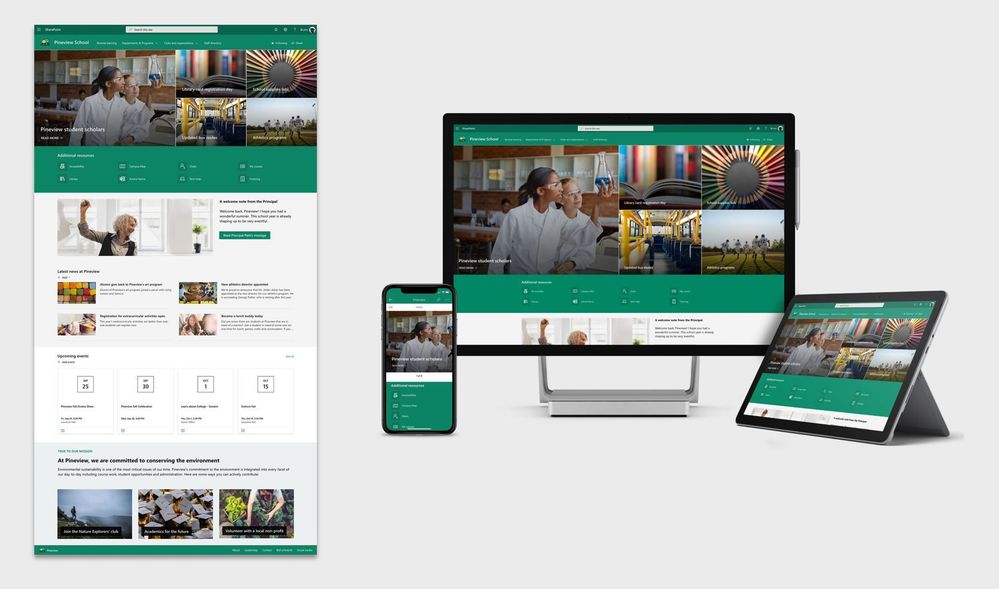 School home page template
Staff home page
Use this template as a dashboard for staff members – whether it’s schoolwide, a department working groups, or a PLC. This is where highlighted documents, tool links, and essential event info lives together, organized.
Bonus: This page can be added alongside your team meetings and discussions in Microsoft Teams. Pin it as a tab to your Staff or PLC team so staff members always knows where to get their updates.
Learn more about the Staff home page template and how to customize it just for you.
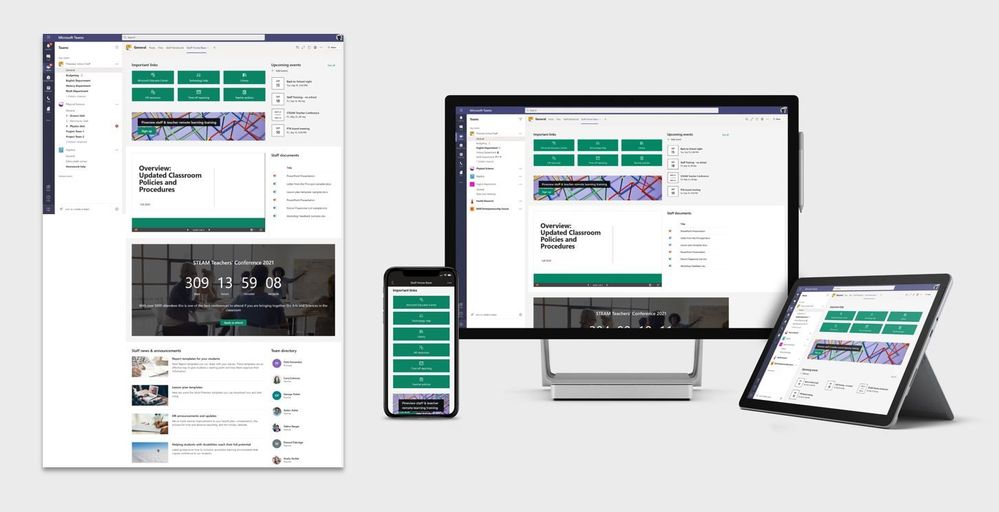 Staff home page template
Class home page
This template serves as a central dashboard for a class. Welcome students, highlight key information and learning resources, and get students what they need. You can even add your contact info and an introduction.
The Class home page template is intended to be used with a Class team in Microsoft Teams. Students get the combined functionality of the Class home page along with assignments and online meetings, without ever leaving Teams.
Learn more about all the elements in the Class home page template and how you can customize them.
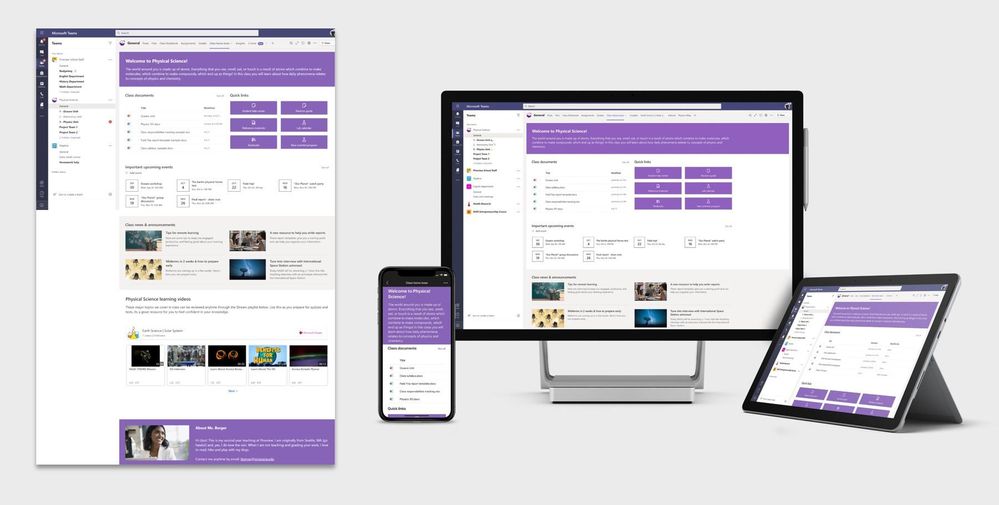 Class home page template
Summary of what’s included with each template:
- Home page layout and sample content.
- Branding elements, including a site theme.
- Documentation to help you get started and make your sites your own.
FAQ
1. What permissions do I need to add the templates from the Microsoft Look Book site?
- School home page: You need to have the permissions to create new SharePoint sites in your organization.
- Staff home page: You need to be an Owner of the Staff team or Professional Learning Community (PLC) team where you want to add this site template, or be a Global admin.
- Class home page: You need to be an Owner of the Class team where you want to add this site template, or be a Global admin. All teachers of a Class team are Owners by default.
2. How do I bring the sites into Microsoft Teams for Education?
- School home page: You can add the home page as a Website tab in teams of your choosing. Learn how.
- Staff team: You can add the home page as a SharePoint tab in the associated Staff or Professional Learning Community (PLC) team. Learn how.
- Class team: You can add the home page as a SharePoint tab in the associated Class team. Learn how.
3. Can you show me an example of how these site templates can be customized?
Yes. Here’s an example showing each of the three site templates customized for a higher education institution just by changing the theme, text, images, page layout, and linked content. With SharePoint, it is easily edit, add, move, or remove elements of the page to suit your needs. Try it today.
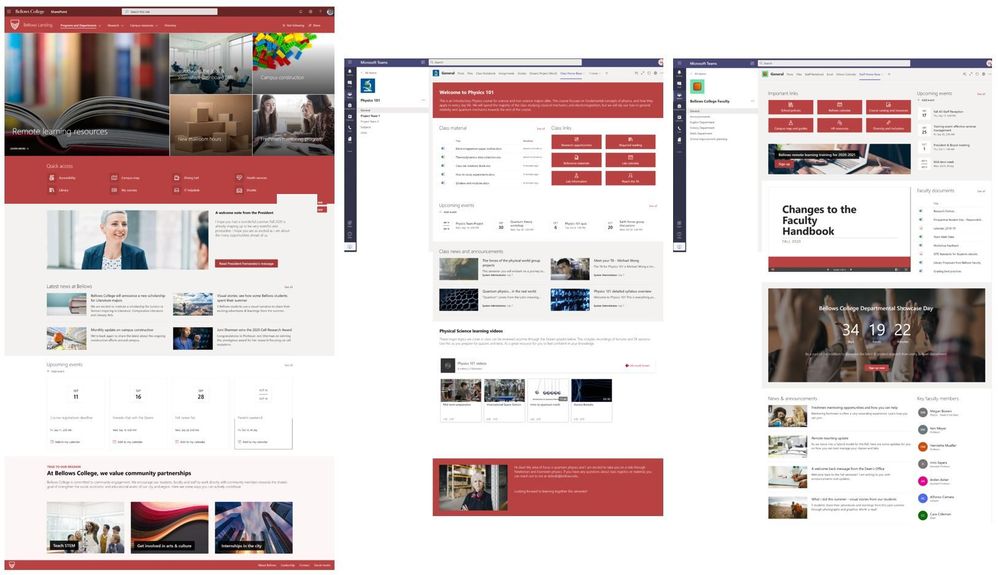 Example of how the templates can be customized
Related reads and resources
by Scott Muniz | Aug 5, 2020 | Uncategorized
This article is contributed. See the original author and article here.

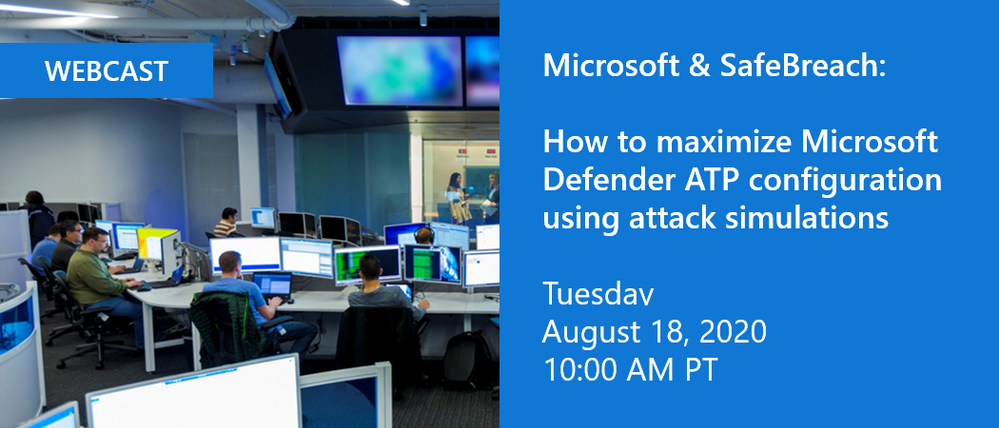
We’re excited to invite you to join us for a webinar in partnership with SafeBreach happening on Tuesday, August 18, 2020 at 10:00 am PT. Hadar Feldman, Sr. Program Manager at Microsoft and Valeriy Leykin, Product Manager at SafeBreach will provide an overview of the integration of SafeBreach’s breach and attack simulation capabilities with Microsoft Defender ATP evaluation lab.
The evaluation lab allows security teams to fully evaluate the effectiveness and configuration of their Microsoft Defender ATP solution right from within the Microsoft Defender Security Center. Adding in attack and breach simulations from SafeBreach enables customers to test their solution against real world attacks from prominent APT groups, helping them to identify weaknesses and be better prepared.
Visit the registration page to learn more and sign up today.
We look forward to seeing you there!

by Scott Muniz | Aug 5, 2020 | Alerts, Microsoft, Technology, Uncategorized
This article is contributed. See the original author and article here.
|
Microsoft partners like Barracuda and Buurst deliver transact-capable offers, which allow you to purchase directly from Azure Marketplace. Learn about these offers below:
 |
Barracuda CloudGen WAN Service: CloudGen WAN is based on the security technology of Barracuda CloudGen Firewall. CloudGen WAN integrates with Microsoft Azure Virtual WAN to provide a secure SD-WAN network with high-performance connectivity. Dynamically scale your SD-WAN network while providing next-generation firewalls with CloudGen WAN. |
 |
SoftNAS: As a virtual storage appliance with enterprise network-attached storage capabilities, SoftNAS from Buurst lowers cloud storage costs and handles demanding workloads with fully customizable options. SoftNAS allows customers to migrate data to the cloud with continuous sync, with speeds up to 200 percent faster than TCP/IP over high-latency networks. It’s available for a 30-day free trial.
|
|


Recent Comments