by Scott Muniz | Aug 24, 2020 | Uncategorized
This article is contributed. See the original author and article here.
IIS uses bindings to determine where to redirect requests. These bindings can be secured (https – mostly on port 443) or unsecured (http – mostly on 80).
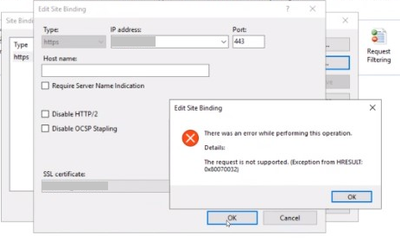
In a case I worked on, I came across to this error while trying to add an https binding: The request is not supported (Exception from HRESULT: 0x80070032).

The PowerShell command below gave an error too
netsh http add sslcert ipport=[IP:port] appid="[APP ID]" certhash=[HASH] certstorename=MY
SSL Certificate add failed, Error: 50
The request is not supported

Additionally, Windows Update wasn’t working neither. It displayed the following error.
“We couldn’t connect to the update service. We’ll try again later, or you can check now.”
Solution
Since both secure binding and Windows Update were failing, the issue seemed to be related to TLS protocol settings.
If you are troubleshooting a similar issue, make sure TLS protocols and encryption algorithms are enabled. Additionally, check if secure cipher suites are enabled. In our case, there was only one cipher suite defined. This was the reason of both binding and Windows Update issues.
We followed the steps below to use default cipher suite list:
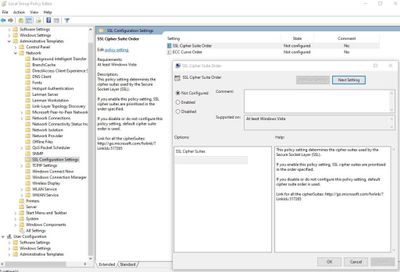
- Go to “Start > Run“. Enter: gpedit.msc
- In the left pane, expand “Computer Configuration > Administrative Templates > Network > SSL Configuration Settings“
- In the right pane, right click “SSL Cipher Suite Order” and choose “Edit”
- Save the text inside “SSL Chiper Suite” field to a Notepad for backup
- Select “Not Configured”
- Click “OK”
- Restart the server (gpupdate doesn’t enforce this setting. You should restart the server)
by Scott Muniz | Aug 24, 2020 | Uncategorized
This article is contributed. See the original author and article here.
MachineKeys folder stores certificate keys that are used by IIS. This folder my fill up with thousands of files in a short time due to a permission or application code related issue.
The permanent solution would be correcting permissions or fixing the code so that the keys in this folder are automatically removed. However, if the permanent fix is taking long time, you may need a practical way of removing old files in the meantime.
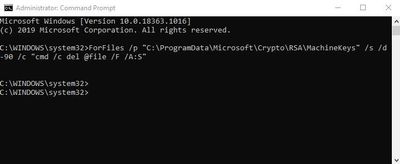
Open Command Prompt as Administrator and run the following command to remove files older than 90 days in the MachineKeys folder
ForFiles /p "C:ProgramDataMicrosoftCryptoRSAMachineKeys" /s /d -90 /c "cmd /c del @file /F /A:S"

Why is this folder filling up? There are four common reasons:
- There is a permission issue that is preventing OS to remove files from that folder. Check this document for the permissions required
- There is a code related issue. The application is not removing X.509 certificates after they are used
- A security software is performing SSL check and preventing these files to be removed
- Enterprise CA might be failing to respond the request
by Scott Muniz | Aug 24, 2020 | Uncategorized
This article is contributed. See the original author and article here.
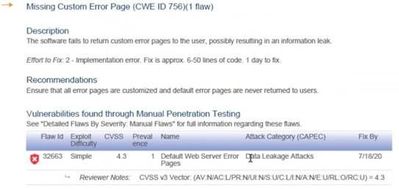
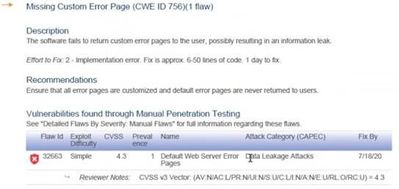
IIS comes with default error pages. In order to help troubleshooting issues, these error pages may provide detailed information about the application and server. Therefore, some penetration testing tools may flag this situation as a vulnerability. An example pentest report:
Missing Custom Error Page (CWE ID 756)
The software fails to return custom error pages to the user, possibly resulting in an information leak.
Solution
Unless detailed error pages are enabled for remote requests in IIS, I wouldn’t classify this situation as a critical vulnerability.
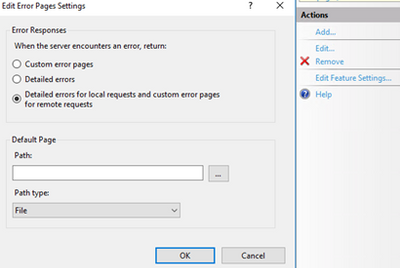
If you want to have a clean security scan report (and you want your users to see more meaningful error pages), you can create custom error pages.
In the case I worked on, the tool brought up this report for a folder that doesn’t have a default page. For this situation, there are a few easy workarounds:
- Add an index.html file to the folder. This should prevent that URL to be flagged again
- Customize IIS defaullt page for 403 error (C:inetpubcusterren-US403.html). Pentest tool is likely to mark the URL pass if that page is customized
- Enforce custom error pages in web.config
by Scott Muniz | Aug 24, 2020 | Uncategorized
This article is contributed. See the original author and article here.
Web.config file includes of crucial information for your website to work such as server and application specific settings. Depending on your website and environment, this file can grow quickly. IIS refuses to read it if it exceeds a threshold. This check is in place to prevent possible vulnerability attacks.
Maximum size for web.config file
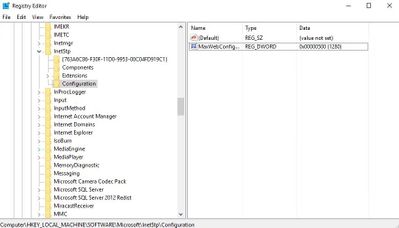
The default maximum limit is 250 KB. You can change this value by editing the registry key below (Reference). Make sure to restart the server after this change.
HKLMSOFTWAREMicrosoftInetStpConfigurationMaxWebConfigFileSizeInKB
It’s a (REG_DWORD) type. More information about this key is here.
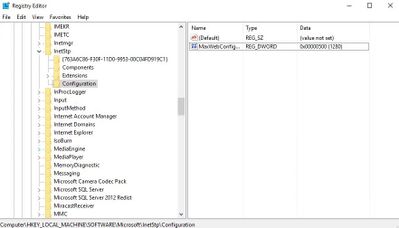
If 32-bit is enabled for your application pool, make sure to edit the following key instead:
HKLMSOFTWAREWow6432NodeMicrosoftInetStpConfigurationMaxWebConfigFileSizeInKB
Is there a better way to manage big web.config file?
Yes. Instead of growing the file size, it’s better to separate the configuration into multiple files. Let’s look at two scenarios.
Extensive amount of URL Rewrite rules
If you have hundreds of URL Rewrite rules, you can create rewrite maps and store them in a separate file.
Let’s say you have a rewrite map like the one below. Save it in a file called rewritemaps.config.
<rewriteMaps>
  <rewriteMap name="Redirects">
    <add key="/fromthisURL" value="/tothisURL" />
    <add key="/fromthisURL2" value="/tothisURL2" />
  </rewriteMap>
</rewriteMaps>
Then refer it from your web.config file:
<configuration>
<system.webServer>
  <rewrite>
    <rewriteMaps configSource="rewritemaps.config"><rewriteMaps>
      <rule name="Redirect rule">
         ...
      </rule>
  </rewrite>
</system.webServer>
</configuration>
You can store rewrite rules themselves in a separate file as well:
<rules configSource="rewriteRules.config" />
Just like web.config file, rewritemaps.config and rewriteRules.config files have 250 KB size limit as well.
Is it a good idea to have hundreds of URL rewrite rules or maps in config files? For performance, redirection by using URL Rewrite rules is better as the requests will be redirected before they are handled by ASP.NET handler. For maintenance, it’s better to do redirection and manage URLs in database so config files won’t need to be edited often.
Extensive amount of application settings
If you need to add enormous amount of settings into your config file, you can use multiple web.config files.
In the example below, application settings and connecting strings are stored in separate config files. Here is how they are referenced from the main web.config:
<appSettings configSource="appSpecific.config">
</appSettings>
<connectionStrings configSource="databaseSpecific.config">
</connectionStrings>
Maximum count for web.config files
Based on my research, there is no theoretical limit. However, CPU and memory usage can play a factor when there are too many config files mapped.
by Scott Muniz | Aug 24, 2020 | Uncategorized
This article is contributed. See the original author and article here.
Earlier this year, we announced that average position will be removed from performance reports beginning in September. However, to give your clients more time to migrate, we’re extending the date to January 2021.
For any questions or feedback regarding the deprecation, we encourage you to reach out to your Microsoft Advertising account manager or contact Support. You can also ping us on Twitter, suggest a feature on the Microsoft Advertising Feature Suggestion Forum.
by Scott Muniz | Aug 24, 2020 | Uncategorized
This article is contributed. See the original author and article here.
The SqlClient team is moving forward with continuous updates and improvements to the Microsoft.Data.SqlClient data provider for SQL Server. Our plan is to provide GA releases twice a year with two preview releases in between. This cadence should provide time for feedback and allow us to deliver features and fixes in a timely manner. This first 2.1 preview includes several fixes and changes over the previous 2.0 GA release, including Active Directory Device Code Flow authentication and now supporting Always Encrypted with secure enclave directly against the .NET Standard 2.1 target.
For the full list of changes in Microsoft.Data.SqlClient 2.1 Preview 1, please see the Release Notes.
To try out the new package, add a NuGet reference to Microsoft.Data.SqlClient in your application and pick the 2.1 preview 1 version.
We appreciate the time and effort you spend checking out our previews. It makes the final product that much better. If you encounter any issues or have any feedback, head over to the SqlClient GitHub repository and submit an issue.
David Engel


Recent Comments