
Multi-Tenant B2B Sync with MIM Graph Connector
This article is contributed. See the original author and article here.
Hello everyone, this is David Loder again, sporting Microsoft’s new Customer Engineer title, but still a Hybrid Identity engineer from Detroit. Over the past year I’ve seen an uptick in requests from customers looking to modernize their GALSync solution. Either they’re wanting to control use of SharePoint and Teams B2B capabilities or looking to enable a GALSync with a cloud-only organization. And they’re asking for assistance and guidance that I hope to provide today.
Before I get started on how Microsoft Identity Manger (MIM) 2016 can help provide the basis for a supported GALSync solution, I want to ensure everyone knows that Microsoft provides a managed service SaaS offering to help with any multi-tenant syncing scenarios. It’s called Active Directory Synchronization Service (ADSS) and does all the back-end tenant syncing automagically. The great benefit with ADSS is that it’s a fully supported solution. MIM as a product is fully supported, but as has always been the case, any customizations put into it are best-effort support. Reach out to your account team if you want more information about ADSS. Now on with the MIM discussion.
Historically, Microsoft has provided a supported GALSync solution in our on-premises sync engine, MIM. Documentation on the GALSync configuration was first provided back in the Microsoft Identity Integration Server (MIIS) 2003 timeframe. Additional documentation is available at the GALSync Resources Wiki. Despite its age, that guidance still holds true today. But it is limited to an Active Directory to Active Directory user to contact sync design.
Today, we offer the Microsoft Graph Connector. It provides the ability to connect to an Azure AD tenant, and to manage B2B invitations. However, it is not a drop-in replacement for GALSync. We can get there, but we need to fill in some missing components.
There are many scenarios that Graph Connector could satisfy, and they can get increasingly difficult. For this blog I’ll focus on the simplest scenario and then discuss what considerations one would have in order to move to more complex scenarios.
In a classic GALSync solution, we sync users from a partner AD to become contacts in our home AD. For this Azure AD replacement, we want to sync users from a partner tenant, and make them B2B users in our home tenant. This assumes that you’ve moved past the point where you need identical GALs in both on-premises Exchange and Exchange Online. Most of the customers I work with have gotten to that point. Maybe they still have some service account mailboxes left to move, but all humans who need to view a GAL have been moved to Exchange Online. That simplifies the requirements as there’s no longer a need for creating on-premises objects for Exchange to use.
The first component we need is MIM 2016. If you are an Azure AD Premium customer, MIM is still fully supported and still available for download. Otherwise, MIM is in extended support through 2026. To keep our infrastructure footprint small, this solution will use only a Sync Service install, and will not use the Portal or any declarative provisioning.
With a base MIM install in place we’re almost ready to make a Graph connection to our first tenant. But before we do so, we need to have a discussion of scope, because scope is the major factor in determining the complexity of solution. When talking about scope, I’m going to be very exact in terms of objects and attributes as much of our terminology in this space is vague and subject to perspective to understand meaning.
“We want users from a partner tenant….” Starting with this phrase, we need to break it down to a scoped object and attribute definition. The Graph Connector exposes user and contact (technically orgContact) object classes. We will only want to bring in users from the partner tenant. Except the user object class covers both internal and external (a.k.a. B2B) users. Typically, we only want to bring in the internal users from the partner tenant. We can tell the difference between them because external users have a creationType attribute equal to ‘Invitation’, whereas internal users have a null creationType. The other possible choice one might consider is the userType attribute with values of either ‘Guest’ or ‘Member’. But I think that is a poor choice. Internal users are Member by default and external users are Guest by default, but userType can be changed for both. Guest vs. Member only controls one’s default visibility to certain workloads such as SharePoint or Azure AD itself. Guest is sometimes incorrectly used interchangeably with B2B, but those two terms are not equivalent.
“Make B2B users in our home tenant….” Given the previous discussion, this phrase is now rather easy to scope. We’ll be looking at user objects with creationType=’Invitation’.
With our purposefully simplistic scope defined, let’s build the first Graph connection to the partner tenant. Install the Graph Connector on the MIM system. There have been lots of fixes recently so be sure to use the current version.
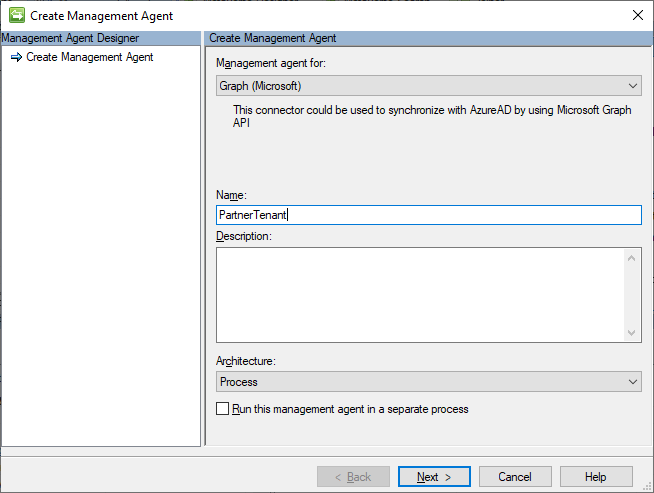
Start with creating a new Graph (Microsoft) connector.
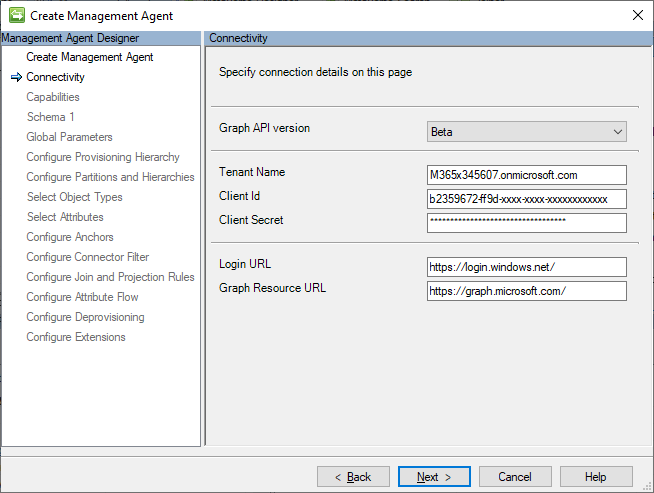
Provide registered app credentials to connect to the partner tenant. The app registration needs at least User.Read.All and Directory.Read.All, with Admin consent. This is an example from one of my temporary demo tenants.
On the Schema 1 page, keep the Add objects filter unchecked. Unfortunately, we cannot use the filtering capability to return only the internal users where creationType is null. The Graph API provides more advanced filtering capabilities, but it requires a Header value to be set, which the Graph Connector does not currently expose as a configurable setting.
On the Select Object Types page check user.
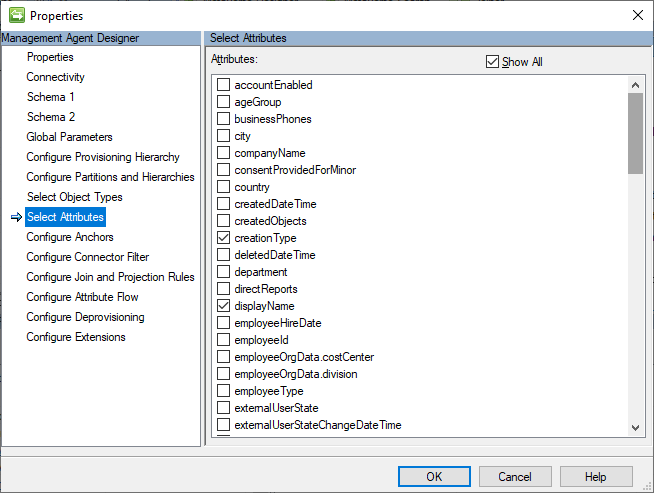
On the Select Attributes page, let’s select a minimum number of attributes to enable decent GAL functionality as part of the B2B sync. Additional attributes can be added if the GAL needs to be more fully populated. Select creationType, displayName, givenName, id, mail, showInAddressList, and surname.
The anchor attribute on the Configure Anchors page will automatically be set to id.
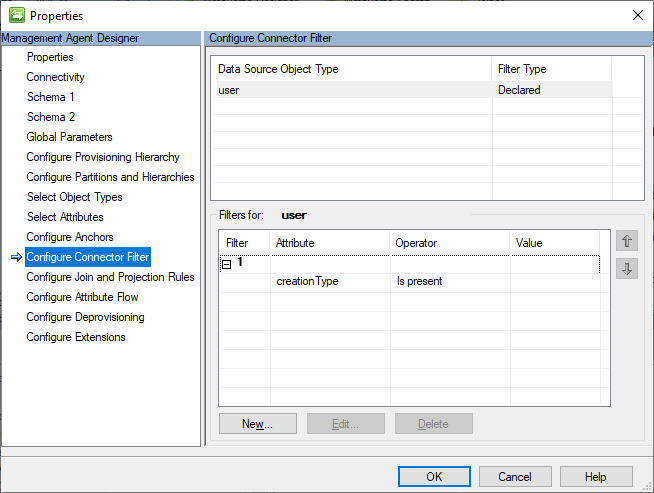
On the Configure Connector Filter page, I will keep this example simple by using a declared filter of creationType Is present. This will filter out any external users that may happen to already exist in the partner tenant. But this filtering will come at the expense of increased Delta Sync times due to having to process each filtered disconnector every sync cycle.
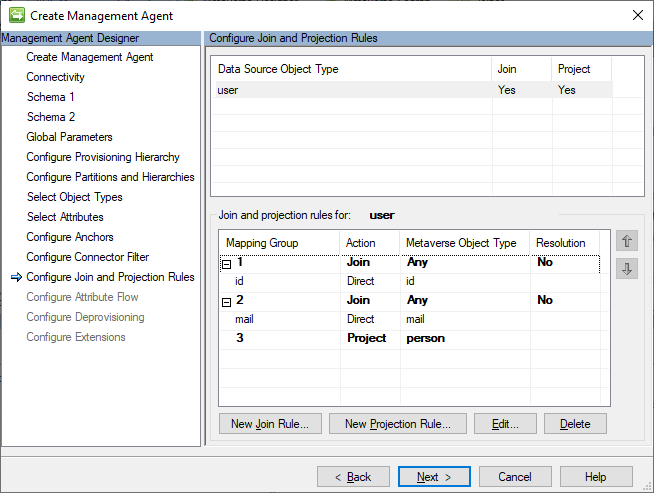
For Configure Join and Projection Rules, we’ll join on id first, mail second, otherwise project as a person.
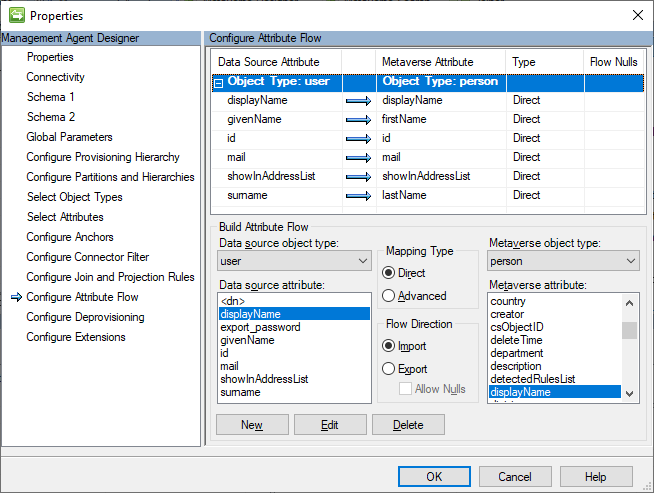
This is the inbound partner tenant user flow, so provide a direct inbound flow for each attribute. Several of the selected attributes are not default metaverse attributes, so the metaverse schema will need to be extended to account for these attributes.
Leave the Configure Deprovisioning page at the default of ‘Make them disconnectors’ and Configure Extensions page will also be left at its default of empty.
Create the Full Import and Full Sync run profiles. Execute them to confirm that the partner tenant users are projected into the metaverse. Also create the Delta Import and Delta Sync run profiles. We won’t use them now, but will need them later. I’ve gotten spoiled from AADC creating run profiles by default.
Now that the inbound side from the partner tenant is complete, let’s create the outbound side for the home tenant. The setup will be similar to the inbound side, but with some minor changes.
The App Registration in the home tenant will require the Directory.Read.All and User.ReadWrite.All permissions. There is a User.Invite.All permission, but since we need to sync GAL attributes after the invite, that permission does not provide enough access for this scenario.
For the Schema 1 page, we’ll need to leave the Add objects filter checkbox uncheck again. Even though we could technically set a graph filter of creationType eq ‘Invitation’, using a filter breaks Delta Imports for the Graph Connector (with a no-start-ma error). We will have to continue to use MIM filtering the keep the scope correct since Delta Imports are very important for most of my customers.
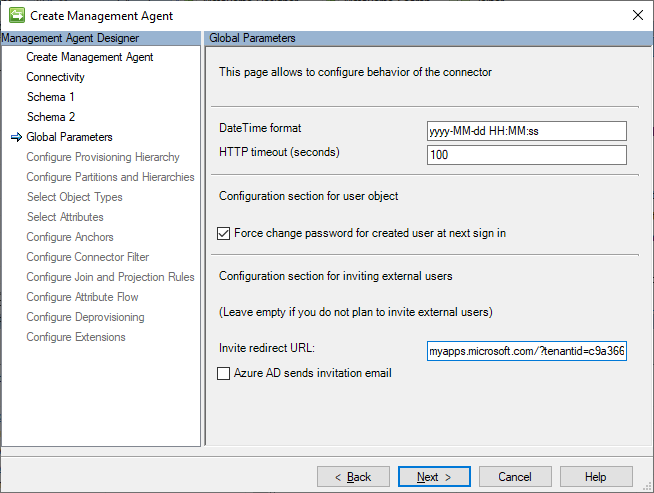
On the Global Parameters page set the Invite redirect URL to https://myapps.microsoft.com/?tenantid=GUIDValue. Leave the send mail checkbox unchecked unless you want to start automatically spamming all your invitees.
On the Select Attributes page, include userPrincipalName and userType in addition to the list of attributes from the inbound side. We’re selecting UPN just so we can see the full results of the invitation process, not because we’ll be doing any syncing of that attribute.
For the Configure Connector Filter page, we reverse it from the inbound partner tenant setting and use a filter of creationType Is not present.
On the Configure Join and Projection Rules page, only add the Join Rule for mail. There should be no Projection Rule as we want all the external users to project into the metaverse from the inbound partner tenant.
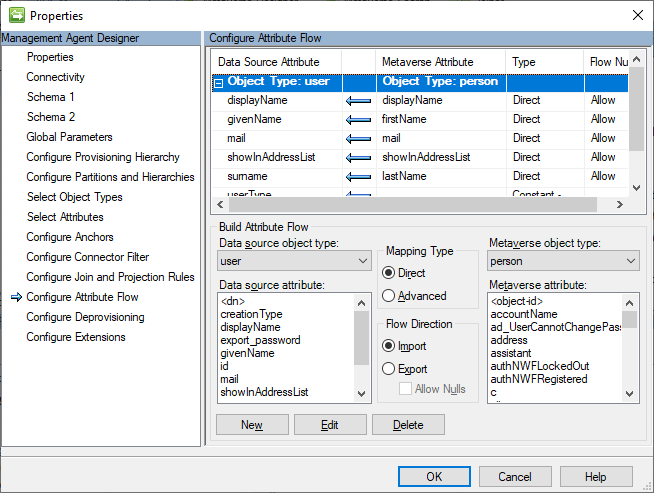
For the Configure Attribute Flow page, add a direct export (allowing nulls) for displayName, givenName, mail, showInAddressList and surname. Add a constant export of Guest for userType. While an external user is typically Guest by default, the Graph Connector defaults to Member, so we need to override that. Also add a constant export of Invitation for creationType. For the creationType, we’re flowing that just to satisfy the MA filter, not that it affects the invitation process.
On the Configure Deprovisioning page, change the selection to Stage a delete on the object for the next export run.
Create and run the Full Import and Full Sync run profiles. If there are any matching mail values for existing external users those should join. Otherwise, the existing external users will show up as disconnectors. Also create the Delta Import, Delta Sync and Export run profiles. We won’t use them now, but will need them later.
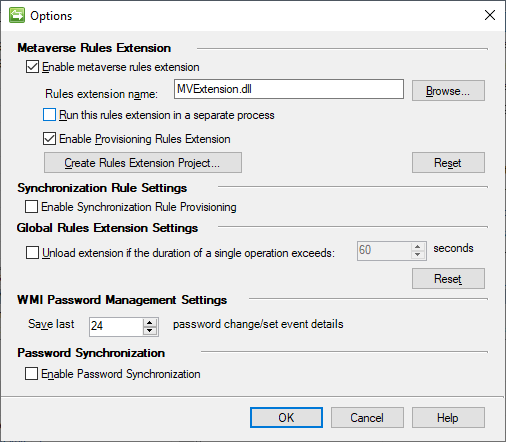
Finally, we need a small amount of provisioning code to provision the external users from the metaverse into the home tenant MA. From the Tools > Options… menu check the Enable metaverse rules extension checkbox. Then click the Create Rules Extension Project… button. I’ll provide sample code for Visual C#, so choose that selection and the version of Visual Studio to use to compile the project.
This is a sample implementation for the IMVSynchronization.Provision method.
void IMVSynchronization.Provision (MVEntry mventry)
{
string container = “OBJECT=user”;
string rdn = “CN=” + Guid.NewGuid().ToString();
ConnectedMA HomeTenantMA = mventry.ConnectedMAs[“HomeTenant”];
ReferenceValue dn = HomeTenantMA.EscapeDNComponent(rdn).Concat(container);
int numConnectors = HomeTenantMA.Connectors.Count;
// If there is no connector present, create a new connector.
if (numConnectors == 0)
{
CSEntry csentry = HomeTenantMA.Connectors.StartNewConnector(“user”);
csentry.DN = dn;
csentry[“id”].StringValue = Guid.NewGuid().ToString();
csentry.CommitNewConnector();
}
else if (numConnectors == 1)
{
//Do nothing, no rename is needed
}
else
{
throw (new UnexpectedDataException(“multiple connectors:” + numConnectors.ToString()));
}
}
A few things to note in this code. We need the name of the home tenant MA as the connected MA we are managing. We also set a random GUID-based DN and id in order to successfully export the invitation, but those values will be replaced by the real Azure AD values during the first confirming import.
Build the solution in Visual Studio and make sure the extension DLL gets copied to the Microsoft Forefront Identity Manager2010Synchronization ServiceExtensions folder. Back in the Options dialog, ensure the DLL that was just created is selected for the Rules extension name, and check the Enable Provisioning Rules Extension checkbox.
To begin with a small test, pick a sample user from the partner tenant MA and commit a Full Sync Preview against them. That should generate a pending export in the home tenant MA.
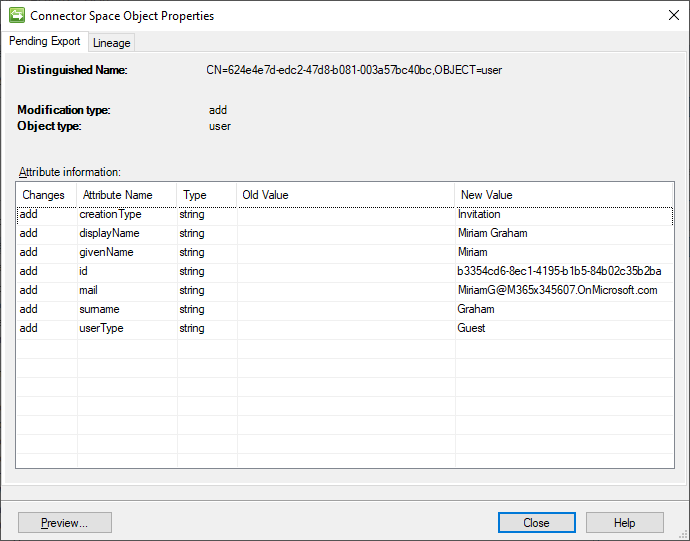
The small piece of magic with the Graph Connector is that if a user has a pending add with mail but no UPN, they will go through the invitation process to make them an external user, rather than being created as an internal user. We can see the pending export with the temporary DN and id, the GALSync attributes we wired up, and our constant userType of Guest. This test user has an OnMicrosoft.com mail address in the partner tenant as I have not added a custom domain to that tenant. The actual mail value is ultimately immaterial so long as it doesn’t already belong to the destination tenant.
Run the Export, followed by a confirming Delta Import.
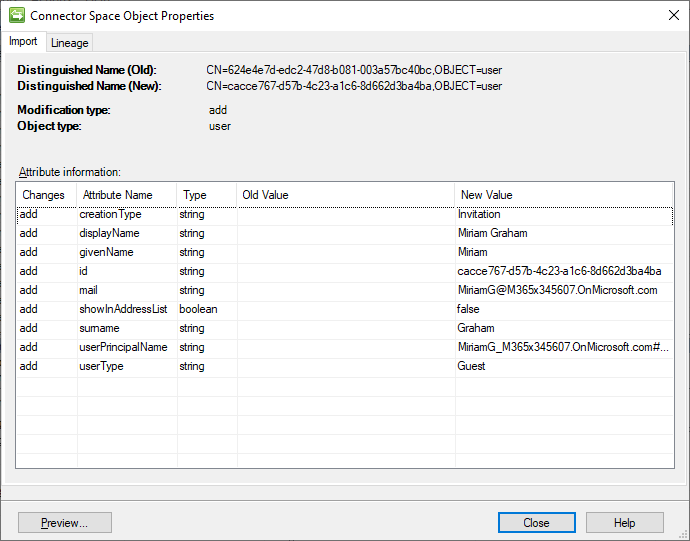
We see that the user got successfully invited, got its real DN and id and has all the attributes we set. Notice the UPN got automatically set by AAD in the expected format of mail#EXT#@tenant. It also was given a default setting of showInAddressList = false. By default, invited external users are hidden from the GAL.
Complete a second delta sync cycle (Delta Import, Delta Sync, Export) and showInAddressList should get set to its synced value. For this example user, that would be a null value.
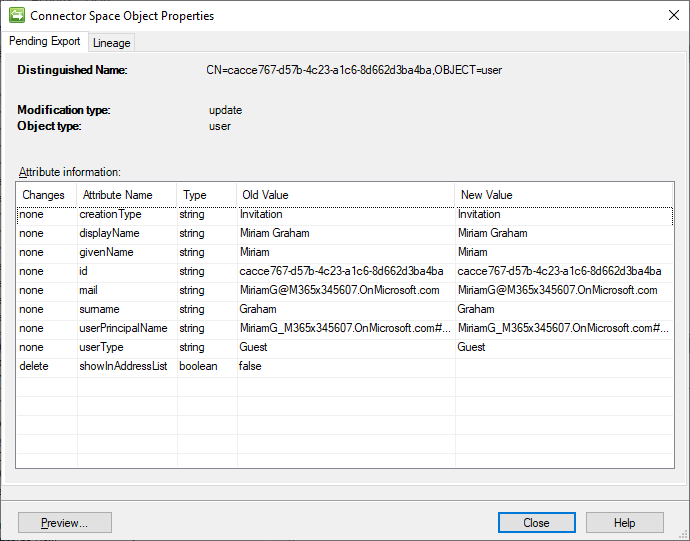
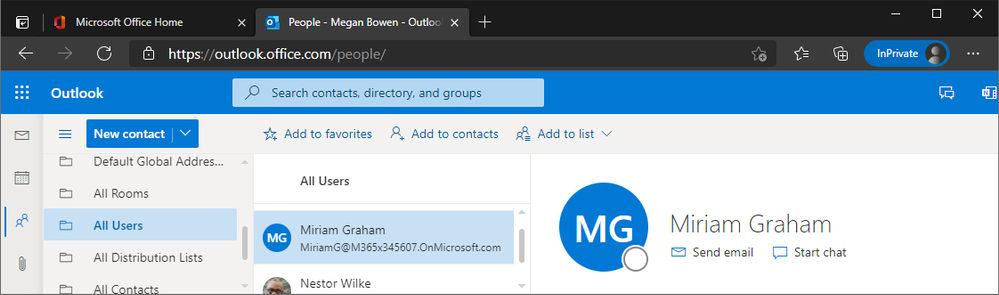
After exporting the updated showInAddressList value, we can confirm that our GALSync is functional. Log in to Outlook on the web in the home tenant, open the People app and select the All Users GAL. We should see our newly synced user present in the GAL.
Finally, to complete the deprovisioning aspect of the GALSync, configure the Object Deletion Rule for the person object class to delete the metaverse object when the partner tenant connector is disconnected. This way, a deletion of the user from the partner tenant will cascade a delete of the external B2B user to our home tenant.
That’s the end of the setup for GALSync from a single source to a single destination tenant.
As I alluded to at the beginning, more complex setups are possible. Consider a bi-directional GALSync where the partner tenant also needs the users from our home tenant. One way to keep the architecture simple is to maintain one MIM instance per tenant; we simply duplicate this setup in the opposite direction. This is identical to the AADC architecture where one AADC is needed for each tenant. It allows the provisioning code to know the tenant for which it is responsible, cleanly separates inbound from outbound flows and causes no precedence problems. It also allows the partner to control the app registration which possesses write access into their tenant.
Or consider a full-mesh setup where the tenants are all peers in one org that decided to segment their tenants for some reason. We could design a single MIM solution that manages every tenant. We could do two connectors to each tenant to allow us to separate internal user from external and continue to manage the flows separately. We’d only have to prevent same-tenant provisioning in the provisioning code. I could also see a solution that uses only one connector to each tenant. We could come up with a mechanism to track authority of address spaces, so we know which source tenant is responsible for each user and use that knowledge to then create the external B2B users in the other tenants.
For larger deployments where we might have concern about the number of disconnectors and corresponding delta sync times, there are a few advanced techniques we could implement to alleviate that concern. We could project and terminate objects in the metaverse instead of keeping them as disconnectors. Or we could replace the Graph Connector with a PowerShell Connector and take care of all the Graph logic ourselves, avoiding the scenarios where the Graph Connector has limitations.
Hopefully, this has shed some light on considerations for a modern GALSync solution.
Thanks for spending a little bit of your time with me.
-Dave
Disclaimer: The sample scripts are not supported under any Microsoft standard support program or service. The sample scripts are provided AS IS without warranty of any kind. Microsoft further disclaims all implied warranties including, without limitation, any implied warranties of merchantability or of fitness for a particular purpose. The entire risk arising out of the use or performance of the sample scripts and documentation remains with you. In no event shall Microsoft, its authors, or anyone else involved in the creation, production, or delivery of the scripts be liable for any damages whatsoever (including, without limitation, damages for loss of business profits, business interruption, loss of business information, or other pecuniary loss) arising out of the use of or inability to use the sample scripts or documentation, even if Microsoft has been advised of the possibility of such damages.
![[Event Recap] D635 Mixed Reality @ the Microsoft Business Applications Summit (MBAS)](https://www.drware.com/wp-content/uploads/2021/05/fb_image-1397.png)



Recent Comments