Drupal Releases Security Updates

This article is contributed. See the original author and article here.

Original release date: November 27, 2020

Drupal has released security updates to address vulnerabilities in Drupal 7, 8.8 and earlier, 8.9, and 9.0. An attacker could exploit this vulnerability to take control of an affected system.

The Cybersecurity and Infrastructure Security Agency (CISA) encourages users and administrators to review Drupal Advisory SA-CORE-2020-013 and apply the necessary updates.

This product is provided subject to this Notification and this Privacy & Use policy.

Warning: Dangerous OneDrive Phishing Scam

Warning: Dangerous OneDrive Phishing Scam

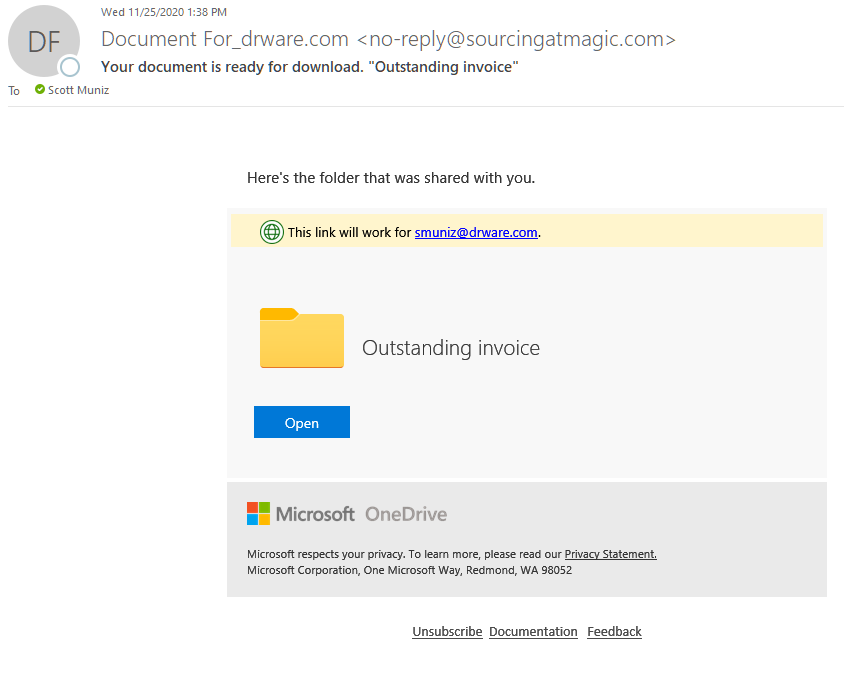
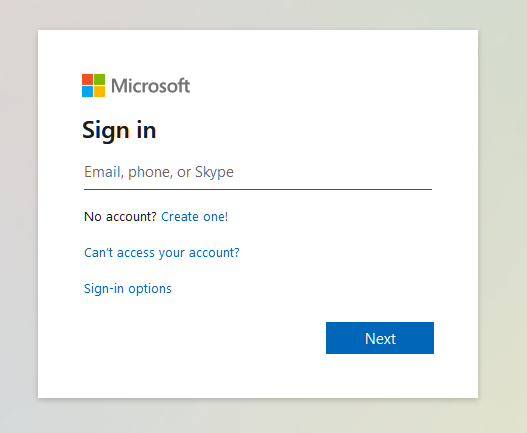
The OneDrive phishing scam is particularly dangerous because of how insidious it is. A seemingly innocuous email shows up in your Inbox with a subject something like this, “Document for [your name].”  In the body of the email you see what looks like a familiar OneDrive notice about an available document that has been shared with you by someone you know. Upon clicking on the link or the folder you are forwarded to a familiar Microsoft 365 sign in box.

Microsoft 365 Authentication

You enter your email, which is accepted, and then you enter your password, which fails on the first attempt but succeeds on the second. You may end up at office.com or OneDrive but you don’t have access or you don’t see the shared document. At this point you may become suspicious but it’s too late. They now have your Microsoft 365 email and password. They can get into your email, send spam in your name, see/edit/delete your OneDrive files. If you have administrative privileges they can wreak even more havoc. How can you avoid this scam?

How to Vet Your Email Messages

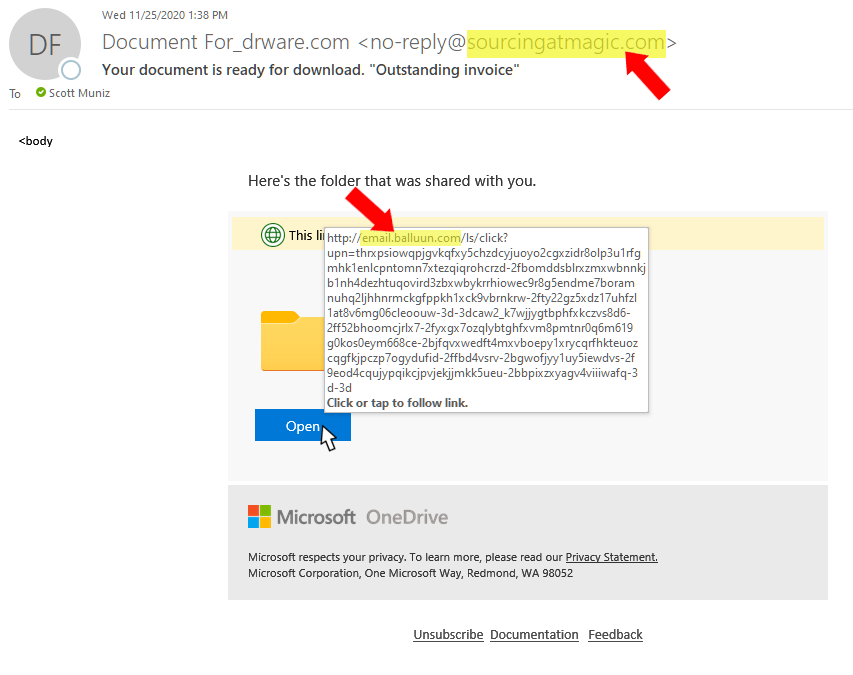
Every email that appears in your Inbox should be vetted no matter if it’s from a friend or foe (see image below).

  1. Are you expecting this email?
  2. Check the “sender,” not just the name, but also the email address.
  3. Hover over (don’t click) all links. A bubble will appear with the link destination.

OneDrive Phishing Scam - what to do

Now you’re equipped with all the information you need. If this is not an expected email then do not click on anything and contact the sender to see if they actually sent you this message. If it is expected or typical for the sender still do steps 2 and 3 above. If either do not match then do not click on anything. You may still want to alert the sender so they can check to see if their email has been hacked.

Additional Steps

Multifactor authentication would completely prevent this type of attack. When your Microsoft 365 administrator activates multifactor authentication then each time you log into Microsoft 365 you are asked for a verification code via text or call. You might even use the Microsoft Authenticator app. This extra step thwarts scammers. Even if someone were to fall for this scam, and the scammer had their Microsoft 365 email and password, when the scammer tries using their credentials a text, call, or email would go to the real user for verification and that would stop the scammer in their tracks. It would also alert the user that their account has been compromised allowing them to take steps to change their password. I strongly recommend multifactor authentication.

The other usual steps are:

  1. Always keep your Windows OS up-to-date by activating automatic Windows updates.
  2. Keep your antivirus up-to-date and run frequent virus checks.
  3. Never ever give anyone your Microsoft 365 password and change it regularly.
  4. Listen to your gut. If it looks fishy (phishy) then delete it and call or text the sender

Online scams are on a meteoric rise. Diligence will keep you safe. Please be careful!

This holiday season, help friends and family avoid a scam

This article was originally posted by the FTC. See the original article here.

When you talk with friends and family over the holidays, you may hear about new puppies, old sports rivalries, and dreams of the next vacation. As you join the conversation, why not share some ideas from the FTC’s Pass it On campaign to protect the people you care about from scams?

Brought to you by Dr. Ware, Microsoft Office 365 Silver Partner, Charleston SC.

How to Recognize and Avoid Phishing Scams

How to Recognize and Avoid Phishing Scams

Scammers use email or text messages to trick you into giving them your personal information. But there are several things you can do to protect yourself.

How to Recognize Phishing

Scammers use email or text messages to trick you into giving them your personal information. They may try to steal your passwords, account numbers, or Social Security numbers. If they get that information, they could gain access to your email, bank, or other accounts. Scammers launch thousands of phishing attacks like these every day — and they’re often successful. The FBI’s Internet Crime Complaint Center reported that people lost $57 million to phishing schemes in one year.

Scammers often update their tactics, but there are some signs that will help you recognize a phishing email or text message.

Phishing emails and text messages may look like they’re from a company you know or trust. They may look like they’re from a bank, a credit card company, a social networking site, an online payment website or app, or an online store.

Phishing emails and text messages often tell a story to trick you into clicking on a link or opening an attachment. They may

  • say they’ve noticed some suspicious activity or log-in attempts
  • claim there’s a problem with your account or your payment information
  • say you must confirm some personal information
  • include a fake invoice
  • want you to click on a link to make a payment
  • say you’re eligible to register for a government refund
  • offer a coupon for free stuff

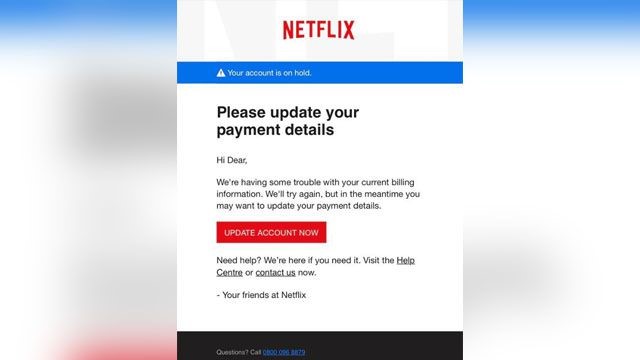
Here’s a real world example of a phishing email.
Netflix phishing scam screenshot

Imagine you saw this in your inbox. Do you see any signs that it’s a scam? Let’s take a look.

  • The email looks like it’s from a company you may know and trust: Netflix. It even uses a Netflix logo and header.
  • The email says your account is on hold because of a billing problem.
  • The email has a generic greeting, “Hi Dear.” If you have an account with the business, it probably wouldn’t use a generic greeting like this.
  • The email invites you to click on a link to update your payment details.

While, at a glance, this email might look real, it’s not. The scammers who send emails like this one do not have anything to do with the companies they pretend to be. Phishing emails can have real consequences for people who give scammers their information. And they can harm the reputation of the companies they’re spoofing.

How to Protect Yourself From Phishing Attacks

Your email spam filters may keep many phishing emails out of your inbox. But scammers are always trying to outsmart spam filters, so it’s a good idea to add extra layers of protection. Here are four steps you can take today to protect yourself from phishing attacks.

Four Steps to Protect Yourself From Phishing

1. Protect your computer by using security software. Set the software to update automatically so it can deal with any new security threats.

2. Protect your mobile phone by setting software to update automatically. These updates could give you critical protection against security threats.

3. Protect your accounts by using multi-factor authentication. Some accounts offer extra security by requiring two or more credentials to log in to your account. This is called multi-factor authentication. The additional credentials you need to log in to your account fall into two categories:

  • Something you have — like a passcode you get via text message or an authentication app.
  • Something you are — like a scan of your fingerprint, your retina, or your face.

Multi-factor authentication makes it harder for scammers to log in to your accounts if they do get your username and password.

4. Protect your data by backing it up. Back up your data and make sure those backups aren’t connected to your home network. You can copy your computer files to an external hard drive or cloud storage. Back up the data on your phone, too.

What to Do If You Suspect a Phishing Attack

If you get an email or a text message that asks you to click on a link or open an attachment, answer this question: Do I have an account with the company or know the person that contacted me?

If the answer is “No,” it could be a phishing scam. Go back and review the tips in How to recognize phishing and look for signs of a phishing scam. If you see them, report the message and then delete it.

If the answer is “Yes,” contact the company using a phone number or website you know is real. Not the information in the email. Attachments and links can install harmful malware.

What to Do If You Responded to a Phishing Email

If you think a scammer has your information, like your Social Security, credit card, or bank account number, go to IdentityTheft.gov. There you’ll see the specific steps to take based on the information that you lost.

If you think you clicked on a link or opened an attachment that downloaded harmful software, update your computer’s security software. Then run a scan.

How to Report Phishing

If you got a phishing email or text message, report it. The information you give can help fight the scammers.

Step 1. If you got a phishing email, forward it to the Anti-Phishing Working Group at reportphishing@apwg.org. If you got a phishing text message, forward it to SPAM (7726).

Step 2. Report the phishing attack to the FTC at ftc.gov/complaint.

Bonus

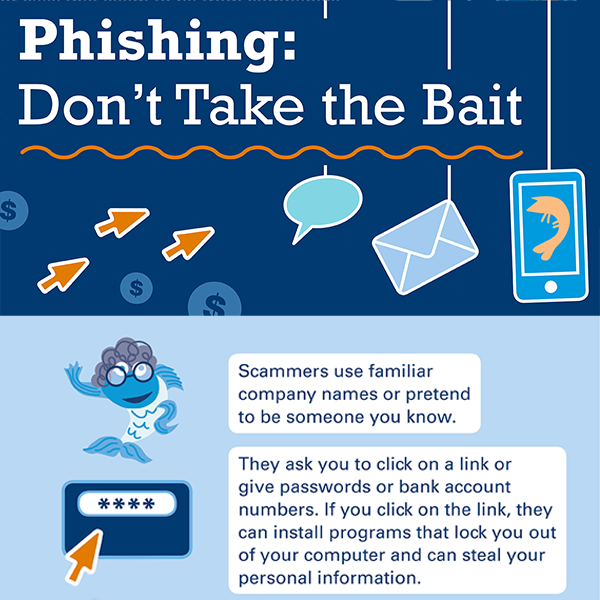
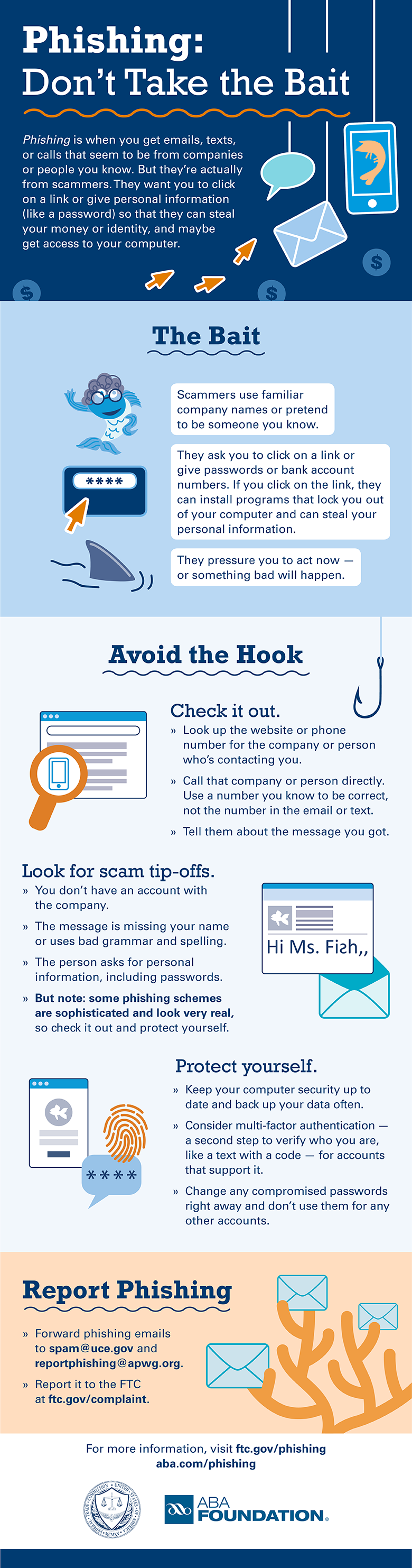
The FTC’s new infographic (below) offers tips to help you recognize the bait, avoid the hook, and report phishing scams. Please share this information with your school or family, friends, and co-workers.

Download the PDF
Phishing Don't Take the Bait

Online Holiday Shopping Scams

This article is contributed. See the original author and article here.

Original release date: November 24, 2020

With more commerce occurring online this year, and with the holiday season upon us, the Cybersecurity and Infrastructure Security Agency (CISA) reminds shoppers to remain vigilant. Be especially cautious of fraudulent sites spoofing reputable businesses, unsolicited emails purporting to be from charities, and unencrypted financial transactions.

CISA encourages online holiday shoppers to review the following resources.

If you believe you are a victim of a scam, consider the following actions.

This product is provided subject to this Notification and this Privacy & Use policy.

VMware Releases Workarounds for CVE-2020-4006

This article is contributed. See the original author and article here.

Original release date: November 23, 2020

VMware has released workarounds to address a vulnerability—CVE-2020-4006—in VMware Workspace One Access, Access Connector, Identity Manager, and Identity Manager Connector. An attacker could exploit this vulnerability to take control of an affected system.

The Cybersecurity and Infrastructure Security Agency encourages users and administrators to review VMware Security Advisory VMSA-2020-0027 and apply the necessary workarounds.

This product is provided subject to this Notification and this Privacy & Use policy.