AKS on Azure Stack HCI December Update

AKS on Azure Stack HCI December Update

This article is contributed. See the original author and article here.

Hi All,


The AKS on Azure Stack HCI team has been hard at work responding to feedback from you all, and adding new features and functionality.  Today we are releasing the AKS on Azure Stack HCI December Update.


You can evaluate the AKS on Azure Stack HCI December Update by registering for the Public Preview here: https://aka.ms/AKS-HCI-Evaluate (If you have already downloaded AKS on Azure Stack HCI – this evaluation link has now been updated with the December Update)


Some of the new changes in the AKS on Azure Stack HCI December Update include:


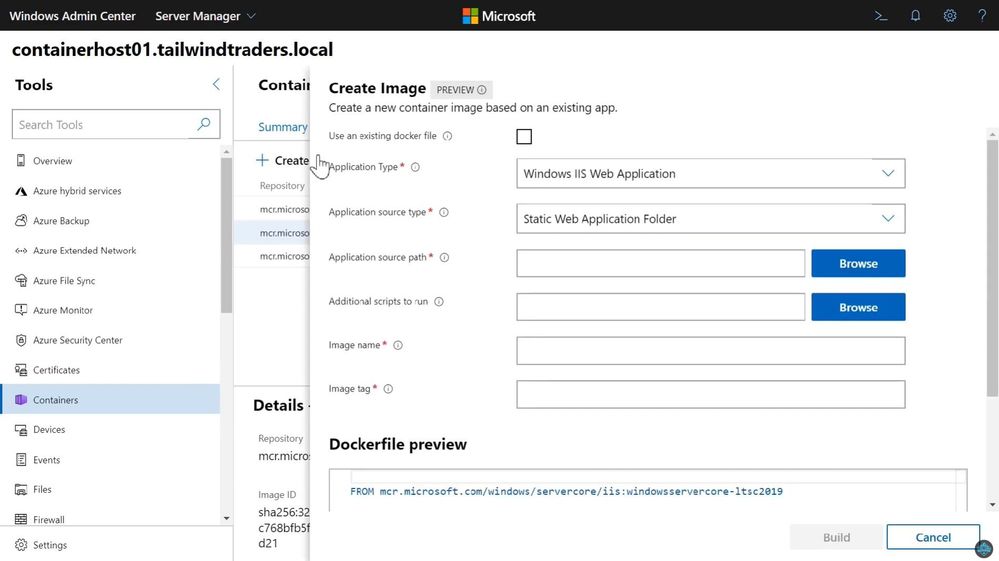
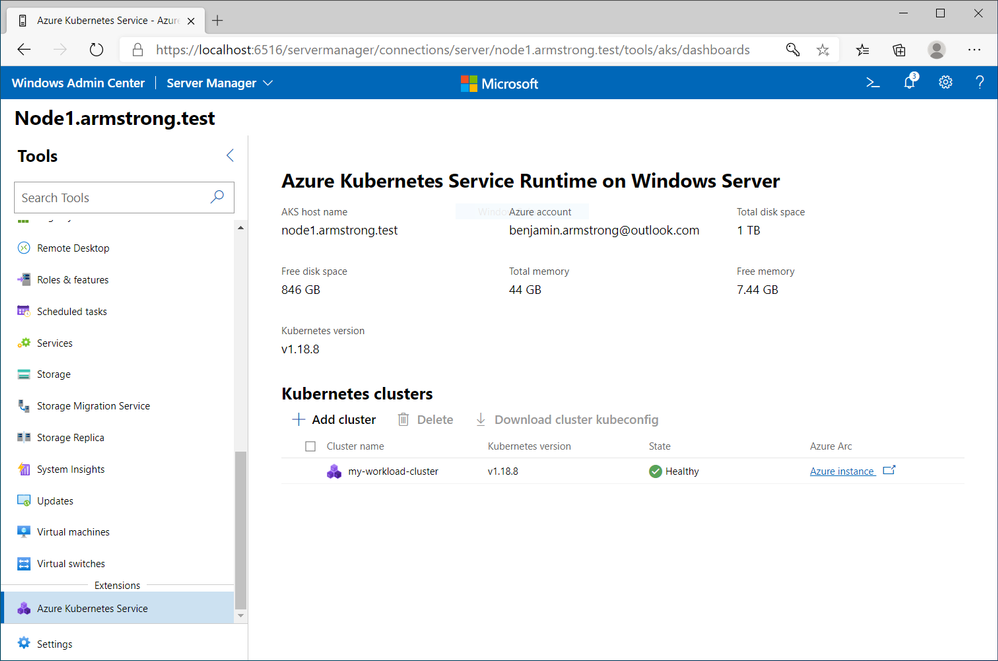
Workload Cluster Management Dashboard in Windows Admin Center


With the December update, AKS on Azure Stack HCI now provides you with a dashboard where you can:


  • View any workload clusters you have deployed

  • Connect to their Arc management pages

  • Download the kubeconfig file for the cluster

  • Create new workload clusters

  • Delete existing workload clusters


Untitled.png


We will be expanding the capabilities of this dashboard overtime.


Naming Scheme Update for AKS on Azure Stack HCI worker nodes


As people have been integrating AKS on Azure Stack HCI into their environments, there were some challenges encountered with our naming scheme for worker nodes.  Specifically as people needed to join them to a domain to enable GMSA for Windows Containers.  With the December update AKS on Azure Stack HCI worker node naming is now more domain friendly.


Windows Server 2019 Host Support


When we launched the first public preview of AKS on Azure Stack HCI – we only supported deployment on top of new Azure Stack HCI systems.  However, some users have been asking for the ability to deploy AKS on Azure Stack HCI on Windows Server 2019.  With this release we are now adding support for running AKS on Azure Stack HCI on any Windows Server 2019 cluster that has Hyper-V enabled, with a cluster shared volume configured for storage.


There have been several other changes and fixes that you can read about in the December Update release notes (Release December 2020 Update · Azure/aks-hci (github.com))


Once you have downloaded and installed the AKS on Azure Stack HCI December Update – you can report any issues you encounter, and track future feature work on our GitHub Project at https://github.com/Azure/aks-hci


I look forward to hearing from you all!


Cheers,


Ben

Auto start/stop Flexible Server using Azure Automation Python RunBook

Auto start/stop Flexible Server using Azure Automation Python RunBook

This article is contributed. See the original author and article here.

Flexible Server is a new deployment option for Azure Database for PostgreSQL that gives you the control you need with multiple configuration parameters for fine-grained database tuning along with a simpler developer experience to accelerate end-to-end deployment. With Flexible Server, you will also have a new way to optimize cost with stop/start capabilities. The ability to stop/start the Flexible Server when needed is ideal for development or test scenarios where it’s not necessary to run your database 24×7. When Flexible Server is stopped, you only pay for storage, and you can easily start it back up with just a click in the Azure portal.


Azure Automation delivers a cloud-based automation and configuration service that supports consistent management across your Azure and non-Azure environments. It comprises process automation, configuration management, update management, shared capabilities, and heterogeneous features. Automation gives you complete control during deployment, operations, and decommissioning of workloads and resources. The Azure Automation Process Automation feature supports several types of runbooks such as Graphical, PowerShell, Python. Other options for automation include PowerShell runbook, Azure Functions timer trigger, Azure Logic Apps. Here is a guide to choose the right integration and automation services in Azure.


Runbooks support storing, editing, and testing the scripts in the portal directly. Python is a general-purpose, versatile, and popular programming language. In this blog, we will see how we can leverage Azure Automation Python runbook to auto start/stop a Flexible Server on weekend days (Saturdays and Sundays).


Prerequisites


Steps


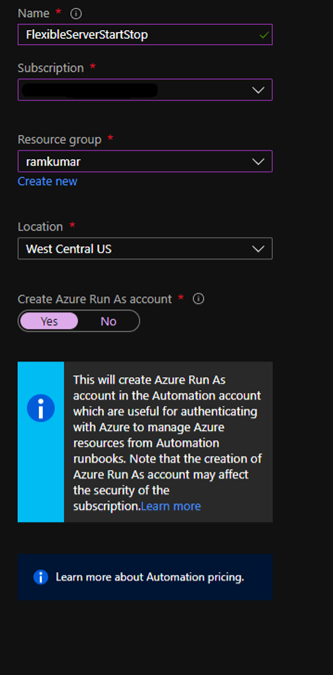
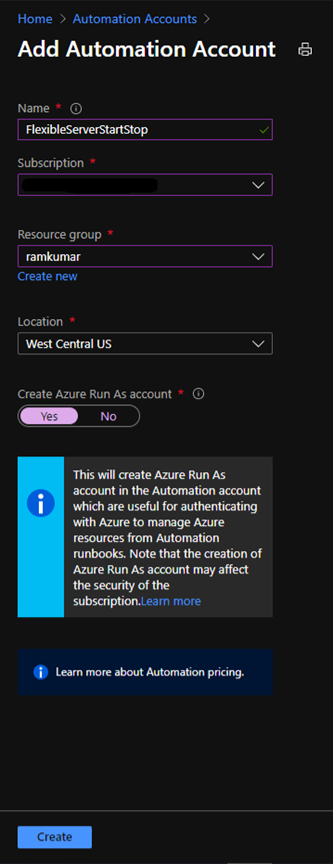
1. Create a new Azure Automation account with Azure Run As account at:


https://ms.portal.azure.com/#create/Microsoft.AutomationAccount


NOTE: An Azure Run As Account by default has the Contributor role to your entire subscription. You can limit Run As account permissions if required. Also, all users with access to the Automation Account can also use this Azure Run As Account.


b1.png


2. After you successfully create the Azure Automation account, navigate to Runbooks.


Here you can already see some sample runbooks.


b2.png


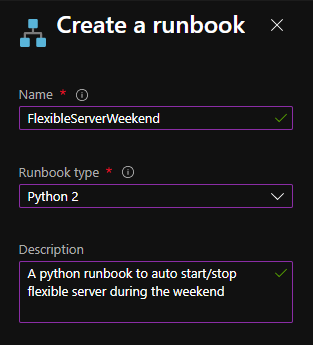
3. Let’s create a new python runbook by selecting+ Create a runbook.


4. Provide the runbook details, and then select Create.


b3.png


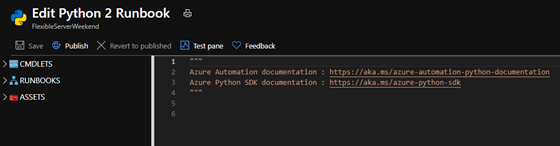
After the python runbook is created successfully, an Edit screen appears, similar to the image below.


b4.png


5. Copy paste the below python script. Fill in appropriate values for your Flexible Server’s subscription_id, resource_group, and server_name, and then select Save.


import azure.mgmt.resource
import requests
import automationassets
from msrestazure.azure_cloud import AZURE_PUBLIC_CLOUD
from datetime import datetime

def get_token(runas_connection, resource_url, authority_url):
    """ Returns credentials to authenticate against Azure resoruce manager """
    from OpenSSL import crypto
    from msrestazure import azure_active_directory
    import adal

    # Get the Azure Automation RunAs service principal certificate
    cert = automationassets.get_automation_certificate("AzureRunAsCertificate")
    pks12_cert = crypto.load_pkcs12(cert)
    pem_pkey = crypto.dump_privatekey(crypto.FILETYPE_PEM, pks12_cert.get_privatekey())

    # Get run as connection information for the Azure Automation service principal
    application_id = runas_connection["ApplicationId"]
    thumbprint = runas_connection["CertificateThumbprint"]
    tenant_id = runas_connection["TenantId"]

    # Authenticate with service principal certificate
    authority_full_url = (authority_url + '/' + tenant_id)
    context = adal.AuthenticationContext(authority_full_url)
    return context.acquire_token_with_client_certificate(
            resource_url,
            application_id,
            pem_pkey,
            thumbprint)['accessToken']

action = ''
day_of_week = datetime.today().strftime('%A')
if day_of_week == 'Saturday':
    action = 'stop'
elif day_of_week == 'Monday':
    action = 'start'

subscription_id = '<SUBSCRIPTION_ID>'
resource_group = '<RESOURCE_GROUP>'
server_name = '<SERVER_NAME>'

if action: 
    print 'Today is ' + day_of_week + '. Executing ' + action + ' server'
    runas_connection = automationassets.get_automation_connection("AzureRunAsConnection")
    resource_url = AZURE_PUBLIC_CLOUD.endpoints.active_directory_resource_id
    authority_url = AZURE_PUBLIC_CLOUD.endpoints.active_directory
    resourceManager_url = AZURE_PUBLIC_CLOUD.endpoints.resource_manager
    auth_token=get_token(runas_connection, resource_url, authority_url)
    url = 'https://management.azure.com/subscriptions/' + subscription_id + '/resourceGroups/' + resource_group + '/providers/Microsoft.DBforPostgreSQL/flexibleServers/' + server_name + '/' + action + '?api-version=2020-02-14-preview'
    response = requests.post(url, json={}, headers={'Authorization': 'Bearer ' + auth_token})
    print(response.json())
else: 
    print 'Today is ' + day_of_week + '. No action taken'


After you save this, you can test the python script using “Test Pane”. When the script works fine, then select Publish.


Next, we need to schedule this runbook to run every day using Schedules.


6. On the runbook Overview blade, select Link to schedule.


b5.png


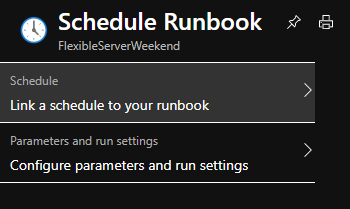
7. Select Link a schedule to your runbook.


b6.png


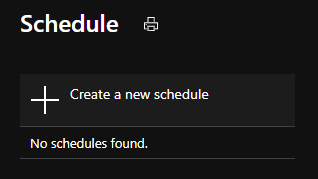
8. Select Create a new schedule.


b7.png


9. Create a schedule to run every day at 12:00 AM using the following parameters


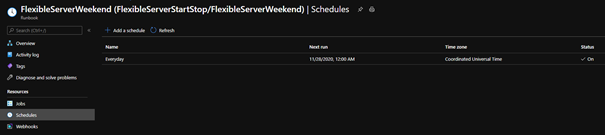
10. Select Create and verify that the schedule has been successfully created and verify that the Status is “On“.


b9.png


After following these steps, Azure Automation will run the Python runbook every day at 12:00 AM. The python script will stop the Flexible Server if it’s a Saturday and start the server if it’s a Monday. This is all based on the UTC time zone, but you can easily modify it to fit the time zone of your choice. You can also use the holidays Python package to auto start/stop Flexible Server during the holidays.


If you want to dive deeper, the new Flexible Server documentation is a great place to find out more. You can also visit our website to learn more about our Azure Database for PostgreSQL managed service. We’re always eager to hear your feedback, so please reach out via email using the Ask Azure DB for PostgreSQL alias.


Top Reasons Your On-premises SQL Server Instance Can Benefit from Azure | Data Exposed

This article is contributed. See the original author and article here.

Learn how to leverage SQL Server on Azure virtual machine to improve your elasticity and business continuity for your on-premises SQL Server instances. Discover how the new benefits allow you to reduce your overall TCO while improving your uptime ONLY on Azure on this episode of Data Exposed with Amit Banerjee.

Azure AD Application Proxy now natively supports apps that use header-based authentication

Azure AD Application Proxy now natively supports apps that use header-based authentication

This article is contributed. See the original author and article here.

Howdy folks, 


It’s awesome to hear from many of you that Azure AD Application Proxy helps you in providing secure remote access to critical on-premises applications and reducing load from existing VPN solutions. We’ve also heard about the need for Application Proxy to support more of your applications, including those that use headers for authentication, such as Peoplesoft, NetWeaver Portal, and WebCenter.


Today we’re announcing the public preview of Application Proxy support for applications that use header-based authentication. Using this preview, you can benefit from:  


  • Wide list of attributes and transformations for header based auth: All header values available are based on standard claims that are issued by Azure AD. This means that all attributes and transformations available for configuring claims for SAML or OIDC applications are also available to be used as header values. 

  • Secure and seamless access: These apps benefit from all the capabilities of Application Proxy, including single sign-on as well as enforcing pre-authentication and Conditional Access policies like requiring Multi-Factor Authentication (MFA) or using a compliant device before users can access these apps.

  • No changes to your apps are needed: You can use your existing Application Proxy connectors and no added software needs to be installed.


Thanks to all the customers who have provided feedback in developing this capability. Here’s what one customer had to say about their experience using Application Proxy for their header-based authentication:


“App Proxy header-based auth support allowed us to migrate our header-based workloads to Azure AD, moving us one step closer to a unified view for application access and authentication. We have been able to retire our 3rd party header-based auth tools and simplify our SSO landscape. And it’s saved us a small fortune! Thank you.” – Barney Delaney, IAM Architect, Mondelez


Getting started


To connect a header-based authentication application to Application Proxy, you’ll need to make sure you have Application Proxy enabled in your tenant and have at least one connector installed. For steps on how to do install a connector, follow our tutorial here.


  1. First add a new application and configure Application Proxy for remote access by filling out the fields:

    1. Name: Display name for the application

    2. Internal URL: The URL used to access the application from inside your private network. This can be at the root path of the app or as granular as needed.

    3. External URL: The URL used to access the application remotely from the internet.

    4. Pre-authentication: Set to Azure Active Directory which ensures that all users must authenticate to access the app and Conditional Access policies are enforced.

    5. Connector Group: Select the connector group with line of site to the application.


01hba.png


  1. Enable header-based authentication as the single sign-on mode for the application. You can configure any attribute synced to Azure AD as a header. You can also use transformations to craft the exact header value the application needs.


002hba.jpg


004hba.png


  1. After configuration, the app can now be launched from the My Apps portal just like any other cloud application or directly via the external URL.


005hba.png


In just a few steps, you’ve enabled the app for remote access from any browser or device, enabled single sign-on for header-based authentication, and protected the app with any Conditional Access policies you’ve assigned to the app. To learn more, check out our technical documentation.


Making it easier to connect your header-based authentication applications to Azure AD is just another step we are taking to helping you secure and manage all the apps your organization uses. We are excited to keep releasing new functionality and updates to make this journey even easier based on your feedback and suggestions.


As always, we’d love to hear from you. Please let us know what you think in the comments below or on the Azure AD feedback forum.


Best regards,


Alex Simons (twitter: @alex_a_simons)


Corporate Vice President Program Management


Microsoft Identity Division

The most important testing you'll do: Azure Sphere Retail Evaluation

This article is contributed. See the original author and article here.

The most important testing you’ll do


On Azure Sphere, the Retail Evaluation Azure Sphere OS (Retail Eval) feed gives you the opportunity to test your devices for compatibility against a soon-to-be-released update of the Azure Sphere OS. During the Retail Eval phase you have 2-3 weeks to ensure that there are no compatibility issues before the new version of the Azure Sphere OS is promoted to the Retail Azure Sphere OS (Retail) feed. Retail Eval is your last chance to find issues before the new OS is deployed broadly.


Call to action


Our ask is to have some subset of your devices running the Retail Eval OS, and have representative applications or tests running on these devices. You’ll need to put those devices in a default or custom device group that receives the Retail Eval feed, as described in the online documentation.  


If you encounter any compatibility issues, contact your Microsoft Technical Account Manager (TAM) immediately so that we can assess and address the issue before we release the OS software to the Retail feed. Additionally, the devices can be moved back to Retail if need be.


The benefit to being on Retail Eval


Above and beyond simply doing additional device compatibility testing of your application, running on Retail Eval allows you to potentially find issues with the soon-to-be-released version of the Azure Sphere OS that could impact your device. While the Azure Sphere OS team does extensive testing to eliminate the chances of incompatibility, issues can happen. The Azure Sphere OS team does not want your device adversely impacted either. So, if there is an issue in the OS, we can investigate, and if necessary, delay promotion of Retail Eval to Retail. Our goal with Retail Eval is to ensure that any compatibility issues on your devices are found and fixed before the OS goes to Retail.


Why does Azure Sphere do automatic OS updates?


It’s useful to remember why Azure Sphere does automatic OS updates—and, as a corollary, why it’s important to verify that your devices continue to run correctly after the OS updates. Renewable security is one of the Seven Properties of Highly Secured Devices, which states that by continually improving the security of our operating system, your devices are provided with defense against even the most recently emerged classes of attacks. Automatic OS updates are how we deliver the improvements to ensure your devices have renewable security.


The Azure Sphere OS team spends considerable energy identifying potential threats and improving the protections in the OS. We make use of best-of-breed open source components and regularly update them. We invite security researchers and red teams to find vulnerabilities so that we can address them. We detail some of our fixes from these in our blogs, such as our recent security blog articles on 20.07, 20.08, and 20.09. These OS updates provide critical protection for the security of your devices, and we do our best to ensure that there is no adverse impact to device compatibility. But we give you the final say, with Retail Eval, to ensure that your devices still behave in a way consistent with your expectations before broad OS update deployment to Retail.


https://forms.office.com/Pages/ResponsePage.aspx?id=v4j5cvGGr0GRqy180BHbR0b7TbsyPK1Boum5wrGT8dNUMkFHQ1E3U1c2WjJOMDNRSlpZM1FWNURWTC4u&embed=true

Failures in Azure Monitor in West Europe – 12/01 – Resolved

This article is contributed. See the original author and article here.

Final Update: Tuesday, 01 December 2020 16:35 UTC

We’ve confirmed that all systems are back to normal with no customer impact as of 12/1, 16:30 UTC. Our logs show the incident started on 12/1, 13:35 UTC and that during the 2 Hours & 55 minutes that it took to resolve the issue customers using Application Insights and/or Azure Log Analytics in West Europe may have experienced latency/failures when accessing application data and misfired/failed alerts for these resources.

Root Cause: The failure was due to a backend service that became unhealthy due to high CPU usage causing impact to these services.
Incident Timeline: 2 Hours & 55 minutes – 12/1, 13:35 UTC through 12/1, 16:30 UTC

We understand that customers rely on Azure Monitor as a critical service and apologize for any impact this incident caused.

-Ian