
by Contributed | Nov 25, 2020 | Azure, Microsoft, Technology
This article is contributed. See the original author and article here.
| We continue to expand the Azure Marketplace ecosystem. For this volume, 81 new offers successfully met the onboarding criteria and went live. See details of the new offers below: |
Applications
|
 |
7 Days to Die – Game Server on Ubuntu 18.04 LTS: Tidal Media offers this pre-configured image of 7 Days to Die game server on Ubuntu 18.04 LTS. 7 Days to Die is an open-world, voxel-based game that combines first-person shooter, survival horror, tower defense, and role-playing games. |
 |
7 Days to Die – Game Server on Windows Server 2016: Tidal Media offers this pre-configured image of 7 Days to Die game server on Windows Server 2016. 7 Days to Die is an open-world, voxel-based game that combines first-person shooter, survival horror, tower defense, and role-playing games. |
 |
AgendaWeb TotalPack: AgendaWeb TotalPack is a cloud-based appointment scheduling solution that enables businesses to manage appointments for their branch locations online. Customers can enter contact information, select a branch, and choose from available dates and times. |
 |
AIR Blob Explorer: Archive, Index, Retrieve: AIR Blob Explorer is designed to simplify the management of assets on Azure Blob storage. With a customizable skills pipeline, you can enrich the metadata associated with your assets, surfacing documents, videos, and assets that were previously unsearchable. |
 |
Almentor.net B2B Offer: Almentor FZCO’s Almentor.net offers an online, video-based learning library in Arabic for professional service development. Different subscription and pricing models are available. |
 |
arabot chatbot for Enterprise: arabot is an AI-powered chatbot from arabot Company LTD that supports English and numerous Arabic dialects. Support conversational experiences between always-on chatbots and your customers via web, mobile, messaging, or voice. |
 |
Arma 3 – Combat Game Server on Windows Server 2016: Tidal Media offers this pre-configured image of Arma 3 game server on Windows Server 2016. Arma 3 is a massive military sandbox game featuring standalone and multiplayer content, 20 vehicles, 40 weapons, and numerous opportunities for content creation. |
 |
Aruba ClearPass Policy Manager (CPPM): ClearPass Policy Manager (CPPM) from Aruba Networks provides secure network access control for corporate, guest, bring-your-own-device (BYOD), and IoT devices. Devices on networks can be secured when making wired, wireless, or VPN connections. |
 |
Astroneer Game Server for Windows Server 2016: Tidal Media offers this pre-configured image of Astroneer game server on Windows Server 2016. Astroneer is set during the 25th century, when players explore outer space, risk their lives in harsh environments, and unearth rare discoveries. |
 |
Astute Agent: Astute Agent is a consumer engagement CRM designed for consumer relations and customer care teams. Astute Agent’s features include integrated knowledge management, reputation management, workflow automation, and more. |
 |
Automated Engineered SAP Landscape as Service: Vnomic provides automated, engineered SAP landscape deployments and governance as a service on Microsoft Azure. The end-to-end solution addresses enterprises’ needs with zero touch as they move to SAP HANA and SAP S4HANA. |
 |
AvidXchange AP Automation: AvidXchange AP and payment automation solution for Microsoft Dynamics GP helps organizations eliminate inefficient, paper-based processes and easily pay their bills. AvidXchange provides bill-capture services, automated workflows, and bill approval from PC or mobile device. |
 |
Azure Remote Access Management (ARAM): NET BRINEL SA’s Azure Remote Access Management (ARAM) is a cloud-based for secure remote management and support of customers through Azure virtual machines. |
 |
Beehive – Task Automation Server on Ubuntu 18.04: Tidal Media offers this pre-configured image of Beehive on Ubuntu 18.04. Beehive is an event and agent system that allows you to create agents that perform automated tasks triggered by events and filters. Beehive interfaces with social media platforms, email, RSS, and more. |
 |
Bindez Social Listening: Bindez Insights monitors and analyzes Facebook pages, producing sentiment analytics about your brand directly and in relation to your industry. This service is available in English and Burmese. |
 |
CONTROL ACCESS WITH RAPID EMPLOYEE SCREENING: IT Convergence’s CARES (Control Access With Rapid Employee Screening) is an AI-powered solution that processes images from thermal cameras, scanning visitors and detecting their temperature variations without identifying individuals. CARES ensures safety compliance and supports advanced analytics. |
 |
CorLife: CorLife provides screening, goal setting, education, and targeted coaching to help employees adopt healthy habits. CorLife exists to transform employee mental and physical health. |
 |
Counter-Strike 1.6 Game Server on Ubuntu 18.04 LTS: Tidal Media offers this pre-configured image of Counter-Strike 1.6 game server on Ubuntu 18.04 LTS. Counter-Strike is a first-person shooter where two teams must fight each other to achieve a set objective. |
 |
CrunchYard Gluster Cluster – Scalable Data Storage: CrunchYard’s Gluster provides a high-performance data cluster that is ideal for clients with high I/O throughput needs. Built on Microsoft Azure, Gluster creates large, distributed storage solutions suitable for engineering, financial, big data, and other uses. |
 |
DayZ – Hardcore Game Server on Windows Server 2016: Tidal Media offers this pre-configured image of DayZ game server on Windows Server 2016. DayZ is an open-world survival game with survival mechanics, including hunting, crafting, building, health preservation, and resource management. |
 |
Document management system – Enovatio Workflow: Enovatio Workflow is an Azure-based document management system designed for companies that strive to optimize business processes and improve workflows, regardless of industry. This product is available in English, German, and Polish. |
 |
Don’t Starve Together – Game Server on Ubuntu: Tidal Media offers this pre-configured image of Don’t Starve Together game server on Ubuntu. Don’t Starve Together is a multiplayer wilderness survival game, where you gather resources to craft items and structures that match your survival style. |
 |
DroneInch Drone Automation Platform: DroneInch’s automation software enables companies to plan, operate, analyze, and collaborate together on global drone missions. DroneInch integrates with Azure FarmBeats, enabling customers to view data collected from drones inside the FarmBeats IoT platform. |
 |
dunnhumby Shop: dunnhumby London’s Shop empowers you to make confident, data-led decisions that improve customer experience and grow sales. Shop provides on-demand access to an array of customer insights relevant to both retailers and brand owners. |
 |
ECommerce AI by Delvify: Delvify APAC’s ECommerce AI can increase revenues and deliver improved customer experiences using AI-powered visual technology for product recognition, discovery, and personalized recommendations to your customers. |
 |
EcoStruxure IT Advisor: EcoStruxure IT Advisor is a datacenter infrastructure planning and modeling solution for large enterprises and colocation datacenters. This cloud-based solution provides datacenter managers with thorough insights into their infrastructure to improve profitability, efficiency, and availability. |
 |
Enersight by Aucerna: Aucerna’s Enersight is a cloud-ready, comprehensive, integrated system for late-stage asset development and operational planning. Enersight was built to help asset level planners, engineers and economists make the right decisions with accurate data and defensible field development models. |
 |
Excel integration for Jira Server/Data Center: Unlike Jira’s built-in export features, Midori’s Excel for Jira provides native Microsoft Excel exports, spreadsheet reports, and business intelligence for Jira. Improve your internal business processes with seamless Jira data export to Excel. |
 |
Flogo – Event Processing System on Ubuntu 18.04: Tidal Media offers this pre-configured image of Flogo on Ubuntu 18.04. Flogo is a resource-efficient, Go-based ecosystem for building event-driven apps that enables developers to build once, consume from anywhere, and process using any of the supported actions. |
 |
FME Server (Distributed Deployment, Windows): FME Server is a web-server application that automates data integration workflows by using the power of FME Desktop. FME is a data integration platform with support for spatial data and integration with over 450 systems. |
 |
Fun Quick View: Fun Quick Watch is an AI-powered app that helps physical retail stores attract new customers with gamification centered on the customer experience. This app is available only in Chinese. |
 |
Garry’s Mod Game Server on Windows Server 2016: Tidal Media offers this pre-configured image of Garry’s Mod (GMod) server on Windows Server 2016. GMod is a physics sandbox with no predefined goals. You spawn objects and weld them together to create your own contraptions. |
 |
gcc-office-addin: Garden City Consultants’ gcc-office-addin SaaS provides the centralized and integrated services to enable GCC Office Add-ins for the online versions of Microsoft Excel and Microsoft Word. GCC Office Add-ins add data visualization options in Excel and productivity tools in Word. |
 |
Ghost Nodes – Smart Integration of Everything: Gateway Host (GHOST) Nodes is a hybrid and distributed platform with centralized device management and edge intelligence. GHOST Nodes embeds advanced analytics services at endpoints, allowing you to deliver distributed digital services. |
 |
Huginn – Workflow-Automation Server on Ubuntu: Tidal Media offers this pre-configured image of Huginn on Ubuntu. Huginn is a system for building agents that perform automated tasks for you online, such as reading web pages, watching for events, and taking actions on your behalf. |
 |
IITC VLearn: IITC VLearn is a customizable, web-based learning management system (LMS) based on the Moodle open-source platform. This Azure-based system integrates with Microsoft Teams and provides a highly functional, secure, flexible, and interoperable digital learning solution. |
 |
Intel Edge Software Hub: The Intel Edge Software Hub is a one-stop resource that allows developers to find software and tools that make it easier to develop, test, deploy, and maintain solutions at the edge. The solution provides tools and deployment-ready software packages that are pre-tested and pre-validated. |
 |
Intelligence Platform – Integra Comex: Integra Comex provides information on how to operate in foreign trade, whether in the form of exports, imports, or cargo management. This solution consolidates data and speeds databases updates. This app is available only in Portuguese. |
 |
Ipro: Ipro Enterprise is an e-discovery platform designed for large, complex, and early data assessments. IPro Enterprise lets your team quickly connect and assess live data without moving it, report, and stream relevant documents directly into review. |
 |
Jedox for Dynamics 365 Finance & Operations: Jedox enables collaborative planning, budgeting, and forecasting in Microsoft Dynamics 365 by unifying core CRM and ERP processes. Jedox integrates FP&A processes, automates planning, creates continuous augmented forecasts, and more. |
 |
Katana XR: Katana XR is a cloud-based mixed reality solution for the industrial sector. Katana XR gives project teams the ability to quickly and easily create mixed reality workflows and guides without requiring knowledge of coding. |
 |
Lead Validation and Scoring for US and Canada: DOTS Lead Validation from Services Objects Inc. is a real-time API service that corrects and appends contact records and provides an actionable lead quality score. The service integrates with Microsoft Dynamics and Microsoft Azure. |
 |
Left 4 Dead 2 – Game Server on Windows Server 2016: Tidal Media offers this pre-configured image of Left 4 Dead 2 game server on Windows Server 2016. Left 4 Dead 2 is a first-person survival horror game in which four survivors fight their way through levels filled with infected creatures. |
 |
Mamoru Biz: Mamoru Biz is a business concierge tool that reduces anonymous tasks related to people, goods, and money, such as searching for people at free addresses, cash management in offices, and asset management. This app is available only in Japanese. |
 |
Minerva Threat Prevention Platform: Minerva Labs LTD’s threat-prevention platform provides a zero-touch preemptive endpoint to defend against modern cyberthreats, such as file-less attacks, scripts, ransomware, malicious document macros, and more. Minerva blocks attacks before infection. |
 |
Moneythor Data-Driven Banking: The Moneythor solution provides a set of software APIs enabling banks and fintechs to offer improved functionality and experience to their retail and business customers. Moneythor is powered by real-time data, machine learning, and behavioral science techniques. |
 |
Network File System Server on Windows Server 2016: Tidal Media offers this pre-configured image of Network File System (NFS) service on Windows Server 2016. NFS is a protocol that allows you to share directories and files with Windows and non-Windows clients in a network. |
 |
Network Monitoring: NeMo is a cloud-based monitoring solution for electricity networks. This Azure-based solution lets you manage conditions and maintenance at distribution grid stations, perform day-to-day forecasting of network quality, and more. This app is available in English and German. |
 |
NFS Storage File Server on Windows Server 2019: Tidal Media offers this pre-configured image of Network File System (NFS) service on Windows Server 2019. NFS is a protocol that allows you to share directories and files with Windows and non-Windows clients in a network. |
 |
NuWave Teams Direct Routing Voice: iPilot, an automated portal form NuWave Communications Inc., lets you quickly provision always-on calling plans and related carrier services for Microsoft Teams using shared public switched telephone networks (PSTNs). |
 |
powercloud | A cloud native billing and CRM SaaS: powercloud GmbH offers a cloud-native, open-source SaaS solution customized for infrastructure and utility companies. powercloud takes care of the meter-to-cash value chain, including billing, regulatory processes, product management, meter data management, debt collection, and accounting. |
 |
Praelexis Credit: Praelexis Credit offers a streamlined and integrated solution for the end-to-end credit modeling process. The toolkit’s flexibility allows state-of-the-art machine learning techniques to be combined with traditional credit modeling techniques. |
 |
Prime Foray CSP: Prime Foray’s cloud service provider offering on Microsoft Azure Lighthouse is structured specifically for ISVs of all sizes from startups to public companies. Prime Foray will manage your Azure environment securely and safely, providing round-the-clock support. |
 |
process.science Process Mining: process.science for Power BI is an add-in for Microsoft Power BI that lets you see your company from new perspectives. This app from process.science GmbH & Co. KG provides an overview of your processes by analyzing your organization’s process events compared with your targets. |
 |
QuayChain: QuayChain is a digital marketplace for the marine fuel industry. The platform provides buyers, suppliers, and traders an easy, intuitive application for procuring and paying for marine fuel in a global market. |
 |
Rendezvous desk booking and hoteling software: Rendezvous Workspace Desk Booking from NFS Technology Group makes desk booking an easy and safe process. The mobile app floorplan module makes it easy to select and book desks. This software integrates with Microsoft Outlook and a range of wayfinding and desk panel solutions. |
 |
Rendezvous Meeting Room Booking Software: Rendezvous Workspace Meeting Booking from NFS Technology Group improves management of meeting room bookings. The software integrates with Microsoft Outlook, Office 365, and Microsoft Exchange and includes mobile and web-based apps. |
 |
School Affairs Research Analysis Solution (IR Solution): Use these dashboards for Microsoft Power BI to get valuable insights into schools based on data from multiple public sources, including the Ministry of Education’s open data. The dashboard analyzes school enrollment, retirements, and available funds. This app is available in Chinese. |
 |
SCONE platform for Azure confidential computing: SCONE is a solution platform that supports confidential, cloud-native applications and multi-party confidential computing. Built on Microsoft Azure, SCONE protects your applications including code and data during transmission, at rest, and during computation. |
 |
SkypetoTeams by Cyclotron: SkypetoTeams.io by Cyclotron Inc. provides a full toolkit to migrate your enterprise from Skype for Business to Microsoft Teams. Features include templatized inputs, support for MFA and non-MFA authentication, and more. |
 |
SPA: SPA is a document data utilization solution that enables document data conversion and document management automation by using AI-powered OCR. This app is available only in Japanese. |
 |
Squid Proxy Server with Webmin GUI on Ubuntu 18.04: Tidal Media offers this pre-configured image with Squid proxy server with Webmin GUI on Ubuntu 18.04. Squid speeds up services by caching requests for web, DNS, and other computer traffic for a group of people on a shared network. |
 |
Swim Continuum SaaS: Swim Continuum is an enterprise-grade platform for building and running continuous intelligence applications at scale. Providing performance and agility under high loads, Swim Continuum efficiently operationalizes high-frequency data analytics on massive amounts of streaming and batch data. |
 |
SySearch AI Based Search for Healthcare: SySearch is a fully managed cloud search service with built-in AI capabilities that enrich health information to easily identify and explore healthcare data at scale. With SySearch, you can spend more time innovating and less time designing, maintaining, and querying a complex search solution. |
 |
Team Fortress 2 Game Server on Ubuntu 18.04 LTS: Tidal Media offers this pre-configured image with Team Fortress 2 game server on Ubuntu 18.04. Team Fortress 2 is a multiplayer, first-person shooter video game with support for up to 32 players. |
 |
Team Fortress 2 Game Server on Windows Server 2016: Tidal Media offers this pre-configured image with Team Fortress 2 game server on Windows Server 2016. Team Fortress 2 is a multiplayer, first-person shooter video game with support for up to 32 players. |
 |
Tenjin for Enterprise: Tenjin for Enterprise enables virtual assistant creation in a few clicks and deploys the assistant in minutes. Using AI-driven conversational interactions, Tenjin streamlines access to common business services like knowledge, resetting passwords, and escalating support requests. |
 |
Terraria – Adventure Sandbox Game Server on Ubuntu: Tidal Media offers this pre-configured image with Terraria game server on Ubuntu. Terraria is a sandbox game featuring action and adventure driven by the players choices and creativity. The server can be used for standalone or multiplayer gameplay. |
 |
TIG: TIG is a next-generation video technology developed by Paronimu Co. Ltd. that allows you to obtain information about an object in a video simply by tapping the object on your smartphone screen. This app is available only in Japanese. |
 |
Unturned – Adventure Sandbox Game Server on Ubuntu: Tidal Media offers this pre-configured image with Unturned game server on Ubuntu. Unturned is a multiplayer sandbox game in the apocalypse survival genre, in which players must work with friends and forge alliances to survive zombies. |
 |
Wootric CX | NPS, CSAT and CES surveys: Wootric Customer Experience Management platform helps cloud-based companies increase retention, prioritize product improvements, and engage brand advocates. Wootric analytics and reporting use machine learning to deliver insights from high volumes of feedback. |
Consulting services
|
 |
AI discovery workshop (4h): If you are curious what type of benefits AI and advanced analytics can bring to your organization, join Unit8 SA for this exploration of AI in consideration of your industry. Unit8 will introduce you to AI services available on Microsoft Azure and help launch your AI journey. |
 |
App Modernization – 2 week Implementation: Arinco has developed an application modernization accelerator service targeted at organizations that are focused on modernizing their application infrastructure and their developer experience on Azure App Services and Azure DevOps. |
 |
Apps Modernization Plan: 1WK Assessment: Modernize your apps and realize the benefits of Microsoft Azure with this offering from vNEXT PTY LTD. The vNEXT App Modernization Plan will help you innovate faster, improve reliability, and keep pace with the agility of today’s modern applications. |
 |
Citrix on Azure WVD: 1 Week Proof of Concept: Sayers experts will guide you through a proof of concept built to satisfy your business requirements and demonstrate the benefits of combining Citrix Virtual Apps and Desktops with Windows Virtual Desktop on Microsoft Azure. |
 |
Computer Vision on Azure: 2-mths Proof of Concept: SEMANTIVE sp. z o. o. will validate your computer vision use case by building a working prototype deployed to Azure Machine Learning and will provide you with recommendations and a roadmap for next steps. |
 |
Half-day free workshop on Azure Synapse Analytics: In this free workshop, Softcrylic LLC will help you understand how Azure Synapse Analytics can accelerate the responsiveness of your business by providing a secure, scalable environment for your data to support big data, analytics, business intelligence, and data science. |
 |
Horizon Cloud on Azure: 3-week Implementation: World Wide Technology (WWT) offers quick-start engagements for customers who want to provide desktops as a service (DaaS) by deploying VMWare Horizon Cloud on Microsoft Azure. WWT experts can demonstrate pre-built integration labs to speed customer evaluation. |
 |
ISV App Migration – 10 days implementation: Sela Group will assess your on-premises and cloud environments for deployment of your application to the Microsoft Azure Marketplace. Sela will analyze your current situation, provide insights during migration, and support your team during implementation. |
 |
Offer – QBot Implementation: QBot is an AI-powered program that answers student queries through a conversational chatbot. Integrated with Microsoft Teams, QBot provides a personalized learning experience and collaboration among students and teachers. |
 |
Portiva Cybersecurity Maturity Assessment: Portiva will provide insight into how you can improve the cloud security of your organization. This assessment will identity cybersecurity risks based on your organization and industrial sector, then classify the risks based on impact and likelihood. This offer is available only in Dutch. |
|
by Contributed | Nov 25, 2020 | Azure, Microsoft, Technology
This article is contributed. See the original author and article here.
This week, Tiberiu Radu (Azure Stack Hub PM) and I, had the chance to speak with Microsoft MVP Dino Bordonaro from Azure Stack Hub Partner BORDONARO IT. BORDONARO IT is an Azure Stack Hub partner and Preferred SI that focuses on managed services. They are lead by Dino Bordonaro, who is an Azure Stack Hub MVP, and together with his team, they are delivering value to their customers by creating hybrid solutions on Azure and Azure Stack. BORDONARO IT runs the Center of Excellence where they offer Validation as a Service and PoC environments that partners and customers can use.
We created this new Azure Stack Hub Partner solution video series to show how our customers and partners use Azure Stack Hub in their Hybrid Cloud environment. In this series, as we will meet customers that are deploying Azure Stack Hub for their own internal departments, partners that run managed services on behalf of their customers, and a wide range of in-between as we look at how our various partners are using Azure Stack Hub to bring the power of the cloud on-premises.
Links mentioned through the video:
I hope this video was helpful and you enjoyed watching it. If you have any questions, feel free to leave a comment below. If you want to learn more about the Microsoft Azure Stack portfolio, check out my blog post.
by Contributed | Nov 24, 2020 | Azure, Microsoft, Technology
This article is contributed. See the original author and article here.
With the new changes to the Azure CLI, building applications has become much easier. This blog post walks you through key changes that can help enhance your productivity.
Some major changes include:
- A simplified single command for creating a new Postgres single server on Azure.
- The ability to use contextual information between CLI commands to help reduce the number of keystrokes for each command.
- New values for the parameter –public to create firewall rules as a part of the create experience.
- New command – list connection strings.
- Improved readable tabular formatted output for sku list and server list commands.
Note: Download the latest official release of the Azure CLI from the Azure CLI page or the dev build from the GitHub Azure CLI homepage.
Important: While this post focuses on Azure Database for PostgreSQL Single server, the changes described apply equally to our Flexible server deployment model.
1. Single command for creating a single server instance
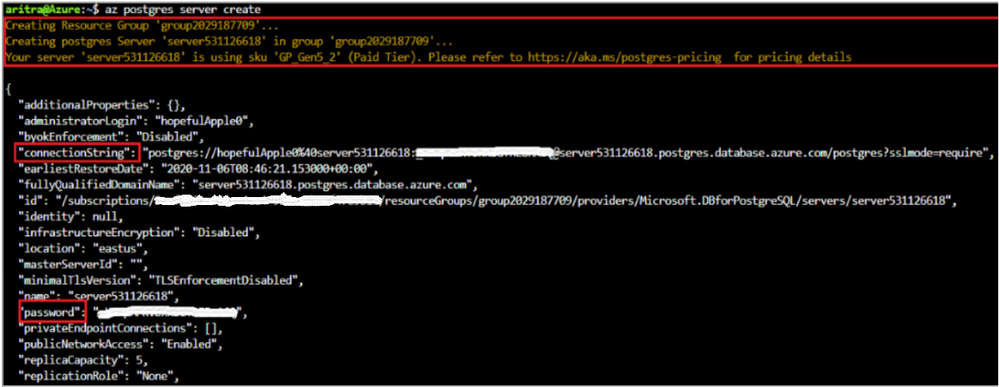
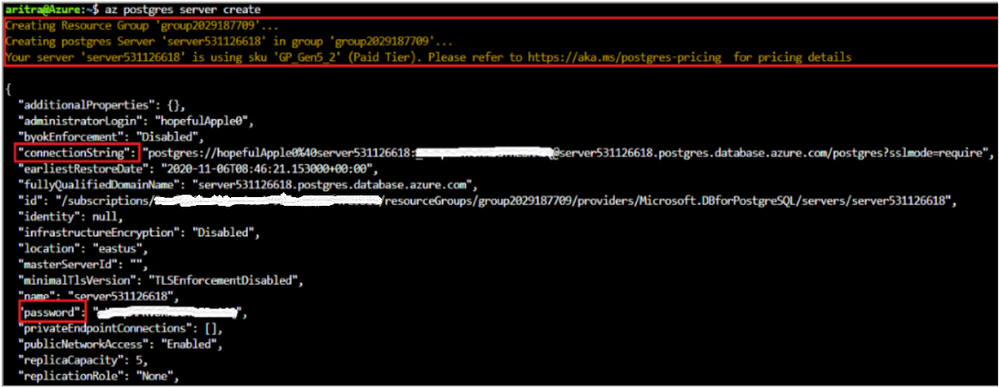
Login to your Azure account using `az login`, select your subscription (if different from default), and then run the command `az postgres server create’ to create a Postgres Single Server Instance on Azure.
Note the following key points:
- A resource group with a random name is created for you in the default region.
- A server-name, admin username, and password are auto-generated for you.
- The text in yellow indicates what is going on behind the scenes. The server gets created with the defaults which can be found using `az postgres server create –help`.
- Two new fields (password and connection-string) are introduced in the output.
- To override a default value, pass that parameter with the value of your choice.
2. Support for param-persist
Azure Database for PostgreSQL server CLI commands now support persisting values of parameters with the `az config param-persist` command , which locally stores information such as location, resource group, administrator login and server name for every sequential CLI command you execute. You can easily turn on param persist to store information using `az config param-persist on`. With param persist turned on, you can see the contextual information using `az config param-persist show`. You can always turn off support for param persist by using `az config param-persist off`.
A summary of points that you might find helpful is listed below:
- Fields commonly stored in param persist are location, resource group, server name and administrator login.
- The param persist is designed to hold only one value for any parameter – which is always from the latest executed command.
- Turning off the param persist does not automatically clear the stored fields. You can clear up all or specific values in the param persist using the commands in `az config param-persist delete`.
- An example of how param persist can reduce the effort is shown below.
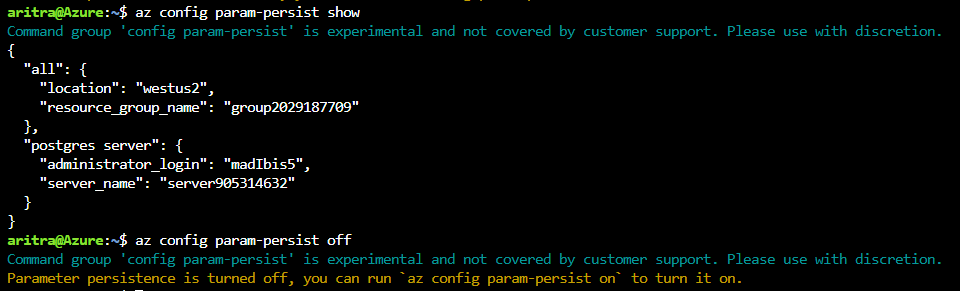
- Note how there is no longer a need to supply the server name and resource group in the firewall creation command when you add a new firewall rule to the server you just created.
az postgres server firewall-rule create -n firewall-rule-1 --start-ip-address 107.223.9.21 --end-ip-address 107.223.9.27
- When in confusion about the values fetched from param persist – look for the text ‘Command argument values from local context’ field in the command output as shown below.
Local context is turned on. Its information is saved in working directory /home/aritra. You can run `az local-context off` to turn it off.
Command argument values from local context: --resource-group: group2029187709, --server-name: server905314632
{- Finished ..
  "endIpAddress": "107.223.9.27",
  "id": "/subscriptions/<your-subscription-id>/resourceGroups/group2029187709/providers/Microsoft.DBforPostgreSQL/servers/server905314632/firewallRules/firewall-rule-1",
  "name": "firewall-rule-1",
  "resourceGroup": "group2029187709",
  "startIpAddress": "107.223.9.21",
  "type": "Microsoft.DBforPostgreSQL/servers/firewallRules"
}
3. New values for the –public parameter in az postgres server create command
When creating a Postgres server using our managed database service on Azure, you want to get started quickly. You can now let the create experience take care of the accessibility based on the value you pass for the –public parameter in the create command. When a server is created with any of these newly supported values, a new field `firewallName` will show up in the output of the create command. In addition to the existing values of ‘Enabled’ and ‘Disabled’, we are now supporting the below values:
Scenario |
Command |
Allow all IPs from 0.0.0.0-255.255.255.255 |
az postgres server create –public all |
Allow access to your client IP only |
az postgres server create –public <SingleIP> |
Allow all IPs within a range |
az postgres server create –public <StartIP-DestinationIP> |
Allow access to all Azure Services |
az postgres server create –public 0.0.0.0 |
Allow public access, but add allowed IPs later |
az postgres server create –public Enabled.
Note : You need to add allowed IPs using `firewall-rule create` command
|
4. New command – az postgres server show-connection-string
`az postgres server show-connection-string`: Lists the connections string for connecting your Postgres database to applications such as ADO.NET, JDBC, JDBC Spring, Node.JS, PHP, Python, and Ruby.
az postgres server show-connection-string -s server905314632 -u flexibleHorse
All placeholder fields within {} in the connection string can be substituted with actual values when you pass them as parameters in the above command.
{
  "connectionStrings": {
    "C++ (libpq)": "host=server905314632.postgres.database.azure.com port=5432 dbname={database} user=flexibleHorse@server905314632 password={password} sslmode=require",
    "ado.net": "Server=server905314632.postgres.database.azure.com;Database={database};Port=5432;User Id=flexibleHorse@server905314632;Password={password};",
    "jdbc": "jdbc:postgresql://server905314632.postgres.database.azure.com:5432/{database}?user=flexibleHorse@server905314632&password={password}",
    "node.js": "var client = new pg.Client('postgres://flexibleHorse@server905314632:{password}@server905314632.postgres.database.azure.com:5432/{database}');",
    "php": "host=server905314632.postgres.database.azure.com port=5432 dbname={database} user=flexibleHorse@server905314632 password={password}",
    "psql_cmd": "postgresql://flexibleHorse@server905314632:{password}@server905314632.postgres.database.azure.com/{database}?sslmode=require",
    "python": "cnx = psycopg2.connect(database='{database}', user='flexibleHorse@server905314632', host='server905314632.postgres.database.azure.com', password='{password}', port='5432')",
    "ruby": "cnx = PG::Connection.new(:host => 'server905314632.postgres.database.azure.com', :user => 'flexibleHorse@server905314632', :dbname => '{database}', :port => '5432', :password => '{password}')"
  }
}
5. Improved readable tabular format
For the commands below, the latest version of the Azure CLI supports viewing output in a tabular format, which provides you with a snapshot view.
- `az postgres server list-skus -l eastus -o table`
- `az postgres server list [-g <group_name>] [-n <server_name>] -o table`
- Not supplying -g and –n would list all servers in the subscription.
- Supplying -g and -n would list the details of a single server.
- Supplying only -g would list the details of all servers in the resource group.

Use powerful Azure CLI utilities with single server CLI
Azure CLI has powerful utilities that can be used with PostgreSQL Server CLI commands from finding right commands, getting readable output or even running REST APIs.
- az find to find the command you are looking.
- Use the
–help argument to get a complete list of commands and subgroups of a group.
- Change the output formatting to table or tsv or yaml formats as you see fit.
- Use az interactive mode which provides interactive shell with auto-completion, command descriptions, and examples.
- Use az upgrade to update your CLI and extensions.
- Use az rest command that lets you call your service endpoints to run GET, PUT, PATCH methods in a secure way.
The improvements have been designed to support the best possible experience for developers to create and manage their PostgreSQL servers. We’d love for you to try out the improvements and share your feedback for new CLI commands or issues with existing ones.
by Contributed | Nov 24, 2020 | Azure, Microsoft, Technology
This article is contributed. See the original author and article here.
XR Tea Party: BabylonJS & WebXR
Aysegul Yonet
Azure Stack Hub Partner Solutions Series – Cloud Assert
Thomas Maurer
This week, Tiberiu Radu (Azure Stack Hub PM) and I, had the chance to speak to Azure Stack Hub Partner Cloud Assert.
How To Measure The Power Consumption of Your Frontend Application | Sustainable Software
Asim Hussain
The second principle of Sustainable Software Engineering is to build energy efficient applications. The very first step in that direction is to measure the energy your application consumes, also known as its energy cost. Once you measure or estimate the energy cost of your application,
Sarah Lean
Browse content tagged with “Cloud Adoption Framework Series” on Channel 9.
DevOps Cloud Days, Day 3, Nov 18, 2020 – JFrog & Microsoft Azure
Jessica Deen
Join JFrog and Microsoft Azure to learn about integrations and future development. Secure your applications and modernize your business.
Scaling an Online Virtual World with Serverless Tech
Em Lazer-Walker
I help run an annual game design conference called Roguelike Celebration. Naturally, this year we wer…
Monitoring IoT systems from edge to cloud with Datadog
Paul DeCarlo
Microsoft Azure has a strong and active partnership with Datadog , the leading cloud-based monitoring and observability platform. Recently, Datadog and
Static Web App PR Workflow for Azure App Service using Azure DevOps Pt 2 (But what if my code is in GitHub) | Azure DevOps Blog
Abel Wang
Static Web App PR Workflow for Azure App Service using Azure DevOps Pt 2 (But what if my code is in GitHub) In part 1 (Static Web App PR Workflow for Azure App Service), I walked you you through how to set up that sweet pull request workflow for Static Web Apps for your app if your app was: hosted in Azure App Service your code in Azure Repos your CI pipeline in Azure Pipelines.
Azure DevOps Boards and Excel!
Sarah Lean
Use Excel to help manage your Azure DevOps Board items!
AzUpdate: New Priority Account capabilities in Microsoft 365, Bastion and Vnet peering, and more
Anthony Bartolo
Another busy week for cloud services at Microsoft. Here are the news items the team at AzUpdate are covering this week: New Priority Account capabilities now available in Microsoft 365, Azure Bastion and VNet peering can be used together, New integrations between GitHub and Azure Policy allow for better manage policy definitions and assignments, New constrained vCPUs capable VMs now available and of course the Microsoft Learn module of the week.
HOW TO: Create a Windows Server 2019 NAS / FileServer from the command line
Rick Claus
Windows Server 2019 default install has no GUI or Desktop. How do you go about setting this thing up from the command line? In this post I give you the How To on how to setup a simple File Server to replace an old NAS device that was failing in my home lab. We’re talking PowerShell to configure Storage Spaces, User Accounts, SMB Shares, Power Profiles and more!
Control holiday lights with Python, Azure IoT and Power Apps
Jim Bennett
No more controlling your holiday lights by hand – instead use IoT and a no-code mobile app!. Tagged with pythonfunbites, azure, python, iot.
Azure Stack Hub Partner Solutions Series – Cloud Assert
Thomas Maurer
This week, Tiberiu Radu (Azure Stack Hub PM @rctibi) and I, had the chance to speak to Azure Stack Hub Partner Cloud Assert.
AzureFunBytes – Episode 21 – @Azure Security with @deanbryen
Jay Gordon
Security is always the primary concern for those deploying applications into the cloud. This week on… Tagged with azure, security, tutorial, beginners.
Translating text with just a few lines of code using Azure Cognitive Services
Christopher Harrison
This article is part of #PythonFunBites. An old co-worker of mine is fond of saying “we’re not launc… Tagged with pythonbites, azure, python, ai.
Getting started with web dev using Flask
Christopher Harrison
This article is part of #PythonFunBites. There’s a lot of different web dev frameworks out there, an… Tagged with pythonfunbites, python, flask, webdev.
Set up Azure Shell locally – part 2
Pierre Roman
Azure Cloud Shell running in Visual Studio Code – differences with VS Code.
Working with Jupyter Notebooks in Visual Studio Code
Jasmine Greenaway
How to use Jupyter Notebooks in Visual Studio Code. Tagged with pythonfunbites, azure, python.
What’s New in Azure DevOps Docs For October? | Azure DevOps Blog
Abel Wang
What’s new for October1, 2020 – October 31, 2020 Hey hey! New docs have dropped for Azure DevOps for the month of October. What has changed? Oh, just things like… Delete and recover packages Remove, delete, or restore work items Use the Cross-platform CLI for Azure DevOps using personal access tokens (PATs) …and much more!
AzureFunBytes Short – Azure Containers (Kubernetes, Container Instances, More) | Azure DevOps Blog
Jay Gordon
Containers provide an easy way to run batch jobs without having to manage an environment and dependencies. Dynamic compute options, such as Azure Container Instances (ACI), can be used to efficiently ingest source data, process it, and place it in a durable store such as Azure Blob storage.
The Python Community is Stronger Together
Nina Zakharenko
Some thoughts on how to stay connected with the Python Community in 2020.
Microsoft 365 PnP Weekly – Episode 105 – Microsoft 365 Developer Blog
Waldek Mastykarz
Connect to the latest conferences, trainings, and blog posts for Microsoft 365, Office client, and SharePoint developers. Join the Microsoft 365 Developer Program.
Microsoft Autonomous Driving Startups Program
Adi Polak
Join us for an exceptional conversation with Aditya from the Microsoft Autonomous Driving program. Aditya shares the trends in Autonomous Driving, what startups are building, how Microsoft can help,
Lisa At The Edge Podcast – Thomas Maurer – Career Development & Azure Arc
Thomas Maurer
Lisa At The Edge Podcast – Thomas Maurer – Career Development & Azure Arc we talked about Azure Arc and Azure Hybrid Cloud!
Control holiday lights with Python, Azure IoT and Power Apps
Jim Bennett
As the December holiday season descends, some cultures celebrate with lights, where’s other folks have breaks from school and are looking for a fun
by Contributed | Nov 24, 2020 | Azure, Microsoft, Technology
This article is contributed. See the original author and article here.
Sometimes we’re used to recieve service request that our customers needs to know the time spent in order to connect to their Azure SQL Database or Managed Instance or simply to check intermittent connections that they could have in their environment.
For these types of situation I would like to suggest to review two PowerShell Script that you could find on this URL that allow to obtain this information.
Enjoy!
by Contributed | Nov 24, 2020 | Azure, Microsoft, Technology
This article is contributed. See the original author and article here.
The traditional method of installing SAP is using Software Provisioning Manager (SWPM using SAPInst). SWPM takes a long time to install the system. And, even after the installation, you have just a shell system, which still requires a technical and functional configuration before you can use it – this is a cumbersome process and based on your requirements, this configuration process may take days to weeks.
Generally, when you are in a pilot or proof of concept phase, where you want to evaluate a specific feature, you can’t wait weeks!
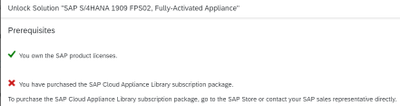
One of the quick and easiest method of deploying SAP is via SAP Cloud Appliance Library, which gives you trial license as well. To unlock the CAL solution, along with the SAP product licenses, you also need CAL subscription (as mentioned in the Figure1 below).
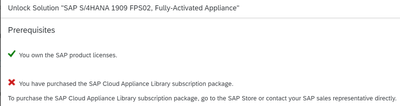
Figure1: Unlock solution using SAP CAL
Another option to get fully configured SAP S/4HANA system with sample data in hours, is using the S/4HANA Fully-Activated Appliance.
In this blog, you can explore how to install this fully activated SAP S/4H appliance in Azure. At the end of this blog, you will be able to successfully install the fully configured SAP S/4HANA 1909 SPS02 Fully Activated Appliance in Azure.
The overall process is very simple. You install the system which comes with pre-configured SID, and hostnames. Then you rename the SID, and hostnames to your desired nomenclature.
The process is divided into the following seven sections:
- What the end-results looks like?
- Infrastructure in Azure
- SAP Download
- Installation Process
- Register and rename the HANA system
- Rename the SAP system
- Post install activities
1. What the end-result looks like?
After the installation, you will have the following three clients pre-installed.
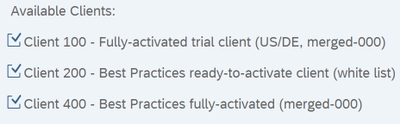
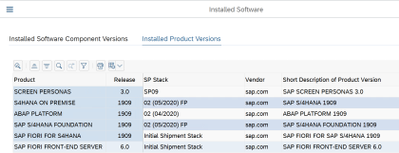
Following products will be Installed:
2. Infrastructure in Azure
Here are the VMs and storage configurations used for the VMs in Azure for this installation.
Jump box VM: used for software download, SAPGUI, SAPMMC, Putty etc.
- Name: jumpbox1
- Standard D4as_v4 (4 vcpus, 16 GiB memory)
- Windows Server 2016 Datacenter
- E drive with 128GB
SAP app and DB VM: VM to install SAP S/4HANA. Both Application and database layer are installed on the same VM
- Name: s4h1902f2vm1
- Standard E16ds_v4 (16 vcpus, 128 GiB memory)
- SLES 12 SPS4 for SAP
- SAP S/4HANA 1909 SPS2 Fully Activated Appliance
- Disk layout
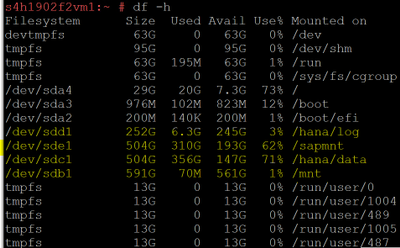
3. SAP Download
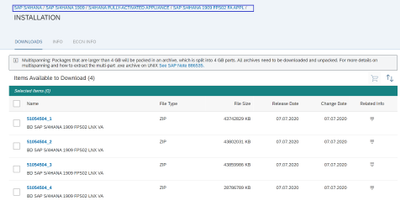
You will need the following bits for installation. Download the installation bits from SAP marketplace https://launchpad.support.sap.com/#/softwarecenter. Use the SAP download managed to download these files. Download them to Jumpbox VMs. Based on download speed, it may take several hours to download them.
SAP S/4HANA 1909 FPS02 FA APPL INSTALLATION Bits
Software Provisioning Manager
Download SWPM 2 latest version from here: https://support.sap.com/en/tools/software-logistics-tools.html#section_622087154
SAP MMC
Search SAPMMC in download option
https://launchpad.support.sap.com/#/softwarecenter/search/sapmmc
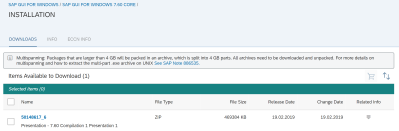
SAPGUI
4. Installation Process
In this phase, we will install the SAP system from fully activated appliance, and then rename the SID and host name to our desired names. Please note, both sap application and database layers are installed on the same VM.
Current Name
|
Rename to (post install)
|
HANA DB SID: HDB
|
HANA DB SID: SG1
|
DB hostname: vhcalhdbdb
|
DB hostname: s4h1902f2vm1
|
DB Instance No: 02
|
DB Instance No: 02
|
SAP SID: S4H
|
SAP SID: SGH
|
CI hostname: vhcals4hci
|
CI hostname: s4h1902f2vm1
|
CS hostname: vhcals4hcs
|
CS hostname: s4h1902f2vm1
|
PAS instance No: 00
|
PAS instance No: 00
|
ASCS instance No: 01
|
ASCS instance No: 01
|
Please note, your VM name in Azure is s4h1902f2vm1.
Adjust /etc/hosts file
You will need to make the following entries in /etc/hosts for the installation. IP 10.x.x.8 is the private IP of the VM s4h1902f2vm1.
10.x.x.8 vhcalhdbdb.dummy.nodomain vhcalhdbdb vhcals4hci.dummy .nodomain vhcals4hci vhcals4dcs.dummy.nodomain vhcals4hcs
Copy and extract the SAP installation files.
Copy the 51054504_*.ZIP files from your jump box server (where you had downloaded them) to VM where SAP will be installed (i.e. s4h1902f2vm1). Copy them under the /sapmedia folder.
After copying the files, extract them on VM s4h1902f2vm1
#unzip 51054504_1.ZIP
#unzip 51054504_2.ZIP
#unzip 51054504_3.ZIP
#unzip 51054504_4.ZIP
It takes a while to extract these files.
Note: During this process, it may ask to overwrite label and version files, say Yes to overwrite them.
Once the extraction of zip files is completed, it will have a lot of *tgz* files. We will need to extract these tgz files now.
Let’s move all the tgz files to one location so we can easily extract them.
# /sapmnt/sapmedia/S4FullyActivatedApplianceBits/51054504_1_1/SAPS4HANA1909FPS02SAPHANADB20basedonSAPNetweaverASABAP754_1
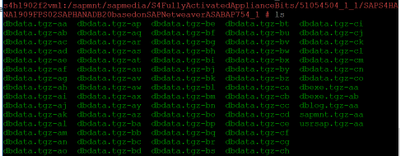
Once all the tgz files are under the above folder, let’s extract those tgz files in below order
# cat dblog.tgz-* | tar -zpxvf – -C /
# cat dbexe.tgz-* | tar -zpxvf – -C /
# cat dbdata.tgz-* | tar -zpxvf – -C /
# cat usrsap.tgz-* | tar -zpxvf – -C /
# cat sapmnt.tgz-* | tar -zpxvf – -C /
You are done with the installation. You can get the passwords from the file /sapmnt/sapmedia/S4FullyActivatedApplianceBits/SAPS4HANA1909FPS02SAPHANADB20basedonSAPNetweaverASABAP754_4/SAP_Software_Appliance.xml.
5. Register and rename the HANA system
Register the newly created database, also rename the system to new SID and hostname.
#/hana/shared/HDB/hdblcm/hdblcm –action=register_rename_system
After the registration is completed, HANA instance should come up automatically. You can check the status from the following command
#/usr/sap/hostctrl/exe/sapcontrol -nr 02 -function GetProcessList
6. Rename the SAP system
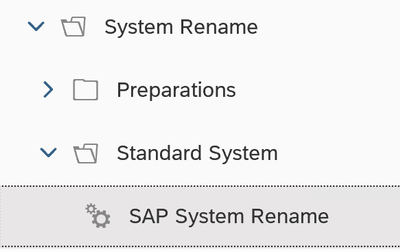
Now, it’s a time to rename SAP system from S4H to SGH. Use SWPM to rename the SAP system.
#./sapinst SAPINST_USE_HOSTNAME=vhcals4hci SAPINST_ACCEPT_INTERNAL_SIGNATURE=true SAPINST_SLP_MODE=false
7. Post install activities
Now, your system is ready to use. Please adjust the following before you use the system:
- Check the RFC connection and change from vhcals* name to s4h1902f2vm1
- Update host name in tCode /UI2/FLP_SYS_CONF
- Apply License. You will need both SAP application and HANA licenses
- Adapt transport configuration
Conclusion
Fully activated appliance is an easy and quick way to install your SAP system with sample data. This is a great solution when you want to perform a rapid prototype. Hope you like the blog.


Recent Comments