by Scott Muniz | Sep 15, 2020 | Uncategorized
This article is contributed. See the original author and article here.
Apple’s new operating systems open the door for Microsoft to deliver more capabilities that help Microsoft customers achieve more and bring the best of Microsoft 365 to their preferred devices. These updates make it easier and faster to access the apps you use every day, create and share great content and personalize your experience in a secure way. Microsoft continues to invest in solutions that feel at home across the ecosystem of devices as Microsoft customers continue to adopt Apple products for their personal productivity and business needs in the modern workplace and at home.
At home with your preferred apps on Apple devices
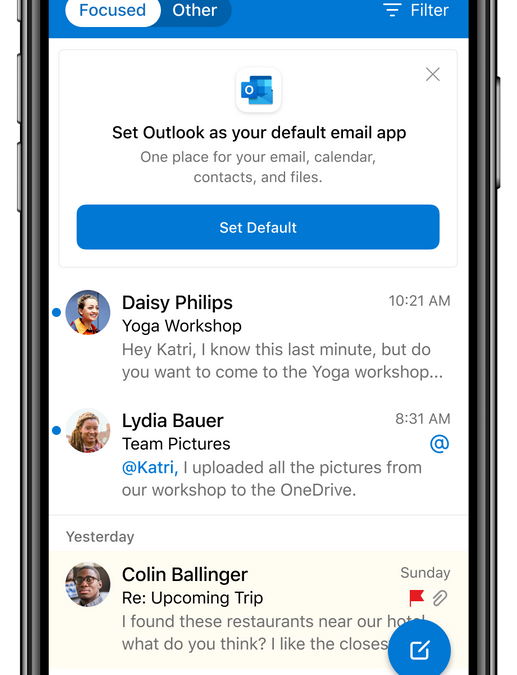
iOS and iPadOS 14 bring a new Apple App Library that will automatically organizes your apps. Now imagine setting apps you use every day such as your email and browser from Microsoft as the default apps. When you update your iOS device to the new Apple system, you will be able to choose Outlook and Edge as default apps. This way, you can personalize your experience to stay connected and organized in one app for your email and calendar, and when opening links to the web, you can get the privacy and productivity you expect from Microsoft while you browse.
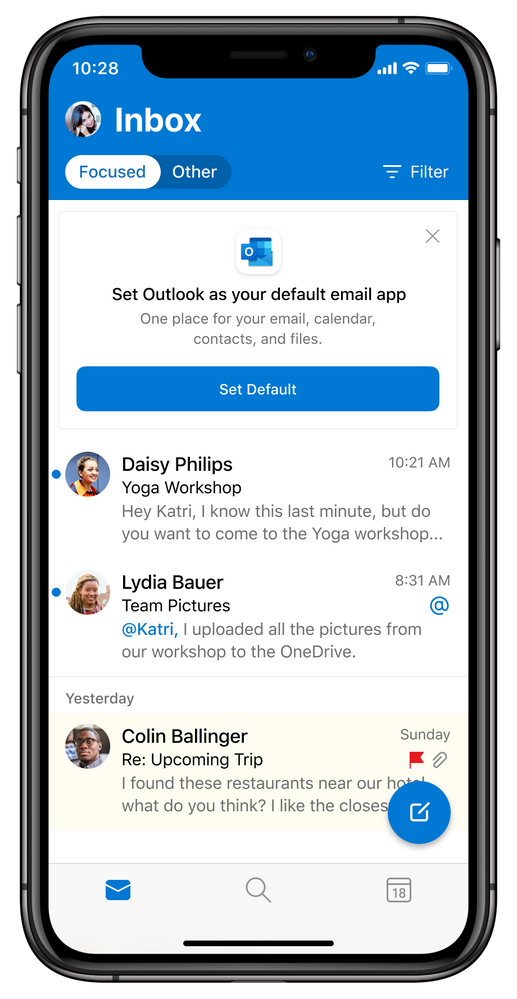 Choose Outlook as your default email app with iOS and iPadOS 14
Personalization of your mobile experience helps you stay in control. Microsoft Outlook and OneDrive are ready to give you the option to add widgets to your iOS and iPad home screen once the new operating system is available and you update your OS. With the flexibility to pick your widget size and location, you can stay on top of what matters at a glance with an Outlook Calendar widget to see what’s next in your day with your work, school and personal account. When using OneDrive with your personal account, you can see your photo memories from the On This Day feature, highlighting photos taken on this day across previous years. If you don’t have any On This Day photos for today, you’ll see your most recent photos that you’ve saved to the cloud.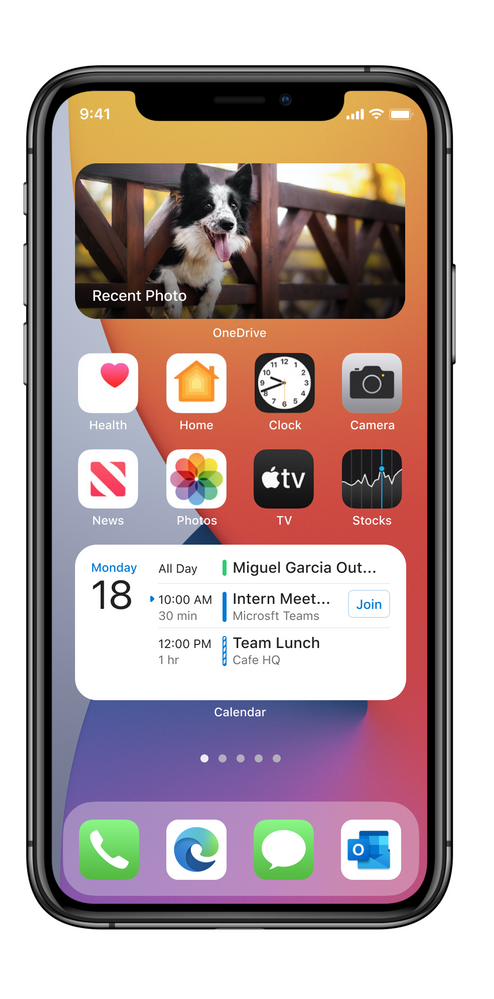 OneDrive and Outlook Calendar widgets – medium size
If your iPhone is in your pocket and your iPad is on your desk, you can still stay on top of what’s important to you at a glance on your Apple watch. watchOS 7 enables Outlook to introduce new complication improvement for email and calendar. This way, not only can you choose from either or both email or calendar complications, but the calendar complication will now include an indication of your free or busy status based on the color you’ve chosen for your Outlook Calendar color as well as the email complication will display how many unready messages you have in your Outlook Focused Inbox.
 New Outlook mail and Calendar complications
Compose and share your creations
With iPadOS 14, Apple Pencil and Outlook, users will be able to write their emails and their handwritten message will be converted to text automatically with Scribble. You can add hand drawn illustrations or diagrams to your emails for added color and context, or you can use the Pencil to write your keyword Search or fill in the text fields to quickly schedule a meeting. Outlook also supports rich formatting on iPad so once your handwriting is converted to text, you can add additional structure and dimension to your email communications – just touch the symbol with the pencil above your keyboard to view formatting options. Together with Outlook, the iPad has gone beyond being used solely for data consumption through reading, viewing and browsing but increasingly ideal for content creation and sharing.
With iPadOS, you can use Apple’s Multitasking feature to open two apps at the same time. This means that you can open Outlook and Edge to copy and drag text and links to your email, helping you create and send compelling and informative emails. Microsoft is pleased to now introduce the ability to drag and drop files and photos into Outlook. For example you can open your Photos app at the same time as Outlook for iOS on iPad to drag and drop a selection of pictures as email attachments, such as receipts to be emailed to your expense management solution.
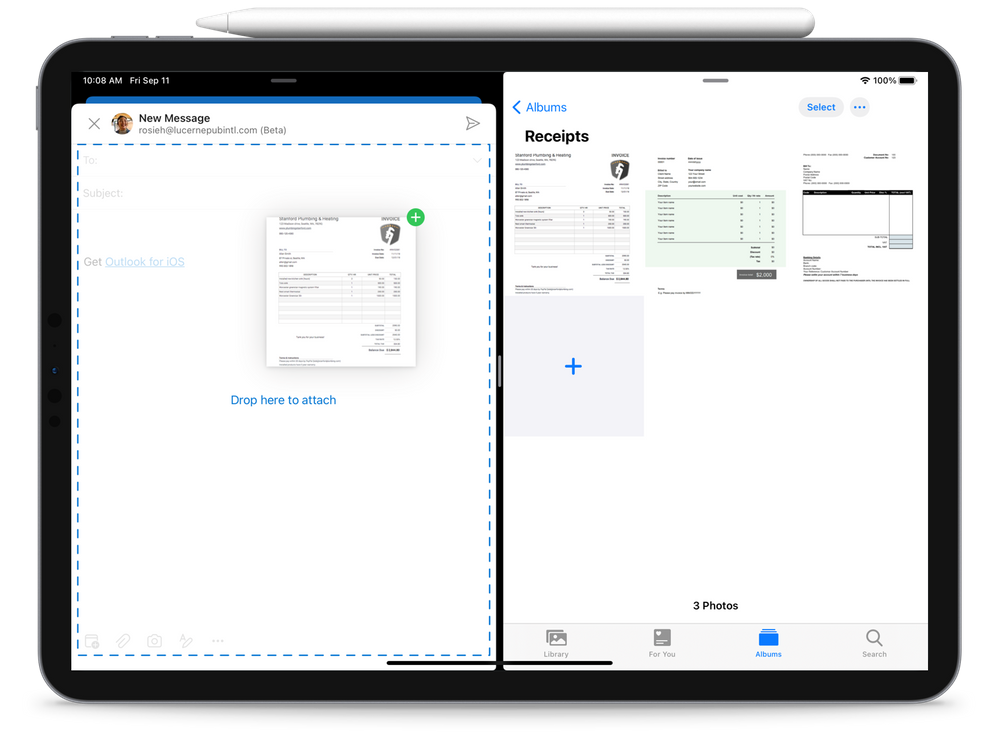 Drag and drop images from OneDrive to Outlook on iPad
If you want to select multiple documents from OneDrive, iCloud or another storage location and add them to your emails, just have Outlook open at the same time as the app with your files and drag and drop it into location and the files will be added as attachments to the email. Access permissions to Microsoft 365 files are assigned by your organization and will be automatically applied to further protect your data.
This fall, OneDrive will be able to support offline editing of your Office files. You will be able to download your Word, Excel or PowerPoint files on your iPhone or iPad so that when you’re offline, you can open and edit them in Office or the relevant iPad app. Rolling out in September, OneDrive introduces the new Home experience which brings your most recently used files, shared libraries as well as offline files together regardless if you last accessed them on your mobile device, PC or mac.
New capabilities are coming to Big Sur and OneDrive on macOS. Soon OneDrive will support automatic renaming files and folders that may contain invalid characters or errors.
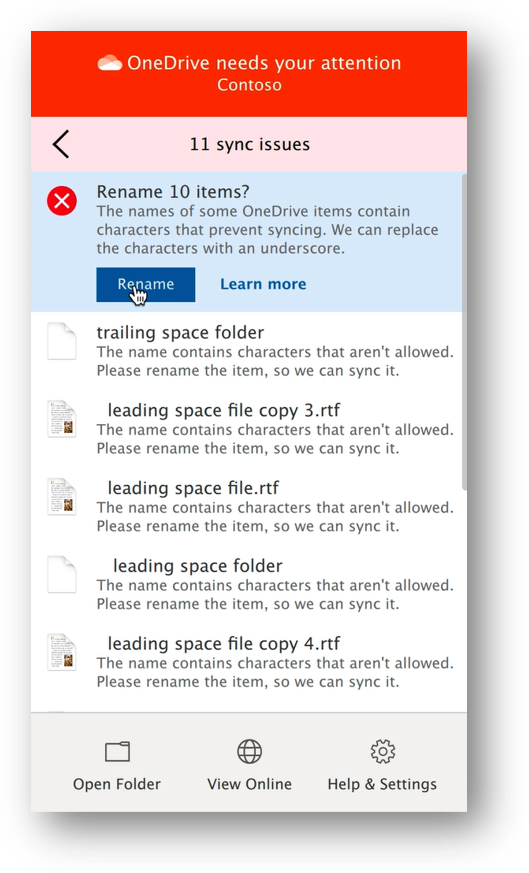 macOS and OneDrive renames files with unsupported characters
Be sure to join us at Microsoft Ignite 2020 on September 23rd. We’re looking forward to sharing more news about the new Outlook for Mac and more.
Across the Apple ecosystem of devices, Microsoft 365 uses the new capabilities from the Apple systems to connect you to the apps, files and experiences that are relevant to you so you can easily create and share.
Microsoft is committed to delivering the best Microsoft 365 to customers who choose Apple devices for their business and personal use. When the new systems from Apple start to roll out, Microsoft is ready with updated experiences to help you feel at home on your device of choice and drive your productivity, helping your organize your day and stay on top of what’s important to you in a secure way.
by Scott Muniz | Sep 15, 2020 | Uncategorized
This article is contributed. See the original author and article here.
In the first episode of this two-part series with Allan Hirt, learn how to leverage on premises infrastructure for Microsoft SQL Server deployments while also taking advantage of the benefits of Azure at the same time. Using cloud-based resources does not have to be an all or nothing proposition.
Watch on Data Exposed
Additional Resources:
SQL Server data files in Microsoft Azure
Backup to URL
Azure File Share
Azure Arc enabled SQL Server
View/share our latest episodes on Channel 9 and YouTube!
by Scott Muniz | Sep 15, 2020 | Uncategorized
This article is contributed. See the original author and article here.
Since mapping data flows became generally available in 2019, the Azure Data Factory team has been closely working with customers and monitoring various development pain points. To address these pain points and make our user experience extensible for new features coming in the future, we have made a few updates to the derived column panel and expression builder.
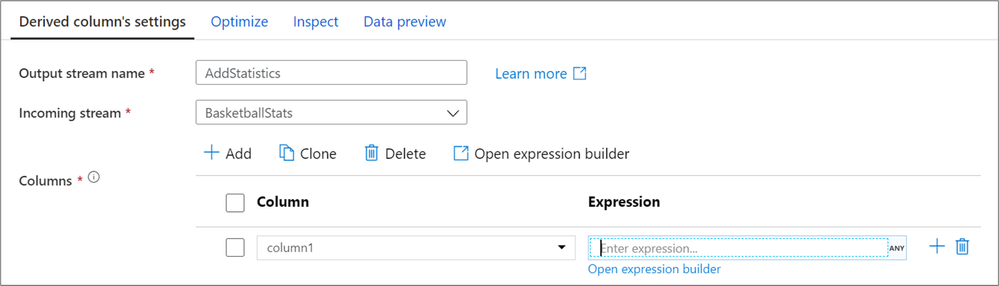
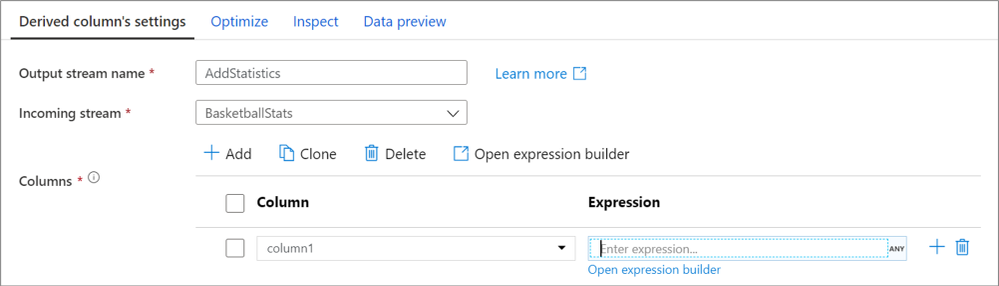
Now in a derived column transformation, you can directly enter your expression text into the textbox without needing to open up the expression builder. While we highly recommend using the expression builder for any advanced logical development, this is especially useful if you are just copy/pasting simple code snippets or want to enter in something small.
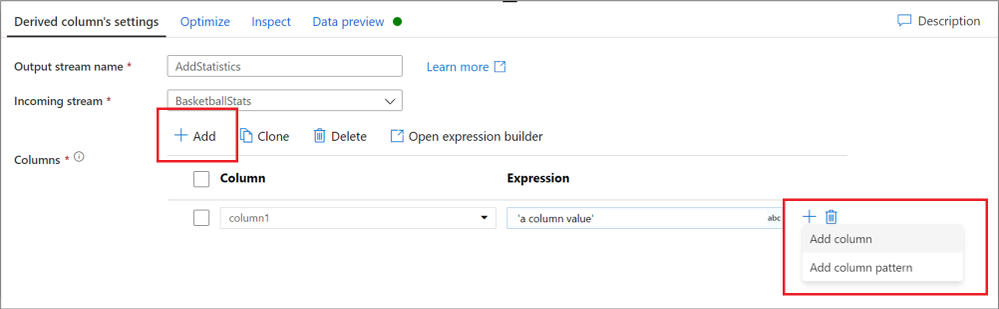
The expression builder is still easily accessible from the top bar above the column list which will open to the first derived column or from the ‘Open expression builder’ text below a column’s expression. There are now more entry points for quickly adding columns or patterns from the derived column panel itself. You no longer need to rely on having existing columns to add columns or open the expression builder. These changes also apply when building column patterns or creating aggregate or window columns.
When entering the expression builder, you will notice that all expression elements now live below the expression. All IntelliSense features are still available in the expression editor and all functions are still available. Now on the left-hand side when building derived columns, it is a lot easier to navigate between, edit and create new derived columns. You are also able to edit your column names within the expression builder itself.
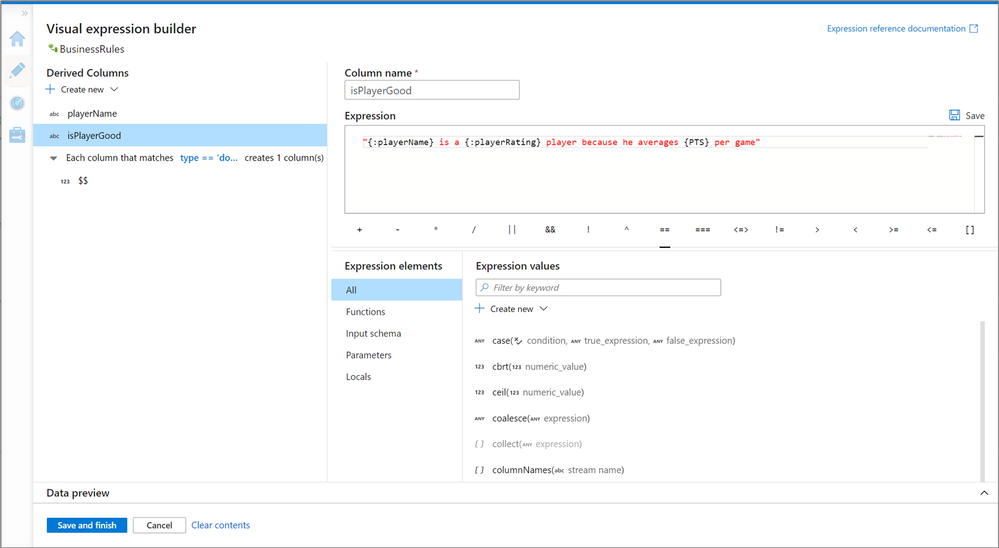
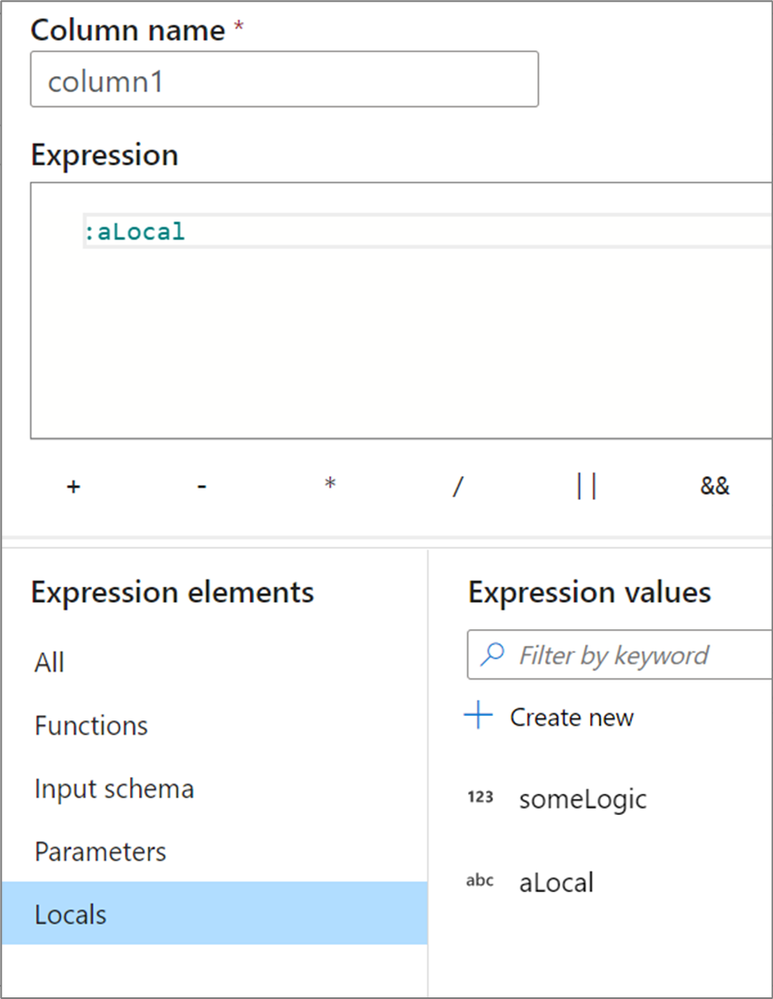
Coming out with these changes are a new feature of derived columns called Locals. A local is a set of logic that doesn’t get propagated downstream to the following transformation. These are especially useful when sharing logic across multiple columns or wanting to compartmentalize your logic. Locals are created within the expression builder and referenced with a colon in front of there name.
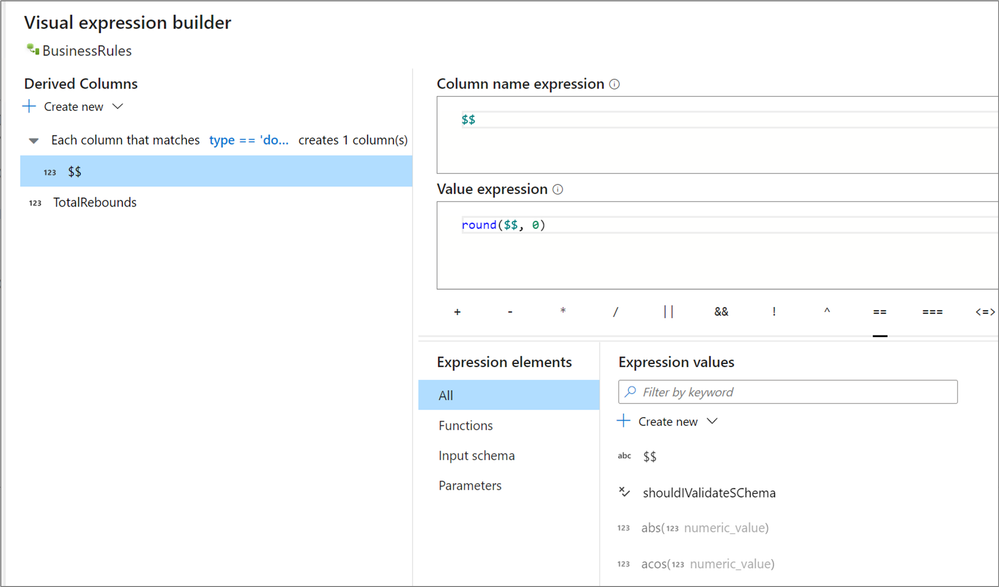
The column pattern experience within the new expression builder is also much improved. For the first time, you can navigate between your matching and pattern conditions within the expression builder. The development experience is also tailored towards creating patterns and understanding how to work with patterns. These changes also apply to rule-based mapping in selects and sinks.
For more information on all of these changes, check out the column pattern, derived column and expression builder documentation.
@daperlov and @Mark Kromer will be hosting a YouTube Live Stream at 11:30 AM PST on September 15th, 2020 to demo these changes. This stream will be uploaded to the Azure Data Factory YouTube channel afterwards.

by Scott Muniz | Sep 15, 2020 | Uncategorized
This article is contributed. See the original author and article here.
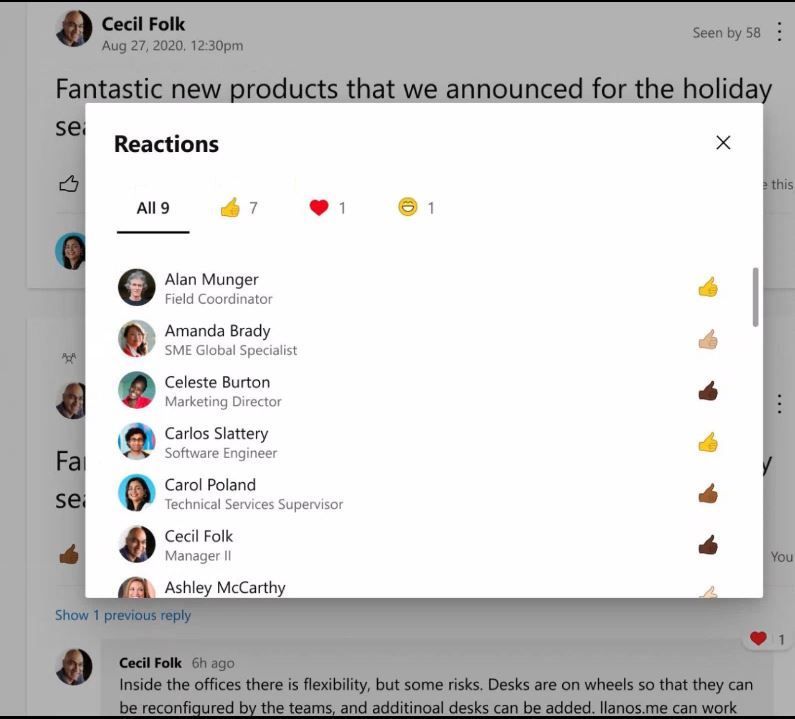
People come to Yammer to have meaningful conversations, to share knowledge, and to build communities. Conversations on Yammer can inform you about a colleague’s personal milestone, help you seek information from a colleague who is more than one degree away in your organization and help you recognize the amazing accomplishments of your team. You may need more than a ‘like’ to express yourself on these conversations. That is why we are rolling out reactions for every conversation or reply in the new Yammer. You can now express yourself through gratitude and celebration, laughter, and sadness-just like in real life. This gives you more ways to respond or express your feelings in the conversations you care most about, while gaining insight about how others feel about your content and conversations.
How we decided which reactions to start with
It would’ve been easy for us to look across the landscape of existing reactions that you see in other apps and just copy those into Yammer. However, we wanted to take a more thoughtful approach and make sure that Yammer reactions were expressive, meaningful, constructive, and globally understood.
The first phase of developing this new feature involved conducting global research through surveys and interviews to identify the reactions that would be most helpful to our users and community managers. We also looked at feedback and top GIF usage to identify signals on how users are expressing themselves today. The next phase was to help us deliver on our goal of being universally understood. So we reached out to users to ensure our icons communicated the same sentiment to all users. Armed with this data, we finally had the reaction set for Yammer.

Different reactions to Yammer conversations
You can now ‘love’ a post that deeply resonates with you, or ‘celebrate’ a personal or professional milestone. With ‘thank’, you can express your appreciation towards a person or a situation, helping build a sense of gratitude within your communities. ’Sad’ would let you express compassion in difficult times, or express sadness over a situation when words fail you. We hope these reactions add a little bit of delight, and help you feel more connected to your Yammer communities. We will continue to listen and learn from your feedback so you can be your most expressive self on Yammer.

General availability starts now!
Reactions are starting to roll out today, and will be available to all users globally in the next couple of weeks. To add a reaction, hover on the like button on web or hold down the like button on mobile, to see the reaction options of like, love, laugh, celebrate, thank and sad show up. Then tap or click on one of these to select them. Learn more at our support page.
What’s next?
Yammer is inclusive by design, with communities and conversations at the center. And we continue to think about inclusive features as we build new features. Soon we will be introducing diverse skin tones on reactions to help every reaction feel sense of representation while interacting on Yammer.
by Scott Muniz | Sep 15, 2020 | Azure, Technology, Uncategorized
This article is contributed. See the original author and article here.
To master data in the cloud, you need the right foundation—a solid understanding of core data concepts, such as relational data, nonrelational data, big data, and analytics. Plus familiarity with the roles, tasks, and responsibilities in the world of data and data analytics. Are you there? Certification can help you prove it.
Certification in Azure Data Fundamentals offers the foundation you need to build your technical skills and start working with data in the cloud. Mastering the basics can help you jump-start your career and prepare you to dive deeper into other technical opportunities Azure offers.
The Azure Data Fundamentals certification validates your foundational knowledge of core data concepts and how they’re implemented using Azure data services. You earn it by passing Exam DP-900: Microsoft Azure Data Fundamentals.
You can use your Azure Data Fundamentals certification to prepare for other Azure role-based certifications, like Azure Database Administrator Associate, Azure Data Engineer Associate, or Data Analyst Associate, but it’s not a prerequisite for any of them.
What are the prerequisites?
If you’re new to the cloud or just starting out with Azure, first choose Azure Fundamentals training and certification. Find out how to Master the basics with Microsoft Certified: Azure Fundamentals.
If you’re just beginning to work with data in the cloud, this certification is for you. You should be familiar with the concepts of relational and nonrelational data and with different types of data workloads, such as transactional or analytical.
How can you get ready?
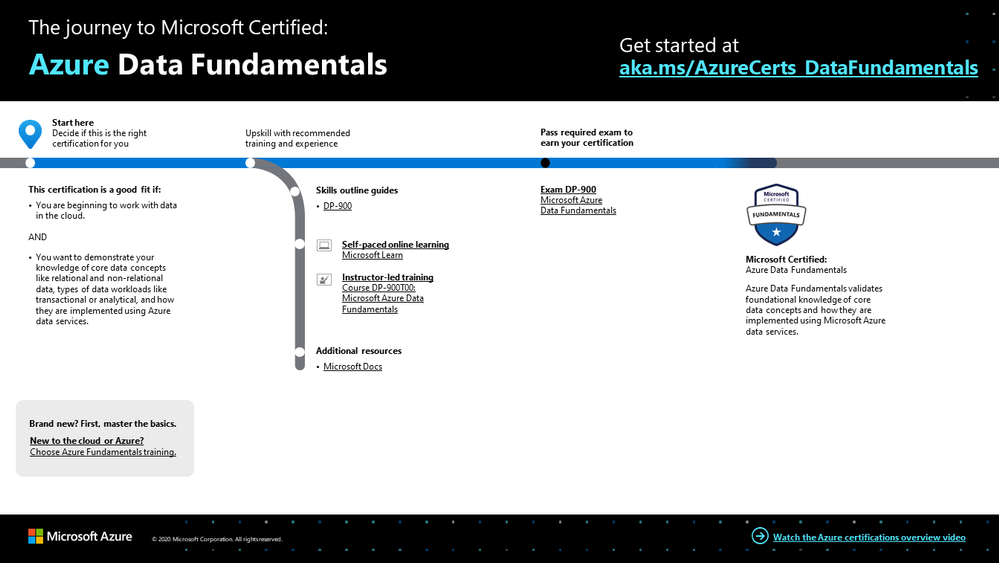
To help you plan your journey, check out our infographic, The journey to Microsoft Certified: Azure Data Fundamentals. You can also find it in the resources section on the certification and exam pages, which contains other valuable help for Azure professionals.
 The journey to Microsoft Certified: Azure Data Fundamentals
To map out your journey, follow the sequence in the infographic. First, decide whether this is the right certification for you.
Next, to understand what you’ll be measured on when taking Exam DP-900, review the skills outline guide on the exam page.
Sign up for training that fits your learning style and experience:
After you pass the exam and earn your certification, continue mastering the basics with Azure AI Fundamentals, level up with the Azure Database Administrator Associate, Azure Data Engineer Associate, or Data Analyst Associate certifications, or find the right Microsoft Azure certification for you, based on your profession (or the one you aspire to).
It’s time to master the basics!
Use your Azure Data Fundamentals certification as a starting point to explore more training on Azure, SQL Server and other technologies and to chart your path forward. If you’re looking to advance your career or to jump-start a new one, the message is the same: establish your foundations. Earn your certification, and open up new possibilities for your career and for turning your ideas into solutions on Azure.
Related posts
Understanding Microsoft Azure certifications
Finding the right Microsoft Azure certification for you
Master the basics of Microsoft Azure—cloud, data, and AI
by Scott Muniz | Sep 15, 2020 | Uncategorized
This article is contributed. See the original author and article here.
Today we are announcing the availability of quarterly servicing cumulative updates for Exchange Server 2016 and 2019. These updates include fixes for customer reported issues as well as all previously released security updates.
A full list of fixes is contained in the KB article for each CU, but we wanted to highlight the following.
Calculator Updates
A few bug fixes are included in this quarterly release of the Exchange Sizing Calculator. The calculator was updated to ensure CPU usage was correctly calculated in some scenarios and an issue in which when the second node was removed in worst case failure scenario, and which resulted in a zero transport DB size when Safety Net was enabled was also resolved.
Surface Hub Teams and Skype Experience
When Exchange Server 2019 CU5 and Exchange Server 2016 CU16 were released we subsequently discovered issues with Surface Hub devices configured with on-premises mailboxes. In those cases if both the Teams and Skype for Business clients were installed side by side, the Surface Hub would pick the incorrect client when joining meetings. The CU’s issued today resolved these issues.
Release Details
The KB articles that describe the fixes in each release and product downloads are available as follows:
Additional Information
Microsoft recommends all customers test the deployment of any update in their lab environment to determine the proper installation process for your production environment. For information on extending the schema and configuring Active Directory, please review the appropriate documentation.
Also, to prevent installation issues you should ensure that the Windows PowerShell Script Execution Policy is set to “Unrestricted” on the server being upgraded or installed. To verify the policy settings, run the Get-ExecutionPolicy cmdlet from PowerShell on the machine being upgraded. If the policies are NOT set to Unrestricted you should use the resolution steps in here to adjust the settings.
Reminder: Customers in hybrid deployments where Exchange is deployed on-premises and in the cloud, or who are using Exchange Online Archiving (EOA) with their on-premises Exchange deployment are required to deploy the currently supported cumulative update for the product version in use, e.g., 2013 Cumulative Update 23; 2016 Cumulative Update 18 or 17; 2019 Cumulative Update 7 or 6.
For the latest information on the Exchange Server and product announcements please see What’s New in Exchange Server and Exchange Server Release Notes.
Note: Documentation may not be fully available at the time this post is published.
The Exchange Team

by Scott Muniz | Sep 15, 2020 | Uncategorized
This article is contributed. See the original author and article here.
 Microsoft Ignite 2020
We’re a week away from Microsoft Ignite 2020 and this year’s event will be a free 48-hour all-digital experience. If you have not registered yet, secure your spot today and browse the session catalog to build your personalized schedule.
Here’s a quick rundown of sessions to get you started if you’re looking to learn more about Planner, Tasks in Teams, and other task management capabilities across Microsoft 365.
Keg Segment
The Future of Work by Jared Spataro
When, where, and how we work is fundamentally changing. Microsoft is in a unique position to understand the secular trends that are reshaping the future of work today, and for decades to come. Learn about the risks and durable trends impacting teamwork, organizational productivity, and employee wellbeing. Jared Spataro, CVP of Modern Work, will share the latest research and a framework for success for every IT professional and business leader to empower People for the new world of work, as well as the latest innovation in Microsoft 365 and Teams empowering human ingenuity at scale.
Tuesday, September 22 | 10:00 AM – 10:20 AM PDT
Tuesday, September 22 | 6:00 PM – 6:20 PM PDT
Wednesday, September 23 | 2:00 AM – 2:20 AM PDT
Digital Breakout
DB136 | Embrace a New Way of Work with Microsoft 365 by Angela Byers and Shin-Yi Lim with Ed Kopp (Rockwell Automation) and Magnus Lidström (Scania)
In an unprecedented time of workplace transformation, opportunities to thrive belong to those who embrace and adapt to the new normal. How do we collaborate remotely, stay connected and produce excellent work as a team? How do we stay productive while working from home? Join us for a new way to think about and manage work with Microsoft 365. Learn how Microsoft 365 makes it easier for your team to organize, share and track work all in one place – so you save time and accomplish more together.
Wednesday, September 23 | 12:15 PM – 12:45 PM PDT
Wednesday, September 23 | 8:15 PM – 8:45 PM PDT
Thursday, September 24 | 4:15 AM – 4:45 AM PDT
Ask the Experts
ATE-DB136 | Ask the Experts: Embrace a New Way of Work with Microsoft 365
Wednesday, September 23 | 9:00 PM – 9:30 PM PDT
Thursday, September 24 | 5:00 AM – 5:30 AM PDT
Pre-Recorded for On Demand
OD258 | Enable Business Continuity for your Firstline Workforce with Microsoft Teams by Scott Morrison and Zoe Hawtof
As organizations continue to adjust their operations and workforce to maintain business continuity, new capabilities in Microsoft Teams help Firstline workers stay focused on meeting customer needs. This session will focus on Shifts, Tasks and core communication along with Walkie Talkie capabilities to create a secure and centralized user experience that saves you time and money.
OD260 | Office Apps and Teams: Enabling virtual collaboration for the future of our hybrid work environment by Shalendra Chhabra
Connecting our solutions in a way that helps you stay productive and saves you time and effort is a priority to us. Our modern Office apps including Microsoft Teams as your hub for teamwork, and Outlook for direct communications and time management – we continue to create connected experiences to simplify how you stay organized and get things done. Learn how to manage your time more efficiently in your hybrid work environment by leveraging our collaboration capabilities.
Skilling Videos
Check out more content and resources in the Virtual Hub and Microsoft Tech Community Video Hub – all links will be live when Ignite officially kicks off.
Get more done with Microsoft Planner by Si Meng
Microsoft Planner gives teams an intuitive, collaborative, and visual task management experience for getting work done. Whether you’re new to Planner or consider yourself an expert, learn how to use Planner and find out more about recent new enhancements. We’ll also share the latest Planner integrations with Microsoft 365 applications, including the new Tasks app in Microsoft Teams.
Managing task capabilities across Microsoft 365 by Holly Pollock
Find out how task management across Microsoft 365 helps you find your tasks where you need them, regardless of where you captured them. In this session, we’ll share the latest integrations of tasks from Teams, Outlook, To Do, Planner, Office documents, Cortana and more.
Automate your Planner tasks workflow by Jackie Duong
Learn how to use Microsoft Power Automate to customize your Microsoft Planner tasks workflow for your organization.
Transform change management by syncing Message Center posts to Planner by Paolo Ciccu
A lot of actionable information about changes to Microsoft 365 services arrives in the Microsoft 365 message center. It can be hard to keep track of which changes require tasks to be done, when, and by whom, and to track each task to completion. You also might want to make a note of something and tag it to check on later. You can do these things and more when you sync your messages from the Microsoft 365 admin center to Microsoft Planner. Learn more about the new feature that can automatically create tasks based on your message center posts. Demo showing newly added message center feature where one can automatically create tasks in planner based on their message center posts.
Cortana – what’s new and what’s next for your personal productivity assistant in Microsoft 365 by Malavika Rewari, Saurabh Choudhury, Srikanth Sridhar, and A.J. Brush
Discover new ways to get time back on your busy schedule and focus on what matters with Cortana, now a natural part of Microsoft 365. From staying connected hands-free with voice assistance in Microsoft Teams and Outlook mobile to preparing for the day’s meetings with your personalized briefing email to finding what you need fast using natural language in Windows 10 – learn what’s possible with Cortana as well as what’s coming next.
Digitize and transform business processes with no-code building blocks and app templates in Teams by Weston Lander and Aditya Challapally
Organizations are already transforming many of their business processes on Teams – from approvals and task management, all the way to crowd sourcing the organization for top ideas. Learn how to use embedded building blocks and production-ready app templates to digitize and streamline key processes. In this session we’ll share how customers are leveraging these solutions without any custom development required, as well as how some recent innovations can help simplify these processes
Post-Ignite Expert Connections
If you like engaging in conversation with Microsoft product experts and peers, come join us after this year’s Ignite digital experience starting on September 24, 2020 through October 2020. Sign up here and choose from over 200 topics – and we would like to highlight two topics from the Planner team:
Using Microsoft Planner to better manage work remotely
How has your team adopted Planner during remote work? Tell us about your experience and what could help your team manage work more efficiently.
Task management: Plan your work
We’re curious to know how users typically manage their tasks and plan out their workday, work week, and workload. Join us to discuss topics like how you manage personal tasks in addition to group tasks, the importance of keeping tasks in one location, etc.
See you at Ignite on September 22-24, 2020 and follow the #MSIgnite action on Twitter: @MS_Ignite, @MSTCommunity, @MSFTMechanics. Be sure to check back here on this blog for the latest product updates and news.
******
“Tasks in Microsoft Teams” – The Intrazone podcast
In case you missed it, several members from our team sat down with the hosts of The Intrazone, a biweekly podcast series, to talk about Tasks in Teams and our journey on connecting task experiences across Microsoft 365. You can listen to that conversation below.
by Scott Muniz | Sep 15, 2020 | Azure, Technology, Uncategorized
This article is contributed. See the original author and article here.
One of the main SIEM use cases is incident management. Azure Sentinel Offers robust features that help the analyst to manage the life cycle of security incidents, including:
- Alert grouping and fusion
- Incident triaging and management
- An interactive investigation experience
- Orchestration and response using Logic Apps
In our customer engagements we learned that in some cases our customers need to maintain incidents in their existing ticketing (ITSM) system and use it as a single pane of glass for all the security incidents across the organization. One critical request that raises is the need for a bi-directional sync of Azure sentinel incidents.
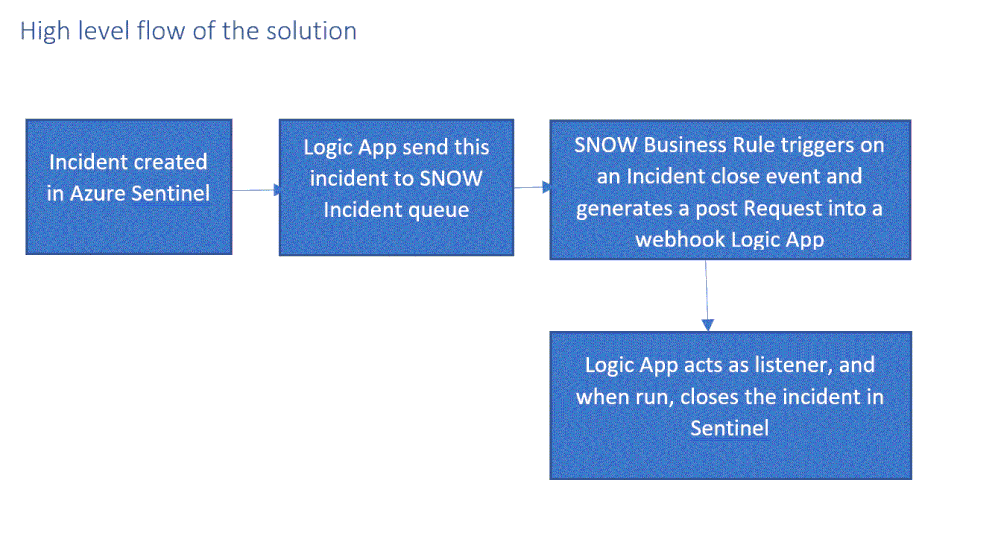
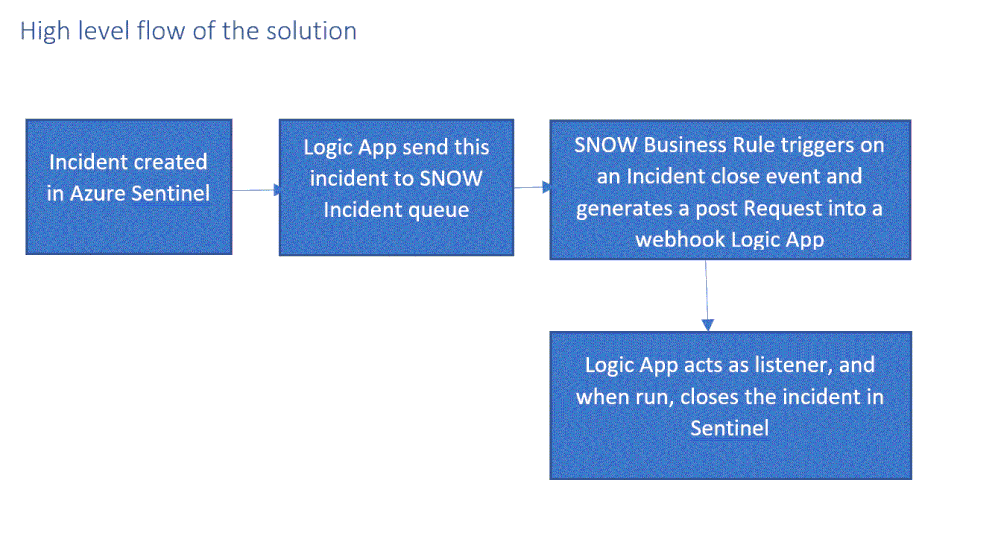
This means, for example, that if a security incident is created in Azure Sentinel, it needs to be created in the ITSM system as well, and if this ticket is closed in the ITSM system, this should be reflected in Azure sentinel.
In this article, I demonstrate how to use Azure sentinel SOAR capability and ServiceNow (SNOW) Business Rules feature to implement this bi-directional incident sync between the two.
High level flow of the solution
Send an Azure Sentinel incident into ServiceNow incident queue
The playbook, available here and presented below, works as follows:
- Triggers automatically on a new Alert.
- Gets relevant properties from the Incident.
- Populates the workspace name variable.
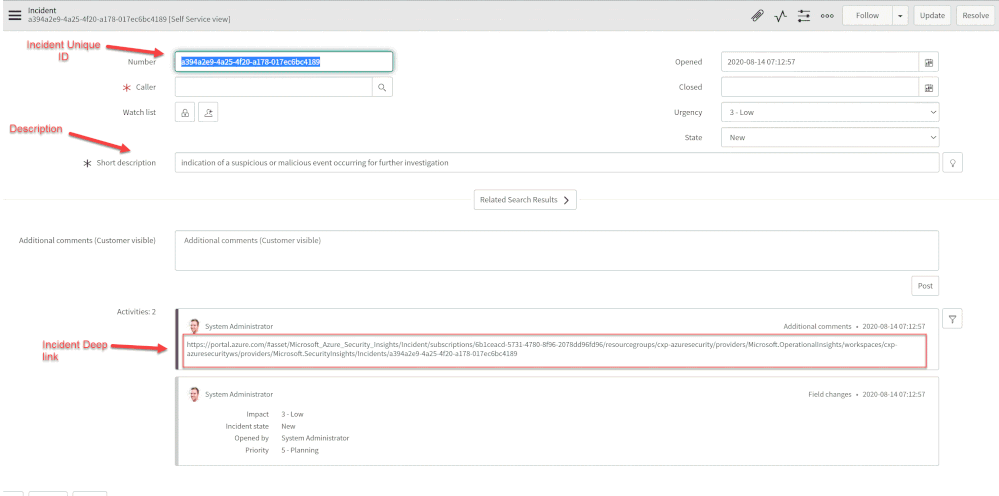
- Creates a record of incident type in ServiceNow and populate the Azure Sentinel Incident properties into the SNOW incident record using the following mapping:
|
ServiceNow
|
Sentinel
|
|
Number
|
Incident Unique ID
|
|
Short Description
|
Description
|
|
Severity
|
Severity
|
|
Additional comment
|
Incident Deep link
|
Deploying the solution
- Deploy the above Logic APP
- Attached this logic app to every analytics rule that you want to sync to ServiceNow
by selecting it on the automated response section. (currently you need to run this process for each analytics rule that you want to sync)
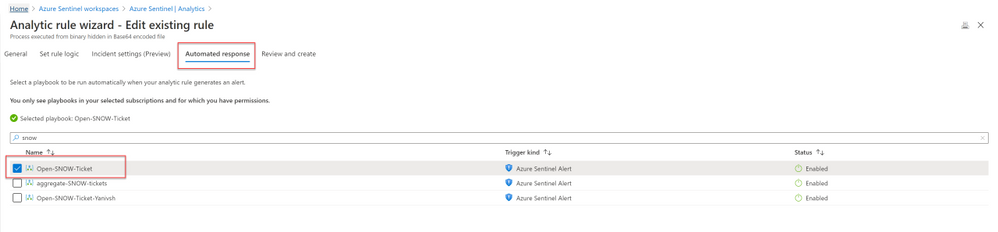
Once an analytics rule generates a new incident, a new incident will pop-up on the ServiceNow incident Page.
Close Sentinel Incident When it closed in ServiceNow.
Closing the incident in Azure Sentinel when it is closed in ServiceNow requires two components:
- A Business Rule in ServiceNow that run custom JS code when the incident is closed.
- A Logic App in Azure Sentinel that waits to the Business Rule POST request.
Step 1: Deploy the Logic App on Azure Sentinel.
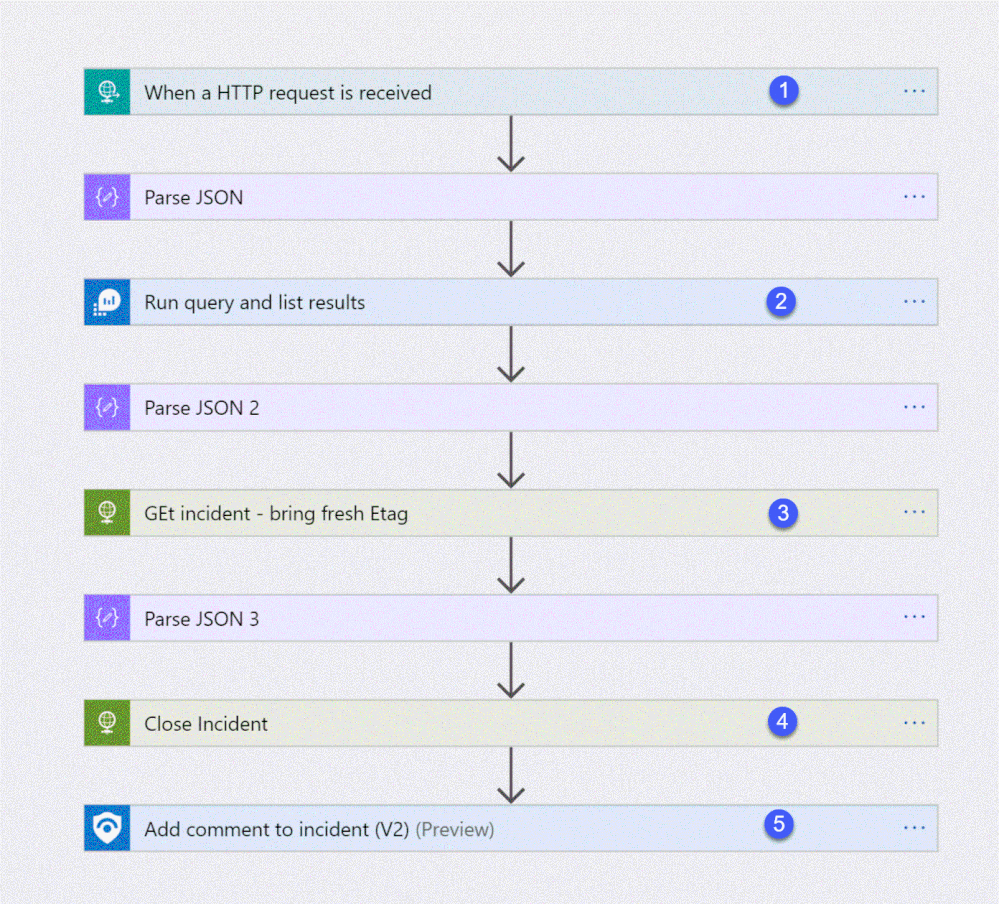
The playbook, available here and presented below, works as follows:
- Triger when an HTTP POST request hits the endpoint (1)
- Get relevant properties from the ServiceNow Incident.
- Close the incident on Azure Sentinel (4)
- Add comment with the name of the user who closed into an Azure sentinel incident comment (5)
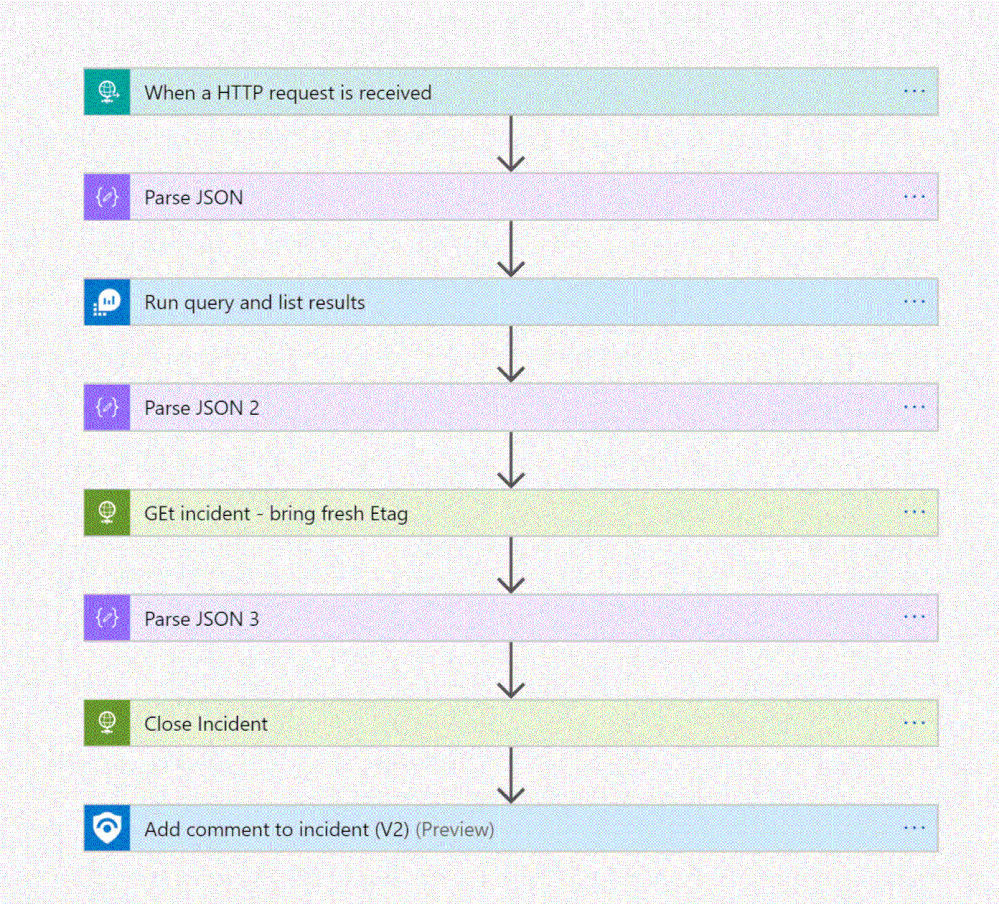
Step 2: Configure the Logic App
- Copy the HTTP endpoint URL from the Logic App trigger part.
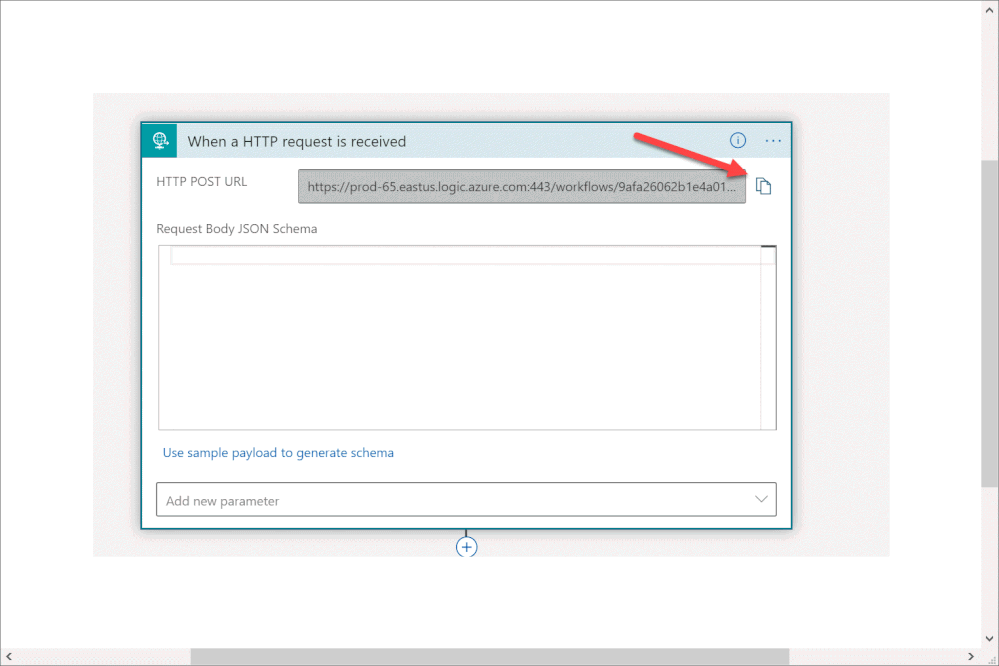
2. In “run query and list results” (2) authenticate with user that has log analytics read permission or Azure Sentinel Reader role as a minimum requirement.
3. In “get incident – bring fresh ETAG” (3) authenticate to AAD APP with a user that has an Azure Sentinel Reader role, or with a Managed identity with the same permission.
4. On “add comment to incident” (5) use a user that has an Azure Sentinel Contributor account.
Step 3: ServiceNow Business Rule
What is Business Rule?
Per ServiceNow documentation, a business rule is a server-side script that runs when a record is displayed, inserted, updated, or deleted, or when a table is queried.
To create the business rule
- Login to your ServiceNow Instance.
- In the left navigation type business rules, press New to create a new business rule.
(For a business rule types and scopes refer to ServiceNow documentation)
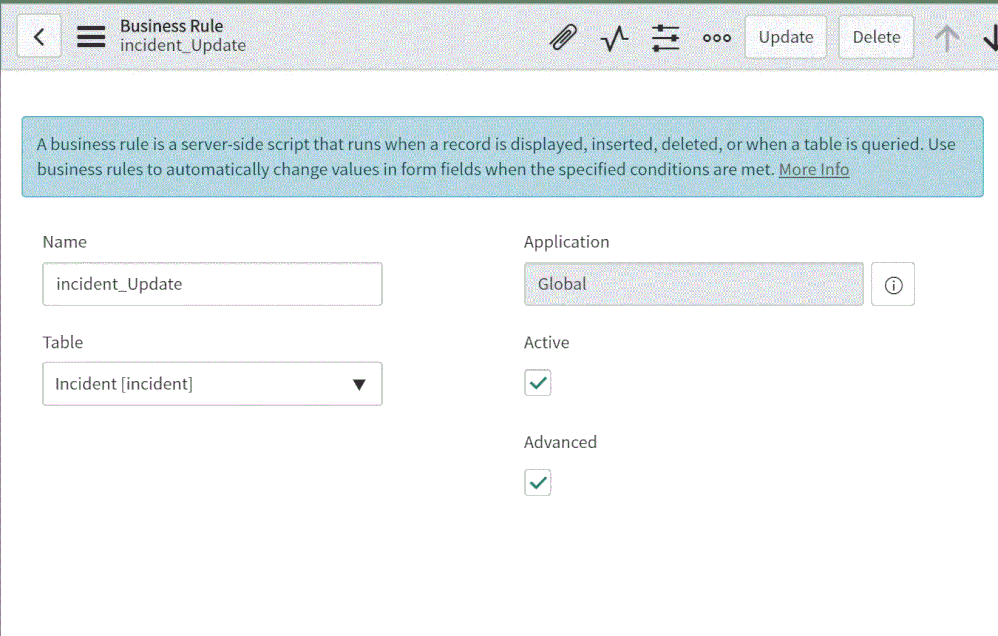
- Give the business rule a name, select Incident as the table, and check the Active and the Advanced checkboxes.
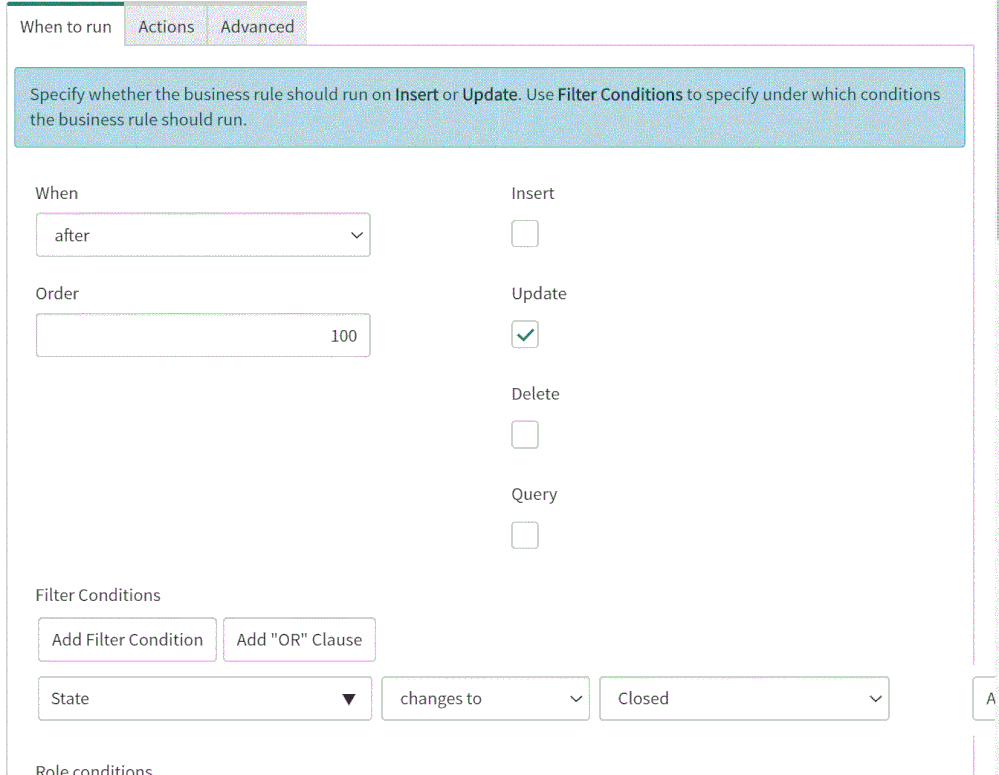
4. On the “When to run” tab, configure the controls as depicted on the screenshot below.
5. On the Advance tab, paste the above (like the picture below)
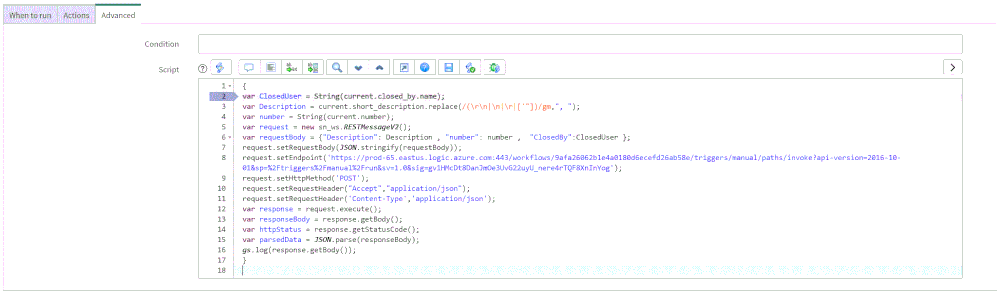
In line 8, replace the URL with the URL that we copied from the webhook Logic App above; this will be the endpoint that the business rule will interact with.
{
var ClosedUser = String(current.closed_by.name);
var Description = current.short_description.replace(/(rn|n|r|['"])/gm,", ");
var number = String(current.number);
var request = new sn_ws.RESTMessageV2();
var requestBody = {"Description": Description , "number": number ,  "ClosedBy":ClosedUser };
request.setRequestBody(JSON.stringify(requestBody));
request.setEndpoint('https://prod-65.eastus.logic.azure.com:443/workflows/9afa26062b1e4a0180d6ecefd26ab58e/triggers/manual/paths/invoke?api-version=2016-10-01&sp=%2Ftriggers%2Fmanual%2Frun&sv=1.0&sig=gv1HMcDt8DanJmOe3UvG22uyU_nere4rTQF8XnInYog');
request.setHttpMethod('POST');
request.setRequestHeader("Accept","application/json");
request.setRequestHeader('Content-Type','application/json');
var response = request.execute();
var responseBody = response.getBody();
var httpStatus = response.getStatusCode();
var parsedData = JSON.parse(responseBody);
gs.log(response.getBody());
}
In the above example I only send to sentinel 3 properties:
- ClosedBy – the username that closed the incident in Service Now
- Description – the incident description
- Number – the incident ID, originally received from Azure Sentinel.
You can modify the business rule Java Script code and add other properties that can add value to your use case.
Summary
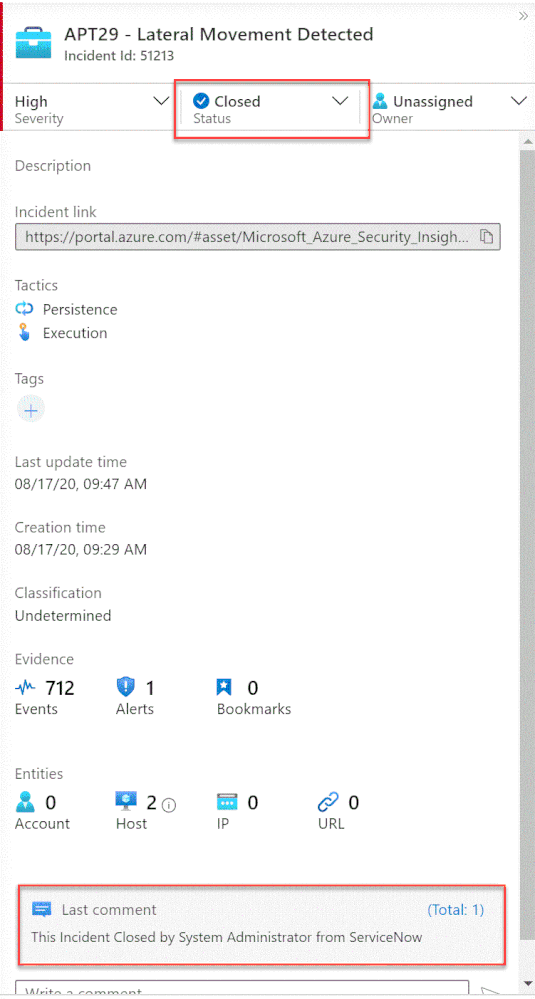
Once the user closes the incident in ServiceNow, the listener Logic App triggers and closes the incident in Azure Sentinel, adding a relevant comment as you can see below:
We just walked through the process of implementing incident sync between Azure Sentinel and Service Now by leveraging a Logic App and a ServiceNow business rule.
Thanks @Ofer_Shezaf for all the help during this blog creation.

by Scott Muniz | Sep 15, 2020 | Azure, Technology, Uncategorized
This article is contributed. See the original author and article here.
Introduction
Many Ops teams are looking at adopting Infrastructure as Code (IaC) but are encountering the dilemma of not being able to start from a green field perspective. In most cases organizations have existing resources deployed into Azure, and IaC adoption has become organic. Lack of available time and resources creates a potential “technical debt” scenario where the team can create new resources with IaC, but does not have a way to retrace the steps for existing deployments.
HashiCorp Terraform has a little used featured known as “import” which allows existing Resource Groups to be added to the state file, allowing Terraform to become aware of them. However, there are some restrictions around this which we are going to cover off.
Before We Begin
I’m going to walk us through a typical example of how “terraform import” can be used, but I want to share a few useful links first that I believe are worth looking at. The first is the HashiCorp Docs page on “terraform import”. This covers the basics, but it worth noting the information on configuration.
“The current implementation of Terraform import can only import resources into the state. It does not generate configuration. A future version of Terraform will also generate configuration.”
The second link is the Microsoft Docs tutorial on Storing Terraform State in Azure Storage, as we will use this option in the example.
Example
Ok, so let’s get to the fun stuff now! In this example I have an existing Resource Group in Azure called “legacy-resource-group”. Inside that I have an existing VNet called “legacy-vnet” (10.0.0.0/16 CIDR) and a default subnet (10.0.0.0/24 CIDR).
VNet

Subnet

If I try to create a new Terraform deployment that adds something to the Resource Group it will be unsuccessful as Terraform did not create the group to start with, so it has no reference in its state file. It will show an output like this:
Apply complete! Resources: 0 added, 0 changed, 0 destroyed.
What I want to do is import the resource group into an existing Terraform State file I have located in Azure Storage so that I can then manage the resource located within.
Let’s Start
In the example I am going to use the Azure Cloud Shell simply because it already has Terraform available, but you can obviously do this from your local machine using AZ CLI, Terraform or even VSCode. As we are going to use Azure Cloud Shell we will be using Vim to create our TF files, so if you are not fully up to speed on Vim you can find a great reference sheet here.
Step 1
We need to gather the resourceid of a legacy-resource-group, to do this we can gather the information from the properties section of the Resource Group blade, or we can type into the shell the following command:
az group show --name legacy-resource-group --query id --output tsv
This will output the resourceid in the following format:
/subscriptions/<SUBSCRIPTIONID>/resourceGroups/legacy-resource-group
Take a note of the resourceid as we will use it in a few steps.
Step 2
Now, we need to create a new Terraform file called import.tf. In a none shared state situation, we would only need to add a single line shown below:
resource "azurerm_resource_group" "legacy-resource-group" {}
However, as we are using a shared state, we need to add a few things. Lets first create our new file using the following command:
vi import.tf
We can then (using our commands guide sheet if you need it) add the following lines of code:
provider "azurerm" {
    version = "~>2.0"
    features {}
}
# This will be specific to your own Terraform State in Azure storage
terraform {
  backend "azurerm" {
    resource_group_name   = "tstate"
    storage_account_name  = "tstateXXXXX"
    container_name        = "tstate"
    key                   = "terraform.tfstate"
  }
}

resource "azurerm_resource_group" "legacy-resource-group" {}
Now we need to initiate Terraform in our working directory.
terraform init
If successful, Terraform will be configured to use the backend “azurerm” and present the following response:
Initializing the backend...

Successfully configured the backend "azurerm"! Terraform will automatically
use this backend unless the backend configuration changes.

Initializing provider plugins...
- Checking for available provider plugins...
- Downloading plugin for provider "azurerm" (hashicorp/azurerm) 2.25.0...

Terraform has been successfully initialized!

You may now begin working with Terraform. Try running "terraform plan" to see
any changes that are required for your infrastructure. All Terraform commands
should now work.

If you ever set or change modules or backend configuration for Terraform,
rerun this command to reinitialize your working directory. If you forget, other
commands will detect it and remind you to do so if necessary.
Now that Terraform has been initiated successfully, and the backend set to “azurerm” we can now run the following command to import the legacy-resource-group into the state file:
terraform import azurerm_resource_group.legacy-resource-group /subscriptions/<SUBSCRIPTONID>/resourceGroups/legacy-resource-group
If successful, the output should be something like this:
Acquiring state lock. This may take a few moments...
azurerm_resource_group.legacy-resource-group: Importing from ID "/subscriptions/<SUBSCRIPTIONID>/resourceGroups/legacy-resource-group"...
azurerm_resource_group.legacy-resource-group: Import prepared!
  Prepared azurerm_resource_group for import
azurerm_resource_group.legacy-resource-group: Refreshing state... [id=/subscriptions/<SUBSCRIPTIONID>/resourceGroups/legacy-resource-group]

Import successful!

The resources that were imported are shown above. These resources are now in
your Terraform state and will henceforth be managed by Terraform.

Releasing state lock. This may take a few moments...
We can now look at the state file to see how this has been added:
{
  "version": 4,
  "terraform_version": "0.12.25",
  "serial": 1,
  "lineage": "cb9a7387-b81b-b83f-af53-fa1855ef63b4",
  "outputs": {},
  "resources": [
    {
      "mode": "managed",
      "type": "azurerm_resource_group",
      "name": "legacy-resource-group",
      "provider": "provider.azurerm",
      "instances": [
        {
          "schema_version": 0,
          "attributes": {
            "id": "/subscriptions/<SUBSCRIPTIONID>/resourceGroups/legacy-resource-group",
            "location": "eastus2",
            "name": "legacy-resource-group",
            "tags": {},
            "timeouts": {
              "create": null,
              "delete": null,
              "read": null,
              "update": null
            }
          },
          "private": "eyJlMmJmYjczMC1lY2FhLTExZTYtOGY4OC0zNDM2M2JjN2M0YzAiOnsiY3JlYXRlIjo1NDAwMDAwMDAwMDAwLCJkZWxldGUiOjU0MDAwMDAwMDAwMDAsInJlYWQiOjMwMDAwMDAwMDAwMCwidXBkYXRlIjo1NDAwMDAwMDAwMDAwfSwic2NoZW1hX3ZlcnNpb24iOiIwIn0="
        }
      ]
    }
  ]
}
As you can see, the state file now has a reference for the legacy-resource-group, but as mentioned in the HashiCorp docs, it does not have the entire configuration.
Step 3.
What we are going to do now is to add two new subnets to our legacy-vnet. In this example I have created a new main.tf and renamed my import.tf as import.tfold just for clarity.
provider "azurerm" {
    version = "~>2.0"
    features {}
}

terraform {
  backend "azurerm" {
    resource_group_name   = "tstate"
    storage_account_name  = "tstateXXXXX"
    container_name        = "tstate"
    key                   = "terraform.tfstate"
  }
}

resource "azurerm_resource_group" "legacy-resource-group" {
    name      = "legacy-resource-group"
    location  = "East US 2"
}

resource "azurerm_subnet" "new-subnet1" {
  name                 = "new-subnet1"
  virtual_network_name = "legacy-vnet"
  resource_group_name  = "legacy-resource-group"
  address_prefixes     = ["10.0.1.0/24"]
}

resource "azurerm_subnet" "new-subnet2" {
  name                 = "new-subnet2"
  virtual_network_name = "legacy-vnet"
  resource_group_name  = "legacy-resource-group"
  address_prefixes     = ["10.0.2.0/24"]
}
We now use this file with “terraform plan” which should result in an output like this:
Acquiring state lock. This may take a few moments...
Refreshing Terraform state in-memory prior to plan...
The refreshed state will be used to calculate this plan, but will not be
persisted to local or remote state storage.

azurerm_resource_group.legacy-resource-group: Refreshing state... [id=/subscriptions/(SUBSCRIPTIONID>/resourceGroups/legacy-resource-group]

------------------------------------------------------------------------

An execution plan has been generated and is shown below.
Resource actions are indicated with the following symbols:
  + create

Terraform will perform the following actions:

  # azurerm_subnet.new-subnet1 will be created
  + resource "azurerm_subnet" "new-subnet1" {
      + address_prefix                                 = (known after apply)
      + address_prefixes                               = [
          + "10.0.1.0/24",
        ]
      + enforce_private_link_endpoint_network_policies = false
      + enforce_private_link_service_network_policies  = false
      + id                                             = (known after apply)
      + name                                           = "new-subnet1"
      + resource_group_name                            = "legacy-resource-group"
      + virtual_network_name                           = "legacy-vnet"
    }

  # azurerm_subnet.new-subnet2 will be created
  + resource "azurerm_subnet" "new-subnet2" {
      + address_prefix                                 = (known after apply)
      + address_prefixes                               = [
          + "10.0.2.0/24",
        ]
      + enforce_private_link_endpoint_network_policies = false
      + enforce_private_link_service_network_policies  = false
      + id                                             = (known after apply)
      + name                                           = "new-subnet2"
      + resource_group_name                            = "legacy-resource-group"
      + virtual_network_name                           = "legacy-vnet"
    }

Plan: 2 to add, 0 to change, 0 to destroy.

------------------------------------------------------------------------

Note: You didn't specify an "-out" parameter to save this plan, so Terraform
can't guarantee that exactly these actions will be performed if
"terraform apply" is subsequently run.
We can see that the plan is aware that only 2 items are to be added, which is our 2 new subnets. We can now run the following to deploy the configuration:
terraform apply -auto-approve
The final result should be similar to the below:
Acquiring state lock. This may take a few moments...
azurerm_resource_group.legacy-resource-group: Refreshing state... [id=/subscriptions/<SUBSCRIPTIONID>/resourceGroups/legacy-resource-group]
azurerm_subnet.new-subnet2: Creating...
azurerm_subnet.new-subnet1: Creating...
azurerm_subnet.new-subnet1: Creation complete after 1s [id=/subscriptions/<SUBSCRIPTIONID>/resourceGroups/legacy-resource-group/providers/Microsoft.Network/virtualNetworks/legacy-vnet/subnets/new-subnet1]
azurerm_subnet.new-subnet2: Creation complete after 3s [id=/subscriptions/<SUBSCRIPTIONID>/resourceGroups/legacy-resource-group/providers/Microsoft.Network/virtualNetworks/legacy-vnet/subnets/new-subnet2]

Apply complete! Resources: 2 added, 0 changed, 0 destroyed.
If we now look in our portal, we can see the new subnets have been created.
Subnets

If we take a final look at our state file, we can see the new resources have been added:
{
  "version": 4,
  "terraform_version": "0.12.25",
  "serial": 2,
  "lineage": "cb9a7387-b81b-b83f-af53-fa1855ef63b4",
  "outputs": {},
  "resources": [
    {
      "mode": "managed",
      "type": "azurerm_resource_group",
      "name": "legacy-resource-group",
      "provider": "provider.azurerm",
      "instances": [
        {
          "schema_version": 0,
          "attributes": {
            "id": "/subscriptions/<SUBSCRIPTIONID>/resourceGroups/legacy-resource-group",
            "location": "eastus2",
            "name": "legacy-resource-group",
            "tags": {},
            "timeouts": {
              "create": null,
              "delete": null,
              "read": null,
              "update": null
            }
          },
          "private": "eyJlMmJmYjczMC1lY2FhLTExZTYtOGY4OC0zNDM2M2JjN2M0YzAiOnsiY3JlYXRlIjo1NDAwMDAwMDAwMDAwLCJkZWxldGUiOjU0MDAwMDAwMDAwMDAsInJlYWQiOjMwMDAwMDAwMDAwMCwidXBkYXRlIjo1NDAwMDAwMDAwMDAwfSwic2NoZW1hX3ZlcnNpb24iOiIwIn0="
        }
      ]
    },
    {
      "mode": "managed",
      "type": "azurerm_subnet",
      "name": "new-subnet1",
      "provider": "provider.azurerm",
      "instances": [
        {
          "schema_version": 0,
          "attributes": {
            "address_prefix": "10.0.1.0/24",
            "address_prefixes": [
              "10.0.1.0/24"
            ],
            "delegation": [],
            "enforce_private_link_endpoint_network_policies": false,
            "enforce_private_link_service_network_policies": false,
            "id": "/subscriptions/<SUBSCRIPTIONID>/resourceGroups/legacy-resource-group/providers/Microsoft.Network/virtualNetworks/legacy-vnet/subnets/new-subnet1",
            "name": "new-subnet1",
            "resource_group_name": "legacy-resource-group",
            "service_endpoints": null,
            "timeouts": null,
            "virtual_network_name": "legacy-vnet"
          },
          "private": "eyJlMmJmYjczMC1lY2FhLTExZTYtOGY4OC0zNDM2M2JjN2M0YzAiOnsiY3JlYXRlIjoxODAwMDAwMDAwMDAwLCJkZWxldGUiOjE4MDAwMDAwMDAwMDAsInJlYWQiOjMwMDAwMDAwMDAwMCwidXBkYXRlIjoxODAwMDAwMDAwMDAwfX0="
        }
      ]
    },
    {
      "mode": "managed",
      "type": "azurerm_subnet",
      "name": "new-subnet2",
      "provider": "provider.azurerm",
      "instances": [
        {
          "schema_version": 0,
          "attributes": {
            "address_prefix": "10.0.2.0/24",
            "address_prefixes": [
              "10.0.2.0/24"
            ],
            "delegation": [],
            "enforce_private_link_endpoint_network_policies": false,
            "enforce_private_link_service_network_policies": false,
            "id": "/subscriptions/<SUBSCRIPTIONID>/resourceGroups/legacy-resource-group/providers/Microsoft.Network/virtualNetworks/legacy-vnet/subnets/new-subnet2",
            "name": "new-subnet2",
            "resource_group_name": "legacy-resource-group",
            "service_endpoints": null,
            "timeouts": null,
            "virtual_network_name": "legacy-vnet"
          },
          "private": "eyJlMmJmYjczMC1lY2FhLTExZTYtOGY4OC0zNDM2M2JjN2M0YzAiOnsiY3JlYXRlIjoxODAwMDAwMDAwMDAwLCJkZWxldGUiOjE4MDAwMDAwMDAwMDAsInJlYWQiOjMwMDAwMDAwMDAwMCwidXBkYXRlIjoxODAwMDAwMDAwMDAwfX0="
        }
      ]
    }
  ]
}
Wrap Up
Let’s look at what we have done:
- We’ve taken an existing resource group that was unmanaged in Terraform and added to our state file.
- We have then added two new subnets to the VNet, without destroying any existing legacy resources.
- We have then confirmed these have been added to the state file.
Ideally, we all want to be able to use “terraform import” to drag the entire config into the state file so that all resources will exist within the configuration, and from what HashiCorp have stated on the docs site this is on the roadmap, but for now this at least allows us to manage legacy resource groups moving forward.
by Scott Muniz | Sep 15, 2020 | Azure, Technology, Uncategorized
This article is contributed. See the original author and article here.
IPv6 is the most recent version of the Internet Protocol (IP) and the Internet Engineering Task Force (IETF) standard is already more than 20 years old, but for most of us is it still not something we have to deal with on a day-to-day basis. This is slowly changing as some areas of the world are running out of IPv4 addresses and local governments start to make IPv6 support mandatory for some verticals. This results in urgent requests by some of our customers to provide their webservices via IPv4 and IPv6 (so called dual stack) to fulfill their regulatory requirements.
The Internet Society published an article already back in June 2013 (see “Making Content Available Over IPv6”) on what potential implementations could look like. Their article is covering native IPv6, proxy servers and Network Address Translation (NAT). Even though the article is already a few years old, the different options are still valid.
So how does this apply to Azure? Azure supports IPv6 and has done for quite some time now for most of its the foundational network and compute services. This enables native implementations using IPv4 and IPv6 by leveraging Azure’s dual stack capabilities.
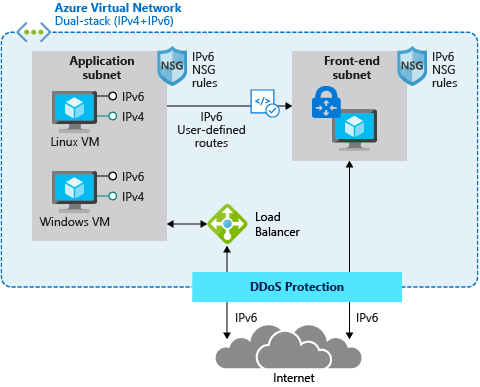
For example, in scenarios where applications are mainly based on Virtual Machines (VMs) and other Infrastructure-as-a-Service (IaaS) services with full IPv6 support, we are able to use native IPv4 and IPv6 end-to-end. This avoids any complications caused by translations and it provides the most information to the server and the application. But it also means that every device along the path between the client and the server must handle IPv6 traffic.
The following diagram depicts a simple dual stack (IPv4/IPv6) deployment in Azure:

The native end-to-end implementation is most interesting for scenarios and use cases where direct server-to-server or client-to-server communication is required. This is not the case for most webservices and applications as they are typically already exposed through, or shielded behind a Firewall, a Web Application Firewall (WAF) or a reverse proxy.
Other more complex deployments and applications often times contain a set of 3rd-party applications or Platform-as-a-Service (PaaS) services like Azure Application Gateway (AppGw), Azure Kubernetes Services (AKS), Azure SQL databases and others that do not necessarily support native IPv6 today. And there might be also other backend services and solutions, in some cases hosted on IaaS VMs that are also not capable of speaking IPv6. This is where NAT/NAT64 or an IPv6 proxy solution comes to play. These solutions allow us to transition from IPv6 to IPv4 and vice versa.
Besides the technical motivation and need to translate from IPv6 to IPv4 are there also other considerations especially around education, the costs of major application changes and modernization as well as the complexity of an application architecture why customers consider using a gateway to offer services via IPv4/IPv6 while still leveraging IPv4-only infrastructure in the background.
A very typical deployment today, for example using a WAF, looks like this:
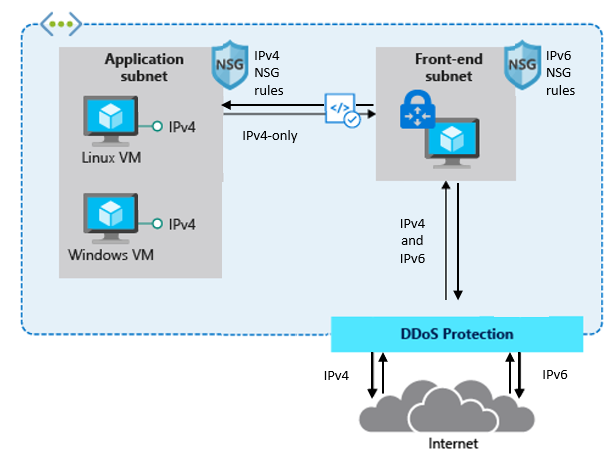
The difference between the first and the second drawing in this post is that the latter has a front-end subnet that contains for example a 3rd-Party Network Virtual Appliance (NVA) that accepts IPv4 and IPv6 traffic and translates it into IPv4-only traffic in the backend.
This allows customers to expose existing applications via IPv4 and IPv6, making them accessible to their end-users natively via both IP versions without the need to re-architect their application workloads and to overcome limitations in some Azure services and 3rd-Party services that do not support IPv6 today.
Here is a closer look on how a typical architecture could look like:
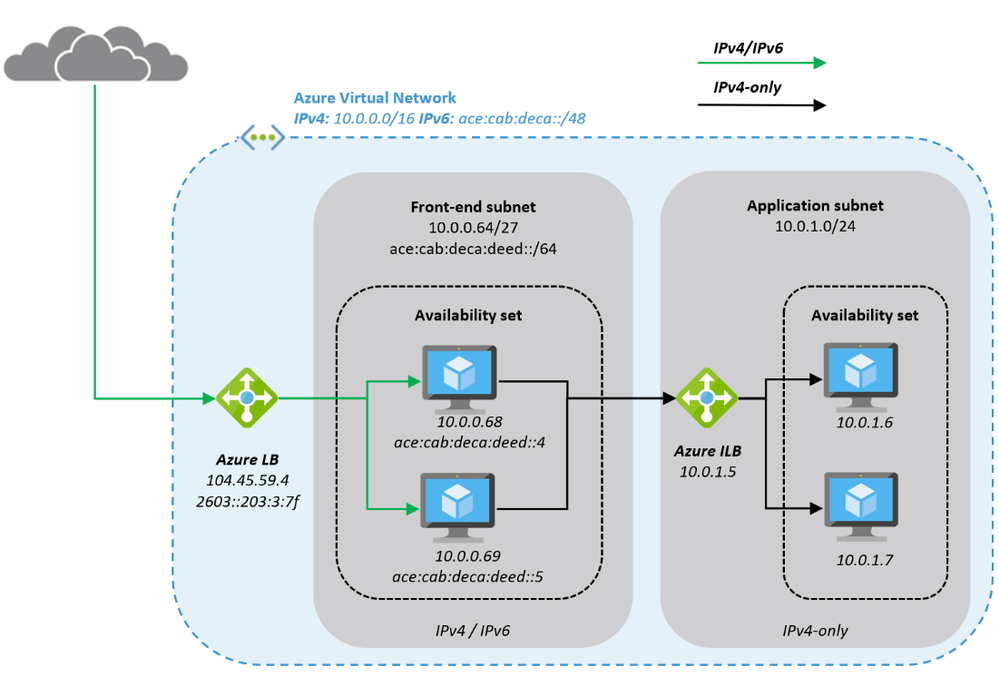
The Azure Virtual Network is enabled for IPv6 and has address prefixes for IPv4 and IPv6 (these prefixes are examples only). The “Front-end subnet” is enabled for IPv6 as well and contains a pair of NVAs. These NVAs are deployed into an Azure Availability Set, to increase their availability, and exposed through an Azure Load Balancer (ALB). The first ALB (on the left) has a public IPv4 and a public IPv6 address.
The NVAs (for example a WAF) in the Front-end subnet accept IPv4 and IPv6 traffic and can offer, depending on the ISV solution and SKU a broad set of functionality and translate the inbound traffic into IPv4 to access the application that is running in our “Application subnet”. The application is again exposed (internally; no public IP addresses) via IPv4 only through an internal ALB and only accessible from the NVAs in the front-end subnet.
This results in an architecture that provides services via IPv4 and IPv6 to end-users while the backend application is still using IPv4-only. The benefit of this approach is the reduced complexity, the application teams do not need to know and take care of IPv6, on one hand and on the other hand a reduced attach surface as between the front-end and the application subnet we’re only using the well-known and fully supported IPv4 protocol.
Instead of using a 3rd-party NVA, Azure offers similar, managed capabilities using the Azure Front Door (AFD) service. AFD is a global Azure service that “enables you to define, manage and monitor global routing for web traffic by optimizing for best performance and quick global failover for high availability” (see “What is Azure Front Door?”). AFD works at Layer 7 (OSI model) or HTTP/HTTPS layer and uses the anycast protocol and allows you to route client requests to the fastest and most available application backend. An application backend can be any Internet-facing service hosted inside or outside of Azure.
AFD’s capabilities include proxying IPv6 client requests and traffic to an IPv4-only backend as shown below:
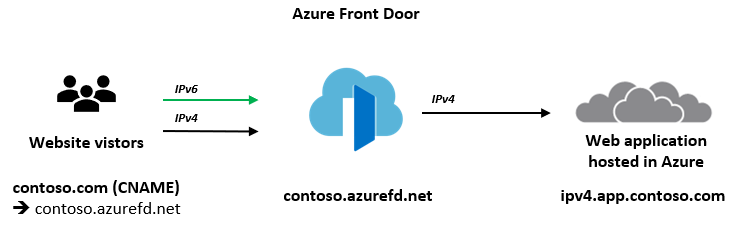
The main architectural difference between the NVA-based approach we have described in the beginning of this post and the use of AFD service is, that the NVAs are customer-managed, work at Layer 4 (OSI model) and can be deployed into the same Azure Virtual Network as the application in a way where the NVA has a private and a public interface. The application is then only accessible through the NVAs which allows filtering of all ingress (and egress) traffic. Whereas AFD is a global PaaS service in Azure, living outside of a specific Azure Region and works at Layer 7 (HTTP/HTTPS). The application backend is an Internet-facing service hosted inside or outside of Azure and can be locked down to accept traffic only from your specific Front Door.
While we are in this post explaining these two solutions as different options to make IPv4-only applications and services hosted in Azure available to users via IPv4 and IPv6, it is in general and especially in more complex environments not either a WAF/NVA solution or Azure Front Door. It can be a combination of both where NVAs are used within a regional deployment while AFD is used to route the traffic to one or more regional deployments in different Azure regions (or other Internet-facing locations).
What’s next? Take a closer look into Azure Front Door service and its documentation to learn more about its capabilities to decide if either native end-to-end IPv4/IPv6 dual stack, a 3rd-party NVA-based solution or Azure Front Door services fulfils your needs to support IPv6 with your web application.


Recent Comments