by Scott Muniz | Sep 22, 2020 | Uncategorized
This article is contributed. See the original author and article here.
Scenario
One of the Azure Synapse Analytics customer received following error while querying the external table.
HdfsBridge::recordReaderFillBuffer – Unexpected error encountered filling record reader buffer: HadoopExecutionException: Too many columns in the line
Background
Customer has employee data in CSV format with following columns.
|
Column1
|
NAME(1)
|
STREET(2)
|
CITY, ST ZIP(3)
|
Following code works fine and is executed without any errors.
CREATE DATABASE SCOPED CREDENTIAL sccred
WITH IDENTITY = ‘SHARED ACCESS SIGNATURE’,
SECRET = {access key};
CREATE EXTERNAL DATA SOURCE dsblob
WITH
(
TYPE = Hadoop,
CREDENTIAL = sccred,
LOCATION = ‘wasbs://poccon@pocsa.blob.core.windows.net’
);
CREATE EXTERNAL FILE FORMAT FFTextFile
WITH (
FORMAT_TYPE = DelimitedText,
FORMAT_OPTIONS (FIELD_TERMINATOR = ‘,’)
);
CREATE EXTERNAL TABLE stg.EmpData
(
[Column1] NVARCHAR(MAX) ,
[NAME(1)] NVARCHAR(MAX) ,
[STREET(2)] NVARCHAR(MAX) ,
[CITY, ST ZIP(3)] NVARCHAR(MAX)
) WITH (LOCATION=’/datafile.csv’,
DATA_SOURCE = dsblob,
FILE_FORMAT = FFTextFile, REJECT_TYPE = VALUE,
REJECT_VALUE = 0
);
But SELECT * FROM stg.EmpData gives error.
Following are some points for verifications.
- Verify you are not pointing to the wrong container having files with same name.
- Verify number of columns in external table are matching to that in file.
If you take closer look at file columns. you will notice a column is having comma in column name i.e. CITY,ST ZIP(3). This is creating the issue. As we have specified FIELD_TERMINATOR = ‘,’, this is making one column as two different columns. Hence, we are getting error: “Too many columns in the line.”
The column definitions, data types and number of columns, must match the data in files. If there is a mismatch, the data rows will be rejected when querying the actual data.
by Scott Muniz | Sep 22, 2020 | Uncategorized
This article is contributed. See the original author and article here.
Azure Logic Apps has grown to become the cornerstone of Azure Integration Services, an industry-leading Integration Platform as a Service (iPaaS) offering trusted by over 40,000 customers. With its innovative API-driven graphical designer and declarative workflow engine incorporating nearly 400 connectors, Logic Apps has transformed our customers’ capabilities to integrate their applications and services quickly, easily and reliably. More than 60% of the Fortune 500 depend on Logic Apps with many trusting Azure for their most mission critical business processes.
To push the boundaries further, today we’re announcing the Public Preview of a new set of capabilities for Logic Apps that provide developer toolchain consistency, better integration with Azure Functions, new runtime hosting flexibility and improved performance- enabling every developer to build modern workflow-enabled Apps.
Putting Developers at the Center
Logic Apps has always been popular with system integrators, IT Pros and specialists. But for developers with the most demanding requirements Logic Apps is now addressing a number of customer feedback areas that you’ve told us are important. Firstly, Logic Apps now provides integration with VS Code through a new extension, released in Public Preview today, enabling local development. Today’s release aligns our hosting architecture with Azure Functions and Azure App Service enabling you to easily create Workflows and Functions that interoperate and extend each other’s capabilities in a more seamless way. In addition Logic Apps is integrated with the full developer toolchain, including GitHub Actions and a new deployment model based around a similar grouping concept to Function Apps, enabling multiple workflows to be deployed into a single Logic App compute boundary simplifying automated deployments and CI/CD pipelines. And because you are now able to target these runtimes, Logic Apps inherits a number of additional features such as private endpoints, simpler and more cost effective VNET access, deployment slots and more.
Hosting Flexibility
One key capability you’ve asked us for is the ability to run Logic apps workflows where you need to, including on-premises and edge environments. With this release you can now run Logic Apps wherever you run Azure Functions – containerized in Docker or Kubernetes environments such as AKS (Azure Kubernetes Service) or App Service for a managed PaaS experience. This is in addition to local development in VS Code to provide you with more flexibility than ever in where and how you run your workloads. Additionally, with direct support for Dapr, you can use Logic Apps as a microservice workflow orchestrator, making complex API interactions easier to understand with Logic Apps’ visual designer.
New Designer
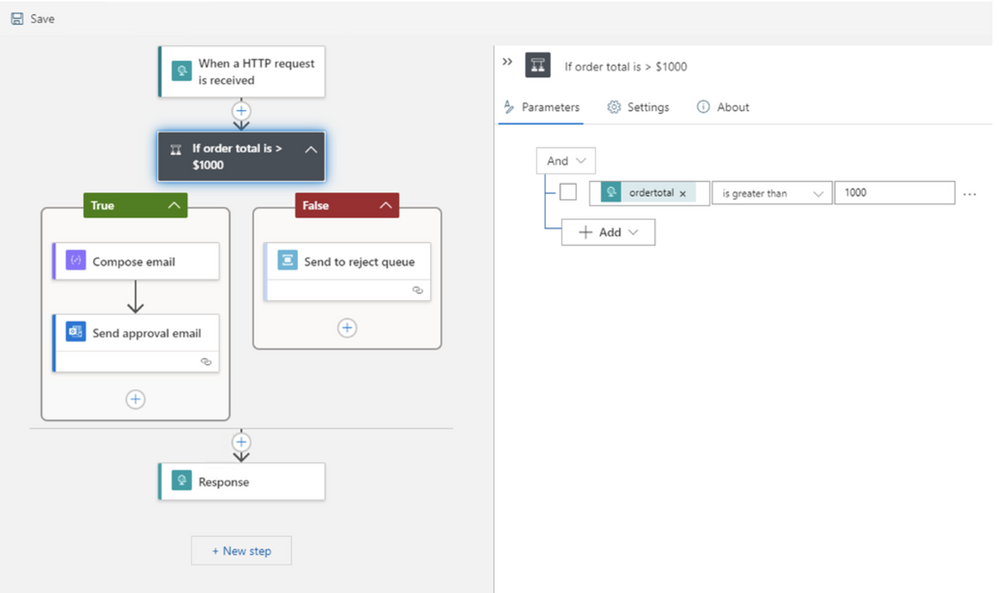
With all these runtime improvements we have not overlooked your requests for more designer and editing enhancements and are pleased to share the next evolution of the Logic Apps workflow designer sporting a more modern, compact design. This makes it easier to author larger, more complex workflows and view more steps at once without scrolling. We’ve moved much of the step configuration out of the cards into a new panel design for simpler and faster authoring. We have additional features planned as well including a new layout engine enabling additional gestures to enable you more control over how your workflows are organized.

Performance with Stateless Workflows
Finally, we’ve also heard you ask for better performance for request/response scenarios particularly and are excited to release stateless workflows. The primary intention of stateless workflows is to execute dramatically faster than regular Logic Apps which is made possible due to their stateless nature. Not only that, but stateless workflows provide almost all the same features and capabilities – and we’re working hard to close the differences further. Stateless workflows enable Logic Apps to be used as high performing backend APIs to your applications, as well as enabling API orchestration visually to be able to more easily understand complex service interactions – without performance penalty.
Wrapping up and Getting Started
We thank all of you for depending on Logic Apps to run your business, for sharing your feedback and for helping make Logic Apps even better. This is a big release. We are continuing to enhance all these new features during public preview as we work towards General Availability and we encourage you to try out this groundbreaking release and share your feedback.
To get started right away, follow the detailed guide we’ve put together here. We can’t wait to see what you do and hear what you think!
– Jon & the entire Logic Apps team
by Scott Muniz | Sep 21, 2020 | Uncategorized
This article is contributed. See the original author and article here.
I. Background
Azure PowerShell is a faster iterative product. We expect our customers to update their locally installed versions constantly to stay up to date. The most common way to update it is to use PowerShellGet, a tool built-in to PowerShell for module management.
Usually, you run “Install-Module -Name Az” to install the latest versions of Azure PowerShell modules. When you run “Install-Module -Name $moduleName” to install a specific Az module, you’ll find both the target module and Az.Accounts are installed.

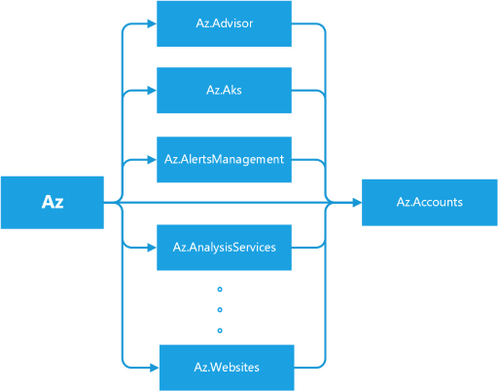
Figure –1 Dependencies among Az Modules
From the behaviors, you will find Az is a bundle of several modules, which depends on all sub-modules of Az rather than a simple single module. When running Install-Module, PowerShellGet fetches Az’s dependencies from the PowerShell gallery and installs the module itself with all the modules it depends on. Meanwhile, each sub-module of Az, for example, Az.Compute, also depends on Az.Accounts. That’s why Az.Accounts is always installed regardless of what Azure PowerShell module is installed. Figure 1, as shown above, illustrates the relationship between the Azure PowerShell modules.
II. Problems
1. Uninstaller’s Negligence
You might expect uninstallation to be a reverse process of installation. Unfortunately, it is not. “Uninstall-Module -Name Az” only removes the Az module without removing the sub-modules. A similar installation and uninstallation process happens to AzureRM. That’s why many people who are migrating from AzureRM to Az have difficulty removing the AzureRM modules.
The package’s dependency information is stored in the original NuGet package but discarded when unpacking the package downloaded during the installation process. When uninstalling the Az module, PowerShellGet doesn’t know the relationship between Az and its sub-modules. Therefore, it only uninstalls the Az module and not the sub-modules.
2. Forgotten Preview Modules
Azure PowerShell often adds new modules. When a new module first onboards, it is in preview mode. This allows for breaking changes in the subsequent versions. At this stage, its version starts with zero, such as 0.1.0. We have released 104 Az sub-modules, 45 of them are in preview mode. When a module goes stable, we upgrade its version to start with a non-zero value, such as 1.0.0, which means it is a general release. After generally released, a module can still release preview versions to include new unstable features. Almost every module contains a preview version before or now. For convenience, we refer to both as being in preview mode and the modules’ preview versions as preview modules.
Most users are unaware of preview modules because they are released independently, not part of the Az module bundle. Sometimes it is difficult to find preview modules, especially the modules without general release versions unless you know their exact names. Since they are not in the Az module bundle, you can only install them individually.
3. Risky Update
If you have several scripts based on Az modules, you need to check whether the upcoming update contains a breaking change (the upgrade of the major version number). “Update-Module” helps you to do the update, but it does everything silently. You must perform the verification manually before running it.
III. Our solution: Az.Tools.Installer
To solve the problems mentioned above, we are launching a new tool, Az.Tools.Installer. It’s based on PowerShellGet and solves the issues we’ve found with it. The first version has three cmdlets which cover installation, uninstallation, and updating.
Compared to PowerShellGet, Az.Tools.Installer perceives the relationship between Az and sub-modules and can manipulate them as a bundle. It collects the information via “Find-Module” from PowerShellGet, which returns the dependency relationship between modules. We also use the cmdlet to retrieve the preview modules.
As Az.Tools.Installer performs the search before the writing operation which causes its cmdlets to take more time to run than similar ones in PowerShellGet. A local cache might shorten the running time though. However, we’re not currently using local caching because it’s easily invalidated since Azure PowerShell changes rapidly.
1. Install-AzModule
Table-1 The Syntax of Install-AzModule
| Install-AzModule [-MaximumVersion <String>] [-MinimumVersion <String>] [-RequiredVersion <String>] -Repository <String> [-RemovePrevious] [-RemoveAzureRm] [-Force] [-Name <String[]>] [-SkipPublisherCheck] [-WhatIf] [-Confirm] [<CommonParameters>] |
| Install-AzModule -Repository <String> [-RemovePrevious] [-RemoveAzureRm] [-Force] -AllowPrerelease [-Name <String[]>] [-SkipPublisherCheck] [-WhatIf] [-Confirm] [<CommonParameters>] |
1.1 Clear the Environment and Install Az with the Specific Version
- Install-AzModule -RequiredVersion 4.5.0 -Repository PSGallery –RemovePrevious – RemoveAzureRm [-Name Storage,Network]
You can uninstall everything related to Azure PowerShell and AzureRM on your local machine and install all the modules from a target Az release easily with Install-AzModule. If “-RemovePrevious” is present, the cmdlet removes all the modules that the previous version installed. If “-RemoveAzureRm”, it removes all the modules from AzureRM.
You can install modules with the Az release version by specifying “-RequiredVersion” or with module names by specifying “-Name”.
Note: Install-AzModule only installs Az sub-modules without the Az module itself.
Please don’t add the “Az.” prefix when specifying the module name. The cmdlets in Az.Tools.Installer add this prefix automatically.
1.2 Install All Az Modules in both General and Preview Release
- Install-AzModule -Repository PSGallery –AllowPrerelease [-Name Storage,Network]
This cmdlet also provides an easy way to install preview modules with the parameter “-AllowPrerelease”. When this parameter is present, the cmdlet installs all the Az modules with the latest versions whether they are in general release or preview without parameter “-Name”. It tries to retrieve all the Az modules in the target repository before the installation and consequently takes more time to run.
The “-Name” parameter allows you to limit the installation of preview modules to only the ones specified.
Note: The preview version of Az.Accounts is not going to be installed because it contains breaking changes which break other modules.
2. Uninstall-AzModule
Table-2 The Syntax of Uninstall-AzModule
| Uninstall-AzModule [-RemoveAzureRm] [-Force] [-Name <String[]>] [-WhatIf] [-Confirm] [<CommonParameters>] |
| Uninstall-AzModule [-MaximumVersion <String>] [-MinimumVersion <String>] [-RequiredVersion <String>] [-RemoveAzureRm] [-Force] [-Name <String[]>] -Repository <String> [-WhatIf] [-Confirm] [<CommonParameters>] |
| Uninstall-AzModule [-RemoveAzureRm] [-Force] -AllowPrerelease [-Name <String[]>] – AllVersion [-WhatIf] [-Confirm] [<CommonParameters>] |
| Uninstall-AzModule [-RemoveAzureRm] [-Force] -AllowPrerelease [-Name <String[]>] [-WhatIf] [-Confirm] [<CommonParameters>] |
| Uninstall-AzModule [-RemoveAzureRm] [-Force] [-Name <String[]>] -AllVersion -Repository <String> [-WhatIf] [-Confirm] [<CommonParameters>] |
2.1 Uninstall the Modules Attached to a Specific Az
- Uninstall-AzModule -Repository PSGallery [-RequiredVersion 4.6.1] [-Name Storage,Network]
As an enhancement of Uninstall-Module, Uninstall-AzModule helps to uninstall the numerous modules related to Az. Firstly, you can uninstall the modules attached to a release version of Az using “-RequiredVersion” or “-MinimumVersion” or “-MaximumVersion”. If any of these are specified, by default the cmdlet removes all the modules attached to the Az version that fills the condition. If “-Name” is specified, the cmdlet removes the modules attached to the Az version for the specified name or list of names. If no version condition is provided explicitly, the latest Az version in the repository provided (PSGallery in the example above) is used.
2.2 Uninstall all the Az Modules Installed
- Uninstall-AzModule -Repository PSGallery –AllVersion [-Name Storage,Network]
To remove all the Az modules on your local machine, you can specify “-AllVersion”. You can provide a list of modules with “-Name” to remove all the versions of the specified modules.
2.3 Uninstall Preview Modules
- Uninstall-AzModule -AllowPrerelease [-Name Storage,MySql] [-AllVersion]
The cmdlet also enables you to remove preview modules in three different ways. By default, when “-AllowPrerelease” is specified, it removes all the modules’ latest version whether they’re in general release or preview. By using “-Name”, you can limit the uninstallation to the specified modules. Further, -AllVersion removes all versions of the modules related to Az.
Note the difference between “Uninstall-AzModule -AllowPrerelease –AllVersion” and “Uninstall-AzModule –AllVersion”. The later only removes the modules in general release. If you want to clean up your environment thoroughly, you can run “Uninstall-AzModule -RemoveAzureRm -AllowPrerelease –AllVersion”.
3. Update-AzModule
Table-3 The Syntax of Update-AzModule
| Update-AzModule [-Name <String[]>] [-RemovePrevious] [-Force] [-WhatIf] [-Confirm] [<CommonParameters>] |
3.1 Generate a Report on What to Update
- Update-AzModule -WhatIf [-Name Accounts,Storage, Network]
The advance of “Update-AzModule” compared to “Update-Module” is to provide you with a table of what modules to update and how to update them. “-WhatIf” prevents the cmdlet from performing the operation on the modules. It can be used to generate a report of what would happen without performing the operation. With “-Name”, you can check only the modules you are interested in. This also makes it complete faster. Table 1 shows an example of the “To-Update” report.
Table-4 The Report of Modules Can be Updated
|
Name
—-
|
InstalledVersion
—————-
|
Repository
———-
|
VersionToUpgrade
—————-
|
| Az.Accounts |
1.9.2 |
PSGallery |
1.9.3 |
| Az.Automation |
1.3.7 |
PSGallery |
1.4.0 |
| Az.Compute |
4.2.1 |
PSGallery |
4.3.1 |
| Az.DataFactory |
1.9.0 |
PSGallery |
1.10.0 |
| Az.DesktopVirtualization |
1.0.0 |
PSGallery |
2.0.0 |
| Az.HDInsight |
3.4.0 |
PSGallery |
3.5.0 |
| Az.KeyVault |
2.0.0 |
PSGallery |
2.1.0 |
| Az.Maintenance |
1.0.0 |
PSGallery |
1.1.0 |
| Az.Monitor |
2.0.2 |
PSGallery |
2.1.0 |
| Az.RecoveryServices |
2.11.1 |
PSGallery |
2.12.0 |
| Az.Resources |
2.4.0 |
PSGallery |
2.5.0 |
| Az.Storage |
2.4.0 |
PSGallery |
2.5.0 |
3.2 Perform a replacement Update
- Update-AzModule [-Name Compute,Storage,Network] [-RemovePrevious]
After viewing the report, you would like to perform the update. If you only want to update some of the modules, you can provide a list of module names with “-Name”. If you want to update all the modules that have newer versions, you can run “Update-AzModule”. If you want to replace the currently installed version with the latest version, specify “-RemovePrevious”.
Note that “Update-AzModule” only updates the modules currently installed. If you provide the name of a module not on your local machine, the cmdlet does nothing. Note: This cmdlet cannot be used to update preview modules. If, for example, Az.Storage releases a preview version newer than the existing general release version, run “Install-AzModule –Name Storage -Repository PSGallery –AllowPrerelease” to install the latest preview.
IV. Limitation and Future Work
PowerShell Core can import modules from the Windows PowerShell path, however, it has no rights to write to that path. This causes a conflict when you are trying to install a module with a version existing in the Windows PowerShell path. Therefore, Az.Tools.Installer warns you of the installation of Azure PowerShell in the Windows PowerShell path when you use it in PowerShell Core. One solution is to grant PowerShell Core administrator rights and another way is only to use Azure PowerShell either in Windows PowerShell or PowerShell Core. Further, PowerShell Core is recommended.
Another obvious issue of Az.Tools.Installer is the performance. As it accesses the remote repository frequently to fetch the information and install the modules, you experience a delay for several minutes while the cmdlet runs. We are going to optimize it in a future release.
Your feedback on Az.Tools.Installer is important to us. If you have any questions or suggestions, feel free to reach out to us on GitHub.
by Scott Muniz | Sep 21, 2020 | Uncategorized
This article is contributed. See the original author and article here.
I. Background
Azure PowerShell is a faster iterative product. We expect our customers to update their locally installed versions constantly to stay up to date. The most common way to update it is to use PowerShellGet, a tool built-in to PowerShell for module management.
Usually, you run “Install-Module -Name Az” to install the latest versions of Azure PowerShell modules. When you run “Install-Module -Name $moduleName” to install a specific Az module, you’ll find both the target module and Az.Accounts are installed.
Figure –1 Dependencies among Az Modules
From the behaviors, you will find Az is a bundle of several modules, which depends on all sub-modules of Az rather than a simple single module. When running Install-Module, PowerShellGet fetches Az’s dependencies from the PowerShell gallery and installs the module itself with all the modules it depends on. Meanwhile, each sub-module of Az, for example, Az.Compute, also depends on Az.Accounts. That’s why Az.Accounts is always installed regardless of what Azure PowerShell module is installed. Figure 1, as shown above, illustrates the relationship between the Azure PowerShell modules.
II. Problems
1. Uninstaller’s Negligence
You might expect uninstallation to be a reverse process of installation. Unfortunately, it is not. “Uninstall-Module -Name Az” only removes the Az module without removing the sub-modules. A similar installation and uninstallation process happens to AzureRM. That’s why many people who are migrating from AzureRM to Az have difficulty removing the AzureRM modules.
The package’s dependency information is stored in the original NuGet package but discarded when unpacking the package downloaded during the installation process. When uninstalling the Az module, PowerShellGet doesn’t know the relationship between Az and its sub-modules. Therefore, it only uninstalls the Az module and not the sub-modules.
2. Forgotten Preview Modules
Azure PowerShell often adds new modules. When a new module first onboards, it is in preview mode. This allows for breaking changes in the subsequent versions. At this stage, its version starts with zero, such as 0.1.0. We have released 104 Az sub-modules, 45 of them are in preview mode. When a module goes stable, we upgrade its version to start with a non-zero value, such as 1.0.0, which means it is a general release. After generally released, a module can still release preview versions to include new unstable features. Almost every module contains a preview version before or now. For convenience, we refer to both as being in preview mode and the modules’ preview versions as preview modules.
Most users are unaware of preview modules because they are released independently, not part of the Az module bundle. Sometimes it is difficult to find preview modules, especially the modules without general release versions unless you know their exact names. Since they are not in the Az module bundle, you can only install them individually.
3. Risky Update
If you have several scripts based on Az modules, you need to check whether the upcoming update contains a breaking change (the upgrade of the major version number). “Update-Module” helps you to do the update, but it does everything silently. You must perform the verification manually before running it.
III. Our solution: Az.Tool.Installer
To solve the problems mentioned above, we are launching a new tool, Az.Tool.Installer. It’s based on PowerShellGet and solves the issues we’ve found with it. The first version has three cmdlets which cover installation, uninstallation, and updating.
Compared to PowerShellGet, Az.Tool.Installer perceives the relationship between Az and sub-modules and can manipulate them as a bundle. It collects the information via “Find-Module” from PowerShellGet, which returns the dependency relationship between modules. We also use the cmdlet to retrieve the preview modules.
As Az.Tool.Installer performs the search before the writing operation which causes its cmdlets to take more time to run than similar ones in PowerShellGet. A local cache might shorten the running time though. However, we’re not currently using local caching because it’s easily invalidated since Azure PowerShell changes rapidly.
1. Install-AzModule
Table-1 The Syntax of Install-AzModule
| Install-AzModule [-MaximumVersion <String>] [-MinimumVersion <String>] [-RequiredVersion <String>] -Repository <String> [-RemovePrevious] [-RemoveAzureRm] [-Force] [-Name <String[]>] [-SkipPublisherCheck] [-WhatIf] [-Confirm] [<CommonParameters>] |
| Install-AzModule -Repository <String> [-RemovePrevious] [-RemoveAzureRm] [-Force] -AllowPrerelease [-Name <String[]>] [-SkipPublisherCheck] [-WhatIf] [-Confirm] [<CommonParameters>] |
1.1 Clear the Environment and Install Az with the Specific Version
- Install-AzModule -RequiredVersion 4.5.0 -Repository PSGallery –RemovePrevious – RemoveAzureRm [-Name Storage,Network]
You can uninstall everything related to Azure PowerShell and AzureRM on your local machine and install all the modules from a target Az release easily with Install-AzModule. If “-RemovePrevious” is present, the cmdlet removes all the modules that the previous version installed. If “-RemoveAzureRm”, it removes all the modules from AzureRM.
You can install modules with the Az release version by specifying “-RequiredVersion” or with module names by specifying “-Name”.
Note: Install-AzModule only installs Az sub-modules without the Az module itself.
Please don’t add the “Az.” prefix when specifying the module name. The cmdlets in Az.Tool.Installer add this prefix automatically.
1.2 Install All Az Modules in both General and Preview Release
- Install-AzModule -Repository PSGallery –AllowPrerelease [-Name Storage,Network]
This cmdlet also provides an easy way to install preview modules with the parameter “-AllowPrerelease”. When this parameter is present, the cmdlet installs all the Az modules with the latest versions whether they are in general release or preview without parameter “-Name”. It tries to retrieve all the Az modules in the target repository before the installation and consequently takes more time to run.
The “-Name” parameter allows you to limit the installation of preview modules to only the ones specified.
Note: The preview version of Az.Accounts is not going to be installed because it contains breaking changes which break other modules.
2. Uninstall-AzModule
Table-2 The Syntax of Uninstall-AzModule
| Uninstall-AzModule [-RemoveAzureRm] [-Force] [-Name <String[]>] [-WhatIf] [-Confirm] [<CommonParameters>] |
| Uninstall-AzModule [-MaximumVersion <String>] [-MinimumVersion <String>] [-RequiredVersion <String>] [-RemoveAzureRm] [-Force] [-Name <String[]>] -Repository <String> [-WhatIf] [-Confirm] [<CommonParameters>] |
| Uninstall-AzModule [-RemoveAzureRm] [-Force] -AllowPrerelease [-Name <String[]>] – AllVersion [-WhatIf] [-Confirm] [<CommonParameters>] |
| Uninstall-AzModule [-RemoveAzureRm] [-Force] -AllowPrerelease [-Name <String[]>] [-WhatIf] [-Confirm] [<CommonParameters>] |
| Uninstall-AzModule [-RemoveAzureRm] [-Force] [-Name <String[]>] -AllVersion -Repository <String> [-WhatIf] [-Confirm] [<CommonParameters>] |
2.1 Uninstall the Modules Attached to a Specific Az
- Uninstall-AzModule -Repository PSGallery [-RequiredVersion 4.6.1] [-Name Storage,Network]
As an enhancement of Uninstall-Module, Uninstall-AzModule helps to uninstall the numerous modules related to Az. Firstly, you can uninstall the modules attached to a release version of Az using “-RequiredVersion” or “-MinimumVersion” or “-MaximumVersion”. If any of these are specified, by default the cmdlet removes all the modules attached to the Az version that fills the condition. If “-Name” is specified, the cmdlet removes the modules attached to the Az version for the specified name or list of names. If no version condition is provided explicitly, the latest Az version in the repository provided (PSGallery in the example above) is used.
2.2 Uninstall all the Az Modules Installed
- Uninstall-AzModule -Repository PSGallery –AllVersion [-Name Storage,Network]
To remove all the Az modules on your local machine, you can specify “-AllVersion”. You can provide a list of modules with “-Name” to remove all the versions of the specified modules.
2.3 Uninstall Preview Modules
- Uninstall-AzModule -AllowPrerelease [-Name Storage,MySql] [-AllVersion]
The cmdlet also enables you to remove preview modules in three different ways. By default, when “-AllowPrerelease” is specified, it removes all the modules’ latest version whether they’re in general release or preview. By using “-Name”, you can limit the uninstallation to the specified modules. Further, -AllVersion removes all versions of the modules related to Az.
Note the difference between “Uninstall-AzModule -AllowPrerelease –AllVersion” and “Uninstall-AzModule –AllVersion”. The later only removes the modules in general release. If you want to clean up your environment thoroughly, you can run “Uninstall-AzModule -RemoveAzureRm -AllowPrerelease –AllVersion”.
3. Update-AzModule
Table-3 The Syntax of Update-AzModule
| Update-AzModule [-Name <String[]>] [-RemovePrevious] [-Force] [-WhatIf] [-Confirm] [<CommonParameters>] |
3.1 Generate a Report on What to Update
- Update-AzModule -WhatIf [-Name Accounts,Storage, Network]
The advance of “Update-AzModule” compared to “Update-Module” is to provide you with a table of what modules to update and how to update them. “-WhatIf” prevents the cmdlet from performing the operation on the modules. It can be used to generate a report of what would happen without performing the operation. With “-Name”, you can check only the modules you are interested in. This also makes it complete faster. Table 1 shows an example of the “To-Update” report.
Table-4 The Report of Modules Can be Updated
|
Name
—-
|
InstalledVersion
—————-
|
Repository
———-
|
VersionToUpgrade
—————-
|
| Az.Accounts |
1.9.2 |
PSGallery |
1.9.3 |
| Az.Automation |
1.3.7 |
PSGallery |
1.4.0 |
| Az.Compute |
4.2.1 |
PSGallery |
4.3.1 |
| Az.DataFactory |
1.9.0 |
PSGallery |
1.10.0 |
| Az.DesktopVirtualization |
1.0.0 |
PSGallery |
2.0.0 |
| Az.HDInsight |
3.4.0 |
PSGallery |
3.5.0 |
| Az.KeyVault |
2.0.0 |
PSGallery |
2.1.0 |
| Az.Maintenance |
1.0.0 |
PSGallery |
1.1.0 |
| Az.Monitor |
2.0.2 |
PSGallery |
2.1.0 |
| Az.RecoveryServices |
2.11.1 |
PSGallery |
2.12.0 |
| Az.Resources |
2.4.0 |
PSGallery |
2.5.0 |
| Az.Storage |
2.4.0 |
PSGallery |
2.5.0 |
3.2 Perform a replacement Update
- Update-AzModule [-Name Compute,Storage,Network] [-RemovePrevious]
After viewing the report, you would like to perform the update. If you only want to update some of the modules, you can provide a list of module names with “-Name”. If you want to update all the modules that have newer versions, you can run “Update-AzModule”. If you want to replace the currently installed version with the latest version, specify “-RemovePrevious”.
Note that “Update-AzModule” only updates the modules currently installed. If you provide the name of a module not on your local machine, the cmdlet does nothing. Note: This cmdlet cannot be used to update preview modules. If, for example, Az.Storage releases a preview version newer than the existing general release version, run “Install-AzModule –Name Storage -Repository PSGallery –AllowPrerelease” to install the latest preview.
IV. Limitation and Future Work
PowerShell Core can import modules from the Windows PowerShell path, however, it has no rights to write to that path. This causes a conflict when you are trying to install a module with a version existing in the Windows PowerShell path. Therefore, Az.Tool.Installer warns you of the installation of Azure PowerShell in the Windows PowerShell path when you use it in PowerShell Core. One solution is to grant PowerShell Core administrator rights and another way is only to use Azure PowerShell either in Windows PowerShell or PowerShell Core. Further, PowerShell Core is recommended.
Another obvious issue of Az.Tool.Installer is the performance. As it accesses the remote repository frequently to fetch the information and install the modules, you experience a delay for several minutes while the cmdlet runs. We are going to optimize it in a future release.
Your feedback on Az.Tool.Installer is important to us. If you have any questions or suggestions, feel free to reach out to us on GitHub.
by Scott Muniz | Sep 21, 2020 | Uncategorized
This article is contributed. See the original author and article here.
Software vendors: You can now perform custom functional tests—using the test framework of your choice – via the self-serve Update Staging Lab portal. When we initially launched the service, we offered out-of-box tests, a pre-defined set of tests driven through standardized scripting. This, however, could not achieve full test coverage for many ISVs. Hence, in response to your feedback, we are providing a welcome addition to the experience the ability for you to upload automated functional tests.
To use this feature, the basic steps are:
- Upload your files (binaries, dependencies and scripts) as a single .zip package.
- Choose if you want to reboot the test virtual machines (VMs) at various points of execution.
- Manage available options for your scripts.
- Choose when to apply the Windows update on the VM during execution.
I’ll now go into more detail about each step of the process.
Upload a functional test package
To get started, navigate to the Upload page, select Upload new application under Application catalog on the left-side navigation menu of the Update Staging Lab portal in Azure. From there:
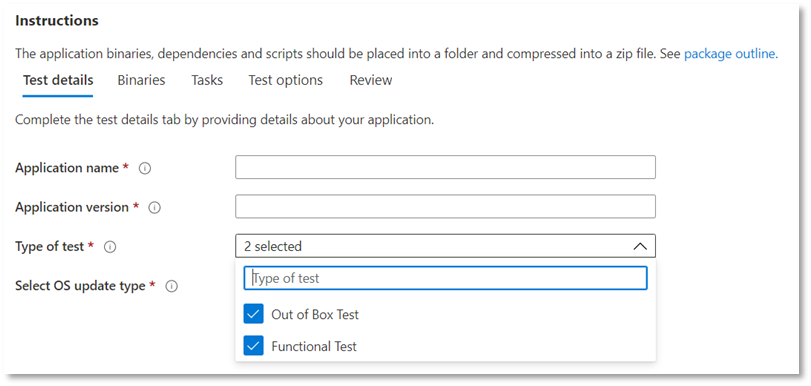
Tab 1 – Enter basic information. Provide the name and version of your application. In the Type of test option, select “Functional tests”. Note that the Out-of-Box (OOB) option is required by default.

Tab 2 – Upload the components of your package. Upload a zip file with your entire test (binaries, dependencies, scripts etc). See aka.ms/usl-package-outline for details. (Note: Both the Out-of-Box test scripts and the Functional test contents should be placed into the same zip file). Currently, the file size is limited to 2GB.
Tab 3 – Configure the Out-of-Box and Functional test tasks. Here, choose the path(s) to the PowerShell scripts that will install, launch, close, and uninstall your application (for Out-of-Box) as well as the path(s) to all your custom scripts to perform your functional test. (Note: A script to uninstall your application is optional). Currently, you can upload between 1 and 8 scripts for your functional tests. (Comment on this post if you need more scripts!)
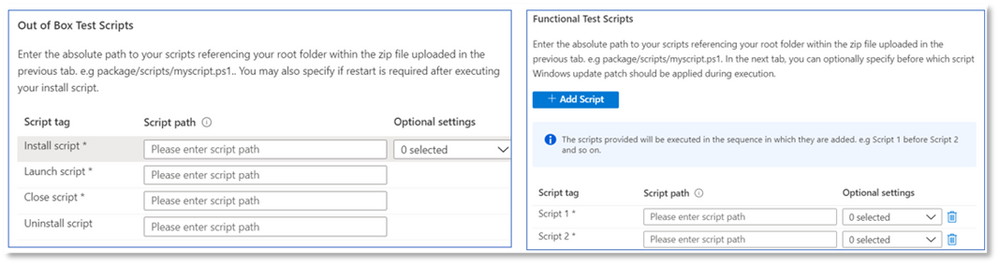
(Optional) Configure a restart after installation. Some applications require a restart after installation. Select Reboot After Execution for the specific Script in the Tasks tab if you’d like a restart to be conducted after the execution of that script you.
Tab 4 – Choose when the Windows update gets installed: The application of the Windows Update patch is done before any script of your choice. It is recommended that you install a Windows update after app installation to closely mimic your real-world application use scenarios.
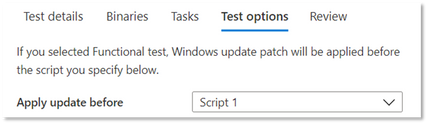
Tab 5 – Review and create the package. Once you have completed the steps listed above, select Create to finish the uploading process.
See the verification status of your package
Once your package has been created, we run an initial test to install, launch, close, and uninstall your application. This allows us to verify that your package can install on our service error-free.
The verification process could take up to 24 hours. Once verification is complete, you can see the status in the Manage packages menu, which would be one of two entries:
- Verification succeeds. The package will be automatically tested against pre-release Windows updates for the OS builds you selected.
or
- Verification fails. You will need to investigate the reasons for the failure, fix the issue, and re-upload your package.
You will also be notified of either outcome via the notification icon in the Azure portal.
Thanks to our existing Update Staging Lab users for their patience as we built this functionality into the service. We will continue to enhance and evolve the service, so please feel free to reach out to uslpreview@microsoft.com with feedback! We’ll also keep you updated on more functionality as it becomes available in the coming months.
by Scott Muniz | Sep 21, 2020 | Uncategorized
This article is contributed. See the original author and article here.
Need insight on how your applications will perform with the next release of Windows 10—prior to it being available in market? Don’t want to maintain an environment to validate new Windows features? Want to run your validation tests against Windows Insider Program builds in our Azure environment?
Feature update validation on Update Staging Lab can help you achieve all these and more!
Check out the step-by-step outline below to find out how to access this new capability in the Update Staging Lab service. (Not yet taking advantage of Update Staging Lab? Sign up here to join the preview.)
To get started with feature update validation in Update Staging Lab, upload your applications (and related files) through the self-service onboarding portal. As you fill out the Test details:
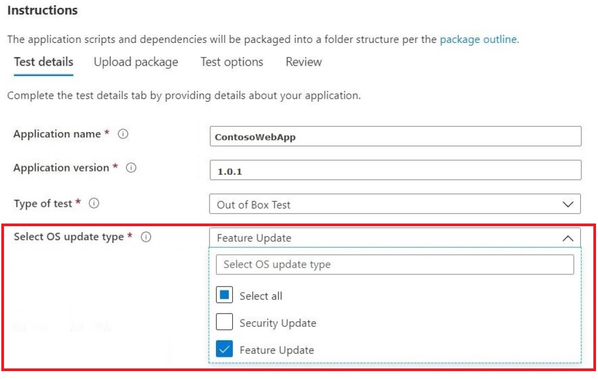
- Select Feature Update as your OS update type:

- Choose the Windows Insider Channel against which you want your application validated. (We currently support the Insider Beta Channel.)
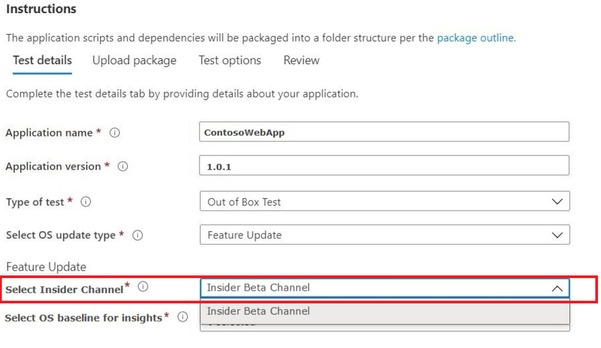
- Select an in-market release of Windows 10 as the baseline for your test (and resulting insights!) and provide the other details required to onboard your package successfully.
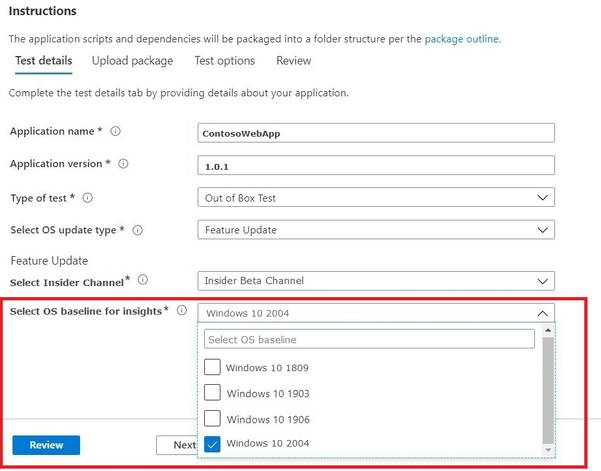
- To view the results and insights from the validation of your application against pre-release Windows 10 feature updates, visit Feature Updates Test Results.
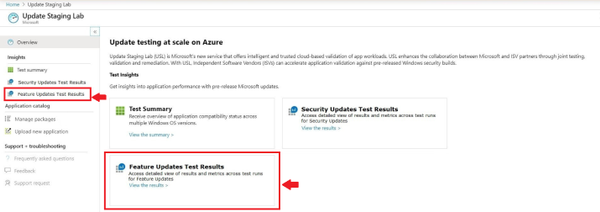
We look forward to hearing your comments/feedback on this new feature as we enhance and evolve our service to meet your validation needs. You can also email us at USLPreview@microsoft.com.
by Scott Muniz | Sep 21, 2020 | Uncategorized
This article is contributed. See the original author and article here.
You have been challenged to support your organization with the enormous shift to remote work (and back again) and keep everyone protected and productive. Come see how we can help you manage your Office apps and keep them up-to-date with greater simplicity and control. From managing multiple update channels to security mitigations, this year’s sessions at Microsoft Ignite 2020 contain gems for anyone wanting to ramp things up, streamline, or just plain learn.
All our digital breakouts and live Ask the Expert sessions are offered with a global audience in mind, so choose the times that work best with your schedule. Simply register at Microsoft Ignite—if you aren’t already—and use our handy guide below to build your schedule. We’ll keep adding content to this blog post so come back to us on day one for quick links to the on demand sessions and more!
While there are many sessions on specific Office products and capabilities, here is the quick list of the ones that will help you optimize the way you manage and service Microsoft 365 Apps as a whole.
|
On demand sessions (links available on September 22nd)
|
|
Featured session:
Office Apps and Teams: Enabling virtual collaboration for the future of our hybrid work environment (Shalendra Chhabra)
|
|
Best practices for deploying Microsoft 365 Apps (Martin Nothnagel)
|
|
How to keep users secure and productive with Microsoft 365 Apps (Sriram Iyer)
|
|
Tell your story powerfully – how AI and flexible input help you craft and communicate your story (Mary Votava Sheppard)
|
|
Microsoft 365: Enabling virtual collaboration for the future of our hybrid work environment (Shalendra Chhabra)
|
For a closer look at sessions and resources related to Microsoft 365 Admin Tools and Experiences, see the Microsoft 365 Admin Guide to Microsoft Ignite 2020
To catch up on the latest in Microsoft Endpoint Manager, bookmark https://aka.ms/MicrosoftIgnite2020/MEM.
To see what’s what at Microsoft Ignite 2020 related to Windows deployment and servicing, visit https://aka.ms/MicrosoftIgnite2020/Windows.
by Scott Muniz | Sep 21, 2020 | Uncategorized
This article is contributed. See the original author and article here.
test
by Scott Muniz | Sep 21, 2020 | Uncategorized
This article is contributed. See the original author and article here.
Group Policy Analytics has gone into public preview with the 2009 release, you can learn more here. There is a known issue with the new “Migration readiness report” where Group Policy Objects (GPOs) that you have uploaded in past releases of Group Policy analytics will be excluded in calculations done in the graphic at the top of the workload, Summary blade and Migration Readiness report.
Below are three workarounds for this issue:
- Force a re-compute of calculations by manually taking GPOs through the “Import” workflow again.
- Use the PowerShell script that was provided to help automatically re-compute the calculations. Follow the instructions hosted on our GitHub repository.
- Wait until a future release of Group Policy analytics in Q4 of this calendar year where we will be doing an automatic re-compute for all GPOs across all tenants.
Upcoming feature improvements
We are working on an experience that lets you easily migrate your Group Policy settings into MDM. Tenants who were in private preview will see a “Migrate” button before anyone else. Today, the “Migrate” workflow supports creation into Administrative Template profiles via the profile creation workflow only.
In future releases, support will be added to migrate to other Device Configuration profiles in addition to Administrative Templates, alongside other user experience improvements to help you on your journey to cloud-based policy management. For tenants not who were not in our preview and want to see the “Migrate” workflow, please reach out to gpanalyticspreview@microsoft.com with your tenant ID.
Let us know if you have any additional questions on this by replying to this post or tagging @IntuneSuppTeam out on Twitter.
by Scott Muniz | Sep 21, 2020 | Uncategorized
This article is contributed. See the original author and article here.
By: Spencer Shumway – Program Manager | Microsoft Endpoint Manager – Intune
We’ve been working hard since announcing a new reporting framework at last year’s Ignite conference and wanted to provide an update on some new reports that have shipped as well as the current list of migrated/new reports all up. We’d also like to lightly cover the different report types we’ve identified and are delivering:
-
Organizational reports are generally broad, contain aggregate data/visualizations, and may be less frequently accessed. You can see the entire estate of the report area (like all of your device compliance) with these reports. Reports of this type are usually located in the Reports menu item on the main left navigation of the MEM console.
-
Operational reports are live, and usually have a negative focus to trim down the data to only what an admin needs to take action. You will often see only a subset of your data (like just the non-compliant devices) with these reports. These reports are usually shown inline with the devices or apps workloads in their respective Monitor tabs.
-
Historical reports show aggregate data over a period of time, typically with daily data points. These can be found throughout the console.
-
Resource reports are located on individual resources like a single app, a single policy, or a single device. When you click on an app you will see examples of resource reports in the Device install status and the user install status report. These report types are operational in nature- as they support troubleshooting and remediation actions, but are defined mainly by where you can find them in the console.
-
List view reports aren’t reports in the traditional sense, but they do convey information in the form of lists of objects. As these lists grow in size, they benefit from our reporting framework sort, search, filter, export, and paging controls and so are candidates for migration. A good example of a list view that is supported by our reporting framework is the All devices blade.
-
Specialist reports are reports that have been published as diagnostic settings in Azure Monitor after migrating to our new reporting framework. Once available as a diagnostic setting, you can select a destination for your data to be published- event hub, storage, or Log Analytics. These various destinations enable integration with security information and event management (SIEM) tools, custom alerting, custom aggregation and business logic, external data joins, and long term storage.
Some new reports shipping with our 2009 release:
We also want to call out that as part of our new reporting framework, we’ve made available an export API that can reliably download a compressed CSV file containing the contents of the report in minutes instead of the hours it might have used to take. For reports that are available in this API we strongly
recommend that you no longer page through the reports using the Get-MSGraphNextPage or Get-MSGraphAllPages cmdlets. Those cmdlets may have worse performance, or even stop working. You should instead use the new export API as we’ve shown here.
We also plan on making changes to the way we render data in the console to limit reports to rendering 500,000 rows. While sort will only take place on the 500,000 rows displayed, search, filter, and export will still work across the entire dataset, so we recommend using search and filter to narrow the scope of a report that you need to interact with in the UI. If you need access to the full dataset you can quickly download it via export in the UI, or our export API.
Here is the total list of reports now supported by our new framework:
|
Removed report
|
New report
|
Sprint Released (YYMM)
|
|
Device Compliance
|
Non-compliant devices operational report (Devices > Monitor)
|
1911
|
|
Device Compliance
|
Device Compliance organizational report (Reports > Device Compliance)
|
1911
|
|
|
Device compliance trends report (Reports > Device Compliance)
|
1911
|
|
|
Device compliance logging
|
1911
|
|
Device List
|
New Devices List – With upgraded controls for search, sort, filter, export and with better performance
|
2003
|
|
Devices List (EDU)
|
New Devices List in EDU console – With upgraded controls for search, sort, filter, export, and with better performance
|
2005
|
|
|
Antivirus agent status organizational report (Reports > Microsoft Defender Antivirus (Preview))
|
2009
|
|
|
Antivirus agent status operational report (Endpoint security > Antivirus)
|
2009
|
|
|
Detected malware organizational report (Reports > Microsoft Defender Antivirus (Preview))
|
2009
|
|
|
Detected malware operational report (Endpoint security > Antivirus)
|
2009
|
|
|
Windows 10 feature updates organizational report (Reports > Windows updates(Preview))
|
2009
|
|
|
Windows 10 feature updates operational report (Devices > Monitor)
|
2009
|
| |
Group policy migration readiness organizational report (Reports > Group policy analytics (Preview))
|
2009
|
As a reminder, our sprints are year-month (YYMM), so 1911 was the November 2019 release and 2009 is the September 2020 release.
We will keep posting updates as more reports become available as part of our reporting framework improvements. We’d love to hear any questions or feedback – You can comment on this post orreach out to us on Twitter @spencershum or @IntuneSuppTeam.


Recent Comments