by Contributed | Apr 29, 2021 | Technology
This article is contributed. See the original author and article here.
Here is an example Power Automate solution where we query a real SharePoint List acting as a Quiz Leader Board on my dev tenant and bring the contents to this very blog post (at the bottom of the page). Using the Power Automate and the HTTP trigger we can retrieve, embed and display content from our Office 365 environments.
The competition is rife at the top of this Leader Board. The aim is to get 100% and it is ordered by last completed to give everyone a chance to be top, albeit I am sorry to say that there is no official badge for this one.
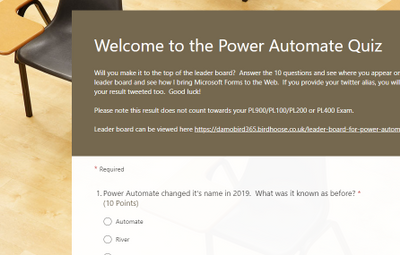
Want to test your Power Automate knowledge? Click Here
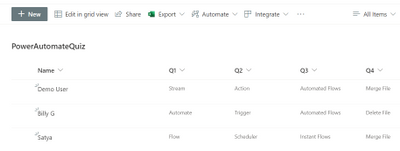
For the first flow of two, using Microsoft Forms and Power Automate I have built a pretty standard process. The user completes the quiz, the form gives them feedback on how well they have done and I capture the answers to a SharePoint List – seen below.
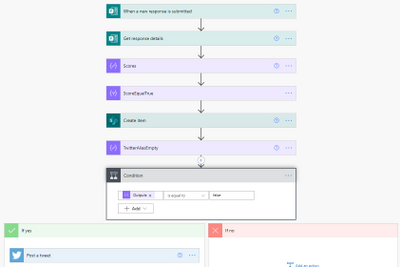
I use the when a new [form] response is submitted trigger and during the next couple of actions I calculate their score again (based on their answers) as the score is not passed back to the Cloud Flow via the Response Body.
What’s the Score?
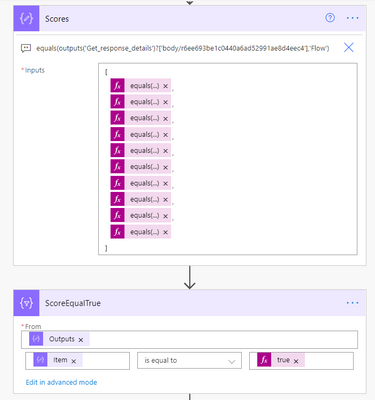
In order to calculate the score I have created an array via a compose action and used the equals expression. If the response equals the answer, it will return true. I then use a filter action on the item() of each output from the select and filter on true. This will leave me with an array of true values. During the create item score field and tweet action, I use the length() expression (i.e. length of array from 10 possible true answers) to return the number of answers equaling true and multiply by 10 to get the percentage correct.
The final stage of this flow is a condition where I check to see if the user has supplied a twitter handle. If it’s not empty I tweet out their score. The only disappointment here is that Twitter will not let you tag users due to spamming  any attempt to include an @ result in it being stripped out.
The Leader Board
The interesting piece though, is the second flow, using the HTTP trigger action to present the leader board to the web and seen below (at least until my premium trial has not expired). Using the trigger we can run an action to get items, prepare HTML table rows using a select action and send back a response to the website in a fraction of a second. The end user loading the website almost doesn’t know it’s happening, albeit there is a slight delay for the flow to run, i’ll admit. Did you notice the delay in this page loading?
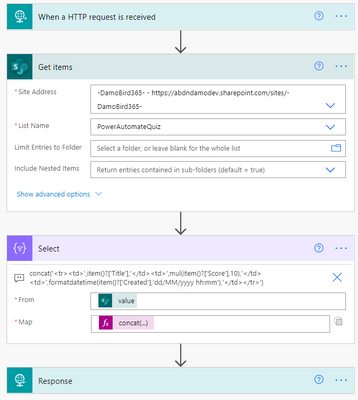
The reponse to the embedded IFrame on my Blog and indeed this article which is simply calling the url provided by the HTTP Request trigger is an HTML table. I create the table header and then using the select action body, I use the join() expression to join the elements of the array with ” into a string and complete the HTML table.
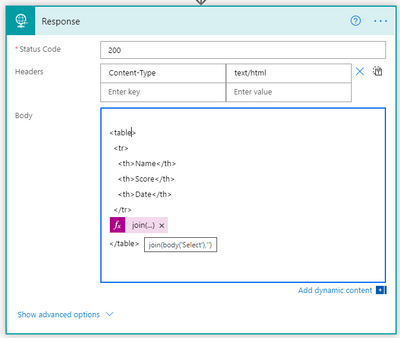
I’m not a web developer and I am sure that there will be slicker ways to embed the results of the http response into your site and for that I would be grateful to hear from those with experience but what do you think of this idea? Are you on the leader board yet?
As things stand – here is the leader board. Can you resist not talking part? Click Here
Tweets with your result will be posted via my twitter handle DamoBird365
Meanwhile, if you are looking for a certificate for your efforts, fill out my form here
Happy quizzing 
by Contributed | Apr 29, 2021 | Technology
This article is contributed. See the original author and article here.
This post will guide you through the process of how to use the Power Apps Language Toolkit to extract a Power Apps .msapp file.
why would you want to have the source code files?
To make your app reusable, so that more people can benefit from it, you will want to share the source code files. Unfortunately, when you save your Canvas App from Power Apps Studio, it is saved in one opaque .msapp file. To be able to get the source files, you will need to use the Power Apps Language Toolkit to extract all files from the .msapp file. This way,
- developers can not only open the source code in their code editor of choice but can effectively manage the code of a Canvas app in GitHub or Azure DevOps. This makes a huge difference as we can’t look into .msapp files.
- makers can still open the .msapp file to easily import an app sample into their environment
Prerequisites
To be able to use the Power Apps Language Toolkit, you will need to
- install Visual Studio Code
- install .NET Core 3.1.x (x64)
- download the Power Apps Language Toolkit
- extract the Power Apps Language Toolkit to a local folder
- open that local folder
- locate the build.cmd file
- rightclick, Run as Administrator
- in the Pop up Window, select more info
- select Run anyway
Please note, that command Prompt will open, show a few lines and then close automatically again.
Please also not, that you can now find a bin folder in the local folder you extracted the PowerApps Language Toolkit to. In this bin folder, you will find a Debug folder and inside of the Debug folder you will find a PASopa folder.
Download the .msapp file
- go to [make.powerapps.com](https://make.powerapps.com)
- log in
- open your app in edit mode
- select File
- select Save as
- select This Computer
- select Download
- move the downloaded .msapp file to your folder in which you extracted the PowerApps Language Toolkit as well
unpack .msapp file
- Now that we have the .msapp file of the app:
- press the WINDOWS key on your keyboard and search for Command Prompt (first few letters should do)
- run as an Administrator
- copy the path of the PASopa folder
- type in Command Prompt `cd <your PASopa path>`
- copy the path of the .msapp file
- create a new folder in your app folder
- copy the path of that new folder
- type in Command Prompt `pasopa -unpack <your msappfile path> <new folder path>`
Please note that you will now find all source code files in that new folder. You can open the folder in a code Editor of your choice, for example Visual Studio Code.
submit as a sample
Well done! If you like to contribute with your app to the PnP Power Apps sample gallery , you can submit your app with these source code files here. To do so, follow these steps:
Now you can submit these source code files as a sample. Please
Please do not forget to provide as well a `README.md` file which explains what your sample is about.
If this all sounds confusing to you and you are new on GitHub – you are more than welcome to attend the Sharing Is Caring sessions, where we guide you through using GitHub and making your first PR.
Sharing Is Caring :sparkling_heart:
by Contributed | Apr 29, 2021 | Technology
This article is contributed. See the original author and article here.
With Azure SQL Managed Instance, you don’t need MS DTC to run distributed transactions! You can now migrate to Azure or build distributed applications with Managed Instance which natively supports cross-instance T-SQL and .NET distributed transactions.
With recent modernization, distributed transactions are supported between Managed Instances as the only supported transaction participants. If your application runs .NET or T-SQL distributed transactions on SQL Server and of course requires MS DTC for that, you can now migrate to Azure SQL Managed Instance and distributed transactions will simply work. Also, if you need to build a multi-server environment in the cloud that needs to run queries in a transactionally consistent fashion, Managed Instance with native support for distributed transactions is a great place for your app.
Distributed transactions on Managed Instance can easily be setup with two simple steps:
- Create Server trust group.
- Ensure there is network connectivity between your instances.
In the rest of the blog, you will get more info on how to easily setup your Managed Instance to run distributed transactions.
Creating a Server trust group
Server trust group (STG) is an entity that manages security requirements for running distributed transactions. You can create it in Azure Portal, or via Azure PowerShell or Azure CLI.
Here is an example of Azure PowerShell script that creates STG for two Managed Instances.
Login-AzAccount
Select-AzSubscription -SubscriptionId “c829c89a-0931-4310-a49c-fa8f42a8cff2”
$managedInstanceList = @()
$managedInstanceList += Get-AzSqlInstance -Name “sqlmi1” -ResourceGroupName “rg1”
$managedInstanceList += Get-AzSqlInstance -Name “sqlmi2” -ResourceGroupName “rg1”
New-AzSqlServerTrustGroup -ResourceGroupName “rg1” -Location “West Europe” -Name “stg1” -GroupMember $managedInstanceList -TrustScope “GlobalTransactions”
Network connectivity
For distributed transactions to work, there must be a network connectivity between Managed Instances. If instances are on different virtual networks, VNET peering needs to be setup.
Additionally, port 5024 and port range 11000-12000 need to be allowed for outbound and inbound VNET traffic in the Network Security Groups assigned to Subnets that host Managed Instances.
Note: when Server trust group is not created, or there is no network connectivity between instances, distributed transaction will fail with following error message.
Msg 8510, Level 20, State 3, Line 14
Enlist operation failed: Global Transaction failed. SQL Server could not register with Microsoft Distributed Transaction Coordinator (MS DTC) as a resource manager for this transaction. The transaction may have been stopped by the client or the resource manager.
Distributed Transaction examples
With STG and network settings in place, you can run distributed transactions across Managed Instances with linked servers.
Here’s an example with two SELECT queries against master database.
SET XACT_ABORT ON

BEGIN DISTRIBUTED TRANSACTION

	— select from local server

	SELECT * FROM master.sys.databases

	— select from remote, linked server

	SELECT * FROM [linked_server_02].master.sys.databases

COMMIT
Here is another example with INSERT queries against user databases.
SET XACT_ABORT ON

BEGIN DISTRIBUTED TRANSACTION

	— insert into local server

	INSERT INTO db01.dbo.t01 (tag, utc_time)

		VALUES (‘distributed_transaction_tag’, GETUTCDATE())

	— insert into remote, linked server

	INSERT INTO [linked_server_02].db01.dbo.t01 (tag, utc_time)

		VALUES (‘distributed_transaction_tag’, GETUTCDATE())

COMMIT
Additional examples with .NET TransactionScope are available in the documentation.
by Contributed | Apr 29, 2021 | Technology
This article is contributed. See the original author and article here.
Microsoft is pleased to announce the final release of the recommended security configuration baseline settings for Microsoft 365 Apps for enterprise, version 2104. Please download the content from the Microsoft Security Compliance Toolkit, test the recommended configurations, and implement as appropriate. If you have questions or issues, please let us know via the Security Baseline Community or this post.
This baseline builds on the previous Office baseline we released mid-2019. The highlights of this baseline include:
- Restrict legacy JScript execution for Office to help protect remote code execution attacks while maintaining user productivity as core services continue to function as usual.
- Expanded macro protection requiring application add-ins to be signed by a trusted publisher. Also, turning off Trust Bar notifications for unsigned application add ins and blocking them to silently disable without notification.
- Block Dynamic Data Exchange (DDE) entirely.
Also, see the information at the end of this post regarding updates to Security Policy Advisor and Office Cloud Policy Services.
The downloadable baseline package includes importable GPOs, a script to apply the GPOs to local policy, a script to import the GPOs into Active Directory Group Policy, updated custom administrative template (SecGuide.ADMX/L) file, all the recommended settings in spreadsheet form and a Policy Analyzer rules file. The recommended settings correspond with the administrative templates version 5146, released March 22, 2021.
Changes since the Draft
A couple small changes were made since the Draft baseline released last month.
- Naming – We were reminded shortly after the Draft released (which was actually reviewed) that we no longer call the product Office 365 ProPlus, it will now be referred to as Microsoft 365 Apps for enterprise.
- GPO changes – We removed the Application Guard settings, while secure, there are conditions where preventing users from exiting App Guard may have an unacceptable end-user productivity impact as Application Guard continues to evolve to handle more file types and active content.
GPOs included in the baseline
Most organizations can implement the baseline’s recommended settings without any problems. However, there are a few settings that will cause operational issues for some organizations. We’ve broken out related groups of such settings into their own GPOs to make it easier for organizations to add or remove these restrictions as a set. The local-policy script (Baseline-LocalInstall.ps1) offers command-line options to control whether these GPOs are installed.
The “MSFT M365 Apps for enterprise 2104” GPO set includes “Computer” and “User” GPOs that represent the “core” settings that should be trouble free, and each of these potentially challenging GPOs, each of which is described later:
- “Legacy JScript Block – Computer” disables the legacy JScript execution for websites in the Internet Zone and Restricted Sites Zone.
- “Legacy File Block – User” is a User Configuration GPO that prevents Office applications from opening or saving legacy file formats.
- “Require Macro Signing – User” is a User Configuration GPO that disables unsigned macros in each of the Office applications.
- “DDE Block – User” is a User Configuration GPO that blocks using DDE to search for existing DDE server processes or to start new ones.
Restrict legacy JScript execution for Office Apps
The JScript engine is a legacy component in Internet Explorer which has been replaced by JScript9. Some organizations may have Office applications and workloads relying on this component, therefore it’s important to determine whether legacy JScript is being used to provide business-critical functionality before you enable this setting. Blocking the legacy JScript engine will help protect against remote code execution attacks while maintaining user productivity as core services continue to function as usual. As a security best practice, we recommend you disable legacy JScript execution for websites in Internet Zone and Restricted Sites Zone. We’ve enabled a new custom setting called “Restrict legacy JScript execution for Office” in the baseline and provided it in a separate GPO “MSFT M365 Apps for enterprise 2104 – Legacy JScript Block – Computer” to make it easier to deploy. Learn more about Restrict JScript at a Process Level.
Note: It can be a challenge to identify all applications and workloads using the legacy JScript engine, it’s often used by a webpage by setting the script language attribute in HTML to Jscript.Encode or Jscript.Compact, it can also be used by the WebBrowser Control (WebOC). After the policy is applied, Office will not execute legacy JScript for the internet zone or restricted site zone websites. Therefore, applying this Group Policy can impact the functionalities in an Office application or add-ins that require the legacy JScript component and users aren’t notified by the application that legacy JScript execution is restricted. Modern JScript9 will continue to function for all zones.
Important: If you disable or don’t configure this Group Policy setting, legacy JScript runs without any restriction at the application level.
Comprehensive blocking of legacy file formats
In the last Office baseline we published, we blocked legacy file formats in a separate GPO that can be applied as a cohesive unit. There are no changes to the legacy file formats recommended to block.
Blocking DDE entirely
Excel already disabled Dynamic Data Exchange (DDE) as an interprocess communication method, and now Word added a new setting “Dynamic Data Exchange” that we have configured to a disabled state. Because of the new addition from Word the existing GPO has been renamed to “MSFT M365 Apps for enterprise 2104 – DDE Block – User”.
Macro signing
The “VBA Macro Notification Settings” policy has been updated for Access, Excel, PowerPoint, Publisher, Visio, and Word with a new option. To further control macros we now recommend that macros also need to be signed by a Trusted Publisher. With this new recommendation macros not digitally signed by a Trusted Publisher will be blocked from running. Learn more at Upgrade signed Office VBA macro projects to V3 signature.
Note: Enabling “Block macros from running in Office files from the Internet” continues to be considered part of the main baseline and should be enforced by all security-conscious organizations.
Other changes in the baseline
- New policy: “Control how Office handles form-based sign-in prompts” we recommend enabling and blocking all prompts. This results in no form-based sign-in prompts displayed to the user and the user is shown a message that the sign-in method isn’t allowed.
- New policy: We recommend enforcing the default by disabling “Disable additional security checks on VBA library references that may refer to unsafe locations on the local machine” (Note: This policy description is a double negative, the behavior we recommend is the security checks remain ON).
- New policy: We recommend enforcing the default by disabling “Allow VBA to load typelib references by path from untrusted intranet locations”. Learn more at FAQ for VBA solutions affected by April 2020 Office security updates.
- New dependent policy: “Disable Trust Bar Notification for unsigned application add-ins” policy had a dependency that was missed in the previous baseline. To correct, we have added that missing policy, “Require that application add-ins are signed by Trusted Publisher”. This applies to Excel, PowerPoint, Project, Publisher, Visio, and Word.
- Removed from the baseline: “Do not display ‘Publish to GAL’ button”. While this setting has been there for a long time, after further research, we believe this setting is used to ensure good deployment practices and not to mitigate security concerns.
Deploy policies from the cloud, and get tailored recommendations for specific security policies
Deploy user-based policies from the cloud to any Microsoft 365 Apps for enterprise client through the Office cloud policy service. The Office cloud policy service allows administrators to define policies for Microsoft 365 Apps for enterprise and assign these policies to users via Azure Active Directory security groups. Once defined, policies are automatically enforced as users sign in and use Microsoft 365 Apps for enterprise. No need to be domain joined or MDM enrolled, and it works with corporate-owned devices or BYOD. Learn more about Office cloud policy service.
Security Policy Advisor can help give you insights on the security and productivity impact of deploying certain security policies. Security Policy Advisor provides you with tailored recommendations based on how Office is used in your enterprise. For example, in most customer environments, macros are typically used in apps such as Excel and only by specific groups of users. Security Policy Advisor helps you identify groups of users and applications where macros can be disabled with minimal productivity impact, and optionally integrate with Microsoft Defender for Office to provide you details on who is being attacked. Learn more about Security Policy Advisor.
When can I expect the next release of M365 Apps for enterprise Security Baseline?
In the future we will align the release of new security baselines with the M365 Apps for enterprise semi-annual channel releases, every 6 months usually in June and December. If there are no new policies to consider at that time, we will evaluate again 6 months later.
As always, please let us know your thoughts by commenting on this post.
by Contributed | Apr 29, 2021 | Technology
This article is contributed. See the original author and article here.
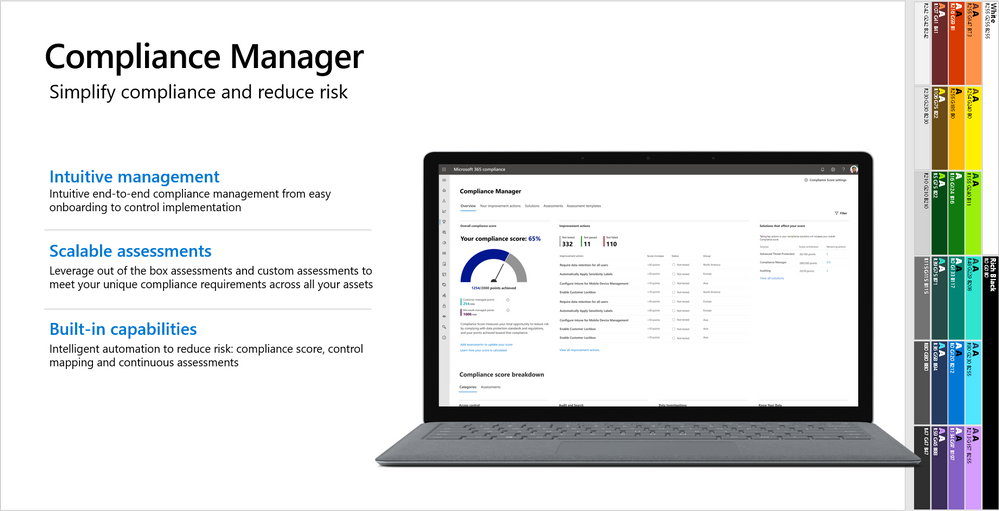
This webinar covers the exciting announcements made at Ignite, as well as what’s next for Compliance Manager.
Watch on-demand
Resources:
Microsoft Compliance Manager – Microsoft 365 Compliance | Microsoft Docs
Announcing general availability of Microsoft Compliance Manager – Microsoft Tech Community
This webinar was presented on April 20, 2021, and the recording can be found here .
Attached to this post are:
- The FAQ document that summarizes the questions and answers that came up over the course of both webinars.
- A PDF copy of the presentation.
Thanks to those of you who participated during the two sessions and if you haven’t already, don’t forget to check out our resources available on the Tech Community.
Thanks!
@Robin_Baldwin on behalf of the MIP and Compliance CXE team
by Contributed | Apr 29, 2021 | Technology
This article is contributed. See the original author and article here.
Protection on shared devices, Setup Assistant with modern authentication, and insights into OS health – What’s New in Microsoft Endpoint Manager – 2104 (April) Edition
This month, we’re releasing new capabilities that update the user experience across multiple platforms. You can view the complete list of What’s New in the 2104 (April) release for details. I previewed a few of these new capabilities at Ignite; now, they are here for you to use! As usual, I appreciate your feedback. Please feel free to comment on this post, connect with me on LinkedIn, or tag me @RamyaChitrakar on Twitter.
Protect privacy and data on Android Enterprise-managed devices shared by frontline workers
Frontline workers that share dedicated devices perform critical jobs like maintaining supply chains, serving as first responders, and caring for patients. This month we’re announcing general availability for IT to configure and enable users to enroll Android Enterprise dedicated devices into Azure AD Shared device mode. Organizations can now protect privacy and data on Android Enterprise managed devices shared between workers. I’m excited for the value the team is delivering to ensure that frontline workers have access to the tools and technology they need with the appropriate level of security, regardless of the device they may be on.
Shared device mode on Android Enterprise devices offers single sign-in, single sign-out, and data clearing across applications written to support multiple users. This manageability provides privacy between users and reduces the number of steps frontline workers need to take to work in their apps. Today, Microsoft applications optimized for Shared device mode include Microsoft Teams and Managed Home Screen.
Here’s a frontline worker day in the life shared device experience from starting their shift to ending their day, all the while collaborating on Microsoft Teams:
More apps are coming soon; this is just the beginning. You can optimize your company’s private applications for Shared device mode by following our guide. When you configure an Android device with Shared device mode, you can also apply additional security measures such as Conditional Access policies to reduce the risk of unauthorized access to company data from shared devices while optimizing the experience for users. For example, you can manage the requirement for multi-factor authentication for users who may not carry their primary device during shifts.
Setup Assistant with modern authentication for Automated Device Enrollment on iOS/iPadOS/macOS
Many of you shared that you want a quick, secure, and easy authentication method that won’t stop employees from immediately starting to work for your purpose-driven iOS/iPadOS and macOS devices. This month, we released a public preview of Setup Assistant with modern authentication for Automated Device Enrollment. This new enrollment method allows your employees to start using these managed devices right after enrollment without waiting for the Company Portal to install on a locked down device.
With the security that comes with modern authentication, you can now configure your Azure AD settings within a Conditional Access policy to require multi-factor authentication either during enrollment in the Setup Assistant or upon authentication in the Company Portal. For apps that support it, you have a single sign-on experience while layering on your security and compliance requirements, if desired. Additionally, as part of this secure enrollment flow, if your user lands on the home screen post-enrollment and tries to open a resource protected by Conditional Access before signing into the Company Portal, we’ve added a user experience that will guide them through authentication. You can read more on how to configure these scenarios in this post.
Let’s look at Setup Assistant with modern authentication:
Windows restart frequency report in Endpoint Analytics
Finally, I previewed the Windows restart frequency feature in the Ignite Edition of What’s New. Since this is such a frequently asked for feature, I thought it important to share that this capability is generally available now for you to fully configure.
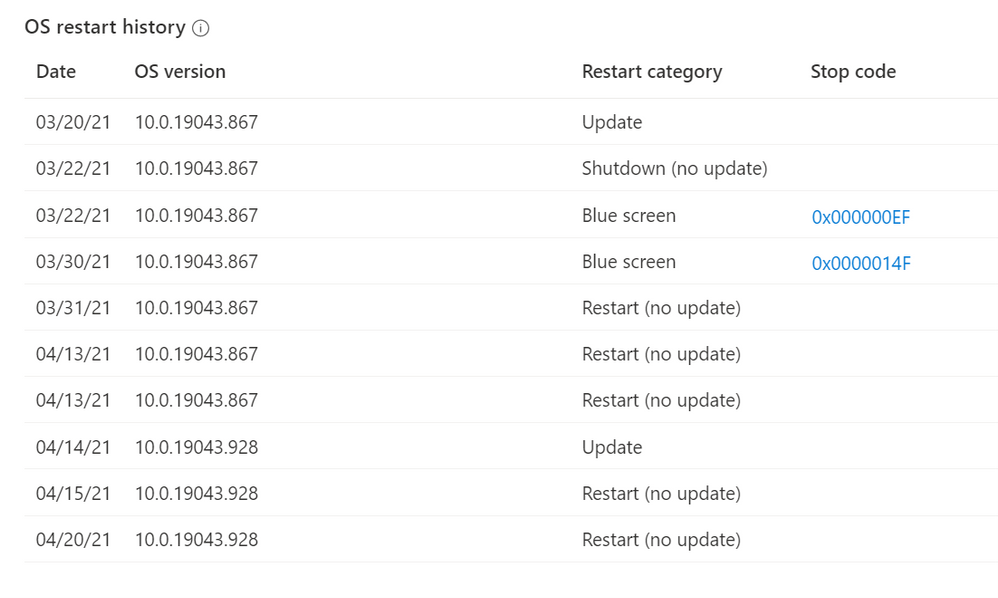
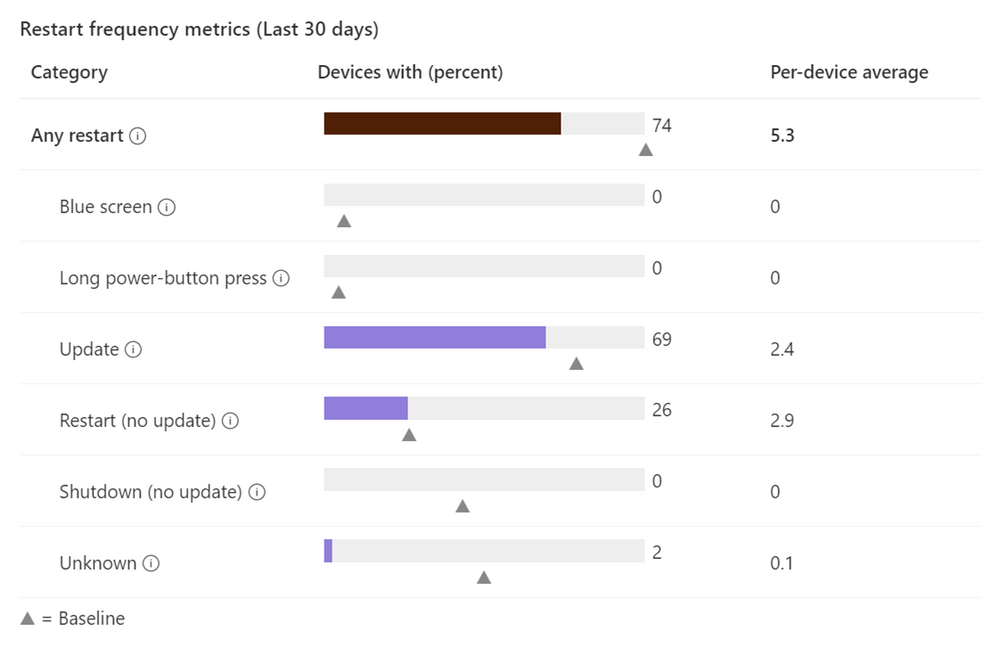
Use Endpoint analytics to measure and review device start-up time, restart frequency, and drill down on disruptive restarts, such as those caused by blue screens. The full power of analytics can also help you determine if a user has an abnormally high number of unexpected restarts, enabling you to more quickly troubleshoot and take appropriate action.
Here’s what the restart frequency looks like in the Microsoft Endpoint Manager admin center, and the following screen shot shows additional OS restart history:
We are always working with our customers’ needs top of mind. We listen to your feedback and make changes and investments based on your goals to improve the user experience as well as help simplify IT administration. Next month I expect you’ll see more focus on capabilities that improve the administrator experience. Questions? Feedback? Comment on this post, connect with me on LinkedIn, or tag me @RamyaChitrakar on Twitter.
by Contributed | Apr 29, 2021 | Technology
This article is contributed. See the original author and article here.
At the Microsoft Business Applications Summit (MBAS) this year. Join the Power BI team and be inspired by exciting new features, see amazing demos, learn about our roadmap, see real world stories and connect with your peers from the awesome Power BI Community!
The official event starts at 8:00 AM PDT, however, the Power BI sessions begin at 10:45 AM PDT.
https://powerbi.microsoft.com/en-us/blog/join-us-for-microsoft-business-applications-summit-may-4th-2021/

by Scott Muniz | Apr 29, 2021 | Security
This article was originally posted by the FTC. See the original article here.
As part of our ongoing efforts to protect you from sellers of scam COVID-19 treatments, the FTC has sent 30 warning letters to companies that claimed their products can prevent, treat, or cure COVID-19. These letters gave the sellers 48 hours to notify the FTC of the specific actions they have taken to address the agency’s concerns. Companies failing to make adequate corrections could have faced lawsuits under the 2020 COVID-19 Consumer Protection Act. Not only does the law make it illegal to deceptively market products that claim to prevent, treat, or cure COVID-19, it also lets the FTC seek financial penalties. The good news: as a result of these letters, all the companies have stopped making the false or deceptive claims.
The companies involved peddle everything from chiropractic adjustments, exercise sessions, nasal mists and rinses, vitamins, supplements, and extracts. There’s a slew of therapies with impressive names like peptide, oxidative, stem cell, ozone, intravenous vitamin, and infrared sauna therapy. All of these products and treatments have one thing in common: there is no evidence — as required by law — that they work against the Coronavirus.
When it comes to fighting COVID-19 and spotting unsupported treatment claims, follow these tips:
- When there’s a medical breakthrough to treat, prevent, or cure a disease, you’re not going to hear about it for the first time through an ad or sales pitch.
- Always talk with your doctor or healthcare professional before you try any product claiming to treat, prevent, or cure COVID-19.
- Visit CDC.gov and the FDA.gov for the most up-to-date information about COVID-19 and available vaccines.
Now, share what you know, and ask others to do the same.
Brought to you by Dr. Ware, Microsoft Office 365 Silver Partner, Charleston SC.
by Contributed | Apr 29, 2021 | Technology
This article is contributed. See the original author and article here.
This blog is part two of a three-part series detailing the journey we’re on to simplify the configuration of threat protection capabilities in Office 365 to enable best-in class protection for our customers.
In the previous blog in this series, we described how we have made it easier for customers to understand configurations gaps in their environment with recently launched features including Preset Security Policies, Configuration Analyzer, and Override Alerts. In this blog, we’ll take a closer look at additional capabilities we are enabling in the product as we continue forward on our journey to block malicious emails from being delivered to end users.
Secure by Default: Tackling the Legacy Override Problem
One of the challenges we are addressing is the legacy override problem. As we covered in the first blog, legacy overrides are tenant level or user level configuration that instruct Office 365 to deliver mail even when the system has determined that the message is suspicious or contains malicious content. As a result of these aging and overly permissive overrides, we get poorly protected pockets with the organization and enable malicious emails to be delivered to end users.
To combat this, we here at Microsoft believe it’s critical to keep our customers “secure by default”. We have determined that legacy overrides such as allowed sender and allowed domain lists in anti-spam policies and Safe Senders in Outlook tend to be too broad and cause more harm than good. As a security service, we believe it’s imperative that we act on your behalf to prevent your users from being compromised. That means these legacy overrides are no longer honored for email messages we believe are malicious. We already apply this approach with malware messages and now we are extending it to messages with high confidence phish verdicts. Our data also indicates that the false positive rate (good messages marked as bad) for high confidence phishing messages is extremely low, adding to our conviction about this approach.
This feels like a critical step, given how dangerous and voluminous phishing messages have become. To learn more about the current threat landscape, please check out our annual security intelligence report, the Microsoft Digital Defense Report.
Ensuring that users cannot interact with malicious emails
As part of our secure by default focus, we’ve also taken additional steps to eliminate the risk of email borne threats. Essentially, when Microsoft is confident that an email contains malicious content, we will not deliver the message to users, regardless of tenant configuration. These messages will be delivered to quarantine, not the junk folder. (In the junk folder, there is always the risk that the user might inadvertently release them to the inbox).
Only admins can manage malware or high confidence phish messages that are quarantined, because our data indicates that a user is 30 times more likely to click a malicious link in messages in the junk email folder versus quarantine.
Rolling out these secure by default changes
We’ve taken a very deliberate approach to rolling out these changes in phases to ensure customers are not surprised and there are no negative side effects. We began to rollout Secure by Default for high confidence phishing messages by the override type starting in December of last year.
Today, we’re at a point in our Secure by Default journey where the following overrides are not honored for malicious emails (malware or high confidence phish emails):
- Allowed sender lists or allowed domain lists (anti-spam policies)
- Outlook Safe Senders
- IP Allow List (connection filtering)
In addition, all malicious emails are delivered to quarantine by default.
Learn more about how we are keeping customers secure by visiting our documentation.
The Next Phase of Secure by Default rollout – Tackling transport rules
In June, we will extend Secure by Default to cover high confidence phishing messages for the remaining legacy override type, Exchange mail flow rules (also known as transport rules or ETRs).
ETRs represent roughly 60% of the high confidence phish message override volume we see, making this phase essential in achieving our Secure by Default goal for customers. For more on ETRs, check out our documentation on mail flow rules.
While ETRs represent a large problem space, it is complicated by the fact that customers and vendors have come to rely on it as a way to achieve two specific scenarios where the ‘override’ of malicious messages is quite deliberate and intentional.
- Phish simulation campaigns: These are messages that Defender for Office 365 routinely detects as being malicious, so customers put ETR rules in place to direct the system to not block delivery of these messages to end users.
- Security Operations mailboxes: These are special mailboxes customers setup to support the ability for end users to report malicious emails to SecOps teams.
In both these cases, customers do legitimately want the malicious emails delivered to achieve a very specific business goal.
So, in our effort to eliminate the unintentional ETR overrides of malicious emails, we needed to first make sure there was a say way for customers to achieve the above two goals without having to rely on ETRs as a blunt instrument.
Introducing Advanced Delivery for Phishing Simulations and Security Operations Mailboxes
As we covered above, there are special scenarios where security teams may want to explicitly direct that high confidence phish are delivered.
- Third-party phish simulations
- Security operations mailbox
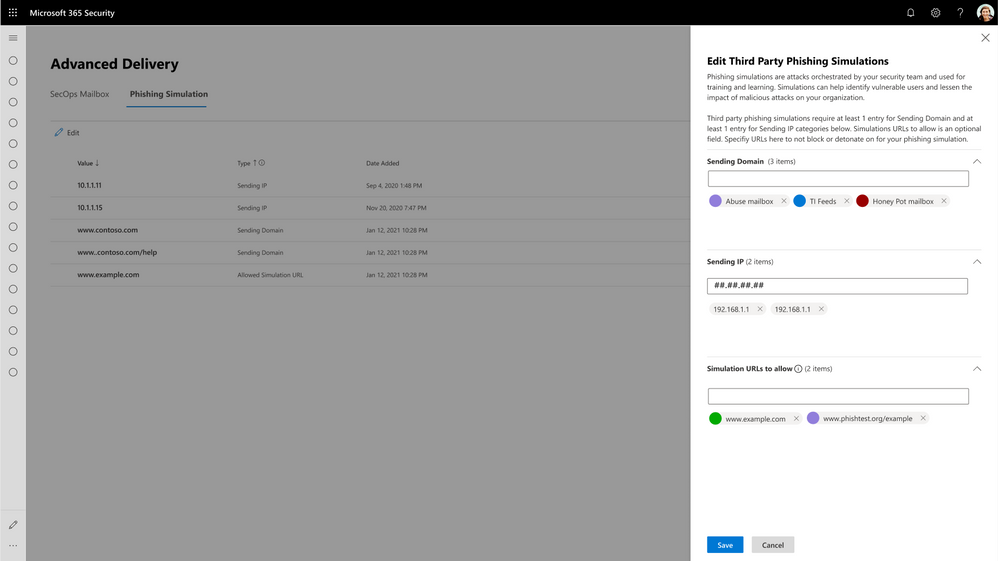
Customers have asked us for a method to explicitly configure message delivery for these scenarios and for the ability to view and filter these messages across our admin experiences. In June, we will launch the new Advanced Delivery capability for these scenarios, providing a method for security admins to explicitly configure for these in-product.
Figure 1: Configuring Third-Party Phishing Simulation Campaigns with Advanced Delivery.
With Advanced Delivery, we will ensure messages configured as part of these scenarios are handled correctly across the product. The protection filters will respect these configurations and not block these messages. And we will also show off these messages with the appropriate annotations in all of the reporting, investigation and security experiences in the product, so security teams and admins are not confused about the true nature of these messages.
Since these do not represent a real threat to your organization, we will, for example, not flag the messages as malicious and inadvertently remove them from your inbox, and we’ll skip things like triggering alerts, detonation, and automated investigations. However, admins will have the ability to filter, analyze and understand messages delivered due to these special scenarios.
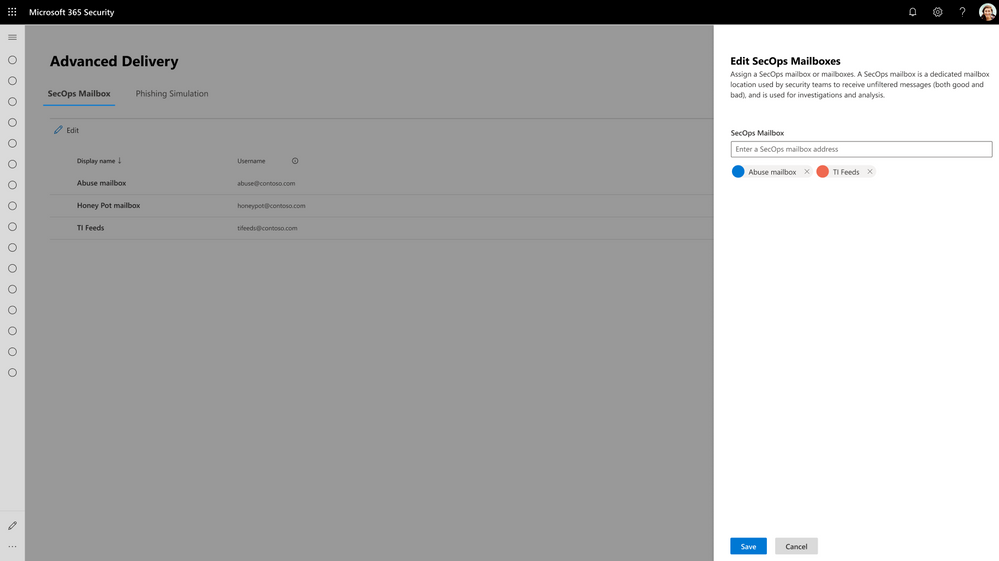 Figure 2: Configuring Security Operations Mailboxes with Advanced Delivery.
It will be important for customers who are utilizing ETRs to configure third-party party phishing simulation campaigns or delivery for security operation mailboxes today to start configuring these with the new Advanced Delivery policy when the feature is launched in June.
After the last phase of Secure by Default is enabled in July, Defender for Office 365 will no longer deliver high confidence phish, regardless of any explicit ETRs.
To learn more about the new advanced delivery policy, learn more on Microsoft Docs.
Making it easy for customers
This new way of handling phishing simulations from 3rd party vendors and security operations mailboxes is cleaner and offers a great deal of predictability for security teams. We’ve seen numerous occasions where security admins and SecOps members have been stirred into action inadvertently because of lack of clarity in this regard. This new capability above eliminates all that confusion.
Most significantly, this feature makes it easier for security and messaging admins to rest assured that their ETR rules cannot impact the protection of their users, and prevents them from having to manually inspect all of their ETR rules (a daunting task) to guarantee that.
Stay tuned…
We covered here additional changes we’ve made to help customers understand configuration gaps and the capabilities we’ve launched to eliminate the legacy override problem. In the next blog, we will share details about additional features we are building to further eliminate the configuration gap problem in the case where customers may be unaware of security policy features available to them and have not turned these on.
Do you have questions or feedback about Microsoft Defender for Office 365? Engage with the community and Microsoft experts in the Defender for Office 365 forum.
by Contributed | Apr 29, 2021 | Technology
This article is contributed. See the original author and article here.
We are pleased to announce the preview support of .NET5 into the Azure IoT Hub and DPS SDKs for .NET. With this preview you can now use .NET 5 and C# 9 with your project using the Azure IoT .NET SDKs.
With .NET 5, the .NET framework team introduced a new set of features. One of particular interest in our client library is the enhancement of async operations for System.Net.Http and Stream APIs. See this documentation for an explanation of working with cancellation tokens.
This .NET 5 support is now in preview, and it is a great time to try it and get us feedback. Don’t hesitate to reach out to us and let us know if you have any issues, concerns, or suggestions.
Happy coding!
The .NET IoT SDK team



Recent Comments