
by Contributed | May 4, 2021 | Dynamics 365, Microsoft 365, Technology
This article is contributed. See the original author and article here.
It’s amazing how much change we’ve seen across the world in a year.
One year ago, all of us were adapting to a world in lockdown. At today’s Microsoft Business Applications Summit, the worldwide community comes together still dealing with the ongoing effects of the COVID-19 pandemic.
Even as challenges continue to reverberate across industriesfrom supply chain disruptions to recurring restrictionsmost businesses are taking steps toward recovery. They’re taking stock of vulnerabilities and opportunities across their organizations, markets, and industriesand the steps needed to move forward into the future.
That’s why today’s Microsoft Business Applications Summit is so timely. As global business communities set sights on what’s next, today’s event is an opportunity for the Microsoft Dynamics 365 and Microsoft Power Platform community to come together, assess what we’ve learned over the past year, and explore ways to proactively reimagine every layer of business.
Building the agile digital business
Everyone joining the Microsoft Business Applications Summit plays an integral part in moving business forward. Today, we are sharing stories of people and teams transforming the way they do business to be more adaptable, innovative, and impactful.
This past year demonstrated that businesses with a strong digital foundation can push the boundaries of what’s possible and achieve more, even when faced with a global crisis. Without digital capabilities, it’s next to impossible to adapt to rapid change.
At Patagonia, a leader in outdoor clothing and gear, the pandemic accelerated a journey to deliver more meaningful customer experiencesin ways no one expected. Before the crisis, the organization was preparing to move its direct-to-consumer business and selling channels onto Dynamics 365. When lockdowns shut down physical locations, from offices and retail stores to call centers and warehouses, the team turned to Microsoft Teams to coordinate the launch and rapidly adapt operations to a new retail model. With retail locations closed to customers, the team leveraged distributed order management capabilities in Dynamics 365 to turn retail locations into mini-warehouses, keeping employees working and online orders fulfilled, followed by curbside pick-up.
Equipped with the right digital capabilities, the teams at Patagonia demonstrated incredible agility in the face of changepivoting complex operations nimbly and quickly to keep customers equipped with the outdoor gear they depend on.
New ways to connect with your community
Patagonia’s story reminds us that, together, as a team, we can accomplish great things. In a year defined by keeping one’s distance, it’s critical to help our community stay connected.
Today, more than775 user groups bring together more than 2.85 million active community members to connect, learn, and engage one another on topics related to Microsoft technologies. The Microsoft Power Platform and Dynamics 365 communities connect you directly with Microsoft, your industry peers, and high-value content in a diverse, supportive environment.
Today we are introducing a new user group experience with tools to help you find, join, start, and run local user groups for Dynamics 365 and Microsoft Power Platform.
We are supporting the user groups with an administrative team and connection to local Microsoft employees around the world. You can engage with experts to answer questions, learn about the latest innovations, and influence future product roadmaps.
Our goal is to enable a global network of local user groups that are Microsoft-supported and community-led. We invite you to explore the preview of the new experience and get started by creating or joining a local user group.
Helping you move business forward
It’s been a tough year. Every business has had to make difficult decisions, rethink plans, and readjust to conditions few could predict in advance. Moving forward means reshaping the business now to be prepared for future disruptions, large and small. That’s why we are dedicated to continuously providing the technology you need to build agility and resiliency into every layer of your business.
In April, we launched a six-month wave of hundreds of new capabilities, feature updates, and applications across Dynamics 365 and Microsoft Power Platform. This release wave continues our dedication to empower everyone to make an impact with technology that surfaces insights and guidance to the next best step, across every department. By harnessing the data generated across your business, everyone across the company can break through barriers to perform their best and focus on what’s best for the customer.
One way we are bringing this vision to life is by helping you deliver consistent, personalized customer experiences across every touchpoint, from the first point of awareness of your brand through purchase and service, both from the call center and in the field. Today at the Microsoft Business Applications Summit, we’ll catch you up on the latest marketing technologies that help you engage individual customers at scale.
In our keynote presentation, we will demonstrate how the Los Angeles Clippers are able to make game night more personalized by engaging fans with the experiences they prefer. They can now use Dynamics 365 Customer Insightsthe Microsoft customer data platform (CDP)to connect data from a variety of sources to gain a comprehensive view of fans’ preferences and use Dynamics 365 Marketing to orchestrate customer-led journeys in real-time to deliver hyper-personalized experiences for fans on game night. With the combined power of Dynamics 365 Customer Insights and Dynamics 365 Marketing, organizations can deeply understand customer behavior and intent and leverage real-time insights to personalize journeys at scale, unlocking new ways to attract, engage, and delight customers with a more human and empathetic approach.
With the new integration between Dynamics 365 Customer Insights and Microsoft Advertising, advertisers can now create and export limitless set of customer segments from Dynamics 365 Customer Insights into the Microsoft Advertising platform to target on the Microsoft Search Network and Microsoft Audience Network using Customer Match targeting. These segments can be also used on third-party destinations including Google Ads, Marketo, MailChimp, dotdigital, SendGrid, and Autopilot.
Learn more by joining sessions focusing on Dynamics 365 Marketing and Dynamics 365 Customer Insights, including the featured session, “Customer engagement transformed: hyper-personalize experiences to drive better business results.”
Microsoft Power Platform: Making your business more flexible
Innovation and problem solving doesn’t happen in a vacuum. Everyone in the business can play a role in moving the business forward with the right set of digital tools. Our vision for Microsoft Power Platform is to empower every creator in your company to build business solutions, increase collaboration between business and IT teams, and inject more flexibility into your business.
Humana, a U.S.-based healthcare innovation and community wellness company, is helping to bring this vision to life. In response to the COVID-19 pandemic, Humana used Microsoft Power Platform to rapidly build solutions catering to the needs of their millions of Medicare and specialty members and vulnerable communities during the COVID-19 pandemic. In our keynote presentation, we will demonstrate one of the solutionsa vaccine scheduler and community tracking applications to help members book vaccination appointments with local providers.
As part of this demo, we will also spotlight goals in Power BI, launching in preview today. Goals enables teams to easily curate business metrics that matter most and aggregate them in a unified view. From there, teams can measure progress against their goals, proactively share updates with their teammates, and dive deeper into their data when something needs further analysis. Attend today’s sessions on the Power BI roadmap and new features announcement, and read this overview to learn more.
With Microsoft Power Platform, anyone can solve business challenges with low-code apps, or automate common processesat scale, across departments, or on one’s desktop. Barriers that have blocked innovation and productivity for years are removed.
Join the conversation at Microsoft Business Applications Summit
There’s much more to explore at the Microsoft Business Applications Summit. In addition to the sessions above, we invite you to explore the full catalog of learning sessions and product roundtables. We also invite you to connect, learn, and share with peers and experts to ask questions, engage in discussions, and view content in the Microsoft Power Platform and Dynamics 365 communities.
For more details about what’s new for Dynamics 365 and Microsoft Power Platform, explore recent product updates and the 2021 release wave 1 plans.
The post Live from Microsoft Business Applications Summit 2021: Moving forward faster, together appeared first on Microsoft Dynamics 365 Blog.
Brought to you by Dr. Ware, Microsoft Office 365 Silver Partner, Charleston SC.
by Contributed | May 4, 2021 | Technology
This article is contributed. See the original author and article here.
By Wayne Bennett – Sr Program Manager | Microsoft Endpoint Manager – Intune
Using Microsoft Endpoint Manager – Microsoft Intune to set your company’s terms and conditions meets the requirements of many organizations. However, the Azure Active Directory (Azure AD) terms of use feature offers greater functionality— including terms of use in different languages and integration with Conditional Access in the form of grant controls. You can learn more about the differences between the two solutions in this blog post.
Potential to block access to Intune
If you’ve configured the Azure AD terms of use solution and set a grant control to require users to accept terms of use in your Conditional Access policy, you need to be aware of a configuration scenario that might unintentionally block access for your users when they try to enroll into Intune.
Typical configuration
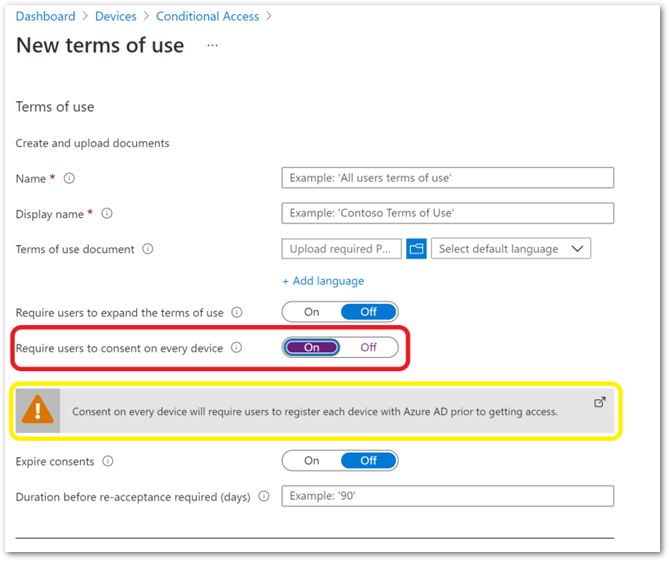
When creating an Azure AD terms of use policy, you have the option to select Require users to consent on every device. If you choose this setting, you will see the Consent on every device will require users to register each device with Azure AD prior to getting access warning. Once saved, you are unable to change this setting.
Example screenshot to register each device with Azure AD prior to getting access in a Conditional Access policy
After you create the terms of use policy, the next step is to create a Conditional Access policy. As shown in the following example, many organizations will target All Cloud Apps without configuring any exclusions.
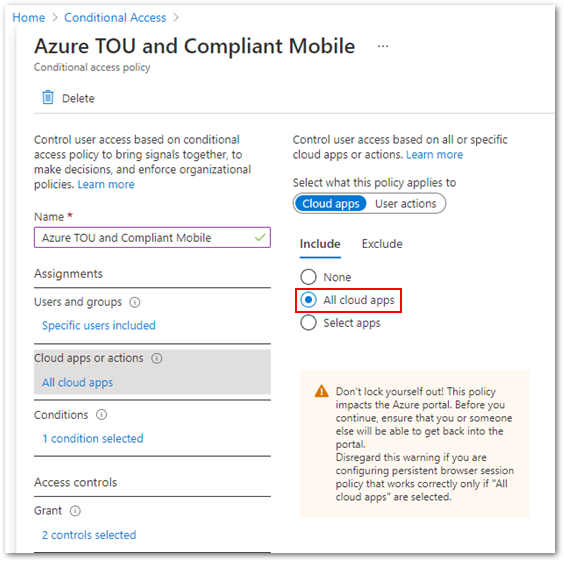 Example screenshot of targeting All cloud apps in a Conditional Access policy
Additionally, many organizations will select Require device to be marked as compliant grant controls and require users to accept the Azure AD terms of use policy.
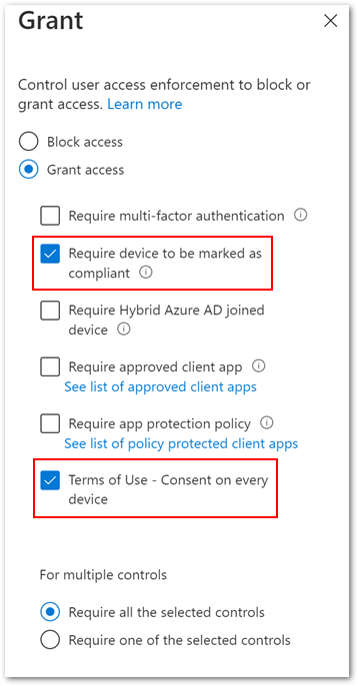 Example screenshot of configuring both the “Require device to be marked as compliant” and “Terms of Use” policies under the Grant control
Blocking enrollment issue
The combination of Azure AD terms of use requiring users to consent on every device, Conditional Access policy targeting All Cloud Apps, and the control requiring the user to accept the Azure AD terms of use results in the following unintended behaviour during the Intune enrollment process:
- Once the user has authenticated in the Company Portal, prior to Azure AD terms of use appearing, the Help us keep your device secure message will appear. The user will be prompted to install the Microsoft Authenticator app, Conditional Access controls will begin a continuous registration cycle, and the user will be unable to complete enrollment.
The issue is caused by selecting Require users to consent on every device, requiring users to register each device with Azure AD prior to getting access, as per the warning, when creating the terms of use policy.
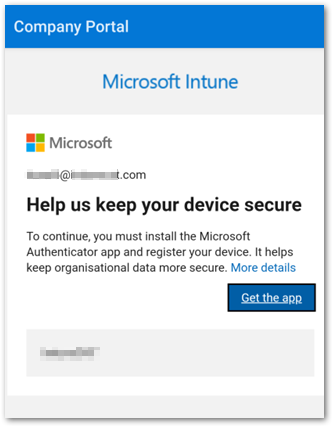 Example screenshot of the “Help us keep your device secure” message
Prevent Intune enrollment from being blocked
There are two methods to keep the enrollment blocking scenario from occurring:
Method 1: The Terms of use dialog
The first method is to ensure that Require users to consent on every device in the Terms of use dialog remains at the default Off setting when creating the Azure AD terms of use policy.
Note
Once the Azure AD terms of use policy is created, it is not possible to edit the Require users to consent on every device setting. You must create and target a new terms of use policy in the Conditional Access policy.
Method 2: Exclude cloud apps
The second method is to exclude certain cloud apps from Conditional Access targeting. The Per-device terms of use section of the Azure Active Directory terms of use documentation states that “The Intune Enrollment app is not supported. Ensure that it is excluded from any Conditional Access policy requiring Terms of Use policy.” However, excluding the Microsoft Intune Enrollment cloud app is not sufficient— as the example below shows, you must also exclude the Microsoft Intune cloud app.
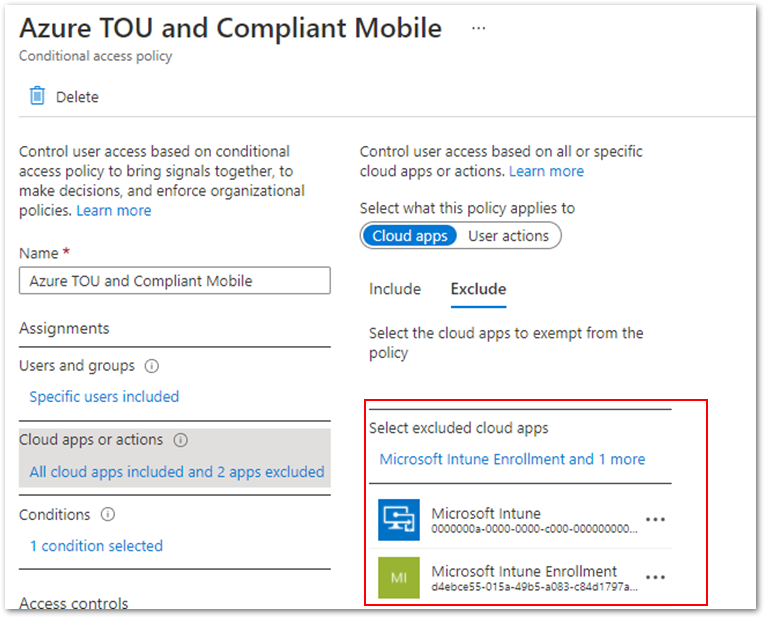 Example screenshot of excluding “Microsoft Intune” and “Microsoft Intune Enrollment” from the Cloud apps or actions list
Conclusion
Changing your configuration using either of the suggested methods will prevent the Intune enrollment blocking scenario. Before you make any change, be sure to evaluate the settings so you don’t impact any existing Conditional Access requirements.
More info and feedback
For further resources on this subject, please see the links below.
Plan an Azure Active Directory Conditional Access Deployment
Troubleshoot Conditional Access using the What If tool
What is Microsoft Intune
Conditional Access require terms of use
Cloud apps or actions in Conditional Access policy
Device compliance policies in Microsoft Intune
Let us know if you have any additional questions by replying to this post or reaching out to @IntuneSuppTeam on Twitter.
by Contributed | May 4, 2021 | Technology
This article is contributed. See the original author and article here.
Get ready to activate, adapt, and accelerate your business. And learn how training and certification helps to make it happen. With the worldwide community of Microsoft Power Platform and Dynamics 365 customers, partners, power users, evangelists, and implementers at Microsoft Business Applications Summit, you can find out the latest from Microsoft Learn—your destination for free, always-on learning. Join us at the summit today for a digital experience that includes keynotes, technical sessions, Q&A with experts, inspiring videos, and an opportunity to sign up for a fun Cloud Skills Challenge.
Announcing the new Microsoft Certified: Dynamics 365 Commerce Functional Consultant certification
Are you all about creating friction-free shopping experiences and uniting digital and physical commerce? If you’re a functional consultant, developer, information worker, or IT or business professional using Dynamics 365 Commerce in your organization, we have a new certification for you. Now you can validate your skills in configuring, deploying, and maintaining Dynamics 365 Commerce applications.
We’re happy to announce the Dynamics 365 Commerce Functional Associate certification available in beta in June 2021. To earn this certification, you’ll need to pass you’ll need to pass Exam MB-300: Microsoft Dynamics 365: Core Finance and Operations along with Exam MB-340: Dynamics 365 Commerce Functional Consultant. Exam MB-340 measures your ability to configure Dynamics 365 Commerce headquarters; configure and manage Dynamics 365 Commerce call centers; manage Point of Sale (POS) in Dynamics 365 Commerce; configure products, prices, discounts, loyalty, and affiliations; and manage e-commerce.
Now available on Microsoft Learn: Certification renewal features
A few months ago, we shared an update on renewing role-based and specialty certifications on Microsoft Learn. This feature is now available for 19 certifications, with more following in the near future. If your role-based or specialty certification expires within six months, you can take a certification renewal assessment online—at no cost and on your schedule—and extend your certification for a year at a time. Learn more about renewing your Microsoft Certification.
Microsoft Learn at Microsoft Business Apps Summit
Get ready for a day jam-packed with sessions and activities to boost your Business Apps skills. Explore ways to expand your horizons with Microsoft Power Platform and Dynamics 365 certifications, and get the most out of training on Microsoft Learn.
- Cloud Skills Challenge. Come to the Connection Zone to sign up for a fun and engaging gamified learning experience. We have the challenges you’re looking for, with four Microsoft Power Platform challenges and four Dynamics 365 challenges to choose from. Buckle up, and “May the skills be with you!” Invite your colleagues, teams, and communities to join the challenge. Try for prizes, including free mentoring sessions with well-known product experts.
- Learn Live sessions. We have a couple of “don’t miss” sessions for you. From 9:45–11 AM PT, drop by our Customer Insights session on the Dynamics 365 Customer Insights customer data platform (CDP), led by John Wiese and Tad Thompson of Microsoft. From 11:45 AM–12:45 PM PT, check out “Create bots with Power Virtual Agents,” led by April Dunnam and Gitika Gupta of Microsoft.
- Watch cool videos. You won’t want to miss our latest #ProudToBeCertified video, in which learners from around the globe share how certifications have given their career a boost. In addition, check out our videos on energizing your career with certifications in Microsoft Power Platform and Dynamics 365.
- Ask the Experts. During this Q&A session, 9:45–10:15 AM PT, experts from Microsoft, including Liberty Munson, Matthew Minton, Margo Crandall, and Sudarshan Krishnamurthi, take your questions on Microsoft Power Platform and Dynamics 365 certifications, exams, learning paths, and recently announced changes to certification extension and renewal.
- Event Desk. Drop by anytime to chat with Dona Sarkar, Microsoft Dev Advocate for Microsoft Power Platform, and Natahri Felton, Principal Program Manager, to learn about interviews, sessions, and keynotes. Catch engaging on-the-spot interviews “From the desk” with Heather Newman, Principal Program Manager, Microsoft Power Platform Engineering. There’s a lot going on, including a trivia game, and the folks in the booth are looking forward to meeting you.
- Social. To get the latest conference information, follow us on LinkedIn and Twitter (#MBAS, #CloudSkillsChallenge, #ProudToBeCertified, #MicrosoftCertified).
- Keep on learning. Continue learning with us after the event. Go to Microsoft Learn for more content, training options, communities, and Microsoft Certification details.
Now that you’ve discovered what we have in store for you, join us at the Microsoft Business Applications Summit today, as we explore how you can use Microsoft Learn as your destination for free, always-on learning about Microsoft Power Platform and Dynamics 365.
by Contributed | May 4, 2021 | Technology
This article is contributed. See the original author and article here.
Claire Bonaci
You’re watching the Microsoft U.S.health and life sciences, confessions of health geeks podcast, a show that offers Industry Insight from the health geeks and data freaks of the US health and life sciences industry team. I’m your host, Claire Bonaci. May is Mental Health Awareness Month. And I have the pleasure of interviewing Megan Lawrence, our senior accessibility evangelist, Megan describes the fluidity of mental health and the importance of normalizing mental health in the workplace. Hi, Megan, and welcome to the show. I’m so excited to have you with us for Mental Health Awareness Month.
Megan Lawrence
It’s incredibly great to be here. Thanks for having me.
Claire Bonaci
of course. So do you mind introducing yourself and sharing a little bit of why you feel normalizing mental health is so important.
Megan Lawrence
Yeah, so here at Microsoft, I am the senior accessibility evangelist working for our chief accessibility officer. But I’m also the Co-lead of employees with mental health conditions, and really building the community of support between and among the employees here at our company at Microsoft. You know, normalizing mental health is incredibly important in modern society. Most people don’t realize that, in fact, mental health is the number one disability in the world today. And so many of us are going to experience mental health throughout our life, you may have a permanent mental health disability like me, I have an anxiety disorder, you may see you have a temporary like postpartum depression, or even situational where maybe you worked 16 hours and didn’t get very good sleep and are really feeling like you don’t have that decision making power like you used to. So really, I think normalizing mental health means recognizing it’s just part of being human.
Claire Bonaci
I love that answer. And I love that Microsoft even has that role. So I’m so happy that you’re here at Microsoft with us. Do you feel that it’s still taboo? Or do you feel like in the workplace, it’s so hard or taboo to talk about mental health?
Megan Lawrence
So, you know, I think that one of the silver linings of COVID has been that we are more often checking in on one another. And the answer can honestly be today’s not a great day, and mental health and well being have become important topics for every company out there. And so even though I do believe that there’s still bias and stigma associated with mental health, I think we’re breaking down some of those barriers.
Claire Bonaci
I agree with that. I do think it’s getting better. And you’re right, that is the silver lining of the pandemic, finally, something that was good that came out of it. So do you mind telling us the story of why you created the mental health erg here at Microsoft?
Megan Lawrence
Yeah, so it’s incredible. I’ve worked with the disability community for 20 years. And really only until the last four did I start opening up about my own mental health disability. And I have to be honest with you, a lot of that came from my own shame and stigma that I felt about having a mental health condition. But I felt so lucky to find a group of people here at Microsoft that I began to talk to, that were supporting me in my journey with mental health. And I began to realize that that support system was critical for my success. And we wanted to extend that you can really create a strong community for over 160,000 people now that we have at this company. So Jen Emira and I, my co lead and I started this mental health community really to let people know, you’re not alone. And we’re here to support one another.
Claire Bonaci
I think that’s something that we need more of. And do you know, is this happening and other tech companies or other large companies? Are there more mental health ERG’s that are being started?
Megan Lawrence
You know, I don’t know exactly if there are specific groups around mental health. But I have reached out to many of my colleagues in the disability community. And there definitely is a growing communication among every kind of organization, whether you’re a nonprofit, whether you’re a bank, whether you’re a manufacturing company, that really we’re starting to begin to understand that the future of building a company to modernize to stay relevant during a changing marketplace, you have to support employees mental health and well being it’s critical.
Claire Bonaci
It is it is I love that you bring up just that in order to stay relevant companies do have to address this, you know, millennials, Gen Z, we’re entering the workforce, and they’re realizing that they want to work for a company that’s going to one support everyone but also be able to have those those ERGs or those resources to support everyone. So I’m, I’m so happy that Microsoft is already ahead of the curve with that. And my last question for you, I’ve heard you talk about nested identities before it Do you mind explaining this and the impact that it’s having right now?
Megan Lawrence
Yeah, so oftentimes, I think we get caught on you know, I’m a person with a disability. I belong to the blacklife community here at Microsoft But in reality, we are all a collection of, of nested identities. I’m a woman, I’m a dog Mom, I’m a woman with a disability. I’m, I’m a Steelers fan, sorry to all you Seattle people in Seattle here. Right? So it is this collection of my experiences in the communities that I exist in that create who I am and the way that I function in the world. And so again, this is where intersectionality becomes critical, as we begin to talk about mental health and the intersection of multiple identities, and really, ultimately, what that’s going to mean for technology.
Claire Bonaci
And what do you think that would mean for technology? I know, that’s a wildcard question, but what’s your opinion?
Megan Lawrence
So I truly believe that AI has the opportunity to be a force multiplier to reduce barriers for people with disabilities. But right now, we live in a disability data desert, we need more data about people with disabilities, we need need more data about people with disabilities, again, at the intersectionality of race, in our bipoc community, in our LGBTQI plus communities to make sure that what we create is culturally competent moving forward.
Claire Bonaci
I love that. And I actually have one more wildcard question for you. What advice would you give to someone external to Microsoft, but they’re interested in starting a mental health ERG at their company?
Megan Lawrence
Yeah, so um, ERG’s come in lots of different flavors. And so first of all, just get curious, start learning what kind of affinity groups I’ve heard them called Employee Resource Groups exist already? Is there one for disability? Here in Microsoft, the way we’re set up is we have an umbrella disability ERG. Now, I think we’ve got like, 24 different discussion groups underneath that. Um, so you know, I think it really depends on exploring what you have at your company, what the system looks like, and really just leaning in and recognizing that community pays dividends when it comes to creating a true sense of belonging at an organization. And that’s what true inclusion looks like.
Claire Bonaci
Perfect, and definitely those ERG’s are what builds connection and what what builds community within companies. So hopefully everyone out there that doesn’t already have a mental health ERG can start looking into how to start one. So thank you, Megan, for being part of the podcast. I’m really looking forward to having you on next time to talk a little bit more about mental health and technology.
Megan Lawrence
I love it. Okay.
Claire Bonaci
Thank you all for watching. Please feel free to leave us questions or comments below. And check back soon for more content from the HLS industry team
by Contributed | May 4, 2021 | Technology
This article is contributed. See the original author and article here.
After a year of practicing resiliency, building technology and self-management skills, and navigating emotional turmoil, students are preparing to return to a rigorous school experience without some of the skills they would have built in a normal year. A recent study from Stanford illustrated the flattened growth of Oral Reading Fluency during the pandemic. In a broad sample of districts, second and third graders performed about 30 percent behind expectations, with the most severe impact concentrated in already struggling schools. In an environment of continued disruption and uncertainty, we are excited to introduce Reading Progress as a resource to help build opportunities for students and educators to get back on track in a non-stigmatizing and highly customizable way.
Reading Progress in Teams supports students in building fluency through independent reading practice, educator review, and educator insights. Educators can upload a single reading fluency assignment or differentiate for their class’ many levels. Students read their passages out loud, creating an audio/video recording teachers can access and review at their convenience. Traditionally, tracking students’ fluency is irregular and time consuming because it requires one on one close listening, while somehow still managing the remainder of the class. Creating recordings allows educators to check students’ progress more regularly while also freeing up time for active instruction. By empowering students to complete their reading fluency assignments regularly and independently, Reading Progress keeps the focus on practice and growth, not performing under pressure. Now reading fluency practice can happen anywhere!
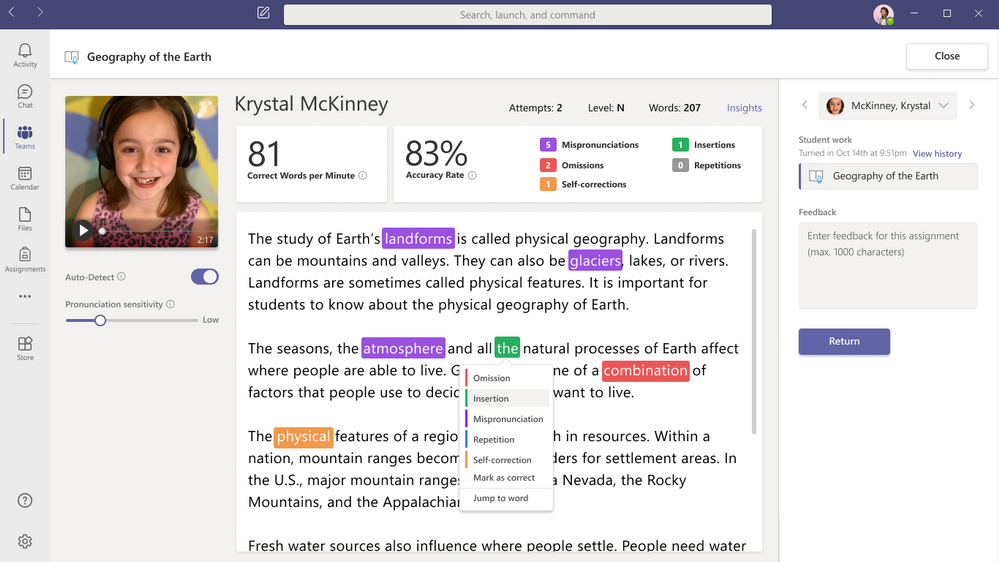
Whether educators used the Auto-detect feature for quick review, or manually code errors, valuable data is collected in Insights. Teams Education Insights dashboards help visualize class and individual progress. Insights provides a holistic view of trends and data including accuracy rate, correct words per minute, mispronunciations, omissions and insertions. Reading Progress also highlights actionable insights for educators including common challenges across the entire class or per student.
During our broad private preview, Reading Progress has been tested in a number of distinct use cases. We’ve seen the expected wide usage for ages 6-11 as well as utilization for middle and high school fluency checks, special education and dyslexia support, and for building English skills for non-native speakers, both in English dominant areas and where it’s taught as world language. We’ve also seen high interest for adult literacy scenarios. The stigma of reading out loud and lack of educator time has previously made consistent fluency practice in post-elementary education settings minimal. The implications of a private and regular space for older learners to practice fluency are immense. Here are two observations from some educators who have been part of the early private preview:
Joe Merrill, an educator from Lake Park Elementary, Florida, has been using Reading Progress in our private preview over the past few months with his class and he has this to say “Reading Progress takes all the nerves out of my student’s fluency checks. They are comfortable with its approach and I am able to collect data quicker and more efficiently than ever before. Now, I can devote more time to differentiated instruction rather than individualized assessments.”
Luis Oliviera, Director of Unified Arts and ELA from Middletown High School in Middletown, RI , has been using Reading Progress with his older English Language Learner students and has this to say: “Reading Progress has been such a time saver for assessing and analyzing my high school ELL students’ reading fluency. I am able to give a passage to the entire class and have them record their responses instead of having to individually assess the students. Cultural selections for the reading passages enhance their knowledge of important topics and current events. This allows more time to work directly with the students in addressing their needs.”
From the beginning, the creation and testing of this tool has been a and has been rooted in the science and literature of reading fluency. Our team has worked with hundreds of educators, literacy specialists and reading scientists. Early on, we had many interviews, brainstorming sessions and “design jams” with experts like Shaelynn Farnsworth, Lauren Taylor, Andrew Fitzgerald, Lauren Pittman, amongst many others. We’ve consulted with students, iterated on different designs, and have much more in store!
Four parts to the Reading Progress experience
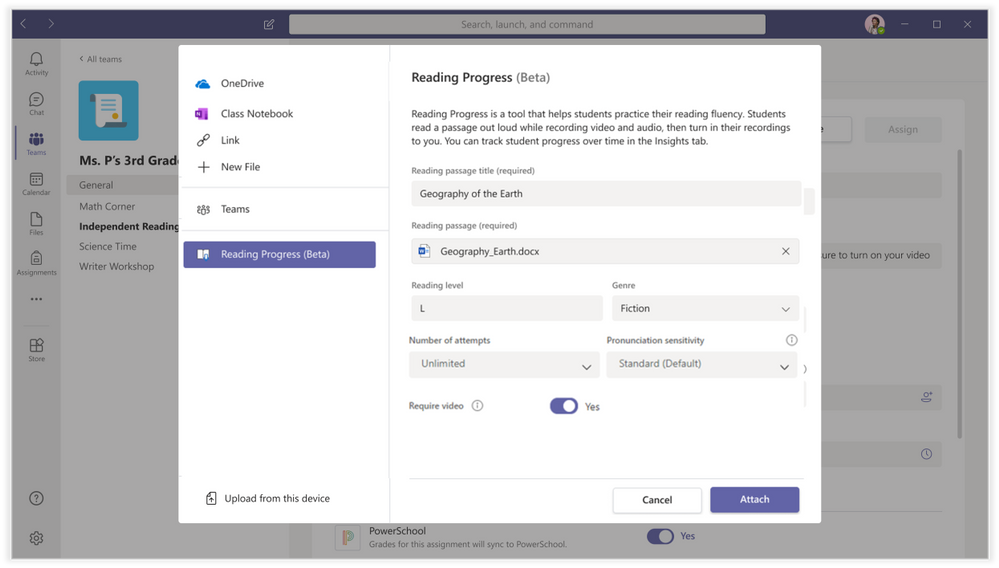
1) Assignment creation – Reading Progress is built directly into the free Teams Assignments experience. Once an educator selects Create>Assignment, the Add resource button now includes Reading Progress (Beta) for the private beta group. The educator then completes the creation of the assignment, including uploading the Word document of their choice. This summer educators can look forward to the addition of PDF capabilities and a partnership with ReadWorks that includes a small library of curated reading passages. The educator can also manually set the Reading Level, Number of attempts, Genre, and Sensitivity. I call this the “picky dial” – how picky would you like the software to be. For example, younger readers may need more relaxed pronunciation expectations, while older readers might be set to higher sensitivity. Note that this can be changed during the review experience as well.
2) Student reading and recording: When students receive the Reading Progress assignment, they open it to see a recording experience. By default, video recording will be enabled, but teachers can approve audio-only if needed. Similar to Flipgrid, the student will start the recording, get a countdown, and then the reading passage will open for the student to read.
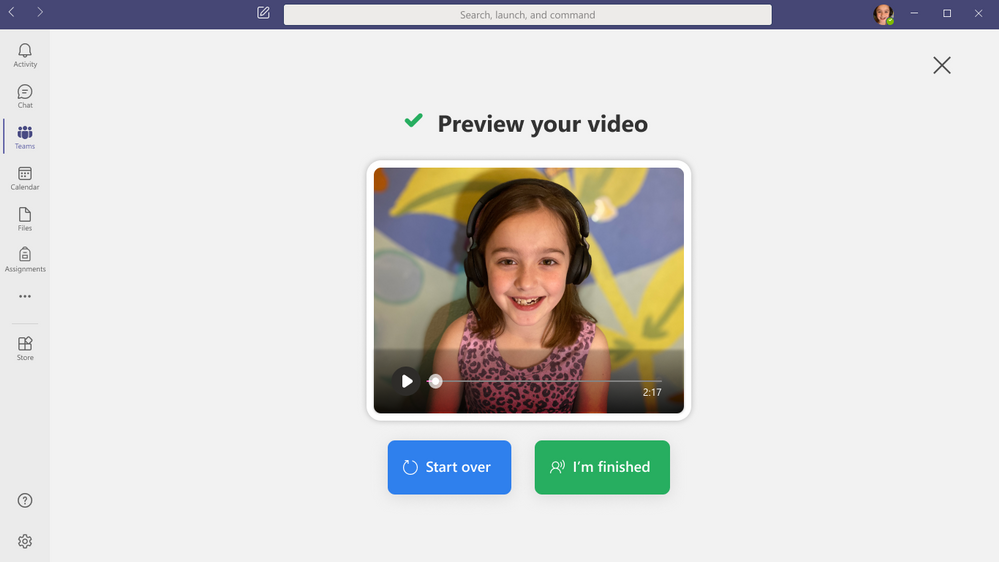
We’ve integrated aspects of the Immersive Reader into this experience to support students in customizing the way the passage looks before they start reading.
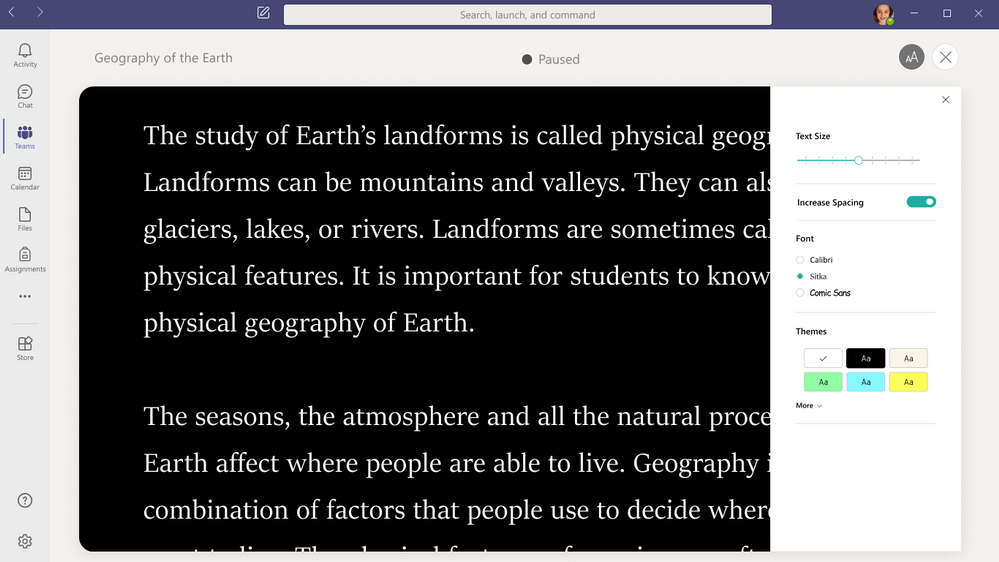
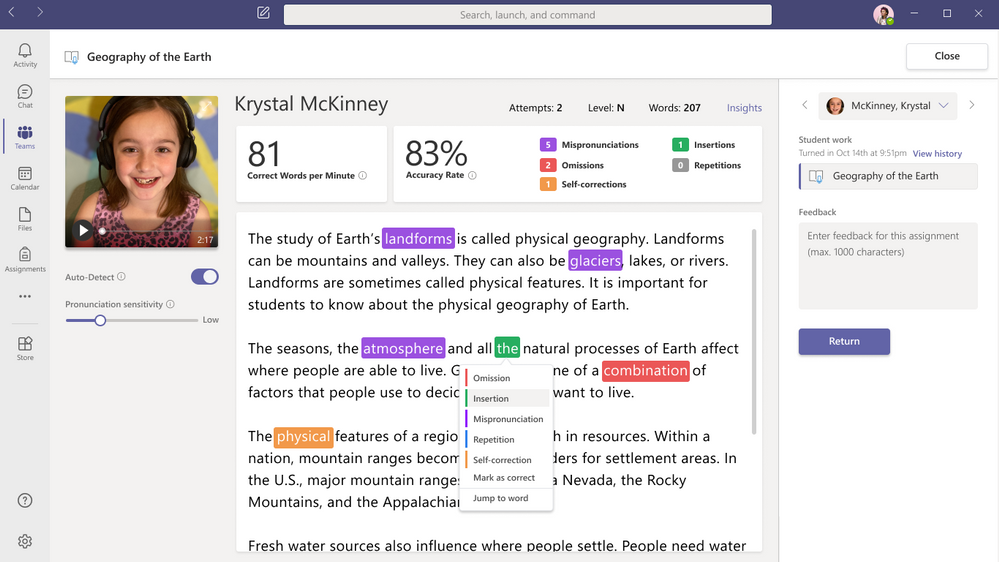
3) Educator review: One of the most powerful aspects for Reading Progress is the quick and easy review process, which simultaneously returns work to students and collects fluency data in Insights. This experience is built-in to the Teams grading and review experience. The review page pulls together the student’s reading recording, words per minute count, accuracy rate, and the ability to fine tune pronunciation sensitivity.
By default, the Auto-Detect feature is enabled, so you will see predicted mispronunciations, omissions, insertions, self-corrections, and repetitions. The educator can review the Auto-correct data, overriding any inaccuracies, or turn off Auto-detect to mark up the page manually as they listen to the recording, similar to how reading fluency checks are done with paper and pen. To account for different speech patterns and accents, the educator can change the pronunciation sensitivity analyzes results to make teacher review faster and more accurate. In addition, with a single click the educator can jump to any part of the recording to review detected words or passages.
4) Powerful insights to track student progress: Fluency data from Reading Progress is collected in Insights to support educators in taking evidence-based action for literacy in their classrooms. Insights dashboards help visualize progress and trends such as accuracy rate, correct words per minute, mispronunciations, omissions, and insertions. Reading Progress also highlights actionable insights for educators, synthesizing common challenges across the entire class or per student. Educators can share Insights dashboard access to collaborate with literacy coaches, speech pathologists, and reading specialists and more to holistically curate student-centered approaches.
Later this summer education leaders will be able to access Reading Progress data by opting into our new Education Insights Premium designed to compile organization-wide data for intentional and impactful leadership. which is designed for school leaders and organization-wide views. To learn more about this new Insights offering, visit the Education Insights Premium page.
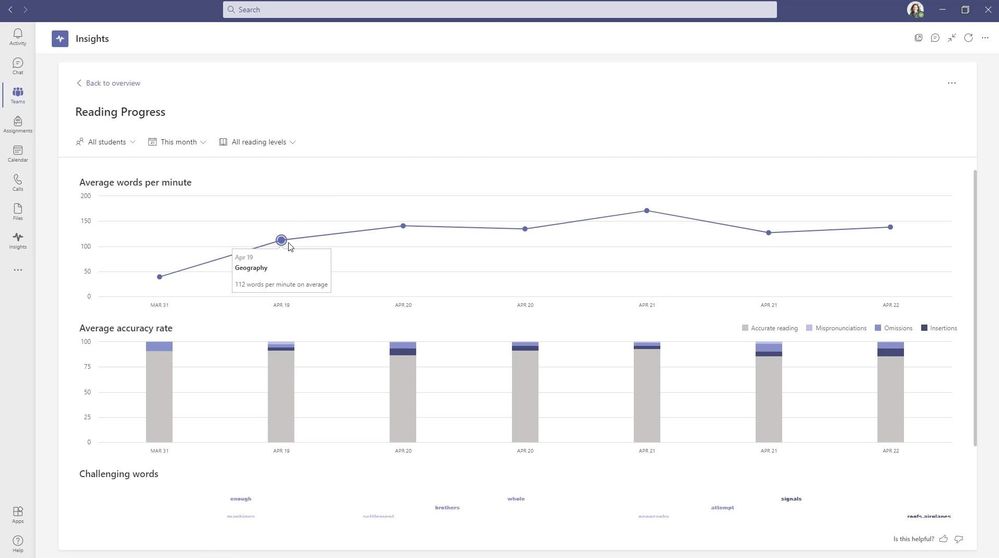
Average words per minute and accuracy across a class or by student
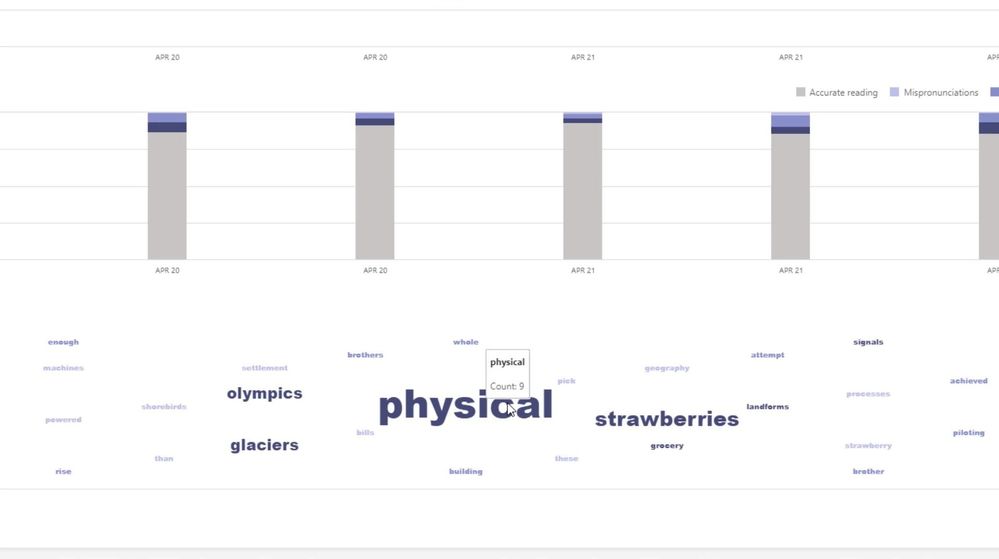
Word cloud of most challenging word across a class or by student
A Reading Progress end-to-end demo
We’ve put together a support materials as well as an end-to-end video showing the details of how the entire Reading Progress experience works in Teams for Education:
Kate Griggs, founder of CEO of Made by Dyslexia, has had access to our early versions of Reading Progress and has this to say “Reading Progress is a FANTASTIC resource for teachers of, and children with dyslexia. Reading aloud is something dyslexic students really struggle with and literally dread doing, even in small groups or 1:1 with a teacher. Reading Progress offers a great way for dyslexic students to demonstrate what they can do, without feeling embarrassed or nervous. This will be a game changer”.
Next Steps:
Reading Progress is currently in wide private testing with thousands of educators and is supported on Desktop, web, Mac, iOS and Android. We are actively listening to educator and student feedback and updating and improving the tool regularly to meet your needs. We will continue adding more schools to our private preview, and anticipate having Reading Progress at General Availability by late August of 2021, in time for back to school (Northern Hemisphere).
We have many improvements coming this summer, including support for PDF upload, iOS and Android video, a sample content library from ReadWorks, and the highly requested integration and roll up into Education Insights Premium. This will allow schools and districts to aggregate and roll up Reading Progress data into broader dashboards and analytics through the just-announced Education Insights Premium offering.
We also have a new Reading Progress page on the Microsoft Educator Center, and a MEC course coming later this summer.
A huge THANK YOU to all of the educators, students, and reading experts who have worked with us and given us feedback along this exciting journey. We look forward to collaborating with you as we continue!
Mike Tholfsen
Principal Product Manager
Microsoft Education

by Contributed | May 4, 2021 | Technology
This article is contributed. See the original author and article here.
Today, on the Microsoft Teams and Microsoft 365 product announcement blogs, we announced a number of new features that are coming to Microsoft Whiteboard this summer, specifically for our education users. If you are an educator looking to keep your students more engaged, or if you haven’t checked out Whiteboard in a while, keep reading!
Microsoft Whiteboard is a visually rich and interactive education tool that supports creative teaching and learning. With its infinite canvas and focus on teamwork, Whiteboard provides a place for teachers and students to develop ideas together in an ad hoc or in a formulated way, whether the class is taught remotely, in hybrid mode, or in person.
Create Visually Engaging Class Material
We understand that one of the hardest things for an educator to do, is to keep a student’s attention throughout the class. Microsoft Whiteboard gives you tools to create beautifully engaging content for your class. Coming this summer to our Whiteboard web client and Whiteboard in Teams app, you’ll be able to pull in images, content from other documents, shapes, and stickers to add fun and life to your lessons. You can save time by creating the boards ahead of class and then simply opening the previously created whiteboard during class to get going.
Focused, Dynamic Lessons
Microsoft Whiteboard can help your class get focused on the right things. Right now, educators have full control over who can edit the whiteboard and when. Annotate over your lesson with digital ink, highlighters, stickers, sticky notes, and text boxes for special emphasis. This summer, you will also be able to use the laser pointer to draw attention to important concepts. As whiteboards are inherently non-linear, you have the flexibility to dynamically change the flow of the lesson depending on the conversations that come up and where those discussions take you. For a more guided experience, you will be able to lock your students’ view so that they see what you see. Run your lessons with a video conferencing application like Microsoft Teams for the best experience.

Group Projects and Interactive Lessons
When it comes to group projects and interactive lessons, you may want a little more structure. This summer, Microsoft Whiteboard will make it simpler to upload digital worksheets that you already have to the board, or create new ones using structured organizers that will come with the app. Add your content to the board, open it in a Teams meeting, or invite your students to the board and see their creativity blossom. With everyone on the same Whiteboard, live cursor identities will allow you to see where students are, who is actively engaged with the work, and which students might need additional help or clarification on the tasks.

Keep Focused with Microsoft Teams
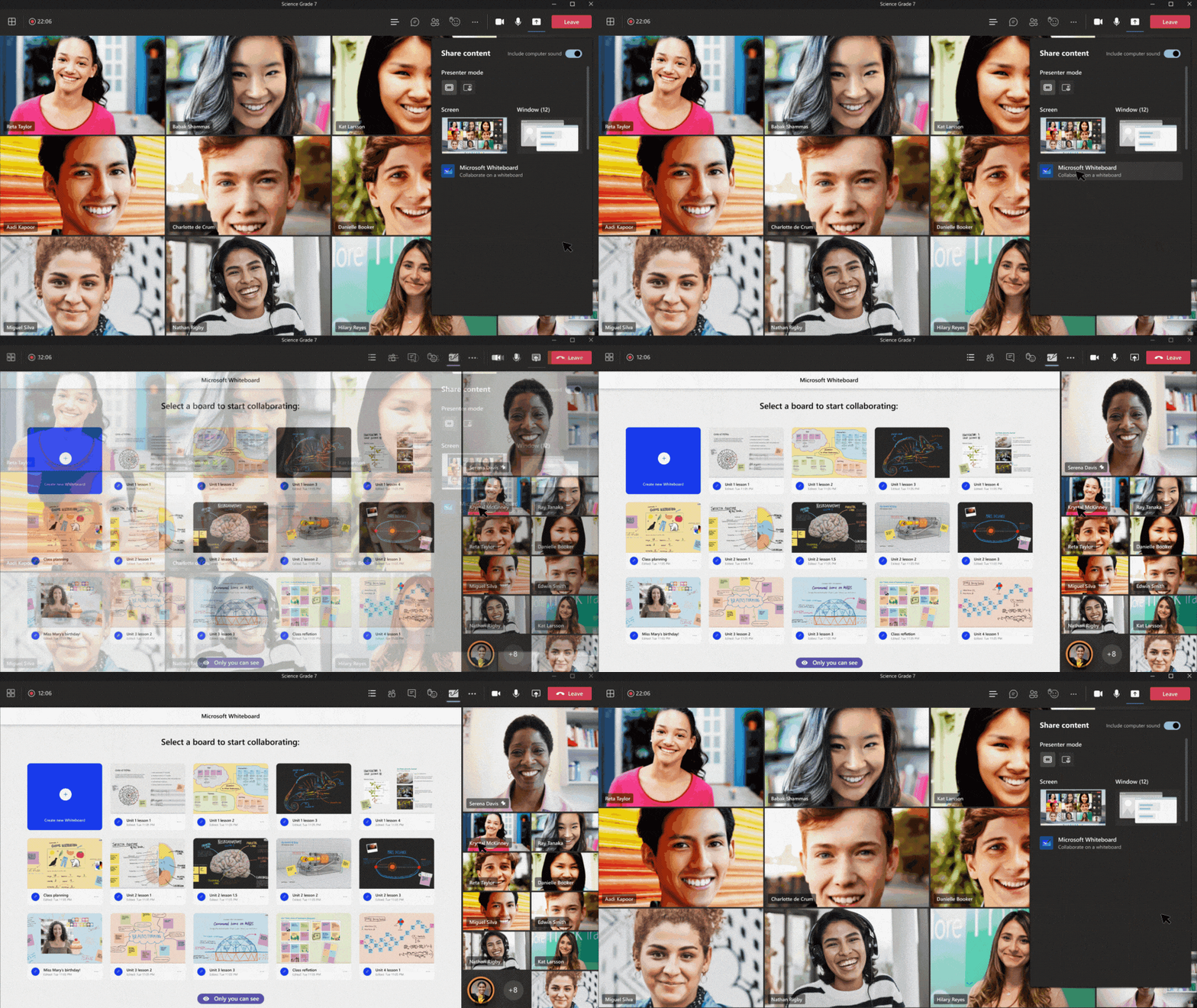
If you use Microsoft Teams in your classrooms, life just got easier as Microsoft Whiteboard is directly built into Teams. While in a Teams meeting, open the share tray to share a new or an existing Whiteboard with the class at any time without needing to switch between apps and without losing the participant video feeds and context. This saves you time, keeps everyone focused on the lesson, and allows you to stay connected with the class. This feature is available right now.
Assignments
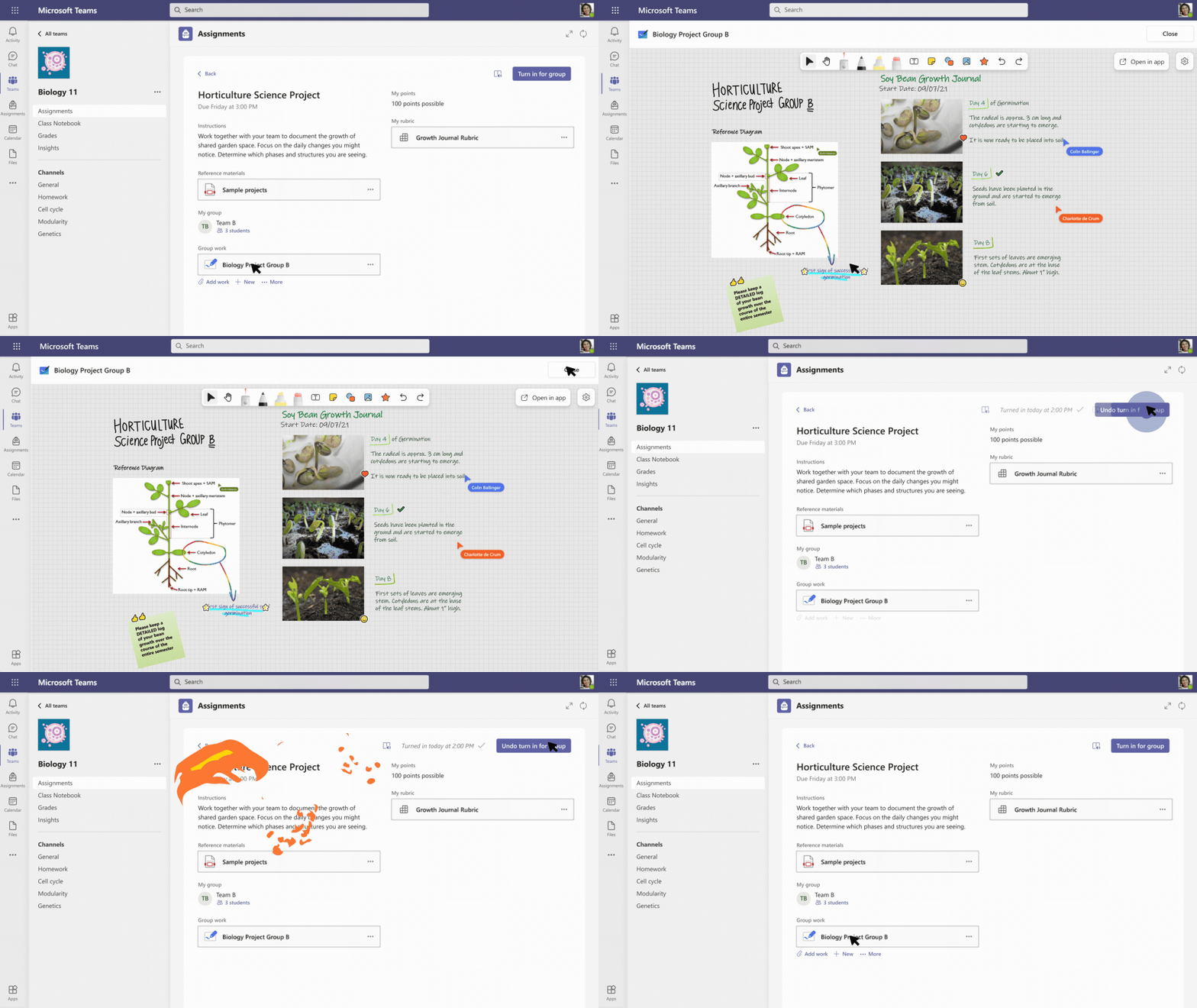
All those Whiteboard lessons you created, whether previously prepared or created through ad hoc discussions, are now even more useful as they can be uploaded to Teams Assignments as homework or reference material. Assignments in Teams will duplicate the whiteboards for you and students can submit their work for grading when they are done. Whiteboard is especially useful with Microsoft Teams’ new Group Assignments feature as it allows students to work and create together in real-time.
Microsoft Whiteboard is an intuitive app that students can quickly grasp. Pick up and draw with a pen, finger, or mouse, or select something from the toolbar to add, which means that students can spend their time on adding creative content as opposed to learning the tool. The wide range of tools from adding simple reaction stickers to creating full blown works of art, means that students can choose the level of engagement they’re comfortable with. Microsoft Whiteboard is available on Windows, iOS, Android, and the Microsoft Whiteboard web client.
Continue the conversation by joining us in the Microsoft 365 Tech Community! Whether you have product questions or just want to stay informed with the latest updates on new releases, tools, and blogs, Microsoft 365 Tech Community is your go-to resource to stay connected!
by Contributed | May 4, 2021 | Technology
This article is contributed. See the original author and article here.
Happy Teacher Appreciation Day! This means YOU—whether you’re an educator, school leader, or family member teaching from home, in a hybrid classroom, in-person, or anywhere in between. We know it’s taken all your superpowers to light the way through this year for your students and we want to take a moment to celebrate all you’ve accomplished.. May the Fourth be with you. ;)
Each day you make learning fun, create “a ha!” moments from scratch, and empower your students to achieve more. That’s our mission too at Microsoft Education, and we’re proud to be on your team. Speaking of Teams, we have a lot of cool new things to share—over 35, in fact! All of these updates and features would not be possible without your feedback—thank you, truly, for sharing what you and your classrooms need. We’ve linked everything so you can discover at your own pace and skip to the features and announcements that interest you most.
Let’s do this!
Just click on the quick links below to navigate to a section:
- Personalize learning for each and every student (and save time for yourself)
- A little organizational improvement that will make a big difference in Teams
- Make Assignments more engaging and fun…and easier for you, too!
- Better understand student engagement and emotional well-being with Education Insights
- Encourage class participation during synchronous learning for better hybrid and remote classes
- Improve connection and collaboration with Microsoft, Teams, and your LMS together
- Help keep students safe with more options and controls for chat, policies, and meetings in Teams
- Make class recordings easier with Microsoft Stream
Or, click here to read the full list with no extras.
1) Personalize learning for each and every student
Reading Progress
Hundreds of educators and school leaders have shared the challenges and importance of reading fluency checks with us. After collaborating with reading experts and testing with educators, we’re excited to announce Reading Progress. Whether educators are helping emerging readers build confidence or teaching English as a foreign language, Reading Progress enables readers to practice their skills in a safe, student-centric environment. Educators pick a reading passage and can choose to assign it to the entire class, a specific reading group, or an individual student. After the student reads the passage aloud, educators review the recording and either manually identify and code errors or use the Auto-detect feature to identify and code potential errors. The recordings grant students and educators more flexibility to practice remotely or in the classroom. This helps bring the right support at the right time to each learner and makes it easier to plan regular reading fluency checks.
Fluency data from Reading Progress is collected in Insights to support educators in taking evidence-based action for literacy in their classrooms. Insights dashboards help visualize progress and trends such as accuracy rate, correct words per minute, mispronunciations, omissions, and insertions. Reading Progress also highlights actionable insights for educators, synthesizing common challenges across the entire class or per student. Learn more.
When: End of August
Career Coach
The journey from higher education to career can be challenging. Introducing Career Coach, a Microsoft Teams app powered by LinkedIn, that provides personalized guidance for higher education students to navigate their career journey. Career Coach uses an AI-based skill identifier and LinkedIn integration that aligns a student’s comprehensive profile with job market trends. Students can discover their career path, grow real-world skills, and build their network as they make progress towards their goals. Education institutions gain insight to enhance the student experience, improve student success, and drive employment outcomes. Learn more.
When: May
Immersive Reader
Students are using whatever tools are at hand, like literally. Mobile devices’ function as education and accommodation tools is about to get an upgrade – for free! Immersive Reader, which uses proven customization techniques to support reading across ages and abilities, is coming to Teams iOS and Android for mobile. Currently, Immersive Reader has 35 million monthly active users across Microsoft apps and partner platforms. With Teams’ addition of Immersive Reader for iOS and Android, students can access content with the support they need, improving learning outcomes no matter where they are reading from. Learn more.
When: July
Math app for Teams for Education
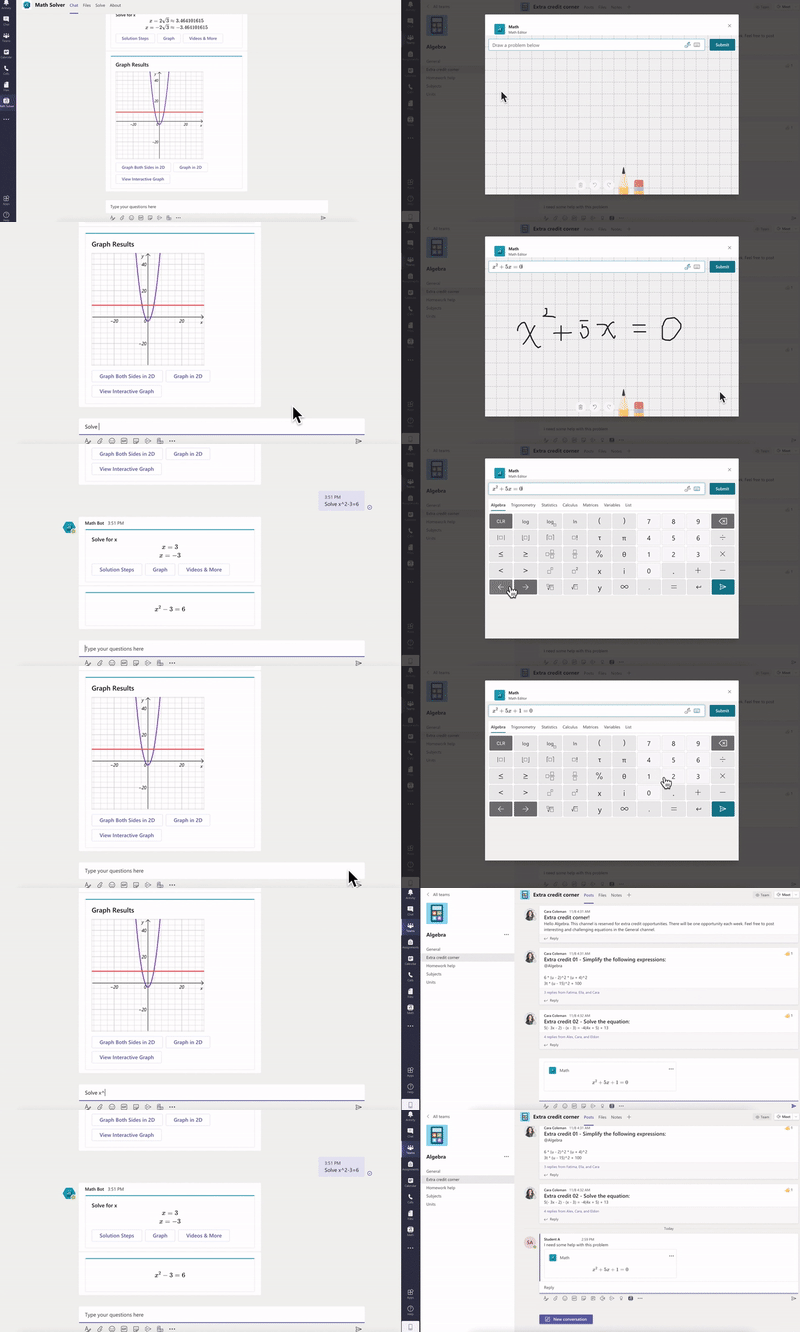
The Teams Math Input Extension allows easy math discussions and conversations for students and educators on any math topic using camera images, advanced math keyboard, and handwriting inputs. The app can also provide targeted coaching when students are stuck, while the graphing calculator provides visualizations for functions. To install the Math app, make sure your IT administrator has enabled it and then head to the Apps tab on the left side of Teams and search for “Math.” Learn more.
When: Available now
2) A little organizational improvement that will make a big difference in Teams
Simplified navigation in your class team
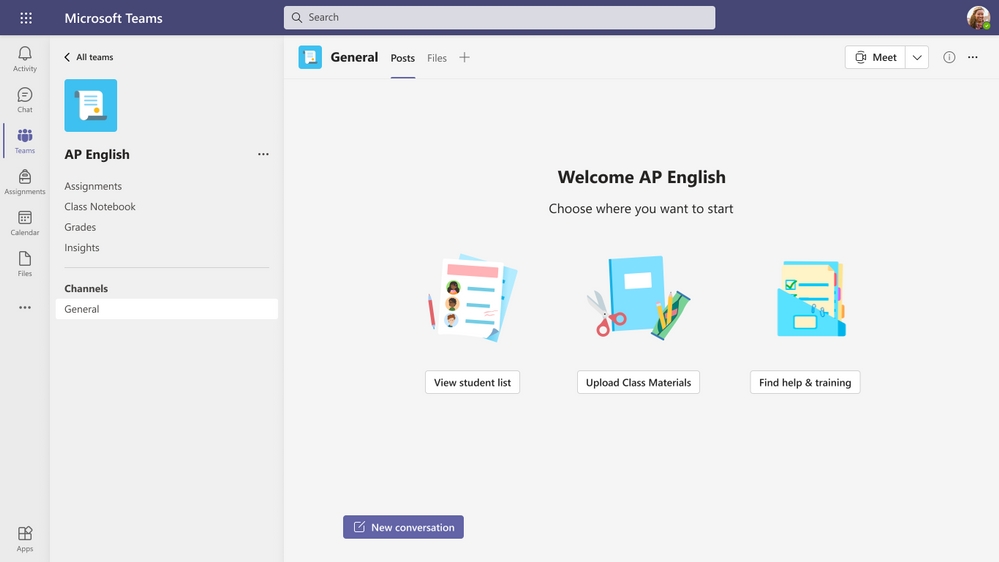
We’ve heard loud and clear that you’d prefer to access Assignments, Grades, Class Notebook and Insights from any channel within a class team. We’re excited to announce changes to the class team layout that will allow you to do just that! Just open up your class team and you’ll see the updated-and-improved navigation. Don’t worry, you’ll still be able to add tabs to the General channel and other channels you create. This new view will be available for all educators and students using our grid view layout for teams, and IT Admins will have the option to remove any of the pre-pinned navigation.
When: August
3) Make Assignments more engaging and fun…and easier for you, too!
Group assignments
With the new group assignment feature, groups of students can work together to create, collaborate, and submit one assignment for the whole group. You’ll be able to either give individual comments and grades or group grades, and all students in the group will receive credit.
When: End of August
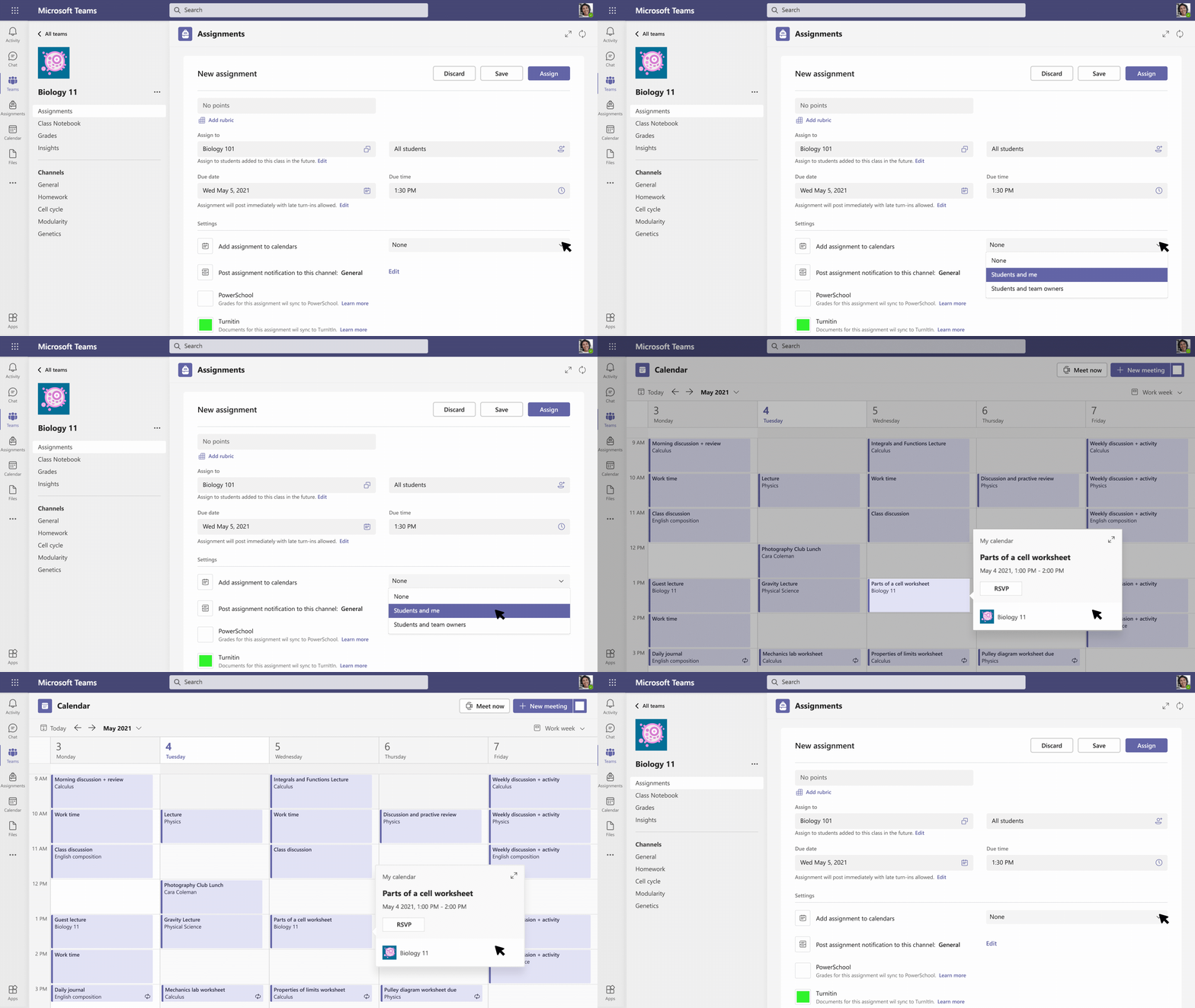
Add assignments to Office 365 calendar
Stay on top of due dates and classwork by turning on calendar sync for Teams assignments. This is a setting that educators can select for individual assignments or turn on in Assignments Settings for their whole class. Once toggled on, the calendar feature adds an entry at the due date and time for that assignment on Teams and Outlook calendars for both educators and students. Now you can see all of the important things coming up in one place!
When: May
Apps in assignments
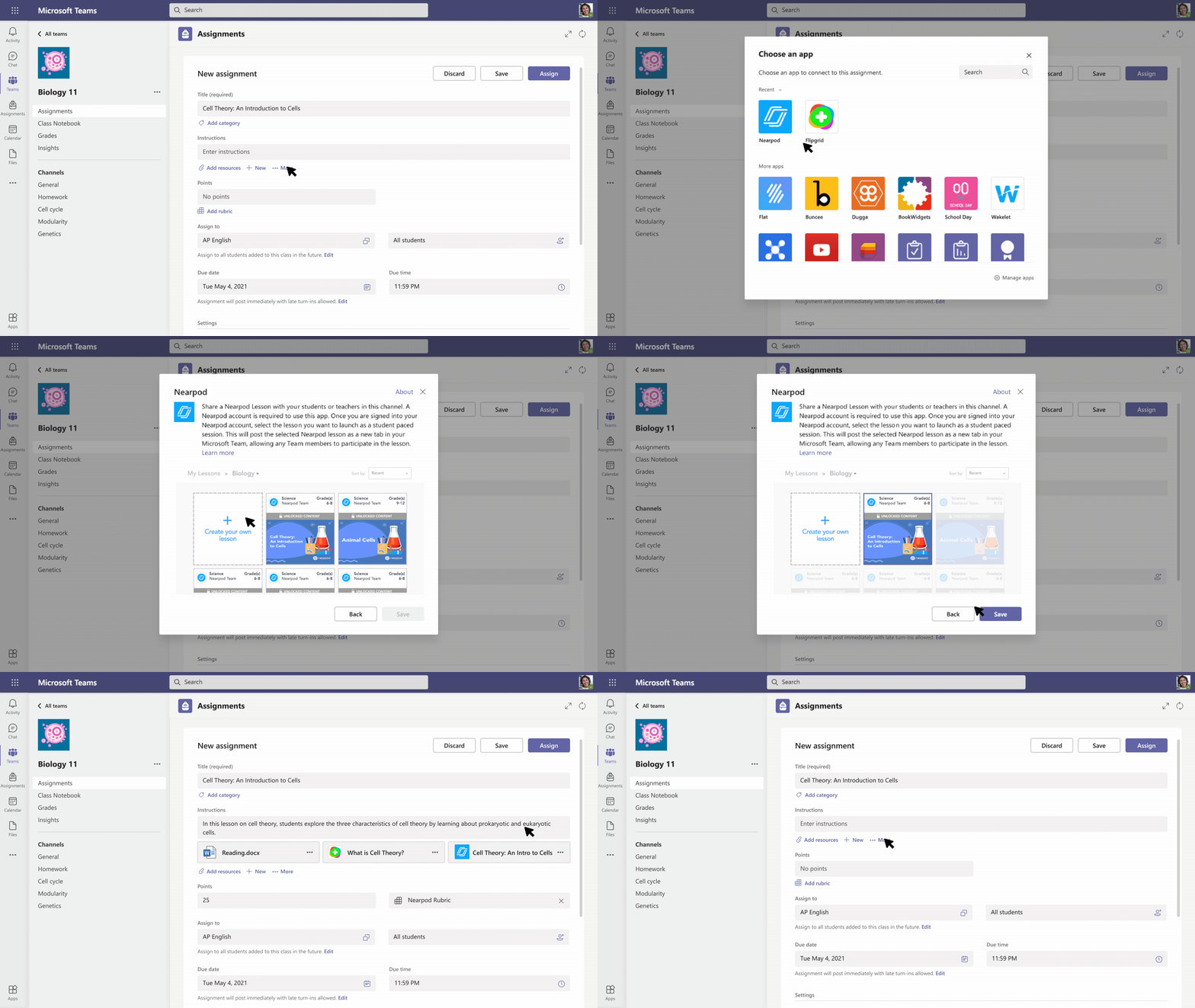
Got an EDU app you love—one that really helps create that “ah-ha” moment for student learning? Soon you’ll be able to assign interactive apps as part of an assignment, saving you time while opening up more engaging assignment options. Here are just a few of the apps that will be available: Buncee, Dugga, Nearpod, BookWidgets, School Day, Flat, Whiteboard.chat, Loops, and Wakelet.
When: End of August
Whiteboard assignments
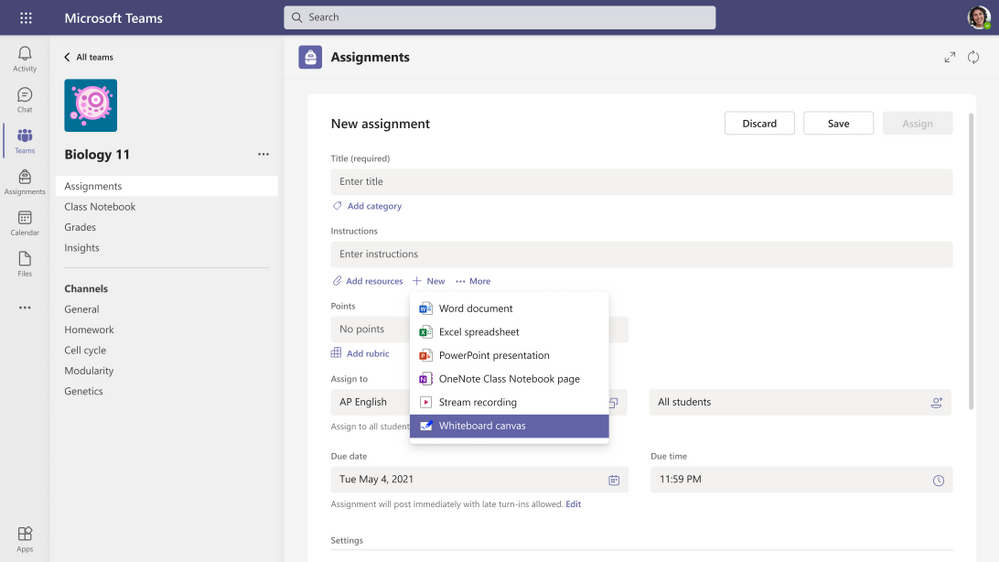
Educators will soon be able to add Microsoft whiteboards to assignments. Previously created whiteboards can be added to assignments as reference material or they can be duplicated for an individual or a group of students to complete and submit. Alternatively, assign a blank whiteboard to unleash student creativity.
When: End of August
Assignment limit increase to 300 students
If you’re teaching or lecturing to a large class, we’ve got you covered. You’ll soon be able to distribute an assignment to 300 students instead of 200 (with additional increases to come.)
When: June
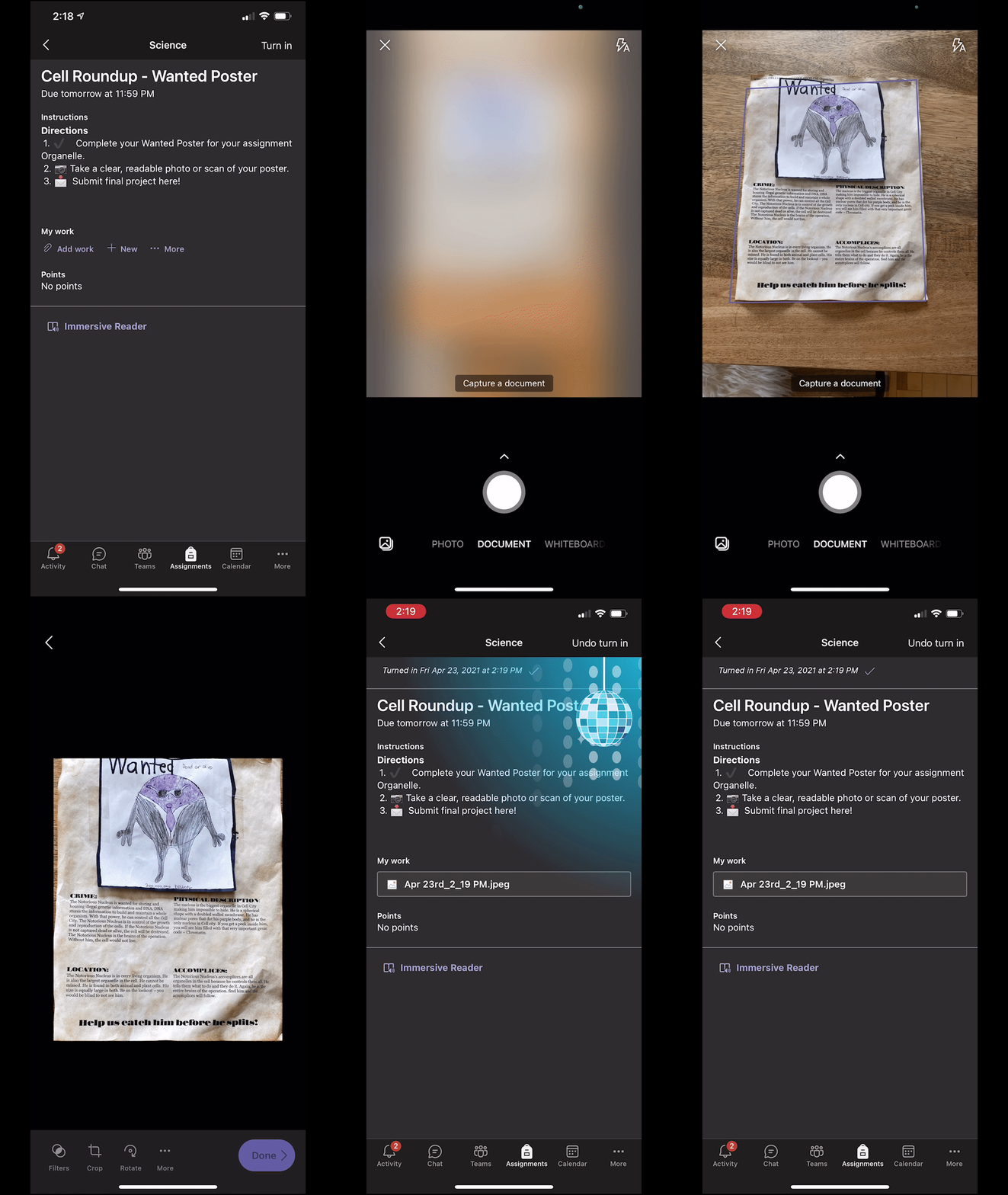
Snap a photo and submit
We’ve heard from many educators that it’s often simpler for students to snap a quick picture on their phones of their work. Now, the new Lens integration in Assignments allows students to take a picture of their paper, whiteboard, or other physical work with their mobile device and turn it in. It’s a snap.
When: May
Send grade data automatically to your Student Information System
Educators should not have to copy and paste grades – ever. Grade Sync is the time-saving solution within Teams Assignments that automatically sends grades you enter to your Student Information System (SIS) gradebook. We now support syncing to OneRoster v1.1 compliant providers including verified providers: Aequitas, eSchoolData, Infinite Campus, PowerSchool, and Skyward. Aeries, Synergy and SIMS coming soon. Learn More.
When: Available now
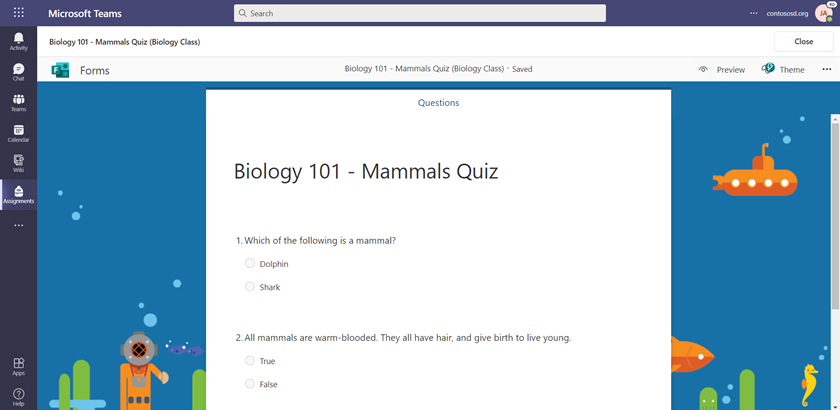
Create and edit a quiz directly from an assignment
We’ve streamlined the experience of creating, editing, and assigning quizzes in Teams. Now, you can create your entire quiz without leaving Teams, no extra windows or tabs needed! This means you can add a time limit for your quiz right from Teams, too. The timer will begin as soon as your student starts the quiz. If you need to make an edit later on, quizzes can be updated directly from Teams Assignments.
When: Easy Forms editing expected in May, timer expected in August
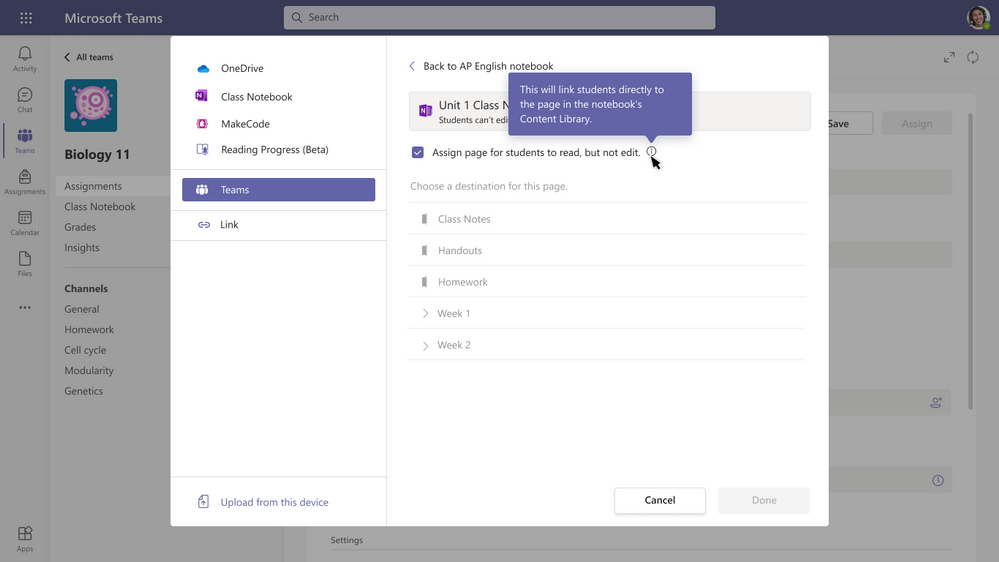
Share a OneNote Class Notebook page as a read-only resource
Sometimes an educator just needs to share reference material for students to read, but not edit. No need to make copies of the instructions or worry about students editing documents. Now you can distribute a read-only resource page directly from the Content Library.
When: Available now
4) Better understand student engagement and emotional well-being with Education Insights
Education Insights
Ever wonder if you could look behind the curtain and understand how students are engaging in your class? Now, with Education Insights built directly into your digital classroom, you can. Make informed instructional decisions with data such as online class attendance, assignment engagement, class activity, and more. Education Insights grants educators a powerful lens to support students on a whole new level. Learn more.
When: Available now
Reflect app helps you understand how students are feeling
Reflect is a check-in tool that educators can leverage to open conversations about Social Emotional Learning, or simply take the temperature of their class. Educators deepen their awareness of each student’s emotional experience, informing their practice. With emoji-based check-ins, students are prompted to name their emotions, supporting emotional vocabulary growth and self-awareness skills vital to their understanding of how emotions impact learning. Plus, educators get better insight into the needs of the class and individual students.
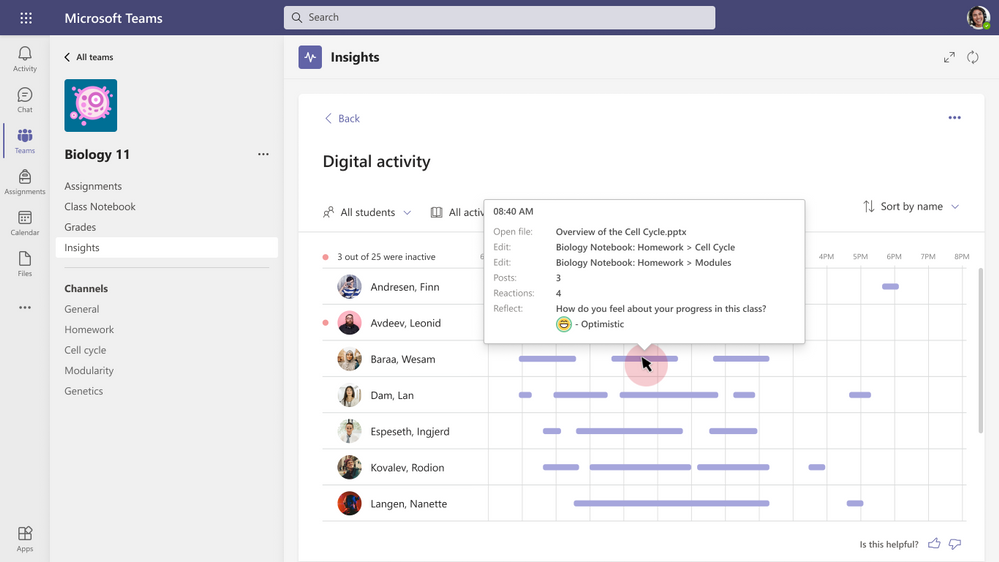
Through Education Insights, educators can see how students respond to check-ins over time, making it easier to identify and address student needs. The digital activity report now includes Reflect check-in data, with additional Reflect insights coming soon. Learn more.
When: Available now (with improvements coming!)
New! Insights is on mobile with Spotlight cards
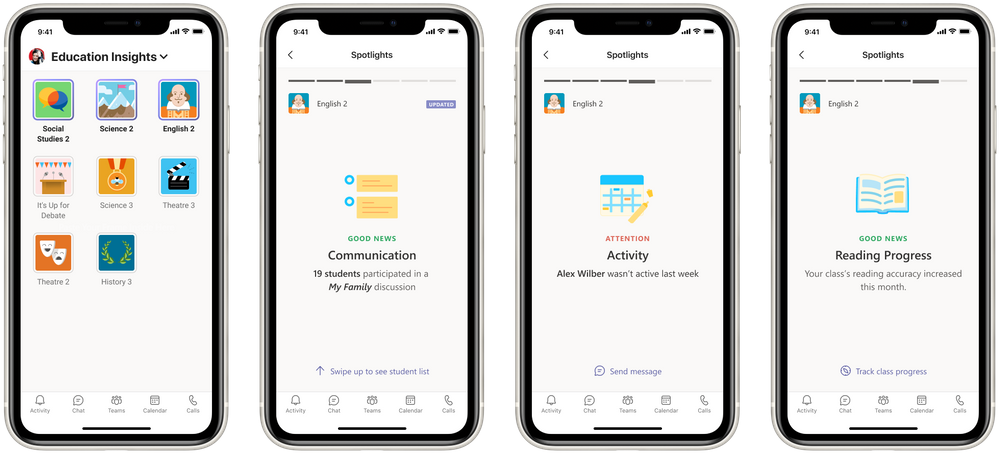
Educators are on the move. That’s why we now have Insights available on mobile. Quickly view Spotlights that detail your class engagement. Just open your class and select Insights to see key stories pulled from engagement data to help you identify trends and take action for student success. For example, if a student was inactive (and your chat is enabled), you can quickly choose to send a chat to the student to ask how they’re doing and whether they need additional help.
When: July
Check engagement with OneNote Class Notebook
You’ve asked; it’s here! Now educators can gain insights into how students are engaging with their OneNote Class Notebooks–specifically which pages students have edited and created. If you’re using OneNote Class Notebook now for notes, homework, or assignments and want to check it out for yourself, just head to the Insights tab in your class, click on Digital Activity, and filter All Activities by OneNote. You can sort by most active and least active from here.
When: Available now
New Insights for educational leaders and supporting staff
Successful students need the support of the entire school and institution community. Faculty and staff such as department heads, program directors, speech therapists, and more all contribute to students’ educational communities.
These roles are innovating to find ways to better understand and act on student academic performance and emotional well-being. Coming soon, Education Insights will offer an integrated, secure solution for educational leaders and support staff that will help measure student progress over time, provide thorough data and analytics for every student, and share personalized tools that can help increase specific skills, such as reading or language.
This premium solution provides educational leaders and supporting staff the tools to understand the dynamics in a school, subject, or grade level so they can hold more meaningful and relevant conversations with educators to support learning. Leverage stats on what’s working well and why to create and share best practices with the educators at your institution.
With an organizational view of how the institution is performing, you increase the return on your existing technology investments and replicate success stories across schools, districts, or institutions.
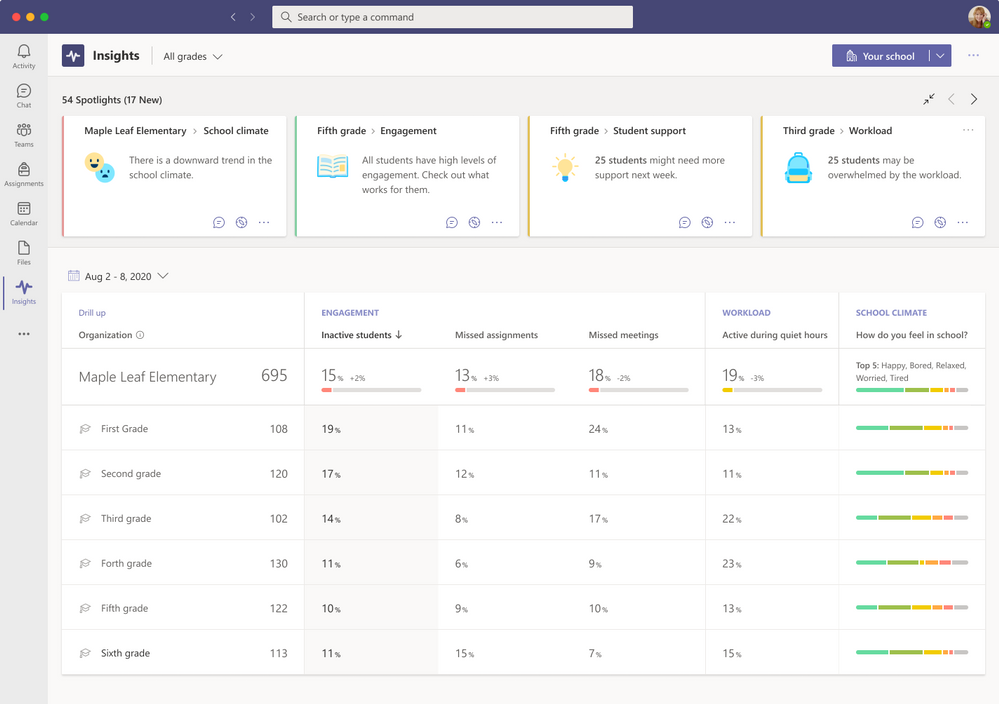
To get the most out of this premium version of Insights, School Data Sync (SDS) will further evolve to include a variety of new data elements, including an option to provide all data synchronized via SDS to the Insights application for enhanced reporting and analytics capabilities. For example, you’ll be able to tag special programs or students with learning differences and then filter for these tags to assess if their needs are met.
Visit this page to learn more about this new premium experience and how to plan your SDS integration with Education Insights.
When: July
5) Encourage class participation during synchronous learning for better hybrid and remote classes
Multiple choice quizzes in Teams meetings
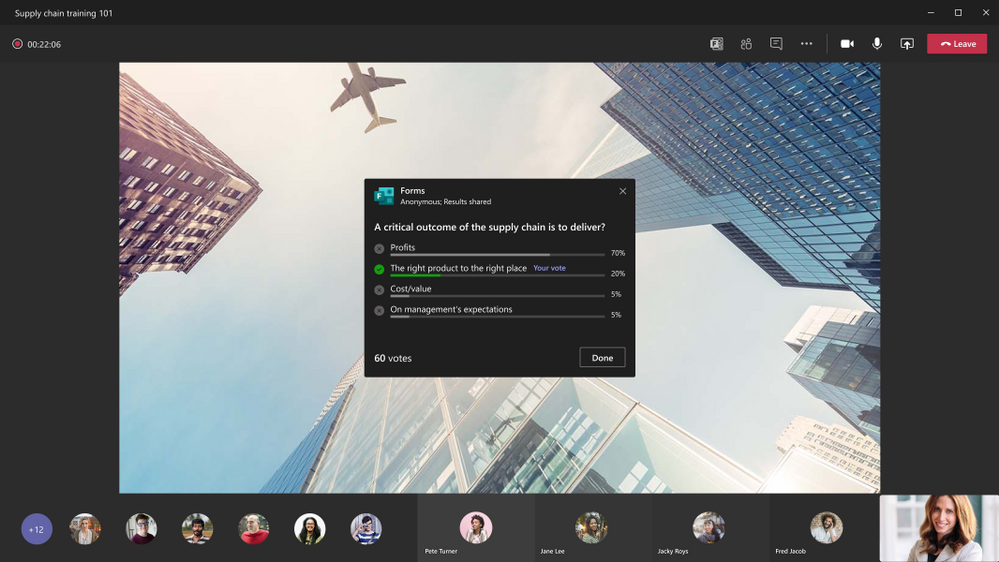
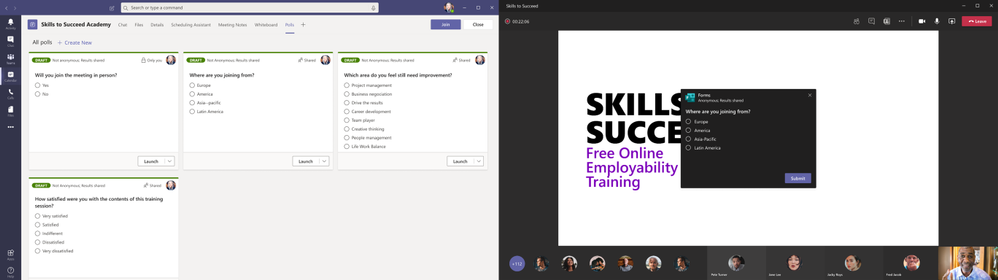
Want to quiz your students during online class? You can now create multiple choice quizzes, powered by Forms Polls in Teams meetings, to engage your students. Create your own knowledge check questions, or try out our intelligent poll and answer choice suggestions that help take care of some of the legwork. As students take the quiz, you get real-time insights that can be used to adjust instruction and support individual students—pretty cool!
When: May
Channel meeting support for Microsoft Forms Polls
Polls and Quizzes in Teams meetings are now in channel meetings, too! We appreciate all your feedback pushing for this change, so we made it happen. This includes the ability to launch multiple choice quizzes directly from your channel meeting, as described above.
When: August
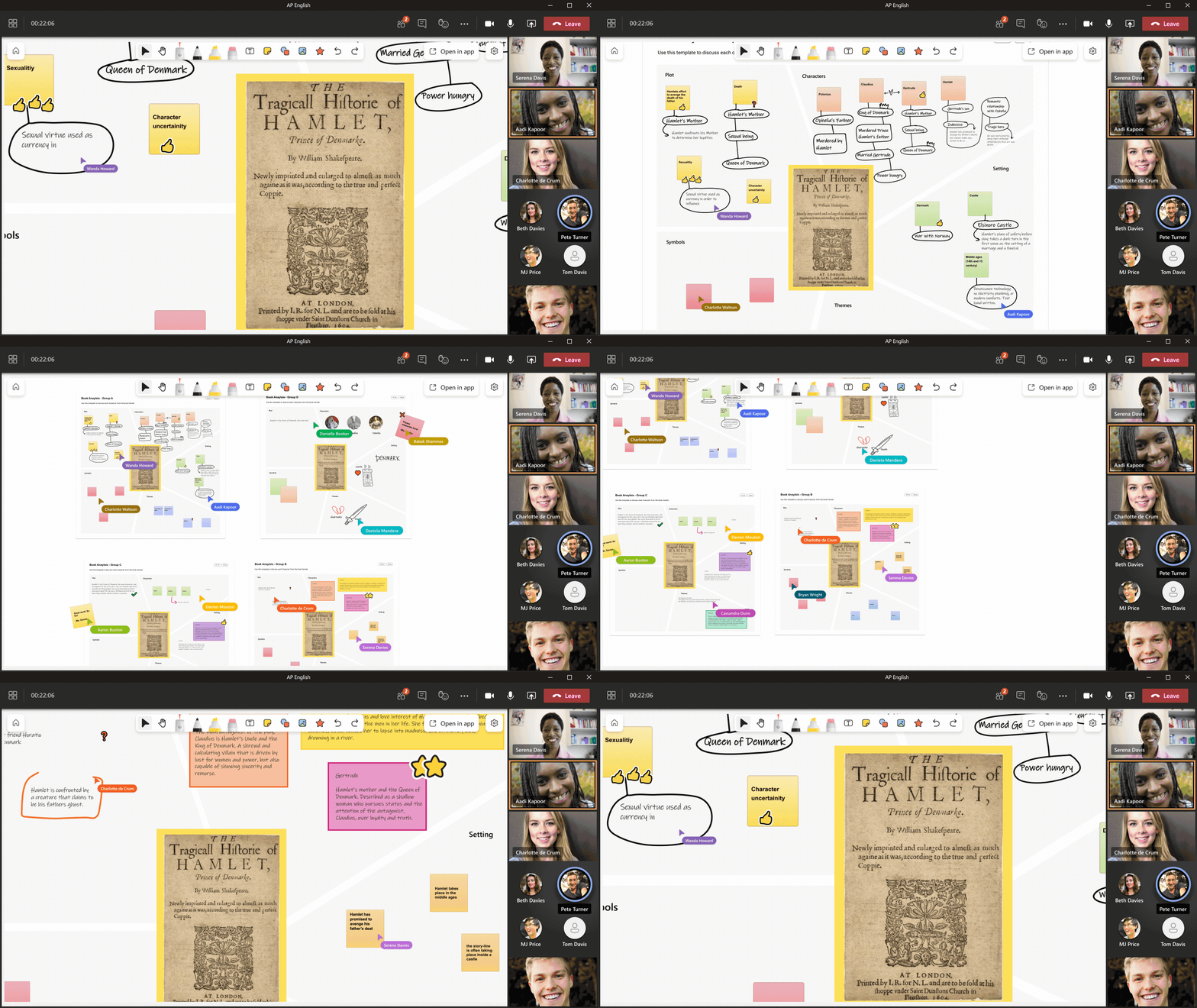
Digital whiteboarding in Teams meetings
Microsoft Whiteboard complements your Teams meeting experience by providing an inclusive, visual, and easy-to-use tool that helps you build and deliver rich and engaging lessons. In fact, Whiteboard is built directly into Teams, making either ad hoc sessions or previously prepared whiteboard lessons simple to launch. While in a Teams meeting, open the share tray to share a new or existing Whiteboard with the class at any time without needing to switch between apps and or losing the participant video feeds and context. This saves you time, keeps everyone focused on the lesson, and allows you to stay connected with the class.
Once you have your Whiteboard open, annotate your lesson with digital ink, highlighters, stickers, sticky notes, and text boxes for special emphasis. Educators have full control over who can edit the whiteboard so that you can confidently use it for presentations, interactive lessons, and group projects. Use the laser pointer to draw attention to certain concepts. For a more guided experience, you can lock your students’ view so that they only see what you see.
.gif)
With everyone on the same whiteboard, live cursor identities allow you to see where students are, who is actively engaged with the work, and pinpoint students who might need additional help or clarification on the tasks.
 When: August
To learn more about Microsoft Whiteboard, check out our Whiteboard for Education Tech Community Blog.
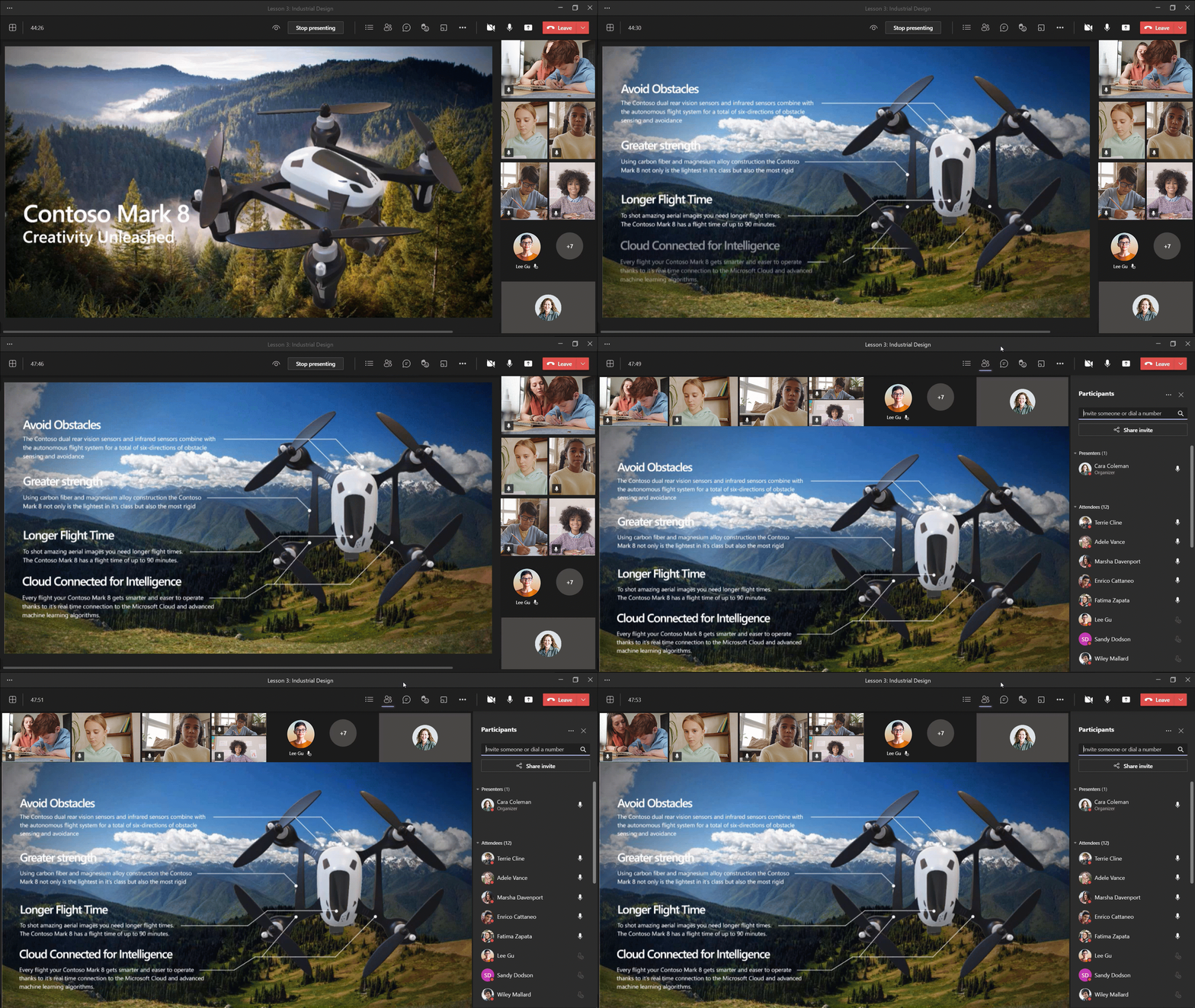
Dynamic view
Dynamic view intelligently arranges content and participants during class, showing the important stuff all on the same screen. Comments from the meeting chat will show up, too, giving more visibility to students who would rather use chat to share their thoughts and ideas. This capability can also assist participants with hearing impairments: They can use Dynamic view to spotlight their sign language interpreter alongside shared content. Need to resize your meeting window? No problem. The participant gallery auto-adjusts as you go.
When: May
Presenter mode
Presenter mode gives educators the option to choose how video and content appear to students during class.
- Standout shows your video feed to participants in front of the shared content
- Reporter displays content as a visual aid above your shoulder
- Side-by-side displays your video feed next to your content
These different modes helps create a more natural classroom or lecture experience and allows students to see their teacher or professor alongside content!
When: expected May
Breakout room updates, including participant retention and room reassignment
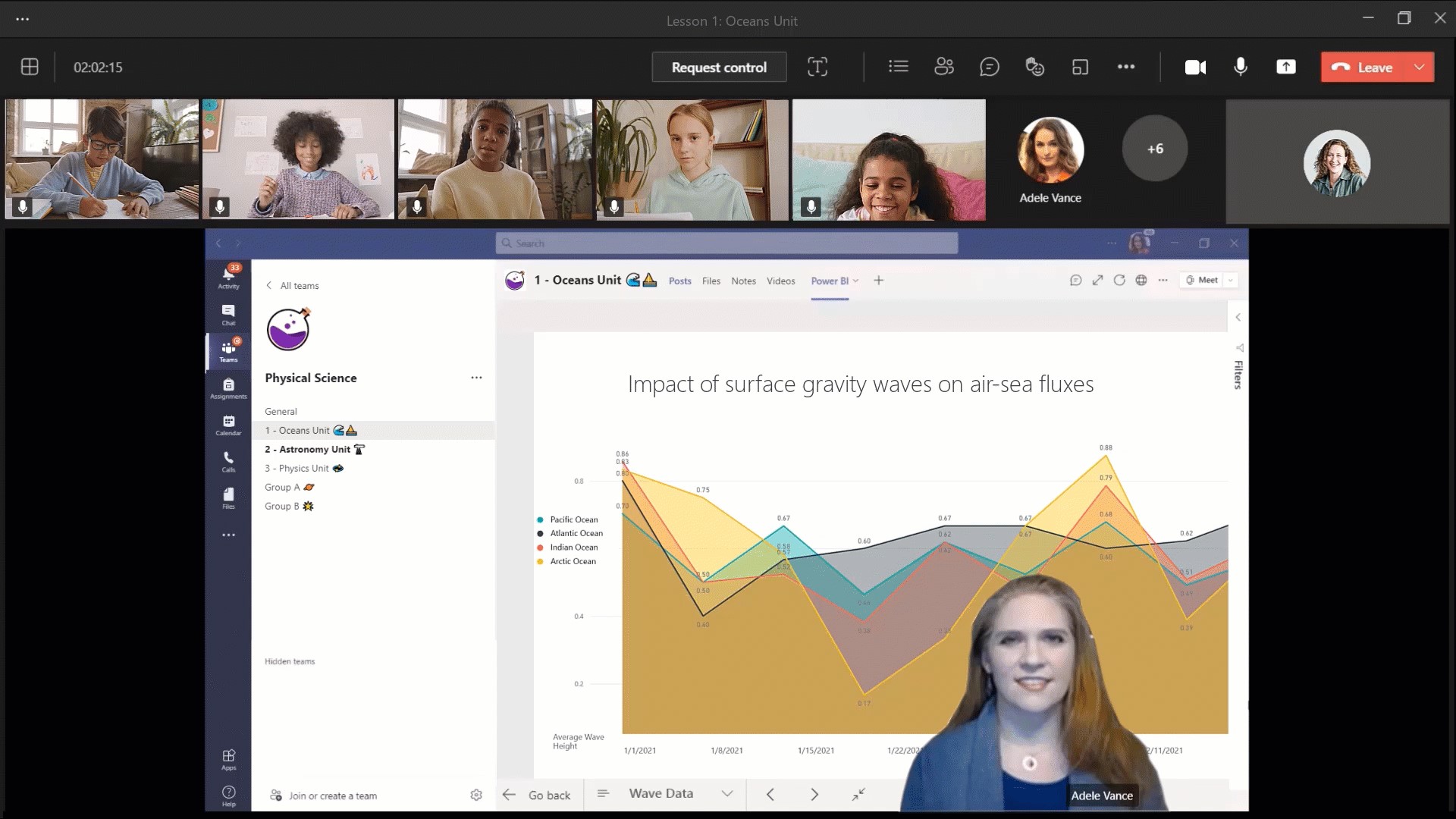
Now, it’s quicker to manage your meetings with students and get every student into the right breakout room. Organizers can reassign participants to rooms whether they are open or closed, so you can move students without closing rooms first.. We know many classrooms work in the same group configurations over and over again, so it’s now possible to set up groups and then reuse them for future breakout room sessions, saving you time during a busy day of teaching and learning.
When: Available now
Present to Teams
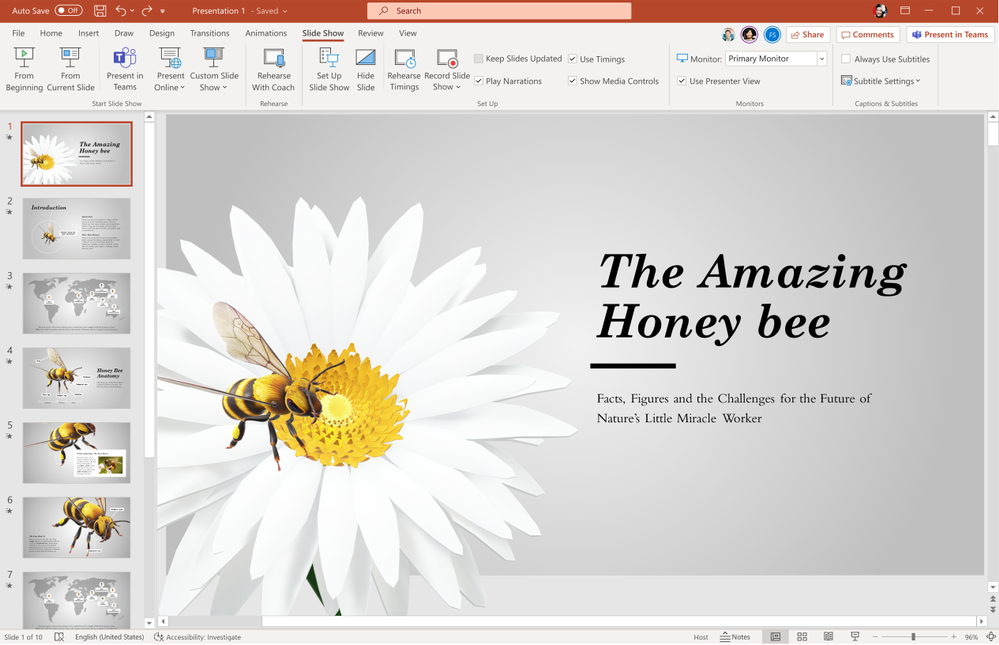
Presenting in a class used to be as simple as clicking Slide Show in your PowerPoint deck. Today, you may not be in the same room as your audience, but we believe your steps to start presenting should be just as easy and intuitive. Clicking the Present in Teams button in PowerPoint is the only step you need to launch a presentation directly in a Teams meeting—just one click! Learn more.
When: June
One thousand person interactive meetings and webinars
Soon Microsoft Teams will support interactive meetings and webinars for up to 1,000 attendees, including rich presentation options, live reactions, and moderation controls to disable chat, audio, and video for the attendees of the event. This will be available for Microsoft Education A3 and A5 customers.
When: May
Better web experiences for online classes
We know that for many students, it’s easier (or necessary) to join their classes, courses, or meetings via their web browser. Soon that experience will improve by leaps and bounds, with many of the top- rated Teams meetings capabilities coming soon to the Chrome and Edge browsers. These improvements include:
- Together mode and Large gallery view so you have the option to see and interact with larger groups and feel more like you’re together in one space.
- A 2×2 video grid display that shows automatically when there is more than one participant attending class.
- Background blur and customized backgrounds to make learning equitable and put individual student personalities on display.
- Live reactions so students can show they’re listening, or respond to each other with a live emoji.
When: End of August
6) Improve connection and collaboration with Microsoft, Teams, and your LMS together
Microsoft is working with leading Learning Management System partners to ensure that educators and students have a seamless experience when using our combined solutions for teaching and learning. Here are two updates that will support collaboration and communication within everyday LMS workflows.
Access your class teams from your Canvas and Blackboard
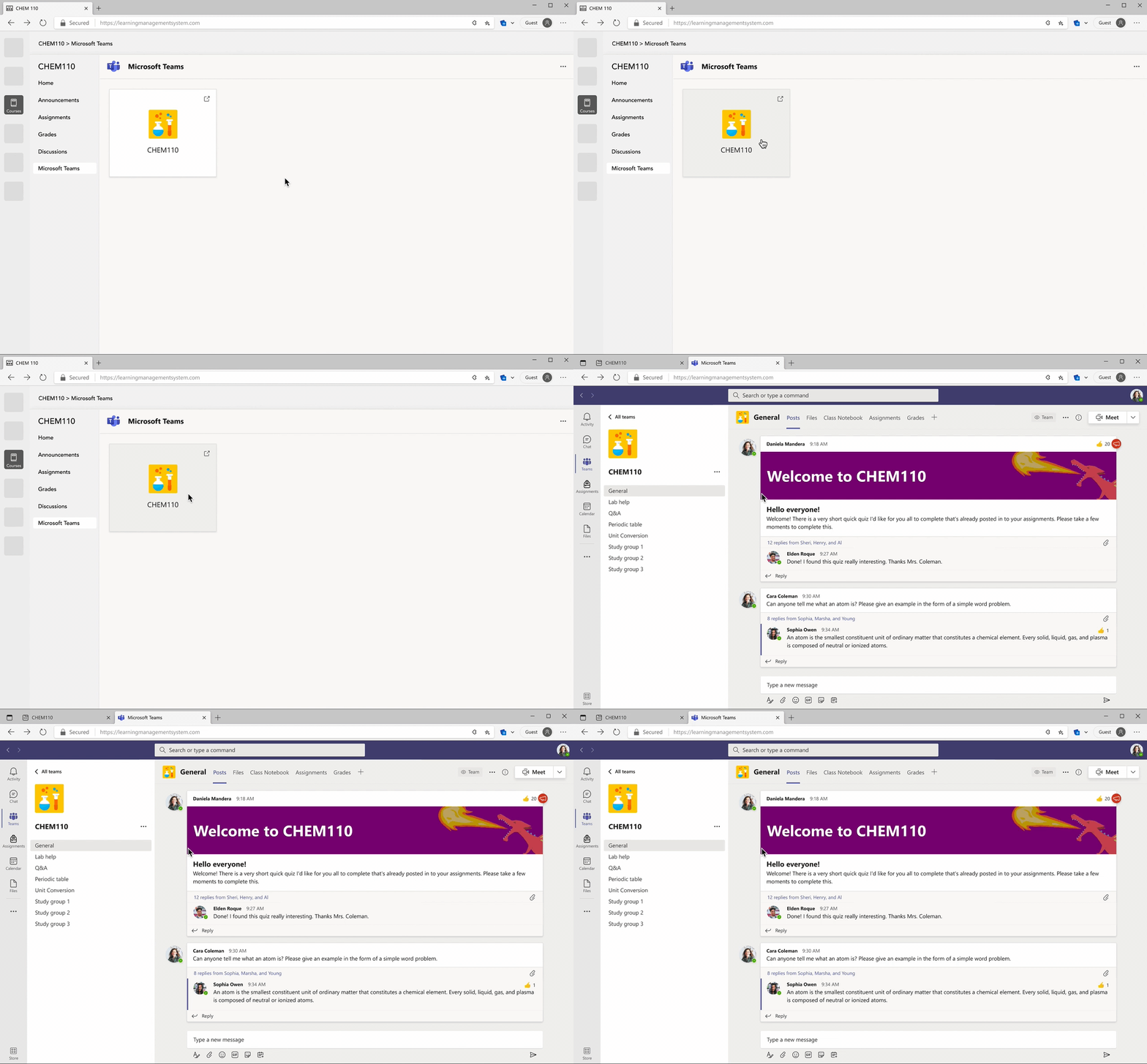
Teams plays an important role in student-educator collaboration, but up until now there has been no easy way for educators to create a team for their LMS course. That’s about to change: Educators will now be able to create class teams based on the enrollment roster of their courses with appropriate user roles. Coming soon to Blackboard and Canvas, educators and students will be able to navigate to their respective class teams directly from their LMS courses using desktop, mobile, or web platforms.
When: August for Blackboard and Canvas
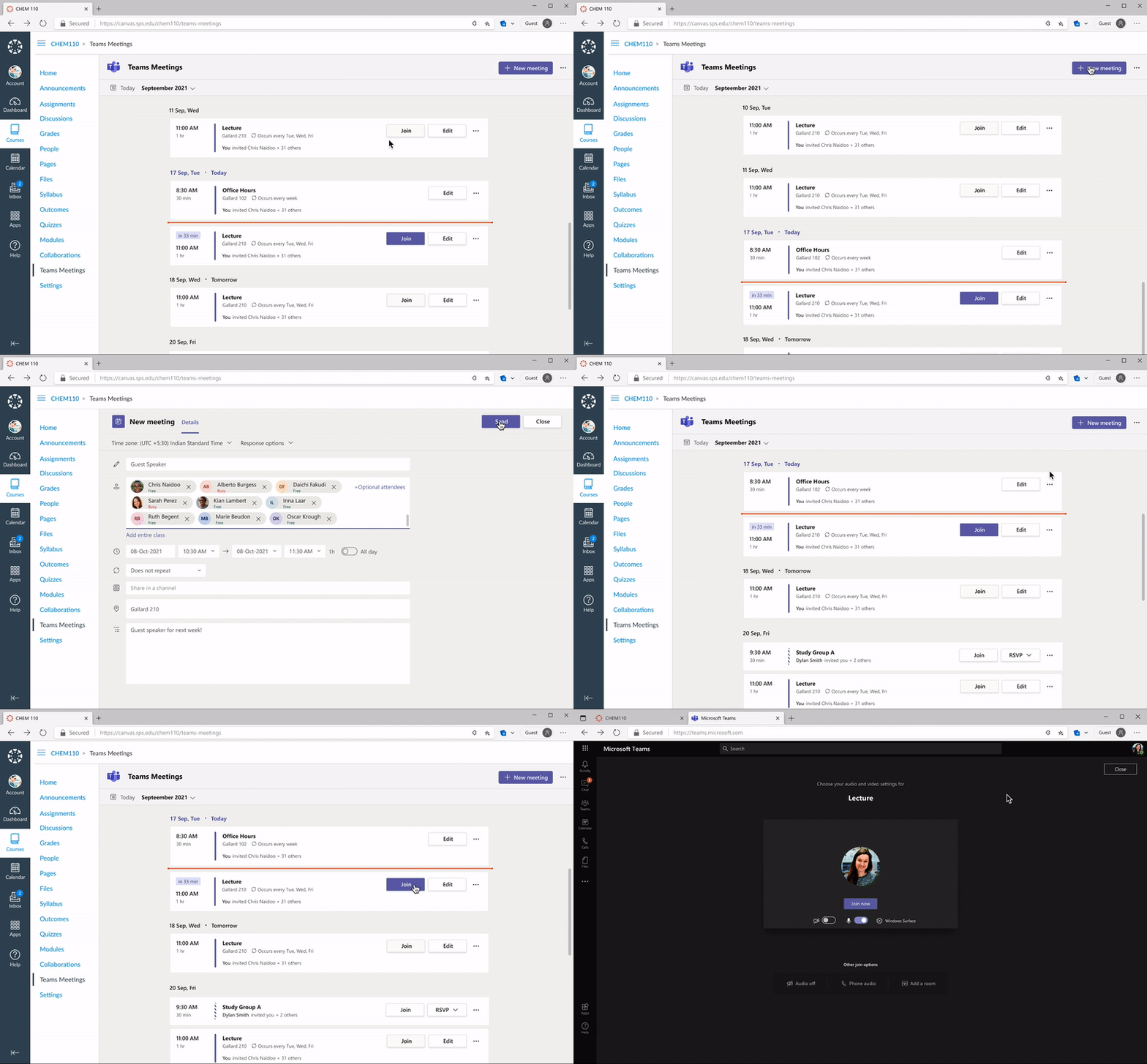
Access your Teams meetings from Canvas
Coming soon, educators and students will be able to access and edit Teams meetings for their courses directly from Canvas. You’ll be able to view past and upcoming meetings at a glance with on your agenda and schedule, edit, and join meetings from within your LMS course. Plus, you’ll get all the great capabilities available in Teams, including security and meeting settings that help you create a safe and focused classroom environment. Using these capabilities depends on per-user meeting policies set by your IT administrator and will be supported across desktop and web.
When: August for Canvas
7) Help keep students safe with more options and controls for chat, policies, and meetings in Teams
Supervised chat
Chat messaging can be a vital tool for one-on-one follow-up between educators and students or group collaboration between students, but many institutions have concerns about inappropriate use of chat once it’s made available to students. Supervised chat allows designated educators to initiate chats with students and blocks students from starting new chats unless an appropriate educator is present. When chat supervision is enabled, supervisors are not allowed to leave chats, and other participants are not allowed to remove them, ensuring that chats involving students are properly supervised. This means that students can engage in safe chat conversations, and that schools can enable chat at different levels for students, faculty, and staff. Learn more.
And if you’re an IT admin, you can learn more here about supervised chat, and don’t forget about the existing automated chat content monitoring solutions that are already available today.
When: Available now
Delete a Teams chat
Educators have unique insights and needs when it comes to keeping online classrooms engaging and safe for all students. That’s why soon, chat supervisors will have the ability to delete inappropriate or off-topic messages from students or others at their discretion.
When: August
Disable video for a student or the whole class
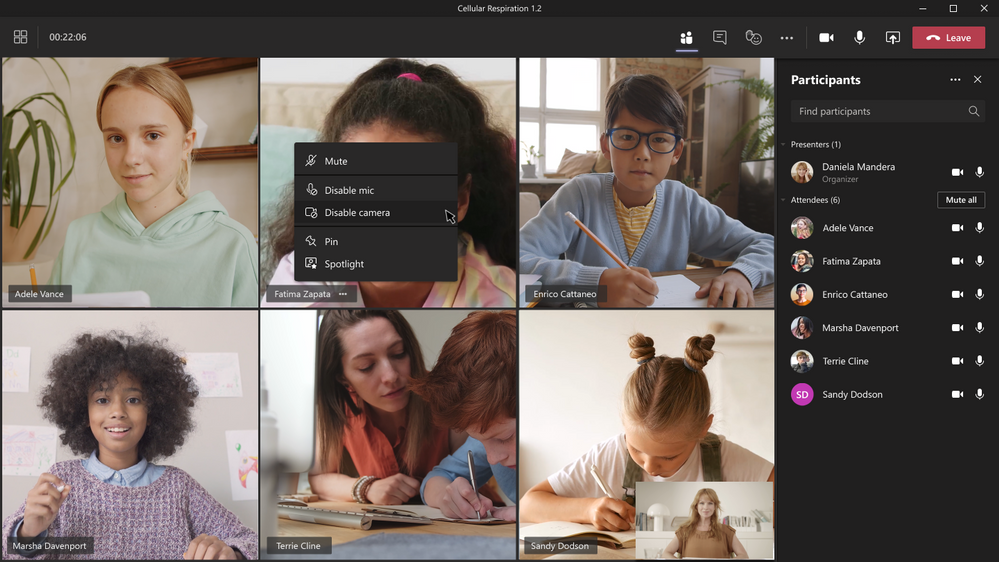
Disable video will allow a meeting organizer to disable the video of an individual or all attendees. As a meeting safety capability, disabling video can help educators manage unwanted class disruptions. Similar to hard mute, once an attendee has had their video disabled, they can’t override the organizer and turn their video back on.
When: May
Improvements to muting and unmuting students
During an online class, educators will now have more options when it comes to muting and unmuting participants in class. Now, you can disable the mic of an individual student at any time (instead of the entire class like before). And now you can unmute an attendee’s mic even if their hand isn’t raised (instead of the student needing to raise their hand first.) Learn more.
When: Available now
Education policy wizard improvements
IT Admins for educational institutions can now apply a set of tailored policies to create a safe learning environment for students, educators, and staff. The policy wizard enables you to quickly and easily apply the most relevant set of policies for students at a global (Org-wide default) level and also apply a custom policy set to groups of educators and staff tailored to their needs. Coming soon, whenever a new feature is added to Teams, the appropriate policy for education is added by default, so IT Admins can rest assured that the right policies are in place to keep their students safe and engaged.
When: July
Custom policy packages for Teams
If you’re looking for more flexibility and control than the Education policy wizard, custom policy packages are a great alternative. IT Admins can bundle together custom policies for their students, faculty, staff, and other users in their organization. After creating the custom package, admins assign the package to directly to users or a group. This helps simplify, streamline, and provide consistency when managing policies for users and groups. Learn more.
When : Available now
8) Make class recordings easier with Microsoft Stream
Microsoft Stream, built on SharePoint, is rolling out new features that provide greater accessibility and security for Teams meeting recordings.
Automatic transcripts and captions for video recordings
We’re bringing meeting transcripts, transcript editing capabilities, as well as the ability to upload captions or subtitles, to videos stored on OneDrive and SharePoint. In addition, there will be an option to automatically create transcripts in the background that would only be shown with the meeting recording, providing on-demand accessibility for these. These improvements will support students with access to comprehensive accessibility solutions, and will increase productivity for educators through time saved on transcription.
When: August
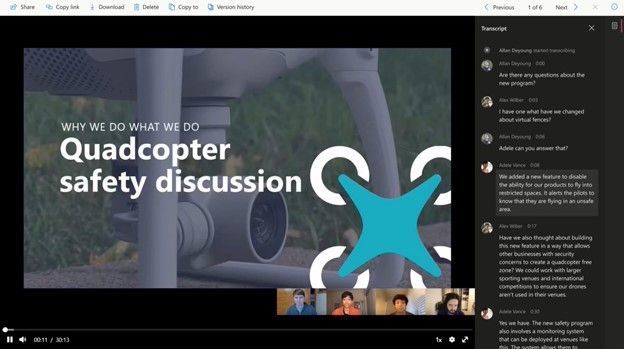
Blocked downloads
To provide greater control over how meeting recordings are accessed and shared, soon you’ll be able to use new “block download” functionality to Teams meeting recordings that are automatically saved to OneDrive and SharePoint.
When: August
Learn more about these changes and many more features already available to you today.
And for those that love lists, here’s a review of all the features we shared and when they’re coming:
1) Personalize learning for each and every student
- Reading Progress – end of August
- Career Coach – May
- Immersive Reader on Teams iOS and Android – July
- Math app for Teams for Education – available now
2) A little organizational improvement that will make a big difference in Teams
- Simplified navigation in your class team – August
3) Make Assignments more engaging and fun…and easier for you, too!
- Group assignments – end of August
- Add assignments to Office 365 calendar – May
- Apps in assignments – end of August
- Whiteboard assignments – end of August
- Assignment limit increase to 300 students – June
- Snap a photo and submit – May
- Send grade data automatically to your Student Information System – available now
- Create and edit a quiz directly from an assignment – May
- Share a OneNote Class Notebook page as a read-only resource – available now
4) Better understand student engagement and emotional well-being with Education Insights
- Education Insights – available now
- Reflect app helps you understand how students are feeling – available now
- New! Insights is on mobile with Spotlight cards – July
- Check engagement with OneNote Class Notebook – available now
- New Insights for educational leaders and supporting staff – July
5) Encourage class participation during synchronous learning for better hybrid and remote classes
- Multiple choice quizzes in Teams meetings – May
- Channel meeting support for Microsoft Forms Polls – August
- Digital whiteboarding in Teams meetings – August
- Dynamic view – May
- Presenter mode – May
- Breakout room updates (participant retention and room reassignment) – available now
- Present to Teams from PowerPoint – June
- One thousand person interactive meetings and webinars – May
- Better browser meeting experiences for online classes – end of August
6) Improve connection and collaboration with Microsoft, Teams, and your LMS together
- Access your class teams from your Canvas and Blackboard – August
- Access your Teams meetings from Canvas – August
7) Help keep students safe with more options and controls for chat, policies, and meetings in Teams
- Supervised chat – available now
- Delete a Teams chat – August
- Disable video for a student or the whole class – May
- Improvements to muting and unmuting students – available now
- Education policy wizard improvements – July
- Custom policy packages for Teams – available now
8) Make class recordings easier with Microsoft Stream
- Automatic transcripts and captions for video recordings – August
- Blocked downloads – August
We’re always looking to improve the education experience in Teams, and we can only do that with your support and awesome ideas. If there’ something you’d like to see in Teams for Education, please let us know! We are proud to be on this education journey with you and your students.
And in case you missed it:
- Check out the latest news and updates for Microsoft Education.
- Sign up for the free Microsoft Educator newsletter to get free professional development, time-saving tips, snackable resources, and more.
- Get free training on how to use these and other Microsoft Education tools in your classroom (yes, it’s really free)!

by Contributed | May 4, 2021 | Technology
This article is contributed. See the original author and article here.
Over the years, as students and educators have headed back to school, there’s been an ever-constant need for reliable tools that help foster learning and development. As a core enabler of remote and hybrid learning, video has become central to education in the last year, providing an authentic, engaging medium that best captures the in-class experience today.
Microsoft Stream (built on SharePoint) is bringing to production long-awaited features that unlock new value for you in the areas of accessibility, security, and customized content consumption.
Accessibility
We’re complementing recent Teams meeting accessibility enhancements with improvements to transcripts and captions in Stream on SharePoint. This summer, we’ll show transcripts alongside any meeting recording that came with Teams Live Transcript. Then we’ll add the ability to upload your own transcript to any other video stored on OneDrive and SharePoint, which is also used to drive captions and subtitles. After that, we’ll be adding the ability to generate a new transcript for a Teams meeting recording or any other video that has already been saved to OneDrive or SharePoint. This provides on-demand accessibility even for meetings where live transcription was not available or used.
When: July-September 2021
Security
When it comes to a video reaching its intended audience, there exist many key considerations – from privacy and intellectual property security to preventing unauthorized access to class content. We’ve heard from you how much of a priority this is. To address this, we’re making Teams meeting recordings read-only by default and will add “block download” functionality to Teams meeting recordings that are automatically saved to OneDrive and SharePoint.
This feature provides greater control over how meeting recordings are accessed and shared and will roll out initially to non-channel Teams meeting recordings – with channel recordings following a few weeks later.
When: July-August 2021
Content consumption
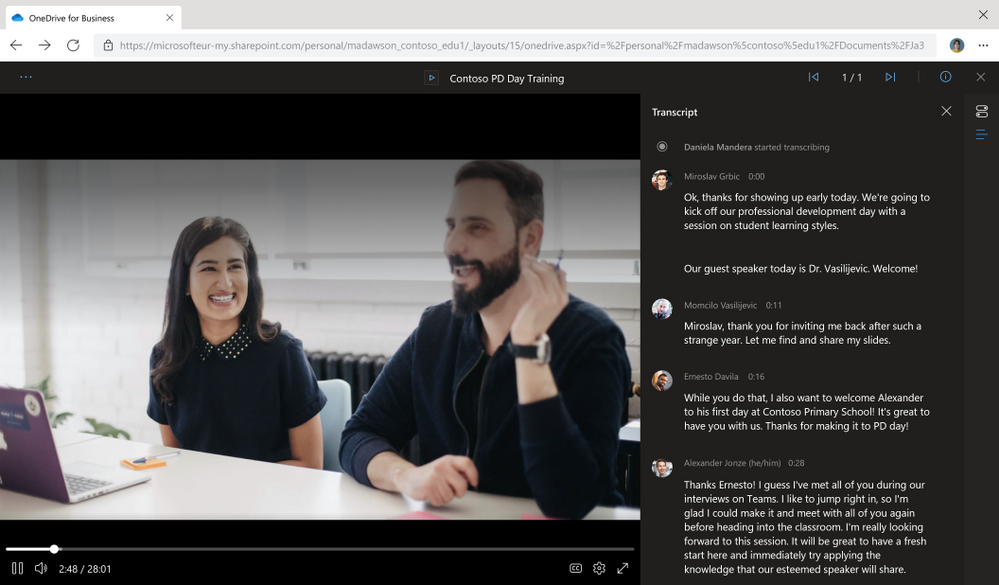
While video has many advantages over its alternatives, its discovery, distribution, and consumption can be challenging for educators and students alike. The Stream web app will soon be part of office.com – consolidating videos into a seamless, individualized experience for all stakeholders. We’ll also release a new player for video files in OneDrive and SharePoint, including several upgrades for playback such as higher quality video, a transcript pane on the right, speaker identification in the transcript (if enabled), and support for switching between transcripts in multiple languages.
When: June-August 2021
Other features
Most of the features mentioned above are arriving by August, but you can use Stream on SharePoint today. All your videos on OneDrive and SharePoint, whether they are Teams meeting recordings or video files you’ve uploaded, are Stream videos, and we’ll continue working to deliver the high-quality playback, features, and scale you expect.
Learn more about existing and new features in Microsoft Stream (on SharePoint).
by Contributed | May 4, 2021 | Technology
This article is contributed. See the original author and article here.
Happy Teacher Appreciation Day to you!
And—we have to say it—May the fourth be with you.
So much has happened the last year, much of it from our own homes or empty-to-partially-empty classrooms, and it hasn’t been easy (to say the least). But thanks to you—your perseverance, persistence, and above-and-beyond-ness to help students—you’ve inspired 30 new features and capabilities across Microsoft Education (including a whole bunch in Microsoft Teams).
No matter what the next year looks like, we’re excited to share new features and updates to help you and your students. Just click on the quick links below to navigate to a section:
- Personalize learning for each and every student
- Give students new tools to explore and solve Math on their own
- Do more with Forms
- Minecraft: Education Edition now available for clubs, camps, homeschools, and more!
- Improve connection and collaboration with Microsoft and your LMS together
- Keep students engaged with Microsoft Whiteboard
- Create more with updates to OneNote, PowerPoint, and Word
- Make learning more accessible, secure, and customized with video in Microsoft Stream
Let’s dive in! (Click here to jump right into the full list, without extra descriptions)
1) Personalize learning for each and every student
Immersive Reader
Immersive Reader, a free tool that uses proven techniques to support reading regardless of age or level, will be available in even more places later this summer. This spring, the Immersive Reader, across all apps and platforms, crossed 35 million monthly active users!
Teams iOS, Android for mobile
One of the #1 requests of the Education team has been to add Immersive Reader to our mobile apps on iOS and Android. In late June, we’ll be adding the Immersive Reader for channel conversations and Chat, in addition to the already-supported Assignments.
When: July
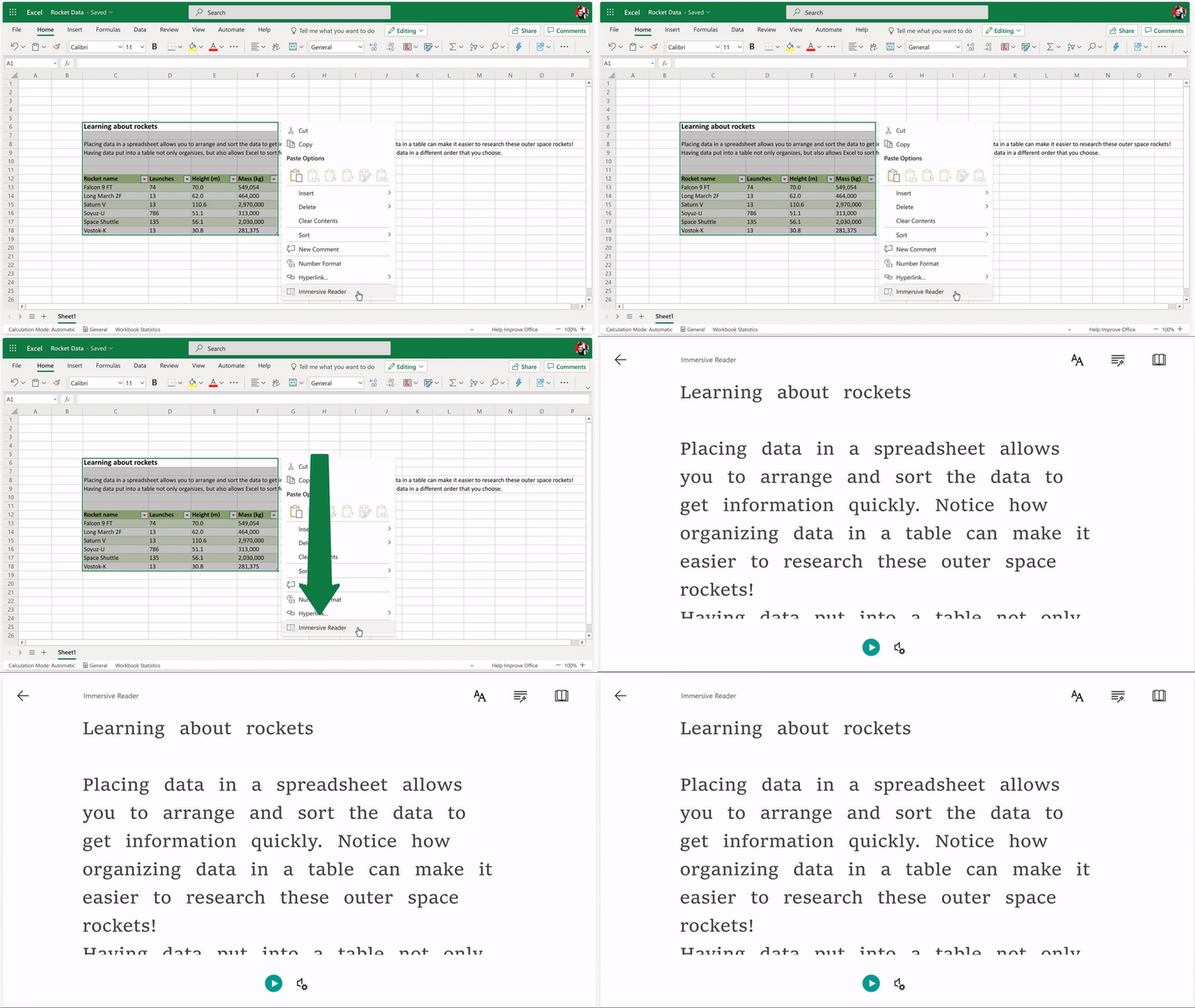
Excel for the web
Later this summer, Immersive Reader will be coming to Excel for the web. This has been a top customer request, and we’re excited to make Excel even more inclusive!
When: August
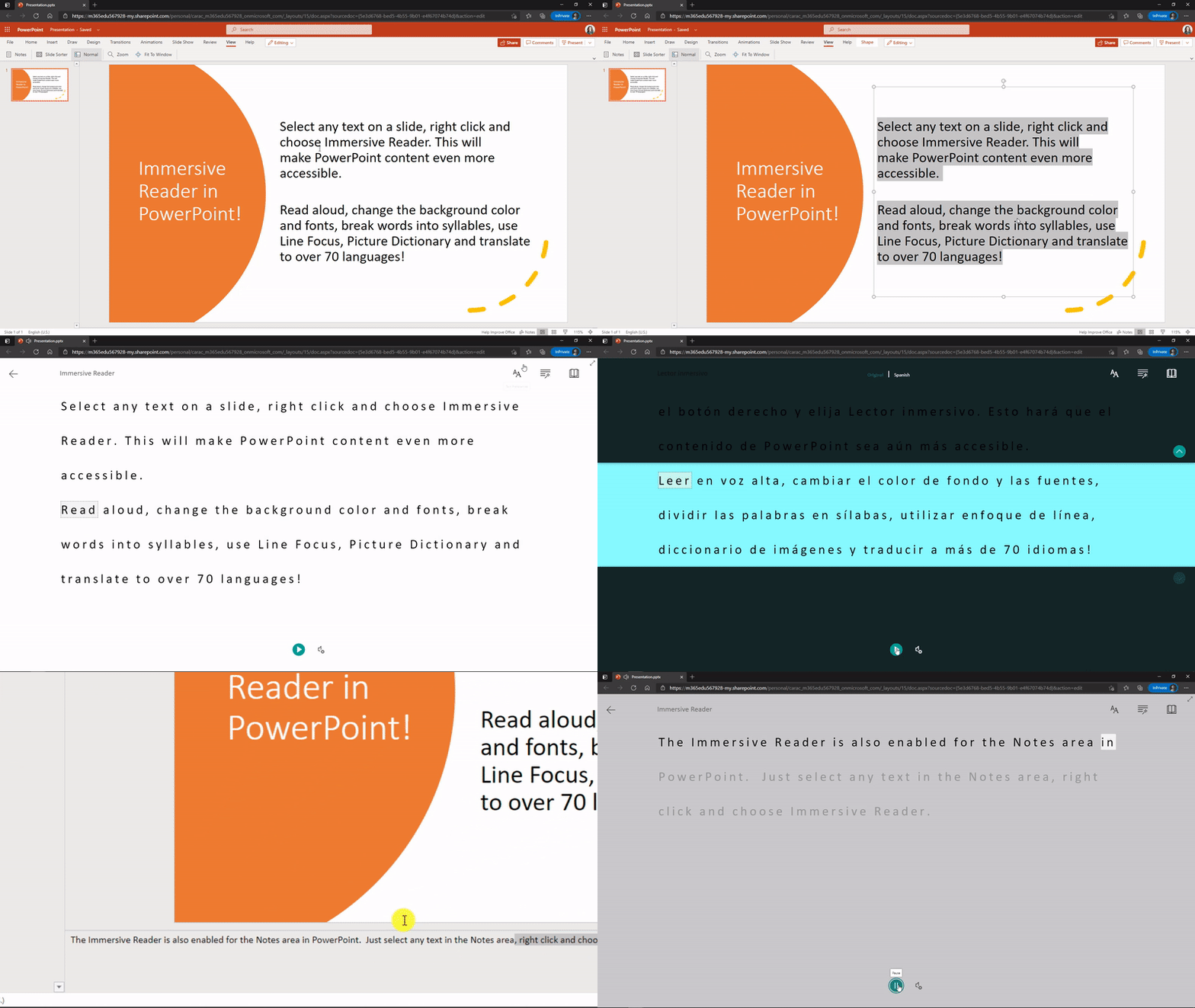
Improvements in PowerPoint for the web
We launched Immersive Reader in PowerPoint for the web in April and we’re making some improvements in May. These include a button on the ribbon and the ability to right-click on the slide to launch Immersive Reader.
More languages for Immersive Reader read-aloud, including Welsh!
In the next few days, we’ll be enabling many new and updated languages for read-aloud in Immersive Reader. These languages will be using our Neural Text-to-speech technology, meaning the quality will be extremely high. The new read-aloud languages for Immersive Reader include Dutch (Belgian), French (Belgian), English (Philippines), Estonian, Irish, Lithuanian, Latvian, Maltese, Ukraniaian, Urdu, and Welsh.
The Welsh language has been a top request for the Immersive Reader read-aloud voice. So we’re sending a virtual “cwtch” to all our educator friends from Wales like Lanny Watkins and Julie Fletcher :hugging_face:!
When: May
And in our quest to make all Education technology more inclusive, we’re working closely with partners to help implement the Immersive Reader in their platforms. Learn more.
2) Give students new tools to explore and solve math on their own
Math skills are one of the key foundations of education, and there’s so much great technology that can support the growth of developing mathematicians―no matter their age or ability. That’s why we’ve built tools like Equation Tools and Ink to Math for creating and editing equations, Math Assistant for doing individual work and practice, and math intelligence in Forms to support educators when doing formative assessment. Today, we’re excited to share new tools across Microsoft Education that will continue to help instill a love of math at any age.
Equation Tools for Word Online
Equation Tools will make it easier for students and educators to create and edit math equations in Word Online by using a set of symbols and structures as building blocks. You can access the feature by tapping the Equation button in the Insert tab.
When: July
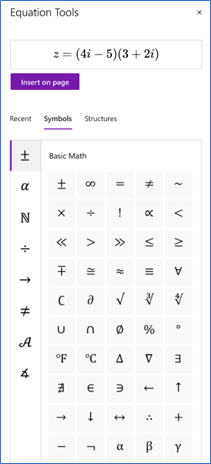
Math Assistant in OneNote for iPad and OneNote Desktop
Students can now use the step-by-step math solver to help them with individual math work in OneNote for iPad and OneNote Desktop. In this release, you’ll be able to type or ink equations and have them solved step-by-step. More features, including Graphing, Immersive Reader, and Practice math quizzes will be added in the upcoming months. Note for educators: If you’d like to temporarily disable all or some of this functionality for your students, like during a math quiz or exam, you can do so in OneNote for Windows 10 or OneNote Online by following these steps.
When: July
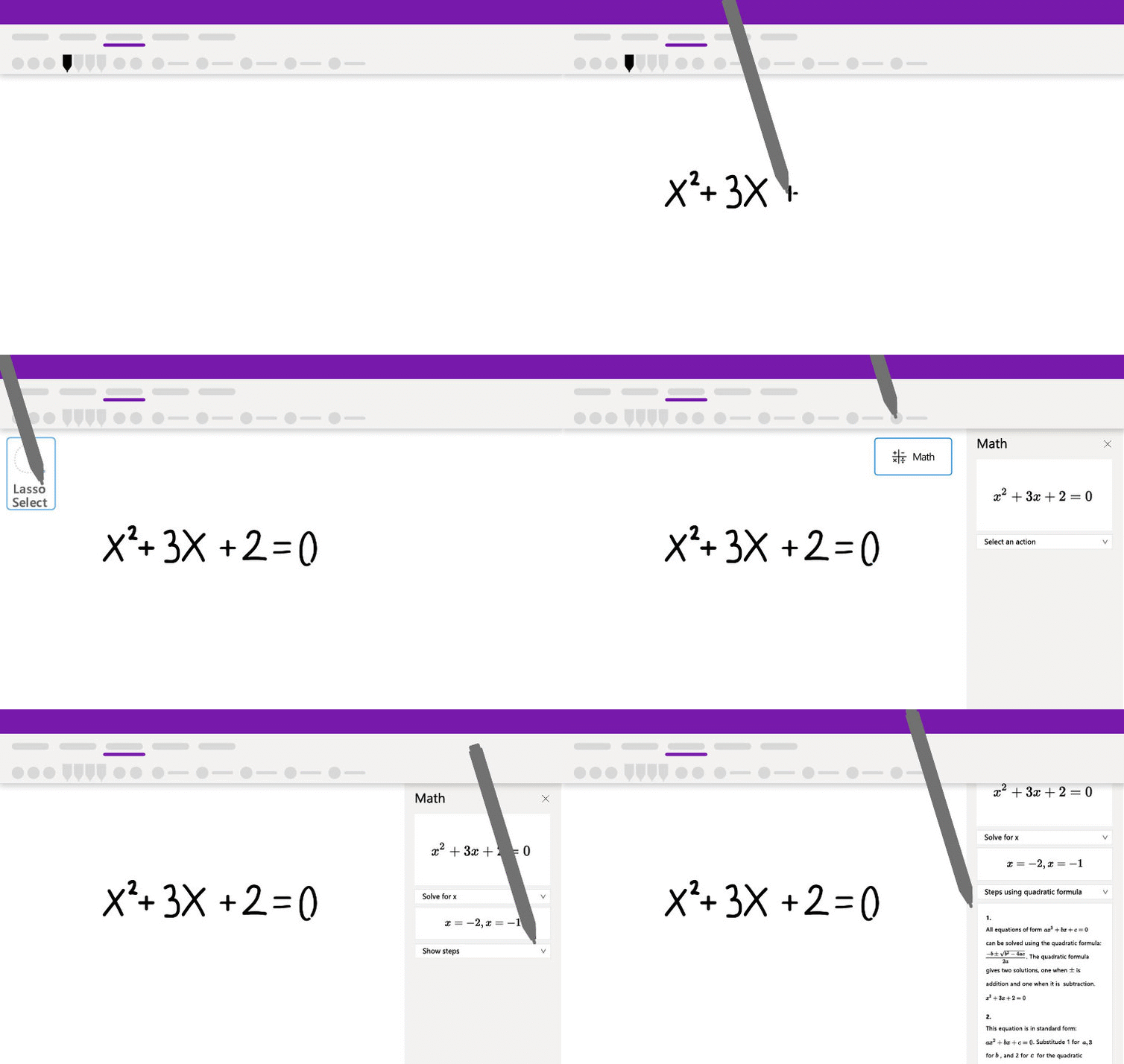
Math Solver in Microsoft Edge
With Math Solver in Microsoft Edge, you can use the selection tool to capture a math problem―be it handwritten or printed–and then see the solution with step-by-step instructions to help you learn the how on your own. It also comes ready with a mathematical keyboard so you can easily type math problems instead of hunting around a traditional keyboard for the characters you need. After solving your problem, Math Solver provides many options to continue learning with additional materials such as quizzes, worksheets, and video tutorials. Learn more about this update here.
When: June (for Edge 91)
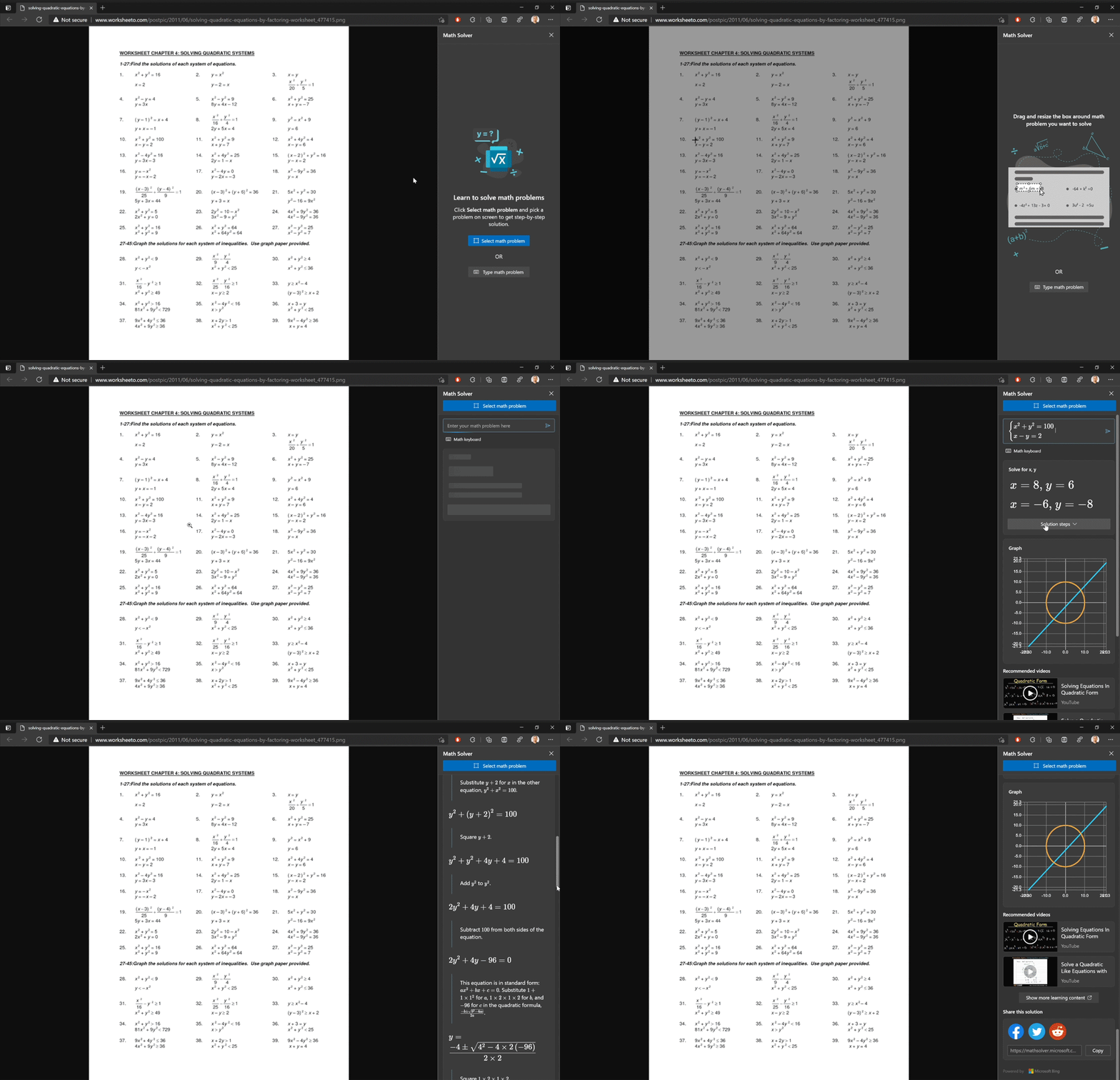
3) Do more with Forms
Timed quiz/form
Whether you are using Teams Assignments or not, now you can set a time limit on any of your surveys or quizzes. Simply go to your settings in the form design page, under the “…”. The timer begins right as your student starts the form. Once your student reaches the time limit, they can submit what they’ve completed thus far, but cannot answer any more questions in the form.
When: End of August
Text formatting
Now, you can use bold, italicize, and underline in your surveys and quizzes. You can also change font sizes, colors and use bulleting or numbering, allowing teachers and form/quiz designers to emphasize certain words in your questions, answer choices, titles, descriptions, and comments. You can format the text via the floating tool bar that appears when you highlight the text.
When: June
Shortened URL
Now, you can use a shorter URL when collecting responses to your form. A shortened link looks cleaner and can be easily typed into their web browser by students or parents, especially if they see the link in a poster or presentation.
When: Available now!
Improved sending and sharing
The top corner of your Forms design page has been updated for a clearer experience. Under the Send button, you’ll find the options to send your form via URL, QR code, and more, and define which audiences can respond to your form. Under the people icon next to the “Send” button, you can share edit access to the form with fellow educators or colleagues who are creating or evaluating the form with you.
When: August
4) Minecraft: Education Edition now available for clubs, camps, homeschools, and more!

Taking Minecraft beyond the classroom
The past year has shown us that learning can truly happen everywhere, so we’re making Minecraft: Education Edition available beyond the classroom! The Camps and Clubs Update allows camps, after-school programs, homeschools, non-profits, and other organizations to purchase licenses and trial Minecraft: Education Edition. Join the beta program (available for any user with a Microsoft 365 account) to explore Minecraft: Education edition and try these new features below. Stay tuned for updates later this month!
New Teams and Flipgrid integration with Minecraft
We’re bringing Teams for Education and Flipgrid Topics into Minecraft: Education Edition. With these new features, incorporate Minecraft: Education Edition into your existing lesson planning and assessment strategies. Create a custom button that links to a Flipgrid topic, Forms quiz, or any web tool when assigning a lesson from the Library. You can also add a Resource Link to your Flipgrid topic or other assessment tool in any world you’ve created in the new Classroom tab in the World Settings. Check out these new features in the Camps and Clubs beta.
More Minecraft: Education Edition Updates
- Launch from digital learning platforms: Add the URL https://education.minecraft.net/open to your digital learning platform or LMS to launch Minecraft: Education Edition from the web.
- Manage classroom settings from inside a world: Check out the new Classroom tab in Settings to access Minecraft: Education Edition world settings commonly used in the classroom. This tab will remain visible for teachers who join a hosted world, giving teachers easy access to classroom management controls that support student gameplay.
- Fun new skins: We’ve also added 10 new non-player character (NPC) skins including educators and construction workers!
All of these features and updates are in the Camps and Clubs Update, currently in beta and launching later this month.
5) Improve connection and collaboration with Microsoft and your LMS together
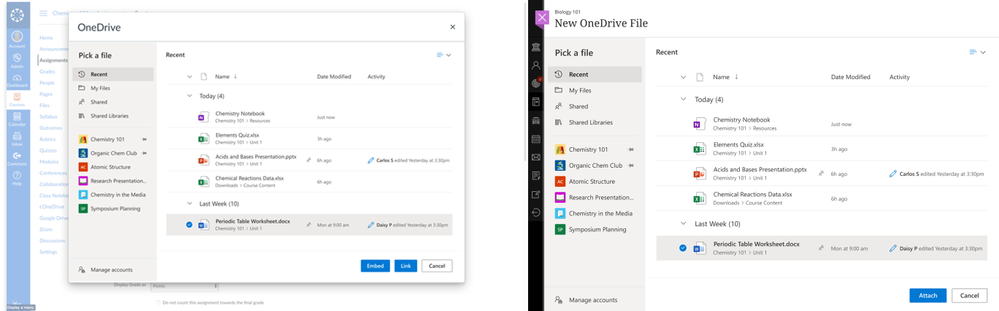
LMSs
Microsoft is working with leading Learning Management System providers to create easier enablement of Microsoft Teams for collaboration within LMS courses, advanced management of Teams meetings directly within LMS courses, and reimagined OneDrive integration for course content and assignments, extending support beyond traditional Office documents to Whiteboards and more.
Easily create a Team from within your LMS
To facilitate project-based learning and encourage class collaboration, educators will soon be able to create and pair a class team for every course in their LMS. This solution is coming to Canvas and Blackboard in August, and we’ll announce additional LMSs soon.
When: August for Blackboard and Canvas
A new Teams meeting LTI within your LMS
Our new Teams meeting LTI app will enable educators to create meetings, plus access meeting settings, chats, and transcripts without leaving their LMS. Students will be able to access meetings and meeting resources as well. This is coming to Canvas in August and we’ll announce additional LMSs soon.
When: August
Improved OneDrive and Office365 integrations in Canvas and Blackboard
We reimagined and rebuilt the way educators and students access their O365 files from OneDrive from within an LMS. The new experience responds to feedback from both educators and students: you can find files more easily via a most recently-used files list, you can easily switch O365 accounts, and we’re working with LMS companies to integrate the experience more seamlessly in your teaching and learning workflows.
When: August for Canvas and Blackboard
6) Keep students engaged with Microsoft Whiteboard
Microsoft Whiteboard is a visually rich and interactive education tool to support creative teaching and learning. With its infinite canvas and focus on teamwork, Whiteboard provides an open place for teachers and students to develop ideas together. In addition, students and teachers can participate from any platform and any device, whether the class is taught remotely, in hybrid mode, or in person.
Create visually engaging class material
We understand that one of the hardest things for an educator to do is to keep a student’s attention throughout the class. Microsoft Whiteboard gives you tools to create beautiful visually-engaging content for your class. Pull in images, content from other documents, shapes, and stickers to add interactivity to your lessons. Use Whiteboard for informal, ad hoc lessons, or save time by creating the boards ahead of class and simply open the whiteboard during class to get going.
When: July
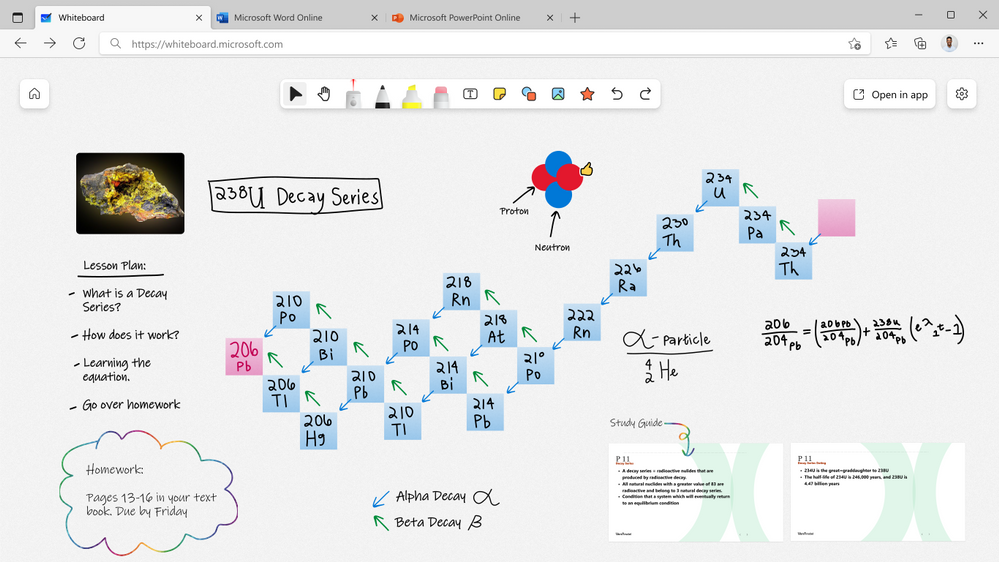
Focused, dynamic lessons
Whiteboard can help get your class focused on the right things. Educators have full control over who can edit the whiteboard and when. Annotate over your lesson with digital ink, highlighters, stickers, sticky notes, and text boxes for special emphasis. Use the laser pointer to draw attention to important concepts. As whiteboards are inherently non-linear, you have the flexibility to dynamically change the flow of the lesson depending on the conversations that come up and where those discussions take you. For a more guided experience, you can lock your students’ view so that they see what you see. Run your lessons with a video conferencing application like Microsoft Teams for the best experience.
When: August
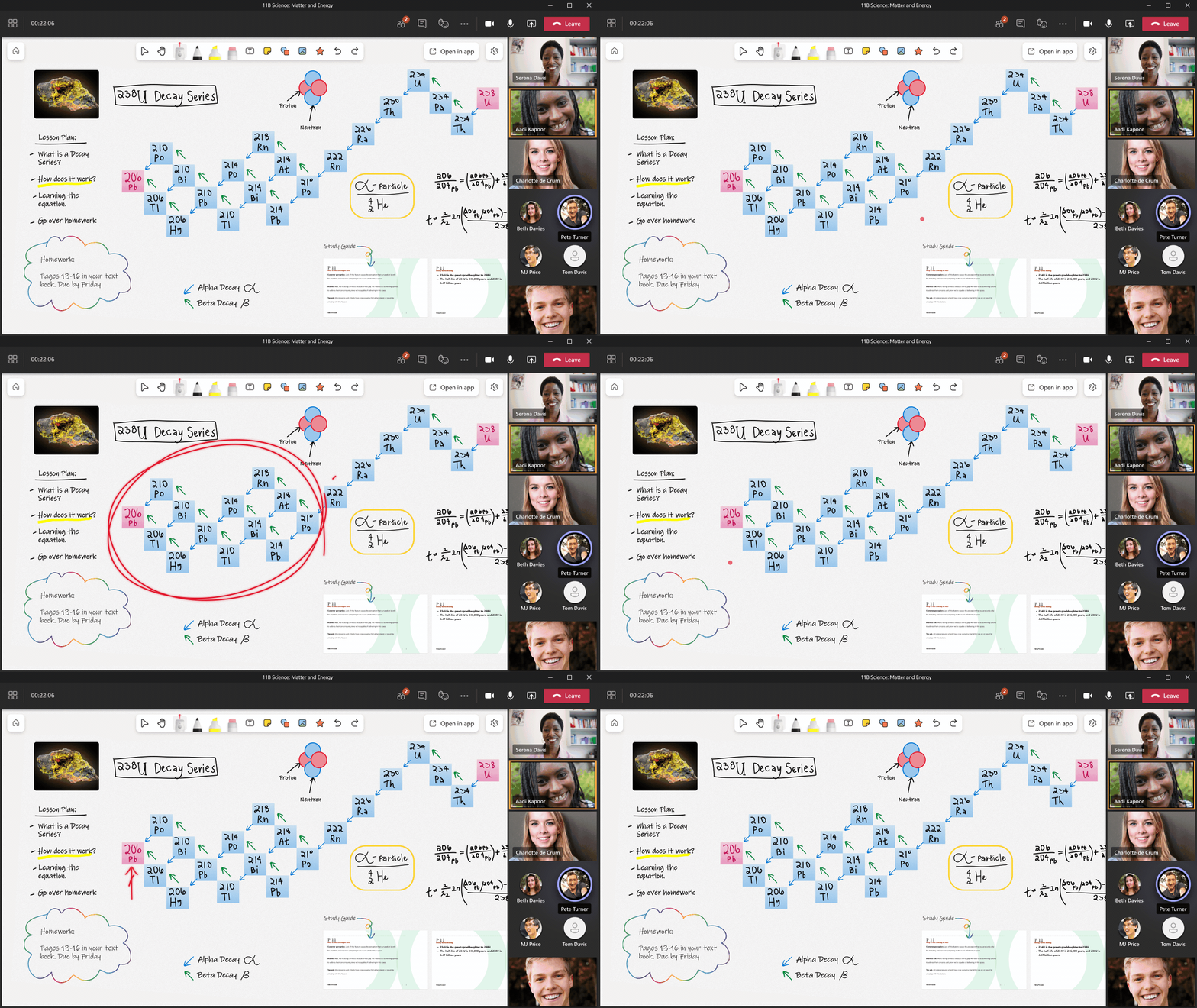
Group projects and interactive lessons
When it comes to group projects and interactive lessons, Whiteboard makes it simple to upload digital worksheets that you already have to the board, or create new ones using more structured content from within the app. Add your content to the board, open it in a Teams meeting, or invite your students to the board and see their creativity blossom. With everyone on the same Whiteboard, live cursor identities allow you to see where students are, who is actively engaged with the work, and which students might need additional help or clarification on the tasks.
In Whiteboard, students can pick up and draw with a pen, touch, a mouse, or select content from the toolbar. The wide range of tools—from adding simple reaction stickers to creating full blown works of art—means that students can choose the level of engagement they’re comfortable with.
When: August
To learn more about Microsoft Whiteboard, check out our Whiteboard for Education Tech Community Blog.
7) Create more with updates to OneNote, PowerPoint, and Word
Record and embed video into OneNote
Later this summer we’ll be adding the ability to record video as well as screencast, directly from the OneNote for web app. This video can also be directly embedded onto the OneNote page. Record video will work for stand-alone OneNote in the web, as well as OneNote Class Notebooks (stand alone or in Teams).
When: August
OneNote live captions
As announced last year, we have integrated Microsoft Translator with OneNote to allow live captions to be streamed directly into OneNote while taking notes. This has been in private beta testing in OneNote for web, and we are opening this more broadly in late summer, bringing it to OneNote for Windows 10, Mac and iPad.
When: August
Improved Multipage Distribution in Class/Staff Notebooks
Class and Staff Notebooks currently support distributing multiple pages at the same time, but the pages are not in order when received by students. Later this summer, with some improvements we’ve made, multiple pages being distributed will come through to students in order. This feature will work on OneNote for Windows 10, Mac, and iPad
When: May
Canva and NoteDex – new partners for OneNote embed
Soon we’ll be adding interactive embed support for Canva and Notedex. Navigate here to see the full list of partners that integrate with OneNote for interactive embed.
When: June
PowerPoint
PowerPoint for the web introduces Auto Fix: A new time-saving feature to clean up your slides!
It takes time and effort to perfectly align and manually position multiple elements on a slide. To help simplify the process, we’re introducing Auto Fix: a new feature that enables easier, precise, and faster editing of slide content alignments. Available in PowerPoint on the web with your Microsoft 365 subscription. Navigate here to learn more.
When: Available now on web
PowerPoint Presenter Coach: New critiques announced
Presenter Coach leverages AI to help anyone—professionals, students, and even those who just want to practice a speech for a wedding or graduation. Especially in this hybrid learning environment, presentation skills are more important than ever, with more meetings and presentations than ever before. Presenter Coach provides users with feedback on their pace, use of monotone pitch, use of filler words, poor grammar, originality, use of sensitive phrases, and more while they rehearse their presentations. At the end of each rehearsal, Presenter Coach users receive a Summary Report highlighting the key pieces of feedback to help them become even better, more confident presenters.
Recently, we announced three new critiques to Presenter Coach and bringing them to preview in PowerPoint for the web. These include feedback on body language, use of repetitive language, and pronunciation. Navigate here to learn more.
When: Available now on web
Kahoot! Add-on for PPT
Are you using PowerPoint in your lessons? With the new Kahoot! Integration in Microsoft PowerPoint, you can now start a live kahoot directly from your presentation without the need to switch between tools. Whether you teach in class, virtually or in a hybrid format, with our new add-in, you can make your lesson truly interactive by bringing your favorite tools together! Once you’ve finished your awesome lesson, you’ll be able to dive into a report with the class results in the Reports section of Kahoot!. This feature is available in the following plans for teachers: Kahoot! Premium, Premium+ and EDU.
When: May
Word for web export to PowerPoint presentation
This feature uses artificial intelligence (AI) capabilities to save you time and provide you with slide suggestions powered by Designer in PowerPoint. The slides are derived from your section headers in the document, so make sure to organize your Word document accordingly for optimal suggestions. Based on key words in your document, Designer in PowerPoint will suggest imagery, icons, videos, themes, and fonts to arrange your content. You can always change the suggested content if needed. Navigate here to learn more.
When: Available now on the web
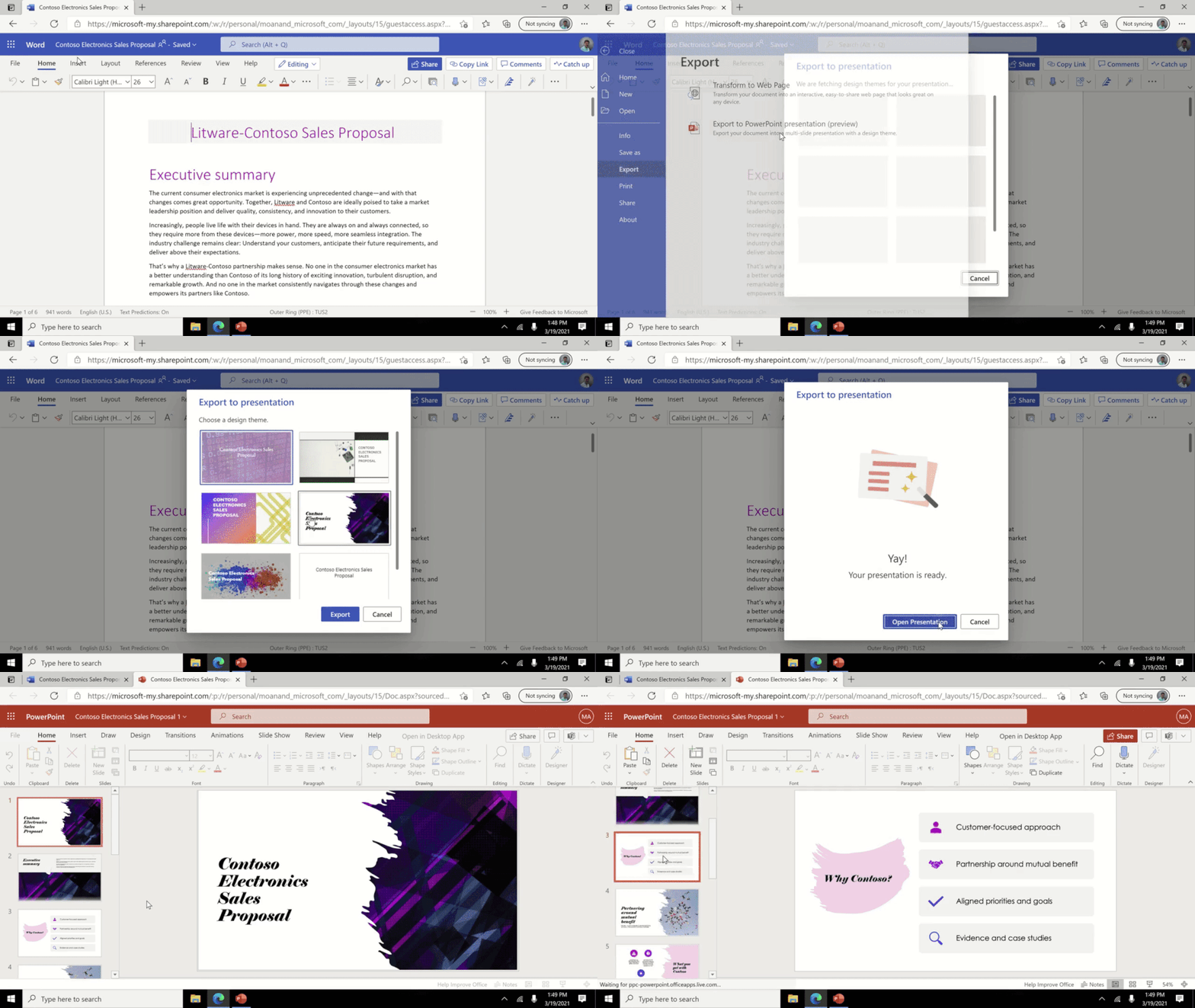
8) Make learning more accessible, secure, and customized with video in Microsoft Stream
Over the past year, video has become more central to education – enabling the transition to remote and hybrid learning environments.
Microsoft Stream (built on SharePoint) is bringing to production long-awaited features to unlock new value for educators and students in the areas of accessibility, security, and content consumption. This translates into better meeting recordings and learning experiences and provides greater control for video consumption, sharing, and management.
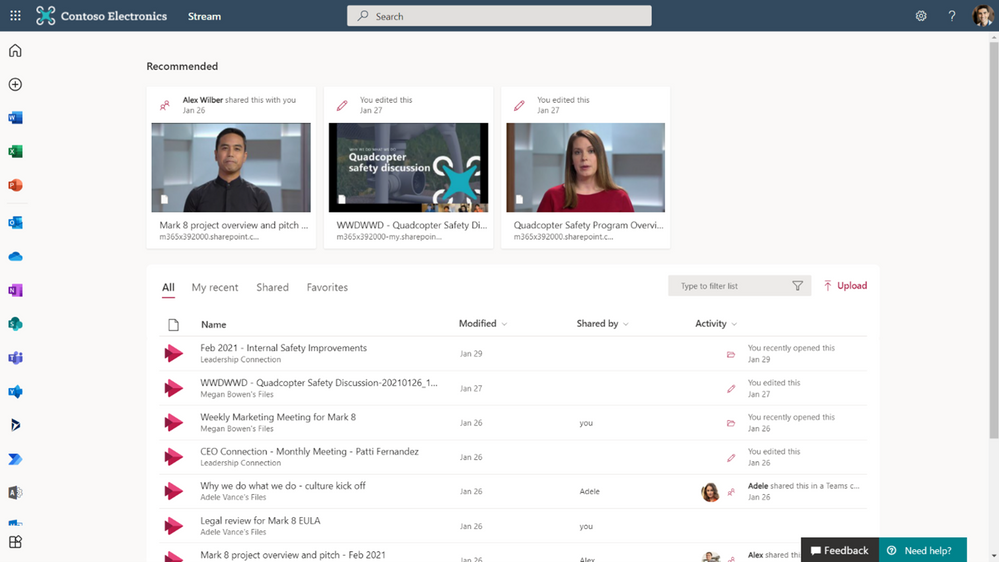
Stream web app
The Stream web app will soon be part of office.com – consolidating videos into a seamless, individualized experience for all stakeholders – and addresses issues related to content discovery, organization, and consumption.
When: August
New video player for OneDrive and SharePoint
We’ll also release a new player for video files in OneDrive and SharePoint, including several upgrades for playback such as higher quality video, a transcript pane on the right, speaker identification in the transcript (if enabled), and support for switching between transcripts in multiple languages. This gives students and educators flexibility to work across environments in Microsoft 365 – with high-quality video playback and scale for videos they interact with in OneDrive and SharePoint.
When: August
Learn more about these changes and many more features already available to you today.
And for those that love lists, here’s a review of all the features we shared and their expected availability:
1) Personalize learning for each and every student
- Immersive Reader for Teams iOS, Android for mobile – July
- Immersive Reader in Excel for the web – August
- Immersive Reader improvements in PowerPoint for the web – available now
- More languages for Immersive Reader read-aloud, including Welsh – May
2) Give students new tools to explore and solve Math on their own
- Equation Tools for Word Online – July
- Math Assistant in OneNote for iPad and OneNote Desktop – July
- Math Solver in Microsoft Edge – June
3) Do more with Forms
- Timed quiz/form – end of August
- Text formatting – June
- Shortened URL – available now
- Improved sending and sharing – August
4) Minecraft: Education Edition now available for clubs, camps, homeschools, and more!
- Taking Minecraft Beyond the Classroom- May
- New Teams and Flipgrid Integration with Minecraft- May
- Launch from digital learning platforms – May
- Manage classroom settings from inside a world – May
- Fun new skins – May
5) Improve connection and collaboration with Microsoft and your LMS together
- Easily create a Team from within your LMS – August for Blackboard and Canvas
- A new Teams meeting LTI within your LMS – August
- Improved OneDrive and Office365 integrations – August for Canvas and Blackboard
6) Keep students engaged with Microsoft Whiteboard
- Create Visually Engaging Class Material – July
- Focused, Dynamic Lessons – August
- Group Projects and Interactive Lessons – August
7) Create more with updates to OneNote, PowerPoint, and Word
- Record and embed video into OneNote – August
- OneNote Live Captions – August
- Improved Multipage Distribution in Class/Staff Notebooks – May
- PowerPoint for the web introduces Auto Fix – available now on web
- PowerPoint Presenter Coach: New Critiques Announced – available now on web
- Kahoot! Add-on for PPT – May
- Word for web export to PowerPoint presentation – available now on web
8) Make learning more accessible, secure, and customized with video in Microsoft Stream
- Stream web app – August
- New video player for OneDrive and SharePoint – August
And in case you missed it:
- Check out the latest news and updates for Microsoft Teams.
- Sign up for the free Microsoft Educator newsletter to get free professional development, time-saving tips, snackable resources, and more.
- Get free training on how to use these and other Microsoft Education tools in your classroom (yes, it’s really free)!
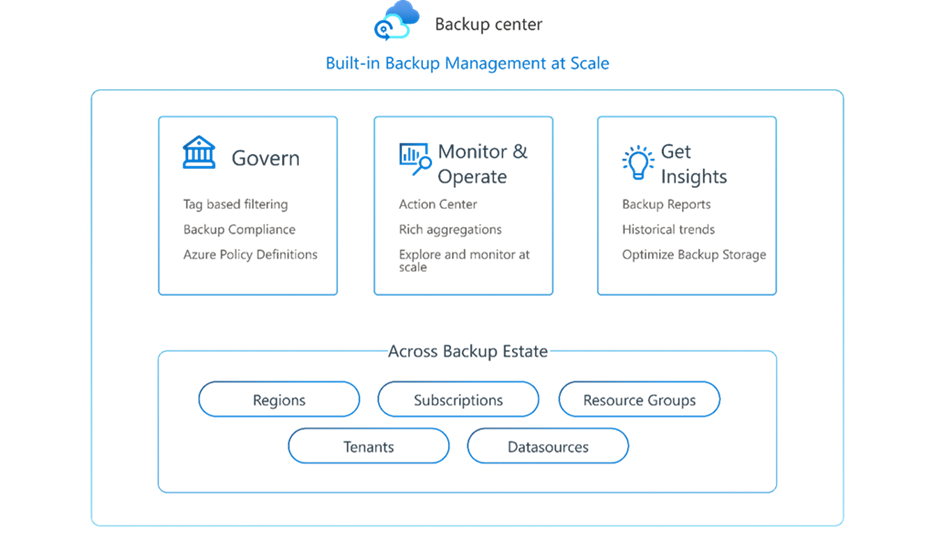
by Contributed | May 4, 2021 | Technology
This article is contributed. See the original author and article here.
Hello Folks,
We live in a world where the only constant is change. Actually… There might be one thing that has not changed for IT pros and operation folks… The need for an appropriate backup strategy. Today, in this world of fast innovation and ever faster iteration we need to be flexible and nimble when it comes to protecting assets and data for accidental or malicious events.
We are now facing a series of challenges:
- Exponential data growth
- Data sources sprawl.
- Maintaining ever growing databases.
- Keeping everything in compliance with current regulations.
Thankfully, the new Azure Backup Center can help us all address these issues. Let’s dive into how Backup Center can provides a single unified management experience in Azure for enterprises to govern, monitor, operate, and analyze backups at scale.
Exponential data growth
With the advent of AI, Mobile, IoT…. We are capturing data at a rate greater than ever before. There was a time when data consisted mostly of documents, spreadsheets, pictures, and media content. And the amount of them was minimal. All these types still exist, but they have grown in numbers and size with the advent of tools to easily create such content. For example, files which previously required a few kilobytes of storage now need several megabytes of storage. See example below where a 3-minute video recorded at the “standard” resolution at the time as grown in size from approx. 5MB to 260MB (52 times bigger)
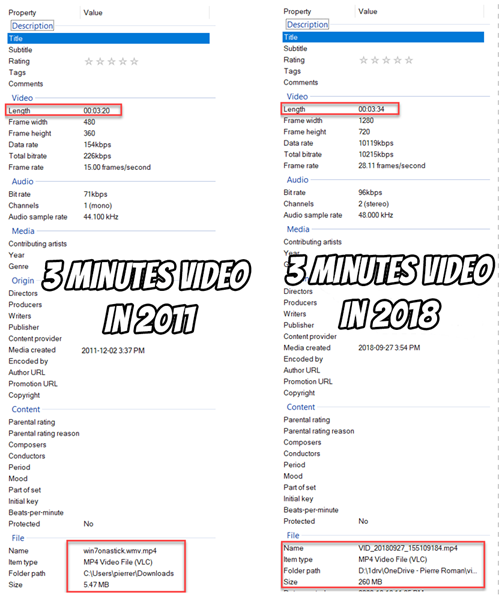
You can try to keep up with the capacity requirements on your own or you can leverage the scalable nature of Azure Backup and never have to worry about running out of room to perform your backups.
Data sources sprawl
It’s also become extremely complex to analyse, consume, interpret, store all this data, without exposing your organization to risk. After all, it would only take a malformed query to compromise a data repository, or a fat finger to permanently wipe-out a storage account. The architects, administrators and operators need to figure out ways to proactively scan, discover and backup workloads in their environment.
Azure Backup Center (ABC) is a great resource to help you get a grip on this. The discoverability potential it unlocks for you is significant. With ABC “Protectable datasources” menu item you can view the datasources in your environment, that haven’t been configured for backup. And act on them quickly.
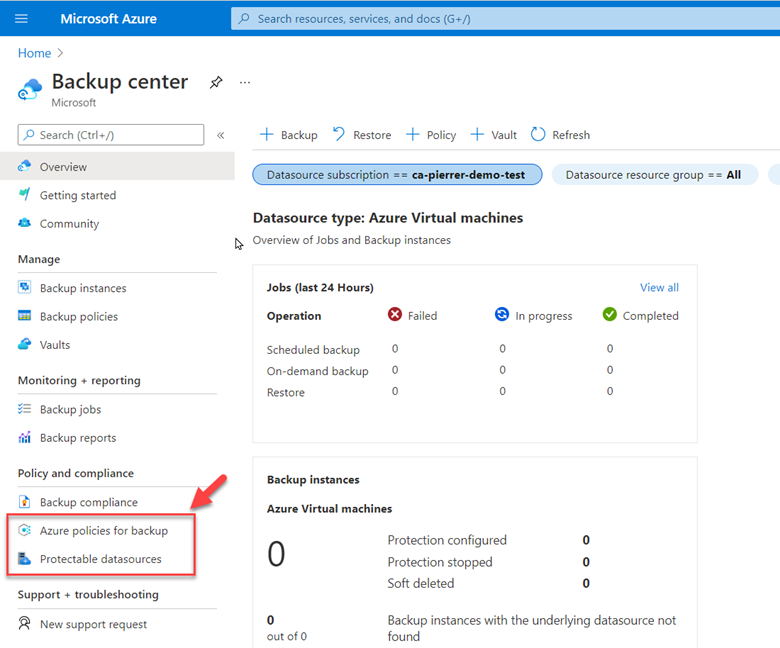
You can filter the list by datasource subscription, resource group, location, type and tags. Therefore, you don’t need to hop around the portal to see if all the resources across all your enterprise’s subscriptions are protected.
Currently, the support matrix for ABC’s Protectable datasources pane only exposes the following workloads, but more are on the roadmap.
- Azure Virtual Machine
- Azure Database for PostgreSQL server
- SQL in Azure VM
- SAP HANA in Azure VM
- Azure Files
- Azure Blobs
- Azure Managed Disks
Once you’ve identified a data source that needs to be backed up, you can address it quickly and configure backup for the resource without having to navigate to the Recovery Services vault.
Compliance, Regulations and Good Governance
We’ve all heard of recent scandals and data privacy breaches, because of those, there is increased scrutiny and demand for oversight on your data. Furthermore, the requirements dictated by laws and regulations present a set of challenges to your organisation. ABC provides us with a single location to define and assign and track Azure policies for backup across all your supported resources in Azure.
These capabilities allow you to ensure that everything is covered and report on your recoverability to auditors and management in an easy to navigate ABC interface.
There you have it. We took services that you need (backup, Policies, inventory…) and organized them in a way that makes it straightforward for you to protect your environment without having to worry about building your own infrastructure.
- Learn more and get started with Backup center.
- Tell us how we can improve Azure Backup by contributing new ideas and voting up existing ones in the Azure Backup feedback forum.
Cheers!


Recent Comments