by Contributed | May 4, 2021 | Technology
This article is contributed. See the original author and article here.
Today we’re excited to announce public preview of OneDrive Sync Admin Reports in Microsoft 365 Apps admin center.
These reports give you more visibility into who in your organization is running the OneDrive Sync client and any errors they might be experiencing. OneDrive Sync is a lot like electricity or internet—people tend to take it for granted until they have a problem and they’re in the middle of an important project. This is even more the case now with so many people working from home and relying on cloud capabilities like OneDrive and SharePoint Online to help them be productive. Having insights into what’s happening with OneDrive Sync across your organization can help you proactively reach out to educate people to resolve common issues and improve user experience to help increase OneDrive adoption.
Get an at-a-glance view of OneDrive Sync across your organization
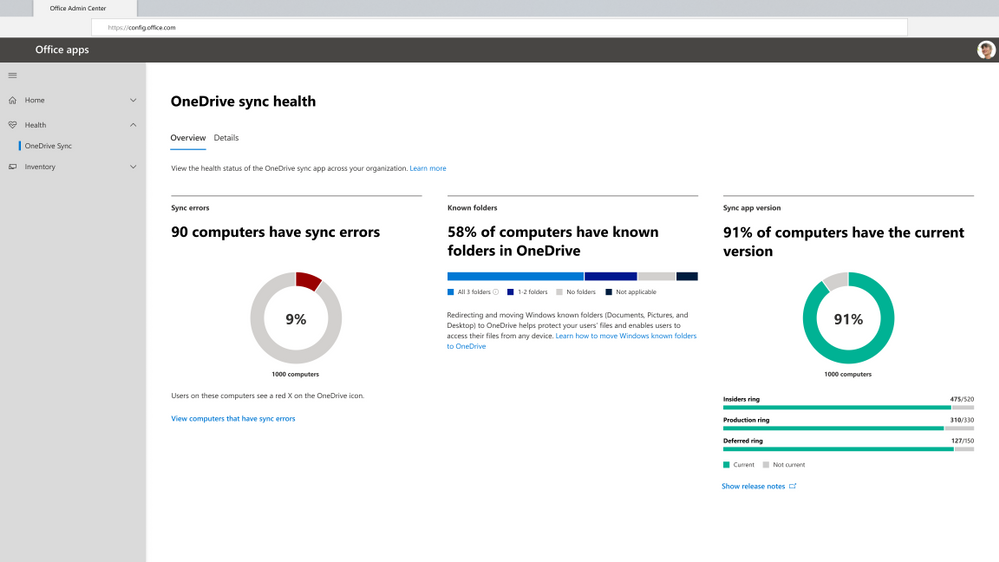
When you open the OneDrive Sync health dashboard, you’ll see an executive summary of what’s going on with OneDrive Sync in your organization. On the left, you can see how many devices have at least one sync error. In the middle, you can see at a glance what percentage of the devices in your organization have known folders OneDrive is helping to protect. You can see what percentage of devices have all three folders (Desktop, Documents, and Pictures) syncing with OneDrive, which have only one or two folders, and which have not opted in to sync those folders at all, meaning if something were to happen to those devices, all the contents of those folders would be lost. On the right, you can see how many devices are running on the current version of OneDrive, meaning they have all the latest and greatest fixes and features from Microsoft that you saw in the Release Notes.
Get an at-a-glance view of OneDrive Sync across your organization
Quickly resolve sync issues to help people stay productive.
When someone in your organization reports a problem syncing files to OneDrive, you can investigate quickly without having to ask for additional details and screenshots of the error message via Microsoft Teams chat or Outlook email. This can save valuable time for both you and the user. Having these insights into sync errors helps you react quickly to requests for help and be more proactive in driving down occurrence of the most common sync errors by providing more education for users in general or reaching out to specific users directly as needed.
In the Details view, you can see all the information for users running OneDrive Sync. To resolve help requests, you can easily look up the person’s name and get a glimpse of the problem by seeing how many sync errors they have. To see details about the error type, you can click on the user name to open the detail panel. There you can see what device they are using and what build of the OneDrive Sync client they are using. You can also see the specific errors that are occurring on their device, such as issues related to unsupported file and folder names. With that information, you can reply with details about the error and the steps to resolve the issue—no back and forth about what error the user was seeing in the first place, just quick resolution!
At a glance in the Details table, you can see other users who have high numbers of sync errors. You can click on any user’s name to see the exact errors. This is especially helpful if you’re looking for ways to drive down sync errors across the organization to help improve adoption of OneDrive. This way, you can reach out to groups of users who are experiencing similar errors to provide training materials that can help them resolve sync errors and improve the user experience. You can also filter to devices with sync errors, to focus actions on driving down those unhealthy sync clients.
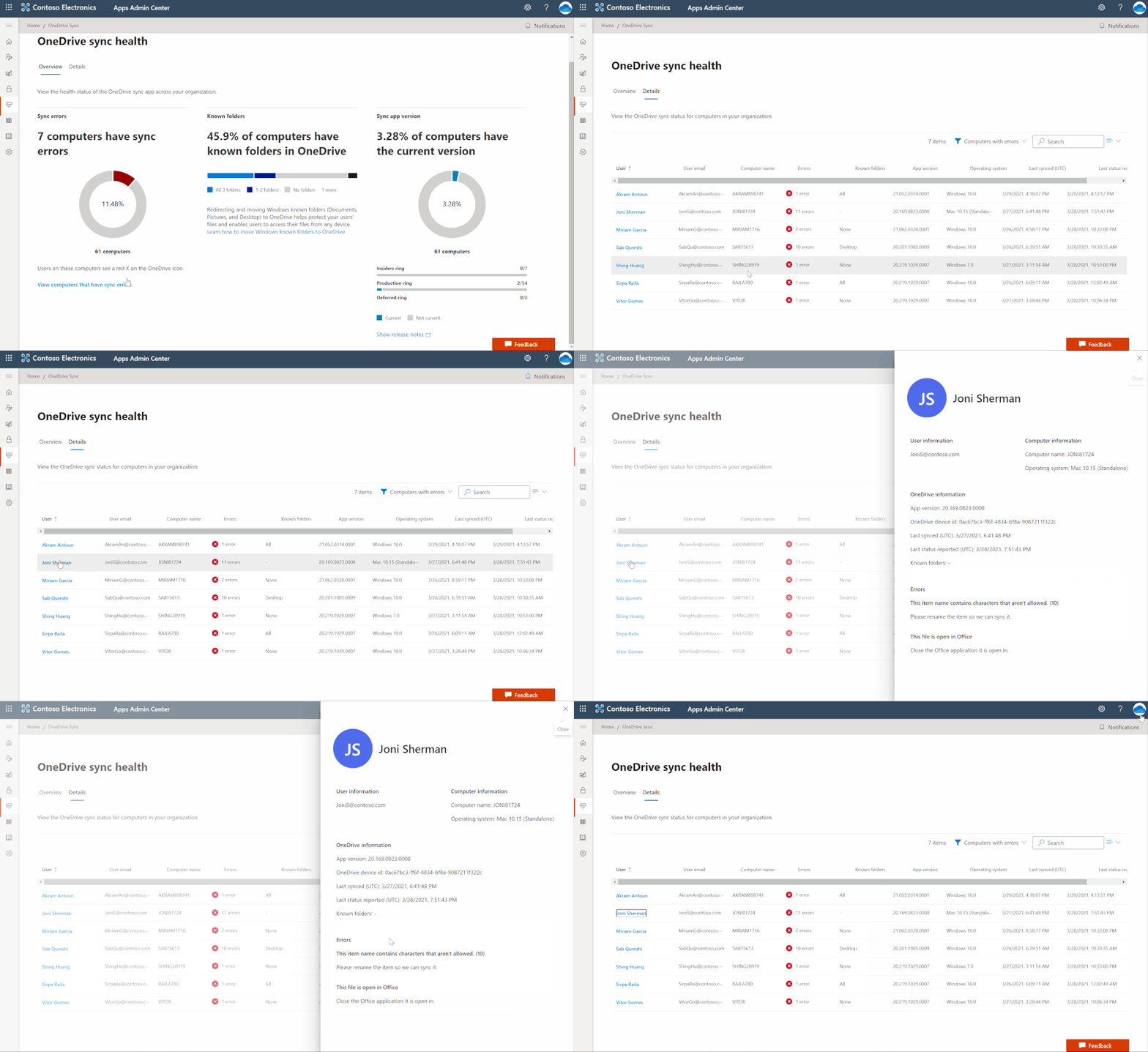 Quickly resolve sync issues to help people stay productive.
Easily track the status of Known Folder Move rollouts
If you’re rolling out Known Folder Move (KFM) for your organization to help people across the organization keep their Desktop, Documents, and Pictured folders protected by syncing them to the cloud with OneDrive, this is a great way for you to monitor progress. You can easily see what errors have occurred, how many people have opted in to protect some or all folders, and how many devices have been updated with the latest OneDrive Sync client.
Let’s say you’re deploying KFM to your team, which has around 75 people. You can check the status of your KFM deployment by clicking into the Details view, which gives you a better look at devices belonging to specific people, so you can see clearly which folders users have selected to sync.
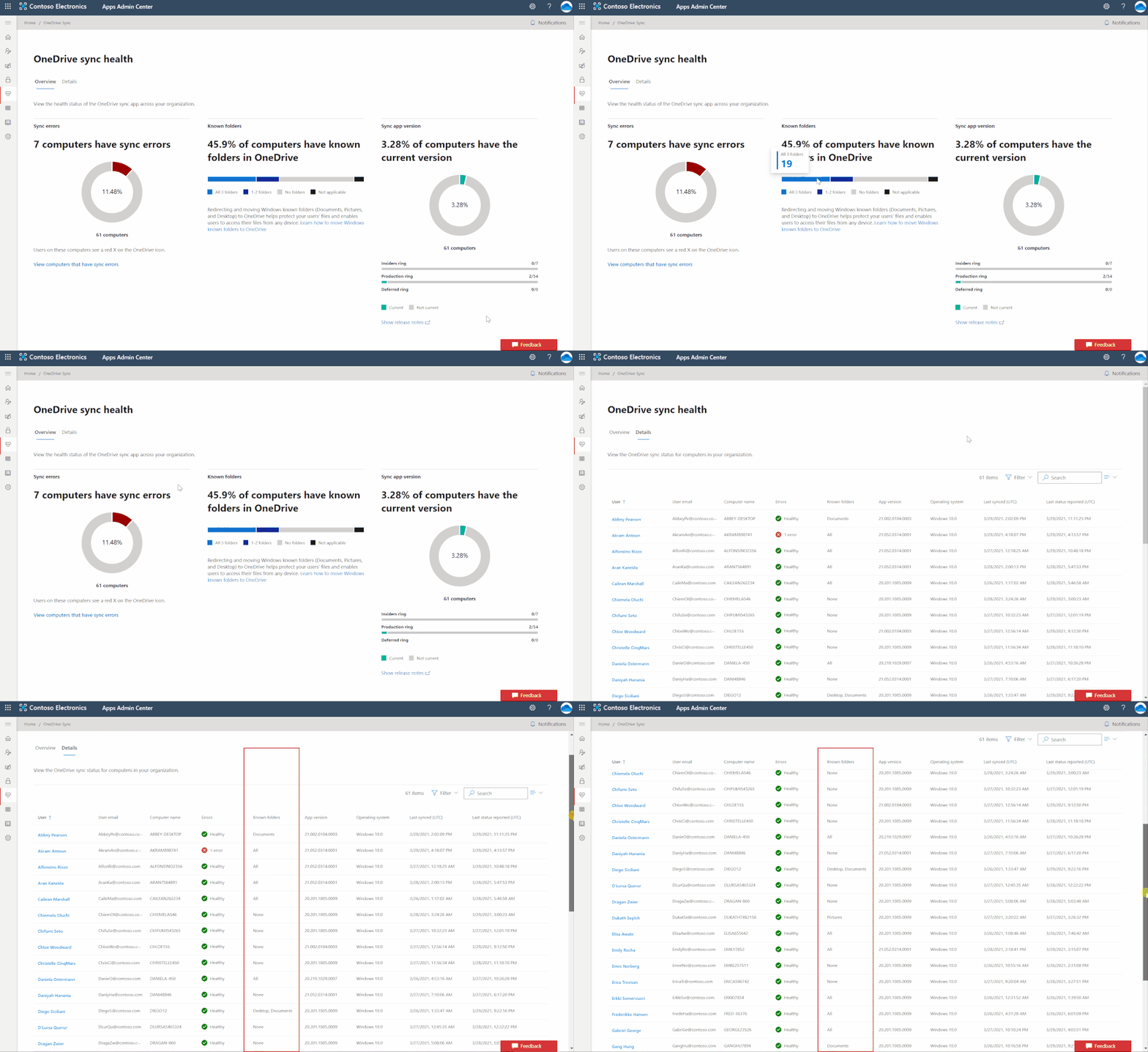 Easily track the status of Known Folder Move rollouts
Give remote workers confidence their information is synced securely in the cloud
With more people working from home, you also need a better way to transition users over to new devices while helping to ensure they don’t lose any data from their old devices. For example, you need to check on the sync status of someone’s older laptop before you let her know she can safely begin using her new one and send the old one back to corporate. Before you give her the green light, you want to ensure all her data was uploaded through KFM, so she will see it as soon as she logs onto her new device. When you view the user’s name in the Details pane, you can see she has opted in to sync all three folders with OneDrive, and you can also see her last sync time was recent and that all the uploads completed successfully. You can also easily see whether she has any sync errors. This means you can get back to her right away and let her know whether she can send back her old device.
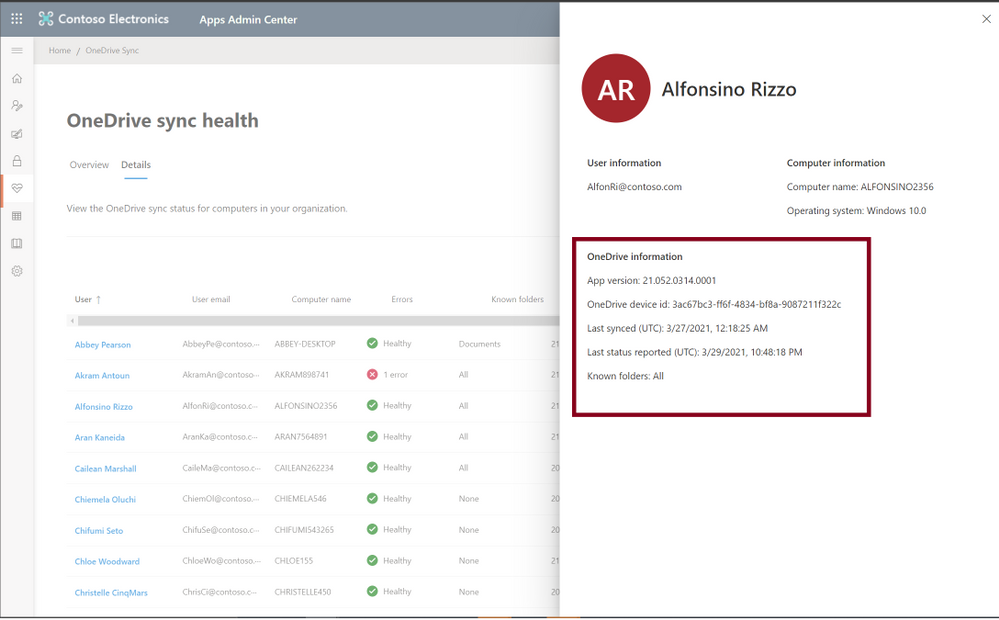 Give remote workers confidence their information is synced securely in the cloud
With these new admin reports, you can get easy access into everything that’s going on with OneDrive Sync in your organization, from what sync errors people are facing to the status of a KFM rollout or what version of the app they’re on, helping you resolve issues quickly so you can focus on other strategic tasks.
Please note that currently only Windows machines are supported.
To manage and set up OneDrive Sync admin dashboard please refer to our documentation here.
Learn more and stay engaged..
We continue to evolve OneDrive as a place to access, share, and collaborate on all your files in Office 365, keeping them protected and readily accessible on all your devices, anywhere.
You can stay up-to-date on all things via the OneDrive Blog and the OneDrive release notes.
Check out the new and updated OneDrive documentation.
Take advantage of end-user training resources on our Office support center.
Check out our episodes of Sync Up- a OneDrive podcast to learn more about OneDrive from the experts.
Thank you again for your support of OneDrive. We look forward to your continued feedback and hope to connect with you at another upcoming Microsoft or community-led event.
Thanks for your time reading all about OneDrive,
Ankita Kirti
OneDrive | Microsoft
by Contributed | May 4, 2021 | Technology
This article is contributed. See the original author and article here.
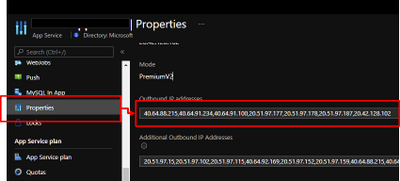
App Service are powerful features to retrieve Azure computer resources as PaaS platform. In other hands, PaaS is shared services for multi-tenant, so it might be caused as issues to collaborate with legacy applications. As one of such issues, external services sometimes require to fixed IP addresses from your applications. It was not allowed to fix outbound IPs for App Services in past, because the IPs are randomly selected by runtime from assigned ones like below.
In addition that, the outbound IPs might be changed. Refer to Inbound and outbound IP addresses in Azure App Service for the detail.
Here is brief architecture to fix outbound IPs for App Service. It’s required to utilize NAT Gateway and VNet Integration of App Service. You can fix outbound IP as Public IP on NAT Gateway by using this architecture.
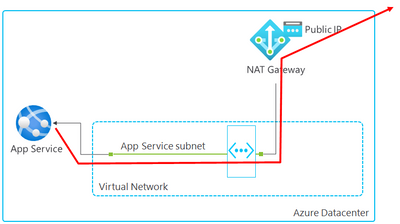
Follow steps below to setup.
- Create VNET and NAT Gateway
- Associate NAT Gateway to a subnet
- Enable VNet Integration
- Setup WEBSITE_VNET_ROUTE_ALL = 1
- Confirm outbound IP with Kudu
You can setup to fix outbound IP on your App Service by following this post.
1. Create VNET and NAT Gateway
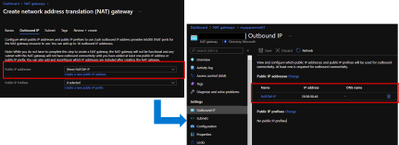
Follow Quickstart: Create a virtual network using the Azure portal to create a VNET. Next, Create NAT Gateway by following Tutorial: Create a NAT gateway using the Azure portal. It’s required to specify Public IP like below and the Public IP will be an outbound IP for your App Service.
2. Associate NAT Gateway to a subnet
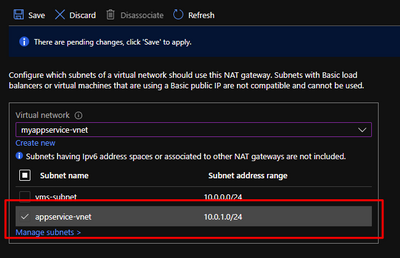
It’s required to integrate your App Service with VNET to utilize NAT Gateway, so visit your NAT Gateway and choose “Subnets” menu from left side. Choose a subnet which your will enable VNet Integration for your App Service in later.
3. Enable VNet Integration
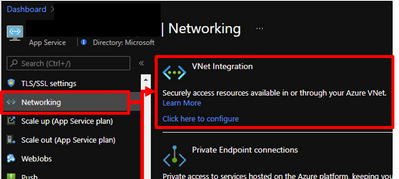
Visit your App Service and enable VNet Integration by choosing a subnet which you have already associated NAT Gateway.
4. Setup WEBSITE_VNET_ROUTE_ALL = 1
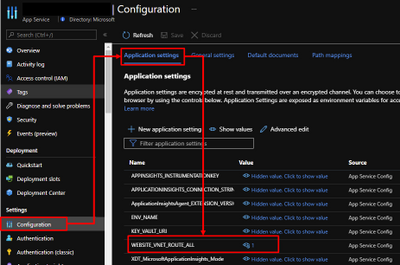
Next, it’s also required to route all your outbound traffic to your VNET, so visit your App Service and choose configuration menu from left side. Put WEBSITE_VNET_ROUTE_ALL = 1 like below. Refer to Integrate your app with an Azure virtual network for the detail.
5. Confirm outbound IP with Kudu
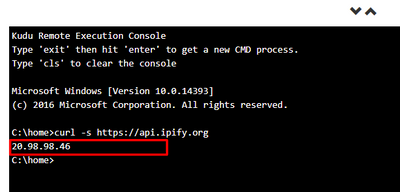
App Service offers useful feature as Kudu not only development usage. Visit your App Service and open Kudo on it. Run curl command and you can confirm returned IP is same with Public IP on your NAT Gateway.
by Contributed | May 4, 2021 | Technology
This article is contributed. See the original author and article here.
Today we are excited to announce the initial availability of Power BI connected PivotTables in Excel for the web. As part of our journey to simplify enterprise data discovery and analysis in Excel, this new capability unlocks more ways to consume such analysis from Excel for the web, empowering more users to make critical decisions with the benefits of Excel and Power BI. For example, you can get up-to-date insights by refreshing the PivotTable, or conduct explorations by manipulating the PivotTable fields all in a browser. You can also include live Excel PivotTables connected to Power BI data directly within your Power BI solutions and apps.
Furthermore, a layer of data protection is added by respecting any existing Microsoft Information Protection labels applied to the Power BI datasets as you connect to it with PivotTables in Excel for the web.
This will work on any workbooks in OneDrive for Business, SharePoint, and Teams, as well as those uploaded to the Power BI service. Users will need access to the underlying dataset to interact with PivotTables connected to Power BI datasets (see how to share Power BI datasets). *Note: refresh and interactivity of Power BI datasets with a live connection to Analysis Services in Excel for the web is not supported.
This new feature has started rolling out across Microsoft 365 tenants, and we expect full roll out over the next few months.
Other Improvements
We are making a few other improvements to help you to be more productive with Power BI connected PivotTables.
Drag-and-Drop Aggregations
PivotTables connected to Power BI datasets will now support drag-and-drop aggregation of fields (e.g. sum, average, distinct count, etc.). This helps you to quickly get answers within Excel without needing pre-defined measures in the underlying Power BI datasets.
Date Fields
PivotTables connected to Power BI datasets will now support date fields, which means that date filters timelines, and date sorting will now be available.
Field list updates
In addition, we are making some small modifications to the field list, namely pre-defined measures will now be shown within the table they are stored in. We are also updating some of the icons.
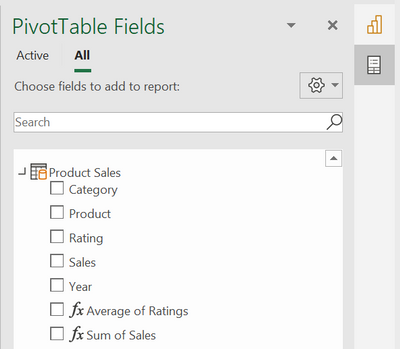
We Made it Faster Too
You may have noticed that PivotTables connected to Power BI also got faster. This is due to the recent updates to the Analysis Service engine in Power BI. Learn more details here: Analysis Services Tabular improves MDX query performance in the cloud.
Support for drag-and-drop aggregations, date fields, and the field list improvements will start rolling out in Excel Windows to Office Insiders soon and will be brought to Excel for web at a later stage.
Getting Started Now
We invite you to try out these new capabilities for yourself as they become available to you in the upcoming weeks. Send us your feedback via Help > Feedback in the app.
To learn more:
Subscribe to our Excel Blog and join our Excel Community to stay connected with us and other Excel fans around the world.
by Contributed | May 4, 2021 | Technology
This article is contributed. See the original author and article here.
Azure VMware Solution is a hyperconverged vSphere cluster that leverages an all-flash VMware vSAN software-defined storage system. vSAN is a powerful software-defined storage system, offering many great features available when using Azure VMware Solution.
Like with any storage solution, there are ways to optimize the consumption of the disk. VMware vSAN enables tuning of each VMs storage policy. The granularity goes much deeper than just the VM; each disk attached to the VM can have its own storage policy.
This default storage policy applied to any disk created in the Azure VMware Solution private cloud is 1 failure – RAID-1 (Mirroring). In other words, one host can fail, and no data will be lost. Twice the amount of raw disk is needed to support the consumed disk in this configuration. When a vSAN cluster is only three nodes, this is the only policy available. See this blog article to understand how to modify Azure VMware Solution disk storage policies as the cluster grows.
The typical lifecycle of an Azure VMware Solution private cloud is the initial three (3) node deployment; then, the migration of virtual machines begins from on-premises to Azure VMware Solution, or workloads grow organically. Of course, as more and more VMs begin to fill the three-node cluster, at some point, the cluster nodes need to be expanded to a 4th, 5th, 6th, etc. This ability to grow and shrink the cluster on demand is the beauty of cloud-scale, and more explicitly, running VMware in the cloud. On-premises VMware clusters so many times are overprovisioned, which presents a whole new set of challenges. No need to do that with Azure VMware Solution.
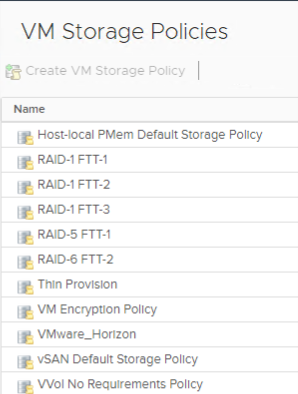
As the cluster grows, more storage policies are available. Here is a complete list of storage policies that are available for Azure VMware Solution VM disks.
If the storage policy used on the virtual machine disks continues to be the same, as the cluster grows, the vSAN cluster will quickly fill. RAID 5/6 policies give a much more efficient use of storage vs. the RAID 1 configuration.
As the Azure VMware Solution private cloud grows beyond three nodes, choose which type of storage policy is best for the VM disks. Then go back and reconfigure the storage policies on the disks of the VMs deployed when the cluster was a three-node cluster.
By doing this, you are optimizing the storage consumption of the Azure VMware Solution cluster, maximizing the investment.
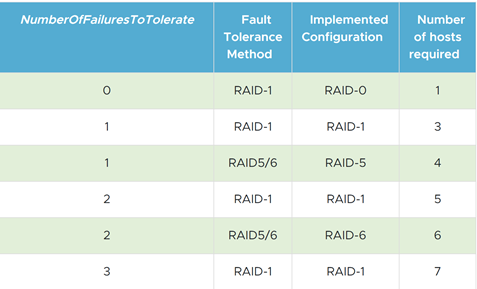
The table below is from the VMware vSAN Design Guide. As you can see, it outlines the types of RAID configurations available and the number of hosts required based on the failures to tolerate needed.
by Contributed | May 4, 2021 | Technology
This article is contributed. See the original author and article here.
Many IT executives are concerned about the security of Operational Technology (OT). This concern is valid based on my experience, but sometimes the approaches to alleviating this anxiety creates a divide between the IT and OT sides of the ‘house’. This blog will attempt to address this divide with practical suggestions about how to get the best results from a thoughtful approach. It will also address methods to accomplish useful but non-intrusive monitoring in the OT environment. It will provide specific technical examples to guide you. If this tickles your interest, read further.
Passive network monitoring is one of the most effective and least intrusive tools to gain visibility into OT networks. Installed properly it provides information on inventory, network topology, protocols in use, endpoint types, switches and routers, etc. Much of this information is not generally well documented and is only vaguely known by enterprise security teams. It lives below OT edge firewalls and is carefully guarded by the engineers who are responsible to make sure their factories continue to operate reliably. As most security experts know, it is impossible to protect equipment you don’t know you have.
There is a natural push-pull between enterprise security teams who are tasked with overall business protection and operational engineers who are more focused on production. It is common for operational engineers to express concern that a network monitoring tool will affect the reliability of the OT equipment. While they may be honestly concerned about cyber security, they fear repercussions if reliability is affected. If corporate policy mandates monitoring, the security team is usually instructed to install their monitoring equipment as far away from the production equipment as possible. This usually results in an installation at or near the enterprise edge firewall. The most common argument is that anything bad will come from the internet which is on the other side of that firewall. This is usually NOT the best location for OT network monitoring and the assumption relating to the source of threats is not accurate either. However, based on the urgency of schedules, this location is often accepted as better than nothing. It is important to understand that the AD4IoT sensor is completely passive. It only listens to copies of network traffic and as such is not a threat to operational technology.
I would like to suggest a more reasoned approach, which admittedly takes more time and possibly resources, but results in a win-win for both groups if implemented well. OT networks are often complicated by a variety of interconnected systems as shown in the next diagram. The red sections of this diagram show the ideal locations for connections to the AD4IoT. It is important to start implementation with a diagram of the OT system. Diagrams of this sort are often provided as proposal documentation when Industrial Control Systems are purchased. They may often be found in on control house walls, or in the OT engineer’s office. Because these systems continue to evolve, and are often upgraded in piecemeal fashion, these drawings are seldom up to date. However, they still provide a reasonable starting point for understanding the best placement for sensors. The point is to accurately and completely document the inventory of control equipment and the network architecture of the system. If a sensor is only installed in the outgoing DMZ, much of this inventory information will not be available. Information identifying the types and versions of Purdue level 0 to 2 devices will not be available. To determine this information, the actual downloads to these devices must be seen by the AD4IoT sensor.
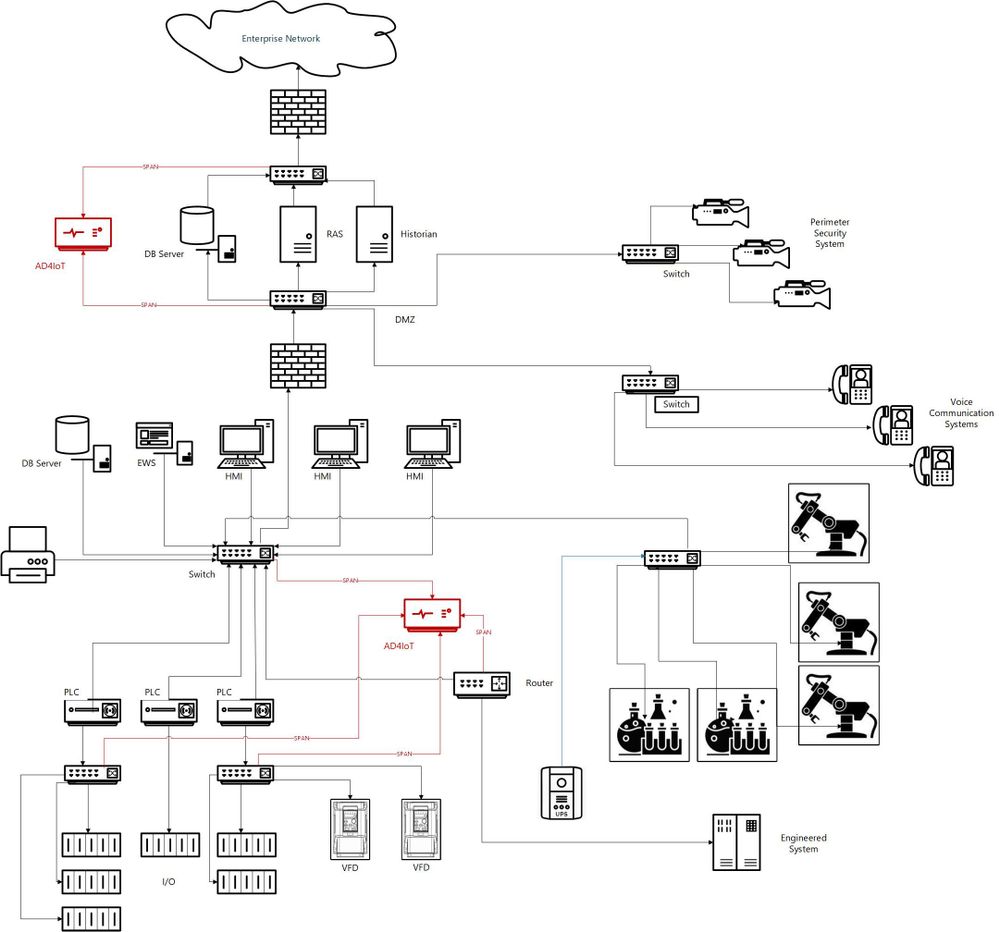
This is an example of an ICS diagram with the recommended locations of sensors (in red).
How can we identify if we are located at the best location?
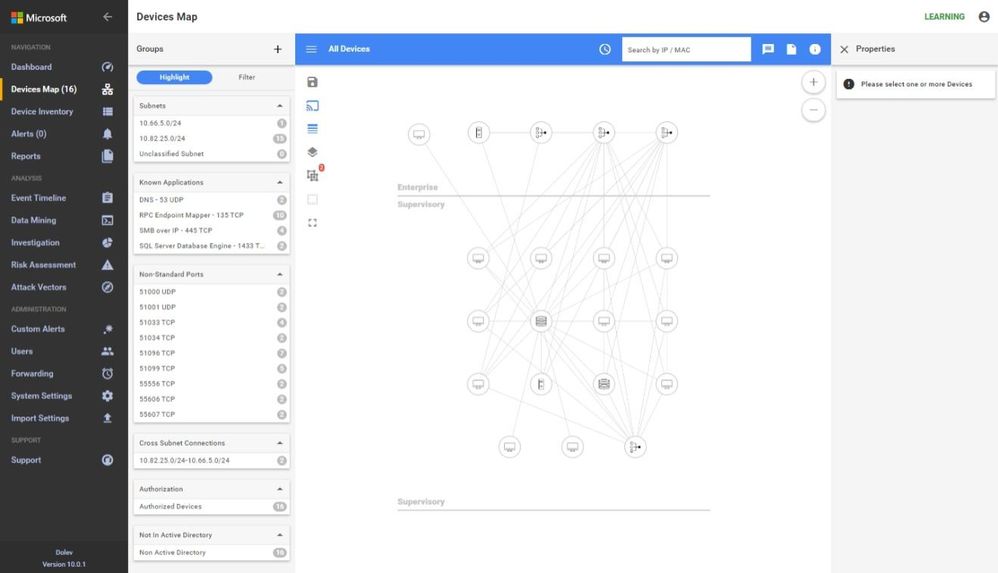
A sample traffic taken too high in the network is analyzed below using the sensor.
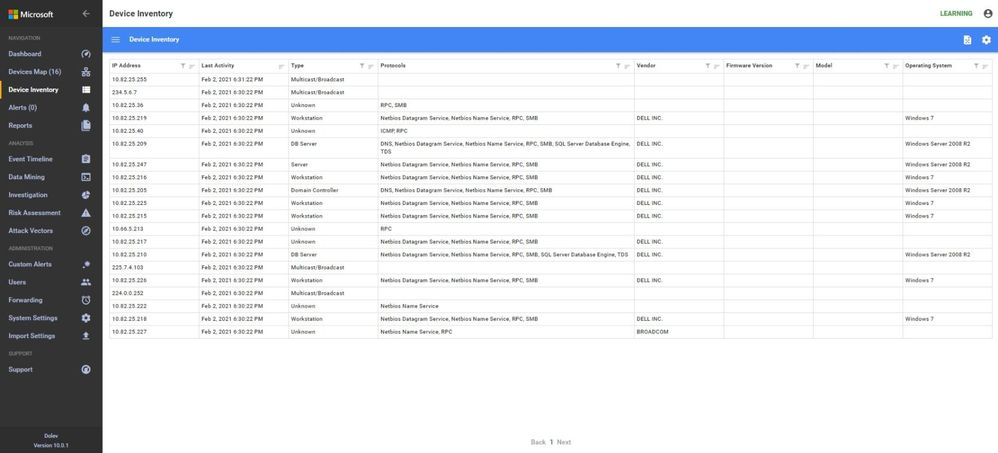
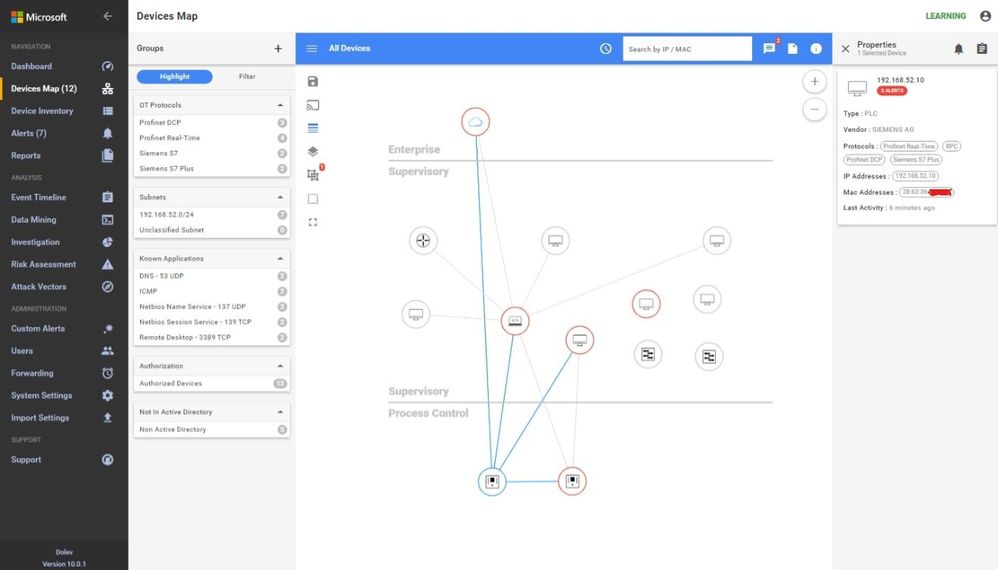
In these screen shots, the sensor is too high in the network, too close to the enterprise firewall. Note that no devices in the Process Control Level 0/1 are shown. The monitoring in this network shows the workstations and their interactions with database server, engineering, HMIs, and AD, some exiting traffic, but no PLC control traffic.
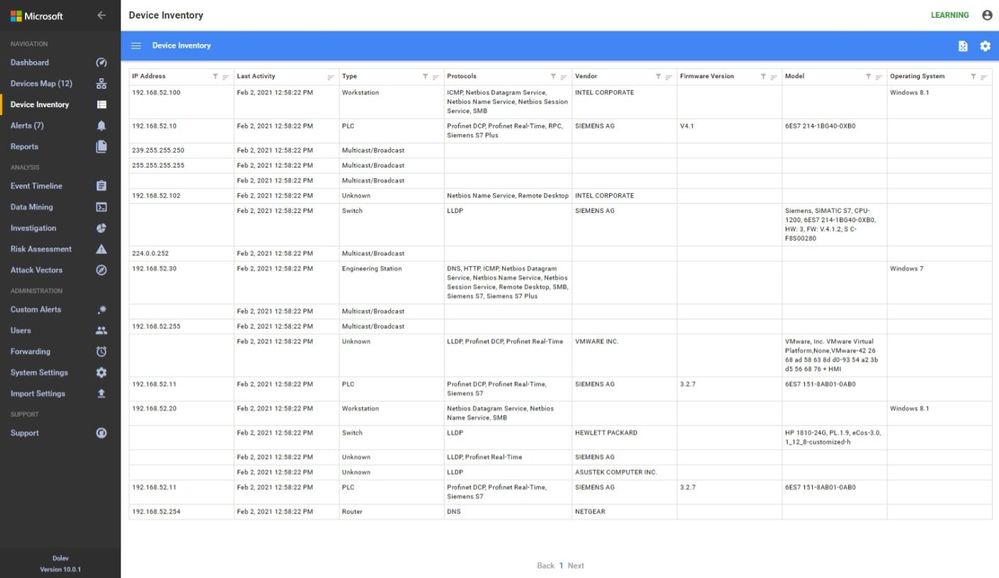
 In the inventory, no firmware or model information is identified because the traffic to the PLCs is not being seen at this location in the network.
 Another similar instance is where the majority of the traffic is broadcast or multicast. While some industrial control systems use this method for information transfer, the indications here are that the sensor is not seeing much of the control traffic. Only one PLC is shown in the Process Control area and most devices are sending multicast traffic. The switches are seen, the HMIs and database servers but not much control traffic as shown in the inventory view below.
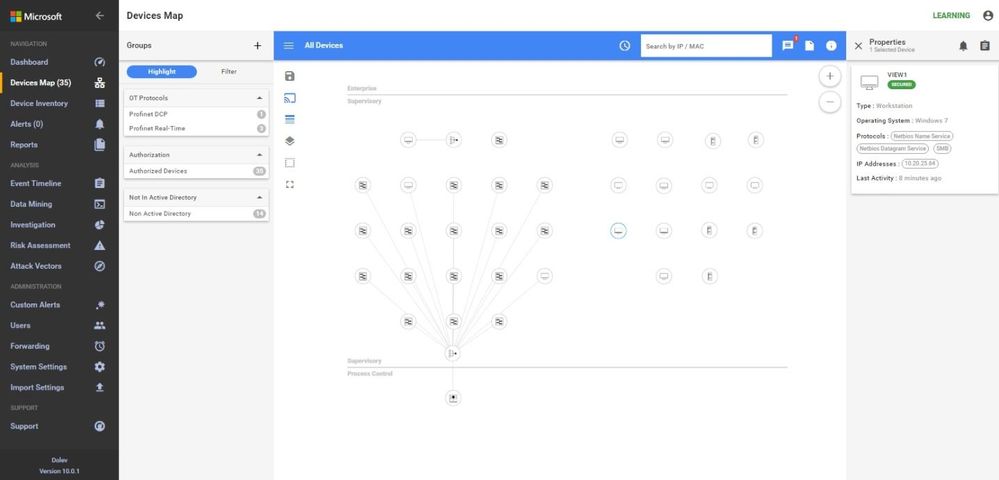
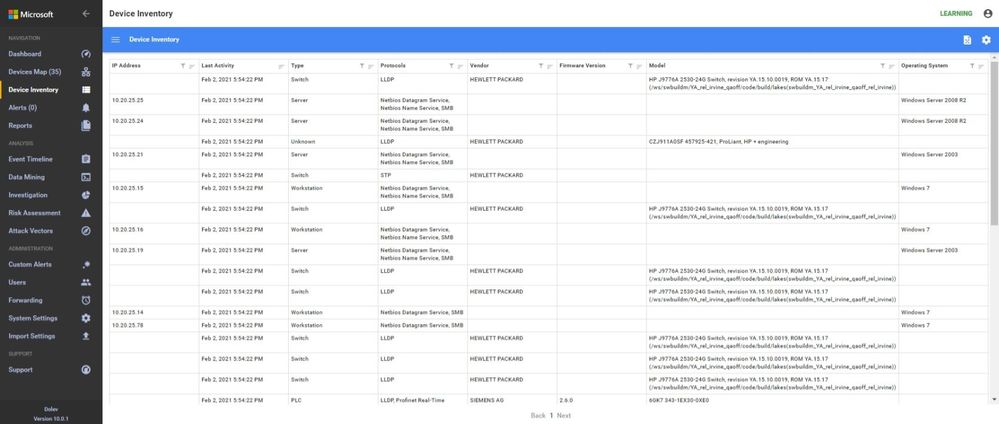
A properly configured system will look like this. Notice the OT Protocols; Profinet DCP, Profinet Real-Time, Siemens S7 and S7 Plus. Notice the balance between Supervisory and Process Control. The sensor is seeing the traffic between the engineering workstation and the PLCs when they are downloaded as evidenced by the presence of firmware versions and PLC model numbers in the inventory.
Why not just monitor the enterprise edge?
I would like to address the reason for monitoring networks in the ICS in addition to monitoring at the enterprise edge. Many people assume that this is adequate since they see this as the source of all threats. I will use the sample ICS network shown above to discuss some potential access points for malware or data compromise, see below.
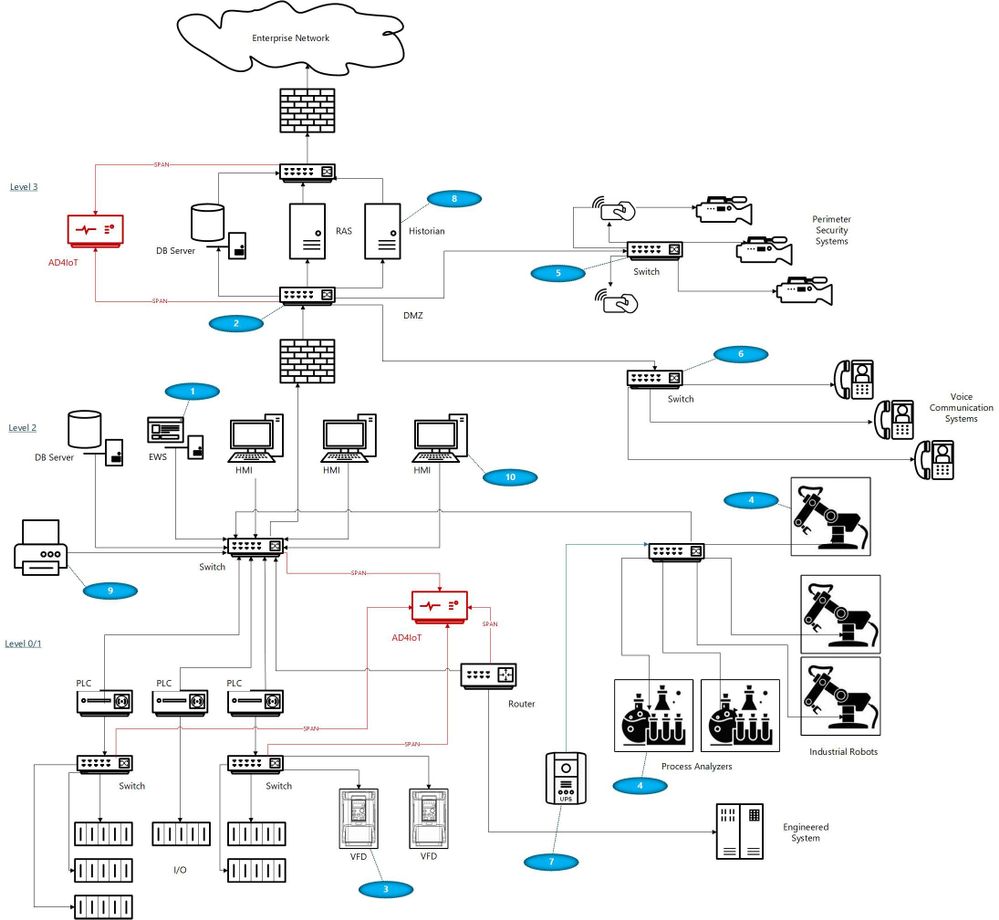
With your security ‘blue team’ hat on, think about these scenarios identified by numbers in blue ovals on the diagram:
- The ICS (or DCS) may be maintained by an external contractor, possibly the system integrator in the case of PLC systems, or generally the Original Equipment Maker (OEM), for DCS equipment. Sometimes these people are authorized to utilize laptops with specialized OEM software to perform upgrades, troubleshoot problems, install new hardware or do routine system maintenance. Even if they are not permitted to utilize their laptops, they may install software, OS and firmware upgrades, and other activities utilizing programs they bring in on USB or other devices.
- Many large organizations have network engineers who manage all or most network devices, including but not necessarily limited to switches, routers, firewalls, and the like. Smaller organizations may contract networking engineers. This being a rather specialized function, these folks usually operate somewhat independently of the normal operations personnel. Exceptions would be when the ICS or DCS supplier either utilizes unmanaged devices or provides the management function as a part of their service. Switch management and required firmware upgrades in addition to reasonable hardening is not normally on the ‘radar screen’ for many system upgrades. The adage, ‘if it ain’t broke, don’t fix it’ is commonly the norm.
- Variable Frequency Drives (VFDs) are generally maintained by the supplier. Problem-solving, firmware upgrades, and system modifications are accomplished through contracts or purchase orders with the equipment provider. These changes once again introduce uncontrolled laptops into the OT environment where these devices may be networked to the ICS.
- Very expensive process analyzers and industrial robots may be leased from the manufacturers. This equipment often comes with a required data connection to the manufacturer for usage monitoring and troubleshooting purposes. These connections should be and often are firewalled but may allow incoming traffic for firmware updates and other related activities.
- Most large organizations have physical security operations handled by separate internal organizations or through an externally contracted firm. It is common to see security cameras that are used for both ICS and security functions. Sometimes, the operator can even view the perimeter cameras or other cameras on his/her operator screens.
- It is also common to see voice communication equipment sharing switches or infrastructure devices with OT networks. While these are generally on different VLANs, errors can connect these devices with OT equipment.
- Additionally, there may be data links to Uninterruptible Power Systems (UPSs), again usually maintained by the OEM.
- Plant historian packages often have links to share plant data, inventory, and other information with the enterprise.
- Sometimes contracts are established for the maintenance of corporate printers. Since most of these devices have unpatched apache web servers, maintenance could introduce issues carried over from enterprise equipment.
- Operators have even been known to utilize USB ports on HMI devices to charge their phones thereby unknowingly placing the HMIs on a cellular network.
- Cleaning contracts, maintenance of support systems such as HVAC and fire protection generally allow access to controlled areas where physical access to ICS equipment could be leveraged by unscrupulous parties.
And the list can go on… with every industrial facility having different variations on this theme. As any security-minded individual can readily see, the opportunities for compromise, malware infection, and data exfiltration in any large industrial campus are numerous.
Conclusions
Coordination with operational engineers is the starting point to a win-win engagement. The benefits are apparent to both enterprise and operations personnel. With correct sensor placement, a complete inventory with full device information, firmware versions and model numbers can be derived. This is a benefit to both parties. Additionally, the actual network flows can be confirmed, unexpected paths can be identified and potential vulnerabilities can be found and corrected.
Monitoring Industrial Control Systems at the enterprise edge, while important, is by no means adequate. Malware introduced, even if prevented from beaconing home by enterprise edge firewall rules, can still damage operational equipment and affect production or operational safety. Data can be modified, control system programs could be changed to perform dangerous actions, company secrets could be stolen, and system backups corrupted.

by Contributed | May 4, 2021 | Technology
This article is contributed. See the original author and article here.
You might not see this feature yet. Some functionality is introduced gradually to organizations that have set up the Targeted release options in Microsoft 365. |
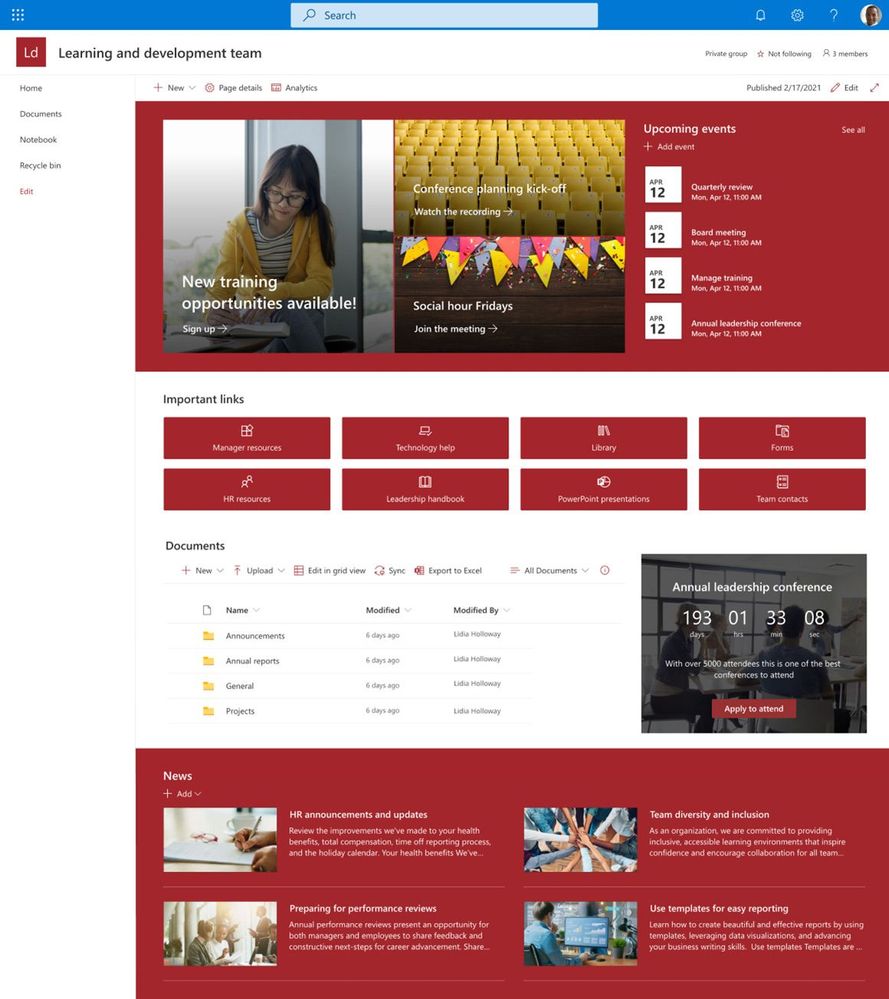
Imagine you’re working on a project that needs a new SharePoint site to track deadlines, record progress, and serve as a central place to collaborate with your team. Perhaps you’ve been tasked with creating an onboarding portal for your organization complete with new hire checklists and key information to help them get started. Maybe you’re leading a training series where you need to store course files and post class announcements. Where do you begin when it comes to designing sites for these scenarios?
Now you have a starting point! We’ve made it even easier to begin on the right foot with site templates that are available to you in SharePoint. SharePoint site templates are flexible enough to address a variety of needs, make it easy to create and populate site content, and show you what’s possible. These complement those found in the SharePoint lookbook, which has been and continues to be an amazing source of inspiration for modern experiences you can build with out-of-the-box SharePoint components.
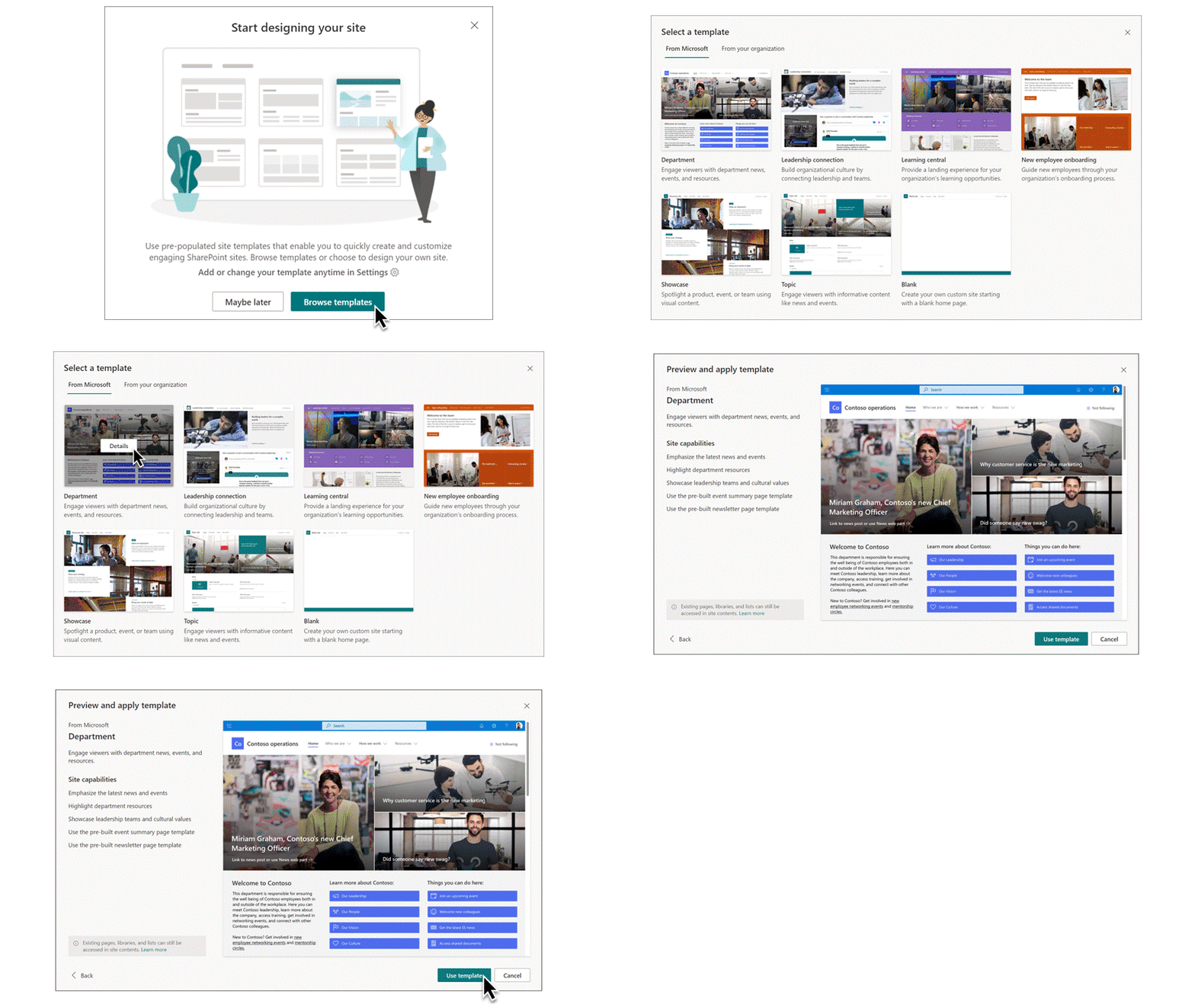
Through customer conversations and user research, we identified 8 scenarios to start with that benefit from having a robust SharePoint site template. SharePoint customers can take advantage of the following SharePoint site templates:
Communication site templates
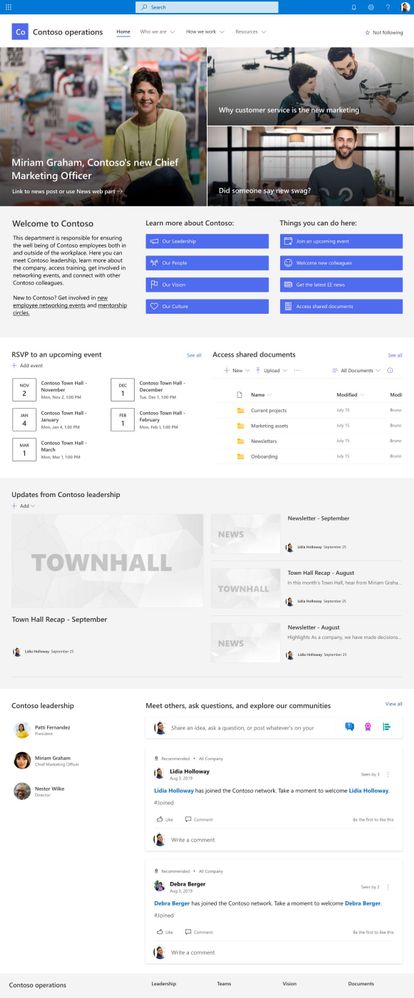
- Department – Engage and connect viewers with departmental news and resources.
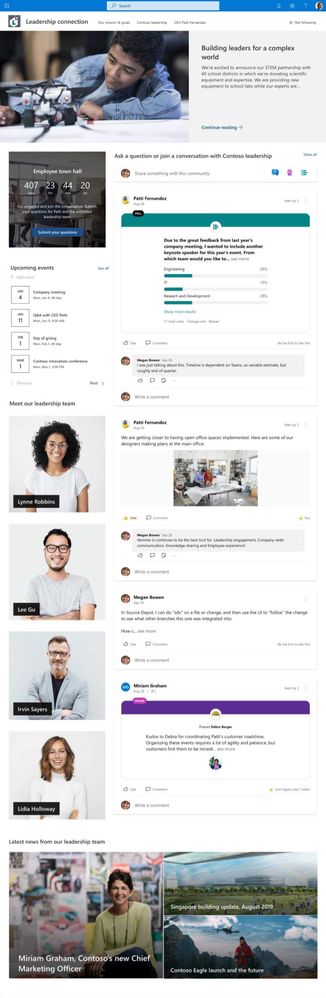
- Leadership connection – Build community by connecting leadership and team members.
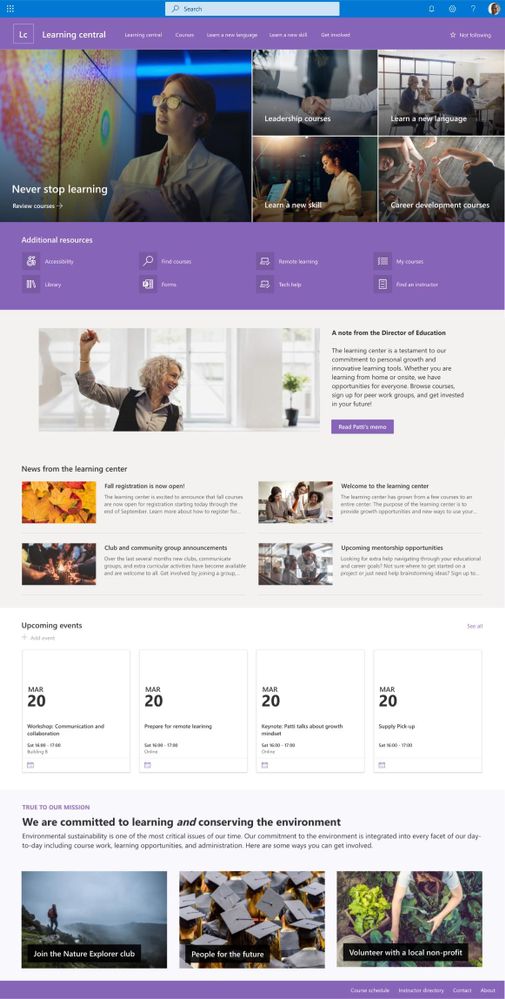
- Learning central – Showcase learning and training opportunities.
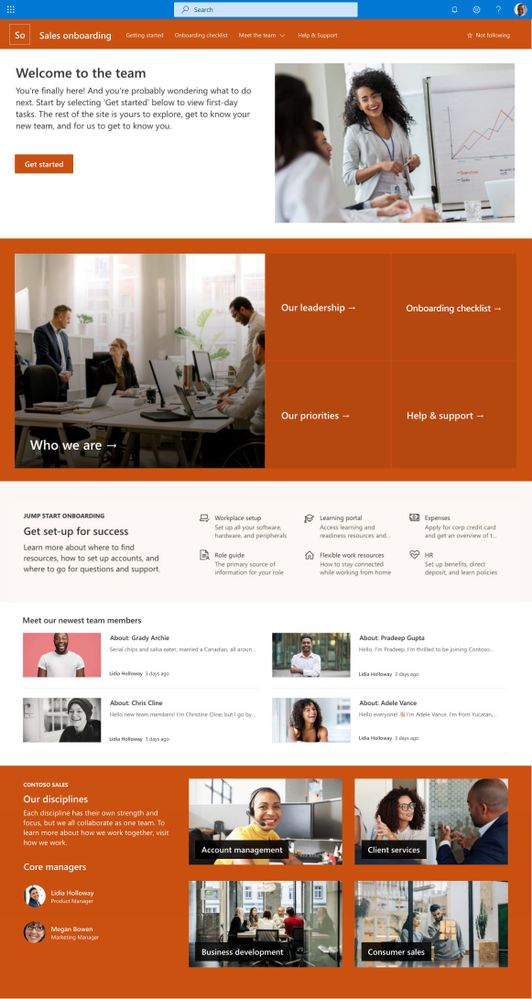
- New employee onboarding – Streamline and refine new hire onboarding process.
Team site templates
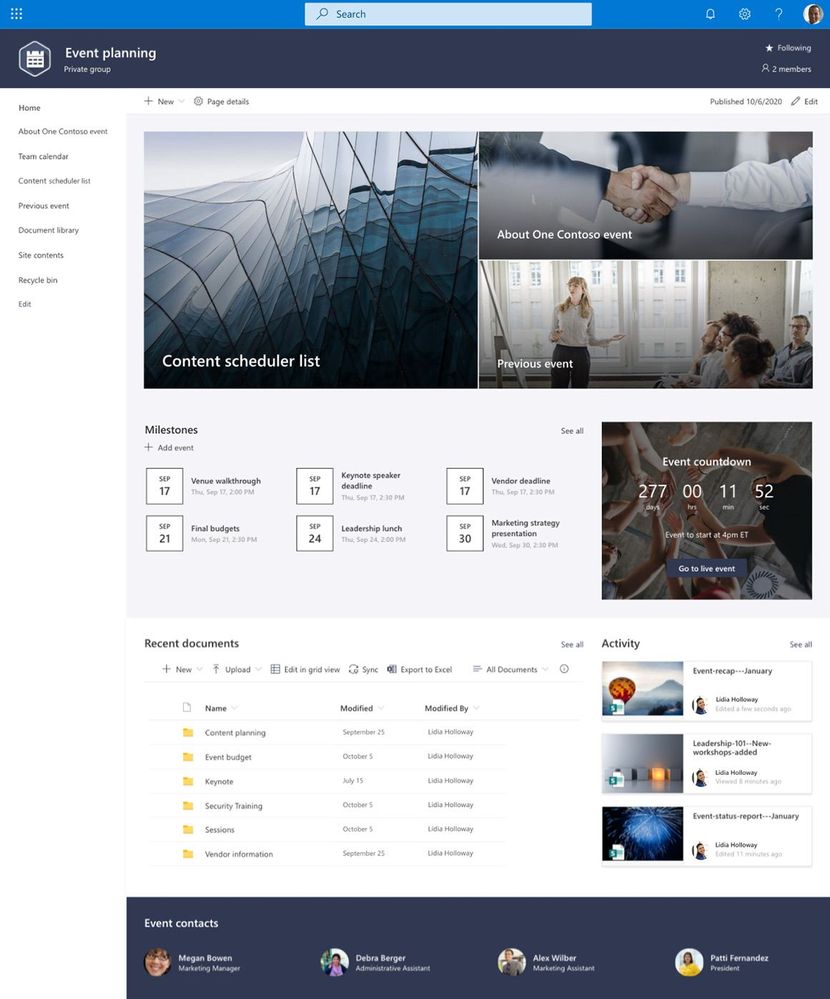
- Event planning – Coordinate and plan event details with your team.
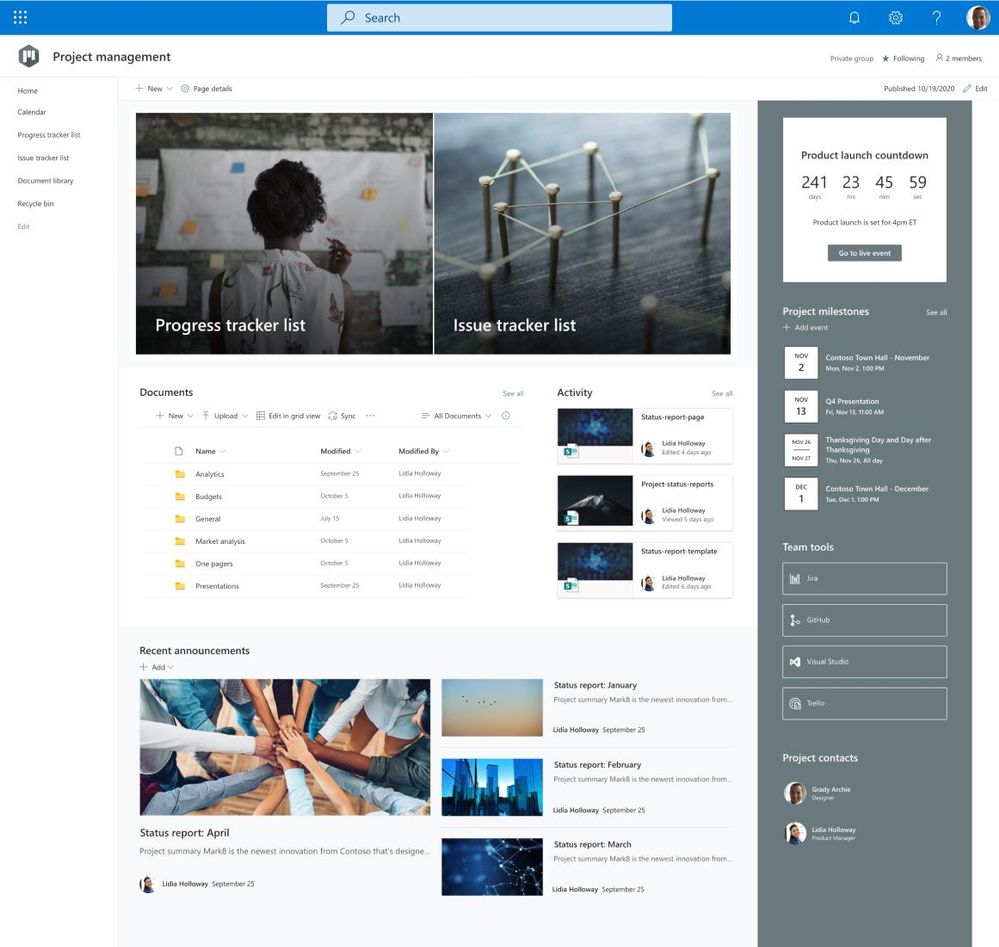
- Project management – Create a collaboration space for your project team.
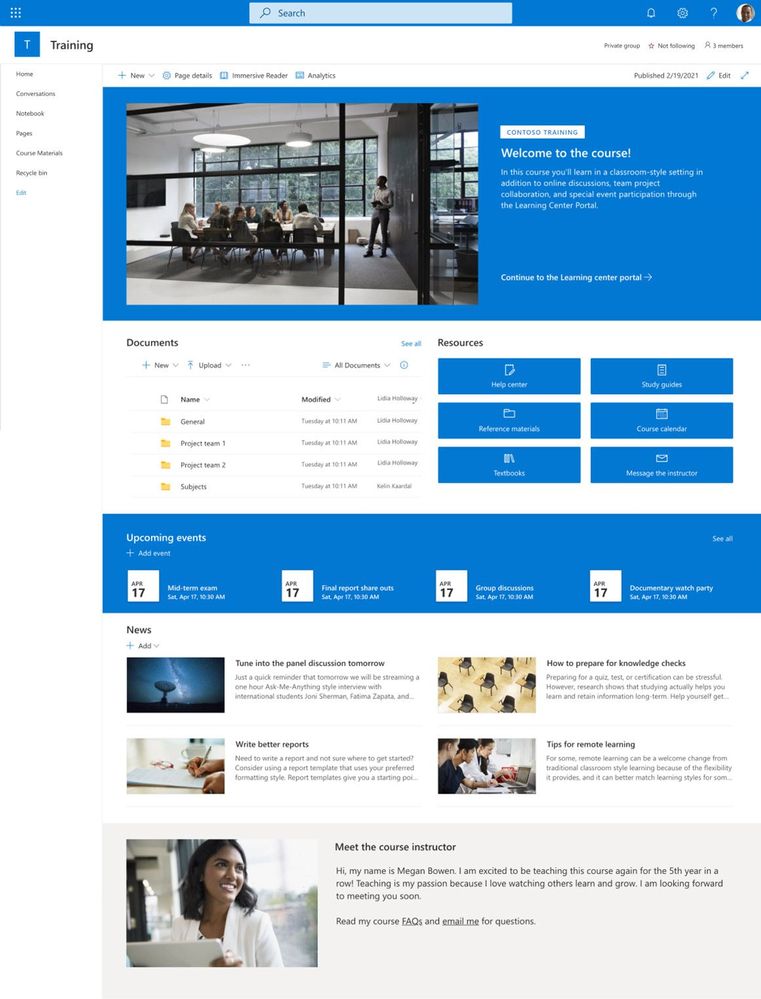
- Training and courses – Prepare course participants for learning opportunities.
- Training and development team – Plan opportunities to help others learn and grow.
We will continue to build on these options in the future to address even more common scenarios.
How to apply a template and what to expect
SharePoint site templates will be automatically available in SharePoint tenants and can be applied by users with site owner permissions or higher. When you create a new site, you will be asked if you’d like to use a template. Select Browse templates to see Microsoft templates and templates from your organization. Or apply a template to an existing site by navigating to Settings and then select Apply a site template.
Our site templates currently offer the following features:
- Can be applied at the time of site creation or can be applied to existing sites.
- Fully customizable home pages that come with pre-populated content and web parts.
- News post templates that help users quickly and consistently publish news.
- Pre-built pages, lists, and document library folders that make it easy to build sites and inspire your own custom content.
- Each template has its own customization guidance to help site owners and editors get started.
What about my existing site designs?
If you’ve used site designs in the past, that experience has been incorporated into the site templates experience and will be referred to as site templates moving forward.
The Site designs entry point will be replaced by the Apply a site template entry point in the Site settings panel. You’ll find your organization’s existing site templates on the “From your organization” tab in the template gallery.
Additionally, as part of the new site template experience, a progress screen is displayed while the site template is being applied instead of a notification bar.
Learn more about how to create custom site templates for your organization using site scripts.
Site template FAQs
Q: What happens when I apply a template to a site that is associated with a hub site?
A: If your site is associated with a hub, the site will inherit the theme from the hub. When you apply a template, it will automatically use the theme from the template, but will update to the hub’s theme shortly after republishing.
Q: How can I undo a template I just applied?
A: There is no automatic method to undo the application of a site template. However, there is nothing that a template does that can’t be manually applied or deleted. For example, pages and navigational elements can be deleted and themes can be update.
Q: I don’t want to use a template. How can I quickly create a site?
A: There are several resources to inspire your next SharePoint site – like the SharePoint look book and Guided walkthroughs.
Q: How can I update the theme of the site template to a theme that has not been defined by my organization?
A: For themes that don’t fit into your organization’s custom or pre-defined themes, you can change the look of your site in the Settings panel to manually update the theme.
Q: What happened to Site designs in the Settings panel?
A: In previous versions of SharePoint, site templates were called site designs but will be referred to as site templates moving forward. The Site designs entry point has been replaced by the Apply a site template entry point in the Settings panel.
Q: How can I create custom site templates for my organization?
A: You can create site templates to provide reusable lists, themes, layouts, pages, or custom actions so that your users can quickly build new SharePoint sites with the features they need. Learn more about how to create custom site templates for your organization.
Q: How can I learn more about how to customize site templates created by my organization?
A: Site templates provided by your organization will appear in the From your organization tab when selecting a template type. Customization instructions will vary depending on the site template design. Review customization resources below to learn more about site personalization options.
Learn more
Apply and customize SharePoint site templates
SharePoint site design and site script overview
SharePoint Roadmap Pitstop April 2021 (microsoft.com)
by Contributed | May 4, 2021 | Technology
This article is contributed. See the original author and article here.
If network issues are an obstacle to successfully deploying and using HoloLens 2 in your organization, learn how two well-known network diagnostic tools, Fiddler and Wireshark can help you scan, diagnose, and identify problems.
Fiddler is a web debugging proxy and is used to troubleshoot HTTP(S) issues. It captures every HTTP request the computer makes and records everything associated with it. Uncovering end-user authentication issues for the HTTPS apps used in your organization drives better productivity and efficiency for your HoloLens 2 use cases.
Wireshark is a network protocol analyzer primarily used to inspect TCP/UDP traffic from and to your HoloLens 2 devices. This makes it easy to identify what traffic is crossing your network to your HoloLens 2, how much of it, how frequently, how much latency there is between certain hops, and so forth.
In this blog, we’ll go over some examples of when to use these tools, along with installing and configuring them with your HoloLens 2.
Fiddler
For example, let’s say you have an authentication issue with a custom line of business (LOB) application. After being installed on your HoloLens 2, the app can’t authenticate to the back-end server through HTTPS. To troubleshoot this, you can use Fiddler to capture and decode the HTTPS sessions, enabling discovery of network level-issues.
Configure Fiddler to capture HTTP traffic from HoloLens 2
Prerequisites:
- HoloLens 2 devices and your PC must be on the same network
- Note the IP address of your PC
Steps:
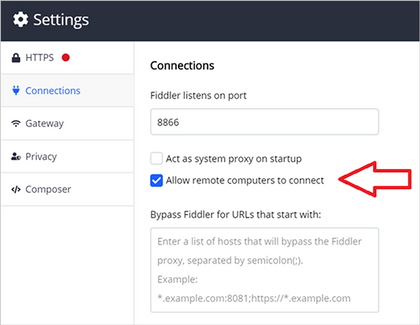
On your PC, install and start Fiddler. Configure Fiddler to allow remote computers to connect then:
- Go to Fiddler Settings and select Connections.
- Note the listening port for Fiddler (the default is 8866).
- Select Allow remote computers to connect.
- Select Save.
Selecting “Allow remote computers to connect” in Fiddler’s connections settings
On your HoloLens 2, configure Fiddler as the proxy server*:
- Open the Start menu and select Settings.
- Select Network & Internet and then Proxy on the left menu.
- Scroll down to Manual proxy setup and toggle Use a proxy server to On.
- Enter the IP address of the PC where Fiddler is installed.
- Enter the port number noted above (default is 8866).
- Select Save.
*If your HoloLens 2 devices is running Windows Holographic builds 20279.1006 and later (Insiders and the upcoming release), use the following steps to configure proxy:
- Open the Start menu and go to your Wi-Fi network’s Properties page.
- Scroll down to Proxy.
- Change to Manual Setup.
- Enter the IP address of the PC where Fiddler is installed.
- Enter the port number noted above. (default is 8866).
- Select Apply.
Decrypt HTTPS traffic from HoloLens 2
On your PC, export the Fiddler certificate.
- Go to Fiddler Settings > HTTPS and expand Advanced Settings.
- Click Export Fiddler certificate. The certificate will save to your desktop.
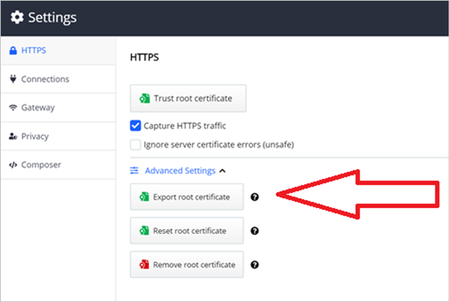 Exporting the root certificate in Fiddler
- Move the certificate to the Downloads folder on your HoloLens 2.
On your HoloLens 2, import the Fiddler certificate.
- Go to Settings > Update and Security > Certificates.
- Click Install Certificate, browse to the Downloads folder and select the Fiddler certificate.
- Change Store Location to Local Machine.
- Change Certificate Store to root.
- Select Install.
- Confirm the certificate is showing in the list of certificates. If not, repeat the above steps.
Inspect HTTP(S) sessions
On your PC, Fiddler will show the HoloLens 2’s live HTTP(S) sessions. The Inspectors panel in Fiddler can show HTTP(S) request/response in different views – for example, the “Raw” view shows the raw request or response in plain text.
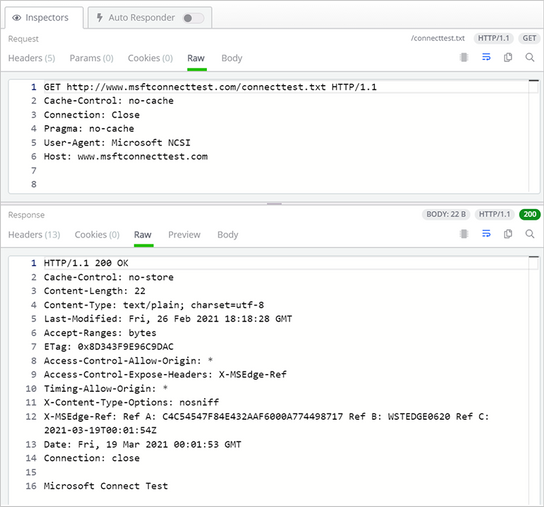 The Inspectors panel in Fiddler showing the HoloLens 2 HTTP session
Wireshark
Applications like Dynamics 365 Remote Assist and VPN plug-ins use non-HTTPS traffic. If your HoloLens 2 has any issues with those types of apps, Wireshark can be used to capture and inspect the IP traffic to troubleshoot your internal OS level networking stack.
Configure Wireshark to capture network traffic from HoloLens 2
Prerequisites:
- PC must have internet access and support Internet sharing over Wi-Fi.
Steps:
On your PC:
- Install Wireshark.
- In Mobile hotspot settings, turn Share my Internet connection with other devices to On.
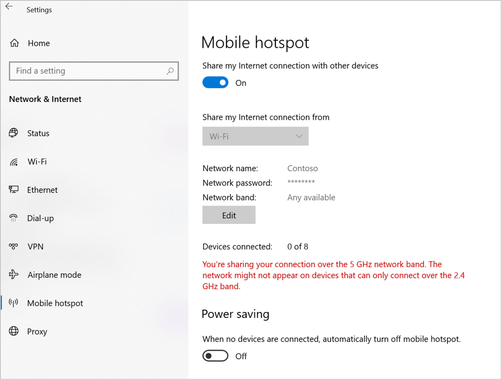 Mobile hotspot settings on the Windows 10 PC
- Start Wireshark and capture traffic from the Mobile hotspot interface.
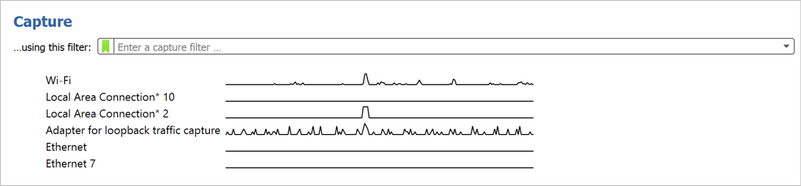 The Capture screen in Wireshark
On your HoloLens 2, change the Wi-Fi network to the PC’s mobile hotspot. HoloLens 2 IP traffic will now show up in Wireshark.
Analyze Wireshark logs
Wireshark filters can help filtering out the packets of interests. For example, “tcp.stream eq 1” shows the second TCP stream in the log (stream index starts with 0), “ip.addr == 192.168.137.1 && tcp.port == 80” filters out the TCP packets on port 80 with source/destination IP equals 192.168.137.1.
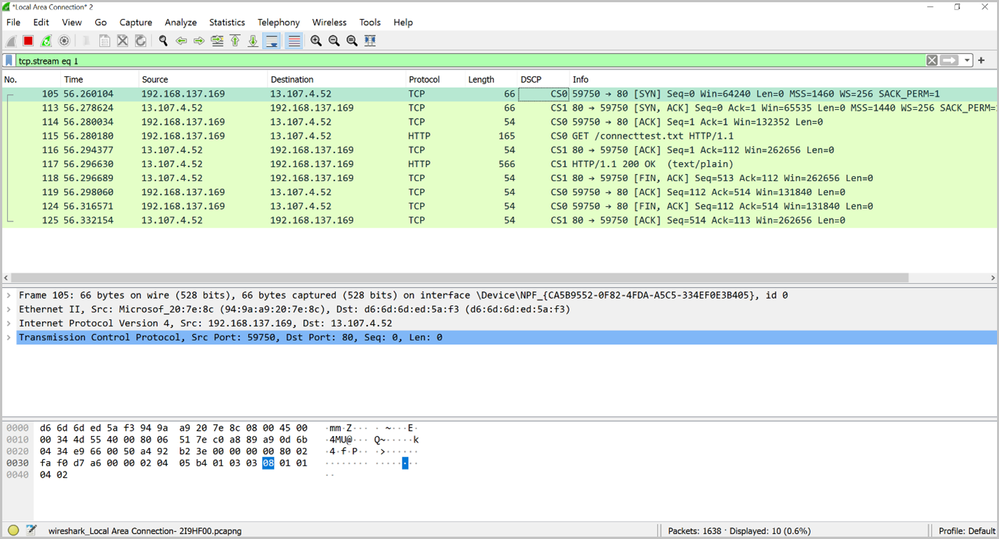 An example of the logs produced by Wireshark
Conclusion
After deploying HoloLens 2 to your organization, you may need to capture network traffic for troubleshooting purposes. Both Fiddler and Wireshark will work with the HoloLens 2 to identify and diagnose problems in the HTTP(S) and TCP/UDP levels.
Feedback Hub and troubleshooting tips
HoloLens 2 provides a few methods for users to provide diagnostic logs to Microsoft for investigation. You can use Feedback Hub to submit logs for generic network connectivity issues by submitting your feedback through the “Network & Internet” category. In addition the built-in Settings Troubleshooter can collect detailed network traces for more complex issues. Please refer to Collect and use diagnostic information from HoloLens devices for instructions.
Additional resources
For additional information, please see:

by Contributed | May 4, 2021 | Technology
This article is contributed. See the original author and article here.
We continue to expand the Azure Marketplace ecosystem. For this volume, 79 new offers successfully met the onboarding criteria and went live. See details of the new offers below:
|
Applications
|
|
Adjuto: Adjuto is a liabilities, fees, and investor relationship management system for life insurance companies, asset management companies, and distributors. Adjuto helps users ensure commercial and regulatory compliance, manage fund liabilities, and remunerate intermediaries.
|
 |
Assistant Anywhere: Assistant Anywhere from ACF Technologies combines its core customer experience software, Appointment Scheduling and Queue Management, with the new virtual technologies Wait Anywhere, Check-in Anywhere, and Q-Anywhere to deliver a complete virtual customer experience platform.
|
 |
Bookigy: Bookigy supports flexible seating in offices, allowing employees to reserve workspace through their laptop or mobile phone. Managers can use valuable application data in the Bookigy dashboard to optimize workspaces and workflows.
|
 |
BusinessSPECTRE: Business SPECTRE is a business intelligence template and a data linkage framework for SAP enterprise resource planning. With Business SPECTRE, data can be rapidly extracted and transferred to Microsoft SQL Server. This app is available only in Japanese.
|
 |
Comarch BSS: Comarch’s BSS (business support systems) portfolio allows telecommunications operators and small and medium-sized enterprises to manage billing, customer care, and service provisions through a fully digitized experience. Comarch BSS can be customized to your company’s specific requirements.
|
 |
CoroPlus Machining Foresight: CoroPlus Machining Foresight performs analysis throughout the manufacturing value chain. It generates real-time and historic process reports based on data from machine tools, cutting tools, and other manufacturing software.
|
 |
CovidTestMan: CovidTestMan records the results of COVID-19 tests conducted by your organization and generates the necessary documents for payment by health insurance companies. This app is available only in Czech.
|
 |
cta.x – Control Test Automation: Grant Thornton’s new control test automation solution, cta.x, can help audit departments use automation to reduce costs, create efficiencies, and enhance their value proposition. cta.x makes risk management and compliance data-driven, integrated, and automated.
|
 |
DeviceOn/Kiosk+: Advantech’s DeviceOn/Kiosk+ makes it easy to onboard, visualize, operate, and manage your industrial IoT devices. Monitor kiosks and other devices with the solution’s easy-to-use interface, troubleshoot problems, and send software and firmware updates over the air (OTA) on-site and remotely, at scale.
|
 |
EasyCSV: Blackbox Development’s EasyCSV is an automation platform that enables you to fetch CSV or XLSX files from Microsoft OneDrive and send the data to the Zapier online automation tool or to any app or API. You can also create CSV or XLSX files directly in OneDrive with data from Zapier or API calls.
|
 |
Educ8e: Educ8e from Lagetronix Nigeria Limited is a web-based management system for academic institutions. Easy to use and implement, Educ8e integrates admissions, registration, student billing, financial aid, and more, with self-service portals and a secure shared database.
|
 |
Footprints for Retail – SaaS: Footprints for Retail is an AI platform that conducts behavioral profiling of physical shoppers, anticipating their next move with the aim of improving their experience. Its predictive models and campaign automation enable marketing teams to increase efficiency.
|
 |
Hexnode UEM: Hexnode UEM is a one-stop solution for your enterprise’s device management needs. Hexnode UEM offers kiosk management and digital signage features, with a user-friendly portal that makes deploying apps and configuring policies a cakewalk for IT.
|
 |
Icertis Promotions, Rebates & Royalties App: From royalty payments in drug manufacturing to holiday promotions for major retailers, Icertis’ Promotions, Rebates & Royalties App helps businesses manage and optimize their promotions. The solution is built on top of the Icertis Contract Intelligence (ICI) platform.
|
 |
ICONICS Suite v10.97: ICONICS Suite version 10.97 features GENESIS64, an HMI SCADA solution; Hyper Historian, a high-speed, 64-bit historian; Quality AnalytiX, a monitoring solution for statistical process control data and product quality; and Facility AnalytiX, a commissioning software solution.
|
 |
IFRS 17 in a Box: PwC’s IFRS 17 in a Box was developed in partnership with accounting and actuarial experts knowledgeable about the new insurance reporting standard. Its built-in visualization and reporting tools enable insurers to make quick sense of the numbers populating their primary financial statements and IFRS 17 disclosures.
|
 |
ignio AIOps for Azure: ignio AIOps for Azure uses Microsoft Azure technologies and APIs to bring visibility to a diverse set of data in enterprises’ Azure estates. The solution’s actionable insights enable better management of diverse tools and resources.
|
 |
ignio Cognitive Procurement: ignio Cognitive Procurement is an AI-based analytics solution for procure-to-pay that screens purchase transactions and identifies opportunities to save money. Organizations can monitor live transactions to detect and predict problems. The solution can sit atop Microsoft Dynamics 365 or other e-procurement systems.
|
 |
Imperva Data Security: Imperva’s Sonar platform lets businesses secure their data and gain insight into how people are using it. Analytics automate detection of noncompliant, risky, or malicious data-access behavior across the database, enterprise-wide.
|
 |
IntraActive Learning: The IntraActive Learning portal from ProActive gives your employees easy access to Microsoft 365 online courses to drive efficient user adoption. The portal offers training in Danish and English.
|
 |
Masatomo Marketing: This lightweight customer relationship management system from Masatomo (Shanghai) Corporate Management Co. Ltd. features marketing automation and smart reports. Use it to easily integrate and manage your omnichannel data. This app is available only in Chinese.
|
 |
Model9 Cloud Data Manager on Azure: Model9 moves mainframe data to Microsoft Azure without any changes to the applications, enabling secure integration with Azure’s advanced analytics tools. With Model9, enterprises can reduce mainframe data management costs.
|
 |
Nonprofit powerUp – Batch Donation Capture: cloudThing’s powerUps are add-ons for the Microsoft Power Platform. Nonprofits can use the Batch Donation Capture powerUp to deliver batch processing for bulk donations received through offline channels. Audit logs can be automated, and features can be customized.
|
 |
Nonprofit powerUp – Communication Preferences: cloudThing’s powerUps are add-ons for the Microsoft Power Platform. Nonprofits can use the Communication Preferences powerUp to manage General Data Protection Regulation (GDPR) rules, donor preferences, and internal information policies.
|
 |
Nonprofit powerUp – Donor Engagement Scores: cloudThing’s powerUps are add-ons for the Microsoft Power Platform. Nonprofits can use the Donor Engagement Scores powerUp to analyze interactions with their donors and score their level of engagement.
|
 |
Nonprofit powerUp – Donor Influence Network: cloudThing’s powerUps are add-ons for the Microsoft Power Platform. Nonprofits can use the Donor Influence Network powerUp to create a connected donor network, then visually dive into donor relationships and pinpoint circles of influence.
|
 |
Nonprofit powerUp – Gift Aid Claim Submission: cloudThing’s powerUps are add-ons for the Microsoft Power Platform. Nonprofits can integrate the Gift Aid Claim Submission powerUp with their customer relationship management system to automate gift aid submissions.
|
 |
Nonprofit powerUp – Historical Change Management: cloudThing’s powerUps are add-ons for the Microsoft Power Platform. Nonprofits can use the Historical Change Management powerUp to capture changes to donor records in real time and publish them to audit logs in multiple destinations.
|
 |
Nuance COVID-19 Vaccine Solutions: Nuance AI solutions, such as the COVID‑19 Vaccine Bot and the COVID‑19 Vaccine Assistant, answer customer questions and concerns about COVID‑19 vaccines. Other engagement options, including live chat and messaging on demand, enable customers to get answers without losing the human connection.
|
 |
OneTrust Data Discovery and Cataloging: OneTrust Data Discovery is an AI-powered solution that helps organizations comply with data privacy laws, such as GDPR, CCPA, and LGPD, while flagging IT risk and managing broader data governance policies and programs.
|
 |
OnSched API: OnSched specializes in building plug-and-play booking solutions that meet the needs of complex enterprises. The OnSched API scheduling platform features a fully accessible REST API with detailed developer documentation. Configure room bookings, in-store visits, meetings, and more.
|
 |
Orpheus: Orpheus is an AI-powered knowledge engine that accelerates biomedical literature by analyzing and synthesizing millions of research papers. This helps scientists stay on top of the latest research and gain the critical insights needed to unlock the next level of discoveries.
|
 |
Paribus 365 Data Quality Management: Paribus 365, a data quality management solution designed for Microsoft Dynamics 365, provides fuzzy matching to improve search functionality, duplicate detection to avoid duplicate entities, and lead management to assist the lead qualification and engagement process.
|
 |
ProFile Container: Email is a leading form of business communication, but many email clients impose a limit on file size. Mevitco ProFile is a browser-based application that enables you to upload and share files of any size. The app comes in English and German, but additional languages can be added on request.
|
 |
QAChat: QAChat is a customer service quality assurance product for websites or embedding in robots. Customers can install a QR code at a retail store and call the chat service on a smartphone to inquire about a product. This app is available only in Japanese.
|
 |
R&S Trusted Gate: Encryption for Microsoft Teams, Microsoft 365, and SharePoint: R&S Trusted Gate provides encryption for Microsoft Teams, Microsoft SharePoint, and Microsoft OneDrive, along with the ability to decouple data from them, helping businesses comply with data regulations.
|
 |
Rock Solid SIMA: SIMA from Rock Solid Technologies is municipal accounting software that helps city and county leaders process taxpayer transactions, keep updated financial records, and provide better service to the public. SIMA is available in English and Spanish.
|
 |
Rx.Health: Designed by physicians, the Rx.Health platform supports curation, prescription, monitoring, and improvement of outcomes, with multiple digital assets included in a digital toolkit or formulary.
|
 |
Sapphire Connect: This virtual machine supports the use of Sapphire’s penetration testing services, functioning like a security tester’s workstation plugged into your network and operated by remote control. All test traffic remains within your private network, enabling swift but thorough tests.
|
 |
Self-Service Payments, Sales and Delivery: Vourity allows businesses with unattended self-service operations, such as vending machines or electric vehicle charging stations, to accept payment in a variety of ways. Vourity works with point-of-service terminals, mobile sales, online sales, or social media sales.
|
 |
SITA Mission Control: SITA FOR AIRCRAFT’s Mission Control app fosters collaboration across teams with real-time air-ground information exchange and automated aircraft status updates. With Mission Control, airlines can better manage operational variability, turnarounds, fuel consumption, and carbon emissions.
|
 |
SlashNext Microsoft 365 Phishing Risk Assessment: SlashNext Microsoft 365 Phishing Risk Assessment is a free self-service assessment that analyzes URLs inside emails in user inboxes to identify phishing missed by email security services.
|
 |
SlashNext Total Phishing Protection: SlashNext Total Phishing Protection detects zero-hour threats by performing dynamic runtime analysis on billions of URLs a day through virtual browsers and machine learning. It delivers comprehensive coverage against credential stealing, rogue software, SMishing, scams, and scareware.
|
 |
Spectrio MediaBridge (Formerly Industry Weapon): MediaBridge, an appliance for Spectrio’s CommandCenterHD Platform, handles content distribution to one or many digital signage devices on your internal network. MediaBridge also monitors media player playback and uptime so you can manage network health.
|
 |
Stactize: Stactize is a platform integrated with Microsoft Azure Marketplace APIs that offers subscription lifecycle management and helps independent software vendors take advantage of Azure Marketplace features with minimal development effort.
|
 |
Transcend Control Center: Transcend Control Center offers a way to centrally manage your edge devices. Monitor the performance of Transcend devices and tools with Transcend Control Center’s intuitive dashboard and extend device life with its early warning system.
|
 |
Universal Policy Administrator: Universal Policy Administrator allows administrators to manage Unix, Linux, SaaS applications, and more across a wide variety of platforms. With its policy translation and simplification processes, administrators can avoid having to use complex or non-intuitive scripting methods.
|
 |
Virtusa CogniSense IoT Solution: Virtusa’s CogniSense is a middleware IoT framework packed with extensive capabilities, from sensor data capture to advanced analytics to a rules engine at the edge. CogniSense seamlessly integrates with Virtusa’s data science platform.
|
 |
Virtusa Health Bot Solution: Virtusa’s HealthBot, a digital self-assessment and self-scheduling tool for patients, is a component of Virtusa’s telehealth platform, HealthConnect. HealthBot improves patient access to remote care and boosts patient acquisition and retention.
|
 |
VU Secure Onboarding Process: Secure Onboarding Process from VU LLC authenticates a user’s identity through facial or voice biometrics combined with a document scan. The platform can be integrated with one-time password generators, device identifiers, context analyzers, and multichannel hardware.
|
Consulting services
|
 |
1-Week Cloud2 Virtual Desktop Service Proof of Concept: Cloud2 will take care of your Windows Virtual Desktop assets on Microsoft Azure with expertise and cutting-edge technologies. Cloud2’s operations center will continuously manage your infrastructure.
|
 |
Adatis Data Platform for Retailers: 1-Hour Briefing: This centralized, enterprise-level data hub helps retailers understand their data and perform real-time analysis, providing a single view of the customer, promotional effectiveness, footfall analysis, and range optimization.
|
 |
Azure Cloud Migration: 6-Week Implementation: Get a free consultation from Prelude Systems to help choose the right method for migrating from on-premises operations to the cloud. Prelude Systems offers a five-stage implementation process and services tailored to your business needs.
|
 |
Azure Launchpad: 10-Day Assessment: Codec’s assessment will provide a blueprint for a comprehensive implementation and adoption strategy for Microsoft Azure. Through a detailed planning session, Codec will deliver a customized plan for your environment.
|
 |
Azure Sentinel SIEM Health Check – Free Assessment: Achieve maximum value from your Microsoft Azure Sentinel security information and event management (SIEM) investment with a free health check from Satisnet, a leading SIEM provider in the United Kingdom.
|
 |
CAF for Azure: 1-Day Cloud Strategy Workshop: The Microsoft Cloud Adoption Framework for Azure (CAF) is a step-by-step process to transition your company to Microsoft Azure. CBS IT has adapted it for Russian businesses. This service is available only in Russian.
|
 |
CAF Starting Steps: 1-Day Assessment: If you are already using cloud platforms or thinking about migrating to one, take advantage of Gofore’s free one-day assessment to get started with the Microsoft Cloud Adoption Framework (CAF) for Azure.
|
 |
Contract & Spend Management Platform: 1-Hour Briefing: Manage supplier relationships to save money, identify areas of risk, and improve quality of service with Adatis’ data platform, a visualization and reporting system on Microsoft Azure with self-service capabilities.
|
 |
Cyber Security Awareness and Phishing as a Service: This program from Alliance Business Technologies will train your employees to recognize the signs of phishing and other social engineering attacks through the deployment of simulated exercises and educational content. |
 |
Data & AI Platform for Education: 1Hr Briefing: In recent years, educational institutions have become more conscious of data and more responsive to it. This briefing will introduce the Adatis platform, a centralized enterprise-level data hub, and detail how it can address common educational challenges.
|
 |
Datacenter Migration: 10-Week Implementation: XMS Technologies, a partner in Chile specializing in SQL Server and Windows Server migrations, will plan and migrate your datacenter to Microsoft Azure. This service is available only in Spanish.
|
 |
Get started with your Data Strategy: 1hr Briefing: Adatis will help you reach your data goals with the right Microsoft Azure data and cloud strategy, tightening governance, improving decision-making, and driving innovation.
|
 |
IT Pro (RU) Data Analytics Workshop: Join IT Pro for an immersive experience highlighting both the theory and the practical experience of Russian companies using Microsoft Azure, Azure Synapse Analytics, and Microsoft Power BI. This offer is available only in Russian.
|
 |
LAB3 Data Assessment: LAB3 Solutions’ data assessment will spotlight modern data platform technologies in Microsoft Azure for midsize and enterprise customers who want to better use their data.
|
 |
LAB3 IOT Assessment – 4 weeks: LAB3 Solutions’ assessment will help you understand the value of the Internet of Things (IoT) within your business, and it will advise on how to use sensor data to deliver greater business value.
|
 |
Managed Azure Sentinel SIEM: In this managed service, Bridewell Consulting Limited will deliver a SIEM service built on top of Microsoft Azure Sentinel. Bridewell will adopt a zero-trust, perimeterless security framework and customize the SIEM service to clients’ needs.
|
 |
Managed Detection and Response: In this managed service, Bridewell Consulting Limited will use the Microsoft security stack to create a layered and robust security architecture. Clients will receive access to Bridewell’s shared cyber threat intelligence along with continual updates and analytic improvements. |
 |
Manufacturing Value Chain GAP-FIT: 10-Week Assessment: The add.BI manufacturing gap-fit model assessment is a framework kit for manufacturing organizations looking for data and analytics best practices.
|
 |
Microsoft Windows Virtual Desktop: 7-Day Proof of Concept: SOS Group Limited will provide professional services to deploy Windows Virtual Desktop as a proof of concept for your organization to accelerate your deployment of secure remote desktops on Microsoft Azure.
|
 |
Migration to the CIO Cloud: 1-Week Assessment: Solitea will help with your digital transformation and smooth transition to a hybrid environment using Microsoft 365 and Microsoft Azure services. This offering is available only in Czech.
|
 |
Optimize Azure: 4-Week Proof of Concept: Blue Turtle’s Optimize Microsoft Azure program provides full-stack visibility and automated resource management of your business services from application through to the underlying infrastructure.
|
 |
Oracle on Azure: 2-Hour Briefing: Developed by Dimension Data for organizational IT and finance managers, this free briefing will provide an introduction to migrating your Oracle workloads to Microsoft Azure or to PostgreSQL on Azure.
|
 |
SAP on Azure: 1-Day Assessment: Edenhouse Solutions invites you to a free one-day workshop to discuss migrating your SAP workloads to Microsoft Azure and to provide you with a clear roadmap.
|
 |
Satisnet – Security Services: 1-Day Assessment: In this engagement, Satisnet will detail the current Microsoft security services it offers. Get the most out of the Microsoft security products and services you already have within your infrastructure.
|
 |
Teams Training & Support 8-Week Implementation: Divurgent offers a Microsoft Teams solution using integrated AI to deliver enterprise initiatives to lower costs and deliver self-service training. Tobias, an AI chatbot hosted on Microsoft Azure, will be implemented for your company.
|
 |
Windows Virtual Desktop: 1-Hour Briefing: Persol will provide an overview of the features and system requirements for Windows Virtual Desktop and the system and network requirements for the deployment. This service is available only in Japanese.
|
 |
Windows Virtual Desktop: 2-Hour Workshop: Enable your employees to work remotely, productively, and securely. Start with Brainscale’s workshop to understand Windows Virtual Desktop. Brainscale also offers a fast-track Windows Virtual Desktop deployment due to the prevailing COVID-19 pandemic.
|
 |
Windows Virtual Desktop for the Enterprise: 6-Week Implementation: Enable your enterprise with an automated and scalable multi-region Windows Virtual Desktop solution. Brainscale will deliver an enterprise solution for 50 to 1,000 users with Azure DevOps integration, autoscaling, and rightsizing.
|
 |
Xamarin Mobile App: 10-Week Implementation: With locations across Canada, MNP brings the industry and technical know-how needed to accelerate cloud transformation. MNP uses Xamarin and Microsoft Azure to build cross-platform native applications.
|
|
by Contributed | May 4, 2021 | Dynamics 365, Microsoft 365, Technology
This article is contributed. See the original author and article here.
Dynamics 365 Customer Service 2021 release wave 1 includes a new, intuitive timer control that displays service-level agreement (SLA) milestones for service cases or any SLA-enabled entity. The new timer addresses key feedback that we received from our customers. The timer is optimized to display SLA metrics, and it supports the display of multiple SLA metrics at the same time.
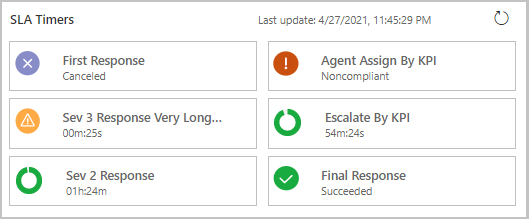
The SLA timer can be added to SLA-enabled entity forms, and the timer then tracks all SLAs associated with that entity. The timer shows the remaining time with a ticking timer, displays the latest status, and offers a refresh option so that agents can be sure they are seeing the latest status.
Here’s an example of an SLA timer control that shows all the SLAs with their time remaining, status, and timestamp of the last update:
Key capabilities
These key capabilities of the new timer improve agent experience:
- Near-real time ticking timer: For each SLA, the timer shows the time in days, hours, minutes, or seconds, depending on the remaining time.
- Multiple SLA KPIs: The timer control shows all the SLA KPIs applicable to that case or entity.
- Distinct icons for each status: Distinct and clear icons indicate each possible status so that agents can immediately understand the state of their SLAs. For example, the status can show hold/paused, succeeded, failed/expired, nearing noncompliance, in-progress, or canceled.
- Dynamic icons show near-real time progress: For every SLA, a dynamic icon progresses and is updated in near-real time.
- Manual refresh and timestamp: An icon in the grid allows agents to manually refresh the status of all SLA KPIs without having to wait for an auto-refresh. The timestamp of last refresh is also updated.
Configuration options give admins more control over SLA timers
Administrators enable the timer control on their entity forms depending on business needs. There are a few configuration options to provide the optimal experience to the agents, and admins can use the classic form designer to configure the SLA timer control.
The following configuration options are available:
- Filter SLA KPIs: Choose the SLA KPIs to be shown on the form. Control the view by using Data source and views.
- Update frequency: Choose how frequently all the SLA KPIs will be automatically updated with the latest status. We recommend that you use an auto-refresh interval of 30 minutes or greater for optimal form performance.
Next steps
To learn more about the SLA timer control and how to configure it, read the documentation:
Add an SLA timer to an SLA-enabled entity
Timer control for SLA-enabled entities
Define service-level agreements
Manage service configuration settings
The post Improved SLA timer control helps agents track KPIs appeared first on Microsoft Dynamics 365 Blog.
Brought to you by Dr. Ware, Microsoft Office 365 Silver Partner, Charleston SC.

by Scott Muniz | May 4, 2021 | Security, Technology
This article is contributed. See the original author and article here.
Official websites use .gov
A .gov website belongs to an official government organization in the United States.

Secure .gov websites use HTTPS A
lock ( )
) or
https:// means you’ve safely connected to the .gov website. Share sensitive information only on official, secure websites.


Recent Comments