by Scott Muniz | May 17, 2021 | Security, Technology
This article is contributed. See the original author and article here.
101 — 101
|
Prototype pollution vulnerability in ‘101’ versions 1.0.0 through 1.6.3 allows an attacker to cause a denial of service and may lead to remote code execution. |
2021-05-14 |
not yet calculated |
CVE-2021-25943
MISC
MISC |
agenzia — entrate_desktop
|
Agenzia delle Entrate Desktop Telematico 1.0.0 contacts the jws.agenziaentrate.it server over cleartext HTTP, which allows man-in-the-middle attackers to spoof product updates. |
2021-05-10 |
not yet calculated |
CVE-2021-3003
MISC
MISC |
alfa — windows_10_driver
|
An issue was discovered in the ALFA Windows 10 driver 6.1316.1209 for AWUS036H. The Wi-Fi implementation does not verify the Message Integrity Check (authenticity) of fragmented TKIP frames. An adversary can abuse this to inject and possibly decrypt packets in WPA or WPA2 networks that support the TKIP data-confidentiality protocol. |
2021-05-11 |
not yet calculated |
CVE-2020-26141
MISC
MISC
MLIST |
alfa — windows_10_driver
|
An issue was discovered in the ALFA Windows 10 driver 1030.36.604 for AWUS036ACH. The WEP, WPA, WPA2, and WPA3 implementations accept fragmented plaintext frames in a protected Wi-Fi network. An adversary can abuse this to inject arbitrary data frames independent of the network configuration. |
2021-05-11 |
not yet calculated |
CVE-2020-26143
MISC
MISC
MLIST |
alfa — windows_10_driver
|
An issue was discovered in the ALFA Windows 10 driver 6.1316.1209 for AWUS036H. The WEP, WPA, WPA2, and WPA3 implementations accept plaintext frames in a protected Wi-Fi network. An adversary can abuse this to inject arbitrary data frames independent of the network configuration. |
2021-05-11 |
not yet calculated |
CVE-2020-26140
MISC
MISC
MLIST |
amd — sev/sev-es
|
In the AMD SEV/SEV-ES feature, memory can be rearranged in the guest address space that is not detected by the attestation mechanism which could be used by a malicious hypervisor to potentially lead to arbitrary code execution within the guest VM if a malicious administrator has access to compromise the server hypervisor. |
2021-05-13 |
not yet calculated |
CVE-2021-26311
MISC |
amd — sev/sev-es
|
The lack of nested page table protection in the AMD SEV/SEV-ES feature could potentially lead to arbitrary code execution within the guest VM if a malicious administrator has access to compromise the server hypervisor. |
2021-05-13 |
not yet calculated |
CVE-2020-12967
MISC |
angular — protonmail_web_client
|
ProtonMail Web Client is the official AngularJS web client for the ProtonMail secure email service. ProtonMail Web Client before version 3.16.60 has a regular expression denial-of-service vulnerability. This was fixed in commit 6687fb. There is a full report available in the referenced GHSL-2021-027. |
2021-05-14 |
not yet calculated |
CVE-2021-32816
MISC
CONFIRM |
antisip — exosip2
|
A NULL pointer dereference vulnerability exists in eXcall_api.c in Antisip eXosip2 through 5.2.0 when handling certain 3xx redirect responses. |
2021-05-12 |
not yet calculated |
CVE-2021-32611
MISC |
apache — traffic_server
|
Apache Traffic Server 9.0.0 is vulnerable to a remote DOS attack on the experimental Slicer plugin. |
2021-05-14 |
not yet calculated |
CVE-2021-27737
MISC
MLIST
MLIST
MLIST |
argo_cd — argo_cd
|
Exposure of System Data to an Unauthorized Control Sphere vulnerability in web UI of Argo CD allows attacker to cause leaked secret data into web UI error messages and logs. This issue affects Argo CD 1.8 versions prior to 1.8.7; 1.7 versions prior to 1.7.14. |
2021-05-12 |
not yet calculated |
CVE-2021-23135
MISC |
arm — mali
|
The Arm Mali GPU kernel driver allows privilege escalation or a denial of service (memory corruption) because an unprivileged user can achieve read/write access to read-only pages. This affects Bifrost r0p0 through r28p0 before r29p0, Valhall r19p0 through r28p0 before r29p0, and Midgard r8p0 through r30p0. |
2021-05-10 |
not yet calculated |
CVE-2021-28664
CONFIRM
MISC |
arm — mali
|
The Arm Mali GPU kernel driver allows privilege escalation or information disclosure because GPU memory operations are mishandled, leading to a use-after-free. This affects Bifrost r0p0 through r28p0 before r29p0, Valhall r19p0 through r28p0 before r29p0, and Midgard r4p0 through r30p0. |
2021-05-10 |
not yet calculated |
CVE-2021-28663
CONFIRM
MISC |
articlecms — articlecms
|
A file upload issue exists in all versions of ArticleCMS which allows malicious users to getshell. |
2021-05-13 |
not yet calculated |
CVE-2020-28063
MISC |
articlecms — articlecms
|
File Upload vulnerability exists in ArticleCMS 1.0 via the image upload feature at /admin by changing the Content-Type to image/jpeg and placing PHP code after the JPEG data, which could let a remote malicious user execute arbitrary PHP code. |
2021-05-13 |
not yet calculated |
CVE-2020-20092
MISC |
atlassian — connect_spring_boot
|
Broken Authentication in Atlassian Connect Spring Boot (ACSB) in version 1.1.0 before 2.1.3 and from version 2.1.4 before 2.1.5: Atlassian Connect Spring Boot is a Java Spring Boot package for building Atlassian Connect apps. Authentication between Atlassian products and the Atlassian Connect Spring Boot app occurs with a server-to-server JWT or a context JWT. Atlassian Connect Spring Boot versions 1.1.0 before 2.1.3 and versions 2.1.4 before 2.1.5 erroneously accept context JWTs in lifecycle endpoints (such as installation) where only server-to-server JWTs should be accepted, permitting an attacker to send authenticated re-installation events to an app. |
2021-05-10 |
not yet calculated |
CVE-2021-26077
MISC
MISC |
atlassian — jira_server_and_data_center
|
Affected versions of Atlassian Jira Server and Data Center allow an unauthenticated user to enumerate users via an Information Disclosure vulnerability in the QueryComponentRendererValue!Default.jspa endpoint. The affected versions are before version 8.5.13, from version 8.6.0 before 8.13.5, and from version 8.14.0 before 8.15.1. |
2021-05-12 |
not yet calculated |
CVE-2020-36289
MISC |
aurelia — htmlsanitizer
|
The HTMLSanitizer class in html-sanitizer.ts in all released versions of the Aurelia framework 1.x repository is vulnerable to XSS. The sanitizer only attempts to filter SCRIPT elements, which makes it feasible for remote attackers to conduct XSS attacks via (for example) JavaScript code in an attribute of various other elements. An attacker might also exploit a bug in how the SCRIPT string is processed by splitting and nesting them for example. |
2021-05-13 |
not yet calculated |
CVE-2019-10062
MISC
MISC
MISC |
| big-ip — apm |
On BIG-IP APM versions 15.1.x before 15.1.3, 14.1.x before 14.1.4.1, 13.1.x before 13.1.4, and all versions of 16.0.x, 12.1.x, and 11.6.x, an attacker may be able to bypass APM’s internal restrictions and retrieve static content that is hosted within APM by sending specifically crafted requests to an APM Virtual Server. Note: Software versions which have reached End of Technical Support (EoTS) are not evaluated. |
2021-05-10 |
not yet calculated |
CVE-2021-23016
MISC |
big-ip — apm
|
On version 15.1.x before 15.1.3, 14.1.x before 14.1.4, 13.1.x before 13.1.4, 12.1.x before 12.1.6, and all versions of 16.0.x and 11.6.x., BIG-IP APM AD (Active Directory) authentication can be bypassed via a spoofed AS-REP (Kerberos Authentication Service Response) response sent over a hijacked KDC (Kerberos Key Distribution Center) connection or from an AD server compromised by an attacker. Note: Software versions which have reached End of Technical Support (EoTS) are not evaluated. |
2021-05-10 |
not yet calculated |
CVE-2021-23008
MISC |
big-ip — asm/advanced/waf_system
|
On versions 16.0.x before 16.0.1.1, 15.1.x before 15.1.2, 14.1.x before 14.1.3.1, 13.1.x before 13.1.3.5, and 12.1.x before 12.1.5.3, when the BIG-IP ASM/Advanced WAF system processes WebSocket requests with JSON payloads using the default JSON Content Profile in the ASM Security Policy, the BIG-IP ASM bd process may produce a core file. Note: Software versions which have reached End of Technical Support (EoTS) are not evaluated. |
2021-05-10 |
not yet calculated |
CVE-2021-23010
MISC |
| big-ip — big-ip |
On versions 16.0.x before 16.0.1.1, 15.1.x before 15.1.3, and 14.1.x before 14.1.4, BIG-IP Advanced WAF and ASM are missing authorization checks for file uploads to a specific directory within the REST API which might allow Authenticated users with guest privileges to upload files. Note: Software versions which have reached End of Technical Support (EoTS) are not evaluated. |
2021-05-10 |
not yet calculated |
CVE-2021-23014
MISC |
big-ip — big-ip
|
On BIG-IP versions 16.0.x before 16.0.1.1, 15.1.x before 15.1.3, 14.1.x before 14.1.4, and 13.1.x before 13.1.4, lack of input validation for items used in the system support functionality may allow users granted either “Resource Administrator” or “Administrator” roles to execute arbitrary bash commands on BIG-IP. Note: Software versions which have reached End of Technical Support (EoTS) are not evaluated. |
2021-05-10 |
not yet calculated |
CVE-2021-23012
MISC |
big-ip — big-ip
|
On BIG-IP 15.1.x before 15.1.3, 14.1.x before 14.1.4.2, 13.1.0.8 through 13.1.3.6, and all versions of 16.0.x, when running in Appliance Mode, an authenticated user assigned the ‘Administrator’ role may be able to bypass Appliance Mode restrictions utilizing undisclosed iControl REST endpoints. Note: Software versions which have reached End of Technical Support (EoTS) are not evaluated. |
2021-05-10 |
not yet calculated |
CVE-2021-23015
MISC |
big-ip — big-ip
|
On versions 16.0.x before 16.0.1.1, 15.1.x before 15.1.3, 14.1.x before 14.1.4, 13.1.x before 13.1.4, 12.1.x before 12.1.6, and 11.6.x before 11.6.5.3, when the BIG-IP system is buffering packet fragments for reassembly, the Traffic Management Microkernel (TMM) may consume an excessive amount of resources, eventually leading to a restart and failover event. Note: Software versions which have reached End of Technical Support (EoTS) are not evaluated. |
2021-05-10 |
not yet calculated |
CVE-2021-23011
MISC |
big-ip — big-ip
|
On BIG-IP versions 16.0.x before 16.0.1.1, 15.1.x before 15.1.3, 14.1.x before 14.1.4, 13.1.x before 13.1.3.6, and 12.1.x before 12.1.5.3, the Traffic Management Microkernel (TMM) may stop responding when processing Stream Control Transmission Protocol (SCTP) traffic under certain conditions. This vulnerability affects TMM by way of a virtual server configured with an SCTP profile. Note: Software versions which have reached End of Technical Support (EoTS) are not evaluated. |
2021-05-10 |
not yet calculated |
CVE-2021-23013
MISC |
big-ip — big-ip
|
On BIG-IP version 16.0.x before 16.0.1.1 and 15.1.x before 15.1.3, malformed HTTP/2 requests may cause an infinite loop which causes a Denial of Service for Data Plane traffic. TMM takes the configured HA action when the TMM process is aborted. There is no control plane exposure, this is a data plane issue only. Note: Software versions which have reached End of Technical Support (EoTS) are not evaluated. |
2021-05-10 |
not yet calculated |
CVE-2021-23009
MISC |
bitcoin — core
|
Bitcoin Core 0.12.0 through 0.21.1 does not properly implement the replacement policy specified in BIP125, which makes it easier for attackers to trigger a loss of funds, or a denial of service attack against downstream projects such as Lightning network nodes. An unconfirmed child transaction with nSequence = 0xff_ff_ff_ff, spending an unconfirmed parent with nSequence <= 0xff_ff_ff_fd, should be replaceable because there is inherited signaling by the child transaction. However, the actual PreChecks implementation does not enforce this. Instead, mempool rejects the replacement attempt of the unconfirmed child transaction. |
2021-05-13 |
not yet calculated |
CVE-2021-31876
MISC
MISC
MISC
MISC
MISC |
| blackberry — uem |
An Information Disclosure vulnerability in the Management Console component of BlackBerry UEM version(s) 12.13.1 QF2 and earlier and 12.12.1a QF6 and earlier could allow an attacker to potentially gain access to a victim’s web history. |
2021-05-13 |
not yet calculated |
CVE-2021-22154
MISC |
| blackberry — uem |
A Remote Code Execution vulnerability in the Management Console component of BlackBerry UEM version(s) 12.13.1 QF2 and earlier and 12.12.1a QF6 and earlier could allow an attacker to potentially cause the spreadsheet application to run commands on the victim’s local machine with the authority of the user. |
2021-05-13 |
not yet calculated |
CVE-2021-22153
MISC |
blackberry — uem
|
A Denial of Service due to Improper Input Validation vulnerability in the Management Console component of BlackBerry UEM version(s) 12.13.1 QF2 and earlier and 12.12.1a QF6 and earlier could allow an attacker to potentially to prevent any new user connections. |
2021-05-13 |
not yet calculated |
CVE-2021-22152
MISC |
blackberry — workspace_server
|
An Authentication Bypass vulnerability in the SAML Authentication component of BlackBerry Workspaces Server (deployed with Appliance-X) version(s) 10.1, 9.1 and earlier could allow an attacker to potentially gain access to the application in the context of the targeted user’s account. |
2021-05-13 |
not yet calculated |
CVE-2021-22155
MISC |
c-ares — lib
|
A possible use-after-free and double-free in c-ares lib version 1.16.0 if ares_destroy() is called prior to ares_getaddrinfo() completing. This flaw possibly allows an attacker to crash the service that uses c-ares lib. The highest threat from this vulnerability is to this service availability. |
2021-05-13 |
not yet calculated |
CVE-2020-14354
FEDORA
MISC
MISC
MISC
MISC |
chamilo — chamilo
|
admin/user_import.php in Chamilo 1.11.14 reads XML data without disabling the ability to load external entities. |
2021-05-13 |
not yet calculated |
CVE-2021-32925
MISC
MISC |
codoforum — codoforum
|
A SQL Injection vulnerability in get_topic_info() in sys/CODOF/Forum/Topic.php in Codoforum before 4.9 allows remote attackers (pre-authentication) to bypass the admin page via a leaked password-reset token of the admin. (As an admin, an attacker can upload a PHP shell and execute remote code on the operating system.) |
2021-05-12 |
not yet calculated |
CVE-2020-13873
MISC
MISC
MISC
MISC
MISC
MISC |
couchbase_server — couchbase_server
|
An issue was discovered in Couchbase Server before 6.0.5, 6.1.x through 6.5.x before 6.5.2, and 6.6.x before 6.6.1. An internal user with administrator privileges, @ns_server, leaks credentials in cleartext in the cbcollect_info.log, debug.log, ns_couchdb.log, indexer.log, and stats.log files. NOTE: updating the product does not automatically address leaks that occurred in the past. |
2021-05-10 |
not yet calculated |
CVE-2021-25645
CONFIRM
MISC |
cyrus — imap
|
Cyrus IMAP before 3.2.7, and 3.3.x and 3.4.x before 3.4.1, allows remote authenticated users to bypass intended access restrictions on server annotations and consequently cause replication to stall. |
2021-05-10 |
not yet calculated |
CVE-2021-32056
CONFIRM
CONFIRM
CONFIRM
CONFIRM |
dedecms — dedecms
|
DedeCMS V5.7 SP2 contains a CSRF vulnerability that allows a remote attacker to send a malicious request to to the web manager allowing remote code execution. |
2021-05-15 |
not yet calculated |
CVE-2021-32073
MISC |
dedecms — dedecms
|
A XSS Vulnerability in /uploads/dede/action_search.php in DedeCMS V5.7 SP2 allows an authenticated user to execute remote arbitrary code via the keyword parameter. |
2021-05-15 |
not yet calculated |
CVE-2020-16632
MISC |
deep-override — deep-override
|
Prototype pollution vulnerability in ‘deep-override’ versions 1.0.0 through 1.0.1 allows an attacker to cause a denial of service and may lead to remote code execution. |
2021-05-14 |
not yet calculated |
CVE-2021-25941
MISC
MISC |
delta_electronics — cncsoft_screeneditor
|
Delta Electronics’ CNCSoft ScreenEditor in versions prior to v1.01.30 could allow the corruption of data, a denial-of-service condition, or code execution. The vulnerability may allow an attacker to remotely execute arbitrary code. |
2021-05-10 |
not yet calculated |
CVE-2021-22672
MISC
MISC |
deskpro — cloud_platform
|
Deskpro Cloud Platform and on-premise 2020.2.3.48207 from 2020-07-30 contains a cross-site scripting (XSS) vulnerability that can lead to an account takeover via custom email templates. |
2021-05-12 |
not yet calculated |
CVE-2020-28722
MISC |
dhcms — dhcms
|
An Information Disclosure vulnerability exists in dhcms 2017-09-18 when entering invalid characters after the normal interface, which causes an error that will leak the physical path. |
2021-05-12 |
not yet calculated |
CVE-2020-19275
MISC |
dhcms — guestbook
|
A Cross SIte Scripting (XSS) vulnerability exists in Dhcms 2017-09-18 in guestbook via the message board, which could let a remote malicious user execute arbitrary code. |
2021-05-12 |
not yet calculated |
CVE-2020-19274
MISC |
ec-cube — ec-cube
|
Cross-site scripting vulnerability in EC-CUBE 4.0.0 to 4.0.5 allows a remote attacker to inject a specially crafted script in the specific input field of the EC web site which is created using EC-CUBE. As a result, it may lead to an arbitrary script execution on the administrator’s web browser. |
2021-05-10 |
not yet calculated |
CVE-2021-20717
MISC
MISC
MISC |
elastic_app_search — elastic_app_search
|
Elastic App Search versions after 7.11.0 and before 7.12.0 contain an XML External Entity Injection issue (XXE) in the App Search web crawler beta feature. Using this vector, an attacker whose website is being crawled by App Search could craft a malicious sitemap.xml to traverse the filesystem of the host running the instance and obtain sensitive files. |
2021-05-13 |
not yet calculated |
CVE-2021-22140
MISC |
elasticsearch — elasticsearch
|
Elasticsearch versions before 7.11.2 and 6.8.15 contain a document disclosure flaw was found in the Elasticsearch suggester and profile API when Document and Field Level Security are enabled. The suggester and profile API are normally disabled for an index when document level security is enabled on the index. Certain queries are able to enable the profiler and suggester which could lead to disclosing the existence of documents and fields the attacker should not be able to view. |
2021-05-13 |
not yet calculated |
CVE-2021-22135
MISC |
elasticsearch — elasticsearch
|
In Elasticsearch versions before 7.11.2 and 6.8.15 a document disclosure flaw was found when Document or Field Level Security is used. Search queries do not properly preserve security permissions when executing certain cross-cluster search queries. This could result in the search disclosing the existence of documents the attacker should not be able to view. This could result in an attacker gaining additional insight into potentially sensitive indices. |
2021-05-13 |
not yet calculated |
CVE-2021-22137
MISC |
| exiv2 — exiv2 |
Exiv2 is a C++ library and a command-line utility to read, write, delete and modify Exif, IPTC, XMP and ICC image metadata. A read of uninitialized memory was found in Exiv2 versions v0.27.3 and earlier. Exiv2 is a command-line utility and C++ library for reading, writing, deleting, and modifying the metadata of image files. The read of uninitialized memory is triggered when Exiv2 is used to read the metadata of a crafted image file. An attacker could potentially exploit the vulnerability to leak a few bytes of stack memory, if they can trick the victim into running Exiv2 on a crafted image file. The bug is fixed in version v0.27.4. |
2021-05-13 |
not yet calculated |
CVE-2021-29623
MISC
CONFIRM |
express — handlebars
|
Express-handlebars is a Handlebars view engine for Express. Express-handlebars mixes pure template data with engine configuration options through the Express render API. More specifically, the layout parameter may trigger file disclosure vulnerabilities in downstream applications. This potential vulnerability is somewhat restricted in that only files with existing extentions (i.e. file.extension) can be included, files that lack an extension will have .handlebars appended to them. For complete details refer to the referenced GHSL-2021-018 report. Notes in documentation have been added to help users avoid this potential information exposure vulnerability. |
2021-05-14 |
not yet calculated |
CVE-2021-32820
CONFIRM
MISC
MISC
MISC
MISC |
express-cart — node.js
|
** DISPUTED ** The express-cart package through 1.1.10 for Node.js allows Reflected XSS (for an admin) via a user input field for product options. NOTE: the vendor states that this “would rely on an admin hacking his/her own website.” |
2021-05-11 |
not yet calculated |
CVE-2021-32573
MISC |
exress — express-hbs
|
express-hbs is an Express handlebars template engine. express-hbs mixes pure template data with engine configuration options through the Express render API. More specifically, the layout parameter may trigger file disclosure vulnerabilities in downstream applications. This potential vulnerability is somewhat restricted in that only files with existing extentions (i.e. file.extension) can be included, files that lack an extension will have .hbs appended to them. For complete details refer to the referenced GHSL-2021-019 report. Notes in documentation have been added to help users of express-hbs avoid this potential information exposure vulnerability. |
2021-05-14 |
not yet calculated |
CVE-2021-32817
MISC
CONFIRM
MISC
MISC |
firely — spark
|
Firely/Incendi Spark before 1.5.5-r4 lacks Content-Disposition headers in certain situations, which may cause crafted files to be delivered to clients such that they are rendered directly in a victim’s web browser. |
2021-05-14 |
not yet calculated |
CVE-2021-32054
CONFIRM
CONFIRM
CONFIRM |
flask — flask
|
The Flask-Caching extension through 1.10.1 for Flask relies on Pickle for serialization, which may lead to remote code execution or local privilege escalation. If an attacker gains access to cache storage (e.g., filesystem, Memcached, Redis, etc.), they can construct a crafted payload, poison the cache, and execute Python code. |
2021-05-13 |
not yet calculated |
CVE-2021-33026
MISC |
foreman — foreman_server
|
An improper authorization handling flaw was found in Foreman. The Shellhooks plugin for the smart-proxy allows Foreman clients to execute actions that should be limited to the Foreman Server. This flaw allows an authenticated local attacker to access and delete limited resources and also causes a denial of service on the Foreman server. The highest threat from this vulnerability is to integrity and system availability. |
2021-05-12 |
not yet calculated |
CVE-2021-3457
MISC |
forestblog — forestblog
|
Cross Site Request Forgery (CSRF) Vulnerability in ForestBlog latest version via the website Management background, which could let a remote malicious gain privileges. |
2021-05-11 |
not yet calculated |
CVE-2020-18964
MISC |
fortinac — fortinac
|
A privilege escalation vulnerability in FortiNAC version below 8.8.2 may allow an admin user to escalate the privileges to root by abusing the sudo privileges. |
2021-05-10 |
not yet calculated |
CVE-2021-24011
CONFIRM |
foxit — pdf_reader
|
A use-after-free vulnerability exists in the JavaScript engine of Foxit Software’s PDF Reader, version 10.1.3.37598. A specially crafted PDF document can trigger the reuse of previously free memory, which can lead to arbitrary code execution. An attacker needs to trick the user into opening a malicious file or site to trigger this vulnerability if the browser plugin extension is enabled. |
2021-05-10 |
not yet calculated |
CVE-2021-21822
MISC |
| fragattacks — wi-fi_protected_access |
The 802.11 standard that underpins Wi-Fi Protected Access (WPA, WPA2, and WPA3) and Wired Equivalent Privacy (WEP) doesn’t require that the A-MSDU flag in the plaintext QoS header field is authenticated. Against devices that support receiving non-SSP A-MSDU frames (which is mandatory as part of 802.11n), an adversary can abuse this to inject arbitrary network packets. |
2021-05-11 |
not yet calculated |
CVE-2020-24588
MISC
MISC
MLIST |
fragattacks — wi-fi_protected_access
|
The 802.11 standard that underpins Wi-Fi Protected Access (WPA, WPA2, and WPA3) and Wired Equivalent Privacy (WEP) doesn’t require that all fragments of a frame are encrypted under the same key. An adversary can abuse this to decrypt selected fragments when another device sends fragmented frames and the WEP, CCMP, or GCMP encryption key is periodically renewed. |
2021-05-11 |
not yet calculated |
CVE-2020-24587
MISC
MISC
MLIST |
fragattacks — wi-fi_protected_access
|
The 802.11 standard that underpins Wi-Fi Protected Access (WPA, WPA2, and WPA3) and Wired Equivalent Privacy (WEP) doesn’t require that received fragments be cleared from memory after (re)connecting to a network. Under the right circumstances, when another device sends fragmented frames encrypted using WEP, CCMP, or GCMP, this can be abused to inject arbitrary network packets and/or exfiltrate user data. |
2021-05-11 |
not yet calculated |
CVE-2020-24586
MISC
MISC
MLIST |
github — enterprise_server
|
A UI misrepresentation vulnerability was identified in GitHub Enterprise Server that allowed more permissions to be granted during a GitHub App’s user-authorization web flow than was displayed to the user during approval. To exploit this vulnerability, an attacker would need to create a GitHub App on the instance and have a user authorize the application through the web authentication flow. All permissions being granted would properly be shown during the first authorization, but in certain circumstances, if the user revisits the authorization flow after the GitHub App has configured additional user-level permissions, those additional permissions may not be shown, leading to more permissions being granted than the user potentially intended. This vulnerability affected GitHub Enterprise Server 3.0.x prior to 3.0.7 and 2.22.x prior to 2.22.13. It was fixed in versions 3.0.7 and 2.22.13. This vulnerability was reported via the GitHub Bug Bounty program. |
2021-05-14 |
not yet calculated |
CVE-2021-22866
CONFIRM
CONFIRM |
golo — laravel
|
An Arbitrary File Upload vulnerability was discovered in the Golo Laravel theme v 1.1.5. |
2021-05-12 |
not yet calculated |
CVE-2020-23790
MISC
MISC |
graphhopper — graphhopper
|
GraphHopper is an open-source Java routing engine. In GrassHopper from version 2.0 and before version 2.4, there is a regular expression injection vulnerability that may lead to Denial of Service. This has been patched in 2.4 and 3.0 See this pull request for the fix: https://github.com/graphhopper/graphhopper/pull/2304 |
2021-05-13 |
not yet calculated |
CVE-2021-29506
MISC
CONFIRM
MISC |
haml-coffee — haml-coffee
|
haml-coffee is a JavaScript templating solution. haml-coffee mixes pure template data with engine configuration options through the Express render API. More specifically, haml-coffee supports overriding a series of HTML helper functions through its configuration options. A vulnerable application that passes user controlled request objects to the haml-coffee template engine may introduce RCE vulnerabilities. Additionally control over the escapeHtml parameter through template configuration pollution ensures that haml-coffee would not sanitize template inputs that may result in reflected Cross Site Scripting attacks against downstream applications. There is currently no fix for these issues as of the publication of this CVE. The latest version of haml-coffee is currently 1.14.1. For complete details refer to the referenced GHSL-2021-025. |
2021-05-14 |
not yet calculated |
CVE-2021-32818
CONFIRM
MISC |
hapi — jpa_server
|
JPA Server in HAPI FHIR before 5.4.0 allows a user to deny service (e.g., disable access to the database after the attack stops) via history requests. This occurs because of a SELECT COUNT statement that requires a full index scan, with an accompanying large amount of server resources if there are many simultaneous history requests. |
2021-05-10 |
not yet calculated |
CVE-2021-32053
MISC
MISC
MISC |
hewlett_packard_enterprises — ilo_amplifier_pack
|
A potential security vulnerability was identified in HPE iLO Amplifier Pack. The vulnerabilities could be remotely exploited to allow remote code execution. |
2021-05-10 |
not yet calculated |
CVE-2021-26583
MISC |
hexagon — g!nius_auskunftsportal
|
Hexagon G!nius Auskunftsportal before 5.0.0.0 allows SQL injection via the GiPWorkflow/Service/DownloadPublicFile id parameter. |
2021-05-14 |
not yet calculated |
CVE-2021-32051
MISC
MISC |
hilscher — rcx_rtos
|
In Hilscher rcX RTOS versions prios to V2.1.14.1 the actual UDP packet length is not verified against the length indicated by the packet. This may lead to a denial of service of the affected device. |
2021-05-13 |
not yet calculated |
CVE-2021-20988
CONFIRM
CONFIRM |
hivex_library — hivex_library
|
A flaw was found in the hivex library in versions before 1.3.20. It is caused due to a lack of bounds check within the hivex_open function. An attacker could input a specially crafted Windows Registry (hive) file which would cause hivex to read memory beyond its normal bounds or cause the program to crash. The highest threat from this vulnerability is to system availability. |
2021-05-11 |
not yet calculated |
CVE-2021-3504
MISC
MLIST |
hotels_server — hotels_server
|
Cross Site Scripting (XSS) in Hotels_Server v1.0 allows remote attackers to execute arbitrary code by injecting crafted commands the data fields in the component “/controller/publishHotel.php”. |
2021-05-10 |
not yet calculated |
CVE-2020-18102
MISC |
ibm — cloud_pak_for_security
|
IBM Cloud Pak for Security (CP4S) 1.4.0.0, 1.5.0.0, 1.5.0.1, 1.6.0.0, and 1.6.0.1 uses a protection mechanism that relies on the existence or values of an input, but the input can be modified by an untrusted actor in a way that bypasses the protection mechanism. IBM X-Force ID: 199236. |
2021-05-14 |
not yet calculated |
CVE-2021-20565
XF
CONFIRM |
ibm — cloud_pak_for_security
|
IBM Cloud Pak for Security (CP4S) 1.4.0.0, 1.5.0.0, 1.5.0.1, 1.6.0.0, and 1.6.0.1 could allow a privileged user to inject inject malicious data using a specially crafted HTTP request due to improper input validation. |
2021-05-14 |
not yet calculated |
CVE-2020-4811
XF
CONFIRM |
ibm — cloud_pak_for_security
|
IBM Cloud Pak for Security (CP4S) 1.4.0.0, 1.5.0.0, 1.5.0.1, 1.6.0.0, and 1.6.0.1 could allow a remote attacker to obtain sensitive information, caused by the failure to properly enable HTTP Strict Transport Security. An attacker could exploit this vulnerability to obtain sensitive information using man in the middle techniques. IBM X-Force ID: 199235. |
2021-05-14 |
not yet calculated |
CVE-2021-20564
XF
CONFIRM |
ibm — jazz_reporting_service
|
IBM Jazz Reporting Service 6.0.6.1, 7.0, 7.0.1, and 7.0.2 is vulnerable to server-side request forgery (SSRF). This may allow an authenticated attacker to send unauthorized requests from the system, potentially leading to network enumeration or facilitating other attacks. IBM X-Force ID: 198834. |
2021-05-13 |
not yet calculated |
CVE-2021-20535
XF
CONFIRM |
ibm — planning_analytics_local
|
IBM Planning Analytics Local 2.0 could allow an attacker to obtain sensitive information due to accepting body parameters in a query. IBM X-Force ID: 192642. |
2021-05-14 |
not yet calculated |
CVE-2020-4985
CONFIRM
XF |
| ibm — qradar_user_behavior_analytics |
IBM QRadar User Behavior Analytics 1.0.0 through 4.1.0 could allow a remote attacker to obtain sensitive information when a detailed technical error message is returned in the browser. This information could be used in further attacks against the system. IBM X-Force ID: 196001. |
2021-05-14 |
not yet calculated |
CVE-2021-20393
CONFIRM
XF |
| ibm — qradar_user_behavior_analytics |
IBM QRadar User Behavior Analytics 1.0.0 through 4.0.1 is vulnerable to cross-site scripting. This vulnerability allows users to embed arbitrary JavaScript code in the Web UI thus altering the intended functionality potentially leading to credentials disclosure within a trusted session. |
2021-05-14 |
not yet calculated |
CVE-2021-20392
CONFIRM
XF |
ibm — qradar_user_behavior_analytics
|
IBM QRadar User Behavior Analytics 1.0.0 through 4.1.0 could disclose sensitive information due an overly permissive cross-domain policy. IBM X-Force ID: 196334. |
2021-05-14 |
not yet calculated |
CVE-2021-20429
CONFIRM
XF |
ibm — qradar_user_behavior_analytics
|
IBM QRadar User Behavior Analytics 1.0.0 through 4.1.0 allows web pages to be stored locally which can be read by another user on the system. IBM X-Force ID: 195999. |
2021-05-14 |
not yet calculated |
CVE-2021-20391
XF
CONFIRM |
ilias — ilias
|
A local file inclusion vulnerability in ILIAS before 5.3.19, 5.4.10 and 6.0 allows remote authenticated attackers to execute arbitrary code via the import of personal data. |
2021-05-13 |
not yet calculated |
CVE-2020-23996
CONFIRM
MISC
CONFIRM
CONFIRM |
ilias — ilias
|
An information disclosure vulnerability in ILIAS before 5.3.19, 5.4.12 and 6.0 allows remote authenticated attackers to get the upload data path via a workspace upload. |
2021-05-13 |
not yet calculated |
CVE-2020-23995
CONFIRM
CONFIRM
MISC
CONFIRM |
imagemagick — imagemagik
|
A flaw was found in ImageMagick in versions before 7.0.11 and before 6.9.12, where a division by zero in WaveImage() of MagickCore/visual-effects.c may trigger undefined behavior via a crafted image file submitted to an application using ImageMagick. The highest threat from this vulnerability is to system availability. |
2021-05-11 |
not yet calculated |
CVE-2021-20309
MISC |
imagemagick — imagemagik
|
In ImageMagick versions before 7.0.9-0, there are outside the range of representable values of type ‘float’ at MagickCore/quantize.c. |
2021-05-14 |
not yet calculated |
CVE-2020-27769
MISC |
imagemagick — imagemagik
|
A flaw was found in ImageMagick in versions before 7.0.11. A potential cipher leak when the calculate signatures in TransformSignature is possible. The highest threat from this vulnerability is to data confidentiality. |
2021-05-11 |
not yet calculated |
CVE-2021-20313
MISC |
imagemagick — imagemagik
|
A flaw was found in ImageMagick in versions 7.0.11, where an integer overflow in WriteTHUMBNAILImage of coders/thumbnail.c may trigger undefined behavior via a crafted image file that is submitted by an attacker and processed by an application using ImageMagick. The highest threat from this vulnerability is to system availability. |
2021-05-11 |
not yet calculated |
CVE-2021-20312
MISC |
imagemagick — imagemagik
|
A flaw was found in ImageMagick in versions before 7.0.11, where a division by zero ConvertXYZToJzazbz() of MagickCore/colorspace.c may trigger undefined behavior via a crafted image file that is submitted by an attacker and processed by an application using ImageMagick. The highest threat from this vulnerability is to system availability. |
2021-05-11 |
not yet calculated |
CVE-2021-20310
MISC |
imagemagick — imagemagik
|
A flaw was found in ImageMagick in versions before 7.0.11, where a division by zero in sRGBTransformImage() in the MagickCore/colorspace.c may trigger undefined behavior via a crafted image file that is submitted by an attacker processed by an application using ImageMagick. The highest threat from this vulnerability is to system availability. |
2021-05-11 |
not yet calculated |
CVE-2021-20311
MISC |
invoiceplane — invoiceplane
|
In InvoicePlane 1.5.11, the upload feature discloses the full path of the file upload directory. |
2021-05-10 |
not yet calculated |
CVE-2021-29022
MISC |
| jenkins — p4_plugin |
A cross-site request forgery (CSRF) vulnerability in Jenkins P4 Plugin 1.11.4 and earlier allows attackers to connect to an attacker-specified Perforce server using attacker-specified username and password. |
2021-05-11 |
not yet calculated |
CVE-2021-21655
CONFIRM |
jenkins — p4_plugin
|
Jenkins P4 Plugin 1.11.4 and earlier does not perform permission checks in multiple HTTP endpoints, allowing attackers with Overall/Read permission to connect to an attacker-specified Perforce server using attacker-specified username and password. |
2021-05-11 |
not yet calculated |
CVE-2021-21654
CONFIRM |
jenkins — s3_publisher
|
Jenkins S3 publisher Plugin 0.11.6 and earlier does not perform Run/Artifacts permission checks in various HTTP endpoints and API models, allowing attackers with Item/Read permission to obtain information about artifacts uploaded to S3, if the optional Run/Artifacts permission is enabled. |
2021-05-11 |
not yet calculated |
CVE-2021-21650
CONFIRM |
jenkins — s3_publisher
|
Jenkins S3 publisher Plugin 0.11.6 and earlier does not perform a permission check in an HTTP endpoint, allowing attackers with Overall/Read permission to obtain the list of configured profiles. |
2021-05-11 |
not yet calculated |
CVE-2021-21651
CONFIRM |
jenkins — xcode
|
Jenkins Xcode integration Plugin 2.0.14 and earlier does not configure its XML parser to prevent XML external entity (XXE) attacks. |
2021-05-11 |
not yet calculated |
CVE-2021-21656
CONFIRM |
jenkins — xray-test_management_for_jira
|
Jenkins Xray – Test Management for Jira Plugin 2.4.0 and earlier does not perform a permission check in an HTTP endpoint, allowing with Overall/Read permission to enumerate credentials IDs of credentials stored in Jenkins. |
2021-05-11 |
not yet calculated |
CVE-2021-21653
CONFIRM |
jenkins — xray-test_management_for_jira
|
A cross-site request forgery (CSRF) vulnerability in Jenkins Xray – Test Management for Jira Plugin 2.4.0 and earlier allows attackers to connect to an attacker-specified URL using attacker-specified credentials IDs obtained through another method, capturing credentials stored in Jenkins. |
2021-05-11 |
not yet calculated |
CVE-2021-21652
CONFIRM |
jetbrains — code_with_me
|
In JetBrains Code With Me bundled to the compatible IDEs before version 2021.1, the client could execute code in read-only mode. |
2021-05-11 |
not yet calculated |
CVE-2021-31899
MISC
MISC |
jetbrains — code_with_me
|
In JetBrains Code With Me bundled to the compatible IDE versions before 2021.1, a client could open a browser on a host. |
2021-05-11 |
not yet calculated |
CVE-2021-31900
MISC
MISC |
jetbrains — hub
|
In JetBrains Hub before 2021.1.13079, two-factor authentication wasn’t enabled properly for the All Users group. |
2021-05-11 |
not yet calculated |
CVE-2021-31901
MISC
MISC |
jetbrains — intellij_idea
|
In JetBrains IntelliJ IDEA 2020.3.3, local code execution was possible because of insufficient checks when getting the project from VCS. |
2021-05-11 |
not yet calculated |
CVE-2021-29263
MISC
MISC |
jetbrains — intellij_idea
|
In IntelliJ IDEA before 2020.3.3, XXE was possible, leading to information disclosure. |
2021-05-11 |
not yet calculated |
CVE-2021-30006
MISC
MISC |
jetbrains — pycharm
|
In JetBrains PyCharm before 2020.3.4, local code execution was possible because of insufficient checks when getting the project from VCS. |
2021-05-11 |
not yet calculated |
CVE-2021-30005
MISC
MISC |
jetbrains — teamcity
|
In JetBrains TeamCity before 2020.2.3, information disclosure via SSRF was possible. |
2021-05-11 |
not yet calculated |
CVE-2021-31910
MISC
MISC |
jetbrains — teamcity
|
In JetBrains TeamCity before 2020.2.4 on Windows, arbitrary code execution on TeamCity Server was possible. |
2021-05-11 |
not yet calculated |
CVE-2021-31914
MISC
MISC |
jetbrains — teamcity
|
In JetBrains TeamCity before 2020.2.4, OS command injection leading to remote code execution was possible. |
2021-05-11 |
not yet calculated |
CVE-2021-31915
MISC
MISC |
jetbrains — teamcity
|
In JetBrains TeamCity before 2020.2.3, insufficient checks of the redirect_uri were made during GitHub SSO token exchange. |
2021-05-11 |
not yet calculated |
CVE-2021-31913
MISC
MISC |
jetbrains — teamcity
|
In JetBrains TeamCity before 2020.2.3, account takeover was potentially possible during a password reset. |
2021-05-11 |
not yet calculated |
CVE-2021-31912
MISC
MISC |
jetbrains — upsource
|
In JetBrains UpSource before 2020.1.1883, application passwords were not revoked correctly |
2021-05-11 |
not yet calculated |
CVE-2021-30482
MISC
MISC |
jetbrains — webstorm
|
In JetBrains WebStorm before 2021.1, code execution without user confirmation was possible for untrusted projects. |
2021-05-11 |
not yet calculated |
CVE-2021-31897
MISC
MISC |
jetbrains — webstorm
|
In JetBrains WebStorm before 2021.1, HTTP requests were used instead of HTTPS. |
2021-05-11 |
not yet calculated |
CVE-2021-31898
MISC
MISC |
jetbrains — youtrack
|
In JetBrains YouTrack before 2021.1.9819, a pull request’s title was sanitized insufficiently, leading to XSS. |
2021-05-11 |
not yet calculated |
CVE-2021-31903
MISC
MISC |
jetbrains — youtrack
|
In JetBrains YouTrack before 2020.6.6600, access control during the exporting of issues was implemented improperly. |
2021-05-11 |
not yet calculated |
CVE-2021-31902
MISC
MISC |
jetbrains — youtrack
|
In JetBrains YouTrack before 2020.6.6441, stored XSS was possible via an issue attachment. |
2021-05-11 |
not yet calculated |
CVE-2021-27733
MISC
MISC |
kaspersky — password_manager
|
Password generator feature in Kaspersky Password Manager was not completely cryptographically strong and potentially allowed an attacker to predict generated passwords in some cases. An attacker would need to know some additional information (for example, time of password generation). |
2021-05-14 |
not yet calculated |
CVE-2020-27020
MISC |
keycloak — keycloak
|
A flaw was found in keycloak. Directories can be created prior to the Java process creating them in the temporary directory, but with wider user permissions, allowing the attacker to have access to the contents that keycloak stores in this directory. The highest threat from this vulnerability is to data confidentiality and integrity. |
2021-05-12 |
not yet calculated |
CVE-2021-20202
MISC |
kibana — kibana
|
In Kibana versions before 7.12.0 and 6.8.15 a flaw in the session timeout was discovered where the xpack.security.session.idleTimeout setting is not being respected. This was caused by background polling activities unintentionally extending authenticated users sessions, preventing a user session from timing out. |
2021-05-13 |
not yet calculated |
CVE-2021-22136
MISC |
kibana — kibana
|
Kibana versions before 7.12.1 contain a denial of service vulnerability was found in the webhook actions due to a lack of timeout or a limit on the request size. An attacker with permissions to create webhook actions could drain the Kibana host connection pool, making Kibana unavailable for all other users. |
2021-05-13 |
not yet calculated |
CVE-2021-22139
MISC |
kk_star_ratings — kk_star_ratings
|
Cross Site Scripting (XSS) vulnerability in the kk Star Ratings plugin before 4.1.5. |
2021-05-11 |
not yet calculated |
CVE-2020-35438
MISC
MISC |
kyocera — printer_d-copia253mf
|
A directory traversal vulnerability exists in Kyocera Printer d-COPIA253MF plus. Successful exploitation of this vulnerability could allow an attacker to retrieve or view arbitrary files from the affected server. |
2021-05-10 |
not yet calculated |
CVE-2020-23575
EXPLOIT-DB |
| laobancms — laobancms |
Unrestricted File Upload in LAOBANCMS v2.0 allows remote attackers to upload arbitrary files by attaching a file with a “.jpg.php” extension to the component “admin/wenjian.php?wj=../templets/pc”. |
2021-05-14 |
not yet calculated |
CVE-2020-18166
MISC |
laobancms — laobancms
|
Cross Site Scripting (XSS) in LAOBANCMS v2.0 allows remote attackers to execute arbitrary code by injecting commands into the “Homepage Introduction” field of component “admin/info.php?shuyu”. |
2021-05-14 |
not yet calculated |
CVE-2020-18167
MISC |
laobancms — laobancms
|
Cross Site Scripting (XSS) in LAOBANCMS v2.0 allows remote attackers to execute arbitrary code by injecting commands into the “Website SEO Keywords” field on the page “admin/info.php?shuyu”. |
2021-05-12 |
not yet calculated |
CVE-2020-18165
MISC |
libxml2 — libxml2
|
A vulnerability found in libxml2 in versions before 2.9.11 shows that it did not propagate errors while parsing XML mixed content, causing a NULL dereference. If an untrusted XML document was parsed in recovery mode and post-validated, the flaw could be used to crash the application. The highest threat from this vulnerability is to system availability. |
2021-05-14 |
not yet calculated |
CVE-2021-3537
MISC
FEDORA
MLIST |
| linux — linux_kernel |
By exploiting a time of check to time of use (TOCTOU) race condition during the Endpoint Security for Linux Threat Prevention and Firewall (ENSL TP/FW) installation process, a local user can perform a privilege escalation attack to obtain administrator privileges for the purpose of executing arbitrary code through insecure use of predictable temporary file locations. |
2021-05-12 |
not yet calculated |
CVE-2021-23892
CONFIRM |
linux — linux_kernel
|
In the Linux kernel 5.11 through 5.12.2, isotp_setsockopt in net/can/isotp.c allows privilege escalation to root by leveraging a use-after-free. (This does not affect earlier versions that lack CAN ISOTP SF_BROADCAST support.) |
2021-05-11 |
not yet calculated |
CVE-2021-32606
MISC
MLIST
MLIST
MLIST |
linux — linux_kernel
|
An issue was discovered in the Linux kernel 5.8.9. The WEP, WPA, WPA2, and WPA3 implementations reassemble fragments even though some of them were sent in plaintext. This vulnerability can be abused to inject packets and/or exfiltrate selected fragments when another device sends fragmented frames and the WEP, CCMP, or GCMP data-confidentiality protocol is used. |
2021-05-11 |
not yet calculated |
CVE-2020-26147
MISC
MISC
MLIST |
linux — linux_kernel
|
A vulnerability was found in Linux Kernel where in the spk_ttyio_receive_buf2() function, it would dereference spk_ttyio_synth without checking whether it is NULL or not, and may lead to a NULL-ptr deref crash. |
2021-05-13 |
not yet calculated |
CVE-2020-27830
MISC
MLIST
MLIST
DEBIAN
MLIST |
linux — linux_kernel
|
An information disclosure vulnerability exists in the /proc/pid/syscall functionality of Linux Kernel 5.1 Stable and 5.4.66. More specifically, this issue has been introduced in v5.1-rc4 (commit 631b7abacd02b88f4b0795c08b54ad4fc3e7c7c0) and is still present in v5.10-rc4, so it’s likely that all versions in between are affected. An attacker can read /proc/pid/syscall to trigger this vulnerability, which leads to the kernel leaking memory contents. |
2021-05-10 |
not yet calculated |
CVE-2020-28588
MISC |
linux — linux_kernel
|
The Linux kernel before 5.11.14 has a use-after-free in cipso_v4_genopt in net/ipv4/cipso_ipv4.c because the CIPSO and CALIPSO refcounting for the DOI definitions is mishandled, aka CID-ad5d07f4a9cd. This leads to writing an arbitrary value. |
2021-05-14 |
not yet calculated |
CVE-2021-33033
MISC
MISC
MISC
MISC
MISC
MISC |
linux — linux_kernel
|
Use After Free vulnerability in nfc sockets in the Linux Kernel before 5.12.2 allows local attackers to elevate their privileges. In typical configurations, the issue can only be triggered by a privileged local user with the CAP_NET_RAW capability. |
2021-05-12 |
not yet calculated |
CVE-2021-23134
MISC
MISC
FEDORA
FEDORA |
linux — linux_kernel
|
The block subsystem in the Linux kernel before 5.2 has a use-after-free that can lead to arbitrary code execution in the kernel context and privilege escalation, aka CID-c3e2219216c9. This is related to blk_mq_free_rqs and blk_cleanup_queue. |
2021-05-14 |
not yet calculated |
CVE-2019-25044
MISC
MISC
MISC
MISC |
linux — linux_kernel
|
In the Linux kernel before 5.12.4, net/bluetooth/hci_event.c has a use-after-free when destroying an hci_chan, aka CID-5c4c8c954409. This leads to writing an arbitrary value. |
2021-05-14 |
not yet calculated |
CVE-2021-33034
MISC
MISC
MISC
MISC |
logstash — logstash
|
In Logstash versions after 6.4.0 and before 6.8.15 and 7.12.0 a TLS certificate validation flaw was found in the monitoring feature. When specifying a trusted server CA certificate Logstash would not properly verify the certificate returned by the monitoring server. This could result in a man in the middle style attack against the Logstash monitoring data. |
2021-05-13 |
not yet calculated |
CVE-2021-22138
MISC |
marvin_minsky — universal_turing_machine
|
Insufficient input validation in the Marvin Minsky 1967 implementation of the Universal Turing Machine allows program users to execute arbitrary code via crafted data. For example, a tape head may have an unexpected location after the processing of input composed of As and Bs (instead of 0s and 1s). NOTE: the discoverer states “this vulnerability has no real-world implications.” |
2021-05-10 |
not yet calculated |
CVE-2021-32471
MISC
MISC |
| mcafee — total_protection |
Privilege Escalation vulnerability in McAfee Total Protection (MTP) prior to 16.0.32 allows a local user to gain elevated privileges by impersonating a client token which could lead to the bypassing of MTP self-defense. |
2021-05-12 |
not yet calculated |
CVE-2021-23891
CONFIRM |
mcafee — total_protection
|
Privilege Escalation vulnerability in the File Lock component of McAfee Total Protection (MTP) prior to 16.0.32 allows a local user to gain elevated privileges by manipulating a symbolic link in the IOCTL interface. |
2021-05-12 |
not yet calculated |
CVE-2021-23872
CONFIRM |
mendix — database_replication
|
A vulnerability has been identified in Mendix Database Replication (All versions < V7.0.1). Uploading a table mapping using a manipulated XML File results in an exception that could expose information about the Application-Server and the used XML-Framework. |
2021-05-12 |
not yet calculated |
CVE-2021-31341
MISC |
mendix — excel_importer_module
|
A vulnerability has been identified in Mendix Excel Importer Module (All versions < V9.0.3). Uploading a manipulated XML File results in an exception that could expose information about the Application-Server and the used XML-Framework. |
2021-05-12 |
not yet calculated |
CVE-2021-31339
MISC
MISC |
| mercedes-benz — mbux_infotainment_system |
An issue was discovered in the Headunit NTG6 in the MBUX Infotainment System on Mercedes-Benz vehicles through 2021. A type confusion issue affects MultiSvSetAttributes in the HiQnet Protocol, leading to remote code execution. |
2021-05-13 |
not yet calculated |
CVE-2021-23908
MISC
MISC
MISC |
mercedes-benz — mbux_infotainment_system
|
An issue was discovered in the Headunit NTG6 in the MBUX Infotainment System on Mercedes-Benz vehicles through 2021. A Message Length is not checked in the HiQnet Protocol, leading to remote code execution. |
2021-05-13 |
not yet calculated |
CVE-2021-23906
MISC
MISC
MISC |
mercedes-benz — mbux_infotainment_system
|
An issue was discovered in the Headunit NTG6 in the MBUX Infotainment System on Mercedes-Benz vehicles through 2021. The count in MultiSvGet, GetAttributes, and MultiSvSet is not checked in the HiQnet Protocol, leading to remote code execution. |
2021-05-13 |
not yet calculated |
CVE-2021-23907
MISC
MISC
MISC |
mercedes-benz — mbux_infotainment_system
|
An issue was discovered in HERMES 2.1 in the MBUX Infotainment System on Mercedes-Benz vehicles through 2021. The SH2 MCU allows remote code execution. |
2021-05-13 |
not yet calculated |
CVE-2021-23909
MISC
MISC
MISC |
mercedes-benz — mbux_infotainment_system
|
An issue was discovered in HERMES 2.1 in the MBUX Infotainment System on Mercedes-Benz vehicles through 2021. There is an out-of-bounds array access in RemoteDiagnosisApp. |
2021-05-13 |
not yet calculated |
CVE-2021-23910
MISC
MISC
MISC |
microsoft — 365_dynamics
|
Dynamics Finance and Operations Cross-site Scripting Vulnerability |
2021-05-11 |
not yet calculated |
CVE-2021-28461
N/A |
microsoft — accessibility_insights
|
Microsoft Accessibility Insights for Web Information Disclosure Vulnerability |
2021-05-11 |
not yet calculated |
CVE-2021-31936
N/A |
microsoft — excel
|
Microsoft Excel Information Disclosure Vulnerability |
2021-05-11 |
not yet calculated |
CVE-2021-31174
N/A |
microsoft — exchange
|
Microsoft Exchange Server Remote Code Execution Vulnerability This CVE ID is unique from CVE-2021-31195. |
2021-05-11 |
not yet calculated |
CVE-2021-31198
N/A |
microsoft — exchange
|
Microsoft Exchange Server Security Feature Bypass Vulnerability |
2021-05-11 |
not yet calculated |
CVE-2021-31207
N/A |
microsoft — exchange
|
Microsoft Exchange Server Remote Code Execution Vulnerability This CVE ID is unique from CVE-2021-31198. |
2021-05-11 |
not yet calculated |
CVE-2021-31195
N/A |
microsoft — exchange
|
Microsoft Exchange Server Spoofing Vulnerability |
2021-05-11 |
not yet calculated |
CVE-2021-31209
N/A |
microsoft — internet_explorer
|
Scripting Engine Memory Corruption Vulnerability |
2021-05-11 |
not yet calculated |
CVE-2021-26419
N/A
MISC |
microsoft — internet_explorer
|
Web Media Extensions Remote Code Execution Vulnerability |
2021-05-11 |
not yet calculated |
CVE-2021-28465
N/A
MISC
MISC |
microsoft — jet_red_database_engine
|
Microsoft Jet Red Database Engine and Access Connectivity Engine Remote Code Execution Vulnerability |
2021-05-11 |
not yet calculated |
CVE-2021-28455
N/A |
| microsoft — office |
Microsoft Office Remote Code Execution Vulnerability This CVE ID is unique from CVE-2021-31175, CVE-2021-31176, CVE-2021-31179. |
2021-05-11 |
not yet calculated |
CVE-2021-31177
N/A
MISC |
microsoft — office
|
Microsoft Office Information Disclosure Vulnerability |
2021-05-11 |
not yet calculated |
CVE-2021-31178
N/A |
microsoft — office
|
Microsoft Office Graphics Remote Code Execution Vulnerability |
2021-05-11 |
not yet calculated |
CVE-2021-31180
N/A |
microsoft — office
|
Microsoft Office Remote Code Execution Vulnerability This CVE ID is unique from CVE-2021-31175, CVE-2021-31176, CVE-2021-31177. |
2021-05-11 |
not yet calculated |
CVE-2021-31179
N/A |
microsoft — office
|
Microsoft Office Remote Code Execution Vulnerability This CVE ID is unique from CVE-2021-31176, CVE-2021-31177, CVE-2021-31179. |
2021-05-11 |
not yet calculated |
CVE-2021-31175
N/A
MISC |
microsoft — office
|
Microsoft Office Remote Code Execution Vulnerability This CVE ID is unique from CVE-2021-31175, CVE-2021-31177, CVE-2021-31179. |
2021-05-11 |
not yet calculated |
CVE-2021-31176
N/A
MISC |
| microsoft — sharepoint |
Microsoft SharePoint Spoofing Vulnerability This CVE ID is unique from CVE-2021-26418, CVE-2021-28478. |
2021-05-11 |
not yet calculated |
CVE-2021-31172
N/A |
microsoft — sharepoint
|
Microsoft SharePoint Server Remote Code Execution Vulnerability |
2021-05-11 |
not yet calculated |
CVE-2021-28474
N/A
MISC |
microsoft — sharepoint
|
Microsoft SharePoint Remote Code Execution Vulnerability |
2021-05-11 |
not yet calculated |
CVE-2021-31181
N/A
MISC |
microsoft — sharepoint
|
Microsoft SharePoint Spoofing Vulnerability This CVE ID is unique from CVE-2021-28478, CVE-2021-31172. |
2021-05-11 |
not yet calculated |
CVE-2021-26418
N/A |
microsoft — sharepoint
|
Microsoft SharePoint Spoofing Vulnerability This CVE ID is unique from CVE-2021-26418, CVE-2021-31172. |
2021-05-11 |
not yet calculated |
CVE-2021-28478
N/A |
microsoft — sharepoint
|
Microsoft SharePoint Information Disclosure Vulnerability |
2021-05-11 |
not yet calculated |
CVE-2021-31171
N/A |
microsoft — sharepoint
|
Microsoft SharePoint Server Information Disclosure Vulnerability |
2021-05-11 |
not yet calculated |
CVE-2021-31173
N/A |
microsoft — skype_for_business
|
Skype for Business and Lync Remote Code Execution Vulnerability |
2021-05-11 |
not yet calculated |
CVE-2021-26422
N/A |
microsoft — skype_for_business
|
Skype for Business and Lync Spoofing Vulnerability |
2021-05-11 |
not yet calculated |
CVE-2021-26421
N/A |
microsoft — visual_studio
|
Visual Studio Code Remote Code Execution Vulnerability This CVE ID is unique from CVE-2021-31214. |
2021-05-11 |
not yet calculated |
CVE-2021-31211
N/A |
microsoft — visual_studio
|
.NET and Visual Studio Elevation of Privilege Vulnerability |
2021-05-11 |
not yet calculated |
CVE-2021-31204
N/A |
microsoft — visual_studio
|
Visual Studio Code Remote Containers Extension Remote Code Execution Vulnerability |
2021-05-11 |
not yet calculated |
CVE-2021-31213
N/A |
microsoft — visual_studio
|
Visual Studio Code Remote Code Execution Vulnerability This CVE ID is unique from CVE-2021-31211. |
2021-05-11 |
not yet calculated |
CVE-2021-31214
N/A |
microsoft — visual_studio
|
Visual Studio Remote Code Execution Vulnerability |
2021-05-11 |
not yet calculated |
CVE-2021-27068
N/A |
| microsoft — windows |
Windows Container Manager Service Elevation of Privilege Vulnerability This CVE ID is unique from CVE-2021-31165, CVE-2021-31167, CVE-2021-31168, CVE-2021-31169. |
2021-05-11 |
not yet calculated |
CVE-2021-31208
N/A |
| microsoft — windows |
OLE Automation Remote Code Execution Vulnerability |
2021-05-11 |
not yet calculated |
CVE-2021-31194
N/A |
| microsoft — windows |
Windows Container Isolation FS Filter Driver Elevation of Privilege Vulnerability |
2021-05-11 |
not yet calculated |
CVE-2021-31190
N/A |
| microsoft — windows |
Microsoft Windows Infrared Data Association (IrDA) Information Disclosure Vulnerability |
2021-05-11 |
not yet calculated |
CVE-2021-31184
N/A |
microsoft — windows
|
Windows Graphics Component Elevation of Privilege Vulnerability This CVE ID is unique from CVE-2021-31170. |
2021-05-11 |
not yet calculated |
CVE-2021-31188
N/A
MISC |
microsoft — windows
|
Windows SSDP Service Elevation of Privilege Vulnerability |
2021-05-11 |
not yet calculated |
CVE-2021-31193
N/A |
microsoft — windows
|
Windows WalletService Elevation of Privilege Vulnerability |
2021-05-11 |
not yet calculated |
CVE-2021-31187
N/A
MISC |
microsoft — windows
|
Windows Remote Desktop Protocol (RDP) Information Disclosure Vulnerability |
2021-05-11 |
not yet calculated |
CVE-2021-31186
N/A |
microsoft — windows
|
Windows Projected File System FS Filter Driver Information Disclosure Vulnerability |
2021-05-11 |
not yet calculated |
CVE-2021-31191
N/A |
microsoft — windows
|
Windows Media Foundation Core Remote Code Execution Vulnerability |
2021-05-11 |
not yet calculated |
CVE-2021-31192
N/A |
microsoft — windows
|
Windows Desktop Bridge Denial of Service Vulnerability |
2021-05-11 |
not yet calculated |
CVE-2021-31185
N/A |
microsoft — windows
|
Microsoft Bluetooth Driver Spoofing Vulnerability |
2021-05-11 |
not yet calculated |
CVE-2021-31182
N/A |
microsoft — windows
|
Common Utilities Remote Code Execution Vulnerability |
2021-05-11 |
not yet calculated |
CVE-2021-31200
N/A |
microsoft — windows
|
Windows SMB Client Security Feature Bypass Vulnerability |
2021-05-11 |
not yet calculated |
CVE-2021-31205
N/A |
mikrotik — routeros
|
Mikrotik RouterOs before 6.47 (stable tree) suffers from a memory corruption vulnerability in the /nova/bin/resolver process. An authenticated remote attacker can cause a Denial of Service due to invalid memory access. |
2021-05-11 |
not yet calculated |
CVE-2020-20267
MISC |
mikrotik — routeros
|
Mikrotik RouterOs before 6.47 (stable tree) suffers from a memory corruption vulnerability in the /ram/pckg/wireless/nova/bin/wireless process. An authenticated remote attacker can cause a Denial of Service due via a crafted packet. |
2021-05-11 |
not yet calculated |
CVE-2020-20265
MISC |
mongodb — mongodb
|
Specific versions of the MongoDB C# Driver may erroneously publish events containing authentication-related data to a command listener configured by an application. The published events may contain security-sensitive data when commands such as “saslStart”, “saslContinue”, “isMaster”, “createUser”, and “updateUser” are executed. Without due care, an application may inadvertently expose this authenticated-related information, e.g., by writing it to a log file. This issue only arises if an application enables the command listener feature (this is not enabled by default). This issue affects the MongoDB C# Driver 2.12 <= 2.12.1. |
2021-05-13 |
not yet calculated |
CVE-2021-20331
CONFIRM |
| moxa — camera_vport_06ec-2v_series |
Improper validation of the length field of LLDP-MED TLV in userdisk/vport_lldpd in Moxa Camera VPort 06EC-2V Series, version 1.1, allows information disclosure to attackers due to using fixed loop counter variable without checking the actual available length via a crafted lldp packet. |
2021-05-10 |
not yet calculated |
CVE-2021-25848
MISC
MISC |
| moxa — camera_vport_06ec-2v_series |
Improper validation of the length field of LLDP-MED TLV in userdisk/vport_lldpd in Moxa Camera VPort 06EC-2V Series, version 1.1, allows information disclosure to attackers due to controllable loop counter variable via a crafted lldp packet. |
2021-05-10 |
not yet calculated |
CVE-2021-25847
MISC
MISC |
| moxa — camera_vport_06ec-2v_series |
Improper validation of the ChassisID TLV in userdisk/vport_lldpd in Moxa Camera VPort 06EC-2V Series, version 1.1, allows attackers to cause a denial of service due to a NULL pointer dereference via a crafted lldp packet. |
2021-05-10 |
not yet calculated |
CVE-2021-25845
MISC
MISC |
moxa — camera_vport_06ec-2v_series
|
Improper validation of the ChassisID TLV in userdisk/vport_lldpd in Moxa Camera VPort 06EC-2V Series, version 1.1, allows attackers to cause a denial of service due to a negative number passed to the memcpy function via a crafted lldp packet. |
2021-05-10 |
not yet calculated |
CVE-2021-25846
MISC
MISC |
moxa — camera_vport_06ec-2v_series
|
An integer underflow was discovered in userdisk/vport_lldpd in Moxa Camera VPort 06EC-2V Series, version 1.1, improper validation of the PortID TLV leads to Denial of Service via a crafted lldp packet. |
2021-05-10 |
not yet calculated |
CVE-2021-25849
MISC
MISC |
netbsd — netbsd
|
An issue was discovered in the kernel in NetBSD 7.1. An Access Point (AP) forwards EAPOL frames to other clients even though the sender has not yet successfully authenticated to the AP. This might be abused in projected Wi-Fi networks to launch denial-of-service attacks against connected clients and makes it easier to exploit other vulnerabilities in connected clients. |
2021-05-11 |
not yet calculated |
CVE-2020-26139
MISC
MISC
MLIST |
nooba-operator — nooba-operator
|
A flaw was found in noobaa-operator in versions before 5.7.0, where internal RPC AuthTokens between the noobaa operator and the noobaa core are leaked into log files. An attacker with access to the log files could use this AuthToken to gain additional access into noobaa deployment and can read/modify system configuration. |
2021-05-13 |
not yet calculated |
CVE-2021-3528
MISC |
| nport — ia5000a_devices |
The NPort IA5000A Series devices use Telnet as one of the network device management services. Telnet does not support the encryption of client-server communications, making it vulnerable to Man-in-the-Middle attacks. |
2021-05-14 |
not yet calculated |
CVE-2020-27184
MISC
MISC |
nport — ia5000a_devices
|
Cleartext transmission of sensitive information via Moxa Service in NPort IA5000A series serial devices. Successfully exploiting the vulnerability could enable attackers to read authentication data, device configuration, and other sensitive data transmitted over Moxa Service. |
2021-05-14 |
not yet calculated |
CVE-2020-27185
MISC
MISC |
nport — ia5000a_devices
|
In multiple versions of NPort IA5000A Series, the result of exporting a device’s configuration contains the passwords of all users on the system and other sensitive data in the original form if “Pre-shared key” doesn’t set. |
2021-05-14 |
not yet calculated |
CVE-2020-27150
MISC
MISC |
nport — ia5150a_devices
|
By exploiting a vulnerability in NPort IA5150A/IA5250A Series before version 1.5, a user with “Read Only” privilege level can send requests via the web console to have the device’s configuration changed. |
2021-05-14 |
not yet calculated |
CVE-2020-27149
MISC
MISC |
octoprint — octoprint
|
The Logging subsystem in OctoPrint before 1.6.0 has incorrect access control because it attempts to manage files that are not *.log files. |
2021-05-11 |
not yet calculated |
CVE-2021-32560
MISC
MISC
MISC |
octoprint — octoprint
|
OctoPrint before 1.6.0 allows XSS because API error messages include the values of input parameters. |
2021-05-11 |
not yet calculated |
CVE-2021-32561
MISC
MISC
MISC |
octopus — server
|
Cleartext storage of sensitive information in multiple versions of Octopus Server where in certain situations when running import or export processes, the password used to encrypt and decrypt sensitive values would be written to the logs in plaintext. |
2021-05-14 |
not yet calculated |
CVE-2021-30183
MISC
MISC |
omron — cx-one
|
Omron CX-One Versions 4.60 and prior, including CX-Server Versions 5.0.29.0 and prior, are vulnerable to a stack-based buffer overflow, which may allow an attacker to execute arbitrary code. |
2021-05-13 |
not yet calculated |
CVE-2021-27413
MISC
MISC |
openapi — openapi
|
OpenAPI Generator allows generation of API client libraries (SDK generation), server stubs, documentation and configuration automatically given an OpenAPI Spec. Using `File.createTempFile` in JDK will result in creating and using insecure temporary files that can leave application and system data vulnerable to attacks. Auto-generated code (Java, Scala) that deals with uploading or downloading binary data through API endpoints will create insecure temporary files during the process. Affected generators: `java` (jersey2, okhttp-gson (default library)), `scala-finch`. The issue has been patched with `Files.createTempFile` and released in the v5.1.0 stable version. |
2021-05-10 |
not yet calculated |
CVE-2021-21430
CONFIRM
MISC
MISC |
openapi — openapi
|
Openapi generator is a java tool which allows generation of API client libraries (SDK generation), server stubs, documentation and configuration automatically given an OpenAPI Spec. openapi-generator-online creates insecure temporary folders with File.createTempFile during the code generation process. The insecure temporary folders store the auto-generated files which can be read and appended to by any users on the system. The issue has been patched with `Files.createTempFile` and released in the v5.1.0 stable version. |
2021-05-10 |
not yet calculated |
CVE-2021-21428
CONFIRM
MISC |
openbsd — openbsd
|
An issue was discovered in the kernel in OpenBSD 6.6. The WEP, WPA, WPA2, and WPA3 implementations treat fragmented frames as full frames. An adversary can abuse this to inject arbitrary network packets, independent of the network configuration. |
2021-05-11 |
not yet calculated |
CVE-2020-26142
MISC
MISC
MLIST |
openjpeg– openjpeg
|
A flaw was found in OpenJPEG’s encoder. This flaw allows an attacker to pass specially crafted x,y offset input to OpenJPEG to use during encoding. The highest threat from this vulnerability is to confidentiality, integrity, as well as system availability. |
2021-05-13 |
not yet calculated |
CVE-2020-27823
MLIST
MISC
FEDORA
FEDORA
DEBIAN |
openjpeg– openjpeg
|
A flaw was found in OpenJPEG’s encoder in the opj_dwt_calc_explicit_stepsizes() function. This flaw allows an attacker who can supply crafted input to decomposition levels to cause a buffer overflow. The highest threat from this vulnerability is to system availability. |
2021-05-13 |
not yet calculated |
CVE-2020-27824
MISC
MLIST
FEDORA
FEDORA
DEBIAN |
openscad — openscad
|
An out-of-bounds write vulnerability exists in the import_stl.cc:import_stl() functionality of Openscad openscad-2020.12-RC2. A specially crafted STL file can lead to code execution. An attacker can provide a malicious file to trigger this vulnerability. |
2021-05-10 |
not yet calculated |
CVE-2020-28600
MISC |
phpok — phpok
|
A Cross Site Request Forgery (CSRF) vulnerability exists in PHPOK 5.2.060 via admin.php?c=admin&f=save, which could let a remote malicious user execute arbitrary code. |
2021-05-10 |
not yet calculated |
CVE-2020-19199
MISC |
piwigo — piwigo
|
Piwigo 11.4.0 allows admin/user_list_backend.php order[0][dir] SQL Injection. |
2021-05-13 |
not yet calculated |
CVE-2021-32615
CONFIRM
CONFIRM |
proofpoint — enterprise_protection
|
Proofpoint Enterprise Protection (PPS/PoD) before 8.16.4 contains a vulnerability that could allow an attacker to deliver an email message with a malicious attachment that bypasses scanning and file-blocking rules. The vulnerability exists because messages with certain crafted and malformed multipart structures are not properly handled. |
2021-05-07 |
not yet calculated |
CVE-2020-14009
MISC
MISC |
| prosody — prosody |
An issue was discovered in Prosody before 0.11.9. The proxy65 component allows open access by default, even if neither of the users has an XMPP account on the local server, allowing unrestricted use of the server’s bandwidth. |
2021-05-13 |
not yet calculated |
CVE-2021-32917
MISC
MLIST
MLIST |
prosody — prosody
|
Prosody before 0.11.9 allows Uncontrolled CPU Consumption via a flood of SSL/TLS renegotiation requests. |
2021-05-13 |
not yet calculated |
CVE-2021-32920
MISC
MLIST
MLIST |
prosody — prosody
|
An issue was discovered in Prosody before 0.11.9. It does not use a constant-time algorithm for comparing certain secret strings when running under Lua 5.2 or later. This can potentially be used in a timing attack to reveal the contents of secret strings to an attacker. |
2021-05-13 |
not yet calculated |
CVE-2021-32921
MISC
MLIST
MLIST |
prosody — prosody
|
An issue was discovered in Prosody before 0.11.9. Default settings are susceptible to remote unauthenticated denial-of-service (DoS) attacks via memory exhaustion when running under Lua 5.2 or Lua 5.3. |
2021-05-13 |
not yet calculated |
CVE-2021-32918
MISC
MLIST
MLIST |
prosody — prosody
|
An issue was discovered in Prosody before 0.11.9. The undocumented dialback_without_dialback option in mod_dialback enables an experimental feature for server-to-server authentication. It does not correctly authenticate remote server certificates, allowing a remote server to impersonate another server (when this option is enabled). |
2021-05-13 |
not yet calculated |
CVE-2021-32919
MISC
MLIST
MLIST |
pulse_secure — virtual_traffic_manager
|
An HTTP Request Smuggling vulnerability in Pulse Secure Virtual Traffic Manager before 21.1 could allow an attacker to smuggle an HTTP request through an HTTP/2 Header. This vulnerability is resolved in 21.1, 20.3R1, 20.2R1, 20.1R2, 19.2R4, and 18.2R3. |
2021-05-14 |
not yet calculated |
CVE-2021-31922
MISC |
puma — puma
|
Puma is a concurrent HTTP 1.1 server for Ruby/Rack applications. The fix for CVE-2019-16770 was incomplete. The original fix only protected existing connections that had already been accepted from having their requests starved by greedy persistent-connections saturating all threads in the same process. However, new connections may still be starved by greedy persistent-connections saturating all threads in all processes in the cluster. A `puma` server which received more concurrent `keep-alive` connections than the server had threads in its threadpool would service only a subset of connections, denying service to the unserved connections. This problem has been fixed in `puma` 4.3.8 and 5.3.1. Setting `queue_requests false` also fixes the issue. This is not advised when using `puma` without a reverse proxy, such as `nginx` or `apache`, because you will open yourself to slow client attacks (e.g. slowloris). The fix is very small and a git patch is available for those using unsupported versions of Puma. |
2021-05-11 |
not yet calculated |
CVE-2021-29509
MISC
MISC
CONFIRM
MISC |
pydantic — pydantic
|
Pydantic is a data validation and settings management using Python type hinting. In affected versions passing either `’infinity’`, `’inf’` or `float(‘inf’)` (or their negatives) to `datetime` or `date` fields causes validation to run forever with 100% CPU usage (on one CPU). Pydantic has been patched with fixes available in the following versions: v1.8.2, v1.7.4, v1.6.2. All these versions are available on pypi(https://pypi.org/project/pydantic/#history), and will be available on conda-forge(https://anaconda.org/conda-forge/pydantic) soon. See the changelog(https://pydantic-docs.helpmanual.io/) for details. If you absolutely can’t upgrade, you can work around this risk using a validator(https://pydantic-docs.helpmanual.io/usage/validators/) to catch these values. This is not an ideal solution (in particular you’ll need a slightly different function for datetimes), instead of a hack like this you should upgrade pydantic. If you are not using v1.8.x, v1.7.x or v1.6.x and are unable to upgrade to a fixed version of pydantic, please create an issue at https://github.com/samuelcolvin/pydantic/issues requesting a back-port, and we will endeavour to release a patch for earlier versions of pydantic. |
2021-05-13 |
not yet calculated |
CVE-2021-29510
CONFIRM
MISC |
qemu — qemu
|
A race condition flaw was found in the 9pfs server implementation of QEMU up to and including 5.2.0. This flaw allows a malicious 9p client to cause a use-after-free error, potentially escalating their privileges on the system. The highest threat from this vulnerability is to confidentiality, integrity as well as system availability. |
2021-05-13 |
not yet calculated |
CVE-2021-20181
MISC
MLIST
MISC |
qemu — qemu
|
An out-of-bounds heap buffer access issue was found in the ARM Generic Interrupt Controller emulator of QEMU up to and including qemu 4.2.0on aarch64 platform. The issue occurs because while writing an interrupt ID to the controller memory area, it is not masked to be 4 bits wide. It may lead to the said issue while updating controller state fields and their subsequent processing. A privileged guest user may use this flaw to crash the QEMU process on the host resulting in DoS scenario. |
2021-05-13 |
not yet calculated |
CVE-2021-20221
MLIST
MISC
MLIST |
qnap — malware_remover
|
A command injection vulnerability has been reported to affect certain versions of Malware Remover. If exploited, this vulnerability allows remote attackers to execute arbitrary commands. This issue affects: QNAP Systems Inc. Malware Remover versions prior to 4.6.1.0. This issue does not affect: QNAP Systems Inc. Malware Remover 3.x. |
2021-05-13 |
not yet calculated |
CVE-2020-36198
MISC
MISC |
qnap — music_station
|
An improper access control vulnerability has been reported to affect earlier versions of Music Station. If exploited, this vulnerability allows attackers to compromise the security of the software by gaining privileges, reading sensitive information, executing commands, evading detection, etc. This issue affects: QNAP Systems Inc. Music Station versions prior to 5.3.16 on QTS 4.5.2; versions prior to 5.2.10 on QTS 4.3.6; versions prior to 5.1.14 on QTS 4.3.3; versions prior to 5.3.16 on QuTS hero h4.5.2; versions prior to 5.3.16 on QuTScloud c4.5.4. |
2021-05-13 |
not yet calculated |
CVE-2020-36197
MISC
MISC |
qnap — nas
|
An improper authorization vulnerability has been reported to affect QNAP NAS running HBS 3 (Hybrid Backup Sync. ) If exploited, the vulnerability allows remote attackers to log in to a device. This issue affects: QNAP Systems Inc. HBS 3 versions prior to v16.0.0415 on QTS 4.5.2; versions prior to v3.0.210412 on QTS 4.3.6; versions prior to v3.0.210411 on QTS 4.3.4; versions prior to v3.0.210411 on QTS 4.3.3; versions prior to v16.0.0419 on QuTS hero h4.5.1; versions prior to v16.0.0419 on QuTScloud c4.5.1~c4.5.4. This issue does not affect: QNAP Systems Inc. HBS 2 . QNAP Systems Inc. HBS 1.3 . |
2021-05-13 |
not yet calculated |
CVE-2021-28799
MISC |
radare2 — radare2
|
In radare2 through 5.3.0 there is a double free vulnerability in the pyc parse via a crafted file which can lead to DoS. |
2021-05-14 |
not yet calculated |
CVE-2021-32613
MISC
MISC |
raptor — xml_writer_start_element_common
|
A malformed input file can lead to a segfault due to an out of bounds array access in raptor_xml_writer_start_element_common. |
2021-05-13 |
not yet calculated |
CVE-2020-25713
MISC
FEDORA
MISC
MLIST
FEDORA |
red_hat — red_hat
|
A Zip Slip vulnerability was found in the oc binary in openshift-clients where an arbitrary file write is achieved by using a specially crafted raw container image (.tar file) which contains symbolic links. The vulnerability is limited to the command `oc image extract`. If a symbolic link is first created pointing within the tarball, this allows further symbolic links to bypass the existing path check. This flaw allows the tarball to create links outside the tarball’s parent directory, allowing for executables or configuration files to be overwritten, resulting in arbitrary code execution. The highest threat from this vulnerability is to confidentiality, integrity, as well as system availability. Versions up to and including openshift-clients-4.7.0-202104250659.p0.git.95881af are affected. |
2021-05-14 |
not yet calculated |
CVE-2020-27833
MISC
CONFIRM |
riyalab — cloudiso
|
RiyaLab CloudISO event item is added, special characters in specific field of time management page are not properly filtered, which allow remote authenticated attackers can inject malicious JavaScript and carry out stored XSS (Stored Cross-site scripting) attacks. |
2021-05-11 |
not yet calculated |
CVE-2021-30174
CONFIRM |
rust — evm
|
evm is a pure Rust implementation of Ethereum Virtual Machine. Prior to the patch, when executing specific EVM opcodes related to memory operations that use `evm_core::Memory::copy_large`, the `evm` crate can over-allocate memory when it is not needed, making it possible for an attacker to perform denial-of-service attack. The flaw was corrected in commit `19ade85`. Users should upgrade to `==0.21.1, ==0.23.1, ==0.24.1, ==0.25.1, >=0.26.1`. There are no workarounds. Please upgrade your `evm` crate version. |
2021-05-12 |
not yet calculated |
CVE-2021-29511
MISC
CONFIRM
MISC |
samba — libldb
|
A flaw was found in Samba’s libldb. Multiple, consecutive leading spaces in an LDAP attribute can lead to an out-of-bounds memory write, leading to a crash of the LDAP server process handling the request. The highest threat from this vulnerability is to system availability. |
2021-05-12 |
not yet calculated |
CVE-2021-20277
MLIST
MISC
MISC
CONFIRM
FEDORA
FEDORA
DEBIAN
FEDORA |
samba — samba
|
A flaw was found in samba. Spaces used in a string around a domain name (DN), while supposed to be ignored, can cause invalid DN strings with spaces to instead write a zero-byte into out-of-bounds memory, resulting in a crash. The highest threat from this vulnerability is to system availability. |
2021-05-12 |
not yet calculated |
CVE-2020-27840
MISC
MLIST
CONFIRM
MISC
FEDORA
FEDORA
DEBIAN
FEDORA |
| samsung — galaxy_s3_i9305_devices |
An issue was discovered on Samsung Galaxy S3 i9305 4.4.4 devices. The WPA, WPA2, and WPA3 implementations reassemble fragments with non-consecutive packet numbers. An adversary can abuse this to exfiltrate selected fragments. This vulnerability is exploitable when another device sends fragmented frames and the WEP, CCMP, or GCMP data-confidentiality protocol is used. Note that WEP is vulnerable to this attack by design. |
2021-05-11 |
not yet calculated |
CVE-2020-26146
MISC
MISC
MLIST |
samsung — galaxy_s3_i9305_devices
|
An issue was discovered on Samsung Galaxy S3 i9305 4.4.4 devices. The WEP, WPA, WPA2, and WPA3 implementations accept plaintext A-MSDU frames as long as the first 8 bytes correspond to a valid RFC1042 (i.e., LLC/SNAP) header for EAPOL. An adversary can abuse this to inject arbitrary network packets independent of the network configuration. |
2021-05-11 |
not yet calculated |
CVE-2020-26144
MISC
MISC
MLIST |
samsung — galaxy_s3_i9305_devices
|
An issue was discovered on Samsung Galaxy S3 i9305 4.4.4 devices. The WEP, WPA, WPA2, and WPA3 implementations accept second (or subsequent) broadcast fragments even when sent in plaintext and process them as full unfragmented frames. An adversary can abuse this to inject arbitrary network packets independent of the network configuration. |
2021-05-11 |
not yet calculated |
CVE-2020-26145
MISC
MISC
MLIST |
| sap — business_one_chef_cookbook |
SAP Business One Hana Chef Cookbook, versions – 8.82, 9.0, 9.1, 9.2, 9.3, 10.0, used to install SAP Business One on SAP HANA, allows an attacker to inject code that can be executed by the application. An attacker could thereby control the behaviour of the application thereby highly impacting the integrity and availability of the application. |
2021-05-11 |
not yet calculated |
CVE-2021-27614
MISC
MISC |
| sap — business_one_chef_cookbook |
Under certain conditions, SAP Business One Hana Chef Cookbook, versions – 8.82, 9.0, 9.1, 9.2, 9.3, 10.0, used to install SAP Business One for SAP HANA, allows an attacker to exploit an insecure temporary backup path and to access information which would otherwise be restricted, resulting in Information Disclosure vulnerability highly impacting the confidentiality, integrity and availability of the application. |
2021-05-11 |
not yet calculated |
CVE-2021-27616
MISC
MISC |
sap — business_one_chef_cookbook
|
Under certain conditions, SAP Business One Chef cookbook, version – 9.2, 9.3, 10.0, used to install SAP Business One, allows an attacker to exploit an insecure temporary folder for incoming & outgoing payroll data and to access information which would otherwise be restricted, which could lead to Information Disclosure and highly impact system confidentiality, integrity and availability. |
2021-05-11 |
not yet calculated |
CVE-2021-27613
MISC
MISC |
| sap — commerce |
SAP Commerce (Backoffice Search), versions – 1808, 1811, 1905, 2005, 2011, allows a low privileged user to search for attributes which are not supposed to be displayed to them. Although the search results are masked, the user can iteratively enter one character at a time to search and determine the masked attribute value thereby leading to information disclosure. |
2021-05-11 |
not yet calculated |
CVE-2021-27619
MISC
MISC |
sap — gui_for_windows
|
In specific situations SAP GUI for Windows, versions – 7.60, 7.70 forwards a user to specific malicious website which could contain malware or might lead to phishing attacks to steal credentials of the victim. |
2021-05-11 |
not yet calculated |
CVE-2021-27612
MISC
MISC |
sap — netweaver
|
SAP NetWeaver AS ABAP, versions – 700, 701, 702, 730, 731, allow a high privileged attacker to inject malicious code by executing an ABAP report when the attacker has access to the local SAP system. The attacker could then get access to data, overwrite them, or execute a denial of service. |
2021-05-11 |
not yet calculated |
CVE-2021-27611
MISC
MISC |
| sap — process_inegration |
The Integration Builder Framework of SAP Process Integration versions – 7.10, 7.11, 7.20, 7.30, 7.31, 7.40, 7.50, does not check the file type extension of the file uploaded from local source. An attacker could craft a malicious file and upload it to the application, which could lead to denial of service and impact the availability of the application. |
2021-05-11 |
not yet calculated |
CVE-2021-27618
MISC
MISC |
sap — process_inegration
|
The Integration Builder Framework of SAP Process Integration versions – 7.10, 7.11, 7.20, 7.30, 7.31, 7.40, 7.50, does not sufficiently validate an XML document uploaded from local source. An attacker can craft a malicious XML which when uploaded and parsed by the application, could lead to Denial-of-service conditions due to consumption of a large amount of system memory, thus highly impacting system availability. |
2021-05-11 |
not yet calculated |
CVE-2021-27617
MISC
MISC |
scalance — xm-400_and_xr-500
|
An unauthenticated remote attacker could create a permanent denial-of-service condition by sending specially crafted OSPF packets. Successful exploitation requires OSPF to be enabled on an affected device on the SCALANCE XM-400, XR-500 (All versions prior to v6.4). |
2021-05-12 |
not yet calculated |
CVE-2020-28393
MISC
MISC |
schedmd — slurm
|
SchedMD Slurm before 20.02.7 and 20.03.x through 20.11.x before 20.11.7 allows remote code execution as SlurmUser because use of a PrologSlurmctld or EpilogSlurmctld script leads to environment mishandling. |
2021-05-13 |
not yet calculated |
CVE-2021-31215
CONFIRM
CONFIRM |
simatic — hmi_comfort_outdoor_panels
|
A vulnerability has been identified in SIMATIC HMI Comfort Outdoor Panels 7″ & 15″ (incl. SIPLUS variants) (All versions < V16 Update 4), SIMATIC HMI Comfort Panels 4″ – 22″ (incl. SIPLUS variants) (All versions < V16 Update 4), SIMATIC HMI KTP Mobile Panels KTP400F, KTP700, KTP700F, KTP900 and KTP900F (All versions < V16 Update 4), SIMATIC WinCC Runtime Advanced (All versions < V16 Update 4). SmartVNC has an out-of-bounds memory access vulnerability that could be triggered on the server side when sending data from the client, which could result in a Denial-of-Service condition. |
2021-05-12 |
not yet calculated |
CVE-2021-25660
MISC |
simatic — hmi_comfort_outdoor_panels
|
A vulnerability has been identified in SIMATIC HMI Comfort Outdoor Panels 7″ & 15″ (incl. SIPLUS variants) (All versions < V16 Update 4), SIMATIC HMI Comfort Panels 4″ – 22″ (incl. SIPLUS variants) (All versions < V16 Update 4), SIMATIC HMI KTP Mobile Panels KTP400F, KTP700, KTP700F, KTP900 and KTP900F (All versions < V16 Update 4), SIMATIC WinCC Runtime Advanced (All versions < V16 Update 4). SmartVNC has an out-of-bounds memory access vulnerability that could be triggered on the client side when sending data from the server, which could result in a Denial-of-Service condition. |
2021-05-12 |
not yet calculated |
CVE-2021-25661
MISC |
simatic — hmi_comfort_outdoor_panels
|
SmartVNC client fails to handle an exception properly if the program execution process is modified after sending a packet from the server, which could result in a denial-of-service condition on the SIMATIC HMIs/WinCC Products SIMATIC HMI Comfort Outdoor Panels 7’ and 15’ (incl. SIPLUS variants), SIMATIC HMI Comfort Panels 4’to 22’ (incl. SIPLUS variants), SIMATIC HMI KTP Mobile Panels KTP400F, KTP700, KTP700F, KTP900, and KTP900F, SIMATIC WinCC Runtime Advanced (All versions prior to v16 Update 4). |
2021-05-12 |
not yet calculated |
CVE-2021-25662
MISC
MISC |
simatic — hmi_comfort_panels
|
A vulnerability has been identified in SIMATIC HMI Comfort Panels 1st Generation (incl. SIPLUS variants) (All versions < V16 Update 4), SIMATIC HMI KTP Mobile Panels (All versions < V16 Update 4). Specially crafted packets sent to port 161/udp can cause the SNMP service of affected devices to crash. A manual restart of the device is required to resume operation of the service. |
2021-05-12 |
not yet calculated |
CVE-2019-19276
MISC |
| simatic — multiple_hmi_products |
A vulnerability has been identified in SIMATIC HMI Comfort Outdoor Panels 7″ & 15″ (incl. SIPLUS variants) (All versions < V16 Update 4), SIMATIC HMI Comfort Panels 4″ – 22″ (incl. SIPLUS variants) (All versions < V16 Update 4), SIMATIC HMI KTP Mobile Panels KTP400F, KTP700, KTP700F, KTP900 and KTP900F (All versions < V16 Update 4), SIMATIC WinCC Runtime Advanced (All versions < V16 Update 4). SmartVNC has a heap allocation leak vulnerability in the device layout handler on client side, which could result in a Denial-of-Service condition. |
2021-05-12 |
not yet calculated |
CVE-2021-27386
MISC
MISC |
simatic — multiple_hmi_products
|
A vulnerability has been identified in SIMATIC HMI Comfort Outdoor Panels 7″ & 15″ (incl. SIPLUS variants) (All versions < V16 Update 4), SIMATIC HMI Comfort Panels 4″ – 22″ (incl. SIPLUS variants) (All versions < V16 Update 4), SIMATIC HMI KTP Mobile Panels KTP400F, KTP700, KTP700F, KTP900 and KTP900F (All versions < V16 Update 4), SIMATIC WinCC Runtime Advanced (All versions < V16 Update 4). SmartVNC has an out-of-bounds memory access vulnerability in the device layout handler, represented by a binary data stream on client side, which can potentially result in code execution. |
2021-05-12 |
not yet calculated |
CVE-2021-27384
MISC
MISC |
simatic — multiple_hmi_products
|
A remote attacker could send specially crafted packets to a SmartVNC device layout handler on the client side, which could influence the number of resources consumed and result in a denial-of-service condition (infinite loop) on the SIMATIC HMIs/WinCC Products SIMATIC HMI Comfort Outdoor Panels 7’ and 15’ (incl. SIPLUS variants), SIMATIC HMI Comfort Panels 4’to 22’ (incl. SIPLUS variants), SIMATIC HMI KTP Mobile Panels KTP400F, KTP700, KTP700F, KTP900, and KTP900F, SIMATIC WinCC Runtime Advanced (All versions prior to v16 Update 4). |
2021-05-12 |
not yet calculated |
CVE-2021-27385
MISC
MISC
MISC |
simatic — multiple_hmi_products
|
SmartVNC has a heap allocation leak vulnerability in the server Tight encoder, which could result in a denial-of-service condition on the SIMATIC HMIs/WinCC Products SIMATIC HMI Comfort Outdoor Panels 7’ and 15’ (incl. SIPLUS variants), SIMATIC HMI Comfort Panels 4’to 22’ (incl. SIPLUS variants), SIMATIC HMI KTP Mobile Panels KTP400F, KTP700, KTP700F, KTP900, and KTP900F, SIMATIC WinCC Runtime Advanced (All versions prior to v16 Update 4). |
2021-05-12 |
not yet calculated |
CVE-2021-27383
MISC
MISC
MISC |
simatic — multiple_products
|
A vulnerability has been identified in SIMATIC NET CP 343-1 Advanced (incl. SIPLUS variants) (All versions), SIMATIC NET CP 343-1 Lean (incl. SIPLUS variants) (All versions), SIMATIC NET CP 343-1 Standard (incl. SIPLUS variants) (All versions). Specially crafted packets sent to TCP port 102 could cause a Denial-of-Service condition on the affected devices. A cold restart might be necessary in order to recover. |
2021-05-12 |
not yet calculated |
CVE-2020-25242
MISC |
sis — sis-rewe_go
|
SIS SIS-REWE Go before 7.7 SP17 allows XSS: rewe/prod/web/index.php (affected parameters are config, version, win, db, pwd, and user) and /rewe/prod/web/rewe_go_check.php (version and all other parameters). |
2021-05-11 |
not yet calculated |
CVE-2021-31537
MISC
MISC
MISC |
smartstore — smartstore
|
An issue was discovered in Smartstore (aka SmartStoreNET) through 4.1.1. Views/Boards/Partials/_ForumPost.cshtml does not call HtmlUtils.SanitizeHtml on certain text for a forum post. |
2021-05-12 |
not yet calculated |
CVE-2021-32608
MISC |
smartstore — smartstore
|
An issue was discovered in Smartstore (aka SmartStoreNET) through 4.1.1. Views/PrivateMessages/View.cshtml does not call HtmlUtils.SanitizeHtml on a private message. |
2021-05-12 |
not yet calculated |
CVE-2021-32607
MISC |
solarwinds — serv-u
|
SolarWinds Serv-U before 15.2.3 mishandles the user-supplied SenderEmail parameter. |
2021-05-11 |
not yet calculated |
CVE-2021-32604
MISC |
sonicwall — email_security_virtual_appliance
|
SonicWall Email Security Virtual Appliance version 10.0.9 and earlier versions contain a default username and a password that is used at initial setup. An attacker could exploit this transitional/temporary user account from the trusted domain to access the Virtual Appliance remotely only when the device is freshly installed and not connected to Mysonicwall. |
2021-05-13 |
not yet calculated |
CVE-2021-20025
CONFIRM |
| speco — web_viewer |
Speco Web Viewer through 2021-05-12 allows Directory Traversal via GET request for a URI with /.. at the beginning, as demonstrated by reading the /etc/passwd file. |
2021-05-12 |
not yet calculated |
CVE-2021-32572
MISC
MISC |
squirrelly — squirrelly
|
Squirrelly is a template engine implemented in JavaScript that works out of the box with ExpressJS. Squirrelly mixes pure template data with engine configuration options through the Express render API. By overwriting internal configuration options remote code execution may be triggered in downstream applications. There is currently no fix for these issues as of the publication of this CVE. The latest version of squirrelly is currently 8.0.8. For complete details refer to the referenced GHSL-2021-023. |
2021-05-14 |
not yet calculated |
CVE-2021-32819
MISC
MISC |
symfony — symfony
|
Symfony is a PHP framework for web and console applications and a set of reusable PHP components. The ability to enumerate users was possible without relevant permissions due to different handling depending on whether the user existed or not when attempting to use the switch users functionality. We now ensure that 403s are returned whether the user exists or not if a user cannot switch to a user or if the user does not exist. The patch for this issue is available for branch 3.4. |
2021-05-13 |
not yet calculated |
CVE-2021-21424
MISC
CONFIRM |
synapse — synapse
|
Synapse is a Matrix reference homeserver written in python (pypi package matrix-synapse). Matrix is an ecosystem for open federated Instant Messaging and VoIP. In Synapse before version 1.33.2 “Push rules” can specify conditions under which they will match, including `event_match`, which matches event content against a pattern including wildcards. Certain patterns can cause very poor performance in the matching engine, leading to a denial-of-service when processing moderate length events. The issue is patched in version 1.33.2. A potential workaround might be to prevent users from making custom push rules, by blocking such requests at a reverse-proxy. |
2021-05-11 |
not yet calculated |
CVE-2021-29471
MISC
CONFIRM
MISC |
systemd — dhcp_client
|
An exploitable denial-of-service vulnerability exists in Systemd 245. A specially crafted DHCP FORCERENEW packet can cause a server running the DHCP client to be vulnerable to a DHCP ACK spoofing attack. An attacker can forge a pair of FORCERENEW and DCHP ACK packets to reconfigure the server. |
2021-05-10 |
not yet calculated |
CVE-2020-13529
MISC |
teamcity — intellij
|
Information disclosure in the TeamCity plugin for IntelliJ before 2020.2.2.85899 was possible because a local temporary file had Insecure Permissions. |
2021-05-11 |
not yet calculated |
CVE-2021-26309
MISC
MISC |
teamcity — intellij
|
In the TeamCity IntelliJ plugin before 2020.2.2.85899, DoS was possible. |
2021-05-11 |
not yet calculated |
CVE-2021-26310
MISC
MISC |
| tecnomatix — plant_simulation |
A vulnerability has been identified in Tecnomatix Plant Simulation (All versions < V16.0.5). The PlantSimCore.dll library lacks proper validation of user-supplied data when parsing SPP files. This could result in a stack based buffer overflow, a different vulnerability than CVE-2021-27396. An attacker could leverage this vulnerability to execute code in the context of the current process. (ZDI-CAN-13290) |
2021-05-12 |
not yet calculated |
CVE-2021-27398
MISC
MISC |
tecnomatix — plant_simulation
|
A vulnerability has been identified in Tecnomatix Plant Simulation (All versions < V16.0.5). The PlantSimCore.dll library lacks proper validation of user-supplied data when parsing SPP files. This could result in a memory corruption condition. An attacker could leverage this vulnerability to execute code in the context of the current process. (ZDI-CAN-13287) |
2021-05-12 |
not yet calculated |
CVE-2021-27397
MISC
MISC |
tecnomatix — plant_simulation
|
A vulnerability has been identified in Tecnomatix Plant Simulation (All versions < V16.0.5). The PlantSimCore.dll library lacks proper validation of user-supplied data when parsing SPP files. This could result in a stack based buffer overflow, a different vulnerability than CVE-2021-27398. An attacker could leverage this vulnerability to execute code in the context of the current process. (ZDI-CAN-13279) |
2021-05-12 |
not yet calculated |
CVE-2021-27396
MISC
MISC |
| tensorflow — tensorflow |
TensorFlow is an end-to-end open source platform for machine learning. The TFLite computation for size of output after padding, `ComputeOutSize`(https://github.com/tensorflow/tensorflow/blob/0c9692ae7b1671c983569e5d3de5565843d500cf/tensorflow/lite/kernels/padding.h#L43-L55), does not check that the `stride` argument is not 0 before doing the division. Users can craft special models such that `ComputeOutSize` is called with `stride` set to 0. The fix will be included in TensorFlow 2.5.0. We will also cherrypick this commit on TensorFlow 2.4.2, TensorFlow 2.3.3, TensorFlow 2.2.3 and TensorFlow 2.1.4, as these are also affected and still in supported range. |
2021-05-14 |
not yet calculated |
CVE-2021-29585
MISC
CONFIRM |
| tensorflow — tensorflow |
TensorFlow is an end-to-end open source platform for machine learning. TFLite’s convolution code(https://github.com/tensorflow/tensorflow/blob/09c73bca7d648e961dd05898292d91a8322a9d45/tensorflow/lite/kernels/conv.cc) has multiple division where the divisor is controlled by the user and not checked to be non-zero. The fix will be included in TensorFlow 2.5.0. We will also cherrypick this commit on TensorFlow 2.4.2, TensorFlow 2.3.3, TensorFlow 2.2.3 and TensorFlow 2.1.4, as these are also affected and still in supported range. |
2021-05-14 |
not yet calculated |
CVE-2021-29594
MISC
CONFIRM |
| tensorflow — tensorflow |
TensorFlow is an end-to-end open source platform for machine learning. The implementation of the `EmbeddingLookup` TFLite operator is vulnerable to a division by zero error(https://github.com/tensorflow/tensorflow/blob/e4b29809543b250bc9b19678ec4776299dd569ba/tensorflow/lite/kernels/embedding_lookup.cc#L73-L74). An attacker can craft a model such that the first dimension of the `value` input is 0. The fix will be included in TensorFlow 2.5.0. We will also cherrypick this commit on TensorFlow 2.4.2, TensorFlow 2.3.3, TensorFlow 2.2.3 and TensorFlow 2.1.4, as these are also affected and still in supported range. |
2021-05-14 |
not yet calculated |
CVE-2021-29596
CONFIRM
MISC |
| tensorflow — tensorflow |
TensorFlow is an end-to-end open source platform for machine learning. The implementation of the `DepthToSpace` TFLite operator is vulnerable to a division by zero error(https://github.com/tensorflow/tensorflow/blob/0d45ea1ca641b21b73bcf9c00e0179cda284e7e7/tensorflow/lite/kernels/depth_to_space.cc#L63-L69). An attacker can craft a model such that `params->block_size` is 0. The fix will be included in TensorFlow 2.5.0. We will also cherrypick this commit on TensorFlow 2.4.2, TensorFlow 2.3.3, TensorFlow 2.2.3 and TensorFlow 2.1.4, as these are also affected and still in supported range. |
2021-05-14 |
not yet calculated |
CVE-2021-29595
CONFIRM
MISC |
| tensorflow — tensorflow |
TensorFlow is an end-to-end open source platform for machine learning. The optimized implementation of the `TransposeConv` TFLite operator is [vulnerable to a division by zero error](https://github.com/tensorflow/tensorflow/blob/0d45ea1ca641b21b73bcf9c00e0179cda284e7e7/tensorflow/lite/kernels/internal/optimized/optimized_ops.h#L5221-L5222). An attacker can craft a model such that `stride_{h,w}` values are 0. Code calling this function must validate these arguments. The fix will be included in TensorFlow 2.5.0. We will also cherrypick this commit on TensorFlow 2.4.2, TensorFlow 2.3.3, TensorFlow 2.2.3 and TensorFlow 2.1.4, as these are also affected and still in supported range. |
2021-05-14 |
not yet calculated |
CVE-2021-29588
MISC
CONFIRM |
| tensorflow — tensorflow |
TensorFlow is an end-to-end open source platform for machine learning. The implementation of the `BatchToSpaceNd` TFLite operator is vulnerable to a division by zero error(https://github.com/tensorflow/tensorflow/blob/b5ed552fe55895aee8bd8b191f744a069957d18d/tensorflow/lite/kernels/batch_to_space_nd.cc#L81-L82). An attacker can craft a model such that one dimension of the `block` input is 0. Hence, the corresponding value in `block_shape` is 0. The fix will be included in TensorFlow 2.5.0. We will also cherrypick this commit on TensorFlow 2.4.2, TensorFlow 2.3.3, TensorFlow 2.2.3 and TensorFlow 2.1.4, as these are also affected and still in supported range. |
2021-05-14 |
not yet calculated |
CVE-2021-29593
MISC
CONFIRM |
| tensorflow — tensorflow |
TensorFlow is an end-to-end open source platform for machine learning. The fix for CVE-2020-15209(https://cve.mitre.org/cgi-bin/cvename.cgi?name=CVE-2020-15209) missed the case when the target shape of `Reshape` operator is given by the elements of a 1-D tensor. As such, the fix for the vulnerability(https://github.com/tensorflow/tensorflow/blob/9c1dc920d8ffb4893d6c9d27d1f039607b326743/tensorflow/lite/core/subgraph.cc#L1062-L1074) allowed passing a null-buffer-backed tensor with a 1D shape. The fix will be included in TensorFlow 2.5.0. We will also cherrypick this commit on TensorFlow 2.4.2, TensorFlow 2.3.3, TensorFlow 2.2.3 and TensorFlow 2.1.4, as these are also affected and still in supported range. |
2021-05-14 |
not yet calculated |
CVE-2021-29592
MISC
CONFIRM |
| tensorflow — tensorflow |
TensorFlow is an end-to-end open source platform for machine learning. TFlite graphs must not have loops between nodes. However, this condition was not checked and an attacker could craft models that would result in infinite loop during evaluation. In certain cases, the infinite loop would be replaced by stack overflow due to too many recursive calls. For example, the `While` implementation(https://github.com/tensorflow/tensorflow/blob/106d8f4fb89335a2c52d7c895b7a7485465ca8d9/tensorflow/lite/kernels/while.cc) could be tricked into a scneario where both the body and the loop subgraphs are the same. Evaluating one of the subgraphs means calling the `Eval` function for the other and this quickly exhaust all stack space. The fix will be included in TensorFlow 2.5.0. We will also cherrypick this commit on TensorFlow 2.4.2, TensorFlow 2.3.3, TensorFlow 2.2.3 and TensorFlow 2.1.4, as these are also affected and still in supported range. Please consult our security guide(https://github.com/tensorflow/tensorflow/blob/master/SECURITY.md) for more information regarding the security model and how to contact us with issues and questions. |
2021-05-14 |
not yet calculated |
CVE-2021-29591
CONFIRM
MISC
MISC |
| tensorflow — tensorflow |
TensorFlow is an end-to-end open source platform for machine learning. The implementation of the `SVDF` TFLite operator is vulnerable to a division by zero error(https://github.com/tensorflow/tensorflow/blob/7f283ff806b2031f407db64c4d3edcda8fb9f9f5/tensorflow/lite/kernels/svdf.cc#L99-L102). An attacker can craft a model such that `params->rank` would be 0. The fix will be included in TensorFlow 2.5.0. We will also cherrypick this commit on TensorFlow 2.4.2, TensorFlow 2.3.3, TensorFlow 2.2.3 and TensorFlow 2.1.4, as these are also affected and still in supported range. |
2021-05-14 |
not yet calculated |
CVE-2021-29598
CONFIRM
MISC |
| tensorflow — tensorflow |
TensorFlow is an end-to-end open source platform for machine learning. The implementation of the `SpaceToBatchNd` TFLite operator is [vulnerable to a division by zero error](https://github.com/tensorflow/tensorflow/blob/412c7d9bb8f8a762c5b266c9e73bfa165f29aac8/tensorflow/lite/kernels/space_to_batch_nd.cc#L82-L83). An attacker can craft a model such that one dimension of the `block` input is 0. Hence, the corresponding value in `block_shape` is 0. The fix will be included in TensorFlow 2.5.0. We will also cherrypick this commit on TensorFlow 2.4.2, TensorFlow 2.3.3, TensorFlow 2.2.3 and TensorFlow 2.1.4, as these are also affected and still in supported range. |
2021-05-14 |
not yet calculated |
CVE-2021-29597
MISC
CONFIRM |
| tensorflow — tensorflow |
TensorFlow is an end-to-end open source platform for machine learning. Incomplete validation in `SparseAdd` results in allowing attackers to exploit undefined behavior (dereferencing null pointers) as well as write outside of bounds of heap allocated data. The implementation(https://github.com/tensorflow/tensorflow/blob/656e7673b14acd7835dc778867f84916c6d1cac2/tensorflow/core/kernels/sparse_sparse_binary_op_shared.cc) has a large set of validation for the two sparse tensor inputs (6 tensors in total), but does not validate that the tensors are not empty or that the second dimension of `*_indices` matches the size of corresponding `*_shape`. This allows attackers to send tensor triples that represent invalid sparse tensors to abuse code assumptions that are not protected by validation. The fix will be included in TensorFlow 2.5.0. We will also cherrypick this commit on TensorFlow 2.4.2, TensorFlow 2.3.3, TensorFlow 2.2.3 and TensorFlow 2.1.4, as these are also affected and still in supported range. |
2021-05-14 |
not yet calculated |
CVE-2021-29607
MISC
MISC
CONFIRM |
| tensorflow — tensorflow |
TensorFlow is an end-to-end open source platform for machine learning. The implementation of the `Split` TFLite operator is vulnerable to a division by zero error(https://github.com/tensorflow/tensorflow/blob/e2752089ef7ce9bcf3db0ec618ebd23ea119d0c7/tensorflow/lite/kernels/split.cc#L63-L65). An attacker can craft a model such that `num_splits` would be 0. The fix will be included in TensorFlow 2.5.0. We will also cherrypick this commit on TensorFlow 2.4.2, TensorFlow 2.3.3, TensorFlow 2.2.3 and TensorFlow 2.1.4, as these are also affected and still in supported range. |
2021-05-14 |
not yet calculated |
CVE-2021-29599
MISC
CONFIRM |
| tensorflow — tensorflow |
TensorFlow is an end-to-end open source platform for machine learning. The implementation of the `OneHot` TFLite operator is vulnerable to a division by zero error(https://github.com/tensorflow/tensorflow/blob/f61c57bd425878be108ec787f4d96390579fb83e/tensorflow/lite/kernels/one_hot.cc#L68-L72). An attacker can craft a model such that at least one of the dimensions of `indices` would be 0. In turn, the `prefix_dim_size` value would become 0. The fix will be included in TensorFlow 2.5.0. We will also cherrypick this commit on TensorFlow 2.4.2, TensorFlow 2.3.3, TensorFlow 2.2.3 and TensorFlow 2.1.4, as these are also affected and still in supported range. |
2021-05-14 |
not yet calculated |
CVE-2021-29600
CONFIRM
MISC |
| tensorflow — tensorflow |
TensorFlow is an end-to-end open source platform for machine learning. The implementation of the `DepthwiseConv` TFLite operator is vulnerable to a division by zero error(https://github.com/tensorflow/tensorflow/blob/1a8e885b864c818198a5b2c0cbbeca5a1e833bc8/tensorflow/lite/kernels/depthwise_conv.cc#L287-L288). An attacker can craft a model such that `input`’s fourth dimension would be 0. The fix will be included in TensorFlow 2.5.0. We will also cherrypick this commit on TensorFlow 2.4.2, TensorFlow 2.3.3, TensorFlow 2.2.3 and TensorFlow 2.1.4, as these are also affected and still in supported range. |
2021-05-14 |
not yet calculated |
CVE-2021-29602
MISC
CONFIRM |
| tensorflow — tensorflow |
TensorFlow is an end-to-end open source platform for machine learning. Incomplete validation in `SparseReshape` results in a denial of service based on a `CHECK`-failure. The implementation(https://github.com/tensorflow/tensorflow/blob/e87b51ce05c3eb172065a6ea5f48415854223285/tensorflow/core/kernels/sparse_reshape_op.cc#L40) has no validation that the input arguments specify a valid sparse tensor. The fix will be included in TensorFlow 2.5.0. We will also cherrypick this commit on TensorFlow 2.4.2 and TensorFlow 2.3.3, as these are the only affected versions. |
2021-05-14 |
not yet calculated |
CVE-2021-29611
CONFIRM
MISC |
| tensorflow — tensorflow |
TensorFlow is an end-to-end open source platform for machine learning. Incomplete validation in `tf.raw_ops.CTCLoss` allows an attacker to trigger an OOB read from heap. The fix will be included in TensorFlow 2.5.0. We will also cherrypick these commits on TensorFlow 2.4.2, TensorFlow 2.3.3, TensorFlow 2.2.3 and TensorFlow 2.1.4, as these are also affected and still in supported range. |
2021-05-14 |
not yet calculated |
CVE-2021-29613
CONFIRM
MISC
MISC |
| tensorflow — tensorflow |
TensorFlow is an end-to-end open source platform for machine learning. The implementation of `ParseAttrValue`(https://github.com/tensorflow/tensorflow/blob/c22d88d6ff33031aa113e48aa3fc9aa74ed79595/tensorflow/core/framework/attr_value_util.cc#L397-L453) can be tricked into stack overflow due to recursion by giving in a specially crafted input. The fix will be included in TensorFlow 2.5.0. We will also cherrypick this commit on TensorFlow 2.4.2, TensorFlow 2.3.3, TensorFlow 2.2.3 and TensorFlow 2.1.4, as these are also affected and still in supported range. |
2021-05-14 |
not yet calculated |
CVE-2021-29615
MISC
CONFIRM |
| tensorflow — tensorflow |
TensorFlow is an end-to-end open source platform for machine learning. The implementation of TrySimplify(https://github.com/tensorflow/tensorflow/blob/c22d88d6ff33031aa113e48aa3fc9aa74ed79595/tensorflow/core/grappler/optimizers/arithmetic_optimizer.cc#L390-L401) has undefined behavior due to dereferencing a null pointer in corner cases that result in optimizing a node with no inputs. The fix will be included in TensorFlow 2.5.0. We will also cherrypick this commit on TensorFlow 2.4.2, TensorFlow 2.3.3, TensorFlow 2.2.3 and TensorFlow 2.1.4, as these are also affected and still in supported range. |
2021-05-14 |
not yet calculated |
CVE-2021-29616
CONFIRM
MISC |
| tensorflow — tensorflow |
TensorFlow is an end-to-end open source platform for machine learning. An attacker can cause a denial of service via `CHECK`-fail in `tf.strings.substr` with invalid arguments. The fix will be included in TensorFlow 2.5.0. We will also cherrypick this commit on TensorFlow 2.4.2, TensorFlow 2.3.3, TensorFlow 2.2.3 and TensorFlow 2.1.4, as these are also affected and still in supported range. |
2021-05-14 |
not yet calculated |
CVE-2021-29617
MISC
CONFIRM
MISC
MISC |
| tensorflow — tensorflow |
TensorFlow is an end-to-end open source platform for machine learning. Passing a complex argument to `tf.transpose` at the same time as passing `conjugate=True` argument results in a crash. The fix will be included in TensorFlow 2.5.0. We will also cherrypick this commit on TensorFlow 2.4.2, TensorFlow 2.3.3, TensorFlow 2.2.3 and TensorFlow 2.1.4, as these are also affected and still in supported range. |
2021-05-14 |
not yet calculated |
CVE-2021-29618
MISC
CONFIRM
MISC
MISC |
| tensorflow — tensorflow |
TensorFlow is an end-to-end open source platform for machine learning. The `Prepare` step of the `SpaceToDepth` TFLite operator does not check for 0 before division(https://github.com/tensorflow/tensorflow/blob/5f7975d09eac0f10ed8a17dbb6f5964977725adc/tensorflow/lite/kernels/space_to_depth.cc#L63-L67). An attacker can craft a model such that `params->block_size` would be zero. The fix will be included in TensorFlow 2.5.0. We will also cherrypick this commit on TensorFlow 2.4.2, TensorFlow 2.3.3, TensorFlow 2.2.3 and TensorFlow 2.1.4, as these are also affected and still in supported range. |
2021-05-14 |
not yet calculated |
CVE-2021-29587
CONFIRM
MISC |
| tensorflow — tensorflow |
TensorFlow is an end-to-end open source platform for machine learning. An attacker can trigger undefined behavior by binding to null pointer in `tf.raw_ops.ParameterizedTruncatedNormal`. This is because the implementation(https://github.com/tensorflow/tensorflow/blob/3f6fe4dfef6f57e768260b48166c27d148f3015f/tensorflow/core/kernels/parameterized_truncated_normal_op.cc#L630) does not validate input arguments before accessing the first element of `shape`. If `shape` argument is empty, then `shape_tensor.flat<T>()` is an empty array. The fix will be included in TensorFlow 2.5.0. We will also cherrypick this commit on TensorFlow 2.4.2, TensorFlow 2.3.3, TensorFlow 2.2.3 and TensorFlow 2.1.4, as these are also affected and still in supported range. |
2021-05-14 |
not yet calculated |
CVE-2021-29568
CONFIRM
MISC |
| tensorflow — tensorflow |
TensorFlow is an end-to-end open source platform for machine learning. An attacker can cause a heap buffer overflow by passing crafted inputs to `tf.raw_ops.StringNGrams`. This is because the implementation(https://github.com/tensorflow/tensorflow/blob/1cdd4da14282210cc759e468d9781741ac7d01bf/tensorflow/core/kernels/string_ngrams_op.cc#L171-L185) fails to consider corner cases where input would be split in such a way that the generated tokens should only contain padding elements. If input is such that `num_tokens` is 0, then, for `data_start_index=0` (when left padding is present), the marked line would result in reading `data[-1]`. The fix will be included in TensorFlow 2.5.0. We will also cherrypick this commit on TensorFlow 2.4.2, TensorFlow 2.3.3, TensorFlow 2.2.3 and TensorFlow 2.1.4, as these are also affected and still in supported range. |
2021-05-14 |
not yet calculated |
CVE-2021-29542
CONFIRM
MISC |
| tensorflow — tensorflow |
TensorFlow is an end-to-end open source platform for machine learning. An attacker can cause a denial of service via a FPE runtime error in `tf.raw_ops.Reverse`. This is because the implementation(https://github.com/tensorflow/tensorflow/blob/36229ea9e9451dac14a8b1f4711c435a1d84a594/tensorflow/core/kernels/reverse_op.cc#L75-L76) performs a division based on the first dimension of the tensor argument. The fix will be included in TensorFlow 2.5.0. We will also cherrypick this commit on TensorFlow 2.4.2, TensorFlow 2.3.3, TensorFlow 2.2.3 and TensorFlow 2.1.4, as these are also affected and still in supported range. |
2021-05-14 |
not yet calculated |
CVE-2021-29556
CONFIRM
MISC |
| tensorflow — tensorflow |
TensorFlow is an end-to-end open source platform for machine learning. An attacker can trigger a null pointer dereference in the implementation of `tf.raw_ops.SparseFillEmptyRows`. This is because of missing validation(https://github.com/tensorflow/tensorflow/blob/fdc82089d206e281c628a93771336bf87863d5e8/tensorflow/core/kernels/sparse_fill_empty_rows_op.cc#L230-L231) that was covered under a `TODO`. If the `dense_shape` tensor is empty, then `dense_shape_t.vec<>()` would cause a null pointer dereference in the implementation of the op. The fix will be included in TensorFlow 2.5.0. We will also cherrypick this commit on TensorFlow 2.4.2, TensorFlow 2.3.3, TensorFlow 2.2.3 and TensorFlow 2.1.4, as these are also affected and still in supported range. |
2021-05-14 |
not yet calculated |
CVE-2021-29565
CONFIRM
MISC |
| tensorflow — tensorflow |
TensorFlow is an end-to-end open source platform for machine learning. An attacker can trigger a null pointer dereference in the implementation of `tf.raw_ops.EditDistance`. This is because the implementation(https://github.com/tensorflow/tensorflow/blob/79865b542f9ffdc9caeb255631f7c56f1d4b6517/tensorflow/core/kernels/edit_distance_op.cc#L103-L159) has incomplete validation of the input parameters. The fix will be included in TensorFlow 2.5.0. We will also cherrypick this commit on TensorFlow 2.4.2, TensorFlow 2.3.3, TensorFlow 2.2.3 and TensorFlow 2.1.4, as these are also affected and still in supported range. |
2021-05-14 |
not yet calculated |
CVE-2021-29564
CONFIRM
MISC |
| tensorflow — tensorflow |
TensorFlow is an end-to-end open source platform for machine learning. An attacker can trigger a denial of service via a `CHECK`-fail in `tf.raw_ops.SparseConcat`. This is because the implementation(https://github.com/tensorflow/tensorflow/blob/b432a38fe0e1b4b904a6c222cbce794c39703e87/tensorflow/core/kernels/sparse_concat_op.cc#L76) takes the values specified in `shapes[0]` as dimensions for the output shape. The `TensorShape` constructor(https://github.com/tensorflow/tensorflow/blob/6f9896890c4c703ae0a0845394086e2e1e523299/tensorflow/core/framework/tensor_shape.cc#L183-L188) uses a `CHECK` operation which triggers when `InitDims`(https://github.com/tensorflow/tensorflow/blob/6f9896890c4c703ae0a0845394086e2e1e523299/tensorflow/core/framework/tensor_shape.cc#L212-L296) returns a non-OK status. This is a legacy implementation of the constructor and operations should use `BuildTensorShapeBase` or `AddDimWithStatus` to prevent `CHECK`-failures in the presence of overflows. The fix will be included in TensorFlow 2.5.0. We will also cherrypick this commit on TensorFlow 2.4.2, TensorFlow 2.3.3, TensorFlow 2.2.3 and TensorFlow 2.1.4, as these are also affected and still in supported range. |
2021-05-14 |
not yet calculated |
CVE-2021-29534
MISC
CONFIRM |
| tensorflow — tensorflow |
TensorFlow is an end-to-end open source platform for machine learning. An attacker can cause a denial of service by exploiting a `CHECK`-failure coming from the implementation of `tf.raw_ops.RFFT`. Eigen code operating on an empty matrix can trigger on an assertion and will cause program termination. The fix will be included in TensorFlow 2.5.0. We will also cherrypick this commit on TensorFlow 2.4.2, TensorFlow 2.3.3, TensorFlow 2.2.3 and TensorFlow 2.1.4, as these are also affected and still in supported range. |
2021-05-14 |
not yet calculated |
CVE-2021-29563
CONFIRM
MISC |
| tensorflow — tensorflow |
TensorFlow is an end-to-end open source platform for machine learning. An attacker can cause a denial of service by exploiting a `CHECK`-failure coming from the implementation of `tf.raw_ops.IRFFT`. The fix will be included in TensorFlow 2.5.0. We will also cherrypick this commit on TensorFlow 2.4.2, TensorFlow 2.3.3, TensorFlow 2.2.3 and TensorFlow 2.1.4, as these are also affected and still in supported range. |
2021-05-14 |
not yet calculated |
CVE-2021-29562
MISC
CONFIRM |
| tensorflow — tensorflow |
TensorFlow is an end-to-end open source platform for machine learning. An attacker can cause a denial of service by exploiting a `CHECK`-failure coming from `tf.raw_ops.LoadAndRemapMatrix`. This is because the implementation(https://github.com/tensorflow/tensorflow/blob/d94227d43aa125ad8b54115c03cece54f6a1977b/tensorflow/core/kernels/ragged_tensor_to_tensor_op.cc#L219-L222) assumes that the `ckpt_path` is always a valid scalar. However, an attacker can send any other tensor as the first argument of `LoadAndRemapMatrix`. This would cause the rank `CHECK` in `scalar<T>()()` to trigger and terminate the process. The fix will be included in TensorFlow 2.5.0. We will also cherrypick this commit on TensorFlow 2.4.2, TensorFlow 2.3.3, TensorFlow 2.2.3 and TensorFlow 2.1.4, as these are also affected and still in supported range. |
2021-05-14 |
not yet calculated |
CVE-2021-29561
MISC
CONFIRM |
| tensorflow — tensorflow |
TensorFlow is an end-to-end open source platform for machine learning. An attacker can cause a heap buffer overflow in `QuantizedMul` by passing in invalid thresholds for the quantization. This is because the implementation(https://github.com/tensorflow/tensorflow/blob/87cf4d3ea9949051e50ca3f071fc909538a51cd0/tensorflow/core/kernels/quantized_mul_op.cc#L287-L290) assumes that the 4 arguments are always valid scalars and tries to access the numeric value directly. However, if any of these tensors is empty, then `.flat<T>()` is an empty buffer and accessing the element at position 0 results in overflow. The fix will be included in TensorFlow 2.5.0. We will also cherrypick this commit on TensorFlow 2.4.2, TensorFlow 2.3.3, TensorFlow 2.2.3 and TensorFlow 2.1.4, as these are also affected and still in supported range. |
2021-05-14 |
not yet calculated |
CVE-2021-29535
CONFIRM
MISC |
| tensorflow — tensorflow |
TensorFlow is an end-to-end open source platform for machine learning. An attacker can access data outside of bounds of heap allocated array in `tf.raw_ops.UnicodeEncode`. This is because the implementation(https://github.com/tensorflow/tensorflow/blob/472c1f12ad9063405737679d4f6bd43094e1d36d/tensorflow/core/kernels/unicode_ops.cc) assumes that the `input_value`/`input_splits` pair specify a valid sparse tensor. The fix will be included in TensorFlow 2.5.0. We will also cherrypick this commit on TensorFlow 2.4.2, TensorFlow 2.3.3, TensorFlow 2.2.3 and TensorFlow 2.1.4, as these are also affected and still in supported range. |
2021-05-14 |
not yet calculated |
CVE-2021-29559
MISC
CONFIRM |
| tensorflow — tensorflow |
TensorFlow is an end-to-end open source platform for machine learning. An attacker can cause a heap buffer overflow in `tf.raw_ops.SparseSplit`. This is because the implementation(https://github.com/tensorflow/tensorflow/blob/699bff5d961f0abfde8fa3f876e6d241681fbef8/tensorflow/core/util/sparse/sparse_tensor.h#L528-L530) accesses an array element based on a user controlled offset. The fix will be included in TensorFlow 2.5.0. We will also cherrypick this commit on TensorFlow 2.4.2, TensorFlow 2.3.3, TensorFlow 2.2.3 and TensorFlow 2.1.4, as these are also affected and still in supported range. |
2021-05-14 |
not yet calculated |
CVE-2021-29558
CONFIRM
MISC |
| tensorflow — tensorflow |
TensorFlow is an end-to-end open source platform for machine learning. An attacker can cause a denial of service via a FPE runtime error in `tf.raw_ops.SparseMatMul`. The division by 0 occurs deep in Eigen code because the `b` tensor is empty. The fix will be included in TensorFlow 2.5.0. We will also cherrypick this commit on TensorFlow 2.4.2, TensorFlow 2.3.3, TensorFlow 2.2.3 and TensorFlow 2.1.4, as these are also affected and still in supported range. |
2021-05-14 |
not yet calculated |
CVE-2021-29557
MISC
CONFIRM |
| tensorflow — tensorflow |
TensorFlow is an end-to-end open source platform for machine learning. An attacker can cause a denial of service via a FPE runtime error in `tf.raw_ops.FusedBatchNorm`. This is because the implementation(https://github.com/tensorflow/tensorflow/blob/828f346274841fa7505f7020e88ca36c22e557ab/tensorflow/core/kernels/fused_batch_norm_op.cc#L295-L297) performs a division based on the last dimension of the `x` tensor. Since this is controlled by the user, an attacker can trigger a denial of service. The fix will be included in TensorFlow 2.5.0. We will also cherrypick this commit on TensorFlow 2.4.2, TensorFlow 2.3.3, TensorFlow 2.2.3 and TensorFlow 2.1.4, as these are also affected and still in supported range. |
2021-05-14 |
not yet calculated |
CVE-2021-29555
CONFIRM
MISC |
| tensorflow — tensorflow |
TensorFlow is an end-to-end open source platform for machine learning. An attacker can trigger a denial of service via a `CHECK` failure by passing an empty image to `tf.raw_ops.DrawBoundingBoxes`. This is because the implementation(https://github.com/tensorflow/tensorflow/blob/ea34a18dc3f5c8d80a40ccca1404f343b5d55f91/tensorflow/core/kernels/image/draw_bounding_box_op.cc#L148-L165) uses `CHECK_*` assertions instead of `OP_REQUIRES` to validate user controlled inputs. Whereas `OP_REQUIRES` allows returning an error condition back to the user, the `CHECK_*` macros result in a crash if the condition is false, similar to `assert`. In this case, `height` is 0 from the `images` input. This results in `max_box_row_clamp` being negative and the assertion being falsified, followed by aborting program execution. The fix will be included in TensorFlow 2.5.0. We will also cherrypick this commit on TensorFlow 2.4.2, TensorFlow 2.3.3, TensorFlow 2.2.3 and TensorFlow 2.1.4, as these are also affected and still in supported range. |
2021-05-14 |
not yet calculated |
CVE-2021-29533
CONFIRM
MISC |
| tensorflow — tensorflow |
TensorFlow is an end-to-end open source platform for machine learning. An attacker can cause a denial of service via a FPE runtime error in `tf.raw_ops.DenseCountSparseOutput`. This is because the implementation(https://github.com/tensorflow/tensorflow/blob/efff014f3b2d8ef6141da30c806faf141297eca1/tensorflow/core/kernels/count_ops.cc#L123-L127) computes a divisor value from user data but does not check that the result is 0 before doing the division. Since `data` is given by the `values` argument, `num_batch_elements` is 0. The fix will be included in TensorFlow 2.5.0. We will also cherrypick this commit on TensorFlow 2.4.2, and TensorFlow 2.3.3, as these are also affected. |
2021-05-14 |
not yet calculated |
CVE-2021-29554
CONFIRM
MISC |
| tensorflow — tensorflow |
TensorFlow is an end-to-end open source platform for machine learning. An attacker can cause a heap buffer overflow in `QuantizedReshape` by passing in invalid thresholds for the quantization. This is because the implementation(https://github.com/tensorflow/tensorflow/blob/a324ac84e573fba362a5e53d4e74d5de6729933e/tensorflow/core/kernels/quantized_reshape_op.cc#L38-L55) assumes that the 2 arguments are always valid scalars and tries to access the numeric value directly. However, if any of these tensors is empty, then `.flat<T>()` is an empty buffer and accessing the element at position 0 results in overflow. The fix will be included in TensorFlow 2.5.0. We will also cherrypick this commit on TensorFlow 2.4.2, TensorFlow 2.3.3, TensorFlow 2.2.3 and TensorFlow 2.1.4, as these are also affected and still in supported range. |
2021-05-14 |
not yet calculated |
CVE-2021-29536
CONFIRM
MISC |
| tensorflow — tensorflow |
TensorFlow is an end-to-end open source platform for machine learning. An attacker can cause a denial of service by controlling the values of `num_segments` tensor argument for `UnsortedSegmentJoin`. This is because the implementation(https://github.com/tensorflow/tensorflow/blob/a2a607db15c7cd01d754d37e5448d72a13491bdb/tensorflow/core/kernels/unsorted_segment_join_op.cc#L92-L93) assumes that the `num_segments` tensor is a valid scalar. Since the tensor is empty the `CHECK` involved in `.scalar<T>()()` that checks that the number of elements is exactly 1 will be invalidated and this would result in process termination. The fix will be included in TensorFlow 2.5.0. We will also cherrypick this commit on TensorFlow 2.4.2, TensorFlow 2.3.3, TensorFlow 2.2.3 and TensorFlow 2.1.4, as these are also affected and still in supported range. |
2021-05-14 |
not yet calculated |
CVE-2021-29552
CONFIRM
MISC |
| tensorflow — tensorflow |
TensorFlow is an end-to-end open source platform for machine learning. The implementation of `MatrixTriangularSolve`(https://github.com/tensorflow/tensorflow/blob/8cae746d8449c7dda5298327353d68613f16e798/tensorflow/core/kernels/linalg/matrix_triangular_solve_op_impl.h#L160-L240) fails to terminate kernel execution if one validation condition fails. The fix will be included in TensorFlow 2.5.0. We will also cherrypick this commit on TensorFlow 2.4.2, TensorFlow 2.3.3, TensorFlow 2.2.3 and TensorFlow 2.1.4, as these are also affected and still in supported range. |
2021-05-14 |
not yet calculated |
CVE-2021-29551
MISC
CONFIRM |
| tensorflow — tensorflow |
TensorFlow is an end-to-end open source platform for machine learning. An attacker can cause a division by zero to occur in `Conv2DBackpropFilter`. This is because the implementation(https://github.com/tensorflow/tensorflow/blob/1b0296c3b8dd9bd948f924aa8cd62f87dbb7c3da/tensorflow/core/kernels/conv_grad_filter_ops.cc#L513-L522) computes a divisor based on user provided data (i.e., the shape of the tensors given as arguments). If all shapes are empty then `work_unit_size` is 0. Since there is no check for this case before division, this results in a runtime exception, with potential to be abused for a denial of service. The fix will be included in TensorFlow 2.5.0. We will also cherrypick this commit on TensorFlow 2.4.2, TensorFlow 2.3.3, TensorFlow 2.2.3 and TensorFlow 2.1.4, as these are also affected and still in supported range. |
2021-05-14 |
not yet calculated |
CVE-2021-29538
MISC
CONFIRM |
| tensorflow — tensorflow |
TensorFlow is an end-to-end open source platform for machine learning. An attacker can cause a runtime division by zero error and denial of service in `tf.raw_ops.QuantizedBatchNormWithGlobalNormalization`. This is because the implementation(https://github.com/tensorflow/tensorflow/blob/55a97caa9e99c7f37a0bbbeb414dc55553d3ae7f/tensorflow/core/kernels/quantized_batch_norm_op.cc) does not validate all constraints specified in the op’s contract(https://www.tensorflow.org/api_docs/python/tf/raw_ops/QuantizedBatchNormWithGlobalNormalization). The fix will be included in TensorFlow 2.5.0. We will also cherrypick this commit on TensorFlow 2.4.2, TensorFlow 2.3.3, TensorFlow 2.2.3 and TensorFlow 2.1.4, as these are also affected and still in supported range. |
2021-05-14 |
not yet calculated |
CVE-2021-29548
MISC
CONFIRM |
| tensorflow — tensorflow |
TensorFlow is an end-to-end open source platform for machine learning. An attacker can cause a segfault and denial of service via accessing data outside of bounds in `tf.raw_ops.QuantizedBatchNormWithGlobalNormalization`. This is because the implementation(https://github.com/tensorflow/tensorflow/blob/55a97caa9e99c7f37a0bbbeb414dc55553d3ae7f/tensorflow/core/kernels/quantized_batch_norm_op.cc#L176-L189) assumes the inputs are not empty. If any of these inputs is empty, `.flat<T>()` is an empty buffer, so accessing the element at index 0 is accessing data outside of bounds. The fix will be included in TensorFlow 2.5.0. We will also cherrypick this commit on TensorFlow 2.4.2, TensorFlow 2.3.3, TensorFlow 2.2.3 and TensorFlow 2.1.4, as these are also affected and still in supported range. |
2021-05-14 |
not yet calculated |
CVE-2021-29547
CONFIRM
MISC |
| tensorflow — tensorflow |
TensorFlow is an end-to-end open source platform for machine learning. An attacker can trigger an integer division by zero undefined behavior in `tf.raw_ops.QuantizedBiasAdd`. This is because the implementation of the Eigen kernel(https://github.com/tensorflow/tensorflow/blob/61bca8bd5ba8a68b2d97435ddfafcdf2b85672cd/tensorflow/core/kernels/quantization_utils.h#L812-L849) does a division by the number of elements of the smaller input (based on shape) without checking that this is not zero. The fix will be included in TensorFlow 2.5.0. We will also cherrypick this commit on TensorFlow 2.4.2, TensorFlow 2.3.3, TensorFlow 2.2.3 and TensorFlow 2.1.4, as these are also affected and still in supported range. |
2021-05-14 |
not yet calculated |
CVE-2021-29546
MISC
CONFIRM |
| tensorflow — tensorflow |
TensorFlow is an end-to-end open source platform for machine learning. Calling `tf.raw_ops.ImmutableConst`(https://www.tensorflow.org/api_docs/python/tf/raw_ops/ImmutableConst) with a `dtype` of `tf.resource` or `tf.variant` results in a segfault in the implementation as code assumes that the tensor contents are pure scalars. We have patched the issue in 4f663d4b8f0bec1b48da6fa091a7d29609980fa4 and will release TensorFlow 2.5.0 containing the patch. TensorFlow nightly packages after this commit will also have the issue resolved. If using `tf.raw_ops.ImmutableConst` in code, you can prevent the segfault by inserting a filter for the `dtype` argument. |
2021-05-14 |
not yet calculated |
CVE-2021-29539
CONFIRM
MISC |
| tensorflow — tensorflow |
TensorFlow is an end-to-end open source platform for machine learning. An attacker can trigger a denial of service via a `CHECK`-fail in `tf.raw_ops.QuantizeAndDequantizeV4Grad`. This is because the implementation(https://github.com/tensorflow/tensorflow/blob/95078c145b5a7a43ee046144005f733092756ab5/tensorflow/core/kernels/quantize_and_dequantize_op.cc#L162-L163) does not validate the rank of the `input_*` tensors. In turn, this results in the tensors being passes as they are to `QuantizeAndDequantizePerChannelGradientImpl`(https://github.com/tensorflow/tensorflow/blob/95078c145b5a7a43ee046144005f733092756ab5/tensorflow/core/kernels/quantize_and_dequantize_op.h#L295-L306). However, the `vec<T>` method, requires the rank to 1 and triggers a `CHECK` failure otherwise. The fix will be included in TensorFlow 2.5.0. We will also cherrypick this commit on TensorFlow 2.4.2 as this is the only other affected version. |
2021-05-14 |
not yet calculated |
CVE-2021-29544
MISC
CONFIRM |
| tensorflow — tensorflow |
TensorFlow is an end-to-end open source platform for machine learning. An attacker can trigger a denial of service via a `CHECK`-fail in `tf.raw_ops.CTCGreedyDecoder`. This is because the implementation(https://github.com/tensorflow/tensorflow/blob/1615440b17b364b875eb06f43d087381f1460a65/tensorflow/core/kernels/ctc_decoder_ops.cc#L37-L50) has a `CHECK_LT` inserted to validate some invariants. When this condition is false, the program aborts, instead of returning a valid error to the user. This abnormal termination can be weaponized in denial of service attacks. The fix will be included in TensorFlow 2.5.0. We will also cherrypick this commit on TensorFlow 2.4.2, TensorFlow 2.3.3, TensorFlow 2.2.3 and TensorFlow 2.1.4, as these are also affected and still in supported range. |
2021-05-14 |
not yet calculated |
CVE-2021-29543
MISC
CONFIRM |
| tensorflow — tensorflow |
TensorFlow is an end-to-end open source platform for machine learning. An attacker can write outside the bounds of heap allocated arrays by passing invalid arguments to `tf.raw_ops.Dilation2DBackpropInput`. This is because the implementation(https://github.com/tensorflow/tensorflow/blob/afd954e65f15aea4d438d0a219136fc4a63a573d/tensorflow/core/kernels/dilation_ops.cc#L321-L322) does not validate before writing to the output array. The values for `h_out` and `w_out` are guaranteed to be in range for `out_backprop` (as they are loop indices bounded by the size of the array). However, there are no similar guarantees relating `h_in_max`/`w_in_max` and `in_backprop`. The fix will be included in TensorFlow 2.5.0. We will also cherrypick this commit on TensorFlow 2.4.2, TensorFlow 2.3.3, TensorFlow 2.2.3 and TensorFlow 2.1.4, as these are also affected and still in supported range. |
2021-05-14 |
not yet calculated |
CVE-2021-29566
MISC
CONFIRM |
| tensorflow — tensorflow |
TensorFlow is an end-to-end open source platform for machine learning. An attacker can trigger a `CHECK` fail in PNG encoding by providing an empty input tensor as the pixel data. This is because the implementation(https://github.com/tensorflow/tensorflow/blob/e312e0791ce486a80c9d23110841525c6f7c3289/tensorflow/core/kernels/image/encode_png_op.cc#L57-L60) only validates that the total number of pixels in the image does not overflow. Thus, an attacker can send an empty matrix for encoding. However, if the tensor is empty, then the associated buffer is `nullptr`. Hence, when calling `png::WriteImageToBuffer`(https://github.com/tensorflow/tensorflow/blob/e312e0791ce486a80c9d23110841525c6f7c3289/tensorflow/core/kernels/image/encode_png_op.cc#L79-L93), the first argument (i.e., `image.flat<T>().data()`) is `NULL`. This then triggers the `CHECK_NOTNULL` in the first line of `png::WriteImageToBuffer`(https://github.com/tensorflow/tensorflow/blob/e312e0791ce486a80c9d23110841525c6f7c3289/tensorflow/core/lib/png/png_io.cc#L345-L349). Since `image` is null, this results in `abort` being called after printing the stacktrace. Effectively, this allows an attacker to mount a denial of service attack. The fix will be included in TensorFlow 2.5.0. We will also cherrypick this commit on TensorFlow 2.4.2, TensorFlow 2.3.3, TensorFlow 2.2.3 and TensorFlow 2.1.4, as these are also affected and still in supported range. |
2021-05-14 |
not yet calculated |
CVE-2021-29531
MISC
CONFIRM |
| tensorflow — tensorflow |
TensorFlow is an end-to-end open source platform for machine learning. The implementation of `tf.raw_ops.MaxPoolGradWithArgmax` is vulnerable to a division by 0. The implementation(https://github.com/tensorflow/tensorflow/blob/279bab6efa22752a2827621b7edb56a730233bd8/tensorflow/core/kernels/maxpooling_op.cc#L1033-L1034) fails to validate that the batch dimension of the tensor is non-zero, before dividing by this quantity. The fix will be included in TensorFlow 2.5.0. We will also cherrypick this commit on TensorFlow 2.4.2, TensorFlow 2.3.3, TensorFlow 2.2.3 and TensorFlow 2.1.4, as these are also affected and still in supported range. |
2021-05-14 |
not yet calculated |
CVE-2021-29573
CONFIRM
MISC |
| tensorflow — tensorflow |
TensorFlow is an end-to-end open source platform for machine learning. The implementation of `MatrixDiag*` operations(https://github.com/tensorflow/tensorflow/blob/4c4f420e68f1cfaf8f4b6e8e3eb857e9e4c3ff33/tensorflow/core/kernels/linalg/matrix_diag_op.cc#L195-L197) does not validate that the tensor arguments are non-empty. The fix will be included in TensorFlow 2.5.0. We will also cherrypick this commit on TensorFlow 2.4.2, TensorFlow 2.3.3, TensorFlow 2.2.3 and TensorFlow 2.1.4, as these are also affected and still in supported range. |
2021-05-14 |
not yet calculated |
CVE-2021-29515
MISC
CONFIRM |
| tensorflow — tensorflow |
TensorFlow is an end-to-end open source platform for machine learning. The implementation of `tf.raw_ops.MaxPoolGrad` is vulnerable to a heap buffer overflow. The implementation(https://github.com/tensorflow/tensorflow/blob/ab1e644b48c82cb71493f4362b4dd38f4577a1cf/tensorflow/core/kernels/maxpooling_op.cc#L194-L203) fails to validate that indices used to access elements of input/output arrays are valid. Whereas accesses to `input_backprop_flat` are guarded by `FastBoundsCheck`, the indexing in `out_backprop_flat` can result in OOB access. The fix will be included in TensorFlow 2.5.0. We will also cherrypick this commit on TensorFlow 2.4.2, TensorFlow 2.3.3, TensorFlow 2.2.3 and TensorFlow 2.1.4, as these are also affected and still in supported range. |
2021-05-14 |
not yet calculated |
CVE-2021-29579
CONFIRM
MISC |
| tensorflow — tensorflow |
TensorFlow is an end-to-end open source platform for machine learning. The API of `tf.raw_ops.SparseCross` allows combinations which would result in a `CHECK`-failure and denial of service. This is because the implementation(https://github.com/tensorflow/tensorflow/blob/3d782b7d47b1bf2ed32bd4a246d6d6cadc4c903d/tensorflow/core/kernels/sparse_cross_op.cc#L114-L116) is tricked to consider a tensor of type `tstring` which in fact contains integral elements. Fixing the type confusion by preventing mixing `DT_STRING` and `DT_INT64` types solves this issue. The fix will be included in TensorFlow 2.5.0. We will also cherrypick this commit on TensorFlow 2.4.2, TensorFlow 2.3.3, TensorFlow 2.2.3 and TensorFlow 2.1.4, as these are also affected and still in supported range. |
2021-05-14 |
not yet calculated |
CVE-2021-29519
CONFIRM
MISC |
| tensorflow — tensorflow |
TensorFlow is an end-to-end open source platform for machine learning. The implementation of `tf.raw_ops.MaxPool3DGradGrad` exhibits undefined behavior by dereferencing null pointers backing attacker-supplied empty tensors. The implementation(https://github.com/tensorflow/tensorflow/blob/72fe792967e7fd25234342068806707bbc116618/tensorflow/core/kernels/pooling_ops_3d.cc#L679-L703) fails to validate that the 3 tensor inputs are not empty. If any of them is empty, then accessing the elements in the tensor results in dereferencing a null pointer. The fix will be included in TensorFlow 2.5.0. We will also cherrypick this commit on TensorFlow 2.4.2, TensorFlow 2.3.3, TensorFlow 2.2.3 and TensorFlow 2.1.4, as these are also affected and still in supported range. |
2021-05-14 |
not yet calculated |
CVE-2021-29574
CONFIRM
MISC |
| tensorflow — tensorflow |
TensorFlow is an end-to-end open source platform for machine learning. A malicious user could trigger a division by 0 in `Conv3D` implementation. The implementation(https://github.com/tensorflow/tensorflow/blob/42033603003965bffac51ae171b51801565e002d/tensorflow/core/kernels/conv_ops_3d.cc#L143-L145) does a modulo operation based on user controlled input. Thus, when `filter` has a 0 as the fifth element, this results in a division by 0. Additionally, if the shape of the two tensors is not valid, an Eigen assertion can be triggered, resulting in a program crash. The fix will be included in TensorFlow 2.5.0. We will also cherrypick this commit on TensorFlow 2.4.2, TensorFlow 2.3.3, TensorFlow 2.2.3 and TensorFlow 2.1.4, as these are also affected and still in supported range. |
2021-05-14 |
not yet calculated |
CVE-2021-29517
CONFIRM
MISC |
| tensorflow — tensorflow |
TensorFlow is an end-to-end open source platform for machine learning. The implementation of `tf.raw_ops.SdcaOptimizer` triggers undefined behavior due to dereferencing a null pointer. The implementation(https://github.com/tensorflow/tensorflow/blob/60a45c8b6192a4699f2e2709a2645a751d435cc3/tensorflow/core/kernels/sdca_internal.cc) does not validate that the user supplied arguments satisfy all constraints expected by the op(https://www.tensorflow.org/api_docs/python/tf/raw_ops/SdcaOptimizer). The fix will be included in TensorFlow 2.5.0. We will also cherrypick this commit on TensorFlow 2.4.2, TensorFlow 2.3.3, TensorFlow 2.2.3 and TensorFlow 2.1.4, as these are also affected and still in supported range. |
2021-05-14 |
not yet calculated |
CVE-2021-29572
MISC
CONFIRM |
| tensorflow — tensorflow |
TensorFlow is an end-to-end open source platform for machine learning. Missing validation between arguments to `tf.raw_ops.Conv3DBackprop*` operations can result in heap buffer overflows. This is because the implementation(https://github.com/tensorflow/tensorflow/blob/4814fafb0ca6b5ab58a09411523b2193fed23fed/tensorflow/core/kernels/conv_grad_shape_utils.cc#L94-L153) assumes that the `input`, `filter_sizes` and `out_backprop` tensors have the same shape, as they are accessed in parallel. The fix will be included in TensorFlow 2.5.0. We will also cherrypick this commit on TensorFlow 2.4.2, TensorFlow 2.3.3, TensorFlow 2.2.3 and TensorFlow 2.1.4, as these are also affected and still in supported range. |
2021-05-14 |
not yet calculated |
CVE-2021-29520
MISC
CONFIRM |
| tensorflow — tensorflow |
TensorFlow is an end-to-end open source platform for machine learning. Calling `tf.raw_ops.RaggedTensorToVariant` with arguments specifying an invalid ragged tensor results in a null pointer dereference. The implementation of `RaggedTensorToVariant` operations(https://github.com/tensorflow/tensorflow/blob/904b3926ed1c6c70380d5313d282d248a776baa1/tensorflow/core/kernels/ragged_tensor_to_variant_op.cc#L39-L40) does not validate that the ragged tensor argument is non-empty. Since `batched_ragged` contains no elements, `batched_ragged.splits` is a null vector, thus `batched_ragged.splits(0)` will result in dereferencing `nullptr`. The fix will be included in TensorFlow 2.5.0. We will also cherrypick this commit on TensorFlow 2.4.2, TensorFlow 2.3.3, TensorFlow 2.2.3 and TensorFlow 2.1.4, as these are also affected and still in supported range. |
2021-05-14 |
not yet calculated |
CVE-2021-29516
CONFIRM
MISC |
| tensorflow — tensorflow |
TensorFlow is an end-to-end open source platform for machine learning. An attacker can trigger a denial of service via a `CHECK`-fail in `tf.raw_ops.AddManySparseToTensorsMap`. This is because the implementation(https://github.com/tensorflow/tensorflow/blob/6f9896890c4c703ae0a0845394086e2e1e523299/tensorflow/core/kernels/sparse_tensors_map_ops.cc#L257) takes the values specified in `sparse_shape` as dimensions for the output shape. The `TensorShape` constructor(https://github.com/tensorflow/tensorflow/blob/6f9896890c4c703ae0a0845394086e2e1e523299/tensorflow/core/framework/tensor_shape.cc#L183-L188) uses a `CHECK` operation which triggers when `InitDims`(https://github.com/tensorflow/tensorflow/blob/6f9896890c4c703ae0a0845394086e2e1e523299/tensorflow/core/framework/tensor_shape.cc#L212-L296) returns a non-OK status. This is a legacy implementation of the constructor and operations should use `BuildTensorShapeBase` or `AddDimWithStatus` to prevent `CHECK`-failures in the presence of overflows. The fix will be included in TensorFlow 2.5.0. We will also cherrypick this commit on TensorFlow 2.4.2, TensorFlow 2.3.3, TensorFlow 2.2.3 and TensorFlow 2.1.4, as these are also affected and still in supported range. |
2021-05-14 |
not yet calculated |
CVE-2021-29523
MISC
CONFIRM |
| tensorflow — tensorflow |
TensorFlow is an end-to-end open source platform for machine learning. The implementation of `tf.raw_ops.FractionalAvgPoolGrad` is vulnerable to a heap buffer overflow. The implementation(https://github.com/tensorflow/tensorflow/blob/dcba796a28364d6d7f003f6fe733d82726dda713/tensorflow/core/kernels/fractional_avg_pool_op.cc#L216) fails to validate that the pooling sequence arguments have enough elements as required by the `out_backprop` tensor shape. The fix will be included in TensorFlow 2.5.0. We will also cherrypick this commit on TensorFlow 2.4.2, TensorFlow 2.3.3, TensorFlow 2.2.3 and TensorFlow 2.1.4, as these are also affected and still in supported range. |
2021-05-14 |
not yet calculated |
CVE-2021-29578
MISC
CONFIRM |
| tensorflow — tensorflow |
TensorFlow is an end-to-end open source platform for machine learning. If the `splits` argument of `RaggedBincount` does not specify a valid `SparseTensor`(https://www.tensorflow.org/api_docs/python/tf/sparse/SparseTensor), then an attacker can trigger a heap buffer overflow. This will cause a read from outside the bounds of the `splits` tensor buffer in the implementation of the `RaggedBincount` op(https://github.com/tensorflow/tensorflow/blob/8b677d79167799f71c42fd3fa074476e0295413a/tensorflow/core/kernels/bincount_op.cc#L430-L446). Before the `for` loop, `batch_idx` is set to 0. The attacker sets `splits(0)` to be 7, hence the `while` loop does not execute and `batch_idx` remains 0. This then results in writing to `out(-1, bin)`, which is before the heap allocated buffer for the output tensor. The fix will be included in TensorFlow 2.5.0. We will also cherrypick this commit on TensorFlow 2.4.2 and TensorFlow 2.3.3, as these are also affected. |
2021-05-14 |
not yet calculated |
CVE-2021-29514
MISC
CONFIRM |
| tensorflow — tensorflow |
TensorFlow is an end-to-end open source platform for machine learning. An attacker can trigger a division by 0 in `tf.raw_ops.Conv2DBackpropInput`. This is because the implementation(https://github.com/tensorflow/tensorflow/blob/b40060c9f697b044e3107917c797ba052f4506ab/tensorflow/core/kernels/conv_grad_input_ops.h#L625-L655) does a division by a quantity that is controlled by the caller. The fix will be included in TensorFlow 2.5.0. We will also cherrypick this commit on TensorFlow 2.4.2, TensorFlow 2.3.3, TensorFlow 2.2.3 and TensorFlow 2.1.4, as these are also affected and still in supported range. |
2021-05-14 |
not yet calculated |
CVE-2021-29525
CONFIRM
MISC |
| tensorflow — tensorflow |
TensorFlow is an end-to-end open source platform for machine learning. An attacker can trigger a division by 0 in `tf.raw_ops.Conv2D`. This is because the implementation(https://github.com/tensorflow/tensorflow/blob/988087bd83f144af14087fe4fecee2d250d93737/tensorflow/core/kernels/conv_ops.cc#L261-L263) does a division by a quantity that is controlled by the caller. The fix will be included in TensorFlow 2.5.0. We will also cherrypick this commit on TensorFlow 2.4.2, TensorFlow 2.3.3, TensorFlow 2.2.3 and TensorFlow 2.1.4, as these are also affected and still in supported range. |
2021-05-14 |
not yet calculated |
CVE-2021-29526
CONFIRM
MISC |
| tensorflow — tensorflow |
TensorFlow is an end-to-end open source platform for machine learning. An attacker can trigger a division by 0 in `tf.raw_ops.QuantizedConv2D`. This is because the implementation(https://github.com/tensorflow/tensorflow/blob/00e9a4d67d76703fa1aee33dac582acf317e0e81/tensorflow/core/kernels/quantized_conv_ops.cc#L257-L259) does a division by a quantity that is controlled by the caller. The fix will be included in TensorFlow 2.5.0. We will also cherrypick this commit on TensorFlow 2.4.2, TensorFlow 2.3.3, TensorFlow 2.2.3 and TensorFlow 2.1.4, as these are also affected and still in supported range. |
2021-05-14 |
not yet calculated |
CVE-2021-29527
MISC
CONFIRM |
| tensorflow — tensorflow |
TensorFlow is an end-to-end open source platform for machine learning. An attacker can trigger a division by 0 in `tf.raw_ops.QuantizedMul`. This is because the implementation(https://github.com/tensorflow/tensorflow/blob/55900e961ed4a23b438392024912154a2c2f5e85/tensorflow/core/kernels/quantized_mul_op.cc#L188-L198) does a division by a quantity that is controlled by the caller. The fix will be included in TensorFlow 2.5.0. We will also cherrypick this commit on TensorFlow 2.4.2, TensorFlow 2.3.3, TensorFlow 2.2.3 and TensorFlow 2.1.4, as these are also affected and still in supported range. |
2021-05-14 |
not yet calculated |
CVE-2021-29528
MISC
CONFIRM |
| tensorflow — tensorflow |
TensorFlow is an end-to-end open source platform for machine learning. The implementation of `tf.raw_ops.MaxPoolGradWithArgmax` can cause reads outside of bounds of heap allocated data if attacker supplies specially crafted inputs. The implementation(https://github.com/tensorflow/tensorflow/blob/ac328eaa3870491ababc147822cd04e91a790643/tensorflow/core/kernels/requantization_range_op.cc#L49-L50) assumes that the `input_min` and `input_max` tensors have at least one element, as it accesses the first element in two arrays. If the tensors are empty, `.flat<T>()` is an empty object, backed by an empty array. Hence, accesing even the 0th element is a read outside the bounds. The fix will be included in TensorFlow 2.5.0. We will also cherrypick this commit on TensorFlow 2.4.2, TensorFlow 2.3.3, TensorFlow 2.2.3 and TensorFlow 2.1.4, as these are also affected and still in supported range. |
2021-05-14 |
not yet calculated |
CVE-2021-29569
CONFIRM
MISC |
| tensorflow — tensorflow |
TensorFlow is an end-to-end open source platform for machine learning. The implementation of `tf.raw_ops.AvgPool3DGrad` is vulnerable to a heap buffer overflow. The implementation(https://github.com/tensorflow/tensorflow/blob/d80ffba9702dc19d1fac74fc4b766b3fa1ee976b/tensorflow/core/kernels/pooling_ops_3d.cc#L376-L450) assumes that the `orig_input_shape` and `grad` tensors have similar first and last dimensions but does not check that this assumption is validated. The fix will be included in TensorFlow 2.5.0. We will also cherrypick this commit on TensorFlow 2.4.2, TensorFlow 2.3.3, TensorFlow 2.2.3 and TensorFlow 2.1.4, as these are also affected and still in supported range. |
2021-05-14 |
not yet calculated |
CVE-2021-29577
CONFIRM
MISC |
tensorflow — tensorflow
|
TensorFlow is an end-to-end open source platform for machine learning. Calling TF operations with tensors of non-numeric types when the operations expect numeric tensors result in null pointer dereferences. The conversion from Python array to C++ array(https://github.com/tensorflow/tensorflow/blob/ff70c47a396ef1e3cb73c90513da4f5cb71bebba/tensorflow/python/lib/core/ndarray_tensor.cc#L113-L169) is vulnerable to a type confusion. The fix will be included in TensorFlow 2.5.0. We will also cherrypick this commit on TensorFlow 2.4.2, TensorFlow 2.3.3, TensorFlow 2.2.3 and TensorFlow 2.1.4, as these are also affected and still in supported range. |
2021-05-14 |
not yet calculated |
CVE-2021-29513
MISC
CONFIRM |
tensorflow — tensorflow
|
TensorFlow is an end-to-end open source platform for machine learning. If the `splits` argument of `RaggedBincount` does not specify a valid `SparseTensor`(https://www.tensorflow.org/api_docs/python/tf/sparse/SparseTensor), then an attacker can trigger a heap buffer overflow. This will cause a read from outside the bounds of the `splits` tensor buffer in the implementation of the `RaggedBincount` op(https://github.com/tensorflow/tensorflow/blob/8b677d79167799f71c42fd3fa074476e0295413a/tensorflow/core/kernels/bincount_op.cc#L430-L433). Before the `for` loop, `batch_idx` is set to 0. The user controls the `splits` array, making it contain only one element, 0. Thus, the code in the `while` loop would increment `batch_idx` and then try to read `splits(1)`, which is outside of bounds. The fix will be included in TensorFlow 2.5.0. We will also cherrypick this commit on TensorFlow 2.4.2 and TensorFlow 2.3.3, as these are also affected. |
2021-05-14 |
not yet calculated |
CVE-2021-29512
CONFIRM
MISC |
tensorflow — tensorflow
|
TensorFlow is an end-to-end open source platform for machine learning. Optimized pooling implementations in TFLite fail to check that the stride arguments are not 0 before calling `ComputePaddingHeightWidth`(https://github.com/tensorflow/tensorflow/blob/3f24ccd932546416ec906a02ddd183b48a1d2c83/tensorflow/lite/kernels/pooling.cc#L90). Since users can craft special models which will have `params->stride_{height,width}` be zero, this will result in a division by zero. The fix will be included in TensorFlow 2.5.0. We will also cherrypick this commit on TensorFlow 2.4.2, TensorFlow 2.3.3, TensorFlow 2.2.3 and TensorFlow 2.1.4, as these are also affected and still in supported range. |
2021-05-14 |
not yet calculated |
CVE-2021-29586
MISC
CONFIRM |
tensorflow — tensorflow
|
TensorFlow is an end-to-end open source platform for machine learning. An attacker can cause a heap buffer overflow in `QuantizedResizeBilinear` by passing in invalid thresholds for the quantization. This is because the implementation(https://github.com/tensorflow/tensorflow/blob/50711818d2e61ccce012591eeb4fdf93a8496726/tensorflow/core/kernels/quantized_resize_bilinear_op.cc#L705-L706) assumes that the 2 arguments are always valid scalars and tries to access the numeric value directly. The fix will be included in TensorFlow 2.5.0. We will also cherrypick this commit on TensorFlow 2.4.2, TensorFlow 2.3.3, TensorFlow 2.2.3 and TensorFlow 2.1.4, as these are also affected and still in supported range. |
2021-05-14 |
not yet calculated |
CVE-2021-29537
CONFIRM
MISC |
tensorflow — tensorflow
|
TensorFlow is an end-to-end open source platform for machine learning. In eager mode (default in TF 2.0 and later), session operations are invalid. However, users could still call the raw ops associated with them and trigger a null pointer dereference. The implementation(https://github.com/tensorflow/tensorflow/blob/eebb96c2830d48597d055d247c0e9aebaea94cd5/tensorflow/core/kernels/session_ops.cc#L104) dereferences the session state pointer without checking if it is valid. Thus, in eager mode, `ctx->session_state()` is nullptr and the call of the member function is undefined behavior. The fix will be included in TensorFlow 2.5.0. We will also cherrypick this commit on TensorFlow 2.4.2, TensorFlow 2.3.3, TensorFlow 2.2.3 and TensorFlow 2.1.4, as these are also affected and still in supported range. |
2021-05-14 |
not yet calculated |
CVE-2021-29518
MISC
CONFIRM |
tensorflow — tensorflow
|
TensorFlow is an end-to-end open source platform for machine learning. An attacker can cause a heap buffer overflow to occur in `Conv2DBackpropFilter`. This is because the implementation(https://github.com/tensorflow/tensorflow/blob/1b0296c3b8dd9bd948f924aa8cd62f87dbb7c3da/tensorflow/core/kernels/conv_grad_filter_ops.cc#L495-L497) computes the size of the filter tensor but does not validate that it matches the number of elements in `filter_sizes`. Later, when reading/writing to this buffer, code uses the value computed here, instead of the number of elements in the tensor. The fix will be included in TensorFlow 2.5.0. We will also cherrypick this commit on TensorFlow 2.4.2, TensorFlow 2.3.3, TensorFlow 2.2.3 and TensorFlow 2.1.4, as these are also affected and still in supported range. |
2021-05-14 |
not yet calculated |
CVE-2021-29540
CONFIRM
MISC |
tensorflow — tensorflow
|
TensorFlow is an end-to-end open source platform for machine learning. Specifying a negative dense shape in `tf.raw_ops.SparseCountSparseOutput` results in a segmentation fault being thrown out from the standard library as `std::vector` invariants are broken. This is because the implementation(https://github.com/tensorflow/tensorflow/blob/8f7b60ee8c0206a2c99802e3a4d1bb55d2bc0624/tensorflow/core/kernels/count_ops.cc#L199-L213) assumes the first element of the dense shape is always positive and uses it to initialize a `BatchedMap<T>` (i.e., `std::vector<absl::flat_hash_map<int64,T>>`(https://github.com/tensorflow/tensorflow/blob/8f7b60ee8c0206a2c99802e3a4d1bb55d2bc0624/tensorflow/core/kernels/count_ops.cc#L27)) data structure. If the `shape` tensor has more than one element, `num_batches` is the first value in `shape`. Ensuring that the `dense_shape` argument is a valid tensor shape (that is, all elements are non-negative) solves this issue. The fix will be included in TensorFlow 2.5.0. We will also cherrypick this commit on TensorFlow 2.4.2 and TensorFlow 2.3.3. |
2021-05-14 |
not yet calculated |
CVE-2021-29521
MISC
CONFIRM |
tensorflow — tensorflow
|
TensorFlow is an end-to-end open source platform for machine learning. The `tf.raw_ops.Conv3DBackprop*` operations fail to validate that the input tensors are not empty. In turn, this would result in a division by 0. This is because the implementation(https://github.com/tensorflow/tensorflow/blob/a91bb59769f19146d5a0c20060244378e878f140/tensorflow/core/kernels/conv_grad_ops_3d.cc#L430-L450) does not check that the divisor used in computing the shard size is not zero. Thus, if attacker controls the input sizes, they can trigger a denial of service via a division by zero error. The fix will be included in TensorFlow 2.5.0. We will also cherrypick this commit on TensorFlow 2.4.2, TensorFlow 2.3.3, TensorFlow 2.2.3 and TensorFlow 2.1.4, as these are also affected and still in supported range. |
2021-05-14 |
not yet calculated |
CVE-2021-29522
CONFIRM
MISC |
tensorflow — tensorflow
|
TensorFlow is an end-to-end open source platform for machine learning. An attacker can trigger a division by 0 in `tf.raw_ops.Conv2DBackpropFilter`. This is because the implementation(https://github.com/tensorflow/tensorflow/blob/496c2630e51c1a478f095b084329acedb253db6b/tensorflow/core/kernels/conv_grad_shape_utils.cc#L130) does a modulus operation where the divisor is controlled by the caller. The fix will be included in TensorFlow 2.5.0. We will also cherrypick this commit on TensorFlow 2.4.2, TensorFlow 2.3.3, TensorFlow 2.2.3 and TensorFlow 2.1.4, as these are also affected and still in supported range. |
2021-05-14 |
not yet calculated |
CVE-2021-29524
MISC
CONFIRM |
tensorflow — tensorflow
|
TensorFlow is an end-to-end open source platform for machine learning. An attacker can trigger a heap buffer overflow in `tf.raw_ops.QuantizedResizeBilinear` by manipulating input values so that float rounding results in off-by-one error in accessing image elements. This is because the implementation(https://github.com/tensorflow/tensorflow/blob/44b7f486c0143f68b56c34e2d01e146ee445134a/tensorflow/core/kernels/quantized_resize_bilinear_op.cc#L62-L66) computes two integers (representing the upper and lower bounds for interpolation) by ceiling and flooring a floating point value. For some values of `in`, `interpolation->upper[i]` might be smaller than `interpolation->lower[i]`. This is an issue if `interpolation->upper[i]` is capped at `in_size-1` as it means that `interpolation->lower[i]` points outside of the image. Then, in the interpolation code(https://github.com/tensorflow/tensorflow/blob/44b7f486c0143f68b56c34e2d01e146ee445134a/tensorflow/core/kernels/quantized_resize_bilinear_op.cc#L245-L264), this would result in heap buffer overflow. The fix will be included in TensorFlow 2.5.0. We will also cherrypick this commit on TensorFlow 2.4.2, TensorFlow 2.3.3, TensorFlow 2.2.3 and TensorFlow 2.1.4, as these are also affected and still in supported range. |
2021-05-14 |
not yet calculated |
CVE-2021-29529
MISC
CONFIRM |
tensorflow — tensorflow
|
TensorFlow is an end-to-end open source platform for machine learning. An attacker can force accesses outside the bounds of heap allocated arrays by passing in invalid tensor values to `tf.raw_ops.RaggedCross`. This is because the implementation(https://github.com/tensorflow/tensorflow/blob/efea03b38fb8d3b81762237dc85e579cc5fc6e87/tensorflow/core/kernels/ragged_cross_op.cc#L456-L487) lacks validation for the user supplied arguments. Each of the above branches call a helper function after accessing array elements via a `*_list[next_*]` pattern, followed by incrementing the `next_*` index. However, as there is no validation that the `next_*` values are in the valid range for the corresponding `*_list` arrays, this results in heap OOB reads. The fix will be included in TensorFlow 2.5.0. We will also cherrypick this commit on TensorFlow 2.4.2, TensorFlow 2.3.3, TensorFlow 2.2.3 and TensorFlow 2.1.4, as these are also affected and still in supported range. |
2021-05-14 |
not yet calculated |
CVE-2021-29532
MISC
CONFIRM |
tensorflow — tensorflow
|
TensorFlow is an end-to-end open source platform for machine learning. An attacker can trigger a denial of service via a `CHECK`-fail in caused by an integer overflow in constructing a new tensor shape. This is because the implementation(https://github.com/tensorflow/tensorflow/blob/0908c2f2397c099338b901b067f6495a5b96760b/tensorflow/core/kernels/sparse_split_op.cc#L66-L70) builds a dense shape without checking that the dimensions would not result in overflow. The `TensorShape` constructor(https://github.com/tensorflow/tensorflow/blob/6f9896890c4c703ae0a0845394086e2e1e523299/tensorflow/core/framework/tensor_shape.cc#L183-L188) uses a `CHECK` operation which triggers when `InitDims`(https://github.com/tensorflow/tensorflow/blob/6f9896890c4c703ae0a0845394086e2e1e523299/tensorflow/core/framework/tensor_shape.cc#L212-L296) returns a non-OK status. This is a legacy implementation of the constructor and operations should use `BuildTensorShapeBase` or `AddDimWithStatus` to prevent `CHECK`-failures in the presence of overflows. The fix will be included in TensorFlow 2.5.0. We will also cherrypick this commit on TensorFlow 2.4.2, TensorFlow 2.3.3, TensorFlow 2.2.3 and TensorFlow 2.1.4, as these are also affected and still in supported range. |
2021-05-14 |
not yet calculated |
CVE-2021-29584
CONFIRM
MISC |
tensorflow — tensorflow
|
TensorFlow is an end-to-end open source platform for machine learning. An attacker can trigger a null pointer dereference by providing an invalid `permutation` to `tf.raw_ops.SparseMatrixSparseCholesky`. This is because the implementation(https://github.com/tensorflow/tensorflow/blob/080f1d9e257589f78b3ffb75debf584168aa6062/tensorflow/core/kernels/sparse/sparse_cholesky_op.cc#L85-L86) fails to properly validate the input arguments. Although `ValidateInputs` is called and there are checks in the body of this function, the code proceeds to the next line in `ValidateInputs` since `OP_REQUIRES`(https://github.com/tensorflow/tensorflow/blob/080f1d9e257589f78b3ffb75debf584168aa6062/tensorflow/core/framework/op_requires.h#L41-L48) is a macro that only exits the current function. Thus, the first validation condition that fails in `ValidateInputs` will cause an early return from that function. However, the caller will continue execution from the next line. The fix is to either explicitly check `context->status()` or to convert `ValidateInputs` to return a `Status`. The fix will be included in TensorFlow 2.5.0. We will also cherrypick this commit on TensorFlow 2.4.2, TensorFlow 2.3.3, TensorFlow 2.2.3 and TensorFlow 2.1.4, as these are also affected and still in supported range. |
2021-05-14 |
not yet calculated |
CVE-2021-29530
CONFIRM
MISC |
tensorflow — tensorflow
|
TensorFlow is an end-to-end open source platform for machine learning. An attacker can trigger a dereference of a null pointer in `tf.raw_ops.StringNGrams`. This is because the implementation(https://github.com/tensorflow/tensorflow/blob/1cdd4da14282210cc759e468d9781741ac7d01bf/tensorflow/core/kernels/string_ngrams_op.cc#L67-L74) does not fully validate the `data_splits` argument. This would result in `ngrams_data`(https://github.com/tensorflow/tensorflow/blob/1cdd4da14282210cc759e468d9781741ac7d01bf/tensorflow/core/kernels/string_ngrams_op.cc#L106-L110) to be a null pointer when the output would be computed to have 0 or negative size. Later writes to the output tensor would then cause a null pointer dereference. The fix will be included in TensorFlow 2.5.0. We will also cherrypick this commit on TensorFlow 2.4.2, TensorFlow 2.3.3, TensorFlow 2.2.3 and TensorFlow 2.1.4, as these are also affected and still in supported range. |
2021-05-14 |
not yet calculated |
CVE-2021-29541
MISC
CONFIRM |
tensorflow — tensorflow
|
TensorFlow is an end-to-end open source platform for machine learning. A specially crafted TFLite model could trigger an OOB read on heap in the TFLite implementation of `Split_V`(https://github.com/tensorflow/tensorflow/blob/c59c37e7b2d563967da813fa50fe20b21f4da683/tensorflow/lite/kernels/split_v.cc#L99). If `axis_value` is not a value between 0 and `NumDimensions(input)`, then the `SizeOfDimension` function(https://github.com/tensorflow/tensorflow/blob/102b211d892f3abc14f845a72047809b39cc65ab/tensorflow/lite/kernels/kernel_util.h#L148-L150) will access data outside the bounds of the tensor shape array. The fix will be included in TensorFlow 2.5.0. We will also cherrypick this commit on TensorFlow 2.4.2, TensorFlow 2.3.3, TensorFlow 2.2.3 and TensorFlow 2.1.4, as these are also affected and still in supported range. |
2021-05-14 |
not yet calculated |
CVE-2021-29606
CONFIRM
MISC |
tensorflow — tensorflow
|
TensorFlow is an end-to-end open source platform for machine learning. The implementations of the `Minimum` and `Maximum` TFLite operators can be used to read data outside of bounds of heap allocated objects, if any of the two input tensor arguments are empty. This is because the broadcasting implementation(https://github.com/tensorflow/tensorflow/blob/0d45ea1ca641b21b73bcf9c00e0179cda284e7e7/tensorflow/lite/kernels/internal/reference/maximum_minimum.h#L52-L56) indexes in both tensors with the same index but does not validate that the index is within bounds. The fix will be included in TensorFlow 2.5.0. We will also cherrypick this commit on TensorFlow 2.4.2, TensorFlow 2.3.3, TensorFlow 2.2.3 and TensorFlow 2.1.4, as these are also affected and still in supported range. |
2021-05-14 |
not yet calculated |
CVE-2021-29590
MISC
CONFIRM |
tensorflow — tensorflow
|
TensorFlow is an end-to-end open source platform for machine learning. Due to lack of validation in `tf.raw_ops.CTCBeamSearchDecoder`, an attacker can trigger denial of service via segmentation faults. The implementation(https://github.com/tensorflow/tensorflow/blob/a74768f8e4efbda4def9f16ee7e13cf3922ac5f7/tensorflow/core/kernels/ctc_decoder_ops.cc#L68-L79) fails to detect cases when the input tensor is empty and proceeds to read data from a null buffer. The fix will be included in TensorFlow 2.5.0. We will also cherrypick this commit on TensorFlow 2.4.2, TensorFlow 2.3.3, TensorFlow 2.2.3 and TensorFlow 2.1.4, as these are also affected and still in supported range. |
2021-05-14 |
not yet calculated |
CVE-2021-29581
CONFIRM
MISC |
tensorflow — tensorflow
|
TensorFlow is an end-to-end open source platform for machine learning. The implementation of `tf.raw_ops.FractionalMaxPoolGrad` triggers an undefined behavior if one of the input tensors is empty. The code is also vulnerable to a denial of service attack as a `CHECK` condition becomes false and aborts the process. The implementation(https://github.com/tensorflow/tensorflow/blob/169054888d50ce488dfde9ca55d91d6325efbd5b/tensorflow/core/kernels/fractional_max_pool_op.cc#L215) fails to validate that input and output tensors are not empty and are of the same rank. Each of these unchecked assumptions is responsible for the above issues. The fix will be included in TensorFlow 2.5.0. We will also cherrypick this commit on TensorFlow 2.4.2, TensorFlow 2.3.3, TensorFlow 2.2.3 and TensorFlow 2.1.4, as these are also affected and still in supported range. |
2021-05-14 |
not yet calculated |
CVE-2021-29580
CONFIRM
MISC |
tensorflow — tensorflow
|
TensorFlow is an end-to-end open source platform for machine learning. The implementation of `tf.raw_ops.MaxPool3DGradGrad` is vulnerable to a heap buffer overflow. The implementation(https://github.com/tensorflow/tensorflow/blob/596c05a159b6fbb9e39ca10b3f7753b7244fa1e9/tensorflow/core/kernels/pooling_ops_3d.cc#L694-L696) does not check that the initialization of `Pool3dParameters` completes successfully. Since the constructor(https://github.com/tensorflow/tensorflow/blob/596c05a159b6fbb9e39ca10b3f7753b7244fa1e9/tensorflow/core/kernels/pooling_ops_3d.cc#L48-L88) uses `OP_REQUIRES` to validate conditions, the first assertion that fails interrupts the initialization of `params`, making it contain invalid data. In turn, this might cause a heap buffer overflow, depending on default initialized values. The fix will be included in TensorFlow 2.5.0. We will also cherrypick this commit on TensorFlow 2.4.2, TensorFlow 2.3.3, TensorFlow 2.2.3 and TensorFlow 2.1.4, as these are also affected and still in supported range. |
2021-05-14 |
not yet calculated |
CVE-2021-29576
CONFIRM
MISC |
tensorflow — tensorflow
|
TensorFlow is an end-to-end open source platform for machine learning. The implementation of `tf.raw_ops.ReverseSequence` allows for stack overflow and/or `CHECK`-fail based denial of service. The implementation(https://github.com/tensorflow/tensorflow/blob/5b3b071975e01f0d250c928b2a8f901cd53b90a7/tensorflow/core/kernels/reverse_sequence_op.cc#L114-L118) fails to validate that `seq_dim` and `batch_dim` arguments are valid. Negative values for `seq_dim` can result in stack overflow or `CHECK`-failure, depending on the version of Eigen code used to implement the operation. Similar behavior can be exhibited by invalid values of `batch_dim`. The fix will be included in TensorFlow 2.5.0. We will also cherrypick this commit on TensorFlow 2.4.2, TensorFlow 2.3.3, TensorFlow 2.2.3 and TensorFlow 2.1.4, as these are also affected and still in supported range. |
2021-05-14 |
not yet calculated |
CVE-2021-29575
CONFIRM
MISC |
tensorflow — tensorflow
|
TensorFlow is an end-to-end open source platform for machine learning. The TFLite implementation of concatenation is vulnerable to an integer overflow issue(https://github.com/tensorflow/tensorflow/blob/7b7352a724b690b11bfaae2cd54bc3907daf6285/tensorflow/lite/kernels/concatenation.cc#L70-L76). An attacker can craft a model such that the dimensions of one of the concatenation input overflow the values of `int`. TFLite uses `int` to represent tensor dimensions, whereas TF uses `int64`. Hence, valid TF models can trigger an integer overflow when converted to TFLite format. The fix will be included in TensorFlow 2.5.0. We will also cherrypick this commit on TensorFlow 2.4.2, TensorFlow 2.3.3, TensorFlow 2.2.3 and TensorFlow 2.1.4, as these are also affected and still in supported range. |
2021-05-14 |
not yet calculated |
CVE-2021-29601
CONFIRM
MISC |
tensorflow — tensorflow
|
TensorFlow is an end-to-end open source platform for machine learning. The implementation of `tf.raw_ops.FusedBatchNorm` is vulnerable to a heap buffer overflow. If the tensors are empty, the same implementation can trigger undefined behavior by dereferencing null pointers. The implementation(https://github.com/tensorflow/tensorflow/blob/57d86e0db5d1365f19adcce848dfc1bf89fdd4c7/tensorflow/core/kernels/fused_batch_norm_op.cc) fails to validate that `scale`, `offset`, `mean` and `variance` (the last two only when required) all have the same number of elements as the number of channels of `x`. This results in heap out of bounds reads when the buffers backing these tensors are indexed past their boundary. If the tensors are empty, the validation mentioned in the above paragraph would also trigger and prevent the undefined behavior. The fix will be included in TensorFlow 2.5.0. We will also cherrypick this commit on TensorFlow 2.4.2, TensorFlow 2.3.3, TensorFlow 2.2.3 and TensorFlow 2.1.4, as these are also affected and still in supported range. |
2021-05-14 |
not yet calculated |
CVE-2021-29583
MISC
CONFIRM |
tensorflow — tensorflow
|
TensorFlow is an end-to-end open source platform for machine learning. An attacker can trigger a denial of service via a `CHECK`-fail in converting sparse tensors to CSR Sparse matrices. This is because the implementation(https://github.com/tensorflow/tensorflow/blob/800346f2c03a27e182dd4fba48295f65e7790739/tensorflow/core/kernels/sparse/kernels.cc#L66) does a double redirection to access an element of an array allocated on the heap. If the value at `indices(i, 0)` is such that `indices(i, 0) + 1` is outside the bounds of `csr_row_ptr`, this results in writing outside of bounds of heap allocated data. The fix will be included in TensorFlow 2.5.0. We will also cherrypick this commit on TensorFlow 2.4.2, TensorFlow 2.3.3, TensorFlow 2.2.3 and TensorFlow 2.1.4, as these are also affected and still in supported range. |
2021-05-14 |
not yet calculated |
CVE-2021-29545
CONFIRM
MISC |
tensorflow — tensorflow
|
TensorFlow is an end-to-end open source platform for machine learning. The implementation of `tf.raw_ops.MaxPoolGradWithArgmax` can cause reads outside of bounds of heap allocated data if attacker supplies specially crafted inputs. The implementation(https://github.com/tensorflow/tensorflow/blob/31bd5026304677faa8a0b77602c6154171b9aec1/tensorflow/core/kernels/image/draw_bounding_box_op.cc#L116-L130) assumes that the last element of `boxes` input is 4, as required by [the op](https://www.tensorflow.org/api_docs/python/tf/raw_ops/DrawBoundingBoxesV2). Since this is not checked attackers passing values less than 4 can write outside of bounds of heap allocated objects and cause memory corruption. If the last dimension in `boxes` is less than 4, accesses similar to `tboxes(b, bb, 3)` will access data outside of bounds. Further during code execution there are also writes to these indices. The fix will be included in TensorFlow 2.5.0. We will also cherrypick this commit on TensorFlow 2.4.2, TensorFlow 2.3.3, TensorFlow 2.2.3 and TensorFlow 2.1.4, as these are also affected and still in supported range. |
2021-05-14 |
not yet calculated |
CVE-2021-29571
MISC
CONFIRM |
tensorflow — tensorflow
|
TensorFlow is an end-to-end open source platform for machine learning. A specially crafted TFLite model could trigger an OOB write on heap in the TFLite implementation of `ArgMin`/`ArgMax`(https://github.com/tensorflow/tensorflow/blob/102b211d892f3abc14f845a72047809b39cc65ab/tensorflow/lite/kernels/arg_min_max.cc#L52-L59). If `axis_value` is not a value between 0 and `NumDimensions(input)`, then the condition in the `if` is never true, so code writes past the last valid element of `output_dims->data`. The fix will be included in TensorFlow 2.5.0. We will also cherrypick this commit on TensorFlow 2.4.2, TensorFlow 2.3.3, TensorFlow 2.2.3 and TensorFlow 2.1.4, as these are also affected and still in supported range. |
2021-05-14 |
not yet calculated |
CVE-2021-29603
CONFIRM
MISC |
tensorflow — tensorflow
|
TensorFlow is an end-to-end open source platform for machine learning. The TFLite implementation of hashtable lookup is vulnerable to a division by zero error(https://github.com/tensorflow/tensorflow/blob/1a8e885b864c818198a5b2c0cbbeca5a1e833bc8/tensorflow/lite/kernels/hashtable_lookup.cc#L114-L115) An attacker can craft a model such that `values`’s first dimension would be 0. The fix will be included in TensorFlow 2.5.0. We will also cherrypick this commit on TensorFlow 2.4.2, TensorFlow 2.3.3, TensorFlow 2.2.3 and TensorFlow 2.1.4, as these are also affected and still in supported range. |
2021-05-14 |
not yet calculated |
CVE-2021-29604
CONFIRM
MISC |
tensorflow — tensorflow
|
TensorFlow is an end-to-end open source platform for machine learning. The TFLite code for allocating `TFLiteIntArray`s is vulnerable to an integer overflow issue(https://github.com/tensorflow/tensorflow/blob/4ceffae632721e52bf3501b736e4fe9d1221cdfa/tensorflow/lite/c/common.c#L24-L27). An attacker can craft a model such that the `size` multiplier is so large that the return value overflows the `int` datatype and becomes negative. In turn, this results in invalid value being given to `malloc`(https://github.com/tensorflow/tensorflow/blob/4ceffae632721e52bf3501b736e4fe9d1221cdfa/tensorflow/lite/c/common.c#L47-L52). In this case, `ret->size` would dereference an invalid pointer. The fix will be included in TensorFlow 2.5.0. We will also cherrypick this commit on TensorFlow 2.4.2, TensorFlow 2.3.3, TensorFlow 2.2.3 and TensorFlow 2.1.4, as these are also affected and still in supported range. |
2021-05-14 |
not yet calculated |
CVE-2021-29605
CONFIRM
MISC |
tensorflow — tensorflow
|
TensorFlow is an end-to-end open source platform for machine learning. The implementation of `tf.raw_ops.MaxPoolGradWithArgmax` can cause reads outside of bounds of heap allocated data if attacker supplies specially crafted inputs. The implementation(https://github.com/tensorflow/tensorflow/blob/ef0c008ee84bad91ec6725ddc42091e19a30cf0e/tensorflow/core/kernels/maxpooling_op.cc#L1016-L1017) uses the same value to index in two different arrays but there is no guarantee that the sizes are identical. The fix will be included in TensorFlow 2.5.0. We will also cherrypick this commit on TensorFlow 2.4.2, TensorFlow 2.3.3, TensorFlow 2.2.3 and TensorFlow 2.1.4, as these are also affected and still in supported range. |
2021-05-14 |
not yet calculated |
CVE-2021-29570
MISC
CONFIRM |
tensorflow — tensorflow
|
TensorFlow is an end-to-end open source platform for machine learning. Due to lack of validation in `tf.raw_ops.Dequantize`, an attacker can trigger a read from outside of bounds of heap allocated data. The implementation(https://github.com/tensorflow/tensorflow/blob/26003593aa94b1742f34dc22ce88a1e17776a67d/tensorflow/core/kernels/dequantize_op.cc#L106-L131) accesses the `min_range` and `max_range` tensors in parallel but fails to check that they have the same shape. The fix will be included in TensorFlow 2.5.0. We will also cherrypick this commit on TensorFlow 2.4.2, TensorFlow 2.3.3, TensorFlow 2.2.3 and TensorFlow 2.1.4, as these are also affected and still in supported range. |
2021-05-14 |
not yet calculated |
CVE-2021-29582
MISC
CONFIRM |
tensorflow — tensorflow
|
TensorFlow is an end-to-end open source platform for machine learning. Due to lack of validation in `tf.raw_ops.RaggedTensorToTensor`, an attacker can exploit an undefined behavior if input arguments are empty. The implementation(https://github.com/tensorflow/tensorflow/blob/656e7673b14acd7835dc778867f84916c6d1cac2/tensorflow/core/kernels/ragged_tensor_to_tensor_op.cc#L356-L360) only checks that one of the tensors is not empty, but does not check for the other ones. There are multiple `DCHECK` validations to prevent heap OOB, but these are no-op in release builds, hence they don’t prevent anything. The fix will be included in TensorFlow 2.5.0. We will also cherrypick these commits on TensorFlow 2.4.2, TensorFlow 2.3.3, TensorFlow 2.2.3 and TensorFlow 2.1.4, as these are also affected and still in supported range. |
2021-05-14 |
not yet calculated |
CVE-2021-29608
MISC
MISC
CONFIRM
MISC |
tensorflow — tensorflow
|
TensorFlow is an end-to-end open source platform for machine learning. Incomplete validation in `SparseAdd` results in allowing attackers to exploit undefined behavior (dereferencing null pointers) as well as write outside of bounds of heap allocated data. The implementation(https://github.com/tensorflow/tensorflow/blob/656e7673b14acd7835dc778867f84916c6d1cac2/tensorflow/core/kernels/sparse_add_op.cc) has a large set of validation for the two sparse tensor inputs (6 tensors in total), but does not validate that the tensors are not empty or that the second dimension of `*_indices` matches the size of corresponding `*_shape`. This allows attackers to send tensor triples that represent invalid sparse tensors to abuse code assumptions that are not protected by validation. The fix will be included in TensorFlow 2.5.0. We will also cherrypick this commit on TensorFlow 2.4.2, TensorFlow 2.3.3, TensorFlow 2.2.3 and TensorFlow 2.1.4, as these are also affected and still in supported range. |
2021-05-14 |
not yet calculated |
CVE-2021-29609
MISC
CONFIRM
MISC |
tensorflow — tensorflow
|
TensorFlow is an end-to-end open source platform for machine learning. The validation in `tf.raw_ops.QuantizeAndDequantizeV2` allows invalid values for `axis` argument:. The validation(https://github.com/tensorflow/tensorflow/blob/eccb7ec454e6617738554a255d77f08e60ee0808/tensorflow/core/kernels/quantize_and_dequantize_op.cc#L74-L77) uses `||` to mix two different conditions. If `axis_ < -1` the condition in `OP_REQUIRES` will still be true, but this value of `axis_` results in heap underflow. This allows attackers to read/write to other data on the heap. The fix will be included in TensorFlow 2.5.0. We will also cherrypick this commit on TensorFlow 2.4.2, TensorFlow 2.3.3, TensorFlow 2.2.3 and TensorFlow 2.1.4, as these are also affected and still in supported range. |
2021-05-14 |
not yet calculated |
CVE-2021-29610
CONFIRM
MISC |
tensorflow — tensorflow
|
TensorFlow is an end-to-end open source platform for machine learning. An attacker can trigger a heap buffer overflow in Eigen implementation of `tf.raw_ops.BandedTriangularSolve`. The implementation(https://github.com/tensorflow/tensorflow/blob/eccb7ec454e6617738554a255d77f08e60ee0808/tensorflow/core/kernels/linalg/banded_triangular_solve_op.cc#L269-L278) calls `ValidateInputTensors` for input validation but fails to validate that the two tensors are not empty. Furthermore, since `OP_REQUIRES` macro only stops execution of current function after setting `ctx->status()` to a non-OK value, callers of helper functions that use `OP_REQUIRES` must check value of `ctx->status()` before continuing. This doesn’t happen in this op’s implementation(https://github.com/tensorflow/tensorflow/blob/eccb7ec454e6617738554a255d77f08e60ee0808/tensorflow/core/kernels/linalg/banded_triangular_solve_op.cc#L219), hence the validation that is present is also not effective. The fix will be included in TensorFlow 2.5.0. We will also cherrypick this commit on TensorFlow 2.4.2, TensorFlow 2.3.3, TensorFlow 2.2.3 and TensorFlow 2.1.4, as these are also affected and still in supported range. |
2021-05-14 |
not yet calculated |
CVE-2021-29612
CONFIRM
MISC
MISC |
tensorflow — tensorflow
|
TensorFlow is an end-to-end open source platform for machine learning. The implementation of `tf.io.decode_raw` produces incorrect results and crashes the Python interpreter when combining `fixed_length` and wider datatypes. The implementation of the padded version(https://github.com/tensorflow/tensorflow/blob/1d8903e5b167ed0432077a3db6e462daf781d1fe/tensorflow/core/kernels/decode_padded_raw_op.cc) is buggy due to a confusion about pointer arithmetic rules. First, the code computes(https://github.com/tensorflow/tensorflow/blob/1d8903e5b167ed0432077a3db6e462daf781d1fe/tensorflow/core/kernels/decode_padded_raw_op.cc#L61) the width of each output element by dividing the `fixed_length` value to the size of the type argument. The `fixed_length` argument is also used to determine the size needed for the output tensor(https://github.com/tensorflow/tensorflow/blob/1d8903e5b167ed0432077a3db6e462daf781d1fe/tensorflow/core/kernels/decode_padded_raw_op.cc#L63-L79). This is followed by reencoding code(https://github.com/tensorflow/tensorflow/blob/1d8903e5b167ed0432077a3db6e462daf781d1fe/tensorflow/core/kernels/decode_padded_raw_op.cc#L85-L94). The erroneous code is the last line above: it is moving the `out_data` pointer by `fixed_length * sizeof(T)` bytes whereas it only copied at most `fixed_length` bytes from the input. This results in parts of the input not being decoded into the output. Furthermore, because the pointer advance is far wider than desired, this quickly leads to writing to outside the bounds of the backing data. This OOB write leads to interpreter crash in the reproducer mentioned here, but more severe attacks can be mounted too, given that this gadget allows writing to periodically placed locations in memory. The fix will be included in TensorFlow 2.5.0. We will also cherrypick this commit on TensorFlow 2.4.2, TensorFlow 2.3.3, TensorFlow 2.2.3 and TensorFlow 2.1.4, as these are also affected and still in supported range. |
2021-05-14 |
not yet calculated |
CVE-2021-29614
MISC
CONFIRM |
tensorflow — tensorflow
|
TensorFlow is an end-to-end open source platform for machine learning. Due to lack of validation in `tf.raw_ops.SparseDenseCwiseMul`, an attacker can trigger denial of service via `CHECK`-fails or accesses to outside the bounds of heap allocated data. Since the implementation(https://github.com/tensorflow/tensorflow/blob/38178a2f7a681a7835bb0912702a134bfe3b4d84/tensorflow/core/kernels/sparse_dense_binary_op_shared.cc#L68-L80) only validates the rank of the input arguments but no constraints between dimensions(https://www.tensorflow.org/api_docs/python/tf/raw_ops/SparseDenseCwiseMul), an attacker can abuse them to trigger internal `CHECK` assertions (and cause program termination, denial of service) or to write to memory outside of bounds of heap allocated tensor buffers. The fix will be included in TensorFlow 2.5.0. We will also cherrypick this commit on TensorFlow 2.4.2, TensorFlow 2.3.3, TensorFlow 2.2.3 and TensorFlow 2.1.4, as these are also affected and still in supported range. |
2021-05-14 |
not yet calculated |
CVE-2021-29567
CONFIRM
MISC |
tensorflow — tensorflow
|
TensorFlow is an end-to-end open source platform for machine learning. Passing invalid arguments (e.g., discovered via fuzzing) to `tf.raw_ops.SparseCountSparseOutput` results in segfault. The fix will be included in TensorFlow 2.5.0. We will also cherrypick this commit on TensorFlow 2.4.2, TensorFlow 2.3.3, TensorFlow 2.2.3 and TensorFlow 2.1.4, as these are also affected and still in supported range. |
2021-05-14 |
not yet calculated |
CVE-2021-29619
MISC
CONFIRM |
tensorflow — tensorflow
|
TensorFlow is an end-to-end open source platform for machine learning. An attacker can cause a heap buffer overflow in `tf.raw_ops.RaggedTensorToTensor`. This is because the implementation(https://github.com/tensorflow/tensorflow/blob/d94227d43aa125ad8b54115c03cece54f6a1977b/tensorflow/core/kernels/ragged_tensor_to_tensor_op.cc#L219-L222) uses the same index to access two arrays in parallel. Since the user controls the shape of the input arguments, an attacker could trigger a heap OOB access when `parent_output_index` is shorter than `row_split`. The fix will be included in TensorFlow 2.5.0. We will also cherrypick this commit on TensorFlow 2.4.2, TensorFlow 2.3.3, TensorFlow 2.2.3 and TensorFlow 2.1.4, as these are also affected and still in supported range. |
2021-05-14 |
not yet calculated |
CVE-2021-29560
CONFIRM
MISC |
tensorflow — tensorflow
|
TensorFlow is an end-to-end open source platform for machine learning. An attacker can read data outside of bounds of heap allocated buffer in `tf.raw_ops.QuantizeAndDequantizeV3`. This is because the implementation(https://github.com/tensorflow/tensorflow/blob/11ff7f80667e6490d7b5174aa6bf5e01886e770f/tensorflow/core/kernels/quantize_and_dequantize_op.cc#L237) does not validate the value of user supplied `axis` attribute before using it to index in the array backing the `input` argument. The fix will be included in TensorFlow 2.5.0. We will also cherrypick this commit on TensorFlow 2.4.2, TensorFlow 2.3.3, TensorFlow 2.2.3 and TensorFlow 2.1.4, as these are also affected and still in supported range. |
2021-05-14 |
not yet calculated |
CVE-2021-29553
MISC
CONFIRM |
tensorflow — tensorflow
|
TensorFlow is an end-to-end open source platform for machine learning. An attacker can cause a runtime division by zero error and denial of service in `tf.raw_ops.FractionalAvgPool`. This is because the implementation(https://github.com/tensorflow/tensorflow/blob/acc8ee69f5f46f92a3f1f11230f49c6ac266f10c/tensorflow/core/kernels/fractional_avg_pool_op.cc#L85-L89) computes a divisor quantity by dividing two user controlled values. The user controls the values of `input_size[i]` and `pooling_ratio_[i]` (via the `value.shape()` and `pooling_ratio` arguments). If the value in `input_size[i]` is smaller than the `pooling_ratio_[i]`, then the floor operation results in `output_size[i]` being 0. The `DCHECK_GT` line is a no-op outside of debug mode, so in released versions of TF this does not trigger. Later, these computed values are used as arguments(https://github.com/tensorflow/tensorflow/blob/acc8ee69f5f46f92a3f1f11230f49c6ac266f10c/tensorflow/core/kernels/fractional_avg_pool_op.cc#L96-L99) to `GeneratePoolingSequence`(https://github.com/tensorflow/tensorflow/blob/acc8ee69f5f46f92a3f1f11230f49c6ac266f10c/tensorflow/core/kernels/fractional_pool_common.cc#L100-L108). There, the first computation is a division in a modulo operation. Since `output_length` can be 0, this results in runtime crashing. The fix will be included in TensorFlow 2.5.0. We will also cherrypick this commit on TensorFlow 2.4.2, TensorFlow 2.3.3, TensorFlow 2.2.3 and TensorFlow 2.1.4, as these are also affected and still in supported range. |
2021-05-14 |
not yet calculated |
CVE-2021-29550
CONFIRM
MISC |
tensorflow — tensorflow
|
TensorFlow is an end-to-end open source platform for machine learning. An attacker can cause a runtime division by zero error and denial of service in `tf.raw_ops.QuantizedBatchNormWithGlobalNormalization`. This is because the implementation(https://github.com/tensorflow/tensorflow/blob/6f26b3f3418201479c264f2a02000880d8df151c/tensorflow/core/kernels/quantized_add_op.cc#L289-L295) computes a modulo operation without validating that the divisor is not zero. Since `vector_num_elements` is determined based on input shapes(https://github.com/tensorflow/tensorflow/blob/6f26b3f3418201479c264f2a02000880d8df151c/tensorflow/core/kernels/quantized_add_op.cc#L522-L544), a user can trigger scenarios where this quantity is 0. The fix will be included in TensorFlow 2.5.0. We will also cherrypick this commit on TensorFlow 2.4.2, TensorFlow 2.3.3, TensorFlow 2.2.3 and TensorFlow 2.1.4, as these are also affected and still in supported range. |
2021-05-14 |
not yet calculated |
CVE-2021-29549
CONFIRM
MISC |
tensorflow — tensorflow
|
TensorFlow is an end-to-end open source platform for machine learning. The reference implementation of the `GatherNd` TFLite operator is vulnerable to a division by zero error(https://github.com/tensorflow/tensorflow/blob/0d45ea1ca641b21b73bcf9c00e0179cda284e7e7/tensorflow/lite/kernels/internal/reference/reference_ops.h#L966). An attacker can craft a model such that `params` input would be an empty tensor. In turn, `params_shape.Dims(.)` would be zero, in at least one dimension. The fix will be included in TensorFlow 2.5.0. We will also cherrypick this commit on TensorFlow 2.4.2, TensorFlow 2.3.3, TensorFlow 2.2.3 and TensorFlow 2.1.4, as these are also affected and still in supported range. |
2021-05-14 |
not yet calculated |
CVE-2021-29589
MISC
CONFIRM |
teradici — pcoip_agent
|
An attacker may cause a Denial of Service (DoS) in multiple versions of Teradici PCoIP Agent via a null pointer dereference. |
2021-05-13 |
not yet calculated |
CVE-2021-25693
MISC |
teradici — pcoip_graphics_agent
|
Teradici PCoIP Graphics Agent for Windows prior to 21.03 does not validate NVENC.dll. An attacker could replace the .dll and redirect pixels elsewhere. |
2021-05-13 |
not yet calculated |
CVE-2021-25694
MISC |
thunar — thunar
|
An issue was discovered in Thunar before 4.16.7 and 4.17.x before 4.17.2. When called with a regular file as a command-line argument, it delegates to a different program (based on the file type) without user confirmation. This could be used to achieve code execution. |
2021-05-11 |
not yet calculated |
CVE-2021-32563
MISC
MISC
MISC
MISC
MLIST |
ticketer — ticketer
|
Ticketer is a command based ticket system cog (plugin) for the red discord bot. A vulnerability allowing discord users to expose sensitive information has been found in the Ticketer cog. Please upgrade to version 1.0.1 as soon as possible. As a workaround users may unload the ticketer cog to disable the exploitable code. |
2021-05-10 |
not yet calculated |
CVE-2021-29501
MISC
CONFIRM |
tp-link — archer_c2100_firmware
|
TP-Link Archer C1200 firmware version 1.13 Build 2018/01/24 rel.52299 EU has a XSS vulnerability allowing a remote attacker to execute arbitrary code. |
2021-05-14 |
not yet calculated |
CVE-2020-17891
MISC |
trend_micro — housecall
|
An incorrect permission vulnerability in the product installer for Trend Micro HouseCall for Home Networks version 5.3.1179 and below could allow an attacker to escalate privileges by placing arbitrary code on a specified folder and have that code be executed by an Administrator who is running a scan. Please note that an attacker must first obtain the ability to execute low-privileged code on the target system to exploit this vulnerability. |
2021-05-12 |
not yet calculated |
CVE-2021-28649
N/A
N/A |
trend_micro — housecall
|
An incorrect permission vulnerability in the product installer folders for Trend Micro HouseCall for Home Networks version 5.3.1179 and below could allow an attacker to escalate privileges by placing arbitrary code on a specified folder and have that code be executed by an Administrator who is running a scan. Please note that an attacker must first obtain the ability to execute low-privileged code on the target system to exploit this vulnerability. |
2021-05-12 |
not yet calculated |
CVE-2021-31519
N/A
N/A |
trend_micro — im_security
|
A weak session token authentication bypass vulnerability in Trend Micro IM Security 1.6 and 1.6.5 could allow an remote attacker to guess currently logged-in administrators’ session session token in order to gain access to the product’s web management interface. |
2021-05-10 |
not yet calculated |
CVE-2021-31520
N/A
N/A |
twincat — opc_ua
|
TwinCAT OPC UA Server in versions up to 2.3.0.12 and IPC Diagnostics UA Server in versions up to 3.1.0.1 from Beckhoff Automation GmbH & Co. KG are vulnerable to denial of service attacks. The attacker needs to send several specifically crafted requests to the running OPC UA server. After some of these requests the OPC UA server is no longer responsive to any client. This is without effect to the real-time functionality of IPCs. |
2021-05-13 |
not yet calculated |
CVE-2020-12526
CONFIRM
CONFIRM |
upx — upx
|
A heap buffer overflow read was discovered in upx 4.0.0, because the check in p_lx_elf.cpp is not perfect. |
2021-05-14 |
not yet calculated |
CVE-2020-24119
CONFIRM |
vmware — workspace_one_uem)console
|
VMware Workspace one UEM console (2102 prior to 21.2.0.8, 2101 prior to 21.1.0.14, 2011 prior to 20.11.0.27, 2010 prior to 20.10.0.16,2008 prior to 20.8.0.28, 2007 prior to 20.7.0.14,2006 prior to 20.6.0.19, 2005 prior to 20.5.0.46, 2004 prior to 20.4.0.21, 2003 prior to 20.3.0.23, 2001 prior to 20.1.0.32, 1912 prior to 19.12.0.24) contain a cross-site scripting vulnerability. VMware Workspace ONE UEM console does not validate incoming requests during device enrollment after leading to rendering of unsanitized input on the user device in response. |
2021-05-11 |
not yet calculated |
CVE-2021-21990
MISC |
| wago — wago |
In multiple managed switches by WAGO in different versions special crafted requests can lead to cookies being transferred to third parties. |
2021-05-13 |
not yet calculated |
CVE-2021-20996
CONFIRM |
| wago — wago |
In multiple managed switches by WAGO in different versions without authorization and with specially crafted packets it is possible to create users. |
2021-05-13 |
not yet calculated |
CVE-2021-20998
CONFIRM |
| wago — wago |
In multiple managed switches by WAGO in different versions an attacker may trick a legitimate user to click a link to inject possible malicious code into the Web-Based Management. |
2021-05-13 |
not yet calculated |
CVE-2021-20994
CONFIRM |
| wago — wago |
In multiple managed switches by WAGO in different versions the webserver cookies of the web based UI contain user credentials. |
2021-05-13 |
not yet calculated |
CVE-2021-20995
CONFIRM |
wago — wago
|
In multiple managed switches by WAGO in different versions the activated directory listing provides an attacker with the index of the resources located inside the directory. |
2021-05-13 |
not yet calculated |
CVE-2021-20993
CONFIRM |
wago — wago
|
In multiple managed switches by WAGO in different versions it is possible to read out the password hashes of all Web-based Management users. |
2021-05-13 |
not yet calculated |
CVE-2021-20997
CONFIRM |
warnsystem — warnsystem
|
WarnSystem is a cog (plugin) for the Red discord bot. A vulnerability has been found in the code that allows any user to access sensible informations by setting up a specific template which is not properly sanitized. The problem has been patched in version 1.3.18. Users should update and type `!warnsysteminfo` to check that their version is 1.3.18 or above. As a workaround users may unload the WarnSystem cog or disable the `!warnset description` command globally. |
2021-05-10 |
not yet calculated |
CVE-2021-29502
MISC
CONFIRM |
weidmamuller — weidmauller
|
In Weidmüller u-controls and IoT-Gateways in versions up to 1.12.1 a network port intended only for device-internal usage is accidentally accessible via external network interfaces. By exploiting this vulnerability the device may be manipulated or the operation may be stopped. |
2021-05-13 |
not yet calculated |
CVE-2021-20999
CONFIRM |
wildfly — jboss_ejb_client
|
A flaw was found in wildfly. The JBoss EJB client has publicly accessible privileged actions which may lead to information disclosure on the server it is deployed on. The highest threat from this vulnerability is to data confidentiality. |
2021-05-13 |
not yet calculated |
CVE-2021-20250
MISC |
wind_river — vxworks
|
An issue was discovered in Wind River VxWorks 7. The memory allocator has a possible integer overflow in calculating a memory block’s size to be allocated by calloc(). As a result, the actual memory allocated is smaller than the buffer size specified by the arguments, leading to memory corruption. |
2021-05-12 |
not yet calculated |
CVE-2020-35198
MISC
MISC |
windscribe — windscribe
|
In Windscribe v1.83 Build 20, ‘WindscribeService’ has an Unquoted Service Path that facilitates privilege escalation. |
2021-05-10 |
not yet calculated |
CVE-2020-22809
MISC |
wire — wire
|
Due to how Wire handles type information in its serialization format, malicious payloads can be passed to a deserializer. e.g. using a surrogate on the sender end, an attacker can pass information about a different type for the receiving end. And by doing so allowing the serializer to create any type on the deserializing end. This is the same issue that exists for .NET BinaryFormatter https://docs.microsoft.com/en-us/visualstudio/code-quality/ca2300?view=vs-2019. This also applies to the fork of Wire. |
2021-05-11 |
not yet calculated |
CVE-2021-29508
MISC
CONFIRM |
| wordpress — wordpress |
Low privileged users can use the AJAX action ‘cp_plugins_do_button_job_later_callback’ in the Visitor Traffic Real Time Statistics WordPress plugin before 2.12, to install any plugin (including a specific version) from the WordPress repository, as well as activate arbitrary plugin from then blog, which helps attackers install vulnerable plugins and could lead to more critical vulnerabilities like RCE. |
2021-05-14 |
not yet calculated |
CVE-2021-24193
CONFIRM |
| wordpress — wordpress |
In the Redirection for Contact Form 7 WordPress plugin before 2.3.4, any authenticated user, such as a subscriber, could use the import_from_debug AJAX action to inject PHP objects. |
2021-05-14 |
not yet calculated |
CVE-2021-24280
CONFIRM
MISC |
| wordpress — wordpress |
Low privileged users can use the AJAX action ‘cp_plugins_do_button_job_later_callback’ in the Login Protection – Limit Failed Login Attempts WordPress plugin before 2.9, to install any plugin (including a specific version) from the WordPress repository, as well as activate arbitrary plugin from then blog, which helps attackers install vulnerable plugins and could lead to more critical vulnerabilities like RCE. |
2021-05-14 |
not yet calculated |
CVE-2021-24194
CONFIRM |
| wordpress — wordpress |
Low privileged users can use the AJAX action ‘cp_plugins_do_button_job_later_callback’ in the Login as User or Customer (User Switching) WordPress plugin before 1.8, to install any plugin (including a specific version) from the WordPress repository, as well as activate arbitrary plugin from then blog, which helps attackers install vulnerable plugins and could lead to more critical vulnerabilities like RCE. |
2021-05-14 |
not yet calculated |
CVE-2021-24195
CONFIRM |
| wordpress — wordpress |
Low privileged users can use the AJAX action ‘cp_plugins_do_button_job_later_callback’ in the WP Maintenance Mode & Site Under Construction WordPress plugin before 1.8.2, to install any plugin (including a specific version) from the WordPress repository, as well as activate arbitrary plugin from then blog, which helps attackers install vulnerable plugins and could lead to more critical vulnerabilities like RCE. |
2021-05-14 |
not yet calculated |
CVE-2021-24191
CONFIRM |
| wordpress — wordpress |
In the Redirection for Contact Form 7 WordPress plugin before 2.3.4, unauthenticated users can use the wpcf7r_get_nonce AJAX action to retrieve a valid nonce for any WordPress action/function. |
2021-05-14 |
not yet calculated |
CVE-2021-24278
MISC
CONFIRM |
| wordpress — wordpress |
Low privileged users can use the AJAX action ‘cp_plugins_do_button_job_later_callback’ in the Captchinoo, Google recaptcha for admin login page WordPress plugin before 2.4, to install any plugin (including a specific version) from the WordPress repository, as well as activate arbitrary plugin from then blog, which helps attackers install vulnerable plugins and could lead to more critical vulnerabilities like RCE. |
2021-05-14 |
not yet calculated |
CVE-2021-24189
CONFIRM |
| wordpress — wordpress |
In the Redirection for Contact Form 7 WordPress plugin before 2.3.4, any authenticated user, such as a subscriber, could use the delete_action_post AJAX action to delete any post on a target site. |
2021-05-14 |
not yet calculated |
CVE-2021-24281
MISC
CONFIRM |
| wordpress — wordpress |
In the Redirection for Contact Form 7 WordPress plugin before 2.3.4, any authenticated user, such as a subscriber, could use the various AJAX actions in the plugin to do a variety of things. For example, an attacker could use wpcf7r_reset_settings to reset the plugin’s settings, wpcf7r_add_action to add actions to a form, and more. |
2021-05-14 |
not yet calculated |
CVE-2021-24282
MISC
CONFIRM |
| wordpress — wordpress |
Low privileged users can use the AJAX action ‘cp_plugins_do_button_job_later_callback’ in the Tree Sitemap WordPress plugin before 2.9, to install any plugin (including a specific version) from the WordPress repository, as well as activate arbitrary plugin from then blog, which helps attackers install vulnerable plugins and could lead to more critical vulnerabilities like RCE. |
2021-05-14 |
not yet calculated |
CVE-2021-24192
CONFIRM |
| wordpress — wordpress |
The Photo Gallery by 10Web – Mobile-Friendly Image Gallery WordPress plugin before 1.5.69 was vulnerable to Reflected Cross-Site Scripting (XSS) issues via the gallery_id, tag, album_id and _id GET parameters passed to the bwg_frontend_data AJAX action (available to both unauthenticated and authenticated users) |
2021-05-14 |
not yet calculated |
CVE-2021-24291
MISC
CONFIRM |
| wordpress — wordpress |
The request_list_request AJAX call of the Car Seller – Auto Classifieds Script WordPress plugin through 2.1.0, available to both authenticated and unauthenticated users, does not sanitise, validate or escape the order_id POST parameter before using it in a SQL statement, leading to a SQL Injection issue. |
2021-05-14 |
not yet calculated |
CVE-2021-24285
MISC
CONFIRM |
| wordpress — wordpress |
The settings page of the Select All Categories and Taxonomies, Change Checkbox to Radio Buttons WordPress plugin before 1.3.2 did not properly sanitise the tab parameter before outputting it back, leading to a reflected Cross-Site Scripting issue |
2021-05-14 |
not yet calculated |
CVE-2021-24287
CONFIRM |
wordpress — wordpress
|
Low privileged users can use the AJAX action ‘cp_plugins_do_button_job_later_callback’ in the WooCommerce Conditional Marketing Mailer WordPress plugin before 1.5.2, to install any plugin (including a specific version) from the WordPress repository, as well as activate arbitrary plugin from then blog, which helps attackers install vulnerable plugins and could lead to more critical vulnerabilities like RCE. |
2021-05-14 |
not yet calculated |
CVE-2021-24190
CONFIRM |
wordpress — wordpress
|
Low privileged users can use the AJAX action ‘cp_plugins_do_button_job_later_callback’ in the WP Content Copy Protection & No Right Click WordPress plugin before 3.1.5, to install any plugin (including a specific version) from the WordPress repository, as well as activate arbitrary plugin from then blog, which helps attackers install vulnerable plugins and could lead to more critical vulnerabilities like RCE. |
2021-05-14 |
not yet calculated |
CVE-2021-24188
CONFIRM |
wordpress — wordpress
|
The Kaswara Modern VC Addons WordPress plugin through 3.0.1 allows unauthenticated arbitrary file upload via the ‘uploadFontIcon’ AJAX action. The supplied zipfile being unzipped in the wp-content/uploads/kaswara/fonts_icon directory with no checks for malicious files such as PHP. |
2021-05-14 |
not yet calculated |
CVE-2021-24284
MISC
CONFIRM |
wordpress — wordpress
|
The RSS for Yandex Turbo WordPress plugin before 1.30 did not properly sanitise the user inputs from its Счетчики settings tab before outputting them back in the page, leading to authenticated stored Cross-Site Scripting issues |
2021-05-14 |
not yet calculated |
CVE-2021-24277
CONFIRM |
wordpress — wordpress
|
In the Redirection for Contact Form 7 WordPress plugin before 2.3.4, low level users, such as subscribers, could use the import_from_debug AJAX action to install any plugin from the WordPress repository. |
2021-05-14 |
not yet calculated |
CVE-2021-24279
CONFIRM
MISC |
wordpress — wordpress
|
The tab GET parameter of the settings page is not sanitised or escaped when being output back in an HTML attribute, leading to a reflected XSS issue. |
2021-05-14 |
not yet calculated |
CVE-2021-24283
CONFIRM |
wordpress — wordpress
|
The settings page of the Redirect 404 to parent WordPress plugin before 1.3.1 did not properly sanitise the tab parameter before outputting it back, leading to a reflected Cross-Site Scripting issue |
2021-05-14 |
not yet calculated |
CVE-2021-24286
CONFIRM |
yara — libyara/modules/macho/macho.c
|
An integer overflow and several buffer overflow reads in libyara/modules/macho/macho.c in YARA v4.0.3 and earlier could allow an attacker to either cause denial of service or information disclosure via a malicious Mach-O file. Affects all versions before libyara 4.0.4 |
2021-05-14 |
not yet calculated |
CVE-2021-3402
MISC
FEDORA
FEDORA
MISC
MISC |
yfcmf– yfcmf
|
In YFCMF v2.3.1, there is a stored XSS vulnerability in the comments section of the news page. |
2021-05-14 |
not yet calculated |
CVE-2020-23689
MISC |
yfcmf– yfcmf
|
YFCMF v2.3.1 has a Remote Command Execution (RCE) vulnerability in the index.php. |
2021-05-14 |
not yet calculated |
CVE-2020-23691
MISC |
yubico — yubihsm-shell
|
An issue was discovered in the _send_secure_msg() function of Yubico yubihsm-shell through 2.0.3. The function does not correctly validate the embedded length field of an authenticated message received from the device because response_msg.st.len=8 can be accepted but triggers an integer overflow, which causes CRYPTO_cbc128_decrypt (in OpenSSL) to encounter an undersized buffer and experience a segmentation fault. The yubihsm-shell project is included in the YubiHSM 2 SDK product. |
2021-05-10 |
not yet calculated |
CVE-2021-32489
MISC |
zebra — rfid_reader_fx95000_devices
|
** UNSUPPORTED WHEN ASSIGNED ** An issue was discovered on Zebra (formerly Motorola Solutions) Fixed RFID Reader FX9500 devices. An unauthenticated attacker can upload arbitrary files to the filesystem that can then be accessed through the web interface. This can lead to information disclosure and code execution. NOTE: This vulnerability only affects products that are no longer supported by the maintainer. |
2021-05-11 |
not yet calculated |
CVE-2021-32089
MISC
MISC |
zzcms — zzcms
|
Insecure permissions issue in zzcms 201910 via the reset any user password in /one/getpassword.php. |
2021-05-13 |
not yet calculated |
CVE-2020-21342
MISC |
zzzcms — zzzphp
|
zzzcms zzzphp before 2.0.4 allows remote attackers to execute arbitrary OS commands by placing them in the keys parameter of a ?location=search URI, as demonstrated by an OS command within an “if” “end if” block. |
2021-05-11 |
not yet calculated |
CVE-2021-32605
MISC
MISC |










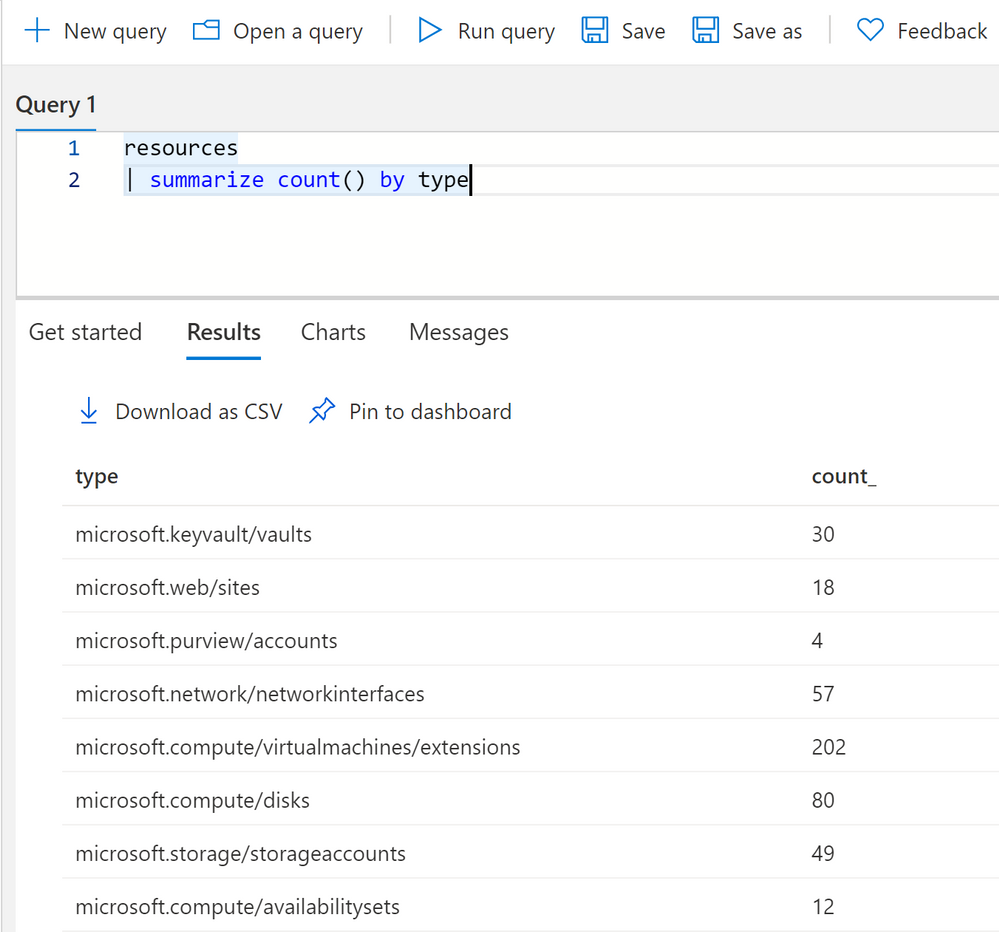
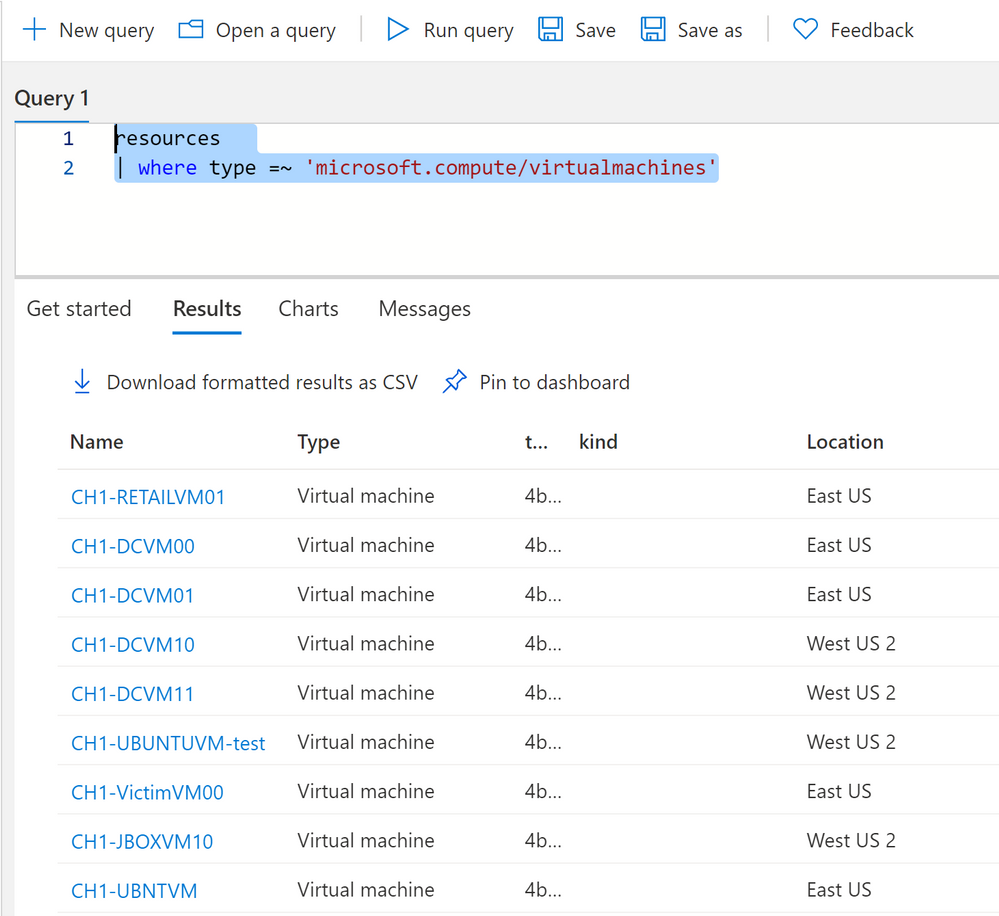
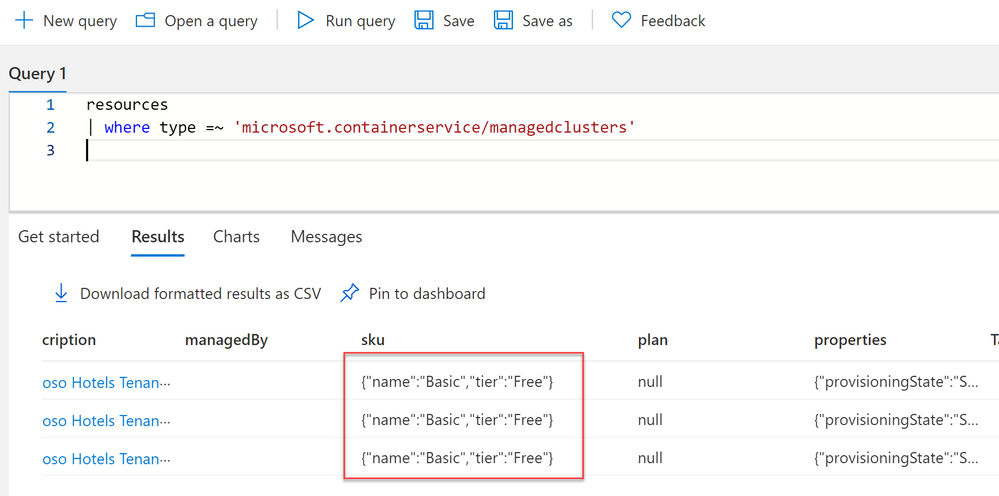
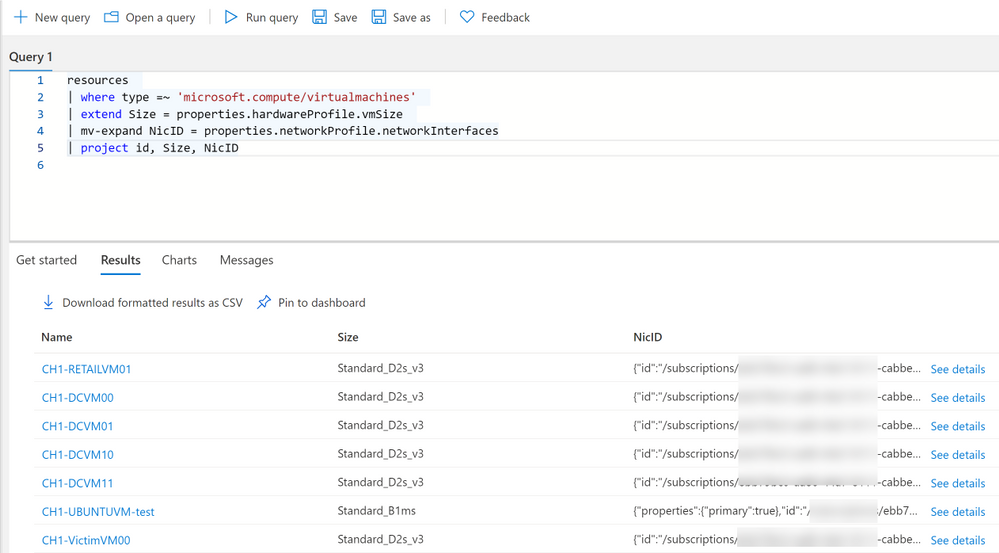
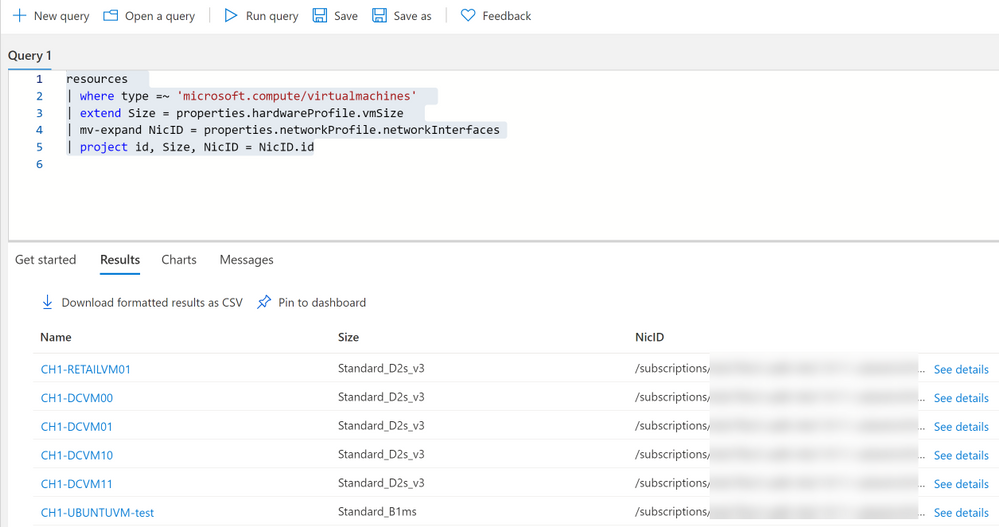
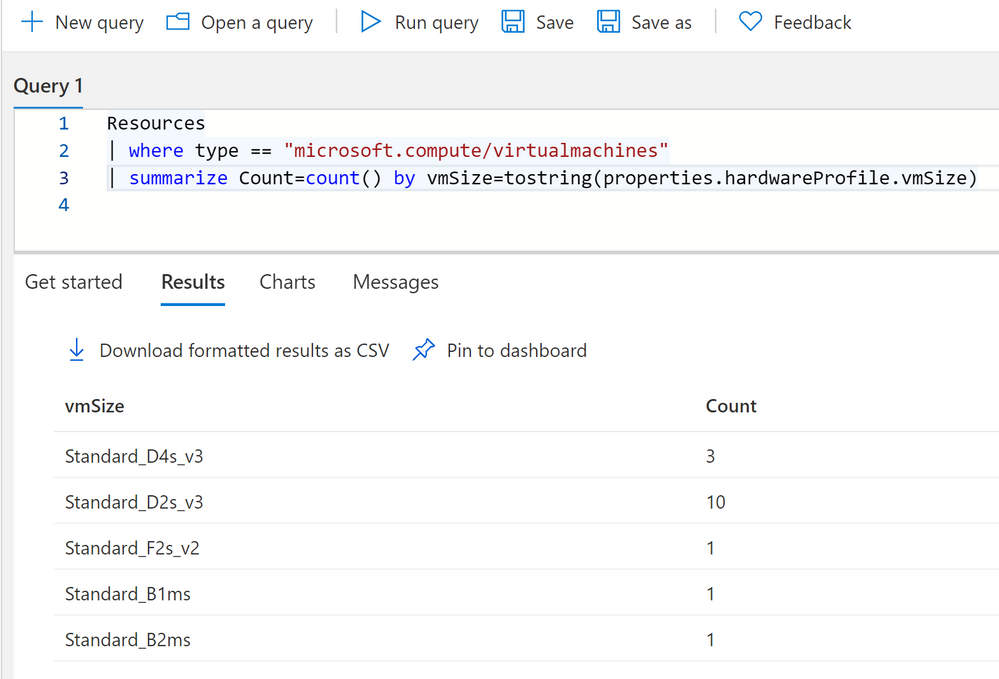
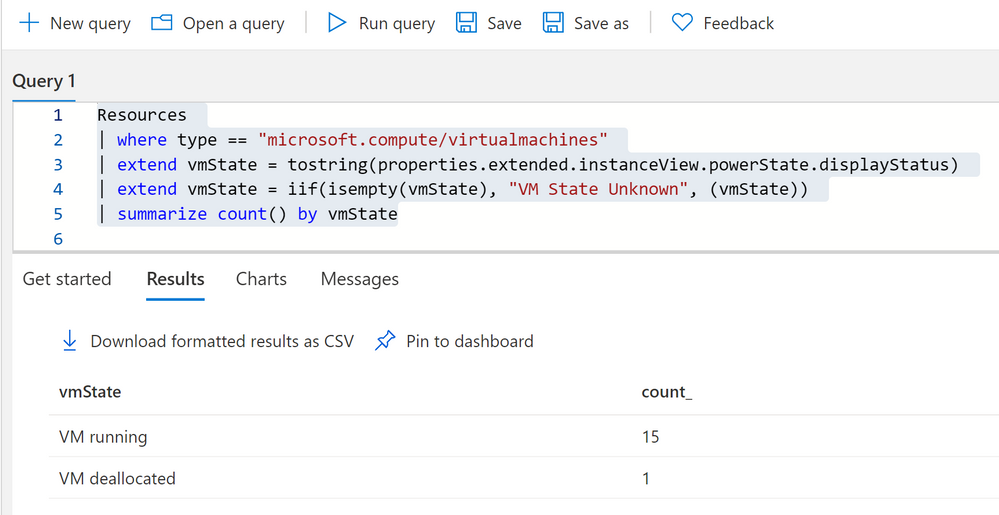
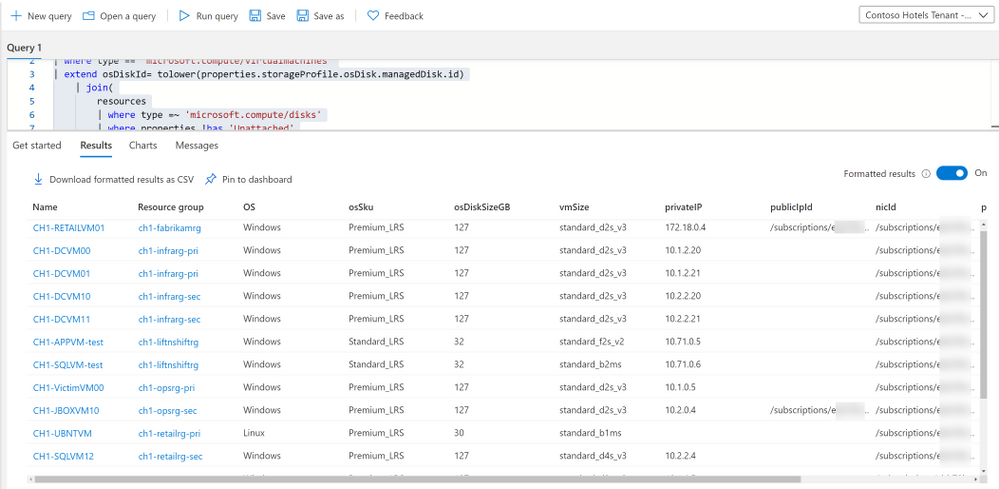
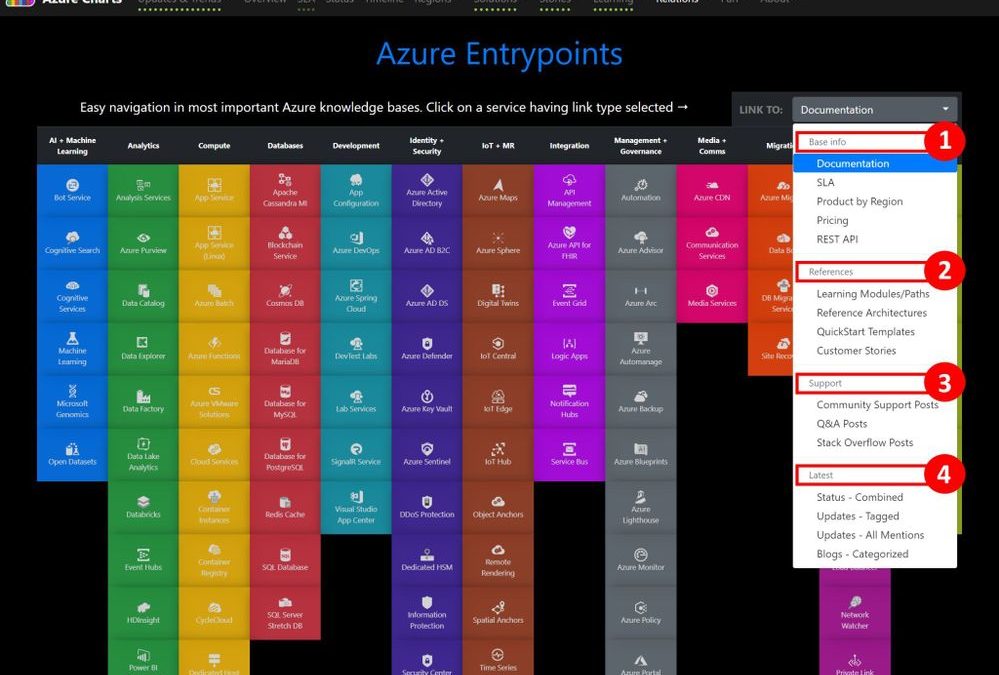



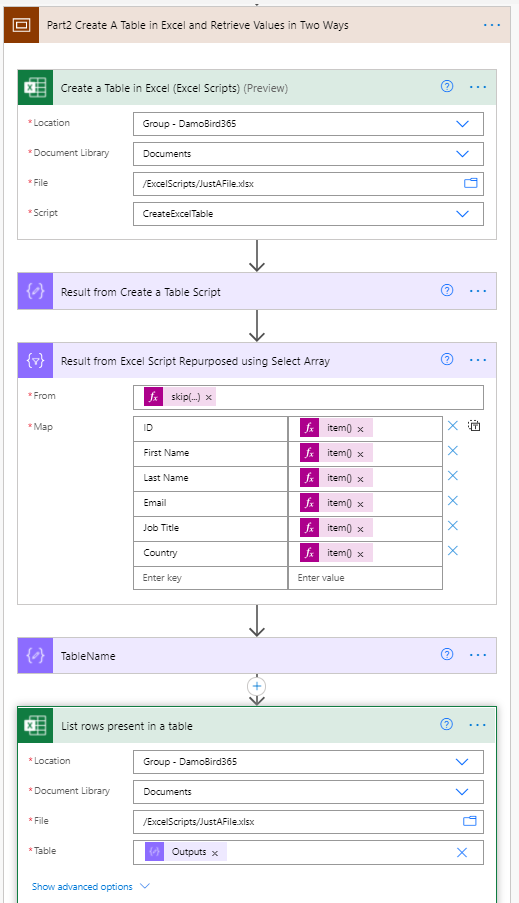


Recent Comments