by Scott Muniz | Jun 28, 2021 | Security, Technology
This article is contributed. See the original author and article here.
advantech — webaccess_hmi_designer
|
Opening a maliciously crafted project file may cause an out-of-bounds write, which may allow an attacker to execute arbitrary code. User interaction is require on the WebAccess HMI Designer (versions 2.1.9.95 and prior). |
2021-06-24 |
not yet calculated |
CVE-2021-33002
MISC |
advantech — webaccess_hmi_designer
|
Parsing a maliciously crafted project file may cause a heap-based buffer overflow, which may allow an attacker to perform arbitrary code execution. User interaction is required on the WebAccess HMI Designer (versions 2.1.9.95 and prior). |
2021-06-24 |
not yet calculated |
CVE-2021-33000
MISC |
advantech — webaccess_hmi_designer
|
The affected product is vulnerable to memory corruption condition due to lack of proper validation of user supplied files, which may allow an attacker to execute arbitrary code. User interaction is required on the WebAccess HMI Designer (versions 2.1.9.95 and prior). |
2021-06-24 |
not yet calculated |
CVE-2021-33004
MISC |
ampache — ampache
|
Ampache is an open source web based audio/video streaming application and file manager. Due to a lack of input filtering versions 4.x.y are vulnerable to code injection in random.php. The attack requires user authentication to access the random.php page unless the site is running in demo mode. This issue has been resolved in 4.4.3. |
2021-06-22 |
not yet calculated |
CVE-2021-32644
CONFIRM
MISC |
auth0 — auth0
|
The Auth0 Next.js SDK is a library for implementing user authentication in Next.js applications. Versions before and including `1.4.1` are vulnerable to reflected XSS. An attacker can execute arbitrary code by providing an XSS payload in the `error` query parameter which is then processed by the callback handler as an error message. You are affected by this vulnerability if you are using `@auth0/nextjs-auth0` version `1.4.1` or lower **unless** you are using custom error handling that does not return the error message in an HTML response. Upgrade to version `1.4.1` to resolve. The fix adds basic HTML escaping to the error message and it should not impact your users. |
2021-06-25 |
not yet calculated |
CVE-2021-32702
MISC
CONFIRM
MISC |
autodesk — autodesk_dwg
|
An Arbitrary Address Write issue in the Autodesk DWG application can allow a malicious user to leverage the application to write in unexpected paths. In order to exploit this the attacker would need the victim to enable full page heap in the application. |
2021-06-25 |
not yet calculated |
CVE-2021-27043
MISC |
autodesk — dwg
|
A maliciously crafted DWG file can be used to write beyond the allocated buffer while parsing DWG files. This vulnerability can be exploited to execute arbitrary code. |
2021-06-25 |
not yet calculated |
CVE-2021-27041
MISC |
autodesk — dwg
|
A maliciously crafted DWG file can be used to write beyond the allocated buffer while parsing DWG files. The vulnerability exists because the application fails to handle a crafted DWG file, which causes an unhandled exception. An attacker can leverage this vulnerability to execute arbitrary code. |
2021-06-25 |
not yet calculated |
CVE-2021-27042
MISC |
autodesk — dwg
|
A maliciously crafted DWG file can be forced to read beyond allocated boundaries when parsing the DWG file. This vulnerability can be exploited to execute arbitrary code. |
2021-06-25 |
not yet calculated |
CVE-2021-27040
MISC |
avaya — aura_appliance_virtualization_platform_utilities
|
A privilege escalation vulnerability was discovered in Avaya Aura Appliance Virtualization Platform Utilities (AVPU) that may potentially allow a local user to escalate privileges. Affects 8.0.0.0 through 8.1.3.1 versions of AVPU. |
2021-06-24 |
not yet calculated |
CVE-2021-25653
MISC |
avaya — aura_appliance_virtualization_platform_utilities
|
An information disclosure vulnerability was discovered in the directory and file management of Avaya Aura Appliance Virtualization Platform Utilities (AVPU). This vulnerability may potentially allow any local user to access system functionality and configuration information that should only be available to a privileged user. Affects versions 8.0.0.0 through 8.1.3.1 of AVPU. |
2021-06-24 |
not yet calculated |
CVE-2021-25652
MISC |
avaya — aura_device_services
|
An arbitrary code execution vulnerability was discovered in Avaya Aura Device Services that may potentially allow a local user to execute specially crafted scripts. Affects 7.0 through 8.1.4.0 versions of Avaya Aura Device Services. |
2021-06-25 |
not yet calculated |
CVE-2021-25654
MISC |
avaya — aura_experience_portal
|
A vulnerability in the system Service Menu component of Avaya Aura Experience Portal may allow URL Redirection to any untrusted site through a crafted attack. Affected versions include 7.0 through 7.2.3 (without hotfix) and 8.0.0 (without hotfix). |
2021-06-24 |
not yet calculated |
CVE-2021-25655
MISC |
avaya — aura_experience_portal_web
|
Stored XSS injection vulnerabilities were discovered in the Avaya Aura Experience Portal Web management which could allow an authenticated user to potentially disclose sensitive information. Affected versions include 7.0 through 7.2.3 (without hotfix) and 8.0.0 (without hotfix). |
2021-06-24 |
not yet calculated |
CVE-2021-25656
MISC |
avaya — aura_utility_services
|
** UNSUPPORTED WHEN ASSIGNED ** An information disclosure vulnerability was discovered in the directory and file management of Avaya Aura Utility Services. This vulnerability may potentially allow any local user to access system functionality and configuration information that should only be available to a privileged user. Affects all 7.x versions of Avaya Aura Utility Services. |
2021-06-24 |
not yet calculated |
CVE-2021-25649
MISC |
avaya — aura_utility_services
|
** UNSUPPORTED WHEN ASSIGNED ** A privilege escalation vulnerability was discovered in Avaya Aura Utility Services that may potentially allow a local user to execute specially crafted scripts as a privileged user. Affects all 7.x versions of Avaya Aura Utility Services. |
2021-06-24 |
not yet calculated |
CVE-2021-25650
MISC |
avaya — aura_utility_services
|
** UNSUPPORTED WHEN ASSIGNED ** A privilege escalation vulnerability was discovered in Avaya Aura Utility Services that may potentially allow a local user to escalate privileges. Affects all 7.x versions of Avaya Aura Utility Services. |
2021-06-24 |
not yet calculated |
CVE-2021-25651
MISC |
ballerina-platform — ballerina-lang
|
Ballerina is an open source programming language and platform for cloud application programmers. Ballerina versions 1.2.x and SL releases up to alpha 3 have a potential for a supply chain attack via MiTM against users. Http connections did not make use of TLS and certificate checking was ignored. The vulnerability allows an attacker to substitute or modify packages retrieved from BC thus allowing to inject malicious code into ballerina executables. This has been patched in Ballerina 1.2.14 and Ballerina SwanLake alpha4. |
2021-06-22 |
not yet calculated |
CVE-2021-32700
CONFIRM
MISC |
bitdefender — bitdefender_total_security
|
Improper Certificate Validation vulnerability in the Online Threat Prevention module as used in Bitdefender Total Security allows an attacker to potentially bypass HTTP Strict Transport Security (HSTS) checks. This issue affects: Bitdefender Total Security versions prior to 25.0.7.29. Bitdefender Internet Security versions prior to 25.0.7.29. Bitdefender Antivirus Plus versions prior to 25.0.7.29. |
2021-06-22 |
not yet calculated |
CVE-2020-15732
MISC |
bluetooth — bluetooth_core_specifications
|
Unencrypted Bluetooth Low Energy baseband links in Bluetooth Core Specifications 4.0 through 5.2 may permit an adjacent device to inject a crafted packet during the receive window of the listening device before the transmitting device initiates its packet transmission to achieve full MITM status without terminating the link. When applied against devices establishing or using encrypted links, crafted packets may be used to terminate an existing link, but will not compromise the confidentiality or integrity of the link. |
2021-06-25 |
not yet calculated |
CVE-2021-31615
MISC
MISC |
catfish_cms — catfish_cms
|
A cross site scripting (XSS) vulnerability in Catfish CMS 4.9.90 allows attackers to execute arbitrary web scripts or HTML via a crafted payload entered into the “announcement_gonggao” parameter. |
2021-06-23 |
not yet calculated |
CVE-2020-23962
MISC |
connectwise_automate — connectwise_automate
|
An XXE vulnerability exists in ConnectWise Automate before 2021.0.6.132. |
2021-06-21 |
not yet calculated |
CVE-2021-35066
MISC
MISC |
contao — contao
|
Contao 4.5.x through 4.9.x before 4.9.16, and 4.10.x through 4.11.x before 4.11.5, allows XSS. It is possible to inject code into the tl_log table that will be executed in the browser when the system log is called in the back end. |
2021-06-23 |
not yet calculated |
CVE-2021-35210
CONFIRM
CONFIRM |
crmeb — crmeb
|
CRMEB 3.1.0+ is vulnerable to File Upload Getshell via /crmeb/crmeb/services/UploadService.php. |
2021-06-24 |
not yet calculated |
CVE-2020-21787
MISC |
crmeb — crmeb
|
In CRMEB 3.1.0+ strict domain name filtering leads to SSRF(Server-Side Request Forgery). The vulnerable code is in file /crmeb/app/admin/controller/store/CopyTaobao.php. |
2021-06-24 |
not yet calculated |
CVE-2020-21788
MISC |
d-link — router
|
There is an arbitrary password modification vulnerability in a D-LINK DSL-2888A router product. An attacker can use this vulnerability to modify the password of the admin user without authorization. |
2021-06-24 |
not yet calculated |
CVE-2021-33346
MISC
MISC |
dell — biosconnect
|
Dell BIOSConnect feature contains a buffer overflow vulnerability. An authenticated malicious admin user with local access to the system may potentially exploit this vulnerability to run arbitrary code and bypass UEFI restrictions. |
2021-06-24 |
not yet calculated |
CVE-2021-21573
CONFIRM |
dell — biosconnect
|
Dell BIOSConnect feature contains a buffer overflow vulnerability. An authenticated malicious admin user with local access to the system may potentially exploit this vulnerability to run arbitrary code and bypass UEFI restrictions. |
2021-06-24 |
not yet calculated |
CVE-2021-21574
CONFIRM |
dell — biosconnect
|
Dell BIOSConnect feature contains a buffer overflow vulnerability. An authenticated malicious admin user with local access to the system may potentially exploit this vulnerability to run arbitrary code and bypass UEFI restrictions. |
2021-06-24 |
not yet calculated |
CVE-2021-21572
CONFIRM |
dell — uefi_bios
|
Dell UEFI BIOS https stack leveraged by the Dell BIOSConnect feature and Dell HTTPS Boot feature contains an improper certificate validation vulnerability. A remote unauthenticated attacker may exploit this vulnerability using a person-in-the-middle attack which may lead to a denial of service and payload tampering. |
2021-06-24 |
not yet calculated |
CVE-2021-21571
CONFIRM |
dhis2 — dhis2_core
|
DHIS 2 is an information system for data capture, management, validation, analytics and visualization. A SQL injection security vulnerability has been found in specific versions of DHIS2. This vulnerability affects the /api/trackedEntityInstances API endpoint in DHIS2 versions 2.34.4, 2.35.2, 2.35.3, 2.35.4, and 2.36.0. Earlier versions, such as 2.34.3 and 2.35.1 and all versions 2.33 and older are unaffected. The system is vulnerable to attack only from users that are logged in to DHIS2, and there is no known way of exploiting the vulnerability without first being logged in as a DHIS2 user. A successful exploit of this vulnerability could allow the malicious user to read, edit and delete data in the DHIS2 instance. There are no known exploits of the security vulnerabilities addressed by these patch releases. However, we strongly recommend that all DHIS2 implementations using versions 2.34, 2.35 and 2.36 install these patches as soon as possible. There is no straightforward known workaround for DHIS2 instances using the Tracker functionality other than upgrading the affected DHIS2 server to one of the patches in which this vulnerability has been fixed. For implementations which do NOT use Tracker functionality, it may be possible to block all network access to POST to the /api/trackedEntityInstance endpoint as a temporary workaround while waiting to upgrade. |
2021-06-24 |
not yet calculated |
CVE-2021-32704
CONFIRM |
djvulibre — djvulibre
|
A flaw was found in djvulibre-3.5.28 and earlier. An out of bounds write in function DJVU::filter_bv() via crafted djvu file may lead to application crash and other consequences. |
2021-06-24 |
not yet calculated |
CVE-2021-32490
MISC |
djvulibre — djvulibre
|
A flaw was found in djvulibre-3.5.28 and earlier. A heap buffer overflow in function DJVU::GBitmap::decode() via crafted djvu file may lead to application crash and other consequences. |
2021-06-24 |
not yet calculated |
CVE-2021-32493
MISC |
djvulibre — djvulibre
|
A flaw was found in djvulibre-3.5.28 and earlier. An out of bounds read in function DJVU::DataPool::has_data() via crafted djvu file may lead to application crash and other consequences. |
2021-06-24 |
not yet calculated |
CVE-2021-32492
MISC |
djvulibre — djvulibre
|
A flaw was found in djvulibre-3.5.28 and earlier. A Stack overflow in function DJVU::DjVuDocument::get_djvu_file() via crafted djvu file may lead to application crash and other consequences. |
2021-06-24 |
not yet calculated |
CVE-2021-3500
MISC |
djvulibre — djvulibre
|
A flaw was found in djvulibre-3.5.28 and earlier. An integer overflow in function render() in tools/ddjvu via crafted djvu file may lead to application crash and other consequences. |
2021-06-24 |
not yet calculated |
CVE-2021-32491
MISC |
eclipse — birt
|
In Eclipse BIRT versions 4.8.0 and earlier, an attacker can use query parameters to create a JSP file which is accessible from remote (current BIRT viewer dir) to inject JSP code into the running instance. |
2021-06-25 |
not yet calculated |
CVE-2021-34427
CONFIRM |
eclipse — jetty
|
For Eclipse Jetty versions <= 9.4.40, <= 10.0.2, <= 11.0.2, if an exception is thrown from the SessionListener#sessionDestroyed() method, then the session ID is not invalidated in the session ID manager. On deployments with clustered sessions and multiple contexts this can result in a session not being invalidated. This can result in an application used on a shared computer being left logged in. |
2021-06-22 |
not yet calculated |
CVE-2021-34428
CONFIRM
MLIST |
elabftw — elabftw
|
eLabFTW is an open source electronic lab notebook for research labs. This vulnerability allows an attacker to make GET requests on behalf of the server. It is “blind” because the attacker cannot see the result of the request. Issue has been patched in eLabFTW 4.0.0. |
2021-06-21 |
not yet calculated |
CVE-2021-32698
MISC
CONFIRM |
emote — interactive_remote_mouse
|
Emote Interactive Remote Mouse 3.008 on Windows allows attackers to execute arbitrary programs as Administrator by using the Image Transfer Folder feature to navigate to cmd.exe. It binds to local ports to listen for incoming connections. |
2021-06-24 |
not yet calculated |
CVE-2021-35448
MISC
MISC |
ethereum — ethereum
|
An issue was discovered in function addMeByRC in the smart contract implementation for RC, an Ethereum token, allows attackers to transfer an arbitrary amount of tokens to an arbitrary address. |
2021-06-24 |
not yet calculated |
CVE-2020-17753
MISC
MISC
MISC
MISC
MISC
MISC
MISC |
ethereum — ethereum
|
Integer overflow vulnerability in payable function of a smart contract implementation for an Ethereum token, as demonstrated by the smart contract implemented at address 0xB49E984A83d7A638E7F2889fc8328952BA951AbE, an implementation for MillionCoin (MON). |
2021-06-24 |
not yet calculated |
CVE-2020-17752
MISC
MISC |
etinet — backbox
|
ETINET BACKBOX E4.09 and H4.09 mismanages password access control. When a user uses the User ID of the process running BBSV to login to the Backbox UI application, the system procedure (USER_AUTHENTICATE_) used for verifying the Password returns 0 (no error). The reason is that the user is not running the XYGate application. Hence, BBSV assumes the Password is correct. For H4.09, the affected version isT0954V04^AAO. For E4.09, the affected version is 22SEP2020. |
2021-06-25 |
not yet calculated |
CVE-2021-33895
MISC
MISC |
etuna — ec-cube
|
Cross-site scripting vulnerability in ETUNA EC-CUBE plugins (Delivery slip number plugin (3.0 series) 1.0.10 and earlier, Delivery slip number csv bulk registration plugin (3.0 series) 1.0.8 and earlier, and Delivery slip number mail plugin (3.0 series) 1.0.8 and earlier) allows remote attackers to inject an arbitrary script by executing a specific operation on the management page of EC-CUBE. |
2021-06-22 |
not yet calculated |
CVE-2021-20735
MISC
MISC
MISC
MISC |
evernote — evernote
|
An issue was found in the Evernote client for Windows 10, 7, and 2008 in the protocol handler. This enables attackers for arbitrary command execution if the user clicks on a specially crafted URL. AKA: WINNOTE-19941. |
2021-06-24 |
not yet calculated |
CVE-2020-17759
MISC |
f-secure — f-secure
|
A Denial-of-Service (DoS) vulnerability was discovered in F-Secure Linux Security whereby the FSAVD component used in certain F-Secure products can crash while scanning larger packages/fuzzed files. The exploit can be triggered remotely by an attacker. A successful attack will result in Denial-of-Service (DoS) of the Anti-Virus engine. |
2021-06-21 |
not yet calculated |
CVE-2021-33572
MISC
MISC |
fidelis_network_and_deception — fidelis_network_and_deception_commandpost
|
Vulnerability in Fidelis Network and Deception CommandPost enables authenticated command injection through the web interface. The vulnerability could allow a specially crafted HTTP request to execute system commands on the CommandPost and return results in an HTTP response in an authenticated session. The vulnerability is present in Fidelis Network and Deception versions prior to 9.3.7 and in version 9.4. Patches and updates are available to address this vulnerability. |
2021-06-25 |
not yet calculated |
CVE-2021-35049
CONFIRM |
fidelis_network_and_deception — fidelis_network_and_deception_commandpost
|
User credentials stored in a recoverable format within Fidelis Network and Deception CommandPost. In the event that an attacker gains access to the CommandPost, these values could be decoded and used to login to the application. The vulnerability is present in Fidelis Network and Deception versions prior to 9.3.3. This vulnerability has been addressed in version 9.3.3 and subsequent versions. |
2021-06-25 |
not yet calculated |
CVE-2021-35050
CONFIRM |
fidelis_network_and_deception — fidelis_network_and_deception_commandpost
|
Vulnerability in the CommandPost, Collector, and Sensor components of Fidelis Network and Deception enables an attacker with user level access to the CLI to inject root level commands into the component and neighboring Fidelis components. The vulnerability is present in Fidelis Network and Deception versions prior to 9.3.7 and in version 9.4. Patches and updates are available to address this vulnerability. |
2021-06-25 |
not yet calculated |
CVE-2021-35047
CONFIRM |
fidelis_network_and_deception — fidelis_network_and_deception_commandpost
|
Vulnerability in Fidelis Network and Deception CommandPost enables unauthenticated SQL injection through the web interface. The vulnerability could lead to exposure of authentication tokens in some versions of Fidelis software. The vulnerability is present in Fidelis Network and Deception versions prior to 9.3.7 and in version 9.4. Patches and updates are available to address this vulnerability. |
2021-06-25 |
not yet calculated |
CVE-2021-35048
CONFIRM |
fisco-bcos — fisco-bcos
|
The blockchain node in FISCO-BCOS V2.7.2 may have a bug when dealing with unformatted packet and lead to a crash. A malicious node can send a packet continuously. The packet is in an incorrect format and cannot be decoded by the node correctly. As a result, the node may consume the memory sustainably and crash. More details are shown at: https://github.com/FISCO-BCOS/FISCO-BCOS/issues/1951 |
2021-06-24 |
not yet calculated |
CVE-2021-35041
MISC |
getsimplecms — getsimplecms
|
Remote Code Execution vulnerability in GetSimpleCMS before 3.3.16 in admin/upload.php via phar filess. |
2021-06-23 |
not yet calculated |
CVE-2021-28976
MISC |
getsimplecms — getsimplecms
|
Cross Site Scripting (XSS) vulnerability in GetSimpleCMS <= 3.3.15 in admin/changedata.php via the redirect_url parameter and the headers_sent function. |
2021-06-23 |
not yet calculated |
CVE-2020-18657
MISC
MISC
MISC |
getsimplecms — getsimplecms
|
GetSimpleCMS <=3.3.15 has an open redirect in admin/changedata.php via the redirect function to the url parameter. |
2021-06-23 |
not yet calculated |
CVE-2020-18660
MISC
MISC
MISC |
gnuboard5 — gnuboard5
|
SQL Injection vulnerability in gnuboard5 <=v5.3.2.8 via the table_prefix parameter in install_db.php. |
2021-06-24 |
not yet calculated |
CVE-2020-18662
MISC
MISC
MISC |
gnuboard5 — gnuboard5
|
Cross Site Scripting (XSS) vulnerability in gnuboard5 <=v5.3.2.8 via the act parameter in bbs/move_update.php. |
2021-06-24 |
not yet calculated |
CVE-2020-18663
MISC
MISC
MISC |
gnuboard5 — gnuboard5
|
Cross Site Scripting (XSS) vulnerability in gnuboard5 <=v5.3.2.8 via the url parameter to bbs/login.php. |
2021-06-24 |
not yet calculated |
CVE-2020-18661
MISC
MISC
MISC |
google — android
|
Improper authorization in handler for custom URL scheme vulnerability in ????????? (asken diet) for Android versions from v.3.0.0 to v.4.2.x allows a remote attacker to lead a user to access an arbitrary website via the vulnerable App. |
2021-06-22 |
not yet calculated |
CVE-2021-20733
MISC
MISC |
helpu — helpu
|
A vulnerability in agent program of HelpU remote control solution could allow an authenticated remote attacker to execute arbitrary commands This vulnerability is due to insufficient input sanitization when communicating customer process. |
2021-06-24 |
not yet calculated |
CVE-2020-7862
MISC
MISC |
hitachi — application_server_help_server
|
Cross-site scripting vulnerability in Hitachi Application Server Help (Hitachi Application Server V10 Manual (Windows) version 10-11-01 and earlier and Hitachi Application Server V10 Manual (UNIX) version 10-11-01 and earlier) allows a remote attacker to inject an arbitrary script via unspecified vectors. |
2021-06-22 |
not yet calculated |
CVE-2021-20741
MISC
MISC |
hpe — oneview_global_dashboard
|
A potential vulnerability has been identified in HPE OneView Global Dashboard release 2.31 which could lead to a local disclosure of privileged information. HPE has provided an update to OneView Global Dashboard. The issue is resolved in 2.32. |
2021-06-24 |
not yet calculated |
CVE-2021-26585
MISC |
| huawei — multiple products |
There is an improper authorization vulnerability in eCNS280 V100R005C00, V100R005C10 and eSE620X vESS V100R001C10SPC200, V100R001C20SPC200. A file access is not authorized correctly. Attacker with low access may launch privilege escalation in a specific scenario. This may compromise the normal service. |
2021-06-22 |
not yet calculated |
CVE-2021-22361
MISC |
huawei — multiple products
|
There is an information leak vulnerability in Huawei products. A module does not deal with specific input sufficiently. High privilege attackers can exploit this vulnerability by performing some operations. This can lead to information leak. Affected product versions include: IPS Module versions V500R005C00, V500R005C10, V500R005C20; NGFW Module versions V500R005C00,V500R005C10, V500R005C20; SeMG9811 versions V500R005C00; USG9500 versions V500R001C00, V500R001C20, V500R001C30, V500R001C50, V500R001C60, V500R001C80, V500R005C00, V500R005C10, V500R005C20. |
2021-06-22 |
not yet calculated |
CVE-2021-22342
MISC |
huawei — multiple products
|
There is an out-of-bounds read vulnerability in eCNS280_TD V100R005C10 and eSE620X vESS V100R001C10SPC200, V100R001C20SPC200, V200R001C00SPC300. The vulnerability is due to a message-handling function that contains an out-of-bounds read vulnerability. An attacker can exploit this vulnerability by sending a specific message to the target device, which could cause a Denial of Service (DoS). |
2021-06-22 |
not yet calculated |
CVE-2021-22383
MISC |
huawei — multiple products
|
Huawei LTE USB Dongle products have an improper permission assignment vulnerability. An attacker can locally access and log in to a PC to induce a user to install a specially crafted application. After successfully exploiting this vulnerability, the attacker can perform unauthenticated operations. Affected product versions include:E3372 E3372h-153TCPU-V200R002B333D01SP00C00. |
2021-06-22 |
not yet calculated |
CVE-2021-22382
MISC |
huawei — multiple products
|
There is a race condition vulnerability in eCNS280_TD V100R005C00 and V100R005C10. There is a timing window exists in which the database can be operated by another thread that is operating concurrently. Successful exploit may cause the affected device abnormal. |
2021-06-22 |
not yet calculated |
CVE-2021-22378
MISC |
huawei — multiple products
|
There is a command injection vulnerability in S12700 V200R019C00SPC500, S2700 V200R019C00SPC500, S5700 V200R019C00SPC500, S6700 V200R019C00SPC500 and S7700 V200R019C00SPC500. A module does not verify specific input sufficiently. Attackers can exploit this vulnerability by sending malicious parameters to inject command. This can compromise normal service. |
2021-06-22 |
not yet calculated |
CVE-2021-22377
MISC |
huawei — multiple products
|
There is an out-of-bounds read vulnerability in eSE620X vESS V100R001C10SPC200, V100R001C20SPC200, V200R001C00SPC300. The vulnerability is due to a function that handles an internal message contains an out-of-bounds read vulnerability. An attacker could crafted messages between system process, successful exploit could cause Denial of Service (DoS). |
2021-06-22 |
not yet calculated |
CVE-2021-22366
MISC |
huawei — multiple products
|
There is an out of bounds read vulnerability in eSE620X vESS V100R001C10SPC200, V100R001C20SPC200, V200R001C00SPC300. A local attacker can exploit this vulnerability by sending specific message to the target device. Due to insufficient validation of internal message, successful exploit may cause the process and the service abnormal. |
2021-06-22 |
not yet calculated |
CVE-2021-22365
MISC |
huawei — multiple products
|
There is a resource management error vulnerability in eCNS280_TD V100R005C10SPC650. An attacker needs to perform specific operations to exploit the vulnerability on the affected device. Due to improper resource management of the function, the vulnerability can be exploited to cause service abnormal on affected devices. |
2021-06-22 |
not yet calculated |
CVE-2021-22363
MISC |
ibm — db2
|
IBM Db2 for Linux, UNIX and Windows (includes Db2 Connect Server) 11.5 could allow a local user to access and change the configuration of Db2 due to a race condition of a symbolic link,. IBM X-Force ID: 190909. |
2021-06-24 |
not yet calculated |
CVE-2020-4885
CONFIRM
XF |
ibm — db2
|
IBM Db2 for Linux, UNIX and Windows (includes Db2 Connect Server) 9.7, 10.1, 10.5, 11.1, and 11.5, under specific circumstance of a table being dropped while being accessed in another session, could allow an authenticated user to cause a denial of service IBM X-Force ID: 203031. |
2021-06-24 |
not yet calculated |
CVE-2021-29777
XF
CONFIRM |
ibm — db2
|
Db2 for Linux, UNIX and Windows (includes Db2 Connect Server) is vulnerable to a denial of service as the server terminates abnormally when executing a specially crafted SELECT statement. IBM X-Force ID: 200659. |
2021-06-24 |
not yet calculated |
CVE-2021-29703
CONFIRM
XF |
ibm — db2
|
IBM Db2 for Linux, UNIX and Windows (includes Db2 Connect Server) 9.7, 10.1, 10.5, 11.1, and 11.5 could allow a user who can create a view or inline SQL function to obtain sensitive information when AUTO_REVAL is set to DEFFERED_FORCE. IBM X-Force ID: 199283. |
2021-06-24 |
not yet calculated |
CVE-2021-20579
XF
CONFIRM |
ibm — db2
|
IBM Db2 for Linux, UNIX and Windows (includes Db2 Connect Server) 11.5 could allow an authenticated user to overwrite arbitrary files due to improper group permissions. IBM X-Force ID: 191945. |
2021-06-24 |
not yet calculated |
CVE-2020-4945
XF
CONFIRM |
ibm — security_sevret_server
|
IBM Security Sevret Server (IBM Security Verify Privilege Manager 10.8.2) is vulnerable to a buffer overflow, caused by improper bounds checking. A local attacker could overflow a buffer and execute arbitrary code on the system or cause the system to crash. IBM X-Force ID: 184917. |
2021-06-25 |
not yet calculated |
CVE-2020-4609
XF
CONFIRM |
ibm — security_sevret_server
|
IBM Security Sevret Server (IBM Security Verify Privilege Manager 10.8.2 ) could allow a local user to execute code due to improper integrity checks. IBM X-Force ID: 184919. |
2021-06-25 |
not yet calculated |
CVE-2020-4610
XF
CONFIRM |
ibm — security_verify
|
IBM Security Verify (IBM Security Verify Privilege Vault 10.9.66) is vulnerable to link injection. By persuading a victim to click on a specially-crafted URL link, a remote attacker could exploit this vulnerability to conduct various attacks against the vulnerable system, including cross-site scripting, cache poisoning or session hijacking |
2021-06-25 |
not yet calculated |
CVE-2021-29676
XF
CONFIRM |
ibm — security_verify
|
IBM Security Verify (IBM Security Verify Privilege Vault 10.9.66) is vulnerable to cross-site scripting. This vulnerability allows users to embed arbitrary JavaScript code in the Web UI thus altering the intended functionality potentially leading to credentials disclosure within a trusted session. |
2021-06-25 |
not yet calculated |
CVE-2021-29677
CONFIRM
XF |
ibm — security_verify
|
IBM Security Verify (IBM Security Verify Privilege Vault 10.9.66) could disclose sensitive information through an HTTP GET request by a privileged user due to improper input validation.. IBM X-Force ID: 199396. |
2021-06-25 |
not yet calculated |
CVE-2021-20583
XF
CONFIRM |
ibos — ibos
|
In IBOS 4.5.4 Open, Arbitrary File Inclusion causes getshell via /system/modules/dashboard/controllers/CronController.php. |
2021-06-24 |
not yet calculated |
CVE-2020-21786
MISC |
ibos — ibos
|
In IBOS 4.5.4 the email function has a cross site scripting (XSS) vulnerability in emailbody[content] parameter. |
2021-06-24 |
not yet calculated |
CVE-2020-21783
MISC |
ibos– ibos
|
In IBOS 4.5.4 Open, the database backup has Command Injection Vulnerability. |
2021-06-24 |
not yet calculated |
CVE-2020-21785
MISC |
imagemagick — imagemagick
|
ImageMagick 7.0.11-14 has a memory leak in AcquireSemaphoreMemory in semaphore.c and AcquireMagickMemory in memory.c. |
2021-06-25 |
not yet calculated |
CVE-2021-34183
CONFIRM |
jfinal — jfinal
|
In applications using jfinal 4.9.08 and below, there is a deserialization vulnerability when using redis,may be vulnerable to remote code execute |
2021-06-24 |
not yet calculated |
CVE-2021-31649
MISC
MISC |
jfinal — jfinal
|
An issue was discovered in JFinal framework v4.9.10 and below. The “set” method of the “Controller” class of jfinal framework is not strictly filtered, which will lead to XSS vulnerabilities in some cases. |
2021-06-24 |
not yet calculated |
CVE-2021-33348
MISC |
johnson_controls — exacqvision_enterprise_manager
|
exacqVision Enterprise Manager 20.12 does not sufficiently validate, filter, escape, and/or encode user-controllable input before it is placed in output that is used as a web page that is served to other users. |
2021-06-24 |
not yet calculated |
CVE-2021-27658
CERT
CONFIRM |
johnson_controls — exacqvision_web_service
|
exacqVision Web Service 21.03 does not sufficiently validate, filter, escape, and/or encode user-controllable input before it is placed in output that is used as a web page that is served to other users. |
2021-06-24 |
not yet calculated |
CVE-2021-27659
CERT
CONFIRM |
league — flysystem
|
Flysystem is an open source file storage library for PHP. The whitespace normalisation using in 1.x and 2.x removes any unicode whitespace. Under certain specific conditions this could potentially allow a malicious user to execute code remotely. The conditions are: A user is allowed to supply the path or filename of an uploaded file, the supplied path or filename is not checked against unicode chars, the supplied pathname checked against an extension deny-list, not an allow-list, the supplied path or filename contains a unicode whitespace char in the extension, the uploaded file is stored in a directory that allows PHP code to be executed. Given these conditions are met a user can upload and execute arbitrary code on the system under attack. The unicode whitespace removal has been replaced with a rejection (exception). For 1.x users, upgrade to 1.1.4. For 2.x users, upgrade to 2.1.1. |
2021-06-24 |
not yet calculated |
CVE-2021-32708
MISC
MISC
CONFIRM
MISC |
linux — linux_kernel
|
In kernel/bpf/verifier.c in the Linux kernel before 5.12.13, a branch can be mispredicted (e.g., because of type confusion) and consequently an unprivileged BPF program can read arbitrary memory locations via a side-channel attack, aka CID-9183671af6db. |
2021-06-23 |
not yet calculated |
CVE-2021-33624
MISC
CONFIRM
CONFIRM |
linux — linux_kernel
|
The vgacon subsystem in the Linux kernel before 5.8.10 mishandles software scrollback. There is a vgacon_scrolldelta out-of-bounds read, aka CID-973c096f6a85. |
2021-06-24 |
not yet calculated |
CVE-2020-28097
MISC
MISC
MISC
MISC |
mackron — miniaudio
|
Miniaudio 0.10.35 has a Double free vulnerability that could cause a buffer overflow in ma_default_vfs_close__stdio in miniaudio.h. |
2021-06-25 |
not yet calculated |
CVE-2021-34184
CONFIRM |
mackron — miniaudio
|
Miniaudio 0.10.35 has an integer-based buffer overflow caused by an out-of-bounds left shift in drwav_bytes_to_u32 in miniaudio.h |
2021-06-25 |
not yet calculated |
CVE-2021-34185
CONFIRM |
misp — misp
|
app/View/Elements/genericElements/IndexTable/Fields/generic_field.ctp in MISP 2.4.144 does not sanitize certain data related to generic-template:index. |
2021-06-25 |
not yet calculated |
CVE-2021-35502
MISC |
mongo-express — mongo-express
|
mongo-express is a web-based MongoDB admin interface, written with Node.js and express. 1: As mentioned in this issue: https://github.com/mongo-express/mongo-express/issues/577, when the content of a cell grows larger than supported size, clicking on a row will show full document unescaped, however this needs admin interaction on cell. 2: Data cells identified as media will be rendered as media, without being sanitized. Example of different renders: image, audio, video, etc. As an example of type 1 attack, an unauthorized user who only can send a large amount of data in a field of a document may use a payload with embedded javascript. This could send an export of a collection to the attacker without even an admin knowing. Other types of attacks such as dropping a databasecollection are possible. |
2021-06-21 |
not yet calculated |
CVE-2021-21422
MISC
CONFIRM
MISC |
moodle — moodle
|
A command execution vulnerability exists in the default legacy spellchecker plugin in Moodle 3.10. A specially crafted series of HTTP requests can lead to command execution. An attacker must have administrator privileges to exploit this vulnerabilities. |
2021-06-23 |
not yet calculated |
CVE-2021-21809
MISC |
| mozilla — firefox |
A compromised content process could have performed session history manipulations it should not have been able to due to testing infrastructure that was not restricted to testing-only configurations. This vulnerability affects Firefox < 88. |
2021-06-24 |
not yet calculated |
CVE-2021-24001
MISC
MISC |
| mozilla — firefox |
A race condition with requestPointerLock() and setTimeout() could have resulted in a user interacting with one tab when they believed they were on a separate tab. In conjunction with certain elements (such as <input type=”file”>) this could have led to an attack where a user was confused about the origin of the webpage and potentially disclosed information they did not intend to. This vulnerability affects Firefox < 88. |
2021-06-24 |
not yet calculated |
CVE-2021-24000
MISC
MISC |
mozilla — firefox
|
By utilizing 3D CSS in conjunction with Javascript, content could have been rendered outside the webpage’s viewport, resulting in a spoofing attack that could have been used for phishing or other attacks on a user. This vulnerability affects Firefox < 88. |
2021-06-24 |
not yet calculated |
CVE-2021-23996
MISC
MISC |
mozilla — firefox
|
Address bar search suggestions in private browsing mode were re-using session data from normal mode. *This bug only affects Firefox for Android. Other operating systems are unaffected.*. This vulnerability affects Firefox < 89. |
2021-06-24 |
not yet calculated |
CVE-2021-29963
MISC
MISC |
mozilla — firefox
|
Due to unexpected data type conversions, a use-after-free could have occurred when interacting with the font cache. We presume that with enough effort this could have been exploited to run arbitrary code. This vulnerability affects Firefox < 88. |
2021-06-24 |
not yet calculated |
CVE-2021-23997
MISC
MISC |
mozilla — firefox
|
When styling and rendering an oversized `<select>` element, Firefox did not apply correct clipping which allowed an attacker to paint over the user interface. This vulnerability affects Firefox < 89. |
2021-06-24 |
not yet calculated |
CVE-2021-29961
MISC
MISC |
mozilla — firefox
|
Firefox used to cache the last filename used for printing a file. When generating a filename for printing, Firefox usually suggests the web page title. The caching and suggestion techniques combined may have lead to the title of a website visited during private browsing mode being stored on disk. This vulnerability affects Firefox < 89. |
2021-06-24 |
not yet calculated |
CVE-2021-29960
MISC
MISC |
mozilla — firefox
|
Lack of escaping allowed HTML injection when a webpage was viewed in Reader View. While a Content Security Policy prevents direct code execution, HTML injection is still possible. *Note: This issue only affected Firefox for Android. Other operating systems are unaffected.*. This vulnerability affects Firefox < 88. |
2021-06-24 |
not yet calculated |
CVE-2021-29944
MISC
MISC |
mozilla — firefox
|
When a user has already allowed a website to access microphone and camera, disabling camera sharing would not fully prevent the website from re-enabling it without an additional prompt. This was only possible if the website kept recording with the microphone until re-enabling the camera. This vulnerability affects Firefox < 89. |
2021-06-24 |
not yet calculated |
CVE-2021-29959
MISC
MISC |
mozilla — firefox
|
A transient execution vulnerability, named Floating Point Value Injection (FPVI) allowed an attacker to leak arbitrary memory addresses and may have also enabled JIT type confusion attacks. (A related vulnerability, Speculative Code Store Bypass (SCSB), did not affect Firefox.). This vulnerability affects Firefox ESR < 78.9 and Firefox < 87. |
2021-06-24 |
not yet calculated |
CVE-2021-29955
MISC
MISC
MISC |
mozilla — firefox
|
A malicious website that causes an HTTP Authentication dialog to be spawned could trick the built-in password manager to suggest passwords for the currently active website instead of the website that triggered the dialog. *This bug only affects Firefox for Android. Other operating systems are unaffected.*. This vulnerability affects Firefox < 89. |
2021-06-24 |
not yet calculated |
CVE-2021-29965
MISC
MISC |
| mozilla — firefox_esr_thunderbird_and_firefox |
If a Blob URL was loaded through some unusual user interaction, it could have been loaded by the System Principal and granted additional privileges that should not be granted to web content. This vulnerability affects Firefox ESR < 78.10, Thunderbird < 78.10, and Firefox < 88. |
2021-06-24 |
not yet calculated |
CVE-2021-23999
MISC
MISC
MISC
MISC |
| mozilla — firefox_esr_thunderbird_and_firefox |
A WebGL framebuffer was not initialized early enough, resulting in memory corruption and an out of bound write. This vulnerability affects Firefox ESR < 78.10, Thunderbird < 78.10, and Firefox < 88. |
2021-06-24 |
not yet calculated |
CVE-2021-23994
MISC
MISC
MISC
MISC |
| mozilla — firefox_esr_thunderbird_and_firefox |
When a user clicked on an FTP URL containing encoded newline characters (%0A and %0D), the newlines would have been interpreted as such and allowed arbitrary commands to be sent to the FTP server. This vulnerability affects Firefox ESR < 78.10, Thunderbird < 78.10, and Firefox < 88. |
2021-06-24 |
not yet calculated |
CVE-2021-24002
MISC
MISC
MISC
MISC |
| mozilla — firefox_esr_thunderbird_and_firefox |
When Responsive Design Mode was enabled, it used references to objects that were previously freed. We presume that with enough effort this could have been exploited to run arbitrary code. This vulnerability affects Firefox ESR < 78.10, Thunderbird < 78.10, and Firefox < 88. |
2021-06-24 |
not yet calculated |
CVE-2021-23995
MISC
MISC
MISC
MISC |
mozilla — firefox_esr_thunderbird_and_firefox
|
Through complicated navigations with new windows, an HTTP page could have inherited a secure lock icon from an HTTPS page. This vulnerability affects Firefox ESR < 78.10, Thunderbird < 78.10, and Firefox < 88. |
2021-06-24 |
not yet calculated |
CVE-2021-23998
MISC
MISC
MISC
MISC |
mozilla — firefox_esr_thunderbird_and_firefox
|
The WebAssembly JIT could miscalculate the size of a return type, which could lead to a null read and result in a crash. *Note: This issue only affected x86-32 platforms. Other platforms are unaffected.*. This vulnerability affects Firefox ESR < 78.10, Thunderbird < 78.10, and Firefox < 88. |
2021-06-24 |
not yet calculated |
CVE-2021-29945
MISC
MISC
MISC
MISC |
mozilla — firefox_for_android
|
A malicious webpage could have forced a Firefox for Android user into executing attacker-controlled JavaScript in the context of another domain, resulting in a Universal Cross-Site Scripting vulnerability. *Note: This issue only affected Firefox for Android. Other operating systems are unaffected. Further details are being temporarily withheld to allow users an opportunity to update.*. This vulnerability affects Firefox < 88.0.1 and Firefox for Android < 88.1.3. |
2021-06-24 |
not yet calculated |
CVE-2021-29953
MISC
MISC |
mozilla — hubs_cloud
|
Proxy functionality built into Hubs Cloud’s Reticulum software allowed access to internal URLs, including the metadata service. This vulnerability affects Hubs Cloud < mozillareality/reticulum/1.0.1/20210428201255. |
2021-06-24 |
not yet calculated |
CVE-2021-29954
MISC
MISC |
| mozilla — thunderbird |
An attacker may perform a DoS attack to prevent a user from sending encrypted email to a correspondent. If an attacker creates a crafted OpenPGP key with a subkey that has an invalid self signature, and the Thunderbird user imports the crafted key, then Thunderbird may try to use the invalid subkey, but the RNP library rejects it from being used, causing encryption to fail. This vulnerability affects Thunderbird < 78.9.1. |
2021-06-24 |
not yet calculated |
CVE-2021-23993
MISC
MISC |
| mozilla — thunderbird |
Thunderbird did not check if the user ID associated with an OpenPGP key has a valid self signature. An attacker may create a crafted version of an OpenPGP key, by either replacing the original user ID, or by adding another user ID. If Thunderbird imports and accepts the crafted key, the Thunderbird user may falsely conclude that the false user ID belongs to the correspondent. This vulnerability affects Thunderbird < 78.9.1. |
2021-06-24 |
not yet calculated |
CVE-2021-23992
MISC
MISC |
mozilla — thunderbird
|
Signatures are written to disk before and read during verification, which might be subject to a race condition when a malicious local process or user is replacing the file. This vulnerability affects Thunderbird < 78.10. |
2021-06-24 |
not yet calculated |
CVE-2021-29948
MISC
MISC |
mozilla — thunderbird
|
OpenPGP secret keys that were imported using Thunderbird version 78.8.1 up to version 78.10.1 were stored unencrypted on the user’s local disk. The master password protection was inactive for those keys. Version 78.10.2 will restore the protection mechanism for newly imported keys, and will automatically protect keys that had been imported using affected Thunderbird versions. This vulnerability affects Thunderbird < 78.10.2. |
2021-06-24 |
not yet calculated |
CVE-2021-29956
MISC
MISC |
mozilla — thunderbird
|
If a MIME encoded email contains an OpenPGP inline signed or encrypted message part, but also contains an additional unprotected part, Thunderbird did not indicate that only parts of the message are protected. This vulnerability affects Thunderbird < 78.10.2. |
2021-06-24 |
not yet calculated |
CVE-2021-29957
MISC
MISC |
mozilla — thunderbird
|
If a Thunderbird user has previously imported Alice’s OpenPGP key, and Alice has extended the validity period of her key, but Alice’s updated key has not yet been imported, an attacker may send an email containing a crafted version of Alice’s key with an invalid subkey, Thunderbird might subsequently attempt to use the invalid subkey, and will fail to send encrypted email to Alice. This vulnerability affects Thunderbird < 78.9.1. |
2021-06-24 |
not yet calculated |
CVE-2021-23991
MISC
MISC |
mozilla — thunderbird
|
When loading the shared library that provides the OTR protocol implementation, Thunderbird will initially attempt to open it using a filename that isn’t distributed by Thunderbird. If a computer has already been infected with a malicious library of the alternative filename, and the malicious library has been copied to a directory that is contained in the search path for executable libraries, then Thunderbird will load the incorrect library. This vulnerability affects Thunderbird < 78.9.1. |
2021-06-24 |
not yet calculated |
CVE-2021-29949
MISC
MISC |
mozilla — thunderbird_ firefox_and_firefox_esr
|
A locally-installed hostile program could send `WM_COPYDATA` messages that Firefox would process incorrectly, leading to an out-of-bounds read. *This bug only affects Firefox on Windows. Other operating systems are unaffected.*. This vulnerability affects Thunderbird < 78.11, Firefox < 89, and Firefox ESR < 78.11. |
2021-06-24 |
not yet calculated |
CVE-2021-29964
MISC
MISC
MISC
MISC |
mozilla — thunderbird_firefox_and_firefox_esr
|
The Mozilla Maintenance Service granted SERVICE_START access to BUILTIN|Users which, in a domain network, grants normal remote users access to start or stop the service. This could be used to prevent the browser update service from operating (if an attacker spammed the ‘Stop’ command); but also exposed attack surface in the maintenance service. *Note: This issue only affected Windows operating systems older than Win 10 build 1709. Other operating systems are unaffected.*. This vulnerability affects Thunderbird < 78.10.1, Firefox < 87, and Firefox ESR < 78.10.1. |
2021-06-24 |
not yet calculated |
CVE-2021-29951
MISC
MISC
MISC
MISC |
msi_dragon_center — msi_dragon_center
|
MODAPI.sys in MSI Dragon Center 2.0.104.0 allows low-privileged users to access kernel memory and potentially escalate privileges via a crafted IOCTL 0x9c406104 call. This IOCTL provides the MmMapIoSpace feature for mapping physical memory. |
2021-06-21 |
not yet calculated |
CVE-2021-29337
MISC |
myq_x_smart — myq_server
|
MyQ Server in MyQ X Smart before 8.2 allows remote code execution by unprivileged users because administrative session data can be read in the %PROGRAMFILES%MyQPHPSessions directory. The “Select server file” feature is only intended for administrators but actually does not require authorization. An attacker can inject arbitrary OS commands (such as commands to create new .php files) via the Task Scheduler component. |
2021-06-21 |
not yet calculated |
CVE-2021-31769
MISC |
neos — form
|
neos/forms is an open source framework to build web forms. By crafting a special `GET` request containing a valid form state, a form can be submitted without invoking any validators. Form state is secured with an HMAC that is still verified. That means that this issue can only be exploited if Form Finishers cause side effects even if no form values have been sent. Form Finishers can be adjusted in a way that they only execute an action if the submitted form contains some expected data. Alternatively a custom Finisher can be added as first finisher. This regression was introduced with https://github.com/neos/form/commit/049d415295be8d4a0478ccba97dba1bb81649567 |
2021-06-21 |
not yet calculated |
CVE-2021-32697
MISC
MISC
MISC
CONFIRM
MISC |
nvidia — geforce_experience
|
NVIDIA GeForce Experience, all versions prior to 3.23, contains a vulnerability where, if a user clicks on a maliciously formatted link that opens the GeForce Experience login page in a new browser tab instead of the GeForce Experience application and enters their login information, the malicious site can get access to the token of the user login session. Such an attack may lead to these targeted users’ data being accessed, altered, or lost. |
2021-06-25 |
not yet calculated |
CVE-2021-1073
CONFIRM |
nvidia — nvidia_mb2
|
Bootloader contains a vulnerability in NVIDIA MB2, which may cause free-the-wrong-heap, which may lead to limited denial of service. |
2021-06-22 |
not yet calculated |
CVE-2021-34397
CONFIRM |
nvidia — nvidia_mb2
|
Bootloader contains a vulnerability in access permission settings where unauthorized software may be able to overwrite NVIDIA MB2 code, which would result in limited denial of service. |
2021-06-22 |
not yet calculated |
CVE-2021-34396
CONFIRM |
nvidia — trusty
|
Trusty (the trusted OS produced by NVIDIA for Jetson devices) driver contains a vulnerability in the NVIDIA OTE protocol message parsing code where an integer overflow in a malloc() size calculation leads to a buffer overflow on the heap, which might result in information disclosure, escalation of privileges, and denial of service. |
2021-06-22 |
not yet calculated |
CVE-2021-34372
CONFIRM |
nvidia — trusty
|
Trusty TLK contains a vulnerability in the NVIDIA TLK kernel function where a lack of checks allows the exploitation of an integer overflow on the size parameter of the tz_map_shared_mem function. |
2021-06-22 |
not yet calculated |
CVE-2021-34390
CONFIRM |
nvidia — trusty
|
Trusty TLK contains a vulnerability in the NVIDIA TLK kernel�s tz_handle_trusted_app_smc function where a lack of integer overflow checks on the req_off and param_ofs variables leads to memory corruption of critical kernel structures. |
2021-06-22 |
not yet calculated |
CVE-2021-34391
CONFIRM |
nvidia — trusty
|
Trusty TLK contains a vulnerability in the NVIDIA TLK kernel where an integer overflow in the tz_map_shared_mem function can bypass boundary checks, which might lead to denial of service. |
2021-06-22 |
not yet calculated |
CVE-2021-34392
CONFIRM |
nvidia — trusty
|
Trusty contains a vulnerability in TSEC TA which deserializes the incoming messages even though the TSEC TA does not expose any command. This vulnerability might allow an attacker to exploit the deserializer to impact code execution, causing information disclosure. |
2021-06-22 |
not yet calculated |
CVE-2021-34393
CONFIRM |
nvidia — trusty
|
Trusty TLK contains a vulnerability in the NVIDIA TLK kernel where an integer overflow in the calloc size calculation can cause the multiplication of count and size can overflow, which might lead to heap overflows. |
2021-06-21 |
not yet calculated |
CVE-2021-34386
CONFIRM |
nvidia — trusty
|
Trusty TLK contains a vulnerability in its access permission settings where it does not properly restrict access to a resource from a user with local privileges, which might lead to limited information disclosure and limited denial of service. |
2021-06-22 |
not yet calculated |
CVE-2021-34395
CONFIRM |
nvidia — trusty
|
The ARM TrustZone Technology on which Trusty is based on contains a vulnerability in access permission settings where the portion of the DRAM reserved for TrustZone is identity-mapped by TLK with read, write, and execute permissions, which gives write access to kernel code and data that is otherwise mapped read only. |
2021-06-21 |
not yet calculated |
CVE-2021-34387
CONFIRM |
nvidia — trusty
|
Trusty contains a vulnerability in all TAs whose deserializer does not reject messages with multiple occurrences of the same parameter. The deserialization of untrusted data might allow an attacker to exploit the deserializer to impact code execution. |
2021-06-22 |
not yet calculated |
CVE-2021-34394
CONFIRM |
nvidia — trusty
|
Trusty contains a vulnerability in NVIDIA OTE protocol message parsing code, which is present in all the TAs. An incorrect bounds check leads to a memory leak of a portion of the heap situated after a stream buffer. |
2021-06-21 |
not yet calculated |
CVE-2021-34389
CONFIRM |
openemer — openemr
|
In OpenEMR, versions 5.0.0 to 6.0.0.1 are vulnerable to weak password requirements as it does not enforce a maximum password length limit. If a malicious user is aware of the first 72 characters of the victim user’s password, he can leverage it to an account takeover. |
2021-06-24 |
not yet calculated |
CVE-2021-25923
MISC
MISC |
opengrok — opengrok
|
Vulnerability in OpenGrok (component: Web App). Versions that are affected are 1.6.7 and prior. Easily exploitable vulnerability allows low privileged attacker with network access via HTTPS to compromise OpenGrok. Successful attacks of this vulnerability can result in takeover of OpenGrok. CVSS 3.1 Base Score 8.8 (Confidentiality, Integrity and Availability impacts). CVSS Vector: (CVSS:3.1/AV:N/AC:L/PR:L/UI:N/S:U/C:H/I:H/A:H). |
2021-06-23 |
not yet calculated |
CVE-2021-2322
MISC |
oracle — glassfish_server
|
** UNSUPPORTED WHEN ASSIGNED ** Oracle GlassFish Server 3.1.2.18 and below allows /common/logViewer/logViewer.jsf XSS. A malicious user can cause an administrator user to supply dangerous content to the vulnerable page, which is then reflected back to the user and executed by the web browser. The most common mechanism for delivering malicious content is to include it as a parameter in a URL that is posted publicly or e-mailed directly to victims. NOTE: This vulnerability only affects products that are no longer supported by the maintainer. |
2021-06-25 |
not yet calculated |
CVE-2021-3314
MISC |
ory — oathkeeper
|
ORY Oathkeeper is an Identity & Access Proxy (IAP) and Access Control Decision API that authorizes HTTP requests based on sets of Access Rules. When you make a request to an endpoint that requires the scope `foo` using an access token granted with that `foo` scope, introspection will be valid and that token will be cached. The problem comes when a second requests to an endpoint that requires the scope `bar` is made before the cache has expired. Whether the token is granted or not to the `bar` scope, introspection will be valid. A patch will be released with `v0.38.12-beta.1`. Per default, caching is disabled for the `oauth2_introspection` authenticator. When caching is disabled, this vulnerability does not exist. The cache is checked in [`func (a *AuthenticatorOAuth2Introspection) Authenticate(…)`](https://github.com/ory/oathkeeper/blob/6a31df1c3779425e05db1c2a381166b087cb29a4/pipeline/authn/authenticator_oauth2_introspection.go#L152). From [`tokenFromCache()`](https://github.com/ory/oathkeeper/blob/6a31df1c3779425e05db1c2a381166b087cb29a4/pipeline/authn/authenticator_oauth2_introspection.go#L97) it seems that it only validates the token expiration date, but ignores whether the token has or not the proper scopes. The vulnerability was introduced in PR #424. During review, we failed to require appropriate test coverage by the submitter which is the primary reason that the vulnerability passed the review process. |
2021-06-22 |
not yet calculated |
CVE-2021-32701
MISC
MISC
CONFIRM |
palot_alto_networks — cortex_xsoar
|
An improper authorization vulnerability in Palo Alto Networks Cortex XSOAR enables a remote unauthenticated attacker with network access to the Cortex XSOAR server to perform unauthorized actions through the REST API. This issue impacts: Cortex XSOAR 6.1.0 builds later than 1016923 and earlier than 1271064; Cortex XSOAR 6.2.0 builds earlier than 1271065. This issue does not impact Cortex XSOAR 5.5.0, Cortex XSOAR 6.0.0, Cortex XSOAR 6.0.1, or Cortex XSOAR 6.0.2 versions. All Cortex XSOAR instances hosted by Palo Alto Networks are upgraded to resolve this vulnerability. No additional action is required for these instances. |
2021-06-22 |
not yet calculated |
CVE-2021-3044
MISC |
pam_setquota.c — pam_setquota.c
|
pam_setquota.c in the pam_setquota module before 2020-05-29 for Linux-PAM allows local attackers to set their quota on an arbitrary filesystem, in certain situations where the attacker’s home directory is a FUSE filesystem mounted under /home. |
2021-06-22 |
not yet calculated |
CVE-2020-36394
MISC |
pandorafms — pandorafms
|
PandoraFMS <=7.54 allows Stored XSS by placing a payload in the name field of a visual console. When a user or an administrator visits the console, the XSS payload will be executed. |
2021-06-25 |
not yet calculated |
CVE-2021-35501
MISC |
pandorafms — pandorafms
|
PandoraFMS <=7.54 allows arbitrary file upload, it leading to remote command execution via the File Manager. To bypass the built-in protection, a relative path is used in the requests. |
2021-06-25 |
not yet calculated |
CVE-2021-34074
MISC |
phoenix_contact — axl_f_bk_and_il__bk_products
|
In certain devices of the Phoenix Contact AXL F BK and IL BK product families an undocumented password protected FTP access to the root directory exists. |
2021-06-25 |
not yet calculated |
CVE-2021-33540
CONFIRM |
phoenix_contact — classic_automation_worx_software_suite
|
Phoenix Contact Classic Automation Worx Software Suite in Version 1.87 and below is affected by a remote code execution vulnerability. Manipulated PC Worx or Config+ projects could lead to a remote code execution when unallocated memory is freed because of incompletely initialized data. The attacker needs to get access to an original bus configuration file (*.bcp) to be able to manipulate data inside. After manipulation the attacker needs to exchange the original file by the manipulated one on the application programming workstation. Availability, integrity, or confidentiality of an application programming workstation might be compromised by attacks using these vulnerabilities. Automated systems in operation which were programmed with one of the above-mentioned products are not affected. |
2021-06-25 |
not yet calculated |
CVE-2021-33542
CONFIRM |
phoenix_contact — classic_line_controllers
|
Phoenix Contact Classic Line Controllers ILC1x0 and ILC1x1 in all versions/variants are affected by a Denial-of-Service vulnerability. The communication protocols and device access do not feature authentication measures. Remote attackers can use specially crafted IP packets to cause a denial of service on the PLC’s network communication module. A successful attack stops all network communication. To restore the network connectivity the device needs to be restarted. The automation task is not affected. |
2021-06-25 |
not yet calculated |
CVE-2021-33541
CONFIRM |
phoenix_contact — fl_comserver_uni
|
In Phoenix Contact FL COMSERVER UNI in versions < 2.40 a invalid Modbus exception response can lead to a temporary denial of service. |
2021-06-25 |
not yet calculated |
CVE-2021-21002
CONFIRM |
phoenix_contact — fl_switch_smcs
|
In Phoenix Contact FL SWITCH SMCS series products in multiple versions fragmented TCP-Packets may cause a Denial of Service of Web-, SNMP- and ICMP-Echo services. The switching functionality of the device is not affected. |
2021-06-25 |
not yet calculated |
CVE-2021-21003
CONFIRM |
phoenix_contact — fl_switch_smcs
|
In Phoenix Contact FL SWITCH SMCS series products in multiple versions an attacker may insert malicious code via LLDP frames into the web-based management which could then be executed by the client. |
2021-06-25 |
not yet calculated |
CVE-2021-21004
CONFIRM |
phoenix_contact — fl_switch_smcs
|
In Phoenix Contact FL SWITCH SMCS series products in multiple versions if an attacker sends a hand-crafted TCP-Packet with the Urgent-Flag set and the Urgent-Pointer set to 0, the network stack will crash. The device needs to be rebooted afterwards. |
2021-06-25 |
not yet calculated |
CVE-2021-21005
CONFIRM |
phpwcms — phpwcms
|
phpwcms 1.9.13 is vulnerable to Code Injection via /phpwcms/setup/setup.php. |
2021-06-24 |
not yet calculated |
CVE-2020-21784
MISC |
pterodactyl — wings
|
Wings is the control plane software for the open source Pterodactyl game management system. All versions of Pterodactyl Wings prior to `1.4.4` are vulnerable to system resource exhaustion due to improper container process limits being defined. A malicious user can consume more resources than intended and cause downstream impacts to other clients on the same hardware, eventually causing the physical server to stop responding. Users should upgrade to `1.4.4` to mitigate the issue. There is no non-code based workaround for impacted versions of the software. Users running customized versions of this software can manually set a PID limit for containers created. |
2021-06-22 |
not yet calculated |
CVE-2021-32699
MISC
CONFIRM |
qnap — qnap_nas
|
A command injection vulnerability has been reported to affect QNAP NAS running legacy versions of QTS. If exploited, this vulnerability allows attackers to execute arbitrary commands in a compromised application. This issue affects: QNAP Systems Inc. QTS versions prior to 4.3.6.1663 Build 20210504; versions prior to 4.3.3.1624 Build 20210416. This issue does not affect: QNAP Systems Inc. QTS 4.5.3. QNAP Systems Inc. QuTS hero h4.5.3. QNAP Systems Inc. QuTScloud c4.5.5. |
2021-06-24 |
not yet calculated |
CVE-2021-28800
MISC |
react-bootstrap-table — react-bootstrap-table
|
All versions of package react-bootstrap-table are vulnerable to Cross-site Scripting (XSS) via the dataFormat parameter. The problem is triggered when an invalid React element is returned, leading to dangerouslySetInnerHTML being used, which does not sanitize the output. |
2021-06-24 |
not yet calculated |
CVE-2021-23398
CONFIRM
CONFIRM
CONFIRM
CONFIRM |
report_portal — report_portal
|
Report portal is an open source reporting and analysis framework. Starting from version 3.1.0 of the service-api XML parsing was introduced. Unfortunately the XML parser was not configured properly to prevent XML external entity (XXE) attacks. This allows a user to import a specifically-crafted XML file which imports external Document Type Definition (DTD) file with external entities for extraction of secrets from Report Portal service-api module or server-side request forgery. This will be resolved in the 5.4.0 release. |
2021-06-23 |
not yet calculated |
CVE-2021-29620
MISC
CONFIRM
MISC |
roundcube — roundcube_mail
|
Cross Site Scripting (XSS) vulneraibility in Roundcube mail .4.4 via database host and user in /installer/test.php. |
2021-06-24 |
not yet calculated |
CVE-2020-18670
MISC
MISC
MISC |
roundcube — roundcube_mail
|
Cross Site Scripting (XSS) vulnerability in Roundcube Mail <=1.4.4 via smtp config in /installer/test.php. |
2021-06-24 |
not yet calculated |
CVE-2020-18671
MISC
MISC
MISC |
ruby_on_rails — ruby_on_rails
|
In the bindata RubyGem before version 2.4.10 there is a potential denial-of-service vulnerability. In affected versions it is very slow for certain classes in BinData to be created. For example BinData::Bit100000, BinData::Bit100001, BinData::Bit100002, BinData::Bit<N>. In combination with <user_input>.constantize there is a potential for a CPU-based DoS. In version 2.4.10 bindata improved the creation time of Bits and Integers. |
2021-06-24 |
not yet calculated |
CVE-2021-32823
MISC
MISC
CONFIRM
MISC
MISC |
sas — environment_manager
|
SAS Environment Manager 2.5 allows XSS through the Name field when creating/editing a server. The XSS will prompt when editing the Configuration Properties. |
2021-06-25 |
not yet calculated |
CVE-2021-35475
MISC
MISC |
shopware — shopware
|
Shopware is an open source eCommerce platform. In versions prior to 6.4.1.1 the admin api has exposed some internal hidden fields when an association has been loaded with a to many reference. Users are recommend to update to version 6.4.1.1. You can get the update to 6.4.1.1 regularly via the Auto-Updater or directly via the download overview. For older versions of 6.1, 6.2, and 6.3, corresponding security measures are also available via a plugin. |
2021-06-24 |
not yet calculated |
CVE-2021-32716
MISC
MISC
CONFIRM |
shopware — shopware
|
Shopware is an open source eCommerce platform. Versions prior to 5.6.10 are vulnerable to system information leakage in error handling. Users are recommend to update to version 5.6.10. You can get the update to 5.6.10 regularly via the Auto-Updater or directly via the download overview. |
2021-06-24 |
not yet calculated |
CVE-2021-32712
MISC
MISC
CONFIRM |
shopware — shopware
|
Shopware is an open source eCommerce platform. Versions prior to 6.3.5.1 may leak of information via Store-API. The vulnerability could only be fixed by changing the API system, which involves a non-backward-compatible change. Only consumers of the Store-API should be affected by this change. We recommend to update to the current version 6.3.5.1. You can get the update to 6.3.5.1 regularly via the Auto-Updater or directly via the download overview. https://www.shopware.com/en/download/#shopware-6 The vulnerability could only be fixed by changing the API system, which involves a non-backward-compatible change. Only consumers of the Store-API should be affected by this change. Please check your plugins if you have it in use. Detailed technical information can be found in the upgrade information. https://github.com/shopware/platform/blob/v6.3.5.1/UPGRADE-6.3.md#6351 ### Workarounds For older versions of 6.1 and 6.2, corresponding security measures are also available via a plugin. For the full range of functions, we recommend updating to the latest Shopware version. https://store.shopware.com/en/detail/index/sArticle/518463/number/Swag136939272659 ### For more information https://docs.shopware.com/en/shopware-6-en/security-updates/security-update-02-2021 |
2021-06-24 |
not yet calculated |
CVE-2021-32711
MISC
MISC
CONFIRM |
shopware — shopware
|
Shopware is an open source eCommerce platform. Potential session hijacking of store customers in versions below 6.3.5.2. We recommend to update to the current version 6.3.5.2. You can get the update to 6.3.5.2 regularly via the Auto-Updater or directly via the download overview. For older versions of 6.1 and 6.2, corresponding security measures are also available via a plugin. For the full range of functions, we recommend updating to the latest Shopware version. |
2021-06-24 |
not yet calculated |
CVE-2021-32710
CONFIRM
MISC |
shopware — shopware
|
Shopware is an open source eCommerce platform. Creation of order credits was not validated by ACL in admin orders. Users are recommend to update to the current version 6.4.1.1. You can get the update to 6.4.1.1 regularly via the Auto-Updater or directly via the download overview. For older versions of 6.1, 6.2, and 6.3, corresponding security measures are also available via a plugin. For the full range of functions, we recommend updating to the latest Shopware version. |
2021-06-24 |
not yet calculated |
CVE-2021-32709
CONFIRM |
shopware — shopware
|
Shopware is an open source eCommerce platform. In versions prior to 6.4.1.1 private files publicly accessible with Cloud Storage providers when the hashed URL is known. Users are recommend to first change their configuration to set the correct visibility according to the documentation. The visibility must be at the same level as `type`. When the Storage is saved on Amazon AWS we recommending disabling public access to the bucket containing the private files: https://docs.aws.amazon.com/AmazonS3/latest/userguide/access-control-block-public-access.html. Otherwise, update to Shopware 6.4.1.1 or install or update the Security plugin (https://store.shopware.com/en/detail/index/sArticle/518463/number/Swag136939272659) and run the command `./bin/console s3:set-visibility` to correct your cloud file visibilities. |
2021-06-24 |
not yet calculated |
CVE-2021-32717
MISC
CONFIRM
MISC |
shopware — shopware
|
Shopware is an open source eCommerce platform. Versions prior to 5.6.10 suffer from an authenticated stored XSS in administration vulnerability. Users are recommend to update to the version 5.6.10. You can get the update to 5.6.10 regularly via the Auto-Updater or directly via the download overview. |
2021-06-24 |
not yet calculated |
CVE-2021-32713
CONFIRM
MISC
MISC |
sonicwall — sonicos
|
A vulnerability in SonicOS where the HTTP server response leaks partial memory by sending a crafted HTTP request, this can potentially lead to an internal sensitive data disclosure vulnerability. |
2021-06-23 |
not yet calculated |
CVE-2021-20019
CONFIRM |
synology — disktation_manager
|
Use after free vulnerability in file transfer protocol component in Synology DiskStation Manager (DSM) before 6.2.3-25426-3 allows remote attackers to execute arbitrary code via unspecified vectors. |
2021-06-23 |
not yet calculated |
CVE-2021-27649
CONFIRM |
synology — synology_diskstation_manager
|
Improper limitation of a pathname to a restricted directory (‘Path Traversal’) vulnerability in webapi component in Synology DiskStation Manager (DSM) before 6.2.3-25426-3 allows remote attackers to write arbitrary files via unspecified vectors. |
2021-06-23 |
not yet calculated |
CVE-2021-29087
CONFIRM |
synology — synology_diskstation_manager
|
Exposure of sensitive information to an unauthorized actor vulnerability in webapi component in Synology DiskStation Manager (DSM) before 6.2.3-25426-3 allows remote attackers to obtain sensitive information via unspecified vectors. |
2021-06-23 |
not yet calculated |
CVE-2021-29086
CONFIRM |
synology — synology_diskstation_manager
|
Improper neutralization of special elements in output used by a downstream component (‘Injection’) vulnerability in file sharing management component in Synology DiskStation Manager (DSM) before 6.2.3-25426-3 allows remote attackers to read arbitrary files via unspecified vectors. |
2021-06-23 |
not yet calculated |
CVE-2021-29085
CONFIRM |
synology — synology_diskstation_manager
|
Improper neutralization of special elements in output used by a downstream component (‘Injection’) vulnerability in Security Advisor report management component in Synology DiskStation Manager (DSM) before 6.2.3-25426-3 allows remote attackers to read arbitrary files via unspecified vectors. |
2021-06-23 |
not yet calculated |
CVE-2021-29084
CONFIRM |
tripplite — tripplite_su2200rtxl2ua
|
A stored cross-site scripting (XSS) vulnerability was discovered in /Forms/device_vars_1 on TrippLite SU2200RTXL2Ua with firmware version 12.04.0055. This vulnerability allows authenticated attackers to obtain other users’ information via a crafted POST request. |
2021-06-25 |
not yet calculated |
CVE-2020-26801
MISC
MISC
MISC |
tsmuxer — tsmuxer
|
Heap based buffer overflow in tsMuxer 2.6.16 allows attackers to cause a Denial of Service (DoS) by running the application with a crafted file. |
2021-06-23 |
not yet calculated |
CVE-2021-34067
MISC
CONFIRM |
tsmuxer — tsmuxer
|
Heap based buffer overflow in tsMuxer 2.6.16 allows attackers to cause a Denial of Service (DoS) by running the application with a crafted file. |
2021-06-23 |
not yet calculated |
CVE-2021-34068
CONFIRM
MISC |
tsmuxer — tsmuxer
|
Divide-by-zero bug in tsMuxer 2.6.16 allows attackers to cause a Denial of Service (DoS) by running the application with a crafted file. |
2021-06-23 |
not yet calculated |
CVE-2021-34069
MISC
CONFIRM |
tsmuxer — tsmuxer
|
Out-of-bounds Read in tsMuxer 2.6.16 allows attackers to cause a Denial of Service (DoS) by running the application with a crafted file. |
2021-06-23 |
not yet calculated |
CVE-2021-34070
CONFIRM
MISC |
tsmuxer — tsmuxer
|
Heap based buffer overflow in tsMuxer 2.6.16 allows attackers to cause a Denial of Service (DoS) by running the application with a crafted file. |
2021-06-23 |
not yet calculated |
CVE-2021-34071
CONFIRM |
ubuntu — gfs2
|
A flaw was discovered in gfs2 file system’s handling of acls (access control lists). An unprivileged local attacker could exploit this flaw to gain access or execute any file stored in the gfs2 file system. |
2021-06-22 |
not yet calculated |
CVE-2010-2525
MISC
MISC |
vaadin — flow
|
URL encoding error in development mode handler in com.vaadin:flow-server versions 2.0.0 through 2.6.1 (Vaadin 14.0.0 through 14.6.1), 3.0.0 through 6.0.9 (Vaadin 15.0.0 through 19.0.8) allows local user to execute arbitrary JavaScript code by opening crafted URL in browser. |
2021-06-24 |
not yet calculated |
CVE-2021-33604
CONFIRM
CONFIRM |
vaadin — flow
|
Improper sanitization of path in default RouteNotFoundError view in com.vaadin:flow-server versions 1.0.0 through 1.0.14 (Vaadin 10.0.0 through 10.0.18), 1.1.0 prior to 2.0.0 (Vaadin 11 prior to 14), 2.0.0 through 2.6.1 (Vaadin 14.0.0 through 14.6.1), and 3.0.0 through 6.0.9 (Vaadin 15.0.0 through 19.0.8) allows network attacker to enumerate all available routes via crafted HTTP request when application is running in production mode and no custom handler for NotFoundException is provided. |
2021-06-24 |
not yet calculated |
CVE-2021-31412
CONFIRM
CONFIRM |
vmware — carbon_black_app_control
|
VMware Carbon Black App Control 8.0, 8.1, 8.5 prior to 8.5.8, and 8.6 prior to 8.6.2 has an authentication bypass. A malicious actor with network access to the VMware Carbon Black App Control management server might be able to obtain administrative access to the product without the need to authenticate. |
2021-06-23 |
not yet calculated |
CVE-2021-21998
MISC |
vmware — multiple_products
|
VMware Tools for Windows (11.x.y prior to 11.2.6), VMware Remote Console for Windows (12.x prior to 12.0.1) , VMware App Volumes (2.x prior to 2.18.10 and 4 prior to 2103) contain a local privilege escalation vulnerability. An attacker with normal access to a virtual machine may exploit this issue by placing a malicious file renamed as `openssl.cnf’ in an unrestricted directory which would allow code to be executed with elevated privileges. |
2021-06-23 |
not yet calculated |
CVE-2021-21999
MISC
MISC |
webport — webport
|
Cross Site Scripting (XSS) vulnerability in WebPort <=1.19.1via the connection name parameter in type-conn. |
2021-06-24 |
not yet calculated |
CVE-2020-18664
MISC
MISC |
webport — webport
|
Directory Traversal vulnerability in WebPort <=1.19.1 in tags of system settings. |
2021-06-24 |
not yet calculated |
CVE-2020-18665
MISC
MISC |
webport — webport
|
SQL Injection vulnerability in WebPort <=1.19.1 via the new connection, parameter name in type-conn. |
2021-06-24 |
not yet calculated |
CVE-2020-18667
MISC
MISC |
webport– webport
|
Cross Site Scripting (XSS) vulnerabililty in WebPort <=1.19.1 via the description parameter to script/listcalls. |
2021-06-24 |
not yet calculated |
CVE-2020-18668
MISC
MISC |
| weidmueller — industrial_wlan_devices |
In Weidmueller Industrial WLAN devices in multiple versions an exploitable privilege escalation vulnerability exists in the iw_console functionality. A specially crafted menu selection string can cause an escape from the restricted console, resulting in system access as the root user. An attacker can send commands while authenticated as a low privilege user to trigger this vulnerability. |
2021-06-25 |
not yet calculated |
CVE-2021-33528
CONFIRM |
weidmueller — industrial_wlan_devices
|
In Weidmueller Industrial WLAN devices in multiple versions an exploitable command injection vulnerability exists in the iw_webs functionality. A specially crafted diagnostic script file name can cause user input to be reflected in a subsequent iw_system call, resulting in remote control over the device. An attacker can send commands while authenticated as a low privilege user to trigger this vulnerability. |
2021-06-25 |
not yet calculated |
CVE-2021-33532
CONFIRM |
weidmueller — industrial_wlan_devices
|
In Weidmueller Industrial WLAN devices in multiple versions an exploitable denial-of-service vulnerability exists in ServiceAgent functionality. A specially crafted packet can cause an integer underflow, triggering a large memcpy that will access unmapped or out-of-bounds memory. An attacker can send this packet while unauthenticated to trigger this vulnerability. |
2021-06-25 |
not yet calculated |
CVE-2021-33536
CONFIRM |
weidmueller — industrial_wlan_devices
|
In Weidmueller Industrial WLAN devices in multiple versions an exploitable command injection vulnerability exists in the iw_webs functionality. A specially crafted iw_serverip parameter can cause user input to be reflected in a subsequent iw_system call, resulting in remote control over the device. An attacker can send commands while authenticated as a low privilege user to trigger this vulnerability. |
2021-06-25 |
not yet calculated |
CVE-2021-33533
CONFIRM |
weidmueller — industrial_wlan_devices
|
In Weidmueller Industrial WLAN devices in multiple versions an exploitable command injection vulnerability exists in the hostname functionality. A specially crafted entry to network configuration information can cause execution of arbitrary system commands, resulting in full control of the device. An attacker can send various authenticated requests to trigger this vulnerability. |
2021-06-25 |
not yet calculated |
CVE-2021-33534
CONFIRM |
weidmueller — industrial_wlan_devices
|
In Weidmueller Industrial WLAN devices in multiple versions an exploitable format string vulnerability exists in the iw_console conio_writestr functionality. A specially crafted time server entry can cause an overflow of the time server buffer, resulting in remote code execution. An attacker can send commands while authenticated as a low privilege user to trigger this vulnerability. |
2021-06-25 |
not yet calculated |
CVE-2021-33535
CONFIRM |
weidmueller — industrial_wlan_devices
|
In Weidmueller Industrial WLAN devices in multiple versions an exploitable command injection vulnerability exists in encrypted diagnostic script functionality of the devices. A specially crafted diagnostic script file can cause arbitrary busybox commands to be executed, resulting in remote control over the device. An attacker can send diagnostic while authenticated as a low privilege user to trigger this vulnerability. |
2021-06-25 |
not yet calculated |
CVE-2021-33530
CONFIRM |
weidmueller — industrial_wlan_devices
|
In Weidmueller Industrial WLAN devices in multiple versions an exploitable remote code execution vulnerability exists in the iw_webs configuration parsing functionality. A specially crafted user name entry can cause an overflow of an error message buffer, resulting in remote code execution. An attacker can send commands while authenticated as a low privilege user to trigger this vulnerability. |
2021-06-25 |
not yet calculated |
CVE-2021-33537
CONFIRM |
weidmueller — industrial_wlan_devices
|
In Weidmueller Industrial WLAN devices in multiple versions an exploitable improper access control vulnerability exists in the iw_webs account settings functionality. A specially crafted user name entry can cause the overwrite of an existing user account password, resulting in remote shell access to the device as that user. An attacker can send commands while authenticated as a low privilege user to trigger this vulnerability. |
2021-06-25 |
not yet calculated |
CVE-2021-33538
CONFIRM |
weidmueller — industrial_wlan_devices
|
In Weidmueller Industrial WLAN devices in multiple versions an exploitable authentication bypass vulnerability exists in the hostname processing. A specially configured device hostname can cause the device to interpret selected remote traffic as local traffic, resulting in a bypass of web authentication. An attacker can send authenticated SNMP requests to trigger this vulnerability. |
2021-06-25 |
not yet calculated |
CVE-2021-33539
CONFIRM |
weidmueller — industrial_wlan_devices
|
In Weidmueller Industrial WLAN devices in multiple versions the usage of hard-coded cryptographic keys within the service agent binary allows for the decryption of captured traffic across the network from or to the device. |
2021-06-25 |
not yet calculated |
CVE-2021-33529
CONFIRM |
weidmueller — industrial_wlan_devices
|
In Weidmueller Industrial WLAN devices in multiple versions an exploitable use of hard-coded credentials vulnerability exists in multiple iw_* utilities. The device operating system contains an undocumented encryption password, allowing for the creation of custom diagnostic scripts. An attacker can send diagnostic scripts while authenticated as a low privilege user to trigger this vulnerability. |
2021-06-25 |
not yet calculated |
CVE-2021-33531
CONFIRM |
weseek — growi
|
NoSQL injection vulnerability in GROWI versions prior to v4.2.20 allows a remote attacker to obtain and/or alter the information stored in the database via unspecified vectors. |
2021-06-22 |
not yet calculated |
CVE-2021-20736
MISC
MISC |
weseek — growi
|
Improper authentication vulnerability in GROWI versions prior to v4.2.20 allows a remote attacker to view the unauthorized pages without access privileges via unspecified vectors. |
2021-06-22 |
not yet calculated |
CVE-2021-20737
MISC
MISC |
wordpress — wordpress
|
The Comments Like Dislike WordPress plugin before 1.1.4 allows users to like/dislike posted comments, however does not prevent them from replaying the AJAX request to add a like. This allows any user (even unauthenticated) to add unlimited like/dislike to any comment. The plugin appears to have some Restriction modes, such as Cookie Restriction, IP Restrictions, Logged In User Restriction, however, they do not prevent such attack as they only check client side |
2021-06-21 |
not yet calculated |
CVE-2021-24379
CONFIRM |
zoho — manageengine_adselfservice_plus
|
Zoho ManageEngine ADSelfService Plus through 6101 is vulnerable to unauthenticated Remote Code Execution while changing the password. |
2021-06-25 |
not yet calculated |
CVE-2021-28958
MISC
MISC |
zte — smart_stb_product
|
A smart STB product of ZTE is impacted by a permission and access control vulnerability. Due to insufficient protection of system application, attackers could use this vulnerability to tamper with the system desktop and affect system customization functions. This affects: ZXV10 B860H V5.0, V83011303.0010, V83011303.0016 |
2021-06-24 |
not yet calculated |
CVE-2021-21737
MISC |



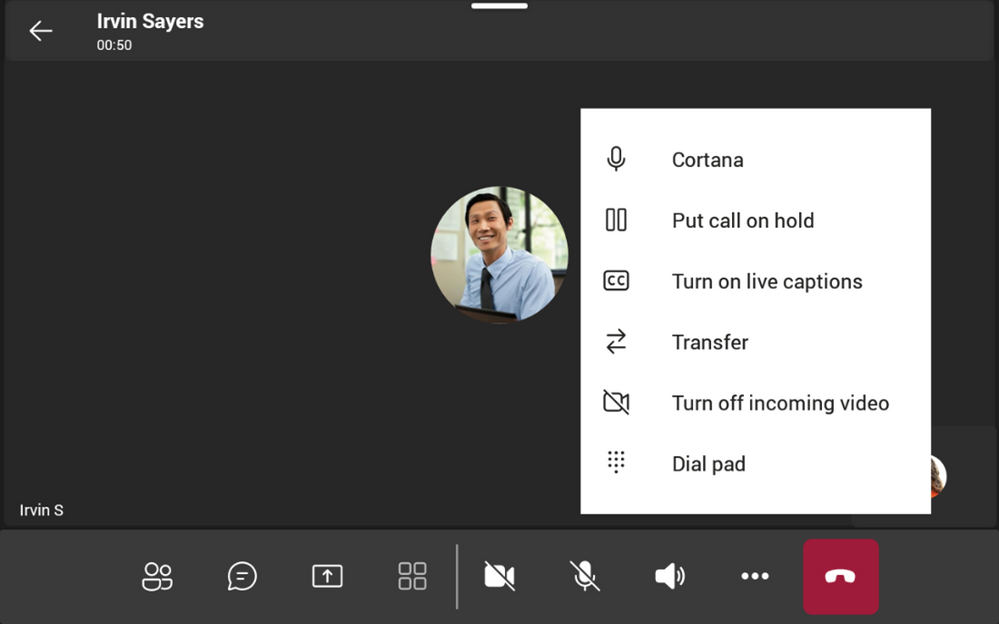
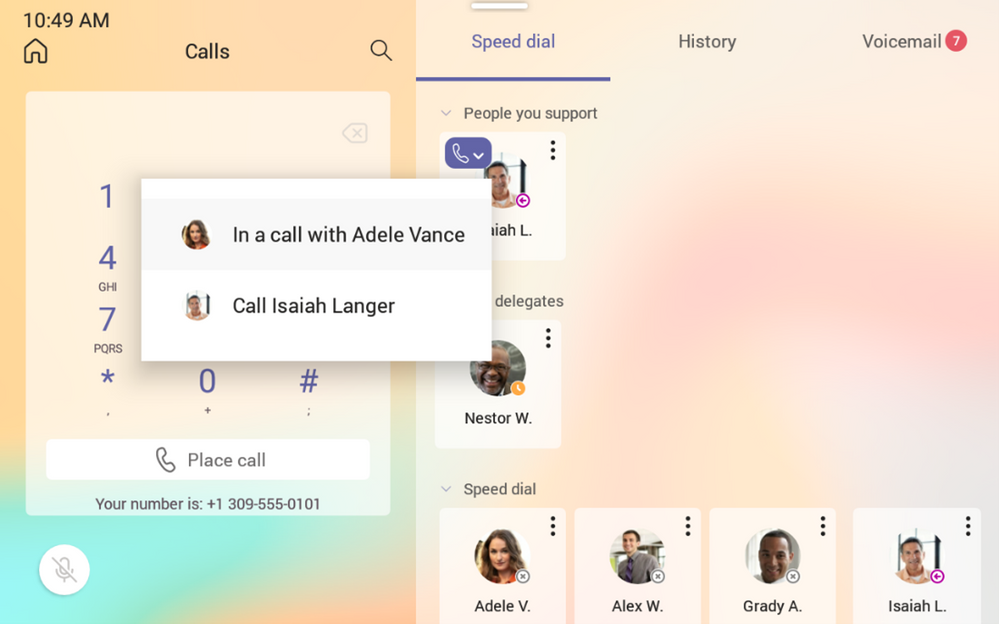

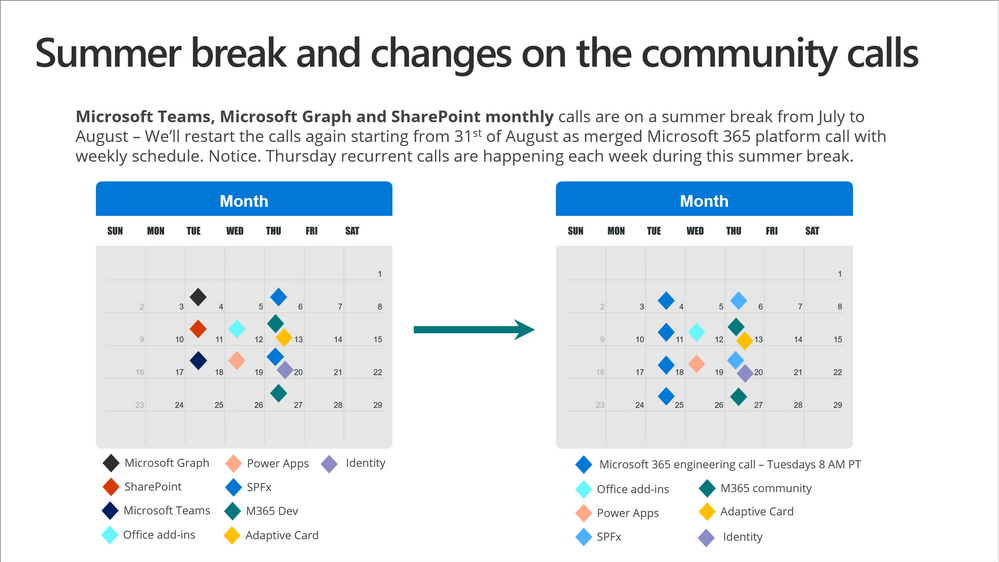
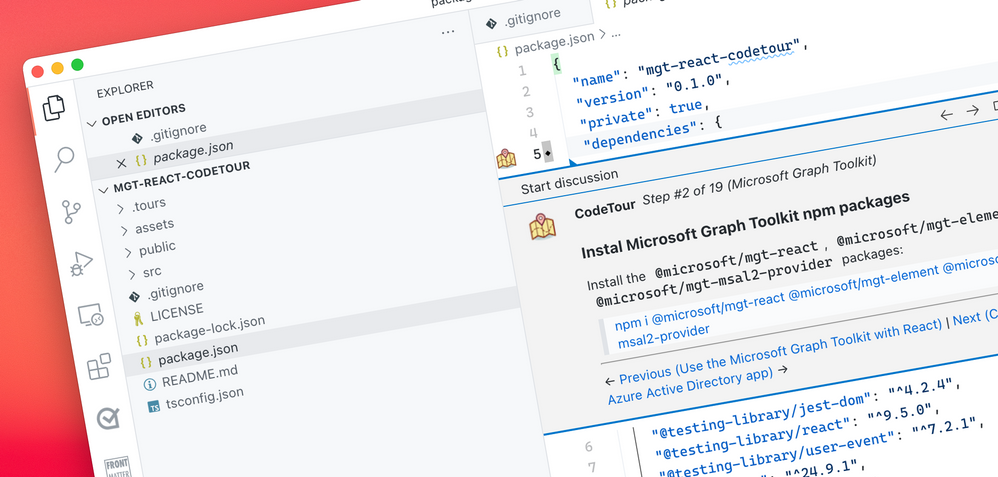
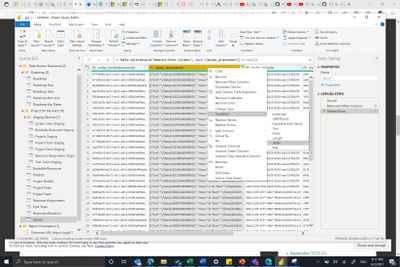
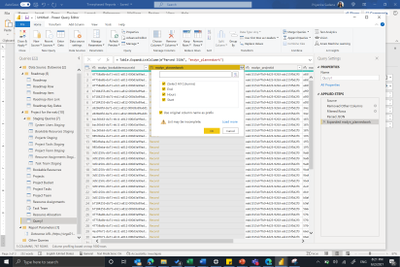
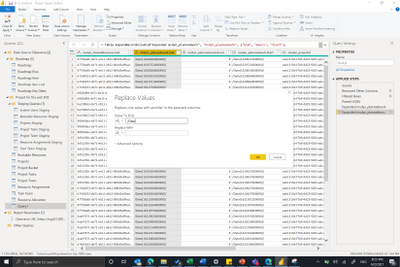
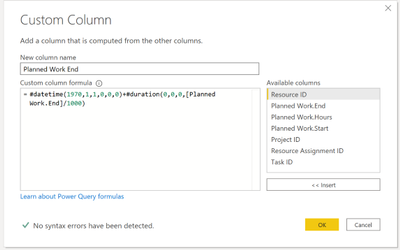


Recent Comments