by Contributed | Jul 1, 2021 | Technology
This article is contributed. See the original author and article here.
The Azure Sphere OS update 21.07 is now available for evaluation in the Retail Eval feed. The retail evaluation period for 21.07 provides 3 weeks for backwards compatibility testing. During this time, please verify that your applications and devices operate properly with this release before it is deployed broadly via the Retail feed. The Retail feed will continue to deliver OS version 21.06 until we publish 21.07 in July.
The evaluation release of version 21.07 includes an OS update only; it does not include an updated SDK. When 21.07 is generally available later in July, an updated SDK will be included.
Compatibility testing with version 21.07
The Linux kernel has been upgraded to version 5.10. Areas of special focus for compatibility testing with 21.07 should include apps and functionality using kernel memory allocations and OS dynamically-linked libraries.
Notes about this release
- The most recent RF tools (version 21.01) are expected to be compatible with OS version 21.07.
- Azure Sphere Public API can be accessed programmatically using Service Principal or MSI created in a customer AAD tenant.
For more information on Azure Sphere OS feeds and setting up an evaluation device group, see Azure Sphere OS feeds and Set up devices for OS evaluation.
For self-help technical inquiries, please visit Microsoft Q&A or Stack Overflow. If you require technical support and have a support plan, please submit a support ticket in Microsoft Azure Support or work with your Microsoft Technical Account Manager. If you would like to purchase a support plan, please explore the Azure support plans.
by Contributed | Jul 1, 2021 | Technology
This article is contributed. See the original author and article here.

Team members: James Kinsler-Lubienski, Anirudh Lakra, Dian Kalaydzhiev (Class COMP0016, 2020-21)
Supervised by Dr Dean Mohamedally, Dr Graham Roberts, Dr Yun Fu, Dr Atia Rafiq and Elizabeth Krymalowski
University College London IXN
Guest post by James Kinsler-Lubienski, Anirudh Lakra, Dian Kalaydzhiev
When designing an application, we need to be mindful about privacy and security concerns when customising data from an application and especially consider anything that is sensitive, personalised and shouldn’t be written to a local disk. Clinicians every day may have to use several machines, often having to have it access a local area network to retrieve their profile and settings.
Enter Microsoft Graphs API. By using this API, we can offload a lot of our login security to Microsoft. By making use of this API you can integrate a wide range of new functionality into your application such as storing data of personal relevance generated by an app, on a user’s own OneDrive account. Thus any device with the same app can be logged in via SSO and retrieve where that user left off.
This work is part of a larger project which we called Consultation-Plus that we worked on with the Royal College of General Practitioners and several NHS staff.
We will be discussing that project in a separate article but in summary, it is a native application that allows clinicians to rank the articles that they come across, store a search history that is personalised in their own OneDrive account (like bookmarks with scores), use different machines to continue their research and then elect to share articles and scores with other clinicians when ready.
In this article, we will describe specifically the steps needed to implement SSO and saving and loading of files from the logged in users’ OneDrive into a desktop C# application.
Setting up
Note that while implementing this solution you will also implement a Microsoft Live SSO. This is because Microsoft must authenticate the user and, therefore, ask the user for permission to let this application access their OneDrive resources. Another article also discusses this.
- The first thing we must do is sign up our application on the Azure Active Directory. Head over to this link and sign in. After signing go to “App registrations”.
- Click on “+ New registration” and register your application. You can enter any app name you want and in “Supported account types” select “Accounts in any organizational directory (any Azure AD directory multitenant)”. In the “Redirect URI” section select “Mobile and Desktop applications” and enter http://localhost. This is for testing purposes. When the application is deployed this URL should be changed but for this example http://localhost is sufficient.
- Once your application is created click on it in “App registrations” and select “View API permissions”. Here you should add permissions that you want your applications to have. We want to access the users’ OneDrive so we will use Files.ReadWrite.AppFolder. We could also use Files.ReadWrite but this raises privacy concerns since it gives our application full read/write access to all the files in the users OneDrive. Files.ReadWrite.AppFolder is a special permission that allows our application to only be able to access its own special folder that is created the first time a user logs in. To add permission click “+ permissions” then select “Microsoft Graph” and then “Delegated permissions”. Navigate to the “Files” tab and select “Files.ReadWrite.AppFolder” from there. Click “Add permissions”.
- Copy the “Application (client) ID” from your application page in “App registrations”. You will need this for the code example.
That is all you need to do to set up. Now we move onto showing C# code to implement SSO and saving/loading files from users OneDrive.
C# Example code
Paste your client ID and add import statements to import the following libraries (if you don’t have them installed use NuGet to install them):
- Microsoft.Graph
- Microsoft.Graph.Auth
- Microsoft.Identity.Client
The code below shows you how to implement SSO and allows the user to login.
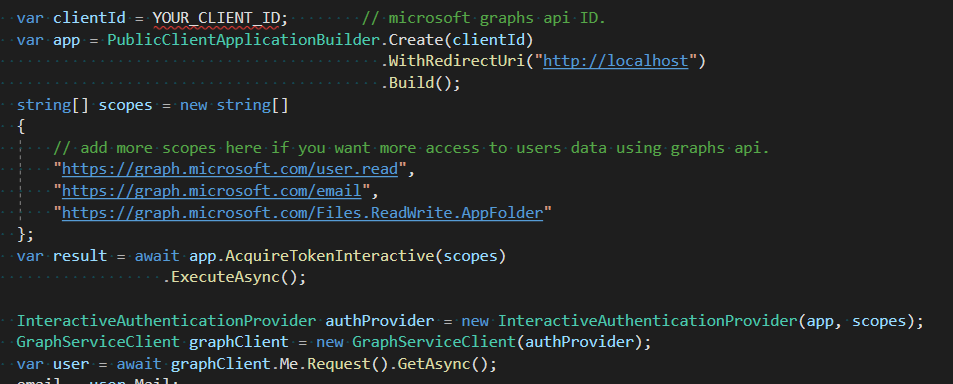
Once the user has logged in, we can access our applications folder in their OneDrive.
The following code shows you how to save or create a file in that folder. However, if the file already exists this method will overwrite its existing content. This method works with strings so if your data is not in string form you should try to convert it to json format. We can recommend using the external library Newtonsoft.Json to do this.

If you want to append new content to an existing file, you should first load that content into your application then append the new data to the loaded content and upload it using the method above. We would advise to be careful with this method because if the file content is larger than 4 MB it will not work and you will need to use the method that Microsoft has documented here instead.
The code snippet below outlines how to download the content of a file.
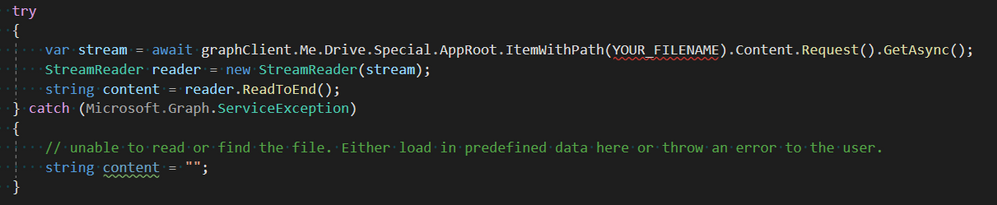
If you would like to see how our application uses Microsoft Graphs API, you can click on this link to see a class that is entirely dedicated to handling of the Graphs API.
Source Code
Github: https://github.com/jklubienski/SysEng-Team-33/blob/main/ConsultationPlus1/WindowsFormsApp2/GraphsAPIHandler.cs
Luckily, Microsoft has provided a large amount of documentation regarding the use of the Graphs API. In each of the links below you can view a lot more helpful links on the left-hand side in the Table of Contents.
Here are some helpful links:

by Contributed | Jul 1, 2021 | Technology
This article is contributed. See the original author and article here.
If you’re receiving an unexpected 401 and IIS logs show this: 401 1 2148074248, this blog could be useful if you have this setup:
- Windows Authentication enabled in IIS (specifically if NTLM is being used), and
- a load balancer with multiple web servers behind it
This is an infrequent occurrence, but I have personally troubleshooted it a few times over the past several years. It’s an odd one and can be difficult to identify especially if you cannot reproduce it on-demand or if it’s intermittent. This particular issue should not occur if you have only one server, behind a load balancer or not. So if you do have multiple web servers and remove all but one and the issue goes away, there’s a chance you could be experiencing this problem.
For this, it would be extremely helpful if internal traffic between the load balancer and web servers is unencrypted. This is to be able to find the problem more-quickly as described.
The first thought for me that comes to mind when I see this particular problem is that the NTLM messages are being split between multiple TCP connections.
The overall auth flow of NTLM is described on this page, and it wouldn’t hurt to understand it more deeply. In short, when a client is authenticating using NTLM, there are multiple roundtrips needed for the building of that authenticated user context to be complete.
Those multiple round-trips consist of three (3) NTLM messages that must be exchanged between client and server, in order, on the same socket and server, for NTLM to be successful.
By “on the same socket and server” above I mean that the client must be communicating with the same server and the client-side IP:port combination must remain the same as the NTLM messages are being passed (remember in a load-balanced situation, the direct client of the web server is typically the load balancer as that is where the TCP connections originate from in most scenarios). In other words, if the load balancer opened port 50000 to communicate with a web server and Windows Auth/NTLM is needed, the load balancer must not break the NTLM messages up between different ephemeral/dynamic ports and must remain on the same server. If those messages are broken up between different ports/TCP connections or between servers, then this is when you can see the 401 1 2148074248 issue.
401.1 == logon failure.
The 2148074248 code translates to:
SEC_E_INVALID_TOKEN: The token supplied to the function is invalid.
Here’s an example of what this would look like from network traces – these are real-world from a customer environment…
Note this is a new TCP connection.
The initial request in frame 6109 was anonymous, so the server sent back the typical 401.2 and requsted Windows Auth. This would have logged a “401 2 5” in the IIS log. This is normal.
The second request was frame 6118, and it contained the NTLM Type-1 message (not shown).
The second 401 in a default setup (Kernel-mode enabled) is actually sent from the HTTP.sys driver underneath IIS, and that 401 contains the NTLM Type-2 message, and is normal. If kernel-mode is disabled then you would see a 401 1 2148074254 in the IIS log, which would also be normal here.
The problem with the communication above is the TCP FIN sent from the client in frame 6121. This would be unexpected, as what we would expect to see here is a third HTTP request that would contain the NTLM Type-3 message to complete the auth flow.
What actually happened here is the load balancer had sent the Type-3 message to a new server, instead of sending it on the original (now-closed) socket:

Notice all the IPs are different here: the internal interface of the load balancer is different, along with the server-side IP (it was a different server).
It is on this second server where the 401 1 2148074248 is observed. And, since this 401 would be unexpected from an end-client perspective (as far as the client is concerned it was using the same sockets to communicate with the load balancer), a credential prompt appeared on the client browser. That particular error code is sent back by Local Security Authority (LSA) code and occurs because the context is only partial – since it wasn’t generated on this server (or even on the same socket since that’s what NTLM needs here) it failed.
It’s not shown here, but when digging into the NTLM messages in the HTTP requests/responses, we could see that server-2 was indeed receiving NTLM challenges sent to the client by server-1.
The problem here was the load balancer was not using session affinity/persistence/etc. What’s interesting is that the load balancer was configured with persistence based on IPs but the reasons for why it wasn’t honoring that all the time are unknown.
This particular issue was resolved when the load balancer was switched to a cookie-based persistence mechanism.
by Contributed | Jul 1, 2021 | Technology
This article is contributed. See the original author and article here.
After feedback from the community and the Data Advisory Board, we’ve made a few changes. Some great updates to the Azure Data Community Landing Page went live this week.
What’s new
- Various sections are now easier to navigate.
- Little touches like new icons and descriptions for blogs, podcasts, forums, and recordings to help you identify what kind of content you’ll see.
- An updated list of highlighted blogs to bring you fresh educational content.
- New upcoming conferences highlighted, all around the world.
Check out data community events
The biggest change is to the Community Events section. There is now a link to “Explore Upcoming Events.” Here you will find links to upcoming Data Platform Community events, both free and paid. While it’s not fancy, it can act as a single source for upcoming events. We want organizers to use this resource when scheduling their own event to avoid conflicting with an existing event. We want speakers to quickly identify events when deciding where to submit sessions. We want attendees to be able to easily answer the question “Who can I learn from next?”
Organizers for Data Platform conferences should submit their upcoming event using the “Submit Your Event” link at the top of the community event page. Feel free to bookmark https://aka.ms/DataCommunityEvents & share this with other organizers in your network. This is not for individual user group meetings. You can still find those at our Meetup listing of Azure Data Tech Groups. This is designed to be a list of single and multi-day conferences, free or paid, that cater to the Microsoft Data Platform either entirely or with dedicated track.
And since our entire initiative is Community-owned, Microsoft-empowered, we want you to take this information and share it via your blog, newsletter, user group meetings, etc. You can download the xml data of this list and share away!
Don’t forget, you can always submit your questions, suggestions and ideas to the Azure Data Community Board using our form at https://aka.ms/AzureDataCommunityBoard
by Contributed | Jul 1, 2021 | Technology
This article is contributed. See the original author and article here.
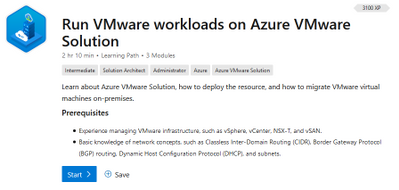
Last week the Azure VMware Solution Learn Path launched on Microsoft Learn! This path provides over 2 hours of free, guided learning on the basics of Azure VMware Solution, how to deploy the service, connect on-premises VMware environments to Azure, and finally how to migrate VM workloads.
Azure VMware Solution is a VMware verified offering, which provides enterprise customers private clouds containing vSphere clusters running on dedicated bare metal Azure infrastructure. Azure VMware Solution allows VMware-based workloads to be seamlessly moved from on-premises datacenters to Azure, while managing these environments with the same tools as on-premises workloads.
Since the general availability launch of Azure VMware Solution, more and more customers have gravitated toward the solution as a way to speed up digital transformation. There are a variety of different migration drivers and events which determine what path a customer embarks upon related to cloud adoption. Over the past year especially, organizations rose to new challenges, which included distributed or remote workforces. The increased need for business continuity, remote access, elasticity, scale, and innovation met the challenge of legacy infrastructure, potential platform or software incompatibilities, and compliance requirements. In a time where speed and simplicity are critical, Azure VMware Solution provided organizations with a fast path to cloud. Customers could retain longstanding VMware investments, skills, and tools, all the while continuing to accelerate a migration into Azure.
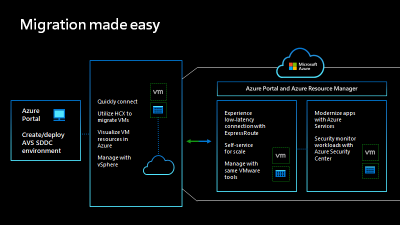
The new Microsoft Learn path will help customers embrace the service and build necessary skills to deploy, connect, and migrate on-premises workloads.
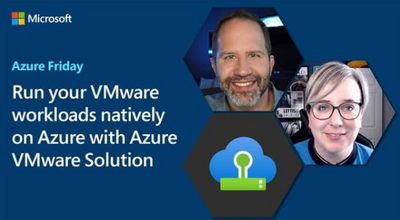
To learn more, watch the Azure Friday video which talks about how customers can natively run VMware workloads on Azure VMware Solution.
by Contributed | Jul 1, 2021 | Technology
This article is contributed. See the original author and article here.
We continue to expand the Azure Marketplace ecosystem. For this volume, 101 new offers successfully met the onboarding criteria and went live. See details of the new offers below:
|
Applications
|
|
A.I. Ambassador: Asiabots’ A.I. Ambassador is a customer service robot that uses artificial intelligence to deliver a wide variety of digital services. This humanoid avatar uses natural language processing and text-to-speech features to answer all sorts of queries with human-like facial expressions and voice.
|
 |
AI Powered Category Management & Optimization: Symphony Retail’s AI Assortment Optimization uses an intelligent clustering approach to understand complex consumer behavior and enable efficiencies in the supply chain. Rationalize SKUs based on shopper preferences, execute category strategy in store, and optimize revenue growth.
|
 |
Apache with Rimau WAF Panel: Apache with Rimau Web Application Firewall (WAF) protects web applications and sites from hackers, layer 7 DDoS attacks, SQL injection attacks, and scanning attacks. Powered by open-source technology and OWASP rules, it monitors and configures login rules in real time using the Rimau WAF web panel.
|
 |
Apptio Cloudability SaaS: Apptio Cloudability SaaS enables you to make data-driven investment decisions by helping you manage, optimize, and govern your software as a service (SaaS) portfolio. Get a centralized view of all your SaaS applications, reallocate licenses based on usage, and eliminate duplicative apps.
|
 |
Arxeia 365 Hub: Hosted on Microsoft Azure, Arxeia 365 Hub integrates external third-party applications with Microsoft Dynamics 365 Business Central, Teams, and SharePoint to create a cloud-native collaborative workspace for ideation, scheduling, training, and more. This app is available only in Italian.
|
 |
Arxeia 365 Protocol: Arxeia 365 Protocol is integrated with Microsoft 365 and uses Microsoft Azure and key vault web apps to manage the inbound and outbound flow of online documents, their classification and assignment, and digital signature certificates. This app is available only in Italian.
|
 |
AudiTech: AudiTech is an online accounting solution that uses machine learning and data analytics to automate sales, purchase, inventory, and accounting while helping businesses forecast market trends and identify areas of potential growth to maximize profit.
|
 |
Azure Sentinel – Cyber Security Operation Center: Sorint.SEC’s Cyber Security Operation Center seamlessly integrates with Microsoft Azure Sentinel to continuously monitor your organziation’s IT infrastructure, security, and assets. Embedded and automated runtime protection capabilities block attacks and manage security incidents.
|
 |
BAWA Cane: Empowering Blind Lives: BAWA Cane in an assistive device and IoT solution that provides real-time, spatial data for blind and visually impaired users so they can safely navigate their surroundings. Designed to be ultralight and energy efficient, it provides multisensory feedback and can be tailored to individual needs.
|
 |
BAWA Life: Empowering Caregivers: BAWA Life provides real-time visibility for caregivers, families, and friends of BAWA Cane users. With built-in security and privacy features, it can send safety alerts whenever a BAWA Cane user is in a dangerous or life-threatening situation. It also tracks past and current BAWA Cane user locations.
|
 |
BigID Data Intelligence Platform: BigID Data Intelligence Platform helps customers discover, manage, and protect sensitive data across their data landscape. Using machine learning and deep data insight, it addresses privacy, security, and governance challenges in any language at petabyte-scale across the cloud and onsite.
|
 |
Cerebra Vision Intelligence: Cerebra Vision Intelligence utilizes images and video streams to provide continuous security with smart surveillance in an industrial setting. It uses AI and computer vision to spot manufacturing defects in products and enhances production with automated inspections and safety compliances.
|
 |
Cloud Backup for Azure: Storagepipe’s Virtual Machine Backup for Microsoft Azure protects applications and data on Azure with an enterprise-grade deployment and backup service. The cloud backups are immediately available whenever you need to restore your data to ensure proper retention and disaster recovery.
|
 |
Covalence Managed Detection and Response (MDR): Covalence Managed Detection and Response (MDR) is a cybersecurity service solution that monitors and protects your entire IT infrastructure. It provides users with prioritized actionable steps to block or resolve attacks and efficiently manage security incidents when they occur.
|
 |
DEFEND3D: Secure Transmission for 3D Printing: DEFEND3D is a leading manufacturing solution enabling secure transmission for remote 3D printing. Store your designs locally on your home server and use your virtual inventory to manufacture parts in remote locations without any file transfer in the process and with no data at rest.
|
 |
EdTechX: EdTech is a digital experience platform that combines visually stunning branded venues with live-streaming augmented reality holograms, networking, real-time analytics, and more to create immersive digital campus experiences.
|
 |
Empowered Learning Management System: Used by companies across the globe, Empowered LMS is an enterprise class learning experience platform that empowers organizations to manage their learning, assessment, certification, reporting, and more, ensuring the right people get the right learning at the right time.
|
 |
FileScience: A fully managed multicloud backup and recovery SaaS solution, FileScience protects your files and data from accidental or malicious acts to defend your organization against mistakes, deliberate destruction, hacking, ransomware, and more.
|
 |
Government Digital Service-Aligned Power App Portal: cloudThing’s Government Digital Service Aligned Power App Portal provides components to rapidly build an end-user portal that is consistent with Gov.UK services can be customized to suit your organization’s requirements.
|
 |
IA-Cloud: An ITSM-integrated full life-cycle management toolset for Microsoft Azure, IA-Cloud combines automated backup, patching, documentation, performance, and cost optimization into a single platform, allowing you to focus on proactive management instead of business-as-usual tasks.
|
 |
IA-Connect for Power Automate: Seamlessly extend Power Automate cloud flows to on-premises systems with IA-Connect. IA-Connect integrates with robotic process automation platforms to add advanced capabilities like the automation of Citrix or RDS-hosted applications and advanced Java, mainframe, and SAP automation support.
|
 |
Infosys Zero Touch Sales Order Creation in SAP: Infosys Zero Touch Sales Order Creation in SAP is an integrated collaboration channel that uses Microsoft Azure integration services to enable sales personnel to submit, process, and get real-time updates of sales orders in Microsoft Teams.
|
 |
Insight Cloud Care for Microsoft Azure: Accelerate time-to-value on your Microsoft cloud investment and minimize risks to your organization with Insight’s Cloud Care for Microsoft Azure, an all-encompassing cloud consumption offering that covers onboarding, cloud usage, billing, and support.
|
 |
Intelligent Omni-Channel Engagement: Digital Dialogue’s AI-powered Intelligent Omni-Channel Engagement solution combines CUBIKA Conver, CUBIKA Engage, and CUBIKA Big Insights to enable you to connect with potential customers and increase lead generation at every touchpoint.
|
 |
LegalCloud – Smart Document Platform: Available in Spanish, English, and Portuguese, LegalCloud helps legal organizations manage agreements, litigation, documents, company relationships, and more. The comprehensive solution stores files safely either in Microsoft SharePoint or Azure Blob Storage.
|
 |
Netskope and Azure Sentinel: The Netskope Security Cloud informs customers about how their users interact with direct-to-Internet services. The solution integrates with Microsoft Azure Sentinel, enabling SOC teams and incident responders to understand the events and alerts associated with users’ behavior.
|
 |
Netskope and Microsoft Information Protection: Netskope uses Microsoft Azure Information Protection and Microsoft Information Protection feature sets to scan encrypted and unencrypted files for data loss prevention (DLP) policy matching content. Protect your sensitive data throughout its lifecycle no matter where it ends up.
|
 |
Netskope for Microsoft Teams: Netskope for Microsoft Teams is a cloud access security broker (CASB) solution that protects sensitive data and files in Teams environments by enabling granular visibility and control across all Teams accounts in your organization.
|
 |
Organization Calendar for Microsoft 365: Available only in Japanese, Next Set’s Organization Calendar for Microsoft 365 displays hierarchical calendars in Microsoft Teams. Easily and intuitively browse and register appointments, display and organize groups, and more.
|
 |
Phish Hunter for Commercial: Built on Microsoft Azure, Phish Hunter is an always-on SaaS application that detects and prevents the lateral spread of phishing attacks in your Microsoft 365 environment. Customizable settings include locking accounts, limiting access to accounts with conditional access, and more.
|
 |
Pingboard: Pingboard helps distributed organizations stay connected and aligned. Empower your employees to know who’s who, who’s working on what, and who’s located where to help them feel engaged and connected, no matter where they work.
|
 |
PIXARRON SPA: PIXARRON is a personalized digital learning platform offering solutions for primary schools and higher education. Available only in Spanish, PIXARRON integrates video calls for synchronous classes and provides spaces to share documents and other resources.
|
 |
Qlik to Power BI Connector: Innovoco’s Qlik to Microsoft Power BI Connector is an end-to-end solution that enables you to use your Qlik data in Power BI and other BI tools or applications with all associations and transformations intact.
|
 |
QuEST Asset Tracking and Monitoring: QuEST Asset Tracking and Monitoring helps businesses optimize operations by better managing their operational assets, engages customers to improve the safety and performance of their purchased products, and facilitates operational efficiency with use cases such as predictive maintenance.
|
 |
R&S Trusted Gate Encryption Solution for Mobile Devices, Outlook Email Client & BYOD: R&S Trusted Gate – Mail Control automatically replaces Microsoft Outlook email attachments with placeholders; encrypts, fragments, and stores the original files in a multi-layer storage system; and links to the secured files for access by authorized recipients.
|
 |
R&S Trusted Gate Storage Encryption Solution for OneDrive, Multi-Cloud Storage and Data Room: R&S Trusted Gate Secure Data Exchange offers a simple user interface embedded into Microsoft Teams and SharePoint with an additional web interface that allows secure data exchanges with external colleagues and other partners.
|
 |
Rocky Linux VM by tunnelbiz: tunnelbiz provides this preconfigured virtual machine with Rocky Linux OS, a 1:1 binary compatible fork of Red Hat Enterprise Linux (REHL).
|
 |
SONDA Enterprise IoT Analytics Platform: The SONDA Enterprise IoT Analytics Platform connects to many types of equipment and systems, such as sensors, cameras, scales, and control equipment, and generates models and visualizations for various uses. This application is available only in Spanish and Brazilian Portuguese.
|
 |
SOTI MobiControl: SOTI MobiControl manages all your mobile devices and intelligent IoT endpoints, enabling you to remotely view and control devices from 200 manufacturers. It features integrated productivity tools and remote support features that reduce worker downtime and keep employees focused on their work.
|
 |
SSHepherd: SSHepherd is a cybersecurity solution that protects against the top attack vectors hackers use to penetrate RDP and SSH protocols. SSHepherd helps reduce external brute force attacks by removing the attack surface so hackers do not see the resource in their scans.
|
 |
Storware KODO for Cloud: KODO for Cloud ensures continued protection of critical corporate data and compression, deduplication, and file versioning in Microsoft OneDrive for Business, SharePoint, and Exchange Online. Its scalable architecture and RESTful API help ensure business continuity.
|
 |
TeleGov: TeleGov is an intuitive scheduling tool for government that features easy-to-use back-office and front-end tools, including self-service forms, automatic reminders, and payment processing, to help government agencies to manage inbound traffic and workflows.
|
 |
Thinglink for digital content professionals: Editors, freelancers, and digital content specialists use ThingLink to create interactive maps, infographics, timelines, presentations, and more. The platform requires no advanced skills or coding, saves time and money, and improves results in all sorts of projects.
|
 |
WitFoo Precinct 6.1.5 Diagnostic SIEM (PAYG): WitFoo Precinct on Microsoft Azure is a diagnostic security operations (SecOps) platform that combines security information and event management, incident response, security orchestration and automation (SOAR), and big data analytics to deliver actionable security intelligence.
|
 |
YallaPlay Game Engine: YallaPlay Game Engine is a complete back-end game engine for mobile card games. The scalable cloud solution features recurring events, economy management, leagues and clans, collectibles, and more.
|
 |
Zelros – AI for Insurance Distribution: Zelros – AI for Insurance Distribution is an AI-driven platform dedicated to advancing insurance distribution and making the daily activities of insurance workers more accurate and efficient. Increase sales efficiency, automatically process documents, and more.
|
Consulting services
|
 |
App Modernization: 3-Week Assessment & Planning: Zitec will work with you to define business goals for modernization, assess the state of your IT environment, document the suggested architecture, and provide recommendations based on a gap analysis.
|
 |
App Modernization Consulting: 6-Week Implementation: BlazeClan Technologies’ implementation includes an assessment of your targeted application, the identification of the best-fit Microsoft Azure services for your use case, containerization using Docker and Azure Kubernetes Service, and more to modernize your application to Azure.
|
 |
Application Modernization Pilot: In this implementation, Zitec will take the documentation and planning from its App Modernization Assessment and Planning engagement and create a pilot project for your modernized application on Microsoft Azure.
|
 |
Azure Active Directory Premium: 3-Week Proof of Concept: Available only in Russian, CBS IT’s Azure Active Directory Premium proof of concept will provide your organization with a pilot implementation of a multi-factor authentication service using Microsoft Azure Active Directory Premium.
|
 |
Azure Application Review: 10-Day Assessment: In this 10-day assessment, Logient will provide an analysis of your application’s source code to determine its readiness for migration to Microsoft Azure and whether it meets development, security, and compliance standards.
|
 |
Azure Cloud Course Management Workshop: Zhi Domain International’s offering is designed to help colleges and universities build cloud classrooms with Microsoft Azure services to provide their students with customizable course training and improve learning outcomes.
|
 |
Azure Cost Optimization: 8-Week Solution Assessment: This assessment by CBS IT will help you navigate cloud cost management and optimize your cloud resources to establish a sustainable Microsoft Azure environment customized to your business needs. This service is available only in Russian.
|
 |
Azure Data Governance in a Box – 3 Weeks: An extension to Sopra Steria’s Azure Data Platform in a Box offering, the Azure Data Governance in a Box implementation is a scripted delivery of Microsoft Azure Purview and provides businesses with data governance tools. This service is available in English and Norwegian.
|
 |
Azure Infrastructure: 4-Week Assessment: T-Systems will assess your enterprise infrastructure using a Microsoft Azure infrastructure survey and help you select applications worth migrating to the cloud so that the entire migration process can be optimized for cost and efficiency. This service is available only in Hungarian.
|
 |
Azure Landing Zones Accelerator: 10-Day Workshop: Aware Group’s Azure Landing Zones engagement will showcase the Microsoft Cloud Adoption Framework for Azure, cloud governance, and landing zones principles through a series of hands-on-labs and proof-of-value exercises built in your Microsoft Azure tenant.
|
 |
Azure Managed Services: 4-Week Implementation: BlazeClan’s managed services are customized to your business requirements and provide end-to-end solutions to improve the reliability and performance of your Microsoft Azure environment using an in-house product (Cloudlytics), which enables task automation and provides actionable insights.
|
 |
Azure Sentinel Managed Service Implementation: This engagement by Bytes Software Services shows you how to enhance the capabilities of Microsoft Azure Sentinel with Bytes by delivering a 24/7 security operation center (SOC). This combination speeds up response to cybersecurity threats and streamlines detection and incident response.
|
 |
Azure Synapse Analytics Migration Scan: 3-Week Assessment: Rubicon will review your infrastructure and provide an executable migration plan for large-scale deployment to Microsoft Azure Synapse Analytics. Deliverables include architecture advice along with migration, deployment, and continuity plans.
|
 |
BackUp Infrastructure: 3-Week Implementation: CBS IT’s implementation will help back up your infrastructure using Microsoft Azure services. The cloud backups are immediately available whenever you need to restore your data, ensuring proper retention and disaster recovery. This app is available only in Russian.
|
 |
BEXTLabs: 2-Week Implementation: BEXTLabs will help your organization build an educational platform designed to create virtual computing laboratories. Provisioned on Microsoft Azure and using the power of Azure Virtual Desktop, these learning labs build a culture of continuous learning. This offer is available only in Spanish.
|
 |
Big Data Analytics Solution with Azure Databricks: 8-Week Implementation: Available only in Japanese, Knowledge Communication’s big data analytics solution implementation integrates Microsoft Azure Databricks and peripheral Azure services according to your organization’s data volume and analysis requirements.
|
 |
BT Cloud Adoption Services – Virtual WAN: 2 Weeks: Secure network connectivity is at the heart of this BT Enterprise Virtual Wide Area Network (WAN) Landing Zone service. Businesses can enable secure access to Microsoft Azure-based services using these enterprise-ready landing zone blueprints and services.
|
 |
Build Power App in a Day: Just Analytics’ free, hands-on workshop focuses on your data literacy and machine learning journey. After the workshop, you will have a clear understanding of the capabilities and applicability of Microsoft Power Apps and Power Automate.
|
 |
Cloud Adoption & Migration: 6-Week Implementation: Blazeclan offers an array of services to help with cloud adoption and migration to Microsoft Azure while protecting your business from downtime and lost revenue. Services include feasibility and total cost of ownership analysis and license/infrastructure cost estimations.
|
 |
Cloud Automation & DevOps: 2-Hour Scoping Workshop: Learn about Innovation Process Technology’s approach to automate your cloud infrastructure (IaC) and application deployments (CI/CD) using Microsoft Azure, GitHub, and DevOps practices in this free two-hour briefing.
|
 |
Cloud Center of Excellence: 3-Hour Briefing Session: Learn how risual can support your organization in implementing processes, service roles, and the underlining Microsoft Azure technology required to implement and run your own Cloud Center of Excellence.
|
 |
Cloud Cost Workshop: 2 Hours: Zirous’ complimentary Cloud Cost Management workshop will help you analyze your Microsoft Azure cloud environment to find where your costs are coming from, give recommendations for improvement, and implement the changes so that you can focus on your business.
|
 |
Cloud Migration – 6-Week Assessment: Bluestreams’s Cloud Migration offering combines assessment, planning, and analysis capabilities to drive a successful Microsoft Azure migration. Deliverables include documentation with detailed information about the assessment, migration strategies, and migration plan.
|
 |
Cloud Native Readiness: 2-Week Assessment: The P3 Cloud Native Readiness assessment helps your company become a true cloud-native organization from analysis to implementation. Fully exploit the capabilities of the cloud and get your enterprise applications ready for the future.
|
 |
Cloud Readiness: 4-Week Assessment & Migration: Using its Application Modernization Foundation module, Zitec will first conduct a comprehensive assessment to determine your readiness for cloud migration, then drive the migration process according to your organization’s key business and technical requirements.
|
 |
Cloud Readiness: 6-Week Assessment: Define your organization’s cloud strategy and roadmap aligned with Microsoft Azure best practices in this six-week Cloud Readiness assessment from Knowit. This offering includes a cloud maturity assessment, a cloud readiness assessment, and a cloud migration assessment.
|
 |
Community Training: 4-Week Implementation: Microsoft Community Training is a Microsoft Azure-powered platform to enable learning for everyone, everywhere. In this four-week engagement, Prisma Soluciones Tecnologicas will take care of platform implementation, development, and customization according to your organization’s needs.
|
 |
Data Center Migration Service: 4-Week Implementation: Coretek’s migration service for Microsoft Azure includes assessment, planning, migration, management, and optimization to help you achieve your business objectives while meeting your security and compliance requirements.
|
 |
Data Opportunity – 1-Day Workshop: Available only in German, diva-e Platforms’ virtual workshop will help you determine your data maturity level and identify relevant, data-driven use cases for the optimized distribution of your applications on Microsoft Azure.
|
 |
Dedalus FinOps Analysis: 4-Week Implementation: Dedalus will propose a model of continued governance of your Microsoft Azure environment, establishing policies, control, processes, cost optimization, and measurements that ensure the forecast of costs.
|
 |
Dedalus Migration: 4-Week Implementation: Dedalus’ Migration Implementation service follows the Microsoft Azure Well Architected Framework to provide cost optimization, operational excellence, performance efficiency, reliability, and safety to create a reliable, secure, and flexible foundation for your application.
|
 |
Eliminate Okta Spend with Azure Active Directory – 2 Day Assessment: New Era’s team will show you how they deliver high-quality, secure identity solutions using Microsoft Azure Active Directory while simultaneously reducing or eliminating your annual spend on Okta licensing, freeing up precious budget dollars for other initiatives.
|
 |
Enterprise Blockchain: 2-Hour Workshop: Available only in Italian, Var Group’s Enterprise Blockchain workshop will help you understand the potential of Microsoft Azure Blockchain tools and the benefits they can bring to your business.
|
 |
Enterprise Data Warehouse: 8-Week Implementation: The Wragby Enterprise Data Warehouse implementation delivers a fully elastic and highly flexible data warehouse that can collect, store, query, and share data sets from a range of disparate sources, from structured data to JSON.
|
 |
File Services on Azure: 10-Day Implementation: Centralize and consolidate your file servers using the power of Microsoft Azure in this 10-day implementation from Mismo Systems. Choose from different performance tiers according to your requirements for an optimized total cost of ownership.
|
 |
Healthcare Reference Architecture (PHR) Deployment Services: 10-Week Implementation: Using a host of Microsoft Azure services, TIS will implement its Healthcare Reference Architecture, enabling your organization to manage and analyze large amounts of personal health record data collected from IoT devices, web apps, and more. This service is available only in Japanese.
|
 |
Identity & Access Management for Financial Services: Half-Day Assessment: New Era Technology’s free assessment covers the benefits identity and access management solutions using Microsoft Azure Active Directory can deliver for your financial services organization. Deliverables include an overview of your current environment and suggested next steps.
|
 |
Infra Automation Using Terraform: 1-Week Assessment: In this free assessment from IFI Techsolutions, you will learn how you can start automating deployments and implementing automation strategies in your organization’s development process. Gain the ability to build, test, automate, and deploy infrastructure more efficiently.
|
 |
Infra Automation Using Terraform: 1-Week Proof of Concept: In this free proof of concept, IFI Techsolutions’ cloud experts will work with your team to demonstrate how infrastructure as code can help your organization improve deployment time, security, agility, and consistency.
|
 |
Infra Migration to Azure: 2-Day Implementation: Hancom MDS provides free consulting for migrating your on-premises infrastructure to Microsoft Azure. Provisioned and managed over the Internet, this computing infrastructure allows customers to quickly scale resources as needed and pay only for what they use. This service is available only in Korean.
|
 |
Infrastructure Modernization: 4-Week Implementation: The Infrastructure Transformation and Modernization engagement from Dedalus includes an analysis of your Microsoft Azure architecture and recommendations for resources that provide better performance and investments for your business.
|
 |
Intune Endpoint Management: 4-Week Implementation: Beyond Impact will deliver secure, reliable endpoint management for your business by using Microsoft Intune, Azure Active Directory, and Azure Information Protection. Secure, deploy, and manage your users, applications, and devices without disrupting existing processes.
|
 |
iSOC Logicalis: 5-Week Assessment: Available only in Portuguese, this five-week assessment includes an analysis of your current environment along with recommendations for improving your organization’s security using Logicalis services and Microsoft Azure Sentinel.
|
 |
LAB3 Dr Migrate: 4-Week Assessment: LAB3 Solutions will gather data across your complex technology estates and diverse application stacks, then use Dr Migrate to provide a comprehensive technical analysis and migration plan for moving to Microsoft Azure.
|
 |
Logicalis AppDiscover: 8-Week Assessment: Gain a complete analysis of your IT environment along with recommendations for next steps using Logicalis AppDiscover. This assessment includes strategic and operational migration planning along with the evolution of your IT environment via Microsoft Azure.
|
 |
Logicalis Data Protection: 4-Week Assessment: Available only in Portuguese, the Logicalis Data Protection assessment includes the use of Microsoft Azure security services to ensure your organization complies with the General Law for the Protection of Personal Data (LGPD), which went into effect September 18, 2020.
|
 |
Redis to Azure Cache: 1-Day Migration Workshop: Neal Analytics offers this workshop to identify your business challenges and requirements, such as disaster recovery and high availability architecture implementations, to help plan your Redis to Microsoft Azure Cache for Redis migration.
|
 |
SAP on Azure: 2-Week Solution Assessment: GMCS Verex will provide you with a solution assessment to find a best way to migrate your organization’s SAP environment to Microsoft Azure with optimized performance and total cost of ownership.
|
 |
Social Media Analytics: 6-Week Implementation: BlazeClan will use various Microsoft Azure services, including Azure Data Factory, Azure Synapse Analytics, and Azure Functions, to create a customized solution for your social media data analytics needs.
|
 |
SQL Database to Azure: 1-Hour Assessment: Sincere Software Services offers this free environmental analysis and recommendations based on Microsoft best practices for migrating your SQL database environment to Microsoft Azure. This service is available only in Traditional Chinese.
|
 |
vCube – AKS Curation: 4-Week Assessment: Virtusa will work with your team to build and develop blueprints of whitelisted Kubernetes and container services on Microsoft Azure, ensuring the solution complies with your organization’s security, network, monitoring, auditing, and compliance requirements.
|
 |
Vinca Cloud Readiness Assessment: Vinca Cybertech offers this free Cloud Readiness assessment to help you understand what is required and how your organization can benefit from migrating your on-premises or public cloud infrastructure to Microsoft Azure.
|
 |
VMware Horizon on Azure: 10-Week Implementation: Simplify the delivery of virtual desktops and business applications with Cambay Consulting’s implementation of VMware Horizon on Microsoft Azure. Deliver virtualized Windows desktops and applications to any device, anytime.
|
 |
Wipro Azure Virtual Desktop : 4-Week Proof of Concept: Enable your users to experience the Windows 10 virtual desktops via Azure Virtual Desktop (formerly Windows Virtual Desktop) in Wipro’s proof of concept. Benefits include remote access to virtual desktops, Windows 10 multisession capabilities, and instant scaling to meet your needs.
|
 |
Wipro IoT Offerings : 1-Hour Briefing: Learn about Wipro’s IoT offerings in this free one-hour briefing, which covers IoT strategy and consultation, IoT engineering, and IoT managed services.
|
|
by Contributed | Jul 1, 2021 | Technology
This article is contributed. See the original author and article here.
Overview
SQL Server Migration Assistant (SSMA) is a suite of 5 tools designed to automate migrations from Oracle, Access, DB2, MySQL and SAP ASE (formerly SAP Sybase ASE) to Microsoft SQL. It automates the conversion of database schemas to a Microsoft SQL Server schemas, deployment of the schemas, data migration to the target SQL Server (see below for supported versions), and validation of migrated objects.
What’s new?
The latest releases of SSMA for Oracle and SSMA for DB2 improve the automatic conversion by adding support for new functions and enhancing existing conversion logic. In addition, all tools use COUNT_BIG in row count queries for the target database.
Follow us on Data Exposed for dedicated episodes on SSMA new features and subscribe to YouTube Channel: aka.ms/azuresqlyt to find out more on the next features.
In addition, this release includes the following:
- SSMA for DB2 is enhanced with:
- Load aliases for old/new row/table within the triggers definition for DB2 for i
- Add conversion for the LCASE, UCASE, LOWER, UPPER functions with two and three arguments
- Add conversion for the LTRIM and RTRIM functions with two arguments
- Improve conversion for LOCATE and POSITION functions
- Fix return type of the ssma_db2.CHAR emulation function
- Fix arguments of the ssma_db2.DECIMAL emulation function
- SSMA for Oracle includes the following improvements:
- Fix OLE DB connection string mode to respect the provider name
- Add missing ssma_oracle.fn_getColEntryByRange emulation function
- Add setting to emulate Oracle’s empty string behavior in coalesce operations
Downloads
Supported sources and target versions
Source: For the list of supported sources, please review the information on the Download Center for each of the above SQL Server Migration Assistant downloads.
Target: SQL Server 2012, SQL Server 2014, SQL Server 2016, SQL Server 2017, SQL Server 2019, Azure SQL Database, an Azure SQL Database managed instance, and Azure SQL Data Warehouse (Azure Synapse Analytics)*.
*Azure SQL Data Warehouse (Azure Synapse SQL Pool) is supported as a target only when using SSMA for Oracle.
Resources
SQL Server Migration Assistant documentation
by Contributed | Jul 1, 2021 | Technology
This article is contributed. See the original author and article here.
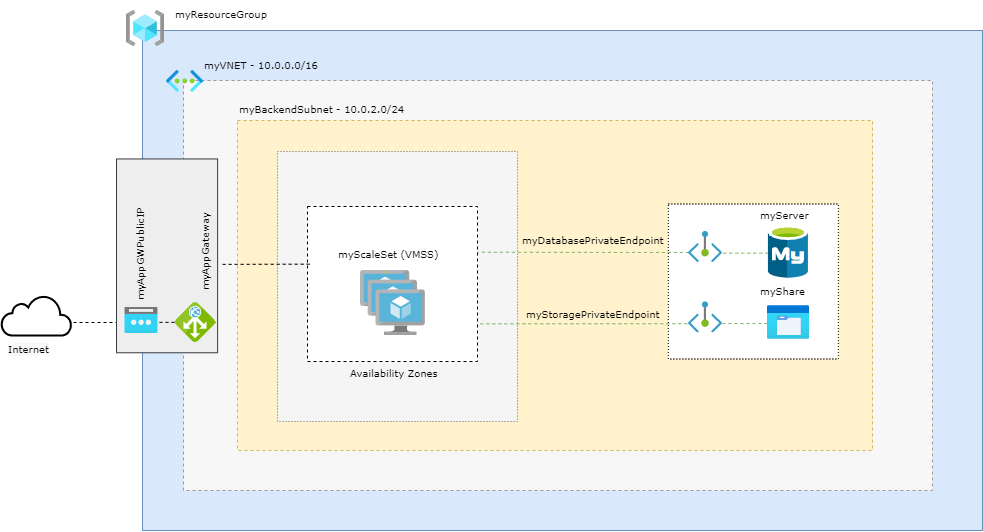
Architecture
Prerequisites
- Use the Bash environment in Azure Cloud Shell.
If you prefer, install the Azure CLI to run CLI reference commands.
This tutorial requires version 2.0.4 or later of the Azure CLI. If using Azure Cloud Shell, the latest version is already installed.
Define Variables
subscriptionId="XXXXXXXX-XXXX-XXXX-XXXX-XXXXXXXXXXXX"
resourceGroupName="myResourceGroup"
storageAccountName="mystorageacct$RANDOM"
region="westus2"
shareName="myshare$RANDOM"
mysqlServerName="myserver$RANDOM"
mysqlAdmin="myadmin"
mysqlPassword="MyWeaKPassw0rd"
privateEndpointNameStorage="myStoragePrivateEndpoint"
privateConnectionNameStorage="myStorageConnection"
privateDNSZoneNameStorage="privatelink.file.core.windows.net"
privateDNSZoneGroupNameStorage="MyStorageZoneGroup"
privateDNSLinkNameStorage="MyStorageDNSLink"
privateEndpointNameDatabase="myDatabasePrivateEndpoint"
privateConnectionNameDatabase="myDatabaseConnection"
privateDNSZoneNameDatabase="privatelink.mysql.database.azure.com"
privateDNSLinkNameDatabase="MyDatabaseDNSLink"
privateDNSZoneGroupNameDatabase="MyDatabaseZoneGroup"
dbname="wordpressdb"
dbuser="db_user"
dbpassword="db_user-weakPassword"
ScaleSetName="myScaleSet"
VNETName="myVNET"
SubnetName="mySubnet"
BackendSubnetName="myBackendSubnet"
AppGWPublicIPAddressName="myAppGWPublicIP"
AppGatewayName="myAppGateway"
Create Resource Group
az group create --name $resourceGroupName --location $region
Create a VNET
az network vnet create
    --resource-group $resourceGroupName
    --location $region
    --name $VNETName
    --address-prefixes 10.0.0.0/16
    --subnet-name $SubnetName
    --subnet-prefixes 10.0.0.0/24
Please note that the subnet created here will be the dedicated subnet to Application Gateway
Create a Backend Subnet
az network vnet subnet create
  --name $BackendSubnetName
  --resource-group $resourceGroupName
  --vnet-name $VNETName
  --address-prefix 10.0.2.0/24
Create a Public IP for the Application Gateway
az network public-ip create
 --resource-group $resourceGroupName
 --name $AppGWPublicIPAddressName
 --allocation-method Static
 --sku Standard
 --zone 1 2 3
Update the backend subnet
Is required to disable network policies for private endpoints
az network vnet subnet update
  --name $BackendSubnetName
  --resource-group $resourceGroupName
  --vnet-name $VNETName
  --disable-private-endpoint-network-policies true
Create the Application Gateway
az network application-gateway create
  --name $AppGatewayName
  --location $region
  --resource-group $resourceGroupName
  --vnet-name $VNETName
  --subnet $SubnetName
  --capacity 3
  --sku Standard_v2
  --http-settings-cookie-based-affinity Enabled
  --frontend-port 80
  --http-settings-port 80
  --http-settings-protocol Http
  --public-ip-address $AppGWPublicIPAddressName
  --zones 1 2 3
Create FileStorage Account
az storage account create
    --resource-group $resourceGroupName
    --name $storageAccountName
    --kind FileStorage
    --sku Premium_ZRS
Create an NFS share
az storage share-rm create
    --resource-group $resourceGroupName
    --storage-account $storageAccountName
    --name $shareName
    --enabled-protocol NFS
    --root-squash NoRootSquash
    --quota 1024
Create a Private Endpoint to use with Azure FileStorage
idstorage=$(az storage account list
    --resource-group $resourceGroupName
    --query '[].[id]'
    --output tsv)

az network private-endpoint create
    --name $privateEndpointNameStorage
    --resource-group $resourceGroupName
    --vnet-name $VNETName
    --subnet $BackendSubnetName
    --private-connection-resource-id $idstorage
    --connection-name $privateConnectionNameStorage
    --group-id file
Configure the private DNS zone for Azure FileStorage
az network private-dns zone create
    --resource-group $resourceGroupName
    --name $privateDNSZoneNameStorage

az network private-dns link vnet create
    --resource-group  $resourceGroupName
    --zone-name $privateDNSZoneNameStorage
    --name $privateDNSLinkNameStorage
    --virtual-network $VNETName
    --registration-enabled false

az network private-endpoint dns-zone-group create
   --resource-group $resourceGroupName
   --endpoint-name $privateEndpointNameStorage
   --name $privateDNSZoneGroupNameStorage
   --private-dns-zone $privateDNSZoneNameStorage
   --zone-name storage
Disable secure transfer setting on Storage Account
The secure transfer setting isn’t supported on NFS protocol, so it’s required to disable it:
az storage account update -g $resourceGroupName -n $storageAccountName --https-only false
Register your subscription to use the NFS 4.1 protocol
As NFS is a preview feature at this time, you need register your subscription to be able to use.
az feature register
    --name AllowNfsFileShares
    --namespace Microsoft.Storage
    --subscription $subscriptionId

az provider register
    --namespace Microsoft.Storage
Create MySQL
az mysql server create --resource-group $resourceGroupName --name $mysqlServerName --location $region --admin-user $mysqlAdmin --admin-password $mysqlPassword --sku-name GP_Gen5_2 --ssl-enforcement Disabled
Create a Private Endpoint to use with Azure Database for MySQL
idmysql=$(az mysql server list
    --resource-group $resourceGroupName
    --query '[].[id]'
    --output tsv)


az network private-endpoint create
    --name $privateEndpointNameDatabase
    --resource-group $resourceGroupName
    --vnet-name $VNETName
    --subnet $BackendSubnetName
    --private-connection-resource-id $idmysql
    --group-id mysqlServer
    --connection-name $privateConnectionNameDatabase
Configure the Private DNS Zone for Azure Database for MySQL
az network private-dns zone create --resource-group $resourceGroupName
   --name  $privateDNSZoneNameDatabase

az network private-dns link vnet create --resource-group $resourceGroupName
   --zone-name  $privateDNSZoneNameDatabase
   --name $privateDNSLinkNameDatabase
   --virtual-network $VNETName
   --registration-enabled false

az network private-endpoint dns-zone-group create
   --resource-group $resourceGroupName
   --endpoint-name $privateEndpointNameDatabase
   --name $privateDNSZoneGroupNameDatabase
   --private-dns-zone $privateDNSZoneNameDatabase
   --zone-name mysql
Create a firewall rule on Azure Database for MySQL
This will allow connect on Azure Database from AZ CLI to create the database
az mysql server firewall-rule create --resource-group $resourceGroupName --server $mysqlServerName --name "AllowAll" --start-ip-address 0.0.0.0 --end-ip-address 0.0.0.0
Create a database with a non-admin user in Azure Database for MySQL
mysql -h $mysqlServerName.mysql.database.azure.com -u$mysqlAdmin@$mysqlServerName -p$mysqlPassword<<EOFMYSQL
CREATE DATABASE wordpressdb;
CREATE USER 'db_user'@'%' IDENTIFIED BY 'db_user-weakPassword';
GRANT ALL PRIVILEGES ON wordpressdb . * TO 'db_user'@'%';
FLUSH PRIVILEGES;
EOFMYSQL
Remove the firewall rule previously created to create the database from AZ CLI.
As the access from VMs to the database will use the private endpoint connection, we don’t need it anymore. Was required just to be able to connet to MySQL from AZ CLI and create the WordPress database.
az mysql server firewall-rule delete --name AllowAll --resource-group $resourceGroupName --server-name $mysqlServerName -y
Generate cloud-init
At this step the cloud-init will be generated to create the configuration inside the VMs and install required packages.
cat <<EOF > cloud-init.txt
#cloud-config
package_upgrade: true
packages:
  - nginx
  - php-curl
  - php-gd
  - php-intl
  - php-mbstring
  - php-soap
  - php-xml
  - php-xmlrpc
  - php-zip
  - php-fpm
  - php-mysql
  - nfs-common

write_files:
- path: /tmp/wp-config.php
  content: |
      <?php
      define('DB_NAME', '$dbname');
      define('DB_USER', '$dbuser');
      define('DB_PASSWORD', '$dbpassword');
      define('DB_HOST', '$mysqlServerName.mysql.database.azure.com');
      $table_prefix = 'wp_';
      if ( ! defined( 'ABSPATH' ) ) {
        define( 'ABSPATH', __DIR__ . '/' );
      }
      require_once ABSPATH . 'wp-settings.php';
      ?>


- path: /tmp/wordpress.conf
  content: |
   server {
      listen 80;
      server_name _;
      root /data/nfs/wordpress;

      index index.html index.htm index.php;

      location / {
          try_files $uri $uri/ /index.php$is_args$args;
      }

      location ~ .php$ {
          include snippets/fastcgi-php.conf;
          fastcgi_pass unix:/var/run/php/php7.2-fpm.sock;
      }

      location = /favicon.ico { log_not_found off; access_log off; }
      location = /robots.txt { log_not_found off; access_log off; allow all; }
      location ~* .(css|gif|ico|jpeg|jpg|js|png)$ {
        expires max;
        log_not_found off;
      }

      location ~ /.ht {
          deny all;
      }

   }

runcmd:
  - mkdir -p /data/nfs/wordpress
  - mount -t nfs $storageAccountName.file.core.windows.net:/$storageAccountName/$shareName /data/nfs -o vers=4,minorversion=1,sec=sys
  - wget http://wordpress.org/latest.tar.gz -P /data/nfs/wordpress
  - tar xzvf /data/nfs/wordpress/latest.tar.gz -C /data/nfs/wordpress --strip-components=1
  - cp /tmp/wp-config.php /data/nfs/wordpress/wp-config.php
  - cp /tmp/wordpress.conf  /etc/nginx/conf.d/wordpress.conf
  - chown -R www-data:www-data /data/nfs/wordpress
  - rm /etc/nginx/sites-enabled/default
  - rm /etc/nginx/sites-available/default
  - systemctl restart nginx
EOF
Create a Virtual Machine Scale Set
az vmss create
  --name $ScaleSetName
  --resource-group $resourceGroupName
  --image UbuntuLTS
  --admin-username azureuser
  --generate-ssh-keys
  --instance-count 3
  --vnet-name $VNETName
  --subnet $BackendSubnetName
  --vm-sku Standard_DS2_v2
  --upgrade-policy-mode Automatic
  --app-gateway $AppGatewayName
  --custom-data cloud-init.txt
  --backend-pool-name appGatewayBackendPool
  --zones 1 2 3
Get the Application Gateway Public IP
az network public-ip show
  --resource-group $resourceGroupName
  --name $AppGWPublicIPAddressName
  --query [ipAddress]
  --output tsv
Finish the WordPress installation
Please note the complete setup of the VMs configuration can take up to 5 minutes. So if you try access and got the “Welcome to nginx!” message, it means that the setup wasn’t finished yet. So take another cup of coffee before try access again =D
In your web browser, navigate to the Application Gateway Public IP and complete the WordPress installation through the web interface:
http://application_gateway_public_ip
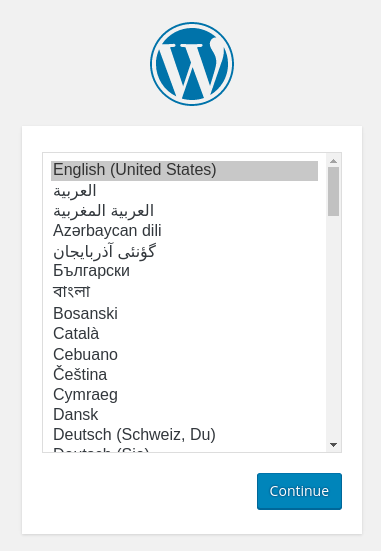
Select the language you would like to use:
Next, you will come to the main setup page.
Select a name for your WordPress site and choose a username. It is recommended to choose something unique and avoid common usernames like “admin” for security purposes. A strong password is generated automatically. Save this password or select an alternative strong password.
Enter your email address and select whether you want to discourage search engines from indexing your site:
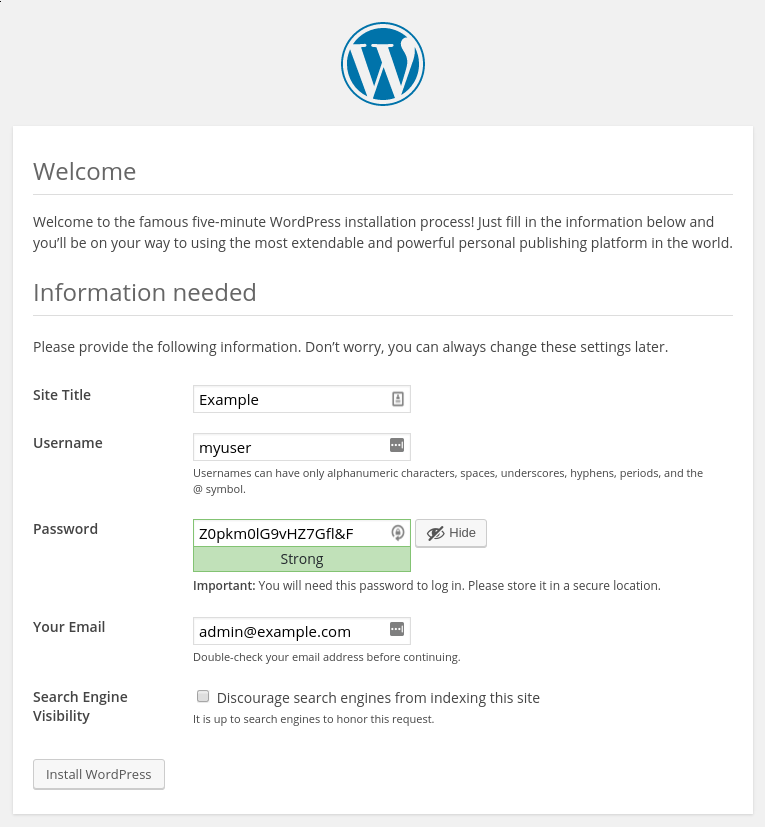
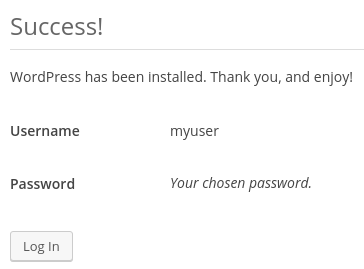
When you click ahead, you will be taken to a page that prompts you to log in:
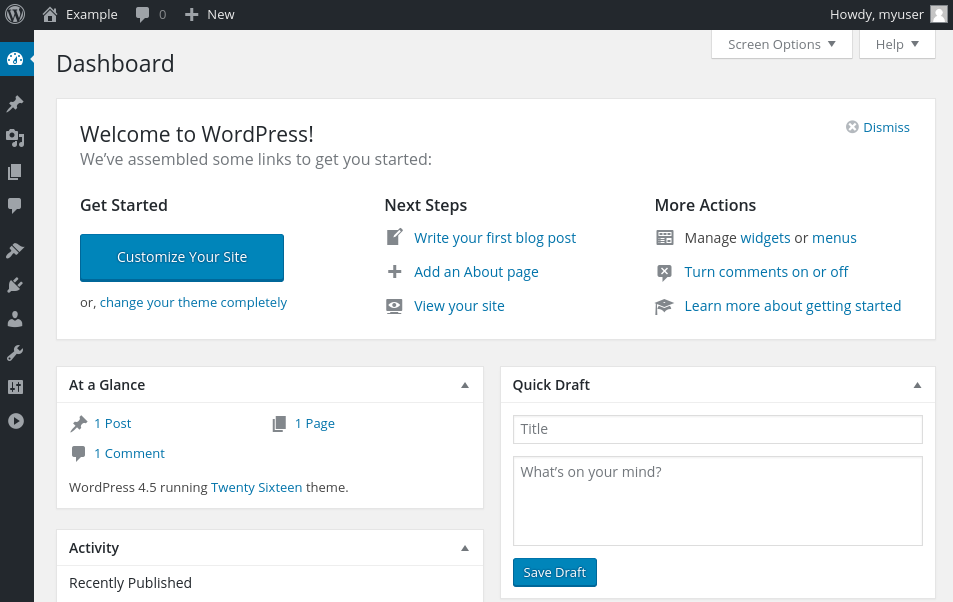
Once you log in, you will be taken to the WordPress administration dashboard:
Change manually the capacity of a scale set
When you created a Virtual Machine Scale, three VM instances were deployed by the parameter –instance-count 3. To increase or decrease the number of VM instances in your existing scale set, you can manually change the capacity. The scale set creates or removes the required number of VM instances then will distribute the traffic.
To manually increase or decrease the number of VM instances in the scale set, use az vmss scale. The following example sets the number of VM instances in your scale set to 5:
az vmss scale --name myScaleSet --new-capacity 5 --resource-group $resourceGroupName
Using autoscale profile to change the capacity automatically
az monitor autoscale create
  --resource-group $resourceGroupName
  --resource $ScaleSetName
  --resource-type Microsoft.Compute/virtualMachineScaleSets
  --name autoscale
  --min-count 3
  --max-count 10
  --count 3
Create a rule to autoscale out
az monitor autoscale rule create
  --resource-group $resourceGroupName
  --autoscale-name autoscale
  --condition "Percentage CPU > 70 avg 5m"
  --scale out 3
Create a rule to autoscale in
az monitor autoscale rule create
  --resource-group $resourceGroupName
  --autoscale-name autoscale
  --condition "Percentage CPU < 30 avg 5m"
  --scale in 1
by Contributed | Jul 1, 2021 | Technology
This article is contributed. See the original author and article here.
Howdy folks,
I’m excited to share the latest Active Azure Directory provisioning capabilities to help you with your user lifecycle and directory management needs.
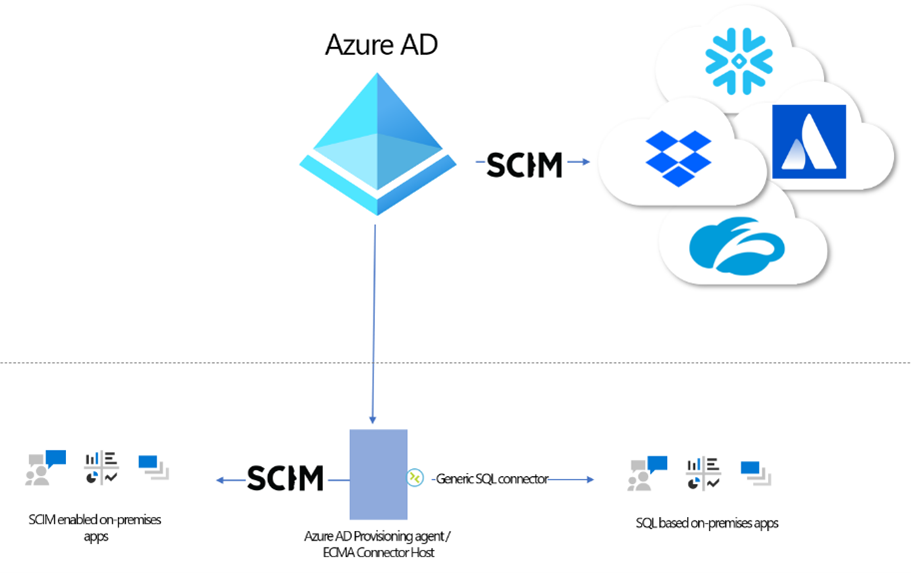
Automate provisioning users from Azure AD into on-premises applications
Azure AD now supports provisioning into on-premises applications, and we have a preview that we’re excited for you to deploy and share your feedback.
You must have an Azure AD Premium P1 or P2 tenant and an on-premises application that uses SQL as a data store or supports SCIM. You can request an invitation to the preview here. We plan to remove the invitation requirement in the coming months and add support for provisioning users into LDAP directories (excluding AD DS).
For those customers who have previously deployed Microsoft Identity Manager (MIM), you can reuse your existing connectors and configuration without needing a full MIM deployment. And for those customers building new applications, you can use our SCIM reference code to stand up a SCIM endpoint and easily provision users into your application, whether it’s on-premises or in the cloud.
More apps with pre-built user provisioning connectors
Azure AD service now supports more than 200 provisioning connectors! Checkout the growing list of applications here. Don’t see an app you’re looking for? Request your application vendors to support the SCIM standard and onboard to the Azure AD application gallery. We’ll work with the ISV to quickly onboard.
New app integration wizard available in the Microsoft 365 admin center
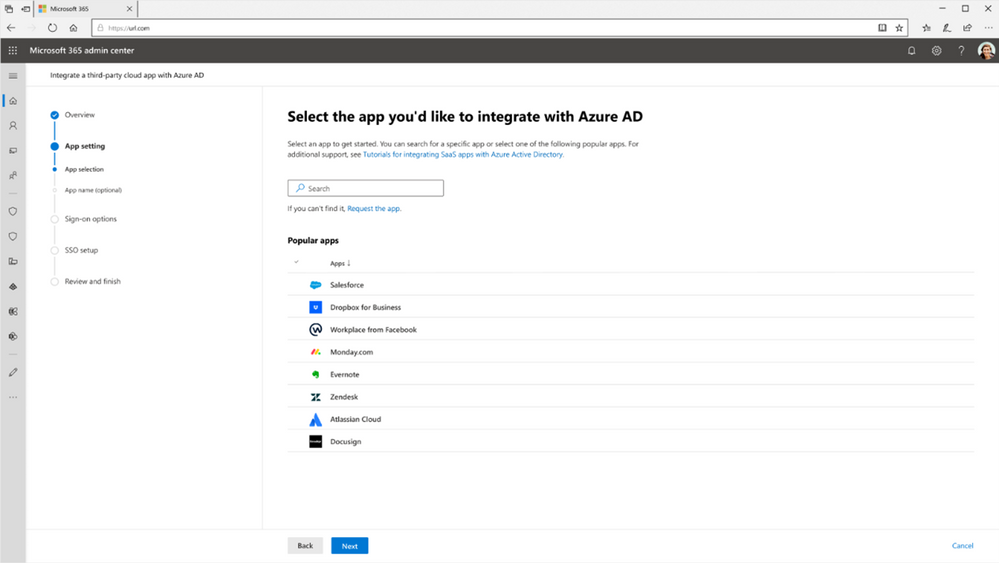
To help more admins connect third party apps to Azure AD, we’ve launched a new app integration wizard in the Microsoft 365 admin center. The app integration wizard makes it easier to connect apps in our app gallery to Azure AD by taking admins through a guided configuration experience in setting up single sign-on. Once applications have been setup for single sign-on, admins can then automate user provisioning using the hundreds of pre-built provisioning connectors.
Provisioning logs are now generally available
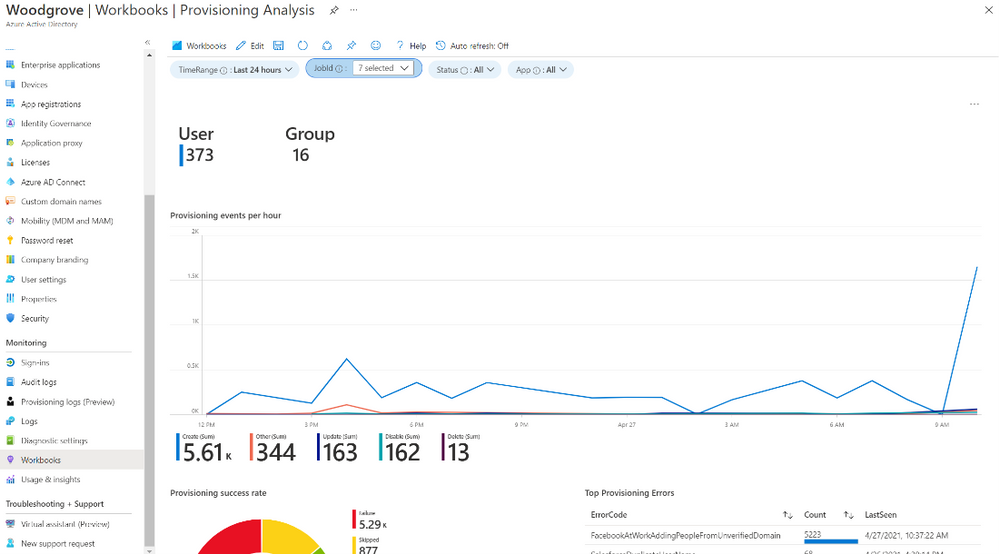
Monitor and troubleshoot your provisioning deployment with the provisioning logs using the UI, API, or by exporting the data as a CSV. You can also build custom dashboards, alerts, and queries on the data using our Azure Monitor integration.
Simplify building and testing expressions
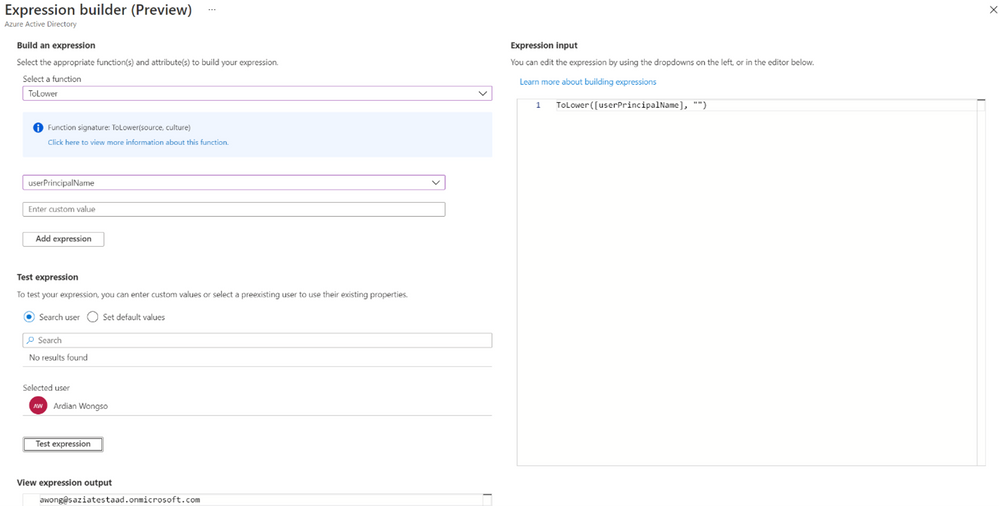
Azure AD’s provisioning service allows you to transform data prior to exporting it into a target system. In order to make it easier to build and test the expressions used to transform data, we’ve built an expression builder that is now available in public preview. Learn more about it here, or visit our tips for general guidance on writing expressions.
HR-driven provision updates for international assignments, gig economy workers, and cross-domain manager references
- In large multi-national corporations, employees may temporarily work in international locations and return to their home base after the assignment is over. Typically HR creates a new user profile corresponding to this assignment, so we have updated our user provisioning integrations with Workday and SuccessFactors to support retrieval of international assignment data.
- In today’s gig economy, we see a rise in conversion scenarios, wherein a full-time worker converts to a contingent worker or vice versa. When this happens, HR teams that use Workday deactivates the previous employment record and creates a new employment record that usually retains the previous employee ID. Classically, handling this scenario required manual intervention or creation of two separate Workday provisioning jobs to process full-time employees and contingent workers. With a recent update to our Workday integration, you can seamlessly handle this scenario so that the active employment record in Workday always takes over the ownership of the corresponding identity.
- If you are integrating HR provisioning with multiple on-premises Active Directory (AD) domains, you may come across scenarios where the user is part of one AD domain and the user’s manager is part of another AD domain. Such cross-domain manager references can now be resolved with a recent update and you can also search for duplicate UPNs / samAccountName values across multiple domains. Learn more in our cloud HR planning guide.
A new version of Azure AD Connect sync is available
The latest version of Azure AD Connect sync has added the following capabilities:
- Now supporting Selective Password hash Synchronization
- A new Single Object Sync cmdlet helps you troubleshoot your Azure AD Connect sync configuration
- Default to the V2 endpoint, which provides improved performance and allows for syncing of groups with more than 50,000 members.
- A new built-in role, the Hybrid Identity Administrator, can be used for admins that are responsible for configuring the service.
Azure AD Connect cloud sync updated agent
With agent version # 1.1.359, Azure AD Connect cloud sync admins can now use GMSA cmdlets to set and reset their gMSA permission at a granular level. In addition, the limit of syncing members using group scope filtering has increased to 50,000 members. For more details on agent updates, including bug fixes, check out the version history.
As always, we’d love to hear your feedback or suggestions in the comments or on Twitter (@AzureAD).
Best regards,
Alex Simons (@Alex_A_Simons)
Corporate VP of Program Management
Microsoft Identity Division
Learn more about Microsoft identity:
by Contributed | Jul 1, 2021 | Technology
This article is contributed. See the original author and article here.
By Lothar Zeitler – Senior Program Manager | Microsoft Endpoint Manager – Intune
Mobile devices have become powerful enough to support various computationally intensive tasks. To help manage more complex projects, Samsung offers Samsung DeX, which creates a desktop experience for mobile users. With Samsung DeX, you can use mobile apps in desktop mode and work from your phone or tablet in a PC-like user interface. Samsung DeX is available on premium models. For more information and a list of supported devices, go to Samsung DeX (link to Samsung.com).
The Samsung DeX platform is an extension of Android Nougat‘s multi-window mode, which means that you can use almost any Android application in desktop mode on a supported device. However, to optimize desktop/DeX performance, developers might need to customize their application (see Optimizing your app on the Samsung website). Note that both application and device policies implemented with will continue to work with DeX without modification.
To use Samsung DeX, you simply connect a USB–C to HDMI cable to an external monitor. The DeX interface then appears on the screen via the video stream. You can also connect a mouse and keyboard to the mobile device via Bluetooth. Samsung DeX is also available as desktop (host) application for Windows and macOS, which allows you to work simultaneously between your mobile device and your computer.
IT administrators who manage mobile devices with Microsoft Intune can use the service to manage Samsung DeX configurations. In this article, we will explain how to set up and configure DeX for managed Samsung devices in Intune.
Set up device management in Intune
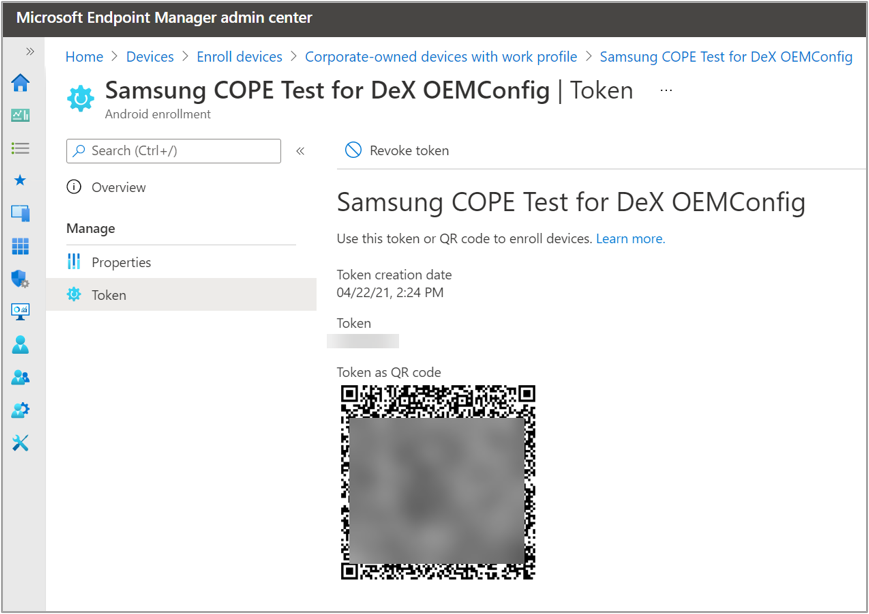
First, you will need to create an enrollment profile and set up a device group for Samsung devices that are corporate-owned with a work profile. For detailed instructions, see Corporate-Owned devices with a Work Profile.
An example enrollment profile for “Corporate-owned devices with a work profile” looks like this:
Example enrollment profile for “Corporate-owned devices with a work profile”.
Next, we create a new device group to add all Samsung models with the same enrollment profile dynamically. We will use this dynamic group to assign policies, apps, and configurations, including the DeX configuration, to each new device that belongs to that group. We used the same enrollment profile name “Samsung COPE Test for DeX OEMConfig” for our device group. When you create this new group, make sure to select “Dynamic Device” in the Membership type field.
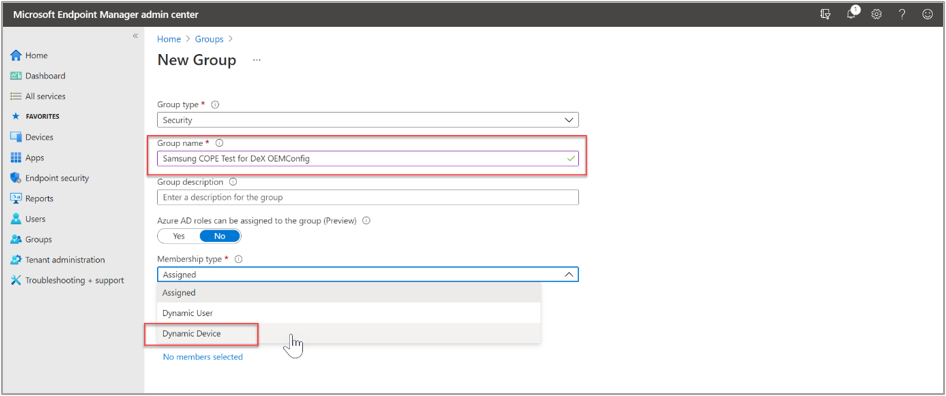 Example dynamic device group for DeX devices.
As a membership criterion for the group, we use the name of the enrollment profile. We define the rule criteria under Dynamic device members > Add a dynamic query. Under Property, we select enrollmentProfileName then under Operator, select Equals, and under Value, we enter the profile name “Samsung COPE Test for DeX OEMConfig.“
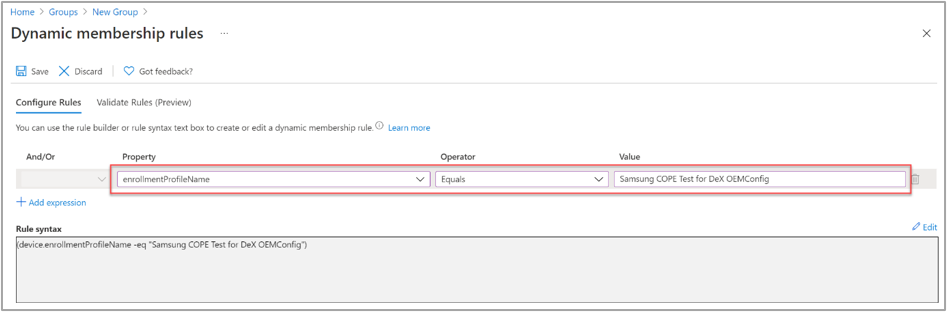 Example dynamic device query for the “Samsung COPE Test for DeX OEMConfig” profile.
Now, all devices that are enrolled with this profile in Intune automatically become members of our group.
Configure Samsung DeX settings
OEMConfig is an Android standard that we use to add, create, and customize OEM-specific settings, including DeX settings, for Android Enterprise devices. OEMConfig configuration settings are delivered to a device via an OEMConfig app. This section explains how to add an OEMConfig app and then create an OEMConfig profile.
Add the Knox Service Plugin app
Samsung offers the Knox Service Plugin (KSP) to help IT admins create and push app configurations to managed devices. To apply an OEMConfig configuration to a Samsung device, the KSP app must be installed first. The KSP app is available in Google Play and can be automatically deployed to devices using Intune.
In the Microsoft Endpoint Manager admin center, add the KSP app via the Managed Google Play Store. For detailed instructions, see Add and assign Managed Google Play apps to Android Enterprise devices.
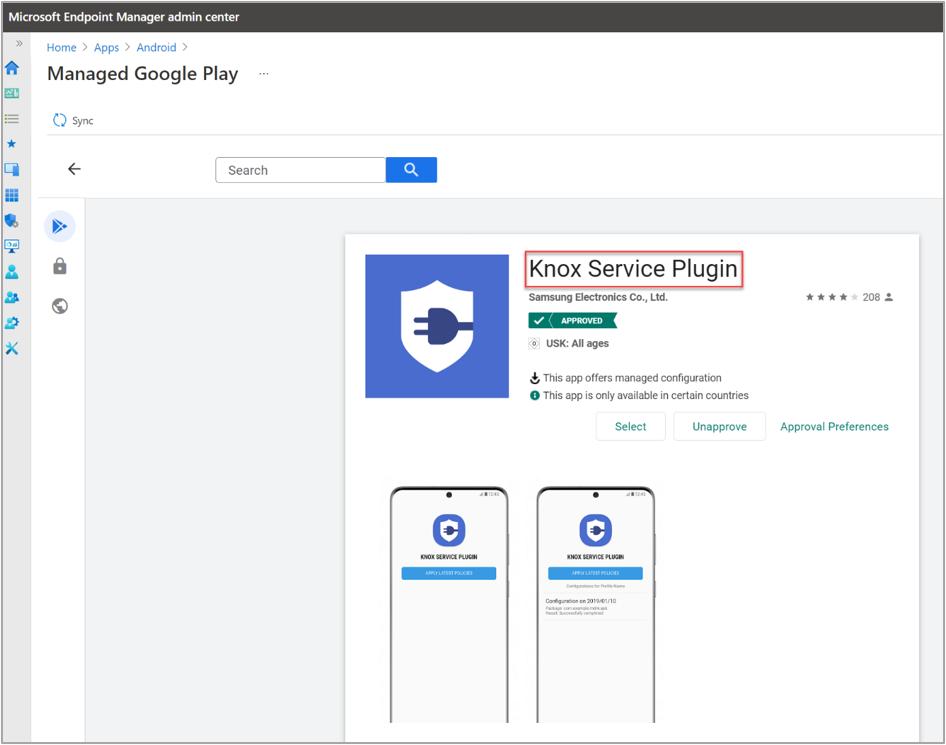 Adding the “Knox Service Plugin” via the Managed Google Play Store.
Once the KSP app is visible in the apps list in Intune, you can assign it to the device group. Navigate to Apps > Knox Service Plug–In > Properties > Assignments (select Edit).
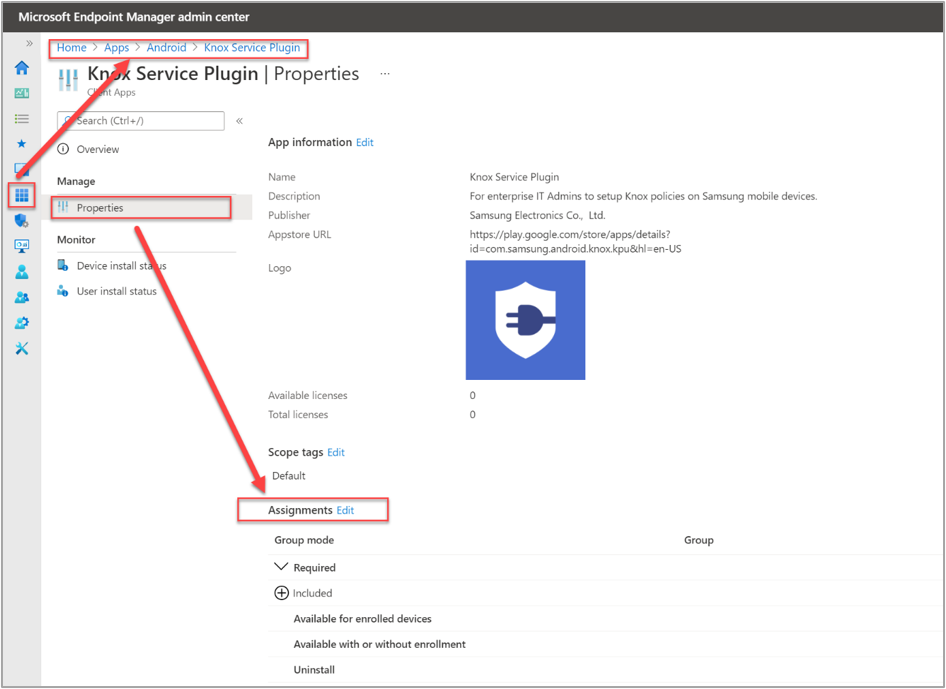 Adding a new app assignment for the Knox Service Plugin app.
On the Edit application page under the Required option, we add the same device group we created earlier: “Samsung COPE Test for DeX OEMConfig.“ This will enforce a mandatory install of the app on any device in the group. For detailed instructions, see Assign apps to groups with Microsoft Intune.
After a device is enrolled using the QR code and the applicable profile, the KSP app is automatically installed. Once installed, the OEMConfig policy will be assigned to the device.
Create and assign an OEMConfig policy
We typically use OEMConfig to configure settings that aren’t built into Intune, and the available settings depend on what the original equipment manufacturer (OEM) includes in their OEMConfig app. For detailed information on OEMConfig policies, see Use and manage Android Enterprise devices with OEMConfig in Microsoft Intune.
First, we need to create an Android Enterprise configuration profile with the type OEMConfig.
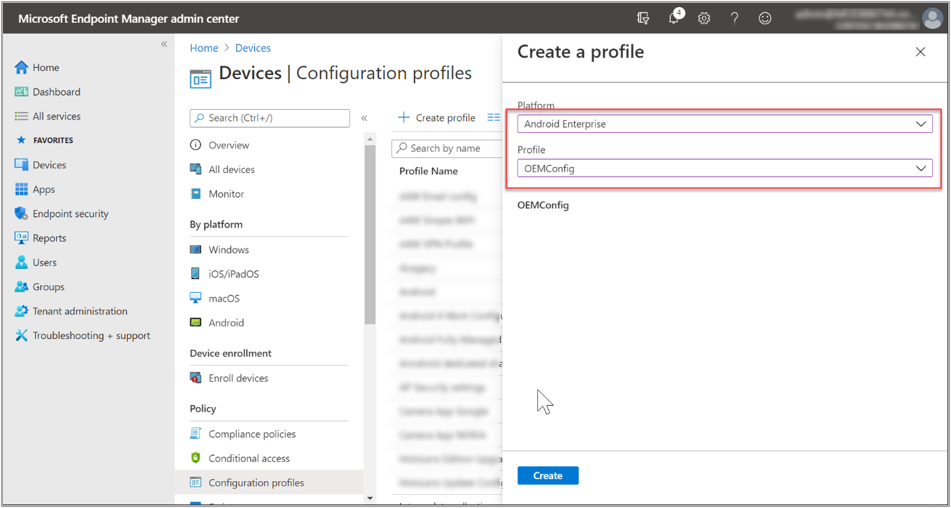 Creating a new Android Enterprise OEMConfig configuration policy.
We continue to use the same name as the enrollment profile for the OEMConfig profile: “Samsung COPE Test for DeX OEMConfig,” and then select the Knox Service Plugin as the OEMConfig app, which means it is the designated app to deploy the OEMConfig profile to devices.
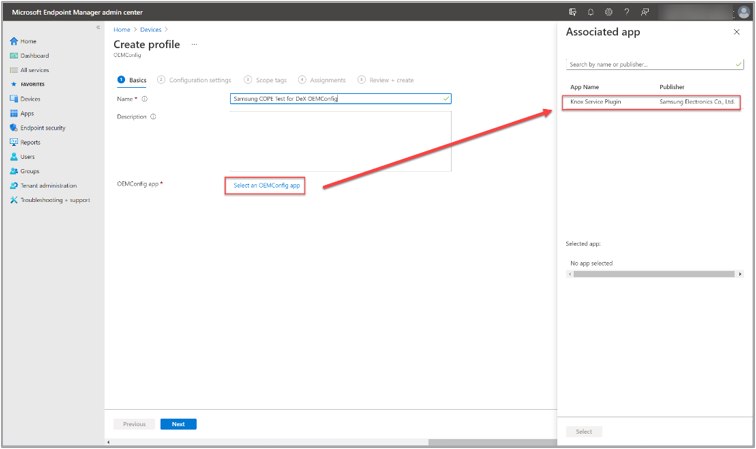 Assigning the Known Service Plugin to the newly created OEMConfig profile.
On the Configuration settings page, we search for DeX settings (select the Locate search link). This will show us all available DeX settings that we might want to configure later. You can configure additional settings in the profile, beyond the DeX configuration. There are different parameters and options for each item in the profile configuration settings.
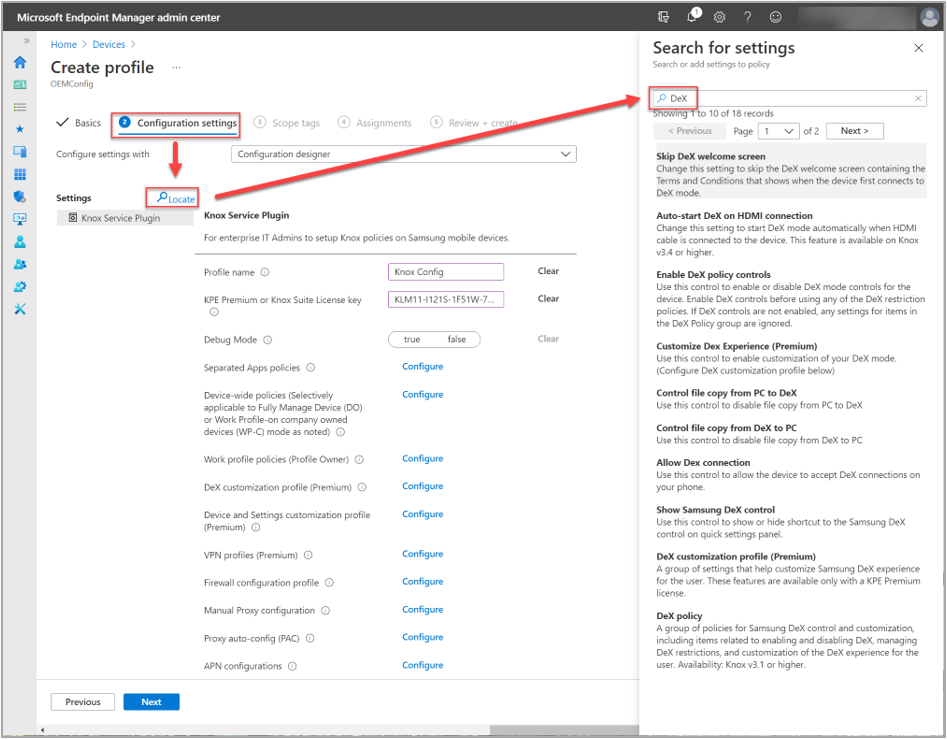 Clicking on the “Locate” search link to show all available DeX settings.
In our example scenariowe want to use the DeX for Windows application to display the DeX interface on the PC when connecting the device, and we also want to use the PC keyboard and mouse. With this setup, a user can easily copy data between a PC and DeX device. You can allow or block the direction of data flow, i.e., PC → DeX or DeX → PC, can under Configure file transfer settings, as shown below.
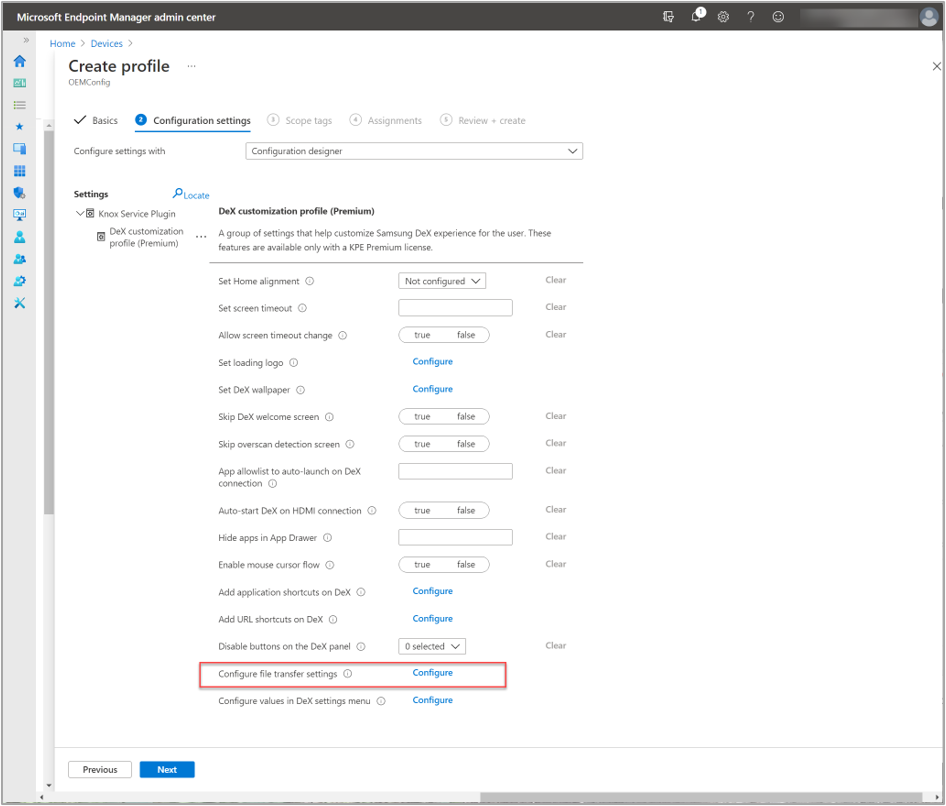 Example of all available DeX customization options with the “Configure file transfer settings” highlighted.
As a next step, we want to configure the connection settings and use a custom background picture.
now create an OEMConfig policy called “Samsung COPE Test for DeX OEMConfig.“ First, we define a profile name, “DeX Config.“ For our example, we will also add a Knox license key for the E-FOTA service.
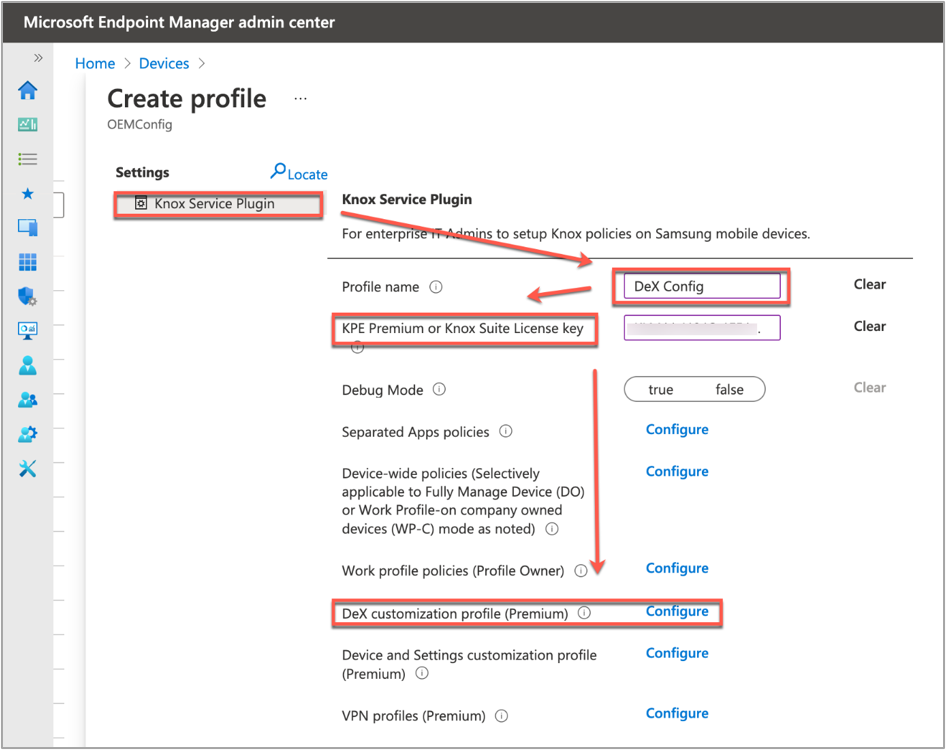 Creating a new OEMConfig policy named “Samsung COPE Test for DeX OEMConfig”.
The DeX customization profile (Premium) item takes us to the list of configuration options for DeX. First, we set the Auto-start DeX on HDMI connection to True, which will configure DeX to start automatically when an HDMI connection is established. We also set the Enable Mouse Cursor Flow option to True, which will enable mouse movements between the connected screen and the DeX device.
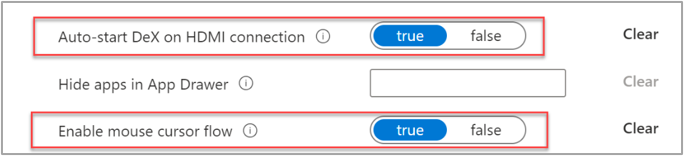 Configured settings under the “DeX customization profile (Premium)” setting.
Next, we will set a custom wallpaper image that will show when a device is in DeX mode. Under the Set DeX Wallpaper, we select a Web URL for the Wallpaper Image, enter the image’s URL, and then choose when to display the wallpaper should be changed (option: Which Wallpaper to setup? All, On lock screen, or Not configured).
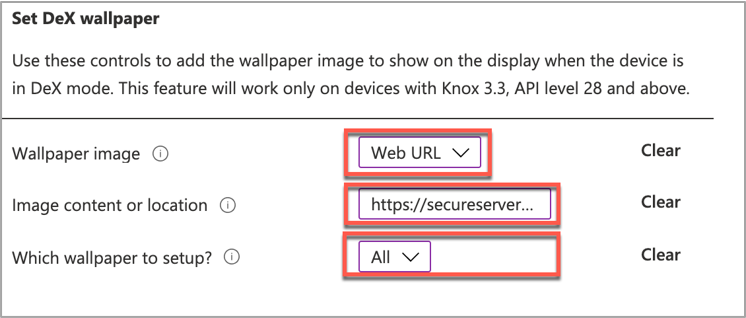 Configuring a custom wallpaper image that will show when a device is in DeX mode.
Note: To edit previous KSP configuration settings, select the ellipses next to an item (…).
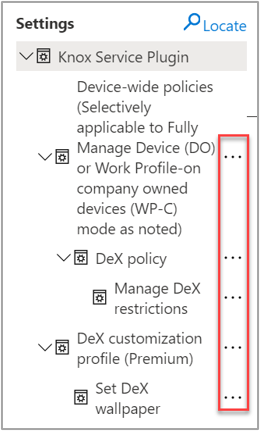 To edit previous KSP configuration settings, select the “ellipses” button next to an item.
Once the DeX configuration is complete, we select Next twice. Then, under Add Groups, select the group “Samsung COPE Test for DeX OEMConfig” that we previously created.
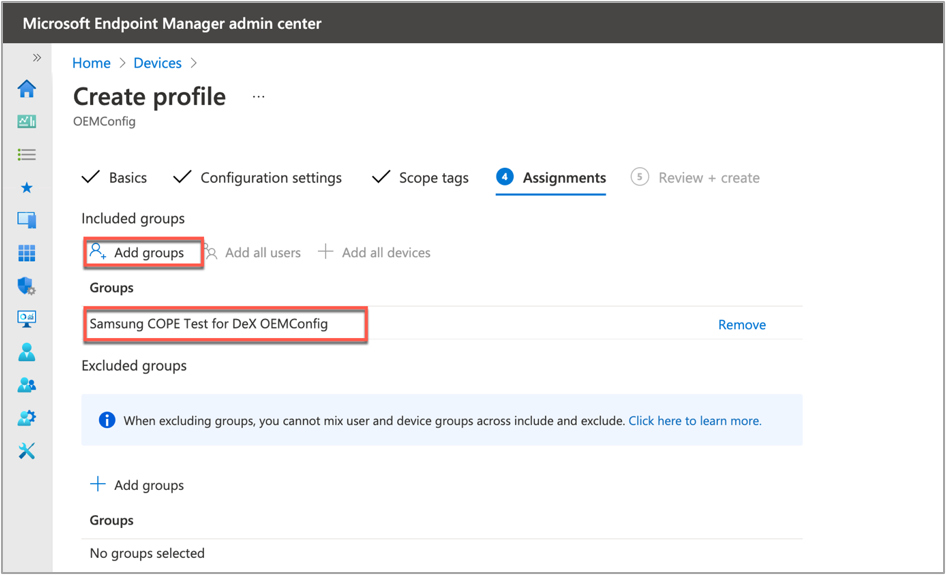 Assigning a group under a new OEMConfig profile.
On the summary page, review the settings and select Create to create the profile.
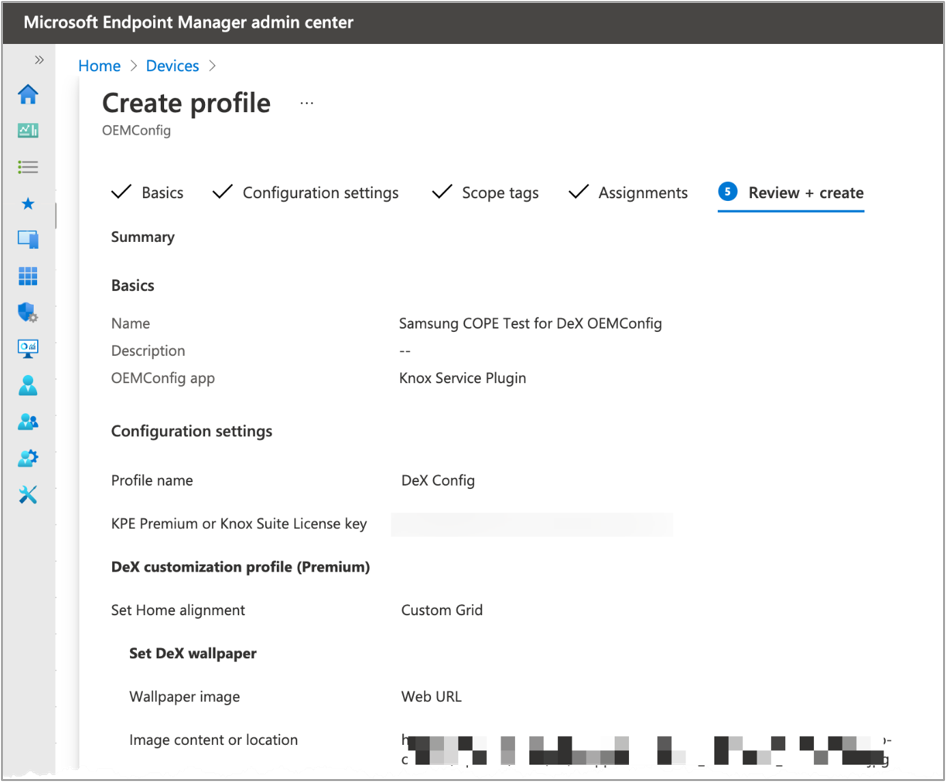 Summary page of a new OEMConfig profile.
The configuration is now ready to use. When you connect a DeX device, a connection dialog appears.
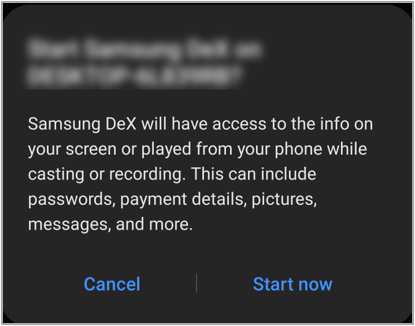 Connection dialog example when connecting a new DeX device to your device.
Select Start Now to establish a connection to the external device or screen and start DeX interface.
 Wallpaper configuration example from a recently connected DeX device that received the configured OEMConfig.
Note: The wallpaper configuration in the OEMConfig, like other settings too, is dynamic. When you change the image source in the settings, the wallpaper will change.
Note: If you want to use the DeX host application, you must first install the software on the PC. When a DeX device connects to the PC, the DeX icon will appear in the tray.
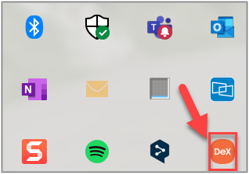 Example of the DeX icon in the Windows system tray when a DeX device connects to the PC.
Tips for using OEMConfig and DeX
When using OEMConfig and DeX, there are a few considerations and practices to keep in mind.
OEMConfig variations
OEMConfig is a functionality that is available as part of Android Enterprise. Almost all OEMs provide an app to support device–specific configurations. However, the set of options varies from OEM to OEM.
Debug mode
Samsung has an optional OEMConfig setting for debug mode. In debug mode, the KSP app remains visible and active on the device to facilitate troubleshooting.
KSP Debug Mode |
KSP Configuration |
KSP Profile |
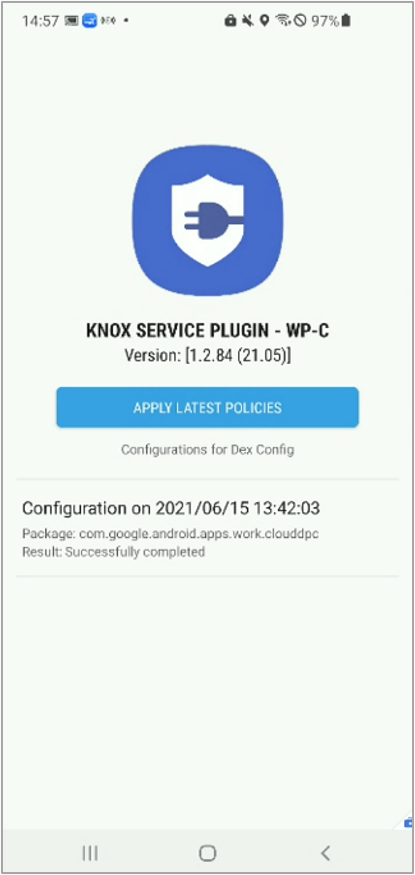 Screenshot of the Knox Service Plugin in Debug Mode on a DeX device. Screenshot of the Knox Service Plugin in Debug Mode on a DeX device. |
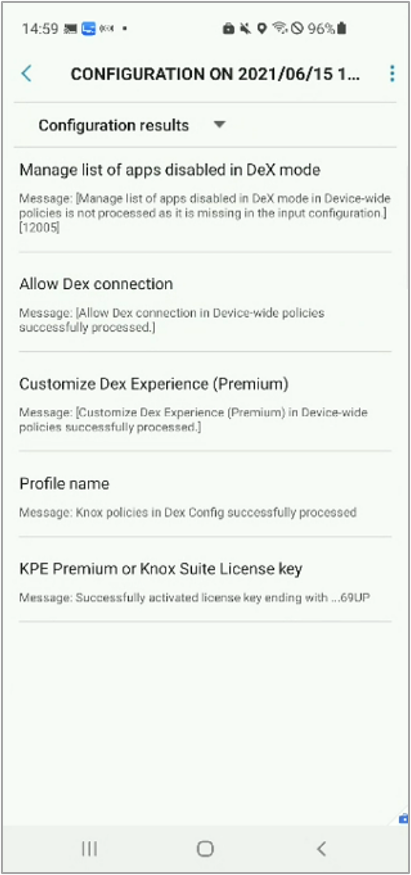 Screenshot of the Knox Service Plugin and configurations applied on a DeX device. Screenshot of the Knox Service Plugin and configurations applied on a DeX device. |
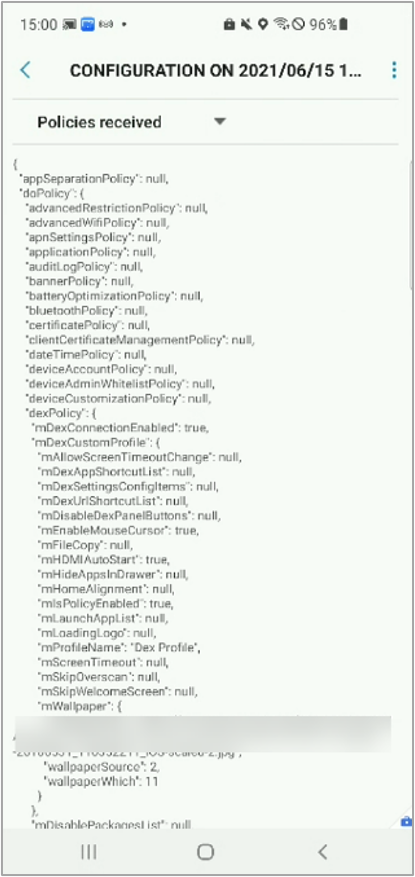 Screenshot of the Knox Service Plugin and configured settings on a DeX device. Screenshot of the Knox Service Plugin and configured settings on a DeX device. |
Error messages
OEMConfig error messages are displayed in the Microsoft Endpoint Manager admin center. Select Devices > All devices, choose the device from the list, and then go to App Configuration.
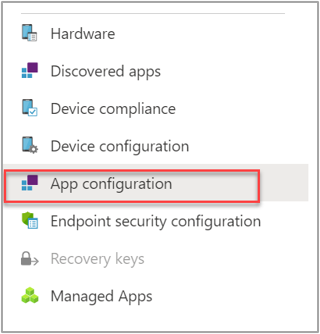 Screenshot of the “App configuration” blade in the Microsoft Endpoint Manager admin center.
Note: The error messages in the admin center are identical to the messages created by the KSP app. You can find a list of error messages in the Samsung Knox documentation.
Device-wide policies
You can apply some DeX policies to all users on the device, regardless of work profile and personal settings. You’ll find these settings under the Know Service Plugin settings, as shown below.
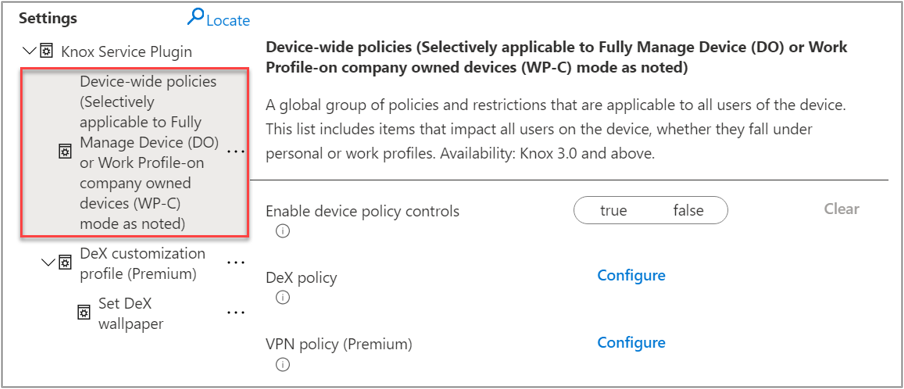 Screenshot of an sample OEMConfig and highlighted example of the “Device-wide policies” that can be targeted to DeX devices.
Expand this section to find the device-wide DeX policies.
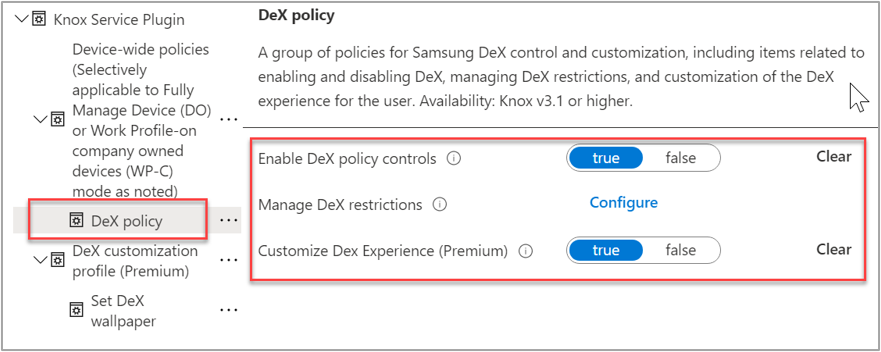 Screenshot of an sample OEMConfig and an expanded “DeX policy” section to find device-wide policies.
Now that you have a better understanding of how to manage Samsung DeX devices in Microsoft Intune, you can help your company take advantage of this technology. If you have any questions, reply to this post or reach out to @IntuneSuppTeam on Twitter.


Recent Comments