Revolutionize customer service with next-generation AI

Revolutionize customer service with next-generation AI

This article is contributed. See the original author and article here.

We’re entering the era of next-generation AI that is driving new levels of productivity and efficiency, unleashing new innovations in the customer service space. AI is profoundly changing how customers engage with businesses and how agents provide exceptional service to them.

From a service perspective, customers expect fast, accurate answers to their questions, and personalized help when they contact a business. Meanwhile, businesses are under pressure to provide exceptional customer service with fewer resources. Legacy ways of integrating multiple-point solutions for customer service do not work. The time to embark on a digital transformation journey is now. Choosing the right AI-powered customer service solution for that journey, empowering customer service agents with AI, and reducing costs has never been more important. 

We’re excited to launch Copilot in Dynamics 365 Customer Service, which provides agents with real-time AI-powered assistance, developed in alignment with our responsible AI principles and standards. Copilot helps agents resolve issues faster, handle cases more efficiently, and automate time-consuming tasks so they can focus on delivering high-quality service to their customers. In a nutshell, Copilot can help every agent to become your best agent.

a man sitting at a desk in front of a window

Copilot in Dynamics 365 Customer Service

Preview next-generation AI capabilities

With just a click of a button, Copilot empowers any agent to obtain the most relevant answer to any complex question that a customer may have and deliver a tailored response to the customer in real time using chat messages and emails. Copilot is available to agents as part of their natural flow of solving problems using Customer Service workspace. It’s like having an expert at your fingertips, always ready to assist. 

Let’s take a closer look at the ways Copilot revolutionizes customer service and enables agents to deliver fast and relevant resolutions to customer problems.

Make every customer service agent a superagent

Today, when agents get a question from a customer that they can’t answer immediately, they typically search multiple internal knowledge sources or try to find an internal expert to consult with. The amount of time it takes to read through search results, find the right solution, compose a response back to the customer, and resolve the case is often lengthy.

Now, agents can chat with the next-generation AI-powered Copilot in Dynamics 365 Customer Service right within Customer Service workspace. Copilot can diagnose customer problems, use the organization’s internal knowledge and vast amounts of data from trusted websites, and supply the agent with an appropriate solution to give to the customer.

Copilot analyzes customer data to identify patterns, anticipate customer needs, and make suggestions to the agent on how to best handle each interaction. With this powerful tool at their disposal, agents can handle more queries in less time, increasing efficiency and improving the overall customer experience. Since agents are always in the loop every step of the way, they are in full control of using AI to drive their productivity. Agents can verify the responses, check the resources, and personalize the message to match the customer’s specific needs to ensure their satisfaction and optimal experience.

graphical user interface, application

Answer customer questions fast across channels 

In today’s fragmented contact center solution space, agents are often inundated with multiple messages on different channels of engagement. They are overwhelmed by multitasking and context switching, often wondering how they can keep up with overflowing incoming requests.

With omnichannel capabilities in Dynamics 365 Customer Service, customer service agents get a streamlined view of incoming chats from a variety of channels (such as Apple Messages for Business, Google Business Messaging, text messages, and WhatsApp) integrated with case management. Agents can now use Copilot in Dynamics 365 Customer Service, which intelligently parses information from the conversation and contextualizes it with organizational and customer data. Furthermore, Copilot keeps track of historical interactions, and uses all of that information to recommend a tailored, helpful answer that agents can review before they respond. Customers get the best service, regardless of their choice of channel.

graphical user interface, application

Send expertly crafted customer service emails 

For agents who receive questions via email, Copilot in Dynamics 365 Customer Service can help create relevant and personalized email responses in seconds. Copilot provides agents with predefined prompts based on what the agent is trying to do, such as “suggest a call”, “request more information”, “empathize with feedback”, or “resolve the customer’s problem.” Agents can also provide their own custom prompt for more complex issues. 

graphical user interface, text, application, email

Normally, agents may spend many minutes or hours researching and composing a detailed email with all the necessary information. With Copilot, agents get a composed email response in an instant that they can review and send.This model drives unparalleled productivity for the agent and delivers personalized service for the customer.  

This embed requires accepting cookies from the embed’s site to view the embed. Activate the link to accept cookies and view the embedded content.

This site uses cookies for analytics, personalized content and ads. By continuing to browse this site, you agree to this use.

Enrich self-service with AI-powered conversational assistance

Dynamics 365 Customer Service now offers a powerful conversational experience with Power Virtual Agents, boosted by next-generation AI capabilities. Customers can get relevant answers to their questions immediately from intelligent conversational bots that use trusted websites and internal data. Enterprises also have the choice of using Nuance as an on-ramp for their digital transformation journey. Nuance announced new AI capabilities in Nuance Mix. Dynamics 365 Customer Service, together with Microsoft Teams, Microsoft Power Platform, Nuance, and Microsoft Azure, deliver truly transformative experiences for both agents and customers through the contact center.

Next-generation AI that is ready for enterprises

Azure OpenAI Service offers a range of privacy features, including data encryption and secure storage. It also allows users to control access to their data and provides detailed auditing and monitoring capabilities. Dynamics 365 is built on Azure OpenAI, so enterprises can rest assured that it offers the same level of data privacy and protection.

AI solutions built responsibly

We are committed to creating responsible AI by design. Our work is guided by a core set of principles: fairness, reliability and safety, privacy and security, inclusiveness, transparency, and accountability. We are putting those principles into practice across the company to develop and deploy AI that will have a positive impact on society.

Try Copilot in Dynamics 365 Customer Service

Sign up for the limited preview of Copilot in Dynamics 365 Customer Service. This preview is available for instances in North America using the English US language.

A woman sitting at a desk in front of a computer, looking off to the side.

Microsoft Business Applications Launch Event

On April 4, discover innovations across Microsoft Dynamics 365 and Microsoft Power Platform at a digital event.

The post Revolutionize customer service with next-generation AI appeared first on Microsoft Dynamics 365 Blog.

Brought to you by Dr. Ware, Microsoft Office 365 Silver Partner, Charleston SC.

Converting X12 EDI Health Insurance Claims to FHIR

Converting X12 EDI Health Insurance Claims to FHIR

This article is contributed. See the original author and article here.

Processing health insurance claims can be quite complex. This complexity is driven by a few factors, such as the messaging standards, the exchange protocol, workflow orchestration, all the way to the ingestion of the claim information in a standardize and scalable data stores. To enable operational, financial, and patient-centric data analytics, the claims data stores are often mapped to patient health records at the cohort, organization, or even population level. 


What is X12 EDI?


Electronic Data Interchange (EDI) defines a messaging mechanism for unified communication across different organizations. X12 claims based processing refers to a set of standards for electronic data interchange (EDI) used in the healthcare industry to exchange information related to health claims. The X12 standard defines a specific format for electronic transactions that allows healthcare providers, insurers (payers), and other stakeholders to exchange data in a consistent and efficient manner. This cross-industry standard is accredited by the American National Standards Institution (ANSI). For simplicity, we will refer to ‘X12 EDI’ as ‘X12’ throughout this article. 


What is FHIR?


FHIR® (Fast Healthcare Interoperability Resources) is a standard for exchanging information in the healthcare industry through web-based APIs with a broad range of resources to accommodate various healthcare use cases. These resources include patient demographics, clinical observations, medications, claims and procedures to name a few. It aims to improve the quality and efficiency of healthcare by promoting interoperability between different systems.


Azure Health Data Services is a suite of purpose-built technologies for protected health information (PHI) in the cloud. The FHIR service in Azure Health Data Services enables rapid exchange of health data using the Fast Healthcare Interoperability Resources (FHIR®) data standard. As part of a managed Platform-as-a-Service (PaaS), the FHIR service makes it easy for anyone working with health data to securely store and exchange Protected Health Information (PHI) in the cloud.


Why Convert X12 to FHIR?


FHIR is a modern, developer-friendly, born-in-the-cloud data standard compared to the aging X12. Converting from X12 to FHIR has many merits; (1) take advantage of FHIR interoperability and adoption to exchange claim information across various systems using modern and secure protocols, (2) unification of patient health and claim dataset into a single FHIR service in the cloud (3) enjoy a larger community of developers and evolving ecosystem at the global healthcare stage.


The Azure Solution


In essence, this article describes how to orchestrate the conversion of X12 claims to FHIR messages using Azure FHIR Service (with Azure Health Data Services), Azure Integration Account and Azure Logic AppsAzure Logic Apps is a service within the Azure platform that enables developers to create workflows and automate business processes through the use of low-code/no-code visual and integration-based connectors. The service allows you to create, schedule, and manage workflows, that can be triggered by various events, such as receiving an HTTPS request or the arrival of a new file in an SFTP service. The Azure Integration Account is part of the Logic Apps Enterprise Integration Pack (EIP) and is a secure, manageable and scalable container for the integration artifacts that you create. The X12 XML Schema will be provided through the Azure Integration Account. The complete implementation of the X12 to FHIR conversion in Azure is available on GitHub.


Orchestration of X12 to FHIR Conversion


Azure Logic Apps orchestrates the conversion process from X12 to FHIR resources, allows for additional data quality checks, and then ingests the FHIR resources in the Azure FHIR Service as depicted in the following 4 steps:


X12 to FHIRX12 to FHIR


  1. First, we ingest the X12 file content into the Azure Logic Apps workflow. In this sample, we submit the X12 file content in the body of an HTTPS Post request to the HTTPS endpoint exposed by Azure Logic Apps. 

  2. Initial data quality check and decoding is done using the Azure Logic Apps X12 connector leveraging the X12 XML schemas associated with the transaction sets. This step will verify that the sender is configured and enabled in the system and pick the correct agreement that is configured with the X12 schema. This schema is used to convert the X12 data to XML.

  3. Once the X12 file is validated and decoded into the XML format, the XML content can then be converted to FHIR using the Azure Logic Apps XML to JSON Liquid connector. This uses DotLiquid templates to map the XML content to the corresponding FHIR resources.

  4. The output of the workflow is to store the data in Azure FHIR Service (with Azure Health Data Services) to support a unified view of the patient’s record. The FHIR service supports an HTTP REST endpoint where individual resources can be managed or sent as an atomic transaction using a FHIR bundle.


FHIR Resources


Various FHIR resources can be generated from an X12 transaction set. Depending on business requirements and entities participating in the integration, these resources will vary.


Entity Resource Description
Patient Patient The person who the claim is for.
Sender Organization or Practitioner The organization or provider submitting the claim.
Recipient Organization or Practitioner The organization or provider receiving the claim for processing.
Claim Claim The details about the services, amounts, and codes associated with the claim.
Transaction Set / Message Communication Metadata bout the X12 message including the raw message.


Liquid Template Sample


A sample liquid template is provided showing how to extract data from the decoded X12 file. In the following snippet, the elements under ‘content’ correspond to XML elements in the decoded X12 file. The XML elements are being mapped to the ‘total’ attribute of the ‘Claim’ FHIR resource. 


{
    "resourceType": "Claim",
    "status": "active",
    "use": "claim",   
    "total": "{{content.FunctionalGroup.TransactionSet.X12_00501_835.TS835_2000_Loop.TS835_2100_Loop.CLP_ClaimPaymentInformation.CLP03_TotalClaimChargeAmount}}"
}


Considerations


  • Patient and provider identifiers in the transaction set may not correspond directly to the FHIR identifiers for those matching resources. A lookup approach may be needed to map the data such as an EMPI (enterprise master patient index) and Provider Registry. These mappings can exist in a separate data store or using the FHIR Identifier data type for the corresponding FHIR resource.

  • Various X12 EDI schemas may need to be managed across your provider base. Each version of the transaction set will have a corresponding Liquid template which will also need to be versioned to convert the correct XML to FHIR. An approach around modularizing templates will be crucial to find the right balance for reusability.

  • Depending on the scale of the provider base and security requirements the architecture can be revised accordingly:

    • One instance of Azure Logic Apps can be created per provider providing full compute isolation.

    • Azure Logic Apps also support parallelization allowing for a batch of X12 files to be submitted and then processed in parallel.

    • One instance of Azure Logic Apps and Azure FHIR Service can be associated with a certain geographic region which may be needed if data sovereignty is required.


  • Depending on business scenario, the ingestion process can be trigger from an SFTP event. Health organizations and providers can be associated with an Azure Storage Account enabled with SFTP where they can securely connect and manage their X12 artifacts. 


References


How to mass deploy Dynamics 365 Warehouse Management – Mobile App

How to mass deploy Dynamics 365 Warehouse Management – Mobile App

This article is contributed. See the original author and article here.

Automating the deployment and configuration of Warehouse Management can be more efficient for big-scale deployments if you have a lot of devices to manage. One solution for this is using a mobile device management (MDM) solution such as Microsoft Intune, but not limited to it. To learn general information about using Intune to add apps, refer to the guide Add apps to Microsoft Intune.

Mobile Device Management (MDM) Perquisites

This article provides a demonstration of the practical deployment with Intune. It is imperative to ensure the availability of the following resources:

Setting up Warehouse Management app in

Endpoint Manager

Each MDM solution offers several methods for delivering an application to end devices, including delivering app binaries or from app stores. The preferred delivery method is through app stores, as it is simple and offers the most convenient way to receive updates.

Here is an example of how to configure it on Intune portal.

Android

Add the Warehouse Management app with Add button in the Apps -> Android section.

graphical user interface, application

Select app type as Managed Google Play app. Use your Google account to log into Google Play, it requests only once the first time. In the window that opens, find Warehouse Management then click the Approve button and then the Sync button.

graphical user interface, application

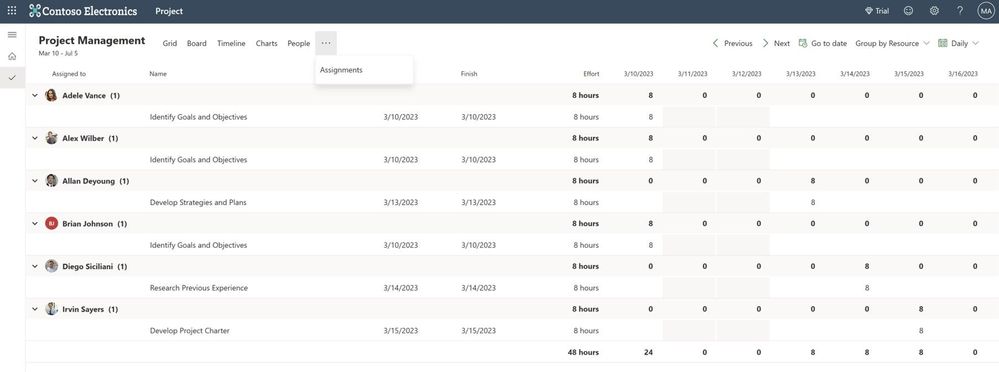
In the list of applications, select Warehouse Management, in the page that opens, select Assignments -> Edit.

graphical user interface, text, website

On the assignments page, select the user groups for which this application is intended and save.

a screenshot of a computer

Windows

The setup process for Windows apps is like Android, except for selecting an app from the Microsoft Store.

Add a new app with Add button in the Apps -> Microsoft Store app (new).

graphical user interface, text, application, email

Search for Warehouse Management

graphical user interface, application

Apply user assignments.

graphical user interface, application, email

Managed Configuration

The Warehouse Management app (available from version 2.0.41.0+) enables connection settings to be import as a managed configuration through an MDM solution, and the same ConnectionsJson configuration key is shared across all platforms.

As a prerequisite, you must have connection JSON file, described in the Create a connection settings file or QR code section.

text

Remember that it is necessary to have a single connection set as the default (IsDefaultConnection=true) for the first time the application instantly connects to the backend. If this is not done, the user will have to manually choose the initial connection from the available options.

Here is an example of how to configure it on Intune portal.

Android

On the Apps tab, select App Configuration policies -> Managed devices.

graphical user interface, application

Define a name, platform, profile, and app.

graphical user interface, text, application, email

To create an app configuration policy, you need to grant the following permissions: Camera, External storage (write), and External storage (read). Then, add a configuration key and choose the ConnectionsJson option from the dialog box that appears. Insert the contents of the Connections.json file as the value of the ConnectionsJson key. Finally, proceed to the subsequent steps and assign the relevant user groups.

graphical user interface, application

Windows

The Warehouse Managed for Windows requires a slightly different approach to deliver managed configuration. Navigate to the Devices section and choose Windows. This is where you will be able to view your Windows devices. Then, move to the Configuration Profiles section and create a custom profile by using templates for the Windows 10 platform.

graphical user interface, text, application, email

Define a name.

graphical user interface, text, application, email

In the Configuration settings step, add a new OMA-URI Setting and complete all necessary fields. Enter “./User/Vendor/MSFT/EnterpriseModernAppManagement/AppManagement/AppStore/Microsoft.WarehouseManagement_8wekyb3d8bbwe/AppSettingPolicy/ConnectionsJson” in the OMA-URI field and insert the contents of your Connections.json file in the Value field. Finally, proceed to the subsequent steps and assign the relevant user groups.

graphical user interface, application

Certificate-based authentication

Certificate-based authentication is widely used for secure and efficient method of authentication. In mass deployment scenarios, it is advantageous due to its ability to provide a secure access alongside the simplicity of certificate deployment to end devices. This helps in reducing the risk of security breaches, which can be a significant concern in large-scale deployments.

To use the Warehouse Management mobile app, you need to have the certificate stored on each device. If you’re using Intune to manage your devices, you can find additional instructions on how to handle certificates for authentication in the Use certificates for authentication in Microsoft Intune guide.

To utilize a Certificate-based authentication approach, you must obtain a self-signed certificate (.pfx) either through the Windows Server Certificate Authority or by using PowerShell. It’s important to ensure that the certificate is exported along with its private key and protected by a password.

The objective is to transfer the PFX certificate (.pfx) with the thumbprint specified in the ConnectionsJson to the target devices. To achieve this, utilize the PKCS imported certificate configuration profile, as it enables the delivery of the same certificate across devices.

Certificate import

Create App registration in Azure Active Directory for PFXImport Powershell

Create new client secret on Certificates & secrets tab.

graphical user interface, text, application

Add and configure Mobile and desktop applications on Authentication tab.

graphical user interface, text, application, email

Build PFXImport

Download Visual Studio 2022.

Download PFXImport Powershell Project from GitHub.

Open PFXImportPS.sln file, switch it to release mode, and build the project. You can find additional information by following the link.

graphical user interface, text

Dedicated machine for Certificate Connector

Start up the designated machine and carry out all subsequent actions on it.

Copy your self-signed PXF certificate to the Certificate Connector machine.

Copy the project binaries to the machine. (~Intune-Resource-Access-developsrcPFXImportPowershellPFXImportPSbinRelease)

Modify IntunePfxImport.psd1 in Release folder file with data from App registration.

text

To install the Microsoft Intune Certificate Connector, locate the installation file under the Tenant administration tab in the Endpoint Manager.

graphical user interface, text, application, email

To install the Certificate Connector, transfer the installation file to the designated machine where it will be used and then run the file. During the installation process, be sure to select the “PKCS imported certificates” checkbox. Then sign into your Azure AD account using an admin user. As a result of successful installation, you will see a green checkmark on the Endpoint Manager page. You can find additional information by following the link.

graphical user interface, text, application

Import certificate with PFXImport Powershell

Run Powershell Terminal as administrator on the Certificate Connector machine.

Change folder to PFXImportPowershell release folder.

Run the following commands in the given sequence.

  1. Import-Module .IntunePfxImport.psd1
  2. Set-IntuneAuthenticationToken -AdminUserName “
  3. Add-IntuneKspKey -ProviderName “Microsoft Software Key Storage Provider” -KeyName “PFXEncryptionKey”
  4. $SecureFilePassword = ConvertTo-SecureString -String “” -AsPlainText -Force
  5. $UserPFXObject = New-IntuneUserPfxCertificate -PathToPfxFile “C:.pfx” $SecureFilePassword “<END_USER@DOMAIN.COM>” “Microsoft Software Key Storage Provider” “PFXEncryptionKey” “smimeEncryption”
  6. Import-IntuneUserPfxCertificate -CertificateList $UserPFXObject

To deliver the certificate for additional end users, repeat steps 5 and 6 while including their logins.

Use the following command to validate the result.

Get-IntuneUserPfxCertificate -UserList “<END_USER@DOMAIN.COM>”

Additional information is available at the following link.

Troubleshooting: Use Windows Event Viewer to review the Certificate Connector logs.

graphical user interface

Endpoint manager portal configurations

To create a new configuration profile, the process is the same across all platforms. Start by going to the Device tab, selecting the desired operating system, and clicking the “Create profile” button. Then, select “PKCS imported certificate” as the profile type (If the operating system is Android, also select the “Android Enterprise platform” option). Give the profile a name and description in the next step.

graphical user interface, text, application, email

In the following step, choose “S/MIME Encryption” as the “Intended purpose” and finalize the process by assigning it to a user group (If the operating system is Windows, also select the “Enroll to Software KSP” option).

graphical user interface, text, application, email

Use the configuration profile details page to validate the result.

graphical user interface, application, email

Another way to verify is to inspect the end devices. You can check the certificates using:

  1. the “Manage user certificates” option on Windows, or
  2. an app like “My certificates” to view installed certificates on Android. Please note, this app needs to be installed in the same way and the same work profile as Warehouse Management to access certificates distributed from Intune.

graphical user interface, text, application, email

End Device Enrolment

Devices can be enrolled with the Company Portal app, depending on the type of device and platform, and these enrolment programs provide access to work or school resources. Enrolment involves registering with Microsoft Intune and applying organizational policies for security. The Company Portal app is accessible on multiple devices.

Android

You must install the Intune Company Portal app and log in to your company account.

Windows

Windows has several options to setup end user devices.

  1. With the Intune Company Portal app
  2. Login into “Access -> Access work” or school and login into “Accounts -> Email & accounts -> Add a work or school account” then reboot the device.
  3. Other options

Not yet a Supply Chain Management customer? Take a guided tour.

The post How to mass deploy Dynamics 365 Warehouse Management – Mobile App appeared first on Microsoft Dynamics 365 Blog.

Brought to you by Dr. Ware, Microsoft Office 365 Silver Partner, Charleston SC.

Create inclusive content with the new Accessibility Assistant in Microsoft 365

Create inclusive content with the new Accessibility Assistant in Microsoft 365

This article is contributed. See the original author and article here.

Inaccessible content is everywhere in the digital world. Today, we’re introducing Accessibility Assistant in Microsoft 365 to help creators produce more accessible content with less effort, all in the flow of work.

The post Create inclusive content with the new Accessibility Assistant in Microsoft 365 appeared first on Microsoft 365 Blog.

Brought to you by Dr. Ware, Microsoft Office 365 Silver Partner, Charleston SC.

Delivery Optimization report now generally available

Delivery Optimization report now generally available

This article is contributed. See the original author and article here.


Start monitoring Delivery Optimization usage and performance across your organization today! Following the Windows Update for Business reports announcement back in November 2022, we are excited to announce the general availability of the Delivery Optimization Windows Update for Business report.


We genuinely appreciate those of you who participated in the public preview! You helped us verify the accuracy of the new data tables and revise the layout. Your responses helped us identify and address all critical issues, so it can now be offered to all Delivery Optimization users. In this article, find guidance to:


  • Get started with Windows Update for Business reports

  • Customize your Delivery Optimization report


Get started with Windows Update for Business reports


If you’re an existing Update Compliance user, you’re probably aware of the Update Compliance migration to Windows Update for Business reports. The new report experience provides templates for Windows reporting for monitoring organization and device level data with the added flexibility to customize a given report.


The Delivery Optimization Window Update for Business report provides a familiar experience, surfacing important data points that supply a unified way to check the performance across your organization. It contains data for the last 28 days, and we’ve added the long-awaited Microsoft Connected Cache data. In addition, we’ve reorganized the information to be more easily discoverable, leveraging the key cards that provide a quick and easy view of Delivery Optimization usage and performance.


Key cards with main metrics in Windows Update for Business reportsKey cards with main metrics in Windows Update for Business reports


You can quickly find the key pieces of data at the top of the report. We’ve bubbled up the metrics you care most about. You’ll find total bandwidth savings for both Delivery Optimization technologies, including peer-to-peer (P2P) and Connected Cache.


Further down the report, there are now three tabs that distinguish between Device configuration, Configuration details, and Efficiency by group.


Within Device configuration, you’ll see the breakdown of Download Mode configuration for your devices. Each configuration number in parentheses references the Download Mode set on the device.


Device configuration details for peering status are shown as a pie chart while configuration names and device counts are shown as a bar graph in Windows Update for Business reportsDevice configuration details for peering status are shown as a pie chart while configuration names and device counts are shown as a bar graph in Windows Update for Business reports


In Content distribution, you can explore the breakdown of how bytes are delivered, from CDN/HTTP source, peers, or Connected Cache. You can also visualize the delivery method based on the different content types. By clicking on a particular content type, further drill down to richer content type details.


See an example of a particular environment that does not have an Connected Cache cache server, displaying 0% of bytes.


Content distribution is visualized as a pie chart broken down by source type and a bar graph of volume by content type and sourceContent distribution is visualized as a pie chart broken down by source type and a bar graph of volume by content type and source


The last tab presents a new option. Most of your organizations use policies to create peering groups to manage devices. In the Efficiency by group section, you can toggle among four different options. After talking with many of you, we’ve generally seen that device groups for Delivery Optimization are managed in four common ways by:


  • GroupID

  • City

  • Country

  • ISP


We’ve added each of these as a quick and easy tab, so you can view the top 10 groups by number of devices. So, for example, if you’re looking at the GroupID, you’ll see the 10 top group IDs with the highest number of devices. Similarly, in the City or Country view, you’ll see the top 10 cities or countries with the greatest number of devices. Or perhaps you’re more interested in monitoring the top ISPs delivering content based on the number of devices within the organization – for that, we’ve included the ISP option.


The Efficiency By Group tab shows the top 10 groups based on Group ID, along with pertinent details such as P2P percentage, volume, and device countThe Efficiency By Group tab shows the top 10 groups based on Group ID, along with pertinent details such as P2P percentage, volume, and device count


As mentioned above, this is just the start of a new offering that enables you to tailor your report to meet the requirements of your organization. We will continue to incorporate richer features and enhanced experience in the Delivery Optimization report based on your feedback.


Customize your Delivery Optimization report


Much of the excitement with this new report format is centered on flexibility. It’s easy to modify the report template to meet your needs or if you want to run queries to further investigate your data. To do this, you can use the Windows Updates for Business reports data schema where you can access the new Delivery Optimization-related schema tables:


See what these tables look like within the LogManagement section.


The Microsoft Azure interface showing Logs options, focused on a list of tables, including UCClient, UCDOAggregateStatus, and U DOStatusThe Microsoft Azure interface showing Logs options, focused on a list of tables, including UCClient, UCDOAggregateStatus, and U DOStatus


We recommend running a query on each table to learn of the available fields. Let’s take a brief look at each.


UCClient table


The UCClient table is used within the Delivery Optimization report to get OSBuild, OSBuildNumber, OSRevisionNumber, and OSFeatureStatus. The data from UCClient is joined with UCDOStatus to complete the Device configuration breakdown table. You’ll notice that in Edit mode, you can easily modify the query that builds this visualization. If any changes are needed, you can modify this query accordingly.


The Azure Workbooks interface showing the DO Device Configuration breakdown in Edit modeThe Azure Workbooks interface showing the DO Device Configuration breakdown in Edit mode


UCDOStatus table


One of the two tables that hold Delivery Optimization-only data is UCDOStatus. This table provides aggregated data on Delivery Optimization bandwidth utilization. Explore the data for a single device or by content type. For example, the ‘Peering Status’ pie chart is powered by the UCDOStatus table.


The Peering Status pie chart, powered by the UCDOStatus table, is shown when editing the query item for DeviceCountPeeringThe Peering Status pie chart, powered by the UCDOStatus table, is shown when editing the query item for DeviceCountPeering


UCDOAggregatedStatus table


The second Delivery Optimization-only data table is UCDOAggregatedStatus. The role of this table is twofold:


  • Provide aggregates of all individual UCDOStatus records across the tenant.

  • Summarize bandwidth savings across all devices enrolled with Delivery Optimization.


One way this table is used is to build the volume by content types. Similarly, this view can be easily changed either through the query or built-in UX controls available via Log Analytics.


A bar graph summary of volume by content types, such as quality updatesA bar graph summary of volume by content types, such as quality updates


Keep in touch


We hope you are as excited as we are about these new changes for Delivery Optimization reporting. There are many more things we plan to add in the future. If you have any feedback or feature requests, we’d love to hear from you! Please submit it using the Feedback link within the Azure portal.


A feedback submission form inside the Microsoft Azure portalA feedback submission form inside the Microsoft Azure portal


Continue the conversation. Find best practices. Bookmark the Windows Tech Community and follow us @MSWindowsITPro on Twitter. Looking for support? Visit Windows on Microsoft Q&A.

Microsoft Bookings now integrates with Webex using Power Automate

Microsoft Bookings now integrates with Webex using Power Automate

This article is contributed. See the original author and article here.

One of the most common pain points of scheduling online meetings, especially with people outside your organization, is the back-and-forth messages. Microsoft Bookings now makes it simple to avoid that back and forth, with Power Automate you can seamlessly integrate Webex with Bookings.


Together, Bookings and Webex, they provide a comprehensive solution for all your virtual meeting needs.


With Power Automate, the moment a booking is made on Microsoft Bookings, a Webex meeting is automatically scheduled with all the details of the booking, such as date, time, and attendees. No more back and forth emails or missed meetings due to double bookings.


An animated image demonstrating how to create a Webex meeting when a Microsoft Bookings appointment is created via a Power Automate template.An animated image demonstrating how to create a Webex meeting when a Microsoft Bookings appointment is created via a Power Automate template.


Don’t let scheduling virtual meetings stress you out anymore. With the integration of Microsoft Bookings, Webex, and Power Automate, you’ll be able to focus on what really matters – conducting successful and efficient virtual meetings. Upgrade your virtual meeting game today and experience seamless scheduling.

Outlook Mac for All

Outlook Mac for All

This article is contributed. See the original author and article here.

Today we have an exciting announcement to share about the evolution of Microsoft Outlook for macOS. Don’t have Outlook on your Mac yet? Get Outlook for Mac in the App Store.


An image demonstrating the user interface of Outlook for Mac.An image demonstrating the user interface of Outlook for Mac.


Outlook for Mac is now free to use


Now consumers can use Outlook for free on macOS, no Microsoft 365 subscription or license necessary.


Whether at home, work or school, Mac users everywhere can easily add Outlook.com, Gmail, iCloud, Yahoo! or IMAP accounts in Outlook and experience the best mail and calendar app on macOS. The Outlook for Mac app complements Outlook for iOS – giving people a consistent, reliable, and powerful experience that brings the best-in-class experience of Outlook into the Apple ecosystem that so many love.


Outlook makes it easy to manage your day, triage your email, read newsletters, accept invitations to coffee, and much more.


Bring your favorite email accounts


One of Outlook’s strengths is helping you manage multiple accounts in a single app. We support most personal email providers and provide powerful features, such as viewing all your inboxes at once and an all-mailbox search to make managing multiple email accounts a breeze.


An image demonstrating examples of personal email providers supported in Outlook.An image demonstrating examples of personal email providers supported in Outlook.When you log into Outlook with a personal email account, you get enterprise-grade security, with secure sign-on to authenticate and protect your identity—all while keeping your email, calendar, contacts, and files protected.


Outlook is built for Mac


With Outlook, you’ll get a modern and beautiful user interface that has been designed and optimized for macOS. And these enhancements go far beyond surface level. The new Outlook is optimized for Apple Silicon, with snappy performance and faster sync speeds than previous versions.


Outlook for Mac does more to integrate into the Apple platform so that you get the most from your macOS device. To help you stay on top of your email and calendar while using other apps, you can view your agenda using a widget and see reminders in the Notification Center. We are also creating a peek of upcoming calendar events in the Menu Bar (coming soon).


An image demonstrating previews of the Menu Bar (left), a Notification Center reminder (top right), and a Widget (bottom right) in Outlook for Mac.An image demonstrating previews of the Menu Bar (left), a Notification Center reminder (top right), and a Widget (bottom right) in Outlook for Mac.


We know life is multifaceted and Outlook is leveraging the Apple platform to support you by making it easier to switch contexts. With our new Handoff feature, you can pick up tasks where you left off between iOS and Mac devices, so you can get up and go without missing a beat*.


An image demonstrating the Handoff feature in Outlook for Mac on a desktop and mobile device.An image demonstrating the Handoff feature in Outlook for Mac on a desktop and mobile device.


We understand it’s more important than ever to protect your time. The new Outlook Profiles (coming soon) allow you to connect your email accounts to Apple’s Focus experience. With Outlook Profiles, you won’t get unwanted notifications at the wrong time so you can stay focused on that important work email, with no distractions from your personal email.


An image demonstrating the Outlook Profiles feature in Outlook for Mac.An image demonstrating the Outlook Profiles feature in Outlook for Mac.


Your hub to help you focus


Outlook provides a variety of ways to help you stay focused and accomplish more by helping you decide what you want to see and when. For people with multiple accounts, the all-accounts view lets you manage all your inboxes at once, without having to switch back and forth. It’s a great way to see all new messages that come in so you can choose how to respond.


Outlook also has more options for keeping important emails front and center**. The Focused Inbox automatically sorts important from non-important messages so you can easily find them with a toggle above the message list and add frequently used folders to Favorites to find them easily. Outlook also gives you power to prioritize messages your way. You can pin messages in your inbox to keep them at the top or snooze non-urgent messages until you have time to reply. Categories and flagging are available as well. With so many options for organizing email, you can make Outlook work for you.


An image providing a preview of the Focused Inbox and Swipe Gestures features in Outlook for Mac.An image providing a preview of the Focused Inbox and Swipe Gestures features in Outlook for Mac.


With Outlook, you can stay on top of your daily schedule from anywhere in the Mac app. Open My Day in the task pane to view an integrated, interactive calendar right from your inbox. Not only can you see upcoming events at a glance, but you can view event details, RSVP, join virtual meetings, and create new events from this powerful view of your calendar.


What’s next


We are thrilled to invite all Mac users to try our redesigned Outlook app with the latest and greatest features for macOS. Download Outlook for free in the App Store.


There is more to do and many more features we are excited to bring to the Outlook Mac experience. We are rebuilding Outlook for Mac from the ground up to be faster, more reliable, and to be an Outlook for everyone.


*The Handoff feature requires downloading Outlook for Mac from the App Store and login to your iOS device and macOS using the same AppleID.


**Categories only available with Outlook.com, MSN.com, Live.com, and Hotmail.com accounts. Focused Inbox, Snooze, and Pinning are not available with Direct Sync accounts. Click here for more information on Direct Sync accounts.

Introducing Microsoft Dynamics 365 Copilot, bringing next-generation AI to every line of business

Introducing Microsoft Dynamics 365 Copilot, bringing next-generation AI to every line of business

This article is contributed. See the original author and article here.

Introducing the world’s first AI copilot in both CRM and ERP

Today we announced Microsoft Dynamics 365 Copilot, providing interactive, AI-powered assistance across business functionsfrom sales, service, and marketing to supply chain. With Dynamics 365 Copilot, we’re introducing the world’s first AI copilot natively built-in to both CRM and ERP applications.

Copilot brings the power of next-generation AI capabilities and natural language processing to Dynamics 365, working alongside business professionals to help them create ideas and content faster, complete time-consuming tasks, and get insights and next best actionsjust by describing what’s needed.

Copilot features are in preview across Dynamics 365 applications and Microsoft Viva Sales. View demos of the capabilities, as well as learn how to access the previews, below.

Copilot in Microsoft Dynamics 365 Sales and Viva Sales

Many sales teams struggle to scale seller experiences. AI can help any sales organization to be more productive and effective, enabling them to automate the sales process and know customers more deeply.

Microsoft Viva Sales, which is included in Dynamics 365 Sales and available for purchase separately for other CRM systems, including Salesforce, revolutionizes the way sellers work by integrating with Microsoft Outlook and Teams to augment a seller’s actions and decisions with AI-powered insights and actions. New Copilot features help sellers save time, boost productivity, lighten workloads, and stay focused on what matters most: connecting with customers and closing deals.

Communicate with customers more effectively with AI-generated emails

Last month, we announced that Viva Sales now generates content suggestions based on customer emails, such as a reply to an inquiry or a request for a proposalcomplete with data specifically relevant to the recipient, such as pricing, promotions, and deadlines. The seller simply selects the option to suit their needs and a reply is generated for the seller to review, edit to their liking, and send. The reply is enriched with the combined data from Microsoft Graphwhich provides access to people-centric data and insights in the Microsoft Cloud and the CRM system (Microsoft Dynamics 365 or Salesforce).

Today we are announcing an updateemail replies will now move into general availability and on March 15, we will add enhancements to create customizable emails. For example, a seller can generate an email that proposes a meeting time with a customer, complete with a proposed meeting date and time based on availability on the seller’s Outlook calendar.

In addition, a new feedback mechanism allows sellers to rate the AI-generated content with a thumbs up or thumbs down, which helps refine and improve future replies. Sellers can also refine generated results by providing a new prompt that creates an updated response that builds on the previously suggested draft and new context.

By auto-suggesting customizable content, sellers can spend less time composing emails and searching for sales data from colleagues and databases. 

Follow up with customers promptly with AI-generated meeting summaries

Sellers often spend hours each day on calls with prospects and customersand nearly as much time recapping action items for follow-through. To help with that, conversation intelligence provides automated summaries of key topics, issues, and concerns discussed during the meeting.

Now available for public preview in Viva Sales, the new Copilot feature uses natural language capabilities powered by Azure OpenAI Service to intelligently draft a recap of a call with action items and follow-up dates, based on CRM and meeting data. Summaries can be generated for a range of meeting types in Teams, including multi-participant and internal calls, helping sellers stay organized and on top of critical, content-heavy sales meetings.

This embed requires accepting cookies from the embed’s site to view the embed. Activate the link to accept cookies and view the embedded content.

This site uses cookies for analytics, personalized content and ads. By continuing to browse this site, you agree to this use.

If you’re not a current customer, start a free 1-month trial of Viva Sales to try Copilot features.

Copilot in Microsoft Dynamics 365 Customer Service

Customer service agents are critical for maintaining customer loyalty, but they often face pressure to resolve multiple customer cases quickly, leading to burnout and decreased customer satisfaction. To address these challenges, agents need tools that can help them streamline tasks across both simple and complex cases, while still providing personalized service that demonstrates their commitment to resolving each issue thoroughly and efficiently.

Now available for limited preview, we’re announcing Copilot in Microsoft Dynamics 365 Customer Servicea range of next-generation AI capabilities that can expedite resolving customer issues and increase satisfaction scores. Copilot provides the agent with 24/7 AI-powered assistance to help them find resources that will help resolve issues faster, handle cases more efficiently, and automate time-consuming tasks so agents can focus on delivering high-quality service to their customers.

Turn service agents into superagents

With Copilot, agents can quickly craft a draft email or chat response to customers with a single click. Copilot understands the context based on the current live conversation; identifies relevant information from trusted websites and internal documents, including knowledgebase articles and previously resolved cases; and crafts a response that the agent can review and send to the customer.

For agents working on emails, Copilot can help create relevant and personalized email responses to customer queries in seconds. Once Copilot synthesizes information and suggests an email draft, agents can review and modify the content before sending it to the customer. Using conversational chat experience, agents can ask Copilot to help diagnose more complex customer issues, discover resolutions, and summarize draft responses with the right tone to the customeracross all communication channels.

With comprehensive and efficient assistance from Copilot, agents can significantly reduce the amount of time spent searching for content and drafting their response, resulting in improved agent productivity and customer experience.

This embed requires accepting cookies from the embed’s site to view the embed. Activate the link to accept cookies and view the embedded content.

This site uses cookies for analytics, personalized content and ads. By continuing to browse this site, you agree to this use.

Copilot features in Dynamics 365 Customer Service are now in limited preview.

Enrich self-service with AI-powered conversational assistance

Organizations can provide an even more powerful conversational experience by leveraging Power Virtual Agents, now enhanced with generative AI capabilities and available today in preview. Customers can self-serve and get their needs more easily solved with highly intelligent conversational bots that use trusted websites and the company’s internal data to resolve customer issues. Additionally, with the continued investment in the open, flexible, and composable Microsoft Digital Contact Center Platform, Nuance is announcing new AI capabilities in Nuance Mix. Dynamics 365 Customer Service, together with Teams, Microsoft Power Platform, Nuance, and Azure, deliver truly transformative experiences for both agents and customers through the contact center.

Copilot in Microsoft Dynamics 365 Customer Insights and Marketing

To meet customer expectations, marketers need to deliver personalized marketing experiences across physical and digital channels. The next-generation AI empowers marketers to proactively target any audience segment in lockstep with market trends and customer demand. 

Get to data insights faster and easier with natural language

Marketers have traditionally relied on data analysts, leveraging their skillset to write queries in SQL, to uncover insights from their customer datawhich can take weeks for results. With Copilot in Dynamics 365 Customer Insights, marketing teams can engage directly with customer data and discover new information that they may not have been aware of, democratizing access to insights. 

With simple prompts, marketers can ask questions using natural language to explore, analyze, and understand customer segment sizes and preferencesno need to be a SQL expert or wait for other teams to process their requests. For example, a marketer might want to identify customers that reside in San Francisco, California, with a high customer lifetime value, who have also made a purchase in the last 90 days. With a few clicks, Copilot produces the results, along with information such as the customers’ average age, product preferences, or average purchase price. These insights can then be configured into a segment to support a campaign. With Copilot, marketers can now get a deeper understanding of their customers in near real-time.

This embed requires accepting cookies from the embed’s site to view the embed. Activate the link to accept cookies and view the embedded content.

This site uses cookies for analytics, personalized content and ads. By continuing to browse this site, you agree to this use.

Copilot features in Dynamics 365 Customer Insights are now in limited preview.

Use natural language to create audience segments

Market segmentation is an important step to create personalized campaigns based on interests and needs. It also can be a time-consuming process, often requiring knowledge of the complex data structures defined by the marketing database. Query assist, a Copilot capability in Dynamics 365 Marketing, uses Azure OpenAI Service to save time creating or enhancing segments.  

Marketers can describe the target audience characteristics by typing a segment description, such as “all contacts under the age of 30 living in New York City.” Rather than manually select data tables, a marketer can simply type a description of the contacts they wish to engage with, and then add the results to the segment builder. By using this simple query approach, marketers can create real-time segments without the need for knowledge of their back-end data, saving hours of time. 

Create relevant, compelling, and personalized marketing content faster

Email marketing is a powerful way to engage audiences if the email content is compelling and relevant. Too often, content can begin to feel stale or repetitive over time. Content ideas, a Copilot feature in Dynamics 365 Marketing, inspires marketers by turning topics into suggested copy, helping them move from concept to completion faster.

When editing an email, a marketer can prompt Copilot with up to five key points to get across in the email. The content ideas capability uses Azure OpenAI Service to generate a set of text suggestionsunique content can be used as a starting point when composing marketing emails. It can analyze the organization’s existing emails, in addition to a range of internet sources, to increase the relevance of generated ideas. With Copilot, marketers can save hours of time brainstorming and editing, while keeping content fresh and engaging.

This embed requires accepting cookies from the embed’s site to view the embed. Activate the link to accept cookies and view the embedded content.

This site uses cookies for analytics, personalized content and ads. By continuing to browse this site, you agree to this use.

Content ideas and query assist are both available in public preview today. If you are not a current customer, start a free trial for Microsoft Dynamics 365 Marketing to experience the new Copilot features.

Copilot in Microsoft Dynamics 365 Business Central

Compelling product descriptions in online stores boost sales by making products stand out from the crowd. However, producing consistently engaging descriptions on-demand can be challenging, especially when writing product descriptions for dozens or even hundreds of similar products.

Copilot in Microsoft Dynamics 365 Business Central help small and medium-sized businesses to bring new products to market faster by producing AI-generated product descriptions. This Copilot feature suggests copy for engaging product descriptions, tailored to your brand using a product’s title and key attributes, such as color, material, and size. Easily customize the text to your preferred writing style by choosing the tone and length, and make any needed edits before saving. Business Central customers can seamlessly publish the new product descriptions to their Shopify store with just a few clicks.

This embed requires accepting cookies from the embed’s site to view the embed. Activate the link to accept cookies and view the embedded content.

This site uses cookies for analytics, personalized content and ads. By continuing to browse this site, you agree to this use.

Copilot in Dynamics 365 Business Central is now in limited preview.

Copilot in Microsoft Supply Chain Center and Dynamics 365 Supply Chain Management

In recent years, many businesses discovered that their current supply chain technologies are ill-equipped for an environment characterized by ongoing disruptions, constraints, and shortages. AI-enabled supply chain management can provide unprecedented visibility and insights, helping to solve disruptions before they happen.

Today we are announcing new Copilot capabilities for Microsoft Supply Chain Center, available to Dynamics 365 Supply Chain Management customers, to better predict and act on disruptions that occur across suppliers, weather, and geographies. Use intelligence from the news module to proactively flag external issues such as weather, financial, and geo-political news that may impact key supply chain processes. Predictive insights surface impacted orders across materials, inventory, carrier, distribution network, and more.

Copilot turns these insights into action with contextual email outreach generated by Azure OpenAI Service to help solve problems in real-time and with ease. With a custom and contextual reply, supply chain managers can save time and collaborate with impacted suppliers to quickly identify new ETAs and re-route purchase orders based on an identified disruption, like a weather event. They can also fulfill high-priority customer orders via an alternate distribution center to ensure they can meet customer demand in full and on time.

This embed requires accepting cookies from the embed’s site to view the embed. Activate the link to accept cookies and view the embedded content.

This site uses cookies for analytics, personalized content and ads. By continuing to browse this site, you agree to this use.

Copilot features for Microsoft Supply Chain Center are now in limited preview.

Supercharge the entire customer journey with AIstarting today

With every biannual release wave, Microsoft is enhancing Dynamics 365 applications with new, more powerful AI capabilities to help organizations drive business outcomes, improve operational efficiency, and create exceptional customer experiences. 

The capabilities spotlighted today are just the start of AI-powered features to follow across business functions. Stay tuned to this blog, as well as the Dynamics 365 and Power Platform release planner, for further details.

a person sitting at a table using a laptop

Dynamics 365 Copilot

Interactive, AI-powered assistance across business functions

Microsoft is committed to ensuring that AI systems are developed responsibly and in ways that warrant people’s trust. Learn about our AI principles that empower impactful responsible AI practices at Microsoft, as well as provide a framework for implementing responsible AI practices at our customers’ organizations.  

The post Introducing Microsoft Dynamics 365 Copilot, bringing next-generation AI to every line of business appeared first on Microsoft Dynamics 365 Blog.

Brought to you by Dr. Ware, Microsoft Office 365 Silver Partner, Charleston SC.