by Scott Muniz | Jul 14, 2020 | Uncategorized
This article is contributed. See the original author and article here.
When attackers enter your network, they don’t treat all your assets equally. Some are more valuable than others. Assets such as domain controllers, internet facing machines, executive’s devices, and machines that host internal and external production services are attractive to bad actors – offering them access to sensitive corporate data, or ways to move further laterally across the organization.
These assets require higher levels of attention from the security team and should be prioritized when it comes to reducing overall risk for an organization.
Today, we are excited to introduce a new setting in Microsoft Defender ATP that allows customers to define a machine’s value to the organization. The first use case scenario for this is in threat and vulnerability management. This feature, now in public preview, will help customers differentiate between asset priorities, which results in a more accurate assessment of their overall risk. It’s the first time we’re providing a tool to our customers that enables them to help us in providing a more accurate assessment of their risk.
Security teams will benefit from having the additional machine value context, set by the admin, as they conduct investigations – helping to further bridge the gap between security and IT teams.
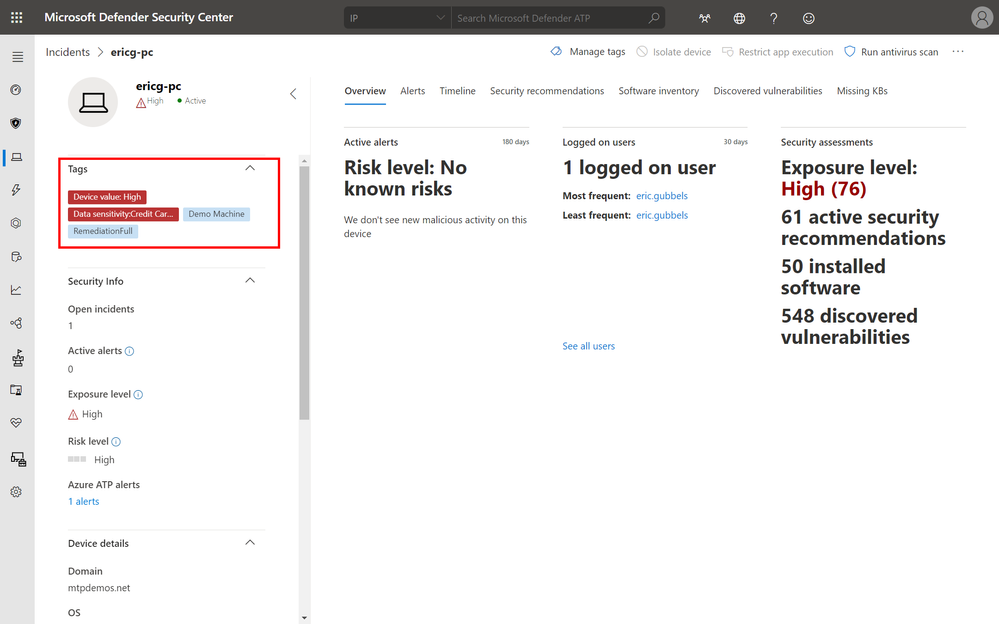 High value asset tag of device from incidents page
With the high value asset prioritizations, organizations can define a machine’s value with the following options:
- Low Value
- Normal Value (Default)
- High Value
In threat and vulnerability management, the machine value is used to incorporate the risk appetite of an individual asset into the exposure score calculation. Meaning that machines marked as “high value” will receive more weight in the exposure score calculation.
Setting a machine value is simple:
- Navigate into any machine page
- Select Machine Value and define a value
- Review the value in the machine tag area
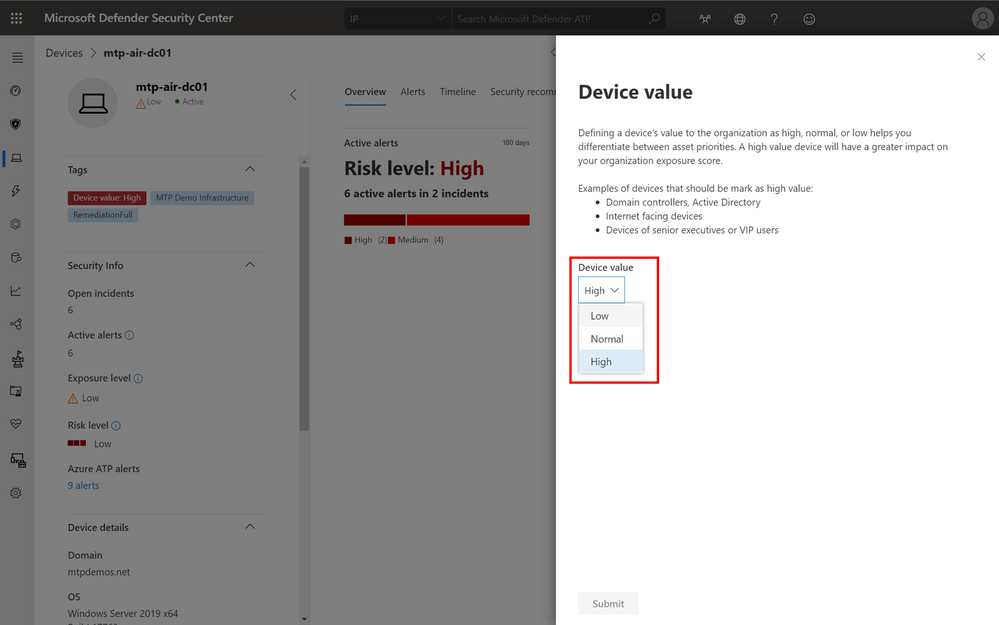 Options to set the device value.
Our newest partner, XM Cyber, a breach and attack simulation and security posture management solution provider, integrates with Microsoft Defender ATP and threat and vulnerability management to help customers see how an attacker moves laterally and compromises critical assets. The platform leverages the new machine tagging capability to help customers tag their most critical assets and adds rich contextual information to enable customers to fully assess the risk of an attack and understand the steps needed for remediation. We’re working with additional partners to incorporate machine tagging and can’t wait to share these collaborations with you in the near future.
Getting started
This feature is in public preview today and those customers that have preview features turned on can start trying it out immediately. If you haven’t yet opted in, we encourage you to turn on preview features in the Microsoft Defender Security Center. We welcome your feedback! If you have any comments or questions, let us know!
by Scott Muniz | Jul 14, 2020 | Azure, Microsoft, Technology, Uncategorized
This article is contributed. See the original author and article here.
Machine Learning Services is a feature of Azure SQL Managed Instance (preview) that provides in-database machine learning, supporting both Python and R scripts. The feature includes Microsoft Python and R packages for high-performance predictive analytics and machine learning. The relational data can be used in scripts through stored procedures, T-SQL script containing Python or R statements, or Python or R code containing T-SQL.
Learn more about the preview here https://docs.microsoft.com/en-us/azure/azure-sql/managed-instance/machine-learning-services-overview
Please reach out to me for further details!
Thanks,
Michelle

by Scott Muniz | Jul 14, 2020 | Uncategorized
This article is contributed. See the original author and article here.
Hey everyone, this work comes to you from @timcappalli, who joined our Identity Standards team in March. Enjoy!
— Pamela
Shared devices for Firstline Workers present an interesting challenge for companies. How do workers seamlessly and securely access multiple apps and services on a device designed for a single user? Ideally, when a Firstline Worker starts their shift, they should simply grab any available device from the pool, sign in with their work credentials, and seamlessly access work resources across mobile apps and browser sessions on the device. The idea sounds great – but how can identity administrators support this kind of authentication pattern?
Today many companies use less ideal methods to provide app access to employees on shared devices. Some use a “shared PIN” and a shared username/password to allow employees easy access to business applications. This results in lack of accountability and inability to audit usage. Other businesses “sign out” employees from these devices after every transaction which results in frustration and unhappy customers.
Luckily, there are new options available: As of iOS and iPadOS version 13, Apple offers an extensible enterprise SSO capability built into the operating system. This capability makes a seamless sign in experience across apps and browser-based applications possible on iPhones and iPads. Leveraging that technology, Microsoft built a standards-based plugin called the Microsoft Enterprise SSO plug-in that can provide multi-user support on iPads and iPhones in supported applications with only one sign-in and one sign-out required per user shift. What this means is that mobile applications know when an employee signs out of the device and can clean all important information from the device preparing it for the next employee. This experience is better for workers, but also great for organizations, as it follows best practices for corporate management of data.
If you’re a mobile application developer and are interested in how the various components needed for the Microsoft Enterprise SSO plug-in interact, the rest of this blog detail the different steps and dive into the detail of how OpenID Connect (OIDC), OAuth 2.0 and SAML 2.0 play parts in one specific instance of an implementation. This blog entry is not meant to replace actual install instructions but instead to give you a high-level sense of how the plug-in works. Please refer to the online official documentation to get step-by-step instructions.
Preparation
To enable this experience on an iPhone or iPad, the administrator must:
- Push the Microsoft Authenticator app to the shared device
- Push a Single Sign-on app extension profile is pushed to the device with tells iOS and iPadOS that the Authenticator app should handle all authentication requests for apps and sites that are capable.
- Set the device in to shared device mode in the MDM config file.
Any MDM can set this configuration – our examples here use Microsoft Endpoint Manager.
Setting the Shared Device Mode:

Making a preset extension type available which automatically includes all the required redirect URIs.
Authentication Flow
Once the device has the Microsoft Enterprise SSO plug-in for Apple devices installed and is in Shared Device mode, it is ready to be used by employees.
Let us dive into what happens when an app needs to acquire an access token for resource access. This would happen if an employee launched a new application to begin a new customer service request. In the sequence diagrams below, there are two different apps using the latest Microsoft Authentication Library (MSAL) accessing two different cloud backends (resource servers). The Microsoft Authenticator app contains the Microsoft Enterprise SSO plug-in for Apple devices which enables SSO across apps and browser sessions in iOS. The plug-in is invoked using a redirect extension capability that listens for certain redirects at the network level. These redirect URLs are what were defined in the MDM configuration. OpenID Connect (OIDC) and OAuth 2.0 are used for authentication and authorization. For the purposes of this example flow, a user has already logged into the Authenticator app when they checked out a device at the start of their shift.
To start, MSAL is used by the app (“App 1”) to invoke a system level authorization request (ASAuthorizationSingleSignOnRequest). Based on the MDM-defined SSO extension configuration, iOS knows to redirect requests for login.microsoftonline.com (amongst others URL variations) to the Microsoft Enterprise SSO plug-in for Apple devices for identity and token handling.
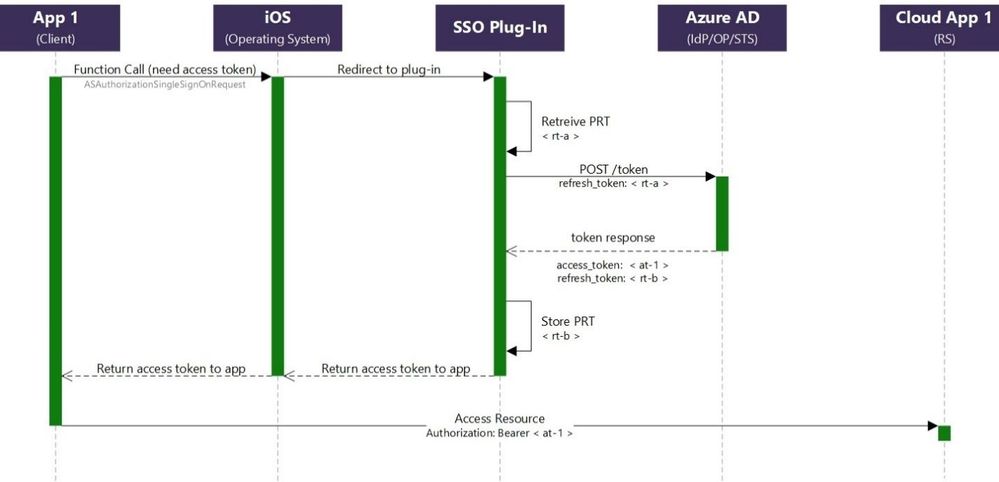
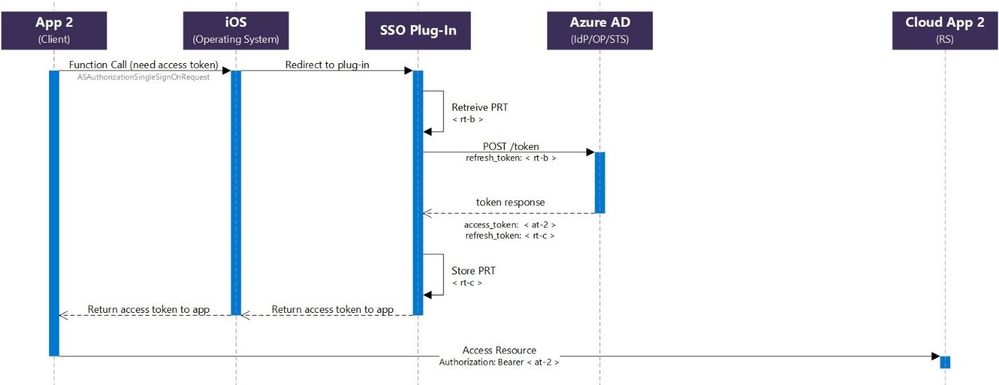
Since the Microsoft Enterprise SSO plug-in for Apple devices is acting as a token broker for the device, a primary refresh token (PRT) was granted after the user’s successful authentication at the start of their shift. The plug-in retrieves the refresh token (“rt-a”) from Keychain and initiates an OAuth 2.0 request using the refresh token grant. The “openid” scope is also included in the request to acquire a fresh ID Token.
If the request is successful, a JWT access token (“at-1”), ID Token and new refresh token (“rt-b”) are issued. The SSO Plug-In securely stores the new refresh token (“rt-b”) in Keychain and the access token (“at-1”) is returned to the app. The app can now attempt to access its cloud backend (resource server) using the newly acquired access token (“at-1”).
When the user launches “App 2”, the same process is followed again. This time, “rt-b” is exchanged for a new access token (“at-2”) for the “App 2” resource server and a new refresh token is stored (“rt-c”).
This continues until the user logs out in any application that supports Shared Device mode.
For additional details and requirements, see Microsoft Enterprise SSO plug-in for Apple devices (Preview).
Additional resources
Microsoft Authentication Library (MSAL): https://docs.microsoft.com/en-us/azure/active-directory/develop/msal-overview
Apple Developer: https://developer.apple.com/videos/play/tech-talks/301/
by Scott Muniz | Jul 14, 2020 | Azure, Microsoft, Technology, Uncategorized
This article is contributed. See the original author and article here.
One of the major benefits of Azure SQL Database is that the Azure platform provides additional protection for your database against SQL Injection attacks and Data Exfiltration, amongst other threats. In this episode, Joseph D’Antoni teaches you how to configure advanced threat detection and some of the protections it offers.
Watch on Data Exposed
Additional Resources:
Learn more about Microsoft Most Valuable Professionals (MVPs)
View/share our latest episodes on Channel 9 and YouTube!

by Scott Muniz | Jul 14, 2020 | Uncategorized
This article is contributed. See the original author and article here.
Ready to put your thinking cap on, leaving room for some growth of your prefrontal Project Cortex?
This Project Cortex update episode will feed your mind, automate the topics, and prepare you for how Project Cortex in Microsoft 365 will empower you with knowledge and expertise within the apps you use every day.
In this episode, we dive into an update on Project Cortex development and design – digging into on the manage metadata service (MMS), classification and knowledge curation – to learn how you and your company will further the union between people, content, and work processes. Chris and I talk with CJ Tan and Sean Squires – principal program managers from the engineering team behind Cortex at Microsoft.
OK, time for the episode, aka Cortex audible course: part 2…
Subscribe to The Intrazone podcast! And listen to episode #52 now + show links and more below.
![Left to right: CJ Tan – principal program manager (Microsoft/SharePoint) [guest] and Sean Squires – principal program manager (Microsoft/SharePoint) [guest].](https://gxcuf89792.i.lithium.com/t5/image/serverpage/image-id/205122i7DCF96CFFD076EF7/image-size/large?v=1.0&px=999 "CJ-Sean_Cortex-mesh_profile.jpg") Left to right: CJ Tan – principal program manager (Microsoft/SharePoint) [guest] and Sean Squires – principal program manager (Microsoft/SharePoint) [guest].
Left to right: CJ Tan – principal program manager (Microsoft/SharePoint) [guest] and Sean Squires – principal program manager (Microsoft/SharePoint) [guest].
Link to articles mentioned in the show:
- Hosts and guests
- Articles and sites
- Events
Subscribe today!
Listen to the show! If you like what you hear, we’d love for you to Subscribe, Rate and Review it on iTunes or wherever you get your podcasts.
Be sure to visit our show page to hear all the episodes, access the show notes, and get bonus content. And stay connected to the SharePoint community blog where we’ll share more information per episode, guest insights, and take any questions from our listeners and SharePoint users (TheIntrazone@microsoft.com). We, too, welcome your ideas for future episodes topics and segments. Keep the discussion going in comments below; we’re hear to listen and grow.
Subscribe to The Intrazone podcast! And listen to episode #52 now.
Thanks for listening!
The SharePoint team wants you to unleash your creativity and productivity. And we will do this, together, one ‘topic card’ at a time.
The Intrazone links
![Left to right [The Intrazone co-hosts]: Chris McNulty, senior product manager (SharePoint, #ProjectCortex – Microsoft) and Mark Kashman, senior product manager (SharePoint – Microsoft).](https://www.drware.com/wp-content/uploads/2020/07/large-471 "Mark Kashman_1-1583812153608.jpeg") Left to right [The Intrazone co-hosts]: Chris McNulty, senior product manager (SharePoint, #ProjectCortex – Microsoft) and Mark Kashman, senior product manager (SharePoint – Microsoft).
Left to right [The Intrazone co-hosts]: Chris McNulty, senior product manager (SharePoint, #ProjectCortex – Microsoft) and Mark Kashman, senior product manager (SharePoint – Microsoft).
 The Intrazone, a show about the Microsoft 365 intelligent intranet (aka.ms/TheIntrazone)


Recent Comments