by Scott Muniz | Sep 8, 2020 | Azure, Technology, Uncategorized
This article is contributed. See the original author and article here.
Final Update: Wednesday, 09 September 2020 00:17 UTC
We’ve confirmed that all systems are back to normal with no customer impact as of 09/08, 23:40 UTC. Our logs show the incident started on 09/08, 22:20 UTC and that during the 1 hour and 20 minutes that it took to resolve the issue small number of customers in the Switzerland North Region experienced intermittent metric data latency and data gaps, as well as incorrect metric alert activation.
- Root Cause: The failure was due to issue with one of the backend services.
- Incident Timeline: 1 Hours & 20 minutes – 09/08, 22:20 UTC through 09/08, 23:40 UTC
We understand that customers rely on Application Insights as a critical service and apologize for any impact this incident caused.
-Jayadev
by Scott Muniz | Sep 8, 2020 | Azure, Technology, Uncategorized
This article is contributed. See the original author and article here.
This installment is part of a broader series to keep you up to date with the latest features in Azure Sentinel. The installments will be bite-sized to enable you to easily digest the new content.
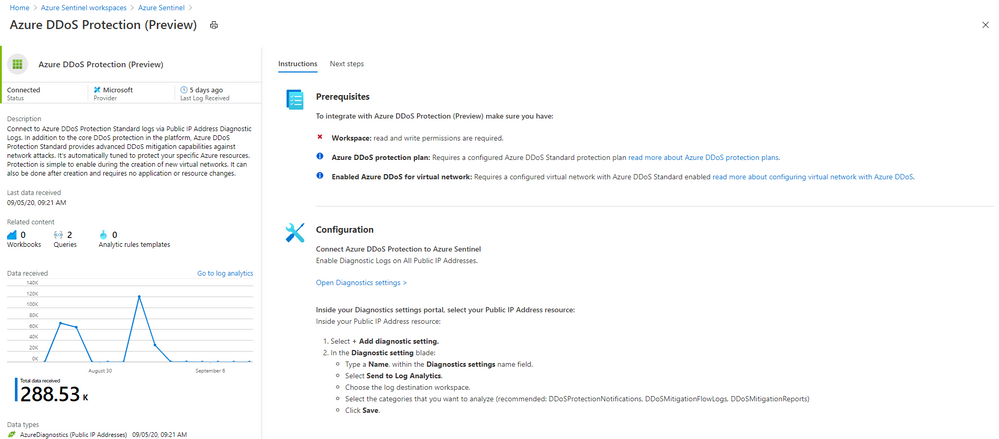
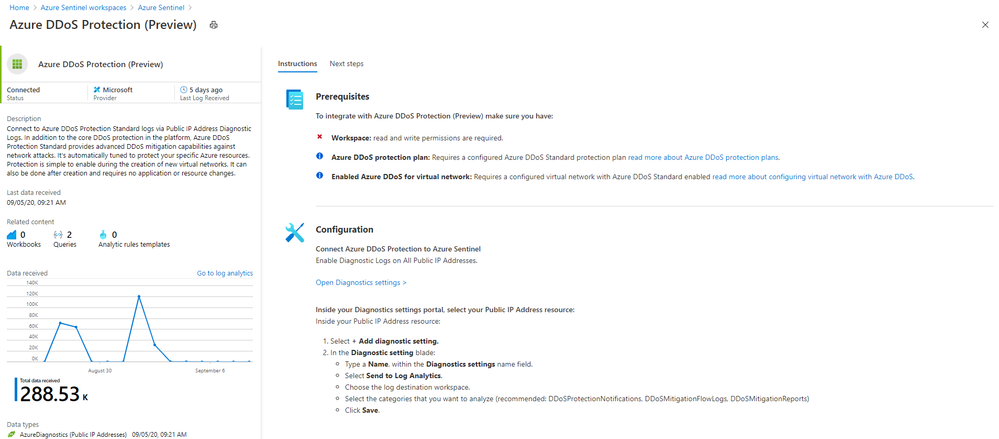
Even more Azure Sentinel connector news for you! If you are using Azure DDoS Standard Protection, you can now ingest this via our connector into your Azure Sentinel workspace.
In addition to the core DDoS protection in the Azure platform, Azure DDoS Protection Standard provides advanced DDoS mitigation capabilities against network attacks. It’s automatically tuned to protect your specific Azure resources. Protection is simple to enable during the creation of new virtual networks. It can also be done after creation and requires no application or resource changes.
Connecting Azure DDoS Protection Standard logs to Azure Sentinel enables you to view and analyze this data in your workbooks, query it to create custom alerts, and incorporate it to improve your investigation process, giving you more insight into your platform security.
How to enable Azure DDoS Protection log ingestion in Azure Sentinel
Prerequisite – You must have a configured Azure DDoS Standard protection plan.
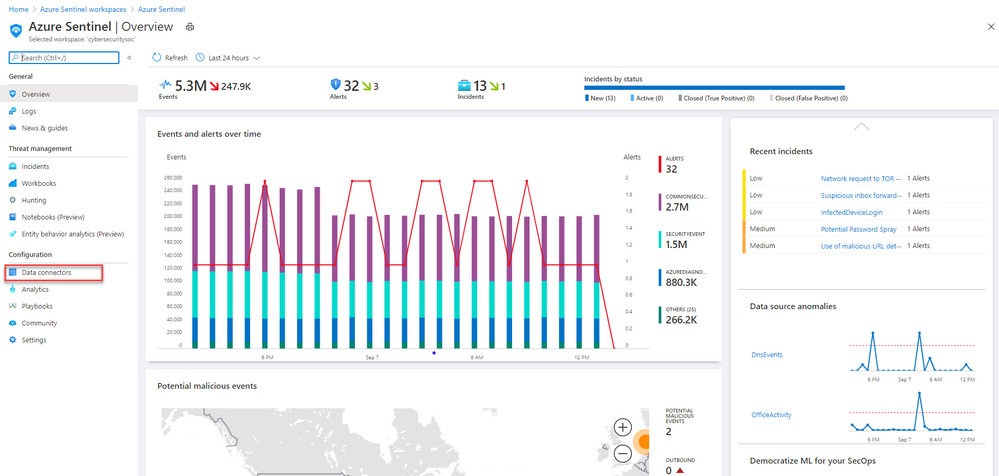
1. From the Azure Sentinel navigation menu, select Data connectors.
2. Select Azure DDoS Protection from the data connectors gallery, and then select Open Connector Page on the preview pane.
3. Enable Diagnostic logs on all the firewalls whose logs you wish to connect:
a. Select the Open Diagnostics settings > link and choose a Public IP Address resource from the list.

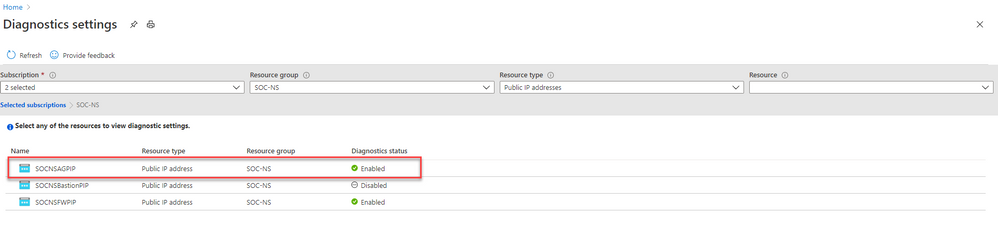
b. Select + Add diagnostic setting.
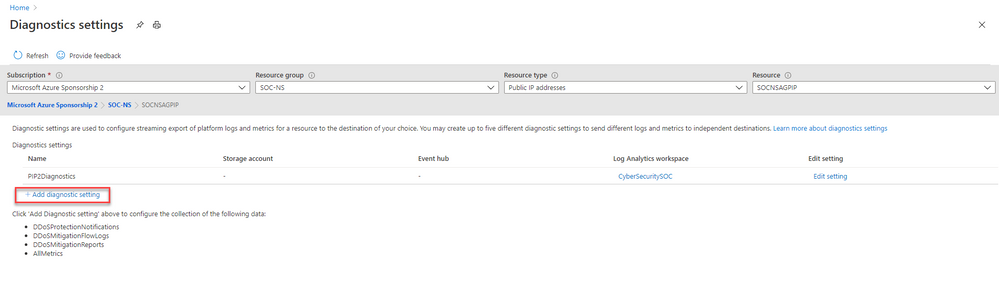
c. In the Diagnostics settings screen
- Enter a name in the Diagnostic setting name field.
- Mark the Send to Log Analytics check box. Two new fields will be displayed below it. Choose the relevant Subscription and Log Analytics Workspace (where Azure Sentinel resides).
- Mark the check boxes of the rule types whose logs you want to ingest. We recommend DDoSProtectionNotifications, DDoSMitigationFlowLogs, and DDoSMitigationReports.
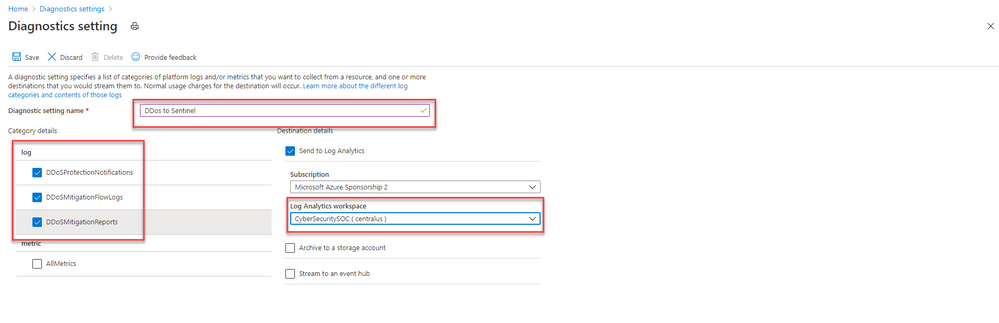
d. Click Save at the top of the screen. Repeat this process for any additional firewalls (public IP addresses) for which you have enabled DDoS protection.
4. To use the relevant schema in Log Analytics for Azure DDoS Protection alerts, search for AzureDiagnostics. Here’s an example query below:
AzureDiagnostics
| where ResourceType == "PUBLICIPADDRESSES"
| sort by TimeGenerated
And that’s it! You will now have Azure DDoS Standard logs connected to your Sentinel workspace.
Get Started Today!
Try out the new connector and let us know your feedback using any of the channels listed in the Resources.
You can also contribute new connectors, workbooks, analytics and more in Azure Sentinel. Get started now by joining the Azure Sentinel Threat Hunters GitHub community and follow the guidance.
by Scott Muniz | Sep 8, 2020 | Uncategorized
This article is contributed. See the original author and article here.
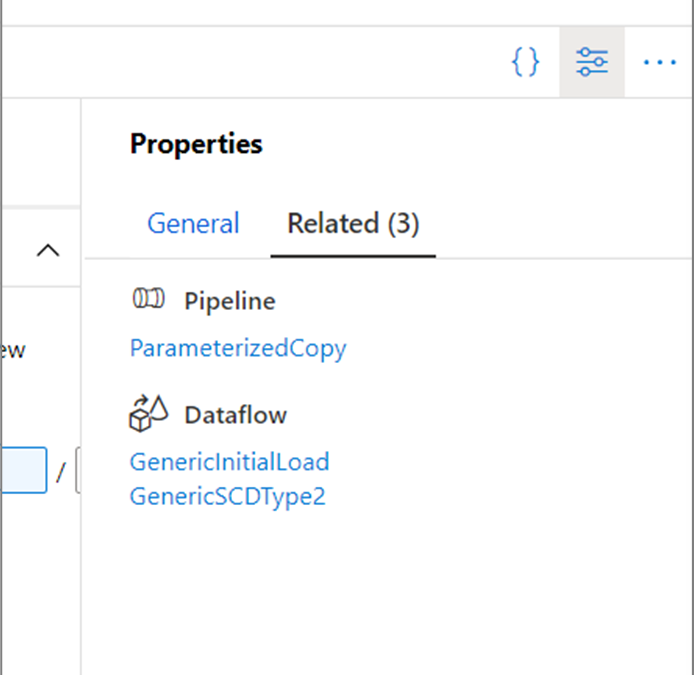
Starting this week in Azure Data Factory, every top-level resource (pipelines, datasets, and data flows) has a new Related tab in the properties pane. Here, you can see what resources depend on the current entity being edited.

For example, if you are authoring a dataset, you can see if any pipelines or data flows reference it in a source or activity. This lets you see the impact of your changes before saving or publishing them!
For more information, learn about authoring using the Azure Data Factory UX.
by Scott Muniz | Sep 8, 2020 | Uncategorized
This article is contributed. See the original author and article here.
Intune provides a host of application management features, such as app availability, App Policies, and app inventory, among others. The Intune discovered apps pane displays a list of detected apps on your managed devices. To learn more about discovered apps in Intune, see .
We were recently alerted to an issue whereby not all versions of applications are being reported, inconsistencies of information between Discovered apps report and Discovered apps per devices, and Discovered apps reported under devices blade differs from the actual device. Upon investigation, we discovered an issue with our data aggregation service not collecting all application information. In addition, since the data collection occurs every 7 days, feedback from admins was that they wanted to see applications from newly added devices or updated application versions.
Steps to reproduce:
- Sign in to the Microsoft Endpoint Manager admin center
- Select Apps > Monitor > Discovered apps
- View the # of devices with a specific app, then newly add that app to an Intune enrolled device
- Confirm that # Devices does not increase after Step 3
Note: The pane will update # Device after 7 days
Another way to verify:
- Select Apps > Monitor > Discovered apps report
- Compare the information displayed with the Device > iOS > Discovered apps
Please note that Android Enterprise Fully Managed and Dedicated devices do not report discovered apps so unfortunately, Intune cannot discover apps on these device types.
Upcoming improvements
Intune has been working on a solution to improve the accuracy and timeliness of discovered apps. We are currently architecting a new data pipeline that will create a more efficient data flow and expect to complete the work by early next calendar year. This work will directly result in the following:
- Increased efficiency of the data pipeline which will drive improvements in reporting/data warehouse
- Improved timeliness of discovered apps by reducing the data collection from every 7 days to every 24 hours
- Improvements to the aggregation workflow in reporting
- Addition of discovered apps from Android enterprise devices · Discovered apps data will be added to the Azure Log Analytics (Specialist) pipeline
Resources
Let us know if you have any additional questions on this by replying back to this post or tagging @IntuneSuppTeam out on Twitter.
by Scott Muniz | Sep 8, 2020 | Uncategorized
This article is contributed. See the original author and article here.
We have heard your feedback and are taking action to provide a more seamless experience for those managing monthly updates on-premises.
To keep devices up to date, IT administrators who manage devices using on-premises methods must select and deploy the correct servicing stack update (SSU) with the latest cumulative update (LCU). In some cases, a specific version of the SSU must already be installed in order to install the latest LCU. If the device in question does not have the required SSU already installed, the LCU will fail to install.
This scenario can be confusing for two reasons. First, it doesn’t occur every month. Second, the error message that the LCU failure can produce, “update isn’t applicable,” doesn’t make the root cause immediately apparent. As a result, having an LCU fail to install can be confusing and frustrating for the end user and IT admin alike, but can also hurt security compliance.
With the Windows Update experience where the SSU and LCU are deployed together to the device. The update stack automatically orchestrates the installation, so both are applied correctly.
Our goal is for all IT administrators, whether managing devices on-premises or from the cloud, to experience the simplicity of having a single cumulative monthly update to deploy that includes the month’s cumulative fixes and the appropriate servicing stack updates for that month, if applicable.
Our upcoming changes will ensure that the SSU and LCU are provided together under a single payload to both Windows Server Update Services (WSUS) and Microsoft Catalog.
If you use management tools backed by WSUS, such as the Configuration Manager, you will have to select and deploy the monthly cumulative update. The latest SSU will automatically be applied correctly. If you acquire and apply Dynamic Update packages to existing Windows 10 images prior to deployment, the latest SSU will no longer be available as a separate package in the Microsoft Catalog. If your process requires the SSU, you’ll simply use the new combined SSU and LCU package.
Things you will no longer need to worry about
- Searching for both the SSU and LCU KB articles. All release notes and file information for monthly cumulative updates, including those related to the servicing stack, will be in a single KB article!
- Determining if this month’s LCU has a dependency on a specific SSU version or newer and ensuring that the right SSU and LCU are deployed and installed in the correct order. The SSU and LCU will be packaged together, and the client will orchestrate the installation. Select the monthly cumulative update you want to deploy, and we will take care of the rest!
- End users confused at seeing multiple servicing releases in a month. The Window Update Settings and History pages will now look the same as it does for those who update from the cloud today!
How to take advantage of these innovations
To move forward with receiving a single monthly cumulative update package containing the SSU and LCU, you will first need to broadly deploy the September 2020 SSU or any later SSU on all Windows 10, version 2004 devices in your organization.
While these changes are not yet live for any in-market version of Windows, we hope you are excited about what is coming. This announcement gives you plenty of time to prepare for the upcoming changes and deploy the September 2020 SSU and LCU broadly across your organization.
Keep an eye out over the next few months as we release more information!


Recent Comments