by Scott Muniz | Sep 10, 2020 | Azure, Technology, Uncategorized
This article is contributed. See the original author and article here.
The Azure Service Fabric 7.1 fourth refresh release includes bug fixes, and performance enhancements for standalone, and Azure environments has started rolling out to the various Azure regions. The updates for .NET SDK, Java SDK and Service Fabric Runtime is available through Web Platform Installer, NuGet packages and Maven repositories in 7-10 days within all regions.
- Service Fabric Runtime
- Windows – 7.1.458.9590
- Ubuntu 16 – 7.1.454.1
- Ubuntu 18 – 7.1.454.1804
- Service Fabric for Windows Server Service Fabric Standalone Installer Package – 7.1.458.9590
- .NET SDK
- Windows .NET SDK – 4.1.458
- Microsoft.ServiceFabric – 7.1.458
- Reliable Services and Reliable Actors – 4.1.458
- ASP.NET Core Service Fabric integration – 4.1.458
- Java SDK – 1.0.6
Key Announcements
- Extended support for 7.0: Support for all 7.0 based Service Fabric releases will be extended by 3 months until October 1st, 2020. We will take measures to ensure support expiration warnings for 7.0 clusters are removed. Please disregard any newsletters regarding support expiration for Service Fabric 7.0, there will be no impact to clusters.
- Updating/Editing DNS name of a service using Update-ServiceFabricService command: Previously adding a DNS name for a service was only allowed as part of service creation. ServiceDnsName parameter in Update-ServiceFabricService command allows the user to add/edit the DNS name of an already deployed service.
For more details, please read the release notes.
![[Guest Blog] How To pass from 0 to 1: Introduction to Programming World](https://www.drware.com/wp-content/uploads/2020/09/large-335)
by Scott Muniz | Sep 10, 2020 | Uncategorized
This article is contributed. See the original author and article here.
This article was written by Humans of IT Community member Leslie Nicole Ramirez as part of our Guest Bloggers series. The world of programming is filled with 0’s and 1’s – read on to discover how to be a 1 and find your path in the amazing development world. What will allow us to move from Padawan to Jedi? Leslie shares a series of good practices and steps that everyone who wants to be a good programmer should know and put into practice when aspiring to be a good software developer.

When I was writing this article, I remembered the challenging start of my programming experience. I asked some friends why they choose to be a programmer – the opinions varied by person but all of them match with “the start is the hardest part of the path”. However, what makes it so hard is not so much the complexity of concepts; rather, the most common problem starts with the following questions:
- Which programming language should I choose?
- What’s the necessary skill to be a good programmer?
- How can I pass from 0 to 1?
There is a set of good practices that everyone who wants to be a good programmer should know and employ if he aspires to be a good software developer.
Through this blog post, I’d like provide a panorama view of the world of programming. Not specific to a language or tool, but to show you the general steps that you can follow to getting started in the programming world and what are the steps that will take them from 0 to 1.
Remember, we all start off as a 0 in the world of Programming, but you can learn how to be a 1 and find your path in this amazing development world. That said, let’s tackle the first question that is commonly asked, i.e Which programming language should I learn first?
Firstly, ask yourself, what do you want to do as a programmer? There are many great options, for example:
- If you wanna do game development, C# and C++ are good options to consider
- If you wanna create enterprise applications, C# also is a good option
- If you want to get started somewhere, focus on the languages that are somewhat easier to learn, for example, Python
Before you choose your language, think about the following questions:
- How’s the community that supports that development ecosystem?
- Is there enough material to get started without a mentor? (By the way, if you DO need a tech mentor, consider joining the free Microsoft Community Mentors app platform where many MVPs/RDs currently volunteer as mentors!)
- Are you planning to start a career as a developer?
Unicorn tips and answers
- If there’s no supportive community in that ecosystem, you will get less information on issues, and questions on what you are learning. And most of the time that ecosystem tends to disappear because it never hooks with the public.
- The reality is, most programmers learn by themselves via online courses, YouTube channels or some free online courses. If you’re not able to find good options for doing so in your learning path, maybe reconsider your choice and pick another language to delve into.
- If you are planning to get started in the programming world for starting a career and offer your services to big tech companies or maybe as a freelancer, consider looking for jobs offered in different popular platforms such as LinkedIn or Stack Overflow, just to have a grounded opinion of what the companies require of programmers, and from there, work backwards to determine where you should start.
My personal experience
Keeping this in mind, I’ll tell you about my own experience. When I finished school, I already knew that I wanted to study computer science, so I started with a two-year college degree at Technologic of the Americas Institute (ITLA) in the Dominican Republic. In that time, I learned about Java, Pascal, and C#. I fell in love with the last one, because I felt really comfortable with the environment and when I was searching for online resources I found tons of free online courses, tutorials and documentation to start with. After my two years at ITLA, I decided that I wanted to get a job as a programmer. Thankfully, it was relatively easy given that C# and .NET developers are in highly demand worldwide.
Fast forward to now, I still have no regrets choosing C#. The community is truly amazing and there are a lot of people sharing their knowledge and offering support to others. Many of them inspired me to start blogging about C# in Spanish (my native language) via my blog called www.Dominiotic.com where I share my knowledge and experience in the programming world.
I am fortunate to have had a really good experience in the programming world. Of course, there were bumps along the way, but I loved the journey.
Based on my personal experience, here’s my advice for how to pass from 0 to 1:
- Start doing: Do not spend all your time thinking of what you can do. Instead, learn and choose your path!
- 🧗 Challenge yourself and learn new things.
- 🙋 Get involved in community activities: Your community can make all the difference in your experience. Write a blog. Ask questions in a forum. Think about how you can network with others. Even when you are starting out, your content will be really useful for others that may struggle with similar questions.
Though general, these steps are what will make all of the difference to kick off learning programming. For more specific technical skills, here are a few more resources that I recommend:
- Git for version of control
- Programming logic: In this case I choose C# but It’s up to you
- Working with and types with C#
Find your bright path through the programming world – you’ve got this! Another great (and FREE!) resource is Microsoft Learn – you will be surprised by the depth of content you will find there. From beginner to advanced levels, MS Learn is a great place to learn at all levels.
My last piece of advice to you is, never give up. As cliché as it may sound, it’s truly important to remember that you will face challenges in your career. Everyone does. You don’t have to know everything, and neither do you need to get all the concepts at once. Do it at your own rhythm. Wish you the best, and hope you enjoyed reading this article as much as I enjoyed writing it. (♥ω♥ ) ~♪
#0to1programming
#Programming101
#HumansofIT
#CommunityPower

by Scott Muniz | Sep 10, 2020 | Uncategorized
This article is contributed. See the original author and article here.
At Microsoft, we’re honored to partner with the NFL to bring modern fan experiences to the game of football.
The post Empowering NFL clubs and fans with help from the Microsoft Playbook appeared first on Microsoft 365 Blog.
Brought to you by Dr. Ware, Microsoft Office 365 Silver Partner, Charleston SC.

by Scott Muniz | Sep 10, 2020 | Uncategorized
This article is contributed. See the original author and article here.
The Microsoft Surface Duo delivers Outlook for Android out of the box as the one place for you to organize your email and your time. Outlook brings together your email, calendar, files, contacts and photos to help you organize your life and stay connected to what matters. With Outlook and the Surface Duo, we’ve made it easier to do both at the same time on two screens, or one. It’s your choice. It’s also your choice on how you open Outlook with a new Calendar entry point on your Duo home screen.

Let’s dive into what Outlook as a dual screen enhanced app enables you to do and how you can do one better on the Surface Duo.
Flexibility
One app, two ways to get started – perfectly synced. With Outlook on the Duo, you now have the flexibility to open Outlook from the Outlook app or the new Calendar entry point. If you open the Outlook app, it will open where you last left off, either in your Inbox, Calendar or Search experiences. If you open Outlook from the Calendar entry point, it will always bring you quickly to your Calendar; in Agenda, Day, 3 day view, week or month view based on how you last left the app. Regardless of how you open Outlook, you can choose to switch between your Calendar, Inbox or Search and stay organized.
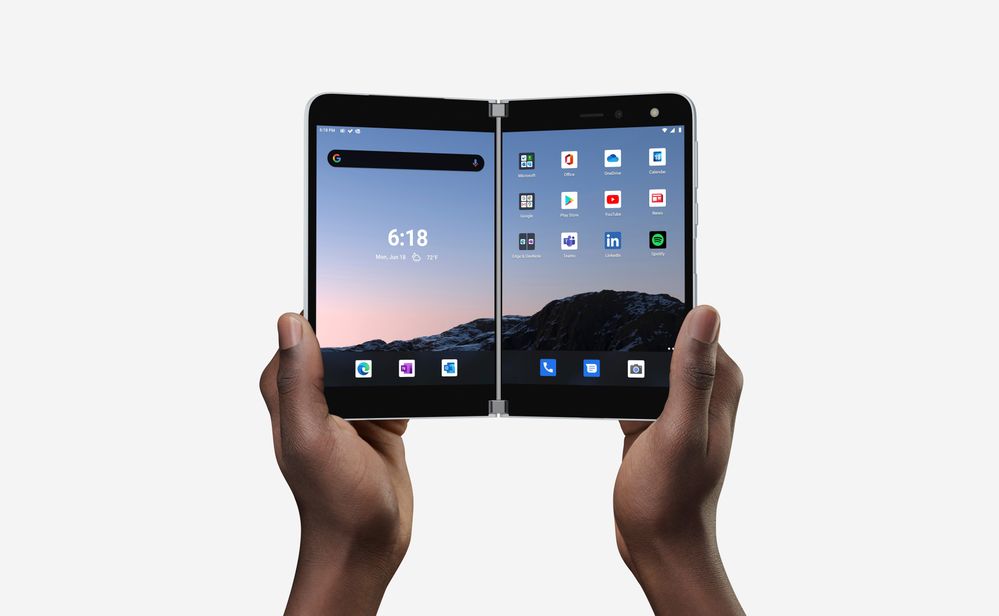
One Outlook at play in multiple ways
With the Surface Duo in Book Mode, you can see and plan for your day at a glance with the Outlook Calendar while checking out what’s new in your Focused Inbox at the same time.
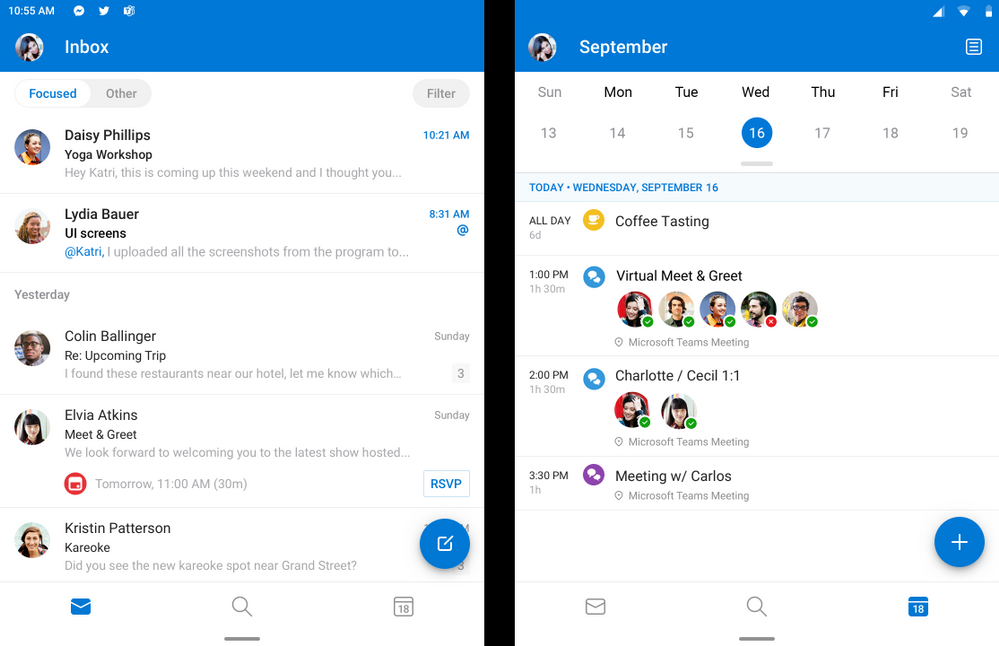 Focused Inbox and Calendar Agenda
Start getting things done with two screens and one powerful Outlook experience. View your message list on one side and a specific email or conversation on the other so you can stay in context of the conversation and scan for other relevant messages. With the Surface pen, you can hover over a message for additional details such as the contact information of the sender, accept or decline a calendar invitation or simply get a preview of the message body without having to open it fully.
When replying to a message, rotate your Duo to access a dynamic, broader keyboard experience which may make it faster or easier for you to respond based on your preferences.
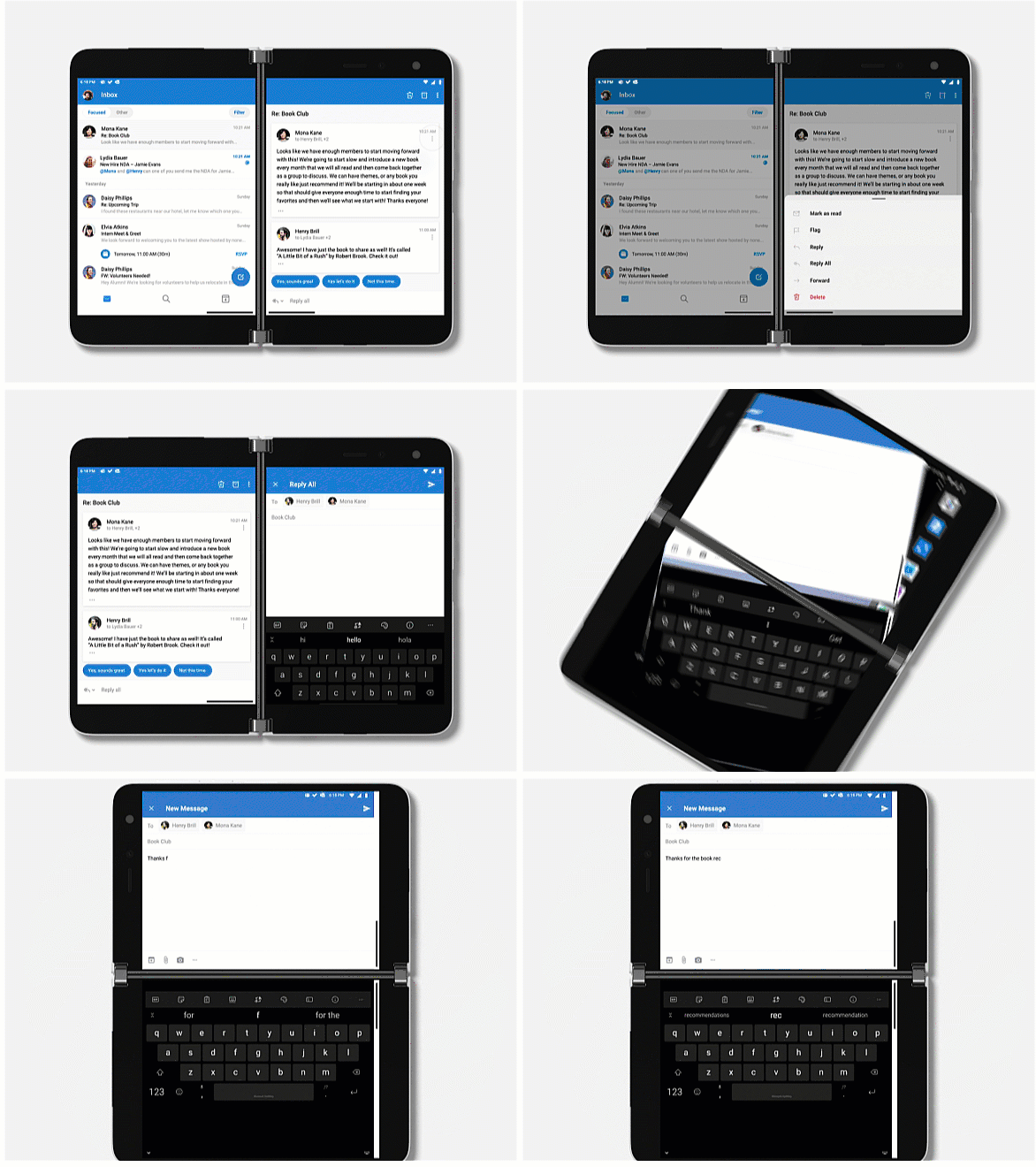 Rotate to respond in Outlook
It’s all about your preferences, your choice and flexibility with Outlook for Android and the new Surface Duo. We launched Outlook on Duo to display in Dark theme and default to the system settings. But this too is flexible, you can change your preferences in Outlook to Light theme anytime.
With the ability to have Outlook on both screens at once, you can keep your preferred calendar in view on one side to see the entirety of your day, week or month at the same time as the details of an event on the other.
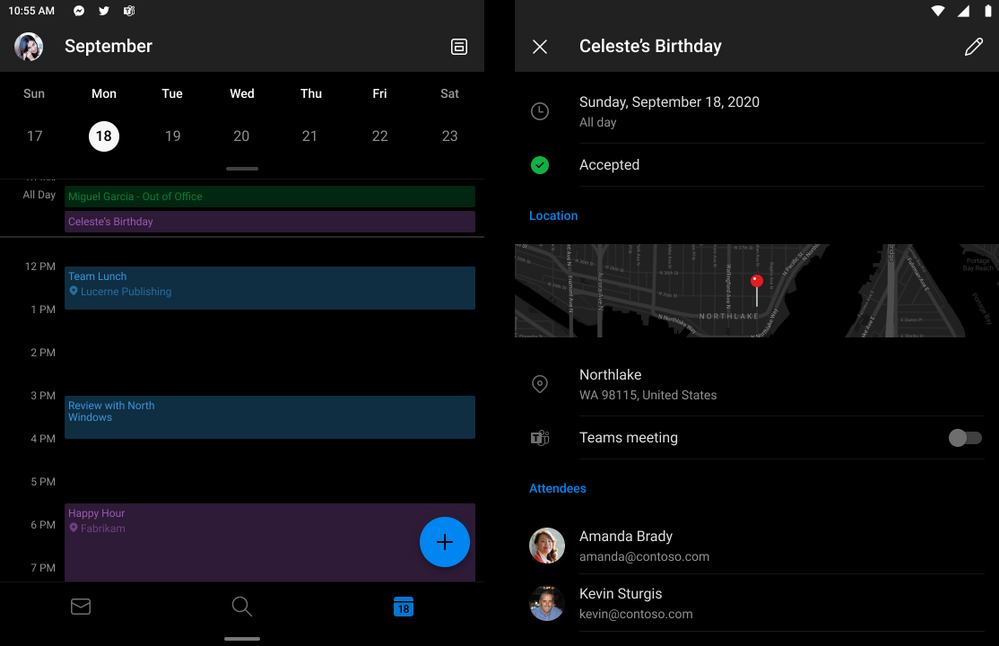 Calendar day view and Calendar event details side by side
The dual screens offers you the choice to expand the app for a single view across both screens – try spanning your Outlook Calendar month view this way, it’s like having a full view of your personal organizer in your pocket. To learn about more gestures for two screens, be just to check out Tips on your Duo device.
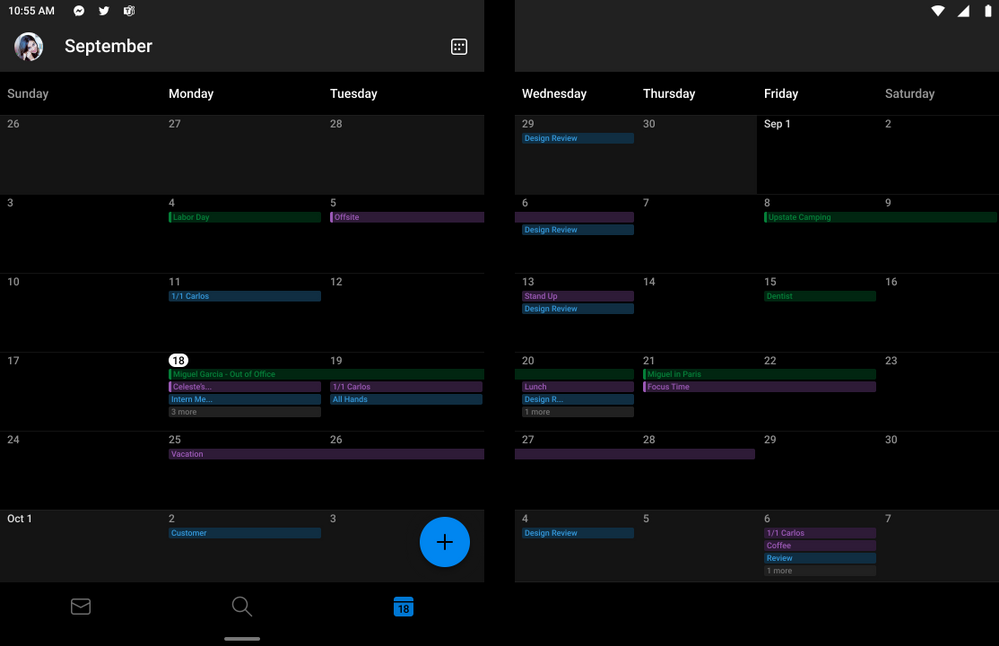 Outlook Calendar month view spanned across dual screens
Outlook connects you to the rest of Microsoft 365
With dual-screens, you can be more productive with the connected experiences across Microsoft 365. Attaching files, photos or adding copied text, links or new contacts to emails is fast and simple, just drag and drop them into Outlook on Duo.
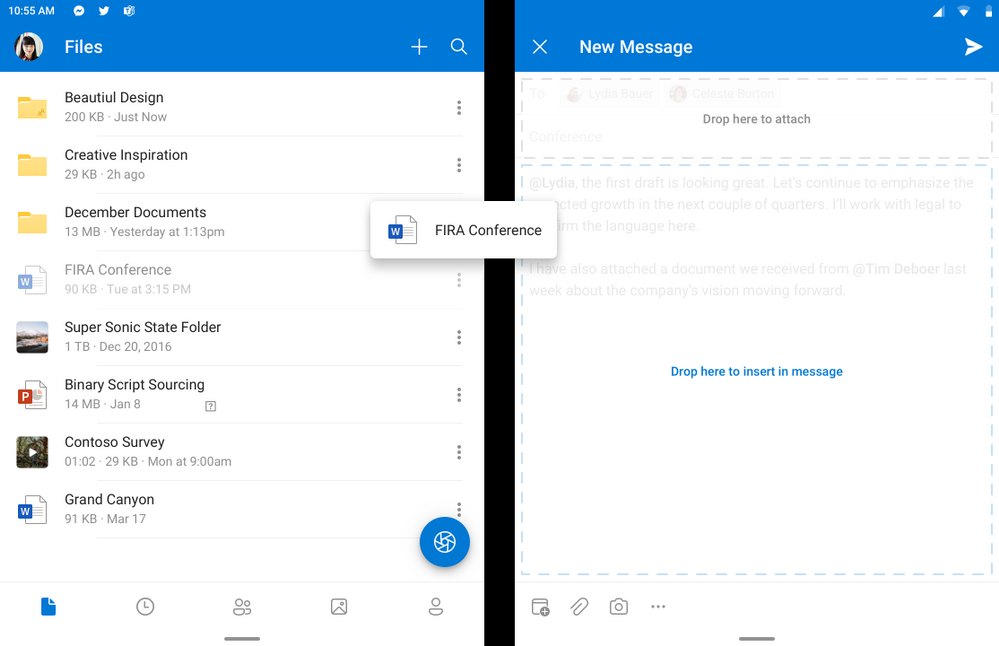 Drag and drop files from OneDrive as an attachment or a link
When you’re creating a new message or responding to an email in Outlook on one screen, you can open OneDrive on the other and drag a file to add it as a link or an attachment to a new message. Or, if Edge is open on your other screen you can highlight text and links to quickly drag them over and drop into your message to share with recipients.
Similarly, you can now access and view your photo gallery in Outlook to make it easier to attach and annotate on images with inking powered by Office Lens. Just add text or draw on it to add a personal touch with your finger or the Surface pen.
Your workflow is fueled by the suite of apps and connected experiences from Microsoft 365. Your hub for Teamwork and your personal organizer go hand in glove to create a powerful combination to simply keep you connected. Teams and Outlook can be grouped on the Surface Duo so you can quickly open both app at the same time. Outlook offers a quick Join button for your online meetings in the Up Next notification in your inbox, on a Teams Meetings card from the Upcoming carousel on the Search in Outlook home page and as always in your online meeting events on your Calendar. Combining Apps groups together is a helpful way to get things done faster with the Surface Duo.
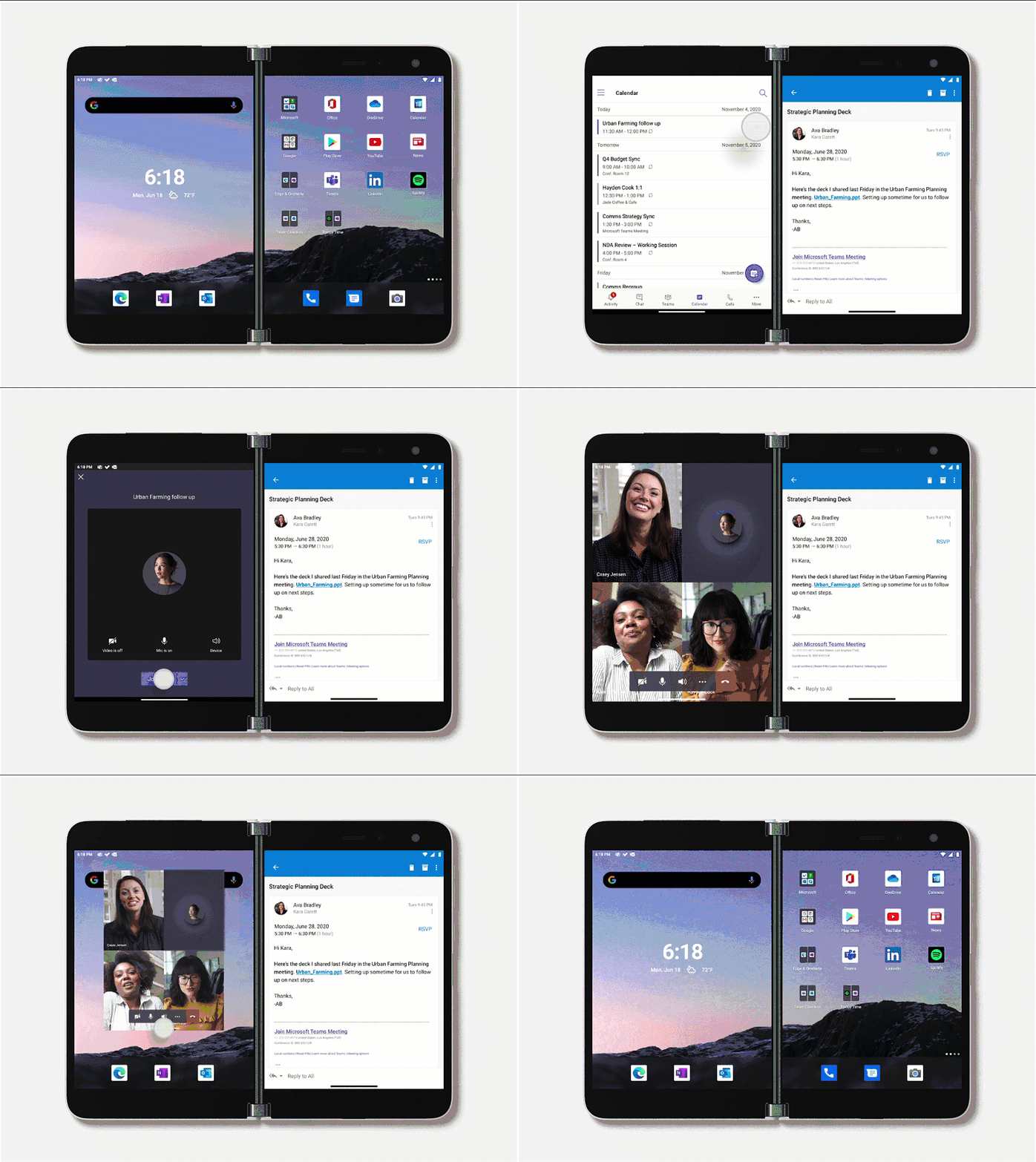 Teams and Outlook as an App Group
The availability of the new Duo aligns with the completed roll out of Play My Emails in Outlook for Android to all customers in the United States. With Duo, you can ask Cortana to Play My Emails from Outlook on one screen while you have your inbox open on the other. This way you can choose to listen to an email rather than read it as well as glance at images or graphic information with the related email open on the other screen. Or, you can listen to your email being read out by Cortana while taking notes on the other screen. Be sure to turn on Play My Emails from your Outlook Settings so you can listen to your emails and changes to your schedule when you’re busy doing other things and get time back in your day.
Please continue to let us know what you think about Outlook on the Surface Duo, the new Outlook Calendar entry point and any of the functionality that continues to roll out in Outlook for Android at https://uservoice.outlook.com and thank you.
by Scott Muniz | Sep 10, 2020 | Azure, Technology, Uncategorized
This article is contributed. See the original author and article here.
Mastering the basics can help you jump-start your career, explore Azure and the cloud—whether you’re new to the field or a seasoned professional—and prepare to dive deeper into the many technical opportunities Azure offers. Need to start at the beginning? Check out Master the basics of Microsoft Azure—cloud, data, and AI.
The Azure Fundamentals certification offers the basics you need to build your technical skills and your confidence. Prove your knowledge of cloud computing concepts, models, and services, such as public, private, and hybrid cloud, in addition to infrastructure as a service (IaaS), platform as a service (PaaS), and software as a service (SaaS). And show your expertise on how Azure supports security, privacy, compliance, and trust.
The Azure Fundamentals certification validates your basic knowledge of cloud services and how those services are provided with Azure. You earn it by passing Exam AZ-900: Microsoft Azure Fundamentals.
You can use your Azure Fundamentals certification to prepare for other Azure role-based or specialty certifications, but it isn’t a prerequisite for any of them.
What are the prerequisites?
If you’re just beginning to work with cloud-based solutions and services, this certification is for you. Candidates should be able to demonstrate a fundamental knowledge of cloud concepts, along with Azure services, workloads, security, privacy, pricing, and support. In addition, you should be familiar with concepts of networking, storage, compute, application support, and application development.
How can you get ready?
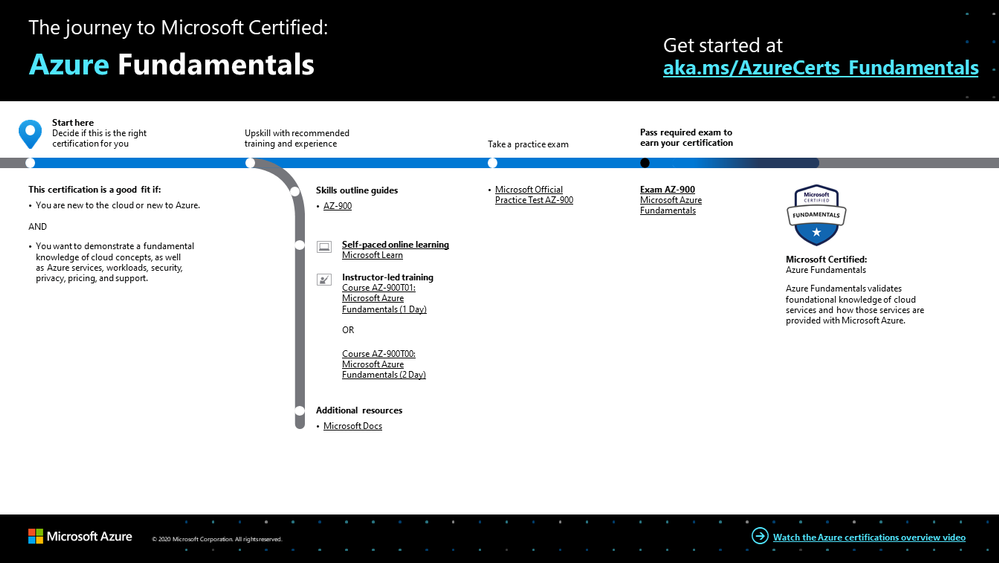
To help you plan your journey, check out The journey to Microsoft Certified: Azure Fundamentals infographic. You can also find it in the resources section on the certification and exam pages, which contains other valuable help for Azure professionals.
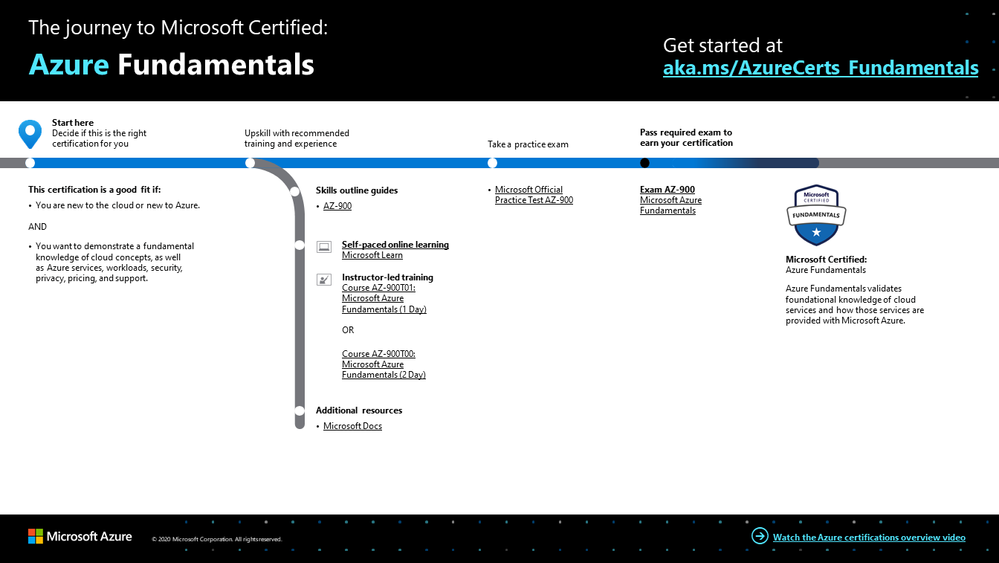 Azure Fundamentals certification journey
To map out your journey, follow the sequence in the infographic. First, decide whether this is the right certification for you.
Next, to understand what you’ll be measured on when taking exam AZ-900, review the skills outline guide on the exam page.
Sign up for training that fits your learning style and experience:
Choose curated learning paths on Microsoft Learn. These eight (plus) hours of self-paced online learning will help you get ready for your learning journey.
If you prefer to learn from an instructor, choose instructor-led training. To take the one- or two-day Microsoft Azure Fundamentals course, find a Microsoft Learning Partner.
Then, take a trial run with the AZ-900 Microsoft Official Practice Test. All the exam objectives are covered in depth, so you’ll find what you need to be ready for any question.
After you pass the exam and earn your certification, continue mastering the basics with the Azure Data Fundamentals certification or the Azure AI Fundamentals certification. Or find the right Microsoft Azure certification for you, based on your profession (or the one you aspire to).
Ready to master the basics?
Azure offers an ever-expanding set of cloud services that can help you be more successful today. For an in-depth look at how mastering the basics can help you build your career, check out Master the basics of Microsoft Azure—cloud, data, and AI. Azure offers the freedom to build, manage, and deploy applications on a massive global network, using your favorite tools and frameworks. Earn your certification, establish your foundations, and open up new possibilities for your career.
Related posts
Understanding Microsoft Azure certifications
Finding the right Microsoft Azure certification for you
Master the basics of Microsoft Azure—cloud, data, and AI


Recent Comments