by Scott Muniz | Sep 14, 2020 | Azure, Technology, Uncategorized
This article is contributed. See the original author and article here.
On September 15, we will publish an update to the TLS certificates used by Azure Sphere devices to establish a connection to the update service. When a device takes the cert update, it will reboot once to apply it. There is no impact to device connectivity or operations other than an additional reboot as the device downloads new certs.
Device update can be temporarily delayed for up to 24 hours. For more information see Defer device updates in the customer documentation.
If you encounter problems
For self-help technical inquiries, please visit Microsoft Q&A or Stack Overflow. If you require technical support and have a support plan, please submit a support ticket in Microsoft Azure Support or work with your Microsoft Technical Account Manager/Technical Specialist. If you would like to purchase a support plan, please explore the Azure support plans.
by Scott Muniz | Sep 14, 2020 | Azure, Technology, Uncategorized
This article is contributed. See the original author and article here.
One of the most requested features in Azure Monitor Logs is the ability to track the queries being executed in the system. Recently, we released to public preview the capability to meet all of these needs: the Query Audit Logs for Azure Log Analytics!
A rich dataset to monitor your Workspace
The feature was designed to answer questions around the areas of compliance, security, and performance of queries in the system.
The dataset that you will see once you enable the collection of the Query Audit Logs will include full information about each query executed. This includes information that will help you identify who ran the query, what application was used to run the query, and for successful queries, a full set of performance counters. The rich dataset will let you answer a wide variety of questions: from detecting malicious attempts to access sensitive data, to identifying queries that are particularly inefficient, and even detecting broken automation through consistently-failing queries
Collecting query audit logs is simple
Full details about how to enable and use the feature are available on our documentation page here.
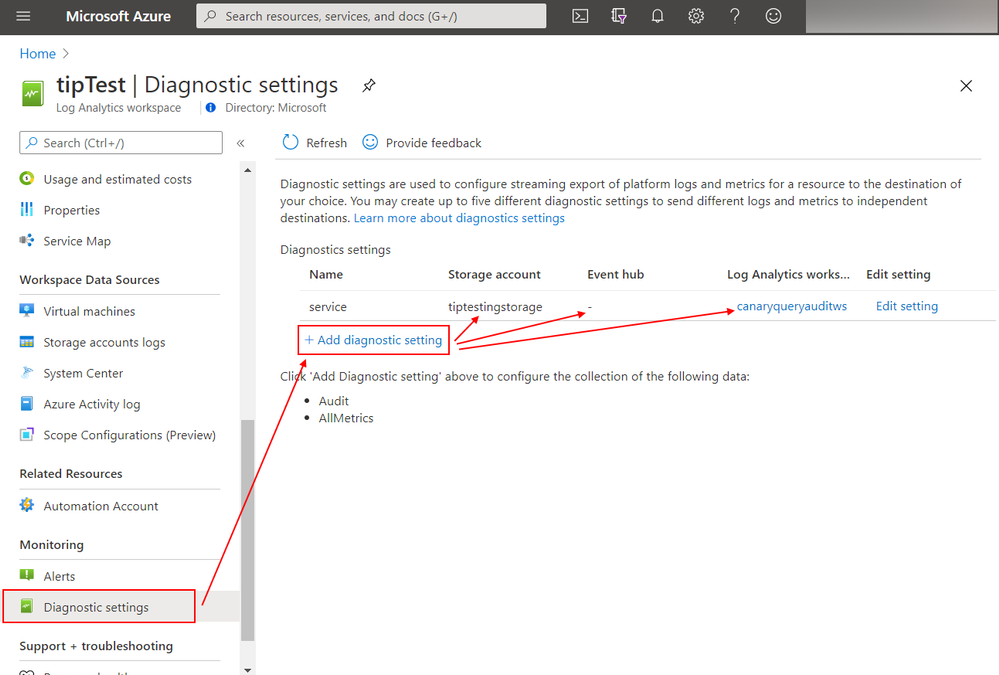
Enabling the collection of the query logs is simple – just open the workspace that you want to start tracking logs for, go to the diagnostic settings, and enable the collection of the query logs into any combination of a Storage Blob, Event Hub, and/or (of course!) Azure Monitor Logs.

If you prefer to use a programmatic approach, be it through an ARM template or Azure Policy, we provide full support for such an approach. You’ll find an example of an ARM template you can use here.
Answering a wide array of questions
So what can you do with these query logs once you enable them? Below are just a few examples.
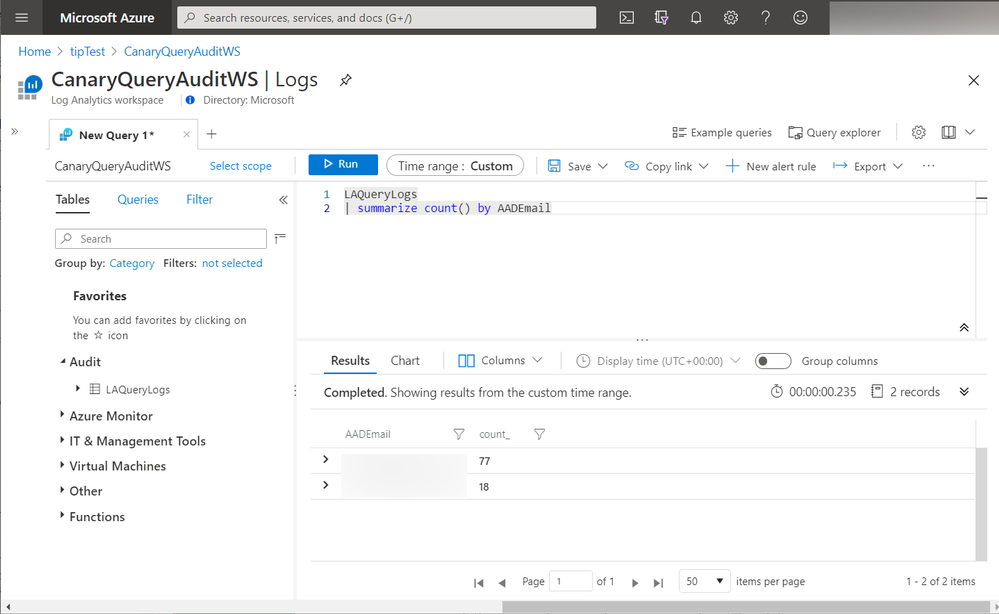
You can see the number of queries each user in the system ran:
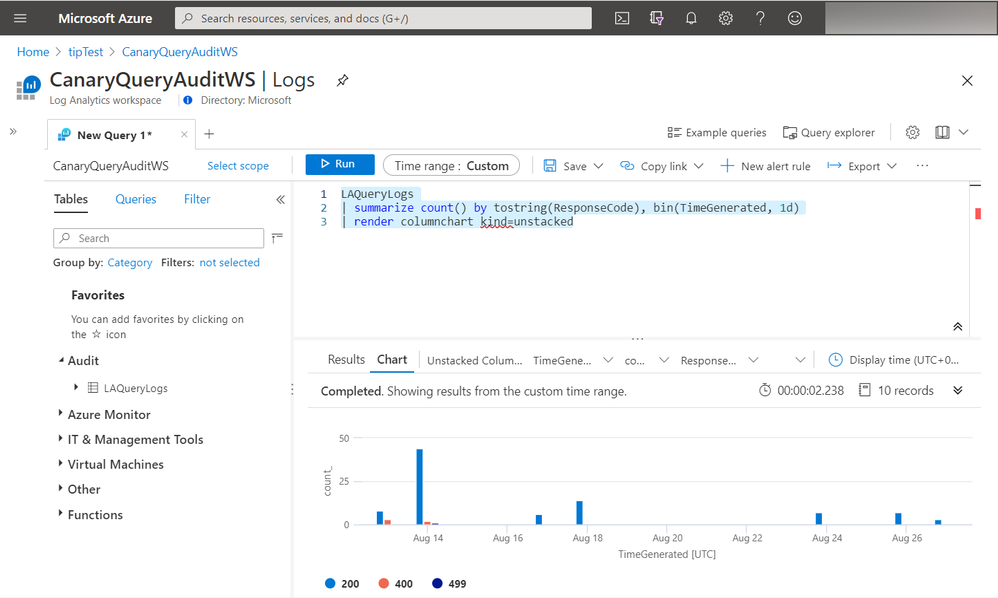
The response codes for these queries, useful for detection of failed logins (403s), or broken automation (409s):
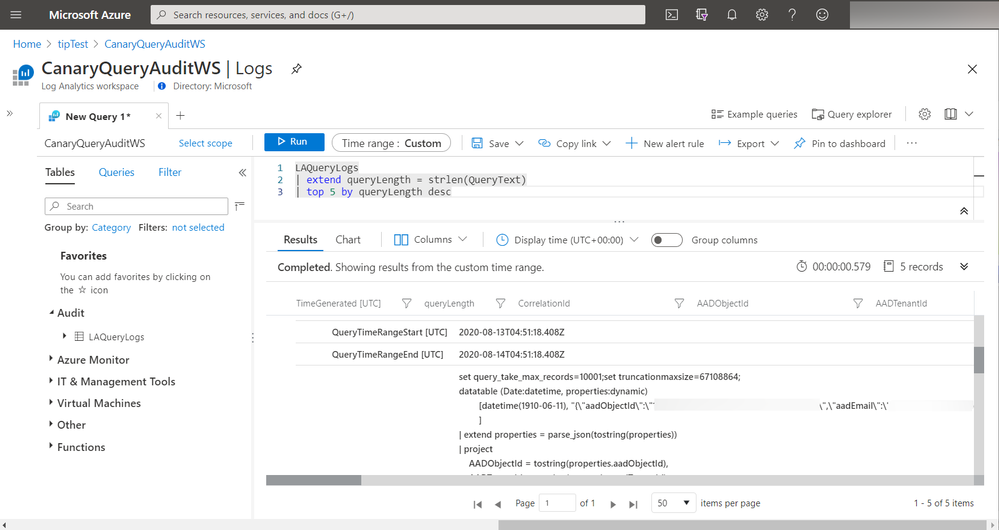
And a list of the users most advanced in their knowledge of KQL, judged by the length of query they write:
While these are just a few examples to showcase the capabilities of these logs, many more questions can be answered – give it a go and see what insights you can come up with!
Next Steps
Enable the collection of the Query Audit Logs in Azure Monitor Logs today, and start getting visibility into how your Workspace is being used. Please do let us know of any questions or feedback you have around the feature – we’re excited to see the creative ways in which these get used!
by Scott Muniz | Sep 14, 2020 | Azure, Technology, Uncategorized
This article is contributed. See the original author and article here.
Azure Media Services is highly scalable for streaming videos to mobile or web applications. It enables a customer to use high-definition video encoding and streaming services to reach audiences on the devices they use, enhancing content discoverability and performance with AI, all while helping to protect content with digital rights management (DRM).
Azure Media Services also enables a customer to live stream. With the power of Azure Media Services, there’s no requirement for any kind of special hardware or infrastructure cost. To stream your live events with Media Services, you need the following:
-
A camera that is used to capture the live event.
For setup ideas, check out Simple and portable event video gear setup.
If you do not have access to a camera, tools such as Telestream Wirecast can be used to generate a live feed from a video file.
-
A live video encoder that converts signals from a camera (or another device, like a laptop) into a contribution feed that is sent to Media Services. The contribution feed can include signals related to advertising, such as SCTE-35 markers.
For a list of recommended live streaming encoders, see live streaming encoders. Also, check out this blog: Live streaming production with OBS.
-
Components in Media Services, which enable you to ingest, preview, package, record, encrypt, and broadcast the live event to your customers, or to a CDN for further distribution.
For customers looking to deliver content to large internet audiences, we recommend that you enable CDN on the streaming endpoint.
This article gives an overview and guidance of live streaming with Media Services and links to other relevant articles.
https://docs.microsoft.com/en-us/azure/media-services/latest/live-streaming-overview
@arsalan_ali
by Scott Muniz | Sep 14, 2020 | Uncategorized
This article is contributed. See the original author and article here.
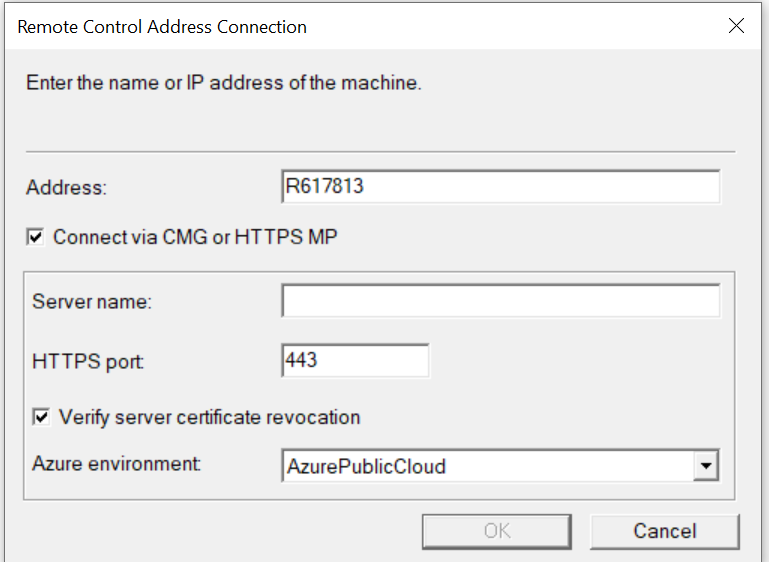
Update 2009 for the Technical Preview Branch of Microsoft Endpoint Configuration Manager has been released. This release continues to improve the functionality of remote control as first introduced in technical preview version 1906. You can now connect to any Configuration Manager client with an online status.
When you start a remote control session, select the option to Connect via CMG or HTTPS MP for any of the following scenarios:
- CMG
- HTTPS management point
- Enhanced HTTP site
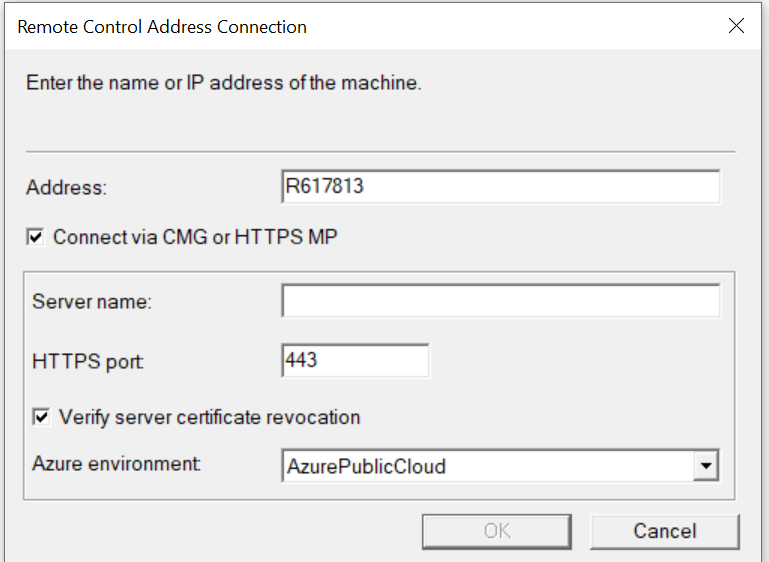 Remote control connection dialog
Learn more about the improvements to remote control.
This preview release also includes:
Deploy an OS over CMG using boot media – Starting in current branch version 2006, the cloud management gateway (CMG) supports running a task sequence with a boot image when you start it from Software Center. With this release, you can now use boot media to reimage internet-based devices that connect through a CMG. This scenario helps you better support remote workers. If Windows won’t start so that the user can access Software Center, you can now send them a USB drive to reinstall Windows.
Cloud management gateway with virtual machine scale set – Based on your UserVoice feedback, cloud management gateway (CMG) deployments now use virtual machine scale sets in Azure. This change introduces support for Azure Cloud Solution Provider (CSP) subscriptions. If you already have an existing CMG deployment using Azure Resource Manager, you don’t have to redeploy the service. This change introduces support for Azure Cloud Solution Provider (CSP) subscriptions.
Wake machine at deployment deadline using peer clients on the same remote subnet – In version 1810, the introduction of peer wake up allowed an administrator to wake a device or collection of devices, on demand using the client notification channel. Overcoming the need for the server to be in the same broadcast domain as the client.
This latest improvement allows the Configuration Manager site to wake devices at the deadline of a deployment, using that same client notification channel. Instead of the site server issuing the magic packet directly, the site uses the client notification channel to find an online machine in the last known subnet of the target device(s) and instructs the online client to issue the WoL packet for the target device.
Improvements to in-console notifications – You now have an updated look and feel for in-console notifications. Notifications are more readable, and the action link is easier to find. Additionally, the age of the notification is displayed to help you find the latest information. If you dismiss or snooze a notification, that action is now persistent for your user across consoles.
Notifications for devices no longer receiving updates – To help you manage security risk in your environment, you’ll be notified in-console about devices with operating systems that are past the end of support date and that are no longer eligible to receive security updates. Additionally, a new Management Insights rule was added to detect Windows 7, Windows Server 2008, and Windows Server 2008 R2 without Extended Security Updates (ESU).
Improved Windows Server restart experience for non-administrator accounts – For a low-rights user on a device that runs Windows Server, by default they aren’t assigned the user rights to restart Windows. When you target a deployment to this device, this user can’t manually restart. For example, they can’t restart Windows to install software updates.
Starting in this release, you can now control this behavior as needed. In the Computer Restart group of client settings, enable the following setting: When a deployment requires a restart, allow low-rights users to restart a device running Windows Server.
Update 2009 for Technical Preview Branch is available in the Microsoft Endpoint Configuration Manager Technical Preview console. For new installations, the 2007 baseline version of Microsoft Endpoint Configuration Manager Technical Preview Branch is available on the Microsoft Evaluation Center. Technical Preview Branch releases give you an opportunity to try out new Configuration Manager features in a test environment before they are made generally available.
We would love to hear your thoughts about the latest Technical Preview! Send us Feedback about product issues directly from the console and our UserVoice page for ideas about new features.
Thanks,
The Configuration Manager team
Configuration Manager Resources:
Documentation for Configuration Manager Technical Previews
Try the Configuration Manager Technical Preview Branch
Documentation for Configuration Manager
Microsoft Endpoint Manager announcement
Microsoft Endpoint Manager vision statement
Configuration Manager Forums
Configuration Manager Support
by Scott Muniz | Sep 14, 2020 | Azure, Technology, Uncategorized
This article is contributed. See the original author and article here.
Final Update: Monday, 14 September 2020 20:28 UTC
We’ve confirmed that all systems are back to normal with no customer impact as of 9/14, 19:59 UTC. Our logs show the incident started on 9/14, 9:30 UTC and that during the 10 hours and 30 minutes that it took to resolve, customers in the China region may have experienced data latency or data gaps that could have caused false or missed alerts.
- Root Cause: The failure was due to a service change that resulted in data being misrouted.
- Incident Timeline: 10 Hours & 30 minutes – 9/14, 09:30 UTC through 9/14, 19:59 UTC
We understand that customers rely on Azure Log Analytics as a critical service and apologize for any impact this incident caused.
-Ian


Recent Comments