
Microsoft Teams Community Call – May 2021

Microsoft Teams Community Call – May 2021

This article is contributed. See the original author and article here.

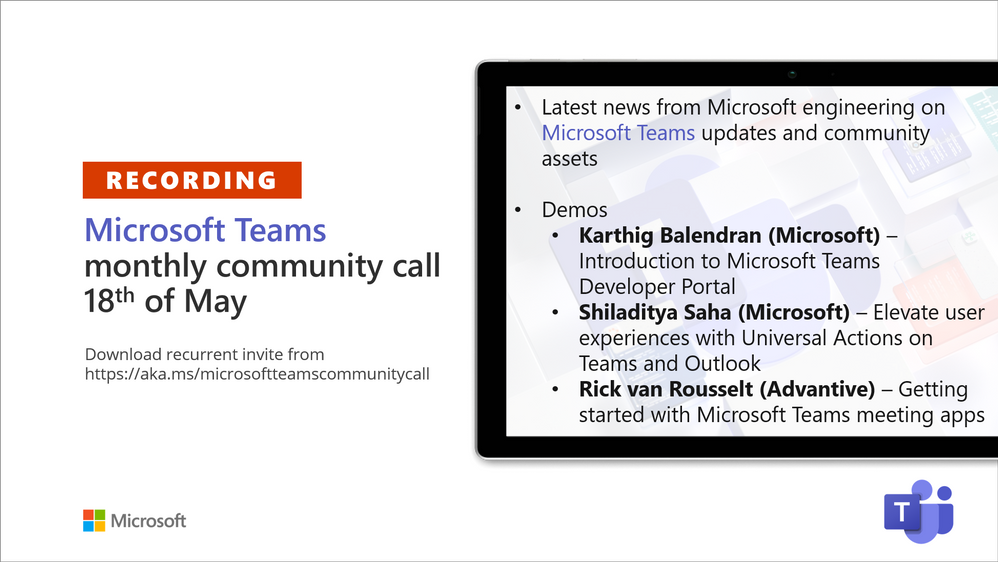
Recording of the Microsoft Teams monthly community call from May 18, 2021.


teams-18th-recording-promo.png


Call Summary


Latest news from Microsoft engineering on Microsoft Teams updates and community assets.     


Register for Microsoft Build.   Sign up for May trainings on Sharing-is-caring.   Visit the Microsoft Teams samples gallery to get started with Microsoft Teams development.  See the new Microsoft 365 Extensibility look book gallery co-developed by Microsoft Teams and Sharepoint engineering.  Get the Microsoft Teams Toolkit (Controls) – “Designing your Microsoft Teams app” with layout guidance and reusable assets.   Three great demos delivered during this session.  The host of this call was Vesa Juvonen (Microsoft) | @vesajuvonen. Q&A takes place in chat throughout the call.


Actions:  


  • Register for Microsoft Build, May 25 – 27, 2021 – https://build.microsoft.com

  • Register for Sharing is Caring Events:

    • First Time Contributor Session – May 24th (EMEA, APAC & US friendly times available)

    • Community Docs Session – May

    • PnP – SPFx Developer Workstation Setup – June 

    • PnP SPFx Samples – Solving SPFx version differences using Node Version Manager – May 20th

    • AMA (Ask Me Anything) – Microsoft Graph & MGT – June 8

    • AMA (Ask Me Anything) – Teams Dev – June

    • First Time Presenter – May 25th

    • More than Code with VSCode – May 27th  

    • PnP Office Hours – 1:1 session – Register


  • Download the recurrent invite for this call – https://aka.ms/microsoftteamscommunitycall

  • Call attention to your great work by using the #PnPWeekly on Twitter.


Microsoft Teams Development Samples:  (https://aka.ms/teams-samples)


  • Your community is looking for Samples!  Please share your good work  



210518-together-mode.gif


Always a highlight to see you here.  Enjoy Microsoft Build.  Looking forward to seeing you in person at an event one day.           


Demos delivered in this session


  • Introduction to Microsoft Teams Developer Portal – Meet the new and improved app management console for developers.  Access the tools portal from a browser and from within Microsoft Teams client.   This is the place to add – register and configure your Teams apps.  New safeguards to prevent apps from having same app IDs.   Key areas differentiating portal from App Studio called out.  Access App Source from portal. 


  • Elevate user experiences with Universal Actions on Teams and Outlook – deck, demo and documentation about consistent message (action) handling across apps (Teams, Outlook and more) using Adaptive Cards with the new Action.Execute action type.  User takes action on either Teams or Outlook and action is reflected on the other platform.    Vacation approval scenario shows contextual views and sequential workflows on Teams.  Excellent documentation, quick start guide and code samples.  


  • Getting started on building Microsoft Teams meeting apps – step through meeting extensions – pre-meeting (tab – a poll), in-meeting (side panel tab, pop-up, extension, and bot) and post-meeting (tab).   Understand needed manifest updates.   Microsoft Forms is a great meeting extension.  Demo – create a meeting, add the Forms app to it and observe how Forms does configuration.   Meeting extensions are built on top of tabs, bots and messaging extensions.       


Thank you for your work. Samples are often showcased in Demos.


Topics covered in this call


  • News and updates – Vesa Juvonen (Microsoft) | @vesajuvonen – 3:35


  • Demo:  Introduction to Microsoft Teams Developer Portal – Karthig Balendran (Microsoft) | @KarthigBalendr1 – 10:20


    Demo:  Elevate user experiences with Universal Actions on Teams and Outlook – Shiladitya Saha (Microsoft) – 23:30


    Demo:  Getting started on building Microsoft Teams meeting apps – Rick van Rousselt (Advantive) |  @RickVanRousselt – 36:54


Resources:


Additional resources around the covered topics and links from the slides.


General resources:


Upcoming Calls | Recurrent Invites:


Microsoft Teams monthly community calls are targeted at anyone who’s interested in Microsoft Teams development topics. This includes Microsoft Teams, Bots, App templates, Samples, and more.  Details on the Microsoft 365 community from http://aka.ms/m365pnp. We also welcome community demos, if you are interested in doing a live demo in these calls!


You can download recurrent invite from https://aka.ms/microsoftteamscommunitycall. Welcome and join in the discussion. If you have any questions, comments, or feedback, feel free to provide your input as comments to this post as well. More details on the Microsoft 365 community and options to get involved are available from http://aka.ms/m365pnp.


“Sharing is caring”


Microsoft 365 PnP team, Microsoft – 19th of May 2021
[Customer story] PolyU CPCE and Microsoft Hong Kong Launch Virtual Labs for Limitless Learning

This article is contributed. See the original author and article here.

A nice customer success story from Hong Kong.


“Azure Lab Services provides more flexibility in classes and allows the faculty to engage better with students. We spoke to students and found they enjoyed their freedom to access hands-on practical experiences more frequently, and they value the time they save by not needing to visit the campus to test or finish their homework. Overall, our students and faculty members are happy with this seamless transition between the physical and virtual learning environments provided by Azure Lab Services.”


https://news.microsoft.com/en-hk/2021/04/13/polyu-cpce-and-microsoft-hong-kong-launch-virtual-labs-for-limitless-learning/

How to retrieve analytics information for Pages in the “Site Pages”? using Graph Get itemAnalytics?

This article is contributed. See the original author and article here.

Step 1: Retrieve all the internal SharePoint ids of the all Pages in the “Site Pages” 


https://graph.microsoft.com/v1.0/sites('spotenant.sharepoint.com,df6ba610-0000-0000-0000-ba2733d0182e,e0dbcdc6-0637-0000-0000-49aaa1ce4d37')/lists('190b9516-0000-0000-0000-90fe7360d416')/items?select=sharepointids


Note: ‘190b9516-0000-0000-0000-90fe7360d416 This is the actual list GUID of your “Site Pages” library.


Sample Output:

{


            “@odata.etag”: “”6967cfed-0000-0000-0000-b480c1764375,3″”,

            “sharepointIds”: {

                “listId”: “190b9516-0000-0000-0000-90fe7360d416“,

                “listItemId”: “1”,

                “listItemUniqueId”: “6967cfed-0000-0000-0000-b480c1764375“,

                “siteId”: “df6ba610-0000-0000-0000-ba2733d0182e”,

                “siteUrl”: “https://spotenant.sharepoint.com/sites/TestSite105“,

                “tenantId”: “d6f932a7-0000-00000-0000-b27004970776”,

                “webId”: “e0dbcdc6-0000-0000-0000-49aaa1ce4d37”

            }

        },


Step 2: Select any Pages “listItemUniqueId” retrieved in Step 1 and make following call:


Note: You need to make sure the site you are requesting has the “Sharepoint Viewers” feature enabled: https://support.microsoft.com/en-us/office/allow-people-to-see-who-views-their-files-or-pages-ee26dde0-c30e-4eca-b1c3-38922c450967. This is required to give you expanded actors or users information. Please see sample out put below:


https://graph.microsoft.com/v1.0/sites('spotenant.sharepoint.com,df6ba610-0000-0000-0000-ba2733d0182e,e0dbcdc6-0637-0000-0000-49aaa1ce4d37')/lists('190b9516-0000-0000-0000-90fe7360d416')/items('6967cfed-0000-0000-0000-b480c1764375')/analytics/alltime?$expand=activities


Data returned below:


{


    “aggregationInterval”“None”,

    “startDateTime”“0001-01-01T00:00:00Z”,

    “endDateTime”“0001-01-01T00:00:00Z”,

    “isTrending”false,

    “access”: {

        actionCount345,

        actorCount6,

        “timeSpentInSeconds”0

    },

    “incompleteData”: {

        “missingDataBeforeDateTime”“2018-09-21T19:20:43Z”,

        “wasThrottled”false,

        “resultsPending”false,

        “notSupported”false

    },

    “activities”: [

        {

            “id”“00000”,

            “activityDateTime”“2021-04-12T17:59:12Z”,

            “location”: {

                “address”: {

                    “city”“”,

                    “countryOrRegion”“”,

                    “postalCode”“”,

                    “state”“”,

                    “street”“”

                }

            },

            “access”: {},

            “actor”: {

                “user”: {

                    “displayName”“Admin SPOTenant”,

                    “email”“admin@spotenant.onmicrosoft.com”,

                    “id”“faaa2e55-0000-0000-0000-c774a83bbbde”,

                    “userType”“Internal”

                }

            }

        },

       
{

            “id”“00001”,

            “activityDateTime”“2020-12-12T01:03:30Z”,

            “location”: {

                “address”: {

                    “city”“”,

                    “countryOrRegion”“”,

                    “postalCode”“”,

                    “state”“”,

                    “street”“”

                }

            },

            “access”: {},

            “actor”: {

                “user”: {

                    “displayName”“Alex Darrow”,

                    “email”“alexd@spotenant.onmicrosoft.com”,

                    “id”“e81cac19-0000-0000-0000-4c938b101a33”,

                    “userType”“Internal”

                }

            }

        }


    ]

}


Support Tip: Users unable to view passcode setup screen when enrolling devices through ADE

Support Tip: Users unable to view passcode setup screen when enrolling devices through ADE

This article is contributed. See the original author and article here.


Today we’re posting a known issue in the message center as a follow-up to a service health dashboard post. We will keep this blog post (it’s what’s referred to in the message center post) updated as needed!


Follow-up to IT256796 – Users unable to view passcode setup screen when enrolling devices through ADE


We recently posted IT256796 on your service health dashboard. Customers enrolling devices through Apple Device Enrollment (ADE) discovered that they couldn’t view the passcode screen and therefore setup a passcode during enrollment. Upon investigation with Apple, this is a known issue in the iOS/iPadOS release 14.5 and 14.5.1. There is a workaround, described below.


How this will affect your organization:


This will only affect you if you use ADE and configure an iOS/iPadOS ADE setup assistant profile to use the Show Passcode screen as part of the enrollment process.


What you need to do to prepare:


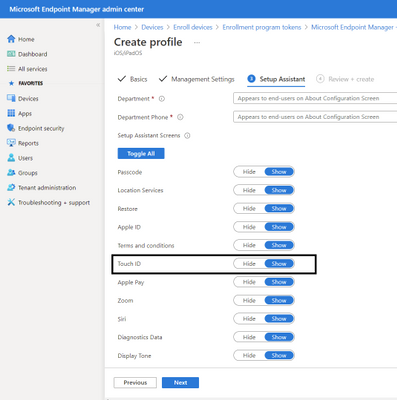
You can allow/show biometrics such as TouchID (which also enables FaceID) which will then present the passcode prompt. We will post this message to the Intune Customer Success blog (that’s this post!) as well and will keep the blog updated with the latest from Apple or if there’s any additional workaround Intune can implement. 


BTW – here’s where you configure TouchID for your setup assistant profile in the Microsoft Endpoint Manager console:
Create an ADE profile and show Touch IDCreate an ADE profile and show Touch ID


Plan your Microsoft Azure experience at Microsoft Build

This article is contributed. See the original author and article here.

Microsoft Build, our free digital event, starts next week and runs from May 25-27, 2021. We thought you might be interested to learn ways you can plan to experience the latest set of developer tools, platforms, and services helping you build amazing things on your terms, anywhere, with Microsoft and Azure. You’ll also have a chance to speak with Microsoft experts and have the opportunity to continue your technical learning journey.


Register to gain full access to all Microsoft Build has to offer—it’s easy and at no-cost to you.


Create the perfect event schedule


Explore the session catalog to find expert speakers, interactive sessions, and more. After registering, get started on your journey using the Build session catalogue.


Below are a set of featured Technical Sessions kicking off the key themes of Build 2021, with deeper related Breakout Sessions—all of which you won’t want to miss:


Increase Developer Velocity with Microsoft’s end-to-end developer platform:


Deliver new intelligent cloud-native applications by harnessing the power of Data and AI:


Build cloud-native applications your way and run them anywhere:


Follow #MSBuild


Explore the latest event news, trending topics, and share your point of view in real time with your community. Join us on Twitter and LinkedIn by using #MSBuild.


Join us on social >


Connection Zone


Only at #MSBuild can you strengthen your network with local connections and meet with Microsoft product teams to help influence the future of products and services.


Connect today>


Learning Zone


The Learning Zone is the center for training, development, and certification with Microsoft. Whatever your style of learning happens to be, you can find content and interactive opportunities to boost and diversify your cloud skills.


Explore trainings >


One-on-one consultation


Schedule your 45-minute, one-on-one consultation with a Microsoft engineer to architect, design, implement or migrate your solutions.


Schedule today >


Continue your learning journey


Discover more in-depth learning paths, training options, communities, and certification details across all Microsoft cloud solutions from one place.


Explore trainings >
