This article is contributed. See the original author and article here.
Customers expect quick and smooth help when they reach out to customer support—whether it’s about a delayed order, a product question, or a service issue. Good case management means keeping track of all these requests and associated customer conversations to make sure nothing falls through the cracks.
Managing these cases is not always easy. Fortunately, the case create and case update capabilities of the Case Management Agent (CMA) make life easier for support teams and hence, customers.
From manual to automated
A case is like a digital record that holds all the details about the support request. Traditionally, whenever a customer contacts customer service—by chat, email, or voice—a service rep creates a case and manually tracks the issue from start to finish. Now, case create and case update capabilities make this process smarter and more automated than ever.
Key features and capabilities
We released the first version of CMA in public preview in April 2025, and now it’s generally available. We’ve taken customer feedback into account and added capabilities to make creating and updating cases more holistic than ever:
Automatically create a case from chat when the customer service representative accepts the chat request and automatically update it at the end of the conversation. These capabilities are now supported for voice calls and social channels as well.
When the conversation ends, the conversation summary is posted as a note on the case timeline.
For any incoming customer email, case will be created through automatic record creation (ARC). The case will be kept updated with details from all incoming customer emails.
The ability to configure rules based on which case or related entity fields will be predicted. This means you can configure a rule that updates a certain set of fields based on the product in discussion.
Lookup fields are now supported for predictions. You can add field descriptions for capturing your business context which gets leveraged by AI for prediction. For example, for case category prediction, you can describe what each case category means in your business.
We have made changes to the administrator settings layout and in the service rep experience when AI updates are made to the case they’re viewing. This will ensure a more intuitive experience.
You can leverage multiple queue support in automatic record creation (ARC) for creating cases from emails.
Example scenario
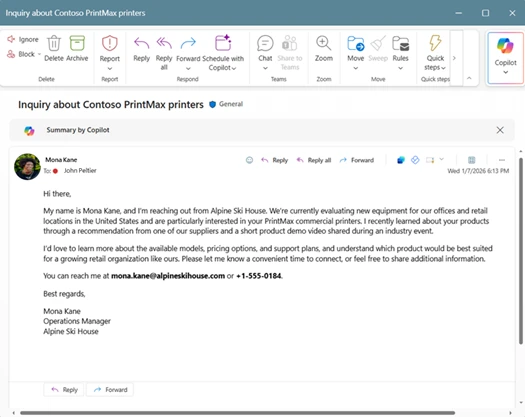
Let’s say a customer sends an email to customer support about their device not working properly. As soon as this email is received, Case Management Agent creates a case with the relevant details from the customer’s email. The AI agent answers the email to request further details to solve the issue. The customer sends an email answering AI agent’s questions.
In a pre-CMA world, the customer service rep would have to input these details in the case manually. Not anymore! CMA updates the configured case or related entity fields automatically using this new email from the customer. Everything is kept in one place, so the next agent who helps the customer has the full story—no confusion, no delays.
This article is contributed. See the original author and article here.
Over the last few months, our scheduling team has focused on strengthening the core product by addressing the real-world needs of dispatchers, admins, frontline workers, and managers. At Microsoft, our commitment to continuously improving the Field Service experience is rooted in a simple principle: listen to our users, learn from their feedback, and deliver enhancements that make their work easier and more efficient. Today, we’re excited to announce a suite of user experience improvements that are already live in the product, each inspired by your feedback and design to provide immediate value.
What’s New for Scheduling Users?
Share a Schedule Board Tab Directly from the App
Collaboration is at the heart of effective scheduling. Previously, sharing a schedule board tab with specific other users required a lengthy, complicated process. With this release, you can now easily share any schedule board tab with your colleagues directly from the schedule board settings window. Whether you’re handing off coverage for a vacation or collaborating across teams, sharing your setup is just a few clicks away with no more tedious URL construction or lost productivity.
Short Booking Truncation: Clarity at a Glance
We’ve heard from many of you that when schedules are tight and dense, short bookings often appeared cluttered, with overlapping icons and hastily truncated text. Our redesign cleans up the appearance of these short bookings, dynamically adjusting how much text is displayed and which icons are shown based on the available screen space. We’re making it easier for users to work more efficiently by making the information easy to interpret
Satellite Map View
For those who need a geographic perspective, we’ve brought back a satellite map view. This visual enhancement helps you better understand resource and work order locations and plan routes with greater context.
Address Input for Organizational Unit Locations
Setting up new organizational units or managing the ones you already have should be quick and error-free. Instead of manually entering latitude and longitude for their locations, you can now input a text address, just like you do elsewhere in the product. We’ll handle the geocoding for you, reducing errors and saving valuable time.
Consistent Naming for Characteristics and Rating Models
We know that inconsistent terminology can be a source of confusion. That’s why we’ve standardized names across the product. “Characteristics” now consistently replace “skills” and “rating models” are used over “proficiency models.” This simple change makes it easier to find the features you need and ensures everyone is speaking the same language.
Visual Improvements Across the Schedule Board
Beyond these new features, you’ll notice a range of visual refinements throughout the schedule board. From refreshed icons to cleaner layouts, these details will make your daily scheduling tasks smoother and more enjoyable.
Keep Giving Us Feedback
Each of these enhancements began with your insights, whether surfaced through direct engagements, surveys, support channels, or the Ideas Portal. We’re grateful for your ongoing partnership and feedback. Please keep telling us what you need and sharing your experiences and ideas. They’re the foundation of our ongoing journey to make Dynamics 365 Field Service the best it can be.
This article is contributed. See the original author and article here.
In our recent blog, we introduced how the Quality Evaluation Agent elevates support excellence by bringing automation, consistency, and intelligence to quality assessments. Now, let’s dive deeper into the evaluation framework at the heart of QEA – the blueprint that defines how QEA evaluates support interactions, what standards it upholds, and how it transforms raw evaluations into actionable insights.
Why use an evaluation framework?
Quality management is more than just scoring support interactions. It’s about defining what “good” looks like for your business and enforcing those standards consistently. The evaluation framework in Dynamics 365 Customer Service and Dynamics 365 Contact Center empowers supervisors to do exactly that – at scale and with precision. It specifies how evaluations happen, the evaluation criteria, and how insights flow back to your team. By establishing this framework, you can set clear expectations for service quality and then let QEA’s AI automate the heavy lifting of evaluating each case or conversation against those expectations.
Core components of the QEA evaluation framework
The framework has three core building blocks that work together to turn raw support interaction data into meaningful quality assessments.
Evaluation criteria
These are structured forms that represent your quality standards. Each criterion can include specific questions (or checkpoints), defined answer choices, and a scoring logic (equal or weighted) for how each answer contributes to an overall score. For example, you might have criteria around issue resolution, accuracy, professional communication, and adherence to policy. QEA comes with out-of-the-box criteria, but you can fully customize criteria to fit your organization’s needs, whether that’s emphasizing compliance for a regulated industry or empathy and tone for a customer-centric culture. You can include detailed instructions in each criterion to guide QEA’s understanding of what to look for.
Evaluation plans
These define when and how evaluations are executed. An evaluation plan lets you decide the scope and frequency for QEA’s evaluations. For instance, you can set QEA to automatically evaluate every support case based on conditions occurring (like a case breaching its SLA, a customer giving a low CSAT, or a conversation sentiment dropping below a threshold). You can also schedule these plans to run on a recurring frequency basis, on occurrence of an event or on-demand that supervisors can run for specific high-priority incidents. This flexibility ensures that the evaluation process aligns with business priorities and workflows, without requiring constant manual oversight.
Evaluations
This is the execution layer where QEA applies your criteria to specific support interactions. When an evaluation runs (as defined by a plan or on-demand), QEA takes a given record (case or conversation) and autonomously analyzes it against the evaluation criteria. It then produces a detailed evaluation output that includes: a quality score (often broken down by section), the predicted answers for each question (with an explanation of why it judged it that way), and actionable insights or coaching recommendations for improvement.
For example, QEA might evaluate a closed case and output a scorecard saying compliance was 100% (all policy steps followed), communication clarity was 80% (noting jargon used in one response), and empathy was 70% (noting that the agent missed an opportunity to acknowledge the customer’s frustration) – and then suggest a coaching tip to the supervisor on empathy. Importantly, the framework allows supervisors to review and approve evaluations before they’re finalized. You remain in control. You can adjust scores or override any AI evaluation, ensuring transparency and trust in the system’s outputs.
Supervisors set up criteria and plans, while QEA carries out evaluations and directs results to dashboards and reports for easy review. This creates an ongoing, automated quality audit that aligns with your defined standards.
With structured standards and AI-driven automation, QEA ensures trust, compliance, and excellence in every customer interaction. Every issue—handled by a new hire, experienced agent, or AI bot—is measured against the same standards, enabling quick identification of deviations and best practices.
Case evaluations in action
Let’s make this concrete with how QEA’s framework applies to cases in Dynamics 365 Customer Service. In a traditional setup, a supervisor might manually review a small sample of closed cases each week to check for quality. This approach leaves many cases unchecked and often catches problems long after the customer interaction is over. QEA changes the game by automatically evaluating every case against your predefined standards during any stage of the case lifecycle.
Here’s how it works for cases: Suppose you have an evaluation plan that runs and checks for all closed cases. An agent closes a support case after resolving the customer’s issue. Immediately, QEA kicks in and uses your set criteria to evaluate that case. It looks at the case timeline (all customer communications, agent responses, emails, case notes, etc.) and answers the evaluation questions you’ve defined.
Evaluation scorecards
Within seconds, QEA produces a scorecard for the case. Key benefits of this approach to case evaluation:
Automated quality checks: Every closed case is assessed without manual intervention. No more worrying that a critical case might go unreviewed. QEA ensures 100% coverage, so even edge-case issues or outstanding agent performances get flagged.
Customizable criteria: You define the evaluation parameters to match your business goals. If customer satisfaction and first-contact resolution are your top priorities, your criteria can reflect that. If compliance and process are paramount (for example, finance or healthcare), you can emphasize those. QEA adapts to what matters most to you.
Actionable insights: Instead of just a score, you get clear feedback on each case. This makes it easy to identify coaching opportunities. For instance, if many cases are showing “missing follow-up confirmation,” you can address that pattern with the whole team or adjust training materials.
Scalable oversight: You can move beyond sampling a few cases and truly evaluate all cases for consistent quality. This scalability is huge – it means your quality program can grow with your volume without additional resources. It also means your quality metrics (like average quality score, or percent of cases meeting all criteria) are based on full data, not extrapolation.
Using QEA for case evaluations ensures every support issue receives thorough, consistent review. This approach helps organizations quickly identify policy breaches, skill gaps, or exceptional service, turning insights into targeted improvements. Ultimately, QEA transforms quality assurance into a continuous process, providing supervisors with a reliable tool for oversight and coaching.
Evaluating conversations
The same evaluation framework that powers QEA’s case reviews also extends to customer conversations – whether live chat sessions or voice call transcripts. In contact centers, conversations are as critical as cases, often more so in terms of customer experience. QEA’s framework is entity-agnostic, meaning it can evaluate any type of interaction.
The Quality Evaluation Agent’s evaluation framework embodies a modern approach to customer service management. Quality isn’t an afterthought but is built into the process at every step. With QEA handling the heavy lifting of evaluations, teams can truly elevate their support excellence by acting on insights and continuously refining the customer experience.
Ready to deliver service excellence with consistency and trust? Explore how to activate the QEA evaluation framework in Dynamics 365 Customer Service and Dynamics 365 Contact Center. Now you can turn every support interaction into an opportunity for improvement.
This article is contributed. See the original author and article here.
Customer service organizations need tailored, high-productivity employee experiences in order to grow and scale. Dynamics 365 Copilot Service workspace (CSw), formerly known as Customer Service workspace, has long offered a robust multisession interface—but until recently, this capability was limited to a single, out-of-the-box app. That’s changing. With the introduction of custom multisession apps, organizations can now build and deploy multiple tailored workspace applications, each with its own sessions, productivity tools, and business logic.
Why custom multisession apps?
Many enterprises operate multiple contact centers or service lines, each with unique workflows, security roles, and data models. Previously, these teams were forced to share a single CSw app, leading to complex sitemap configurations, overlapping views, and increased risk during solution deployments
With custom multisession apps, each business unit can now have its own dedicated workspace. This customized approach is streamlining operations and reducing administrative overhead.
This capability is especially valuable for organizations like banks, insurers, and government agencies, where different departments require strict separation of data and UI components. For example, a customer with four contact centers can now deploy four distinct multisession apps, each optimized for its specific audience.
Customer service rep view of a custom multisession app
How it works
Custom multisession apps are built on model-driven apps and enhanced through the Copilot Service admin center. Admins can enable the “Multisession with productivity tools” setting under Workspaces, which wraps the app in the familiar tabbed interface of CSw. Once enabled, the app supports session-based navigation, productivity tools like Copilot, and macros—just like the standard CSW experience.
Developers can further extend these apps using the App Profile Manager (APM) JavaScript APIs. These APIs expose methods like createSession, createTab, and closeSession. This allows for deep customization of session behavior, including launching sessions from external systems or embedding third-party providers.
Real-world adoption
Global organizations are already exploring custom multisession apps to support hybrid personas and dual-licensed users across sales and service scenarios. These apps allow them to consolidate functionality while maintaining the flexibility to tailor experiences per role. Feedback from early adopters highlights the value of maintaining a consistent tabbed layout while introducing new capabilities like Copilot and channel integrations.
What’s next
Custom multisession apps are now generally available. As the feature matures, Microsoft plans to expand support for additional productivity tools, session templates, and cross-app navigation scenarios.
Whether you’re modernizing legacy deployments or scaling your service operations across multiple lines of business, custom multisession apps offer a powerful path forward. They combine the flexibility of model-driven apps with the productivity of CSw.
Recent Comments