
by Contributed | Sep 7, 2021 | Dynamics 365, Microsoft 365, Technology
This article is contributed. See the original author and article here.
The Field Service (Dynamics 365) mobile app helps frontline workers stay connected to essential information while out in the field. Frontline workers use the mobile app to view schedules, record notes, and examine customer, work order, and asset information.
Download the training module, Field Service (Dynamics 365) mobile app in a day, to learn how to set up, use, and configure the Field Service (Dynamics 365) mobile app. This self-paced, on-demand training is a step-by-step guide through exercises based on business scenarios from real customers.
What you’ll learn
After completing the online training module, which can be completed in about four hours, you will be able to:
- Download and sign in to the mobile app and interact with Dynamics 365 Field Service information like bookings and work orders.
- Perform common configurations like editing the tables, forms, views, and columns displayed in the mobile app. Set up “offline first” synchronization so the mobile app works without internet access.
- Perform more advanced configurations and customizations like location tracking, push notifications, barcode scanning, and mobile workflows to accommodate more business requirements and processes.
- Learn best practices to implement the Field Service (Dynamics 365) mobile app, including migrating from the previous mobile app.
What you’ll need
To complete the “Field Service (Dynamics 365) mobile app in a day” training, you will need:
- Internet connection
- PC computer or laptop
- Android or iOS mobile phone or tablet
No prior experience is needed. The module starts with setting up a new Dynamics 365 Field Service environment from scratch and builds from there. If you are already using Dynamics 365 Field Service, you can use your existing environment.
More about the Field Service (Dynamics 365) mobile app
The Field Service (Dynamics 365) mobile app is a model-driven app built on Microsoft Power Platformthat is optimized for mobile interfaces. This means the process to manage, configure, customize, and upgrade the mobile app is the same process as it is for other web-based Dynamics 365 apps. It also means the mobile app uses Microsoft Power Platform functions and leverages new platform capabilities.
Next steps
To begin your self-paced tutorial, download the training module Field Service (Dynamics 365) mobile app in a day.
The post Download the training module for Field Service (Dynamics 365) mobile app appeared first on Microsoft Dynamics 365 Blog.
Brought to you by Dr. Ware, Microsoft Office 365 Silver Partner, Charleston SC.

by Contributed | Sep 7, 2021 | Technology
This article is contributed. See the original author and article here.
More and more Azure Sentinel customers are opting for long-term retention of their logs in Azure Data Explorer (ADX), either due to compliance regulations, or because they still want to be able to perform investigations on their archived logs in the event of a security incident.
As the Azure Sentinel ingestion price includes 90 days of retention for free, the option of keeping the logs for longer periods in Azure Data Explorer is preferred by many (see Using Azure Data Explorer for long term retention of Azure Sentinel logs – Microsoft Tech Community).
Even though the Azure Sentinel + ADX solution requires little to no maintenance, we wanted to provide a solution for our customers to keep an eye on the number of events and overall status of their ADX clusters and databases. For this reason, we have created two tools: the ADXvsLA workbook and the ADX Health Playbook. The workbook will allow you to have a look at the number of logs on Azure Sentinel & ADX and the overall health of your ADX cluster. The playbook will send you a warning if an unexpected delay in the ingestion of ADX is detected.
Below, we will describe both in more detail:
ADXvsLA Workbook
When you open the workbook, you can select the following parameters:
- the ADX cluster and database
- the Azure Sentinel workspace from which the logs are exported to the aforementioned ADX cluster,
- as well as the time range for which you want to see data
Use the Show Help toggle to see a detailed explanation of each section.
Raw Tables
When you ingest logs from Azure Sentinel to ADX, the logs are first ingested into an intermediate table with raw data. This raw data is updated by a function with an update policy and is saved to its destination table with the correct mapping. Afterwards, the data is deleted, which is why you will typically see that these raw tables are empty. The retention policy should also be set for 0 days.

Final ADX Tables
In this section, you will see information about the final ADX tables, which have the right schema and can be queried from Azure Sentinel. You will find information regarding the row count, size, retention policy and hot cache size etc.

Select one of the table names to generate the comparison section. This is where you can see the differences between the table on ADX and on your Log Analytics workspace. Then, select the time range for which you want to see the comparison.
In the table you will find:
- The number of entries in ADX, in Log Analytics, and the difference in number of logs between them.
- How long it has been since the last log was received
- The timestamp of the last logs.
- The number of new logs received in Log Analytics since the last log in ADX was received

Notice the New in Log Analytics column
- In the screenshot, you can see there are 52 logs in the “New in Log Analytics” column. This means that, at the time we compared the tables, there were 52 entries that had not reached ADX yet.
If this happens, you should compare the timestamp and the difference for the last log that was received. In this case, it is around 15 minutes. Delays of 30 minutes or less are expected, so this means your tables are working as expected.
- It is also possible that you see a negative number in the New in Log Analytics column. This could happen if, due to the lag in ADX, there were Log Analytics logs from the previous period that were received in ADX during the current period. Let’s suppose that you ingested 1000 logs in Log Analytics on the previous 24h window, but only 990 reached ADX in that period; and then you ingested 1000 logs again on the current 24h window, and all those logs, plus the 10 logs from the previous day, reached ADX. In this case, you will see that the “New in Log Analytics” column would say -10. In these cases, you only need to look at the LastTM difference. If it is around 30 minutes or less, then it will be fine.
Finally, at the bottom of the workbook you will see metrics regarding events received, events dropped, received data, volume and other metrics.
ADX Health Playbook
The ADX Health Playbook compares the number of logs in your Azure Sentinel tables and ADX tables periodically (every 24h by default) and sends you a warning via email if it detects a difference in the number of logs that may require your attention (that is, in the “New in Log Analytics” column mentioned previously). As it takes logs a few minutes to reach ADX after having been ingested into Log Analytics, the query in the playbook by default looks back at the period between the last 25h and last 30min.
Please read the accompanying readme.md file on GitHub to set it up.
We hope you find these tools useful! If you have any suggestions for improving this content or any questions, please leave us a comment.

by Contributed | Sep 6, 2021 | Technology
This article is contributed. See the original author and article here.
Welcome to the next installment in our blog series highlighting Microsoft Learn Student Ambassadors who achieved the highest milestone of Gold and have recently graduated from university. Each blog features a different student and highlights their accomplishments, their experience in the Student Ambassadors community, and what they’re up to now.
Today we’d like to introduce Haimantika Mitra who is from India and graduated recently from the Siliguri Institute of Technology.
Responses have been edited for clarity and length.
When you joined the Microsoft Learn Student Ambassadors community in January 2020, did you have specific goals you wanted to reach, and did you achieve them? How has the program helped to prepare you for the next chapter in your life?
Since joining, my life has taken a different turn, a good turn!
When I first joined the community, I had very little to no idea about community building or about tech. In general, I was a person with an ambition–I was always up for learning, but I had no idea where to start. The Student Ambassadors community has helped me face imposter syndrome [editor’s note: this is the belief that you are not as capable as others perceive you to be]. The community has helped me learn tech skills that bagged me my first internship, build a social brand for myself, and make some good friends for life.
In my initial days, I used to attend a lot of events organized by my fellow Student Ambassadors and the community. I was introduced to new tech industry leaders who inspired me to learn and grow. I can clearly recall when I attended an event in April 2020 on Power Apps by Microsoft’s Dona Sarkar. She gave us a small assignment to go through a Microsoft Learn module. Being totally awed by her and the technology, I immediately completed it, starting my journey of learning Microsoft Power Platform. After that day, I never looked back–I kept learning and sharing. I was conducting events and hackathons and interacting with a lot of inspiring people. To date, I continue to learn and deliver, but this community has given me everything I ever dreamed of.
In the Student Ambassadors community, what was the top accomplishment that you’re the proudest of and why?
It is a bit difficult to choose one event, because I had so many great ones that I am proud of! But being a speaker at Microsoft Build 2020 is something that I am very ecstatic about. I never imagined being a part of a global event–it was my first and thus very special. From speaking in front of a mirror to addressing such a huge audience, I am proud of who I have become. This event helped me gain the confidence I was lacking for so long. It introduced me to some amazing personalities, and helped me get involved in the community more.
I’ve spoken at various other Microsoft events and built solutions for people, specifically for the black, Asian, and minority ethnic (BAME) communities, I’ve been a part of the Black Minds Matter hackathon and have helped women in my country and the EMEA region upskill on Power Platform.
I posted about what I am learning every day, and as a result, in my final year of university, I was approached by various companies to work on their Power Platform teams. The opportunities I received from the Student Ambassador program gave me the necessary push. Everything else followed, and it was magical!
What do you have planned for after graduation? What’s next for you?
I will continue with community work. I consider myself a product of the community, and I know there are many like me who are looking for a direction. I wish to be that person who can provide them with direction. I will also be joining Microsoft in a full-time capacity as a support engineer. It is a dream to me; all the learnings that I had from the community helped me get closer to it.
If you were to describe the community to a student who is interested in joining, what would you say about it to convince him or her to join?
Most students have a common question: “How do I get started in tech?” I would simply say to them that if they are looking for the answer, this is the right place to be! I shall also brief them on the amazing perks such as the 1:1 mentoring sessions we have, Microsoft Training Certification vouchers, access to LinkedIn learning, tech-specific leagues headed by Microsoft developer advocates, the fun we have in the community calls, and more.
What advice would you give to new Student Ambassadors?
Embrace the opportunity that they are receiving. Initially attend as many sessions as possible, use Microsoft Learn (the best place to upskill from), make use of all the opportunities that Ambassadors are given, and check Teams {editor’s note: this is the communication platform Ambassadors and program managers use to communicate and collaborate] for 10 minutes a day to make sure that you do not miss on any notifications or opportunities.
What is your motto in life, your guiding principle?
“Technology for everyone”. I am trying my best to bring more people to tech rather than having them be scared of it. I look forward to taking this goal bigger and helping as many as I can.
What is one random fact about you that few people know about?
People have seen the side of me that hustles, that works hard a lot, but what they do not know is, I am a “serial chiller”. There are times when I pull all-nighters binge watching TV or just lying down and doing nothing.
We wish you the best of luck in all your future endeavors, Haimantika!
by Contributed | Sep 3, 2021 | Technology
This article is contributed. See the original author and article here.
This blog has been authored by Ranvijay Kumar, Principal Program Manager, Microsoft Health & Life Sciences
HL7 Fast Healthcare Interoperability Resources (FHIR®) is quickly becoming the de facto standard for persisting and exchanging healthcare data. FHIR specifies a high-fidelity and extensible information model for capturing details of healthcare entities and events.
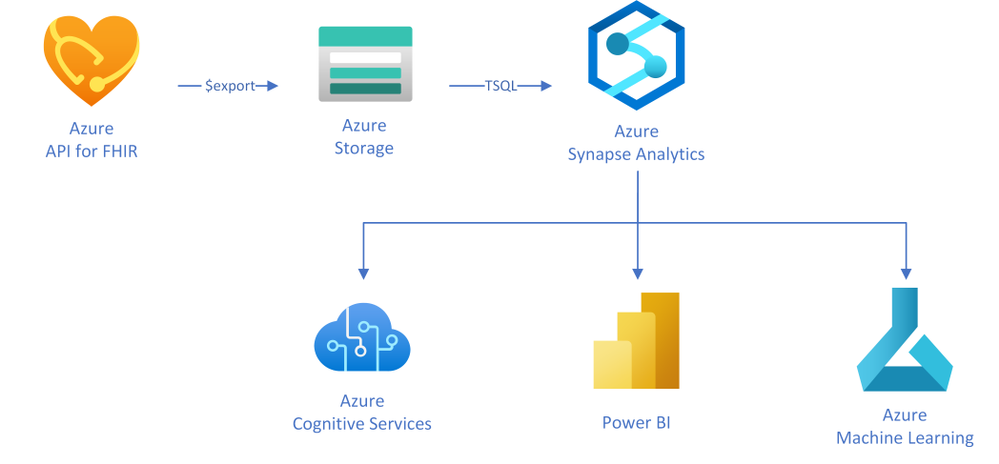
This article will teach you a simple approach to creating analytical data marts by exporting, transforming, and copying data from Azure API for FHIR to Azure Synapse Analytics, which is a limitless analytics service designed for data warehousing and big data workloads. You can complete your Business Intelligence (to Artificial Intelligence (AI) analytics with Synapse due to the deep integration with Power BI, Azure Machine Learning, and Azure Cognitive services.
In this approach, as illustrated in the diagram, you will use the $export operation in Azure API for FHIR to export FHIR resources in NDJSON format (newline delimited JSON) to Azure storage. You will then use T-SQL from any of the serverless or the dedicated SQL pools in Synapse to query against those NDJSON files and optionally save the results into tables for further analysis.
Exporting FHIR data to Azure storage
Azure API for FHIR implements the $export operation defined by the FHIR spec to export all – or a filtered subset – of FHIR data in NDJSON format. It also supports de-identified export to enable secondary use of healthcare data. You can configure the server to export the data to any kind of Azure Storage account; however, we recommend exporting to ADLS Gen 2 for best alignment with Synapse.
Let’s consider a scenario in which data scientists want to analyze clinical data of patients who are former smokers. For the study, data scientists need an initial copy of data from the FHIR server followed by incremental data for the same set of patients every month for the next two years.
The first step to get this data is to identify the patients in the FHIR server who are former smokers. The following GET call searches the FHIR server using the LOINC code 72166-2 (Tobacco smoking status) for Observation, and SNOMED code 8517006 (Former smoker) for Observation value-concept to get subjects of the observations who are former smokers. You may need to use different codes depending on how your data is coded.
https://{{fhirserverurl}}/Observation?code=72166-2&value-concept=8517006&_elements=subject
|
You need to save this list of patients to enable exporting their clinical data monthly. There are a few options to manage a collection of resources in FHIR. Since Group is supported by the $export operation, you will manage the collection of patient resource IDs as a Group. Use the results from the above search query to create a person-type Group.
{
“resourceType”: “Group”, “id”: “1”,”type”: “person”, “actual”: true,
“member”: [{“entity”: {“reference”: “Patient/44f6f10e-96c2-4802-b857-4861f1802522”}},
… other patient entities from the result …
]
}
|
Once you have a Group, you can export all the data related to the patients in the Group with the following async REST call:
Note: Azure API for FHIR takes an optional container name to simplify the organization of exported data.
https://{{fhirserverurl}}/Group/{{GroupId}}/$export?_container={{BlobContainer}}
|
You can also use _type and _typefilter parameters in the $export call to restrict the resources we you want to export. Finally, you can use _since parameter in the $export call to do incremental exports every month for two years to meet your original requirement. This parameter restricts export to the resources that have been created or updated since the supplied time.
https://{{fhirserverurl}}/Group/{{GroupId}}/$export?_container={{BlobContainer}}&_since=2021-02-06T01:09:53.526+00:00
|
Now that you have data in ADLS Gen 2, let’s talk about Synapse and see how you can load it to Synapse.
About Azure Synapse Analytics
Create a pipeline
You can use a variety of REST clients such as Postman to export the data from the FHIR server and use Synapse Studio or any other SQL client to run the above T-SQL statements. However, it is a good idea to convert these steps into a robust data movement pipeline using Synapse Pipelines. You can use the Synapse Web activity for triggering the export, and the Stored procedure activity to run the T-SQL statements in the pipeline.
Conclusion
You can use the FHIR $export API and T-SQL to transform and move all or a filtered subset of data from FHIR server to Synapse Analytics. After the initial data load, the _since parameter in the $export operation can be used to do incremental data load. An ETL pipeline with the steps mentioned in this article can be used to keep the data in the FHIR server and the Synapse Analytics in sync.
®FHIR is registered trademark of Health Level Seven International, registered in the U.S. Trademark Office and is used with their permission.


Recent Comments