This article is contributed. See the original author and article here.
The sales pipeline is a visual representation of where prospects are within the sales funnel. Managing the pipeline is one of the core activities of any seller; it helps sellers to stay organized and focused on moving deals forward. A seller who can successfully master the sales pipeline is likely to drive more revenue.
But mastering a sales pipeline is not easy, especially when sellers must balance multiple active deals, an array of contacts, and conversations across multiple channels, while trying to figure out when the next interaction will occur, what next steps are required, and which app or process will help accomplish the job.
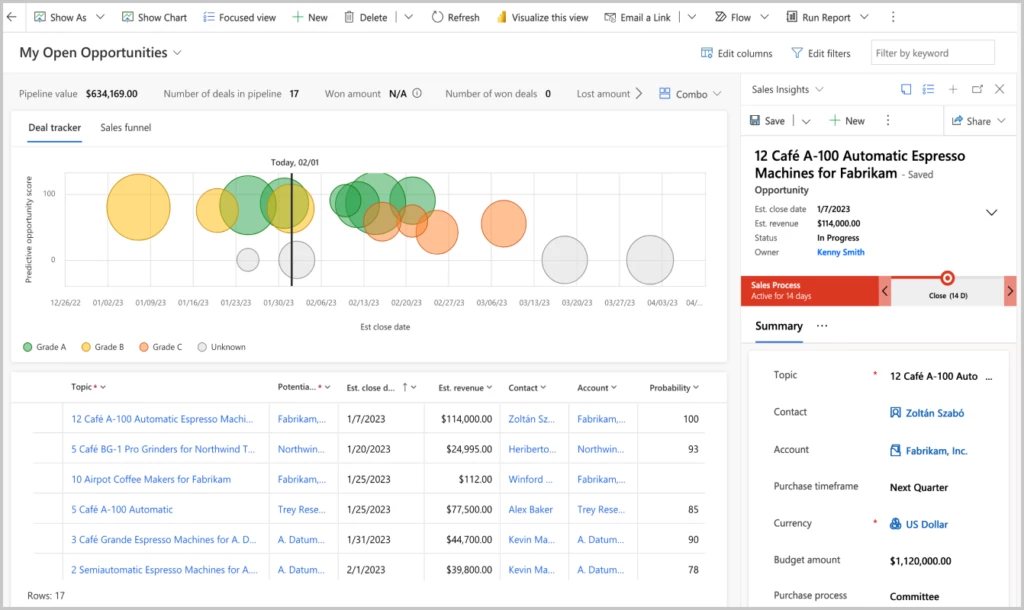
The opportunity pipeline view in Dynamics 365 Sales is now available for public preview and offers an updated user experience by putting the seller at the center of their workflows, enabling them to view their full pipeline, gather context quickly, take action efficiently, and work in their preferred manner.
Let’s see an overview of how to manage deals in Dynamics 365 Sales:
This embed requires accepting cookies from the embed’s site to view the embed. Activate the link to accept cookies and view the embedded content.
The easiest way to get an overview of the sales pipeline is by visualizing the deals on a chart. Charts form a key component of the opportunity pipeline view. Not only do they provide key insights on opportunities, but in the opportunity pipeline view these charts are interactive, update in real time and allow sellers to quickly locate and focus on the right deals.
In this release, two charts are available out of the box:
A bubble chart that allows sellers to track risky deals on a timeline.
A funnel chart that allows sellers to see where deals are in the sales process.
These charts are configurable by administrators. In future releases, we will introduce additional charts.
Keeping track of key metrics
Another tool that keeps sellers informed are key performance indicators (KPIs). In the opportunity pipeline view, we’ve introduced tools to track and highlight metrics that help sellers stay on top of their most important KPIs. Sellers can choose from a subset of metrics, re-order them, or even create their own metrics.
A modern, seller-optimized grid experience
When it comes to managing deals, it’s no wonder that sellers often use spreadsheets. Spreadsheets provide a table view of all opportunities, with aggregation, quick filtering, sorting, grouping with pivot tables, re-ordering of columns, and the ability to edit fields inline easily. Unfortunately, data in a spreadsheet is static and not connected to the CRM.
The opportunity pipeline view comes with an inline grid that can be edited. This grid behaves just as a spreadsheet would. Sellers can:
Edit any cell inline
Filter by any column
Hide and show any column from the table
Sort records on the grid
Re-order the columns
Access control on the columns
Getting context without navigating away
With the opportunity pipeline view, useful information is easily accessible. When you select a record in the workspace, an optimized form appears in the side panel. This form contains a modern task management experience and provides useful information, such as:
Administrators can customize the form to select the most relevant fields for your business.
Dynamics 365 Sales opportunity view
Steps to begin with the opportunity pipeline view
Where can I see the opportunity pipeline view? Click on the “show as” button on the top left in the command bar and select “pipeline view” from the dropdown.
What if I do not see the option in the dropdown? If you do not see the “pipeline view” in the dropdown, ask your administrator to opt in for early access. Please refer the documentation to opt in for early access.
Can I set pipeline view as the default view? Yes, the admin has the capability to set it as the default view. Please refer the documentation to set pipeline view as default view.
What if I do not want to see it in the dropdown menu? Ask your administrator to disable the view.
Next steps
Opportunity pipeline view is available in early access now. For more information on how to enable the experience in your environment,read the documentation and watch a brief video
This article is contributed. See the original author and article here.
Microsoft Learn offers a huge library of written content, including technical documentation and learning paths. But what if you need something a little more visual and demonstrative while learning new skills? Enter Microsoft Learn’s vast collection of video content.
Whether you’re searching for a walk-through of Microsoft Azure or wanting to know the newest trends within the tech world, Microsoft Learn offers a wide variety of unique video content. Produced as both stand-alone how-tosand episodic shows on Microsoft Learn, videos will help you attain new skills and knowledge while keeping up with the latest Microsoft technology.
Although Microsoft Learn offers content that fits learners at every stage of their journey, these sevenvideos in particular can help new users take the first step towards achieving their learning goals.
1. Getting Started with Microsoft Learn
New to Microsoft Learn and need some help navigating its content? Then this video is a must-watch.Take this virtual walk-through of Microsoft Learn with Ashley Johnson, Senior Technical Product Manager at Microsoft, to explore valuable features that can help you make the most of your experience.
If you need to prepare for a Microsoft Certification exam and you don’t know where to begin, check out this show that offers study tips, content overviews, and sample questions and answers for each featured exam.
Interact with Microsoft Azure engineers in real-time via livestreams.Geared towards helping you migrate or initiate new workloads in Azure, this series will give you added confidence when preparing for highly technical implementations.
Learn how to develop and optimize applications and processes with Microsoft Power Platform direct from industry experts. Focused on low code solutions, this seriesis a great resource for developers of all backgrounds.
Catch up on the latest trends and news snippets within the developer community in this engaging and informative series. Watchhighlights of interesting projects and discover tips and tricks for developers of all backgrounds and skillsets.
This multi-part series introduces Microsoft Graph basics. Best of all, itfeaturesinteractive exercises that showcase how to use Microsoft Graph for connecting Microsoft 365 data with app development platforms.
Learn about what’s new in artificial intelligence in this Friday evening series. Watch as host, Seth Juarez, works on machine learning and AI projects while offering tips for getting started on your own.
Whetheryou’re looking for a live demonstration of complex skills or a last-minute knowledge check before a certification exam, videos on Microsoft Learnare here to help. Check out what’s available today!
This article is contributed. See the original author and article here.
Despite living in a connected world, the way we use our apps can often feel distinctly disconnected. Today, we’re announcing a new way to help you stay focused with help from two Microsoft apps that many people use daily and consistently together—the classic Microsoft Outlook app on Windows and the Microsoft Edge web browser.
This article is contributed. See the original author and article here.
It is common that IT personnel tasked with monitoring the health and performance of database systems be given very high privileges such as SQL sysadmin. This enables them to do their job but comes with significant risks. Those privileges enable them to read or modify the data that other users in the organization store in those databases. That data is commonly referred to as “user data”. Sometimes user data can be very sensitive, for example, the consolidated financial information of a public company prior to being disclosed in an earnings report, a technological achievement that gives the company a competitive edge, and customer or employee information that must be protected to comply with privacy regulations. Sensitive data may be leaked or tampered with because of malicious intentions or simply poor security practices. When that happens, the company usually suffers financial damage and litigation against its officers.
Microsoft Purview DevOps policies support the Principle of Least Privilege (PoLP), which simply states that people should be given only the minimum access they need to be able to perform their job and no more. DevOps policies address the scenario of IT personnel tasked with monitoring the health and performance of database systems. This article showcases the experience for Azure SQL Managed Instance, the newest source supported for DevOps policies (soon to enter private preview). Azure SQL Database and SQL Server 2022 are already supported, and the configuration steps are linked at the end.
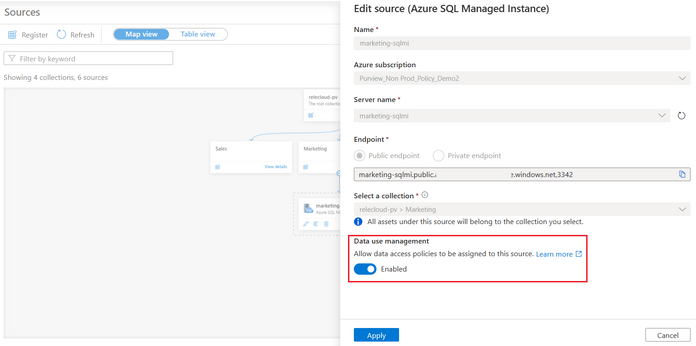
First, register the Azure SQL MI in Microsoft Purview and enable Data use management. This means consenting that you would like to use Microsoft Purview to grant users access to the Azure SQL MI.
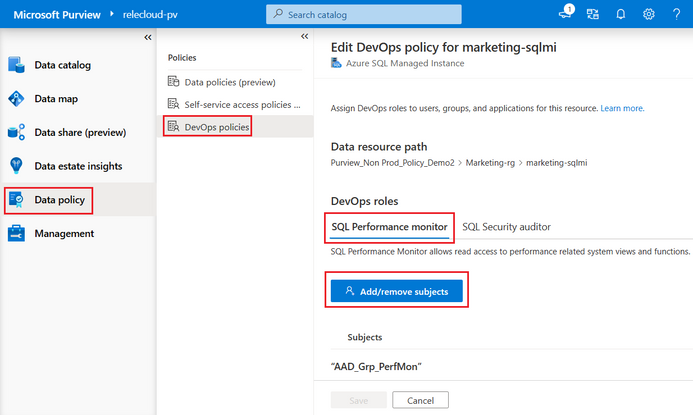
Second, navigate to the Data Policy App in Microsoft Purview and then to DevOps policies. Create a policy, selecting the Azure SQL MI data source in the prior step. Once you do that, the Data resource path will show <subscription name > resource-group name > data source name>. Next, select one of two role definitions “SQL Performance Monitor” or “SQL Security Auditor”. Finally, select the Add/remove subjects to specify the Azure AD user(s) or group(s) that should be granted access:
Once you save the policy, Microsoft Purview will communicate it to the Azure SQL MI. It may take up to 5 minutes to be enforced.
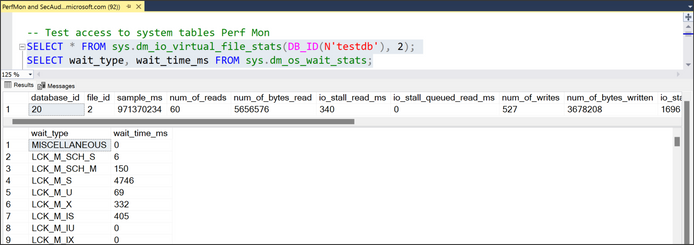
To test, you can use SSMS. Connect with one of the AAD users that was granted access and then execute a query to get system metadata (DMVs and DMFs). For example, SQL Performance Monitor grants access to see the virtual file stats or the wait times. SQL Security Auditor grants access to see database encryption keys. An IT user granted SQL Performance monitor user should be able to perform the operations:
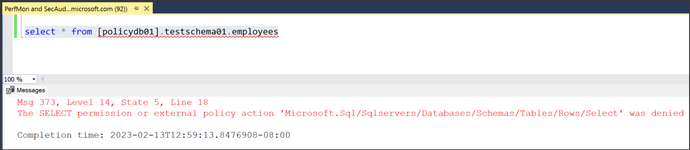
Next, try accessing a table in one of the databases. The IT user is denied, which means the crown jewels are protected.
Recommended steps:
DevOps policies for Azure SQL MI (Private Preview): Click here to test-drive this new experience. Note, your Microsoft Purview account and Azure SQLM MI will be allow-listed after you enroll.
DevOps policies for Azure SQL Database (Public Preview) and SQL Server 2022 (GA):
This article is contributed. See the original author and article here.
Introducing the New Post-delivery Activities Report in Microsoft Defender for Office 365
Attackers are always evolving to adapt to the newest protections enacted by security teams and the products they rely on. Today, attackers frequently attempt to bypass security tools by sending messages that only become malicious after they have been delivered. This requires a robust post-delivery detection and response mechanism. In this blog, we will explore the evolution of an attack, how Defender for Office 365 provides out of the box post-delivery protection, and how you can see this value for your organization. Today we’re announcing a new report in Microsoft Defender for Office 365 that highlights messages that have been acted upon or moved by Microsoft after they have been delivered to the inbox.
Post-delivery activities
Before diving into this new report, we want to start by covering post-delivery activities – what they are and how they work in Defender for Office 365.
How do attacks land in the mailbox?
Threat actors work on the fact that they can send messages and weaponize them later. Attackers frequently send messages with an inactive URL which won’t be detected at time of delivery, and once the messages have been delivered to inboxes, the URLs are then weaponized. This puts your end users at risk of credential theft and your organization at risk of a widespread attack. Threats can also be reclassified post-delivery, based on this weaponization by attackers.
That’s where Zero-Hour Auto Purge (ZAP) comes in to protect your organization from these types of attacks. ZAP is powered by Microsoft’s advanced security graph to detect and neutralize threats. ZAP is constantly reviewing your messages to identify and neutralize these threats.
How does Defender for Office 365 detect and respond to these attacks?
Microsoft Defender for Office 365 includes ZAP, a post-delivery activity which acts on malicious messages after delivery. Upon identifying a malicious Indicator of Compromise (IoC), ZAP can find all messages in user mailboxes that contain the malicious IOC. Once the messages are identified, ZAP acts on the message based on the specific policy action, securing your end users and your organization. With secure by default, our filtering will keep many potentially dangerous or unwanted messages out of your mailboxes. The secure by default feature enables malware and high confidence phishing messages detected post-delivery to be sent to quarantine by ZAP, with no additional configurations required.
ZAP receives signals from our advanced security graph and utilizes this threat intelligence to remove malicious messages from the inbox, providing out of the box post-delivery protection for all customers. And this isn’t just for Defender for Office 365 customers; we provide ZAP actions for all Microsoft email services, including Exchange Online Protection and even Outlook.com consumer accounts. The quick system-driven actions reduce the exposure time of your end users, securing your organization in a timely and effective way. There is no need for any admin intervention to identify and trigger an action. Upon detection of the malicious content, ZAP removes the message from the inbox.
Post-delivery protection with ZAP
Where can I review messages that were neutralized by ZAP?
With our Microsoft Defender for Office 365 P2 and E5 licenses, you can review messages that are neutralized by ZAP within Advanced Hunting and Threat Explorer. You can learn more here.
Introducing the new Post-delivery activity report
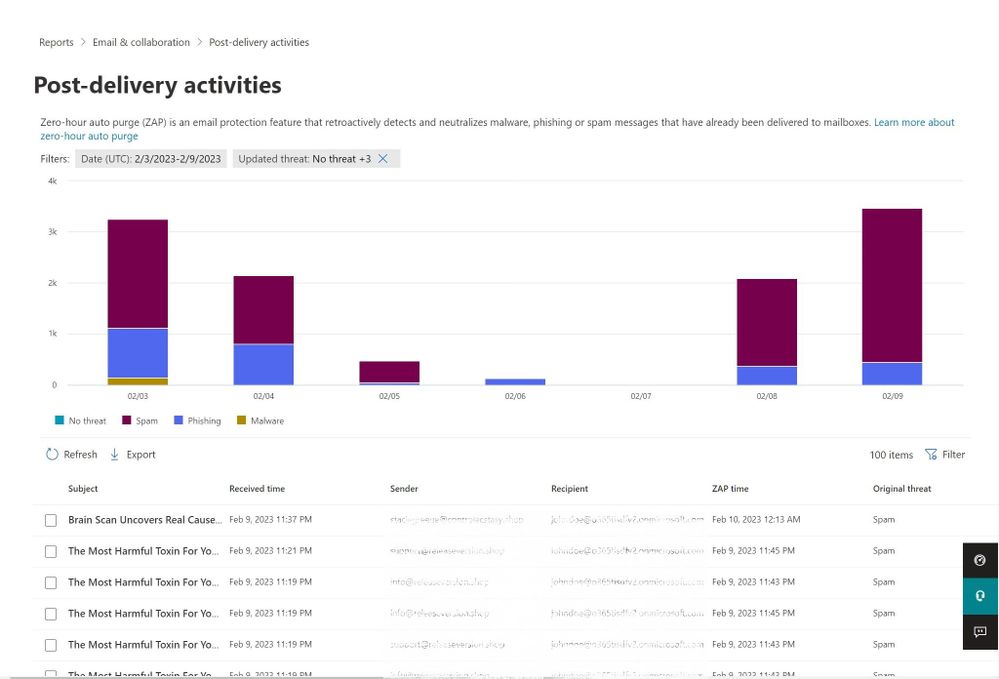
We’ve heard customer feedback that understanding when ZAP took action can be challenging. As a result, we’re happy to announce the launch of a new Post-delivery activity report. The report will display all the ZAP events that occurred in your organization. If the verdict assigned to a message has been changed, the new report will display this updated data, making it easier to investigate the messages.
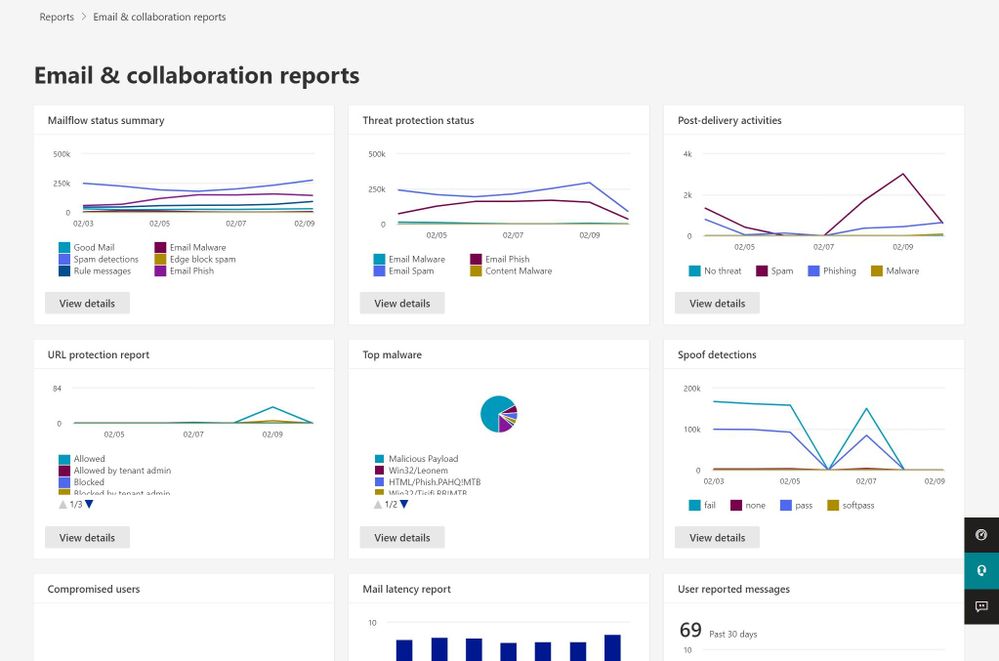
You can find the Post-delivery activities report under Email & collaboration reports.
Figure 1: Access the Post-delivery activities report under Email & collaboration reports
Figure 2: Post-delivery activities report
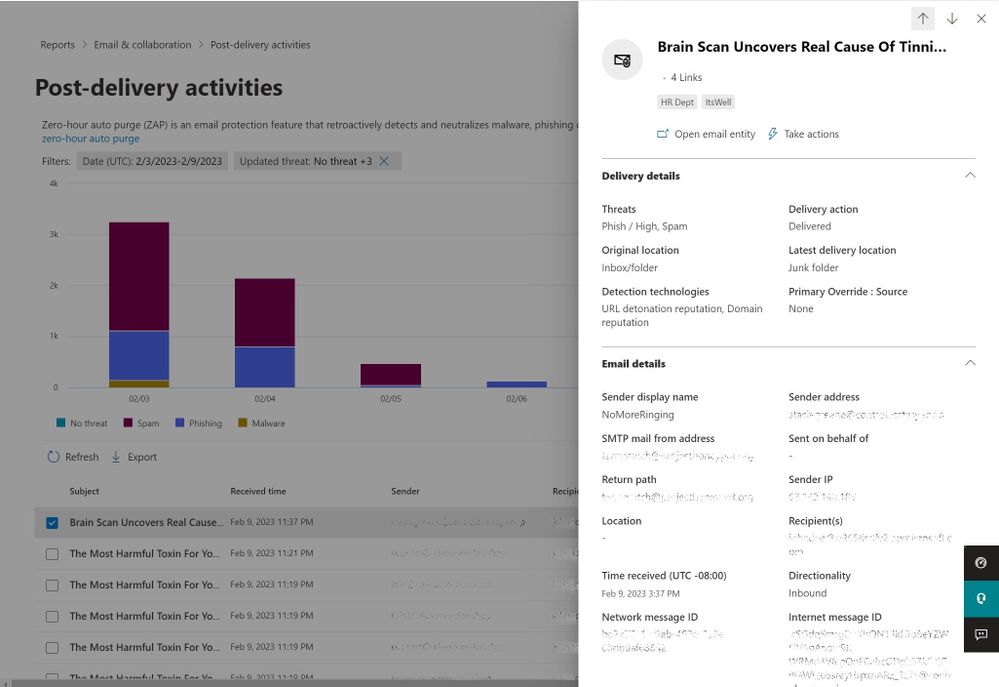
From the report, you have direct access to the email entity side panel to review additional information about the message:
Figure 3: Access the email entity summary panel from the report view
Learn more about the report by viewing our documentation.
You can use the following PowerShell cmdlets to access the report information for your organization.
GetAggregateZapReport
GetDetailZapReport
You can learn more about these PowerShell cmdlets here.
If you are part of a Security Operations team or a Cyber Threat Intelligence team, get started by navigating to security.microsoft.com/reports/PostDeliveryActivities, to review the messages we have blocked in your organization post-delivery.
For questions or feedback about Microsoft Defender for Office 365, engage with the community and Microsoft experts in the Defender for Office 365 forum.










Recent Comments