This article is contributed. See the original author and article here.
Digital Marketing Content (DMC) OnDemand works as a personal digital marketing assistant and delivers fresh, relevant and customized content and share on social, email, website, or blog. It runs 3-to-12-week digital campaigns that include to-customer content and to-partner resources. This includes an interactive dashboard that will allow partners to track both campaign performance and leads generated in real time and to schedule campaigns in advance
NEW CAMPAIGNS
NOTE: To access localised versions, click the product area link, then select the language from the drop-down menu.
The world and how we work are rapidly changing. The opportunities for Microsoft partners—whether you build and sell services, software solutions, or devices—are significant. The capabilities that are required by our customers are evolving, and our partner programs are changing to meet that demand.
The Microsoft AI Cloud Partner Program is focused on simplifying our programs, delivering greater customer value, investing in your growth in new ways, and recognizing how you deliver customer value. Check out links below to learn more:
Admins can sign-in to Partner Center to see how your organisation is progressing towards a Solutions Partner designation and see the associated benefits.
Go to Training Gallery & Microsoft docs to learn about the requirements needed to attain a Solutions Partner designation.
If you’re still new to DMC, you can find program decks with links to recorded demos here. This collection of resources expands all of our digital services.
FEATURES & FUNCTIONALITY
If you’re just returning to DMC or just want a quick recap of the updates we’ve made, you can find them under ”Program Updates” of the Resources section in DMC, which can also be found by clicking the help icon on the top right.
In addition to English, the DMC user interface now supports additional languages. To update, go to your profile, click the edit button on the top right, and then select your preferred language from the drop down menu in the “your information” section.
CONNECT WITH US
If you’d like to speak with someone directly, please join our monthly office hours on January 4, 2024 (occurs the first Thursday of each month.) We offer morning and evening (PST) sessions to accommodate different time zones.
FEEDBACK AND SUPPORT
We’re always working on making DMC a better experience for you. If you have 5 minutes to review your current experience with DMC, we’d love to hear your thoughts. NOTE: All submissions are anonymous, so please reach out to us if you need support, or join our office hours the first Thursday of each month.
This article is contributed. See the original author and article here.
Earlier this year, we’ve introduced the public preview of Field Service Mobile’s refreshed user experience. As this year comes to a close, we are excited to announce a new set of updates to further enhance this new user experience.
Agenda View Update
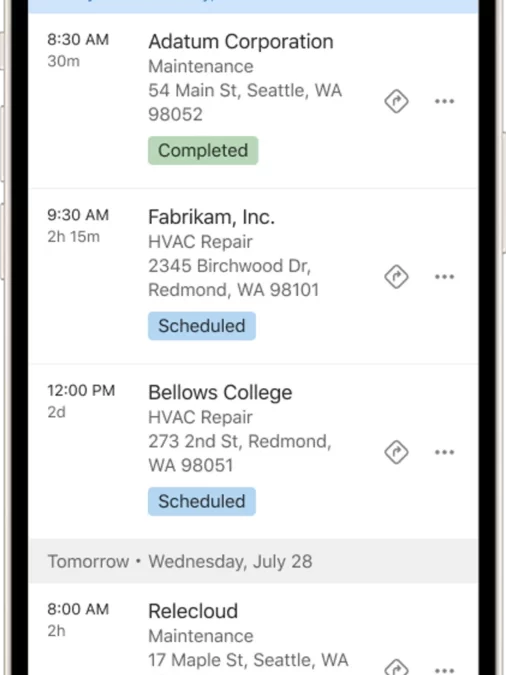
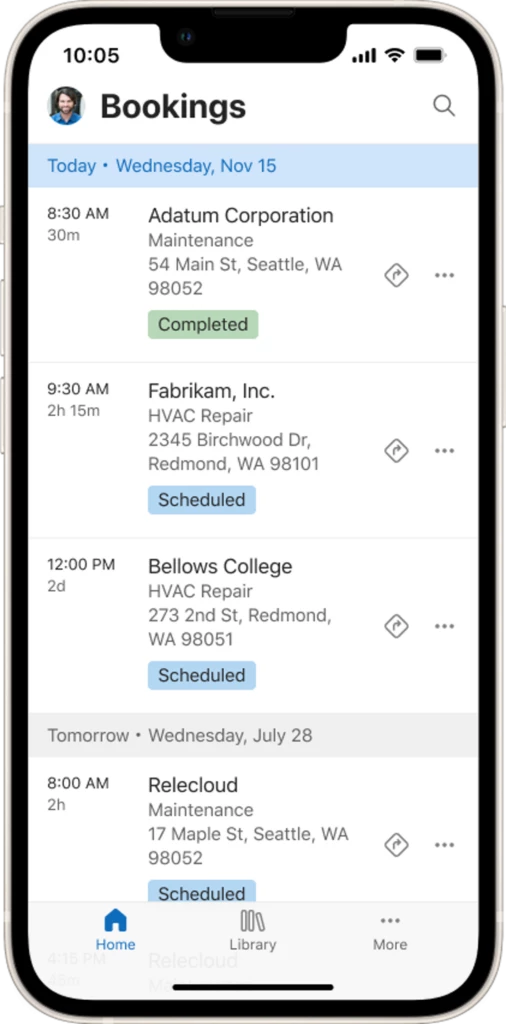
The Agenda View is the main landing experience for frontline workers using Field Service Mobile. In this wave, we are continuing to add to this experience to make it easier for your technicians to see and manage their bookings. In this wave, enhancements to the Agenda view include:
Bi-directional scroll of up to 90 days of bookings in the past or future.
Date separators that help your technicians better see the bookings of each day.
Makers can configure the data that gets shown in each row through existing view configuration experience.
These improvements will give your technicians more visibility and control over their schedule, and help them plan their work more effectively. To learn more about this feature, go here.
Configurable List View
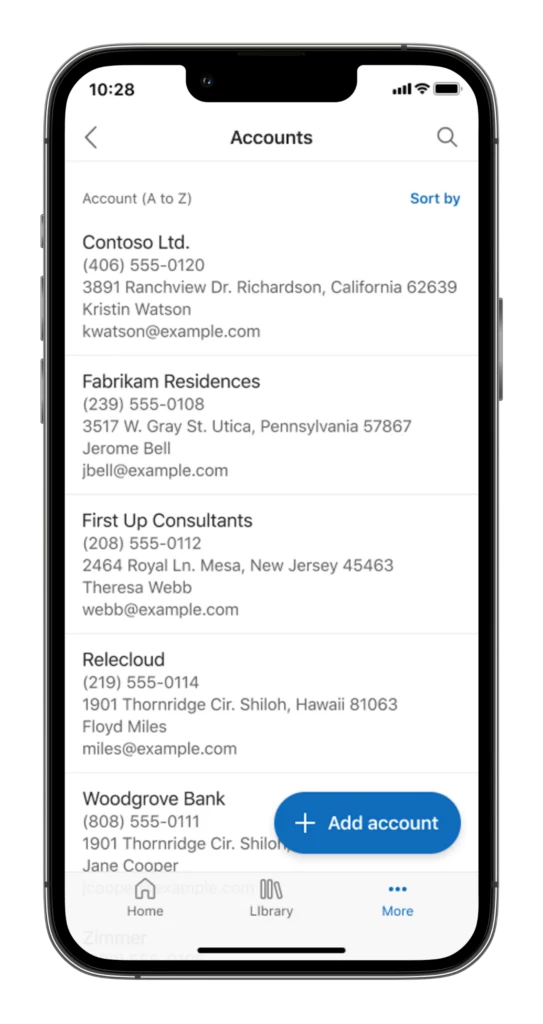
Another heavily used part of Field Service Mobile is the list view. To improve the item browsing experience for your technicians, the team has built from the ground up a new mobile-first list view for the new Field Service Mobile experience:
Makers can choose up to five columns per table to display in the mobile list view.
The icon in the list view is removed, saving limited mobile screen real estate.
List view has smoother scrolling and is more performant with in-built lazy load.
These new capabilities will improve the productivity of your technicians by enabling them to see more data and at higher density on their mobile devices. To learn more about this feature, go here.
Copilot Work Order Summary and Update
To empower frontline workers with the latest AI advances, we’ve brought the power of Copilot to Field Service Mobile! With these new features, your technicians can both quickly get up to speed on a Work Order or update it using a speech-first Copilot experience.
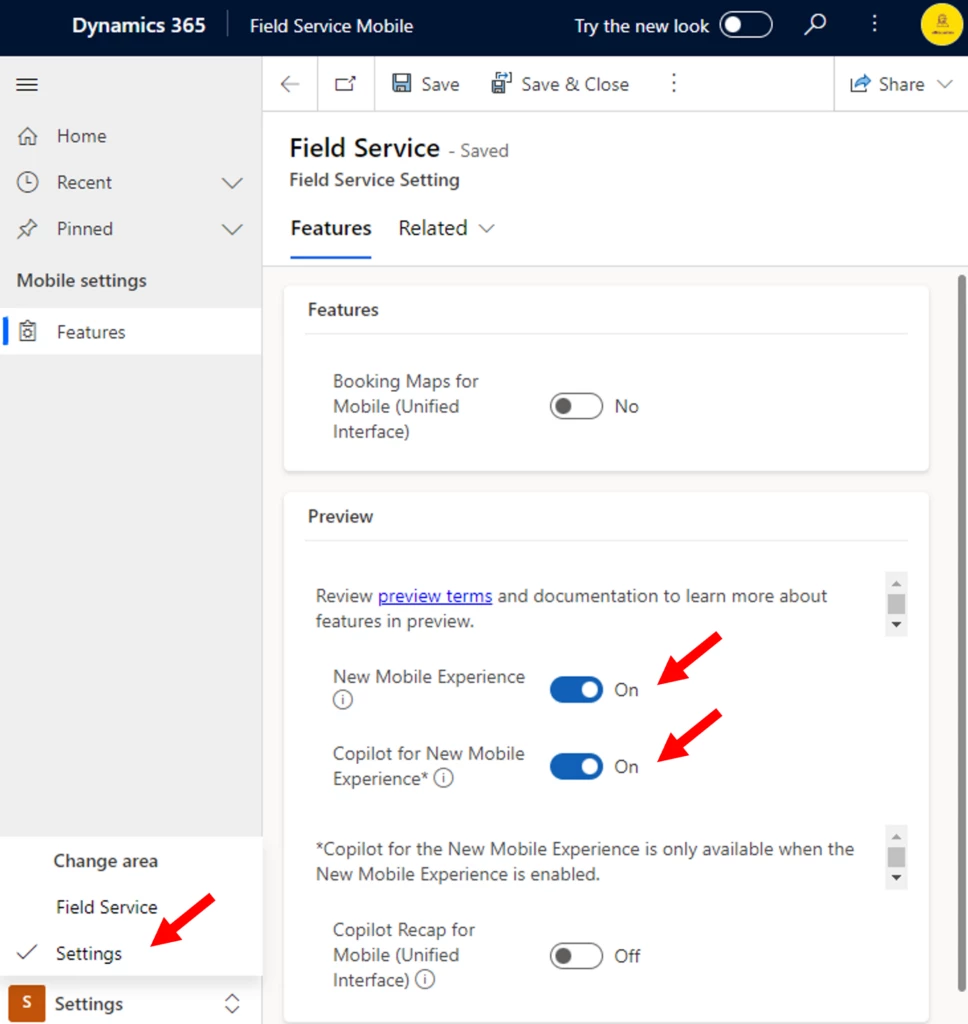
These are some of the features that we have delivered in the latest wave of the Field Service Mobile app. We hope that you will try them out and share your feedback with us. To enable these features, log in with an admin account and turn them on in the settings section in Field Service Mobile. Enable the “New Mobile Experience” and “Copilot for New Mobile Experience” options. For more information, please visit our documentation page here.
Thank you for choosing Dynamics 365 Field Service Mobile app. We are committed to delivering the best mobile service experience for you and your customers. Stay tuned for more updates and enhancements in the future.
We hope that these new enhancements in Field Service mobile will make your work even more productive. We would love to hear your feedback and suggestions on how to improve the product. Please feel free to leave comments in the Dynamics 365 Community Forum or Ideas portal. Thank you for using Field Service Mobile!
This article is contributed. See the original author and article here.
We’re thrilled to announce the public preview of the Error Logs feature for Azure Database for MySQL – Flexible Server! This feature empowers you to gain direct access to MySQL error logs, significantly enhancing your troubleshooting capabilities and providing transparency and independence in managing your database environment.
Note: The Server Logs feature, including Error Logs, is available for all new servers created after November 14th, 2023. For existing servers, this feature will be made available after their next scheduled maintenance estimated to be performed in January 2024.
Key Benefits
Key benefits associated with the Error Logs feature include:
Efficient troubleshooting: You can maintain MySQL error log files under Server Logs feature and download them for up to 7 days, enabling efficient issue identification and resolution.
Enhanced security: You can use Error Logs to proactively detect and respond to unauthorized access attempts, failed login attempts, and other security-related events.
Increased transparency: Enabling exposure of MySQL error logs in the Azure portal allows for a user-friendly interface to monitor your workload and troubleshoot issues.
Enabling the Error Logs feature:
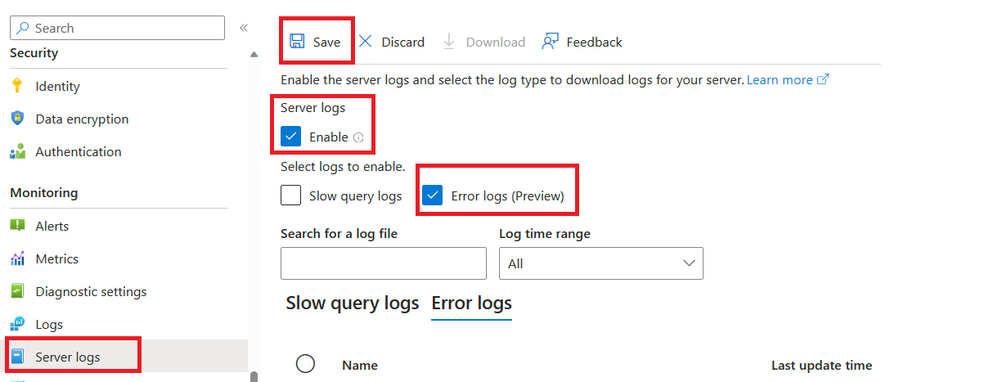
To enable the Error Logs feature, perform the following simple steps:
In the Azure portal, navigate to your instance of Azure Database for MySQL – Flexible Server.
On the Monitoring tab, select Server Logs.
On the Server Logs page, select the Enable andError Logs checkboxes, and then select Save.
Alternatively, you can enable Error Logs by configuring the following server parameters via the Azure portal or Azure CLI:
error_server_log_file: This server parameter, when set to ON, allows you to expose error logs as downloadable files from the Azure portal and Azure CLI.
log_output : Setting the value to FILE will enable the Server Logs feature on your MySQL flexible server.
Conclusion
Gain enhanced transparency, troubleshoot with ease, and proactively secure your database environment by leveraging the Error Logs feature. You can learn more about the feature, including limitations during public preview, in our service documentation.
We invite you to explore and provide your valuable feedback as we continue to refine this feature. If you have any questions or suggestions, feel free to leave a comment below or reach out to us at AskAzureDBforMySQL@service.microsoft.com.
This article is contributed. See the original author and article here.
Scenario: PowerShell script to disable Public Network access for Azure Relay
In today’s azure world, it is always better to do automations rather than do a Manual work. It becomes a headache for all of us to navigate to Azure Portal
Here is the simple way to disable Public Network access by using PowerShell script.
This article is contributed. See the original author and article here.
Introducing Copilot for the new Field Service mobile user experience
Field Service mobile is a powerful application that helps frontline workers manage their tasks, access information, and communicate updates with the back office. But we know that sometimes, using an app can be cumbersome or distracting, especially when you are busy with your hands-on work. That’s why we are excited to announce Copilot for the Field Service mobile app, a new feature that makes Field Service mobile even more user-friendly and efficient.
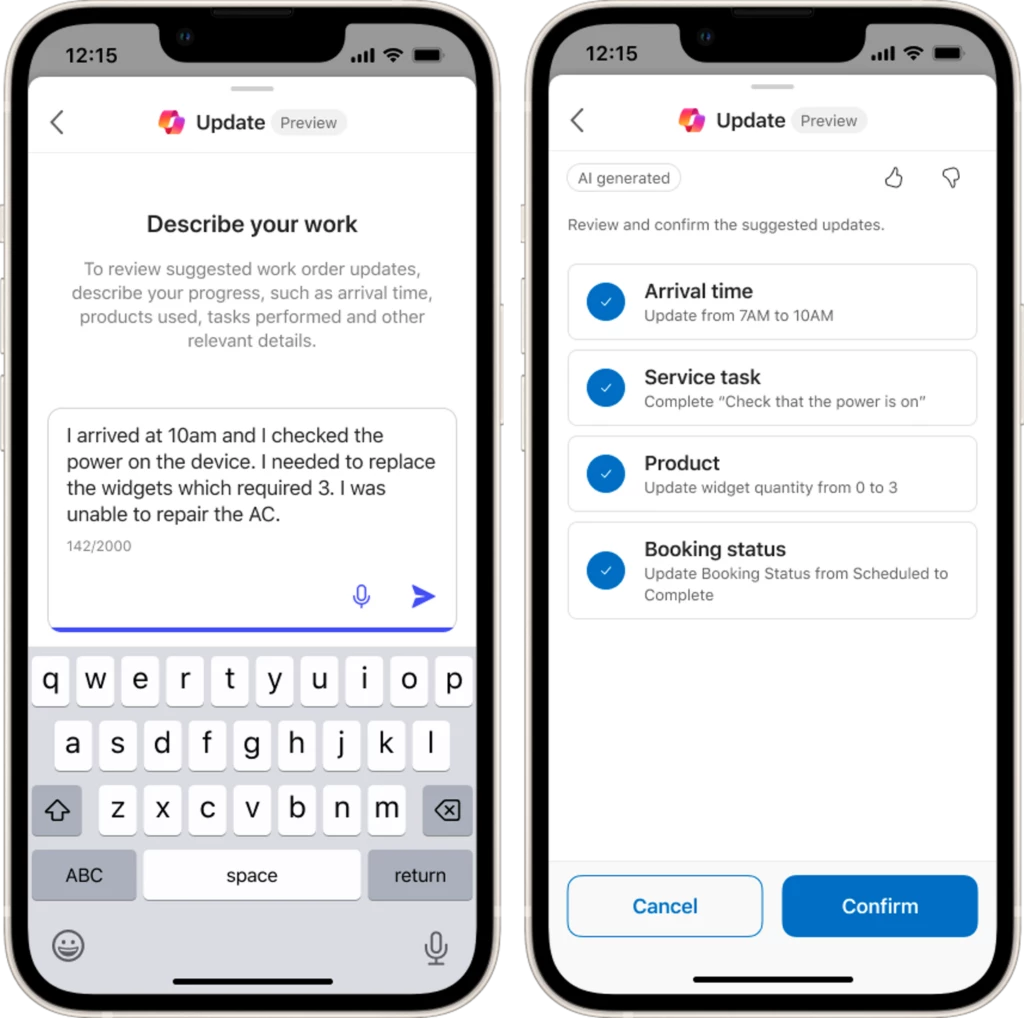
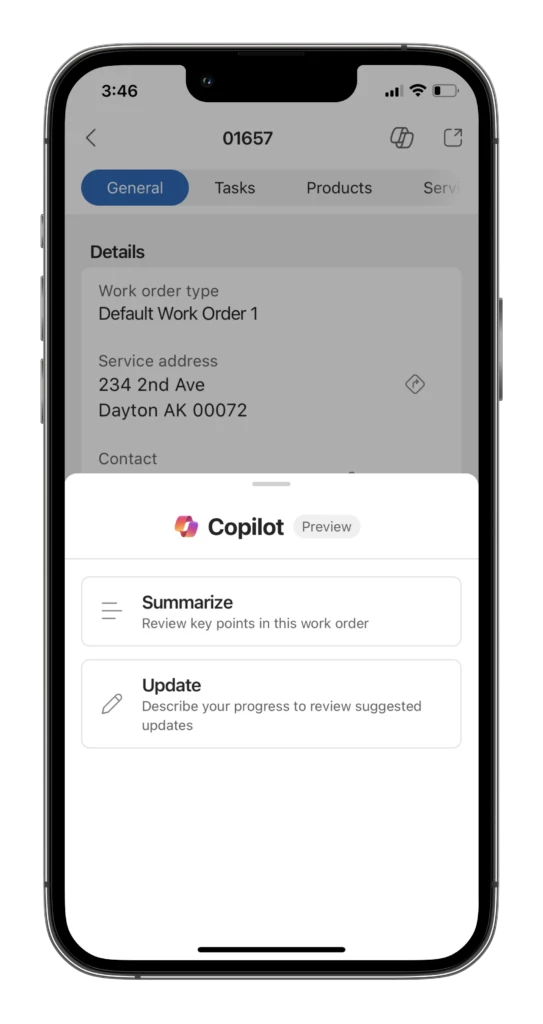
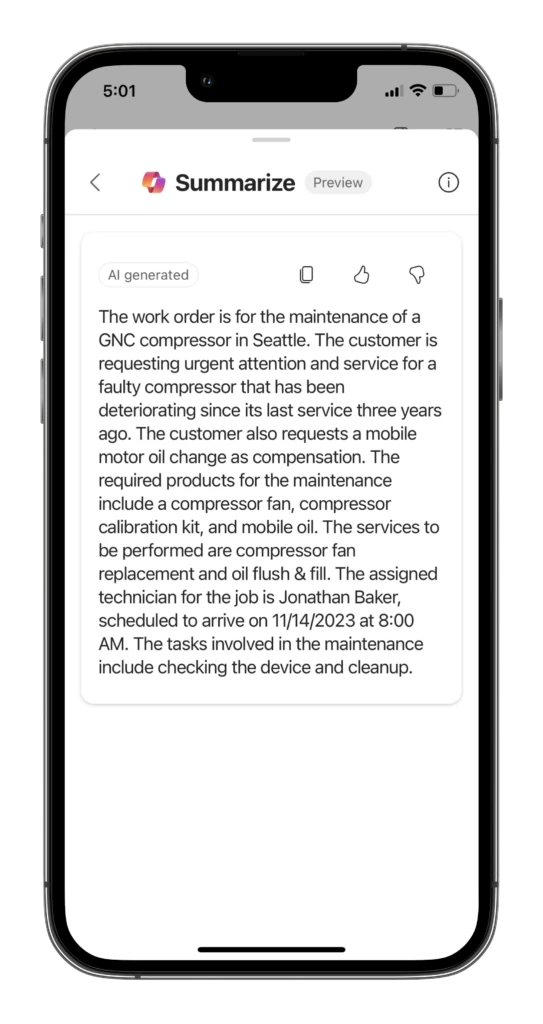
The new Field Service mobile (Preview) user interface has two Copilot skills that help to summarize and update work orders. Copilot update uses natural language processing and artificial intelligence to understand your input via text or voice command, then suggests form updates based on that input. While the Copilot summary provides the Frontline Worker a concise summary of their booking with the click of a button.
Let’s learn more about these features and how they work.
How Copilot Summarizes You Work
Copilot Summarize provides a quick overview of the scheduled booking for the frontline worker. This gives frontline workers a better understanding of the job to be done without needing to click through multiple forms to find the information. Copilot will summarize a booking based on the following fields related to that booking:
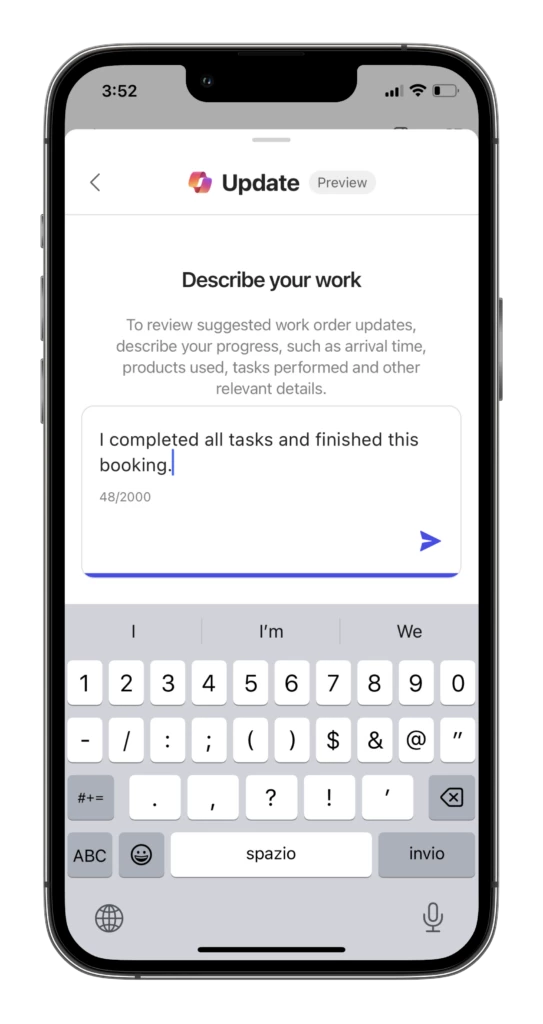
Another benefit of Copilot is that it can help you easily fill out forms. Instead of hunting for fields within the mobile app, you can simply tell Copilot what you want to update. Tell Copilot to update data with phrases such as:
I’ve completed all tasks and finished this booking at 10:00AM
I’ve used {product name} as part of my work to complete this booking.
I’ve completed {service task name}.
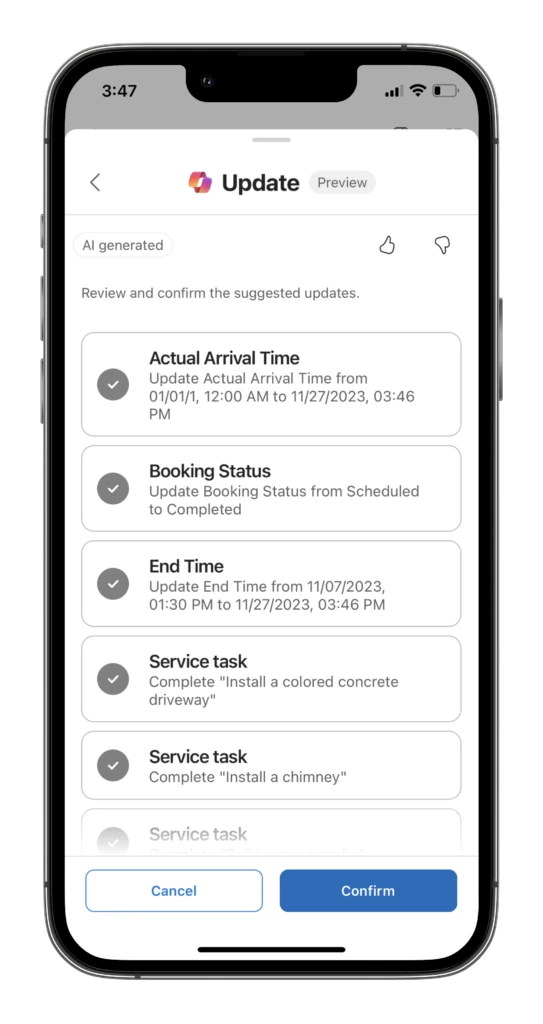
Copilot will understand your natural language input and propose updates to data on the form accordingly. All changes proposed by Copilot will be presented to the frontline worker where they can exclude or accept recommended updates.
Today the Copilot update is limited to updates of the forms within the new mobile UX only. Scope of these updates are:
Update your booking status and times
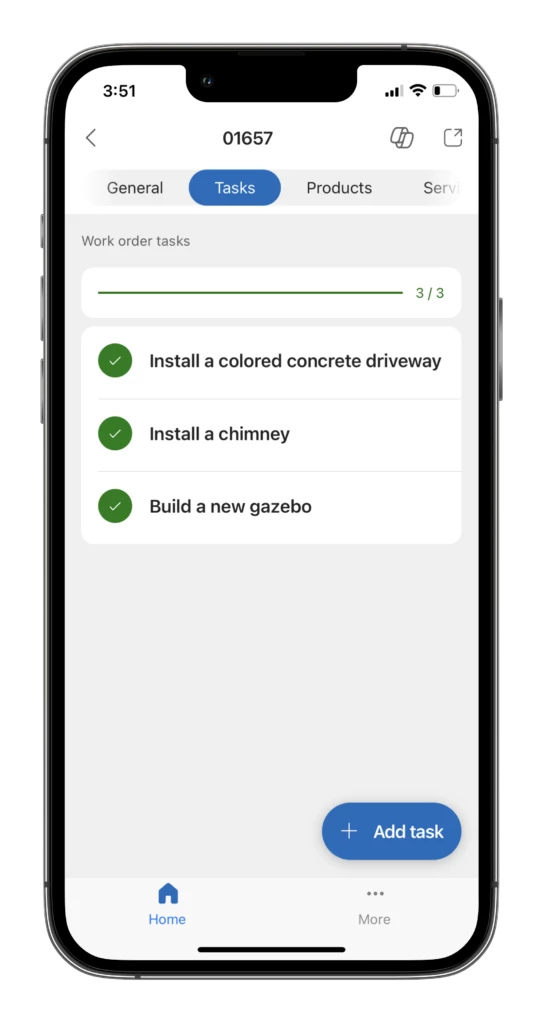
Change the state of at task to completed
Consume estimated products
Complete work order services
Complete service tasks assigned to the work order
Keep an eye out for additional enhancements and capabilities of this feature!
How to Get Started with Copilot for Field Service Mobile
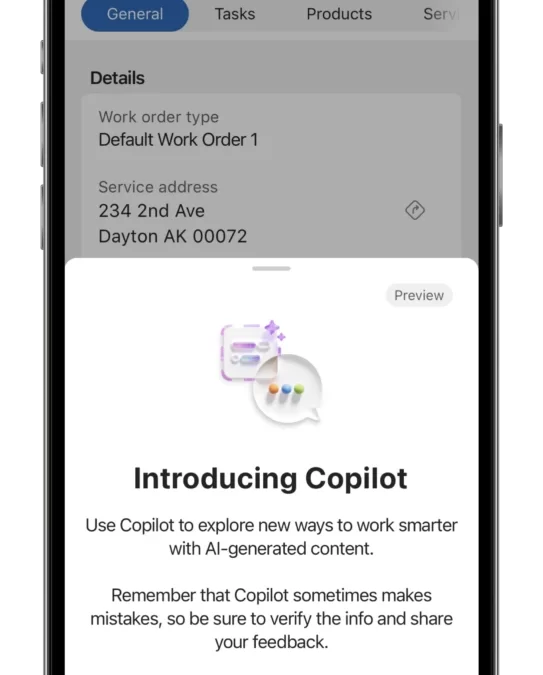
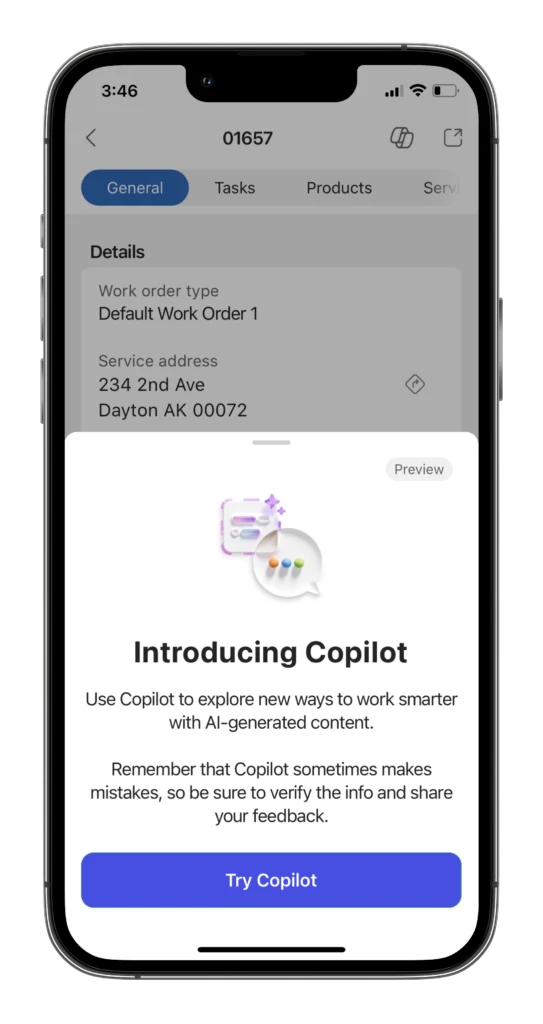
Copilot Summary and Update are available for the new Field Service mobile (Preview) experience today. To enable Copilot, the org admin will need to enable the features within Field Service Settings. Once enabled, app users will find the copilot entry point in their application under the Copilot logo located in the header of the booking form.
We hope that Field Service mobile with Copilot will make your work even more productive. We would love to hear your feedback and suggestions on how to improve Copilot. Please feel free to leave comments in the Dynamics 365 Community Forum or Ideas portal. Thank you for using Field Service Mobile!




Recent Comments