“Topics is Engaged” ? – The Intrazone podcast

“Topics is Engaged” ? – The Intrazone podcast

This article is contributed. See the original author and article here.

Viva Topics in Engage doubles the impact and access of your knowledge at your fingertips – and how you pay it forward to others.


On today’s episode, we hear from Raj Jain (Principal product manager – Viva Engage and Answers team at Microsoft) about all things topical about Viva Topics, specifically – the role of Viva Topics within your Viva Engage community discussions, questions, and announcements posts. The real value gives you a built-in knowledge management system that balances and refines the length of your internal communications without sacrificing the depth you pay forward to each person that reads your comm.


Two Viva apps, one great outcome. 


The Intrazone, episode 94:


https://html5-player.libsyn.com/embed/episode/id/26274723/height/50/theme/standard/thumbnail/no/direction/backward/menu/no/


Subscribe to The Intrazone podcast + show links and more below.


The Intrazone guest: Raj Jain - Principal Product Manager - Viva Engage and Answers team.The Intrazone guest: Raj Jain – Principal Product Manager – Viva Engage and Answers team.


Links to important on-demand recordings and articles mentioned in this episode:  


Subscribe today!


Thanks for listening! If you like what you hear, we’d love for you to Subscribe, Rate and Review on iTunes or wherever you get your podcasts.


Be sure to visit our show page to hear all episodes, access the show notes, and get bonus content. And stay connected to the SharePoint community blog where we’ll share more information per episode, guest insights, and take any questions or suggestions from our listeners and SharePoint users (TheIntrazone@microsoft.com).


Intrazone Links


+ Listen to other Microsoft podcasts at aka.ms/microsoft/podcasts.


The Intrazone, a show about the Microsoft 365 intelligent intranet (aka.ms/TheIntrazone).The Intrazone, a show about the Microsoft 365 intelligent intranet (aka.ms/TheIntrazone).


Dynamics 365 Finance and Operations extends out-of-the-box country coverage in Latin America

Dynamics 365 Finance and Operations extends out-of-the-box country coverage in Latin America

This article is contributed. See the original author and article here.


Our customers run Dynamics 365 Finance and Operations applications globally and must meet multiple tax compliance and other regulatory and local business practice requirements (we call them localizations). These requirements are complex and change frequently, especially in many countries within Latin America (LATAM).

As a part of our continuous commitment to customers and partners and following our strategy of expanding the out-of-the-box country coverage, in 2023 release wave 1, we will ship localizations for seven additional LATAM countries: Chile, Colombia, Costa Rica, Nicaragua, Panama, Paraguay, Uruguay.

Microsoft localizations for these new countries were built in collaboration with Finnie, S.A., an affiliate of Artware SRL based on their LATAM localization solution. To better align with other Microsoft out-of-the-box localizations, this third party localization solution was redesigned utilizing the rich capabilities of Globalization Studio tools and services and integrated into  Dynamics 365 Finance, Dynamics 365 Supply Chain Management, and Dynamics 365 Project Operations applications.

This expansion helps LATAM and global partners to focus more on delivering extra value to customers by extending these out-of-the-box localizations from Microsoft to meet more specific vertical or other customer requirements which might be different in each country. Our flexible, easy-to-use Globalization Studio tools and services make localization easier to extend and maintain for Microsoft partners and customers.

With this release, we are extending the out-of-the-box support to 51 countries/regions and 67 languages. Together with partner localization solutions and our no-code/low-code Globalization Studio tools and services, this expansion makes it easier for our customers to run their businesses globally (currently our customers use Dynamics 365 Finance and Operations applications in over 200 countries/regions).

LATAM Country Localization Overview

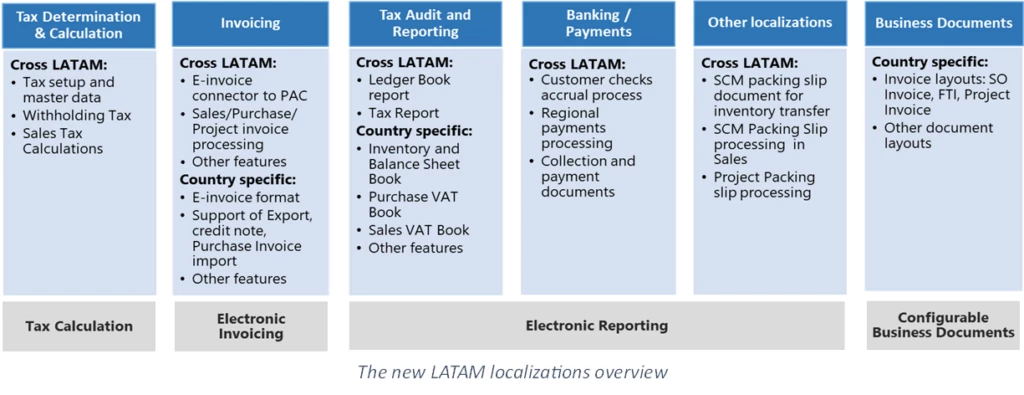
The new LATAM localizations have over a hundred new features covering key globalization areas in Dynamics 365 Finance, Dynamics 365 Supply Chain Management, and Dynamics 365 Project Operations, including:

  • tax determination and calculation,
  • electronic invoicing and invoicing processes,
  • tax audit and reporting,
  • banking and payments,
  • business documents,
  • and other areas (like fixed assets localization, etc.)

Our solution also contains cross-LATAM features which have common functionalities for the new countries in LATAM. These common features include tax setup and master data, invoice processing from various sources (sales orders, purchase orders, projects, etc.), common tax reports, and check and payment processing among other features. These cross-LATAM features reduce duplication, so only country-specific features, like electronic invoice formats, reports and business document layouts belong to a given country localization.

A sneak peek on localization for Chile

The first country localization released is Chile. We made it available in Public Preview in version 10.0.33 (the “May” release).

As for any localization, localization-specific fields, and functionality work on a LE (Legal Entity) basis, so to enable the Chilean localization you need to choose Chile as Primary address for your LE. As any new functionality in Dynamics 365 Finance and Operations, the new localizations for LATAM are under Feature management, so you will need to enable “(Preview) LATAM globalization expansion” feature to see it.  

graphical user interface, table
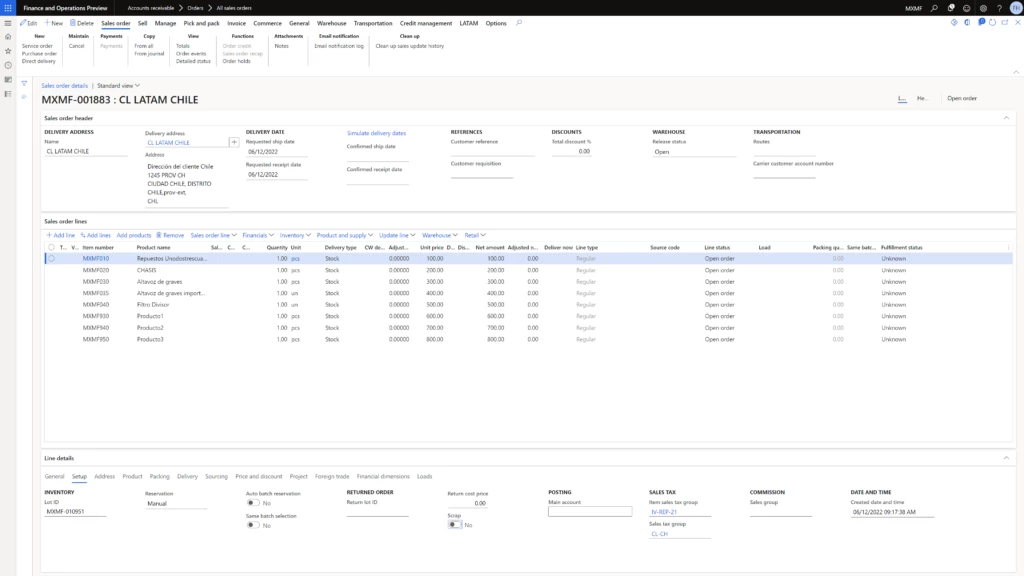
Sales Order in Chilean Legal Entity

After you have completed the setup, you will see LATAM and Chile-specific user interface elements in your LE. For example, a LATAM tab is displayed on the Sales Order form in the associated screenshot. Within the LATAM tab, region-specific fields for processing the invoice have been added.

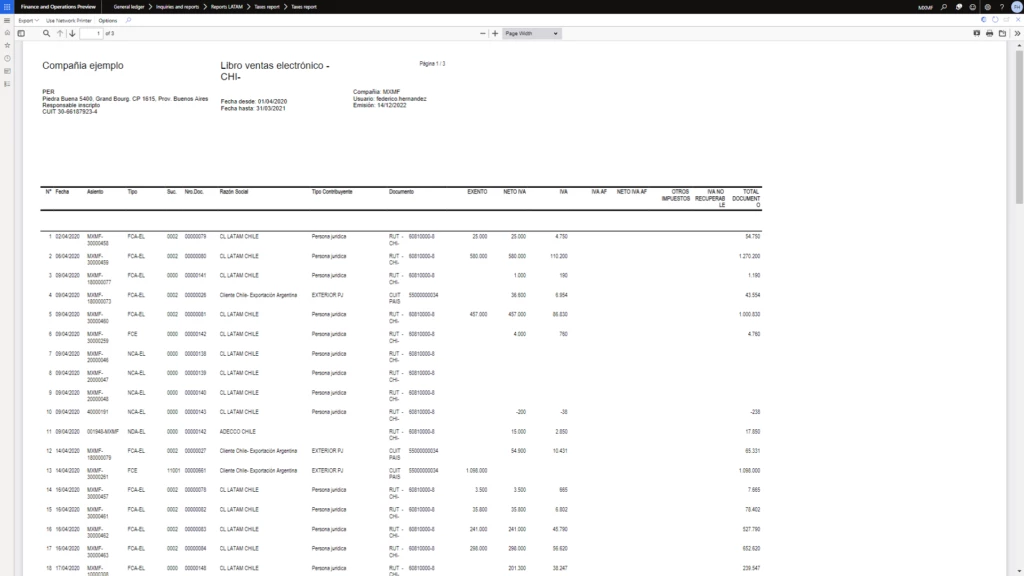
The feature populates all required data to produce an Electronic Invoice for Chile and generate required tax reports.

table
Sales tax report for Chile

Timeline

We are releasing the localizations for the Chile, Colombia, Costa Rica, Nicaragua, Panama, Paraguay, Uruguay as Public Previews first. Later, based on customer and partner feedback, we will make them generally available. You can find more details on the timeline and the list of features in the 2023 release wave 1 plan.

Call for action

We value your feedback please take part in Public Previews as the new LATAM localizations become available per our release plan! And stay tuned we are planning a Tech Talk to cover these localizations in more detail and more!

The post Dynamics 365 Finance and Operations extends out-of-the-box country coverage in Latin America appeared first on Microsoft Dynamics 365 Blog.

Brought to you by Dr. Ware, Microsoft Office 365 Silver Partner, Charleston SC.

How Microsoft Teams helps ISVs like ServiceNow expand business

How Microsoft Teams helps ISVs like ServiceNow expand business

This article is contributed. See the original author and article here.

Digital collaboration has become the norm, and more promising apps and tools are available daily. The benefits speak for themselves: increased productivity, convenience, innovation—the list goes on. But there are still challenges to address.

The post How Microsoft Teams helps ISVs like ServiceNow expand business appeared first on Microsoft 365 Blog.

Brought to you by Dr. Ware, Microsoft Office 365 Silver Partner, Charleston SC.

Transform your business with automated insights & optimized workflows using Azure OpenAI GPT-3

Transform your business with automated insights & optimized workflows using Azure OpenAI GPT-3

This article is contributed. See the original author and article here.

OpenAI’s GPT-3 AI applications have become a buzzword in the industry. If you’re looking to boost your business operations and maximize productivity but are encountering technical barriers and resource limitations, the app highlighted in this article may be your answer.
It smoothly integrates Azure OpenAI into various business workflows, showcasing a spectrum of AI-powered demos. This demo highlight the technology’s capabilities and can help streamline your business operations while optimizing productivity.


SAVITAMITTAL_4-1679241206110.png


Let’s build your business process with OpenAI


Resources 


  • Azure OpenAI – Summarization & gain insights


  • Power Apps – To build front end

  • Power Automate – To build the process


Getting Started


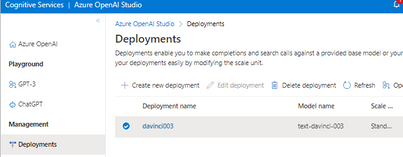
1. Azure Open AI – Summarization & Gain insights


SAVITAMITTAL_0-1679082782817.png


3. Create 2 SharePoint Lists 


  • Prompts for your custom questions (change questions & prompt types as per your business requirements)

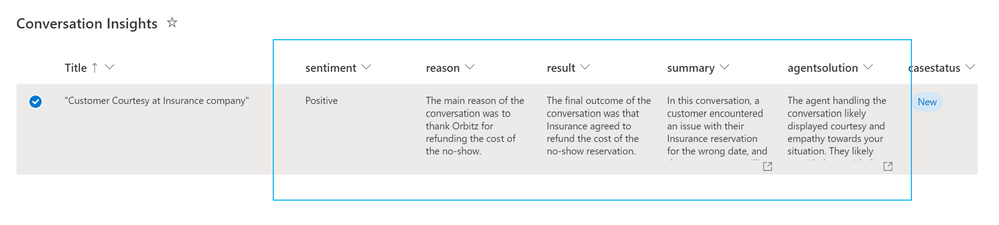
  • Conversation insights to save Open AI generated insights from the email text (change column names as per your business requirements)


SAVITAMITTAL_7-1679086505620.png


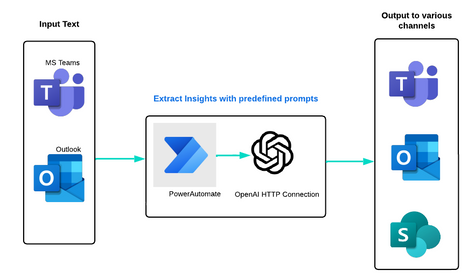
Scenario 1: Lets start with conversation insights. Assume you have an email enabled conversation. You want to get some insights from the email text.


To generate insights, PowerAutomate is used and then results are saved in SharePoint.

3. Create a PowerAutomate


  • Here are the steps to create a Power Flow:


    1. Go to flow.microsoft.com and click on “Flows”.

    2. Visit https://make.powerautomate.com/

    3. Click “New Flow” and name it “OpenAI-Insights“.

    4. It has many variables for multiple prompts at once and save insights from one conversation in SharePoint List.

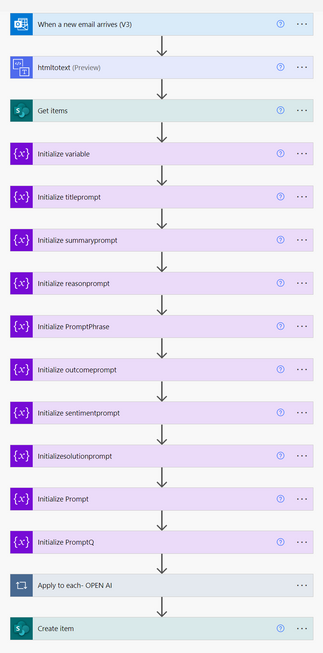
    5. Build the entire flow according to your requirements.SAVITAMITTAL_1-1679083168954.png

    6. When a new email arrives-Choose email trigger if email’s conversation you want to use as a source to gain insights. Else you can use any other trigger depends upon where your conversations stores. e.g. Teams chat, SharePoint, blob storage or any other storage solution.

    7. HtmlToText-Get email body as a plain text using html to text connector.

    8. Get items– SharePoint Connector to get the prompts list to run on your email text to gain additional insights

    9. Initialize Variables-# of variables are initialized based on number of prompts

    10. initialize a variable called summary to store output.

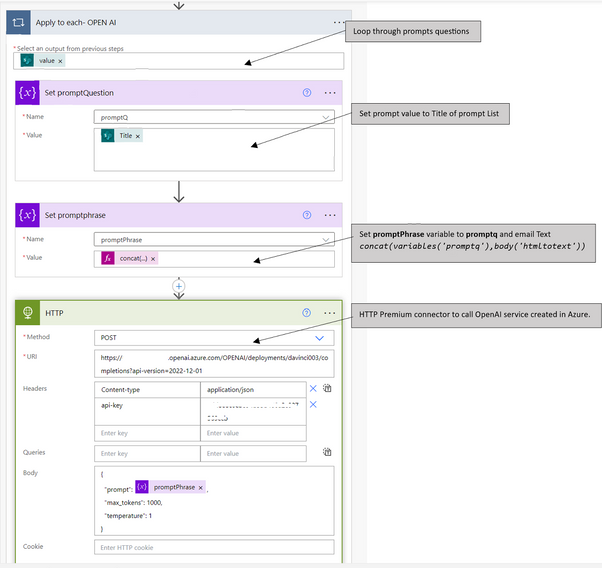
    11. Apply to each -OPEN AI step loop through each prompt question on original conversation text to get the insight and save the result via case statement in the initialized variable.
      HTTP Connector

      Method: POST
      URI: https://resourcename.openai.azure.com/openai/deployments/davinci003/completions?api-version=2022-12-01
      Headers content-type:application/json
      api-key:  [Azure Portal -> OpenAI resource -> Keys & Endpoints]
      Body   {
      “prompt”: @{variables(‘promptPhrase’)},
      “max_tokens”: 1000,
      “temperature”: 1
      }

      SAVITAMITTAL_0-1679091327420.png
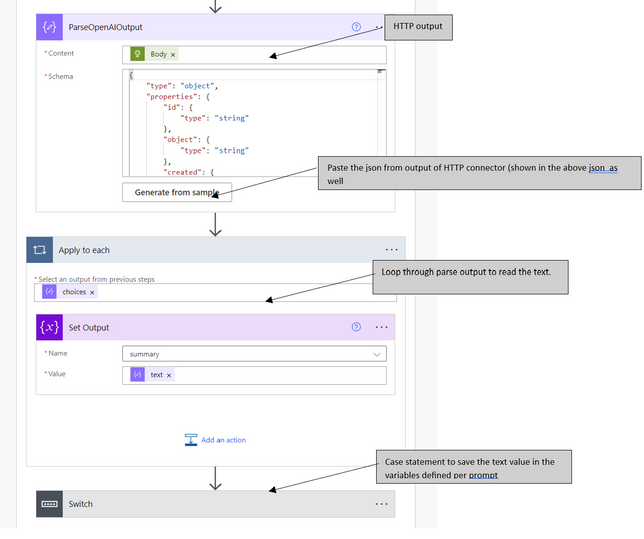
      ParseOpenAIOutput-Parse the response from OpenAI HTTP output.
      Click Generate from sample in Parse step and paste the below sample json to parse the response from HTTP output


      {
      “body”: {
      “id”: “cmpl-xxxxxxx”,
      “object”: “text_completion”,
      “created”: 1678909613,
      “model”: “text-davinci-003”,
      “choices”: [
      {
      “text”: “nThe main reason of the conversation is to give credit to travel company for their gracious refund of the cost of the no-show.”,
      “index”: 0,
      “finish_reason”: “stop”,
      “logprobs”: null
      }
      ],
      “usage”: {
      “completion_tokens”: 27,
      “prompt_tokens”: 91,
      “total_tokens”: 118
      }
      }
      }


      SAVITAMITTAL_0-1679199886668.pngAfter parsing we need to loop the array and assign the text to the variable
      Apply to each action. Select Choices from parse step output as the array property.
      Set  Output – variable “Summary” 

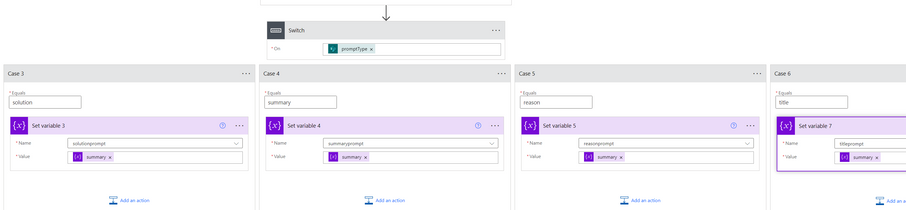
      Switch: It has 6 case actions based on number of prompts to set the each variable based on each HTTP Post call.


      SAVITAMITTAL_1-1679200233800.png


       end of Apply to each -OPEN AI step #11 (loop through each prompt question and call OpenAI endpoint to get insights. Parse the response and save it in each prompt related variable)


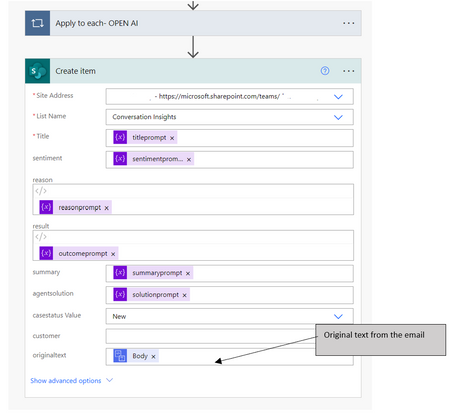
    12. Create Item – Once all the variables are set then create an entry in the SharePoint Conversation insights list with original text and additional insightsSAVITAMITTAL_3-1679200897367.png


SAVITAMITTAL_2-1679202037897.png


How to utilize insights into a process
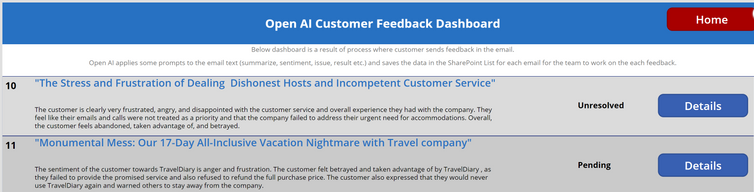
PowerApps can be created with SharePoint list to create a business process around insights generated by OpenAI on each customer conversation.
Dashboard->Details screen-> Process each conversation with Insights
https://learn.microsoft.com/en-us/power-apps/maker/canvas-apps/app-from-sharepoint


 Dashboard – Vertical galley in PowerApps with SharePoint list ‘Conversation Insights’ as a Data Source 


SAVITAMITTAL_1-1679201855711.png                                   
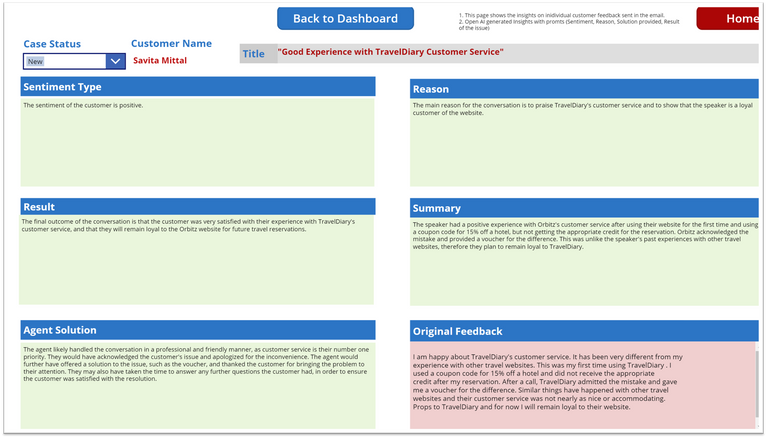
 Item details page with OpenAI insights to accelerate the customer service – Display form in PowerApps


SAVITAMITTAL_3-1679202135976.png


Stay tuned for more exciting blog content as we explore various potential scenarios.
Effortlessly extract text from documents, audio, and video files to generate valuable insights.

How to Create Your Own Portfolio Website in Minutes with GitHub Codespaces and Blazor

How to Create Your Own Portfolio Website in Minutes with GitHub Codespaces and Blazor

This article is contributed. See the original author and article here.

Create, customize, and deploy your own portfolio website in minutes without installing any tools. All you need is a GitHub account and a few minutes to get started. We will use GitHub Codespaces and Blazor to build the website and Azure Static Web Apps or GitHub Pages to deploy it. 


You can find all these instructions and more in our GitHub Codespaces Repository.


GitHub Codespaces 


Now, with GitHub Codespaces you can create your own portfolio website in minutes without any extra tools or lengthy environment setup! All you need is a GitHub account. Follow these instructions to create your free GitHub account. 


GitHub Codespaces is a development environment that is hosted in the cloud. This means that you can get started coding right away in your browser – we set everything up for you ahead of time! You do not need to worry about setting up the right coding editor or tools.  


.NET Portfolio Site with GitHub Codespaces  


With the .NET Blazor Portfolio Site project template, all you need to do is launch your Codespace then follow the README instructions to customize your website. The goal is to give you a template you can immediately utilize to create your own website through GitHub Codespaces. 


This template shows you how to build your website using Blazor. Blazor is a UI Framework that lets you build frontend web applications with C#. The template is within the GitHub Student Developer pack, but anyone can access and use it! 


  • Who is this for? Anyone looking to create a portfolio site, learn web development, or test out Codespaces. 

  • How much experience do you need? Zero. You decide how much you want to customize based on your experience, and time available. 

  • Tools needed: None. No need to install anything! All you need is a GitHub account and web browser. 


  • Prerequisites: None. This template includes your development environment and deployable web app for you to create your own site. 


Get Started with the .NET Portfolio Website Template 


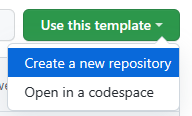
 Katie_Savage_3-1678812159346.png


  • Create a copy of the repository in your GitHub account. You can keep the repository name the same or change it if you would like.

  • At the top of the README, click on the Open in GitHub Codespaces buttonKatie_Savage_1-1678811758385.png

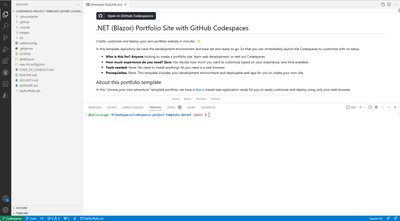
  • You should now be in a GitHub Codespace! Notice that it has the same layout as VS Code.


Katie_Savage_2-1678811758386.png


  • Follow the readme on how to run a simple command to start up your website. In your terminal, you will need to run swa start.


Congratulations! You just ran your portfolio website!!


Next Steps: Customize and Deploy 


From here, you can continue to follow the instructions in the README to customize your portfolio website and deploy it! 


This project is built to be easily customizable. Each section of the site is a separate component, and your information needs to be set in only one spot. For each step, open the project in Codespaces, then you can make and commit your changes while within your Codespaces.


See Using source control in your codespaces for more Codespaces source control how-tos


To deploy your website, you can use Azure Static Web Apps or GitHub Pages. The README includes instructions for both deployment options.


Learn More


Check out our learning resources and coding curriculums to take these learnings to the next level!


How to Create Your Own Portfolio Website in Minutes with GitHub Codespaces and BlazorHow to Create Your Own Portfolio Website in Minutes with GitHub Codespaces and Blazor