by Scott Muniz | Jul 19, 2021 | Security, Technology
This article is contributed. See the original author and article here.
01234c0e41fc23bb5e1946f69e6c6221
018d3c34a296edd32e1b39b7276dcf7f
019b68e26df8750e2f9f580b150b7293
01fa52a4f9268948b6c508fef0377299
022bd2040ec0476d8eb80d1d9dc5cc92
039d9ca446e79f2f4310dc7dcc60ec55
043f6cdca33ce68b1ebe0fd79e4685af
04918772a2a6ccd049e42be16bcbee39
04dc4ca70f788b10f496a404c4903ac6
060067666435370e0289d4add7a07c3b
062c759d04106e46e027bbe3b93f33ef
07083008885d2d0b31b137e896c7266c
079068181a728d0d603fe72ebfc7e910
0803f8c5ee4a152f2108e64c1e7f0233
09143a14272a29c56ff32df160dfdb30
0985f757b1b51533b6c5cf9b1467f388
09aab083fb399527f8ff3065f7796443
0b7bb3e23a1be2f26b9adf7004fc6b52
0b9a614a2bbc64c1f32b95988e5a3359
0bbe092a2120b1be699387be16b5f8fb
0bbe769505ca3db6016da400539f77aa
0c3c00c01f4c4bad92b5ba56bd5a9598
0c4fa4dfbe0b07d3425fea3efe60be1c
0ca936a564508a1f9c91cb7943e07c30
0d69eefede612493afd16a7541415b95
0da08b4bfe84eacc9a1d9642046c3b3c
0dd7f10fdf60fc36d81558e0c4930984
0e01ec14c25f9732cc47cf6344107672
10191b6ce29b4e2bddb9e57d99e6c471
105757d1499f3790e69fb1a41e372fd9
207e3c538231eb0fd805c1fc137a7b46
20e52d2d1742f3a3caafbac07a8aa99a
226042db47bdd3677bd16609d18930bd
22823fed979903f8dfe3b5d28537eb47
2366918da9a484735ec3a9808296aab8
239a22c0431620dc937bc36476e5e245
2499390148fc99a0f38148655d8059e7
24dbcd8e8e478a35943a05c7adfc87cc
25a06ab7675e8f9e231368d328d95344
25b79ba11f4a22c962fea4a13856da7f
25fc4713290000cdf01d3e7a0cea7cef
2639805ae43e60c8f04955f0fe18391c
270df5aab66c4088f8c9de29ef1524b9
280e5a3b9671db31cf003935c34f8cf9
28366de82d9c4441f82b84246369ad3b
28628f709a23d5c02c91d6445e961645
28c6f235946fd694d2634c7a2f24c1ba
29c1b4ec0bc4e224af2d82c443cce415
2b8a06d1de446db3bbbd712cdb2a70ce
2bf998d954a88b12dbec1ee96b072cb9
2c408385acdb04f0679167223d70192b
2c9737c6922b6ca67bf12729dcf038f9
2dd9aab33fcdd039d3a860f2c399d1b1
2de0e31fda6bc801c86645b37ee6f955
2e5b59c62e6e2f3b180db9453968d817
2ee7168c0cc6e0df13d0f658626474bb
2eee367a6273ce89381d85babeae1576
2f0a52ce4f445c6e656ecebbcaceade5
2f9995bc34452c789005841bc1d8da09
30701b1d1e28107f8bd8a15fcc723110
31a72e3bf5b1d33368202614ffd075db
3389dae361af79b04c9c8e7057f60cc6
33d18e29b4ecc0f14c20c46448523fc8
46e80d49764a4e0807e67101d4c60720
480f3a13998069821e51cda3934cc978
48101bbdd897877cc62b8704a293a436
48548309036005b16544e5f3788561dc
4a23e0f2c6f926a41b28d574cbc6ac30
4ab825dc6dabf9b261ab1cf959bfc15d
4b18b1b56b468c7c782700dd02d621f4
4b93159610aaadbaaf7f60bea69f21a4
4beb3f7fd46d73f00c16b4cc6453dcdb
4dd6eab0fa77adb41b7bd265cfb32013
4e79e2cade96e41931f3f681cc49b60a
4ef1c48197092e0f3dea0e7a9030edc8
503f8dc2235f96242063b52440c5c229
50527c728506a95b657ec4097f819be6
5064dc5915a46bfa472b043be9d0f52f
513f559bf98e54236c1d4379e489b4bc
51e21a697aec4cc01e57264b8bfaf978
51f31ed78cec9dbe853d2805b219e6e7
52b0f7d77192fe6f08b03f0d4ea48e46
53ceeaf0a67239b3bc4b533731fd84af
56a9ff904b78644dee6ef5b27985f441
56b18ba219c8868a5a7b354d60429368
56d6d3aa1297c62c6b0f84e5339a6c22
57849bb3949b73e2cd309900adafc853
5826e0bd3cd907cb24c1c392b42152ca
5875dfe9a15dd558ef51f269dcc407b5
58e7fd4530a212b05481f004e82f7bc1
5957ef4b609ab309ea2f17f03eb78b2d
5984955cbc41b1172ae3a688ab0246c5
59ce71ffb298a5748c3115bc834335bf
5a8d488819f2072caed31ead6aeaf2fc
5acac898428f6d20f6f085d79d86db9c
5b2cddac9ebd7b0cd3f3d3ac15026ffb
6f6d12da9e5cf8b4a7f26e53cc8e9fbd
700d2582ccb35713b7d1272aa7cfc598
70206725df8da51f26d6362e21d8fadb
70e0052d1a2828c3da5ae3c90bc969ea
7204c1f6f1f4698ac99c6350f4611391
72a7fd2b3d1b829a9f01db312fdd1cd7
7327993142260cee445b846a12cf4e85
7525bc47e2828464ce07fa8a0db6844f
76adaa87f429111646a27c2e60bda61e
76c5dca8dc9b1241b8c9a376abab0cc5
782202b09f72b3cfdc93ffb096ca27de
7836c4a36cc66d4bcbd84abb25857d21
78a0af31a5c7e4aee0f9acde74547207
7969dc3c87a3d5e672b05ff2fe93f710
7a09bf329b0b311cc552405a38747445
7a63ea3f49a96fa0b53a84e59f005019
7b3f959ab775032a3ca317ebb52189c4
7b710f9731ad3d6e265ae67df2758d50
7bd10b5c8de94e195b7da7b64af1f229
7c036ba51a3818ddc8d51cf5a6673da4
7c49efe027e489134ec317d54de42def
7d63f39fb0100a51ba6d8553ef4f34de
7ef6802fc9652d880a1f3eaf944ce4a3
7f7d726ea2ed049ab3980e5e5cb278a3
7fe679c2450c5572a45772a96b15fcb1
83076104ae977d850d1e015704e5730a
8361b151c51a7ad032ad20cecf7316f4
838ceb02081ac27de43da56bec20fc76
84865f8f1a2255561175ab12d090da7c
8520062de440b75f65217ff2509120f7
85862c262c087dd4470bb3b055ef8ea5
85e5b11d79a7570c73d3aa96e5a4e84d
85ecef9ca15e25835a9300a85f9bcd2a
9d3fd2ff608e79101b09db9e361ea845
9d5206f692577d583b93f1c3378a7a90
9e592d0918c029aa49635f03947026e8
9f847b3618b31ef05aebd81332067bd8
9fdd77dc358843af3d7b3f796580c29d
a025881cd4ae65fab39081f897dc04fd
a0e3561633bdf674b294094ffa06a362
a13715be3d6cbd92ed830a654d086305
a2256f050d865c4335161f823b681c24
a26e600652c33dd054731b4693bf5b01
a2c66a75211e05b20b86dd90ba534792
a2cb95be941b94f5488eab6c2eec7805
a320510258668504ed0140e7b58ee31e
a34db95c0fcb78d9c5452f81254224eb
a3c0151e0b6289376f383630a8014722
a42a91354d605165d2c1283b6b330539
a4711b8414445d211826b4da3f39de0a
a4a70ce528f64521c3cd98dce841f6f3
a5ac89845910862cfef708b20acd0e44
a67fcb5dcfc9e3cfbfd7890e65d4f808
a68bf5fce22e7f1d6f999b7a580ae477
a6b9bbb87eb08168fc92271f69fa5825
a6cab9f2e928d71ed8ecf2c28f03a9a2
a7e4f42ad70ddd380281985302573491
a83b1aed22de71baee82e426842eeb48
a91dca76278cf4f4155eb1b0fc427727
a96dca187c3c001cad13440c3f7e77e8
aa73e7056443f1dd02480a22b48bdd46
aaafb1eeee552b0b676a5c6297cfc426
ab662cee6419327de86897029a619aeb
ab8f72562d02156273618d1f3746855c
abdb86d8b58b7394be841e0a4da9bec7
ace585625de8b3942cc3974cf476f8de
beea0da01409b73be94b8a3ef01c4503
befc121916f9df7363fead1c8554df9a
bf250a8c0c9a820cd1a21e3425acfe37
bfb0dcd9ef6ac6e016a8a5314d4ef637
bff56d7e963ea28176b0bcb60033635d
c05e5bc5adb803b8a53cff7f95621c73
c0ad63a680fbdc75d54b270cbedb4739
c0d9f3a67a8df0ed737ceb9e15bacc47
c112456341a1c5519e7039ce0ba960fa
c161f10fccecec67c589cdd24a05f880
c183e7319f07ccc591954068e15095db
c2e023b46024873573db658d7977e216
c380675a29f47dba0b1401c7f8e149dc
c3996bf709cad38d58907da523992e3b
c583ae5235ddea207ac11fff4af82d9b
c71f125fb385fed2561f3870b4593f18
c75a2b191da91114ceea80638bc54030
c78ee46ffbe5dd76d84fb6a74bf21474
c79b27fe1440b11a99a5611c9d6c6a78
c808d2ed8bb6b2e3c06c907a01b73d06
c8930a4fd33dcf18923d5cf0835272bd
c8940976a63366f39cfcdc099701093b
c89e8f0bc93d472a4f863a5fa7037286
c8a850a027fa4a3cdae7f87cc1c71ba0
cab21cb7ba1c45a926b96a38b0bdaaef
cbe63b9c0c9ac6e8c0f5b357df737c5e
cbfc1587f89f15a62f049e9e16cccf68
cd049c2b76c73510ae70610fd1042267
cd058dd28822c72360bc9950a6c56c45
cd427b4afea8032c77e907917608148a
cd81267e9c82d24a9f40739fa6bf1772
cdc22f7913eb93d77d629e59ac2dc46a
cdc585a1fd677da07163875cd0807402
e0b7e6c17339945bba43b8992a143485
e119a70f50132ae3afba3995fdf1aca6
e1512a0bf924c5a2b258ec24e593645a
e195d22652b01a98259818cfbab98d33
e1ab3358b5356adefaffbc15bc43a3f9
e1b840bbf5b54aeb19e6396cab8f4c6a
e26a29c0fc11cfb92936ab3374730b79
e284c25c50ba59d07a4fa947dc1a914a
e3867f6e964a29134c9ea2b63713f786
e3eb703ef415659f711b6bc5604e131e
e498718fd286aca7bb78858f4636f2db
e4d2c63a73a0f1c6b5e60bde81ac0289
e5478fb5e8d56334d19d43cae7f9224a
e5f7efcee5b15cf95a070a5cd05dbda9
e6348ee5beb9c581eeeaf4e076c5d631
e637f47c4f17c01a68539fcfcc4bc44f
e63fbc864b7911be296c8ee0798f6527
e68f9b39caf116fb108ccb5c9c4ce709
e6a757114c0940b6d63c6a5925ade27f
e6adc73df12092012f8cd246ba619f90
e8881037f684190d5f6cc26aab93d40f
e890fa6fd8a98fec7812d60f65bf1762
e8bc927ee0ae288609e1c37665a3314e
e8e73156316df88dee28214fb203658b
e957c36c9d69d6a8256b6ddf7f806f56
e9ce9b35e2386bf442e22a49243a647e
eadcae9ecba1097571c8d08e9b1c1a9c
eb06648b43d34f20fc1c40e509521e99
eb5e5db77540516e6400a7912ad0ef0d
eb5e999753f5ea094d59bdae0c66901c
eb5ee94048730b321e35394a0fb10a5d
eb64867dc48f757f0afe05dbf605b72d
eb88f415336f0dccedfc93405330c561
fae03ff044d6bb488e1a6f1c6428c510
fc2142bd72bd520338f776146903be67
fc9b8262905a80cc5381d520813d556d
fccd3de1df131f9d74949d69426c24af
fcd912fd7ed80e2cdf905873c6ced4ad
ff804e266a83974775814870cc49b66b
|
11166f8319c08c70fc886433a7dac92d
1223302912ec70c7c8350268a13ad226
139e071dd83304cdcfd5280022a0f958
13c93dc9186258d6c335b16dc7bb3c8c
14e2b0e47887c3bfbddb3b66012cb6e8
15437cfedfc067370915864feec47678
15e1816280d6c2932ff082329d0b1c76
166694d13ac463ea1c2bed64fbbb7207
16a344cd612cca4f0944ba688609e3ac
16c0011ea01c4690d5e76d7b10917537
1734a2b176a12eba8b74b8ca00ef1074
18144e860d353600bbd2e917aed21fde
1815c3a7a4a6d95f9298abb5855a3701
181a5b55b7987b62b5236965f473ba3b
18c26c5800e9e2482f1507c96804023e
1932ce50b7b6c88014cf082228486e5c
1af78c50aca90ee3d6c3497848ac5705
1b44fb4aaff71b1f96cd049a9461eaf5
1bb8f32e6e0e089d6a9c10737cf19683
1c35a87f61953baace605fff1a2d0921
1c945a6b0deccc6cd2f63c31f255d0ec
1cb216777039fe6a8464fc6a214c3c86
1d3a10846819a07eef66deefcc33459a
1dd6c80b4ea5d83aff4480dcbbef520c
1e91f0f52994617651e9b4a449af551a
1eb568559e335b3ed78588e5d99f9058
1ef9c42efe6e9a08b7ebb16913fa0228
1f2befede815fcf65c463bf875fcf497
1f9bdc0435ff0914605f01db8ca77a65
1ffd883095ff3279b31650ca3a50ad3c
34521c0f78d92a9d95e4f3ff15b516db
34681367cbcc3933f0f4b36481bde44e
34aa195c604d0725d7dd2aa4cc4efe28
354b95e858bcaced369ecbfdec327e2b
35f456afbe67951b3312f3b35d84ff0a
3647d11c155d414239943c8c23f6e8ec
37578c69c515f1d0d49769930fba25ce
375cbb0a88111d786c33510bff258a21
37b9b4ed979bd2cf818e2783499bfb5e
3810a18650dbacecd10d257312e92f61
3975740f65c2fa392247c60df70b1d6d
3a4ec0d0843769a937b5dadbe8ea56b1
3ab6bf23d5d244bc6d32d2626bd11c08
3bf8bb90d71d21233a80b0ec96321e90
3c2fe2dbdf09cfa869344fdb53307cb2
3c3d453ecf8cc7858795caece63e7299
3cbb46065f3e1dccbd707c340f38ce6b
3cf9dc0fdc2a6ab9b6f6265dc66b0157
3e89c56056e5525bf4d9e52b28fbbca7
3eb6f85ac046a96204096ab65bbd3e7e
3f50eedf4755b52aa7a7b740bd21daa6
3fefa55daeb167931975c22df3eca20a
4012acd80613aaa693a5d6cd4e7239ba
40528e368d323db0ac5c3f5e1efe4889
407c1ea99677615b80b2ffa2ed81d513
417949c717f78dc9e55ca81a5f7ade3e
4260e71d89f622c6a3359c5556b3aad7
429c10429a2ebb5f161e04159a59cf5b
4315975499cdc50098dbdb5b8aa4a199
44fa9c5df4ae20c50313aae02ba8fb95
4519b5d443a048a8599144900c4e1f28
45eb058edde4e5755a5ea1aff3ce3db7
460dc00ce690efacb5db8273c80e2b23
5b3050df93629f2f6cb3801ed19963c5
5b37ac4d642b96c4bf185c9584c0257a
5b3e945cd32a380f09ea98746f570758
5b72df8f6c110ae1d603354fcd8fe104
5c6f5cd81b099014718056e86b510fa2
5d63a3a02df2beda9d81f53abbd8264a
5d9c3cb239fa24bed2781bcf2898f153
5e353d1d17720c0f7c93f763e3565b3f
5f1c7f267fbe12210d3c80944f840332
5f393838220a6bf0cd9fd59c7cf97f5b
5f771966ef530ee0c2b42ef5cc46ad3a
6034ff91b376d653dc30f79664915b4e
603935efa89d93ea39b4b4d4a52ec529
607ea06890a6eedd723f629133576f20
60b2ce5ef4a076d1fa8675b584c27987
60cff7381b8fb64602816f9e5858930b
614909c72fa811ae41ea3d9b70122cee
6372d578e881abf76a4ec61e7a28da7d
63bf28f5dc6925a94c8b4e033a95be10
646cbeb4233948560ac50de555ea85ca
64db8e54d9a2daaa6d9cf156a8b73c18
675fe822243dfd1c3ace2a071d0aa6dd
67dbecfb5e0f2f729e57d0f1eda82c67
685cbba8cf2584a3378d82dec65aa0bb
693a4c2fcaa67fb87e62f150fb65e00e
6ad33ab8b9ff3f02964a8aab2a40ebb5
6b540be7ac7159104b0ffa536747f1bf
6b7276e4aa7a1e50735d2f6923b40de4
6b930be55ed4bf8e16b30eadc3873dfd
6c67f275d50f6bfee4848de6d4911931
6c9cfada134ede220b75087c7698ebf2
6e843ef4856336fe3ef4ed27a4c792b1
6e97bf1b7c44edc66622b43e81105779
86e50d6dc28283dbd295079252787577
870fbad5b9a54cb6720c122d1fa321ec
88b3b94574ba1eeb711a66eb04021eed
8956a045306b672d3cc852419a72c4b0
8a9ac1b3ef2bf63c2ddfadbbbfd456b5
8b3b96327fbddebefe727ac2edad5714
8baa499b3e2f081ff47f8cf06a5e7809
8bc20fcd09adb7ea86dda2c57477633b
8be0c21b6ee56d0f68e0d90f7d0a26d7
8c80dd97c37525927c1e549cb59bcbf3
8d2416d9f6926fb0dc12ab5dafef691d
8d74922b2b31354ce588cefac71d9a9b
8e8fb7632c3a7e96cf0ea5299d564018
8ee6c9e1adb71b2623d5e7aa45df5f4d
8efaa987959ef95179a0f5be05c10faf
8fbf53f77c98daba277dae7661b86f02
8fc825df73977eeffaaa1587565f7505
90a3e3a2049c6eb9e39d113d9451a83f
932d355d9f2df2e8d8449d85454fc983
9450980a4413dfdbc60a62b257a7b019
947892152b8419a2dfe498be5063c1da
94d42ff06a588587131c2cd8a9b2fe96
95c15b7961e2d6fad96defa7ff2c6272
96ba4bf00d8b4acee9f550286610dcc7
97004f1962e2aed917dc2be5c908278f
972077c1bb73ca78b7cad4ac6d56c669
991ebcd03ace627093acc860fae739b5
99949240bc4eae33cac4bbb93b72349d
9a0a8048d53dedc763992fff32584741
9a0e3e80cd7c21812de81224f646715e
9a61ed5721cf4586abd1d49e0da55350
9b26999182ea0c2b2cac91919697289e
9c656ce22c93ca31c81ff8378a0a91ee
ace620a0cc2684347e372f7e40e245d5
ad3b9e45192ec7c8085c3588cacb9c58
adb4f6ecb67732b7567486f0cee6e525
afa03ddb9fc64a795aadb6516c3bc268
b0269263ce024fc9de19f8f30bd51188
b04e895827c24070eb7082611ab79676
b059c9946ff67c62c074d6d15f356f6e
b07299a907a4732d14da32b417c08af3
b1dadfcf459f8447b9ec44d8767da36d
b2f1d2fefe9287f3261223b4b8219d03
b36f3e12cb88499f8795b8740ae67057
b4204f08c1a29fd4434e28b6219bfbc6
b4878c233d7f776a407f55a27b5effbc
b6c12d88eeb910784d75a5e4df954001
b7ab5c6926f738dbe8d3a05cb4a1b4f5
b80dcd50e27b85d9a44fc4f55ff0a728
b8a61b1fda80f95a7dcdb0137bc89f67
b9642c1b3dbcccc9d84371b3163d43e0
b9647f389978f588d977ef6ef863938f
b977bed98ae869a9bb9bf725215ef8e5
b9b627c470de997c01fdef4511029219
ba629216db6cf7c0c720054b0c9a13f3
badf0957c668d9f186fb218485d0d0f6
bb165b815e09fe95fa9282bce850528d
bbfb478770a911cf055b8dfd8dcb36e4
bc4c189e590053d2cf97569c495c9610
bc9089c39bcdb1c3ef2e5bd25c77ed68
bd42303e7c38486df2899b0ccf3ce8f7
bd452dc2f9490a44bcff8478d875af4b
bd6031dd85a578edf0bf1560caf36e02
bd63832e090819ea531d1a030fb04e9b
be39ff1ec88a1429939c411113b26c02
be88741844bf7c47f81271270abe82dc
ce26e91fc13ccb1be4b6bf6f55165410
ce449d7cb0a11b53b0513dde3bd57b1c
ceba742bccb23304cf05d6c565dc53f8
cebe44b8a9a2d6e15a03d40d9e98e0ed
cf946bc0faecb2dc8e8edc9e6ce2858f
d09fcd9fa9ed43c9f28bcd4bd4487d22
d0b5c11ee5df0d78bdde3fdc45eaf21d
d0d8243943053256bc1196e45fbf92d2
d0efc042ba4a6b207cf8f5b6760799d8
d20d01038e6ea10a9dcc72a88db5e048
d31596fe58ca278be1bb46e2a0203b34
d3df8c426572a85f3afa46e4cd2b66cd
d59a77a8da7bec1f4bad7054a41b3232
d76b1c624e9227131a2791957955dddc
d79477c9c688a8623930f4235c7228f6
d8a483d21504e73f0ba4b30bc01125d3
da46994fee26782605842005aabcd2fe
daa232882b74d60443dfec8742401808
dab45ac39e34cfee60dcb005c3d5a668
dbc583d6d5ec8f7f0c702b209af975e2
dbe92b105f474efc4a0540673da0eb9c
dbee8be5265a9879b61853cd9c0e4759
dc15ca49b39d1d17b22ec7580d32d905
dc386102060f7df285e9498f320f10e0
dd43cd0eddbb6f7cb69b1f469c37ec35
dd4e0f997e0b2cc9df28dca63ded6816
ddbdc6a3801906de598531b5b2dac02a
dde4ff4e41f86426051f15da48667f5f
ddecce92a712327c4068fabf0e1a7ff1
de608439f2bcc097b001d352b427bb68
deeb9b4789ac002aa8b834da76e70d74
df6475642f1fe122df3d7292217f1cff
e011784958e7a00ec99b8f2320e92bf4
ec4cdc752c2ecd0d9f97491cc646a269
edb648f6c3c2431b5b6788037c1cd8ef
ee3e297abd0a5b943dce46f33f3d56fb
ee4862bc4916fc22f219e1120bea734a
ef14448bf97f49a2322d4c79e64bb60b
ef2738889e9d041826d5c938a256bc45
ef6fcdd1b55adf8ad6bcdf3d93fd109e
efb5499492f08c1f10fecdeb703514d5
f0098aab593b65d980061a2df3a35c21
f073de9c169c8fcb2de5b811bff51cee
f0881d5a7f75389deba3eff3f4df09ac
f172ad4e906d97ed8f071896fc6789dc
f2b6bffa2c22420c0b1c848b673055ed
f446d8808a14649bddcc412f9e754890
f4dbe32f3505bc17364e2b125f8dd6df
f4dd628f6c0bc2472d29c796ee38bf46
f4e67343e13c37449ada7335b9c53dd1
f53e332b0a6dbe8d8d3177e93b70cb1e
f5ae03de0ad60f5b17b82f2cd68402fe
f5ce889a1fa751b8fd726994cdb8f97e
f5fdbfce1a5d2c000c266f4cd180a78d
f7202dea71cc638e0c2dbeb92c2ce279
f7cef381c4ee3704fc8216f00f87552a
f7ffbbbc68aadcbfbace55c58b6da0a7
f8b91554d221fe8ef4a4040e9516f919
f906571d719828f0f4b6212fc2aa7705
f9155052a43832061357c23de873ff9f
f9abacc459e5d50d8582e8c660752c4e
f9f608407d551f49d632bd6bd5bd7a56
f9fc9359dc5d1d0ac754b12efb795f79
fa27742b87747e64c8cb0d54aa70ef98
fa3c8d91ef4a8b245033ddb9aa3054a2
fad93907d5587eb9e0d8ebc78a5e19c2
|
by Contributed | Jul 17, 2021 | Technology
This article is contributed. See the original author and article here.
By Evan Rust and Zin Thein Kyaw
Introduction
Wheel lug nuts are such a tiny part of the overall automobile assembly that they’re easy to overlook, but yet serve a critical function in the safe operation of an automobile. In fact, it is not safe to drive even with one lug nut missing. A single missing lug nut will cause increased pressure on the wheel, in turn causing damage to the wheel bearings, studs, and make the other lug nuts fall off.
Over the years there have been a number of documented safety recalls and issues around wheel lug nuts. In some cases, it was only identified after the fact that the automobile manufacturer had installed incompatible lug nut types with the wheel or had been inconsistent in installing the right type of lug nut. Even after delivery, after years of wear and tear, the lug nuts may become loose and may even fall off which would cause instability for an automobile to be in service. To reduce these incidents of quality control at manufacturing and maintenance in the field, there is a huge opportunity to leverage machine learning at the edge to automate wheel lug nut detection.
This motivated us to create a proof-of-concept reference project for automating wheel lug nut detection by easily putting together a USB webcam, Raspberry Pi 4, Microsoft Azure IoT, and Edge Impulse, creating an end-to-end wheel lug nut detection system using Object Detection. This example use case and other derivatives will find a home in many industrial IoT scenarios where embedded Machine Learning can help improve the efficiency of factory automation and quality control processes including predictive maintenance.
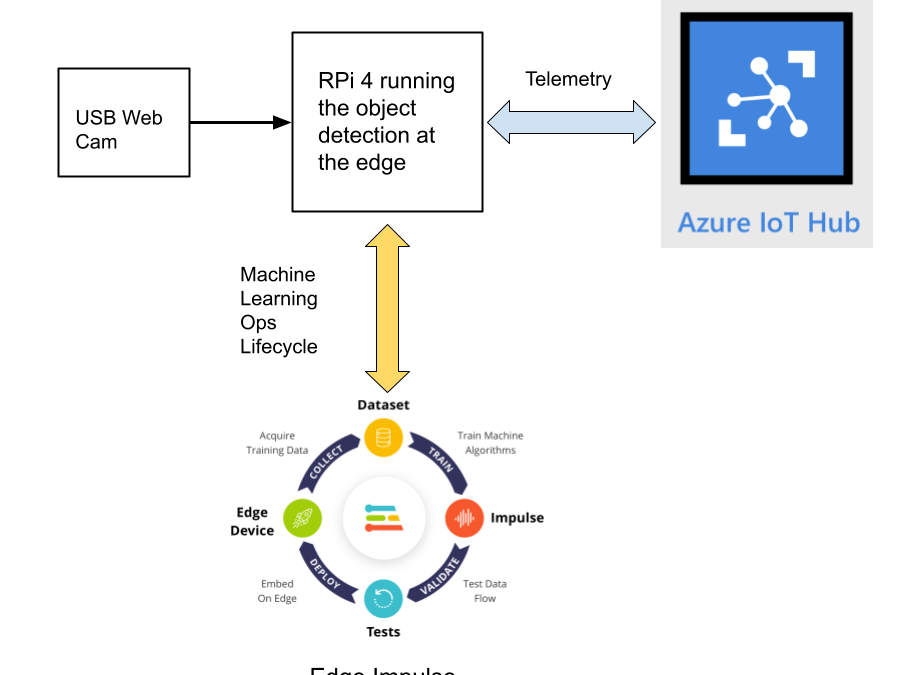
This reference project will serve as a guide for quickly getting started with Edge Impulse on the Raspberry Pi 4 and Azure IoT, to train a model that detects lug nuts on a wheel and sends inference conclusions to Azure IoT as shown in the block diagram below:
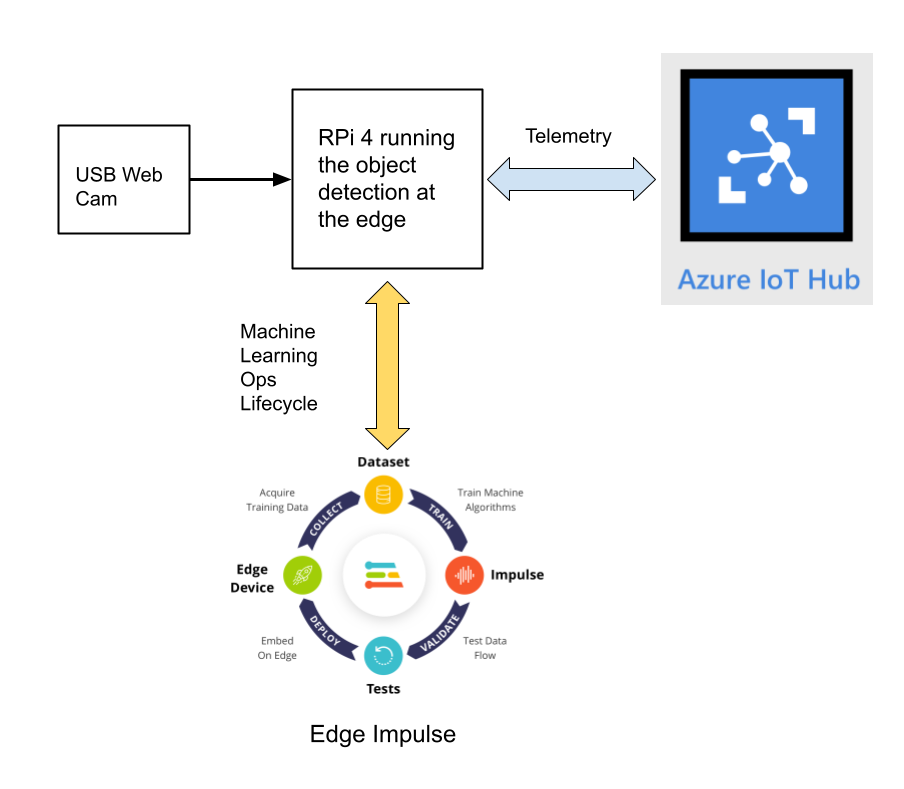
Design Concept: Edge Impulse and Azure IoT
Edge Impulse is an embedded machine learning platform that allows you to manage the entire Machine Learning Ops (MLOps) lifecycle which includes 1) Data Acquisition, 2) Signal Processing, 3) ML Training, 4) Model Testing, and 5) Creating a deployable model that can run efficiently on an edge device.
For the edge device, we chose to use the Raspberry Pi 4 due to its ubiquity and available processing power for efficiently running more sophisticated machine learning models such as object detection. By running the object detection model on the Raspberry Pi 4, we can optimize the network bandwidth connection to Azure IoT for robustness and scalability by only sending the inference conclusions, i.e. “How many lug nuts are on the wheel?”. Once the inference conclusions are available at the Azure IoT level, it becomes straightforward to feed these results into your business applications that can leverage other Azure services such as Azure Stream Analytics and Power BI.
In the next sections we’ll discuss how you can set this up yourself with the following items:
Setting Up the Hardware
We begin by setting up the Raspberry Pi 4 to connect to a Wi-Fi network for our network connection, configuring it for camera support, and installing the Edge Impulse Linux CLI (command line interface) tools on the Raspberry Pi 4. This will allow the Raspberry Pi 4 to directly connect to Edge Impulse for data acquisition and finally, deployment of the wheel lug nut detection model.
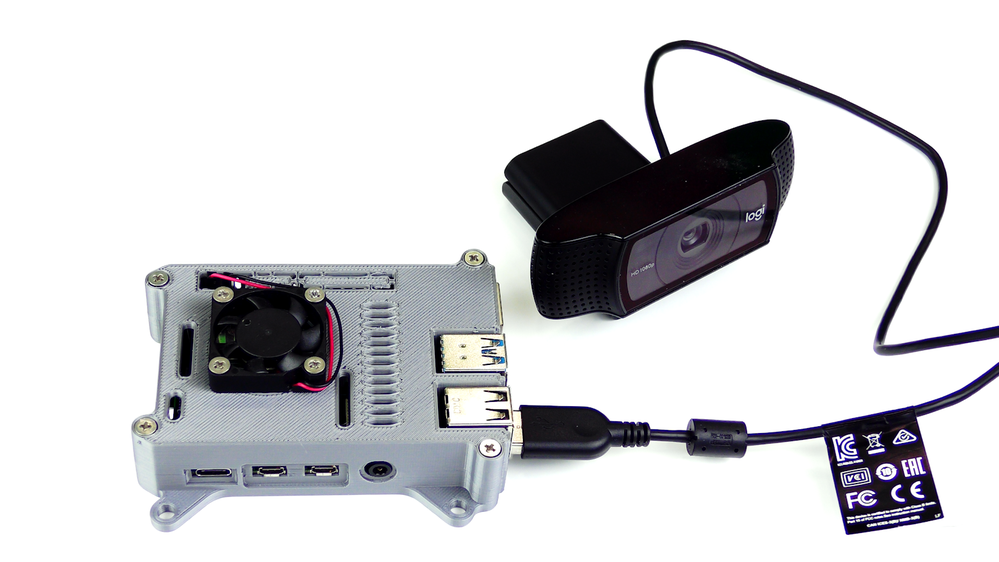
For starters, you’ll need a Raspberry Pi 4 with an up-to-date Raspberry Pi OS image that can be found here. After flashing this image to an SD card and adding a file named ‘wpa_supplicant.conf’:
ctrl_interface=DIR=/var/run/wpa_supplicant GROUP=netdev
update_config=1
country=<Insert 2 letter ISO 3166-1 country code here>
network={
 ssid="<Name of your wireless LAN>"
 psk="<Password for your wireless LAN>"
}
along with an empty file named ‘ssh’ (both within the ‘/boot’ directory), you can go ahead and power up the board.
Once you’ve successfully SSH’d into the device with
ssh pi@<IP_ADDRESS>
and the password ‘raspberry’, it’s time to install the dependencies for the Edge Impulse Linux SDK. Simply run the next three commands to set up the NodeJS environment and everything else that’s required for the edge-impulse-linux wizard:
curl -sL https://deb.nodesource.com/setup_12.x | sudo bash -
sudo apt install -y gcc g++ make build-essential nodejs sox gstreamer1.0-tools gstreamer1.0-plugins-good gstreamer1.0-plugins-base gstreamer1.0-plugins-base-apps
npm config set user root && sudo npm install edge-impulse-linux -g --unsafe-perm
For more details on setting up the Raspberry Pi 4 with Edge Impulse, visit this link.
Since this project deals with images, we’ll need some way to capture them. The wizard supports both the Pi camera modules and standard USB webcams, so make sure to enable the camera module first with
sudo raspi-config
if you plan on using one. With that completed, go to Edge Impulse and create a new project, then run the wizard with
edge-impulse-linux
and make sure your device appears within the Edge Impulse Studio’s device section after logging in and selecting your project.
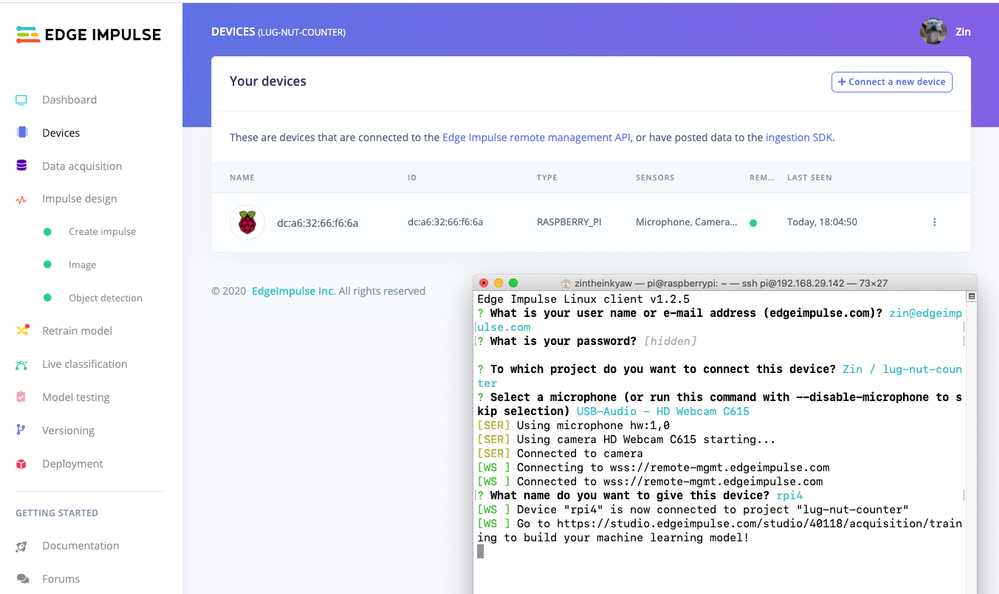
Data Acquisition
Training accurate production ready machine learning models requires feeding plenty of varied data, which means a lot of images are typically required. For this proof-of-concept, we captured around 145 images of a wheel that had lug nuts on it. The Edge Impulse Linux daemon allows you to directly connect the Raspberry Pi 4 to Edge Impulse and take snapshots using the USB webcam.
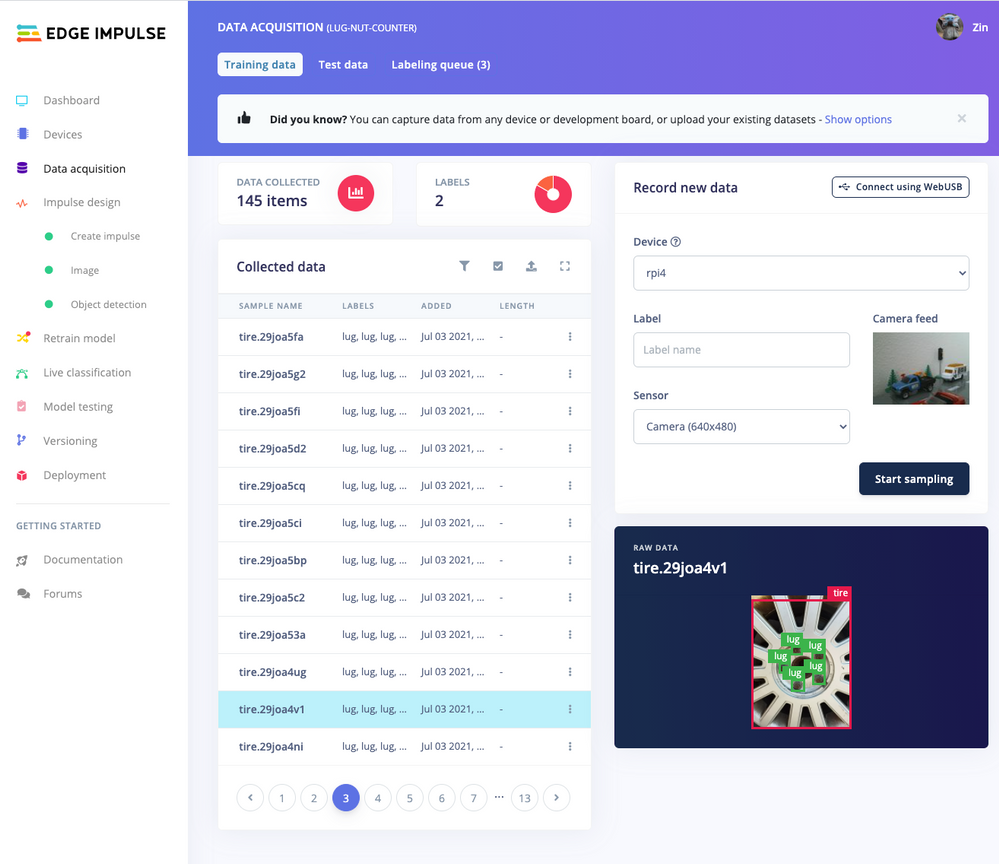
Using the Labeling queue in the Data Acquisition page we then easily drew bounding boxes around each lug nut within every image, along with every wheel. To add some test data we went back to the main Dashboard page and clicked the ‘Rebalance dataset’ button that moves 20% of the training data to the test data bin.
Impulse Design and Model Training
Now that we have plenty of training data, it’s time to design and build our model. The first block in the Impulse Design is an Image Data block, and it scales each image to a size of ‘320’ by ‘320’ pixels.
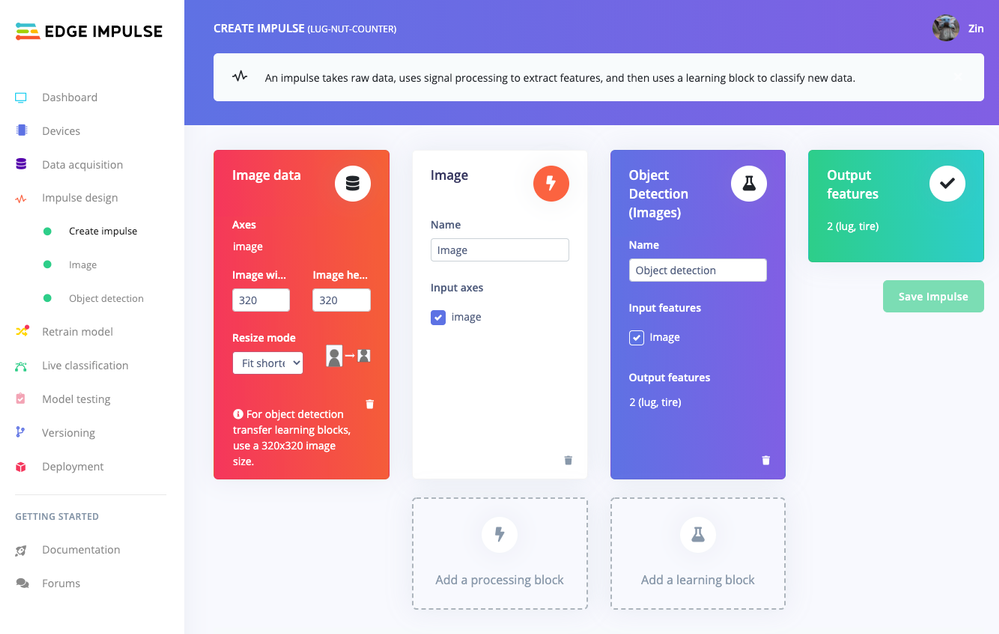
Next, image data is fed to the Image processing block that takes the raw RGB data and derives features from it.
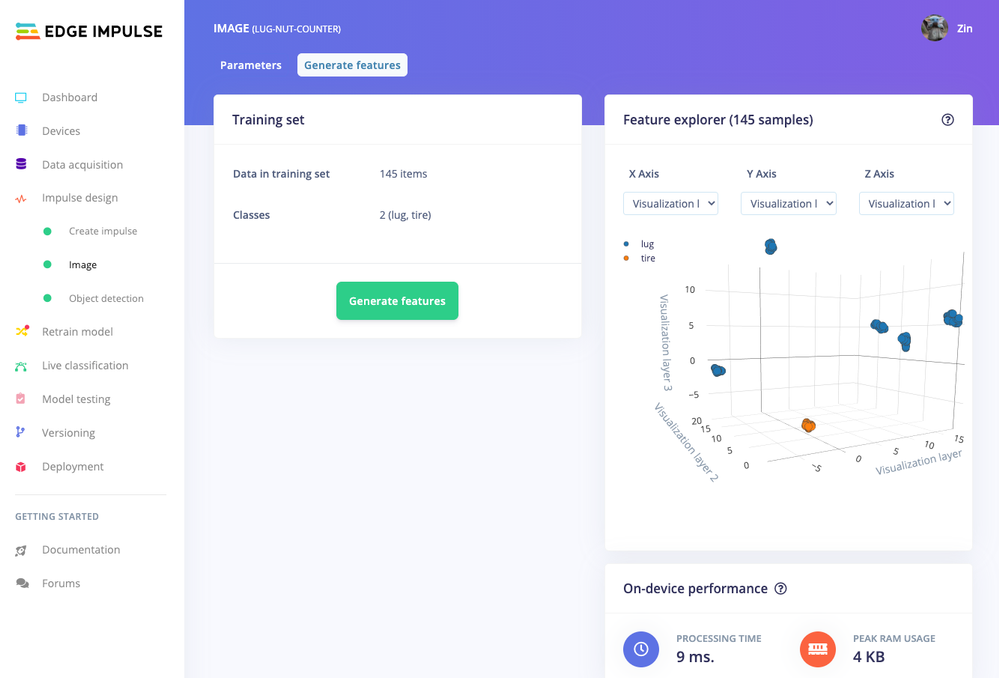
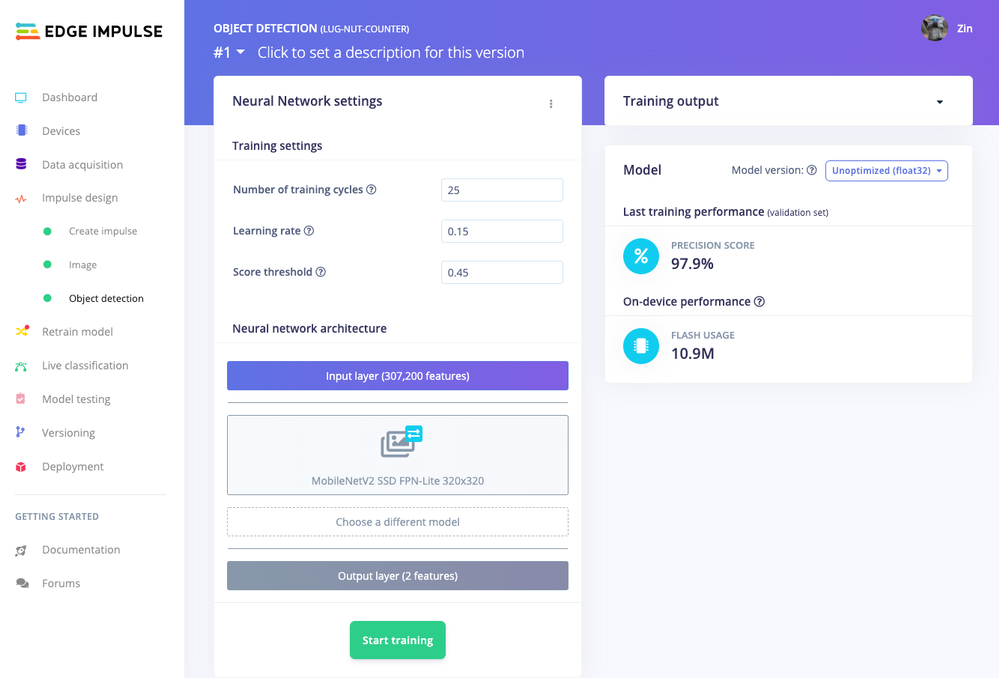
Finally, these features are used as inputs to the MobileNetV2 SSD FPN-Lite Transfer Learning Object Detection model that learns to recognize the lug nuts. The model is set to train for ’25’ cycles at a learning rate of ‘.15’, but this can be adjusted to fine-tune for accuracy. As you can see from the screenshot below, the trained model indicates a precision score of 97.9%.
Model Testing
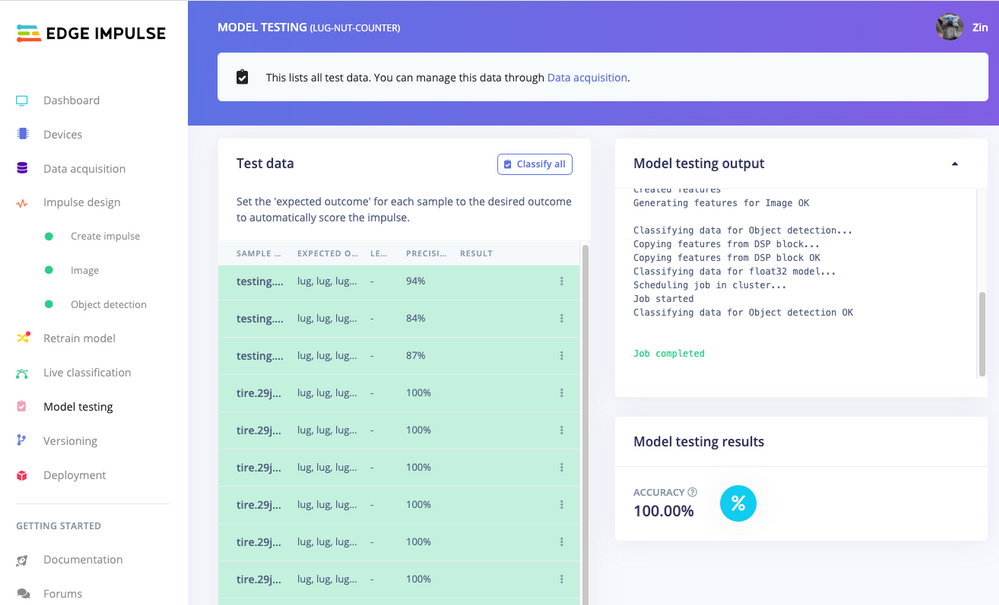
If you’ll recall from an earlier step we rebalanced the dataset to put 20% of the images we collected to be used for gauging how our trained model could perform in the real world. We use the model testing page to run a batch classification and see how we expect our model to perform. The ‘Live Classification’ tab will also allow you to acquire new data direct from the Raspberry Pi 4 and see how the model measures up against the immediate image sample.
Versioning
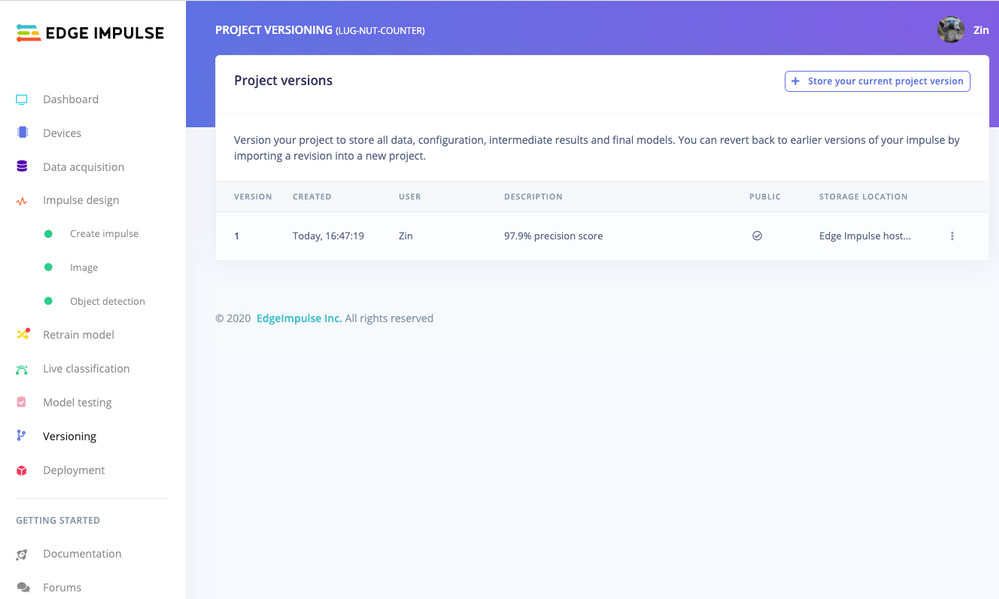
An MLOps platform would not be complete without a way to archive your work as you iterate on your project. The ‘Versioning’ tab allows you to save your entire project including the entire dataset so you can always go back to a “known good version” as you experiment with different neural network parameters and project configurations. It’s also a great way to share your efforts as you can designate any version as ‘public’ and other Edge Impulse users can clone your entire project and use it as a springboard to add their own enhancements.
Deploying Models
In order to verify that the model works correctly in the real world, we’ll need to deploy it to the Raspberry Pi 4. This is a simple task thanks to the Edge Impulse CLI, as all we have to do is run
edge-impulse-linux-runner
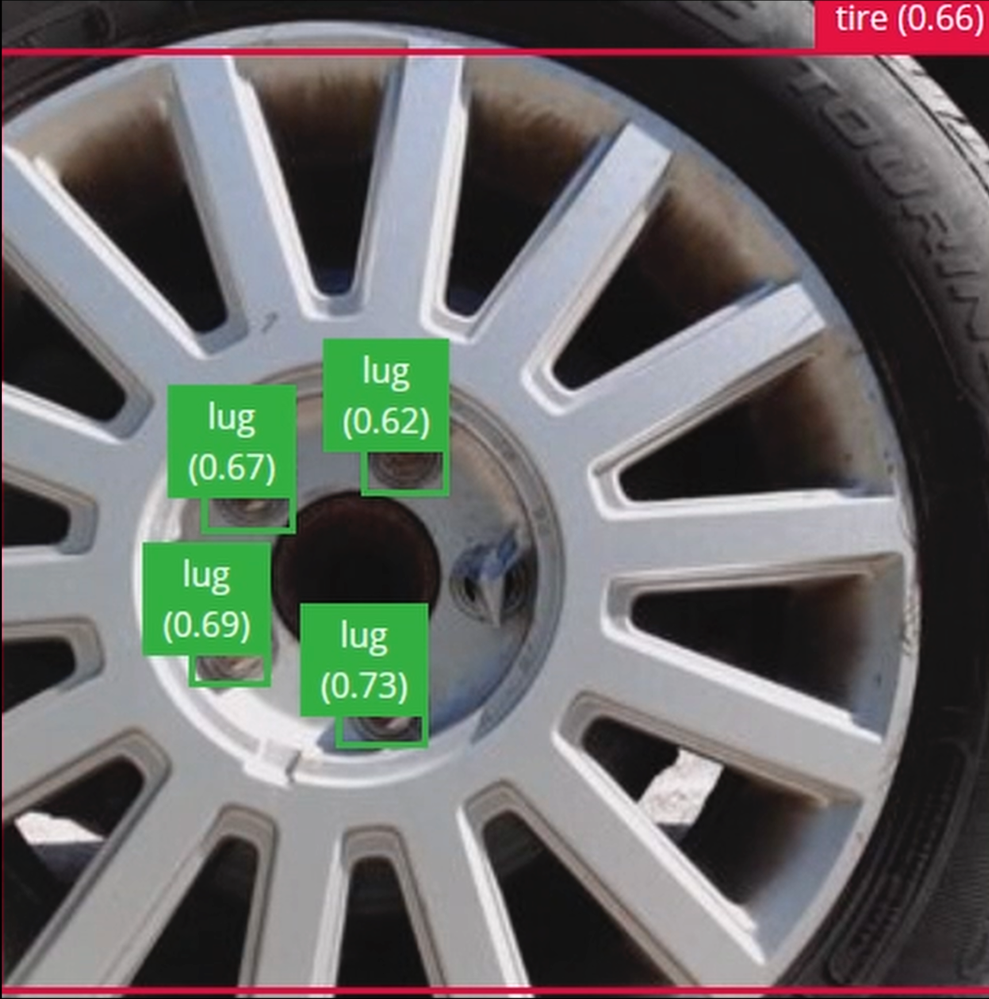
which downloads the model and creates a local webserver. From here, we can open a browser tab and visit the address listed after we run the command to see a live camera feed and any objects that are currently detected. Here’s a sample of what the user will see in their browser tab:
Sending Inference Results to Azure IoT Hub
With the model working locally on the Raspberry Pi 4, let’s see how we can send the inference results from the Raspberry Pi 4 to an Azure IoT Hub instance. As previously mentioned, these results will enable business applications to leverage other Azure services such as Azure Stream Analytics and Power BI. On your development machine, make sure you’ve installed the Azure CLI and have signed in using ‘az login’. Then get the name of the resource group you’ll be using for the project. If you don’t have one, you can follow this guide on how to create a new resource group.

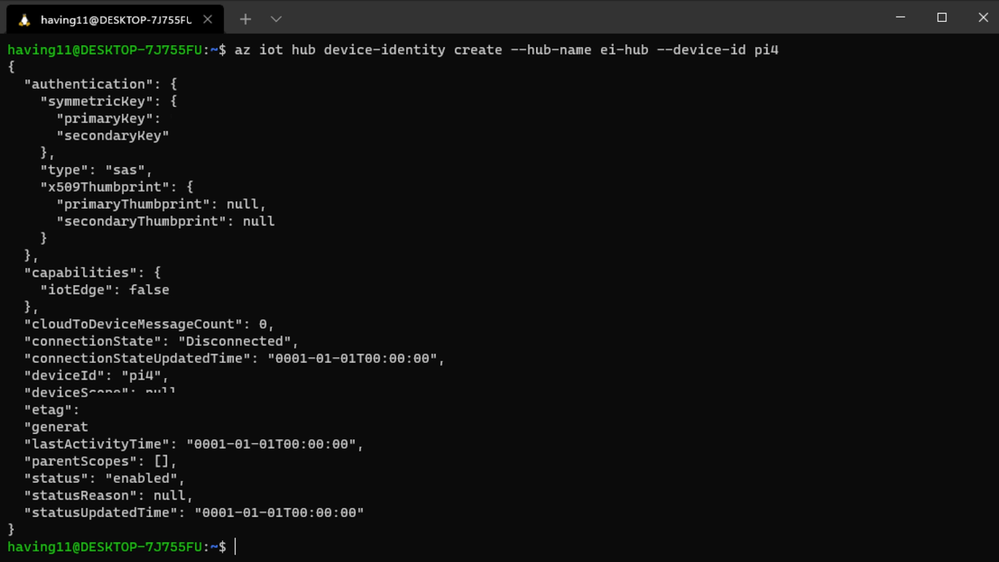
After that, return to the terminal and run the following commands to create a new IoT Hub and register a new device ID:
az iot hub create --resource-group <your resource group> --name <your IoT Hub name>
az extension add --name azure-iot
az iot hub device-identity create --hub-name <your IoT Hub name> --device-id <your device id>
Retrieve the connection string the Raspberry Pi 4 will use to connect to Azure IoT with:
az iot hub device-identity connection-string show --device-id <your device id> --hub-name <your IoT Hub name>
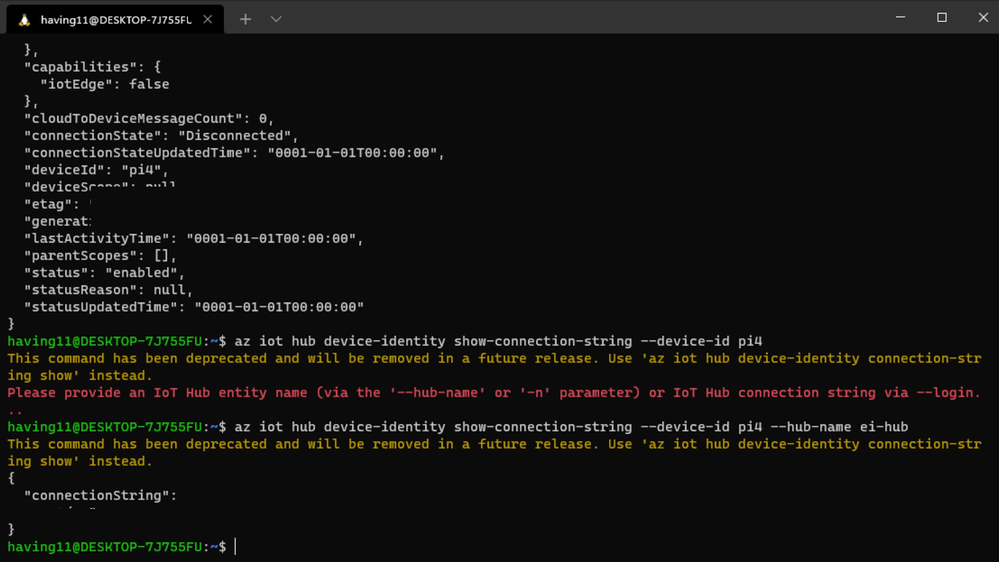
Now it’s time to SSH into the Raspberry Pi 4 and set the connection string as an environment variable with:
export IOTHUB_DEVICE_CONNECTION_STRING="<your connection string here>"
Then, add the necessary Azure IoT device libraries with:
pip install azure-iot-device
(Note: if you do not set the environment variable or pass it in as an argument the program will not work!) The connection string contains the information required for the Raspberry Pi 4 to establish a connection with the Azure IoT Hub service and communicate with it. You can then monitor output in the Azure IoT Hub with:
az iot hub monitor-events --hub-name <your IoT Hub name> --output table
or in the Azure Portal.
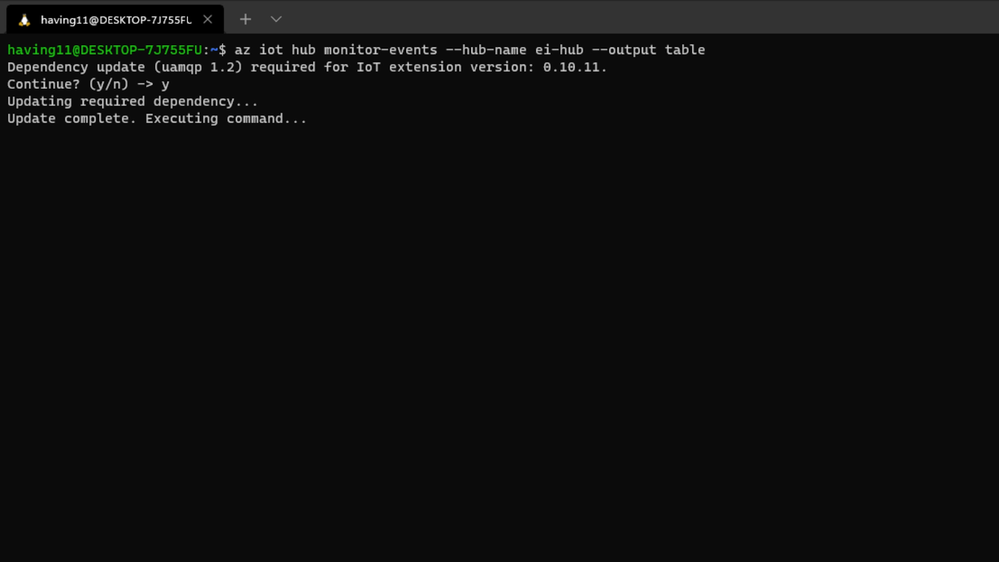
To make sure it works, download and run this example on the Raspberry Pi 4 to make sure you can see the test message.
For the second half of deployment, we’ll need a way to customize how our model is used within the code. Edge Impulse provides a Python SDK for this purpose. On the Raspberry Pi 4 install it with
sudo apt-get install libatlas-base-dev libportaudio0 libportaudio2 libportaudiocpp0 portaudio19-dev
pip3 install edge_impulse_linux -i https://pypi.python.org/simple
We’ve made available a simple example on the Raspberry Pi 4 that sets up a connection to the Azure IoT Hub, runs the model, and sends the inference results to Azure IoT.
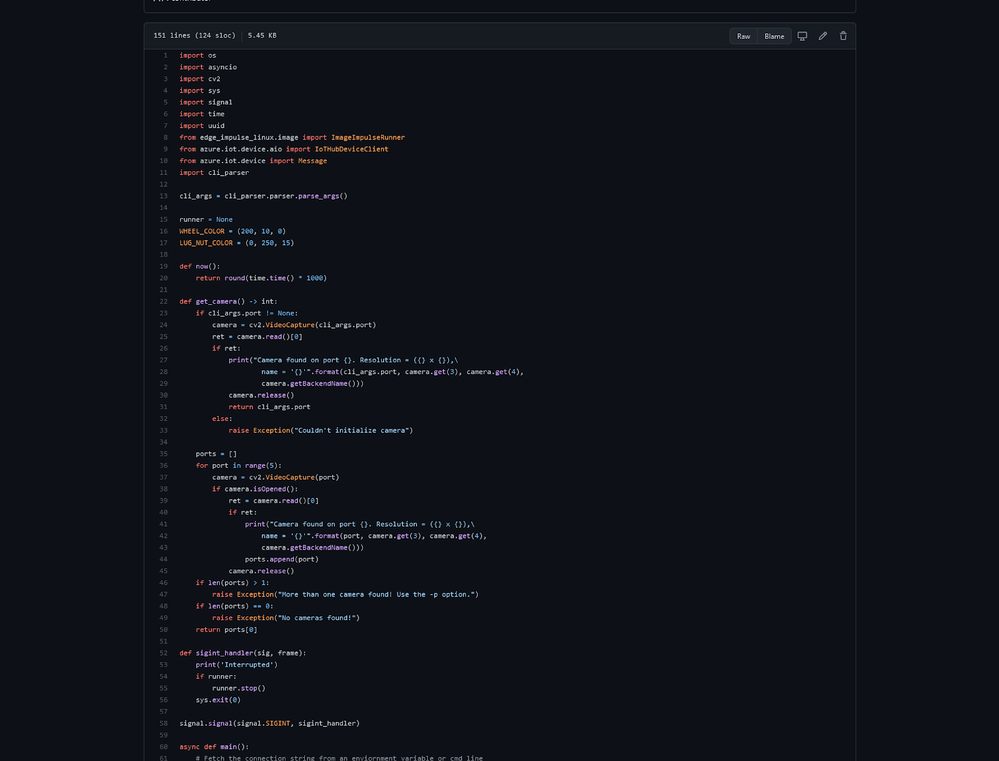
Once you’ve either downloaded the zip file or cloned the repo into a folder, get the model file by running
edge-impulse-linux-runner --download modelfile.eim
inside of the folder you just created from the cloning process. This will download a file called ‘modelfile.eim’. Now, run the Python program with
python lug_nut_counter.py ./modelfile.eim -c <LUG_NUT_COUNT>
where <LUG_NUT_COUNT> is the correct number of lug nuts that should be attached to the wheel (you might have to use ‘python3’ if both Python 2 and 3 are installed).
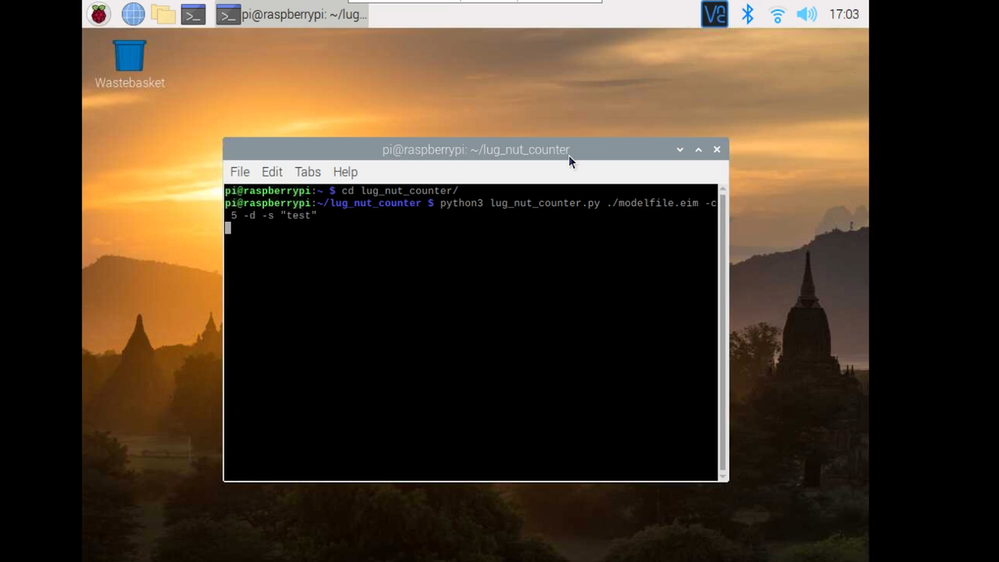
Now whenever a wheel is detected the number of lug nuts is calculated. If this number falls short of the target, a message is sent to the Azure IoT Hub.
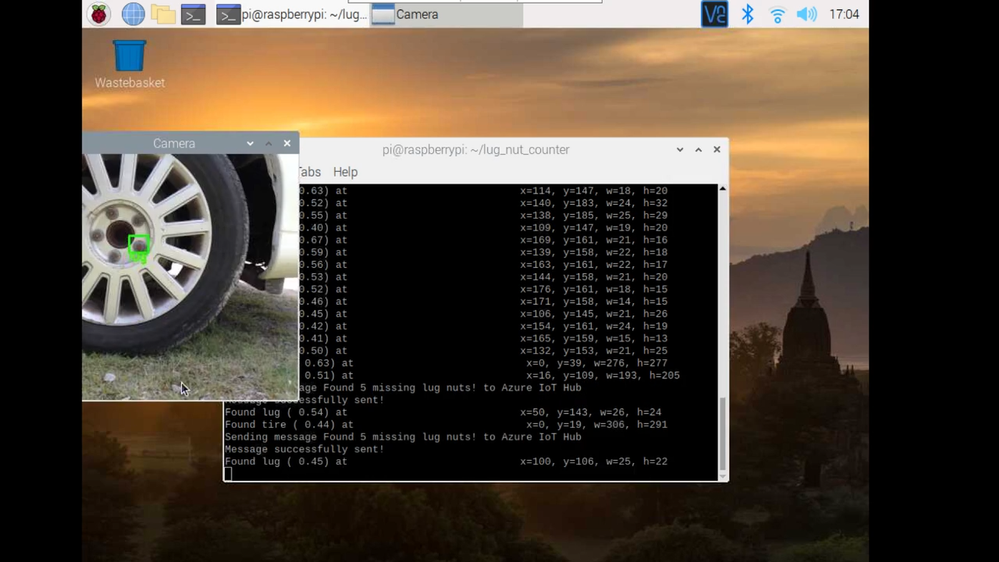
And by only sending messages when there’s something wrong, we can prevent an excess amount of bandwidth from being taken due to empty payloads.
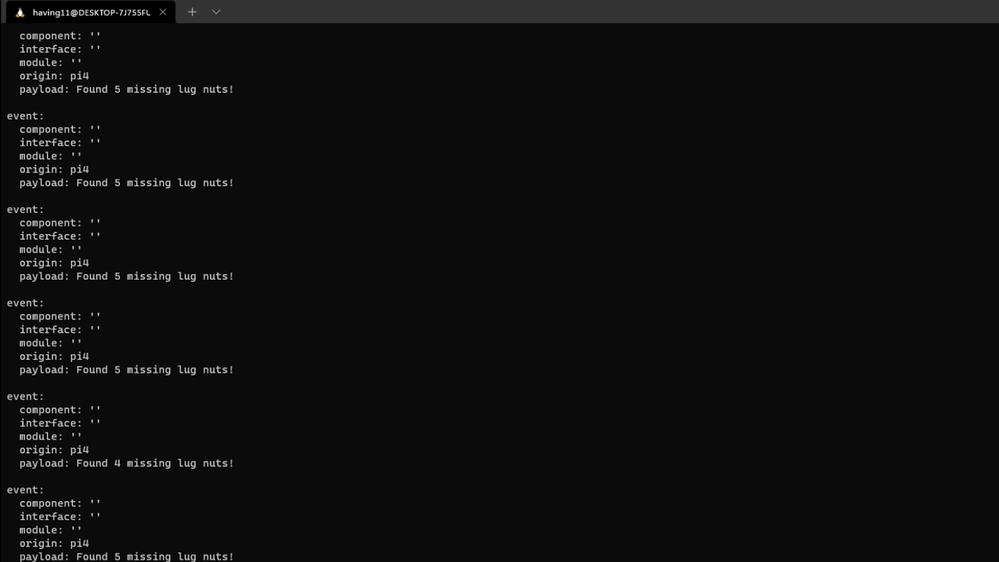
Conclusion
We’ve just scratched the surface with wheel lug nut detection. Imagine utilizing object detection for other industrial applications in quality control, detecting ripe fruit amongst rows of crops, or identifying when machinery has malfunctioned with devices powered by machine learning.
With any hardware, Edge Impulse, and Microsoft Azure IoT, you can design comprehensive embedded machine learning models, deploy them on any device, while authenticating each and every device with built-in security. You can set up individual identities and credentials for each of your connected devices to help retain the confidentiality of both cloud-to-device and device-to-cloud messages, revoke access rights for specific devices, upgrade device firmware remotely, and benefit from advanced analytics on devices running offline or with intermittent connectivity.
The complete Edge Impulse project is available here for you to see how easy it is to start building your own embedded machine learning projects today using object detection. We look forward to your feedback at hello@edgeimpulse.com or on our forum.
by Contributed | Jul 17, 2021 | Technology
This article is contributed. See the original author and article here.
This article is the first part of a series which explores an end-to-end pipeline to deploy an Air Quality Monitoring application using off-the-market sensors, Azure IoT Ecosystem and Python. We will begin by looking into what is the problem, some terminology, prerequisites, reference architecture, and an implementation.
Indoor Air Quality – why does it matter and how to measure it with IoT?
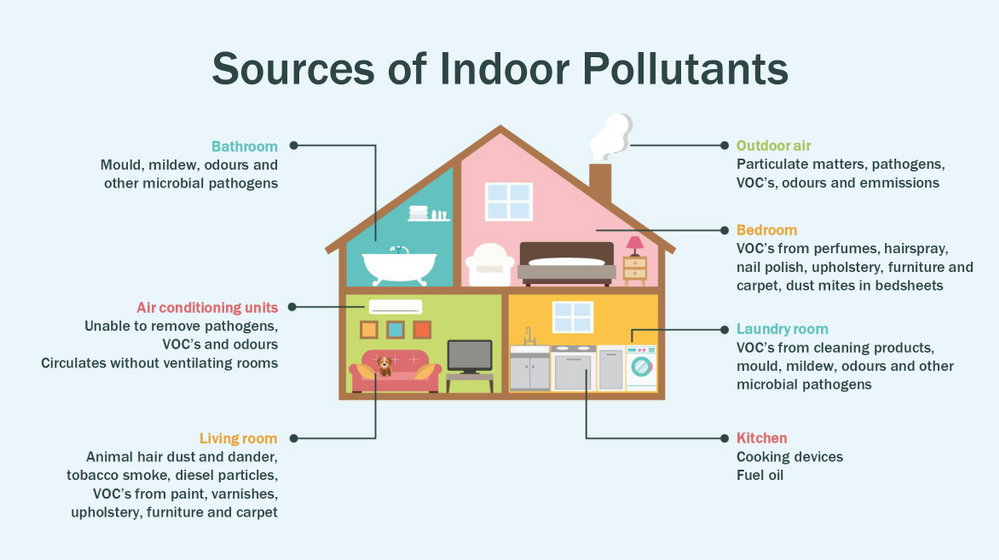
Most people think of air pollution as an outdoor problem, but indoor air quality has a major impact on health and well-being since the average American spends about 90 percent of their time indoors. Proper ventilation is one of the most important considerations for maintaining good indoor air quality. Poor indoor air quality is known to be harmful to vulnerable groups such as the elderly, children or those suffering chronic respiratory and/or cardiovascular diseases. Here is a quick visual on some sources of indoor air pollution.
Post Covid-19, we are in a world where awareness of our indoor environments is key for survival. Here in Canada we are quite aware of the situation, which is why we have a set of guidlines from the Government of Canada, and a recent white paper from Public Health Ontario. The American Medical Association has put up this excellent document for reference. So now that we know what the problem is, how do we go about solving it? To solve something we must be able to measure it and currently we have some popular metrics to measure air quality, viz. IAQ and VOC.
So what are IAQ and VOC exactly?
Indoor air quality (IAQ) is the air quality within and around buildings and structures. IAQ is known to affect the health, comfort, and well-being of building occupants. IAQ can be affected by gases (including carbon monoxide, radon, volatile organic compounds), particulates, microbial contaminants (mold, bacteria), or any mass or energy stressor that can induce adverse health conditions. IAQ is part of indoor environmental quality (IEQ), which includes IAQ as well as other physical and psychological aspects of life indoors (e.g., lighting, visual quality, acoustics, and thermal comfort). In the last few years IAQ has received increasing attention from environmental governance authorities and IAQ-related standards are getting stricter. Here is a IAQ blog infographic if you’d like to read.
Volatile organic compounds (VOC) are organic chemicals that have a high vapour pressure at room temperature. High vapor pressure correlates with a low boiling point, which relates to the number of the sample’s molecules in the surrounding air, a trait known as volatility. VOC’s are responsible for the odor of scents and perfumes as well as pollutants. VOCs play an important role in communication between animals and plants, e.g. attractants for pollinators, protection from predation, and even inter-plant interactions. Some VOCs are dangerous to human health or cause harm to the environment. Anthropogenic VOCs are regulated by law, especially indoors, where concentrations are the highest. Most VOCs are not acutely toxic, but may have long-term chronic health effects. Refer to this and this for vivid details.
The point is, in a post pandemic world, having a centralized air quality monitoring system is an absolute necessity. The need for collecting this data and using the insights from it is crucial to living better. And this is where Azure IoT comes in. In this series we are going to explore how to create the moving parts of this platform with ‘minimum effort‘. In this first part, we are goiing to concentrate our efforts on the overall architecture, hardware/software requirements, and IoT edge module creation.
Prerequisites
To accomplish our goal we will ideally need to meet a few basic criteria. Here is a short list.
- Air Quality Sensor (link)
- IoT Edge device (link)
- Active Azure subscription (link)
- Development machine
- Working knowledge of Python, Sql, Docker, Json, IoT Edge runtime, VSCode
- Perseverance
Lets go into a bit of details about the aforementioned points since there are many possibilities.
Air Quality Sensor
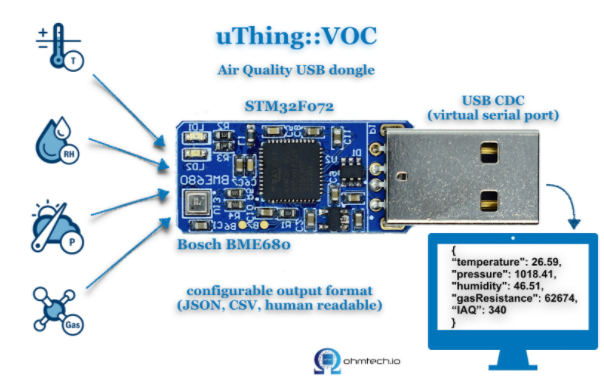
This is the sensor that emits the actual IAQ/VOC+ data. Now, there are a lot of options in this category, and technically they should be producing the same results. However, the best sensors in the market are Micro-Electro-Mechanical Systems (MEMS). MEMS technology uses semiconductor fabrication processes to produce miniaturized mechanical and electro-mechanical elements that range in size from less than one micrometer to several millimeters. MEMS devices can vary from relatively simple structures with no moving elements, to complex electromechanical systems with multiple moving elements. My choice was uThing::VOC™ Air-Quality USB sensor dongle. This is mainly to ensure high quality output and ease of interfacing, which is USB out of the box, and does not require any installation. Have a look at the list of features available on this dongle. The main component is a Bosch proprietary algorithm and the BME680 sensor that does all the hard work. Its basically plug-and-play. The data is emitted in Json format and is available at an interval of 3 milliseconds on the serial port of your device. In my case it was /dev/ttyACM0, but could be different in yours.
IoT Edge device
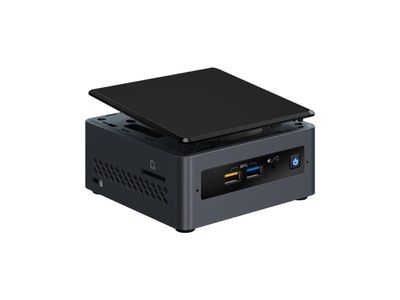
This is the edge system. where the sensor is plugged in. Typical choices are windows or linux. If you are doing windows, be aware some of these steps may be different and you have to figure those out. However, in my case I am using ubuntu 20.04 installed on an Intel NUC. The reason I chose the NUC is because many IoT modules require an x86_64 machine, which is not available in ARM devices (Jetson, Rasp Pi, etc.) Technically this should work on ANY edge device with a usb port, but for example windows has an issue mounting serial ports onto containers. I suggest better stick with linux unless its a client requirement.
Active Azure subscription
Surely, you will need this one, but as we know Azure has this immense suit of products, and while ideally we want to have everything, it may not be practically feasible. For practical purposes you might have to ask for access to particular services, meaning you have to know ahead exactly which ones you want to use. Of course the list of required services will vary between use cases, so we will begin with just the bare minimum. We will need the following:
- Azure IoT Hub (link)
- Azure Container Registry (link)
- Azure blob storage (link)
- Azure Streaming Analytics (link)(future article)
- Power BI / React App (link)(future article)
- Azure Linux VM (link)(optional)
A few points before we move to the next prerequisite. For IoT hub you can use free tier for experiments, but I will recommend to use the standard tier instead. For ACR get the usual tier and generate username password. For storageaccount its the standard tier. The ASA and BI products will be used in the reference architecture, but is not discussed in this article. The final service Azure VM is an interesting one. Potentially all the codebase can be run using VM, but this is only good for simulations. However, note that it is an equally good idea to experiment with VMs first as they have great integration and ease the learning curve.
Development machine
The development machine can be literally anything from which you have ssh access to the edge device. From an OS perspective it can be windows, linux, raspbian, mac etc. Just remember two things – use a good IDE (a.k.a VSCode) and make sure docker can be run on it, optionally with priviliges. In my case I am using a Startech KVM, so I can shift between my windows machine and the actual edge device for development purposes, but it is not neccessary.
Working knowledge of Python, Sql, Docker, Json, IoT Edge runtime, VSCode
This is where it gets tricky. Having a mix of these knowledge is somewhat essential to creating and scaling this platform. However, I understand you may not be having proficiency in all of these. On that note, I can tell from experience that being from a data engineering background has been extremely beneficial for me. In any case, you will need some python skills, some sql, and Json. Even knowing how to use the VSCode IoT extension is non-trivial. One notable mention is that good docker knowledge is extrememly important, as the edge module is in fact simply a docker container thats deployed through the deployment manifest (IoT Edge runtime).
Perseverance
In an ideal world, you read a tutorial, implement, it works and you make merry. The real world unfortunately will bring challenges that you have not seen anywhere. Trust me on this, many times you will make good progress simply by not quitting what you are doing. Thats it. That is the secret ingredient. Its like applying gradient descent to your own brain model of a concept. Anytime any of this doesn’t work, simply have belief in Azure and yourself. You will always find a way. Okay enough of that. Lets get to business.
Reference Architecture
Here is a reference architecture that we can use to implement this platform. This is how I have done it. Please feel free to do your own.
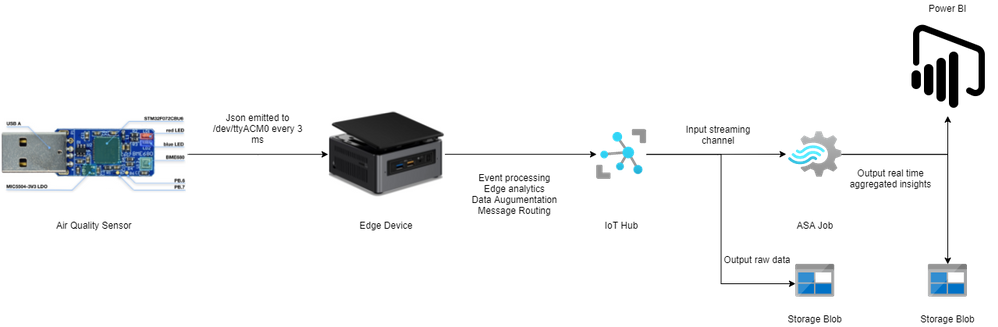
Most of this is quite simple. Just go through the documentation for Azure and you should be fine. Following this we go to what everyone is waiting for – the implementation.
Implementation
In this section we will see how we can use these tools to our benefit. For the Azure resources I may not go through the entire creation or installation process as there are quite a few articles on the internet for doing those. I shall only mention the main things to look out for. Here is an outline of the steps involved in the implementation.
- Create a resource group in Azure (link)
- Create a IoT hub in Azure (link)
- Create a IoT Edge device in Azure (link)
- Install Ubuntu 18/20 on the edge device
- Plugin the usb sensor into the edge device and check blue light
- Install docker on the edge device
- Install VSCode on development machine
- Create conda/pip environment for development
- Check read the serial usb device to receive json every few milliseconds
- Install IoT Edge runtime on the edge device (link)
- Provision the device to Azure IoT using connection string (link)
- Check IoT edge Runtime is running good on the edge device and portal
- Create an IoT Edge solution in VSCode (link)
- Add a python module to the deployment (link)
- Mount the serial port to the module in the deployment
- Add codebase to read data from mounted serial port
- Augument sensor data with business data
- Send output result as events to IoT hub
- Build and push the IoT Edge solution (link)
- Create deployment from template (link)
- Deploy the solution to the device
- Monitor endpoint for consuming output data as events
Okay I know that is a long list. But, you must have noticed some are very basic steps. I mentioned them so everyone has a starting reference point regarding the sequence of steps to be taken. You have high chance of success if you do it like this. Lets go into some details now. Its a mix of things so I will just put them as flowing text.
90% of what’s mentioned in the list above can be done following a combination of the documents in the official Azure IoT Edge documentation. I highly advise you to scour through these documents with eagle eyes multiple times. The main reason for this is that unlike other technologies where you can literally ‘stackoverflow’ your way through things, you will not have that luxury here. I have been following every commit in their git repo for years and can tell you the tools/documentation changes almost every single day. That means your wits and this document are pretty much all you have in your arsenal. The good news is Microsoft makes very good documentation and even though its impossible to cover everything, they make an attempt to do it from multiple perspectives and use cases. Special mention to the following articles.
Once you are familiar with the ‘build, ship, deploy’ mechanism using the copius SimulatedTemperatureSensor module examples from Azure Marketplace, you are ready to handle the real thing. The only real challenge you will have is at steps 9, 15, 16, 17, and 18. Lets see how we can make things easy there. For 9 I can simply do a cat command on the serial port.
cat /dev/ttyACM0
This gives me output every 3 ms.
{"temperature": 23.34, "pressure": 1005.86, "humidity": 40.25, "gasResistance": 292401, "IAQ": 33.9, "iaqAccuracy": 1, "eqCO2": 515.62, "eqBreathVOC": 0.53}
This is exactly the data that the module will receive when the serial port is successfully mounted onto the module.
"AirQualityModule": {
            "version": "1.0",
            "type": "docker",
            "status": "running",
            "restartPolicy": "always",
            "settings": {
              "image": "${MODULES.AirQualityModule}",
              "createOptions": {
                "Env": [
                  "IOTHUB_DEVICE_CONNECTION_STRING=$IOTHUB_IOTEDGE_CONNECTION_STRING"
                ],
                "HostConfig": {
                  "Dns": [
                    "1.1.1.1"
                  ],
                  "Devices": [
                    {
                      "PathOnHost": "/dev/ttyACM0",
                      "PathInContainer": "/dev/ttyACM0",
                      "CgroupPermissions": "rwm"
                    }
                  ]
                }
              }
            }
          }
Notice the Devices block in the above extract from the deployment manifest. Using these keys/values we are able to mount the serial port onto the custom module aptly named AirQualityModule. So we got 15 covered.
Adding codebase to the module is quite simple too. When the module is generated by VSCode it automatically gives you the docker file (Dockerfile.amd64) and a sample main code. We will just create a copy of that file in the same repo and call it say air_quality.py. Inside this new file we will hotwire the code to read the device output. However, before doing any modification in the code we must edit requirements.txt. Mine looks like this:
azure-iot-device
psutil
pyserial
azure-iot-device is for the edge sdk libraries, and pyserial is for reading serial port. The imports look like this:
import time, sys, json
# from influxdb import InfluxDBClient
import serial
import psutil
from datetime import datetime
from azure.iot.device import IoTHubModuleClient, Message
Quite self-explainatory. Notice the influx db import is commented, meaning you can send these reading there too through the module. To cover 16 we will need the final three peices of code. Here they are:
message = ""
#uart = serial.Serial('/dev/tty.usbmodem14101', 115200, timeout=11) # (MacOS)
uart = serial.Serial('/dev/ttyACM0', 115200, timeout=11) # Linux
uart.write(b'Jn')
message = uart.readline()
uart.flushInput()
if debug is True:
  print('message...')
  print(message)
data_dict = json.loads(message.decode())
There that’s it! With three peices of code you have taken the data emitted by the sensor, to your desired json format using python. 16 is covered. For 17 we will just update the dictionary with business data. In my case as follows. I am attaching a sensor name and coordinates to find me  .
.
data_dict.update({'sensorId':'roomAQSensor'})
data_dict.update({'longitude':-79.025270})
data_dict.update({'latitude':43.857989})
data_dict.update({'cpuTemperature':psutil.sensors_temperatures().get('acpitz')[0][1]})
data_dict.update({'timeCreated':datetime.now().strftime("%Y-%m-%d %H:%M:%S")})
For 18 it is as simple as
print('data dict...')
print(data_dict)
msg=Message(json.dumps(data_dict))
msg.content_encoding = "utf-8"
msg.content_type = "application/json"
module_client.send_message_to_output(msg, "airquality")
Before doing step 19, two things must happen. First, u need to replace the default main.py in the dockerfile and with air_quality.py. Second, you must use proper entries in .env file to generate deployment & deploy successfully. We can quickly check the docker image exists before actual deployment.
docker images
iotregistry.azurecr.io/airqualitymodule   0.0.1-amd64  030b11fce8af  4 days ago  129MB
Now you are good to deploy. Use this tutorial to help deploy successfully. At the end of step 22 this is what it looks like upon consuming the endpoint through VSCode.
[IoTHubMonitor] Created partition receiver [0] for consumerGroup [$Default]
[IoTHubMonitor] Created partition receiver [1] for consumerGroup [$Default]
[IoTHubMonitor] [2:33:28 PM] Message received from [azureiotedge/AirQualityModule]:
{
  "temperature": 28.87,
  "pressure": 1001.15,
  "humidity": 38.36,
  "gasResistance": 249952,
  "IAQ": 117.3,
  "iaqAccuracy": 1,
  "eqCO2": 661.26,
  "eqBreathVOC": 0.92,
  "sensorId": "roomAQSensor",
  "longitude": -79.02527,
  "latitude": 43.857989,
  "cpuTemperature": 27.8,
  "timeCreated": "2021-07-15 18:33:28"
}
[IoTHubMonitor] [2:33:31 PM] Message received from [azureiotedge/AirQualityModule]:
{
  "temperature": 28.88,
  "pressure": 1001.19,
  "humidity": 38.35,
  "gasResistance": 250141,
  "IAQ": 115.8,
  "iaqAccuracy": 1,
  "eqCO2": 658.74,
  "eqBreathVOC": 0.91,
  "sensorId": "roomAQSensor",
  "longitude": -79.02527,
  "latitude": 43.857989,
  "cpuTemperature": 27.8,
  "timeCreated": "2021-07-15 18:33:31"
}
[IoTHubMonitor] Stopping built-in event endpoint monitoring...
[IoTHubMonitor] Built-in event endpoint monitoring stopped.
Congratulations! You have successfully deployed the most vital step in creating a scalable air quality monitoring platform from scratch using Azure IoT.
Future Work
Keep an eye out for a follow up of this article where I shall be discussing how to continue the end-to-end pipeline and actually visualize it on Power BI.



Recent Comments