

Limitless Microsoft Defender for Endpoint Advanced Hunting with Azure Data Explorer (ADX)
This article is contributed. See the original author and article here.
2020 saw one of the biggest supply-chain attacks in the industry (so far) with no entity immune to its effects. Over 6 months later, organizations continue to struggle with the impact of the breach – hampered by the lack the visibility and/or the retention of that data to fully eradicate the threat.
Fast-forward to 2021, customers filled some of the visibility gap with tools like an endpoint detection and response (EDR) solution. Assuming all EDR tools are all equal (they’re not), organizations could move data into a SIEM solution to extend retention and reap the traditional rewards (i.e., correlation, workflow, etc.). While this would appear to be good on paper, the reality is that keeping data for long periods of time in the SIEM is expensive.
Are there other options? Pushing data to cold storage or cheap cloud containers/blobs is a possible remedy, however what supply chain attacks have shown us is that we need a way for data to be available for hunting – data stored using these methods often require data to be hydrated before it is usable (i.e., querying) which often comes at a high operational cost. This hydration may also come over with caveats, the most prevalent one being that restored data and current data often resides on different platforms, requiring queries/IP to be re-written.
In summary, the most ideal solution would:
- Retain data for an organization’s required length of time.
- Make hydration quick, simple, scalable, and/or, always online.
- Reduce or eliminate the need for IP (queries, investigations, …) to be recreated.
The solution
Azure Data Explorer (ADX) offers a scalable and cost-effective platform for security teams to build their hunting platforms on. There are many methods to bring data to ADX but this post will be focused be the event-hub which offers terrific scalability and speed. Data from Microsoft 365 Defender (M365D – security.microsoft.com), Microsoft’s XDR solution, more specifically data from the EDR, Microsoft Defender For Endpoint (MDE – securitycenter.windows.com) will be sent to ADX to solve the aforementioned problems.
Solution architecture:
Using Microsoft Defender For Endpoint’s streaming API to an event-hub and Azure Data Explorer, security teams can have limitless query access to their data.
Questions and considerations:
- Q: Should I go from Sentinel/Azure Monitor to the event-hub (continuous export) or do I go straight to the event hub from source?
A: Continuous export currently only supports up to 10 tables and carries a cost (TBD). Consider going directly to the event-hub
IF detection and correlations are not important (if they are, go to Azure Sentinel) and cost/operational mitigation is paramount. - Q: Are all tables supported in continuous export?
A: Not yet. The list of supported tables can be found here. - Q: How long do I need to retain information for? How big should I make the event-hub? + + +
A: There are numerous resources to understand how to size and scale. Navigating through this document will help you at least understand how to bring data in so sizing can be done with the most accurate numbers.
Prior to starting, here are several “variables” which will be referred to. To eliminate effort around recreating queries, keep the table names the same.
- Raw table for import: XDRRaw
- Mapping for raw data: XDRRawMapping
- Event-hub resource ID: <myEHRID>
- Event-Hub name: <myEHName>
- Table names to be created:
- DeviceRegistryEvents
- DeviceFileCertificateInfo
- DeviceEvents
- DeviceImageLoadEvents
- DeviceLogonEvents
- DeviceFileEvents
- DeviceNetworkInfo
- DeviceProcessEvents
- DeviceInfo
- DeviceNetworkEvents
Step 1: Create the Event-hub
For your initial event-hub, leverage the defaults and follow the basic configuration. Remember to create the event-hub and not just the namespace. Record the values as previously mentioned – Event–hub resource ID and event-hub name.
Step 2: Enable the Streaming API in XDR/Microsoft Defender for Endpoint to Send Data to the Event-hub
Using the previously noted event-hub resource ID and name and follow the documentation to get data into the event-hub. Verify the event-hub has been created in the event-hub namespace.
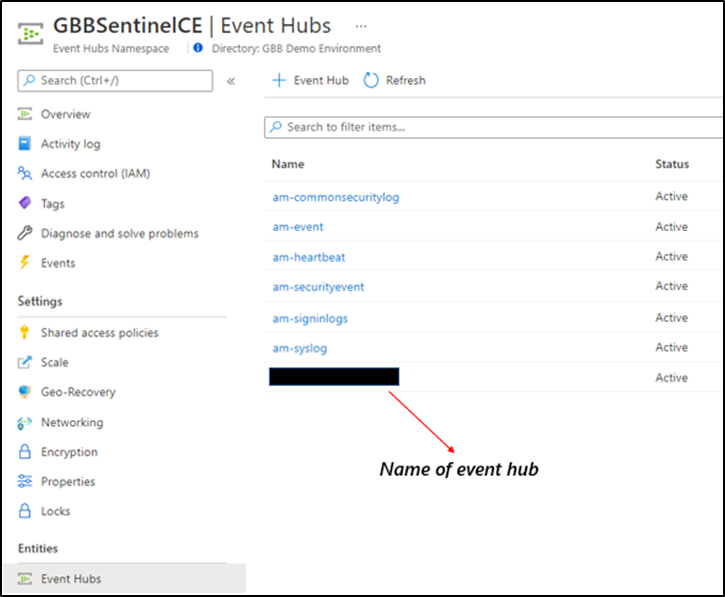 Create the event-hub namespace AND the event-hub. Record the resource ID of the namespace and name of the event-hub for use when creating the streaming API.
Step 3: Create the ADX Cluster
As with the event-hub, ADX clusters are very configurable after-the-fact and a guide is available for a simple configuration.
Step 4: Create a Data Connection to Microsoft Defender for Endpoint
Prior to creating the data connection, a staging table and mapping need to be configured. Navigate to the previously created database and select Query or from the cluster, select query, and make sure your database is highlighted.
Use the code below into the query area to create the RAW table with name XDRRaw:
//Create the staging table (use the above RAW table name)
.create table XDRRaw (Raw: dynamic)
The following will create the mapping with name XDRRawMapping:
//Pull the elements into the first column so we can parse them (use the above RAW Mapping Name)
.create table XDRRaw ingestion json mapping 'XDRRawMapping' '[{"column":"Raw","path":"$","datatype":"dynamic","transform":null}]'
With the RAW staging table and mapping function created, navigate to the database, and create a new data connection in the “Data Ingestion” setting under “Settings”. It should look as follows:
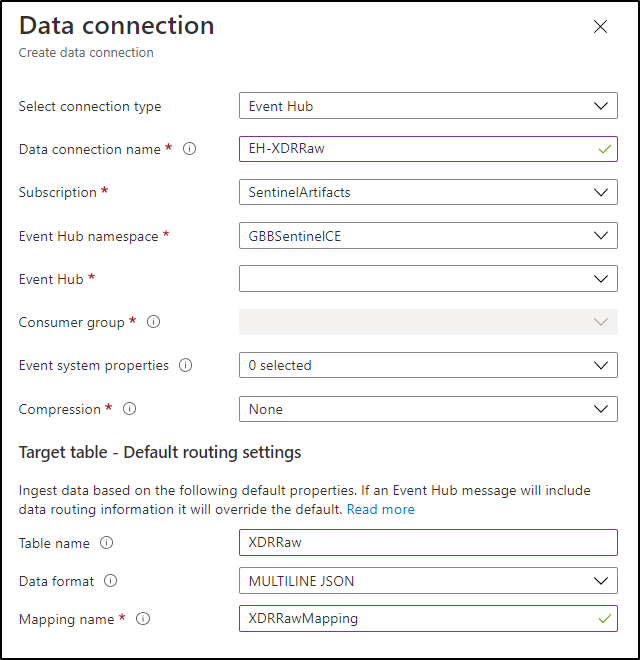 Create a data connection only after you have created the RAW table and the mapping.
NOTE: THE XDR/Microsoft Defender for Endpoint streaming API supplies multiple tables of data so using MULTILINE JSON is the data format.
If all permissions are correct, the data connection should create without issue… Congratulations! Query the RAW table to review the data sources coming in from the service with the following query:
//Here’s a list of the tables you’re going to have to migrate
XDRRaw
| mv-expand Raw.records
| project Properties=Raw_records.properties, Category=Raw_records.category
| summarize by tostring(Category)
NOTE: Be patient! ADX has a ingests in batches every 5 minutes (default) but can be configured lower however it is advised to keep the default value as lower values may result in increased latency. For more information about the batching policy, see IngestionBatching policy.
Step 4: Ingest Specified Tables
The Microsoft Defender for Endpoint data stream enables teams to pick one, some, or all tables to be exported. Copy and run the queries below (one at a time in each code block) based on which tables are being pushed to the event-hub.
DeviceEvents
//Create the parsing function
.create function with (docstring = "Filters data for Device Events for ingestion from XDRRaw", folder = "UpdatePolicies") XDRFilterDeviceEvents()
{
XDRRaw
 | mv-expand Raw.records
 | project Properties=Raw_records.properties, Category=Raw_records.category
 | where Category == "AdvancedHunting-DeviceEvents"
 | project
TenantId = tostring(Properties.TenantId),AccountDomain = tostring(Properties.AccountDomain),AccountName = tostring(Properties.AccountName),AccountSid = tostring(Properties.AccountSid),ActionType = tostring(Properties.ActionType),AdditionalFields = tostring(Properties.AdditionalFields),AppGuardContainerId = tostring(Properties.AppGuardContainerId),DeviceId = tostring(Properties.DeviceId),DeviceName = tostring(Properties.DeviceName),FileName = tostring(Properties.FileName),FileOriginIP = tostring(Properties.FileOriginIP),FileOriginUrl = tostring(Properties.FileOriginUrl),FolderPath = tostring(Properties.FolderPath),InitiatingProcessAccountDomain = tostring(Properties.InitiatingProcessAccountDomain),InitiatingProcessAccountName = tostring(Properties.InitiatingProcessAccountName),InitiatingProcessAccountObjectId = tostring(Properties.InitiatingProcessAccountObjectId),InitiatingProcessAccountSid = tostring(Properties.InitiatingProcessAccountSid),InitiatingProcessAccountUpn = tostring(Properties.InitiatingProcessAccountUpn),InitiatingProcessCommandLine = tostring(Properties.InitiatingProcessCommandLine),InitiatingProcessFileName = tostring(Properties.InitiatingProcessFileName),InitiatingProcessFolderPath = tostring(Properties.InitiatingProcessFolderPath),InitiatingProcessId = tostring(Properties.InitiatingProcessId),InitiatingProcessLogonId = tostring(Properties.InitiatingProcessLogonId),InitiatingProcessMD5 = tostring(Properties.InitiatingProcessMD5),InitiatingProcessParentFileName = tostring(Properties.InitiatingProcessParentFileName),InitiatingProcessParentId = tostring(Properties.InitiatingProcessParentId),InitiatingProcessSHA1 = tostring(Properties.InitiatingProcessSHA1),InitiatingProcessSHA256 = tostring(Properties.InitiatingProcessSHA256),LocalIP = tostring(Properties.LocalIP),LocalPort = tostring(Properties.LocalPort),LogonId = tostring(Properties.LogonId),MD5 = tostring(Properties.MD5),MachineGroup = tostring(Properties.MachineGroup),ProcessCommandLine = tostring(Properties.ProcessCommandLine),ProcessId = tostring(Properties.ProcessId),ProcessTokenElevation = tostring(Properties.ProcessTokenElevation),RegistryKey = tostring(Properties.RegistryKey),RegistryValueData = tostring(Properties.RegistryValueData),RegistryValueName = tostring(Properties.RegistryValueName),RemoteDeviceName = tostring(Properties.RemoteDeviceName),RemoteIP = tostring(Properties.RemoteIP),RemotePort = tostring(Properties.RemotePort),RemoteUrl = tostring(Properties.RemoteUrl),ReportId = tostring(Properties.ReportId),SHA1 = tostring(Properties.SHA1),SHA256 = tostring(Properties.SHA256),TimeGenerated = todatetime(Properties.Timestamp),Timestamp = todatetime(Properties.Timestamp),SourceSystem = tostring(Properties.SourceSystem),Type = tostring(Properties.Type), customerName = tostring(Properties.Customername)
}

//Create the table for DeviceEvents
.set-or-append DeviceEvents <| XDRFilterDeviceEvents()

//Set to autoupdate
.alter table DeviceEvents policy update
@'[{"IsEnabled": true, "Source": "XDRRaw", "Query": "XDRFilterDeviceEvents()", "IsTransactional": true, "PropagateIngestionProperties": true}]'
DeviceFileEvents
//Create the parsing function
.create function with (docstring = "Filters data for DeviceFileEvents for ingestion from XDRRaw", folder = "UpdatePolicies") XDRFilterDeviceFileEvents()
{
XDRRaw
 | mv-expand Raw.records
 | project Properties=Raw_records.properties, Category=Raw_records.category
 | where Category == "AdvancedHunting-DeviceFileEvents"
 | project
TenantId = tostring(Properties.TenantId),ActionType = tostring(Properties.ActionType),AdditionalFields = tostring(Properties.AdditionalFields),AppGuardContainerId = tostring(Properties.AppGuardContainerId),DeviceId = tostring(Properties.DeviceId),DeviceName = tostring(Properties.DeviceName),FileName = tostring(Properties.FileName),FileOriginIP = tostring(Properties.FileOriginIP),FileOriginReferrerUrl = tostring(Properties.FileOriginReferrerUrl),FileOriginUrl = tostring(Properties.FileOriginUrl),FileSize = tostring(Properties.FileSize),FolderPath = tostring(Properties.FolderPath),InitiatingProcessAccountDomain = tostring(Properties.InitiatingProcessAccountDomain),InitiatingProcessAccountName = tostring(Properties.InitiatingProcessAccountName),InitiatingProcessAccountObjectId = tostring(Properties.InitiatingProcessAccountObjectId),InitiatingProcessAccountSid = tostring(Properties.InitiatingProcessAccountSid),InitiatingProcessAccountUpn = tostring(Properties.InitiatingProcessAccountUpn),InitiatingProcessCommandLine = tostring(Properties.InitiatingProcessCommandLine),InitiatingProcessFileName = tostring(Properties.InitiatingProcessFileName),InitiatingProcessFolderPath = tostring(Properties.InitiatingProcessFolderPath),InitiatingProcessId = tostring(Properties.InitiatingProcessId),InitiatingProcessIntegrityLevel = tostring(Properties.InitiatingProcessIntegrityLevel),InitiatingProcessMD5 = tostring(Properties.InitiatingProcessMD5),InitiatingProcessParentFileName = tostring(Properties.InitiatingProcessParentFileName),InitiatingProcessParentId = tostring(Properties.InitiatingProcessParentId),InitiatingProcessSHA1 = tostring(Properties.InitiatingProcessSHA1),InitiatingProcessSHA256 = tostring(Properties.InitiatingProcessSHA256),InitiatingProcessTokenElevation = tostring(Properties.InitiatingProcessTokenElevation),IsAzureInfoProtectionApplied = tostring(Properties.IsAzureInfoProtectionApplied),MD5 = tostring(Properties.MD5),MachineGroup = tostring(Properties.MachineGroup),PreviousFileName = tostring(Properties.PreviousFileName),PreviousFolderPath = tostring(Properties.PreviousFolderPath),ReportId = tostring(Properties.ReportId),RequestAccountDomain = tostring(Properties.RequestAccountDomain),RequestAccountName = tostring(Properties.RequestAccountName),RequestAccountSid = tostring(Properties.RequestAccountSid),RequestProtocol = tostring(Properties.RequestProtocol),RequestSourceIP = tostring(Properties.RequestSourceIP),RequestSourcePort = tostring(Properties.RequestSourcePort),SHA1 = tostring(Properties.SHA1),SHA256 = tostring(Properties.SHA256),SensitivityLabel = tostring(Properties.SensitivityLabel),SensitivitySubLabel = tostring(Properties.SensitivitySubLabel),ShareName = tostring(Properties.ShareName),TimeGenerated =todatetime(Properties.Timestamp),Timestamp = todatetime(Properties.Timestamp),InitiatingProcessParentCreationTime = todatetime(Properties.InitiatingProcessParentCreationTime),InitiatingProcessCreationTime = todatetime(Properties.InitiatingProcessCreationTime),SourceSystem = tostring(Properties.SourceSystem),Type = tostring(Properties.Type)
}

//create table
.set-or-append DeviceFileEvents <| XDRFilterDeviceFileEvents()

//Set to autoupdate
.alter table DeviceFileEvents policy update
@'[{"IsEnabled": true, "Source": "XDRRaw", "Query": "XDRFilterDeviceFileEvents()", "IsTransactional": true, "PropagateIngestionProperties": true}]'
DeviceLogonEvents
//Create the parsing function
.create function with (docstring = "Filters data for DeviceLogonEvents for ingestion from XDRRaw", folder = "UpdatePolicies") XDRFilterDeviceLogonEvents()
{
XDRRaw
 | mv-expand Raw.records
 | project Properties=Raw_records.properties, Category=Raw_records.category
 | where Category == "AdvancedHunting-DeviceLogonEvents"
 | project
TenantId = tostring(Properties.TenantId),AccountDomain = tostring(Properties.AccountDomain),AccountName = tostring(Properties.AccountName),AccountSid = tostring(Properties.AccountSid),ActionType = tostring(Properties.ActionType),AdditionalFields = tostring(Properties.AdditionalFields),AppGuardContainerId = tostring(Properties.AppGuardContainerId),DeviceId = tostring(Properties.DeviceId),DeviceName = tostring(Properties.DeviceName),FailureReason = tostring(Properties.FailureReason),InitiatingProcessAccountDomain = tostring(Properties.InitiatingProcessAccountDomain),InitiatingProcessAccountName = tostring(Properties.InitiatingProcessAccountName),InitiatingProcessAccountObjectId = tostring(Properties.InitiatingProcessAccountObjectId),InitiatingProcessAccountSid = tostring(Properties.InitiatingProcessAccountSid),InitiatingProcessAccountUpn = tostring(Properties.InitiatingProcessAccountUpn),InitiatingProcessCommandLine = tostring(Properties.InitiatingProcessCommandLine),InitiatingProcessFileName = tostring(Properties.InitiatingProcessFileName),InitiatingProcessFolderPath = tostring(Properties.InitiatingProcessFolderPath),InitiatingProcessId = tostring(Properties.InitiatingProcessId),InitiatingProcessIntegrityLevel = tostring(Properties.InitiatingProcessIntegrityLevel),InitiatingProcessMD5 = tostring(Properties.InitiatingProcessMD5),InitiatingProcessParentFileName = tostring(Properties.InitiatingProcessParentFileName),InitiatingProcessParentId = tostring(Properties.InitiatingProcessParentId),InitiatingProcessSHA1 = tostring(Properties.InitiatingProcessSHA1),InitiatingProcessSHA256 = tostring(Properties.InitiatingProcessSHA256),InitiatingProcessTokenElevation = tostring(Properties.InitiatingProcessTokenElevation),IsLocalAdmin = tostring(Properties.IsLocalAdmin),LogonId = tostring(Properties.LogonId),LogonType = tostring(Properties.LogonType),MachineGroup = tostring(Properties.MachineGroup),Protocol = tostring(Properties.Protocol),RemoteDeviceName = tostring(Properties.RemoteDeviceName),RemoteIP = tostring(Properties.RemoteIP),RemoteIPType = tostring(Properties.RemoteIPType),RemotePort = tostring(Properties.RemotePort),ReportId = tostring(Properties.ReportId),TimeGenerated = todatetime(Properties.Timestamp),Timestamp = todatetime(Properties.Timestamp),InitiatingProcessParentCreationTime = todatetime(Properties.InitiatingProcessParentCreationTime),InitiatingProcessCreationTime = todatetime(Properties.InitiatingProcessCreationTime),SourceSystem = tostring(Properties.SourceSystem),Type = tostring(Properties.Type)
}

//create table
.set-or-append DeviceLogonEvents <| XDRFilterDeviceLogonEvents()

//Set to autoupdate
.alter table DeviceLogonEvents policy update
@'[{"IsEnabled": true, "Source": "XDRRaw", "Query": "XDRFilterDeviceLogonEvents()", "IsTransactional": true, "PropagateIngestionProperties": true}]'
DeviceRegistryEvents
//Create the parsing function
.create function with (docstring = "Filters data for DeviceRegistryEvents for ingestion from XDRRaw", folder = "UpdatePolicies") XDRFilterDeviceRegistryEvents()
{
XDRRaw
 | mv-expand Raw.records
 | project Properties=Raw_records.properties, Category=Raw_records.category
 | where Category == "AdvancedHunting-DeviceRegistryEvents"
 | project
TenantId = tostring(Properties.TenantId),ActionType = tostring(Properties.ActionType),AppGuardContainerId = tostring(Properties.AppGuardContainerId),DeviceId = tostring(Properties.DeviceId),DeviceName = tostring(Properties.DeviceName),InitiatingProcessAccountDomain = tostring(Properties.InitiatingProcessAccountDomain),InitiatingProcessAccountName = tostring(Properties.InitiatingProcessAccountName),InitiatingProcessAccountObjectId = tostring(Properties.InitiatingProcessAccountObjectId),InitiatingProcessAccountSid = tostring(Properties.InitiatingProcessAccountSid),InitiatingProcessAccountUpn = tostring(Properties.InitiatingProcessAccountUpn),InitiatingProcessCommandLine = tostring(Properties.InitiatingProcessCommandLine),InitiatingProcessFileName = tostring(Properties.InitiatingProcessFileName),InitiatingProcessFolderPath = tostring(Properties.InitiatingProcessFolderPath),InitiatingProcessId = tostring(Properties.InitiatingProcessId),InitiatingProcessIntegrityLevel = tostring(Properties.InitiatingProcessIntegrityLevel),InitiatingProcessMD5 = tostring(Properties.InitiatingProcessMD5),InitiatingProcessParentFileName = tostring(Properties.InitiatingProcessParentFileName),InitiatingProcessParentId = tostring(Properties.InitiatingProcessParentId),InitiatingProcessSHA1 = tostring(Properties.InitiatingProcessSHA1),InitiatingProcessSHA256 = tostring(Properties.InitiatingProcessSHA256),InitiatingProcessTokenElevation = tostring(Properties.InitiatingProcessTokenElevation),MachineGroup = tostring(Properties.MachineGroup),PreviousRegistryKey = tostring(Properties.PreviousRegistryKey),PreviousRegistryValueData = tostring(Properties.PreviousRegistryValueData),PreviousRegistryValueName = tostring(Properties.PreviousRegistryValueName),RegistryKey = tostring(Properties.RegistryKey),RegistryValueData = tostring(Properties.RegistryValueData),RegistryValueName = tostring(Properties.RegistryValueName),RegistryValueType = tostring(Properties.RegistryValueType),ReportId = tostring(Properties.ReportId),TimeGenerated = todatetime(Properties.Timestamp),Timestamp = todatetime(Properties.Timestamp),InitiatingProcessParentCreationTime = todatetime(Properties.InitiatingProcessParentCreationTime),InitiatingProcessCreationTime = todatetime(Properties.InitiatingProcessCreationTime),SourceSystem = tostring(Properties.SourceSystem),Type = tostring(Properties.Type)
}

//create table
.set-or-append DeviceRegistryEvents <| XDRFilterDeviceRegistryEvents()

//Set to autoupdate
.alter table DeviceRegistryEvents policy update
@'[{"IsEnabled": true, "Source": "XDRRaw", "Query": "XDRFilterDeviceRegistryEvents()", "IsTransactional": true, "PropagateIngestionProperties": true}]'
DeviceImageLoadEvents
//Create the parsing function
.create function with (docstring = "Filters data for DeviceImageLoadEvents for ingestion from XDRRaw", folder = "UpdatePolicies") XDRFilterDeviceImageLoadEvents()
{
XDRRaw
 | mv-expand Raw.records
 | project Properties=Raw_records.properties, Category=Raw_records.category
 | where Category == "AdvancedHunting-DeviceImageLoadEvents"
 | project
TenantId = tostring(Properties.TenantId),ActionType = tostring(Properties.ActionType),AppGuardContainerId = tostring(Properties.AppGuardContainerId),DeviceId = tostring(Properties.DeviceId),DeviceName = tostring(Properties.DeviceName),FileName = tostring(Properties.FileName),FolderPath = tostring(Properties.FolderPath),InitiatingProcessAccountDomain = tostring(Properties.InitiatingProcessAccountDomain),InitiatingProcessAccountName = tostring(Properties.InitiatingProcessAccountName),InitiatingProcessAccountObjectId = tostring(Properties.InitiatingProcessAccountObjectId),InitiatingProcessAccountSid = tostring(Properties.InitiatingProcessAccountSid),InitiatingProcessAccountUpn = tostring(Properties.InitiatingProcessAccountUpn),InitiatingProcessCommandLine = tostring(Properties.InitiatingProcessCommandLine),InitiatingProcessFileName = tostring(Properties.InitiatingProcessFileName),InitiatingProcessFolderPath = tostring(Properties.InitiatingProcessFolderPath),InitiatingProcessId = tostring(Properties.InitiatingProcessId),InitiatingProcessIntegrityLevel = tostring(Properties.InitiatingProcessIntegrityLevel),InitiatingProcessMD5 = tostring(Properties.InitiatingProcessMD5),InitiatingProcessParentFileName = tostring(Properties.InitiatingProcessParentFileName),InitiatingProcessParentId = tostring(Properties.InitiatingProcessParentId),InitiatingProcessSHA1 = tostring(Properties.InitiatingProcessSHA1),InitiatingProcessSHA256 = tostring(Properties.InitiatingProcessSHA256),InitiatingProcessTokenElevation = tostring(Properties.InitiatingProcessTokenElevation),MD5 = tostring(Properties.MD5),MachineGroup = tostring(Properties.MachineGroup),ReportId = tostring(Properties.ReportId),SHA1 = tostring(Properties.SHA1),SHA256 = tostring(Properties.SHA256),TimeGenerated = todatetime(Properties.Timestamp),Timestamp = todatetime(Properties.Timestamp),InitiatingProcessParentCreationTime = todatetime(Properties.InitiatingProcessParentCreationTime),InitiatingProcessCreationTime = todatetime(Properties.InitiatingProcessCreationTime),SourceSystem = tostring(Properties.SourceSystem),Type = tostring(Properties.Type)
}

//create table
.set-or-append DeviceImageLoadEvents <| XDRFilterDeviceImageLoadEvents()

//Set to autoupdate
.alter table DeviceImageLoadEvents policy update
@'[{"IsEnabled": true, "Source": "XDRRaw", "Query": "XDRFilterDeviceImageLoadEvents()", "IsTransactional": true, "PropagateIngestionProperties": true}]'
DeviceNetworkInfo
//Create the parsing function
.create function with (docstring = "Filters data for DeviceNetworkInfo for ingestion from XDRRaw", folder = "UpdatePolicies") XDRFilterDeviceNetworkInfo()
{
XDRRaw
 | mv-expand Raw.records
 | project Properties=Raw_records.properties, Category=Raw_records.category
 | where Category == "AdvancedHunting-DeviceNetworkInfo"
 | project
TenantId = tostring(Properties.TenantId),ConnectedNetworks = tostring(Properties.ConnectedNetworks),DefaultGateways = tostring(Properties.DefaultGateways),DeviceId = tostring(Properties.DeviceId),DeviceName = tostring(Properties.DeviceName),DnsAddresses = tostring(Properties.DnsAddresses),IPAddresses = tostring(Properties.IPAddresses),IPv4Dhcp = tostring(Properties.IPv4Dhcp),IPv6Dhcp = tostring(Properties.IPv6Dhcp),MacAddress = tostring(Properties.MacAddress),MachineGroup = tostring(Properties.MachineGroup),NetworkAdapterName = tostring(Properties.NetworkAdapterName),NetworkAdapterStatus = tostring(Properties.NetworkAdapterStatus),NetworkAdapterType = tostring(Properties.NetworkAdapterType),ReportId = tostring(Properties.ReportId),TimeGenerated = todatetime(Properties.Timestamp),Timestamp = todatetime(Properties.Timestamp),TunnelType = tostring(Properties.TunnelType),SourceSystem = tostring(Properties.SourceSystem),Type = tostring(Properties.Type)
}

//create table
.set-or-append DeviceNetworkInfo <| XDRFilterDeviceNetworkInfo()

//Set to autoupdate
.alter table DeviceNetworkInfo policy update
@'[{"IsEnabled": true, "Source": "XDRRaw", "Query": "XDRFilterDeviceNetworkInfo()", "IsTransactional": true, "PropagateIngestionProperties": true}]'
DeviceProcessEvents
//Create the parsing function
.create function with (docstring = "Filters data for DeviceProcessEvents for ingestion from XDRRaw", folder = "UpdatePolicies") XDRFilterDeviceProcessEvents()
{
XDRRaw
 | mv-expand Raw.records
 | project Properties=Raw_records.properties, Category=Raw_records.category
 | where Category == "AdvancedHunting-DeviceProcessEvents"
 | project
TenantId = tostring(Properties.TenantId),AccountDomain = tostring(Properties.AccountDomain),AccountName = tostring(Properties.AccountName),AccountObjectId = tostring(Properties.AccountObjectId),AccountSid = tostring(Properties.AccountSid),AccountUpn= tostring(Properties.AccountUpn),ActionType = tostring(Properties.ActionType),AdditionalFields = tostring(Properties.AdditionalFields),AppGuardContainerId = tostring(Properties.AppGuardContainerId),DeviceId = tostring(Properties.DeviceId),DeviceName = tostring(Properties.DeviceName),FileName = tostring(Properties.FileName),FolderPath = tostring(Properties.FolderPath),InitiatingProcessAccountDomain = tostring(Properties.InitiatingProcessAccountDomain),InitiatingProcessAccountName = tostring(Properties.InitiatingProcessAccountName),InitiatingProcessAccountObjectId = tostring(Properties.InitiatingProcessAccountObjectId),InitiatingProcessAccountSid = tostring(Properties.InitiatingProcessAccountSid),InitiatingProcessAccountUpn = tostring(Properties.InitiatingProcessAccountUpn),InitiatingProcessCommandLine = tostring(Properties.InitiatingProcessCommandLine),InitiatingProcessFileName = tostring(Properties.InitiatingProcessFileName),InitiatingProcessFolderPath = tostring(Properties.InitiatingProcessFolderPath),InitiatingProcessId = tostring(Properties.InitiatingProcessId),InitiatingProcessIntegrityLevel = tostring(Properties.InitiatingProcessIntegrityLevel),InitiatingProcessLogonId = tostring(Properties.InitiatingProcessLogonId),InitiatingProcessMD5 = tostring(Properties.InitiatingProcessMD5),InitiatingProcessParentFileName = tostring(Properties.InitiatingProcessParentFileName),InitiatingProcessParentId = tostring(Properties.InitiatingProcessParentId),InitiatingProcessSHA1 = tostring(Properties.InitiatingProcessSHA1),InitiatingProcessSHA256 = tostring(Properties.InitiatingProcessSHA256),InitiatingProcessTokenElevation = tostring(Properties.InitiatingProcessTokenElevation),LogonId = tostring(Properties.LogonId),MD5 = tostring(Properties.MD5),MachineGroup = tostring(Properties.MachineGroup),ProcessCommandLine = tostring(Properties.ProcessCommandLine),ProcessCreationTime = todatetime(Properties.ProcessCreationTime),ProcessId = tostring(Properties.ProcessId),ProcessIntegrityLevel = tostring(Properties.ProcessIntegrityLevel),ProcessTokenElevation = tostring(Properties.ProcessTokenElevation),ReportId = tostring(Properties.ReportId),SHA1 = tostring(Properties.SHA1),SHA256 = tostring(Properties.SHA256),TimeGenerated = todatetime(Properties.Timestamp),Timestamp = todatetime(Properties.Timestamp),InitiatingProcessParentCreationTime = todatetime(Properties.InitiatingProcessParentCreationTime),InitiatingProcessCreationTime = todatetime(Properties.InitiatingProcessCreationTime),SourceSystem = tostring(Properties.SourceSystem),Type = tostring(Properties.Type)
}

//create table
.set-or-append DeviceProcessEvents <| XDRFilterDeviceProcessEvents()

//Set to autoupdate
.alter table DeviceProcessEvents policy update
@'[{"IsEnabled": true, "Source": "XDRRaw", "Query": "XDRFilterDeviceProcessEvents()", "IsTransactional": true, "PropagateIngestionProperties": true}]'
DeviceFileCertificateInfo
//Create the parsing function
.create function with (docstring = "Filters data for DeviceFileCertificateInfo for ingestion from XDRRaw", folder = "UpdatePolicies") XDRFilterDeviceFileCertificateInfo()
{
XDRRaw
 | mv-expand Raw.records
 | project Properties=Raw_records.properties, Category=Raw_records.category
 | where Category == "AdvancedHunting-DeviceFileCertificateInfo"
 | project
TenantId = tostring(Properties.TenantId),CertificateSerialNumber = tostring(Properties.CertificateSerialNumber),CrlDistributionPointUrls = tostring(Properties.CrlDistributionPointUrls),DeviceId = tostring(Properties.DeviceId),DeviceName = tostring(Properties.DeviceName),IsRootSignerMicrosoft = tostring(Properties.IsRootSignerMicrosoft),IsSigned = tostring(Properties.IsSigned),IsTrusted = tostring(Properties.IsTrusted),Issuer = tostring(Properties.Issuer),IssuerHash = tostring(Properties.IssuerHash),MachineGroup = tostring(Properties.MachineGroup),ReportId = tostring(Properties.ReportId),SHA1 = tostring(Properties.SHA1),SignatureType = tostring(Properties.SignatureType),Signer = tostring(Properties.Signer),SignerHash = tostring(Properties.SignerHash),TimeGenerated = todatetime(Properties.Timestamp),Timestamp = todatetime(Properties.Timestamp),CertificateCountersignatureTime = todatetime(Properties.CertificateCountersignatureTime),CertificateCreationTime = todatetime(Properties.CertificateCreationTime),CertificateExpirationTime = todatetime(Properties.CertificateExpirationTime),SourceSystem = tostring(Properties.SourceSystem),Type = tostring(Properties.Type)
}

//create table
.set-or-append DeviceFileCertificateInfo <| XDRFilterDeviceFileCertificateInfo()

//Set to autoupdate
.alter table DeviceFileCertificateInfo policy update
@'[{"IsEnabled": true, "Source": "XDRRaw", "Query": "XDRFilterDeviceFileCertificateInfo()", "IsTransactional": true, "PropagateIngestionProperties": true}]'
DeviceInfo
//Create the parsing function
.create function with (docstring = "Filters data for DeviceInfo for ingestion from XDRRaw", folder = "UpdatePolicies") XDRFilterDeviceInfo()
{
XDRRaw
 | mv-expand Raw.records
 | project Properties=Raw_records.properties, Category=Raw_records.category
 | where Category == "AdvancedHunting-DeviceInfo"
 | project
TenantId = tostring(Properties.TenantId),AdditionalFields = tostring(Properties.AdditionalFields),ClientVersion = tostring(Properties.ClientVersion),DeviceId = tostring(Properties.DeviceId),DeviceName = tostring(Properties.DeviceName),DeviceObjectId= tostring(Properties.DeviceObjectId),IsAzureADJoined = tostring(Properties.IsAzureADJoined),LoggedOnUsers = tostring(Properties.LoggedOnUsers),MachineGroup = tostring(Properties.MachineGroup),OSArchitecture = tostring(Properties.OSArchitecture),OSBuild = tostring(Properties.OSBuild),OSPlatform = tostring(Properties.OSPlatform),OSVersion = tostring(Properties.OSVersion),PublicIP = tostring(Properties.PublicIP),RegistryDeviceTag = tostring(Properties.RegistryDeviceTag),ReportId = tostring(Properties.ReportId),TimeGenerated = todatetime(Properties.Timestamp),SourceSystem = tostring(Properties.SourceSystem),Type = tostring(Properties.Type)
}

//create table
.set-or-append DeviceInfo <| XDRFilterDeviceInfo()

//Set to autoupdate
.alter table DeviceInfo policy update
@'[{"IsEnabled": true, "Source": "XDRRaw", "Query": "XDRFilterDeviceInfo()", "IsTransactional": true, "PropagateIngestionProperties": true}]'
DeviceNetworkEvents
//Create the parsing function
.create function with (docstring = "Filters data for DeviceNetworkEvents for ingestion from XDRRaw", folder = "UpdatePolicies") XDRFilterDeviceNetworkEvents()
{
XDRRaw
 | mv-expand Raw.records
 | project Properties=Raw_records.properties, Category=Raw_records.category
 | where Category == "AdvancedHunting-DeviceNetworkEvents"
 | project
TenantId = tostring(Properties.TenantId),ActionType = tostring(Properties.ActionType),AdditionalFields = tostring(Properties.AdditionalFields),AppGuardContainerId = tostring(Properties.AppGuardContainerId),DeviceId = tostring(Properties.DeviceId),DeviceName = tostring(Properties.DeviceName),InitiatingProcessAccountDomain = tostring(Properties.InitiatingProcessAccountDomain),InitiatingProcessAccountName = tostring(Properties.InitiatingProcessAccountName),InitiatingProcessAccountObjectId = tostring(Properties.InitiatingProcessAccountObjectId),InitiatingProcessAccountSid = tostring(Properties.InitiatingProcessAccountSid),InitiatingProcessAccountUpn = tostring(Properties.InitiatingProcessAccountUpn),InitiatingProcessCommandLine= tostring(Properties.InitiatingProcessCommandLine),InitiatingProcessFileName = tostring(Properties.InitiatingProcessFileName),InitiatingProcessFolderPath = tostring(Properties.InitiatingProcessFolderPath),InitiatingProcessId = tostring(Properties.InitiatingProcessId),InitiatingProcessIntegrityLevel = tostring(Properties.InitiatingProcessIntegrityLevel),InitiatingProcessMD5 = tostring(Properties.InitiatingProcessMD5),InitiatingProcessParentFileName = tostring(Properties.InitiatingProcessParentFileName),InitiatingProcessParentId = tostring(Properties.InitiatingProcessParentId),InitiatingProcessSHA1 = tostring(Properties.InitiatingProcessSHA1),InitiatingProcessSHA256 = tostring(Properties.InitiatingProcessSHA256),InitiatingProcessTokenElevation = tostring(Properties.InitiatingProcessTokenElevation),LocalIP = tostring(Properties.LocalIP),LocalIPType = tostring(Properties.LocalIPType),LocalPort = tostring(Properties.LocalPort),MachineGroup = tostring(Properties.MachineGroup),Protocol = tostring(Properties.Protocol),RemoteIP = tostring(Properties.RemoteIP),RemoteIPType = tostring(Properties.RemoteIPType),RemotePort = tostring(Properties.RemotePort),RemoteUrl = tostring(Properties.RemoteUrl),ReportId = tostring(Properties.ReportId),TimeGenerated = todatetime(Properties.Timestamp),Timestamp = todatetime(Properties.Timestamp),InitiatingProcessParentCreationTime = todatetime(Properties.InitiatingProcessParentCreationTime),InitiatingProcessCreationTime = todatetime(Properties.InitiatingProcessCreationTime),SourceSystem = tostring(Properties.SourceSystem),Type = tostring(Properties.Type)
}

//create table
.set-or-append DeviceNetworkEvents <| XDRFilterDeviceNetworkEvents()

//Set to autoupdate
.alter table DeviceNetworkEvents policy update
@'[{"IsEnabled": true, "Source": "XDRRaw", "Query": "XDRFilterDeviceNetworkEvents()", "IsTransactional": true, "PropagateIngestionProperties": true}]'
Step 5: Review Benefits
With data flowing through, select any device query from the security.microsoft.com/securitycenter.windows.com portal and run it, “word for word” in the ADX portal. As an example, the following query shows devices creating a PNP device call:
DeviceEvents
| where ActionType == "PnpDeviceConnected"
| extend parsed=parse_json(AdditionalFields)
| project className=parsed.ClassName, description=parsed.DeviceDescription, parsed.DeviceId, DeviceName
In addition to being to reuse queries, if you are also using Azure Sentinel and have XDR/Microsoft Defender for Endpoint data connected, try the following:
- Navigate to your ADX cluster and get copy the scope. It will be formatted as <clusterName>.<region>/<databaseName>:
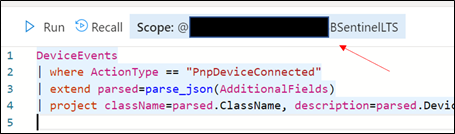 Retrieve the ADX scope for external use from Azure Sentinel.NOTE: Unlike queries in XDR/Microsoft Defender for Endpoint and Sentinel/Log Analytics, queries in ADX do NOT have a default time filter. Queries run without filters will query the entire database and likely impact performance.
 - Navigate to an Azure Sentinel instance and place the query together with the adx() operator:
adx("###ADXSCOPE###").DeviceEvents | where ActionType == "PnpDeviceConnected" | extend parsed=parse_json(AdditionalFields) | project className=parsed.ClassName, description=parsed.DeviceDescription, parsed.DeviceId, DeviceName For example:

NOTE: As the ADX operator is external, auto-complete will not work.
Notice the query will complete completely but not with Azure Sentinel resources but rather the resources in ADX! (This operator is not available in Analytics rules though)
Summary
Using the XDR/Microsoft Defender for Endpoint streaming API and Azure Data Explorer (ADX), teams can very easily achieve terrific scalability on long term, investigative hunting, and forensics. Cost continues to be another key benefit as well as the ability to reuse IP/queries.
For organizations looking to expand their EDR signal and do auto correlation with 3rd party data sources, consider leveraging Azure Sentinel, where there are a number of 1st and 3rd party data connectors which enable rich context to added to existing XDR/Microsoft Defender for Endpoint data. An example of these enhancements can be found at https://aka.ms/SentinelFusion.
Additional information and references:
- More information about continuous export and how to move data from Azure Sentinel to ADX written by the amazing Javier Soriano (and the catalyst for this post): https://techcommunity.microsoft.com/t5/azure-sentinel/using-azure-data-explorer-for-long-term-retention-of-azure/ba-p/1883947
- An earlier perspective on moving data from XDE/Microsoft Defender for Endpoint (Microsoft Defender ATP at the time) to Azure Data Explorer written by a great PM (Deepak Agrawal) and the inspiration for this post: https://techcommunity.microsoft.com/t5/azure-data-explorer/how-to-stream-microsoft-defender-atp-hunting-logs-in-azure-data/ba-p/1427888
Special thanks to @Beth_Bischoff, @Javier Soriano, @Deepak Agrawal, @Uri Barash, and @Steve Newby for their insights and time into this post.






Recent Comments