Lost in translation – 2103 edition

Lost in translation – 2103 edition

This article is contributed. See the original author and article here.

Thank you for your previous feedback on our language quality in Configuration Manager current branch. To continue this review process in Configuration Manager current branch 2103 we have uploaded PDF files that contain the new UI changes for Configuration Manager current branch 2103 for each language. 


To review:


  1. Download the CM2103 Localized UI review cab file and extract the files.

  2. Select the PDF for the language you would like to review. See the language reference below.

  3. Read through the screenshots of the new UI and the highlighted changed areas on the existing UI.

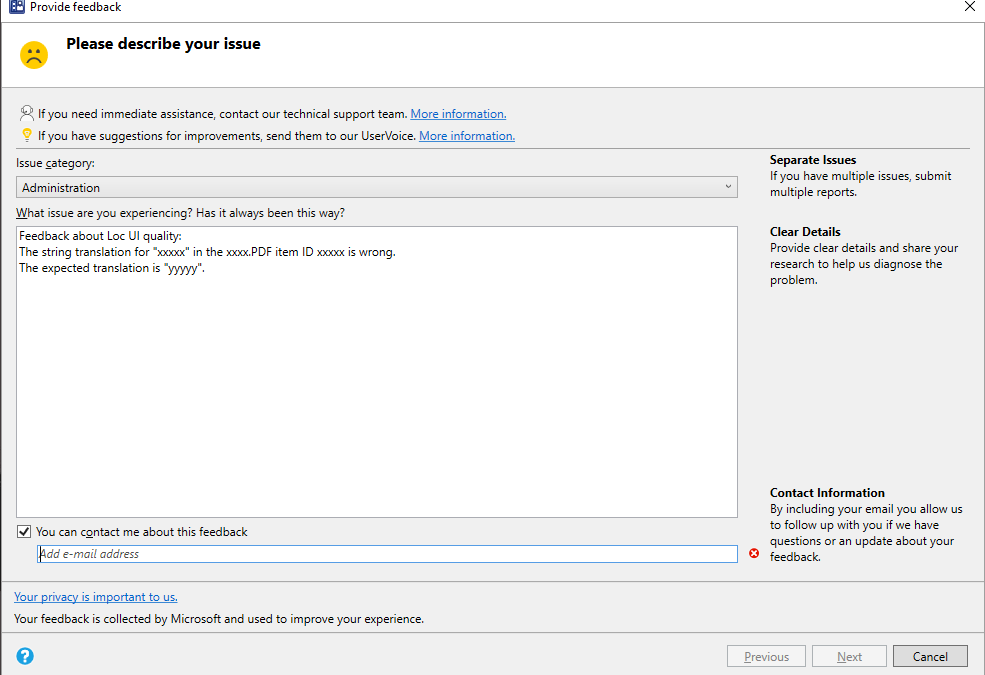
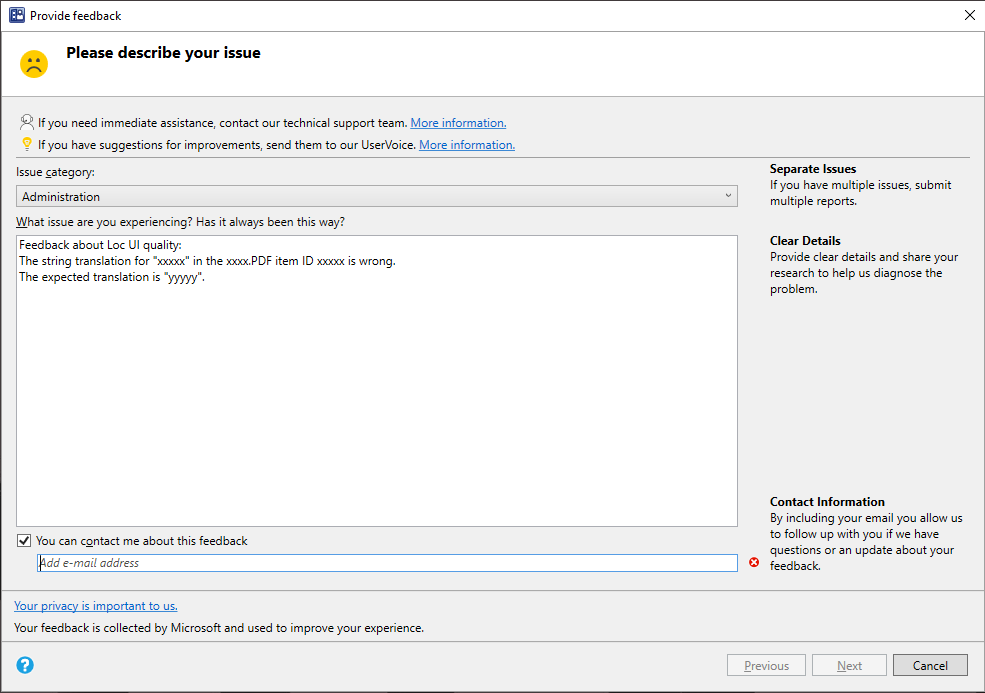
  4. Send us feedback from Configuration Manager console.

  5. In the description include:


    • the PDF filename you are reviewing

    • the item ID for that UI surface

    • The string you are giving feedback on

    • Your comments or proposed replacement string


  6. Add a screenshot to help clarify the localization issue


feedback examplefeedback example


Language reference


Chinese (PRC) – chs


Chinese (Taiwan) – cht


Czech – csy


Danish – dan


Dutch (Netherlands) – nld


English (USA) – enu


Finnish – fin


French – fra


German – deu


Greek- ell


Hungarian – hun


Italian – ita


Japanese – jpn


Korean – kor


Norwegian (Bokmal) – nor


Polish – plk


Portuguese (Brazil) – ptb


Portuguese – ptg


Russian – rus


Spanish (Modern) – esn


Swedish – sve


Turkish – trk


We ask for structured reviews as new releases are available. But feedback about the language quality in the Configuration Manager user interfaces, is always appreciated at any time.


Thanks for your help!


The Configuration Manager Team


Inclusive Bee: Four Challenges For Community Leaders

This article is contributed. See the original author and article here.

Welcome to Inclusive Bee: The monthly “buzz” on how MVPs can cultivate diverse and inclusive communities. 


As an MVP and a tech leader, you are setting an example for the rest of the community. This month, MVPs are identifying four areas of focus as inclusive community leaders.


#1) Be a visible ally. Unfortunately, we live in a world where it is not safe to assume that everyone around you is an ally. Being a visible ally helps reassure people around you they are in a safe space to be themselves. 


It’s up to you to decide how you choose to be a visible ally. It may be that you share resources on social media, add your preferred pronouns to your email signature, wear a rainbow lanyard at work, support charities and businesses owned and operated by BIPOC and LGBTQ+ people, amplify diverse voices of unrepresented minorities in tech, and more! 


Data Platform MVP Andy Mallon shares: “As a cis white man, I know that I have the privilege of blending in in tech. When I started to be an active speaker/blogger/organizer, I made a conscious decision to be unabashedly out and queer. The directness sends a clear message of a safe space that extends beyond me. Over the years, this has led to folks approaching me to talk through personal and family situations of harassment, coming out, and transitioning. These conversations are usually less about getting advice, but rather just having a conversation where people are safe to be open and vulnerable.” 


#2) Sponsor. A coach talks to you; a mentor talks with you; a sponsor talks about you. As a tech leader, you have the power and influence to help others get opportunities to advance their career. Sponsors are particularly important for women and people of color who often lack sponsorship opportunities – they may not feel like they can ask someone to sponsor them. Use your influence to connect someone to useful people, high profile assignments and promotions. 


Business Apps MVP Paul Culmsee notes, “Microsoft’s vision statement is “empower everyone.” And it is reflected in most facets in how the company now operates in terms of product design, community engagement and recognition. Where we as MVPs and solution providers fit is bringing that vision down to the coalface of delivery. A fundamental part of my business is to bring in trainees who typically would not get an opportunity and have them work with us on solution delivery. For the right project and client, the results are incredible and there is something very exciting and satisfying about seeing latent talent being unleashed to its potential.”


#3) Listen. Listen to the people you are trying to support – follow them on social media and even better, read work by other people who are part of marginalized communities. Practice active listening to educate yourself. Learn to recognize things that are hurtful and harmful to the community. And, before you add your voice as an ally, make sure you have listened and heard what the people who are a part of those communities have to say. 


Business Applications MVP Anton Robbins believes in standing up for the underdog. “I have empathy for those who do not have a voice or looked. I grew up in a domestic violence setting. As I got older, I vowed to speak up and stand my ground to help others. My great grandmother said: Stand for what’s right. Be a tree to shade others from the hurt and wrong. 


#4) Say No. Have you been asked to speak at an event or on a panel? Great! Before committing, find out who the other speakers will be at the event or on your panel. Is it diverse? If not, you have the power to say “no” or ask “why not?”. If the organizers are willing, offer recommendations for additions to the panel or event. 


Developer Technologies MVP Larene Le Gassick has experienced seeing both sides of the coin. “For context, I’m Australian-born and raised Chinese-Australian in her early 30s, my pronoun is she/her. As an organiser (Women Who Code, CTO School), I’ve put together many panels and, in the past, I’ve unconsciously invited a panel of six middle-aged white males to talk about DevOps.”


“Someone called me out (privately), and after a bit of embarrassment for not noticing, chatted with panellists and reached out to find non-male speakers, and was fully transparent with the community about my mistake. Don’t be afraid to respectfully reach out to organisers if you see a lack of diversity! As a speaker, I’ve said no to conferences that do not have a diversity scholarship. I’ve also said no to diversity and inclusion panels where the panellists are all white women (I class myself in the same category). The number one reason you’ll hear from organisers is: we know it’s an issue, but no women / black / (other minority) speakers applied. In 2020, that’s not good enough.”


“And please, do not let conference organisers give you extra work to help them find more speakers, unless you would like to. It’s not your job, it’s theirs. So, please don’t be afraid to say No, (thanks).” 


Data Platform MVP Thomas LaRock shares, “Last year at a conference I raised concerns about a panel I was asked to participate. I stressed the need for diversity. As a result, I was dropped in order to make room for someone new. I’ve also turned down events that are heavily male. I also turned down a book because it was five white men. I’ve turned down so much in the past few years I think a lot of people have just stopped asking. I’m ok as long as I see new, diverse people and voices.”

[Event Recap] Humans of IT @ MBAS (May 4, 2021)

[Event Recap] Humans of IT @ MBAS (May 4, 2021)

This article is contributed. See the original author and article here.

We hope you were able to attend the Humans of IT session at the Microsoft Business Applications Summit (MBAS)! If you missed the session being played live, no worries! Read on for a recap.


MBAS Speaker.PNG


Nearly 100 attendees came together virtually to hear from tech for good storytellers who have shared their passions and inspired others in our community through the Humans of IT community. Along with our community members, Allie Thompson, Humans of IT Community and Office Apps and Service MVPs lead, spoke with Shona Bang, Heather Newman, and Kelly Kaye about the origin story and impact of Humans of IT.


Here were a few highlights:


  • Shona Bang took us through the origin story of the Humans of IT community, explaining how there was a need for a space in the tech community for human centered topics to share our collective successes and triumphs.

  • Heather Newman spoke on her journey and involvement of expanding community engagements from smaller events to established sessions that not only focused on tech but also showcased the Humans of IT community that included many diverse communities and topics.

  • Kelly Kaye touched on her goal of making the topic of tech less intimidating and accessible for communities who may not have an understanding of it.

  • The speakers discussed the power and importance of community to collaborate, learn, and grow from each other not only in  technology such as Power Platform and Dynamics 365 but also in career development, inclusivity, accessibility and mentorship.

  • We heard from some community members via video on their journey and experience with the Humans of IT community and it’s impact on their life and career.


“We learn, we grow and we belong by sharing our stories. Full stop” 


— Heather Newman, Principal PM Manager – Microsoft


panel screenshot.png


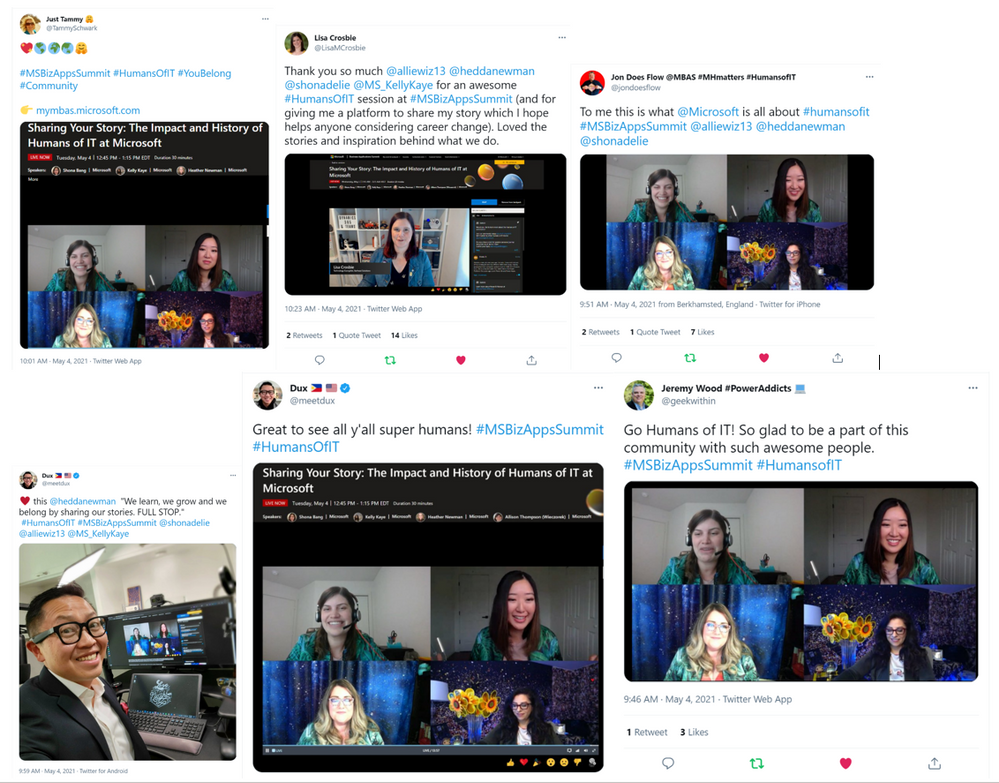
Want to hear what attendees have to say about Humans of IT at MBAS? Check out all the tweets on Twitter via the #HumansofIT hashtag!


 MBAS Tweets.PNG


Missed the session and want to catch up? Or perhaps you want to re-watch it all over again?


  • Access the Humans of IT session here


Share your MBAS experience with us: 


  • What did you find most impactful? Why?

  • What do you hope to see from Humans of IT at the next virtual conference?


We want to hear from you in the comments below. Thank you for being a part of the community and this MBAS experience.


See you next time! 


#HumansofIT


#MSBizAppsSummit


#CommunityRocks


#ConnectionZone


Navigate OneDrive data with Microsoft Graph and Mgt-File-List Beta version

Navigate OneDrive data with Microsoft Graph and Mgt-File-List Beta version

This article is contributed. See the original author and article here.


In my process of self learning regarding different technologies such us Azure, SPFX WebPart, React, Microsoft Graph, Node.js, Teams and all other Office 365 services, was surprise to find the current work already made by “Microsoft Graph Toolkit” and associated documentation on how to implemented with Microsoft Graph.


The amount of content and features already develop to integrate multiple platforms are definitely the Key to communicate with Office 365 and became easy to access content without a lot of effort, congrats to all the team.


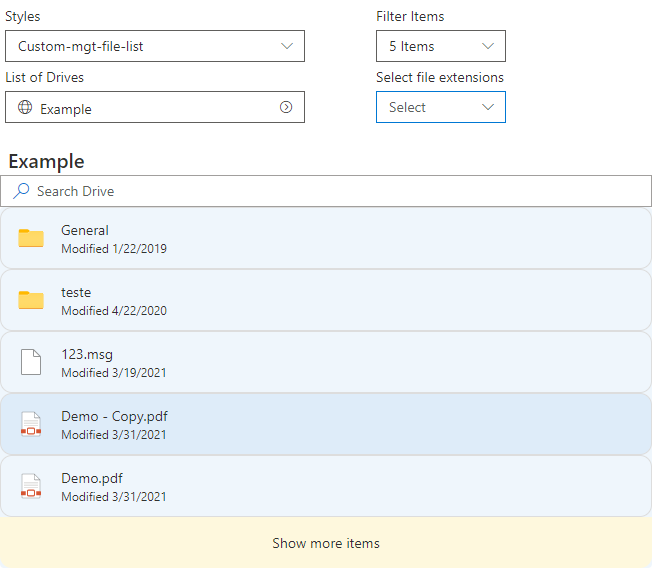
This sample use SharePoint Online SPFX WebPart with Mgt-File-List and Mgt-File Beta version control to retrieve Shared Libraries as existing in OneDrive, navigate between their folders and use filter by file extension in a simple way using Microsoft Graph API Drive and Site.


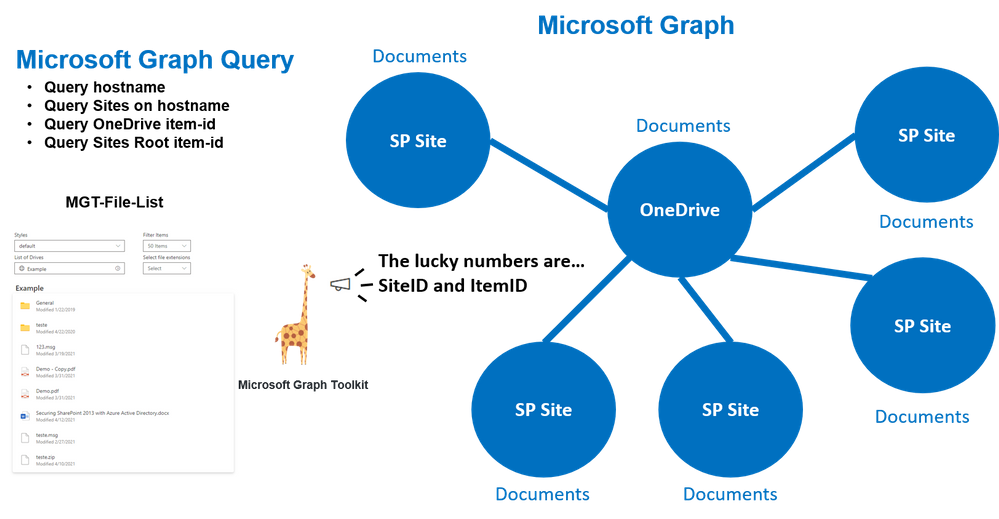
Below a draw resuming the custom query’s made and what control uses to retrieve associated folders and files from different locations.

MainCalls.png


How the Mgt-File-List Work


As OneDrive, this control allow to display Shared Files and Folders, for this ItemID (identity of the item to read, can be a folder or a file) has the main role on how to access content. To facilitate this access the control has multiple properties that allows call to content using different options such us: custom query’s (file-queries) or pre defined query’s (insight-type=”shared).


This sample used the parameters SiteID (SharePoint Online Site ID) and ItemID it’s the ID of the root Library used on site to store documents and control to display files/folders from that Path and navigate between them.


Solution also uses the property File-List-Query that allows to search files inside shared Libraries.

<FileList
        siteId={this._siteID}
        itemId={this._itemID}
></FileList>


Where can I found SiteID of a site?


Use the Site Graph API with search query based on hostname to retrieve ID’s of sites.

"https://graph.microsoft.com/v1.0/sites?search=*****.sharepoint&$Select=id"

List of Site ID’s:

{
    "@odata.context": "https://graph.microsoft.com/v1.0/$metadata#sites(id)",
    "value": [
        {
            "id": "*******.sharepoint.com,000000-0000-0000-0000-000000,000000-0000-0000-0000-000000"
        },
        {
            "id": "*******.sharepoint.com,000000-0000-0000-0000-000001,000000-0000-0000-0000-000001"
        },
...


How can I found the Root Folder ItemID from Site?


This can be achieved using the SiteID from last query and call the drive root from Site.

https://graph.microsoft.com/v1.0/sites/*****.sharepoint.com,000000-0000-0000-0000-000000,000000-0000-0000-0000-000000/drive/Root?$select=id

This query returns the Item-id of the root Folder that can be used to display content in Control.

"id": "01CM5BY6********************************"


Retrieve OneDrive Root Folder Item-id


OneDrive is managed differently and there is no need of SiteID just make the following Drive call.

https://graph.microsoft.com/v1.0/me/drive/root/?$Select=id

PS: This query’s can be tested using the following site.


https://developer.microsoft.com/en-us/graph/graph-explorer


Below some additional Mgt-File-List documentation regarding possible options to use.


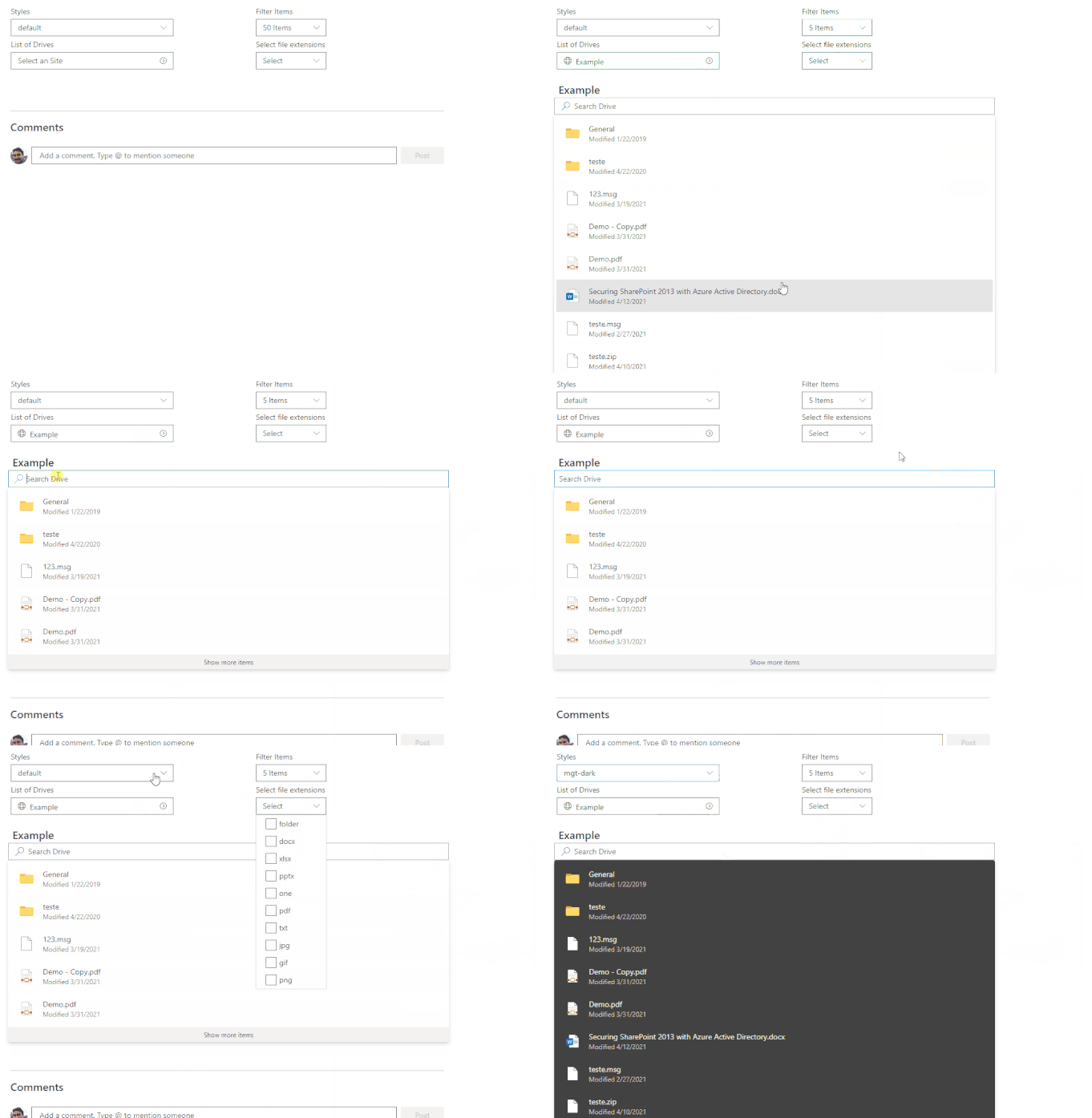
This main query will allow to fully explore the Mgt-File-List features that were used in sample “react-oneDrive-finder


  • List of Drives Sites

  • Content List and Breadcrumb

  • Filter of Items

  • Filter by file extension

  • Custom Theme styles 


SampleFileList.png


Mgt provider and SharePointProvider


It’s important that permissions are given from Microsoft Graph to SPFX WebPart that Mgt-File-List could make the necessary query’s.


Access to config/package-solution.json and ensure the following permissions are given on SharePoint package.

    "webApiPermissionRequests": [{  
      "resource": "Microsoft Graph",  
      "scope": "Files.Read"  
  }, {  
      "resource": "Microsoft Graph",  
      "scope": "Files.Read.All"  
  }, {  
      "resource": "Microsoft Graph",  
      "scope": "Sites.Read.All"  
  }] 

Access to your code into BaseClientSideWebPart area and ensure SharePoint Provider is loaded with the current security  access that Mgt-File-List control and custom graph query’s could access to Microsoft Graph content.

import { Providers, SharePointProvider } from '@microsoft/mgt';
...
export default class OneDriveFinderWebPart extends BaseClientSideWebPart<IOneDriveFinderWebPartProps> {
  protected onInit() {
    Providers.globalProvider = new SharePointProvider(this.context);
    return super.onInit();
  }
...

After defining the provider you should be able to include control and use parameter’s id without permissions errors.

import { FileList } from '@microsoft/mgt-react';
...
<FileList
              siteId={this._siteID}
              itemId={this._itemID}
              itemClick={this.manageFolder}
            ></FileList>


Breadcrumb Navigation


It’s also possible to use Breadcrumb to include the path of folders where user is situated in the Library.


This can be achieve capturing the itemID of Folder listed in Mgt-File-List, using the event “itemClick={(e)=>{ console.log(e.details);}“. 


More information can be found on Mgt-File-List documentation or by sample “react-onedrive-finder“.


Filtering file extensions


The Mgt-File-List property fileExtensions allows to filter documents by file extension, this can be very handy when dealing with large amounts of documents.


Code below shows how can be implemented a multiple file extensions filter.


 const checkFileExtensions = (event: React.FormEvent<HTMLDivElement>, selectedOption: IDropdownOption) => {
      let fileExtensions: string[] = [];
      if (selectedOption.selected == true) {
        fileExtensions.push(selectedOption.key.toString());
        fileExtensions = [...fileExtensions,...this.state.fileExtensions];
      } else {
        fileExtensions = this.state.fileExtensions.filter(e => e !== selectedOption.key );
      }
      this.setState({
        fileExtensions: [...fileExtensions]
      });
    };
.....
<Dropdown
	placeholder="Select"
	label="Select file extensions"
    multiSelect
    options={[
		  { key: "", text: 'folder' },
		  { key: "docx", text: 'docx' },
		  { key: "xlsx", text: 'xlsx' },
		  { key: "pptx", text: "pptx" },
		  { key: "one", text: "one" },
		  { key: "pdf", text: "pdf" },
		  { key: "txt", text: "txt" },
		  { key: "jpg", text: "jpg" },
		  { key: "gif", text: "gif" },
		  { key: "png", text: "png" },
		]}
	onChange={checkFileExtensions}
	styles={dropdownFilterStyles}
/>
...
<FileList
	fileExtensions={this._fileExtensions}
	...
/></FileList/>


Styling with Mgt-File-List


The Mgt-File-List includes Light and Dark theme but you can also provide your custom styles.

<FileList
    className="mgt-dark"
	...
></FileList>

To create your own custom style look and feel you can use css elements to customize Mgt-File-List.


Below some of the options available and shared in FileList Stories of the Beta Version.

.mgtfilelist {
  --file-list-background-color: #eff6fc;
  --file-item-background-color--hover: #deecf9;
  --file-item-background-color--active: #c7e0f4;
  --file-list-border: 0px solid #white;
  --file-list-box-shadow: none;
  --file-list-padding: 0px;
  --file-list-margin: 0;
  --file-item-border-radius: 0px;
  --file-item-margin: 0px 0px;
  --file-item-border-top: 1px solid #dddddd;
  --file-item-border-left: 1px solid #dddddd;
  --file-item-border-right: 1px solid #dddddd;
  --file-item-border-bottom: 1px solid #dddddd;
  --show-more-button-background-color: #fef8dd;
  --show-more-button-background-color--hover: #ffe7c7;
  --show-more-button-font-size: 14px;
  --show-more-button-padding: 16px;
  --show-more-button-border-bottom-right-radius: 12px;
  --show-more-button-border-bottom-left-radius: 12px;
}


Search in Shared Libraries


The control by the property “fileListQuery” also allow the usage Graph Drive Search method to find Items in the Drive. Below an sample on how you could use a dynamic to search items in Drives.

//Make query on Shared Library or OneDrive Library 
const checkSearchDrive = (SearchQuery: string) => {
      if (this.state.siteID != "") {
        this.setState({
          searchDrive: "/sites/" + this.state.siteID + "/drive/root/search(q='" + SearchQuery + "')"
        });
      } else {
        this.setState({
          searchDrive: "/me/drive/root/search(q='" + SearchQuery + "')"
        });
      }
    };
	
//Search Box for Shared Library 
<SearchBox placeholder="Search Drive" onSearch={checkSearchDrive} onClear={checkClear} />

//Display search content
{(this.state.searchDrive != "") &&
    <FileList
    fileListQuery={searchDrive}
	></FileList>
}


Final sample solution


Below the final result of the configuration of Mgt-File-List react controls:

OneDrivefinderSample3.gif


Solution can be found in the SharePoint Framework Client-Side Web Part Samples – OneDrive finder:


https://github.com/pnp/sp-dev-fx-webparts/tree/master/samples/react-onedrive-finder


PS: Solution will be updated with release version when Mgt-File-List is available by the Microsoft Graph Toolkit.


How to start with Microsoft Graph Toolkit and SharePoint Online


There is a very good articles on how to start for example, Build a SharePoint web part with the Microsoft Graph Toolkit


To use the Mgt-File-List control in Beta version please use the following packages.

npm i @microsoft/mgt@next
npm i @microsoft/mgt-react@next

PS: The Microsoft Graph Toolkit Team made available access to Beta version of Mgt-File-List and react. Final version package can be monitor and accessible in microsoft-graph-toolkit.


I will hope this article could help you onboard when the Mgt-File-List control becomes officially available.


Support Documentation: