by Contributed | May 12, 2021 | Technology
This article is contributed. See the original author and article here.
Introduction
Customizable machine learning (ML) based anomalies for Azure Sentinel are now available for public preview. Security analysts can use anomalies to reduce investigation and hunting time as well as improve their detections. Typically, these benefits come at the cost of a high benign positive rate, but Azure Sentinel’s customizable anomaly models are tuned by our data science team and trained with the data in your Sentinel workspace to minimize the benign positive rate, providing out-of-the box value. If security analysts need to tune them further, however, the process is simple and requires no knowledge of machine learning.
In this blog, we will discuss what is an anomaly rule , what the results generated by the anomaly rules look like , how to customize those anomaly rules, and the typical use cases of anomalies.
A new analytics rule type: Anomaly
A new rule type called “Anomaly” has been added to Azure Sentinel’s Analytics blade. The customizable anomalies feature provides built-in anomaly templates for immediate value. Each anomaly template is backed by an ML model that can process millions of events in your Azure Sentinel workspace. You don’t need to worry about managing the ML run-time environment for anomalies because we take care of everything behind the scenes.
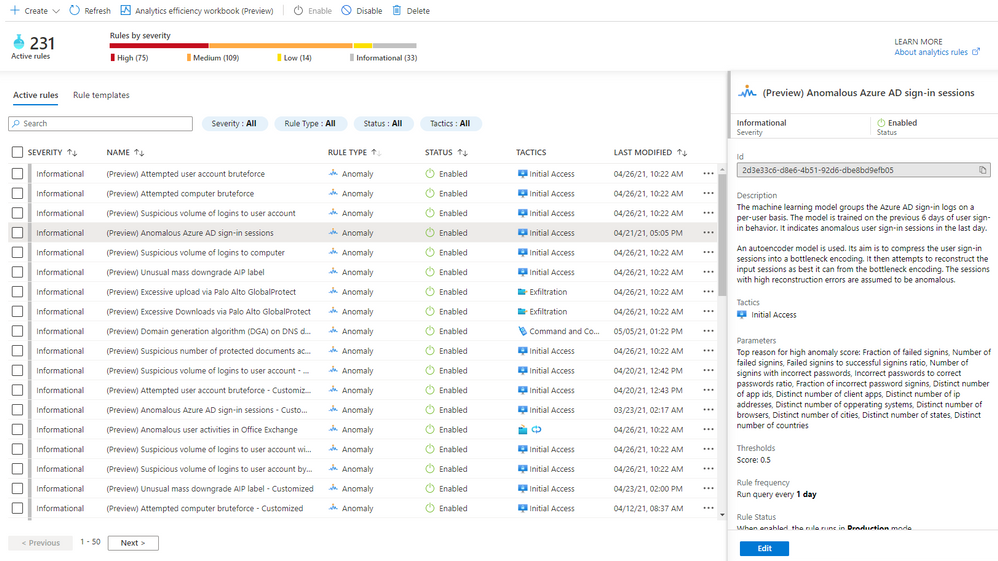
In public preview, all built-in anomaly rules are enabled by default in your workspace. Even though all anomaly rules are enabled, only those anomaly rules that have the required data in your workspace will fire anomalies. Once you onboard your data to your Sentinel workspace using data connectors, the anomaly rules monitor your environment and fire anomalies whenever they detect anomalous activities without any extra work on your side. You can disable an anomaly rule andor delete it in the same way as you do for a Scheduled rule. If you deleted an anomaly rule and decide to enable it again, go to the “Rule templates” tab and create a new anomaly rule. Figure 1 shows the anomaly rules on the “Analytics” blade.
Figure 1 – Anomaly rules
To learn the details of an anomaly rule, select the rule and you will see the following information in the details pane.
- Description explains how the anomaly model works and the ML model training period. Our data scientists pick the most optimal training period depending on the ML algorithm and the specific scenario. The anomaly model won’t fire any anomalies during the training period. For example, if you enable an anomaly rule on June 1, and the training period is 14 days, no anomalies will be fired until June 15.
- Data sources indicate the type of logs that need to be ingested in order to be analyzed.
- Tactics are the MITRE ATT&CK framework tactics covered by the anomaly.
- Parameters are the configurable attributes for the anomaly.
- Threshold is a configurable value that indicates the degree to which an event must be unusual before an anomaly is created.
- Rule frequency is how often the anomaly model runs.
- Anomaly version shows the version of the template that is used by a rule. Microsoft continuously improves the anomaly models. The version number will be updated when we release a new version of the anomaly model.
- Template last updated is the date the anomaly version was changed.
View anomalies identified by the anomaly rules
Assuming the required data is available and the ML model training period has passed, anomalies will be stored in the Anomalies table in the Logs blade of your Azure Sentinel workspace. To query all the anomalies in a certain time period, select “Logs” on the left pane, choose a time range, type “Anomalies”, and click the “Run” button, as shown in Figure 2.
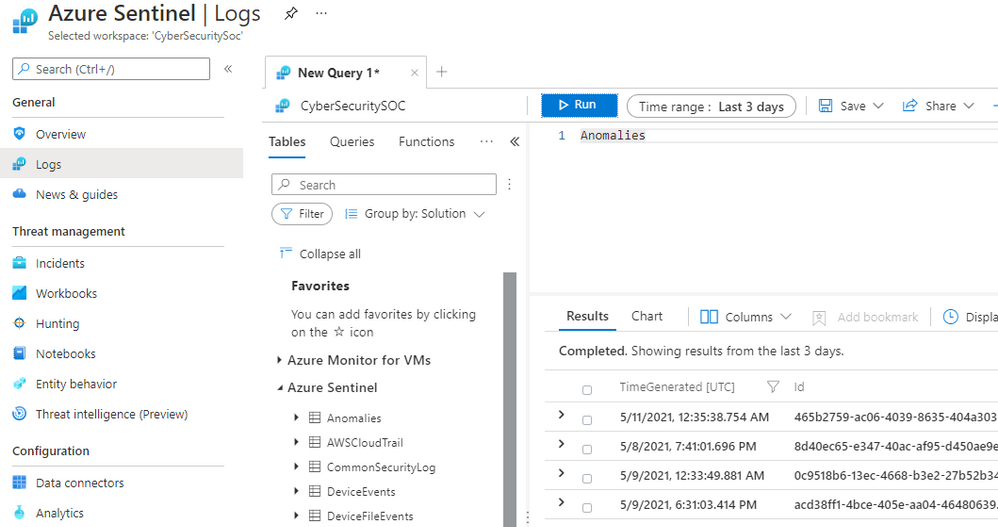
Figure 2 – View all anomalies in a time range
To view the anomalies generated by a specific anomaly rule in a time range, go to “Active rules” tab on the “Analytics” blade, copy the rule name excluding the pre-fix “(Preview)”, then select “Logs” on the left pane, chose a time range, and type
Anomalies
| where AnomalyTemplateName contains “<anomaly rule name>”
Paste the rule name you copied from the “Active rules” tab in place of <anomaly rule name>, and click the “Run” button, as shown in Figure 3.
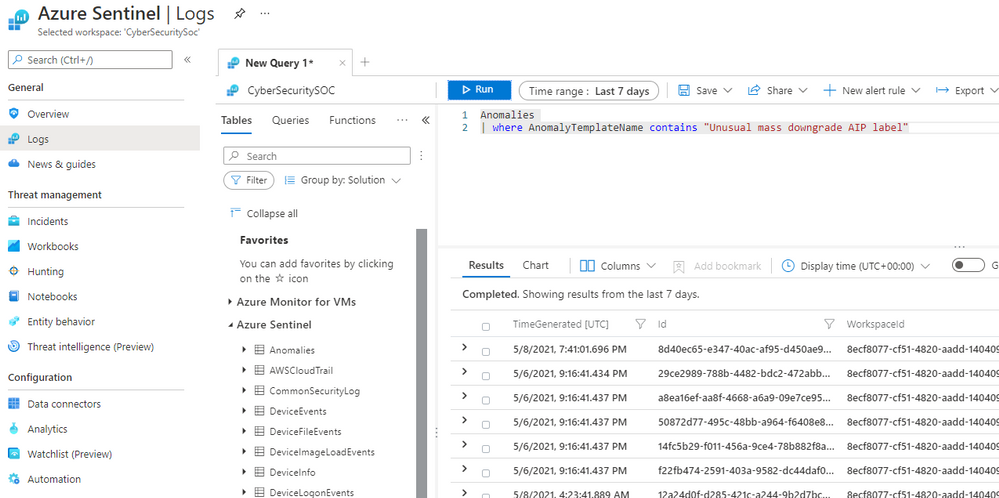
Figure 3 – View anomalies generated by a specific anomaly rule
You can expand an anomaly by clicking > to view the detail. A few important columns are highlighted in Figure 4
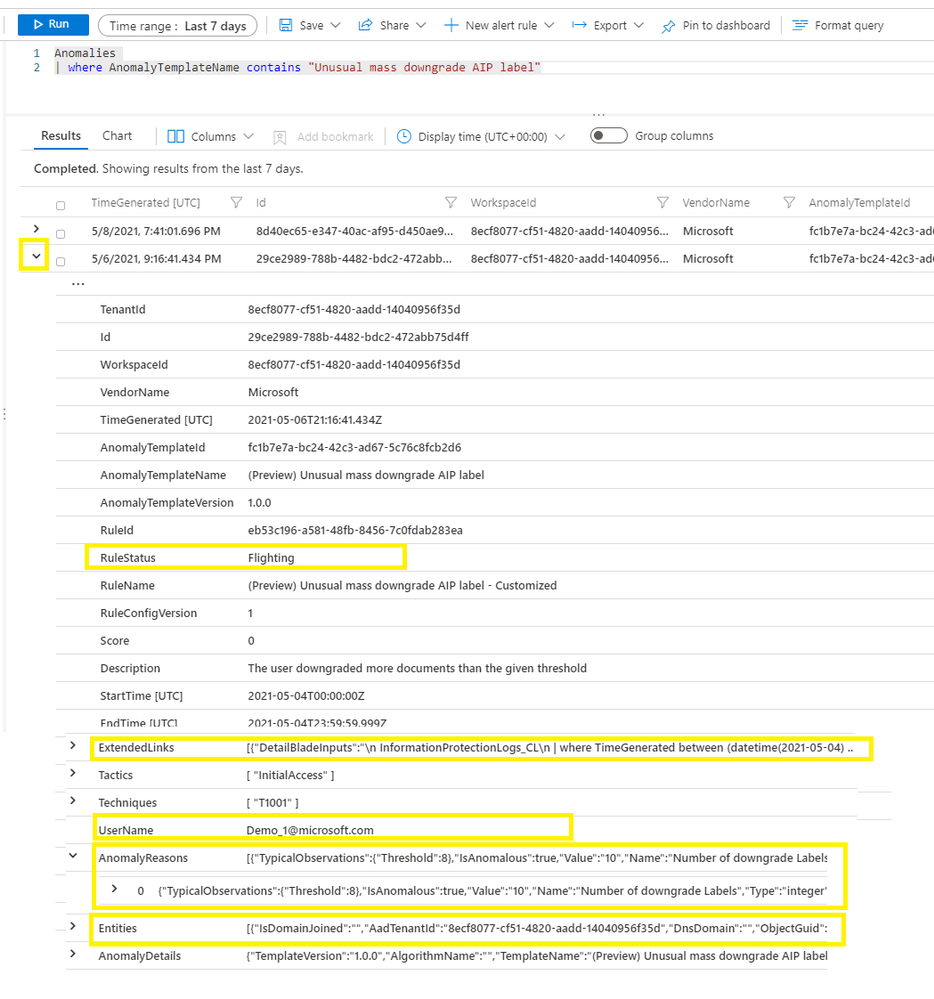
Figure 4 – Anomaly detail
- RuleStatus – an anomaly rule can run either in Production mode or in Flighting mode. RuleStatus tells you this anomaly is fired by the rule running in Production mode or by the rule running in Flighting mode. We will discuss the running modes in detail in the Customize anomaly rules section.
- Extended links – this is the query to retrieve the raw events that triggered the anomaly.
- UserName – this is the main entity responsible for the anomalous behavior. Depending on the scenario, it can be the user who performed the anomalous activity, the IP address that is either the source or destination of an anomalous activity, the host on which the anomalous activities happened, or another entity type.
- AnomalyReasons – this tells you why the anomaly fired. We will discuss the anomaly reasons more in the Customize anomaly rules section.
- Entities – in includes all the entities related to this anomaly.
Customize anomaly rules
Azure Sentinel customizable anomalies are specifically designed for security analysts and engineers and do not require any ML skill to tune. You can tweak the individual factors and/or threshold of an anomaly model, cutting down on noise and making sure that anomalies are detecting what’s relevant to your specific organization. To customize an anomaly rule, follow the steps below:
- Right click an anomaly rule, then click “Duplicate”, a new anomaly rule is created. The new anomaly rule name is hardcoded with a suffix “_Customized”.
- Select the customized rule, click “Edit.”
- On the “Configuration” tab, you can change the parameters and threshold. Each anomaly model has configurable parameters based on the ML algorithm and the scenario. Figure 5 shows that you can exclude certain file types from the anomaly rule “Unusual mass downgrade AIP label.” You can also prioritize specific file types. Prioritize means the ML algorithm adds more weight when it scores anomalous activities related to that file type.
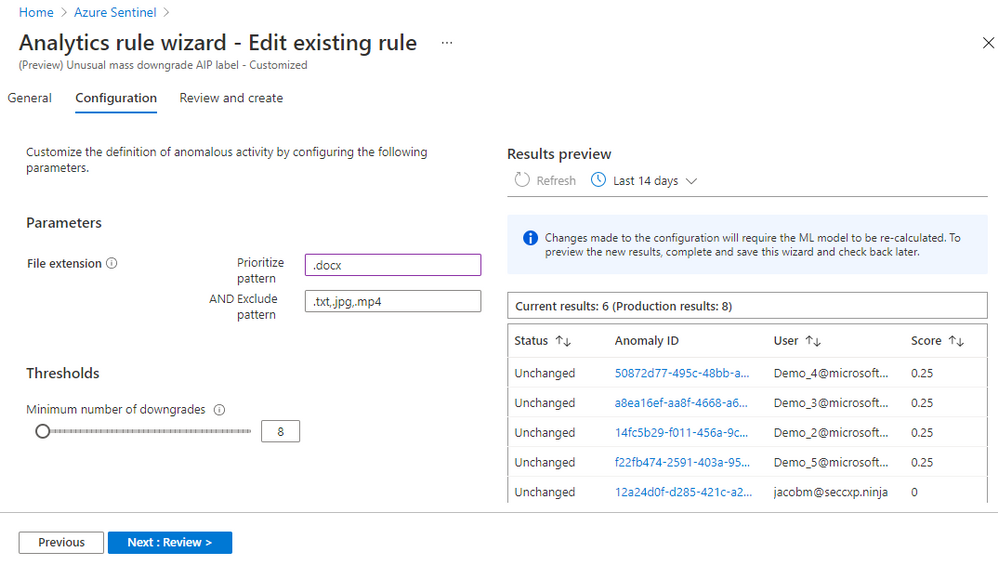
Figure 5 – Configure an anomaly rule
Click on an “Anomaly ID” in the “Results preview” table, you will get the anomaly details, including why the anomaly is triggered. Figure 6 shows the details of an anomaly for a suspicious high volume of failed login attempts events (event 4625) observed on a device. The anomaly value is 66 failed logins on that device in the last 24 hours, the expected value is zero because there are zero failed logins on that device in the previous 21 days. This anomaly is an indication of a potential brute-force attack. The anomaly reason helps you to understand how an anomaly is generated, so you can decide which parameters to adjust and what new value you want to set to reduce the noise in your environment.
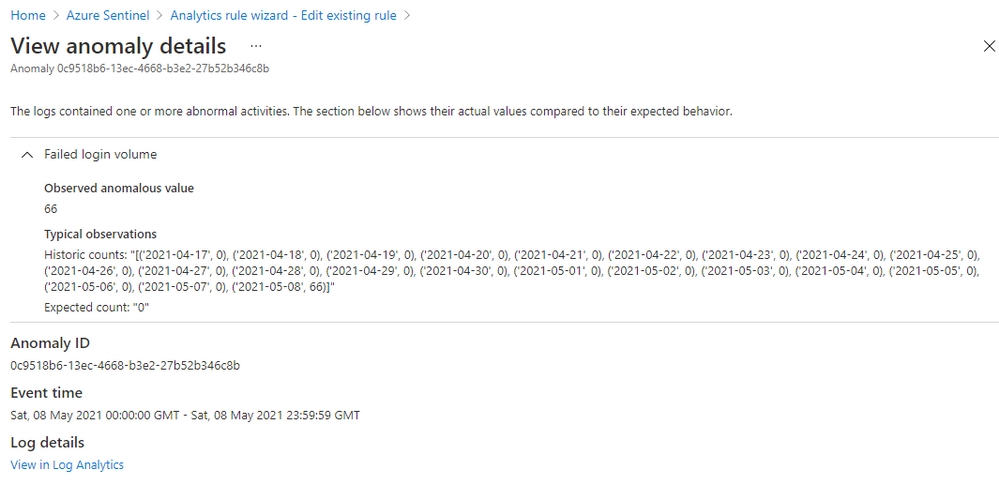
Figure 6 – Anomaly reasons
Once you have set the new value for a parameter or adjusted the threshold, you can compare the results of the customized rule with the results generated by the default rule to evaluate your change. The customized rule runs in Flighting mode by default, while the default rule runs in Production mode by default. Running a rule in Flighting mode when you want to test the rule. The Flighting feature allows you to run both the default rule and the customized rule in parallel on the same data for a time period, so you can evaluate the result of your change before committing to it.
There are two ways to compare the results:
- Use the “Results preview” table (refer to Figure 5)
Some changes don’t require the ML model to re-run, but some do. For the changes that don’t require the ML model to re-run, you can click Refresh to see the side-by-side comparison in the table. It shows you the added anomalies, the removed anomalies, and the anomaly score changes as a result of your changes to parameters and/or the threshold compared to the default rule running on the same data in the same time range. For the changes that require the ML model to re-run, you must save the change, and come back later to see the side-by-side comparison after the ML model completes its re-run.
- Query the results generated by both rules in “Logs”
You can run a query to get all the anomalies generated by the default rule and the customized rule (refer to Figure 3), compare them in the view, or export them and use your favorite tool to compare the results.
You can change the parameters in your customized rule multiple times until you are satisfied with the result. When you decide to replace the default rule with the customized rule, you switch the customized rule to run in Production mode. To switch an anomaly rule from Flighting mode to Production mode, go to the “General” tab, click “Production.” A confirmation message pops up, click “yes” to confirm. Your customized rule will run in Production mode and the default rule will switch to run in Flighting mode automatically. Only one rule of the same anomaly scenario can run in Production mode. You can disable the default rule at this point.
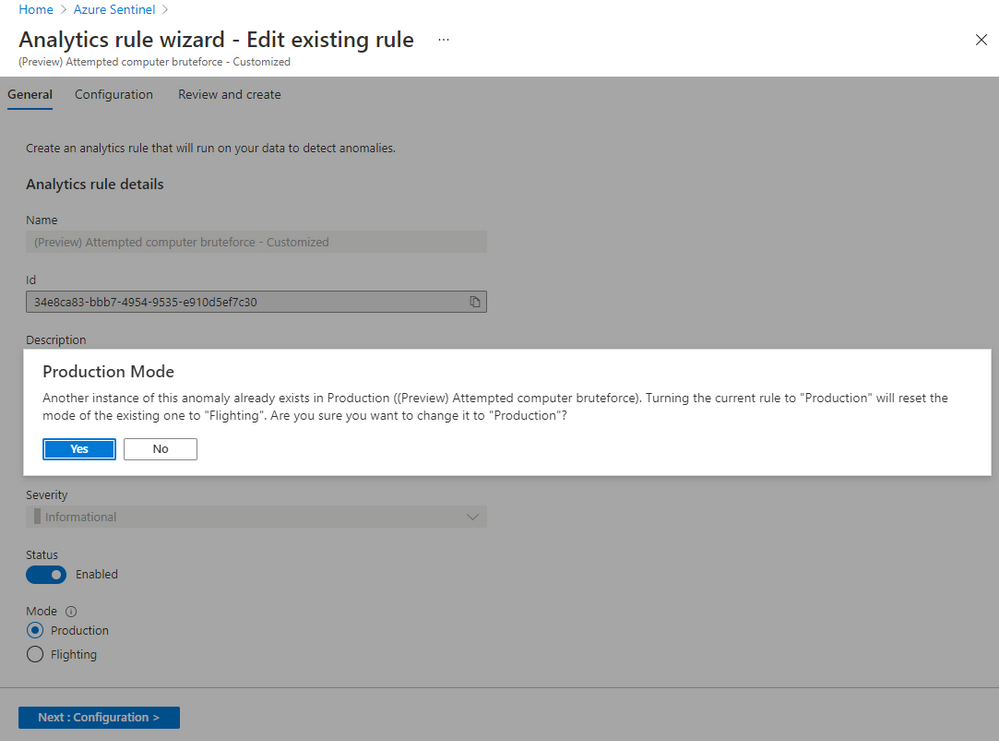
Figure 7 – Switch the running mode of an anomaly rule
Typical anomaly use cases
While anomalies don’t necessarily indicate malicious behavior by themselves, they can be used to improve detections, investigations, and threat hunting:
- Additional signals to improve detection: Security analysts can use anomalies to detect new threats and make existing detections more effective. A single anomaly is not a strong signal of malicious behavior, but when combined with several anomalies that occur at different points on the kill chain, their cumulative effect is much stronger. Security analysts can enhance existing detections as well by making the unusual behavior identified by anomalies a condition for alerts to be fired.
- Evidence during investigations: Security analysts also can use anomalies during investigations to help confirm a breach, find new paths for investigating it, and assess its potential impact. For example, when investigating an incident that involves a user and an IP address, a security analyst can query the user and the IP address in the “Anomalies” table to find out other anomalous activities performed by that user and that happened on that IP address. These data help security analysts reduce the time spent on investigations.
- The start of proactive threat hunts: Threat hunters can use anomalies as context to help determine whether their queries have uncovered suspicious behavior. When the behavior is suspicious, the anomalies also point toward potential paths for further hunting. These clues provided by anomalies reduce both the time to detect a threat and its chance to cause harm.
In the next blog, we will do a deep-dive into how anomalies can be used in detections and hunting queries, as well as how to simulate anomalies in your workspace.
by Contributed | May 12, 2021 | Technology
This article is contributed. See the original author and article here.
Do you already have a solution in place to deal with insider risks? When it comes to remediating insider risks, many organizations either deploy a simple transactional, rules-based solution such as data loss prevention (DLP) or they deploy a much more complex and resource-intensive solution such as user and entity behavior analytics (UEBA). From our own experience and what we’ve learned from our Microsoft 365 customers, neither of these two approaches are effective when it comes to addressing insider risks.
While identifying insider risks can be complex, implementing a holistic solution that looks end-to-end will allow you to reduce the complexity and zero in on the relevant trends that lead to heightened risk. With privacy built-in, pseudonymization by default, and strong role-based access controls, Insider Risk Management is used by companies worldwide to identify insider risks and take action with integrated collaboration workflows.
To help organizations quickly get started in identifying and accelerating time to action on insider risks, we released a number of capabilities at Ignite. Today we are excited to announce the public preview of additional new features that further broaden the analytics and investigation capabilities already in the solution, making it easier to investigate and act on insider risks.
Enabling a richer and efficient investigation experience
Machine learning technology is amazing in that it can reason over and correlate millions of disparate signals to identify hidden risks. This is why we have several machine learning-based policy templates focused on specific risks, such as IP theft by departing employees and confidential data leakage by disgruntled employees, built into the Insider Risk Management solution.
However, what happens if you become aware of a potential insider risk through a tip? How do you efficiently investigate this tip without having to resort to manually trying to piece together various activities?
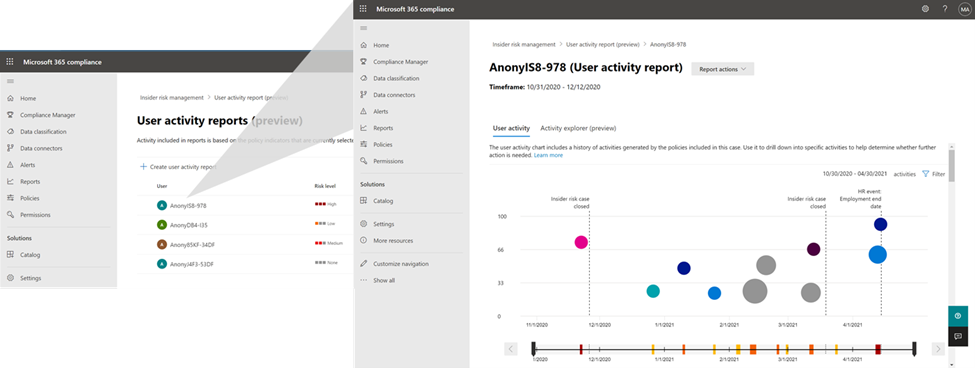
This is where the new User Activity report is valuable. This new capability provides the Investigator in Insider Risk Management with the ability to simply generate a report of the relevant activities of the user that they received a tip about, and quickly investigate those activities to understand the risk.
User Activity report
To make the alert review process more efficient, we have now enabled persistent filters. With this improved experience, selected filters on the alerts list, such as filters for policy, alert severity, alert status, and date range will persist throughout your alert review process. There is no need to reset filters to see your desired set of focused alerts as you move on to select the next alert to review. This provides a frictionless and efficient experience for analysts to quickly make progress through their queue of alerts.
Priority Content limits have also now been increased in policy from 15 to 50. This means you can select up to 50 SharePoint sites, 50 Microsoft Information Protection Labels, and 50 Sensitive Information Types to prioritize in your policy. This allows you to broaden the activity and content that you want to prioritize for risk scoring and also investigate the potential impact when risks are identified.
The Activity Explorer in Insider Risk Management has been very well received by customers as it provides comprehensive analytics and detailed information about alerts. With this release, we are making leveraging Activity Explorer for insider risk investigations even more efficient. Now, when activities are filtered to show only specific types of activities or workloads the columns associated with the activity of workload will dynamically update to show only the information which is most relevant.
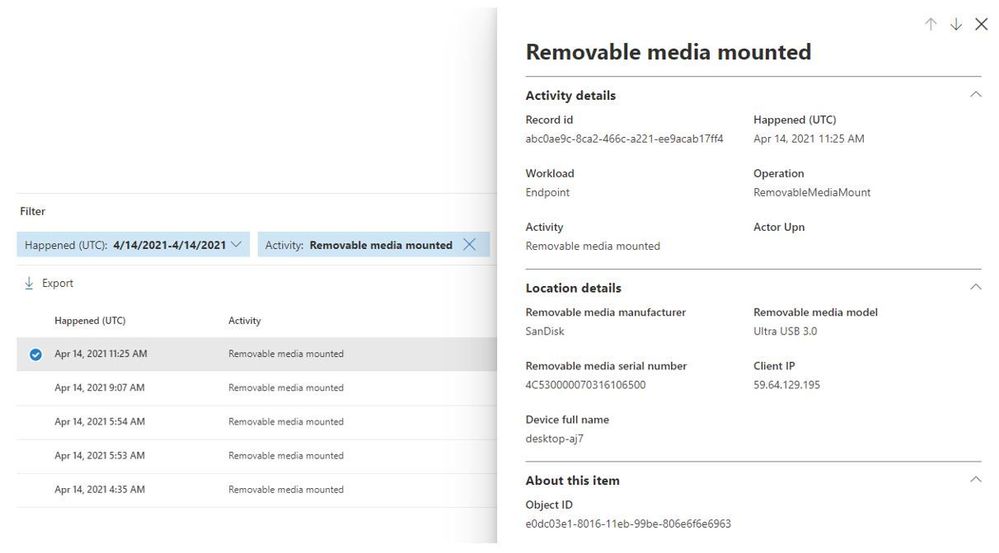 Removable media mounted
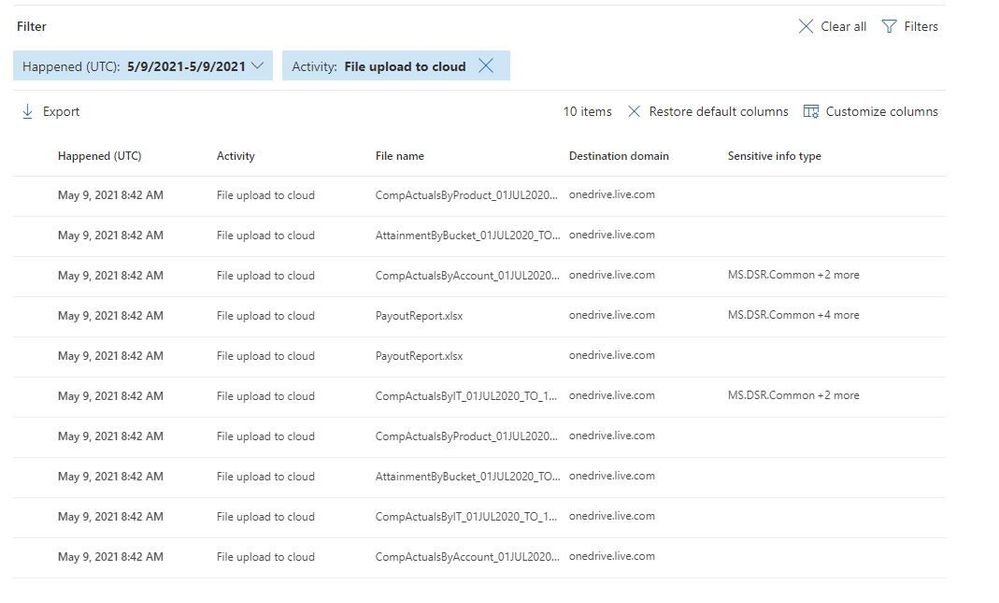 File upload to cloud
Finally, we continue to further enrich our policy templates by making improvements to our Sensitive Information Type (SIT) classifications. SIT is used by the solution to provide an improved fidelity of matches for sensitive information within documents. In the past in order to leverage SIT in detecting whether someone is trying to exfiltrate sensitive information such as credit cards in email, you needed to have an associated DLP policy setup. With this release we are removing that requirement so that now all you have to do is opt-in to the Exchange Online indicator in the policy and the solution will automatically detect for SIT, no configuration or DLP policy needed.
Get started today
We have new videos showcasing how the new features in Insider Risk Management can help customers identify and remediate insider risks. We also have a new interactive guide to help you become familiar with the various capabilities in the solution.
The new features announced today will start rolling out to customers’ tenants in the coming days and weeks. Insider Risk Management is one of several products from Microsoft 365 E5, including Communication Compliance, Information Barriers, and Privileged Access Management, that helps organizations mitigate insider risks and policy violations. You can sign up for a trial of Microsoft 365 E5 or navigate to the Microsoft 365 compliance center to get started.
Learn more about Insider Risk Management, how to get started, and configure policies in your tenant in this supporting documentation. Keep a lookout for updates to the documentation with information on the new features over the coming weeks.
Finally, if you haven’t listened to our podcast “Uncovering Hidden Risks”, we encourage you to listen about the technologies used to detect insider risks and what is required to build and maintain an effective insider risk management program.
We are excited about all the new innovations coming out with this new release and look forward to hearing your feedback.
Thank you,
Talhah Mir, Principal Program Manager, Microsoft 365 Security and Compliance Engineering
by Contributed | May 12, 2021 | Technology
This article is contributed. See the original author and article here.
This past year has put unprecedented strain on security teams, and many are preparing to “return to normal” with a new view of what it will take to protect their organizations. Environments are still increasingly distributed, threats are more difficult to catch through overwhelming noise, and security analysts need to efficiently work across remote teams.
Supporting security teams through these challenges was top of mind for the Azure Sentinel team as we continued to deliver new innovation in the product. Our latest releases for the RSA Conference 2021 are all about improving quality of life for security operations teams.
Today, we are announcing the launch of a solutions marketplace in Azure Sentinel, providing customers with an easy want to unlock new use cases. One of the most exciting new solutions is designed to help you monitor and respond to threats in your SAP environments, often home to some of your most business-critical data and applications. We’re also releasing new features to help you harness machine learning to efficiently detect threats through the noise. Plus, we’re making it easier for SecOps teams to work together with native Microsoft Teams collaboration integration.
Easily discover and deploy Solutions for Azure Sentinel
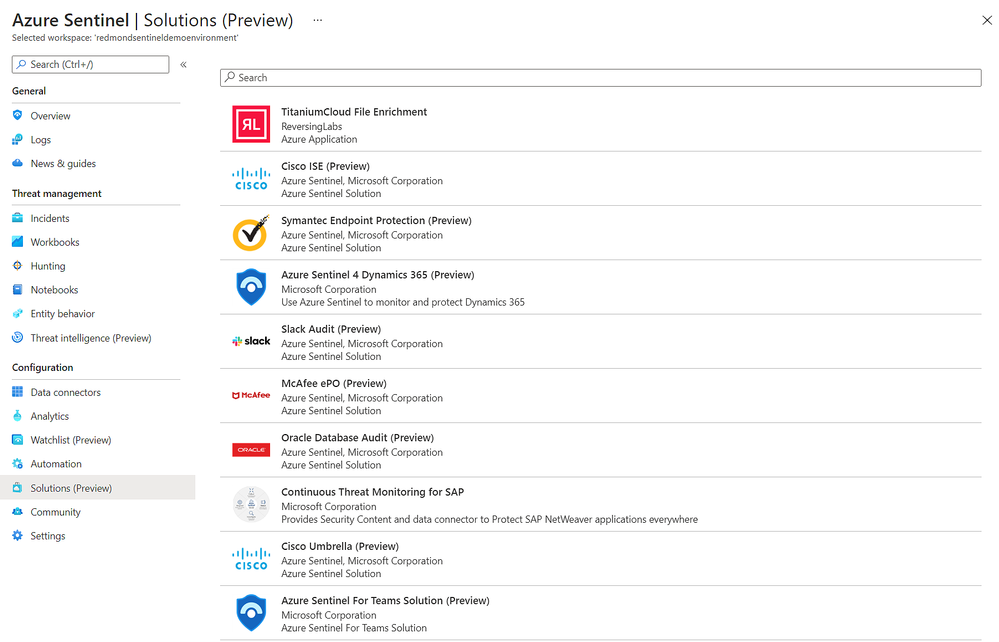
With the release of Azure Sentinel Solutions, now in public preview, we’re providing a new, easier way to discover and deploy use cases for Azure Sentinel. Solutions consolidate related connectors and content, and can include data connectors, analytics rules to power detections, interactive workbooks, automation playbooks, and more so you can easily enable new use cases for integrations, end-to-end, from a single package.
The Solutions marketplace features 32 solutions that includes:
- Palo Alto Prisma and Cloudflare solutions to give you visibility into your cloud workloads.
- Threat intelligence solutions from RiskIQ, and ReversingLabs to enrich your threat detection, hunting and response capabilities.
- Azure SQL and Oracle database audit solutions to monitor your database anomalies.
- And many more, like PingFederate for monitoring identity and access, Cisco Umbrella solution for threat protection, McAfee ePo solution for endpoint protection, Microsoft Teams solution for productivity workloads, and more.
Visit the in Azure Sentinel to see all available solutions. Partners and community members can build and contribute new solutions by following the guidelines on the Azure Sentinel GitHub.
Monitor your SAP applications and respond quickly to threats
One of the most highly anticipated solutions for Azure Sentinel is our SAP threat monitoring solution. Now, you can use Azure Sentinel to monitor your SAP applications across Azure, other clouds, and on-premises.
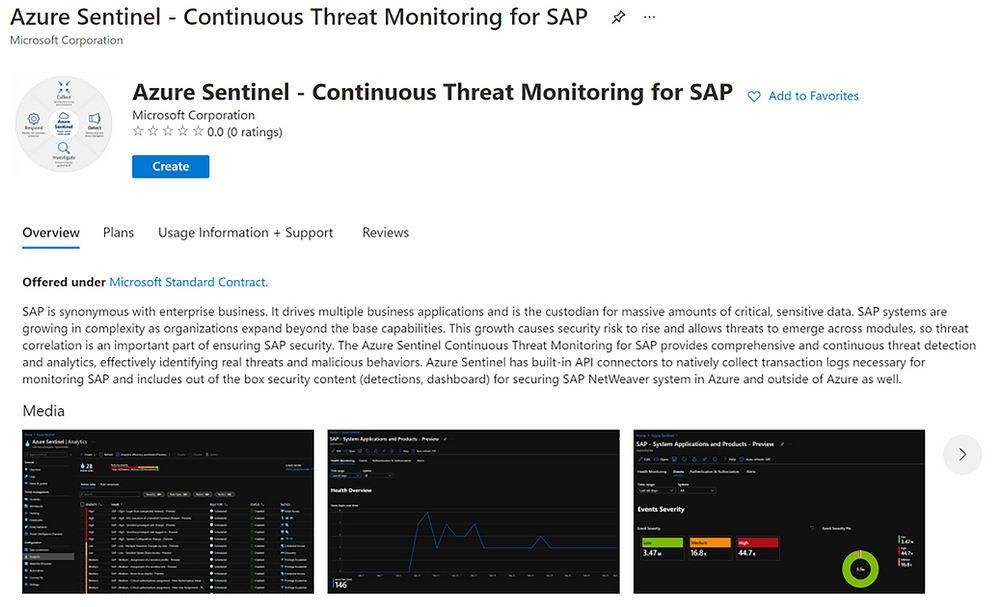
SAP handles massive amounts of extremely sensitive data. These increasingly-complex systems are business critical, and a security breach to them could be catastrophic. With the release of the Azure Sentinel continuous threat monitoring solution, now in Public Preview, Azure Sentinel provides continuous threat detection and analytics to identify real threats and malicious behaviors. The SAP threat monitoring solution provides connectors, analytics rules to power detections, interactive workbooks, and more to help organizations detect threats to their SAP environments and respond quickly.
Learn more in documentation for the SAP threat monitoring solution.
Tap into the power of ML with new easy-to-tune anomaly detections
With the release of customizable ML anomalies, now in Public Preview, we’re introducing a code-free experience to help security analysts get the most out of machine learning. These anomalies span the attack chain, today covering 11 of the 14 total MITRE ATT&CK tactics.
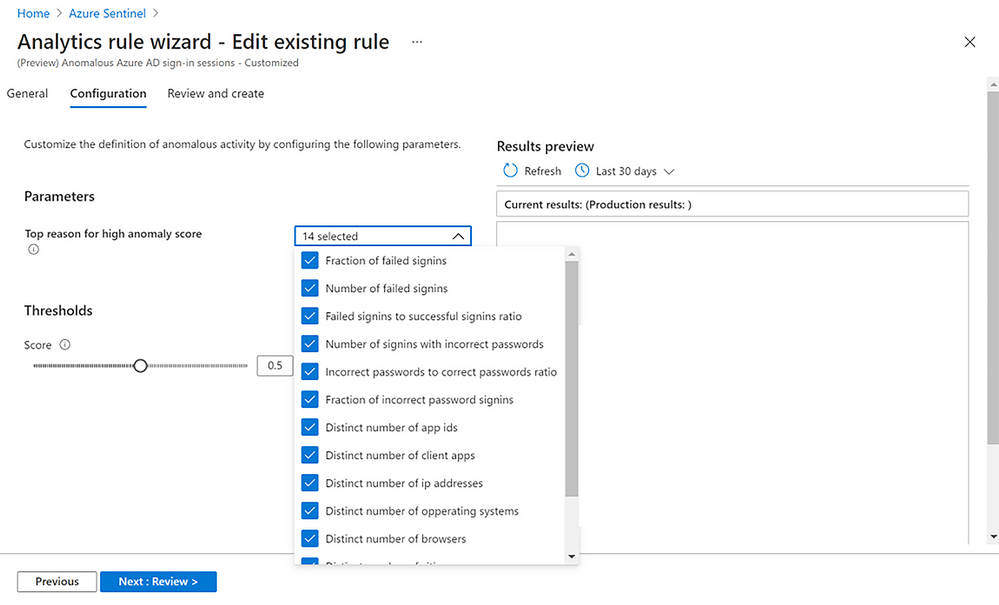
Security analysts can customize the parameters used in the ML model to tune anomalies to their specific needs, cutting down noise and ensuring that anomalies are detecting what’s relevant to your specific organization. For example, you can add or remove file extensions to prioritize/exclude document types for detecting mass downgrade AIP document sensitive labels, such as from High confidential to Public, or adjust the threshold of the number of documents that is considered a mass downgrade — customization that is especially useful given that different organizations often have different file sensitivity processes. In another example, you can also customize fourteen different parameters that affect the ML score of anomalous Azure Active Directory sign-in sessions, as well as the threshold for triggering these anomalies, so you can tailor the ML models based on your organization’s processes, priorities, and user behavior.
Learn more about customizable ML anomalies here.
Collaborate more efficiently with native Microsoft Teams integration
Many of our customers use Microsoft Teams to collaborate across security operations teams during investigations. Our new integration with Microsoft Teams, now in Public Preview, will make that easier than ever.
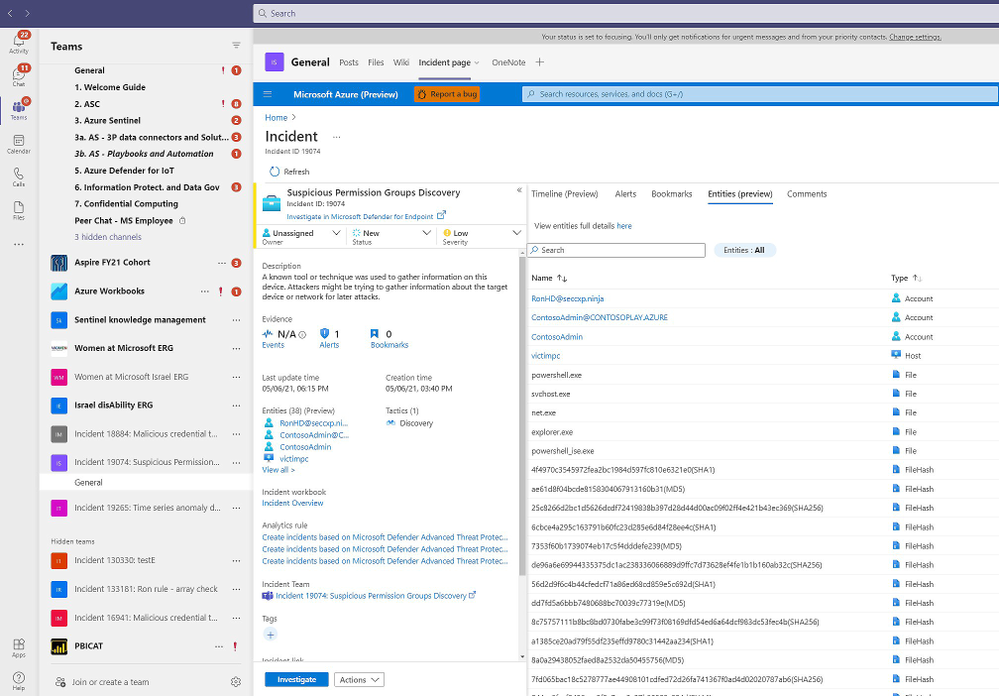
Azure Sentinel now integrates with Microsoft Teams so that, with a single click, you can create a Team for a particular incident. Use this Team as your central hub for investigation across members of the security team, all with easy access to the incident in a tab within it. When the incident is closed in Azure Sentinel, the Team is automatically archived, providing a record of the investigation should you need to reference it in the future.
Learn more about the Microsoft Teams collaboration integration here.
Improve SOC hunting visibility with a refreshed hunting dashboard
Now in public preview, a refreshed hunting query experience helps you find undetected threats more quickly and identify which hunting results are most relevant to your environment.
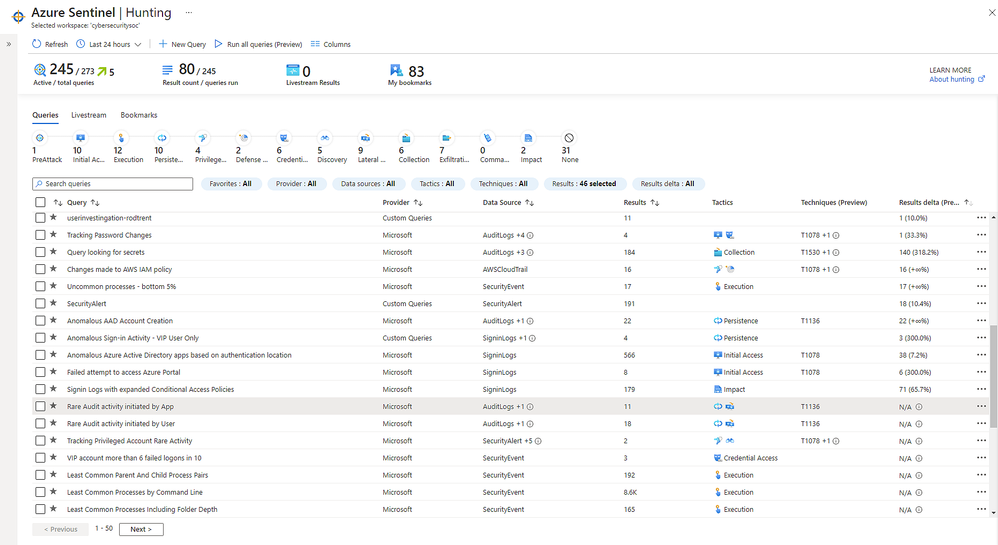
You can now run all your hunting queries, or a selected subset, in a single click. To contextualize your results, you can search for or filter results based on specific MITRE ATT&CK techniques. You can also identify spikes of activity with new “result deltas” to see which results have changed the most in the last 24 hours. As you filter through your queries and results, the new MITRE ATT&CK tactic bar dynamically updates to show which MITRE ATT&CK tactics apply.
Learn more about new hunting dashboard features here.
New IP entity page accelerates triage and investigation
Also in public preview, the IP entity page is the latest addition to Azure Sentinel’s User and Entity Behavior Analytics capabilities. Like the host and account pages, the IP page helps analysts quickly triage and investigate security incidents. The IP page aggregates information from multiple Microsoft and 3rd party data sources and includes insights like threat indicator data, network session data, host IP mappings, and first/last seen information – which is retained even if the earliest records age out of the retention period.
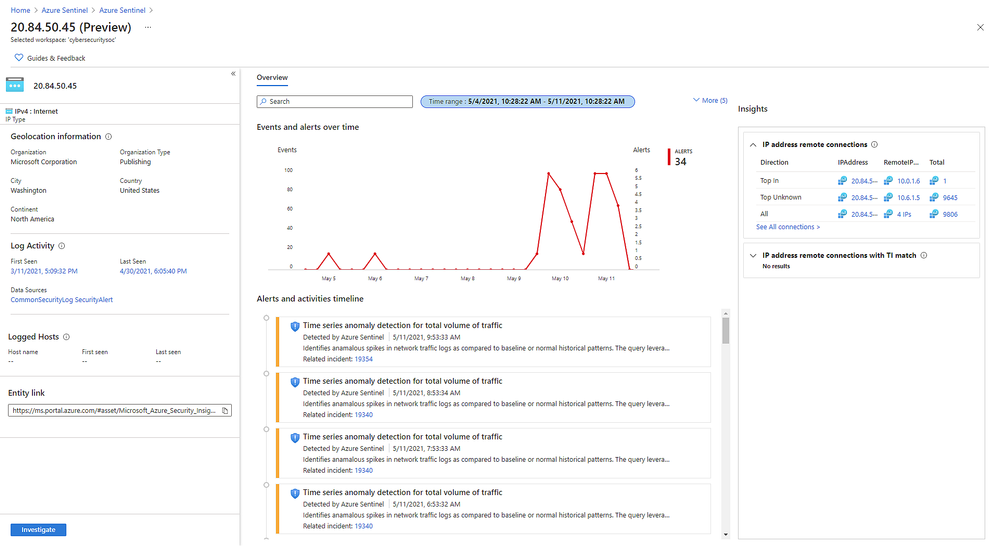
A key insight presented in IP entity pages is geolocation information, which is often used to assess the security relevance of an IP address. We provide geolocation enrichment data from the Microsoft Threat Intelligence service. This service combines data from Microsoft solutions with 3rd party vendors and partners. It will soon be available via REST API for security investigation scenarios to Azure Sentinel customers.
Learn more about the IP entity page here.
Detect advanced multistage attacks with new scheduled analytics rules in Fusion
Azure Sentinel leverages a machine learning technology called Fusion to automatically detect multistage attacks by identifying combinations of anomalous behaviors and suspicious activities that are observed at various stages of the kill-chain. There are currently 90 multistage attack scenarios detected by Azure over medium and low severity alerts from Microsoft threat protection services and third party sources, like Palo Alto Networks.
To help you discover threats tailored to your environment, we are releasing multistage attack scenarios that leverage a set of custom scheduled analytic rules to public preview. With these rules, Fusion can detect 32 new scenarios by combining alerts from the scheduled analytics rules, which detect specific events or sets of events across your environment, with alerts from Microsoft Cloud App Security or Azure Active Directory Identity Protection.
Learn more about the supported scenarios and how to configure your scheduled analytics rules here.
Next Steps
Learn more about these new innovations and see them in action in our upcoming webinar on May 26 at 8 AM Pacific. Register here.
For RSA, Microsoft released a number of innovations across security, compliance, and identity solutions. Learn more in the blog by CVP Security, Compliance, and Identity Vasu Jakkal. Join us for a live webinar on May 27 at 8 AM Pacific to learn more about new innovations across Microsoft security – register here.
by Contributed | May 12, 2021 | Technology
This article is contributed. See the original author and article here.
Today, we are announcing Azure Sentinel Solutions in public preview, featuring a vibrant gallery of 32 solutions for Microsoft and other products. Azure Sentinel solutions provide easier in-product discovery and single-step deployment of end-to-end product, domain, and industry vertical scenarios in Azure Sentinel. Solutions also enables Microsoft partners to deliver combined value for their integrations and productize their investments in Azure Sentinel. This experience is powered by Azure Marketplace for solutions’ discovery and deployment, and by Microsoft Partner Center for solutions’ authoring and publishing.
Azure Sentinel solutions currently include integrations as packaged content with a combination of one or many Azure Sentinel data connectors, workbooks, analytics, hunting queries, playbooks, and parsers (Kusto Functions) for delivering end-to-end product value or domain value or industry vertical value for your SOC requirements. All these solutions are available for you to use at no additional cost (regular data ingest or Azure Logic Apps cost may apply depending on usage of content in Azure Sentinel).
Few use cases of Azure Sentinel solutions are outlined as follows.
- On-demand out-of-the-box content: Solutions unlock the capability of getting rich Azure Sentinel content out-of-the-box for complete scenarios as per your needs via centralized discovery in Solutions gallery and single step deployment capability. Feel free to customize this content per your needs post deploy!
- Unlock complete product value: Discover and deploy a solution for not only onboarding the data for a certain product, but also monitor the data via workbooks, generate custom alerts via analytics in the solution package, use the queries to hunt for threats for that data source and run necessary automations as applicable for that product.
- Unlock domain value: Discover and deploy solutions for specific Threat Intelligence automation scenarios or zero-day vulnerability hunting, analytics, and response scenarios.
- Unlock industry vertical value: Get solutions for ERP scenarios or Healthcare or finance compliance needs in a single step.
- And more to unlock complete SIEM and SOAR capabilities in Azure Sentinel.
Get Started
Select from the rich set of 30+ Solutions to start working with the specific content set in Azure Sentinel immediately. Steps to discover and deploy Solutions is outlined as follows. Refer to the Azure Sentinel solutions documentation for further details.
Discover Solutions
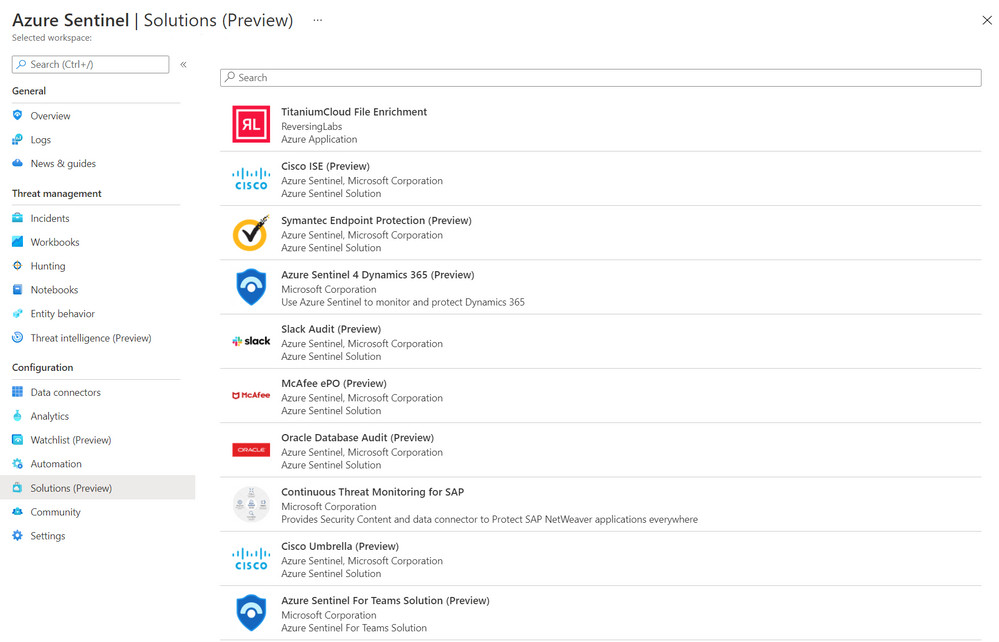
- Select Solutions (Preview) from the Azure Sentinel Solutions navigation menu.
- This displays a searchable list of solutions for you to select from. Azure Sentinel Solutions Blade
- Click Load more at the bottom of the page to see more solutions.
- Select solution of your choice and click on it to display the solutions details view.
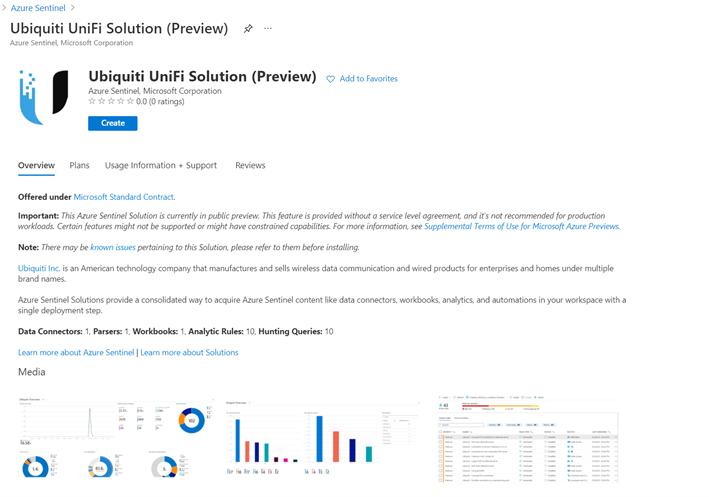
- You can now view the Overview tab that includes important details of the solution and the content included in the solution package as illustrated in the diagram below.
 Solution details
- The Plans tab covers information about the license terms. All the solutions included in the Solutions gallery are available at no additional cost to install.
- The Usage Information + Support tab includes information about the publisher details for each solution and also a direct link to the support contact for the respective solution.
Deploy Solutions
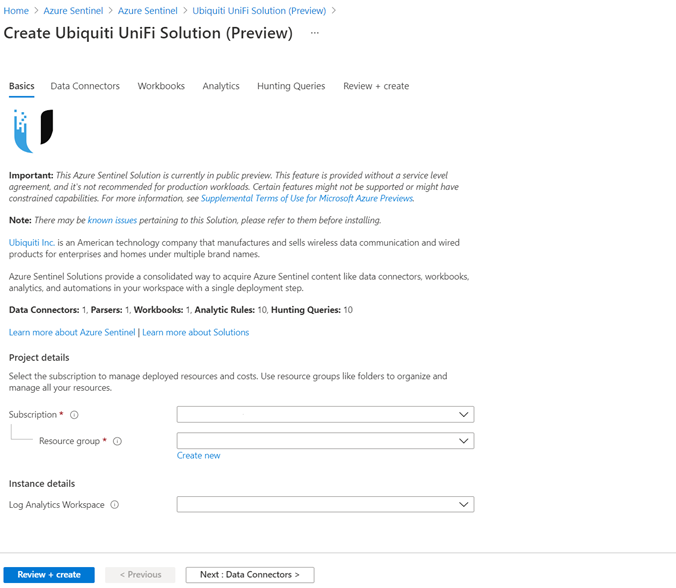
- Select the Create button in the solutions detail page to deploy the solution.
- You can now enter information in each tab of the solutions deployment flow and move to the next tab to enable deployment of this solution as illustrated in the following diagram.
 Solution deploy
Finally select Review and create that will trigger the validation process and upon successful validation select Create to run solution deployment.
Visit the respective feature galleries to customize (as needed), configure, and enable the relevant content included in the Solution package. For e.g., if the Solution deploys a data connector, you’ll find the new data connector in the Data connector blade of Azure Sentinel from where you can follow the steps to configure and activate the data connector.
Partner Scenario: Deliver Solutions
Microsoft partners like ISVs, Managed Service Providers, System Integrators, etc. can follow the 3-step process outlined below to author and publish a solution to deliver product, domain, or vertical value for their products and offerings in Azure Sentinel. Refer to the guidance on Azure Sentinel GitHub for further details on each step.
Step 1. Create Azure Sentinel content for your product / domain / industry vertical scenarios and validate the content.
Step 2. Package content created in the step above. Use the new packaging tool that creates the package and also runs validations on it.
Step 3. Publish your Azure Sentinel solution by creating an offer in Microsoft Partner Center, uploading the package generated in the step above and sending in the offer for certification and final publish. Partners can track progress on their offer in Partner Center dashboard view as shown in the diagram below. 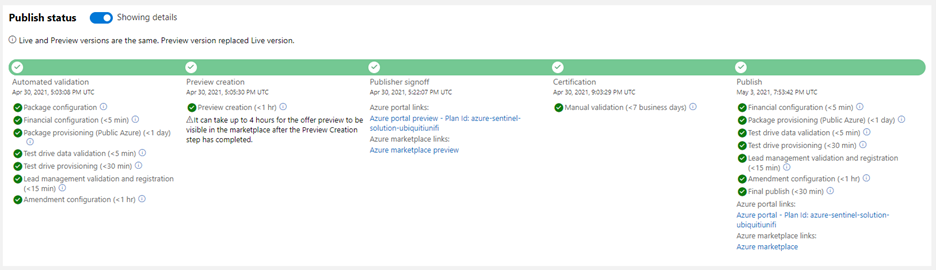 Solution build
New Azure Sentinel Solutions
The Azure Sentinel Solutions gallery showcases 32 new solutions covering depth and breadth of various product, domain, and industry vertical capabilities. These out-of-the-box content packages enable to get enhanced threat detection, hunting and response capabilities for cloud workloads, identity, threat protection, endpoint protection, email, communication systems, databases, file hosting, ERP systems and threat intelligence solutions for a plethora of Microsoft and other products and services.
SAP Continuous Threat Monitoring
Use the SAP continuous threat monitoring solution to monitor your SAP applications across Azure, other clouds, and on-premises. This solution package includes a data connector to ingest data, workbook to monitor threats and a rich set of 25+ analytic rules to protect your applications. 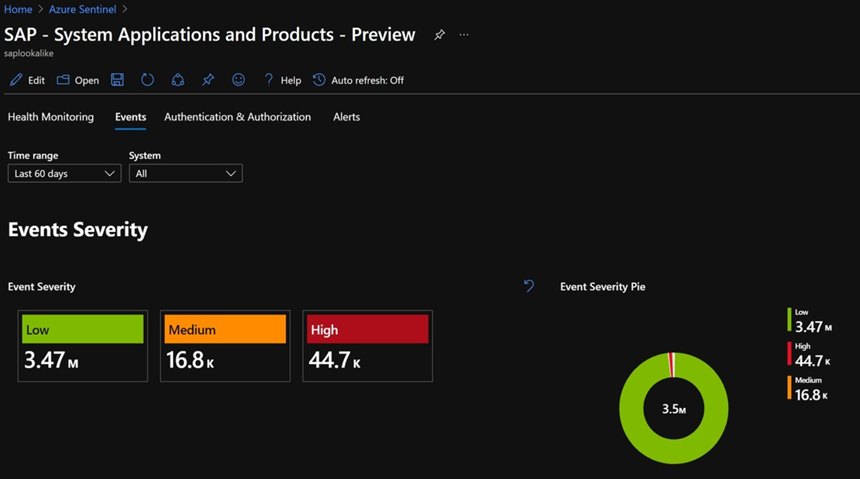 SAP Solution
Cisco Solutions
There are two solutions for Cisco Umbrella and Cisco Identity Services Engine (ISE). The Cisco Umbrella solution provides multiple security functions to enable protection of devices, users, and distributed locations everywhere. The Cisco ISE solution includes data connector, parser, analytics, and hunting queries to streamline security policy management and see users and devices controlling access across wired, wireless, and VPN connections to the corporate network.
PingFederate
PingFederate solution includes data connectors, analytics, and hunting queries to enable monitoring user identities and access in your enterprise.
CrowdStrike Falcon Protection Platform
The CrowdStrike solution includes two data connectors to ingest Falcon detections, incidents, audit events and rich Falcon event stream telemetry logs into Azure Sentinel. It also includes workbooks to monitor CrowdStrike detections and analytics and playbooks for automated detection and response scenarios in Azure Sentinel. 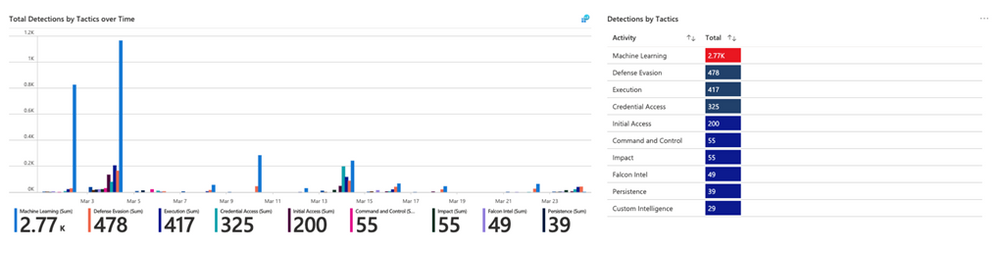 CrowdStrike Solution
McAfee ePolicy Orchestrator
McAfee ePolicy Orchestrator monitors and manages your network, detecting threats and protecting endpoints against these threats leveraging the data connector to ingest McAfee ePo logs and leveraging the analytics to alert on threats.
Palo Alto Prisma
Palo Alto Prisma solution includes data connector to ingest Palo Alto Cloud logs into Azure Sentinel. Leverage the analytics and hunting queries for out-of-the-box detections and threat hunting scenarios besides leveraging the workbooks for monitoring Palo Alto Prisma data in Azure Sentinel.
Corelight
Corelight provides a network detection and response (NDR) solution based on best-of-breed open-source technologies, Zeek and Suricata that enables network defenders to get broad visibility into their environments. The data connector enables ingestion of events from Zeek and Suricata via Corelight Sensors into Azure Sentinel. Corelight for Azure Sentinel also includes workbooks and dashboards, hunting queries, and analytic rules to help organizations drive efficient investigations and incident response with the combination of Corelight and Azure Sentinel. 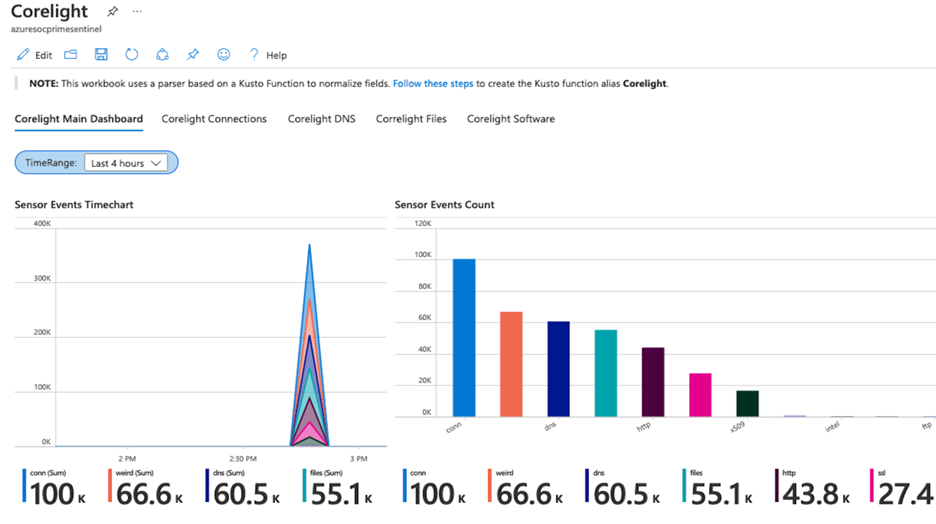 Corelight Solution
Infoblox Cloud
BloxOne DDI enables you to centrally manage and automate DDI (DNS, DHCP and IPAM) from the cloud to any and all locations. BloxOne Threat Defense maximizes brand protection to protect your network and automatically extend security to your digital imperatives, including SD-WAN, IoT and the cloud. His Azure Sentinel solution powers security orchestration, automation, and response (SOAR) capabilities, and reduces the time to investigate and remediate cyberthreats.
RiskIQ Illuminate Security Intelligence
RiskIQ has created several Azure Sentinel playbooks that pre-package functionality in order to enrich, add context to and automatically action incidents based on RiskIQ Internet observations within the Azure Sentinel platform. These playbooks can be configured to run automatically on created incidents in order to speed up the triage process. When an incident contains a known indicator such as a domain or IP address, RiskIQ will enrich that value with what else it’s connected to on the Internet and if it may pose a threat. If a threat is identified, RiskIQ can action the incident including elevating its status and tagging with additional metadata for analysts to review. 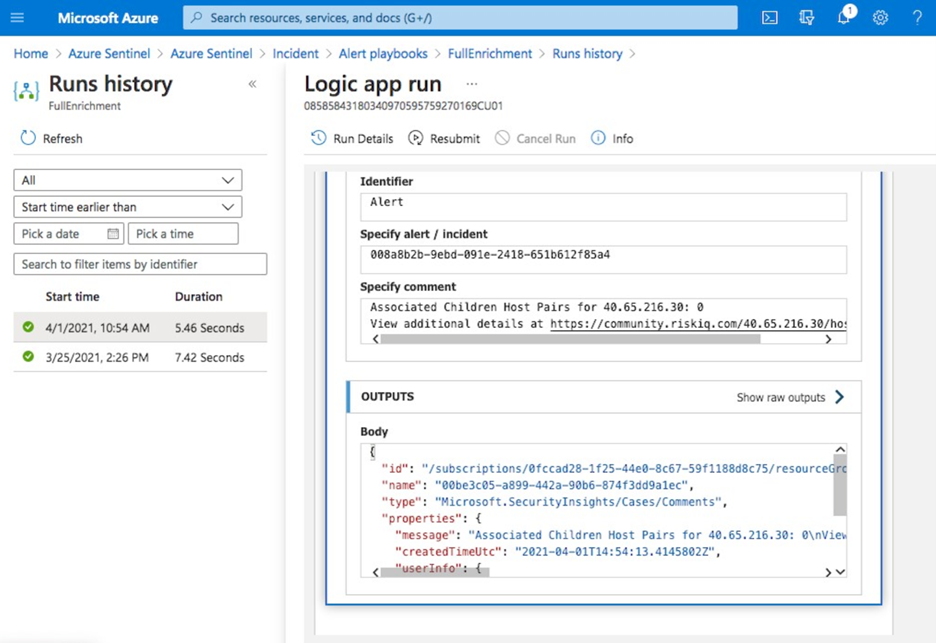 RiskIQ Solution
vArmour Application Controller
Application Controller is an easy to deploy solution that delivers comprehensive real-time visibility and control of application relationships and dependencies, to improve operational decision-making, strengthen security posture, and reduce business risk across multi-cloud deployments. This solution includes data connector to ingest vArmour data and workbook to monitor application dependency and relationship mapping info along with user access and entitlement monitoring.
VMWare Carbon Black
Use this solution to monitor Carbon Black events, audit logs and notifications in Azure Sentinel and analytic rules on critical threats and malware detections to help you get started immediately.
Symantec Solutions
There are two solutions from Symantec. Symantec Endpoint protection solution enables anti-malware, intrusion prevention and firewall features of Symantec being available in Azure Sentinel and help prevent unapproved programs from running, and response actions to apply firewall policies that block or allow network traffic.
Symantec Proxy SG solution enables organizations to effectively monitor, control, and secure traffic to ensure a safe web and cloud experience by monitoring proxy traffic.
Microsoft Teams
Teams serves a central role in both communication and data sharing in the Microsoft 365 Cloud. Since the Teams service touches on so many underlying technologies in the Cloud, it can benefit from human and automated analysis not only when it comes to hunting in logs, but also in real-time monitoring of meetings in Azure Sentinel. The solution includes analytics rules, hunting queries, and playbooks.
Slack Audit
The Slack Audit solution provides ability to get Slack events which helps to examine potential security risks, analyze your organization’s use of collaboration, diagnose configuration problems and more. This solution includes data connector, workbooks, analytic rules and hunting queries to connect Slack with Azure Sentinel.
Azure Firewall
Azure Firewall is a managed, cloud-based network security service that protects your Azure Virtual Network resources. It’s a fully stateful firewall as a service with built-in high availability and unrestricted cloud scalability. This Azure Firewall solution in Azure Sentinel provides built-in customizable threat detection on top of Azure Sentinel. The solution contains a workbook, detections, hunting queries and playbooks.
Sophos XG Firewall
Monitor the network traffic and firewall status using this solution for Sophos XG Firewall. Furthermore, enable the port scans and excessive denied connections analytic rules to create custom alerts and track as incidents for the ingested data.
Qualys VM
Monitor and detect vulnerabilities reported by Qualys in Azure Sentinel by leveraging the new solutions for Qualys VM.
Microsoft Dynamics 365
The Dynamics 365 continuous threat monitoring with Azure Sentinel solution provides you with ability to collect Dynamics 365 logs, gain visibility of activities within Dynamics 365 and analyze them to detect threats and malicious activities. The solution includes a data connector, workbooks, analytics rules, and hunting queries.
Cloudflare
This solution combines the value of Cloudflare in Azure Sentinel by providing information about the reliability of your external-facing resources such as websites, APIs, and applications. Use the detections and hunting queries to protect your internal resources such as behind-the-firewall applications, teams, and devices.
Contrast Protect
Contrast Protect empowers teams to defend their applications anywhere they run, by embedding an automated and accurate runtime protection capability within the application to continuously monitor and block attacks. Contrast Protect seamlessly integrates into Azure Sentinel so you can gain additional security risk visibility into the application layer. 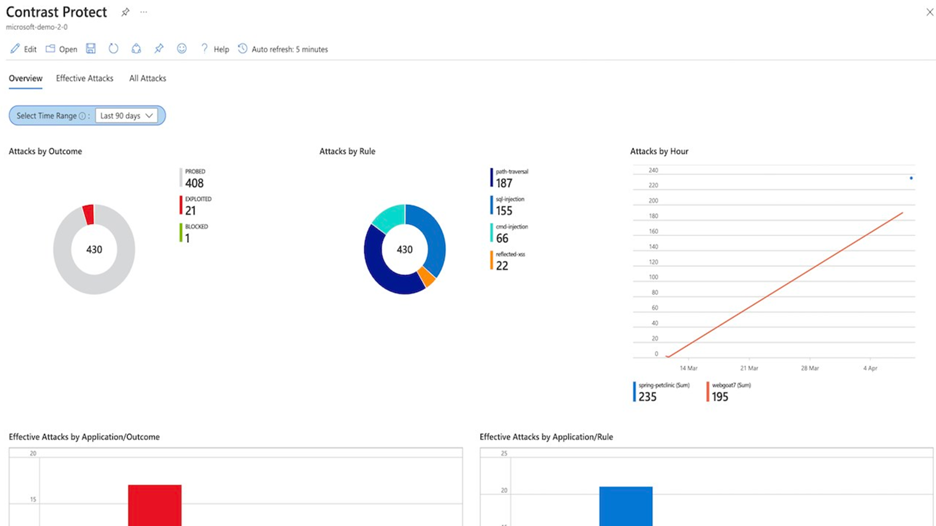 Contrast Protect Solution
Check Point CloudGuard
This solution includes an Azure Logic App custom connector and playbooks for Check Point to offer enhanced integration with SOAR capabilities of Azure Sentinel. Enterprises can correlate and visualize these events on Azure Sentinel and configure SOAR playbooks to automatically trigger CloudGuard to remediate threats.
Senserva
Senserva, a Cloud Security Posture Management (CSPM) for Azure Sentinel, simplifies the management of Azure Active Directory security risks before they become problems by continually producing priority-based risk assessments. Senserva information includes a detailed security ranking for all the Azure objects Senserva manages, enabling customers to perform optimal discovery and remediation by fixing the most critical issues with the highest impact items first. All Senserva’s enriched information is sent to Azure Sentinel for processing by analytics, workbooks, and playbooks in this solution.
HYAS Insight
HYAS Insight is a threat and fraud investigation solution using exclusive data sources and non-traditional mechanisms that improves visibility and triples productivity for analysts and investigators while increasing accuracy. HYAS Insight connects attack instances and campaigns to billions of indicators of compromise to understand and counter adversary infrastructure and includes playbooks to enrich and add context to incidents within the Azure Sentinel platform.
Titanium Cloud File Enrichment from ReversingLabs
TitaniumCloud is a threat intelligence solution providing up-to-date file reputation services, threat classification and rich context on over 10 billion goodware and malware files. Files are processed using ReversingLabs File Decomposition Technology. A powerful set of REST API query and feed functions deliver targeted file and malware intelligence for threat identification, analysis, intelligence development, and threat hunting services in Azure Sentinel.
Proofpoint Solutions
Two Solutions for Proofpoint enables bringing in email protection capability into Azure Sentinel. Proofpoint OnDemand Email security (POD) classifies various types of email, while detecting and blocking threats that don’t involve malicious payload. Proofpoint Targeted Attack Protection (TAP) solution helps detect, mitigate and block advanced threats that target people through email in Azure Sentinel. This includes attacks that use malicious attachments and URLs to install malware or trick users into sharing passwords and sensitive information.
Azure SQL database
This solution provides built-in customizable threat detection for Azure SQL PaaS services in Azure Sentinel, based on SQL Audit log and with seamless integration to alerts from Azure Defender for SQL. This solution includes a guided investigation workbook with incorporated Azure Defender alerts. Furthermore, it includes analytics to detect SQL DB anomalies, audit evasion and threats based on the SQL Audit log, hunting queries to proactively hunt for threats in SQL DBs and a playbook to auto-turn SQL DB audit on. 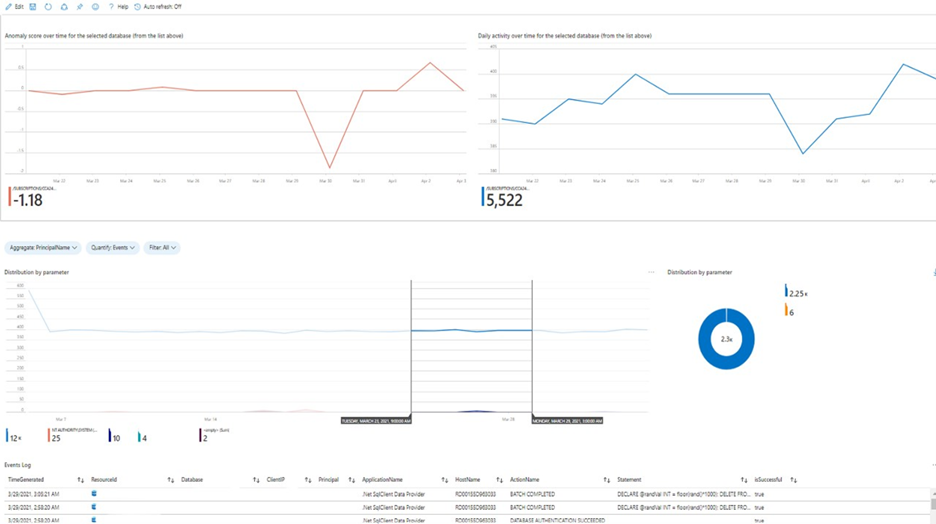 Azure SQL Solution
Oracle Database
Oracle Database Unified Auditing enables selective and effective auditing inside the Oracle database using policies and conditions and brings these database audit capabilities in Azure Sentinel. This solution comes with a data connector to get the audit logs as well as workbook to monitor and a rich set of analytics and hunting queries to help with detecting database anomalies and enable threat hunting capabilities in Azure Sentinel.
Ubiquity UniFi
This solution includes data connector to ingest wireless and wired data communication logs into Azure Sentinel and enables to monitor firewall and other anomalies via the workbook and set of analytics and hunting queries.
Box
Box is a single, secure, easy-to-use platform built for the entire content lifecycle, from file creation and sharing, to co-editing, signature, classification, and retention. This solution delivers capabilities to monitor file and user activities for Box and integrates with data collection, workbook, analytics and hunting capabilities in Azure Sentinel.
Closing
Azure Sentinel Solutions is just one of several exciting announcements we’ve made for the RSA Conference 2021. Learn more about other new Azure Sentinel innovations in our announcements blog.
Discover and deploy solutions to get out-of-the-box and end-to-end value for your scenarios in Azure Sentinel. Let us know your feedback using any of the channels listed in the Resources.
We also invite partners to build and publish new solutions for Azure Sentinel. Get started now by joining the Azure Sentinel Threat Hunters GitHub community and follow the solutions build guidance.
by Contributed | May 12, 2021 | Technology
This article is contributed. See the original author and article here.
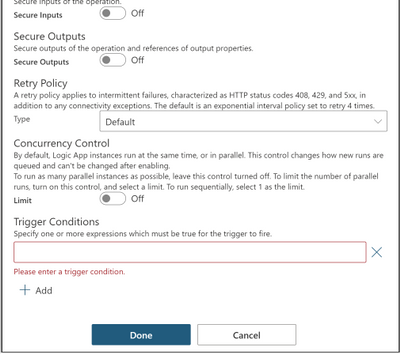
Trigger conditions is a trigger setting used to specify one or more conditional expressions which must be true for the trigger to fire.
Trigger conditions can be set using logic app designer or manually using code view; for schema reference for trigger conditions, check the following link: Schema reference for trigger and action types – Azure Logic Apps | Microsoft Docs
To set trigger conditions using logic app designer, follow the steps below:
1- Go to your logic app.
2- On the trigger, click on the three dots (…) at the top right corner.
3- Select Settings.
4- Scroll down to Trigger Conditions.
5- Specify your conditional expression.
6-Click Done.
You can set single or multiple conditions as follows:
Single Condition
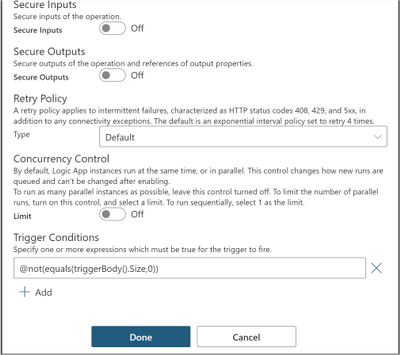
In this example, we apply trigger filter @not(equals(triggerBody().Size,0)) on the When a blob is added or modified (properties only) trigger settings under Trigger Conditions, so that the logic app is not triggered with empty files.
Multiple conditions
You can define multiple conditions but the logic app will only fire if all conditions are met.
Two or more AND conditions
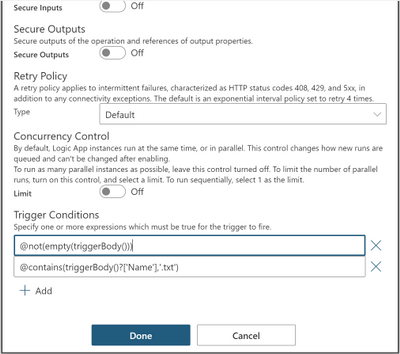
@not(empty(triggerBody())) and @contains(triggerBody()?[‘Name’],’.txt’)
This trigger will only fire if the trigger body is not empty and the file is a text file by checking if the name property contains ‘.txt’ extension inside the trigger body.
Two or more OR conditions
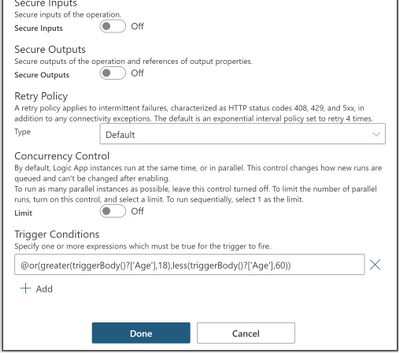
@or(greater(triggerBody()?[‘Age’],18),less(triggerBody()?[‘Age’],60))
This trigger will only fire if the age is greater than 18 or less than 60 by checking the age property inside the trigger body.
OR and AND Conditions together
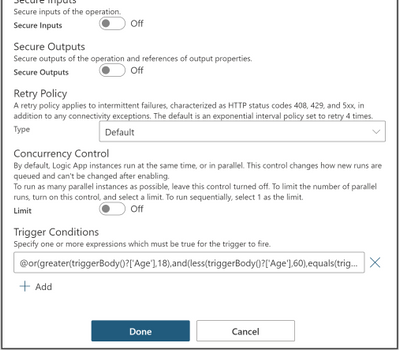
@or(greater(triggerBody()?[‘Age’],18),and(less(triggerBody()?[‘Age’],60),equals(triggerBody()?[‘Fit’],true)))
This trigger will only fire if the age is greater than 18 or less than 60 and fit is true by checking the age and fit properties inside the trigger body.
For reference guide for logical comparison functions that can be used in conditional expressions, check the following link: Reference guide for functions in expressions – Azure Logic Apps | Microsoft Docs
Split On Behavior
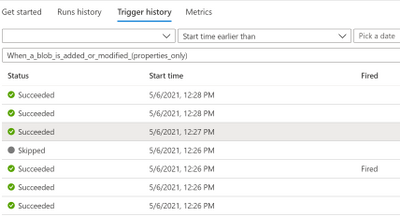
If you apply it on a trigger with Split On enabled, the conditions are evaluated after the splitting which guarantees that only the array
elements that match the conditions are fired.
In this case, you will see one trigger event for each element in the trigger history, triggers that did not fire due to trigger conditions will be found in Trigger History.
Pros
- Simple logic app with less steps by moving logic that would usually be inside the logic app to define if the logic app can be executed or not to inside the trigger itself.
- Clean workflow run history that reduces operational burden by eliminating unwanted runs.
- Reduced costs by reducing the action calls made for checking the conditions within logic app.
Cons
- Trigger conditions are not visible which make it hard to troubleshoot; so, it is recommended to modify trigger name to indicate that there are trigger conditions set.
- Adding trigger conditions does not support intellisense; so, it is recommended to draft your expression within an initialize variable or compose action, note that in these actions, an @ is not needed at the beginning of the expression, but within trigger conditions it is needed
- Runs that did not meet the trigger conditions will not show in the runs history.


Recent Comments